Quick Start a Live Stream
Updated: 2026-08-17 11:27:00
Quick Start a Live Stream
Last updated: 2025-03-14
I. Feature Overview
Feature Info |
Description |
|---|---|
| Feature Name | Quick Start a Live Stream |
| Purpose | Help new users quickly start a live stream using Polyv live streaming technology |
| Operation Path | 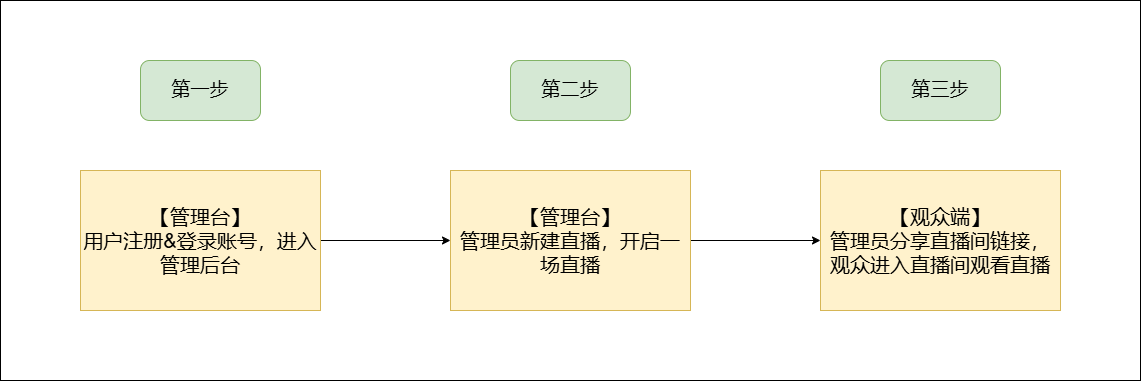 |
| Feature List | Create live channel, Set live info, Start live stream |
II. Instructions
Registration & Login
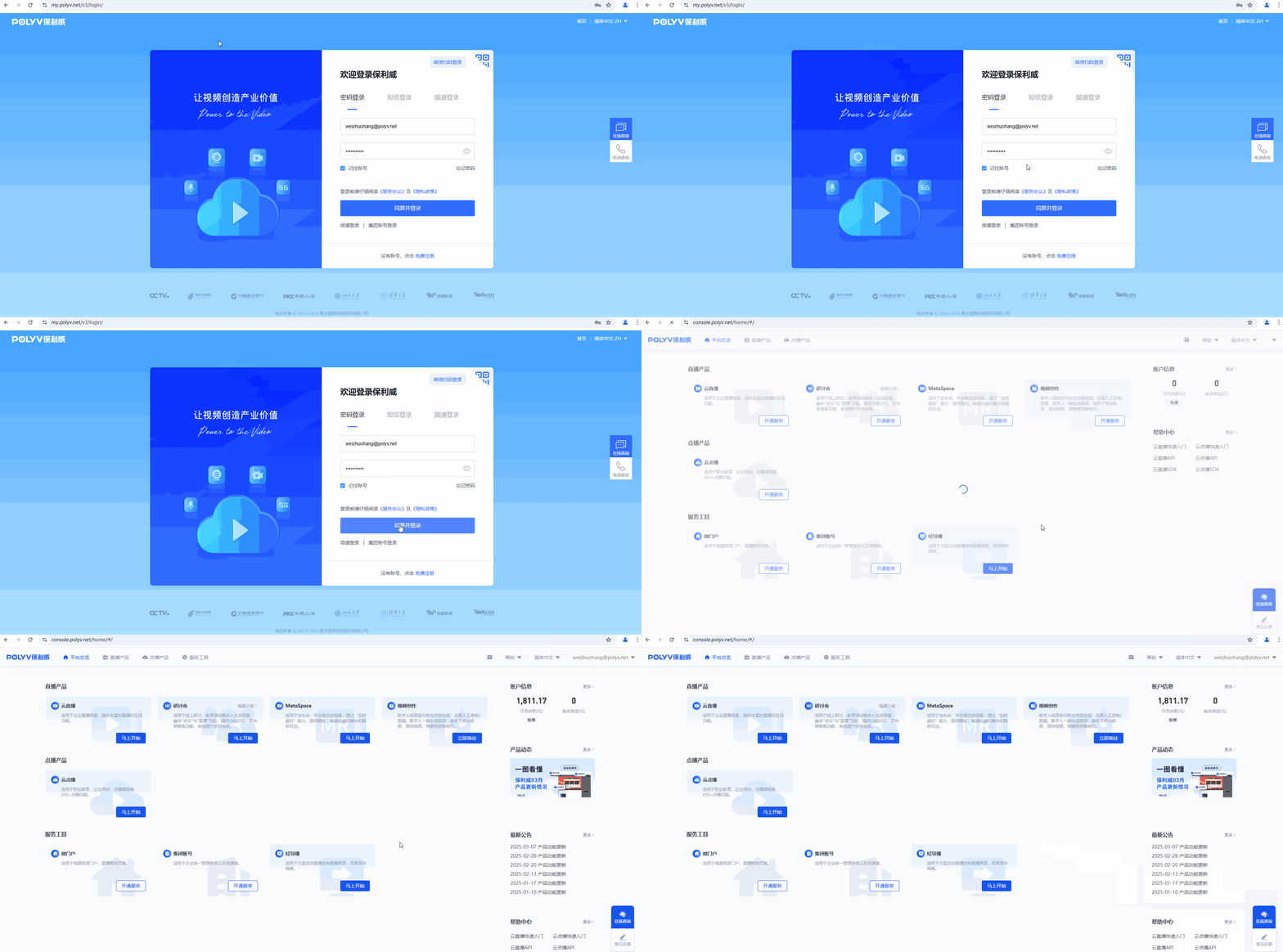
- Go to the official website: https://www.polyv.net/, click the login button in the top right corner, and register an account via WeChat scan or phone number.

- After registering, you can log in using one of three methods: password login, SMS login, or channel login, to enter the management console.
Create a New Live Stream
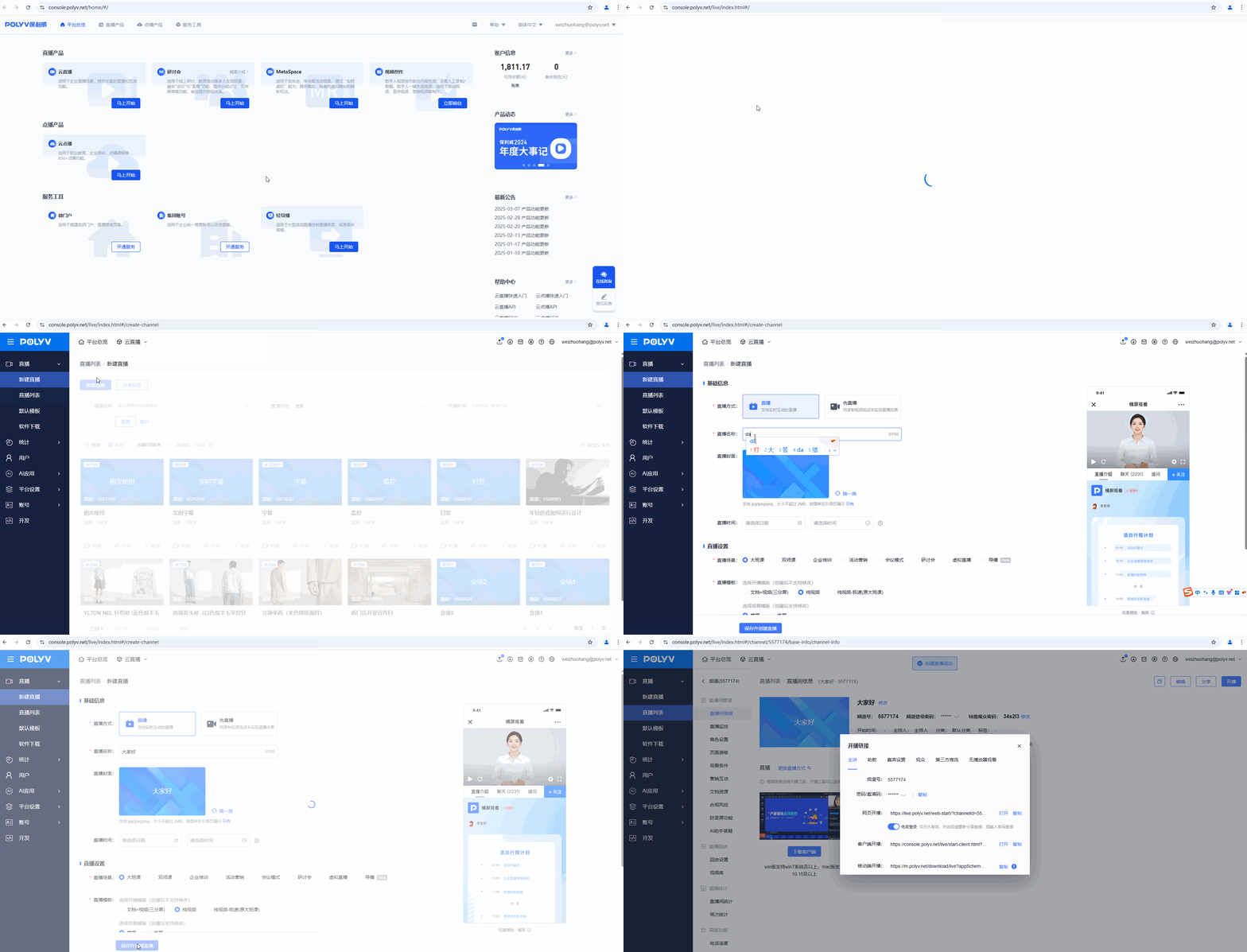
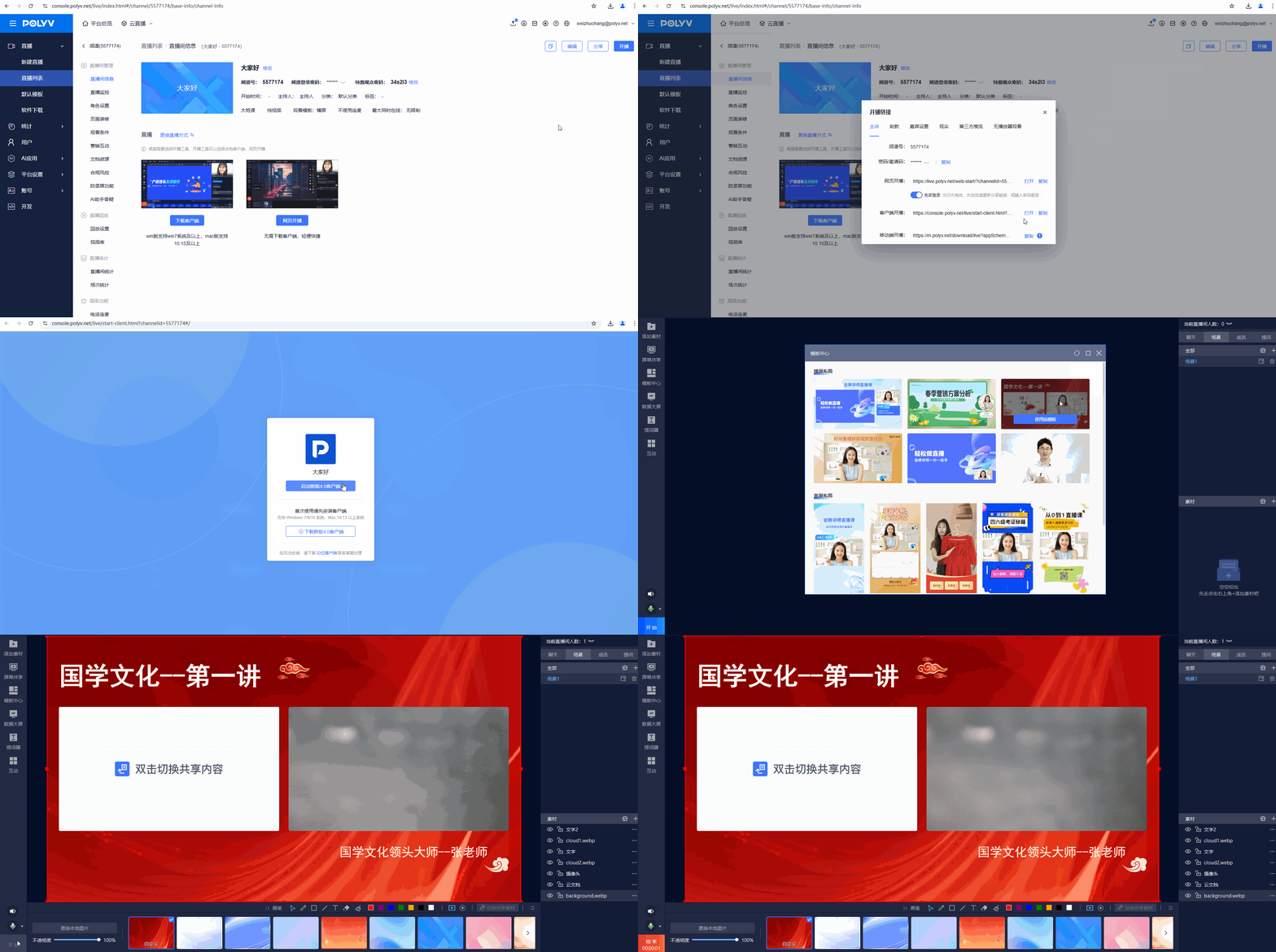
How to quickly create a new live stream? First, click "Start Now", then click "New Live Stream", enter the live stream name, and click "Save and Create Live Room". A live stream is now created.
Start Streaming
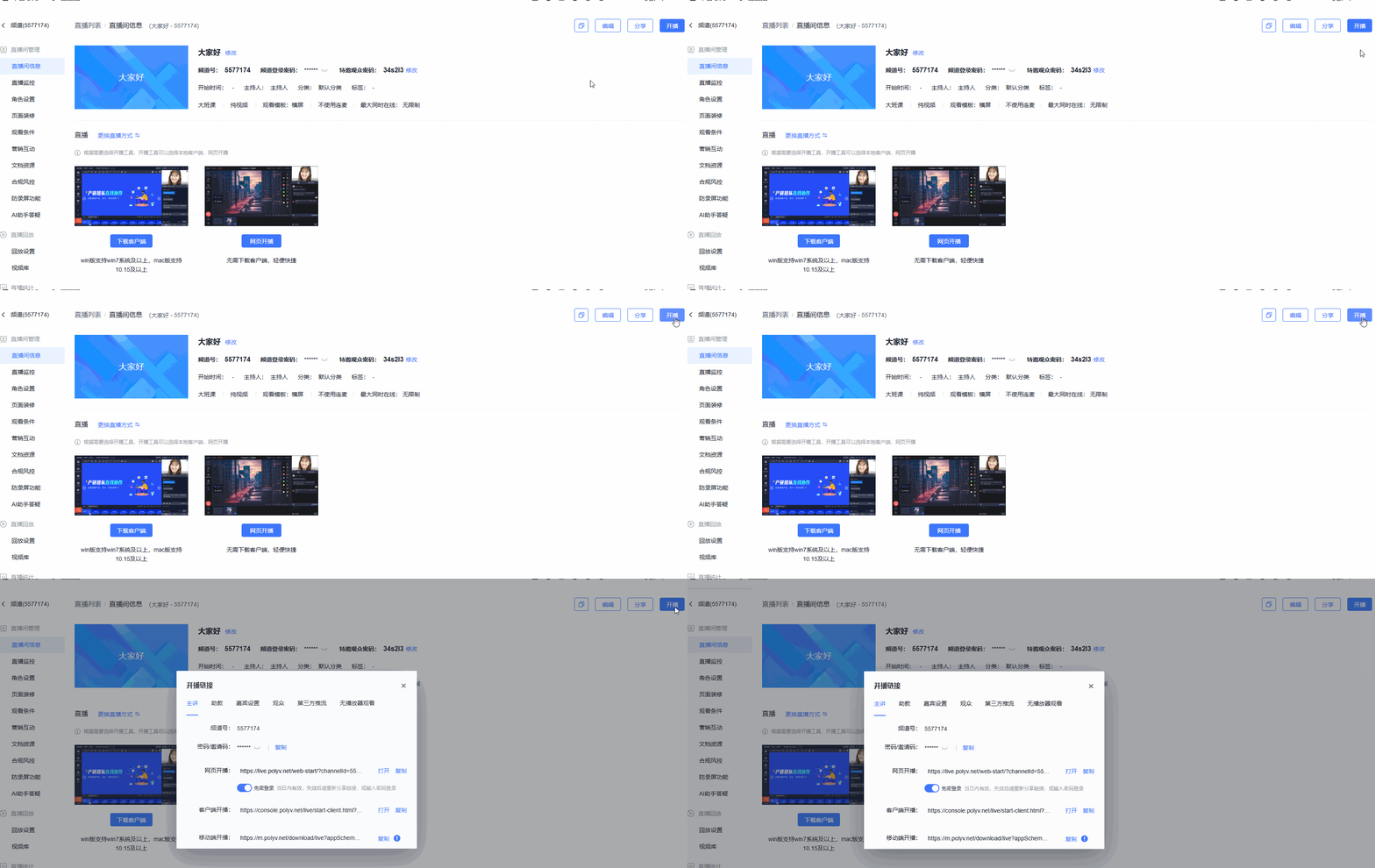
The start streaming link will pop up the first time you create a live stream. To reopen it, click the "Start Streaming" button in the top right corner.
Web Streaming
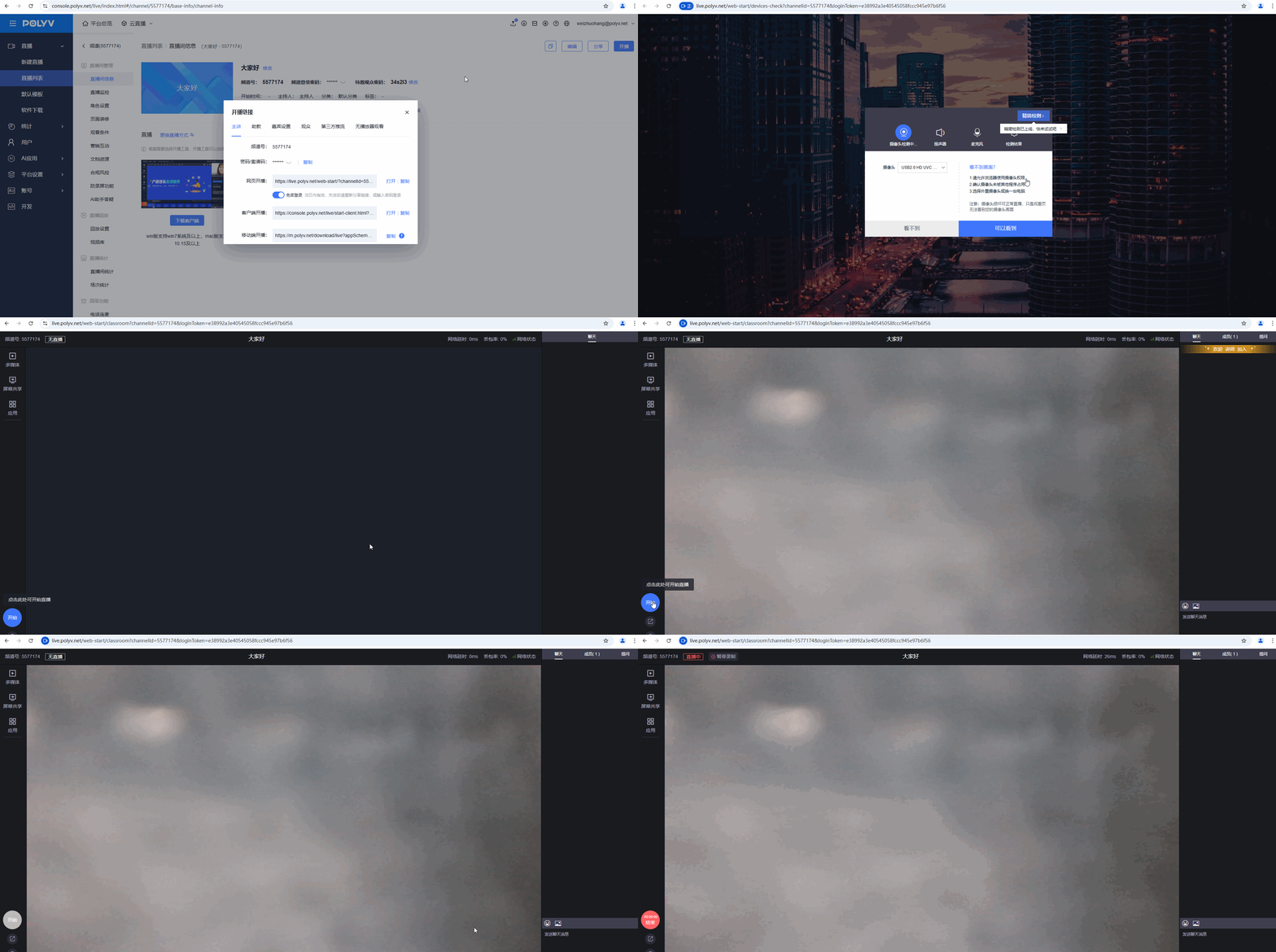
Open the web streaming link, check device connection integrity, and click the "Start" button in the bottom left corner. Streaming starts successfully.
Client Streaming
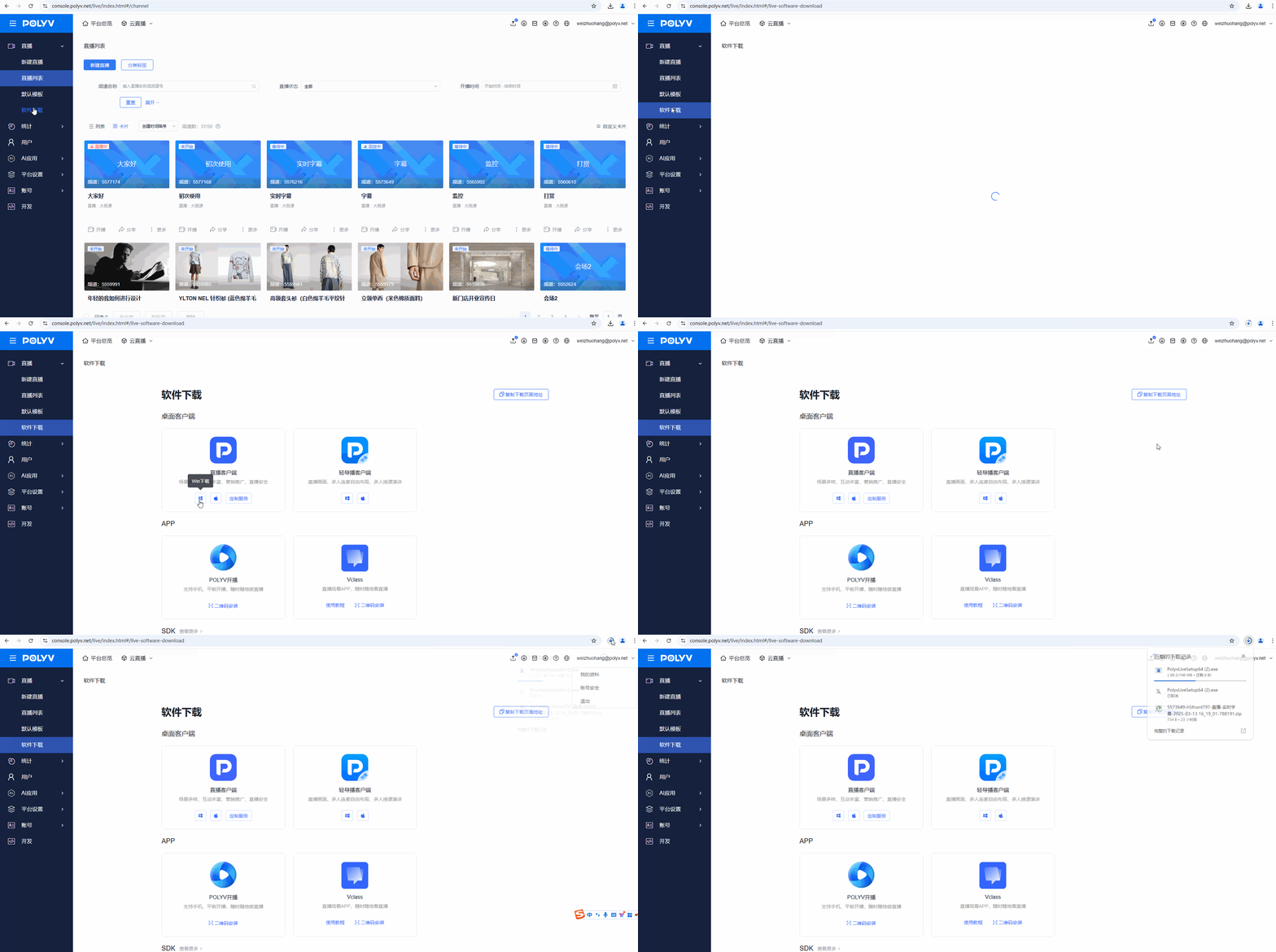
- Client streaming requires downloading the client in advance. You can download it from the software download page.
- Enter the streaming link, click "Client Streaming", then click "Launch New 4.0 Client". The client will be launched automatically. Click the "Start" button in the bottom left corner. Streaming starts successfully.
Mobile Streaming
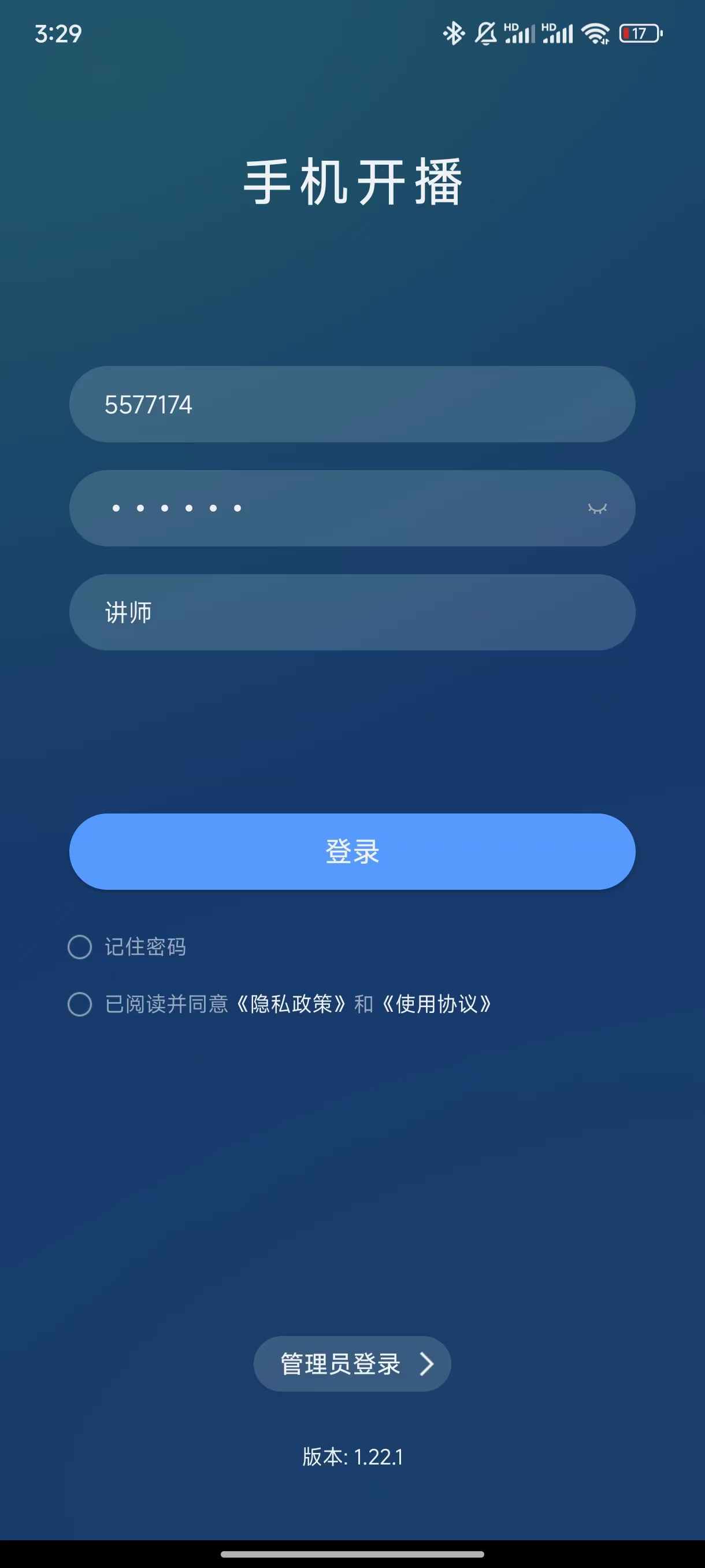
- Mobile streaming requires downloading the mobile streaming app first. You can scan the QR code to install it, or search for "Polyv Streaming" directly in your phone's app store.

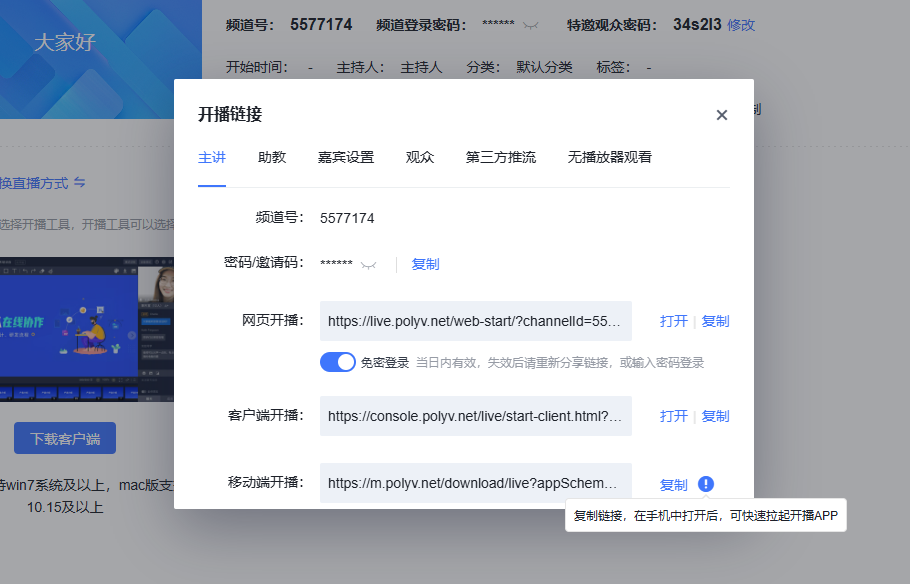
- Copy the mobile streaming link and open it on your phone to quickly launch the streaming app.
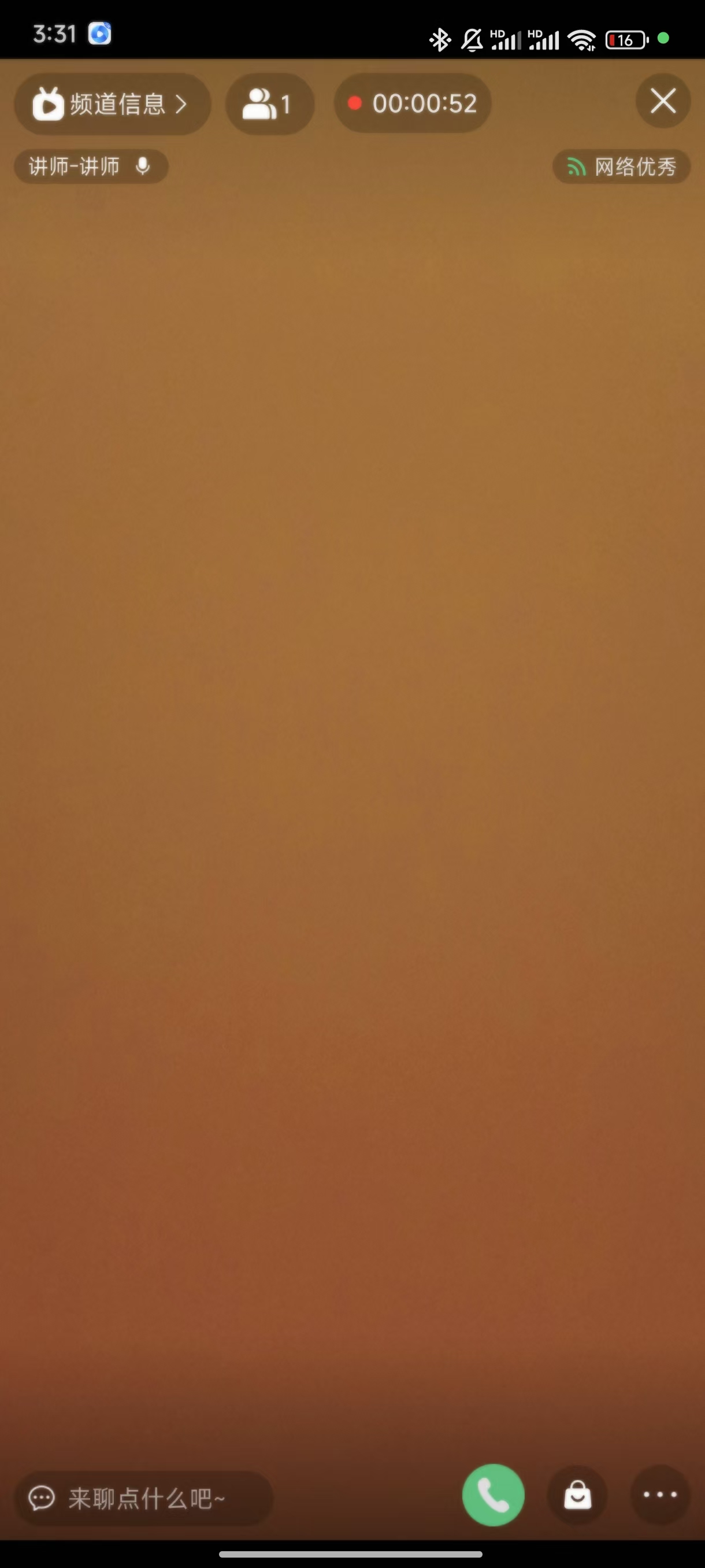
- Click "Start Streaming" to begin streaming successfully.
Watch the Live Stream
Web Viewing
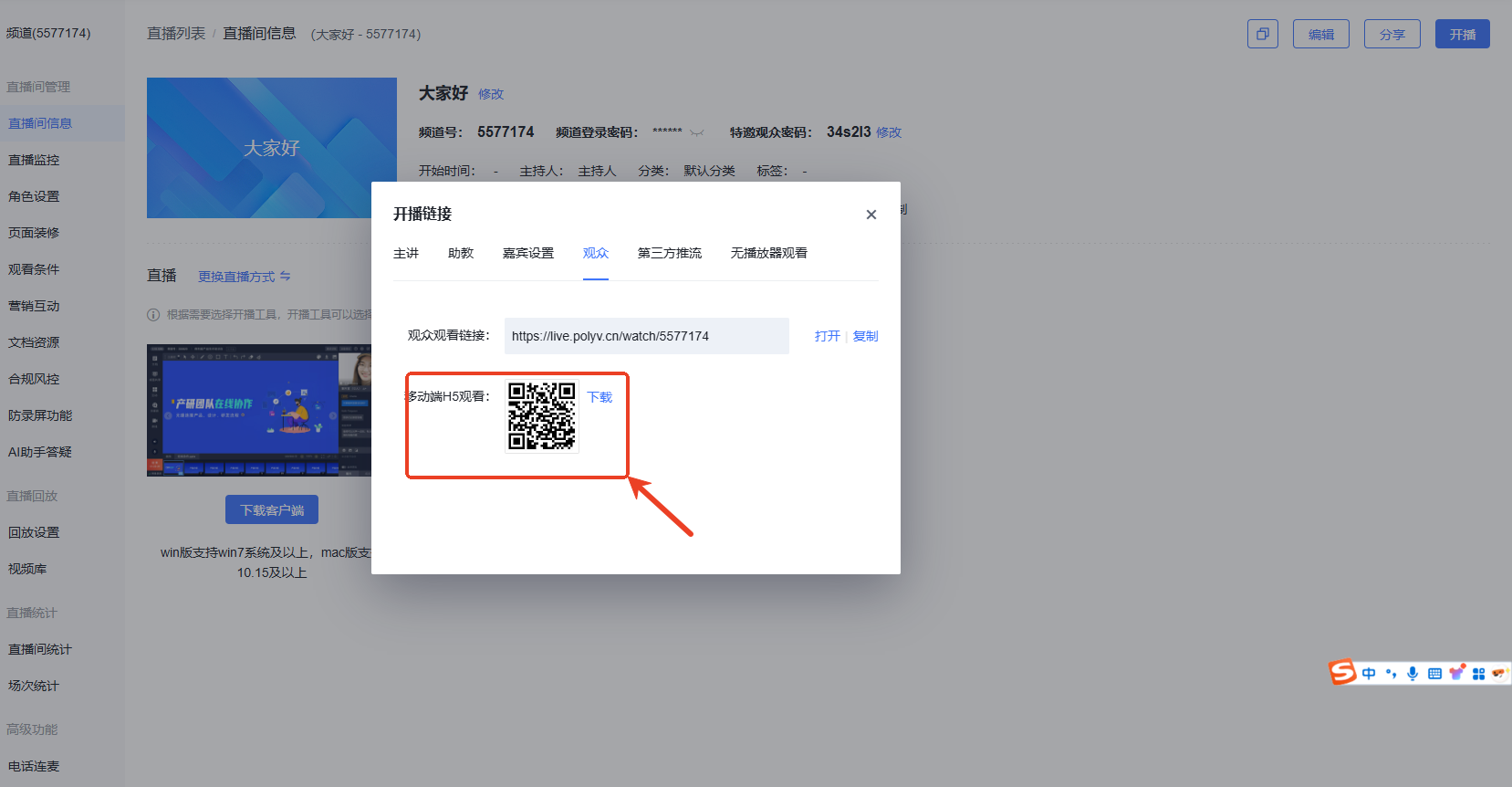
You can copy and share the link with viewers. Viewers can enter the link to watch the live stream.
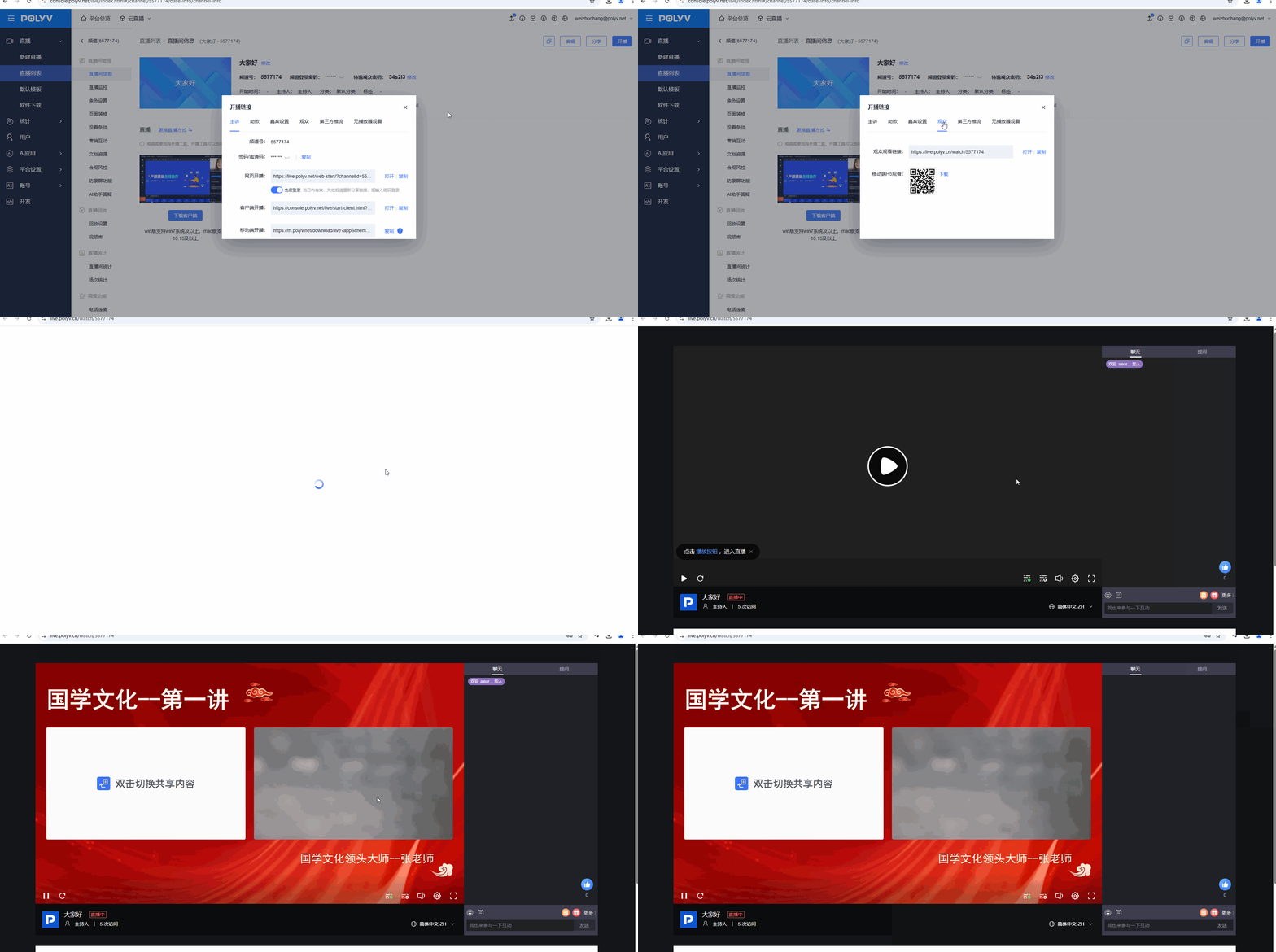
Mobile Viewing
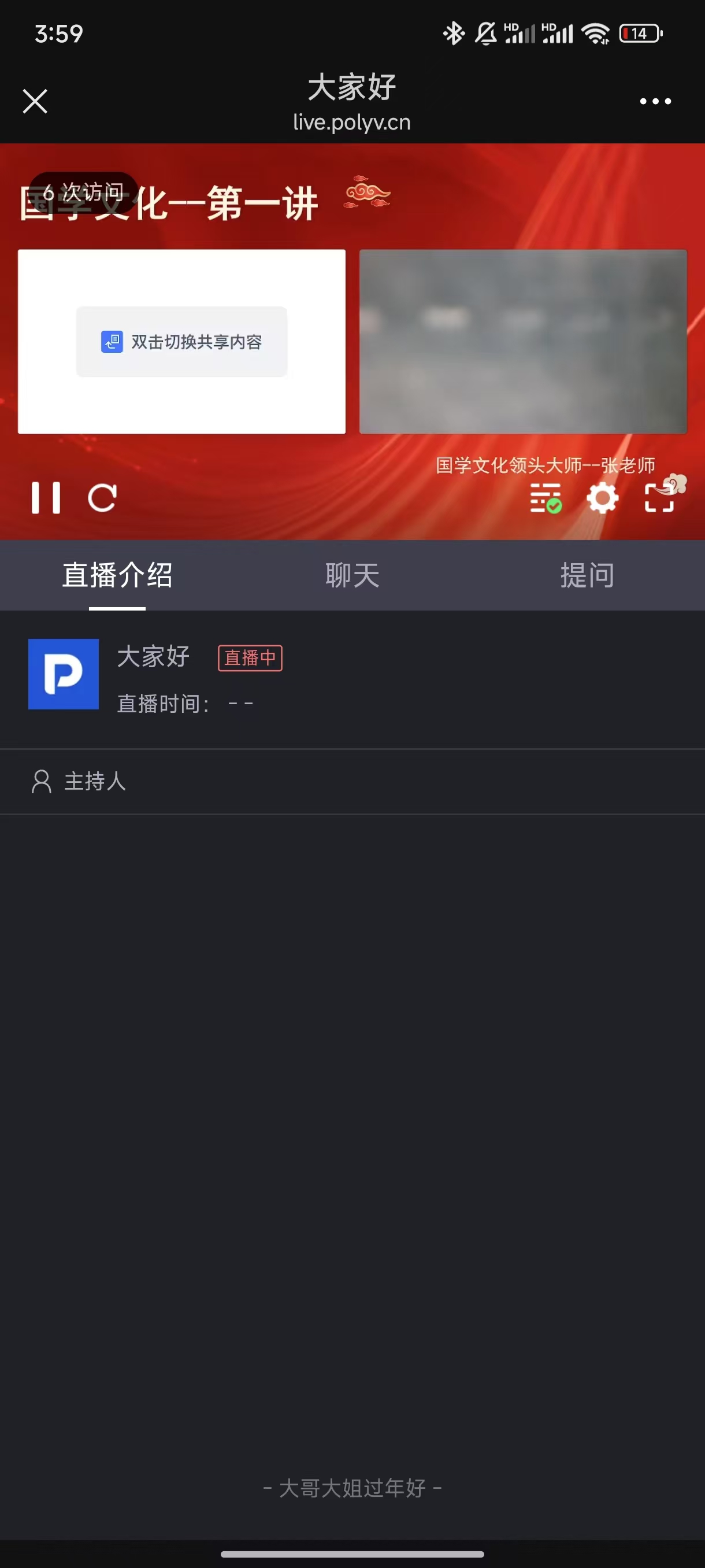
Scan the mobile H5 viewing QR code with your phone to open the viewing page.