


Live Replay AI View
1. Feature Overview
| Feature Info | Description |
|---|---|
| Feature Name | AI View |
| Feature Description | This feature uses AI technology to perform comprehensive intelligent analysis and processing of live replay videos. It generates video summaries, mind maps, segment summaries, supports generating verbatim transcripts to improve search efficiency, and allows configuring knowledge quizzes to enhance interactivity. AI segments can be automatically synced as player markers. |
| Purpose | Improve consumption efficiency: Viewers can quickly locate core content through intelligent summaries, mind maps, and verbatim transcripts. Enhance interaction and retention: The "knowledge quiz" transforms passive viewing into active answering, increasing viewer focus. Automated operations: Automatically generated "replay markers" and "verbatim transcripts" significantly reduce the manual cost of operating replay content. Compliance and accuracy: Supports "review before publishing" and in-depth editing to ensure the accuracy and compliance of output content. |
| Use Cases | General live streaming scenarios such as corporate training (post-class quizzes), industry summits (quick idea extraction), and educational live streams (knowledge point review). |
| Feature List | 1. Smart Outline: Summary, mind map, segment summaries (supports in-depth editing). 2. Verbatim Transcript: Full-text word-for-word record that scrolls with the video. 3. Knowledge Quiz: Interactive Q&A and review based on content. 4. Auto Replay Markers: Syncs segment summaries to the player progress bar. 5. Review & Management: Full-chain content editing and publishing control. |
2. Enabling and Configuring the Feature
The configuration entry for the new "AI View" has been migrated and upgraded. You need to go to the "AI Services" menu to operate.
Step 1: Enter the Configuration Page
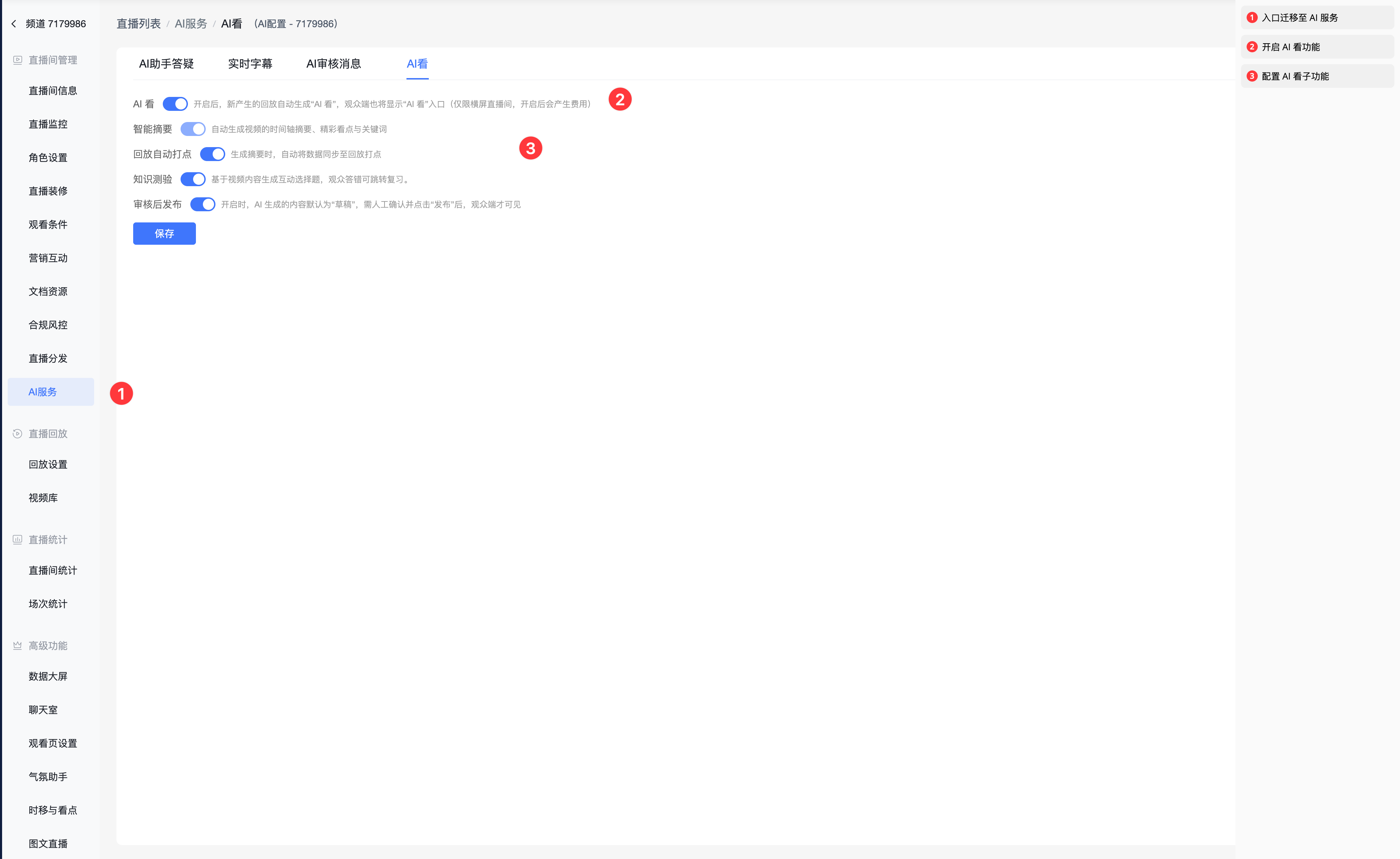
Go to the live streaming room management backend, select 【AI Services】 from the left menu bar, and then click the 【AI View】 tab at the top.
Step 2: Feature Switch Configuration
Based on operational needs, enable and configure the following core options:
- AI View Master Switch: When enabled, the system will automatically analyze newly created replay videos (enabling this incurs costs).
- Smart Summary: Basic capability, generates timeline summaries, highlights, and keywords.
- Auto Replay Markers: When enabled, AI-generated "segment summary" data will be automatically synced to the player progress bar, forming visible "highlight" markers on the viewer side.
- Knowledge Quiz: When enabled, supports generating interactive multiple-choice questions based on video content. Viewers can automatically jump to review if they answer incorrectly.
- Review Before Publishing:
- Off (Default): AI-generated content is published automatically.
- On (Recommended): AI-generated content defaults to "Draft" status. It requires manual confirmation and clicking "Publish" before viewers can see it.
3. Generation and Status Management
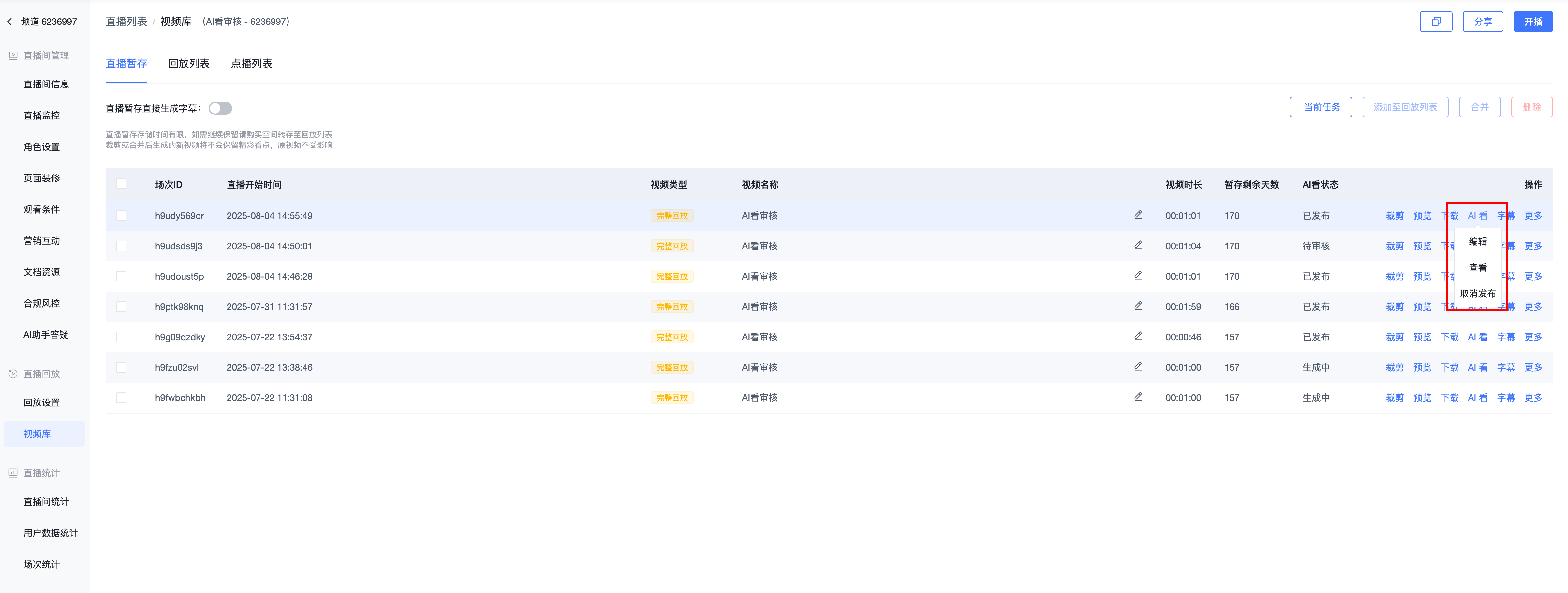
In the replay list, you can intuitively manage the AI generation status of each video.
Status Management View:
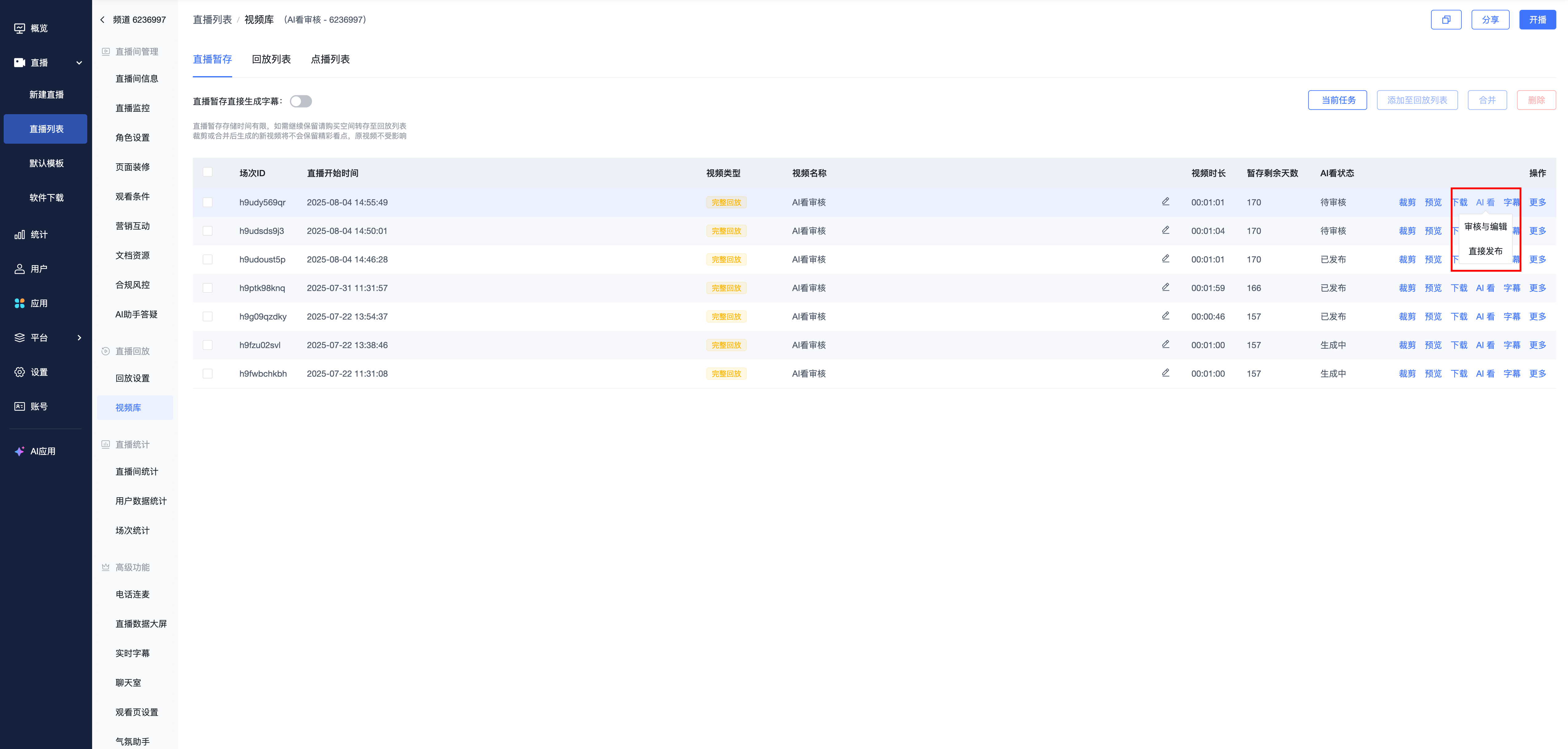
未生成: Not yet started. You can manually click 【Generate】.生成中: The system is analyzing the video.生成失败: You can click 【Retry】 to try again.待审核: Content has been generated and requires review (appears when "Review Before Publishing" is enabled).已发布: Content is live. You can click 【Unpublish】 to take it offline.
Quick Actions: Hover over the status link to perform the corresponding action. For videos uploaded from the media library, you can also trigger generation directly here.
4. Content Editing and Quiz Settings
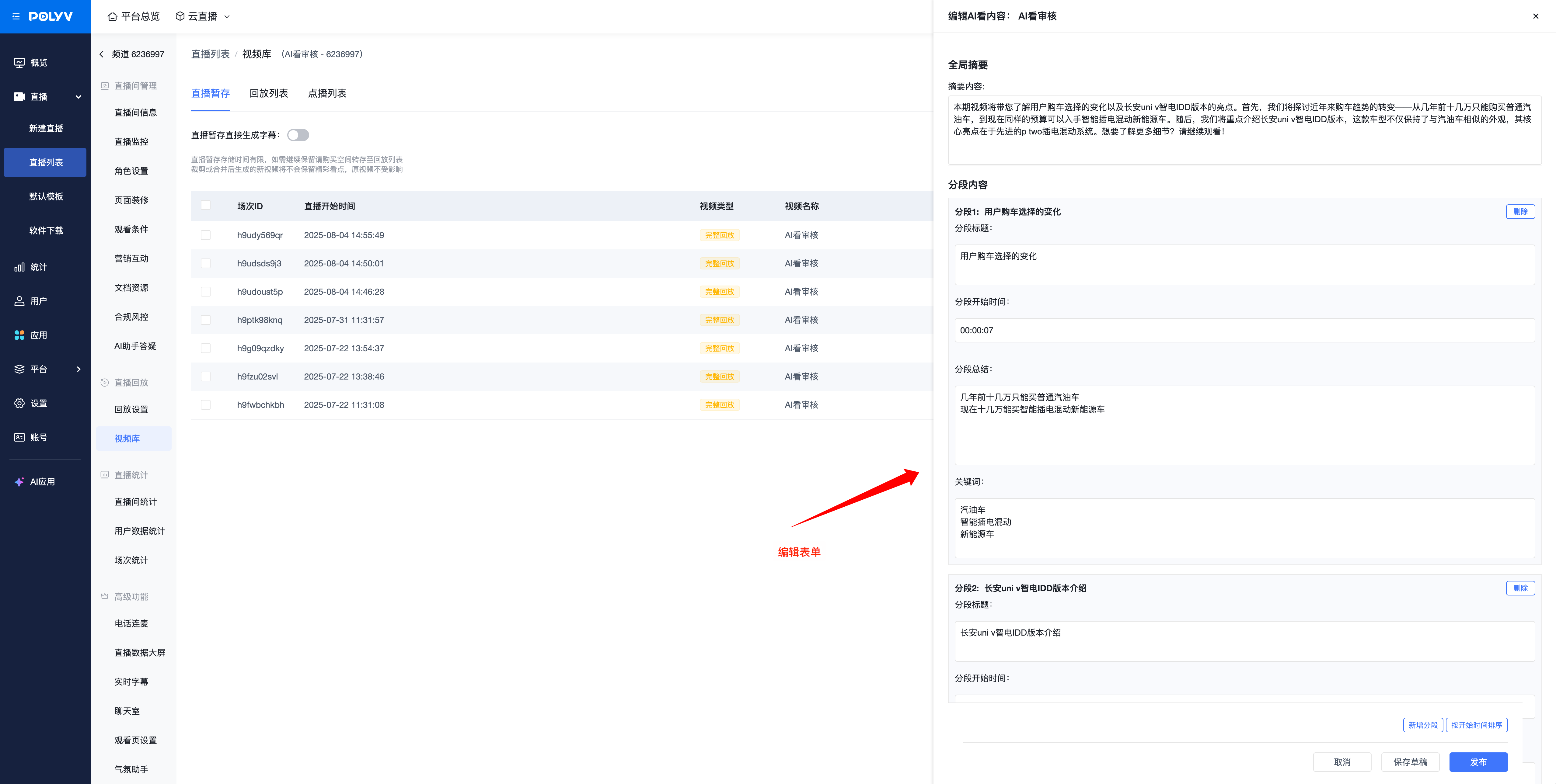
This feature provides powerful backend editing capabilities. Click 【Edit】 or 【Review & Publish】 on the status bar to enter the dedicated interface for in-depth refinement of the "Smart Outline" and "Knowledge Quiz".
4.1 Smart Outline Editing
On this page, you can perform complete manual intervention on the AI-generated structured content to ensure accuracy.
- Global Summary Modification: Freely modify the AI-generated overall video summary text.
- Segment Content Refinement:
- Content Revision: Modify the title, summary, keywords, and start time of each segment.
- Auto Calculation: The system will automatically calculate and fill in the "end time" of the current segment based on the start time of the next segment.
- Structure Adjustment Tools:
- Add Segment: Add new content paragraphs to the existing timeline (e.g., for missed key points).
- Delete Segment: Remove unnecessary or incorrect paragraphs.
- One-Click Sort: Click the "Sort by Start Time" button to automatically organize the entire timeline.
- Save & Publish:
- 【Save Draft】 : Saves modifications only, does not affect the live display.
- 【Publish】 : Syncs the modified content to the viewer side.
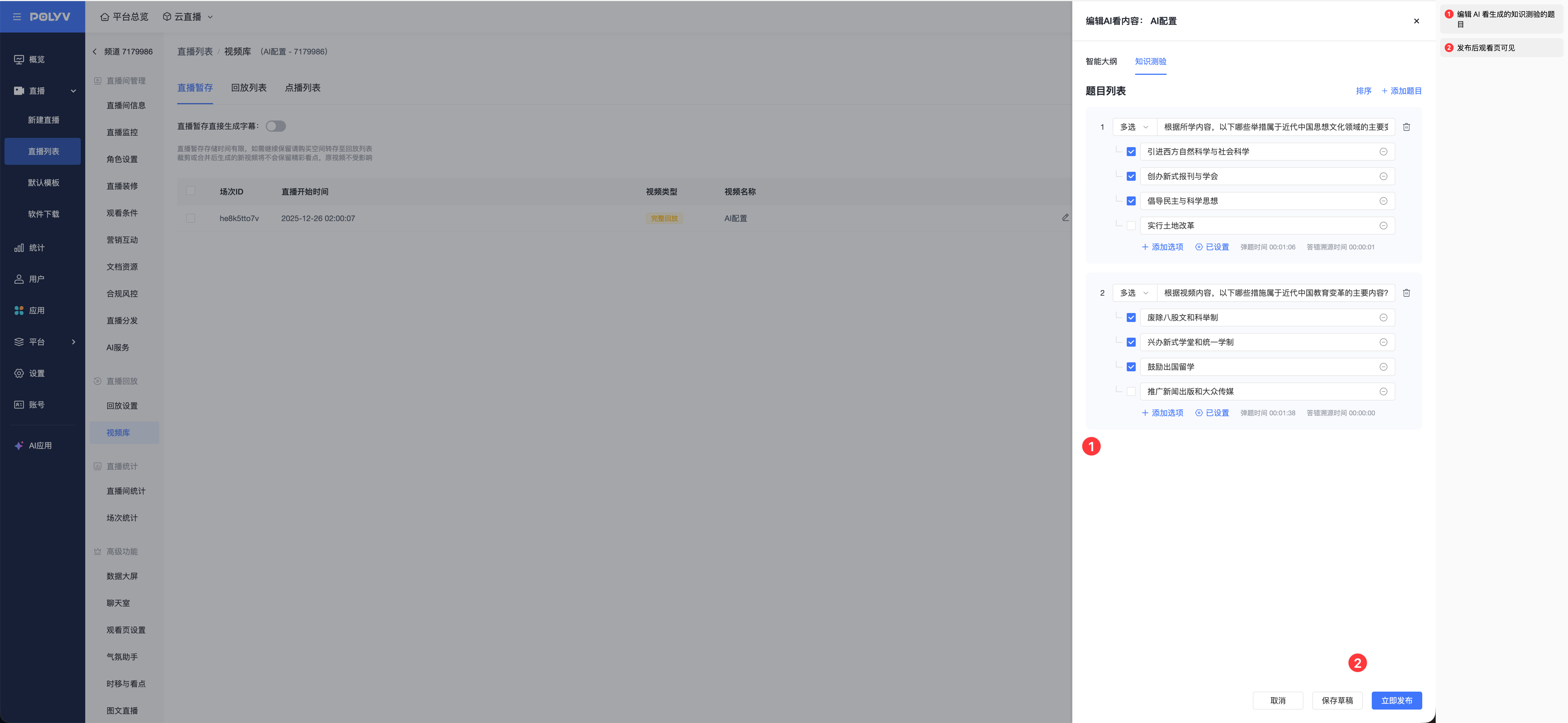
4.2 Knowledge Quiz Configuration
Click the 【Knowledge Quiz】 tab at the top of the edit page to manage interactive questions:
- Question Management: Supports AI-recommended questions or manually creating questions by clicking "Add Question".
- Question Details: Edit the question stem, options (multiple choice/single choice), and correct answer.
- Timeline Logic:
- Question Pop-up Time: Set the second in the video playback when the question should pop up.
- Incorrect Answer Rewind Time: Set the time point to which the video should automatically rewind when a viewer answers incorrectly, helping them review the relevant knowledge point.
5. Viewer Experience Display
After configuration and publishing, viewers will have a comprehensively enhanced experience when watching live replays.
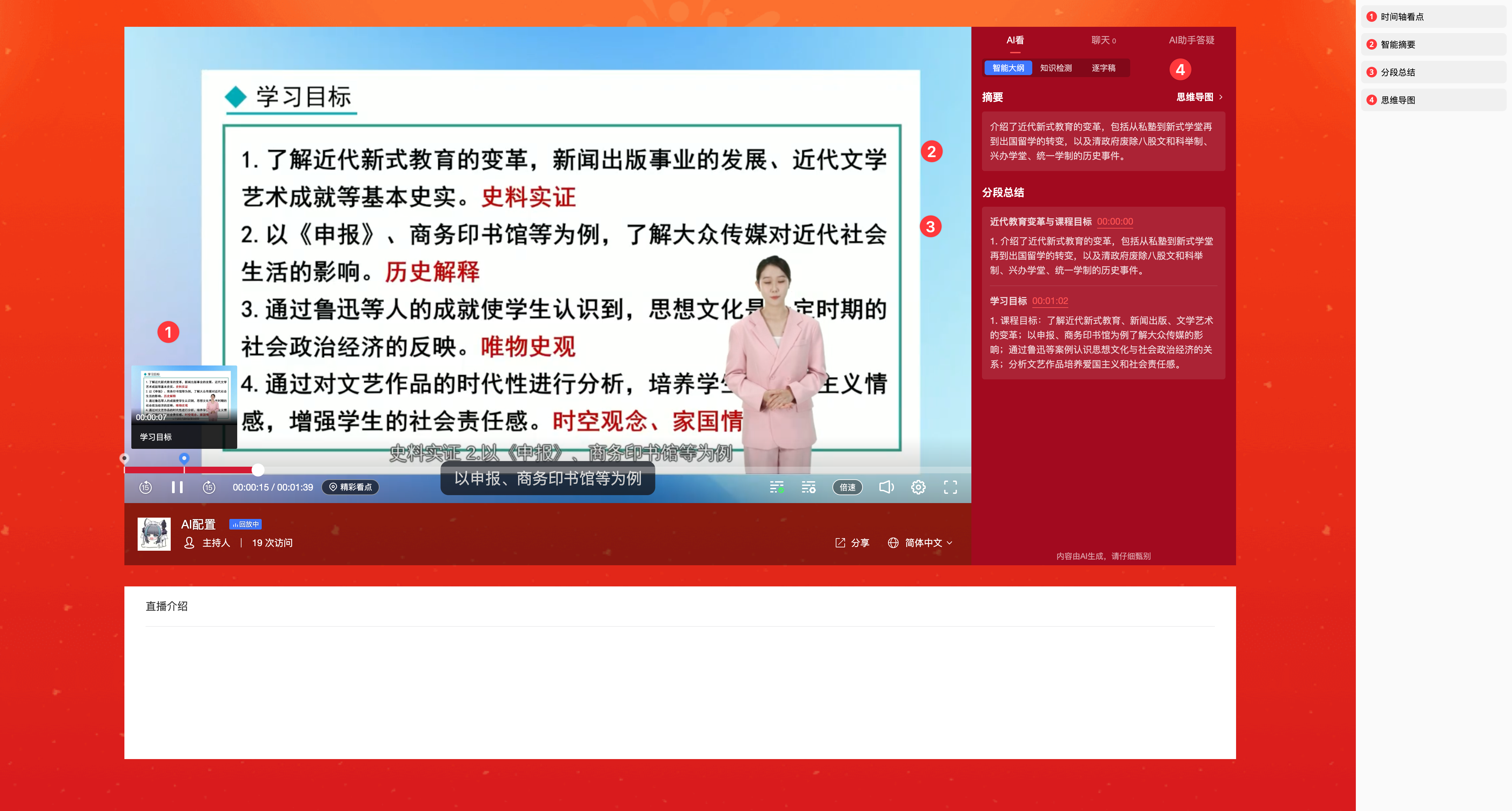
5.1 Smart Outline and Auto Markers
- Sidebar: Displays a structured summary and segments.
- Auto Markers: If the configuration is enabled, clear "marker" points (like white dots on the progress bar in the image below) will be displayed on the player progress bar. Hovering over them previews the segment topic, and clicking allows quick jumping.
5.2 Interactive Knowledge Quiz
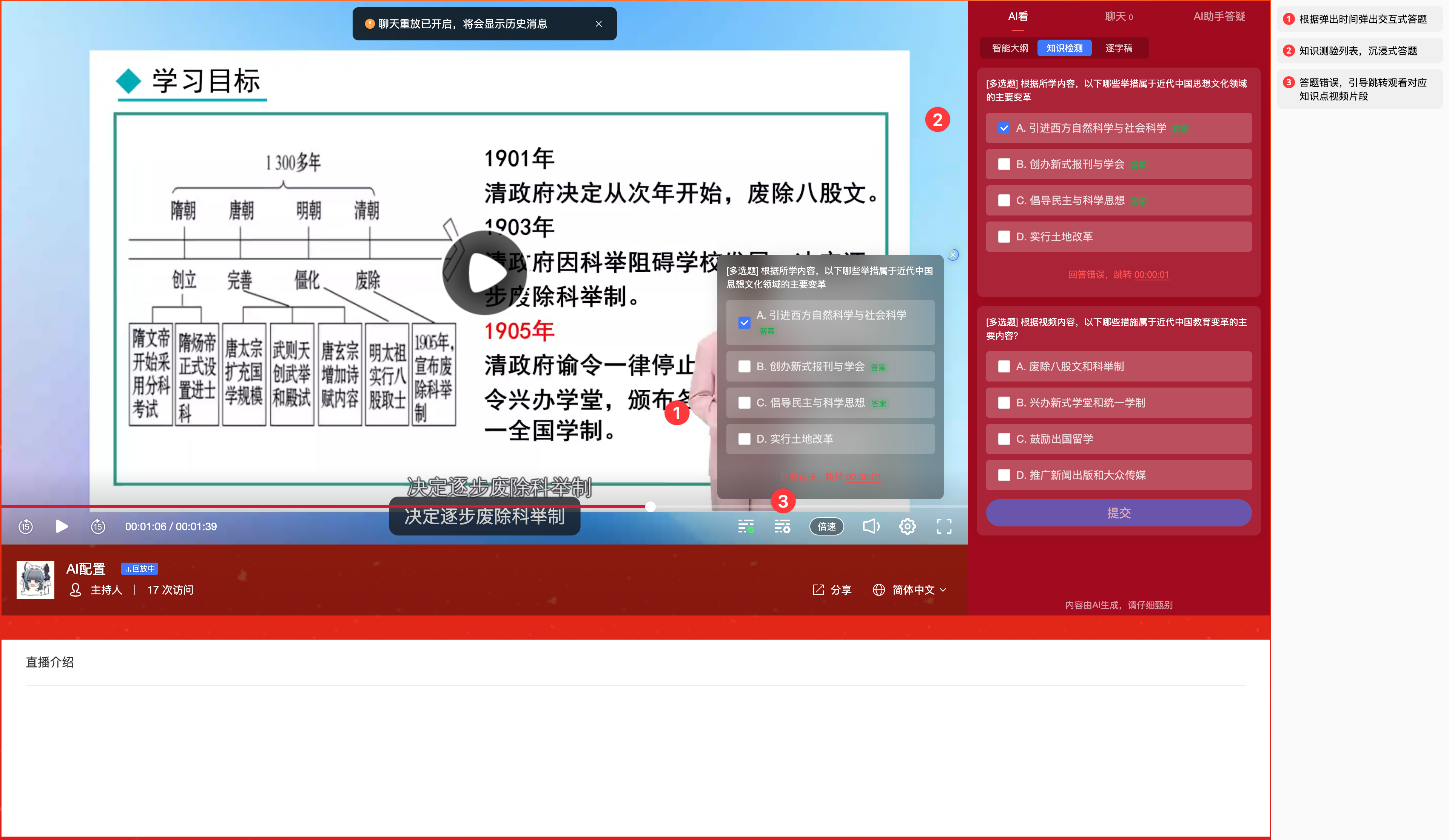
When the video plays to the "question pop-up time" set by the admin, a quiz card will automatically pop up.
- Interactive Q&A: Viewers select an answer and submit it. They can also ignore the question; the quiz window will automatically close after 15 seconds.
- Immersive Q&A: Viewers can answer questions collectively from the knowledge check list after watching the video to test their grasp of the knowledge points.
- Error Guidance: If the answer is incorrect, the system will prompt and guide the viewer to click "Jump to Review", directly jumping back to the relevant knowledge segment.
5.3 Verbatim Transcript
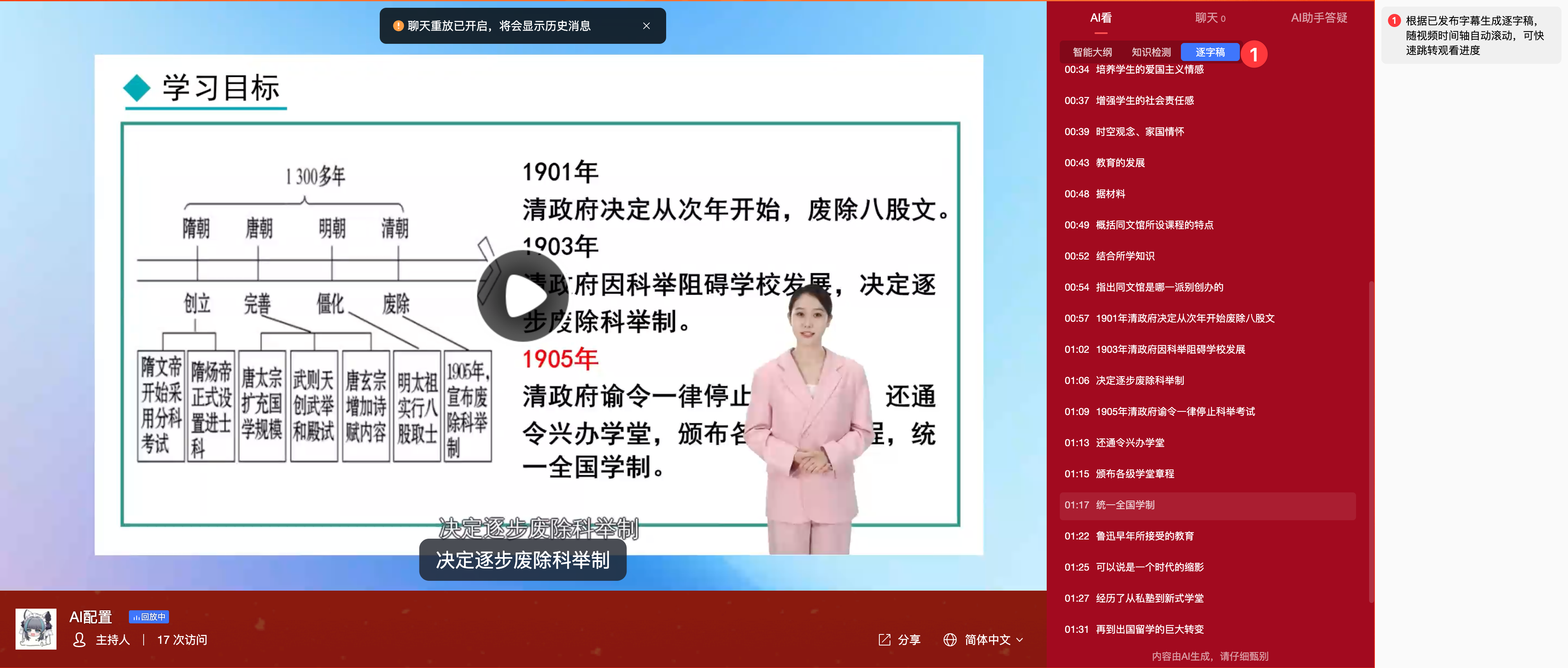
Click the "Verbatim Transcript" tab in the sidebar to view the full text record of the video.
- Auto Scroll: The verbatim transcript will automatically scroll in sync with the video playback progress, highlighting the sentence currently being spoken.
- Click to Jump: Clicking any sentence in the verbatim transcript will immediately jump the video to the playback position of that sentence, enabling "text-based navigation".
6. Notes
6.1 Feature Dependencies and Limitations
ꔷ Verbatim Transcript Dependency: The display of the verbatim transcript feature depends on whether the video has "published subtitles that are visible on the viewing page". If the replay video has not generated or associated subtitle files, the verbatim transcript tab will not be displayed. ꔷ Display Terminal: In the current version, all AI-enhanced features (including quizzes and verbatim transcripts) are only supported on the PC/Mobile landscape viewing page.
6.2 Operational Logic
ꔷ Effective Time: Modifying configurations (e.g., enabling "Auto Markers") mainly takes effect for newly generated AI View content. ꔷ Quiz Logic: The knowledge quiz will only take effect on the viewer side after the "Publish" operation is completed in the backend.
