


Lucky Bag
I. Feature Overview
| Feature Information | Description |
|---|---|
| Feature Name | Lucky Bag |
| Feature Introduction | Lucky Bag is used to launch a time-limited prize draw activity during a live stream. After viewers complete the specified tasks according to the page prompts, they can participate in the Lucky Bag draw. Prizes support custom prizes, cash red packets, and external points. Custom prizes support linking to a prize claim form, making it easier to collect prize claim information from winning viewers; external points are automatically issued after the draw. |
| Purpose | Through the countdown, task participation, and draw results, enhance the interactive atmosphere of the live room and viewer retention time; when using physical prizes, the information required for subsequent prize distribution can be collected simultaneously. |
| Use Cases | Live streaming scenarios that need to increase viewer participation, such as marketing live streams, e-commerce live streams, campaign operations, and course interaction. |
| Operation Path | Go to [Live Stream List], select a live stream channel and click [Details], then in live room management go to [Marketing Interaction] - [Lucky Bag]. |
II. Usage Instructions
1. Create a Lucky Bag Activity
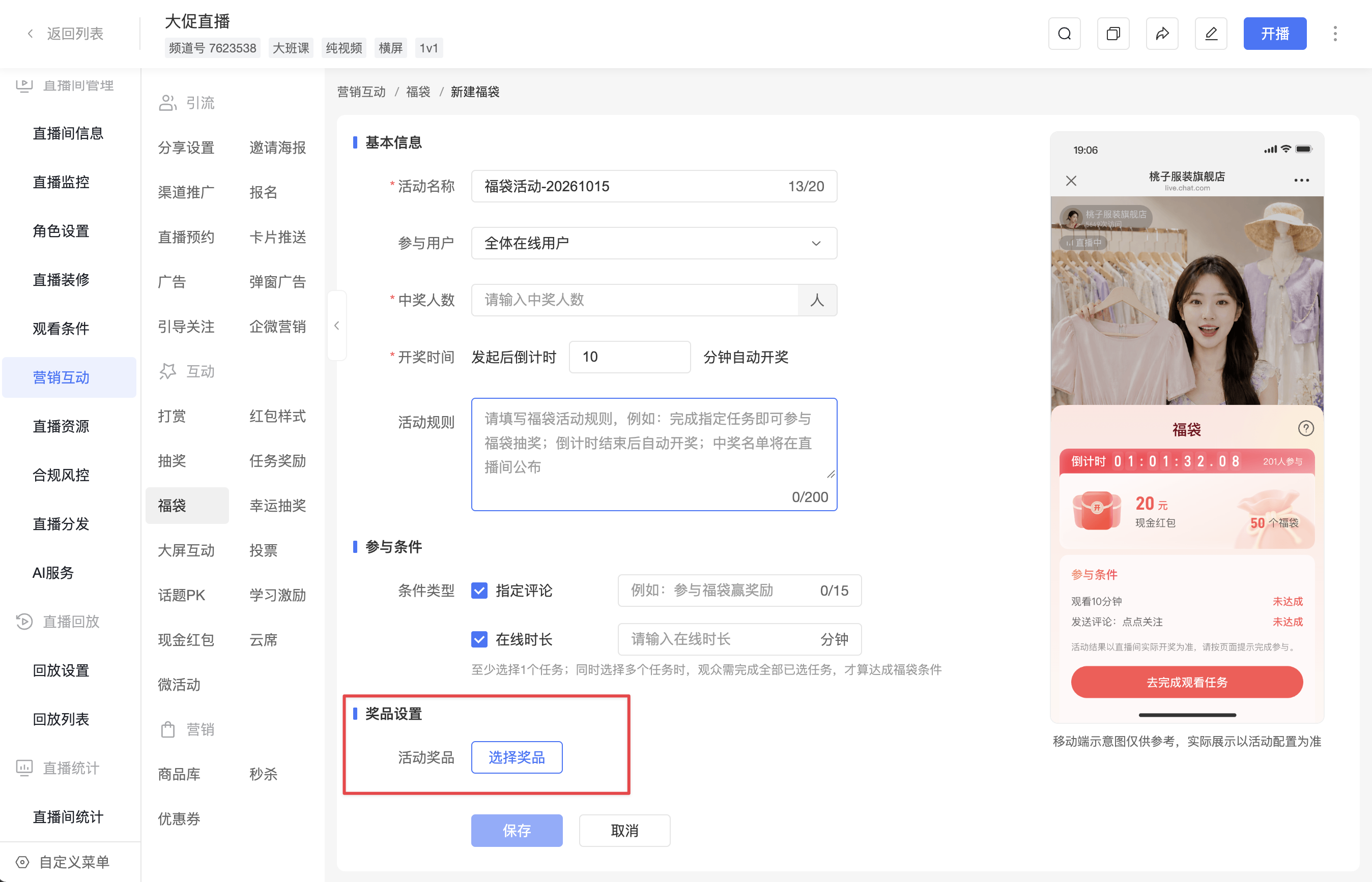
After entering [Marketing Interaction] - [Lucky Bag], click [New Activity] to enter the Lucky Bag activity configuration page.
Basic Information
| Configuration Item | Description |
|---|---|
| Activity Name | Enter the Lucky Bag activity name, used to identify the activity in the backend list and data records. |
| Participating Users | Select the user scope that can participate in the Lucky Bag activity, for example, all online users. |
| Number of Winners | Set the number of winners for this Lucky Bag activity. |
| Activity Rules | You can enter the activity description, participation requirements, or prize distribution rules. The viewer side will display relevant prompts according to the activity configuration. |
Participation Tasks
Lucky Bag supports setting viewer participation conditions. Viewers must complete the selected tasks before they are considered to have met the Lucky Bag participation conditions.
The currently supported task types include:
| Task Type | Description |
|---|---|
| Specified Comment | Viewers need to send the specified comment content. |
| Online Duration | Viewers need to reach the set online duration. |
Select at least 1 task; when multiple tasks are selected at the same time, viewers must complete all selected tasks before they are considered to have met the Lucky Bag conditions.
Draw Settings
| Configuration Item | Description |
|---|---|
| Draw Countdown | Set the countdown duration after the Lucky Bag is launched. After the activity is launched, the system automatically draws according to the countdown. |
Prize Settings
On the New Lucky Bag page, in [Prize Settings], click [Select Prize].
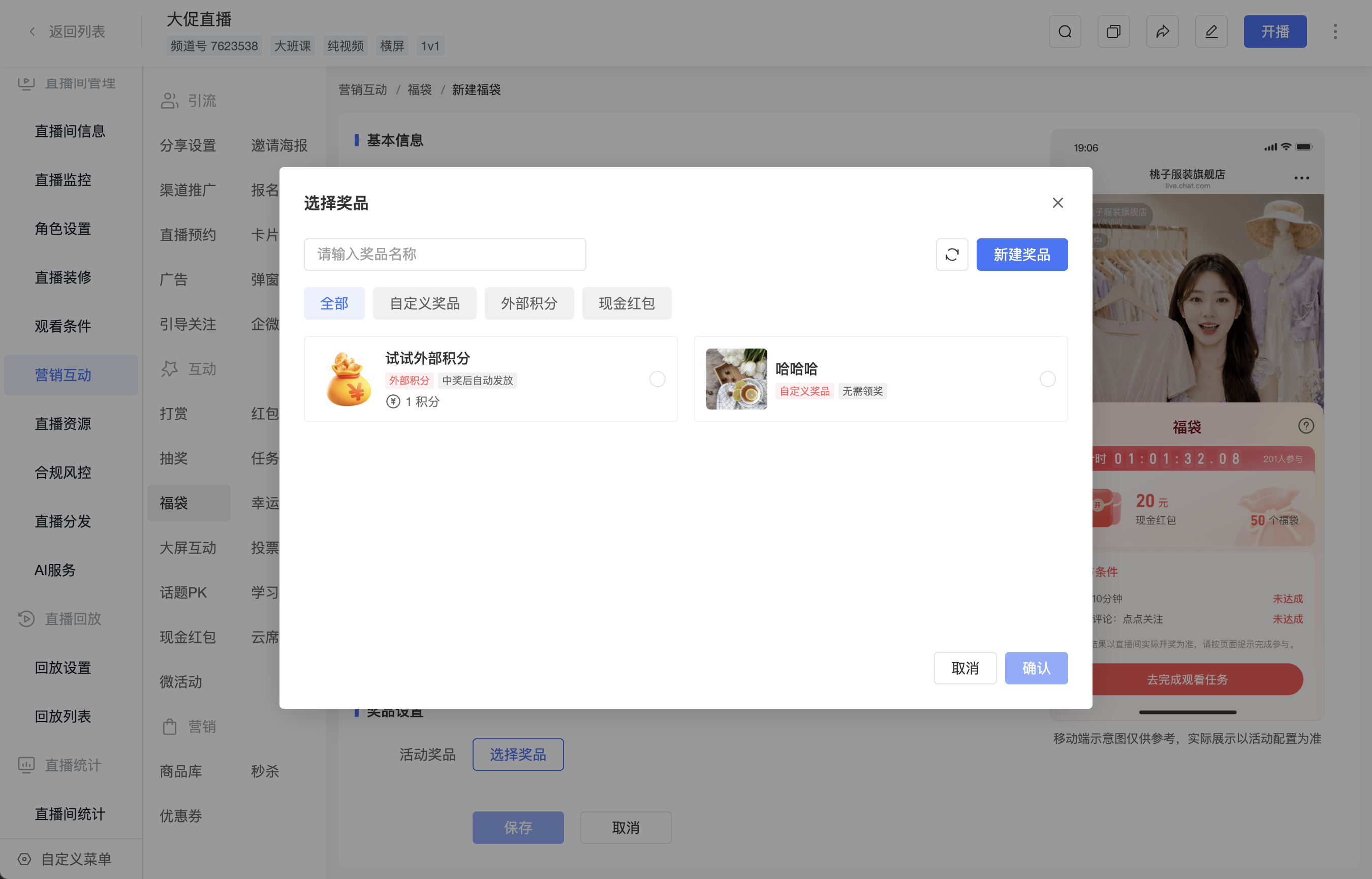
In the [Select Prize] pop-up, you can search by prize name, or filter by [Custom Prize], [External Points], and [Cash Red Packet]. After selecting an existing prize, click [Confirm]; if you need to add a prize, click [New Prize].
Lucky Bag supports the following prize types, and only one prize type can be selected for the same activity:
| Prize Type | Description |
|---|---|
| Custom Prize | You can enter the prize name and add a prize image. When the material library is enabled in the management backend, you can select an image from the material library; when the material library is not enabled, select an image locally. Both the assistant page and the streaming side select images locally. Suitable for scenarios such as physical prizes and benefit prizes. |
| Cash Red Packet | You can set the red packet amount each winning user receives. |
| External Points | Use your own points as the prize, set the number of points each winning user receives, and issue them automatically after the draw. |
Create an External Points Prize
Before use, go to [Development Settings] → [External Points Settings] in the management backend and configure the external points update interface. If not configured, the [External Points] option is grayed out, and you can go to the configuration page through [Go to Settings] in the prompt.
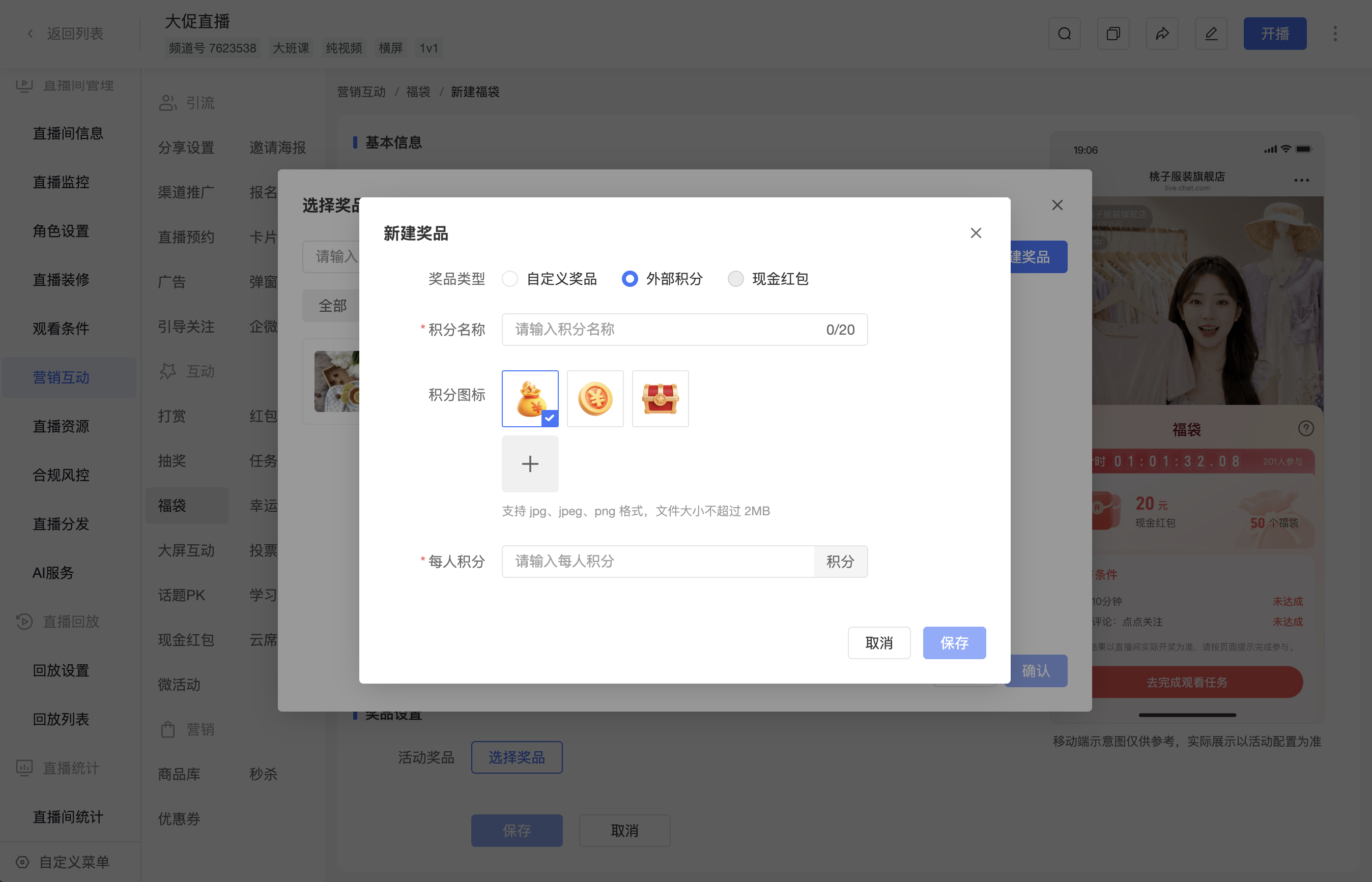
- In the [Select Prize] pop-up, click [New Prize] and set [Prize Type] to [External Points].
- Enter [Points Name], up to 20 characters.
- Set [Points Icon]: you can choose a preset icon, or upload an image in JPG, JPEG, or PNG format, with a file size not exceeding 2 MB.
- Enter [Points per Person], supporting a positive integer from 1 to 9999. The points unit uses the account's external points configuration; if no unit is configured, "points" is displayed by default.
- Click [Save] to save the prize, then select the prize in the [Select Prize] pop-up and click [Confirm].
- After completing activity configurations such as the number of winners, click [Save] on the activity page.
Create a Cash Red Packet Prize
In the [New Prize] pop-up, set [Prize Type] to [Cash Red Packet], enter [Red Packet Name] and [Amount per Person], and click [Save]. The red packet name can contain up to 30 characters, and the unit of the amount per person is yuan.
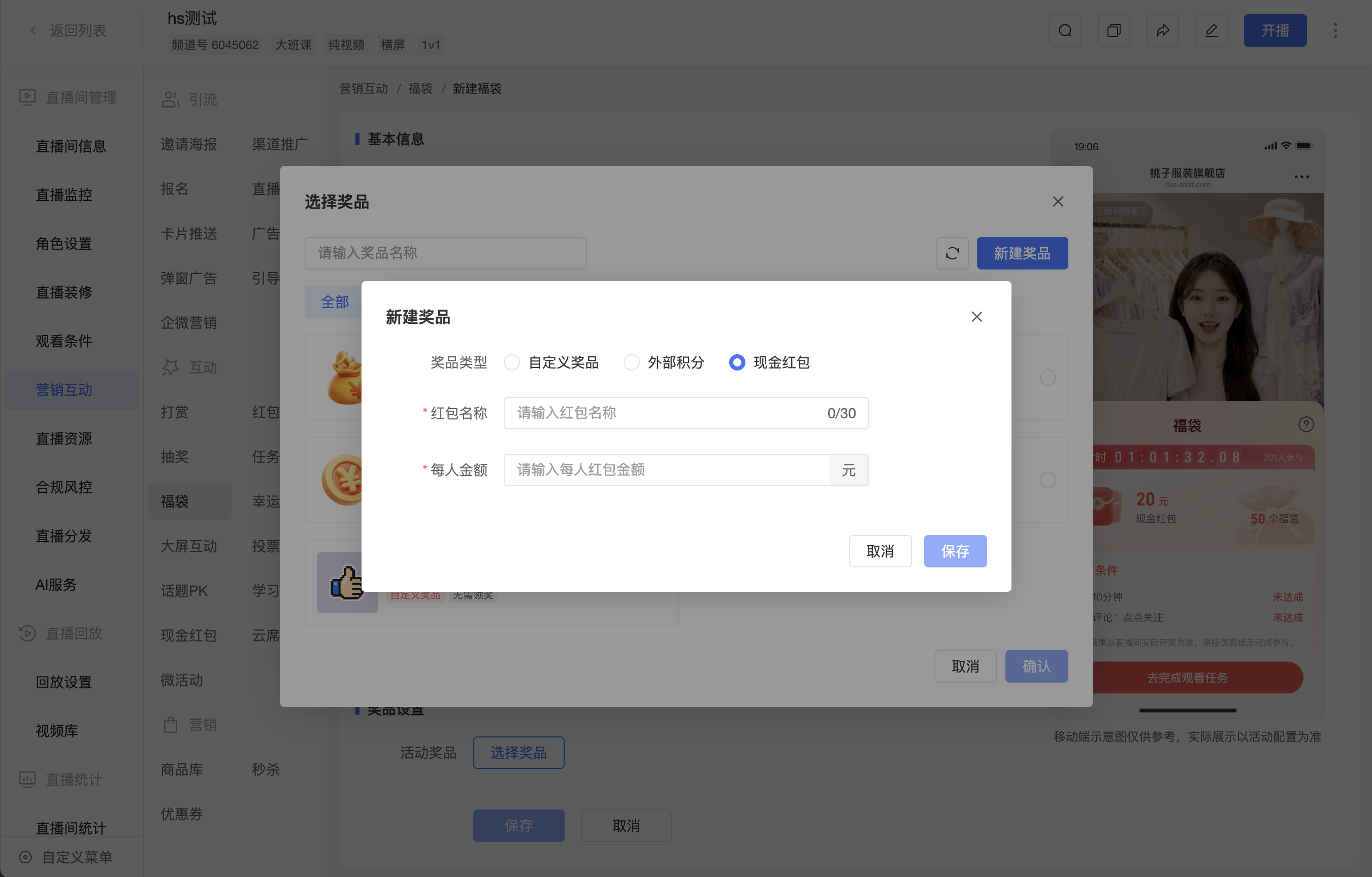
After saving, select the prize in the [Select Prize] pop-up and click [Confirm], then save the Lucky Bag activity.
Create a Custom Prize and Set Prize Claim Information
When using a custom prize, you can enable [Prize Claim Information Entry] and link a form used to collect prize claim information. Cash red packets and external points do not display this setting.
In the [New Prize] pop-up, set [Prize Type] to [Custom Prize], enter [Prize Name], and add [Prize Image] as needed. The prize name can contain up to 30 characters; images support JPEG, JPG, and PNG formats, with a file size not exceeding 2 MB.
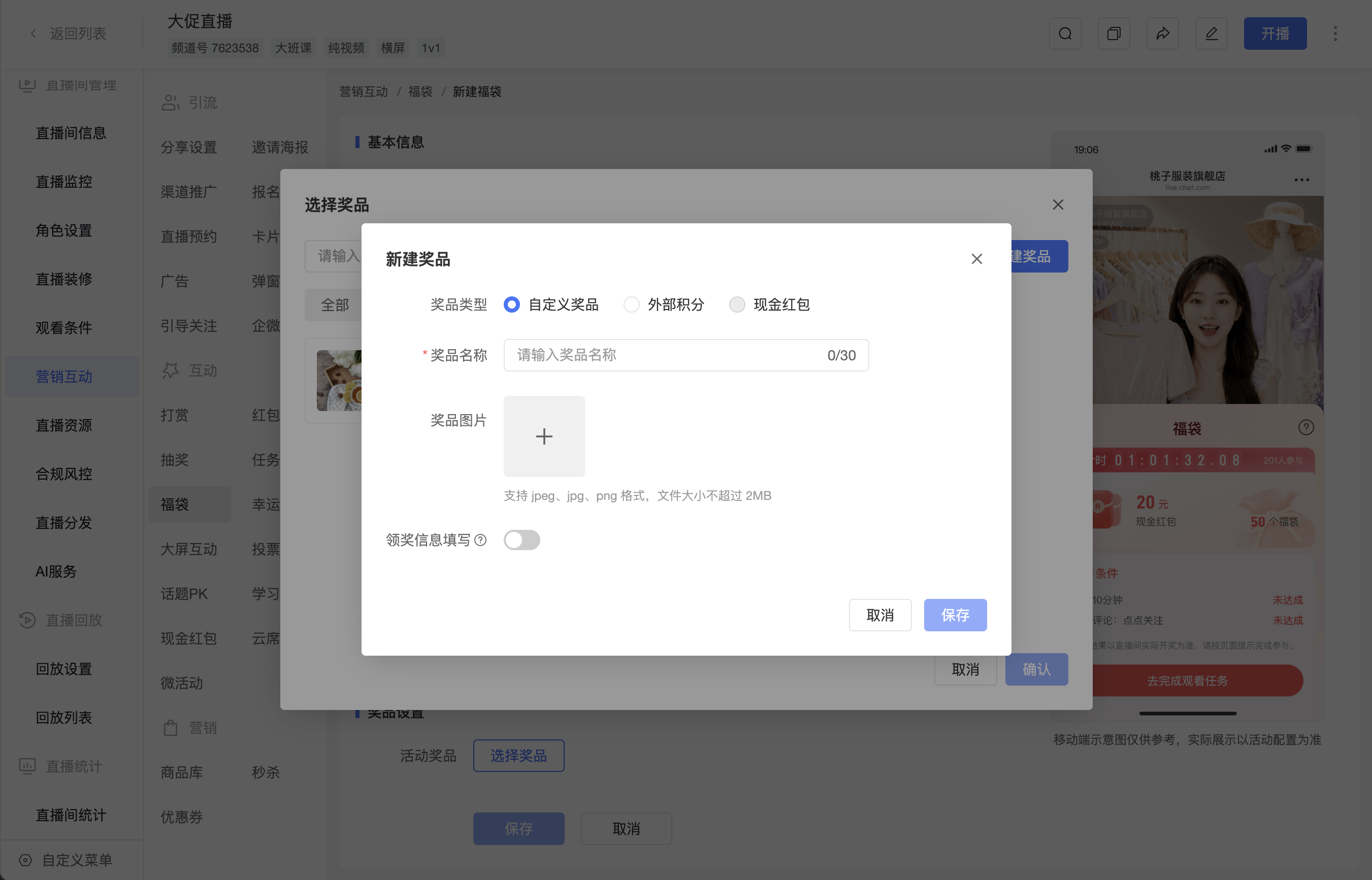
When you need to collect prize claim information:
- Enable [Prize Claim Information Entry].
- Click [Select Form] to open the prize claim form list.
- Select the prize claim form you need to use and click [OK].
After selection is complete, the page displays the prize claim form name. If adjustment is needed, click [Change] to reselect.
In the [Select Form] pop-up, you can preview existing forms, or click [New Form] to create a prize claim form.
After enabling [Prize Claim Information Entry], you must select a prize claim form. After configuration is complete, click [Save] to save the prize, select the prize in the [Select Prize] pop-up and click [Confirm], then save the Lucky Bag activity.
2. Manage Lucky Bag Activities
After entering [Marketing Interaction] - [Lucky Bag], you can view the list of Lucky Bag activities already created under the current live room.
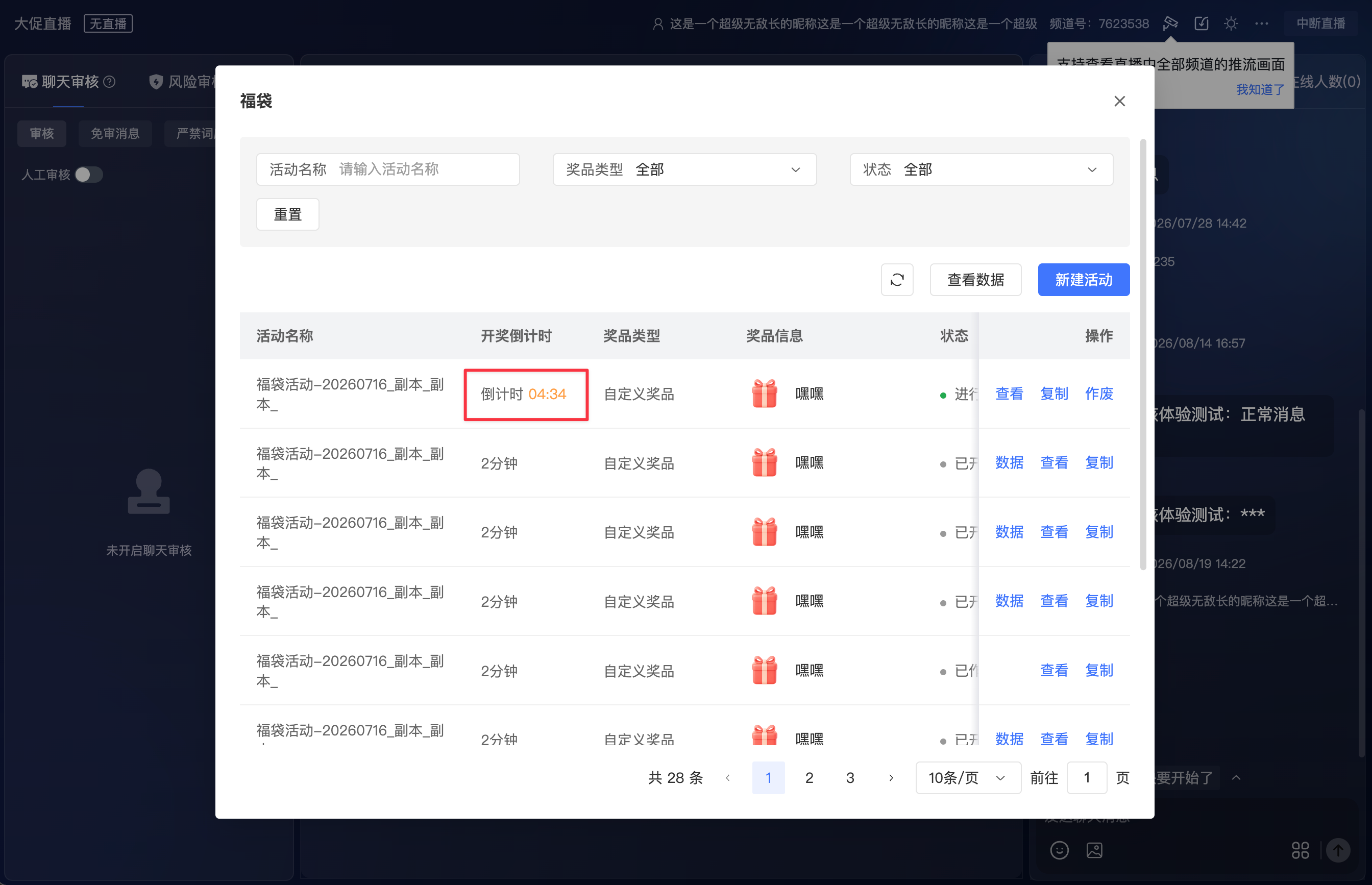
The activity list supports filtering by activity name, prize type, and status, and also supports refreshing the list, viewing data, and creating new activities. Prize type filtering supports [External Points]; the prize content of external points activities is displayed as "XX points per person", and the points unit is displayed according to the account configuration.
When an activity is in progress, the host, assistant, and management backend can all view the real-time remaining draw time in the Lucky Bag activity list; after the activity is drawn, the draw countdown returns to displaying the activity's set duration.
Activity statuses are described as follows:
| Status | Description | Common Operations |
|---|---|---|
| Not Launched | The activity has been created but has not yet been launched in the live room. | Launch, Edit, Copy |
| In Progress | The activity has been launched, viewers can participate according to the conditions, and the draw countdown is in progress. | View, Copy, Void |
| Drawn | The activity has completed the draw. | Data, View, Copy |
| Voided | The activity has been voided and will no longer continue participation or drawing. | View, Copy |
For drawn activities, you can click [Data] to enter the secondary data page for that activity.
3. Launch a Lucky Bag Activity
After a Lucky Bag activity is created, it can be launched during the live stream. Supported launch ends include:
| Launch End | Description |
|---|---|
| Management Backend | In the [Marketing Interaction] - [Lucky Bag] activity list, click [Launch] for an activity that has not been launched. |
| Assistant Page | In the assistant page tool area, click [Lucky Bag], open the Lucky Bag activity list, and launch the activity. |
| Web Streaming Side | In the interactive tools on the web streaming side, go to [Lucky Bag], select an activity, and launch it. |
After the activity is launched, the viewer side displays the Lucky Bag entry, draw countdown, prize information, number of participants, and participation conditions. When the countdown ends, the system automatically draws.
III. Viewer Participation and Prize Claim Information Entry
After the Lucky Bag is launched, viewers can see the Lucky Bag activity on the viewing page.
The main content displayed on the viewer side includes:
- Lucky Bag countdown
- Prize information
- Number of winners
- Number of participants
- Participation conditions
- Activity rule prompts
After viewers complete the participation conditions, they can participate in the Lucky Bag draw. If the activity has multiple participation tasks set, viewers must complete all tasks before they are considered to have met the participation conditions.
When the activity has an online duration task set, the remaining viewing time is displayed before the task is completed; after the viewing duration is reached, the task status updates to [Completed].
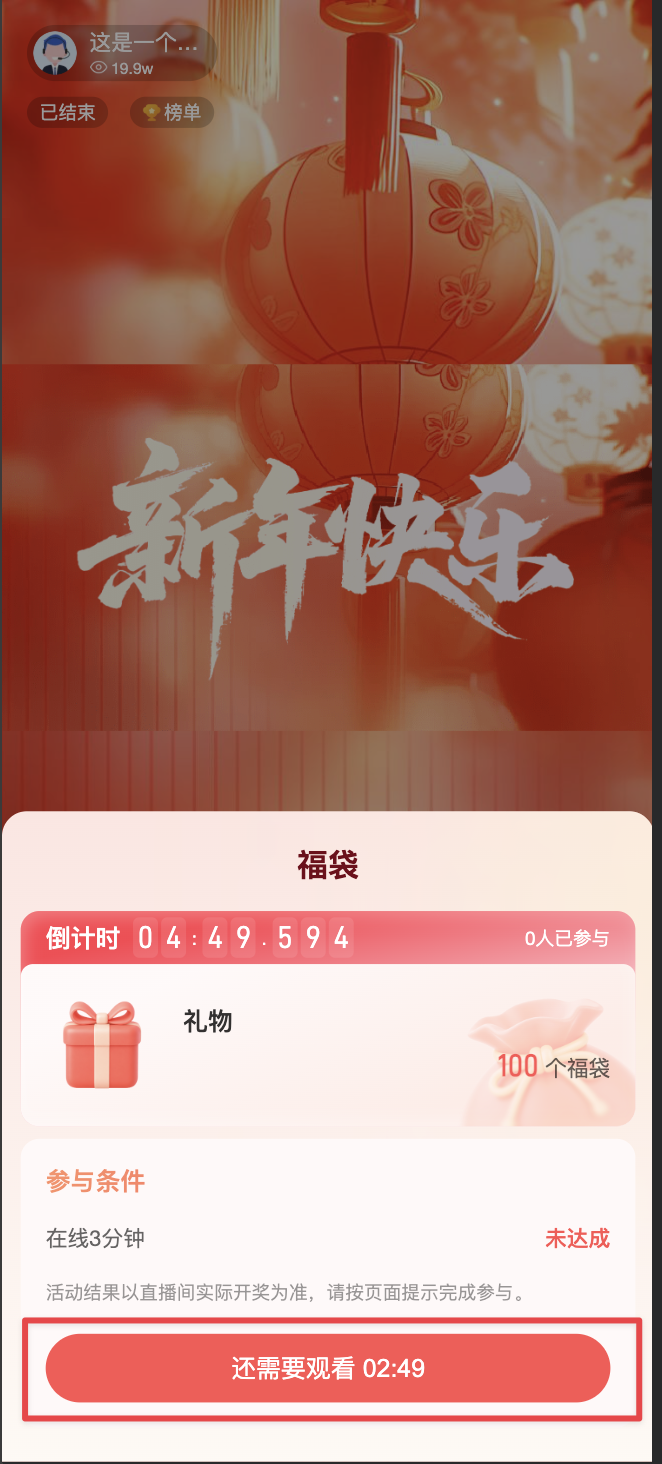
1. Fill in Prize Claim Information After Winning
When [Prize Claim Information Entry] is enabled for a custom prize, the winning pop-up displays [Fill in Prize Claim Information]. After clicking it, fill in and submit the prize claim information according to the page prompts.
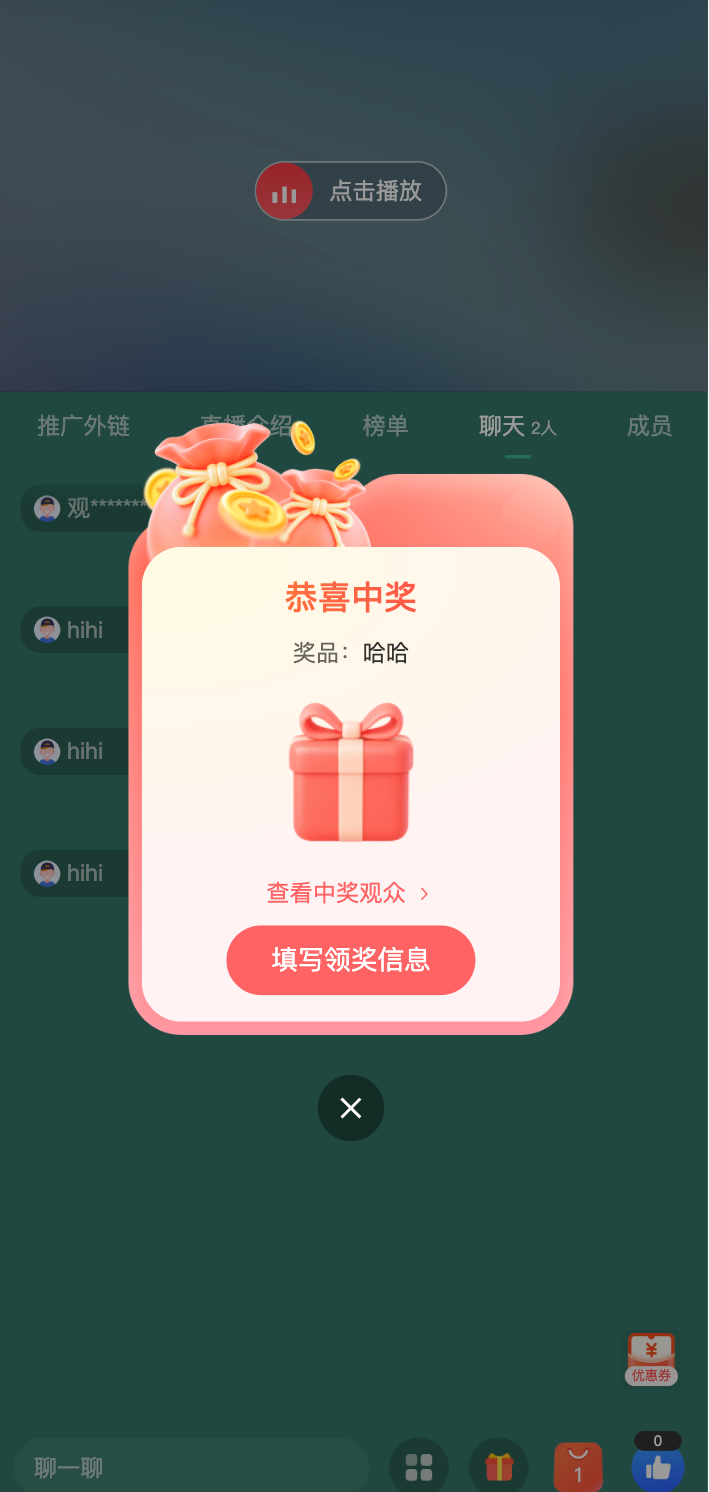
The fields and required requirements of the prize claim information are subject to the prize claim form linked to the activity. If required fields are not filled in or the format is incorrect, submission is not possible.
If the mobile phone number field in the prize claim form has SMS verification enabled, viewers need to obtain and enter the correct SMS verification code, complete mobile phone number verification, and then submit the prize claim information.
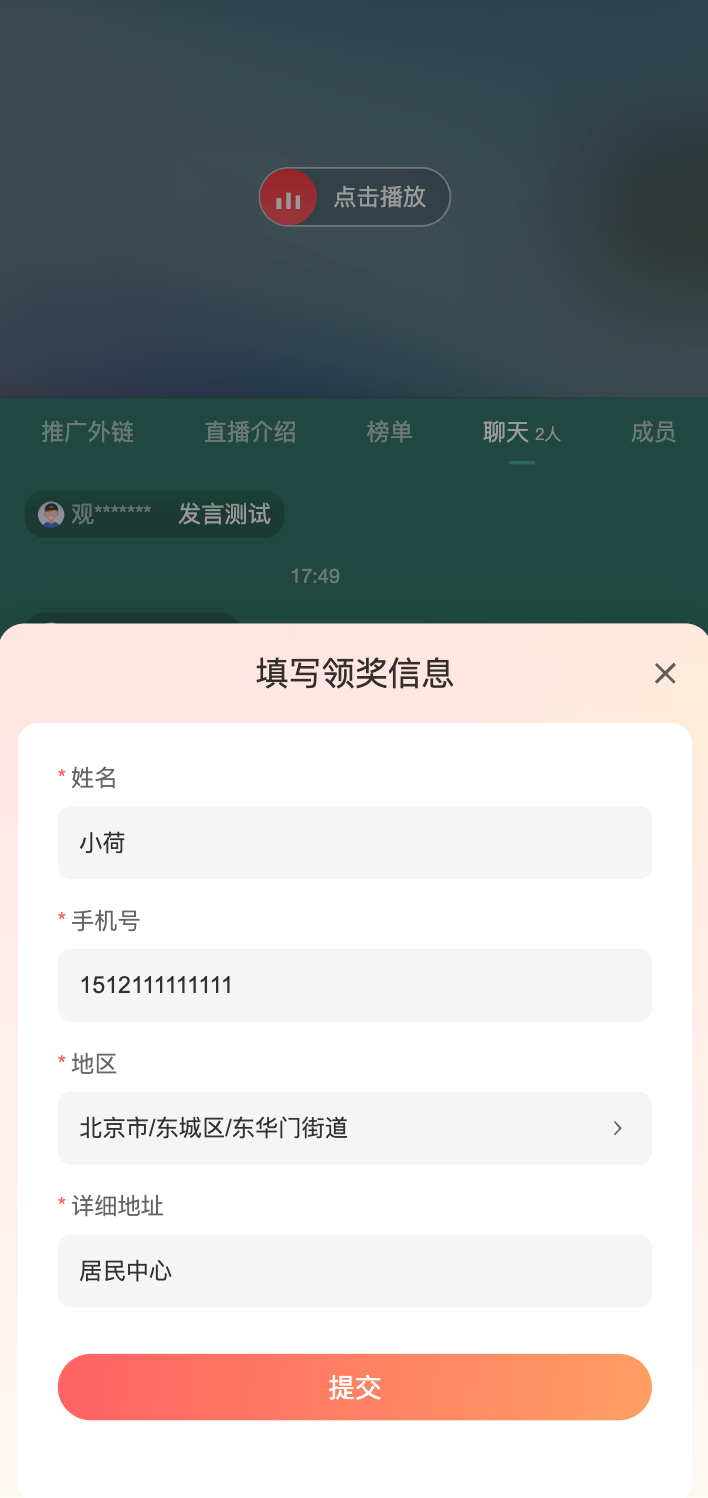
After successful submission, the prize claim information cannot be edited again.
2. Claim or View in "My Rewards"
For custom prizes with [Prize Claim Information Entry] enabled, go to [My Rewards] - [Lucky Bag] on the viewing page to view Lucky Bag winning records.
- If prize claim information has not yet been filled in, click [Claim] to enter the entry page.
- If prize claim information has already been filled in, click [View] to view the submitted information.
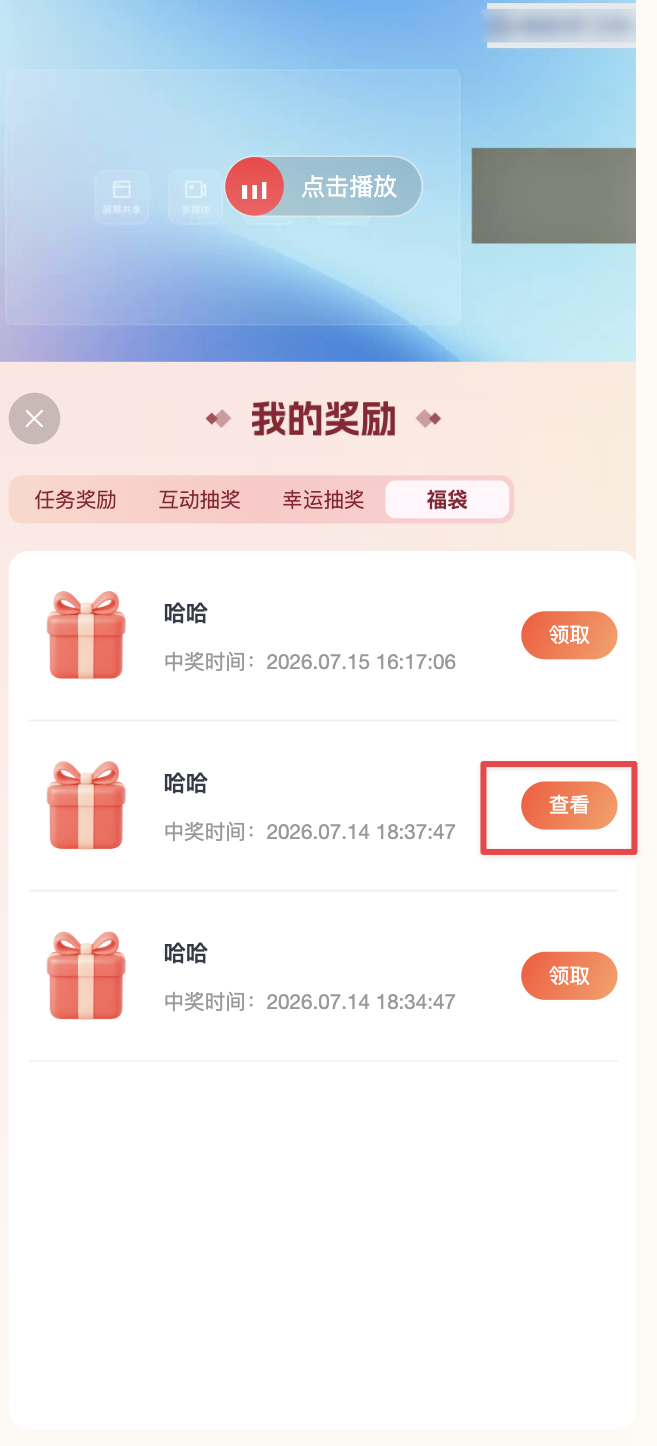
Submitted prize claim information can only be viewed, not modified.
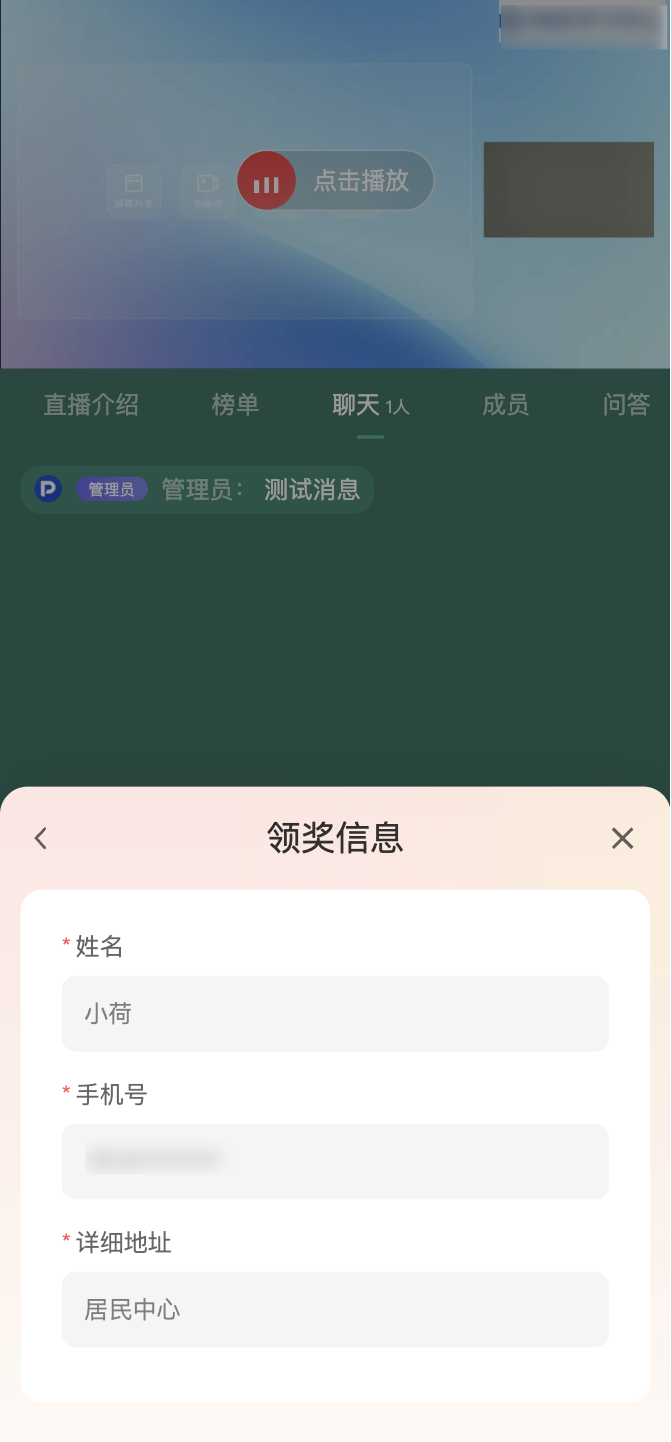
3. External Points Are Automatically Issued After Winning
The external points Lucky Bag displays the reward points quantity and points unit according to the activity configuration. Viewers complete the participation conditions and wait for the draw. After winning, the system automatically issues the points, with no manual claim required.
Winning results and points issuance status are managed separately. When points issuance fails, the winning result is still retained, and the draw will not be redone or the winning quota transferred. Operations personnel can view the issuance status in the management backend and resend failed records.
IV. View Lucky Bag Data
Lucky Bag data can be viewed through the following entries:
- On the [Marketing Interaction] - [Lucky Bag] page, click [View Data] to enter the Lucky Bag summary data page.
- In the [Marketing Interaction] - [Lucky Bag] activity list, click [Data] for a drawn activity to enter the secondary data page for that activity.
- Go to [Live Room Statistics] - [Interaction Data] - [Lucky Bag] to view Lucky Bag summary data.
The Lucky Bag summary data page supports filtering by session ID and activity name, and can export winning details according to the current filter scope.
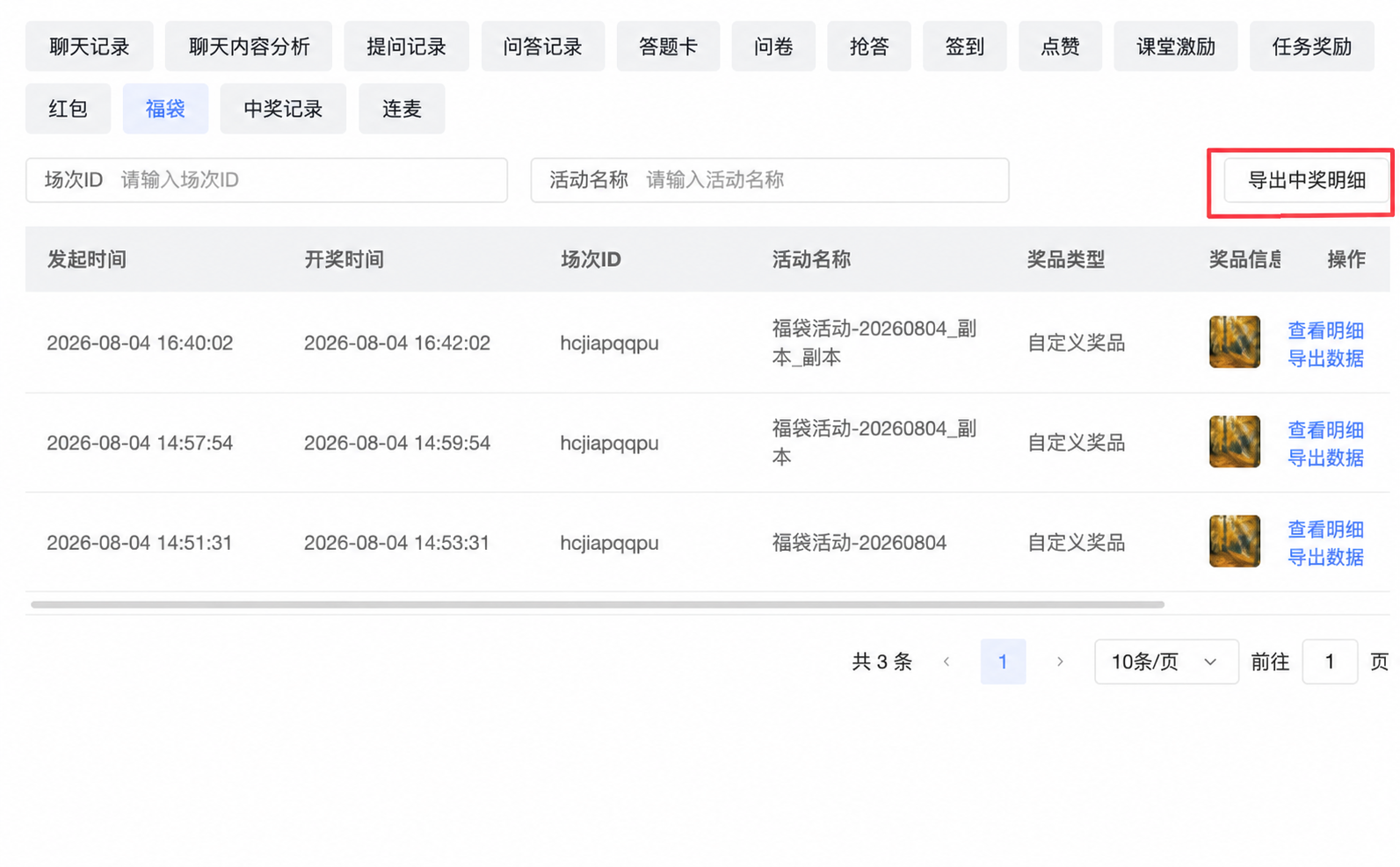
Lucky Bag Data Field Descriptions
| Field | Description |
|---|---|
| Launch Time | The time when the Lucky Bag activity was launched in the live room. |
| Draw Time | The time when the Lucky Bag activity completed the draw. |
| Session ID | The live session to which the Lucky Bag activity belongs. |
| Activity Name | The name of the current Lucky Bag activity. |
| Prize Type | Custom prize, cash red packet, or external points. |
| Prize Information | Displays information such as prize name, red packet amount, external points quantity, or prize image. |
| Number of Winners | The number of winners for the current Lucky Bag activity. |
| Number of Participants | The number of participants for the current Lucky Bag activity. |
Available operations are as follows:
| Operation | Description |
|---|---|
| View Details | Enter the secondary data page for the current Lucky Bag activity. |
| Export Data | Export the data results of the current Lucky Bag activity. |
| Export Winning Details | Export the winning user details of all Lucky Bag activities according to the current filter scope. Each winning user occupies a separate row, including the activity, prize, and user information. |
When [Prize Claim Information Entry] is enabled for an activity, the exported winning details also include the prize claim form content submitted by users.

V. View Single-Session Lucky Bag Data
In the activity list, click [Data], or on the Lucky Bag summary data page, click [View Details], to enter the secondary data page for a single-session Lucky Bag.
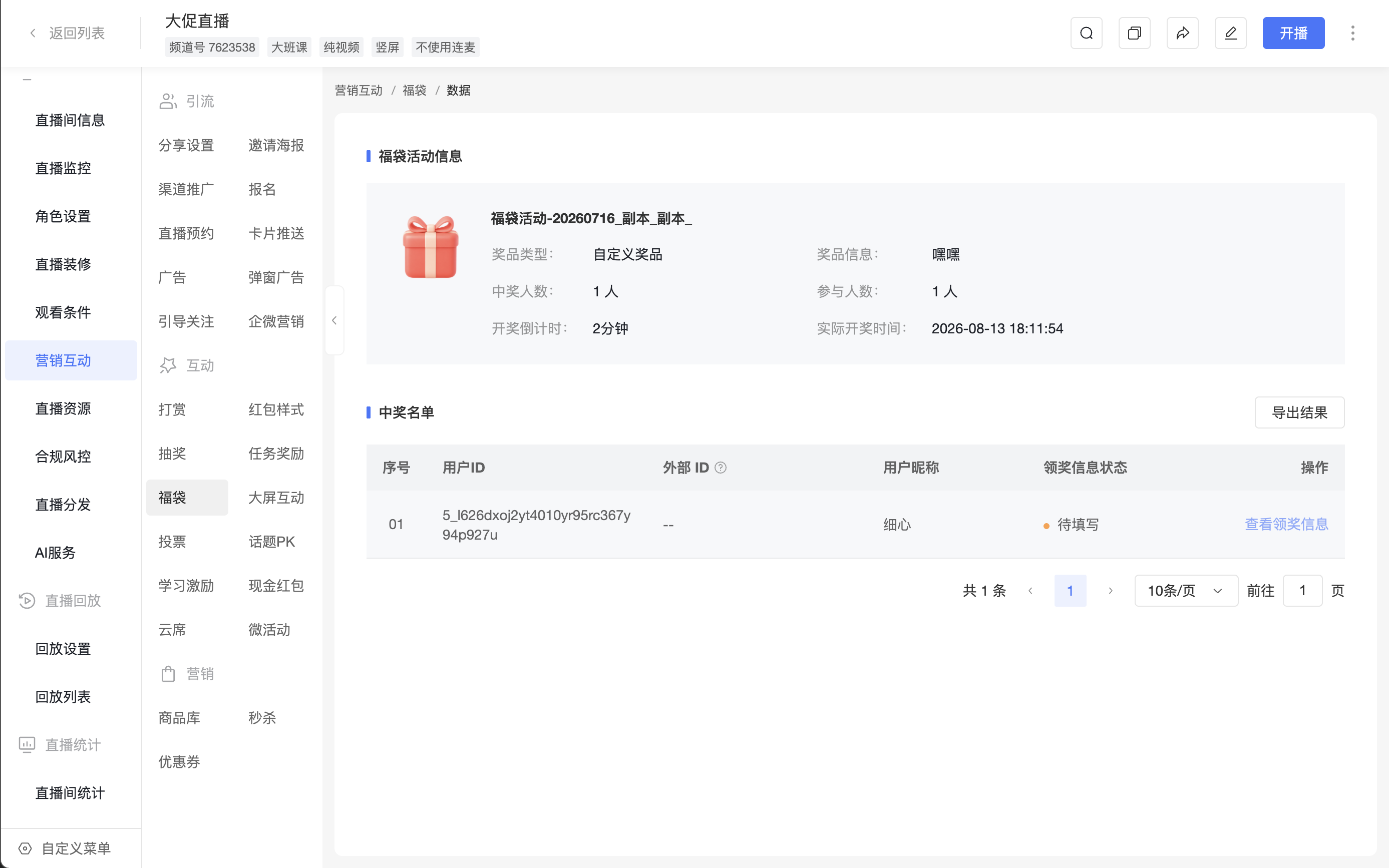
The single-session Lucky Bag data page contains two parts:
1. Lucky Bag Activity Information
Displays the basic information of the current Lucky Bag activity, including:
- Lucky Bag activity name
- Prize type
- Prize information
- Number of winners
- Number of participants
- Draw countdown
- Actual draw time
2. Winning List
The winning list for custom prizes displays the following information:
- Serial Number
- User ID
- External ID
- User Nickname
- Prize Claim Information Status
After the user system is enabled, the winning list displays [External ID]. When independent authorization is used and an external ID has been passed in, the page displays the corresponding value; when it has not been passed in, -- is displayed. This field is used to associate users in the business system.
Prize claim information statuses include:
- Pending Entry: The winning viewer has not yet submitted prize claim information.
- Entered: The winning viewer has submitted prize claim information.
For viewers who have filled in prize claim information, you can click [View Prize Claim Information] to view the form content they submitted.
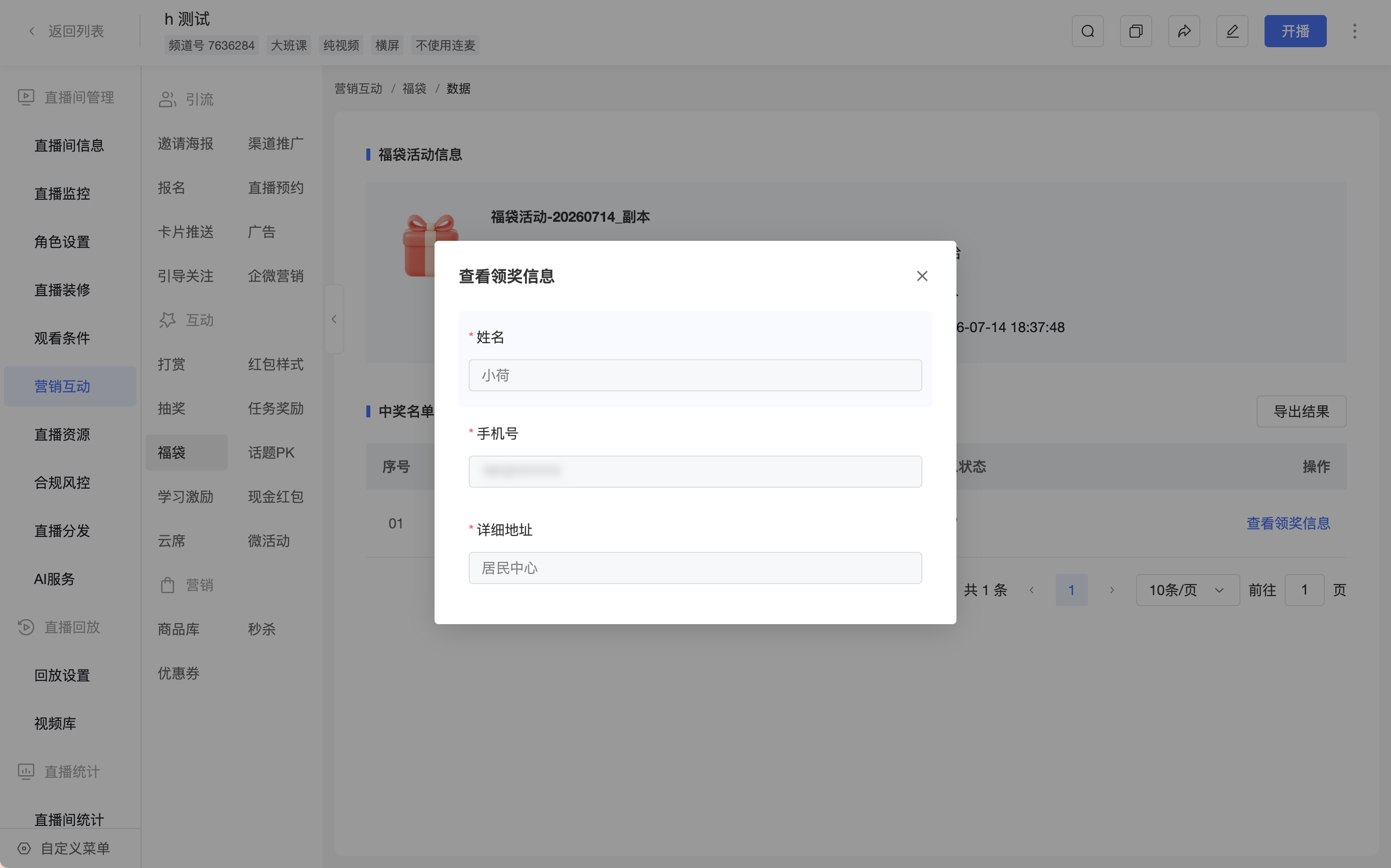
Click [Export Results] to export the winning list. The exported content also includes the external ID; when it has not been passed in, this field is left blank. When [Prize Claim Information Entry] is enabled for the activity, the exported content also includes the prize claim information status, information submission time, and the form content filled in by viewers.
The winning list for external points displays user information, winning time, reward points, issuance status, and successful issuance time. External points use an independent [Issuance Status] and do not use the [Prize Claim Information Status] of physical prizes.
| Issuance Status | Description |
|---|---|
| Pending Issuance | The user has won and is waiting for system processing. |
| Issued | The interface of the own points system has confirmed successful issuance. |
| Issuance Failed | This issuance failed and can be resent. |
When exporting the external points winning list, it includes reward points, issuance status, and successful issuance time.
When there are failed issuance records, you can click [Resend External Points] in the activity list and resend according to the prompts.
VI. FAQ
Q: What conditions do viewers need to complete to participate in the Lucky Bag?
A: Viewers need to complete all participation tasks configured for the activity before they are considered to have met the Lucky Bag participation conditions. The Lucky Bag requires at least 1 task to be set; when both "Specified Comment" and "Online Duration" are set, viewers need to complete all tasks.
Q: Can cash red packets or external points be linked to a prize claim form?
A: No. Only custom prizes support enabling [Prize Claim Information Entry] and linking a prize claim form. Cash red packets and external points do not display this setting.
Q: Where can I fill in or view prize claim information after winning?
A: When [Prize Claim Information Entry] is enabled for a custom prize, winning viewers can click [Fill in Prize Claim Information] in the winning pop-up, or go to [My Rewards] - [Lucky Bag] on the viewing page, fill in information through [Claim], or view submitted information through [View]. Prize claim information cannot be modified after successful submission.
Q: Where can I view and export Lucky Bag data?
A: You can view Lucky Bag data on the [Marketing Interaction] - [Lucky Bag] page or in [Live Room Statistics] - [Interaction Data] - [Lucky Bag]. The Lucky Bag summary data page supports exporting winning details according to the filter scope, and the single-session Lucky Bag data page supports exporting the winning list of the current activity; when [Prize Claim Information Entry] is enabled for the activity, the exported content will include the prize claim information submitted by viewers.
