


Prize Library
The prize library is used to centrally maintain prize information and reuse it when configuring marketing campaigns. Operations personnel can create prizes in advance and select them for use in campaigns, or directly add prizes when configuring lucky bag campaigns.
I. Feature Introduction
The prize library supports the following capabilities:
- Create and manage custom prizes, system points, external points, and fixed-amount cash red packets;
- View by prize type, and search by prize name or prize ID;
- Select existing prizes in campaigns to reduce duplicate entry;
- View cumulative prize distribution data, referencing campaigns, and distribution details.
The prize library manages basic information such as prize name, image, claim method, points value, and fixed red packet amount. Contents such as prize quantity, number of winners, winning probability, ranking range, participation conditions, and budget still need to be configured in each campaign.
Before use, please confirm that the account has the corresponding permissions:
- The main account or sub-accounts that have been granted prize library reference permission can view and select prizes they have permission to use;
- Sub-accounts without prize library reference permission cannot view or select prizes in the library, but can directly add prizes in lucky bag campaigns; the added content is only saved in the current campaign;
- Before using cash red packets, the cash red packet capability must be enabled. The prize library supports fixed-amount cash red packets and does not support random-amount red packets.
II. Create a Prize
1. Enter the Prize Library
Go to [Prize Library] and click [Create Prize].
2. Select the Prize Type
According to campaign needs, select custom prize, system points, external points, or cash red packet. Different campaigns support different prize types, and when configuring a campaign you need to select a type supported by that campaign.
3. Configure Prize Information
Different types of prizes require the following information to be configured:
| Prize Type | Configuration Items | Description |
|---|---|---|
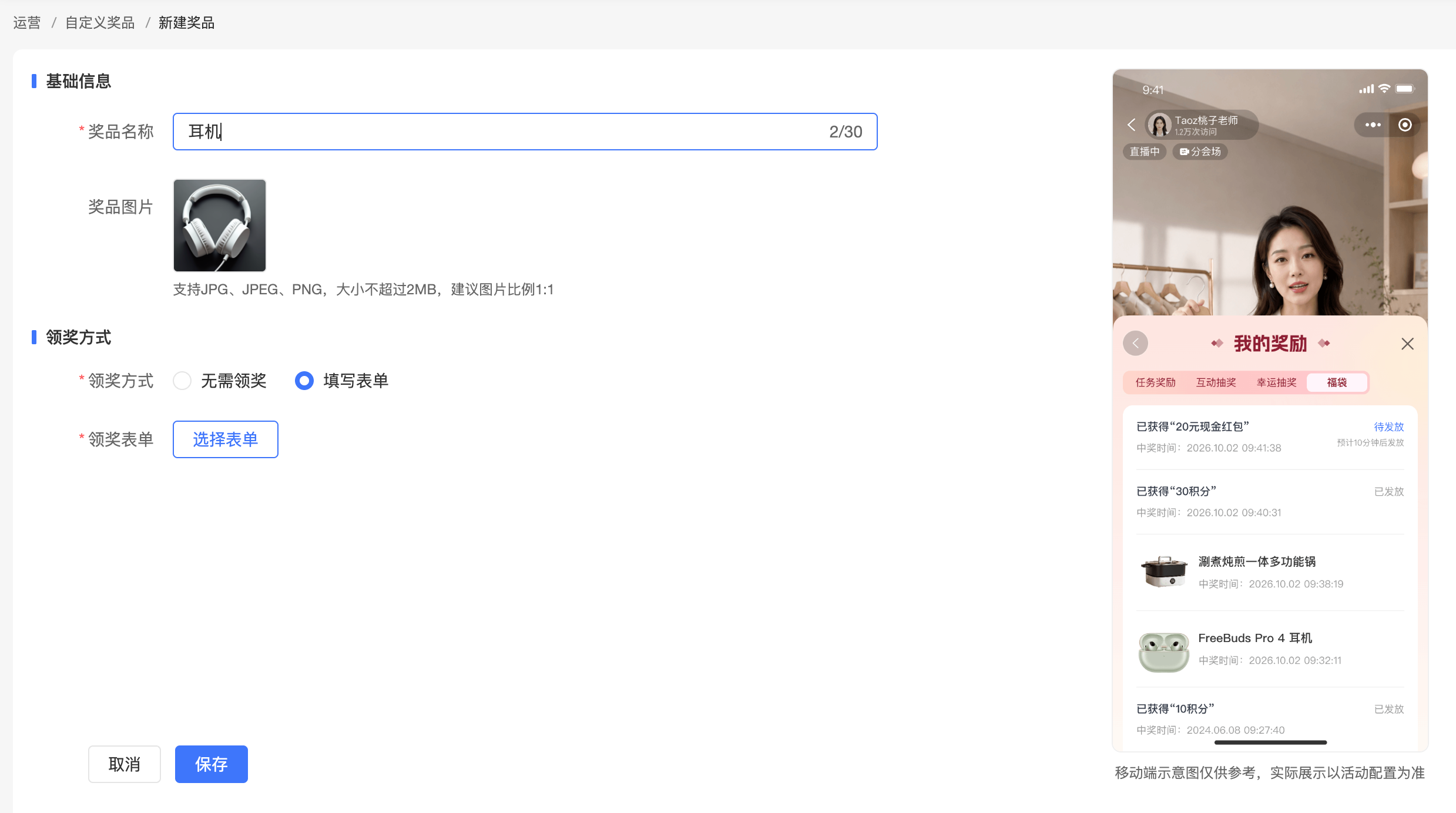
| Custom prize | Name, image, claim method | The claim method supports [Fill out form] and [No claim required] |
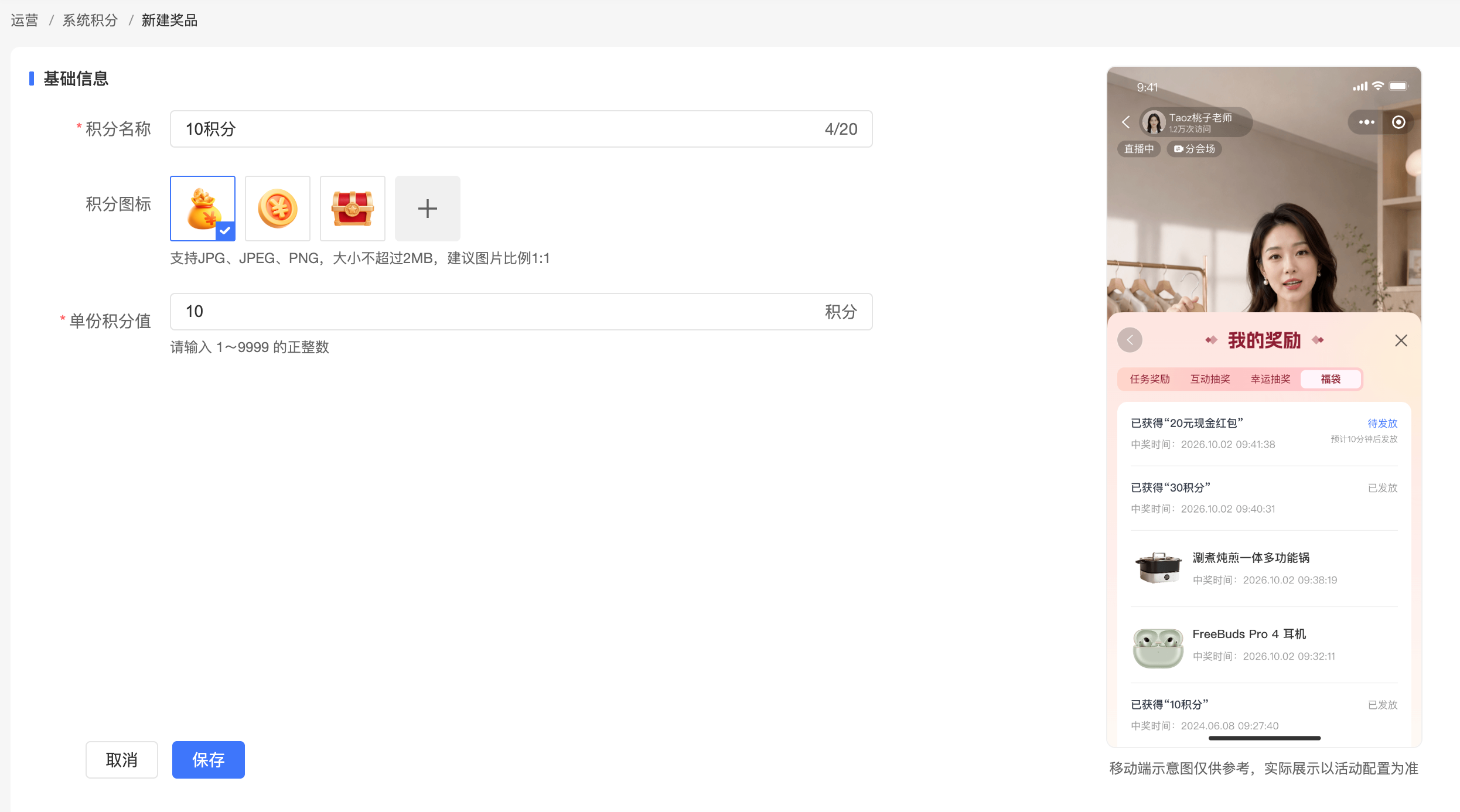
| System points | Points name, points icon, points specification | The points specification indicates the number of points issued each time and must be a positive integer |
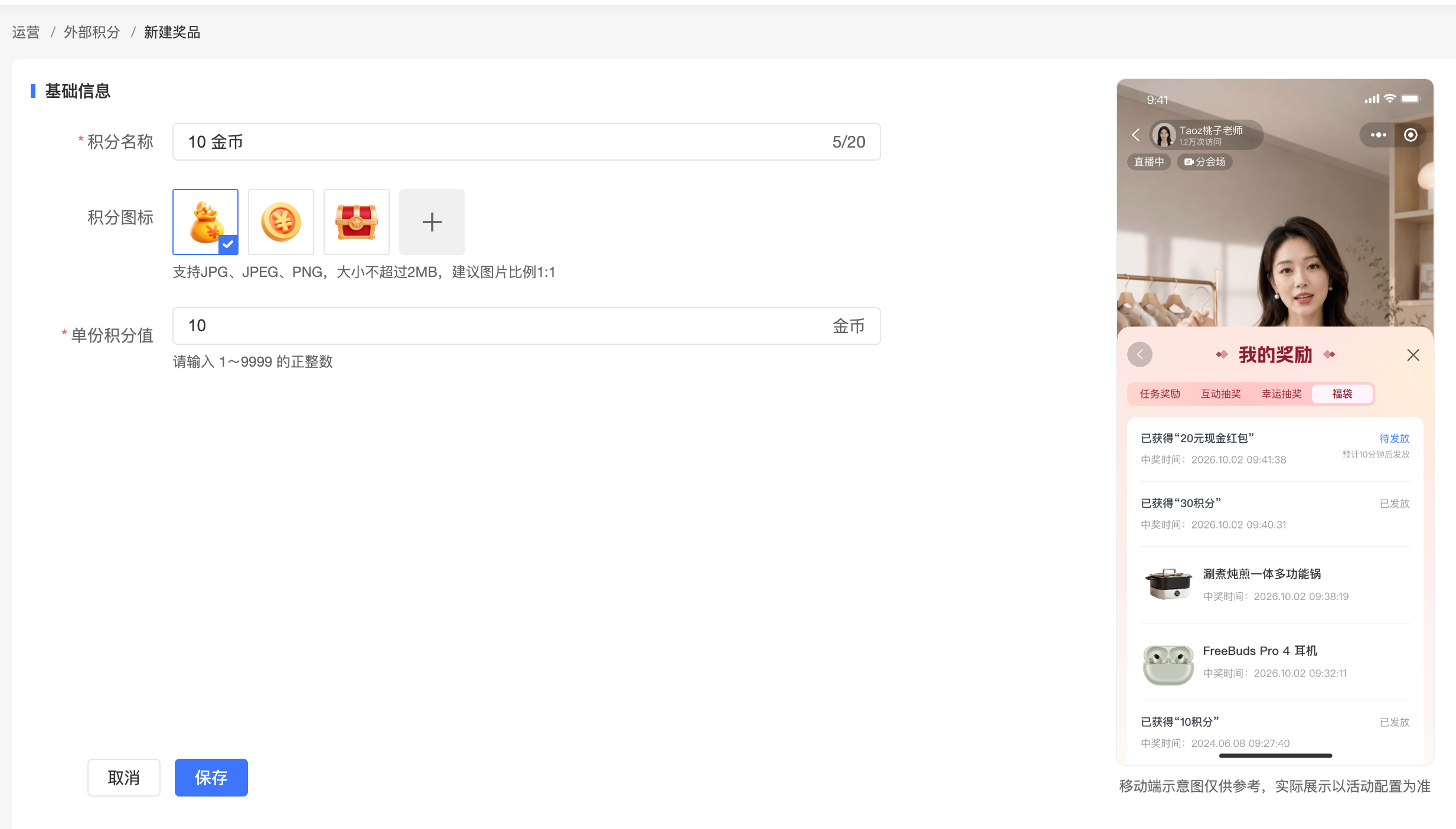
| External points | Points name, points icon, points specification | The points specification indicates the number of external points issued each time and must be a positive integer |
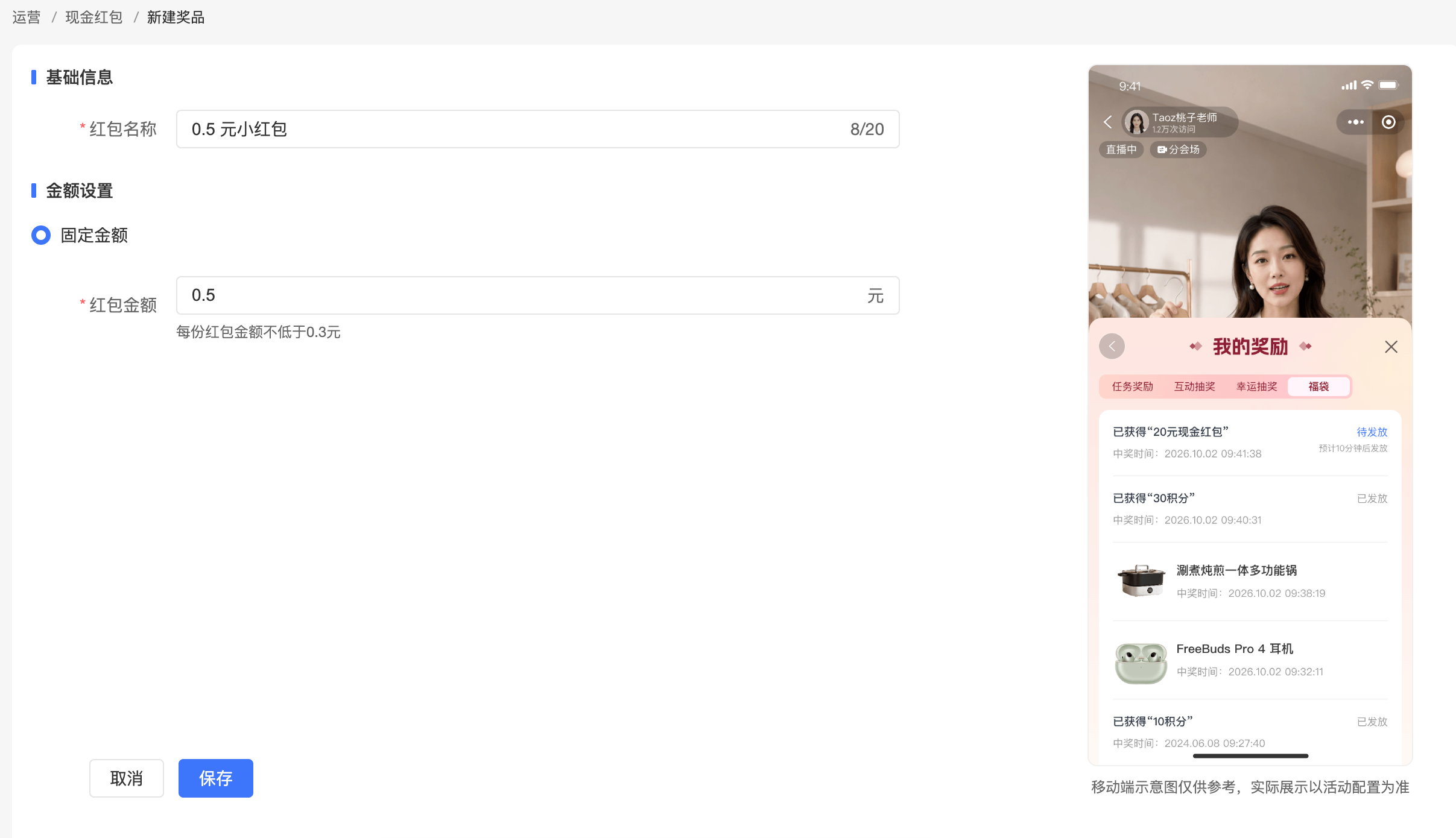
| Cash red packet | Red packet name, fixed amount | The cash red packet capability must already be enabled; the fixed amount indicates the amount each winning user receives |
Create a Custom Prize
When selecting [Fill out form], you need to select a claim form from the form list. The list provides the form name, creator, creation time, and last modified time, which can be used to find the target form and preview its content; if there is no suitable form, you can create a new claim form.
When selecting [No claim required], no other claim information needs to be configured.
Create System Points
The points icon supports using built-in icons or custom uploads.
Create External Points
The points icon supports using built-in icons or custom uploads.
Create a Cash Red Packet
The cash red packet capability must already be enabled; enter the red packet name and fixed amount information
4. Save the Prize
Check the prize information and save it. After successful saving, the system generates a unique prize ID, the prize enters the corresponding type list, and the reference count is initially 0.
It can later be selected for use in campaigns that support this prize type.
III. Use Prizes in Campaigns
1. Select from the Prize Library
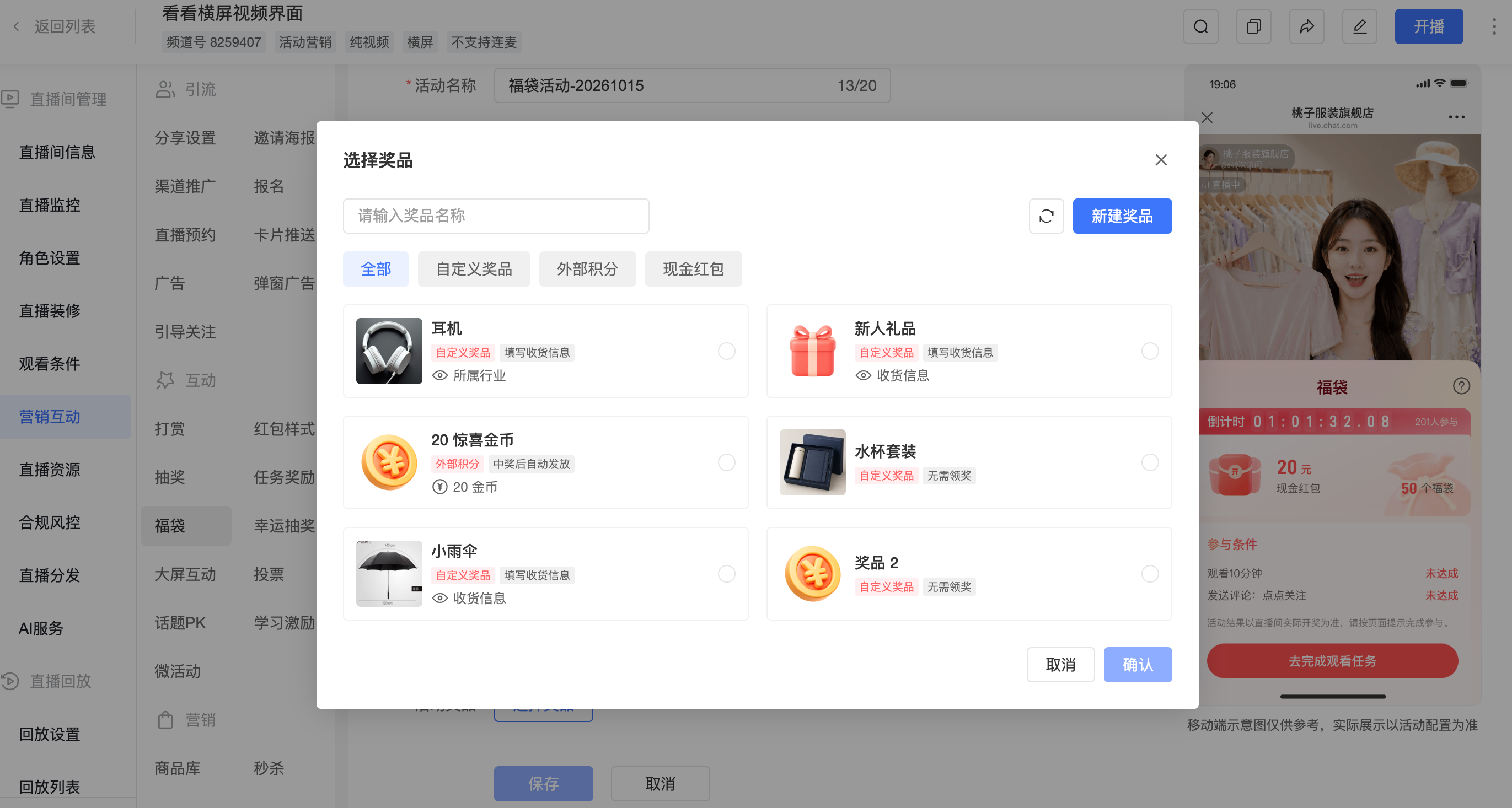
Go to the prize configuration location of the target campaign and click [Select Prize].
In the prize selection pop-up, search by prize name, or filter by prize type.
Select the prize you need to use.
According to campaign requirements, continue to set contents such as campaign participation conditions and number of winners, and save the campaign.
2. Add Directly in a Lucky Bag Campaign
At the prize configuration location of the lucky bag campaign, click [Add Prize] and fill in the information required for that prize type.
Complete the lucky bag campaign configuration and save it.
After the campaign is saved successfully, prizes added by the main account and sub-accounts with storage permission will be saved to the prize library and can be reused in subsequent campaigns.
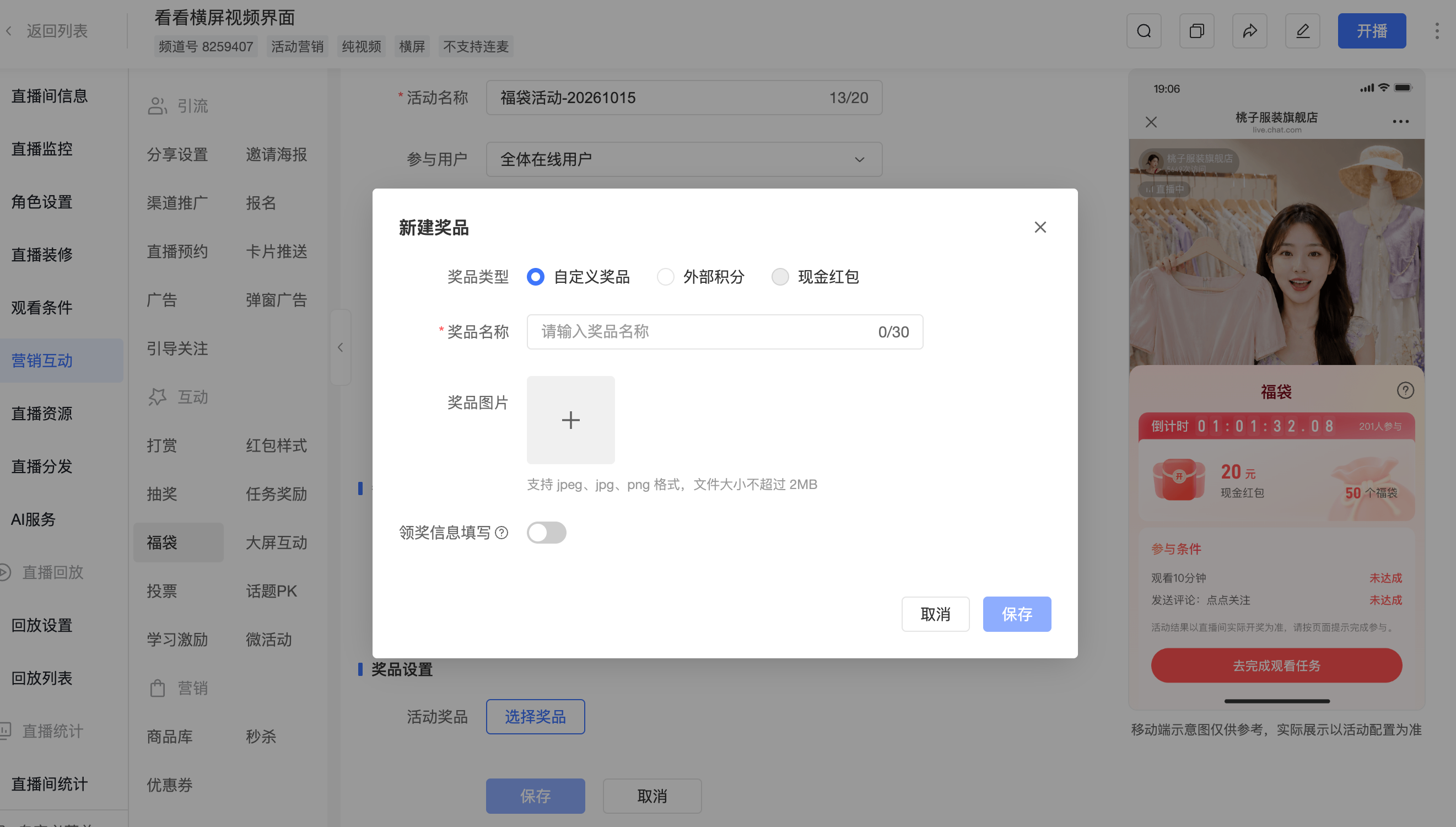
For sub-accounts without prize library reference permission, newly added prizes are only saved in the current campaign. Canceling configuration, closing the form, not saving the campaign, or failing to save the campaign will not generate a new prize in the library.
3. Prize Information After Saving
After the campaign is saved, the prize information used this time will be retained. Later editing or deleting the prize in the prize library will not change the prize information in saved or published campaigns, nor will it change historical distribution records.
If you only remove a prize from the current campaign, that operation only affects the current campaign configuration and will not delete the prize from the prize library.
IV. Manage Prizes
1. Query Prizes
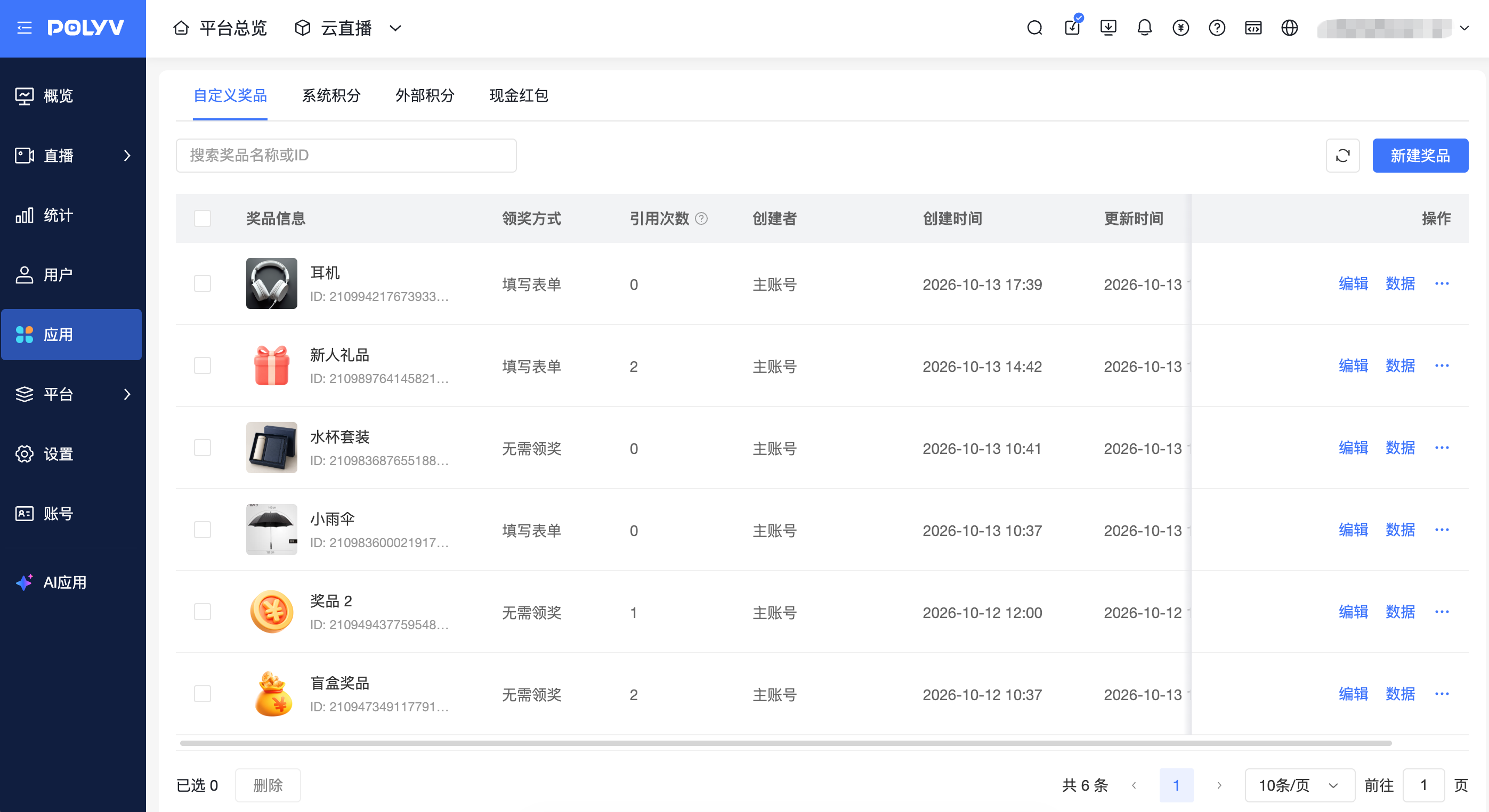
Go to [Prize Library], select the prize type you need to view, and search for prizes under the current type by prize name or prize ID.
Each type list displays information such as prize name, prize ID, reference count, creator, creation time, and update time. In addition:
- Custom prizes display the prize image and claim method;
- System points and external points display the points icon and points specification (the points value issued at one time);
- Cash red packets display the fixed amount.
After a prize is successfully referenced by a campaign, the reference count in the list is updated synchronously.
2. Edit a Prize
When you have prize library permission, find the target prize and enter the edit page, check the existing information, adjust the content that needs to be modified, and save it.
After saving, the original prize is updated and the prize ID remains unchanged. Campaigns that subsequently reselect this prize will use the edited information; saved or published campaigns still retain the original content.
Renaming or changing the image in the prize library will not synchronously modify the prize information in previously saved campaigns.
3. Copy a Prize
When you need to create a prize with similar information, you can use the copy function to reduce duplicate entry. All four prize types support copying.
Find the prize to use as a reference, click [Copy], check the carried-over basic information, adjust as needed, and save.
After copying and saving, a new prize ID is generated, and the reference count is initially 0. The original prize's campaign reference relationships and historical distribution data will not be copied to the new prize.
4. Delete a Prize
When you have prize library permission, you can delete prizes individually or in batches:
- Individual deletion: Find the target prize, click [Delete], and confirm after checking the prompt;
- Batch deletion: Check the prizes to be deleted, perform batch deletion, and confirm. You can select all prizes on the current page; the select-all range is the current page.
After successful deletion, the prize is removed from the corresponding type list and can no longer be selected by new campaigns; the prize content in configured and published campaigns and historical distribution records are still retained.
V. View Prize Data
In the prize list, find the target prize and enter [Data] to view the usage and distribution status of that prize.
1. View Cumulative Data
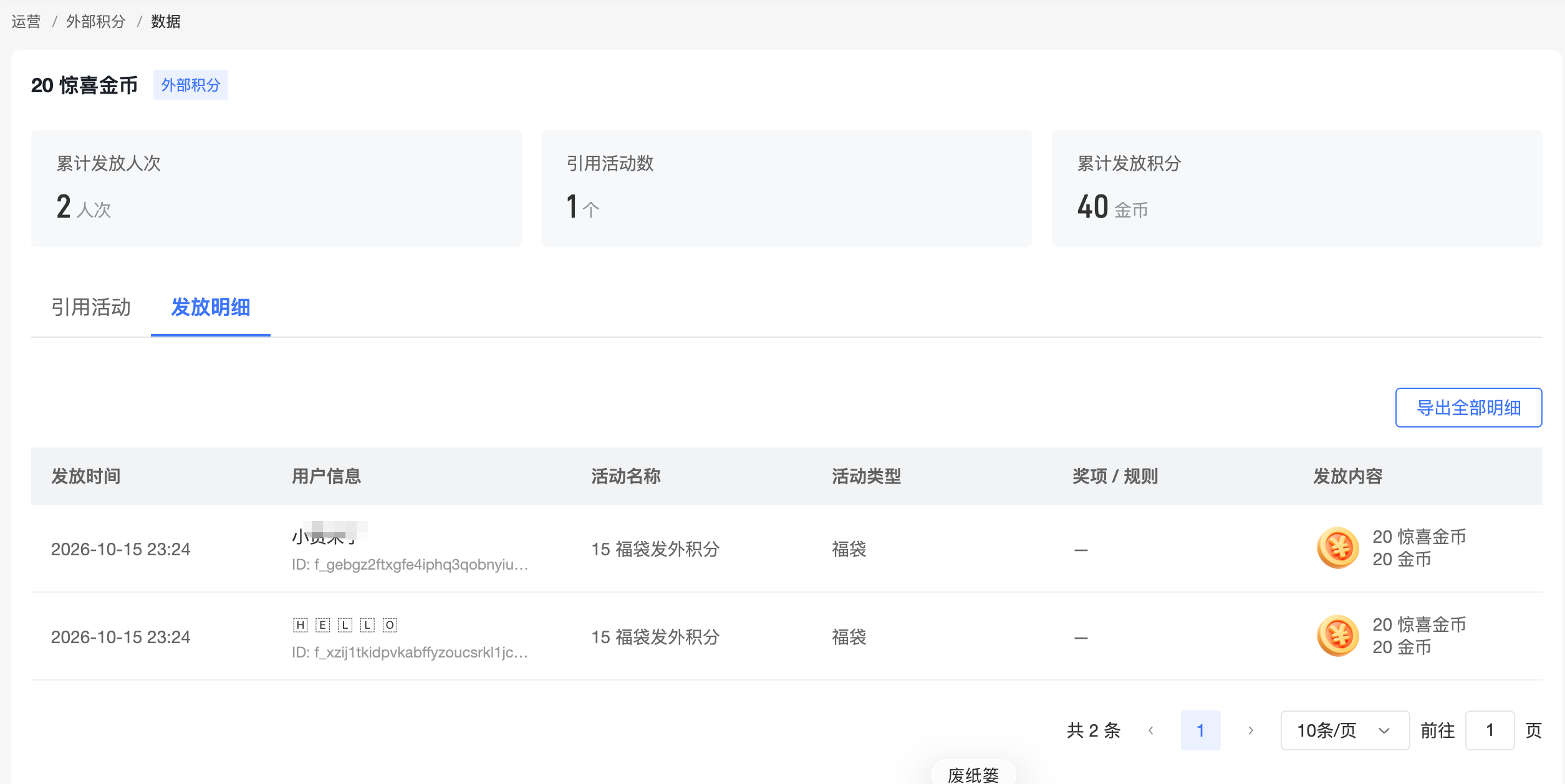
View data such as the prize's cumulative distribution quantity and number of referencing campaigns to understand the overall usage of the prize.
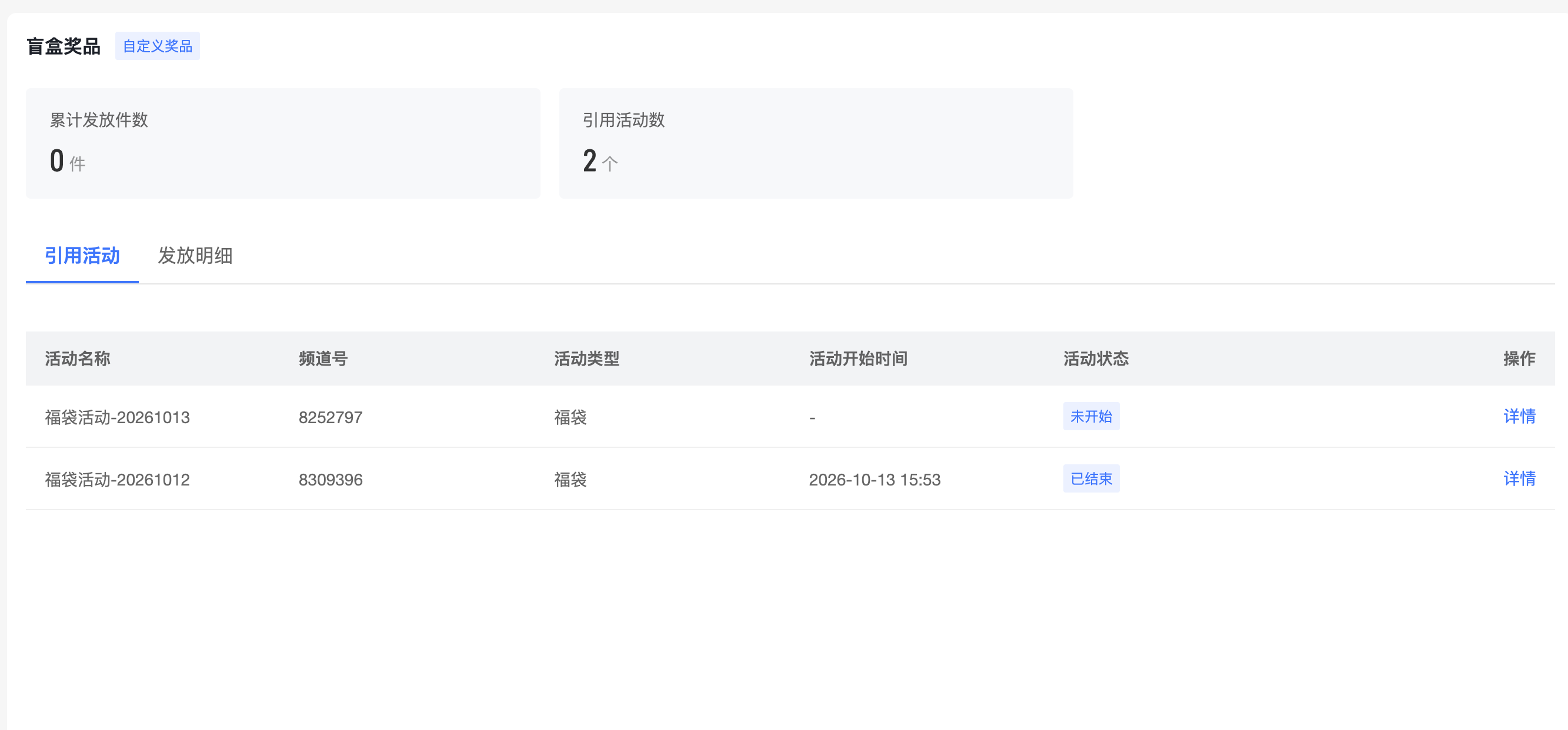
2. View Referencing Campaigns
View the campaign name, live channel number, campaign type, campaign time, and campaign status of campaigns that reference the prize.
When you need to check the configuration of a prize in a campaign, you can view the rule content, prize information, configured quantity, distributed quantity, and addition time in the corresponding campaign.
3. View Distribution Details
View the distribution time, user, source campaign, distribution content, and claim method of each record, to check the actual distribution status of the prize.
Distribution details retain the prize content at the time of distribution and will not change with subsequent edits in the prize library.
VI. FAQ
Q: Why can't I see the [Select Prize] entry?
A: The current sub-account may not have prize library reference permission. Without reference permission, you cannot select prizes in the library, but you can configure the prize used in this campaign through [Add Prize] in a lucky bag campaign. You can contact the account administrator to check the authorization scope.
Q: Why are there prizes in the prize library, but I can't select them when configuring a campaign?
A: First confirm that the current campaign supports that prize type and that the sub-account has prize library reference permission. When using cash red packets, you also need to confirm that the account has enabled the cash red packet capability.
Q: Will modifying or deleting a prize in the library affect campaigns that have already been configured?
A: No. The campaign retains the prize information used at the time of configuration, and subsequent editing or deletion in the library will not change saved or published campaigns or historical distribution records. The edited information is used for subsequent new references, and deleted prizes can no longer be selected by subsequent campaigns.
Q: Why can't I find a prize in the prize library after adding it in a lucky bag campaign?
A: A prize enters the prize library only when the campaign is saved successfully and the account has storage permission. If it is not saved, configuration is canceled, or saving fails, it will not enter the library; prizes added by sub-accounts without prize library reference permission are only saved in the current campaign.
Q: After saving a prize in the prize library, do I still need to configure the distribution quantity and winning probability?
A: Yes. The prize library saves the basic prize information. Prize quantity, number of winners, probability, ranking range, participation conditions, and budget are configured separately by each campaign, and prize distribution and claiming also follow each campaign's own rules.
