Live Room Information
Updated: 2026-08-17 11:27:00
1. Feature Overview
Feature Info |
Description |
|---|---|
| Feature Name | Live Room Information |
| Feature Description | On the live room information page, users can view and modify key live room details, change the streaming method, update the broadcast password, and more. |
| Purpose | Get an overview of live room information, manage the live room conveniently, and flexibly adjust live streaming details. |
| Use Case | General live streaming scenarios. |
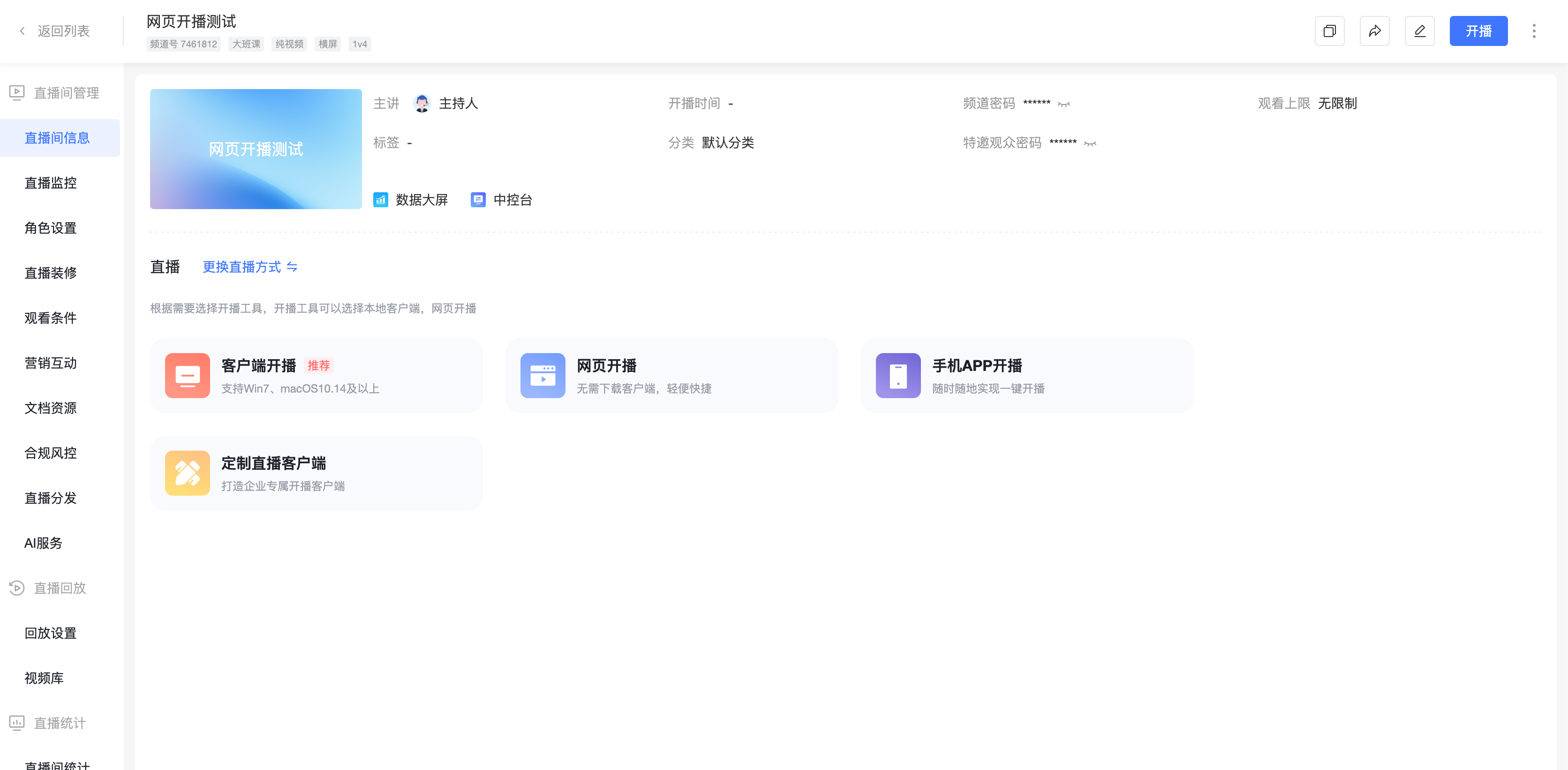
| Feature List | 1. Information modification: Channel name, login password, special audience password, broadcast time, host, category, tags; 2. Quick access: Live data dashboard, control center; 3. Change streaming method; 4. Quick start broadcast. |
2. Instructions
Access the live room information page from the live room list (opens in a new tab).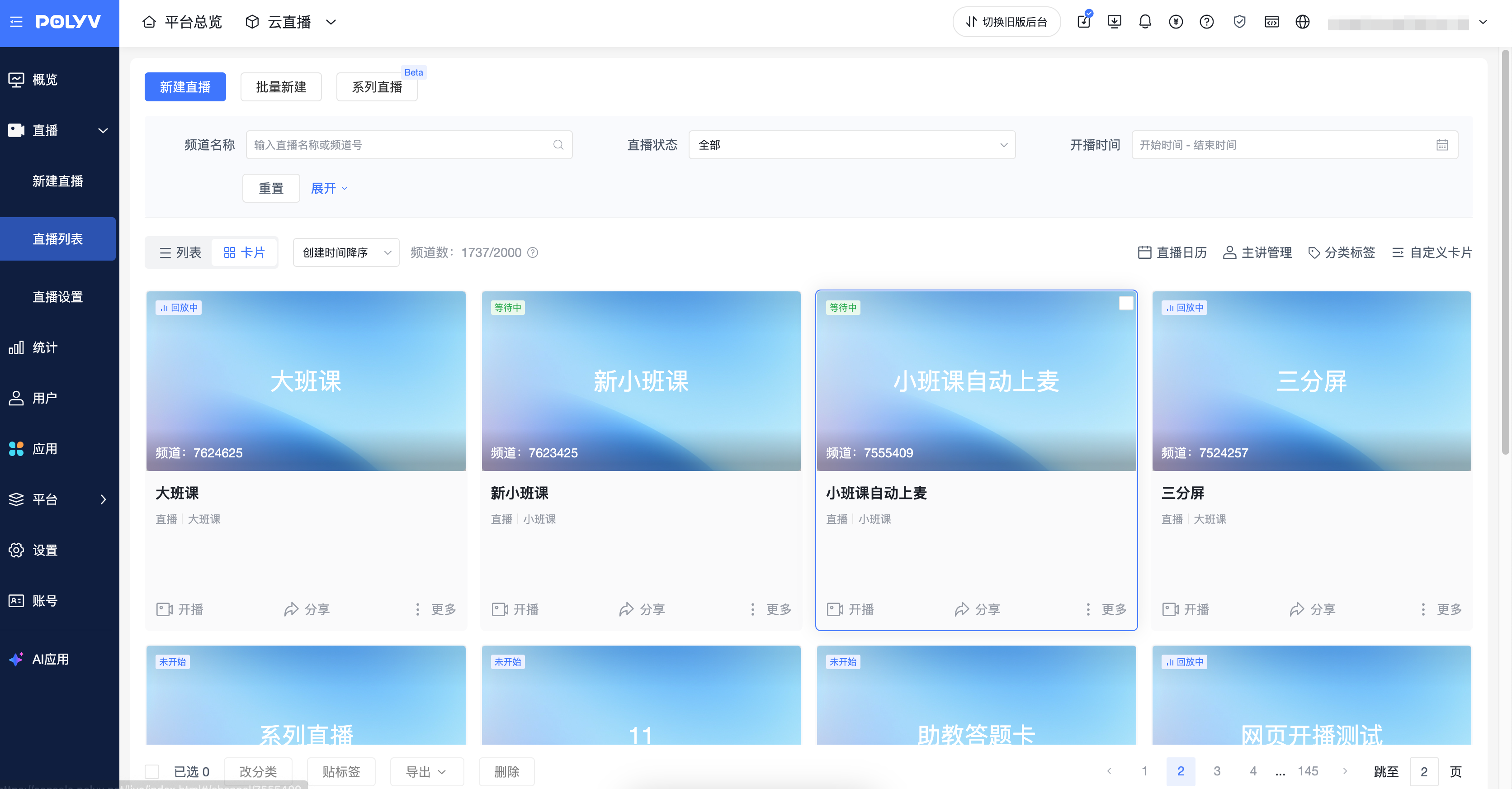
1. Information Modification
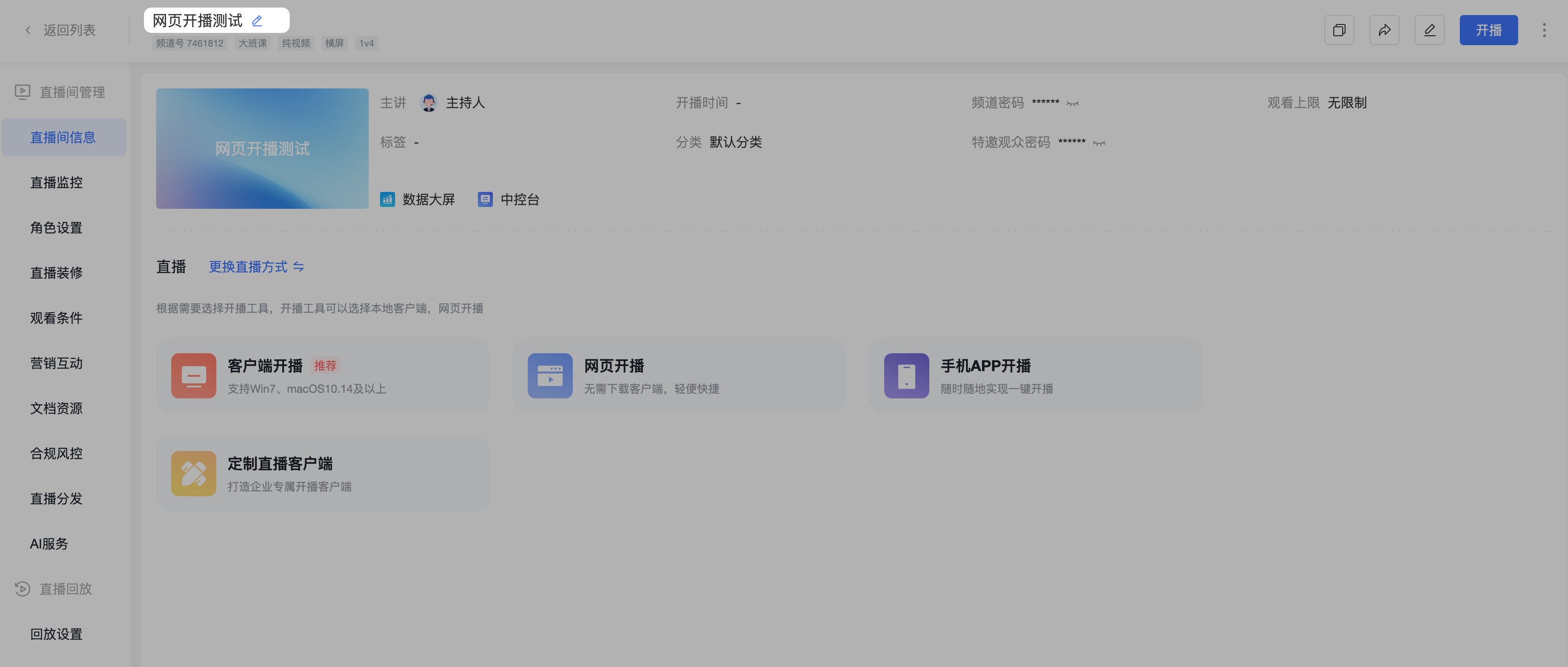
Channel Name
- Hover over the channel name and click the "Edit" icon.
- After clicking "Edit", a popup appears to modify the channel name.
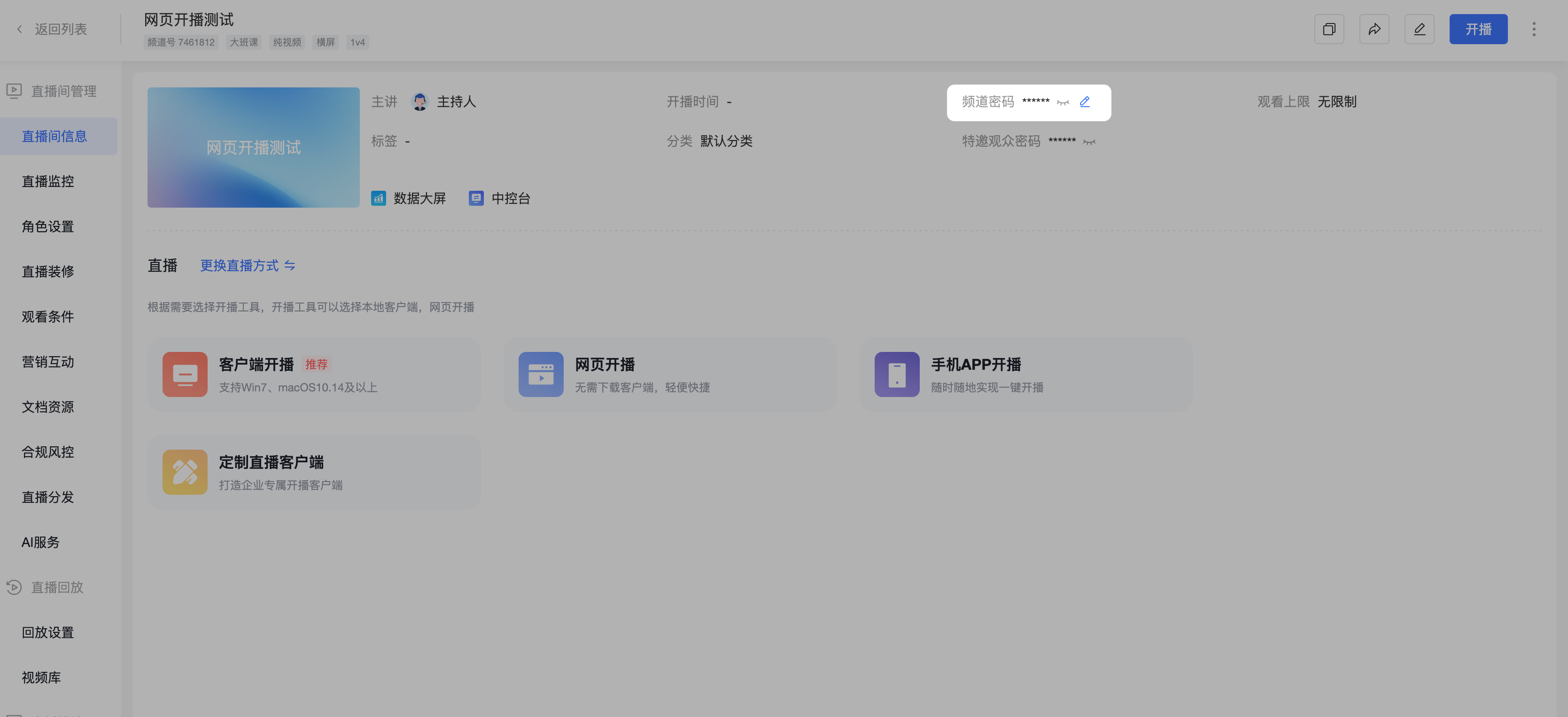
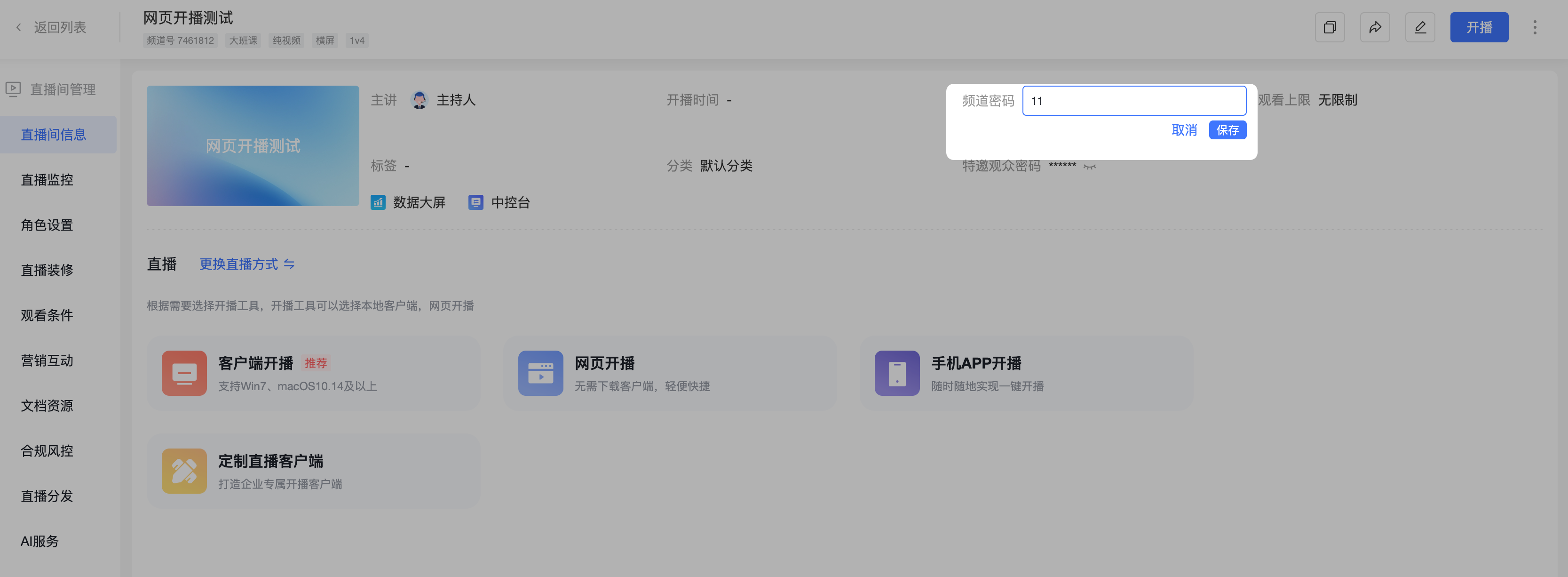
Login Password
- Hover over the channel login password, and when the "Edit" icon appears, a popup allows modification.
- Click the "Show"/"Hide" icon to display or mask the channel login password.
Special Audience Password
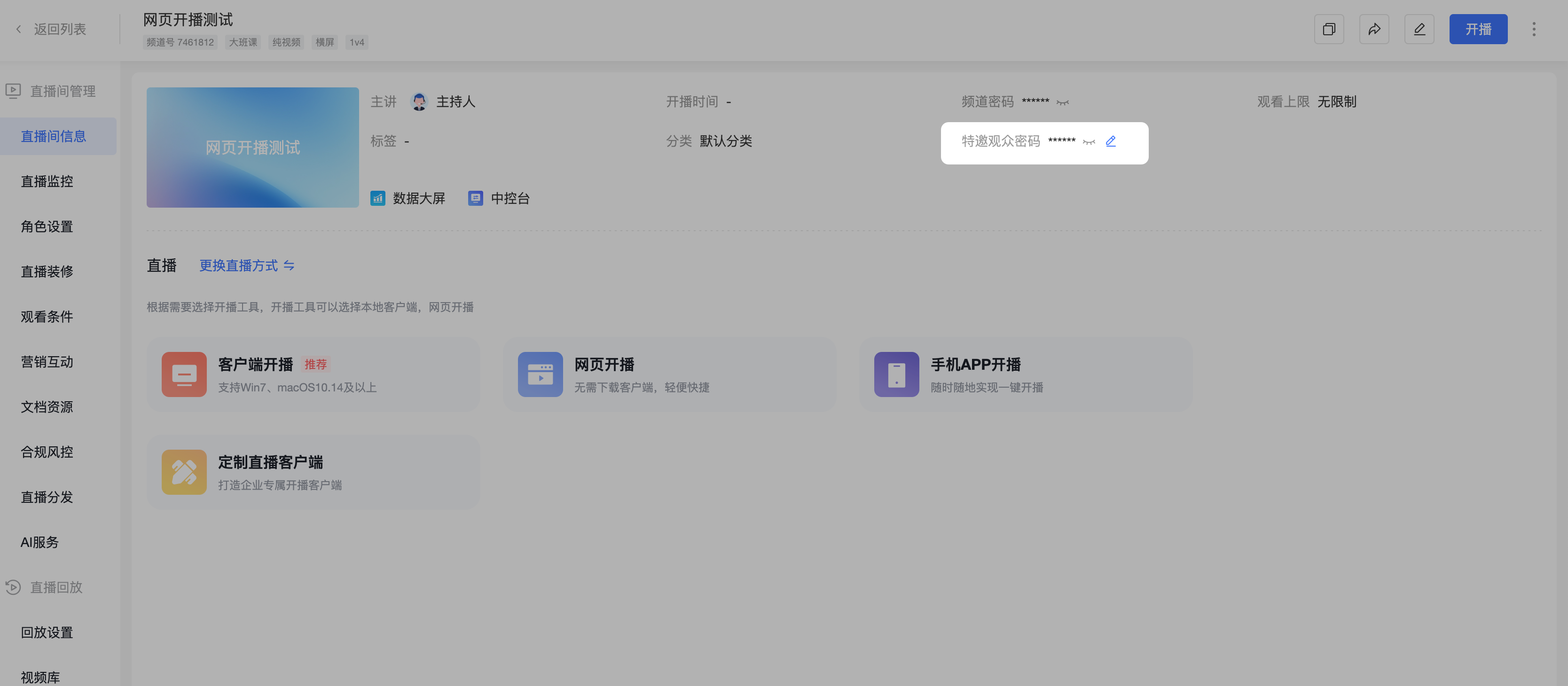
- Click "Modify" next to the special audience password to change it.
Broadcast Time
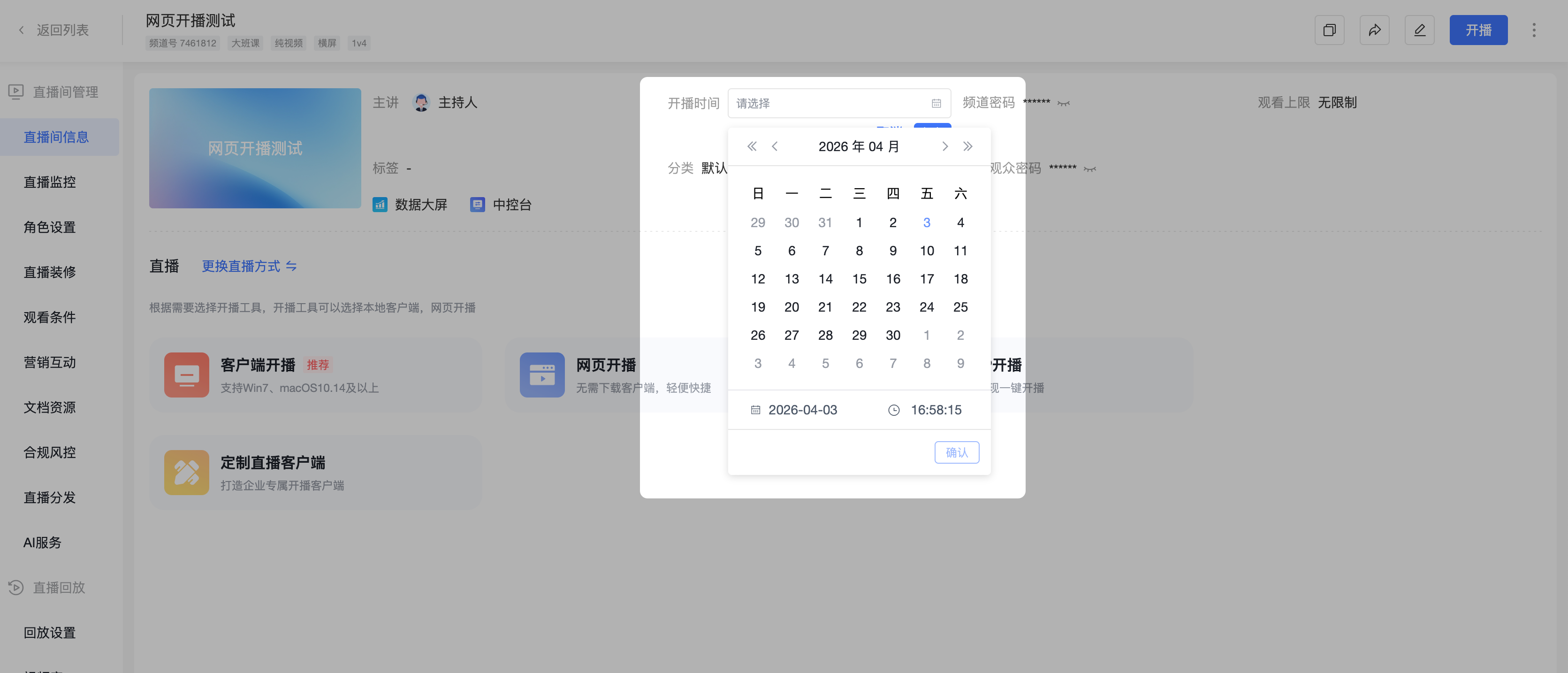
- Hover over the broadcast time, click the "Edit" icon, and modify it in the popup.
- In the popup, only the broadcast time can be modified; the timezone is displayed for reference only. To change the timezone, go to "Edit Live Room".
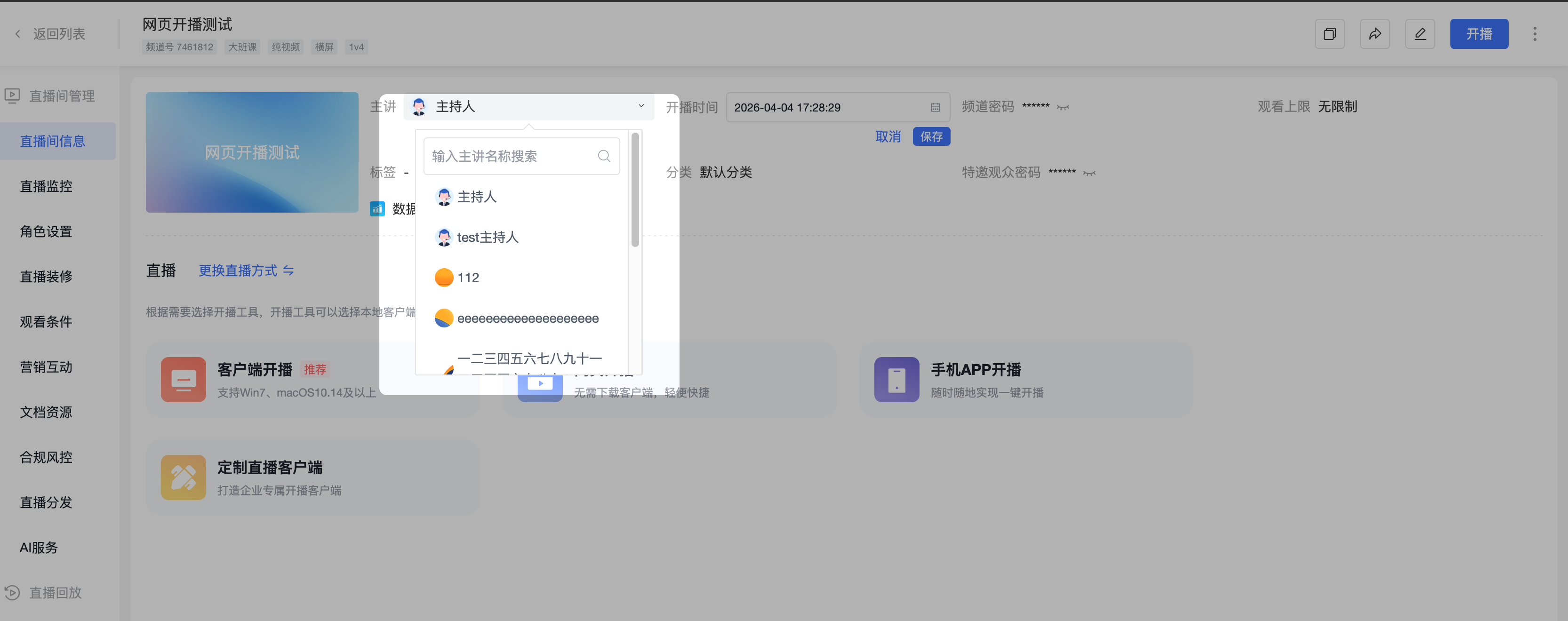
Host
- Hover over the host field, a dropdown edit box appears. Click to open a dropdown selector and choose a host.
- The selector supports searching for hosts using keywords.
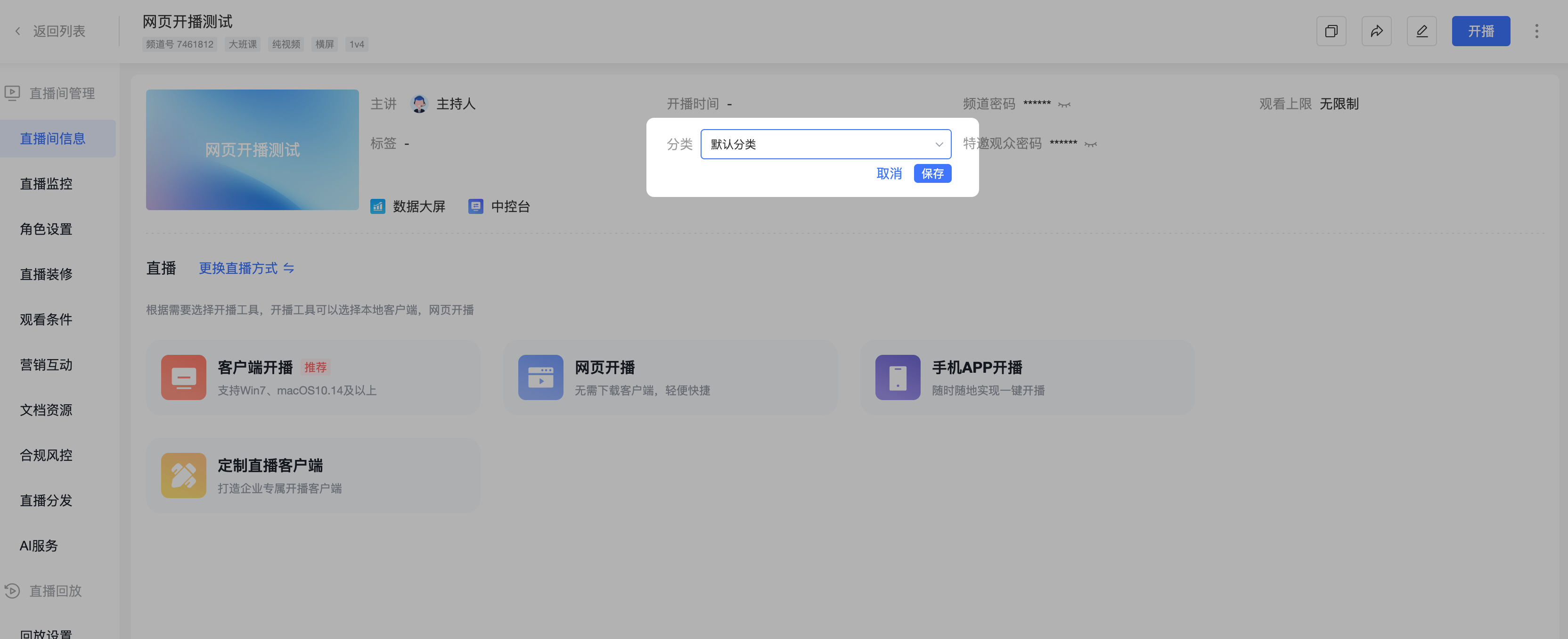
Category
- Hover over the category field, when the "Edit" icon appears, modify it in the popup.
- The popup selector supports searching for categories using keywords.
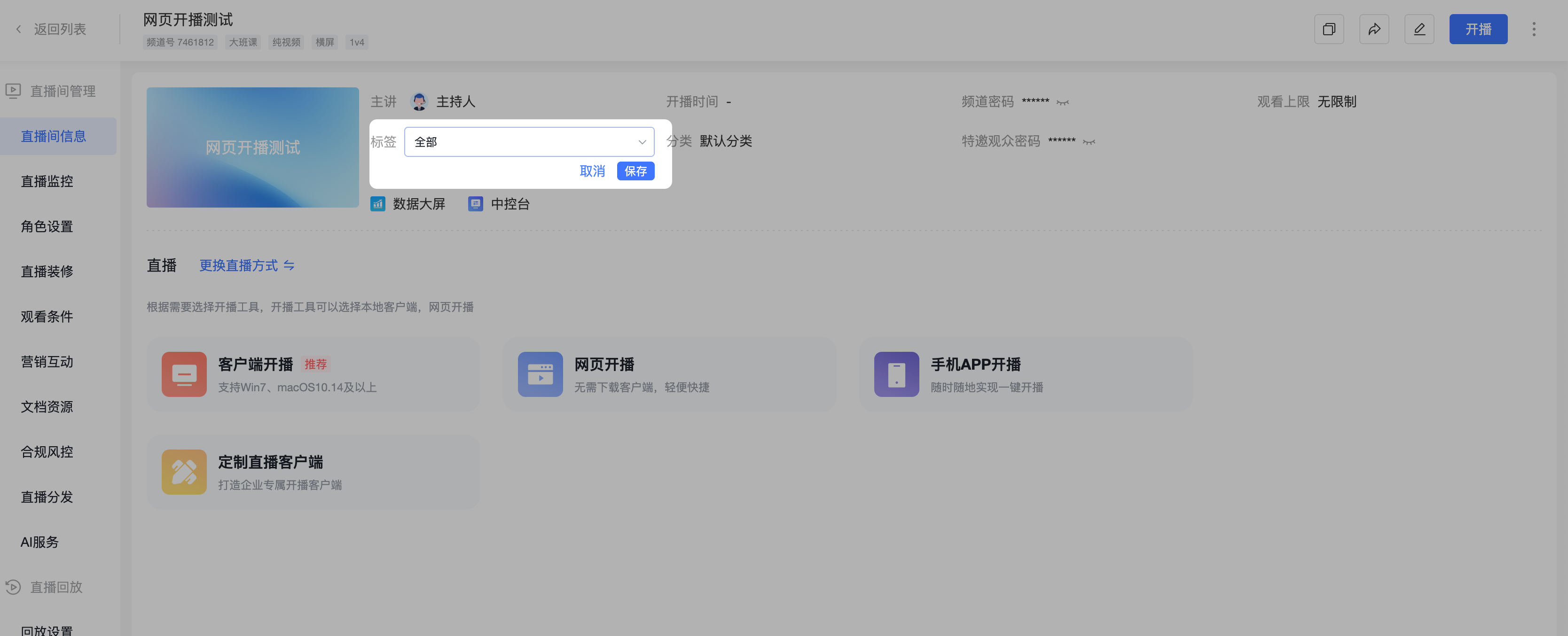
Tags
- Hover over the tags field, when the "Edit" icon appears, modify them in the popup.
- The popup selector supports searching for tags using keywords and allows multiple tag selection.
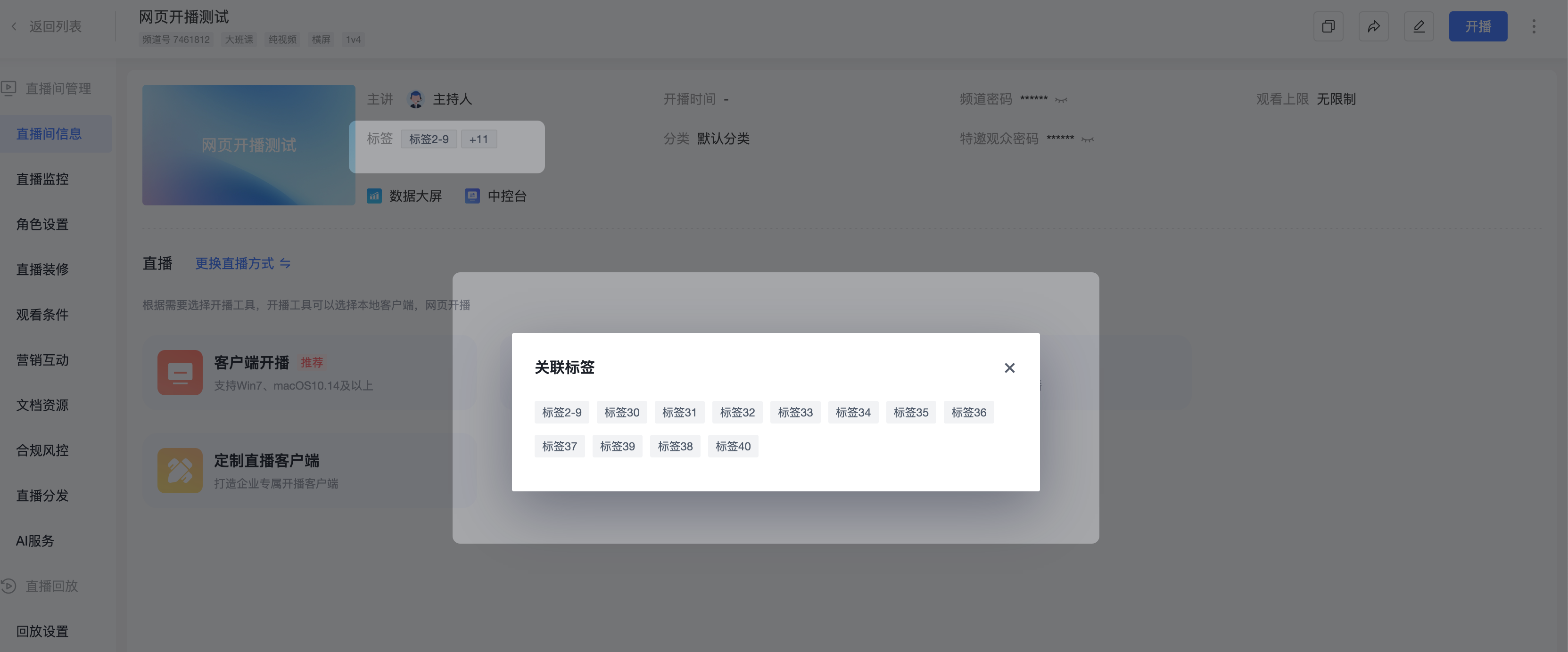
- Click "+n" to display the channel's associated tags in a popup.
2. Quick Access
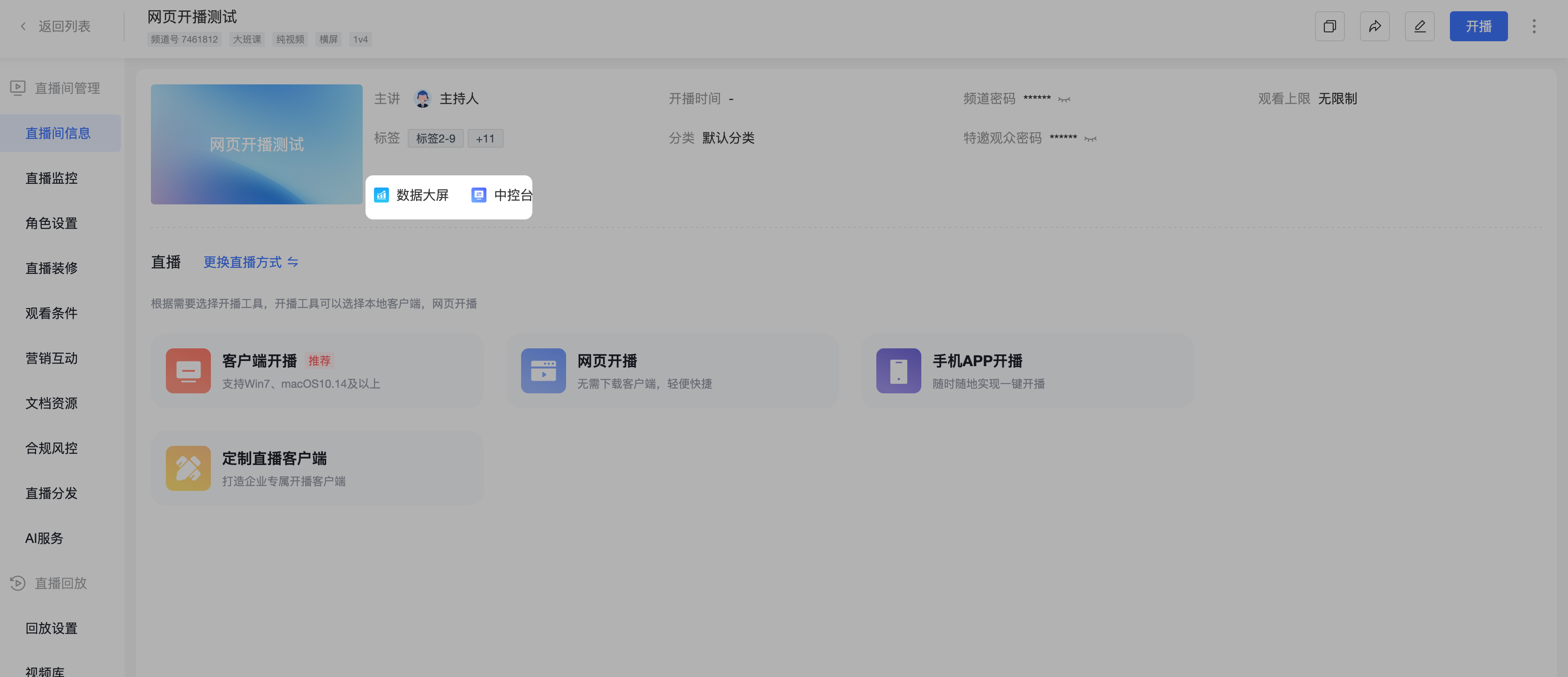
- Click the button to quickly jump to the live data dashboard page.
- Click the button to quickly jump to the control center page.
3. Change Streaming Method
- To change the streaming method, click "Change Streaming Method" to select from live, pseudo-live, pull-stream live, or audio live.
- For details, refer to the documentation:
https://help.polyv.net/index.html#/live/product/live_form/live_other/live_fake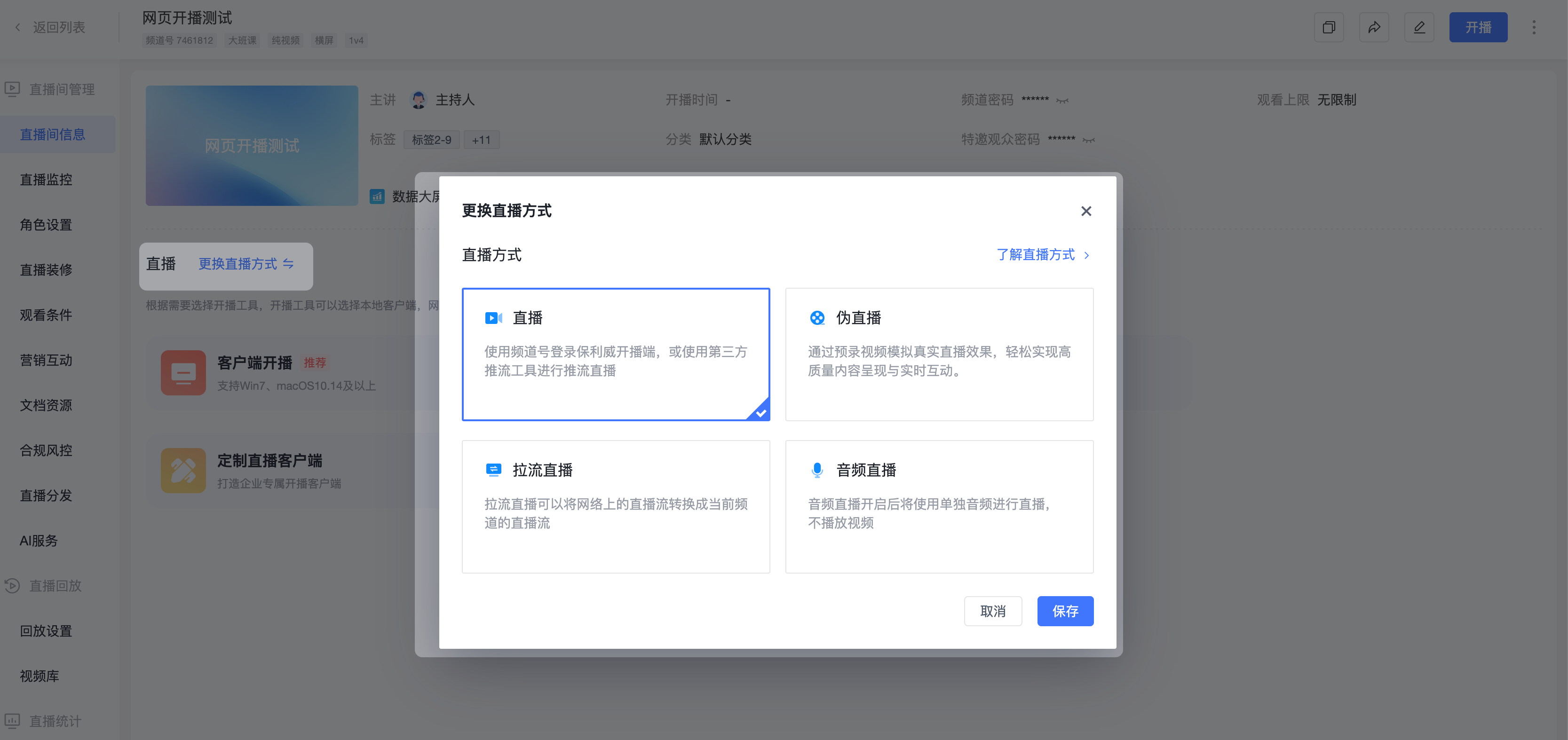
4. Quick Start Broadcast
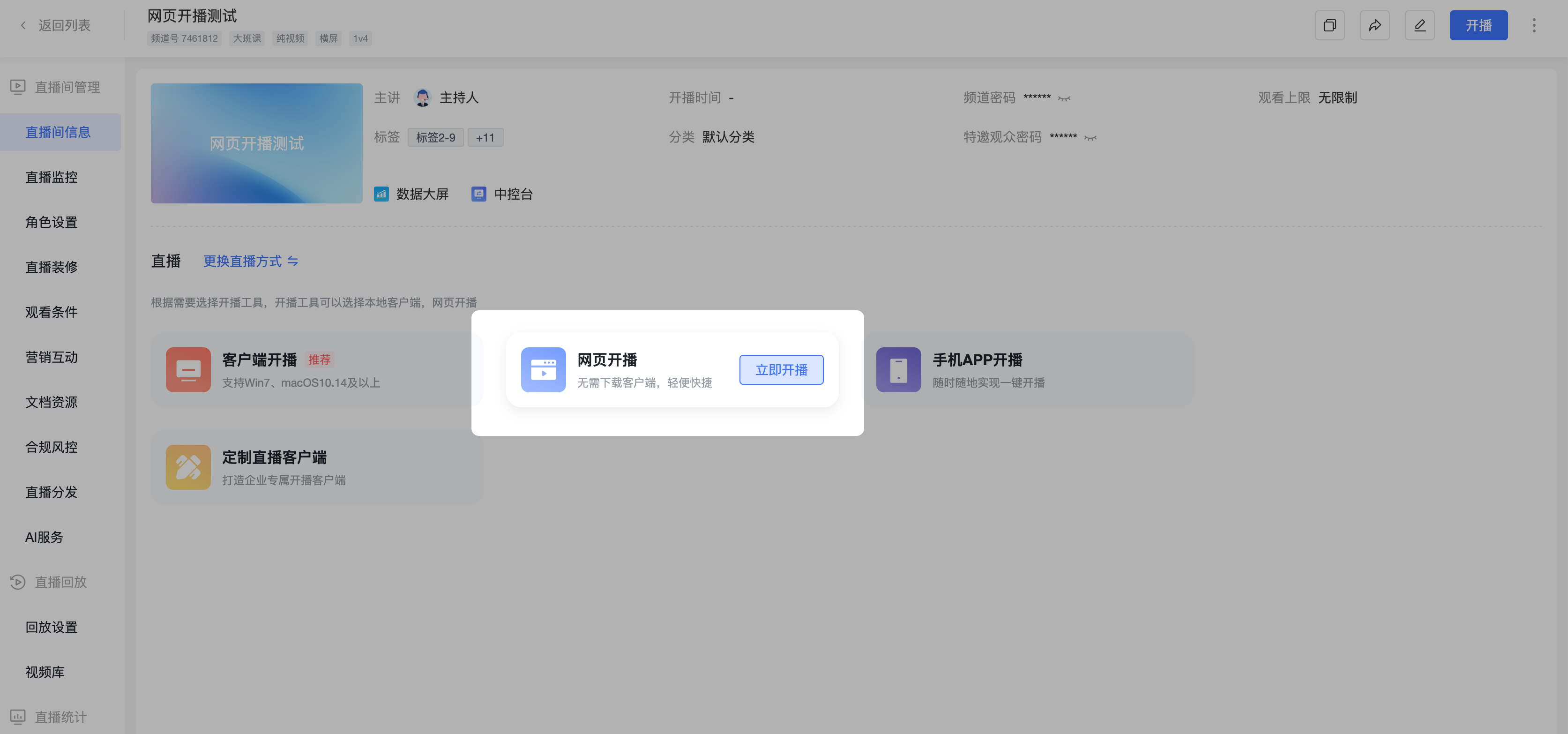
- Quick start broadcast: Click the "Web Broadcast" button to directly log into the live room (password-free login possible).