Live Stream Orchestration
Updated: 2026-08-17 11:27:00
I. Feature Overview
| Feature Info | Description |
|---|---|
| Feature Name | Live Stream Orchestration |
| Feature Description | Supports pre-configuring activities within a live stream before it starts (live or pseudo-live), which will automatically take effect at preset times after the stream begins. |
| Use Cases | Suitable for scenarios with clear live stream workflows and timelines, such as courses and training sessions, reducing manual operations during the stream. |
II. Creating Rules
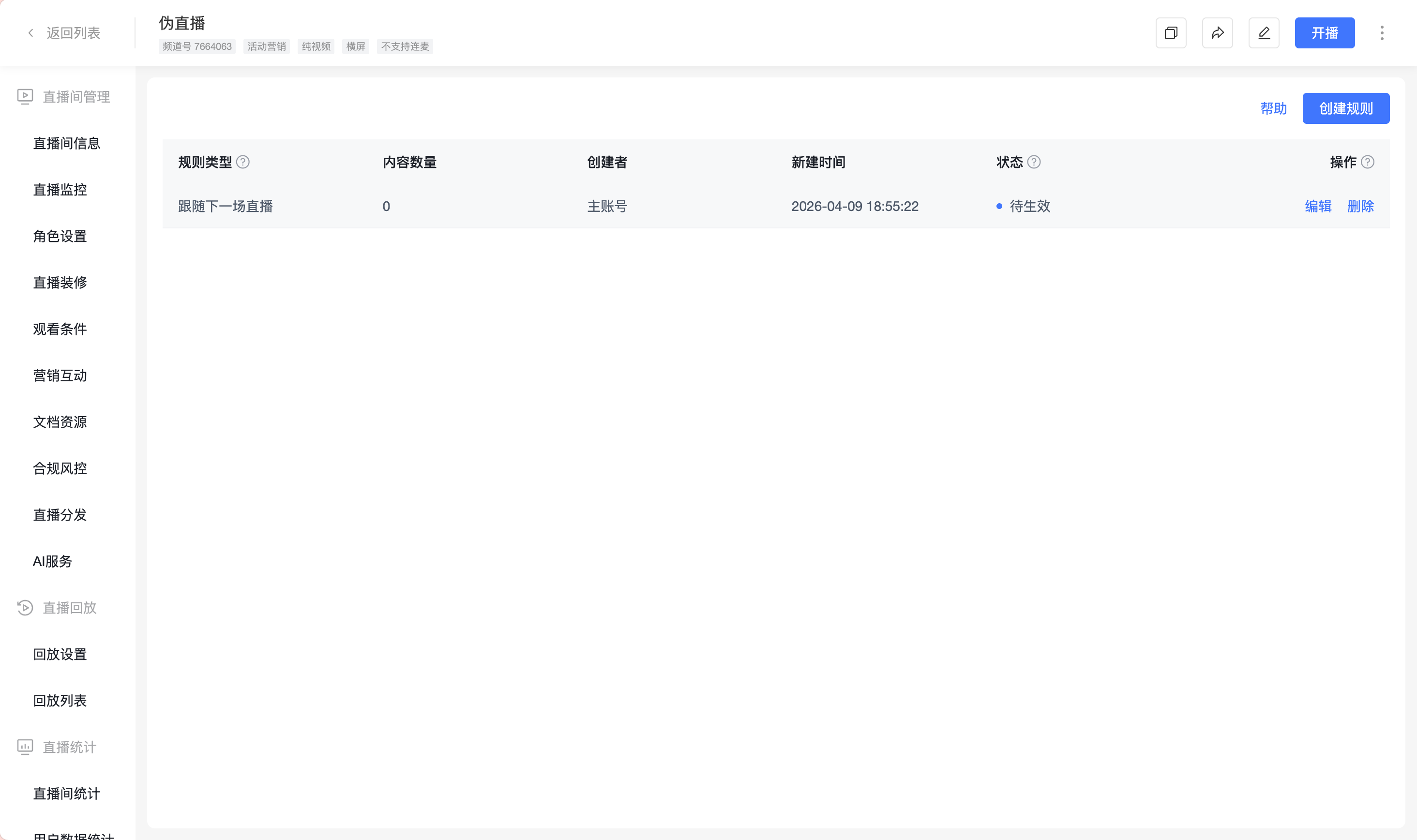
Live Stream - Entry: Admin Console → Live Channels → Live Stream Orchestration → Rules → Create Rule
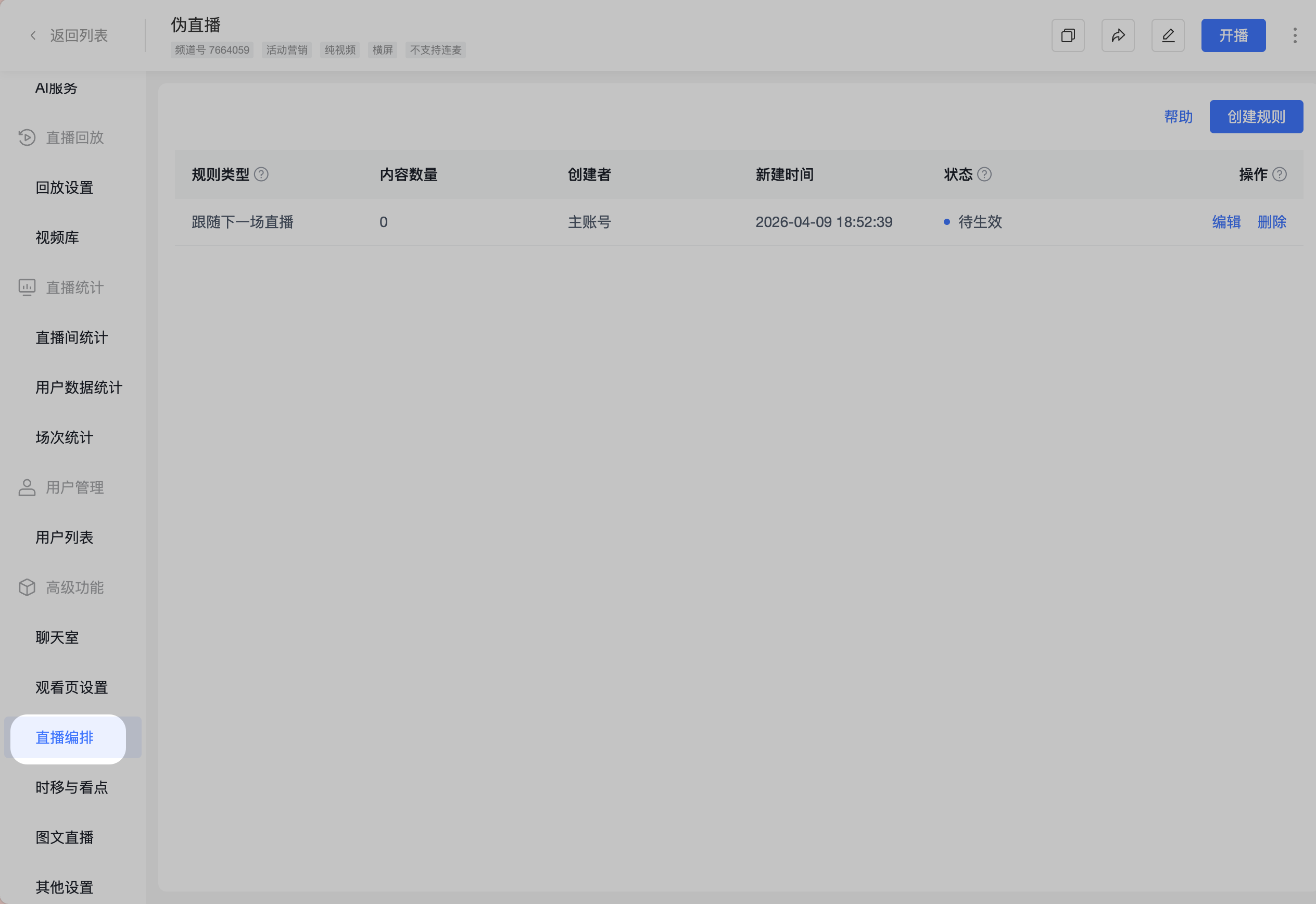
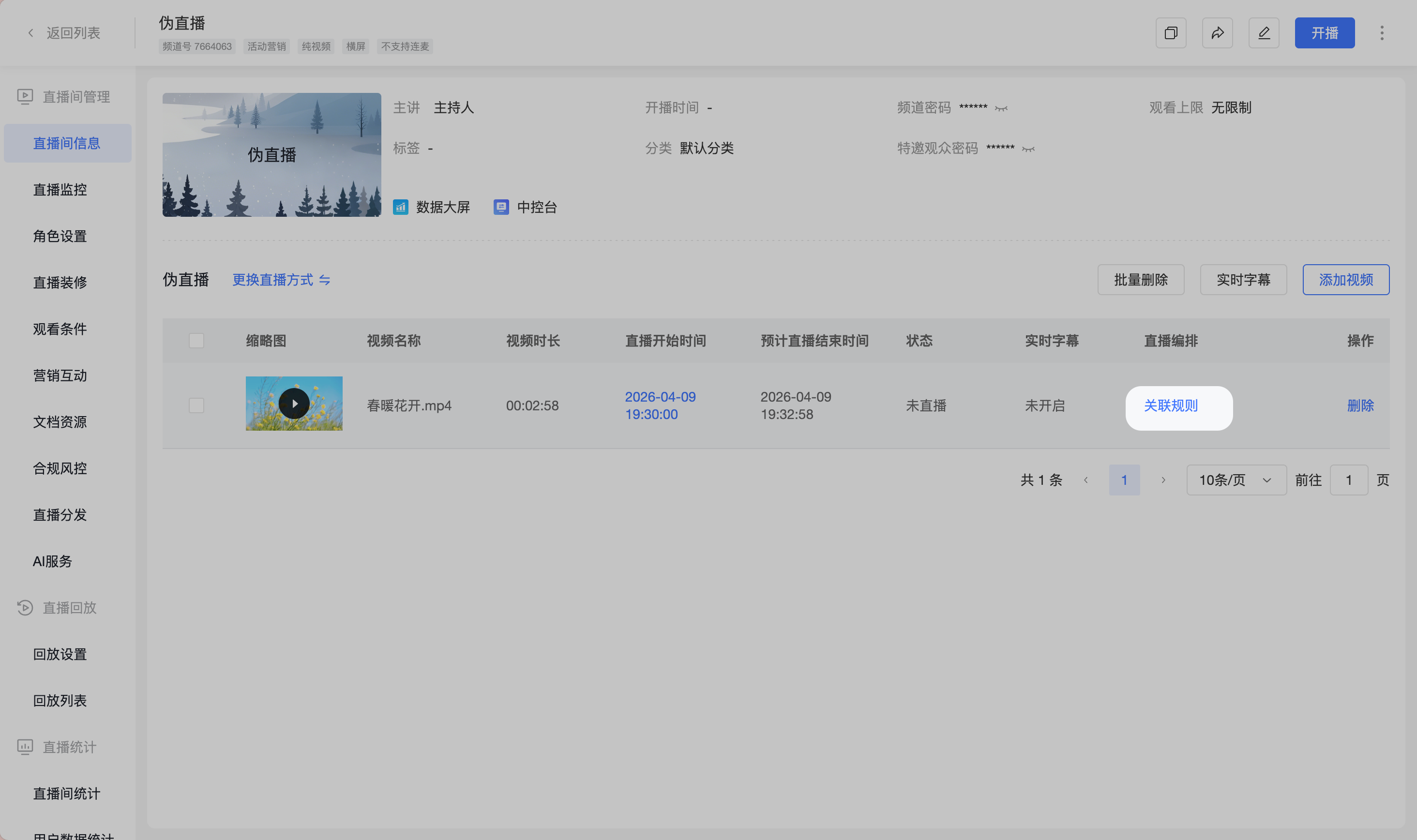
Pseudo-Live - Entry: Admin Console → Pseudo-Live Video List → Live Stream Orchestration → Associated Rules
Permission Description
- Available by default for the primary account.
- Sub-accounts must have the sub-account permission "Live Stream Orchestration" enabled to use this feature.
III. Editing Rules
- The Edit Rule page is used to configure activity content within the live stream orchestration. Currently, it supports configuring check-in activities and previewing the audience-side display effect.
- Using the check-in function, a check-in can be automatically initiated at a preset time after the live stream starts, used for attendance confirmation, classroom management, or interactive reminders.
3.1 Page Structure Description
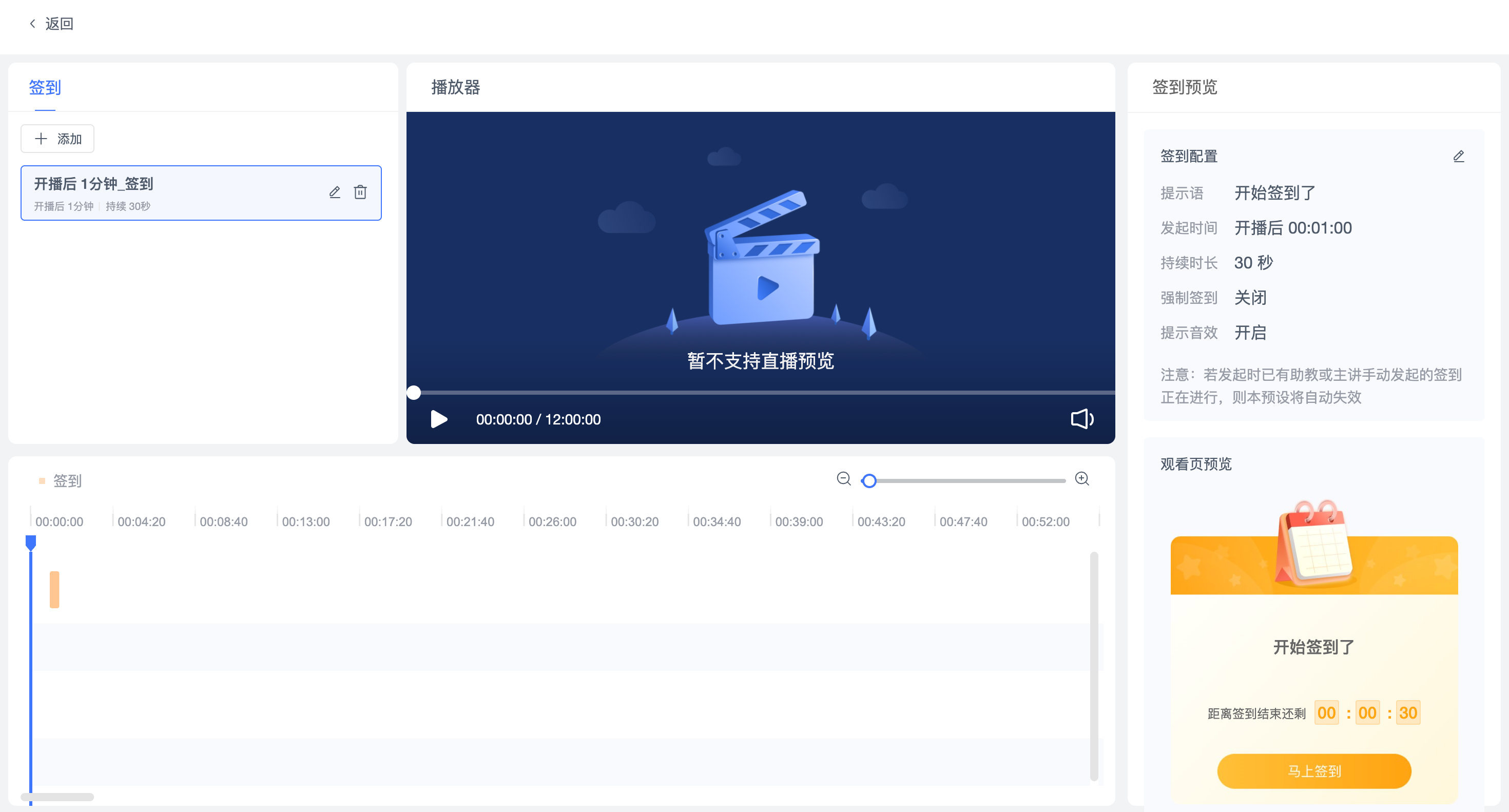
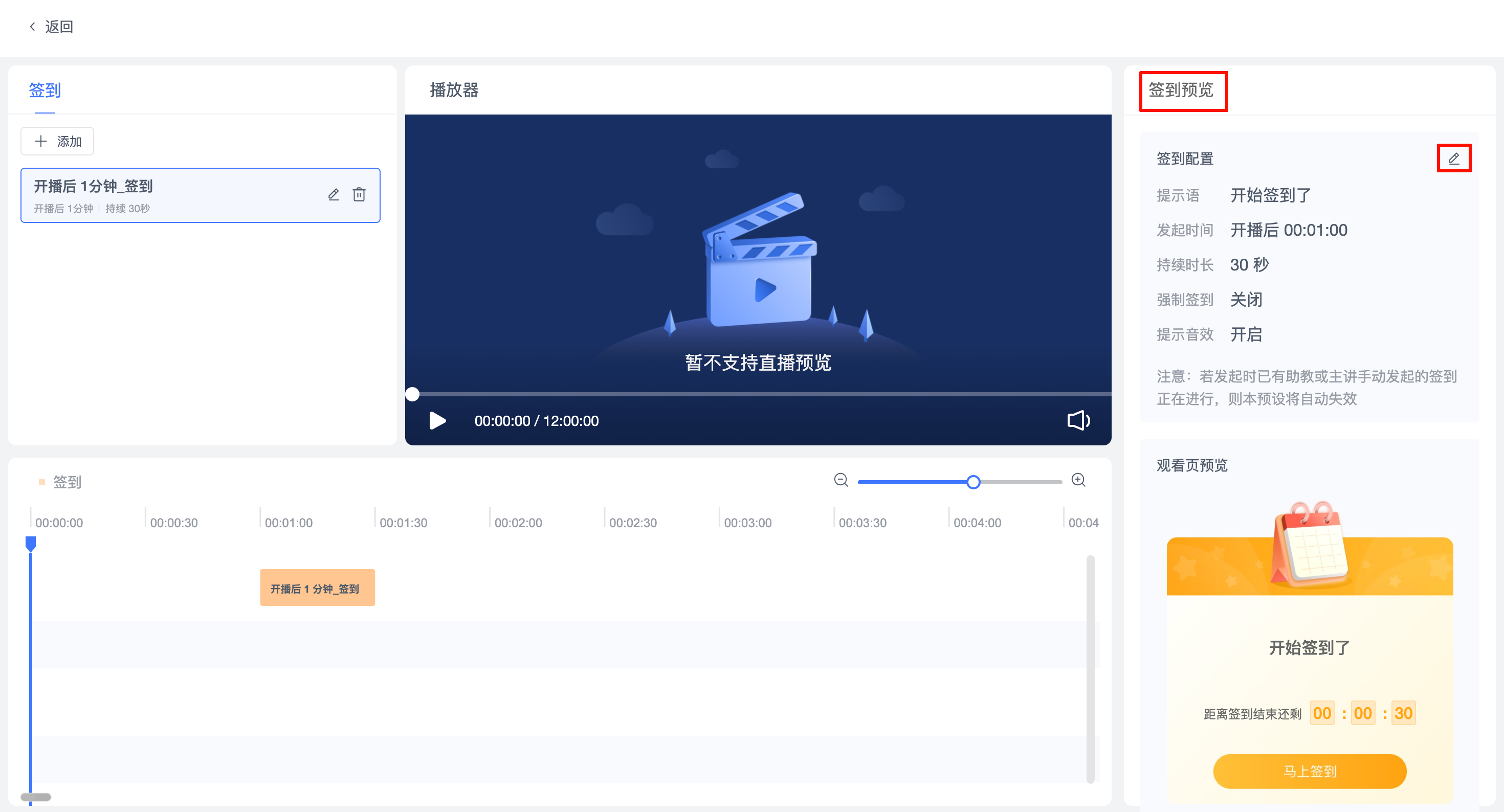
- The Edit Rule page is mainly divided into the following four areas:
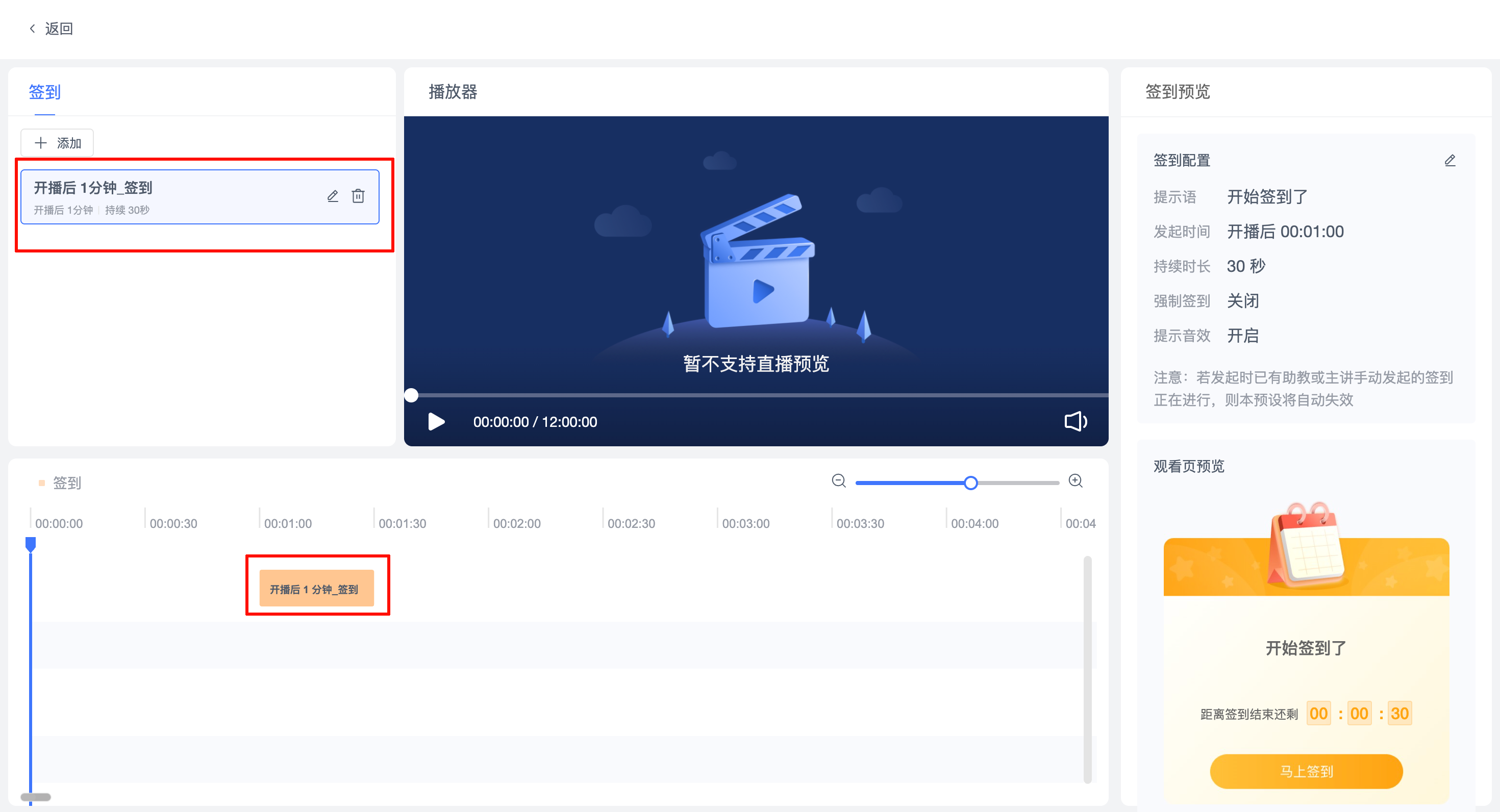
- Check-in List (Left): Displays configured check-in activities, supports adding, editing, and deleting.
- Player Preview (Center): Used to preview pseudo-live videos. Currently, real-time live stream preview is not supported.
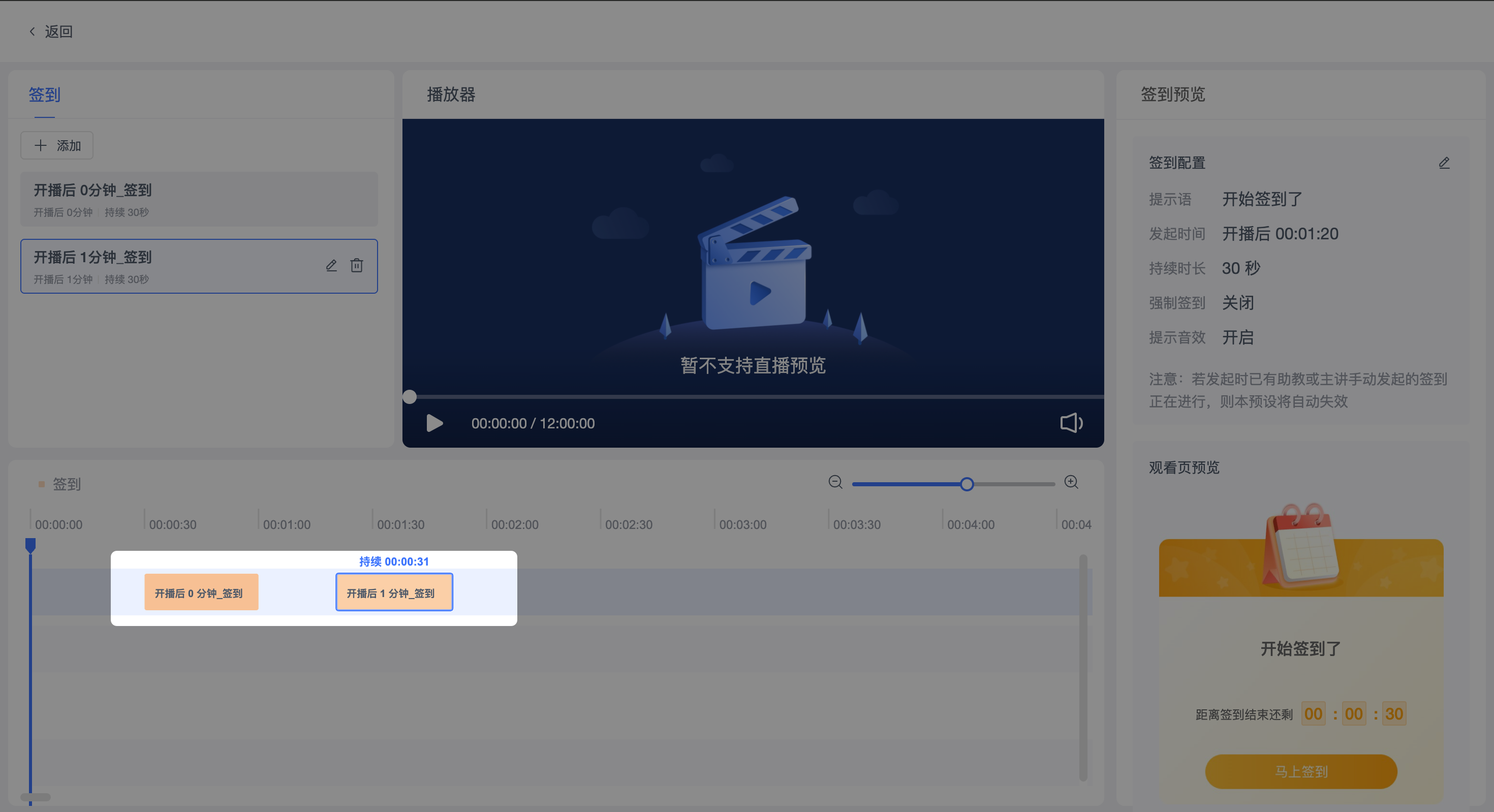
- Timeline (Bottom): Displays the trigger points of check-in activities in chronological order, supports dragging to adjust the initiation time.
- Check-in Preview (Right): Displays check-in configuration details and a preview of the audience-side effect.
3.2 Adding a Check-in
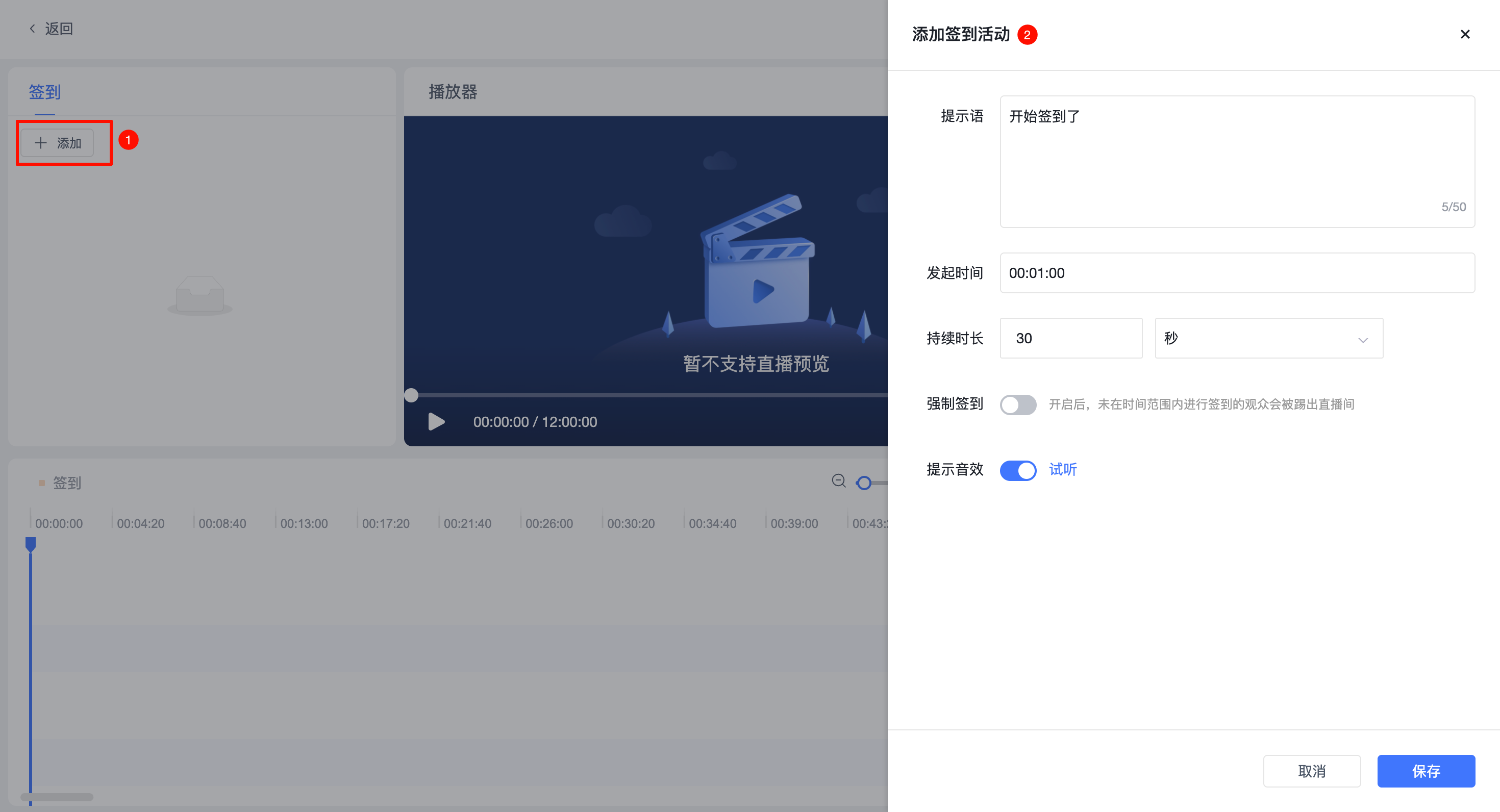
- Click the "Add" button.
- Configure the check-in related information.
- After saving, the check-in will be displayed in the list and on the timeline.
3.3 Check-in Configuration Description
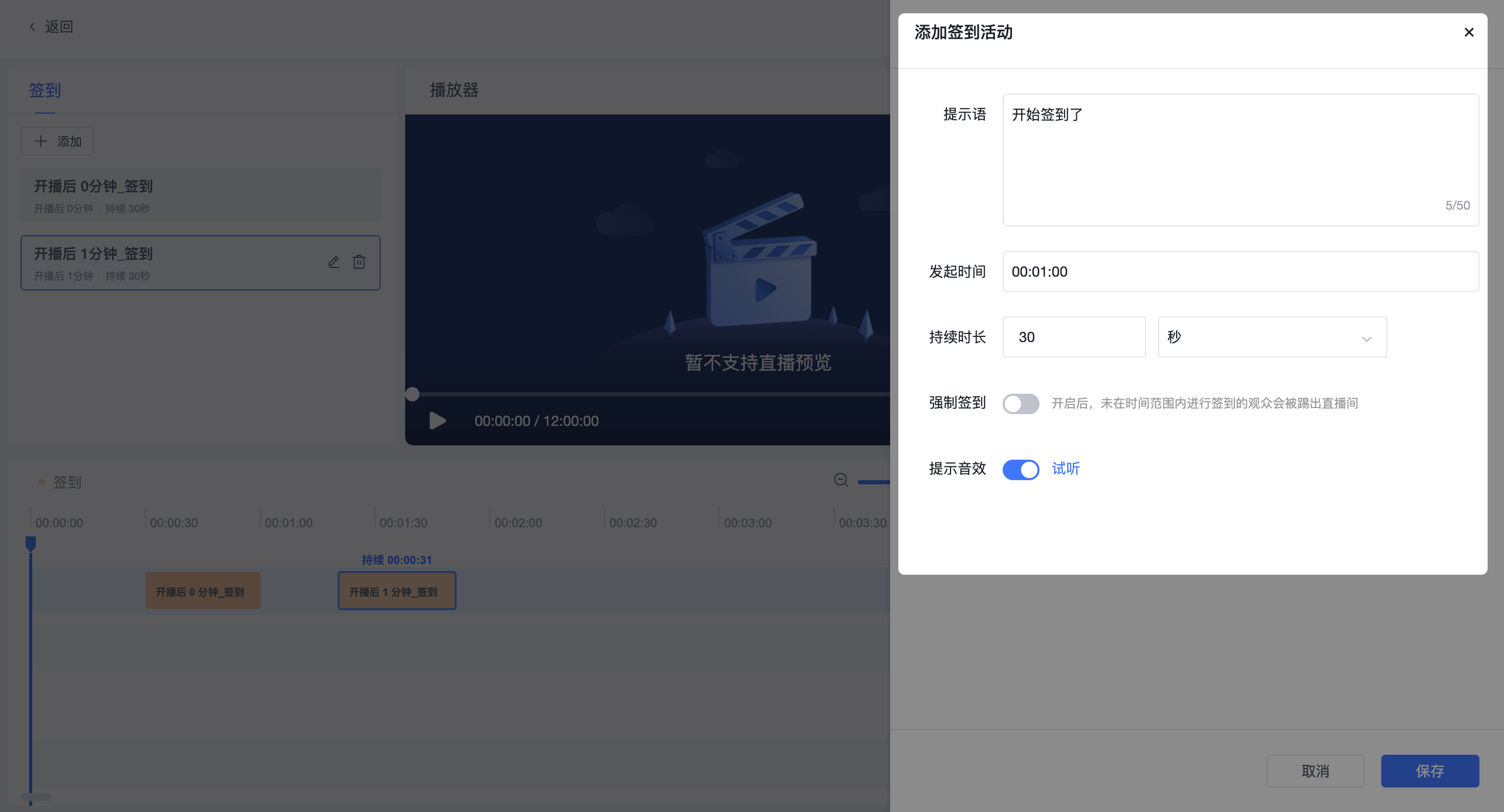
- In the "Check-in Configuration" area on the right, you can view and edit the current check-in rules:
- Prompt Text: The prompt message displayed to the audience when the check-in starts, e.g., "Check-in is starting now".
- Initiation Time: The trigger time for the check-in within the live stream, e.g., 00:01:00 after the stream starts.
- Duration: The length of time the check-in is open. It will automatically end after timeout.
- Mandatory Check-in:
- Enabled: The audience must complete the check-in to continue watching.
- Disabled: The audience can choose whether to check in.
- Prompt Sound Effect:
- Enabled: Plays a prompt sound when the check-in is initiated.
- Disabled: No prompt sound is played.
3.4 Timeline
- All configured check-in activities will be displayed on the timeline in chronological order.
- Supports dragging the blocks to adjust the initiation time of the check-in.
3.5 Check-in Preview Description
- Check-in Configuration Preview: Used for quickly verifying the content of the current check-in configuration.
- Viewing Page Preview: Simulates the check-in popup effect that the audience sees on the viewing page.
3.6 Notes
- If another check-in activity is already in progress in the live room when a check-in is initiated, this check-in will not take effect.
- The check-in initiation time is based on the actual start time of the live stream.
- The current page does not support real-time live stream preview.
IV. Managing Rules
- Created and saved rules will be displayed in the rule list.
- Rule Types
- Automatically take effect when a channel starts streaming (Live / Pseudo-Live).
- Each rule takes effect only once and cannot be reused (Special note: Rules associated via Pseudo-Live Video List can be reused if the video's time is modified).
- When multiple "Pending" rules exist, they will all take effect simultaneously when the stream starts.
- Rule Status Description
- Pending: The rule is fully configured and will be triggered at the start of the next live/pseudo-live stream.
- Active: The rule is currently executing as preset in the ongoing live stream.
- Paused: The rule has been manually paused and can be re-enabled.
- Ended: The rule has finished executing in the current live/pseudo-live stream.
- Supported Operations
- Supports pausing rules that are in the "Active" status.