


Aggregate Page - Personal Center
I. Feature Overview
Feature Info |
Description |
|---|---|
| Feature Name | Personal Center |
| Feature Description | A page that hosts user-related personal information and entitlements |
| Use Cases | Users can view their entitlements, live streaming browsing history, update their avatar and nickname. Inviters can access this page to manage bound users and promote live streaming pages |
| Notes | 1. Requires activation of the Aggregate Page and User Management System2. Each account has only one Personal Center page |
II. Usage Instructions
1. Personal Center Page Decoration
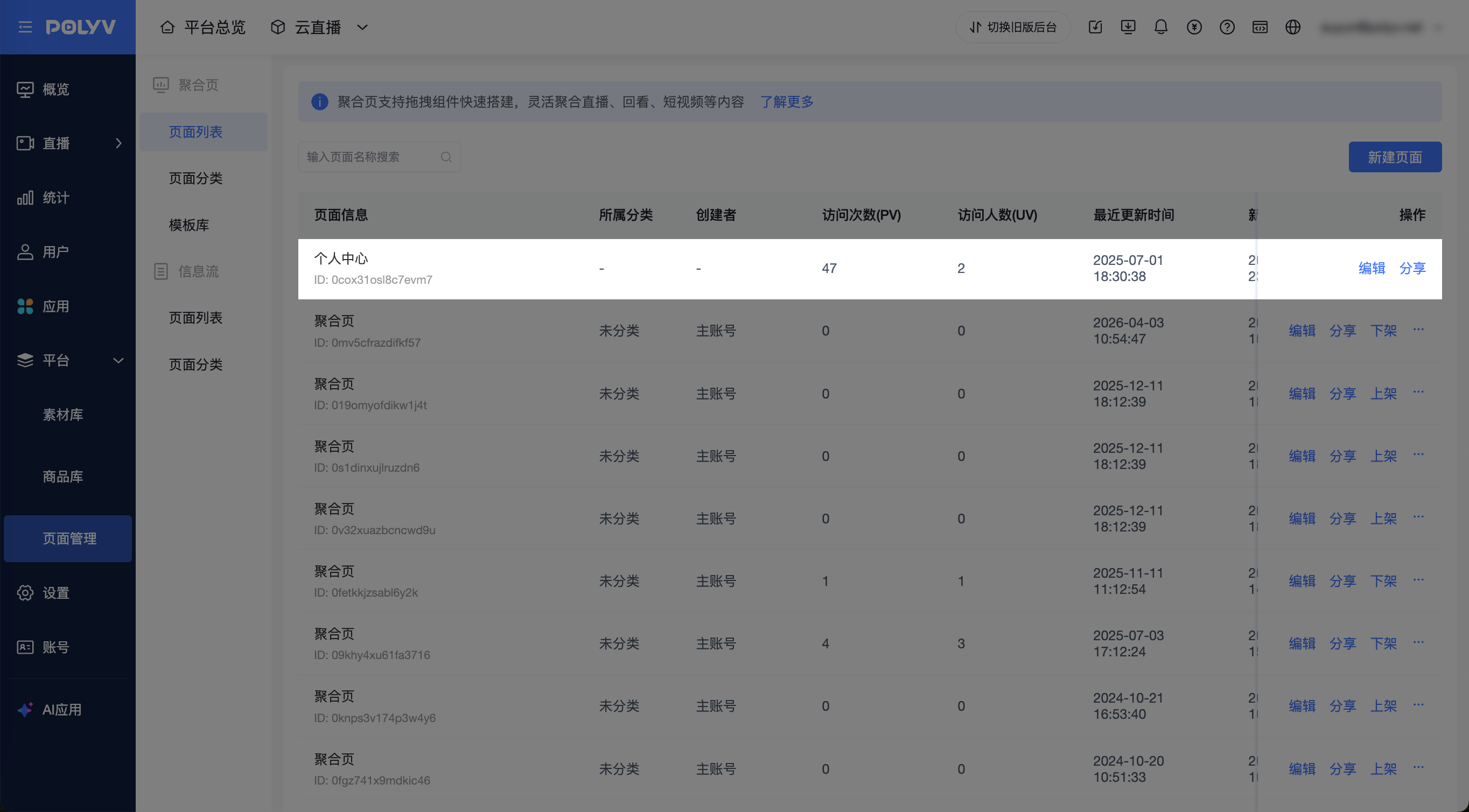
The aggregate page list contains a default pinned Personal Center entry by default. No need to create or delete it; simply edit it. Click to enter the decoration page. The left side is for adding components, the center is a visual interface, and the right side is for detailed configuration of a specific component. Grayed-out components on the left cannot be removed.
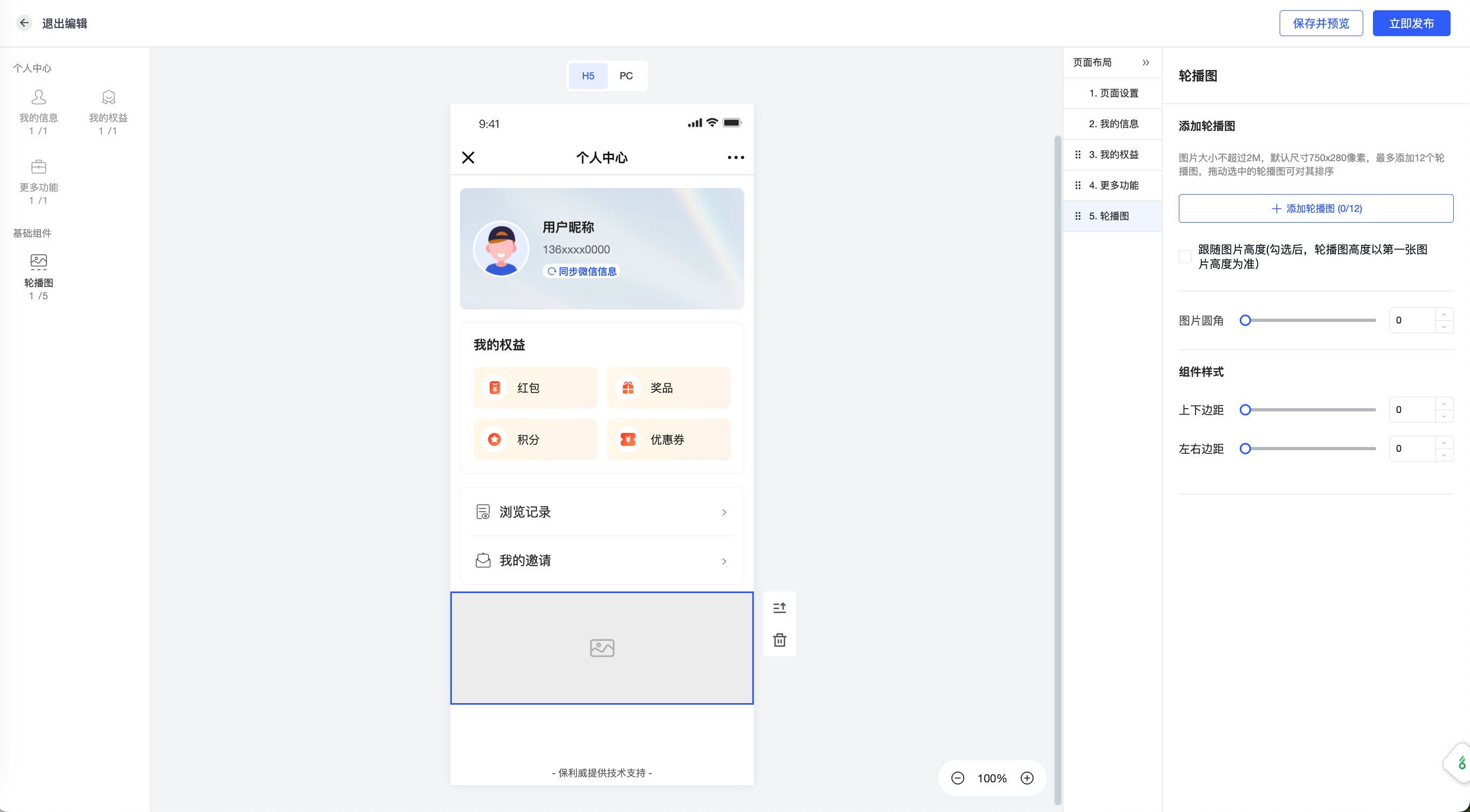
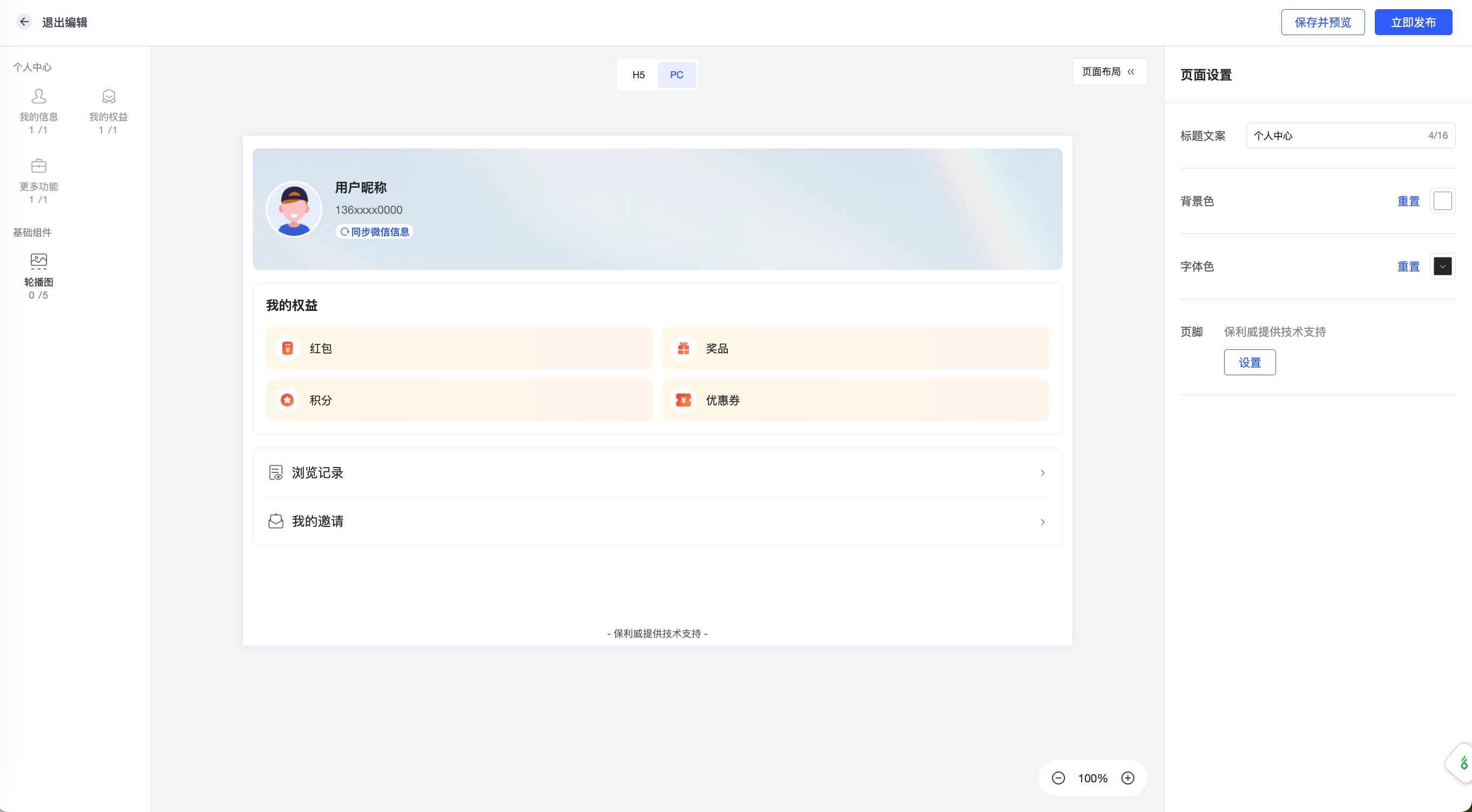
Note: The PC version adapts responsively based on the H5 version; there is no need to build a separate PC Personal Center.
2. Personal Center Entry Settings
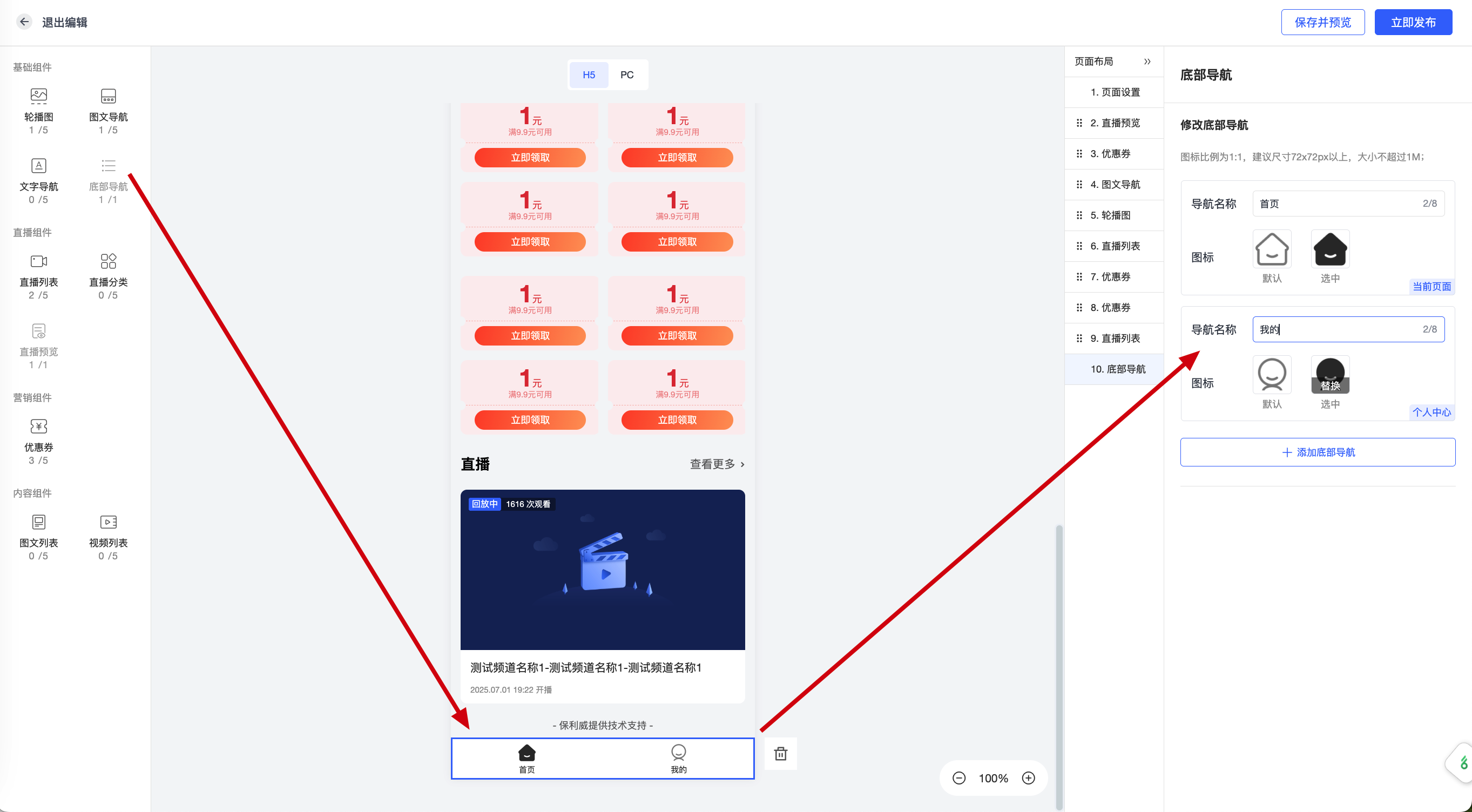
Method 1: Add a bottom navigation component to the aggregate page. This component includes a built-in Personal Center entry.
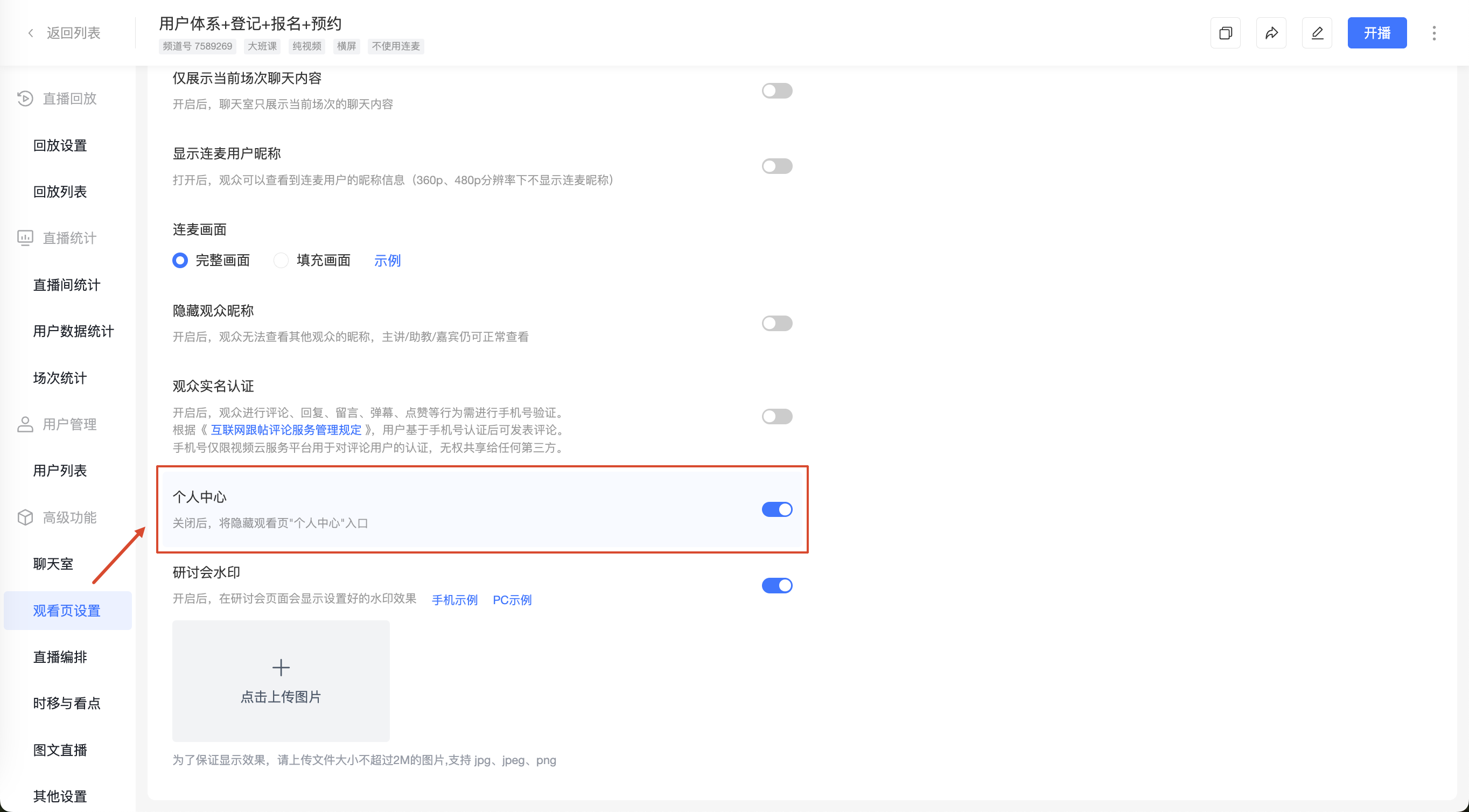
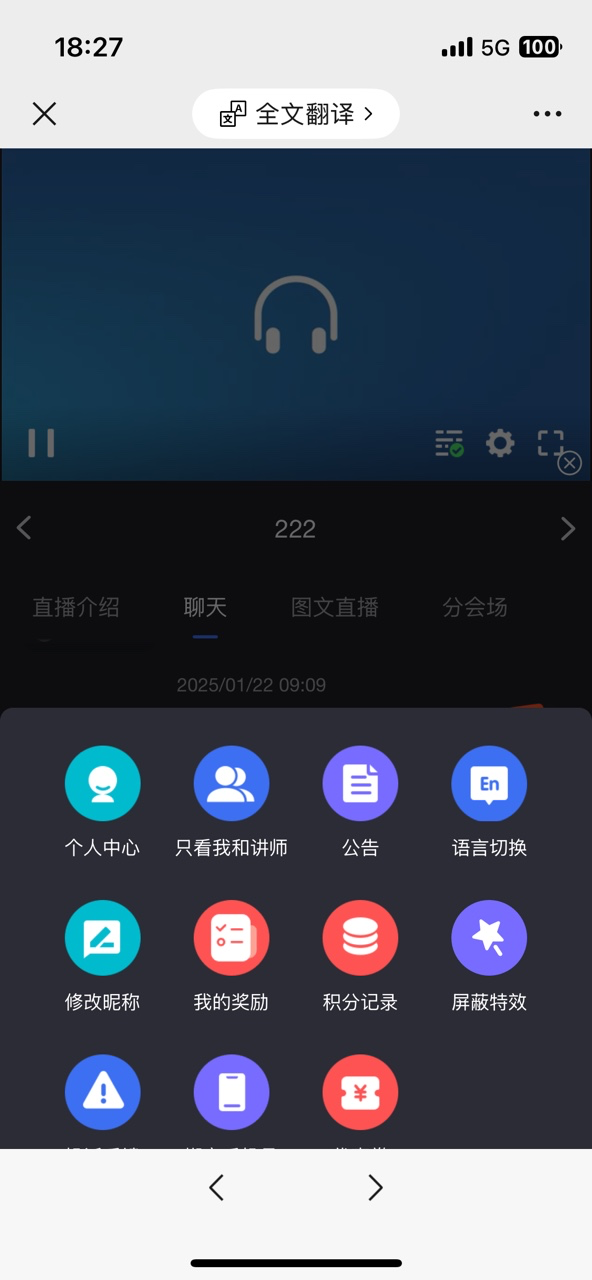
Method 2: Enable the Personal Center entry in the Channel/Default Template - Watch Page settings. Viewers can find the Personal Center via the Watch Page - More menu.
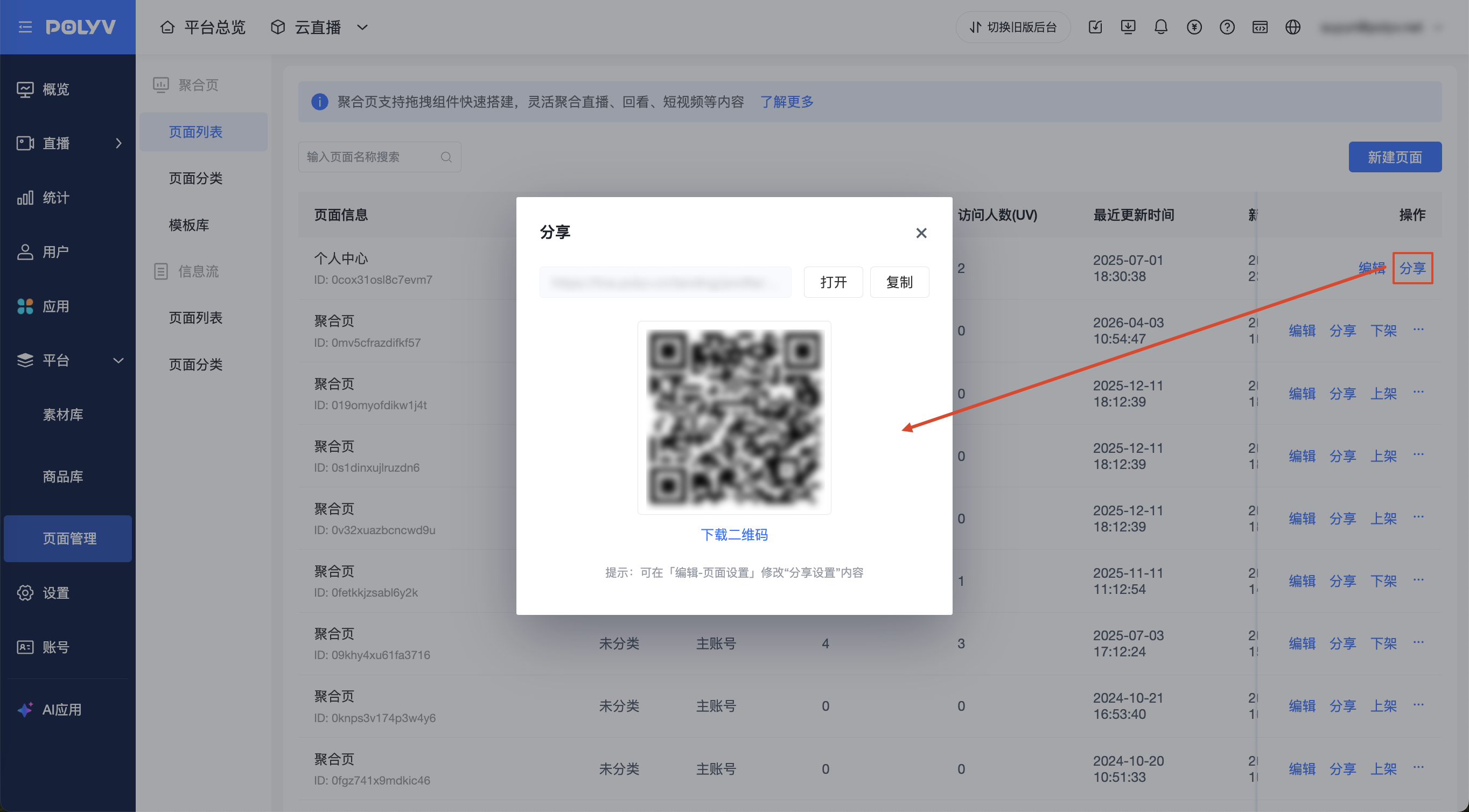
Method 3: Copy the Personal Center link from the backend and place it in the WeChat Official Account menu or group announcement for easy access by group members.
3. Main User Operations in the Personal Center
Sync WeChat Info: Clicking this triggers a popup to obtain the WeChat avatar/nickname. Users can choose between a real or virtual avatar/nickname. After updating the real avatar/nickname, there is a delay on the WeChat side; it takes approximately 24 hours before the latest avatar/nickname can be retrieved via this popup.
View Entitlements: Users can view all red packets, prizes, coupons, and points under a specific account. Red packets can be withdrawn here, prizes can have delivery information filled in, points can have their acquisition/consumption details viewed, and coupons can be viewed.
View Browsing History: Displays the last 10 live streaming browsing records, stored for a maximum of 1 month. If a user watches 20 channels within a month, only the last 10 viewed are retained. A viewer's entry is counted only after the player plays for at least 10 seconds in the live room. Simply entering the landing page or entering the live room without the player playing does not count.
View My Invitations: See https://help.polyv.net/index.html#/live/product/live_tools_basic/live_watch_limit_Invite for details.
