


Chrome 自动播放限制策略
Background
Original link: Chrome Autoplay Restriction Policy
Web browsers are evolving towards stricter autoplay policies to improve user experience, minimize the incentive to install ad blockers, and reduce data consumption on expensive and/or constrained networks. These changes aim to give users greater control over playback while enabling legitimate use cases for developers.
New Features
Chrome's autoplay policy is straightforward:
- Muted autoplay is always allowed.
- Autoplay with sound is allowed under the following conditions:
- The user has interacted with the domain (click, tap, etc.).
- On desktop, the user's Media Engagement Index (MEI) threshold has been exceeded, meaning the user has previously played videos with sound.
- On mobile, the user has added the site to their home screen.
- The top-level frame can delegate autoplay permission to its iframes to allow autoplay with sound.
Media Engagement Index (MEI)
MEI measures an individual's propensity to consume media on a website. Chrome's current approach is based on the ratio of significant media playback events per origin:
- Media consumption (audio/video) must be greater than 7 seconds.
- Audio must be present and unmuted.
- The video tab must be active.
- The video size (in pixels) must be larger than 200x140.
Thus, Chrome calculates a media engagement score, which is highest on sites where media is played regularly. When the score is high enough, autoplay with sound is allowed on desktop. MEI is part of Google's autoplay policy. It is an algorithm that considers factors such as media content duration, whether the browser tab is active, and the size of the video in the active tab. However, this makes it difficult for developers to test the algorithm's effect across all web pages.
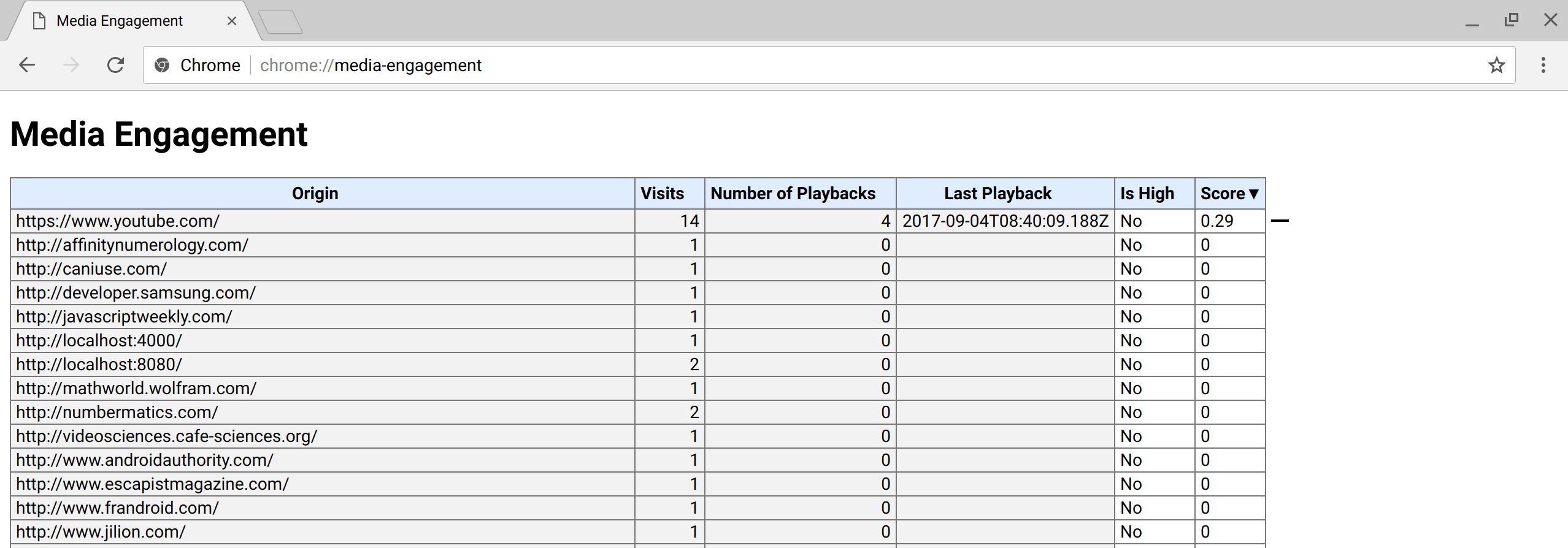
A user's MEI can be viewed on the internal page chrome://media-engagement/
Developer Switches
As a developer, you may need to change Chrome's autoplay policy behavior locally to test your website based on user engagement.
- You can choose to completely disable the autoplay policy by setting the Chrome flag "Autoplay policy" to "No user gesture is required" at
chrome://flags/#autoplay-policy. This allows you to test your site as if the user has a strong engagement with it, and autoplay will always be permitted. - You can also choose to disable MEI and prevent new users from getting autoplay permission by default, effectively blocking autoplay. This can be done using two internal switches:
chrome.exe --disable-features=PreloadMediaEngagementData, AutoplayIgnoreWebAudio, MediaEngagementBypassAutoplayPolicies
iframe Delegation
A feature policy allows developers to selectively enable and disable various browser features and APIs. Once an origin has obtained autoplay permission, it can delegate that permission to cross-origin iframes with autoplay functionality. By default, same-origin iframes can use autoplay.
<! - 允许自动播放。- >
<iframe src = "https://cross-origin.com/myvideo.html" allow = "autoplay" />
<! - 允许自动播放和全屏播放。- >
<iframe src = "https://cross-origin.com/myvideo.html" allow = "autoplay; fullscreen" />
When the autoplay feature policy is disabled, calling play() without a user gesture will reject the promise with a NotAllowedError DOMException. The autoplay attribute will also be ignored.
Example scenarios:
Example 1: Every time a user visits iqiyi.com on their laptop, they watch a TV show or movie. Due to their high media engagement, autoplay is allowed.
Example 2: iqiyi.com has both text and video content. Most users visit the site occasionally for text content and watch videos. The user's media engagement is low, so autoplay is not allowed if the user navigates directly from a social media page or search.
Example 3: news.iqiyi.com has both text and video content. Most people enter the site via the homepage and then click on news articles. Since the user has interacted with the domain, autoplay on the news article page will be allowed. However, care should be taken to ensure users are not surprised by autoplay content.
Example 4: On the iQiyi Bubble page, an iframe with a movie trailer is embedded within comments. The user interacts with the domain to access the specific site, so autoplay is allowed. However, Bubble needs to explicitly delegate that privilege to the iframe for the content to autoplay.
Chrome Enterprise Policies
Chrome enterprise policies can modify this new autoplay behavior for use cases such as kiosks or unattended systems. Refer to the Configure Policies and Settings help page for instructions on setting these new autoplay-related enterprise policies:
- The
AutoplayAllowedpolicy controls whether autoplay is allowed. - The
AutoplayWhitelistpolicy allows you to specify a whitelist of URL patterns where autoplay will always be enabled.
Developer Best Practices
Video Elements
Never assume a video will play, and do not display a pause button when the video is not actually playing.
Pay attention to the Promise returned by the
play()function.var promise = document.querySelector('video').play(); if (promise !== undefined) { promise.then(_ => { // Autoplay started! }).catch(error => { // Autoplay was prevented. // Show a "Play" button so that user can start playback. }); }Use muted autoplay.
<video id="video" muted autoplay>
<button id="unmuteButton"></button>

<script>
  unmuteButton.addEventListener('click', function() {
    video.muted = false;
  });
</script>
Audio Elements
In addition to using the <audio> tag for native audio playback, there is another API called AudioContext. The AudioContext interface represents an audio processing graph built from audio modules, each corresponding to an AudioNode. AudioContext can control the creation of nodes within it, as well as the execution of audio processing and decoding operations. Before doing anything, you must first create an AudioContext object, as everything happens within this environment.
Playing Sound with AudioContext
First, request the audio file, store it in an
ArrayBuffer, then decode it using theAudioContextAPI, and finally play it.function request (url) { return new Promise (resolve => { let xhr = new XMLHttpRequest(); xhr.open('GET', url); // set response Type arraybuffer xhr.responseType = 'arraybuffer'; xhr.onreadystatechange = function () { if (xhr.readyState === 4 && xhr.status === 200) { resolve(xhr.response); } }; xhr.send(); }); }Instantiate
AudioContext. // Safari uses the webkit prefix.let context = new (window.AudioContext || window.webkitAudioContext)();Decode and play.
function play (context, decodeBuffer) {
    let source = context.createBufferSource();
    source.buffer = decodeBuffer;
    source.connect(context.destination);
    // 从0s开始播放
    source.start(0);
}
// 请求音频数据
let audioMedia = await request(url);
// 进行decode和play
context.decodeAudioData(audioMedia, decode => play(context, decode));
AudioContext Creation Timing
Created on page load: You must call
resume()at some point after the user interacts with the page (e.g., clicking a button).// Existing code unchanged. window.onload = function() { var context = new AudioContext(); // Setup all nodes ... } // One-liner to resume playback when user interacted with the page. document.querySelector('button').addEventListener('click', function() { context.resume().then(() => { console.log('Playback resumed successfully'); }); });document.querySelector('button').addEventListener('click', function() { var context = new AudioContext(); // Setup all nodes ... });Created during user interaction: Create the
AudioContextwhen the user interacts with the page.
