


Points Management
To use "Points Management", you must first enable "User Management"
Supports issuing points through task rewards, automatic tagging, and manual operations, and supports offline points redemption.
I. Feature Overview
| Feature Information | Description |
|---|---|
| Feature Name | Points Management |
| Feature Introduction | Customers can set up points task rewards, automatic tagging points issuance, and manual points issuance and redemption through the Polyv management backend, helping customers build a points reward system |
| Purpose | Increase live room activity, enhance audience participation and loyalty, and promote user stickiness |
| Use Cases | Example: Customers can set up points reward tasks during a live stream, such as allowing viewers to earn points through check-ins or online duration. Points accumulated by viewers in the live room can be used to redeem products at offline stores, etc., increasing store visit rates and product conversion rates |
| Feature Point List | Points validity period settings, data overview, points task reward settings, automatic tagging points issuance, manual points issuance, manual points redemption |
II. Operation Instructions
1. Feature Entry
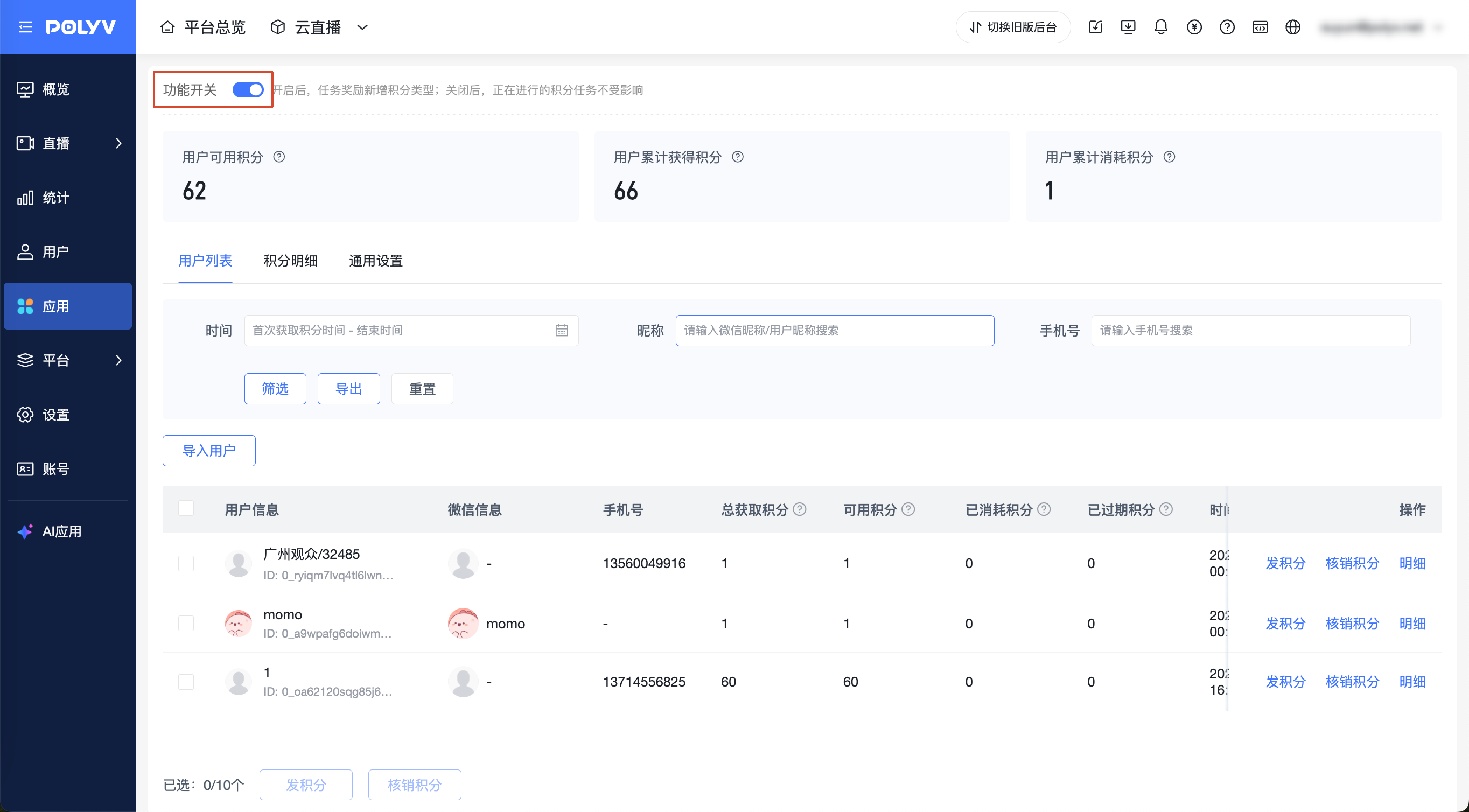
Usage path: Cloud Live - Platform Settings - Points Management - Turn on [Feature Switch] (requires enabling the "User Management" feature first)
After turning on the feature switch: In Live - Live List - Live Room Management - Marketing - Task Rewards - Reward Content, a new "Points" type is added
When turning off the feature switch:
Ongoing points task rewards are not affected; users can continue to complete tasks and earn points, and the points earned remain valid
Points already obtained by users are not affected; if a validity period is set, they will be cleared normally according to the set validity period
2. Points Validity Period Settings
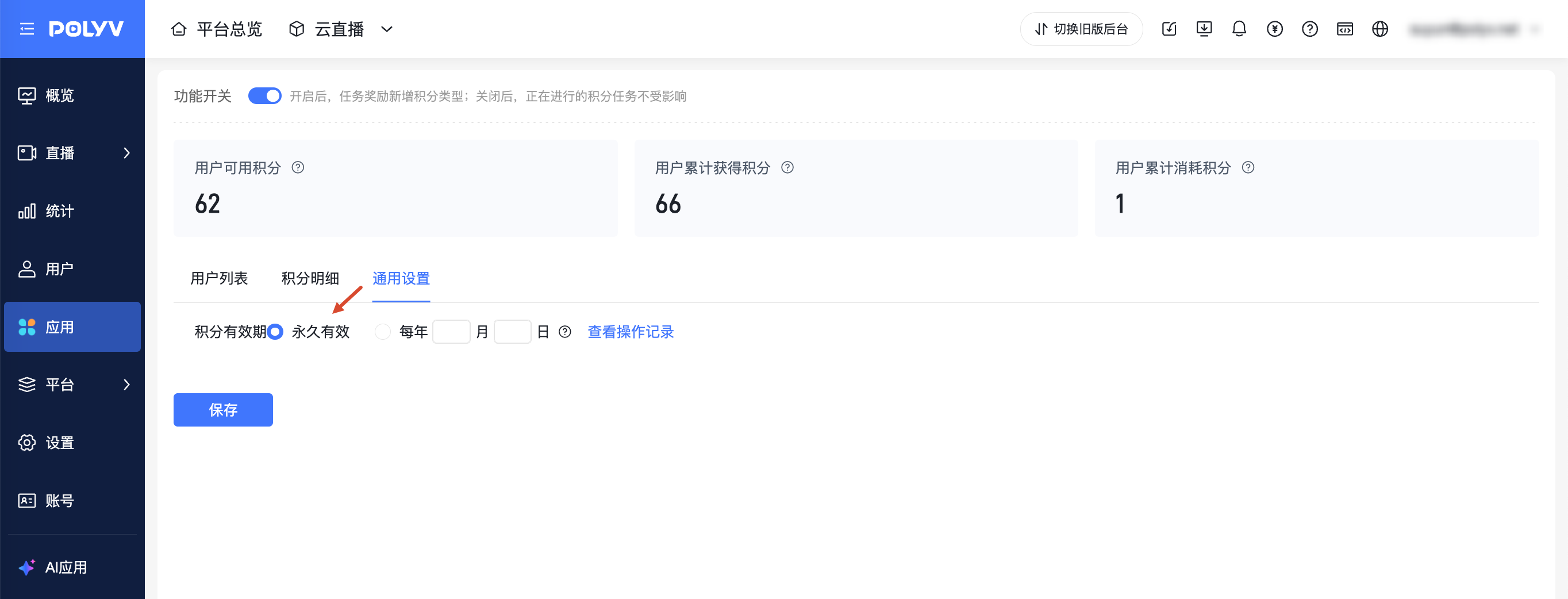
Location: Cloud Live - Platform Settings - Points Management - General Settings - Validity Period Settings
Note:
After modifying the points validity period, the validity period of all points for all users will be modified. Please operate with caution
After setting a custom validity period, all users' points will expire and be cleared at 23:59:59 on the expiration day
Points validity period settings:
Default is permanently valid: meaning points will never expire
Custom expiration time: set to expire on X month X day each year
If set to the 30th/31st/28th/29th, the system will automatically determine whether it is a valid day; if it is an invalid date, it will automatically be corrected to the previous day
Example 1: If set to September 31st, since September does not have a 31st, it will automatically be corrected to September 30th
Example 2: If set to February 29th, it will determine whether February of the current year has a 29th for the first clearing; if not, it will be corrected to February 28th
View operation records: Click to view records of points validity period settings/feature switch/points clearing
3. Points Issuance Methods
3.1 Issuance through Task Rewards
Supports using task rewards to issue points
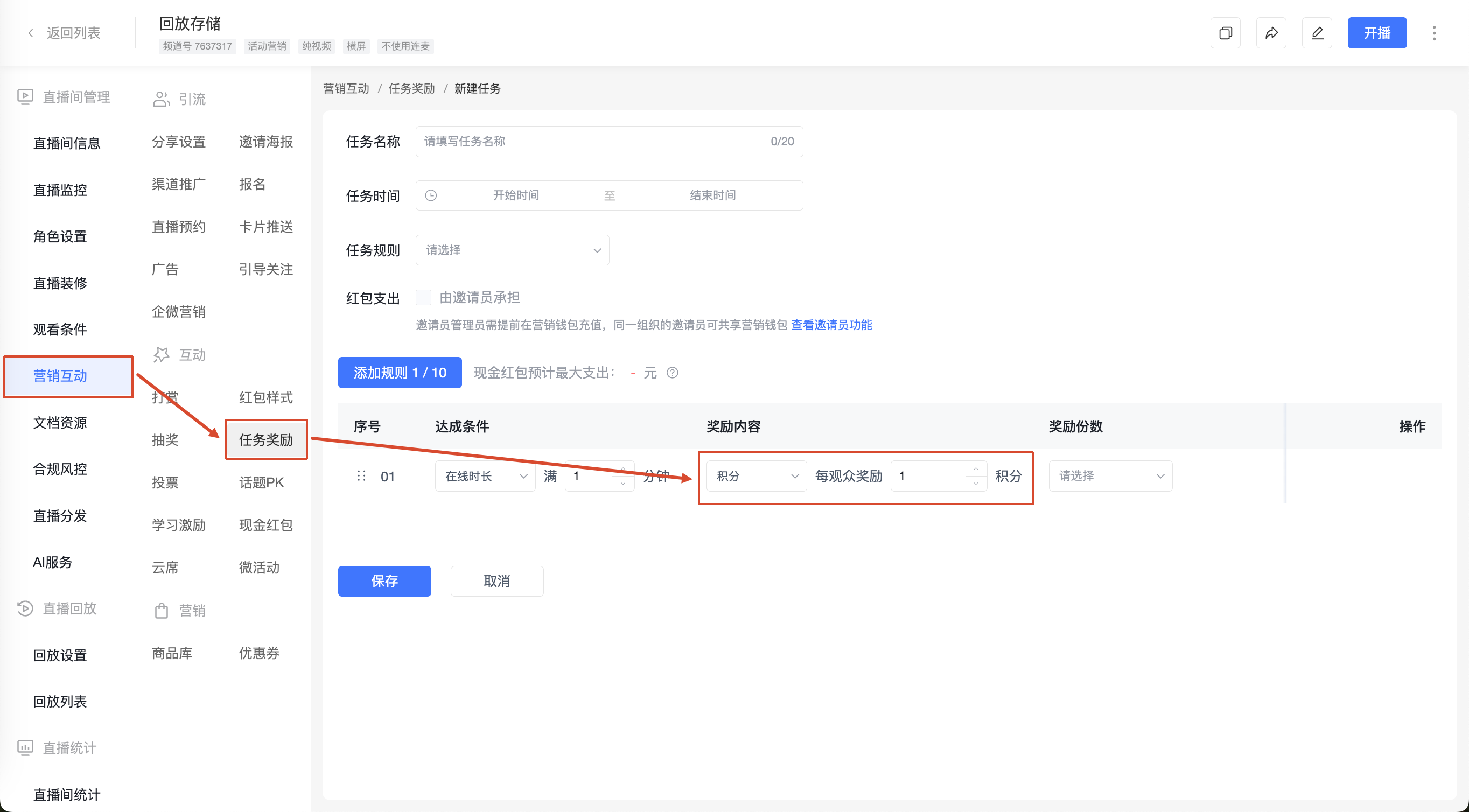
Location: Live - Live List - Live Room Management - Marketing - Task Rewards - Create Task
Feature introduction:
Task reward content supports selecting "Points"
The "Points" quantity only supports integers
Other rule settings remain consistent with the original task reward feature (Task reward feature help documentation: https://help.polyv.net/index.html#/live/product/live_tools_interactive/live_task_rewards )
3.2 Manual Issuance
- Location: Cloud Live - Platform Settings - Points Management - User List - Issue Points
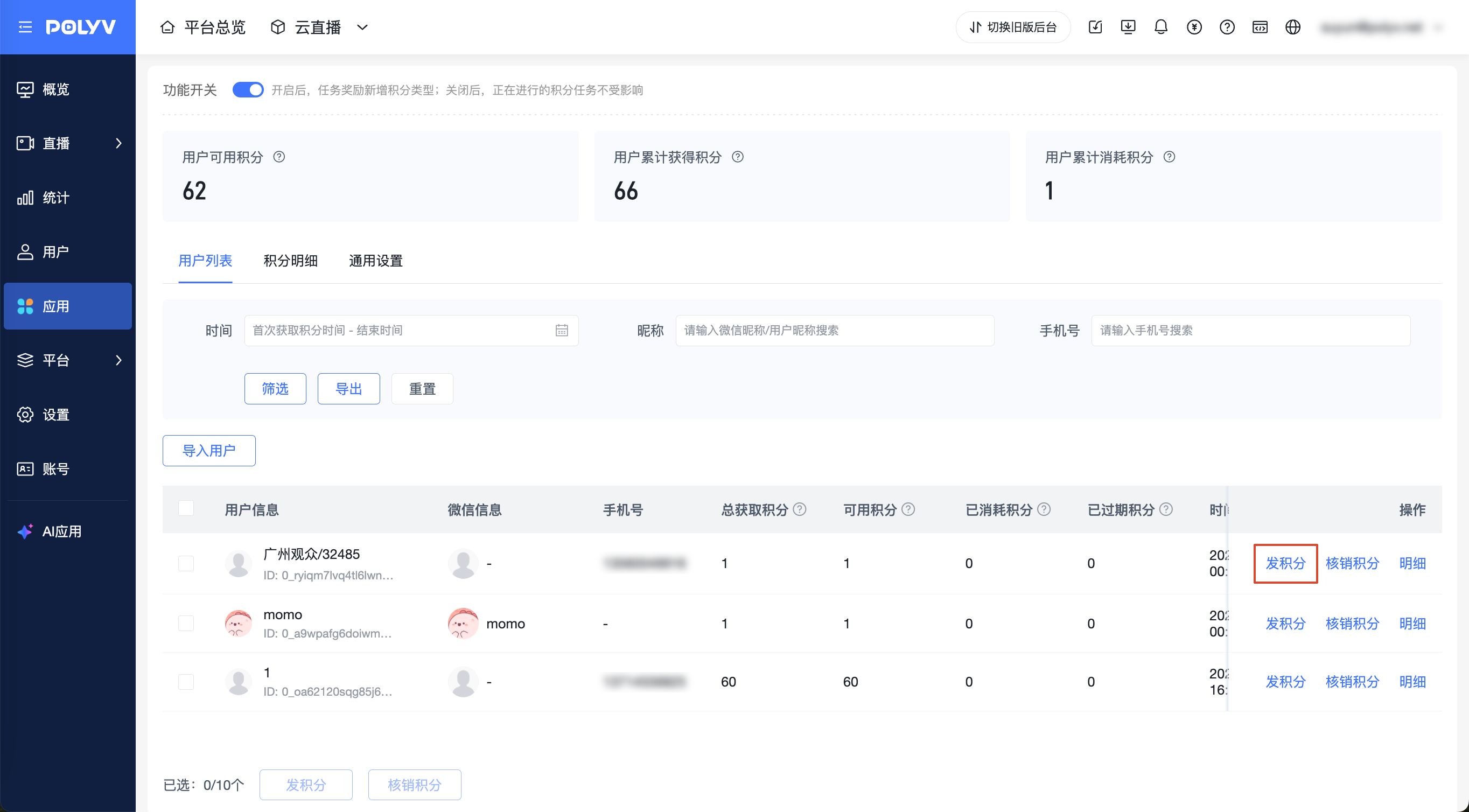
- Supports batch points issuance:
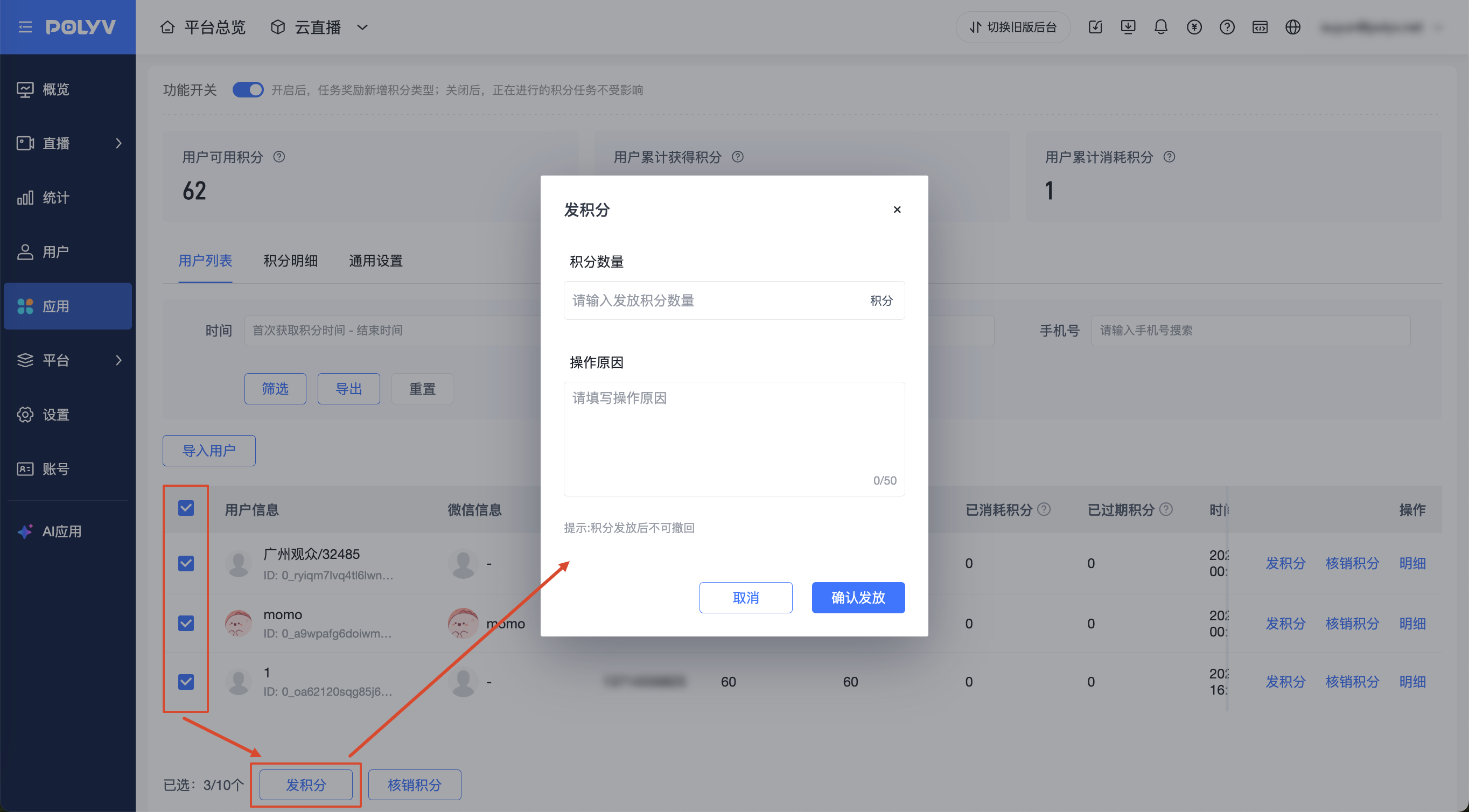
Manual Points Issuance Rule Description
Points quantity: Required field; supports integers from 1 to 9999
Operation reason: Required field; limited to 50 characters
After clicking [Confirm Issuance], points will be issued to the corresponding user. The operation cannot be withdrawn. Please operate with caution
Quick Issuance from Platform User List
Go to [Users] → [User List], click [Issue Points] in the operation column of the target user, fill in [Points Quantity] and [Operation Reason], and click [Confirm Issuance] after verification. The requirements for points quantity and operation reason are consistent with the above manual issuance rules. Points cannot be withdrawn after issuance.
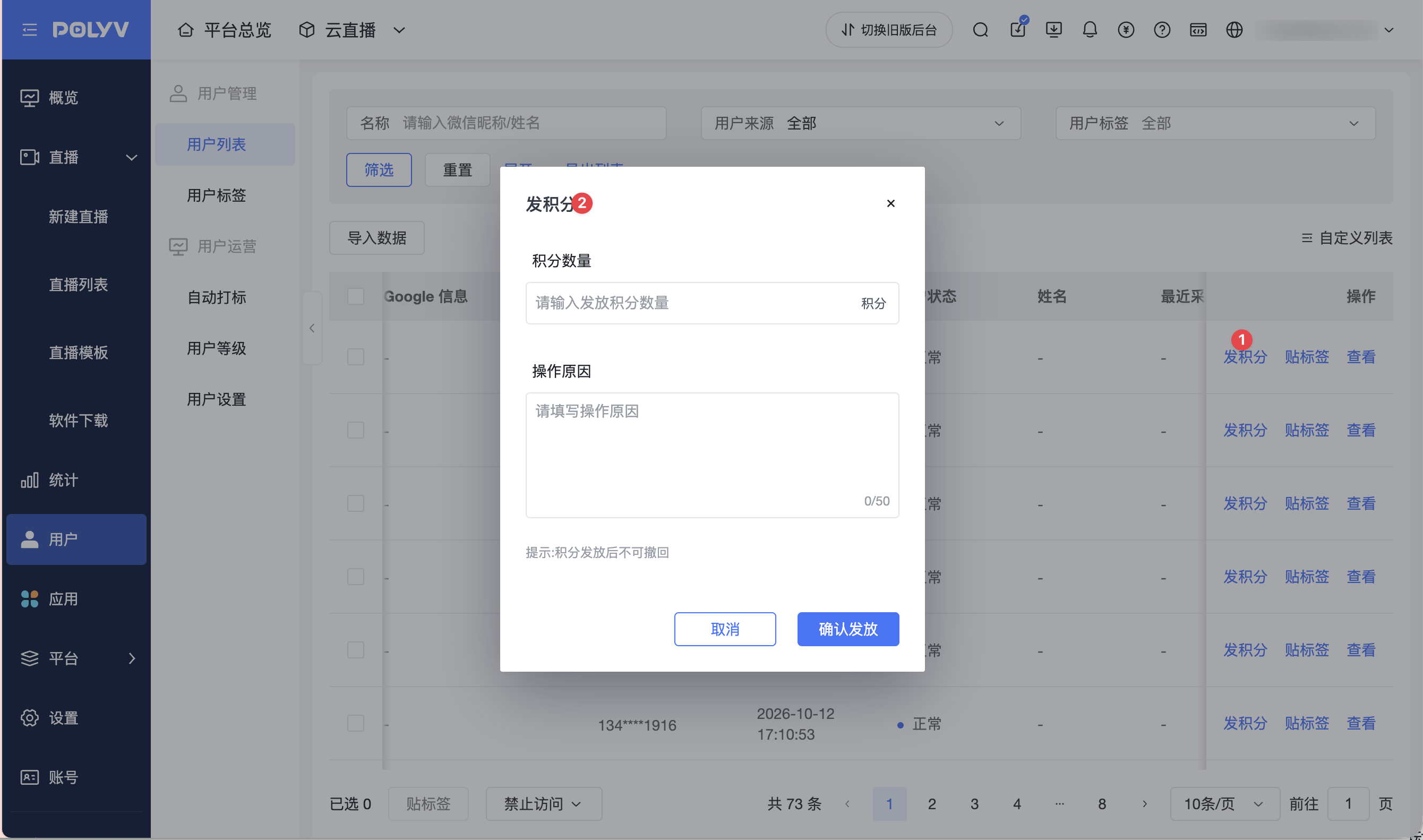
Before using the above points issuance feature, the points feature must be enabled. When not enabled, the points issuance entry or [Points Issuance] configuration is unavailable. You can click [Go to Enable] in the prompt to open the points feature page in a new tab. Sub-accounts need the [Points Management - User List] permission, otherwise the corresponding points issuance operation will not be displayed.
3.3 Issuance through Automatic Tagging
The automatic tagging rules for both platform users and channel users support configuring points issuance.
- In automatic tagging, click [Create Rule] to configure behavior conditions and tags.
- Enable [Points Issuance] as needed, and fill in [Points Quantity], which supports integers from 1 to 9999.
- Click [Save and Enable]. Users who meet the rules can obtain the configured points.
[Points Issuance] is an optional configuration and can be turned off when points issuance is not needed. The points feature switch and sub-account permission requirements are consistent with quick issuance from the platform user list.
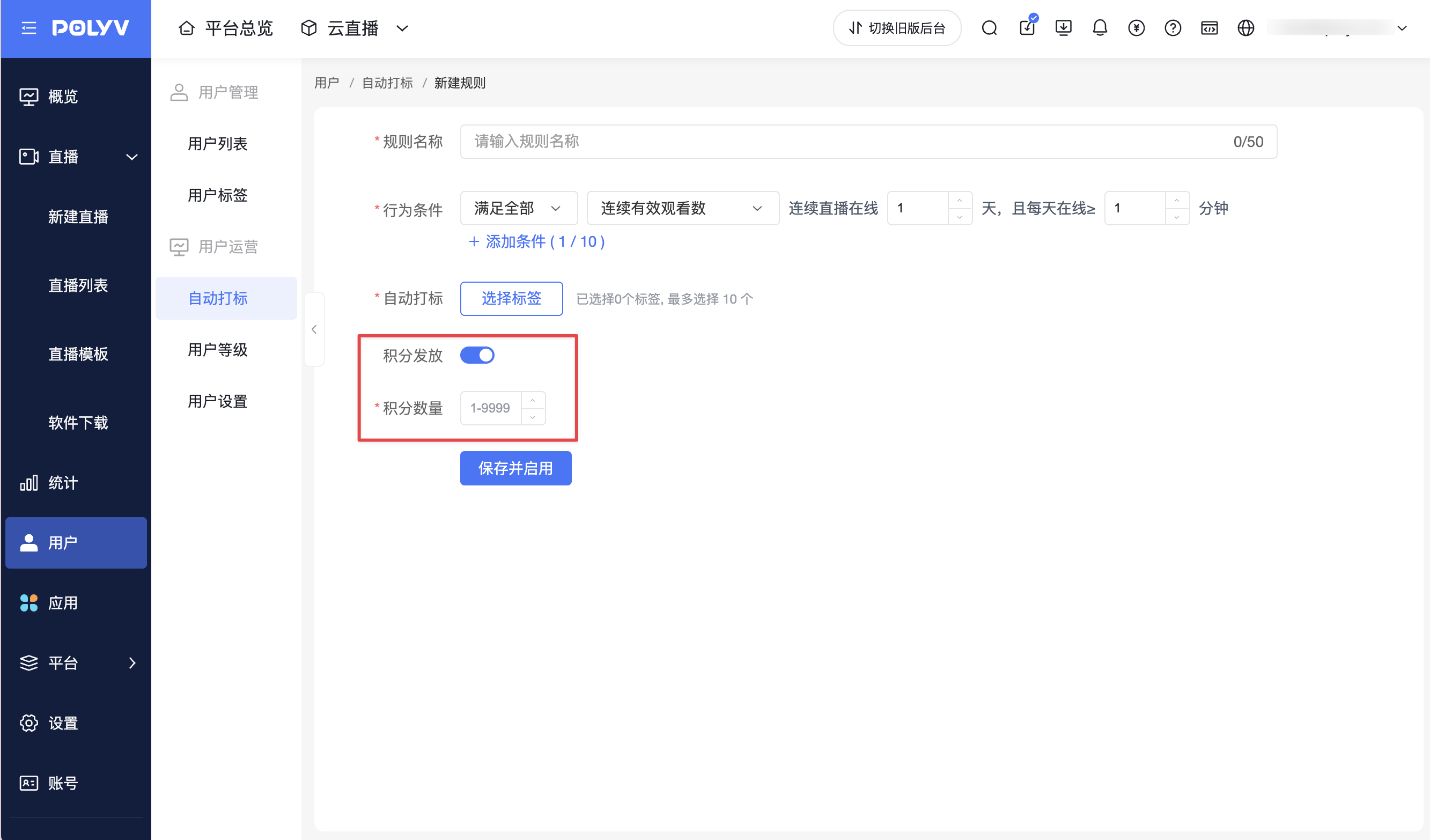
For configuration entries for the platform and channels, see User Management and Operations.
4. Points Consumption Methods
4.1 Manual Points Redemption
- Location: Cloud Live - Platform Settings - Points Management - User List - Redeem Points
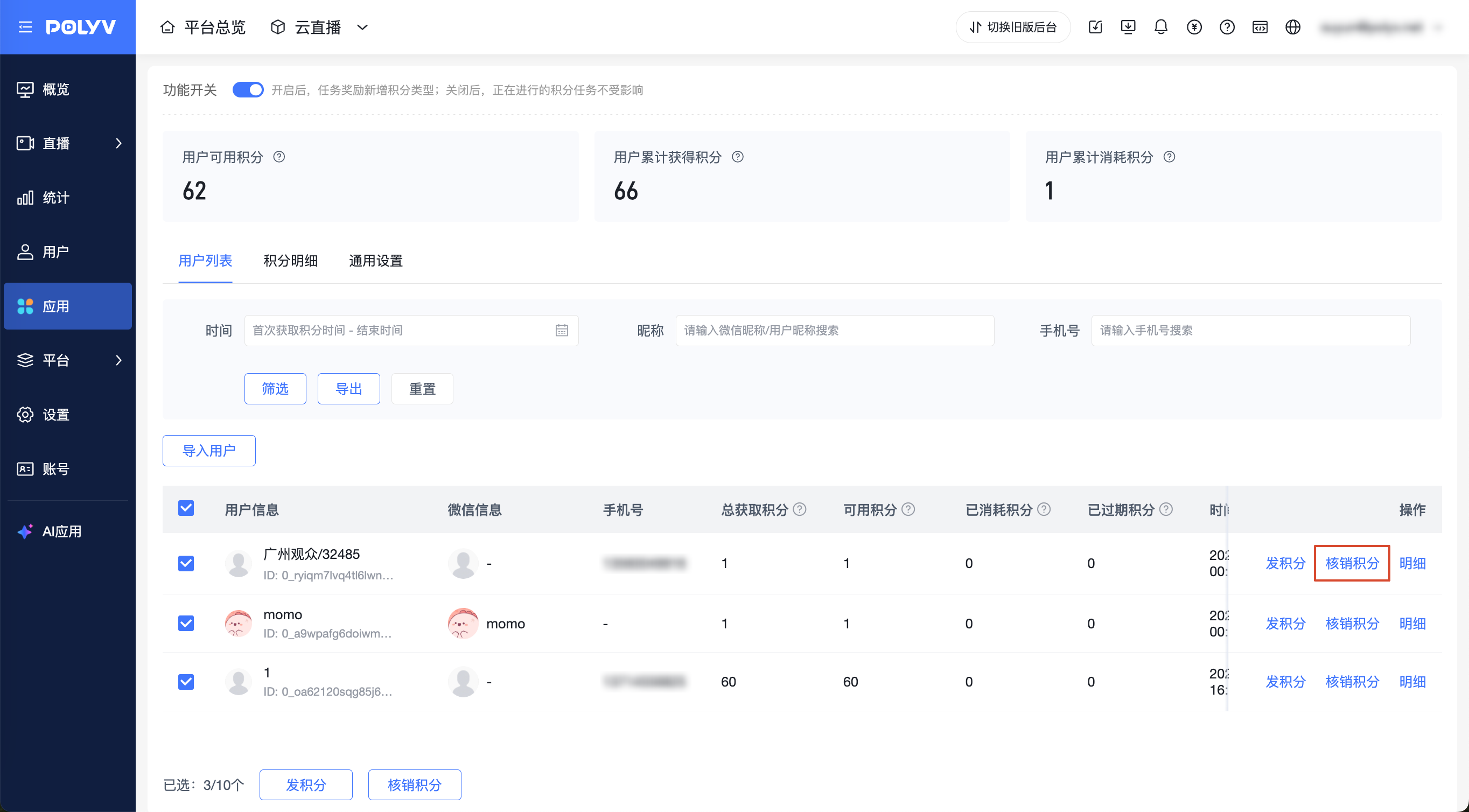
- Supports batch points redemption
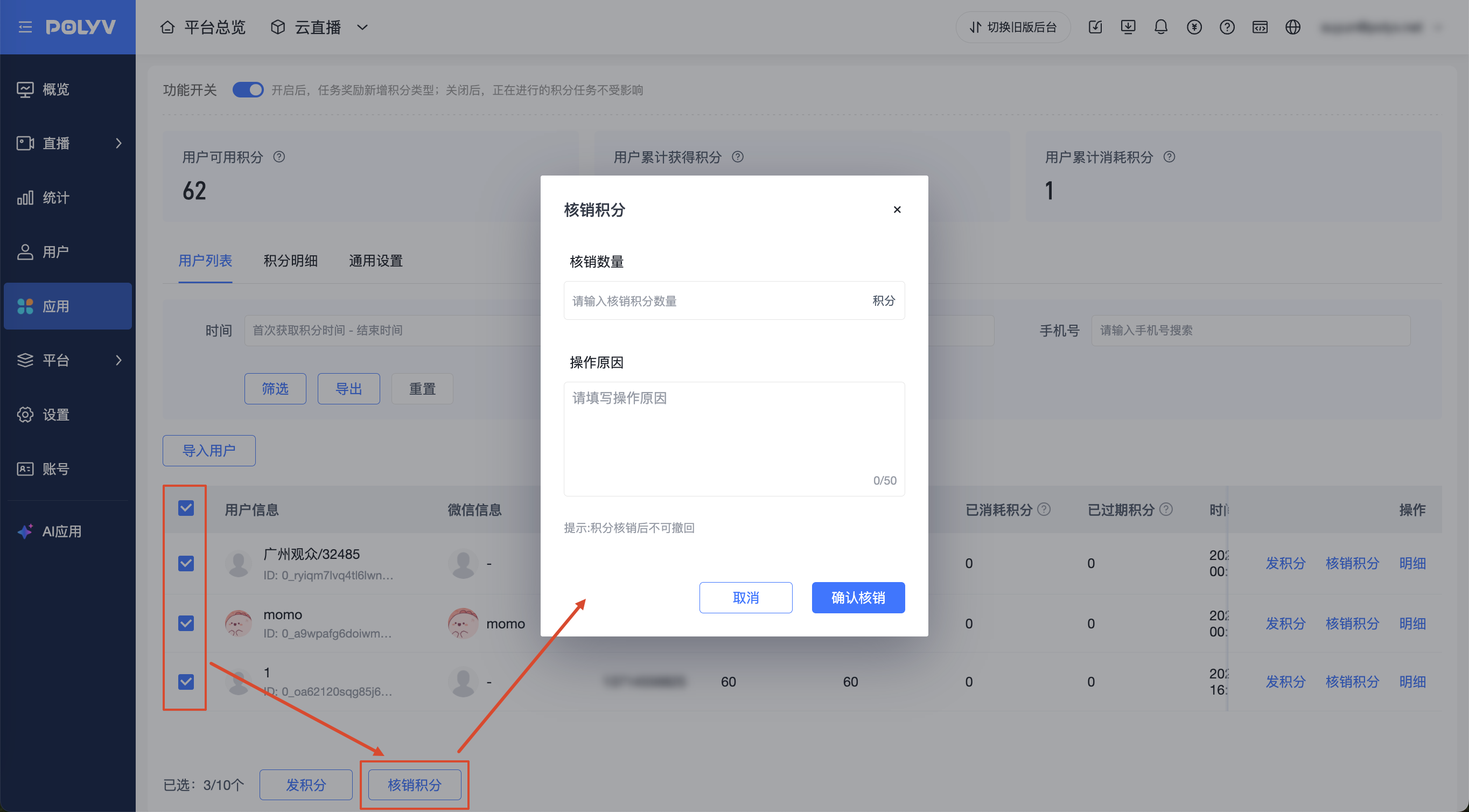
- Manual Points Redemption Rule Description
Redemption quantity: Required option; supports redeeming all points at once or a custom redemption quantity
Operation reason: Required field; limited to 50 characters
After clicking [Confirm Redemption], the corresponding points of the user will be redeemed. The operation cannot be withdrawn. Please operate with caution
5. Data Management
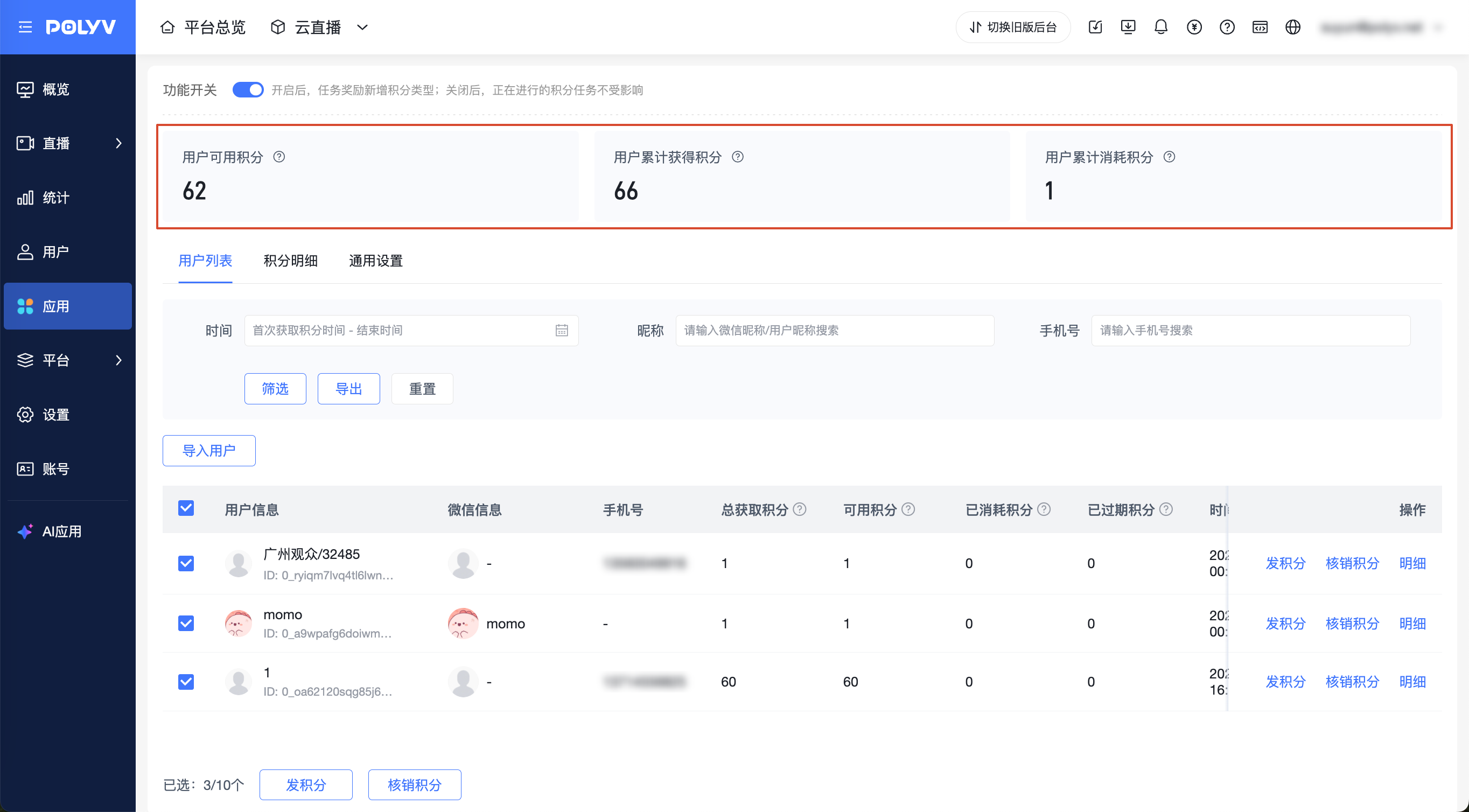
5.1 Data Overview
Description: You can view the overview of points issuance/consumption under the current operating account
User Available Points: The total number of points available for users to use under the current operating account
User Cumulative Points Earned: The total number of points cumulatively issued to users under the current operating account
User Cumulative Points Consumed: The total number of points cumulatively consumed by users under the current operating account
5.2 User List
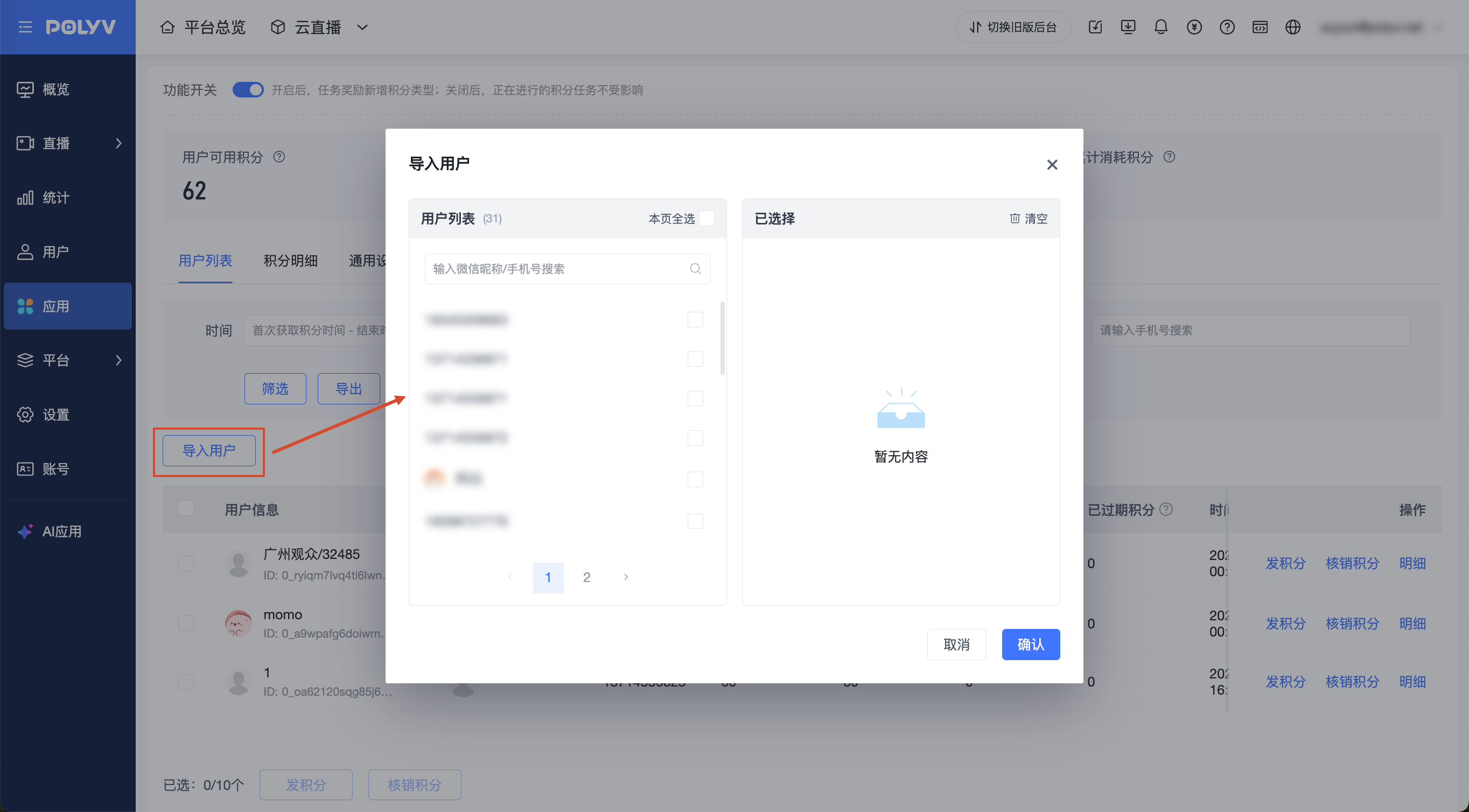
Description: You can view information for all users who have received points under the current operating account
Supports filtering by first points acquisition time/nickname/mobile number
Supports exporting the list
Supports importing users
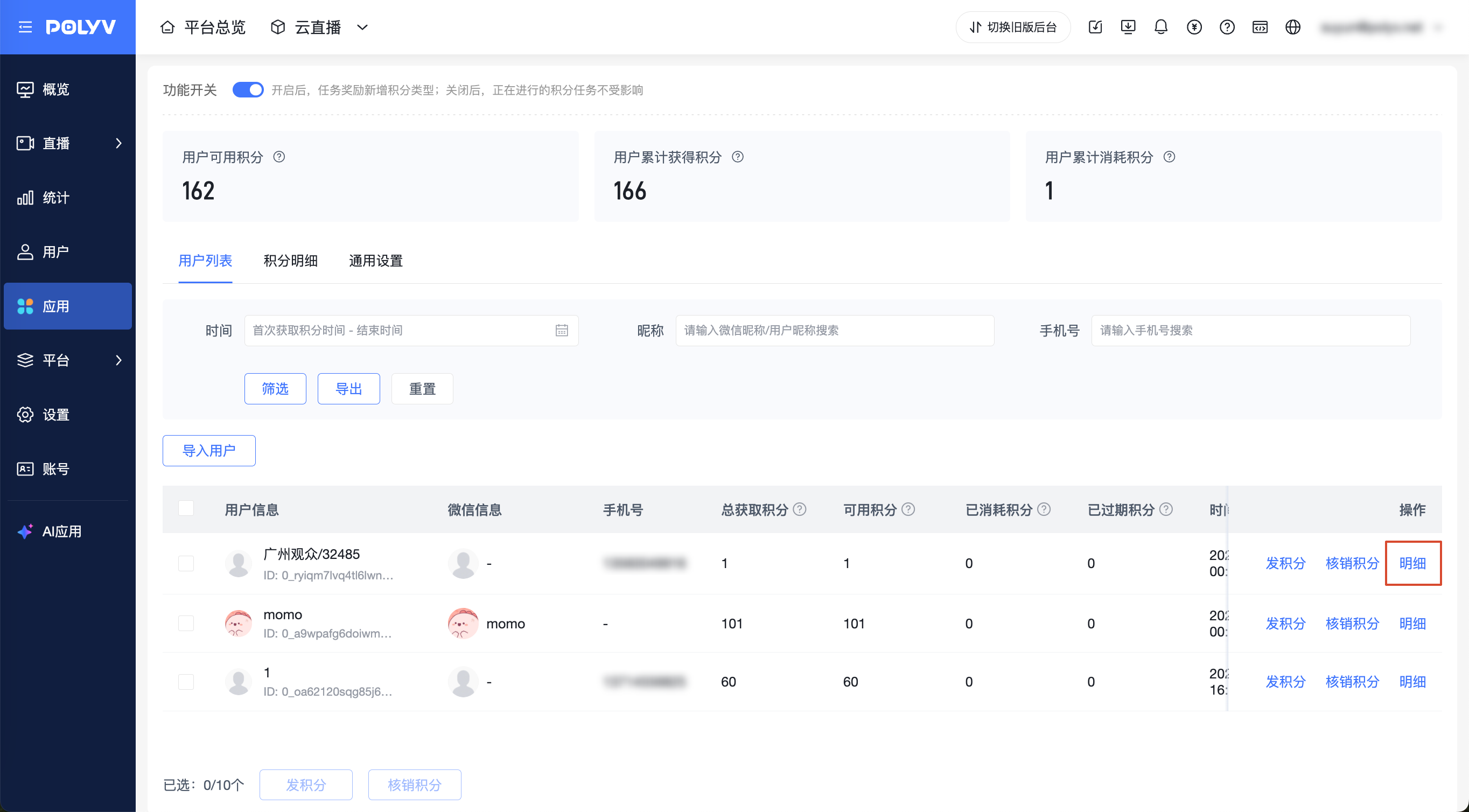
- Click "Details" to view the user's points details, including points records obtained through automatic tagging
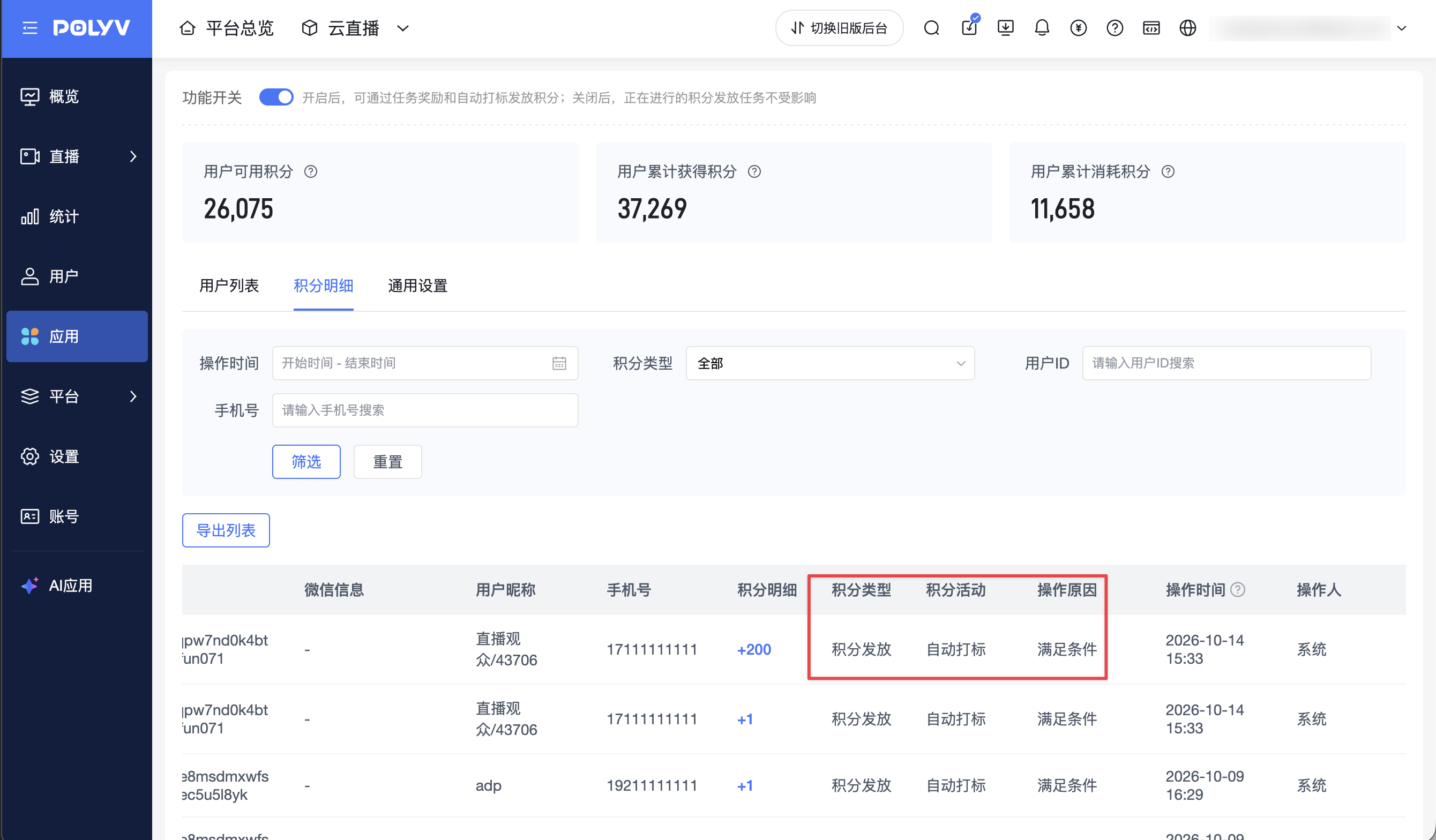
5.3 Points Details
Description: You can view the points acquisition details of all users under the current operating account
For points obtained through automatic tagging, the [Points Activity] is "Automatic Tagging" and the [Operation Reason] is "Conditions Met".
Supports filtering by operation time/points type/user ID/mobile number
Note: Operation time is the actual points issuance time
The "Operation Time" of points issued through task rewards is about 5 minutes later than the "Task Completion Time" on the viewer side
6. Viewer Side
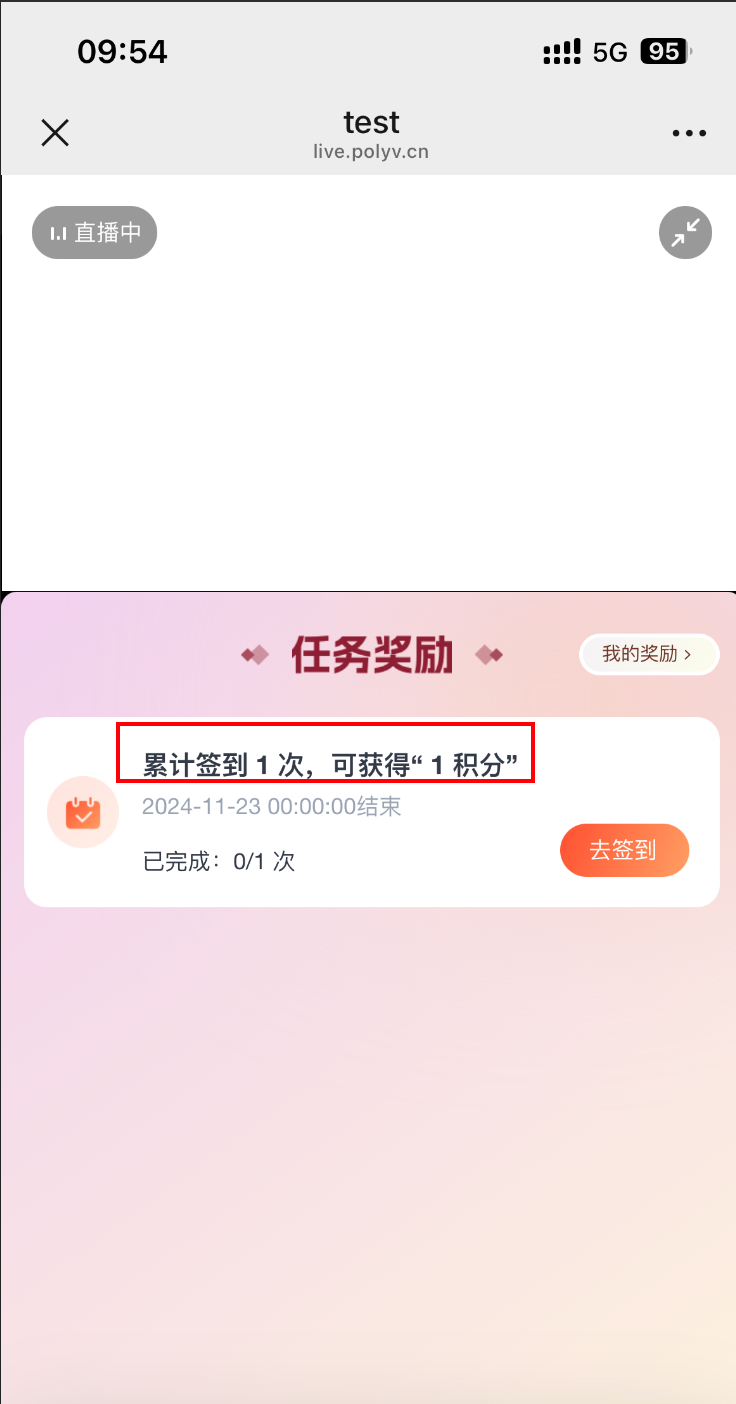
6.1 Points Task Reward Entry
Usage path: Watch Page - Chat - Click [Task Rewards] - Complete the corresponding points task
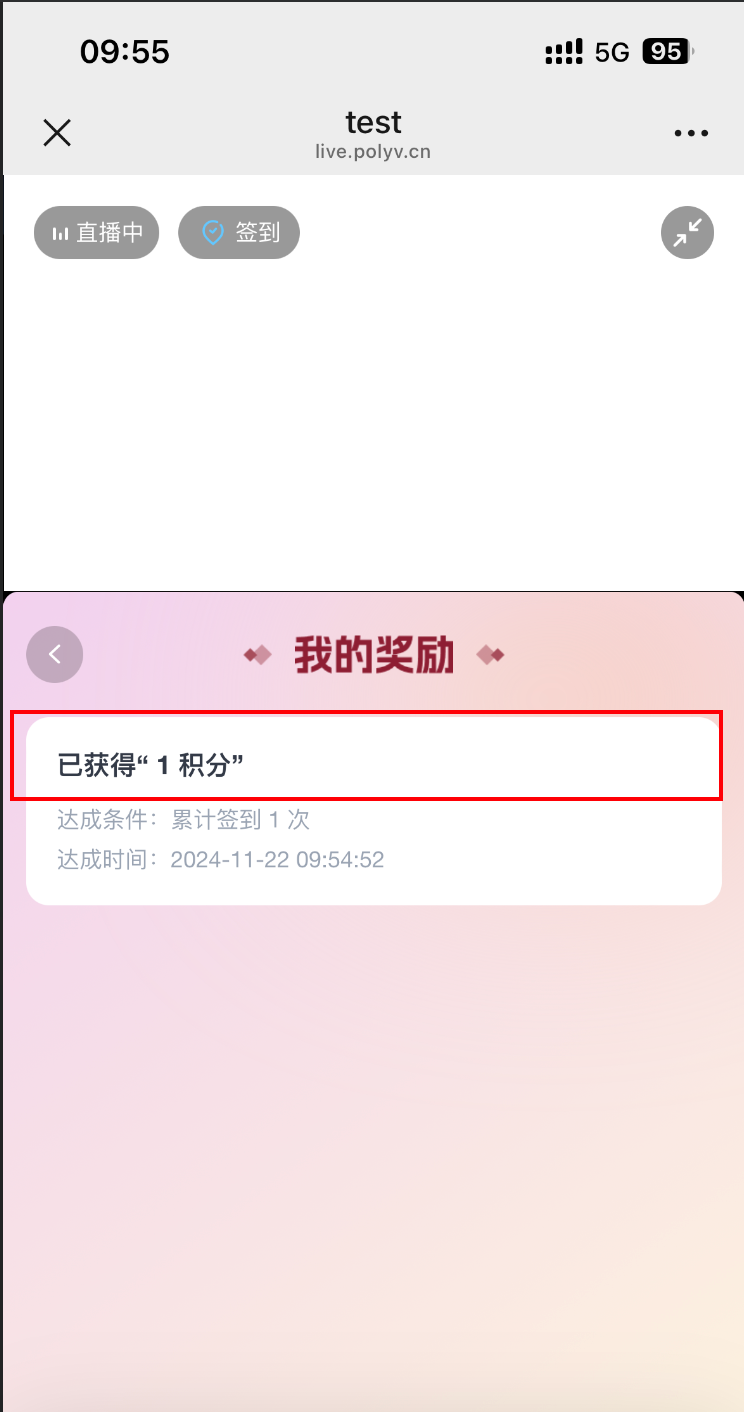
6.2 View Points Task Reward Records
Usage path 1: Watch Page - Chat - Click [Task Rewards] - Click [View Rewards] Usage path 2: Watch Page - Chat - Click [Task Rewards] - Click [My Rewards] Usage path 3: Watch Page - More - Click [My Rewards]
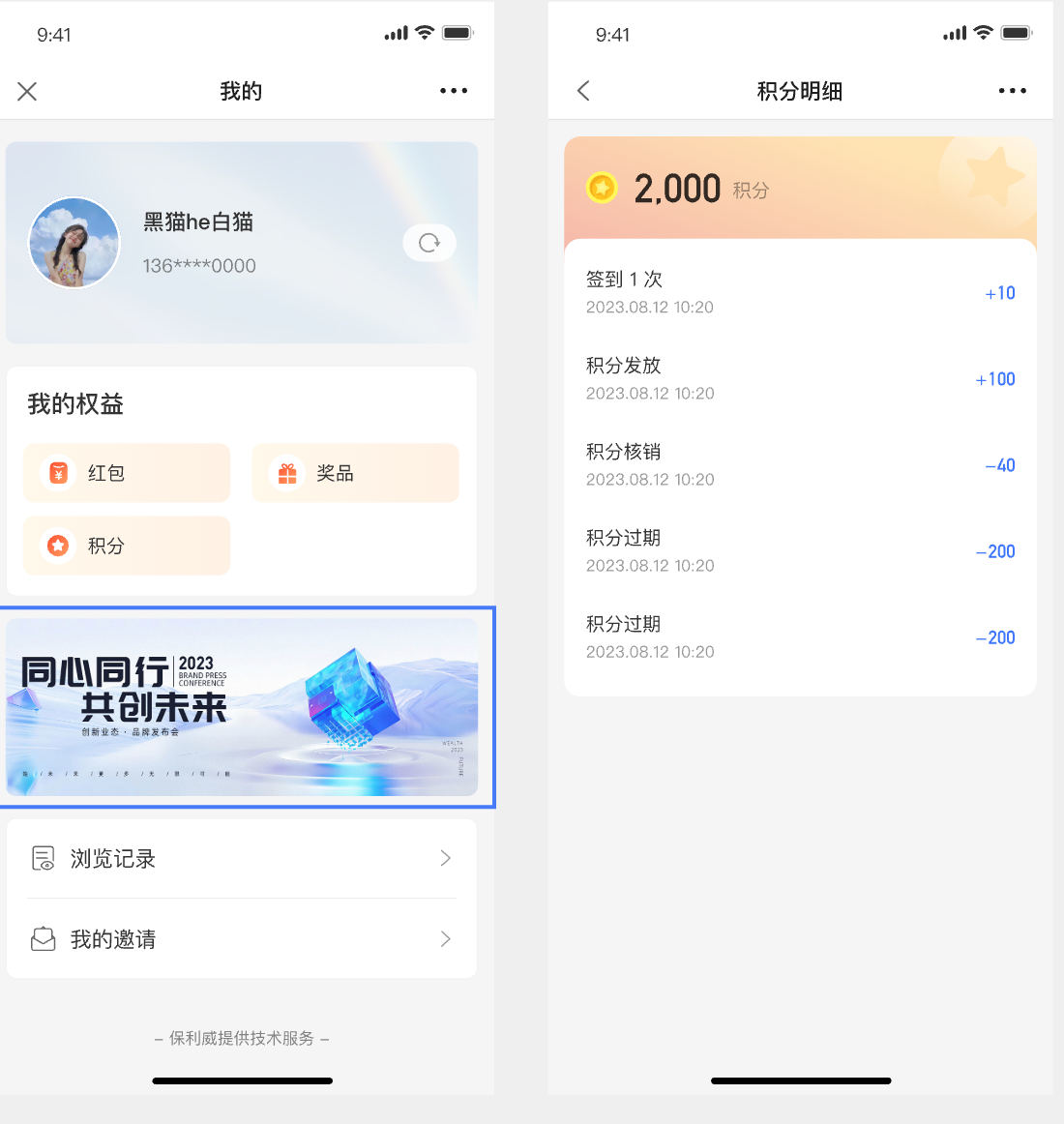
6.3 View Points Details
Usage path: Personal Center - Points - View Points Details Tip: Needs to be used with Page Management - Personal Center; displays points details for the last 3 months
III. FAQ
Q: Why can't points be issued from the platform user list?
A: Please first check whether the points feature is enabled. When not enabled, you can click [Go to Enable] to enter the points feature page; sub-accounts also need the [Points Management - User List] permission, otherwise the points issuance operation will not be displayed.
Q: Is it mandatory for automatic tagging rules to issue points?
A: No. [Points Issuance] is an optional configuration. You can add only tags without issuing points.
Q: How do I identify points records issued through automatic tagging?
A: In [Points Management] - [User List], view the user's points details, or go to [Points Details] and view records where [Points Activity] is "Automatic Tagging" and [Operation Reason] is "Conditions Met".
