


Using the Polyv Live Skill in WorkBuddy
The Polyv Live Skill connects capabilities such as channel management, product and coupon configuration, and live streaming data queries to WorkBuddy. After completing account connection, you can describe tasks in WorkBuddy, and the AI will call the corresponding capabilities to perform operations.
This article introduces the initial setup process and provides example prompts for common tasks.
I. Supported Operations
The main capabilities of the Polyv Live Skill are as follows. You can select the corresponding operation based on your task.
| Capability Category | Main Operations |
|---|---|
| Channel and live stream management | Create, query, and edit channels; query live streaming status |
| Live interaction and marketing | Manage products, coupons, and interactive features |
| Audience and permission management | Manage audience lists; configure viewing conditions |
| Content and playback management | Manage playback, documents, and other live content |
| System settings and data statistics | Configure channel pages; query live streaming data |
| Account and authentication management | Configure accounts; query connection and authentication status |
II. Prerequisites
- You have a Polyv enterprise live streaming account and can log in to the live streaming management console.
- You have downloaded and logged in to WorkBuddy.
- You can obtain the AppID, AppSecret, and UserID from [Developer Information] under [Settings] in the Polyv live streaming management console.
III. Connecting the Polyv Live Skill
1. Add the Skill
Open WorkBuddy, go to [Experts - Skills], search for "Polyv," and add the Polyv Live Skill.
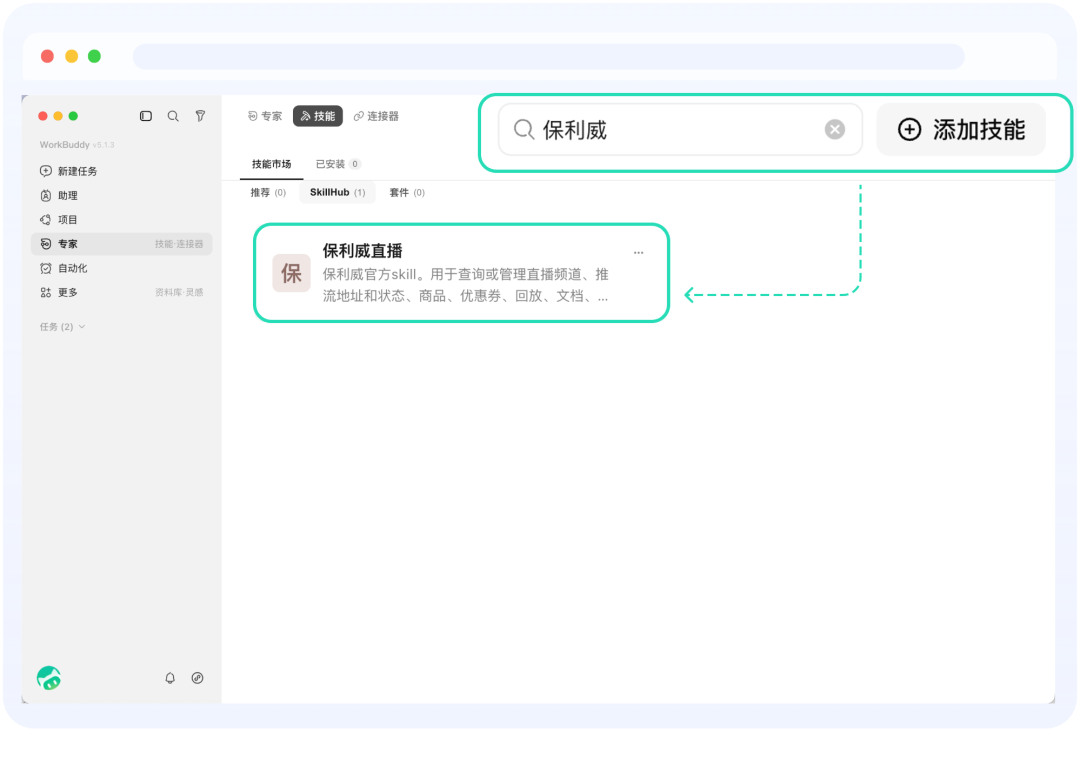
2. Configure the Enterprise Live Streaming Account
When using it for the first time, you need to select the Polyv Live Skill first, and then connect the enterprise live streaming account.
(1) Select the Skill
At the bottom of the WorkBuddy dialog box, click [Skills] and select [Polyv Live].
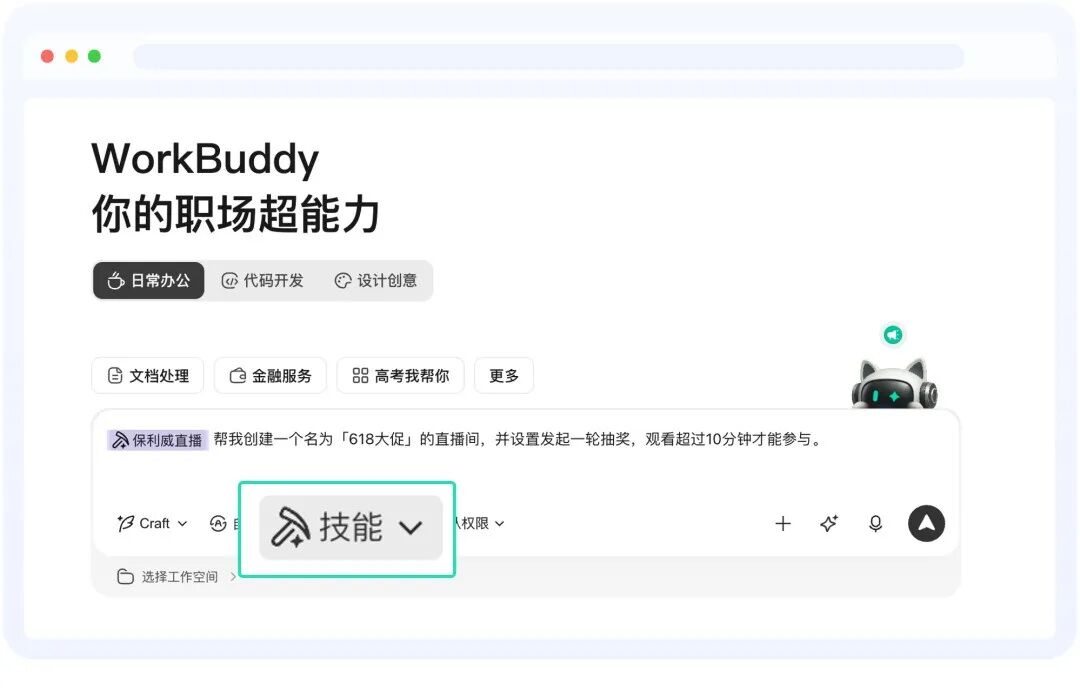
(2) Initiate the Connection
After selecting the skill, enter the following in the conversation:
Help me connect to Polyv Cloud Live.
WorkBuddy will prompt you to provide the AppID, AppSecret, and UserID.
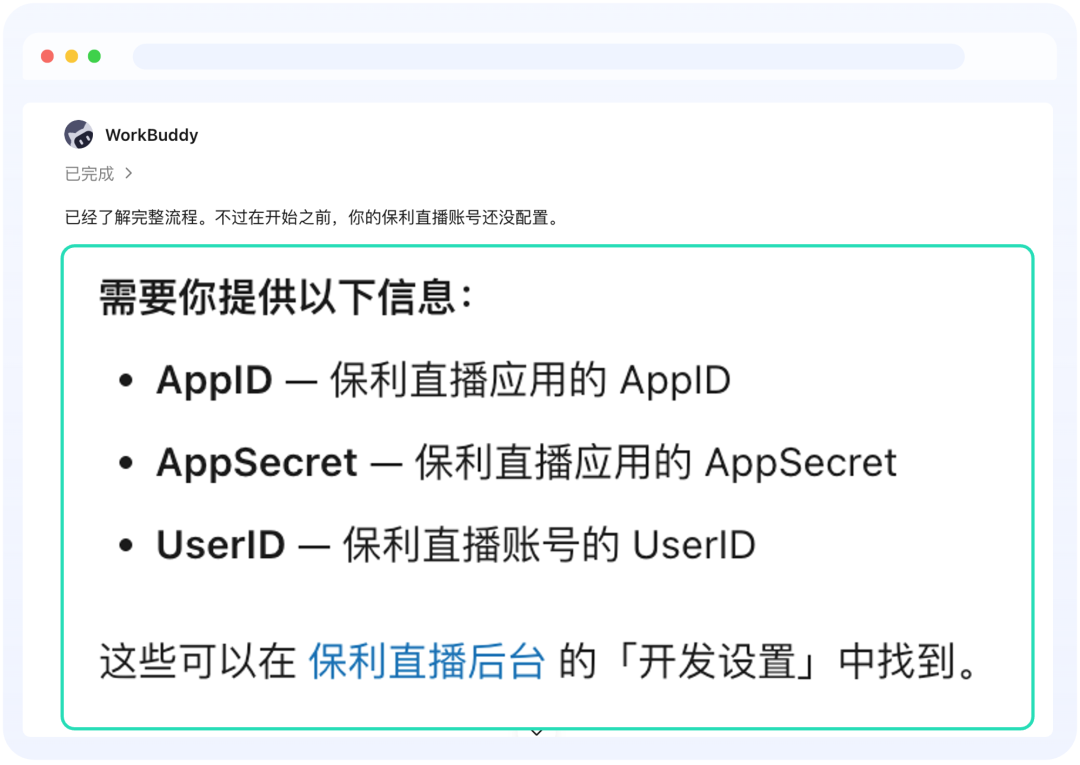
(3) Obtain and Configure Account Information
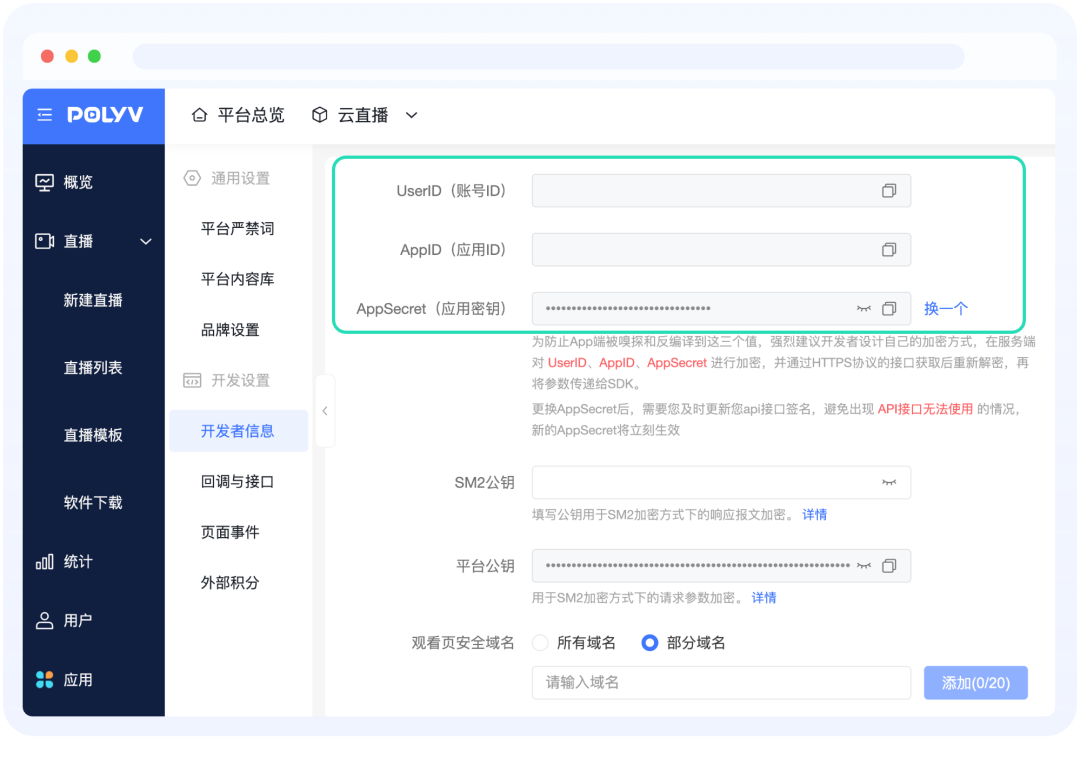
Log in to the Polyv live streaming management console, go to [Developer Information] under [Settings], and obtain the AppID, AppSecret, and UserID.
Return to WorkBuddy, provide these three pieces of information as prompted in the conversation, and wait for the account configuration and connection result. After confirming that the connection is complete, initiate live streaming management tasks.
IV. Common Task Examples
When describing a task, it is recommended to specify the operation target, specific configuration requirements, and expected results. For data queries, specify the channel and statistical time range.
1. Set Up a Live Room
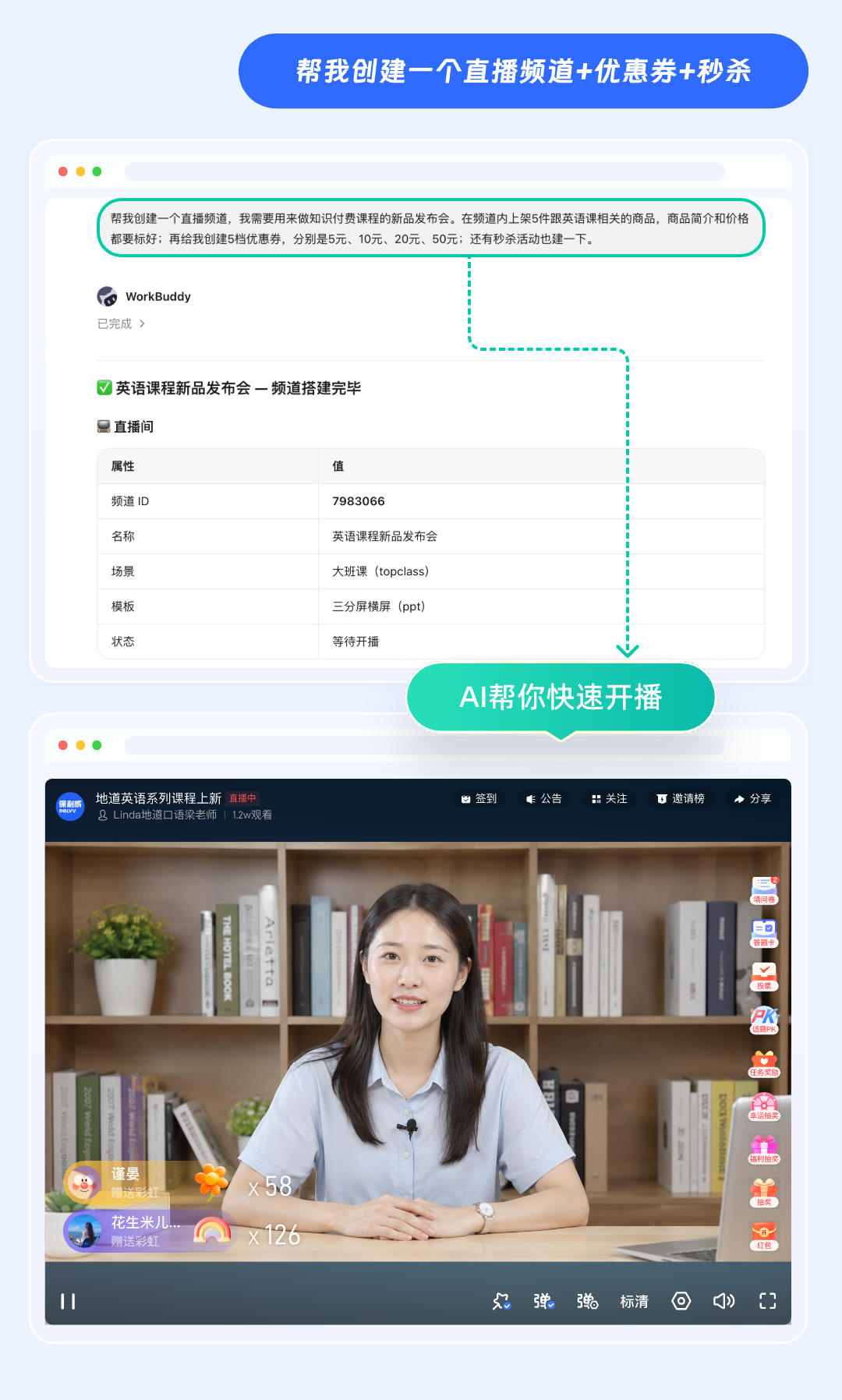
You can create a new live streaming channel through the conversation and configure coupons and flash sale activities.
Create a new live streaming channel for an English course new product launch, list 5 products related to English courses, and fill in the product descriptions and prices; create 4 tiers of coupons with denominations of 5 yuan, 10 yuan, 20 yuan, and 50 yuan respectively, and also create a flash sale activity.
Supplement the required information as prompted by WorkBuddy. After execution, verify the channel settings, coupons, and flash sale activity configuration.
2. Batch Configure Live Rooms
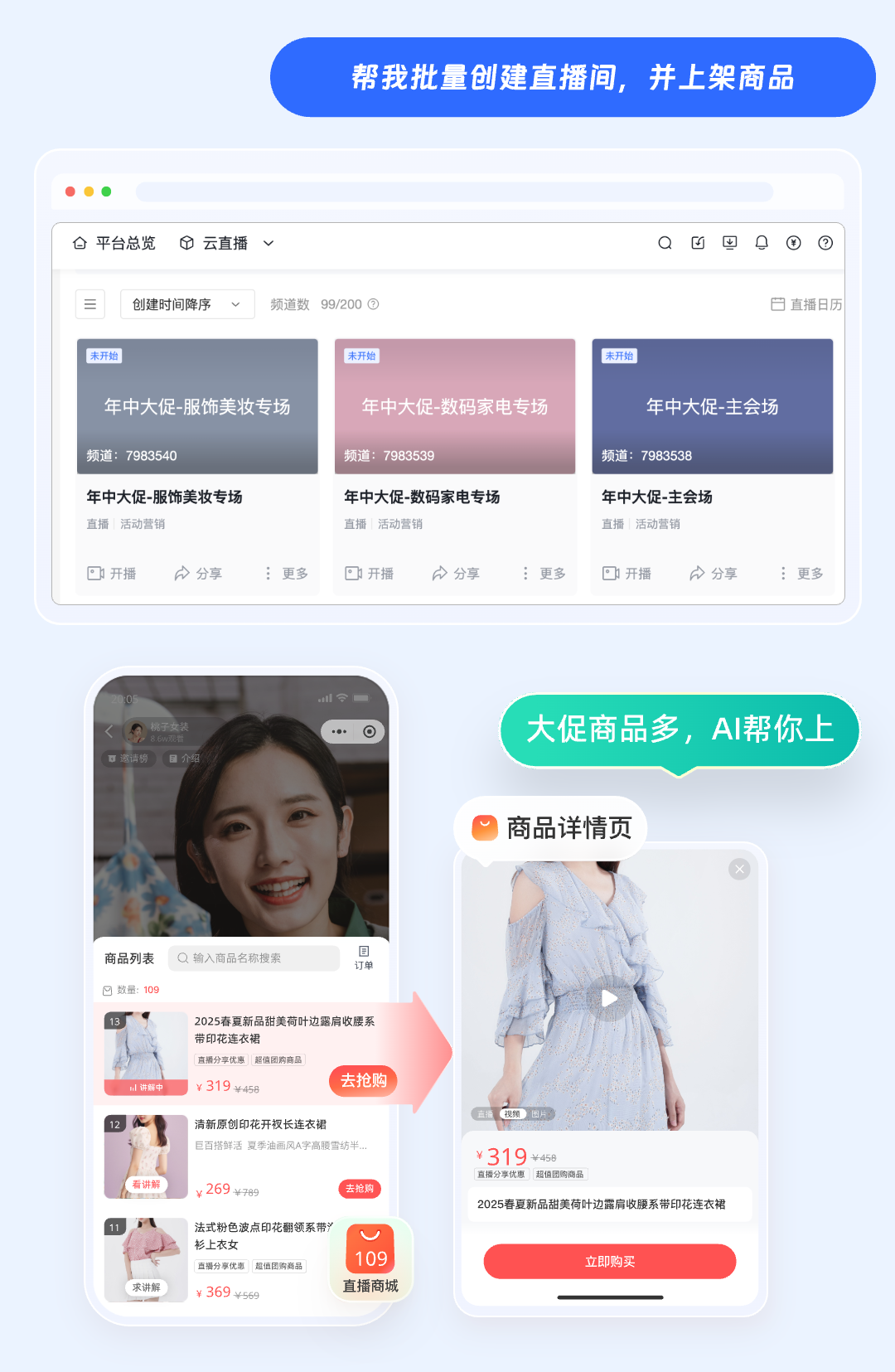
You can create multiple live rooms in batches and list products.
Create 3 live rooms in batches, named "Mid-Year Sale - Fashion and Beauty Session," "Mid-Year Sale - Digital and Home Appliances Session," and "Mid-Year Sale - Main Venue" respectively, set the viewing condition uniformly to public viewing, and list products in each live room.
Supplement the number of live rooms, names, and product information as prompted by WorkBuddy. After execution, verify the configuration of each live room and its products.
3. Generate Live Streaming Data Charts
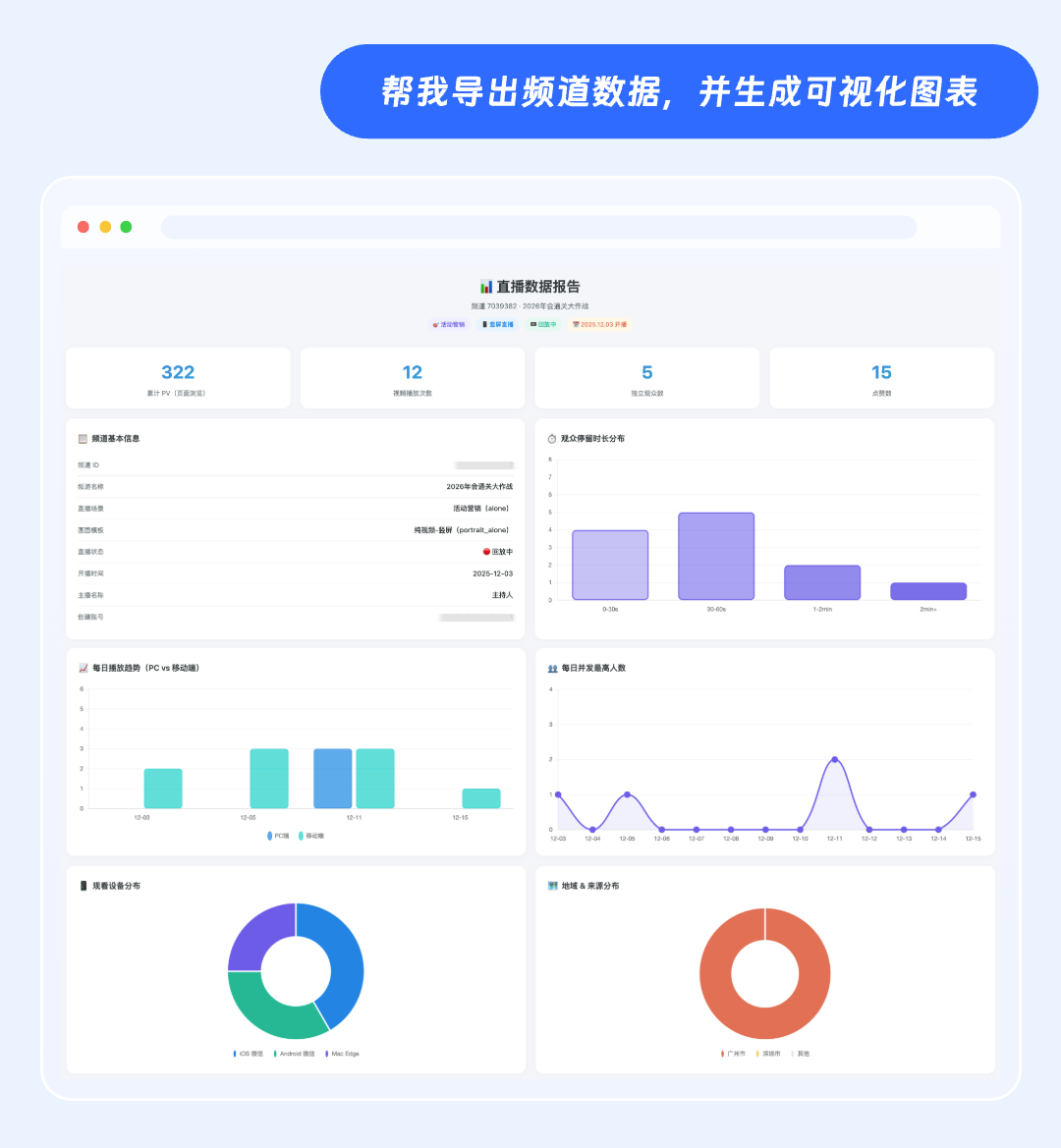
You can aggregate operational data for a specified channel and time range, and have the AI organize, analyze, and generate visual charts.
Query the viewing data for channel "Channel ID" from "Start Date" to "End Date," and generate an HTML analysis report based on the query results.
The Polyv Live Skill is used to obtain data; data aggregation, analysis, and chart generation are completed by the AI based on the obtained results. When viewing the charts, verify the channel, statistical scope, and data definitions.
V. FAQ
Q: What account information do I need to prepare for first-time use?
A: You need the AppID, AppSecret, and UserID, which can be obtained from [Developer Information] under [Settings] in the Polyv live streaming management console. Complete the connection as prompted by WorkBuddy.
Q: Can I create multiple live rooms at once?
A: You can create multiple live rooms in batches through a task description. It is recommended to specify the quantity, naming method, and unified configuration requirements, and verify the results for each live room after execution.
Q: How can I have the AI generate a live streaming data report?
A: In the task, specify the target channel, statistical scope, and required report format. After the AI obtains the data, it can continue to organize, analyze, and generate the report; the results should be verified against the actual data obtained.
