


Instructions for Using the Q&A Feature
1. Feature Overview
The Q&A feature is used to collect questions from the audience directed to the host, teaching assistant, or guest during a live stream. When enabled, viewers can submit questions via the Q&A entry on the viewing page. The host, teaching assistant, and guest can view audience questions on their respective ends and respond or handle them according to the live stream schedule.
By default, Q&A content is visible only to the host, teaching assistant, and guest. It is not publicly displayed on the viewing page like regular chat messages. This feature is suitable for live stream scenarios that require centralized question collection, such as course Q&A, product consultations, event interactions, and internal training.
2. Applicable Scenarios
- Collecting audience questions during live courses for the host to answer uniformly.
- Gathering audience inquiries during product launches or online presentations.
- Collecting participant feedback during corporate training or internal meetings.
- Live stream scenarios where you do not want audience questions to flood the screen but need the host, teaching assistant, or guest to view and handle them in the background.
3. Feature Path
Channel-level settings:
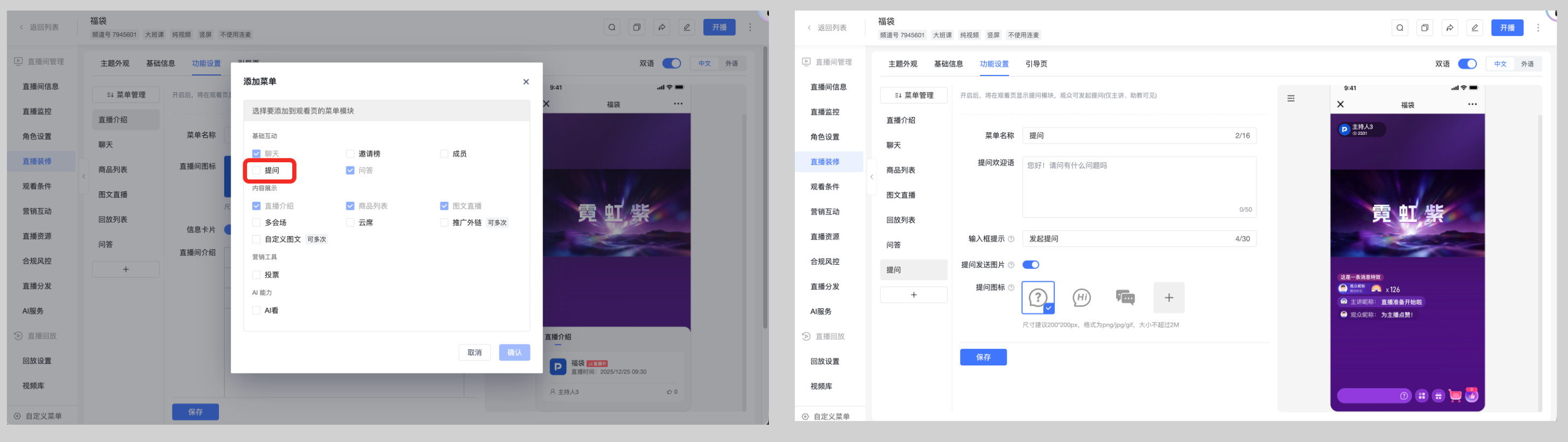
Go to the management backend, select the corresponding channel, navigate to Live Stream Decoration > Feature Settings > Q&A to configure.
Live stream template settings:
Go to the live stream template settings, select the corresponding template, navigate to Live Stream Decoration > Feature Settings > Q&A to configure. After saving the template, channels created using or applying this template will inherit the corresponding configuration.
4. How to Enable the Q&A Feature
- Go to Live Stream Decoration > Feature Settings.
- Confirm that the Q&A menu has been added to the feature menu.
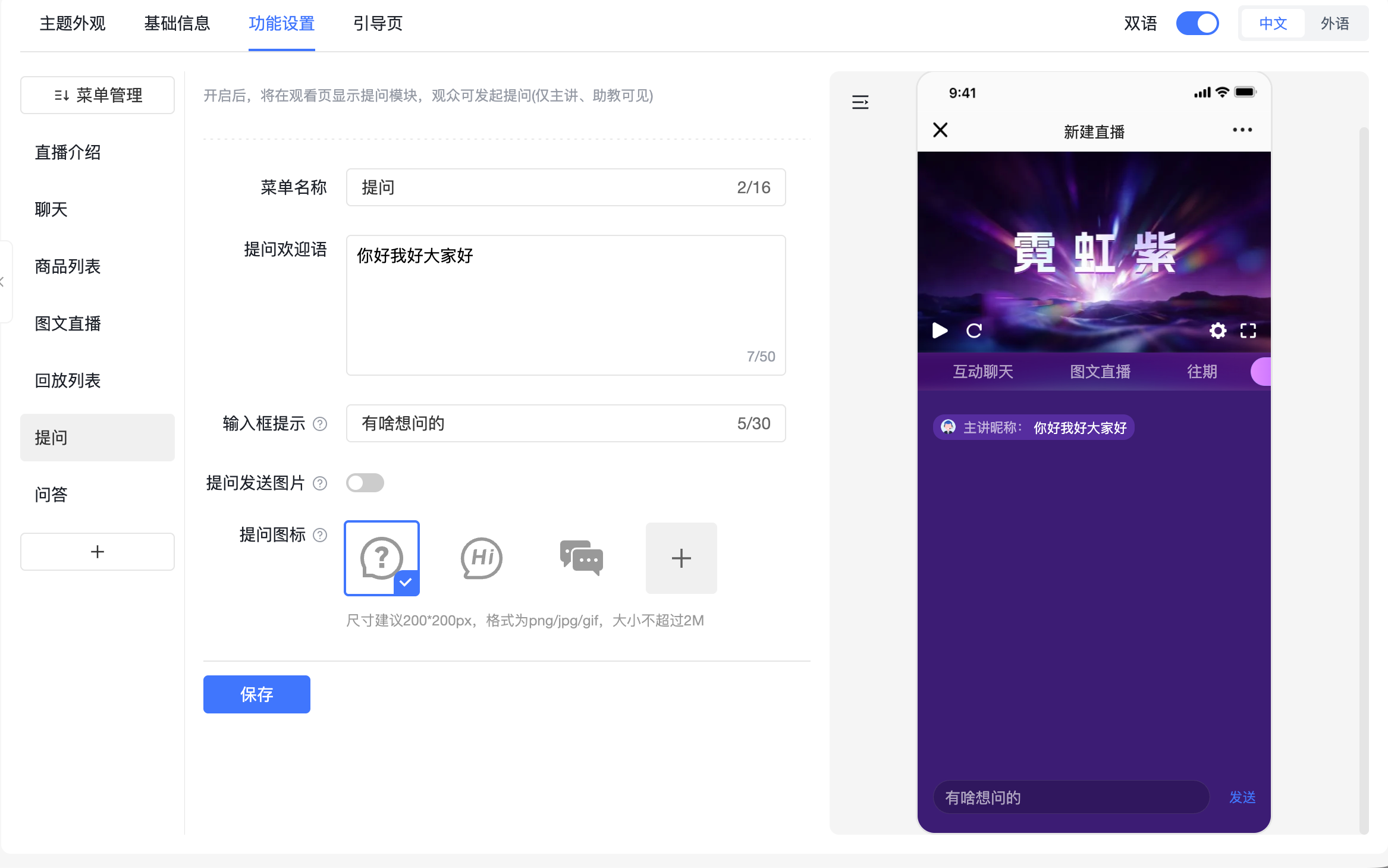
- Enter the Q&A configuration page, and set the Q&A menu name, welcome message, and input prompt.
- Enable Allow sending images in Q&A as needed.
- Set the Q&A entry icon on the mobile viewing page.
- Click Save.
Note: If the Q&A entry is not displayed on the viewing page, first confirm whether the Q&A menu has been added to the feature menu. Whether the Q&A feature is displayed depends on whether the Q&A menu is included in the viewing page menu configuration.
5. Configuration Item Description
5.1 Menu Name
Used to set the name displayed in the menu bar on the viewing page. The default name is Q&A. It can be modified based on the live stream scenario, for example, Ask a Question, Consultation, or Course Q&A.
5.2 Q&A Welcome Message
The prompt displayed when the audience enters the Q&A module, used to guide viewers to ask questions. It is recommended to use concise and clear text, for example:
Welcome to ask questions. The host will answer them uniformly during the live stream.
5.3 Q&A Input Prompt
Used to set the prompt text in the audience's input box. It is recommended to inform viewers what type of questions they can submit, for example:
Please enter your question
or:
Please describe what you would like to inquire about
5.4 Allow Sending Images in Q&A
When enabled, viewers can send images in the Q&A area. This is suitable for scenarios requiring screenshots, assignments, error pages, credentials, etc.
If the live stream scenario does not require viewers to upload images, it is recommended to keep this disabled to reduce irrelevant submissions.
5.5 Q&A Entry
Used to set the icon for the Q&A entry on the mobile viewing page. The system provides several default icons and also supports uploading custom icons.
If using a custom icon, it is recommended to use a clear, simple image that matches the visual style of the live stream room.
6. How Viewers Ask Questions
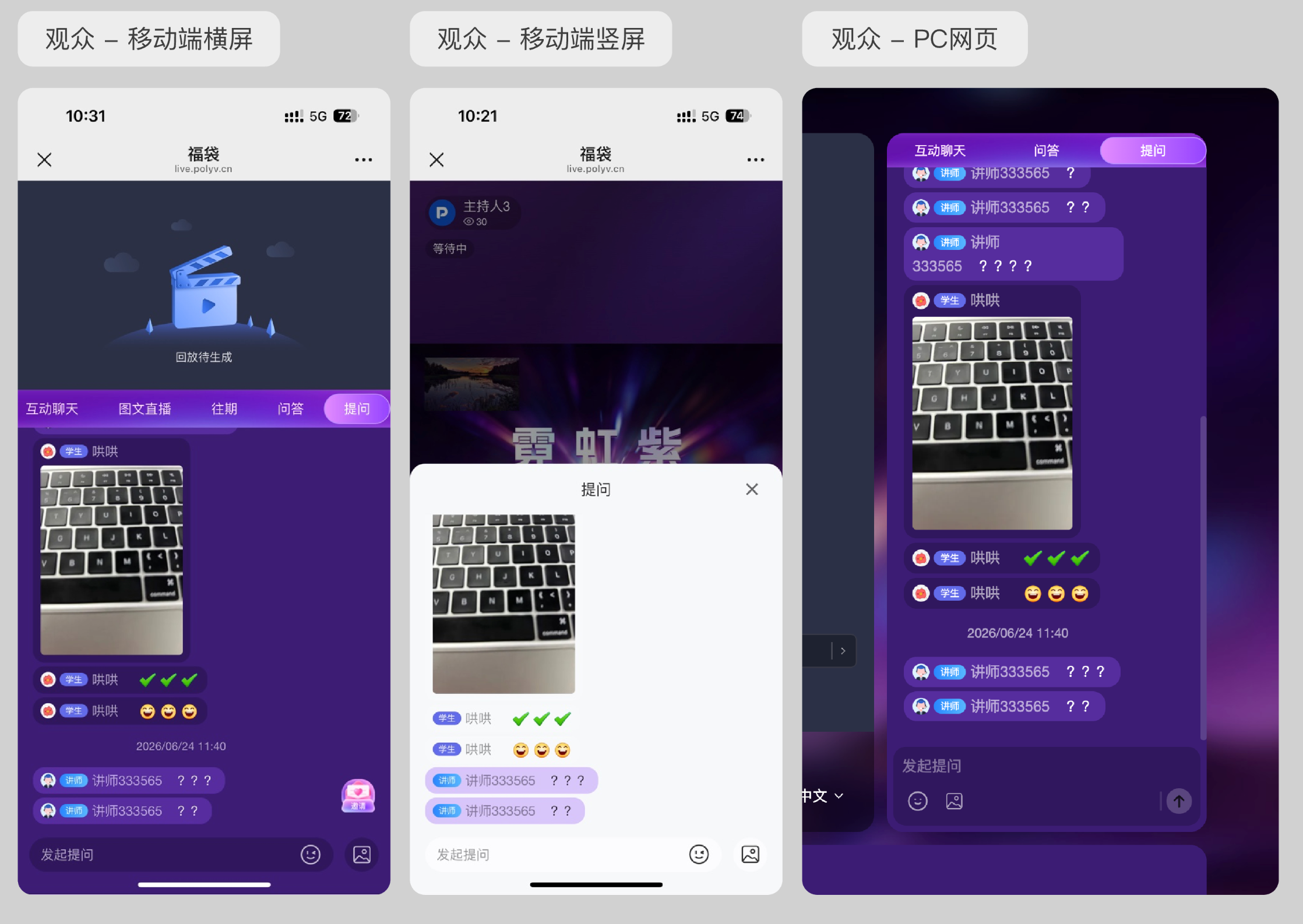
- The viewer enters the live stream viewing page.
- Click the Q&A menu or Q&A entry on the viewing page.
- Fill in the question content in the input box.
- If image sending is enabled, upload an image as needed.
- After submission, the question is sent to the host, teaching assistant, or guest for review.
7. How the Host, Teaching Assistant, and Guest View Questions
The host, teaching assistant, and guest can view questions submitted by the audience on their respective ends and respond or handle them according to the live stream schedule.
Q&A content is primarily for the host, teaching assistant, and guest to view. It is not equivalent to public chat messages. If you need to make questions publicly visible to all viewers, please use public interactive features like Q&A (Public).
8. Frequently Asked Questions
8.1 Why is the Q&A entry not visible on the viewing page?
Please check the following configurations:
- Whether the Q&A menu has been added to the feature menu in Live Stream Decoration.
- Whether the current channel has saved the Live Stream Decoration configuration.
- Whether the current viewing end has refreshed the page or re-entered the live stream room.
- Whether the sub-account has the necessary permissions for Live Stream Decoration.
8.2 Is the Q&A feature enabled by default?
Whether the Q&A feature is enabled depends on whether the Q&A menu is included in the Live Stream Decoration menu. If the menu contains Q&A, the viewing page will display the Q&A feature; if not, it will not be displayed.
8.3 Will Q&A content be seen by all viewers?
No. The Q&A feature is primarily used for viewers to submit questions to the host, teaching assistant, or guest. It is not a public chat message by default. If you need to publicly display questions and answers, use the public Q&A feature.
8.4 Can viewers send images?
Yes, but the Allow sending images in Q&A option must be enabled in the Q&A configuration. Once enabled, viewers can upload images in the Q&A area.
8.5 Why hasn't the viewing page changed immediately after modifying the configuration?
Please confirm that the configuration has been saved successfully and refresh the viewing page or re-enter the live stream room. If using a live stream template configuration, also confirm whether the channel has applied the corresponding template configuration.
8.6 Does the Q&A feature support mobile devices?
Yes. The mobile viewing page can display the Q&A entry and supports configuring the entry icon.
9. Usage Suggestions
- Configure the Q&A welcome message and input prompt before the live stream to lower the barrier for viewers.
- For course Q&A live streams, it is recommended to enable the Q&A feature so the host can handle questions centrally.
- If viewers need to submit screenshots or credentials, enable the option to allow sending images in Q&A.
- If questions need to be publicly displayed to all viewers, it is recommended to use the public Q&A feature in conjunction.
- Before the live stream starts, it is recommended to use a viewer preview or test account to verify that the Q&A entry is displayed correctly.
