


One Customer One Code User Guide
1. Feature Overview
| Feature Info | Description |
|---|---|
| Feature Name | One Customer One Code |
| Feature Description | [One Customer One Code] is a feature that helps sales representatives follow up with customers. By sending customers an exclusive invitation link, sales reps can track customer behavior dynamics in the live room via the backend and view their customer status in real-time through a monitoring dashboard, enabling efficient follow-ups. |
| Purpose | To help sales representatives follow up with customers using One Customer One Code, achieving the goal of conversion in the live room. |
| Use Case | Example scenario: A customer hosts a live sales event and wants more viewers to enter the live room and place orders. Using the One Customer One Code feature, sales reps can prioritize following up with customers who have higher viewing data based on their viewing behavior, thereby efficiently achieving performance settlement. |
| Tutorial | 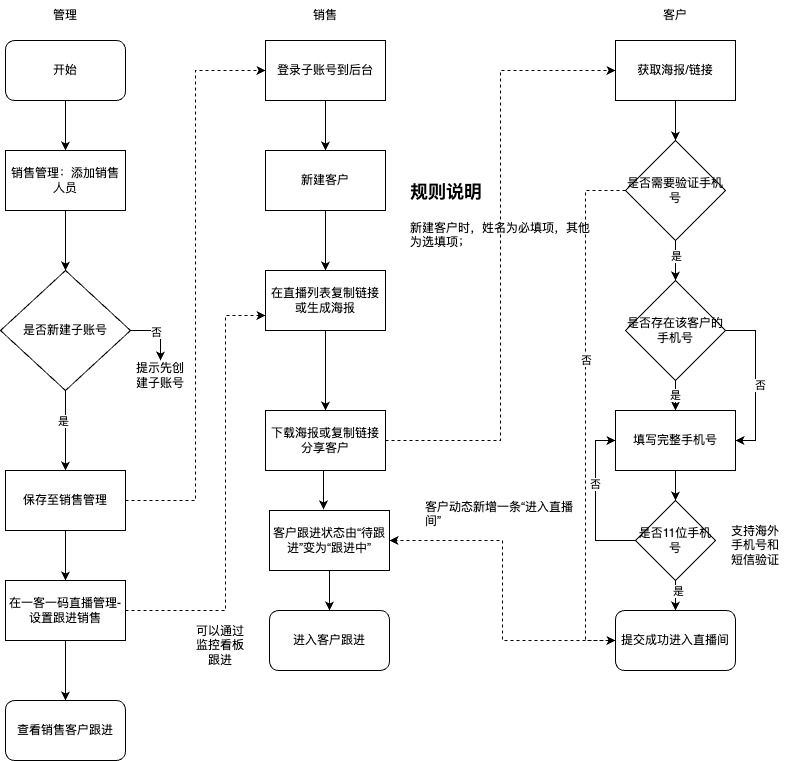 |
| Feature List | Customer Management, Sales Management, Live Room Management, Monitoring Dashboard, Behavior Trail |
| Notes | Only sub-accounts can initiate customer follow-ups. Sub-account permissions must be enabled in advance. |
| SDK Integration Guide | 1. Supports SDK integration (using V3 Viewing Page SDK); |
2. Operation Instructions
Preparation
Account Activation: The feature is free to use. To use the monitoring dashboard and viewer behavior trail, contact your business representative to enable the One Customer One Code monitoring dashboard permission and user profile permission.
Account Preparation: A standard SaaS account is required, along with corresponding sales management and a standard sales list. Note that the number of contacts must be within the sub-account limit.
2.1. Create a Role
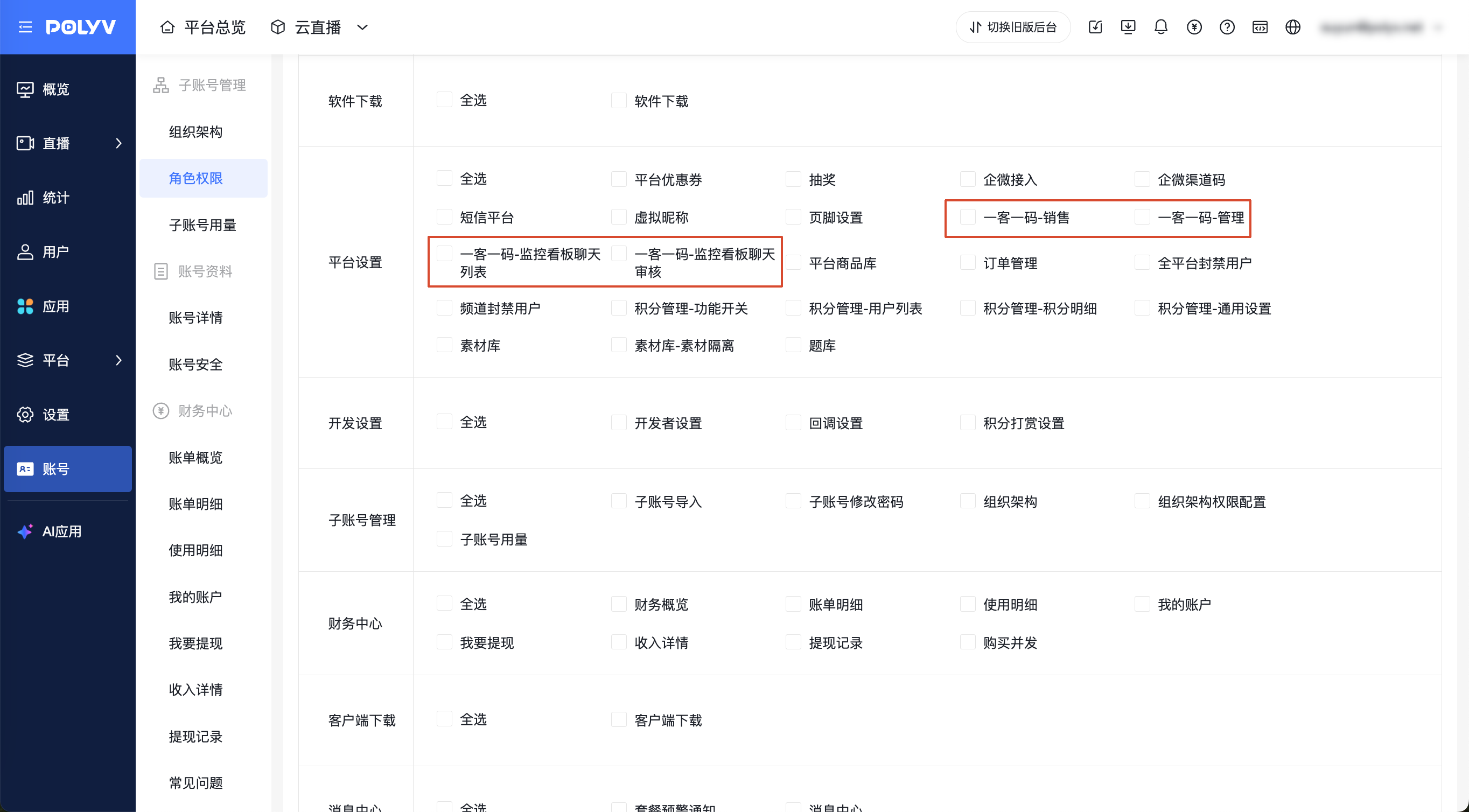
Location: Admin Backend -> Sub-account Management -> Role Permissions -> Platform Settings Permission Description:
- One Customer One Code - Sales: When checked, accounts with this role can access the Admin Backend -> One Customer One Code -> Customer Management & Live Room Management pages.
- One Customer One Code - Management: When checked, accounts with this role can access the Admin Backend -> One Customer One Code -> Sales Management page.
- One Customer One Code - Monitoring Dashboard Chat List: When checked, accounts with this role can view the chat list on the monitoring dashboard.
- One Customer One Code - Monitoring Dashboard Chat Review: When checked, accounts with this role can review chat messages on the monitoring dashboard.
2.2. Create a Sub-account and Associate a Role
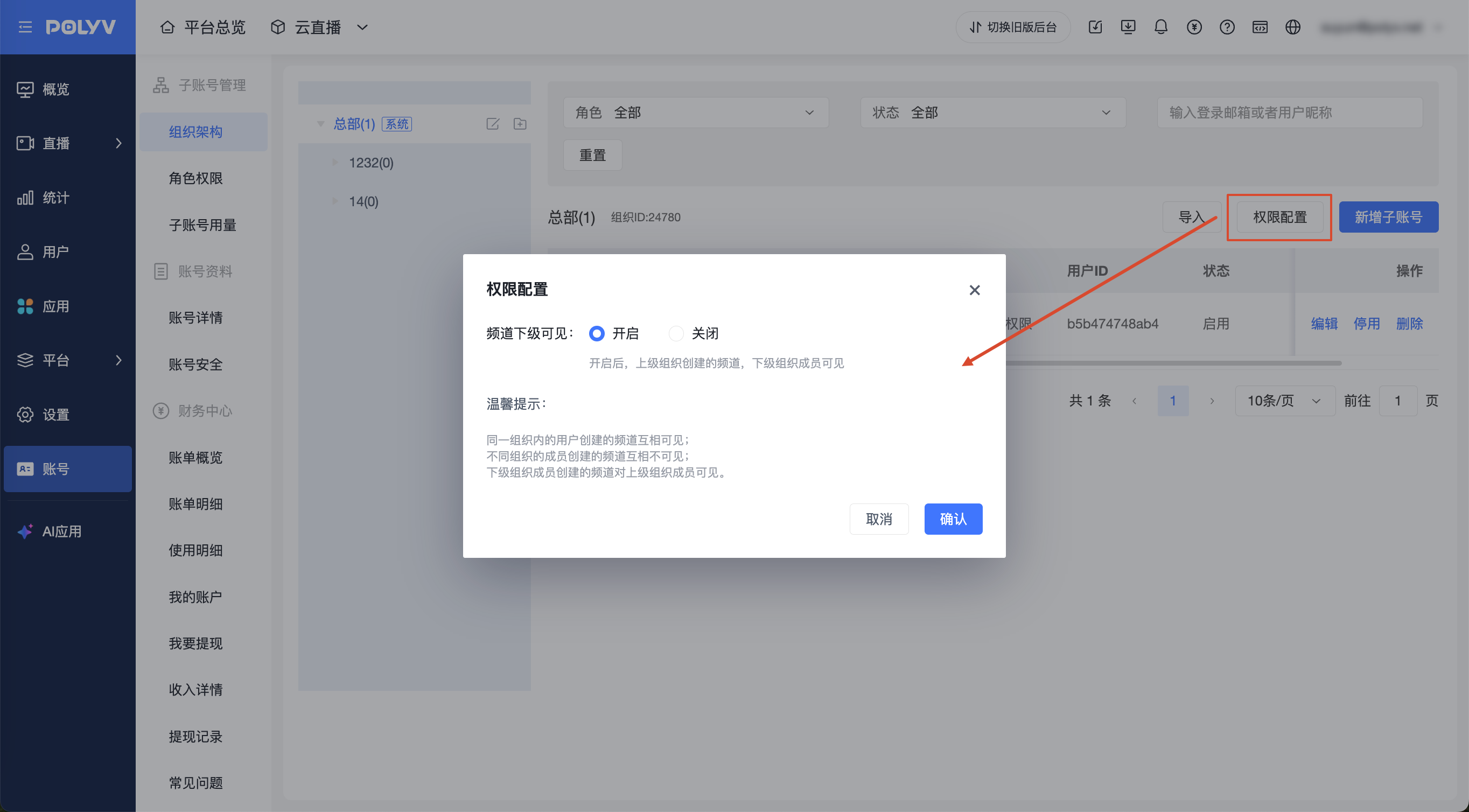
2.1 Create or edit a sub-account. Set permissions for the sub-account as needed. It can be placed under the headquarters or an organization below the headquarters. If the sub-account is placed under the headquarters, it can see all live streams under the account in the live room list. If the sub-account is placed under a second-level or lower organization, it can be configured to only see live streams under that organization or have permission to view live streams of the parent organization.
2.3. Add Live Channels for Promotion and Select Corresponding Sales Reps
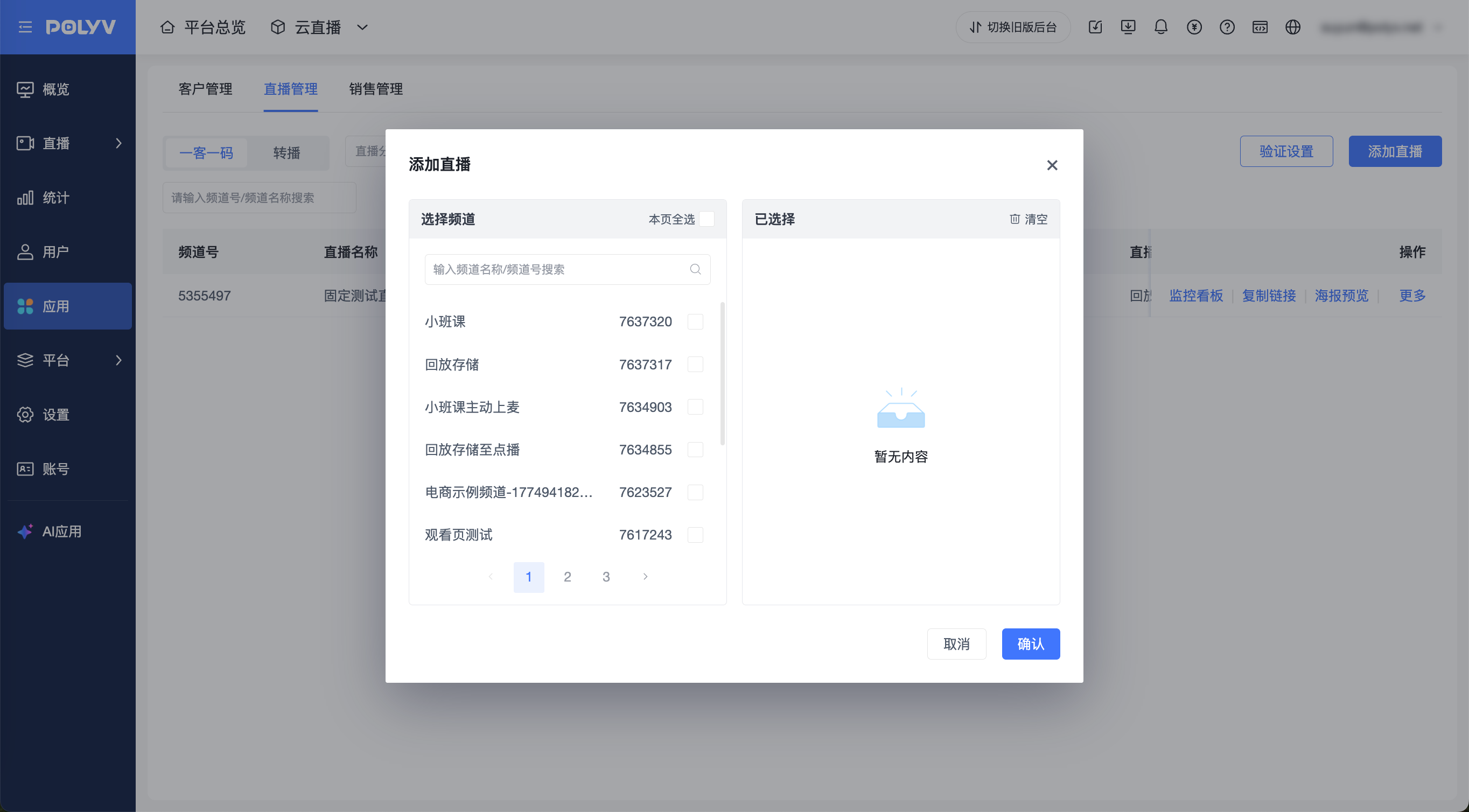
For live streams that need to be promoted by sales reps, go to the live room list and configure the live streams for promotion. This can be used together with other viewing conditions. Customers followed up via exclusive invitations enter through the exclusive link shared by the sales rep. Other viewing conditions are validated when customers enter through the regular live room link.
2.4. Enter the One Customer One Code Page
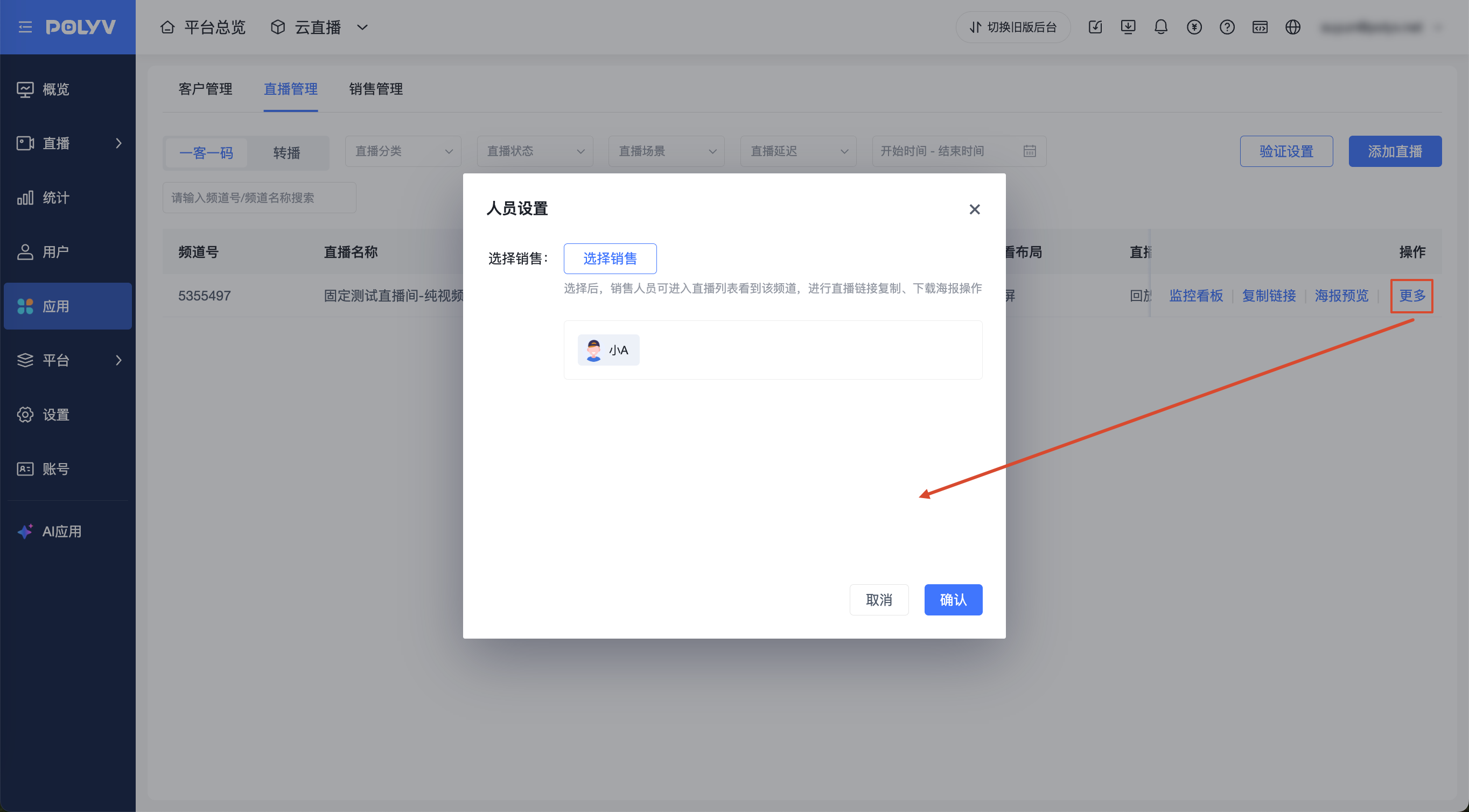
Location: Admin Backend -> Platform Settings -> One Customer One Code Here you can manage customers, copy live room links or download posters, and follow up with customers.
2.4.1 One Customer One Code Live Room Management
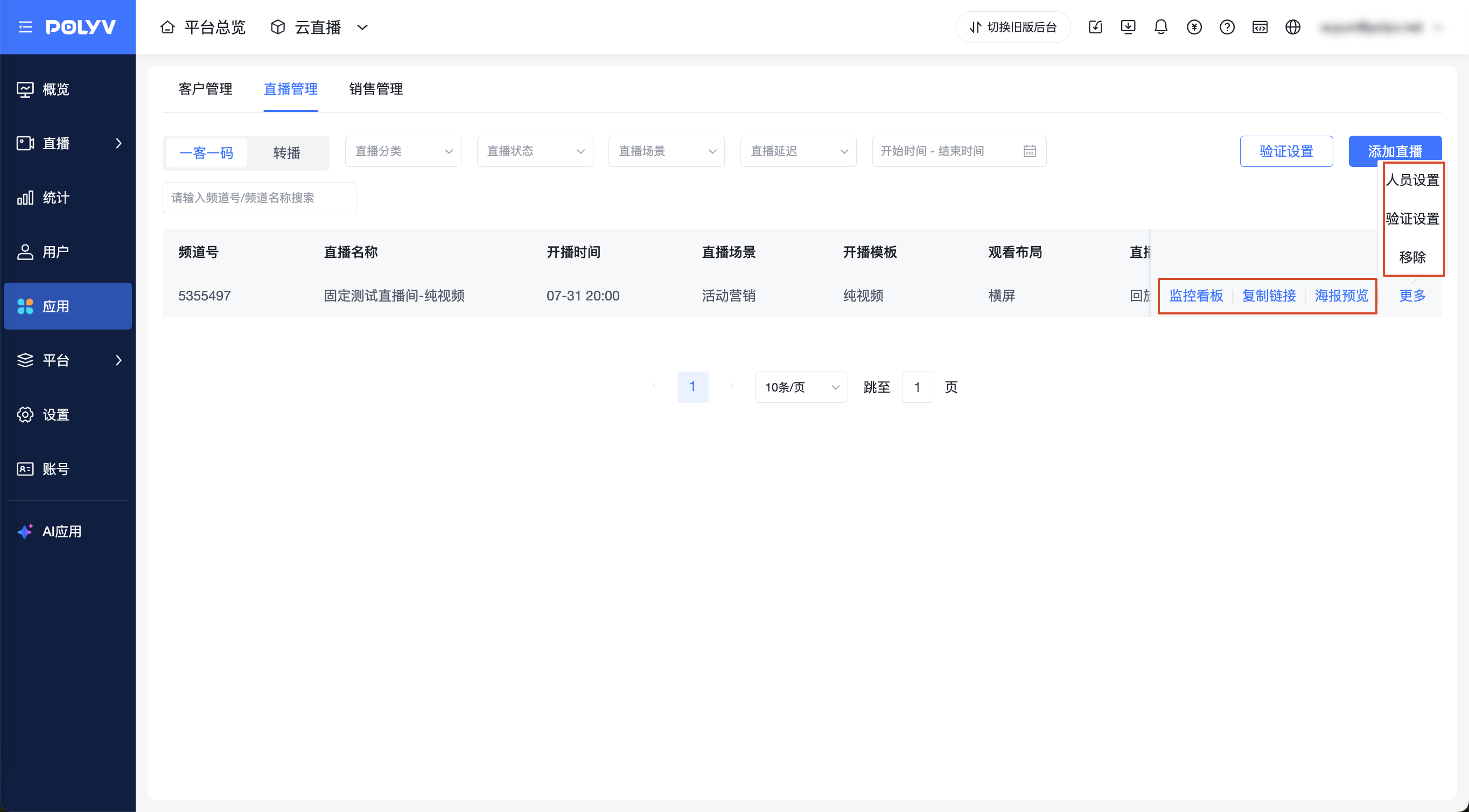
The links copied and posters downloaded here will carry the sales rep's personal parameters. When a customer enters via this link or poster, if phone number and SMS verification are enabled, they will be required to enter an SMS verification code. Supports both international and domestic phone numbers. After verification, this customer will be assigned to the corresponding sales rep.
2.4.2 One Customer One Code Customer Management
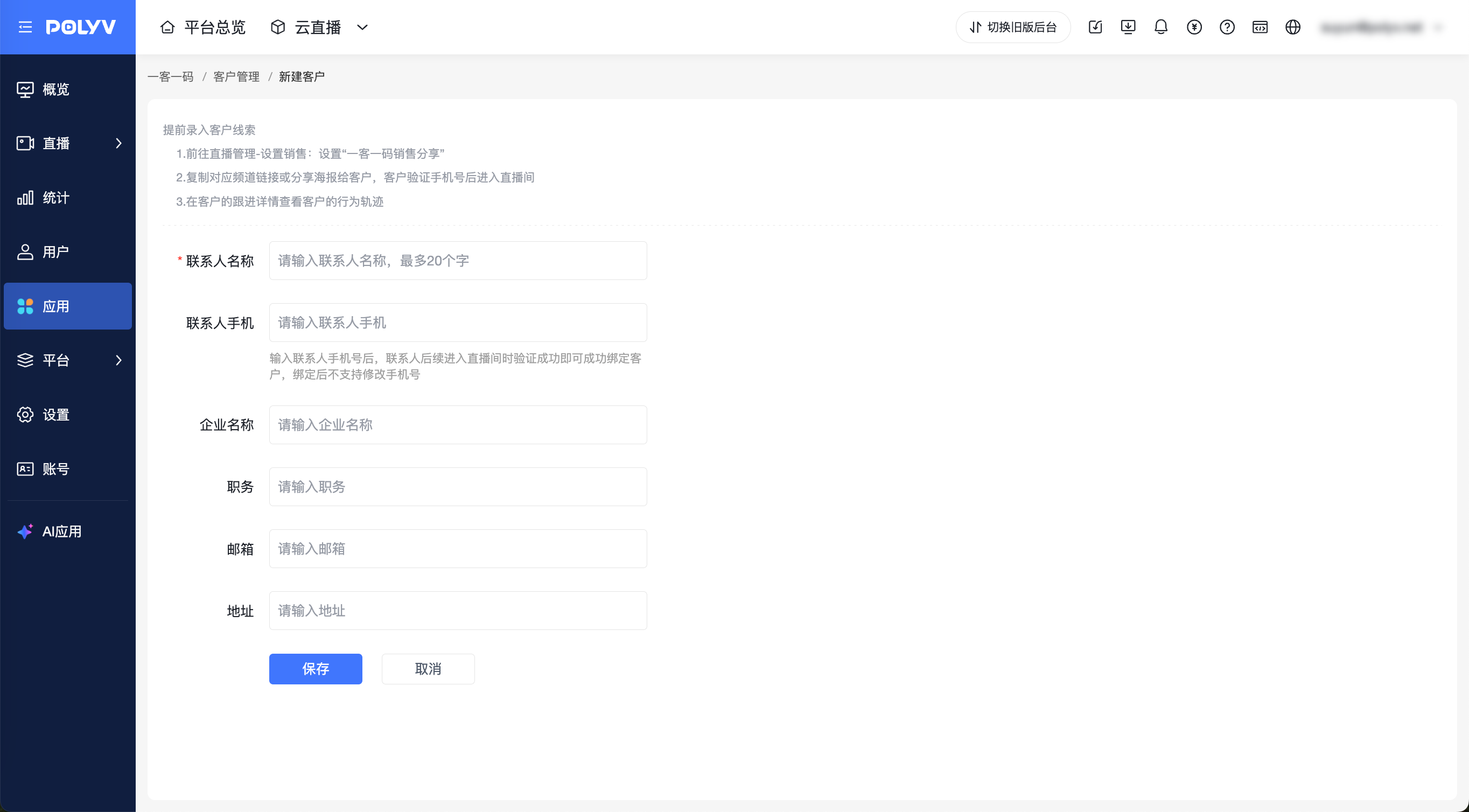
Customer Management
Sales reps can pre-enter customer leads.
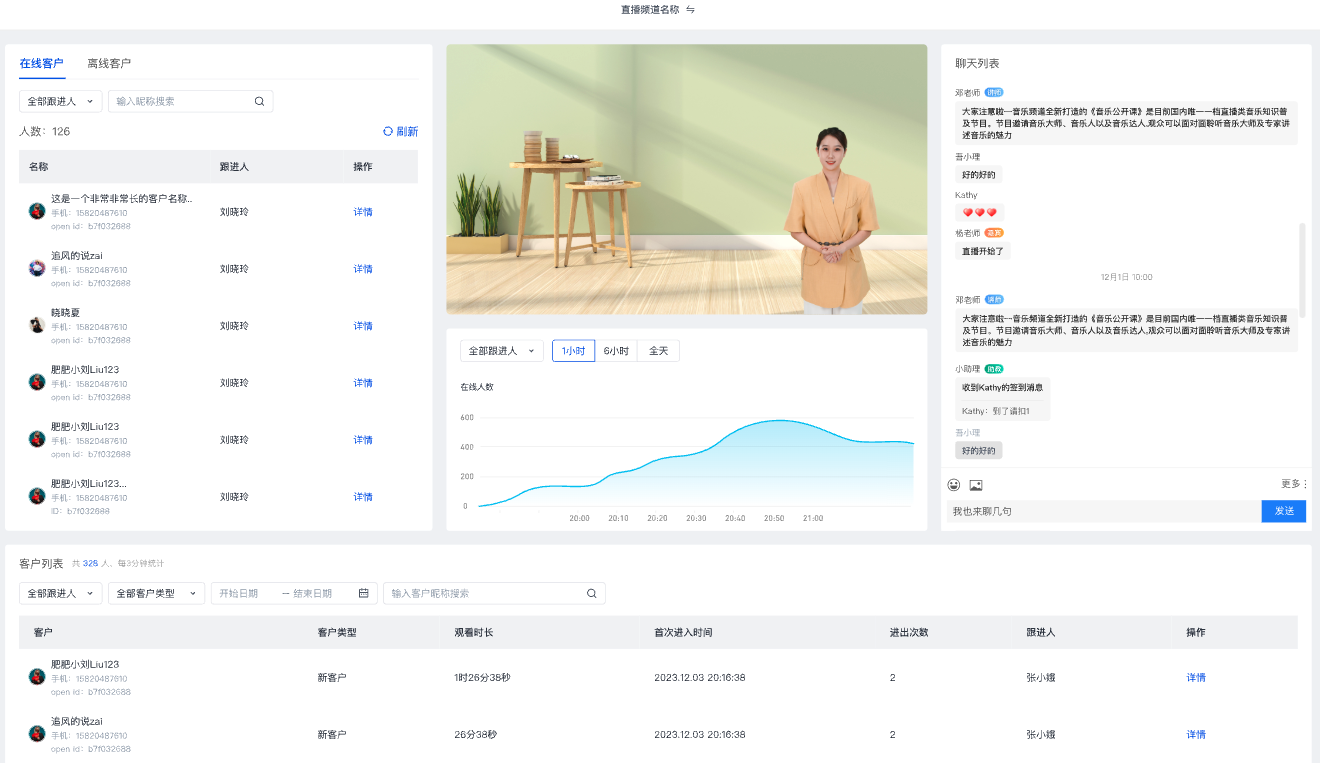
Monitoring Dashboard
Sales reps can view the online status, live room comments, and entry/exit status of the customers they are following up with.
Data Latency:
- Monitoring Dashboard - Online Customers - Details: Data latency of 1-2 minutes.
- Monitoring Dashboard - Customer List: Data return latency of 2-3 minutes.
Follow-up Details
Clicking on follow-up details opens the customer's detail page, which is divided into three sections: Customer Information, Behavior Trail, and Follow-up Records.
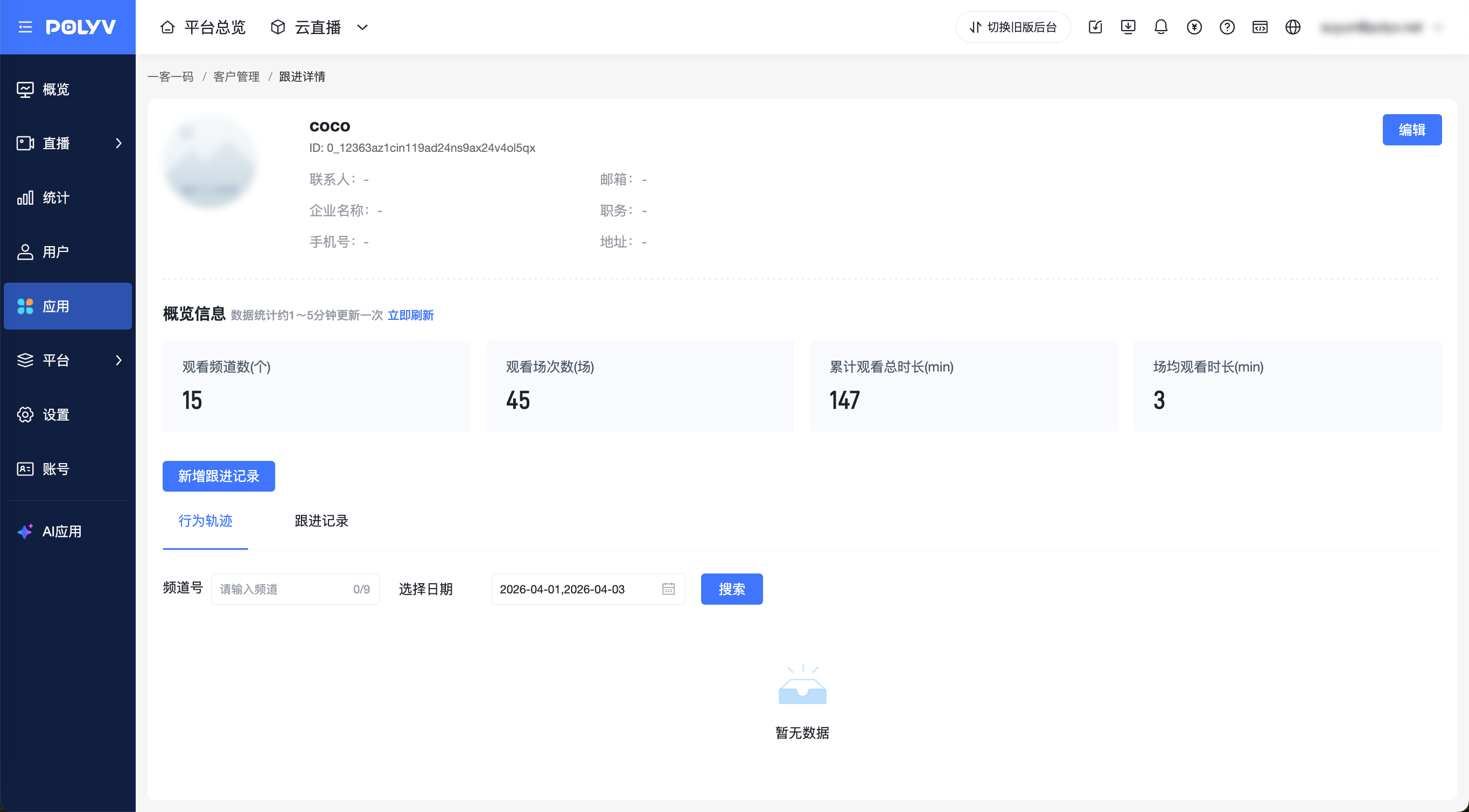
Customer Information is filled in and edited by the sales rep. Behavior Trail shows the customer's dynamics after entering the live room via the exclusive link. Follow-up Records are manually entered by the sales rep.
2.5. Customer Phone Number Entry Page
5.1 For customers entering via the exclusive link or invitation poster sent by the sales rep, they can choose whether to enter a phone number and SMS verification. Once verified, they do not need to enter it again.
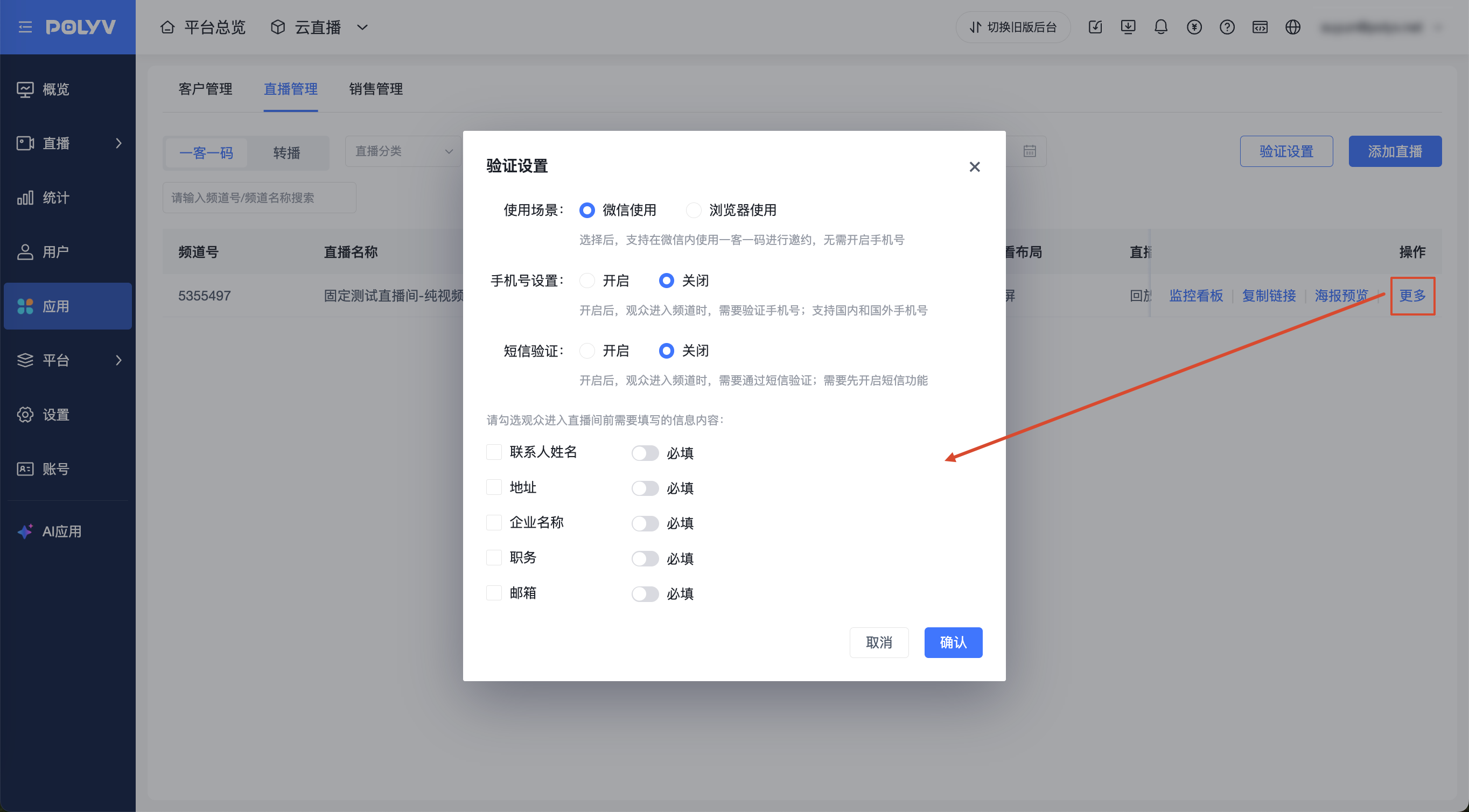
5.2 If the sales rep's exclusive link or invitation poster is forwarded by a customer and brings in a new customer (i.e., the customer enters a phone number for verification, and this phone number is not in the user pool), this new customer is assigned to that sales rep.
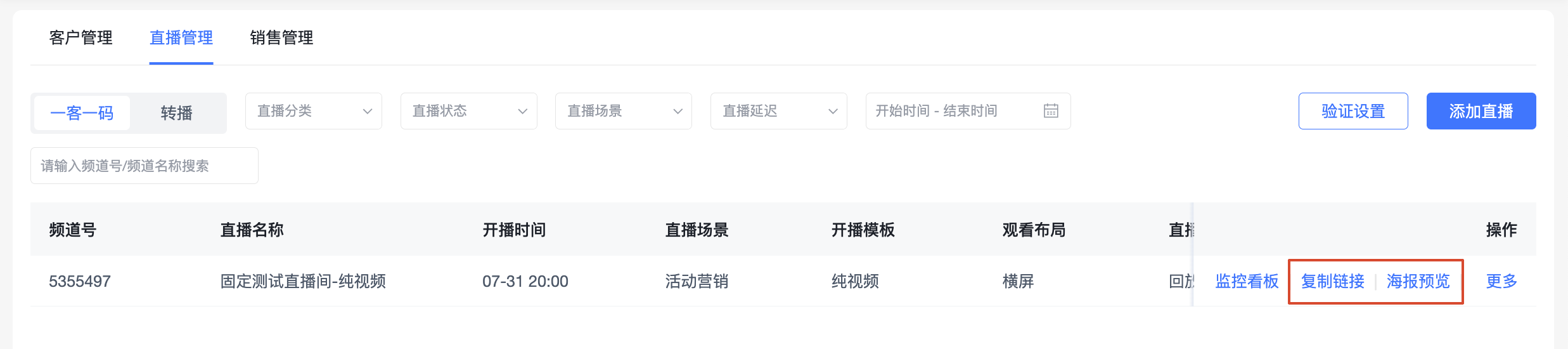
After enabling phone verification, the rules for viewers entering the live room are:
- Viewers entering the live room via the One Customer One Code exclusive link or parameterized poster, with SMS verification enabled, must verify to enter.
- Viewers entering the live room via the regular "live room link" can enter unconditionally.
Rules for sharing the live room:
- A sales rep sends an exclusive poster to Customer A. Customer A forwards it to Customer B via WeChat, etc. Customer B must verify their phone number to enter.
- Customer A enters the live room via the One Customer One Code invitation and shares it directly within the live room (via link or generated poster) with Customer B. Customer B must verify their phone number.
- Customer A enters the live room via a regular link and shares it directly within the live room (via link or generated poster) with Customer B. Customer B can enter unconditionally.
2.6. Frequently Asked Questions
Q Why is there no data in the Behavior Trail? A Check if the account has the "User Profile Permission" enabled.
Q Why can't the sales management account add roles? A Check if the role permission is set to "Main Account Only". It needs to be set to "Main Account + Sub-account".
Q How often is the Behavior Trail updated? A Currently, it is updated every 5-10 minutes. This will be improved in the future.
Q What other conditions affect the Behavior Trail? A Currently, data collection requires the live room to have sessions. Without sessions, viewer behavior actions are not collected (due to historical reasons, this is a significant change and is scheduled for optimization).
Q Can the main account be used for customer follow-ups? A No. Please use an account with sales management or standard sales permissions to copy links or download posters. This ensures the sales rep's information is attached, enabling customer assignment.
Q What types of behavior are currently supported for collection? A Comments, likes, lottery results, answer cards, surveys, and check-ins. Other interaction data is under development.
