


Complaint & Feedback
I. Feature Overview
Feature Info |
Description |
|---|---|
| Feature Name | Complaint & Feedback |
| Feature Description | When viewers encounter issues or discover violations during a live stream, they can submit relevant content to the management backend via the complaint or feedback feature, enabling administrators to handle it promptly. |
| Purpose | Through the complaint or feedback feature, help administrators quickly identify and address issues or violations in live streams, maintain a healthy live streaming environment, protect user rights, and improve content compliance and user experience. |
| Use Case | When viewers have questions or suggestions about live content, or discover prohibited speech, inappropriate behavior, false information, or other content that violates platform rules, they can submit it to the backend via the complaint or feedback feature. Administrators will take appropriate action based on the submitted content. |
| Operation Path | 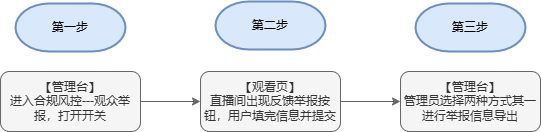 |
II. Steps
1. Backend Settings
(1) Log in to the Polyv backend, navigate to the Compliance & Risk Control options for a single channel, and find the "Complaint & Feedback" feature.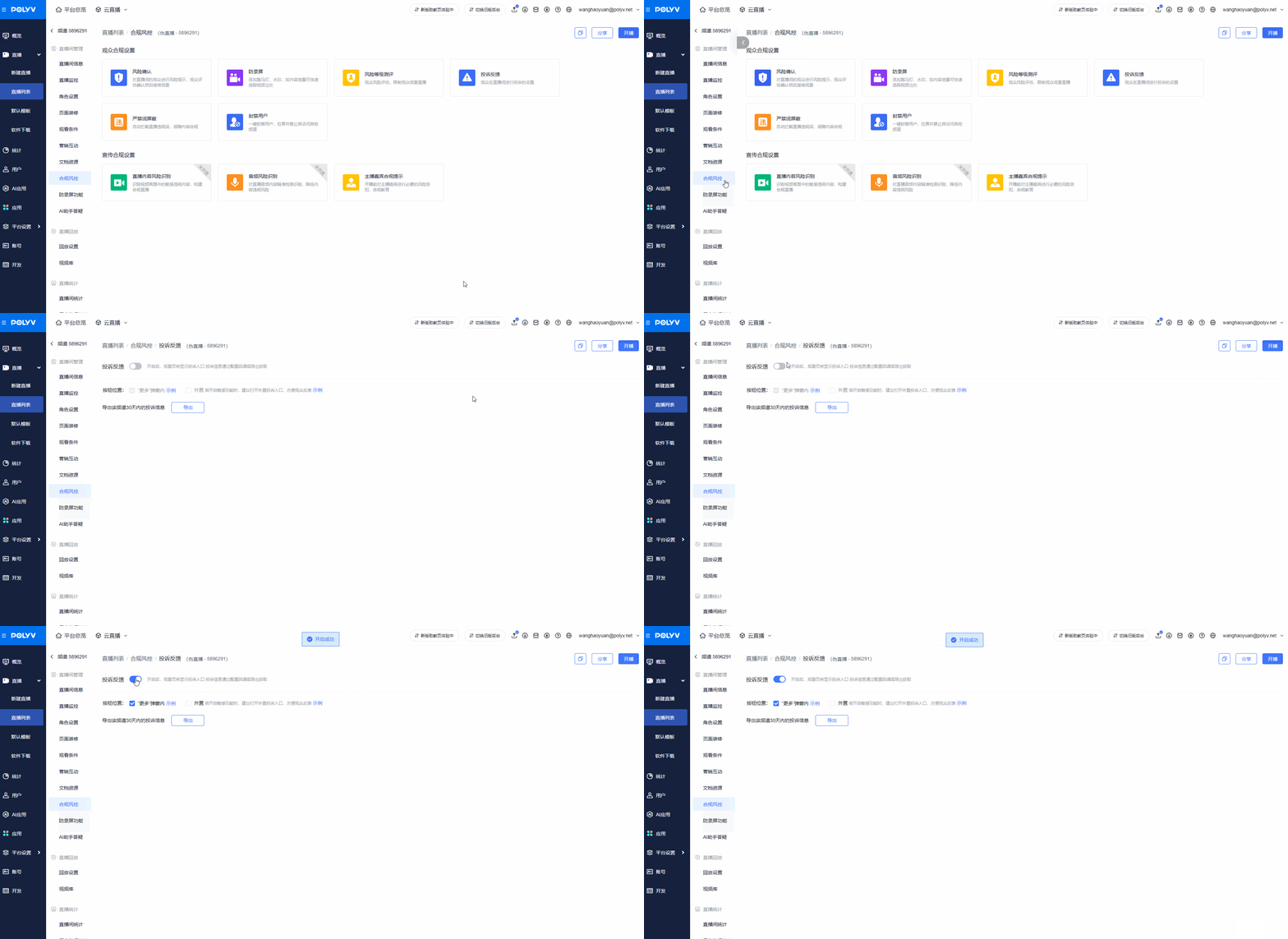
(2) Turn on the feature toggle. The button position selection will take effect on the H5 end.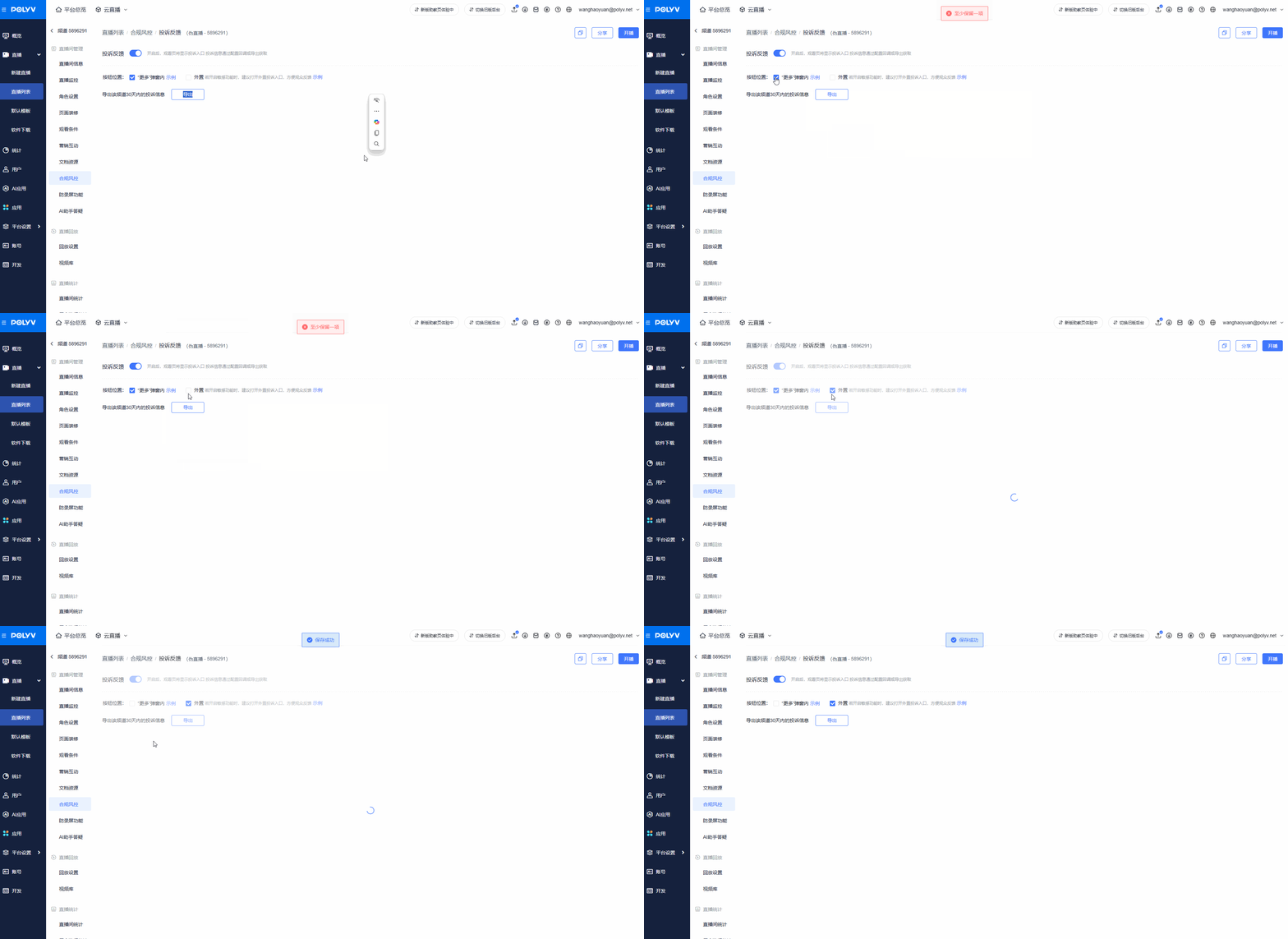
(3) Preview
Web viewing end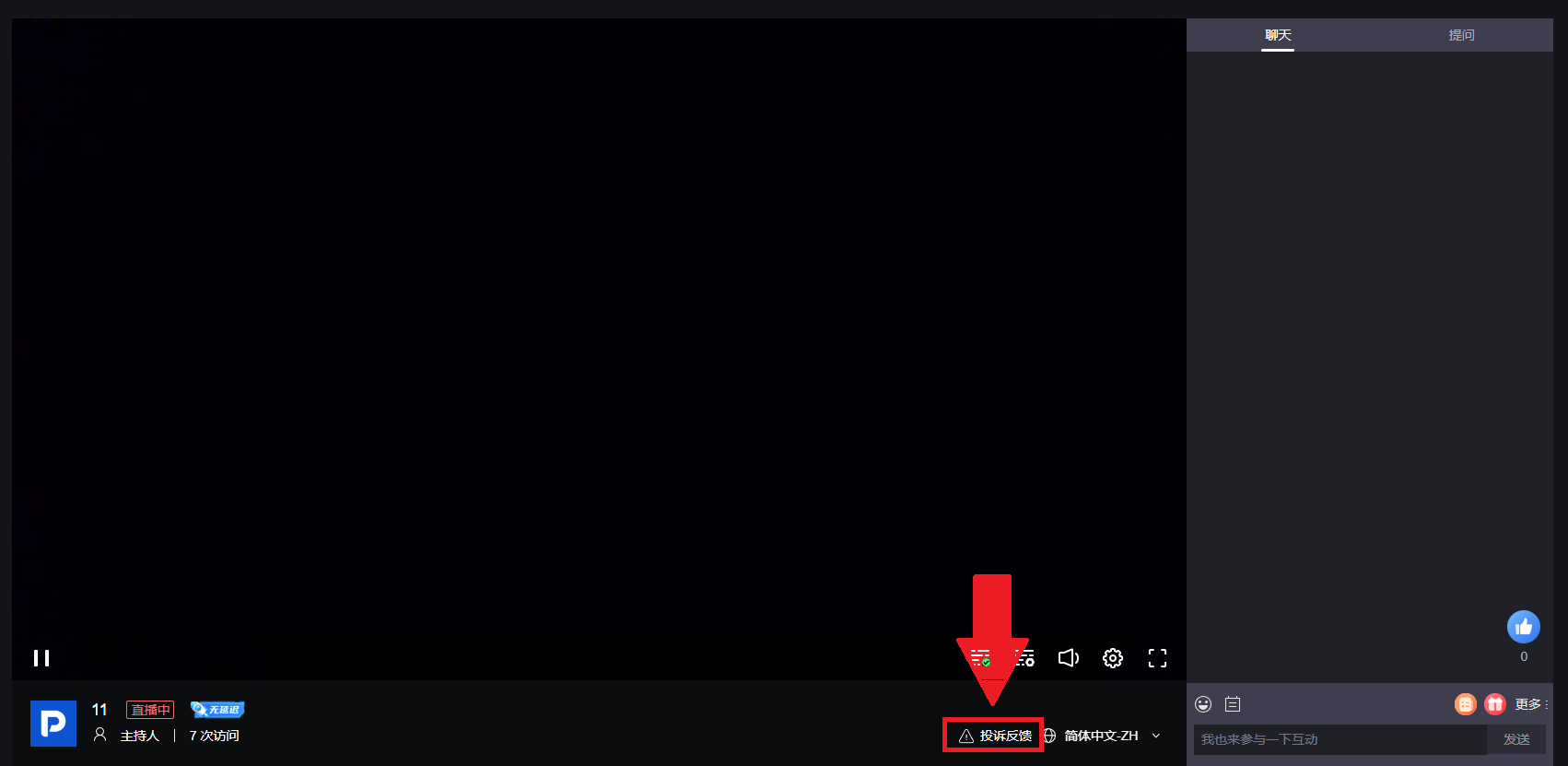
H5 viewing page – inside the "More" popup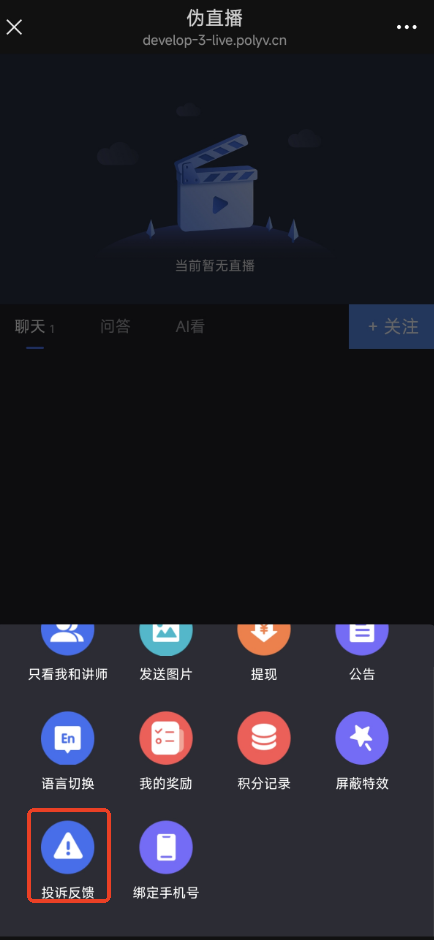
H5 viewing page – external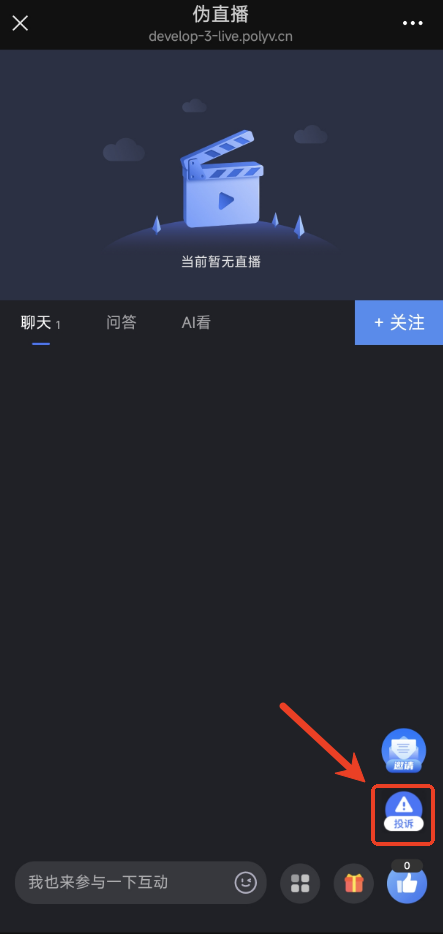
H5 replay address viewing page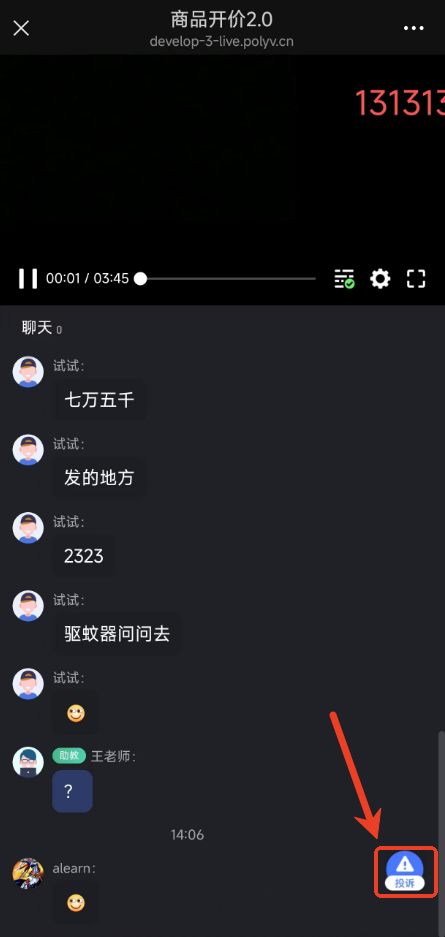
(4) Click the complaint/feedback button to enter the complaint/feedback details page. Users can fill in relevant information such as "Complaint Type", "Category", "Feedback Content", "Image Evidence", "Contact Information", etc., and then click "Submit" to successfully report.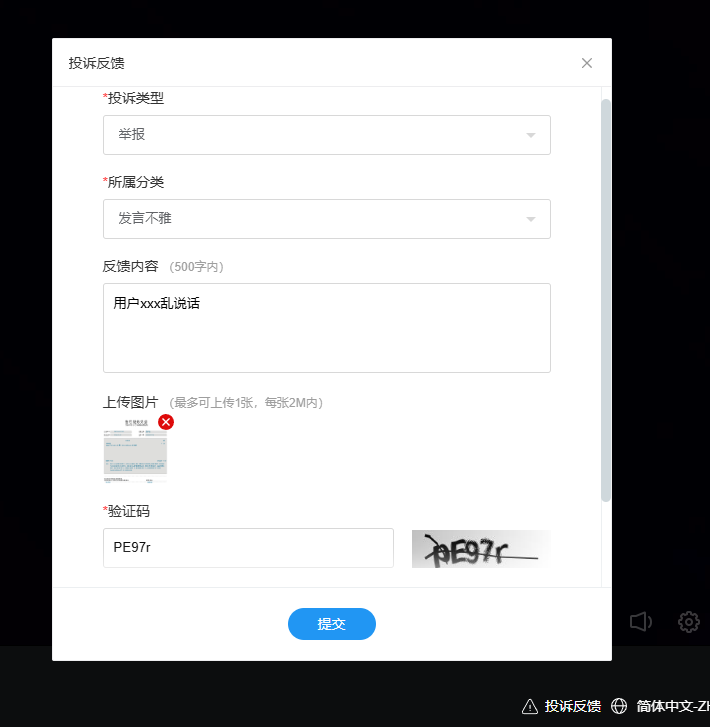
2. Export Report Information
(1) Export method 1: Directly click the "Export" button in the backend.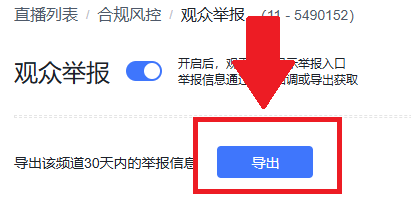
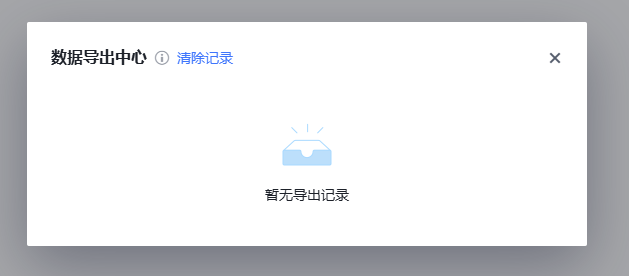
(2) Export method 2: Export by configuring a callback. For details, refer to:
Feedback/Report Information Callback Notification
