Quick Start: Launching a Live Stream
Updated: 2026-08-17 11:27:00
This article explains how to register an account, log in to the management console, create a new live stream, choose a broadcasting method, and share the viewing link with your audience.
1. Preparation
Before you begin, ensure you have the following ready:
- An account that can log in to the Polyv official website;
- Access to the cloud live stream management console;
- If broadcasting via web or client, a computer with a connected camera and microphone;
- If broadcasting via client, the Polyv live streaming client installed;
- If broadcasting via mobile, the Polyv Broadcast App installed.
2. Registration and Login
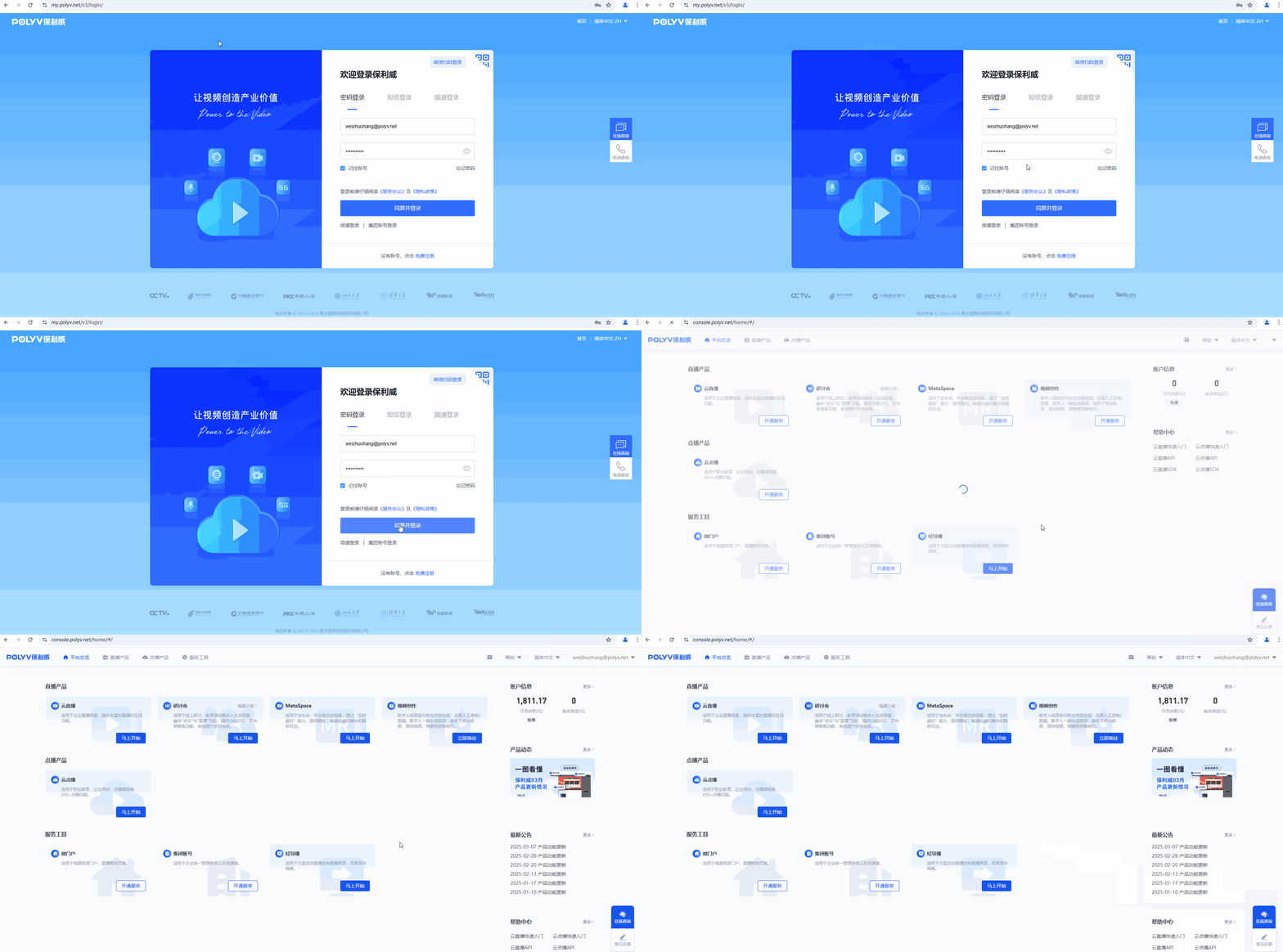
- Open the Polyv official website and click the Login button in the top right corner.
- Register an account using WeChat scan or phone number.

- After registration, select Password Login, SMS Login, or Channel Login to enter the management console.
3. Create a New Live Stream
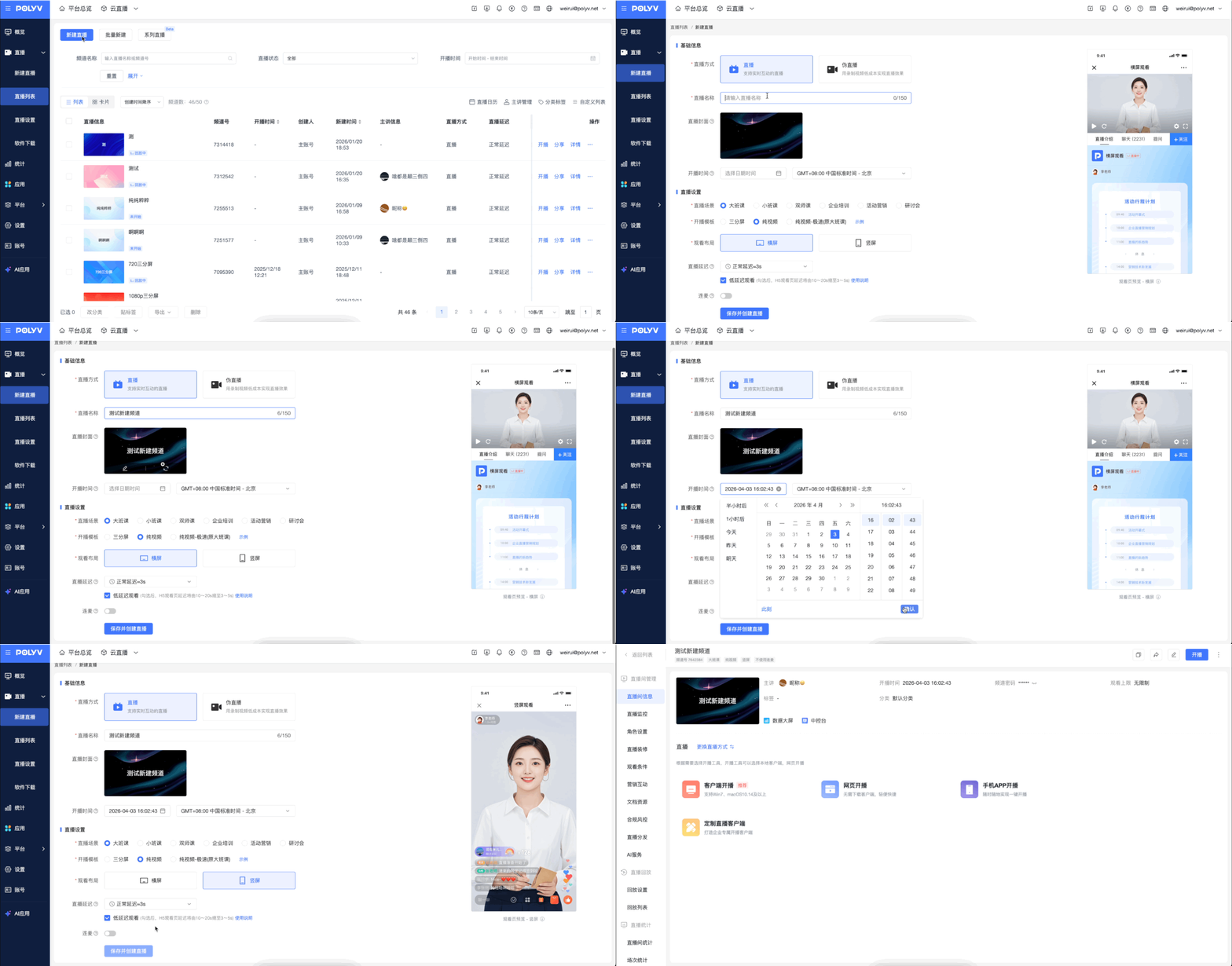
- Enter the cloud live stream management console and click Start Now.
- Click Create New Live Stream.
- Enter the live stream name.
- Click Save and Create Live Room.
Once the live stream is created, the system generates a live room and displays the broadcast link.
4. Start Broadcasting
After the live stream is created, the system displays the broadcast link. To reopen it, click the Broadcast button in the top right corner.
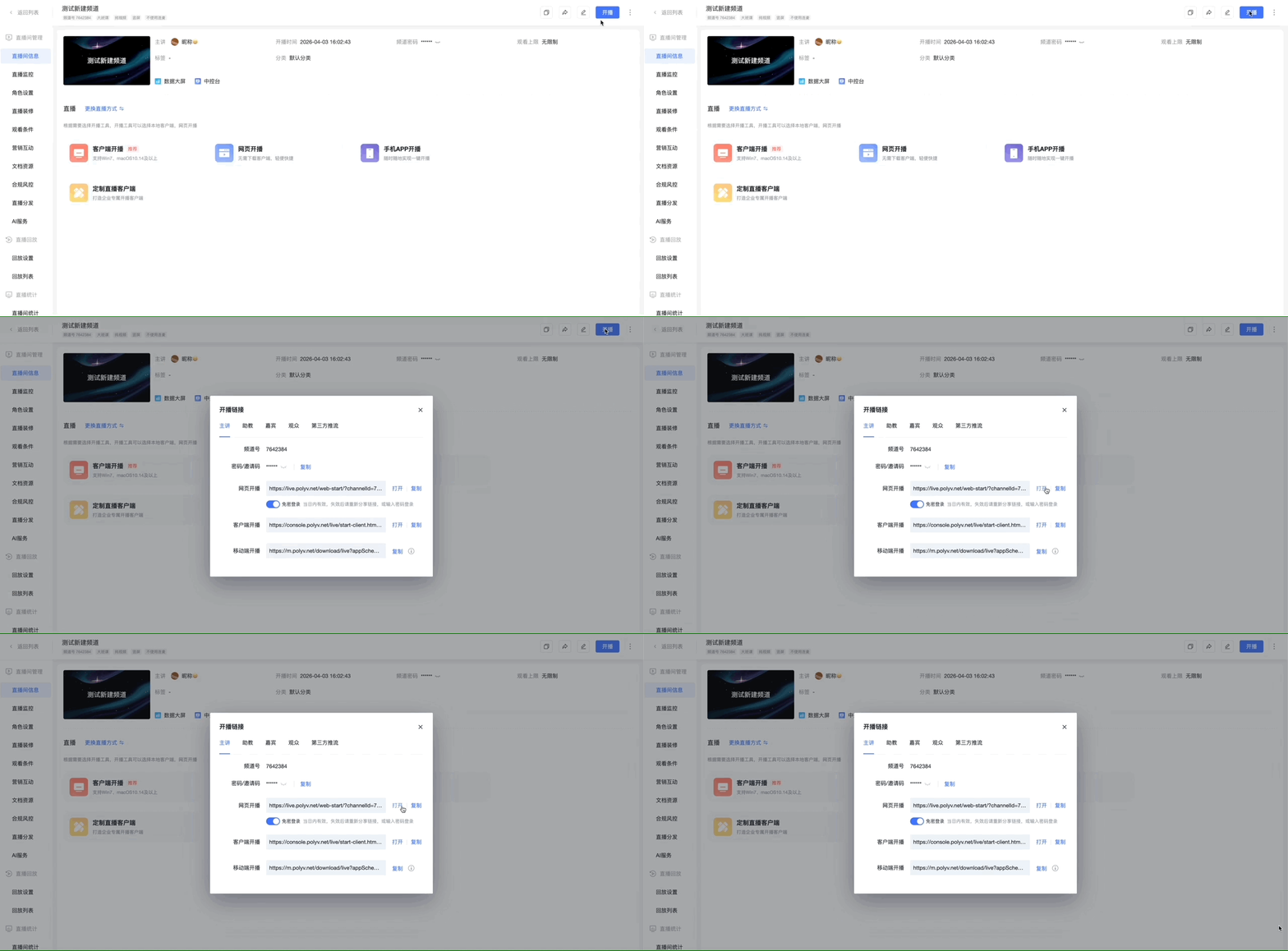
Web Broadcasting
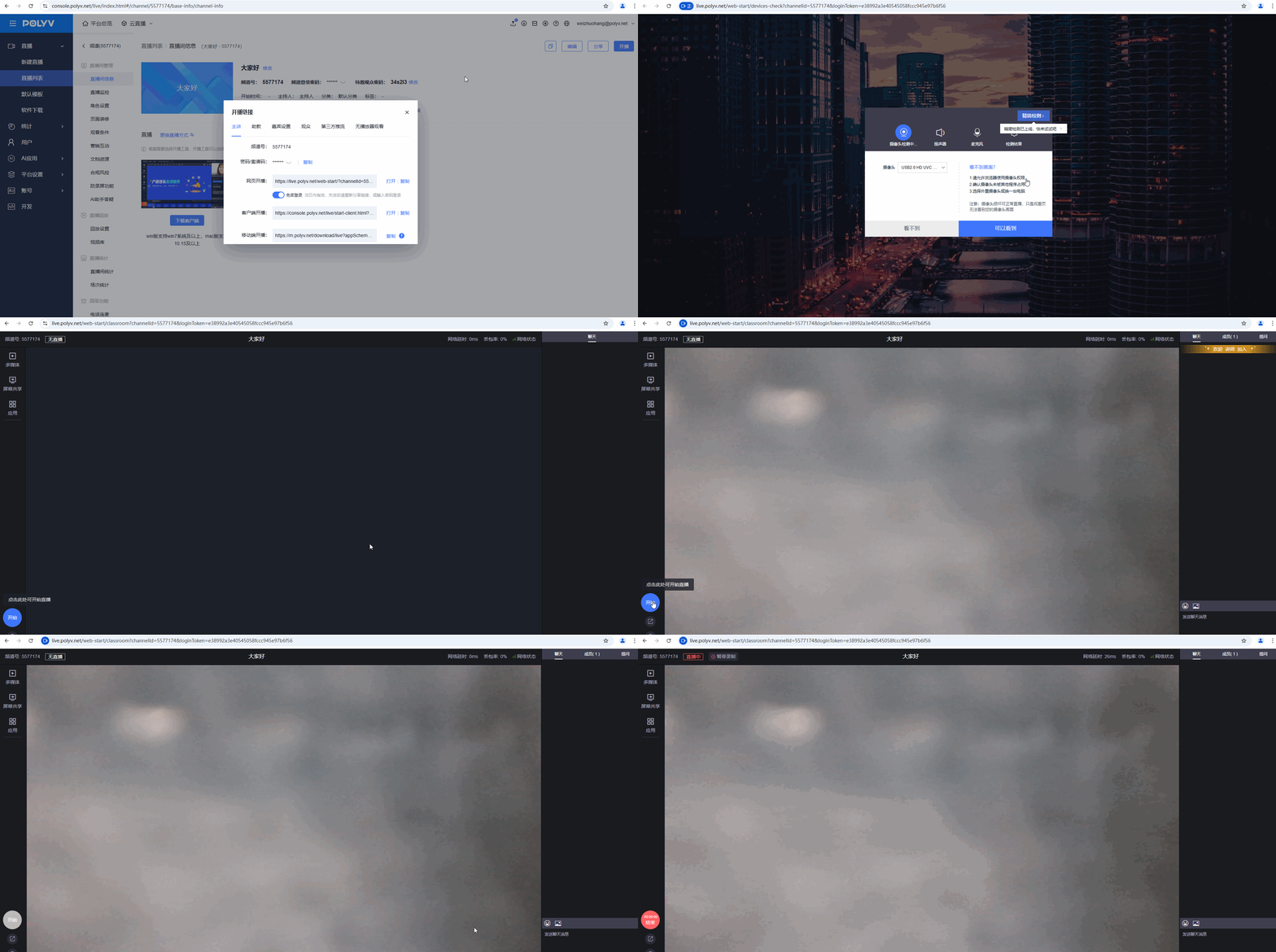
- Open the web broadcast link.
- Complete the device check as prompted on the page.
- Click the Start button in the bottom left corner to begin broadcasting.
Client Broadcasting
- If the client is not installed, go to the software download page to download and install it.
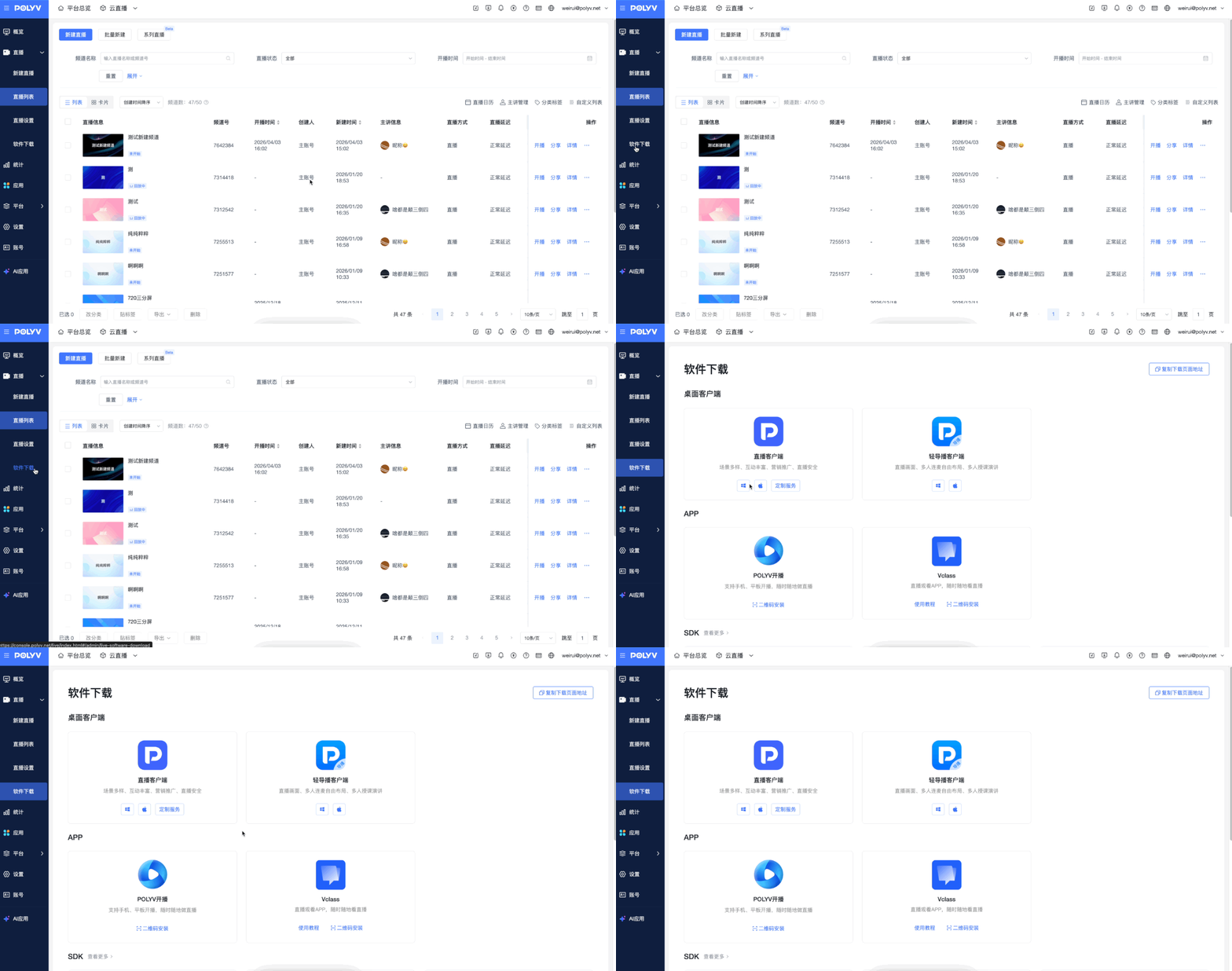
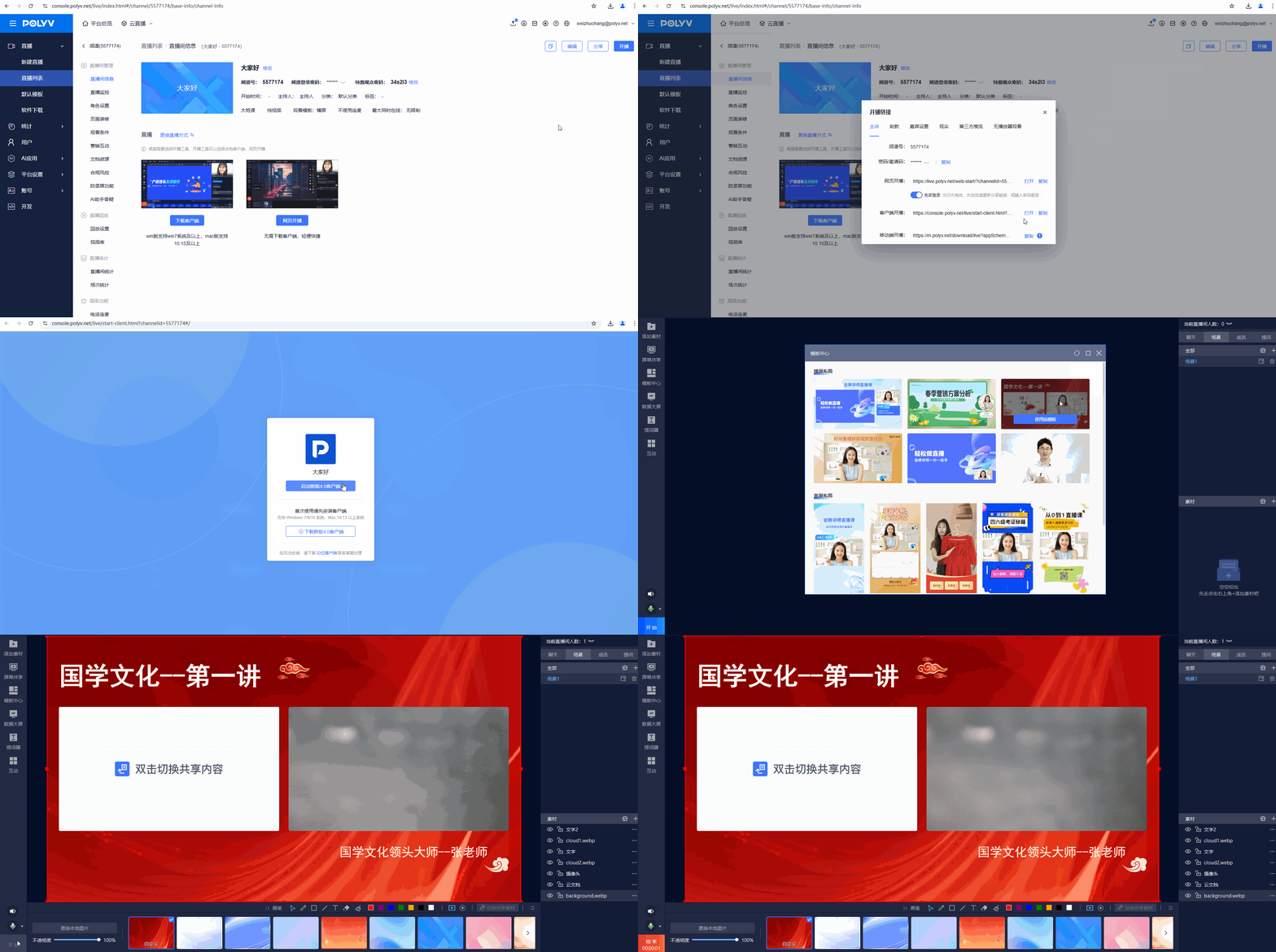
- Enter the broadcast link and click Client Broadcast.
- Click Launch New 4.0 Client.
- After the client opens, click the Start button in the bottom left corner to begin broadcasting.
Mobile Broadcasting
- Download the Polyv Broadcast App. You can scan the QR code to install it, or search for "Polyv Broadcast" in your phone's app store.

- Copy the mobile broadcast link and open it on your phone.
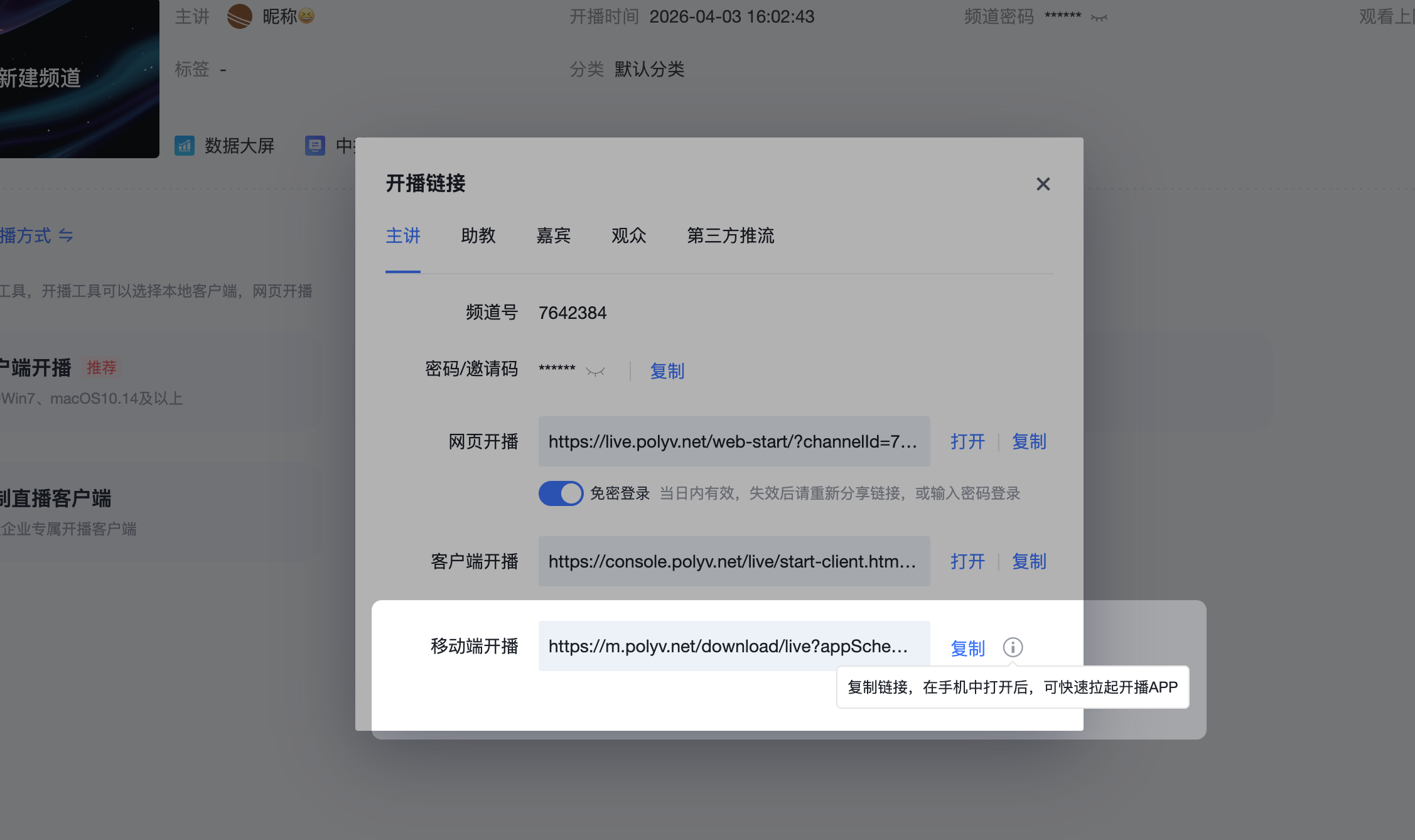
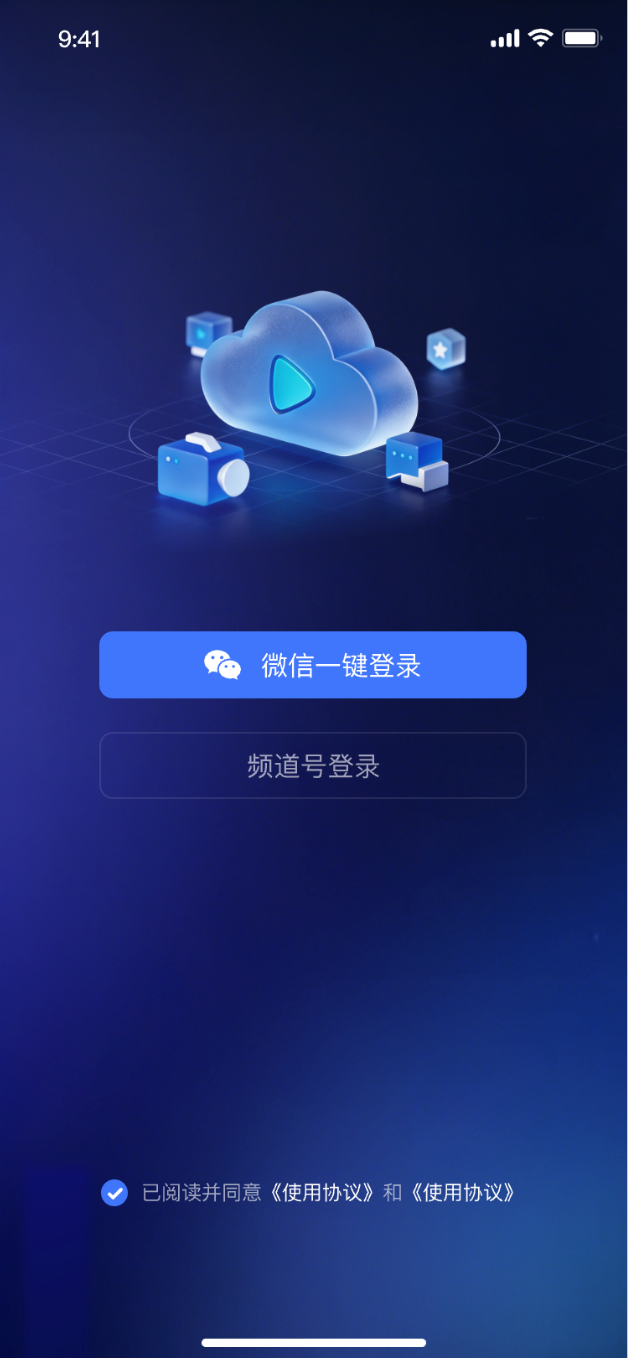
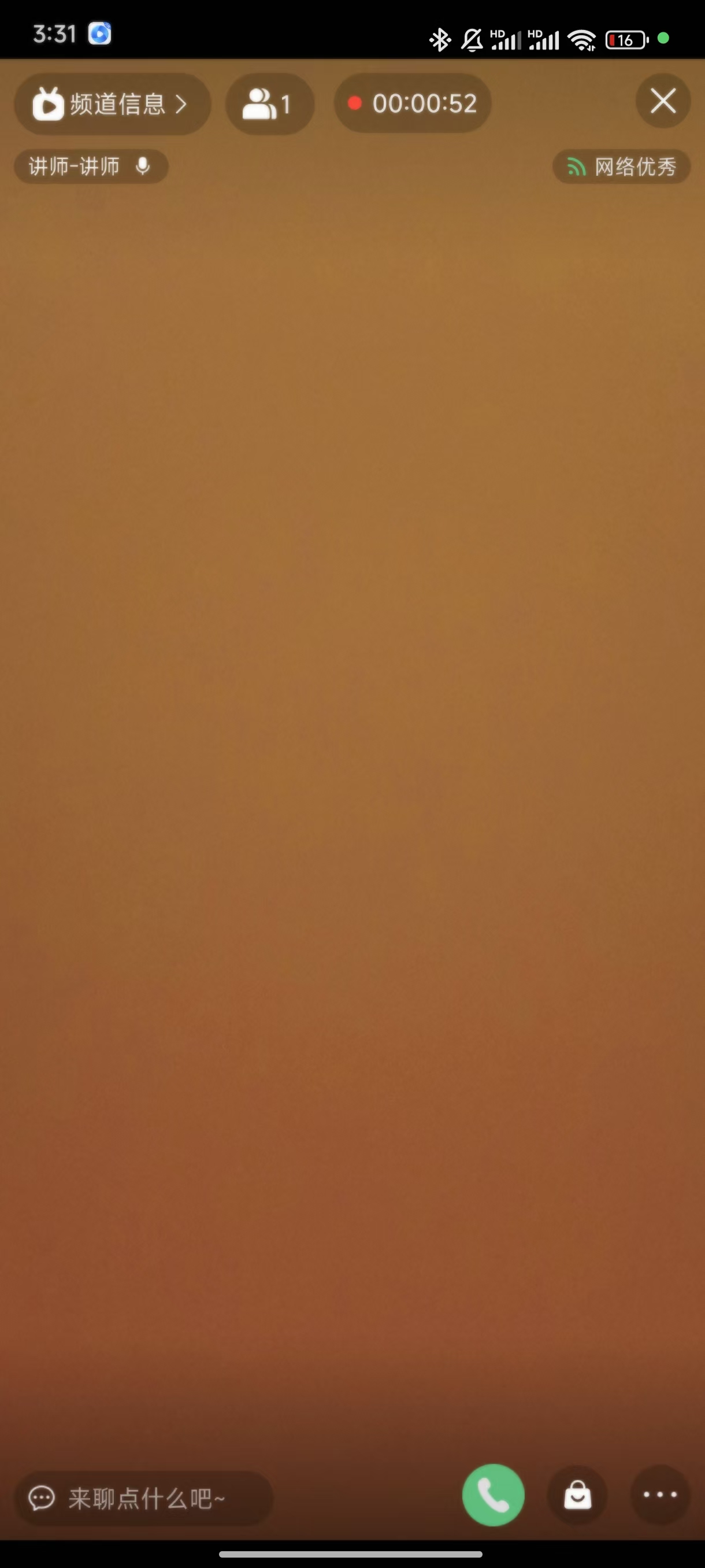
- After the system launches the Polyv Broadcast App, click Broadcast to start.
5. Watching the Live Stream
Web Viewing
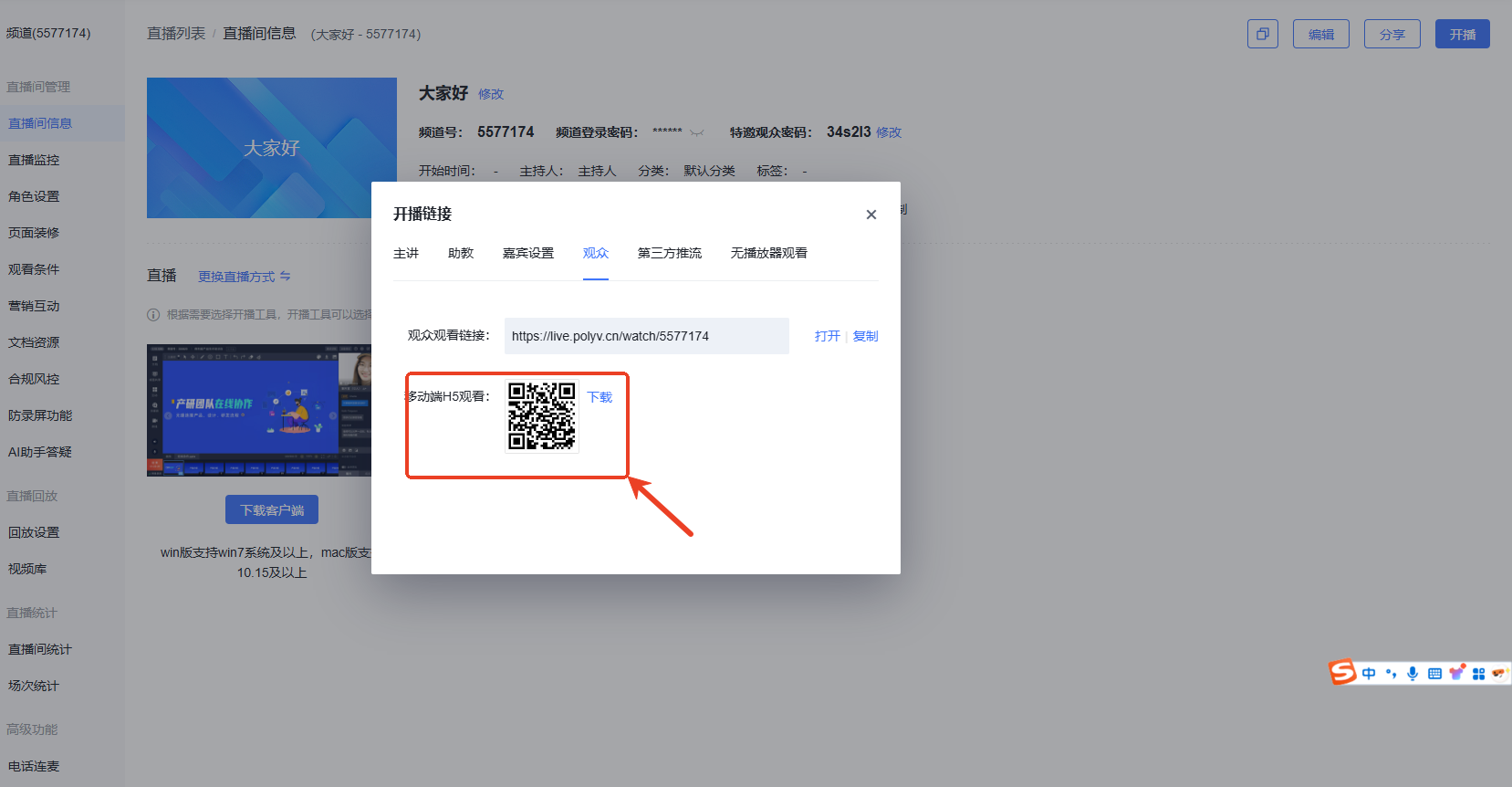
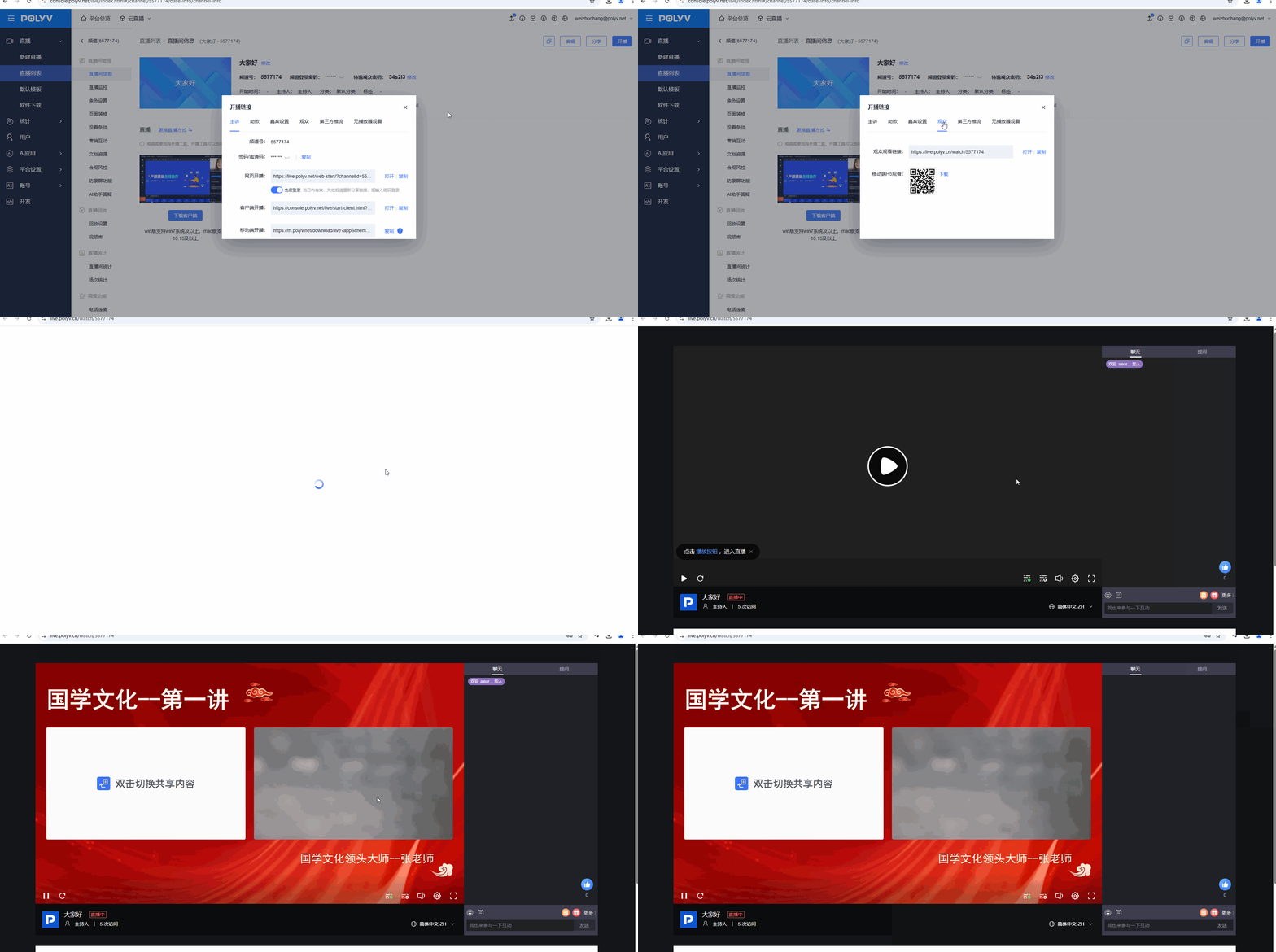
Copy the viewing link and share it with your audience. Viewers can watch the live stream by opening the link.
Mobile Viewing
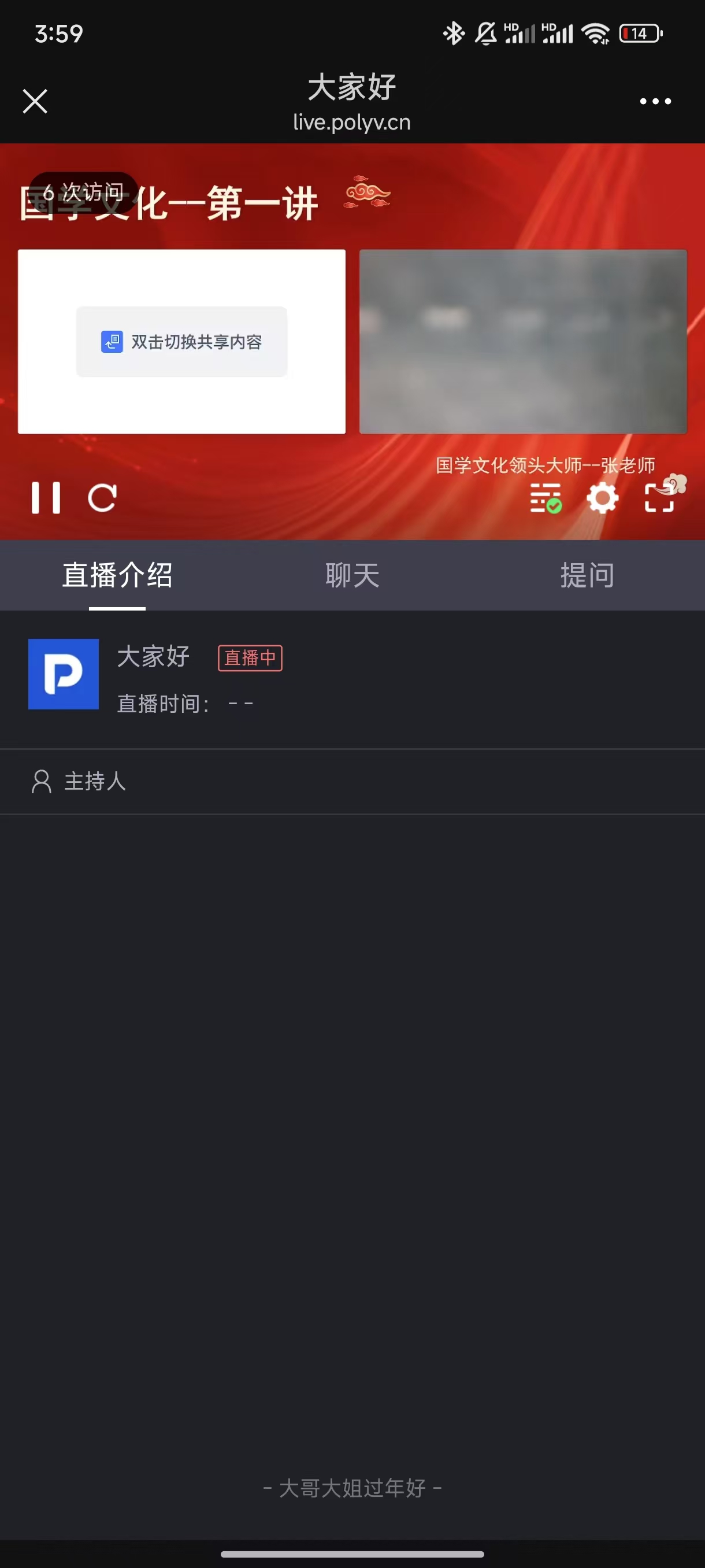
Viewers can scan the mobile H5 viewing QR code with their phone to open the viewing page.