


Large Screen Interaction - Rolling Lottery
Rolling Lottery is used to randomly draw winning viewers through the interactive large screen during a live stream. Operators can configure participating users, activity appearance, and prizes in advance, and control each round of the lottery on the interactive large screen; viewers can view their participation status, draw results, and reward information on the watch page.
I. Feature Introduction
Rolling Lottery supports the following capabilities:
- Create and manage Rolling Lottery activities;
- Configure participation for all users, group users, or tag users;
- Configure cash red packets or custom prizes;
- Customize the large screen background and Logo;
- Control the start and end of the lottery through the interactive large screen, and conduct multiple rounds of drawing;
- Display participation status and draw results synchronously on the watch page;
- View activity data, winner lists, and prize claim information, and export the winner list.
II. Create a Rolling Lottery Activity
1. Enter Large Screen Interaction
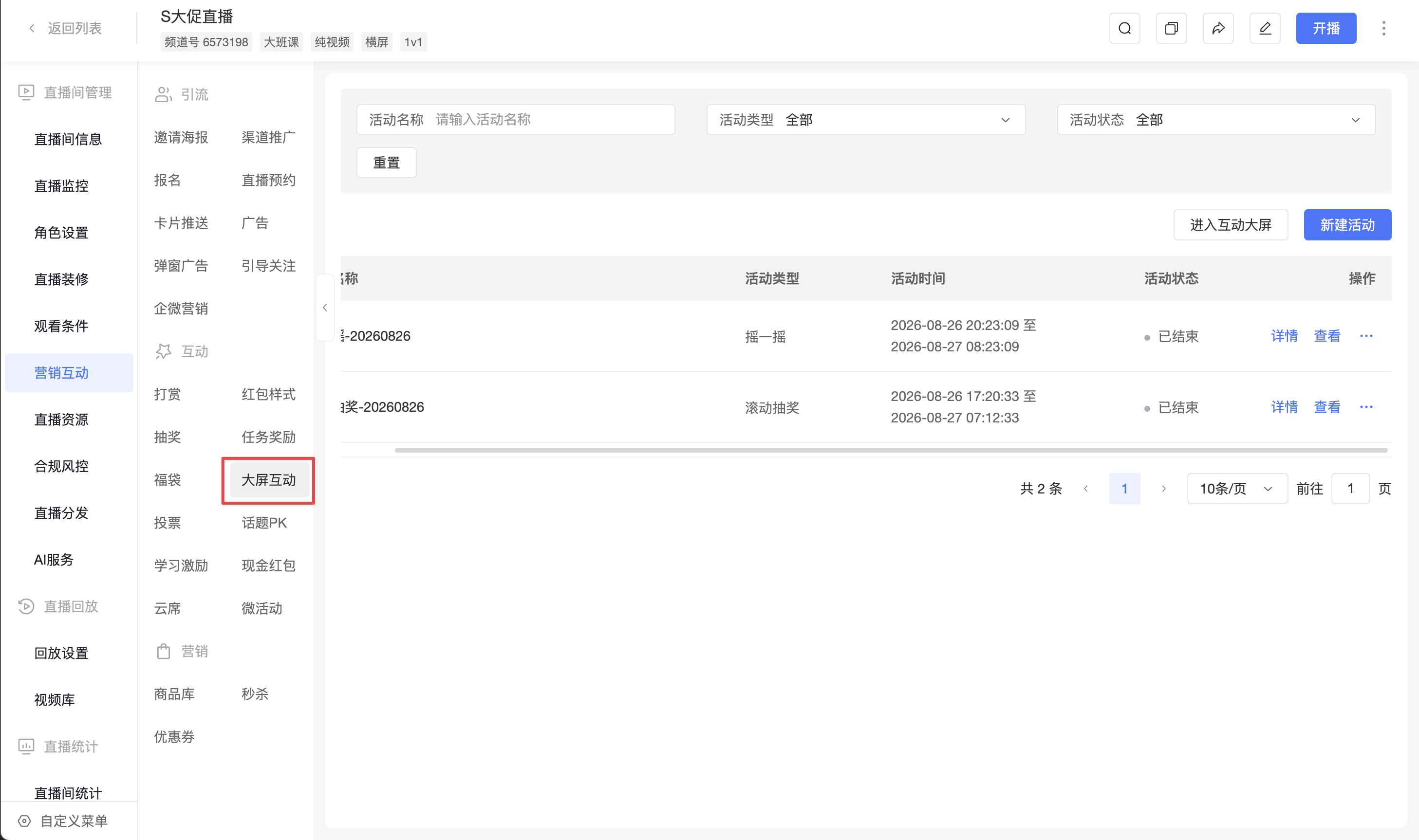
Enter the target channel, go to the activity list via [Marketing Interaction] - [Large Screen Interaction], and click [Create Activity].
2. Select Activity Type
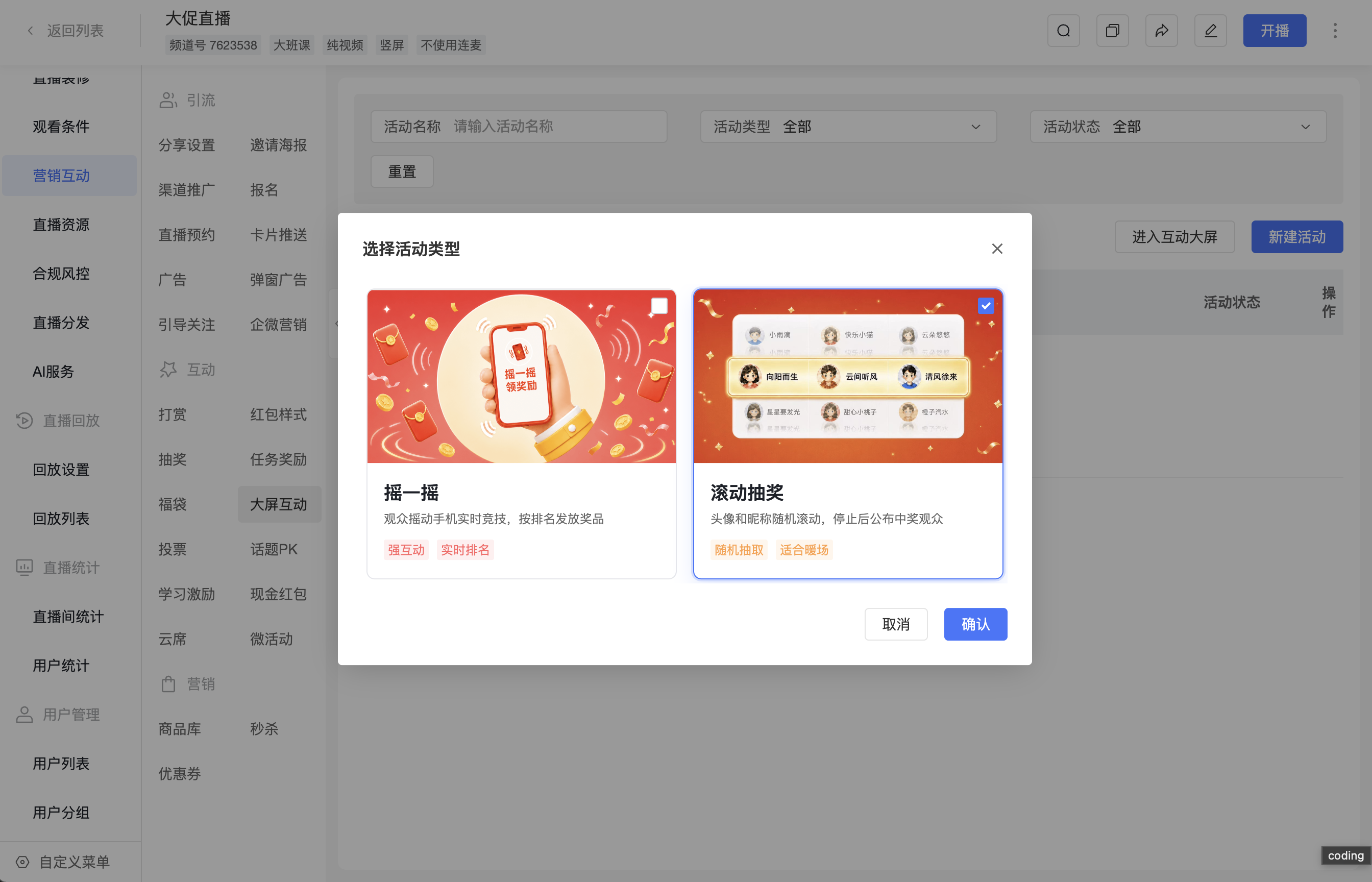
In the [Select Activity Type] dialog box, select [Rolling Lottery] and click [Confirm].
3. Configure Basic Information
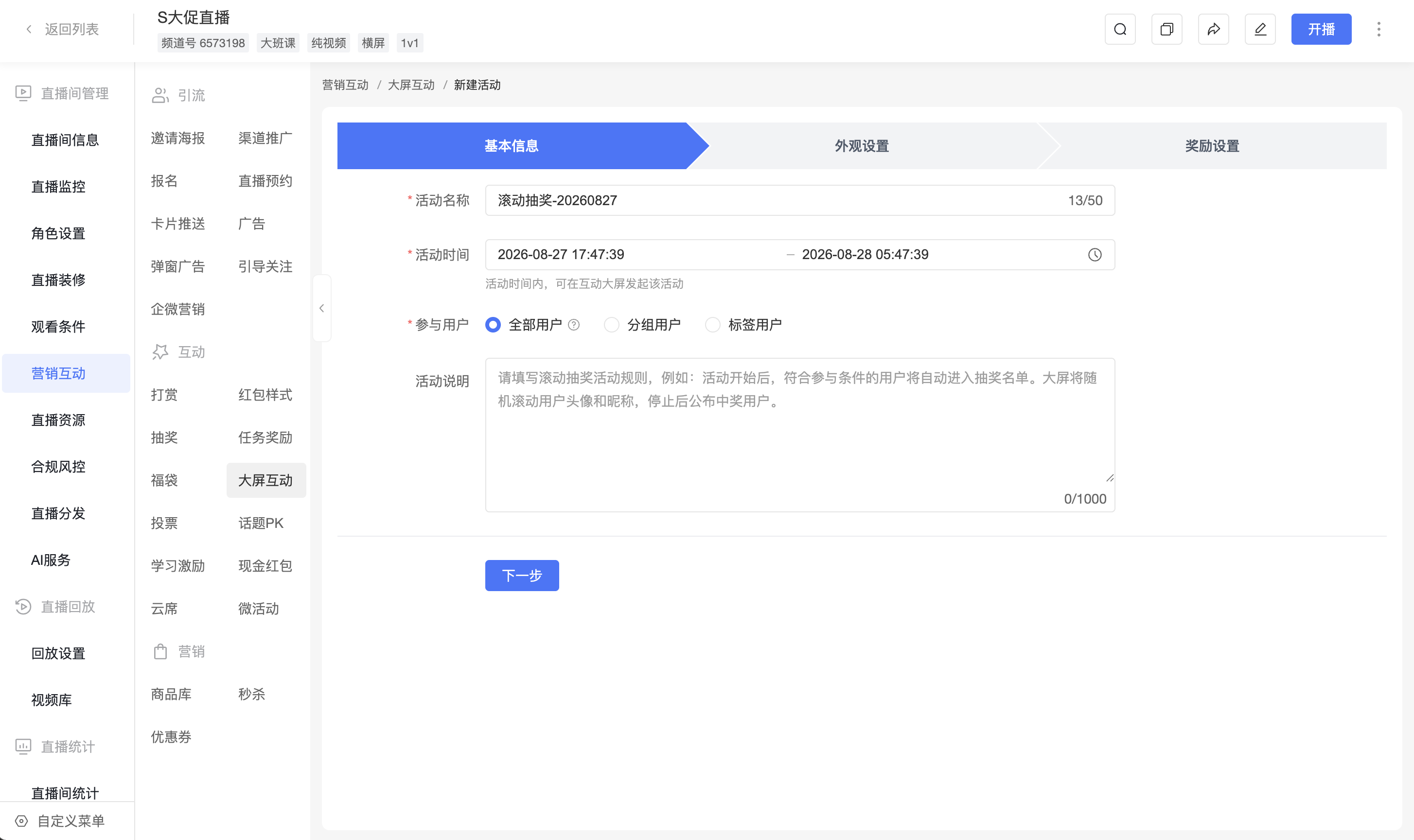
Fill in the basic activity information:
| Configuration Item | Description |
|---|---|
| Activity Name | Required. By default, it is filled with "Rolling Lottery - Current Date". It is editable and supports up to 50 characters. The activity name is used for backend identification and is displayed in the activity selection list on the interactive large screen. |
| Activity Time | Required. It is used to define the valid period during which the activity can be launched on the interactive large screen, not the actual time when the lottery is launched. The start time defaults to 2 hours after the current time, and the end time defaults to 12 hours after the start time. You can adjust them as needed. The maximum activity time span is 7 days. |
| Participating Users | Required. [All Users] is selected by default; you can also select [Group Users] or [Tag Users]. |
| Activity Description | Optional, up to 1000 characters. Viewers can view the activity description on the watch page. |
[All Users] refers to online viewers in the current channel who meet the viewing conditions during the activity period. A fixed list is not generated when the activity is created.
4. Configure Appearance
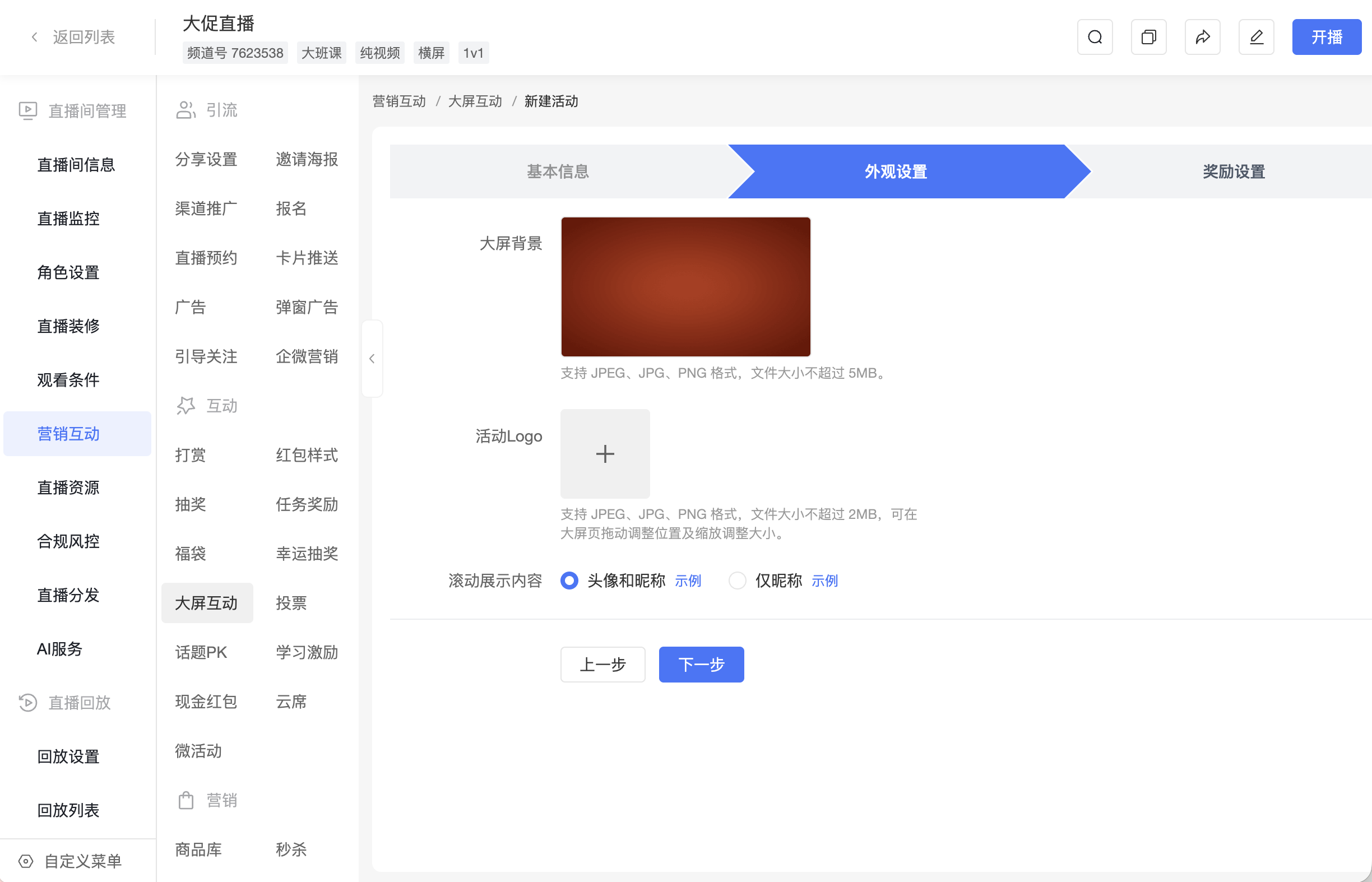
In [Appearance Settings], configure the rolling display content, large screen background, and activity Logo.
Use [Rolling Display Content] to select the display method on the interactive large screen:
| Rolling Display Content | Display method for the rolling process and winning results |
|---|---|
| Avatar and Nickname | Display participants' avatars and nicknames. |
| Nickname Only | Display only participants' nicknames, without showing avatars or reserving avatar placeholders. |
The configuration instructions for the large screen background and activity Logo are as follows:
- The large screen background uses the default background of the current theme by default. You can also upload an image in JPEG, JPG, or PNG format, with a file size not exceeding 5 MB;
- The activity Logo is optional. You can upload an image in JPEG, JPG, or PNG format, with a file size not exceeding 2 MB;
- After uploading the activity Logo, you can drag its position and adjust its size in the large screen preview.
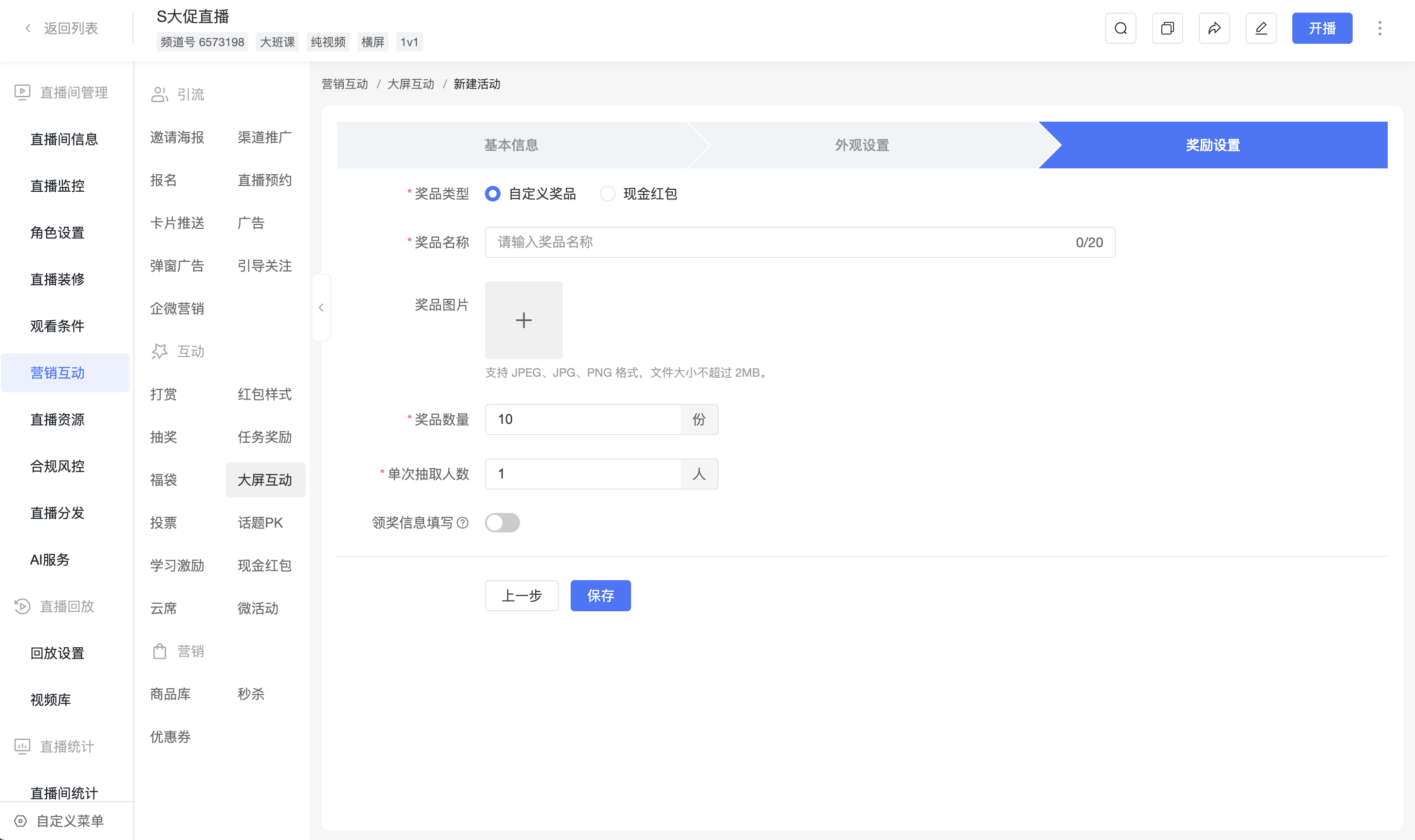
5. Configure Rewards
Rolling Lottery supports cash red packets and custom prizes.
Cash Red Packets
Configure the amount of a single red packet, the number of red packets, and the number drawn per round.
Custom Prizes
Configure the prize name, prize image, prize quantity, and number of winners drawn per round. The prize name supports up to 20 characters; the prize image supports JPEG, JPG, or PNG format, with a file size not exceeding 2 MB.
If you need to collect prize claim information from winning viewers, you can enable [Prize Claim Information Collection] and associate an information collection form. After enabling it, you must select an information collection form before the activity can be saved; after disabling it, the associated form will be cleared.
After completing the configuration, save the activity. After successful saving, the page returns to the activity list, and the new activity status is [Not Started].
III. Launch the Lottery Through the Interactive Large Screen
1. Enter the Interactive Large Screen
In the activity list, click [Enter Interactive Large Screen].
Teaching assistants, hosts, and guests can also view the activity list and enter the interactive large screen when they have large screen interaction permissions; the live stream control console also supports viewing the activity list and entering the interactive large screen.
If the activity has not reached its start time, it will not be displayed on the interactive large screen; after the activity reaches its end time, it cannot be started again.
2. Select an Activity and Set the Number of Winners
In the pending draw state, select the activity to operate through the activity drop-down box, and set the number of winners for this round.
The number of winners in this round cannot exceed the remaining prize quantity or the actual number of eligible participants. The interactive large screen only supports adjusting the number of winners for this round, and does not support modifying the total prize quantity.
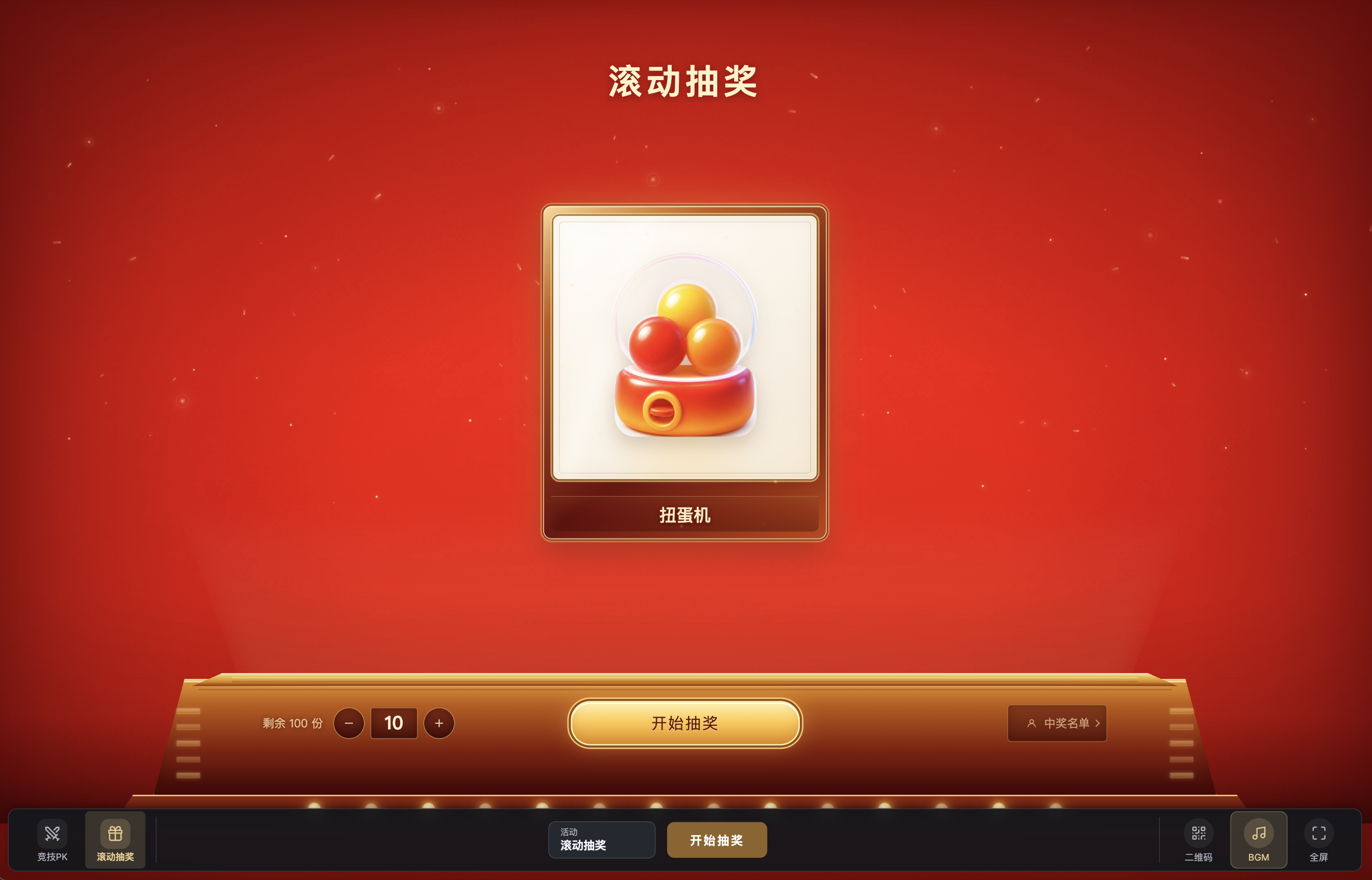
3. Start and End the Lottery
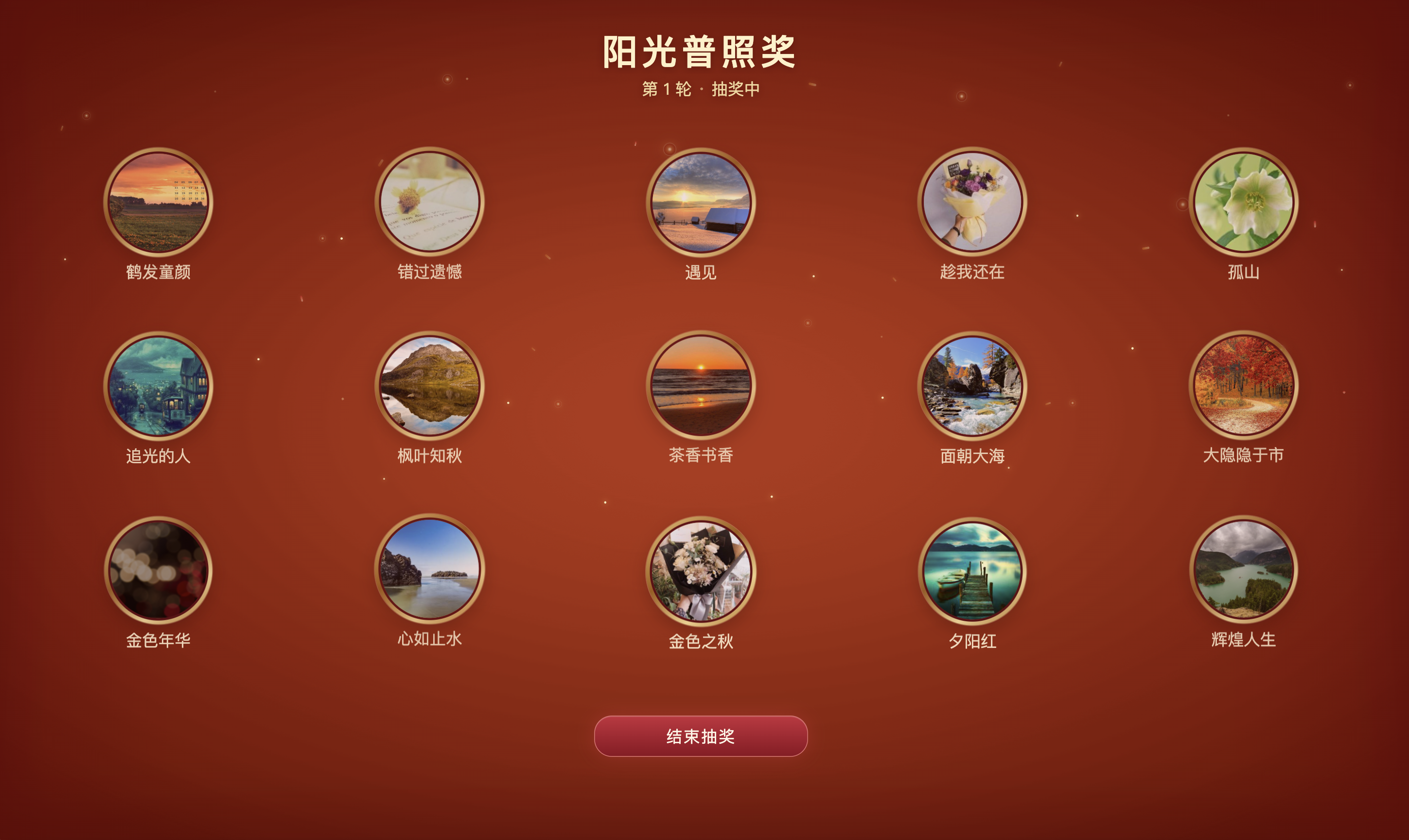
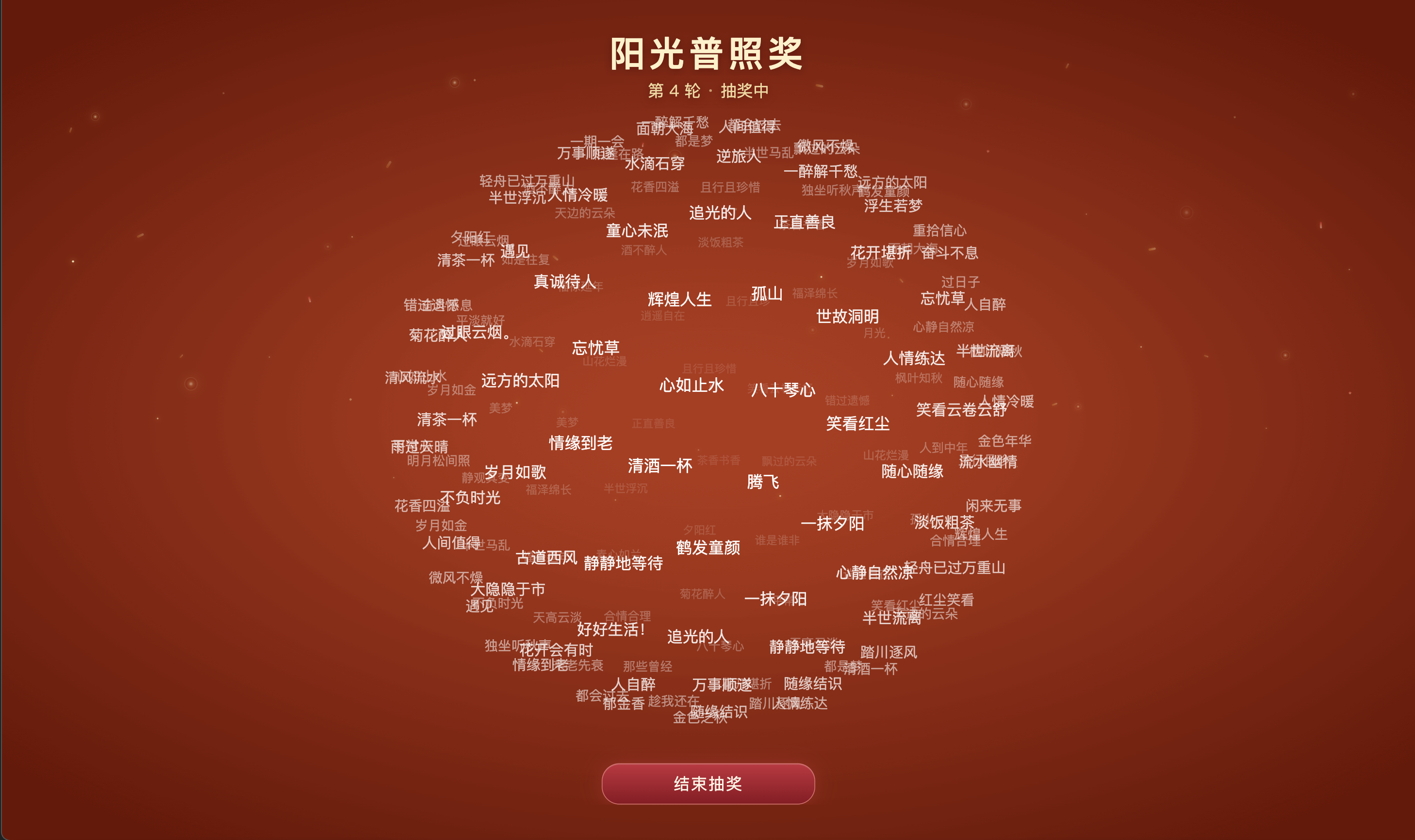
- Click [Start Lottery]. The large screen will display the avatars and nicknames of eligible viewers in a rolling manner according to the [Rolling Display Content] setting, or display only nicknames;
- Click [End Lottery] at an appropriate time to stop rolling and display the winning results of this round.
The rolling animation is used to display the lottery process and does not represent the final winning result. The winner list is subject to the result returned by the system.
When [Avatar and Nickname] is selected, the rolling effect is as follows:
When [Nickname Only] is selected, the rolling effect is as follows:
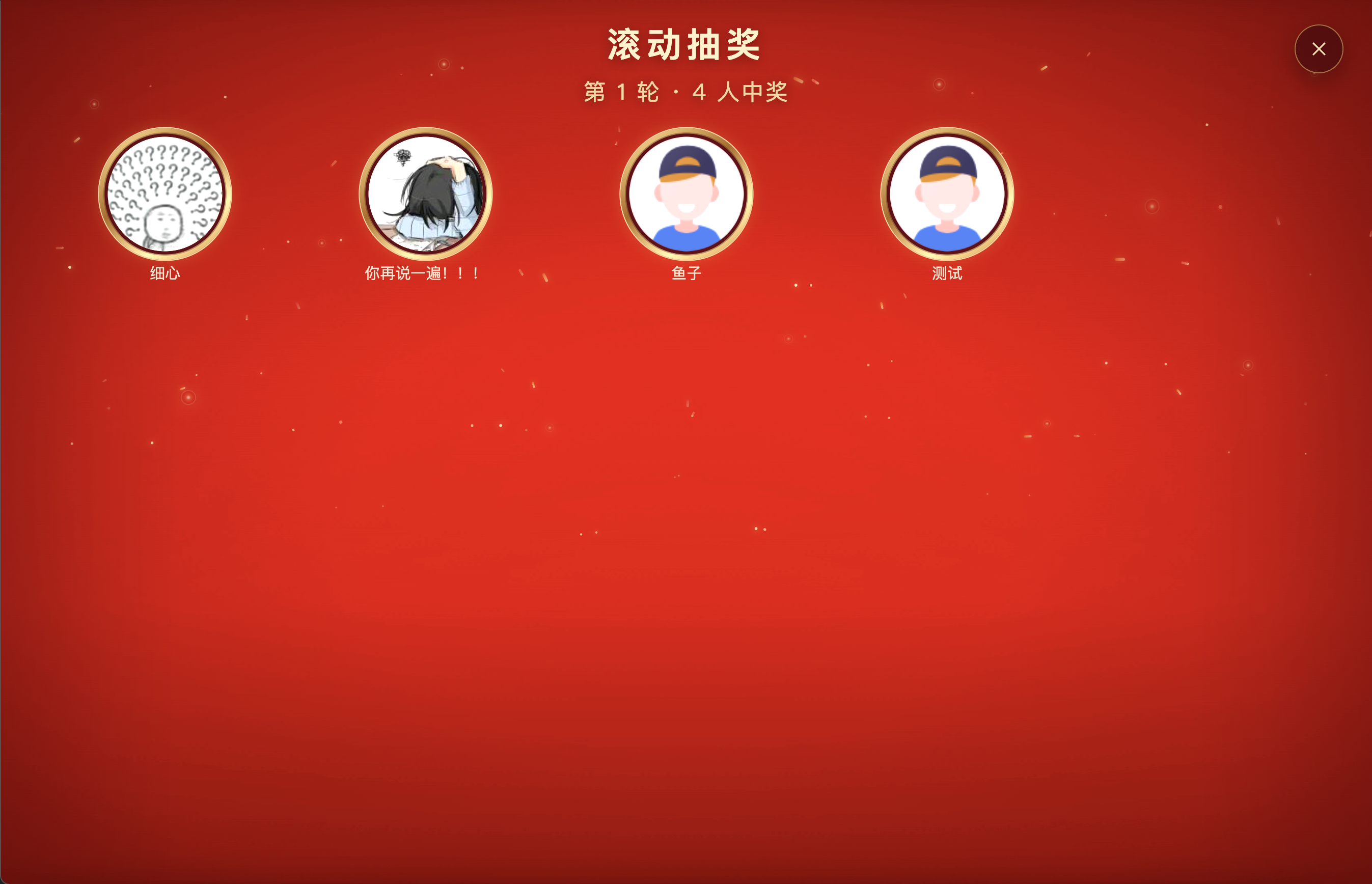
After the lottery ends, the large screen displays the number of winners in this round, and displays the winning viewers' avatars and nicknames according to the [Rolling Display Content] setting, or displays only nicknames.
The following screenshot is an example of the [Avatar and Nickname] display.
4. Continue to the Next Round
After the winning result of this round is displayed, close the result page and return to the pending draw page of the current activity. The system will retain the winning results and the remaining prize quantity, and will not automatically start the next round.
To continue drawing, you can set the number of winners for this round again and click [Start Lottery]. You can also view the winning results already generated through [Winner List].
IV. Viewer Participation and Result Viewing
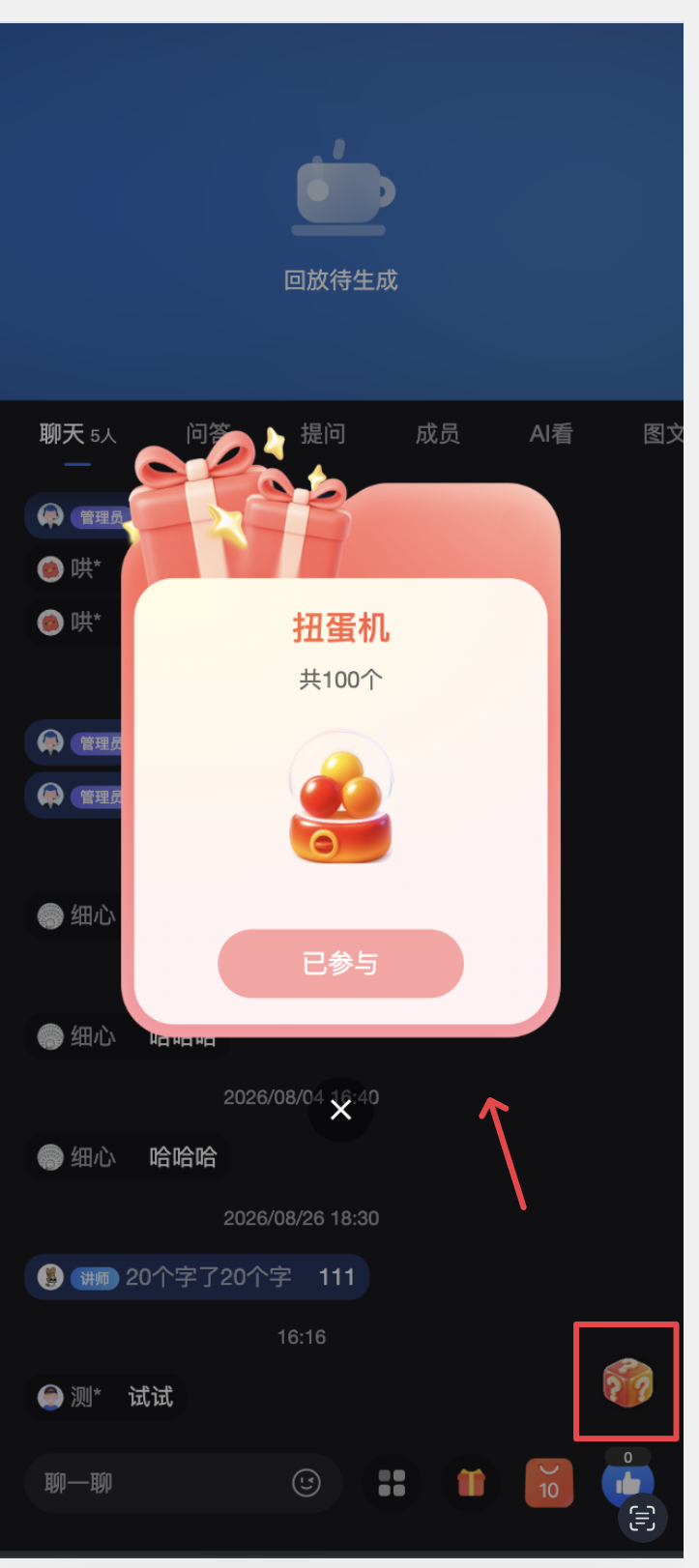
When the current viewer is within the participation scope, the watch page will display the Rolling Lottery entry; when the viewer is not within the participation scope, this entry will not be displayed.
After the lottery starts, the watch page displays the Rolling Lottery entry synchronously. After viewers click the entry, they can view the prize name, prize quantity, and current participation status.
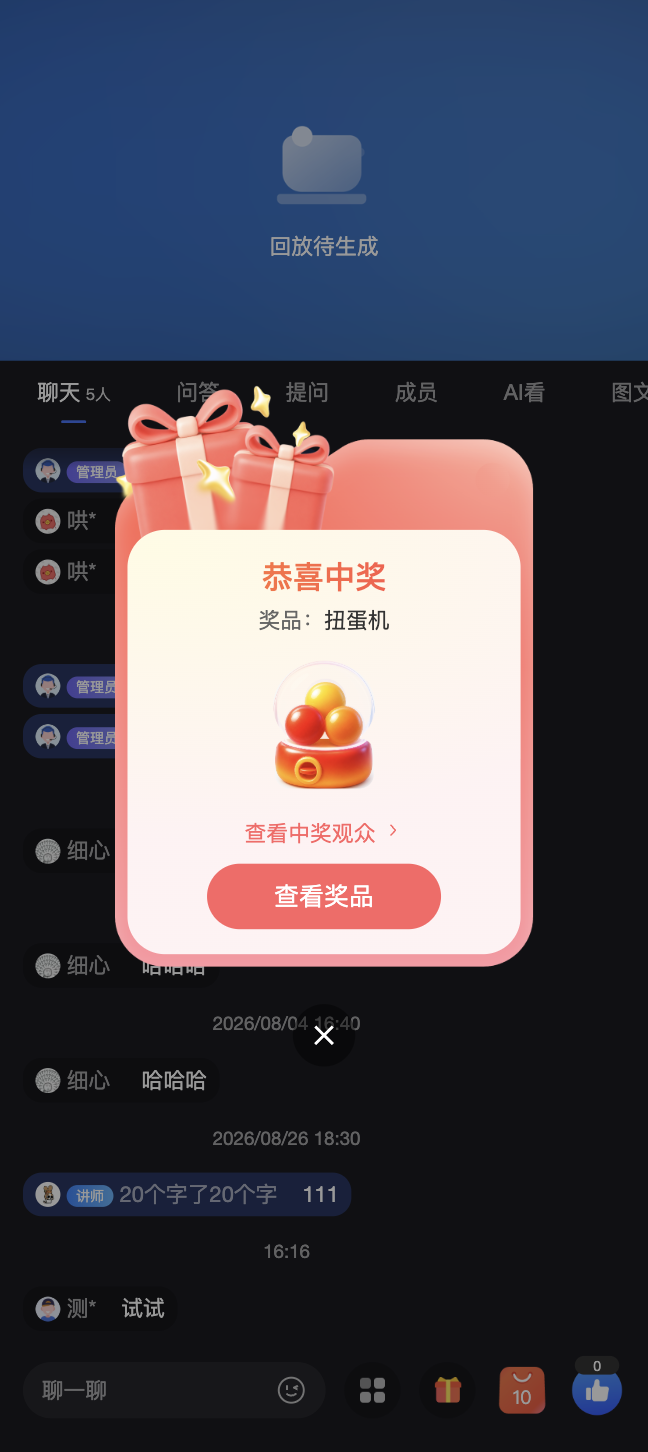
After the lottery ends:
- Winning viewers will receive the winning result and can click [View Winning Viewers] to view the winner list of this round, or click [View Prize] to view reward information;
- Non-winning viewers will see a non-winning result;
- When Prize Claim Information Collection is enabled for custom prizes, winning viewers can submit prize claim information;
- Viewers can view custom prizes or red packets, as well as the filling status of prize claim information, in [My Rewards] - [Large Screen Interaction].
V. Manage Activities and View Data
1. Manage Activities
The activity list supports filtering by activity name, activity type, and activity status. The supported operations under different statuses are as follows:
| Activity Status | Supported Operations |
|---|---|
| Not Started | Details, View, Edit, Copy, Delete |
| In Effect | Details, View, Copy |
| Ended | Details, View, Copy, Delete |
When copying an activity, the basic information, appearance settings, and reward settings are copied, but the original activity time, participation data, winning data, prize claim information, and launch status are not copied. The start time of the new activity defaults to 2 hours after the copy operation time, and the end time defaults to 12 hours after the start time.
2. View Activity Data
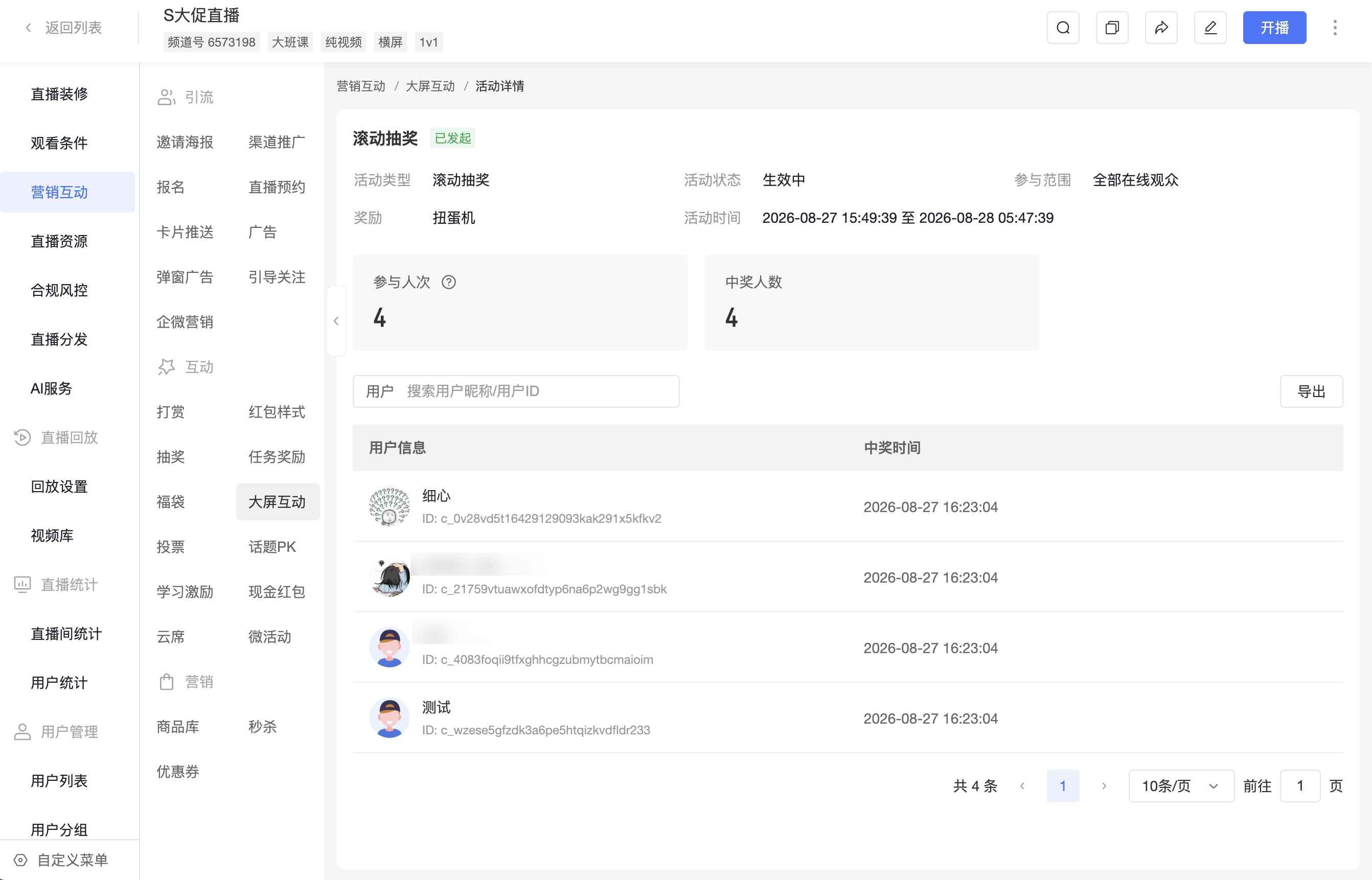
Enter the activity details to view activity information, data overview, and winner list.
- [Data Overview] displays participation count and number of winners. For multiple rounds of lottery, the participation count is accumulated by count and is not deduplicated;
- [Winner List] displays user nickname, avatar, user ID, winning time, and prize claim information status;
- When Prize Claim Information Collection is enabled for custom prizes, you can filter viewers who have filled it in or not, and view the information submitted by viewers;
- Supports searching winning viewers by user nickname or user ID, and exporting the winner list.
VI. FAQ
Q: Why can't I find the created activity on the interactive large screen?
A: If the activity has not reached its start time, it will not be displayed on the interactive large screen; after the activity reaches its end time, it cannot be started again. You can return to the activity list to check the activity time and activity status.
Q: Why can't I start the lottery?
A: Please check whether the number of winners in this round exceeds the remaining prize quantity or the actual number of eligible participants. If the limit is exceeded, the system will not automatically adjust the number of winners, and you need to modify it before starting the lottery.
Q: Are the viewers displayed during the rolling process the final winners?
A: No. The rolling animation is only used to display the lottery process. The final winner list is subject to the result returned by the system.
Q: How do I conduct multiple rounds of lottery?
A: After the winning result of this round is displayed, close the result page and return to the pending draw page, set the number of winners for this round again, and then click [Start Lottery]. The system will retain the previous winning results and the remaining prize quantity.
Q: How do I collect prize claim information for custom prizes?
A: When creating or editing an activity, enable [Prize Claim Information Collection] in [Reward Settings] and associate an information collection form. After winning viewers submit it, you can view the prize claim information in the winner list in the activity details.
Q: How can I make the rolling process and winning results display only nicknames?
A: In [Appearance Settings] of Rolling Lottery, set [Rolling Display Content] to [Nickname Only]. Both the rolling process and winning results on the interactive large screen will display only nicknames, without showing avatars or reserving avatar placeholders.
