


Video Creation
Objective: Help users quickly produce digital human broadcast videos using AI capabilities. By uploading PPT courseware, configuring AI-written scripts or recording voiceovers, combined with digital human avatars and multilingual dubbing, achieve efficient video content creation.
1. Feature Overview
| Feature Info | Description |
|---|---|
| Feature Name | Video Creation |
| Feature Description | Video Creation aims to leverage AI capabilities for rapid video production. Users can replace backgrounds, digital human avatars, voices, and other elements, driving the digital human to broadcast via text or audio, thereby improving content production efficiency. |
| Purpose | Effectively improve enterprise video production efficiency, reducing filming and editing costs. |
| Use Cases | Marketing video creation, enterprise training courseware, online teaching videos, news broadcasting. |
| Feature List | 1. Supports uploading PPT courseware (with animations) and page layout adjustments 2. Supports changing digital human avatars and adjusting position/size per page 3. Supports changing background posters or uploading local image backgrounds 4. Supports AI writing for the entire script or generating scripts for individual pages independently 5. Supports AI polishing, polyphone pronunciation correction, and inserting pauses 6. Supports recording voiceovers and real-time editing of ASR auto-recognized subtitles 7. Supports 11 languages and speed adjustment 8. Supports landscape (16:9) and portrait (9:16) creation |
Table of Contents
- 2. Detailed Operation Guide
- 3. AI Writing & AI Polishing (Including Single Page Generation)
- 4. Recording Voiceovers & Subtitle Editing
- 5. Re-creation & Draft Management
- 6. Notes
2. Detailed Operation Guide
Step 1: In the admin panel, find the "Cloud Live" module, select "AI Applications" -> "Video Creation" -> "New Creation".
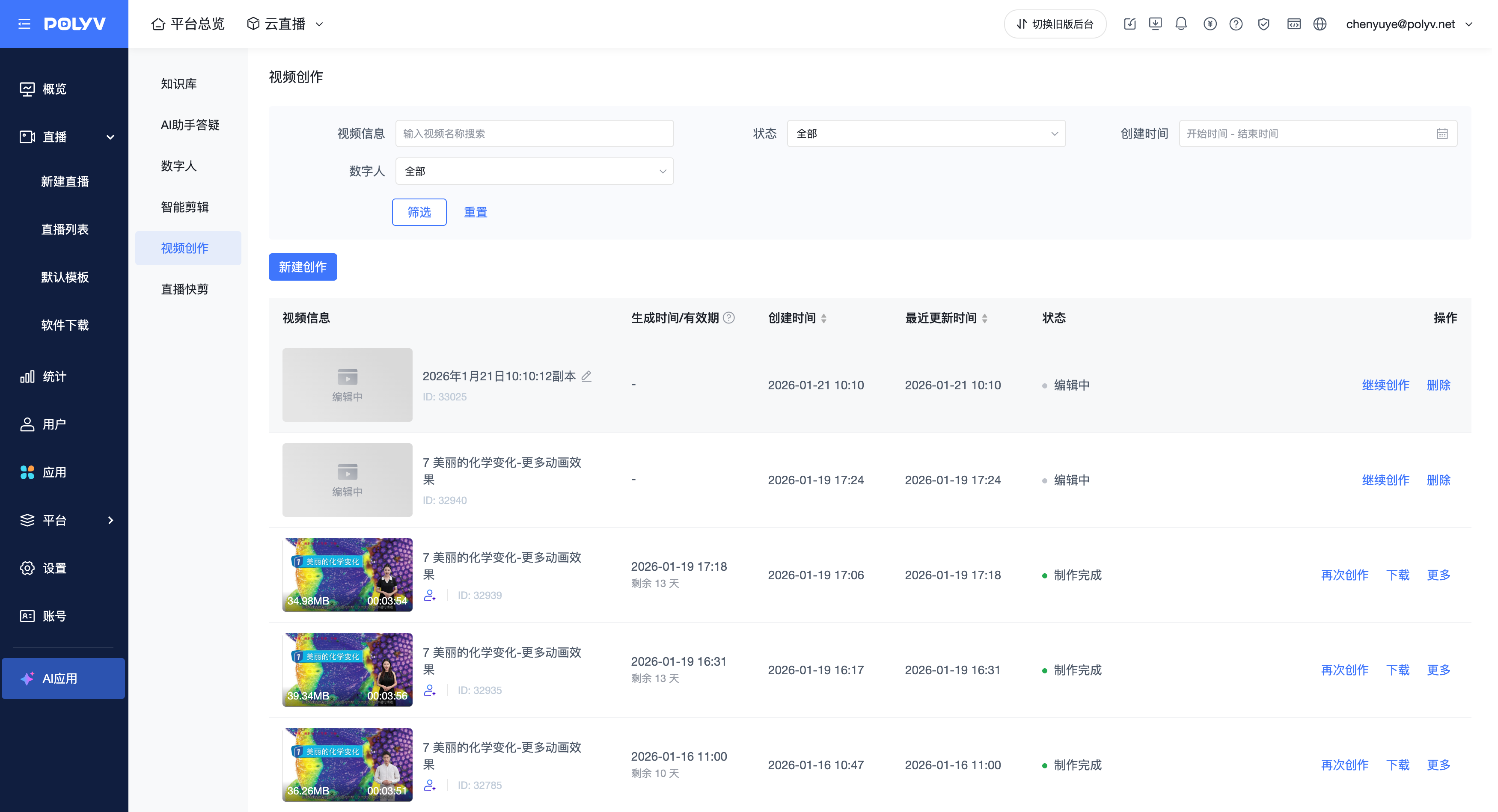
Step 2: Enter the editing page. The left side supports adding courseware/pages.
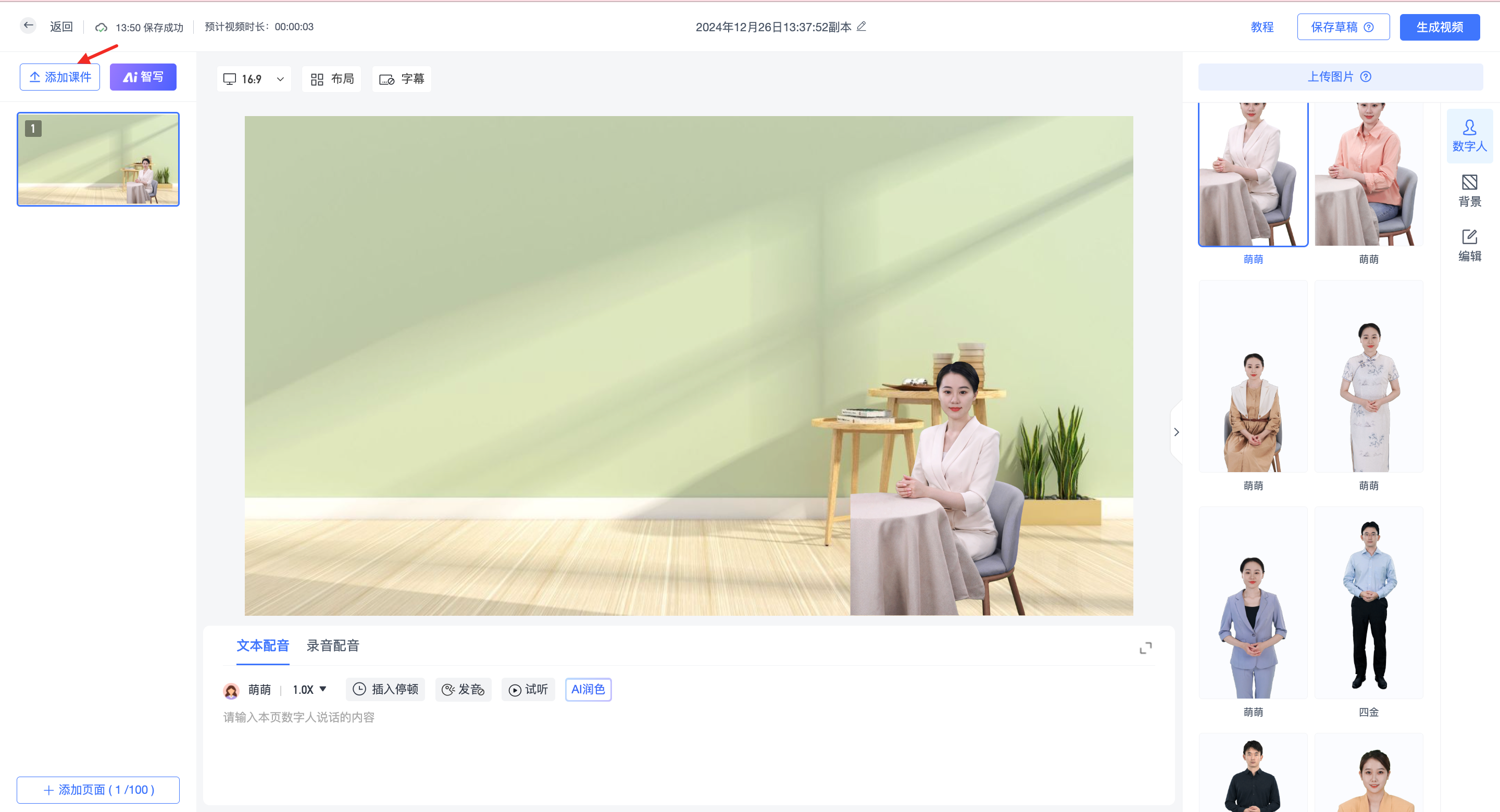
Step 3: When selecting courseware, you can enable "Animation Transcoding" to retain PPT animation effects.
💡 Tip: Courseware should be limited to 100 pages, and PPT notes content should be within 20,000 characters.
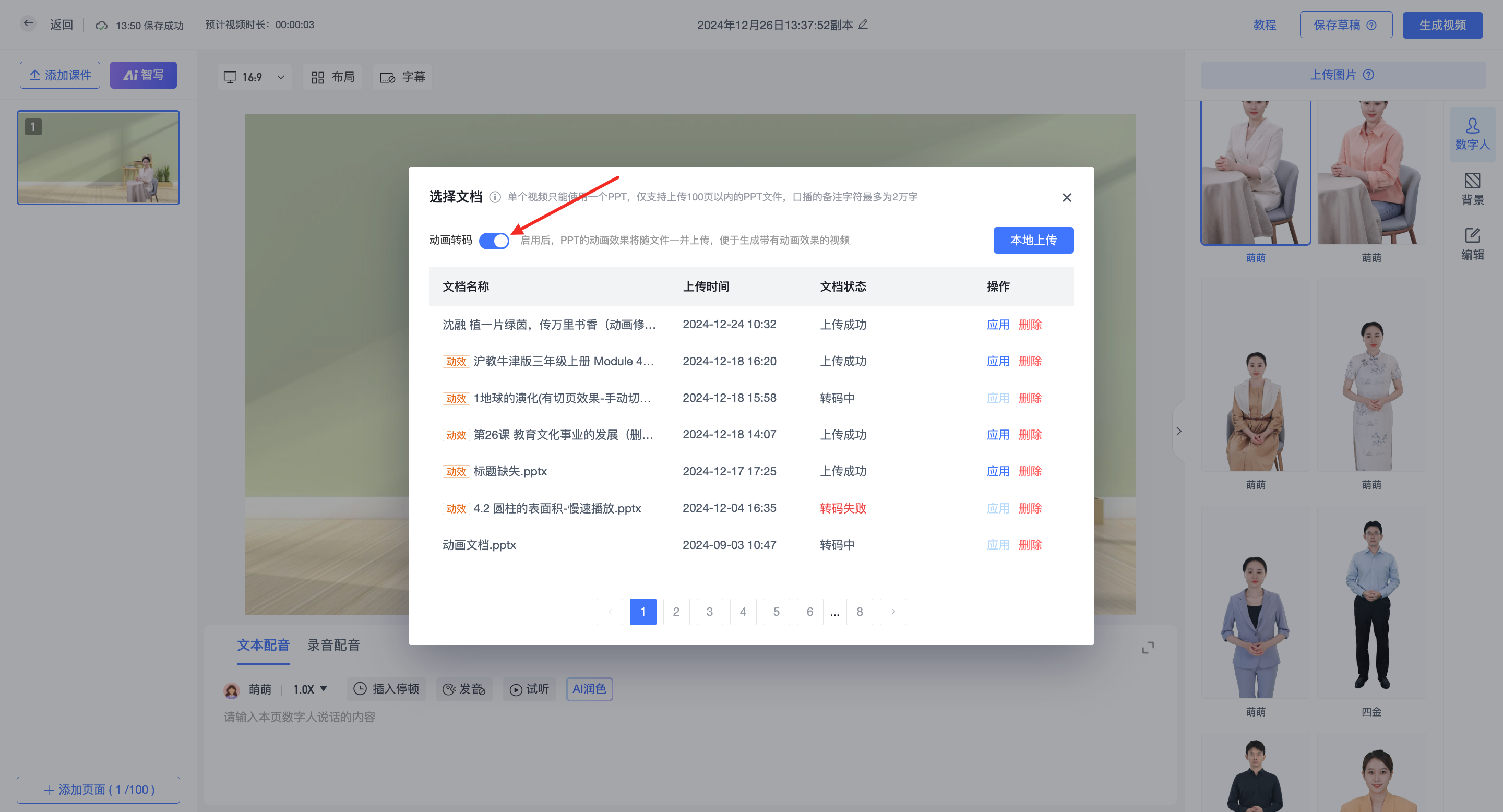
Step 4: Select a digital human. The position and size of the digital human can be adjusted individually for each page.
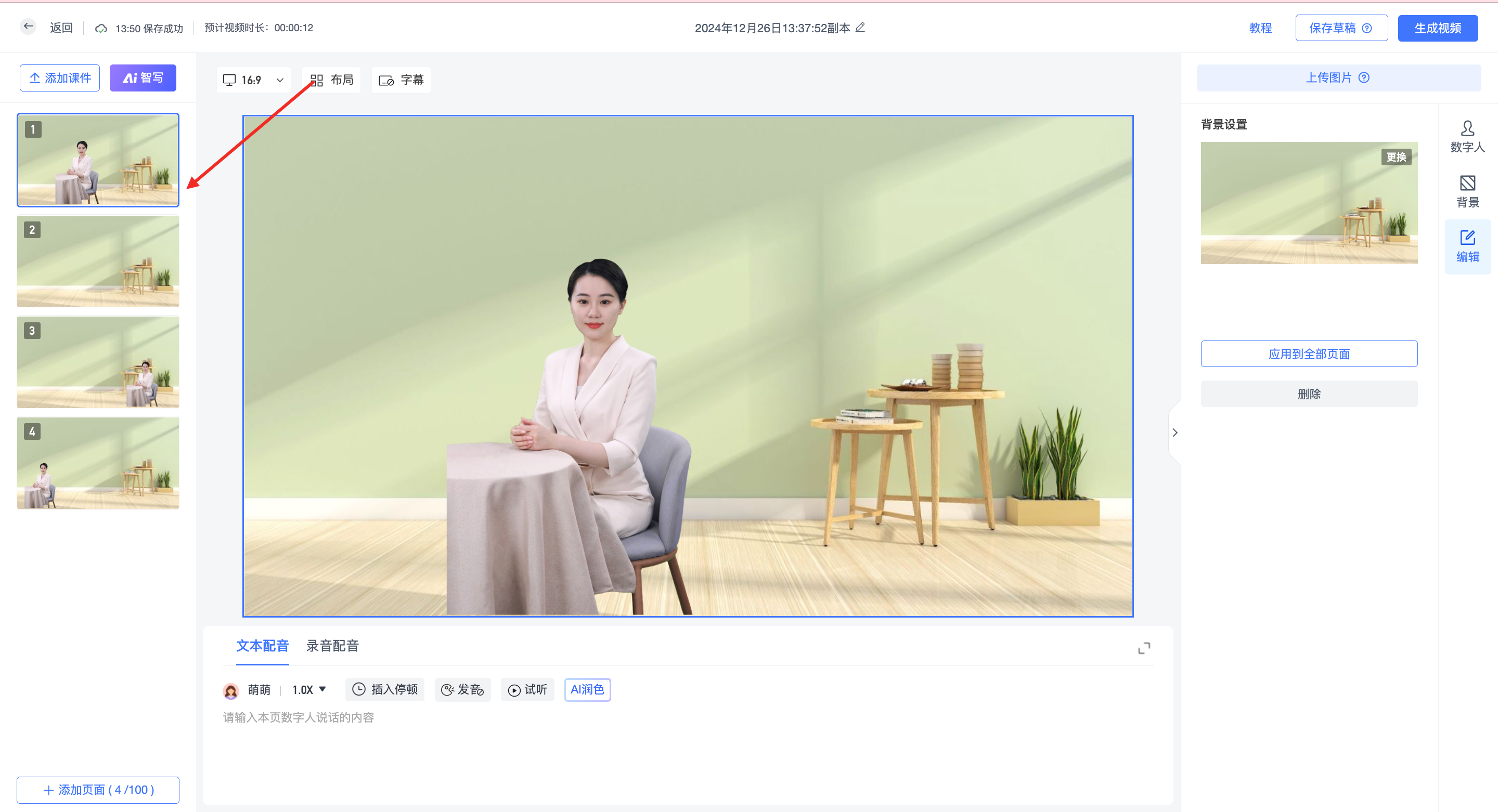
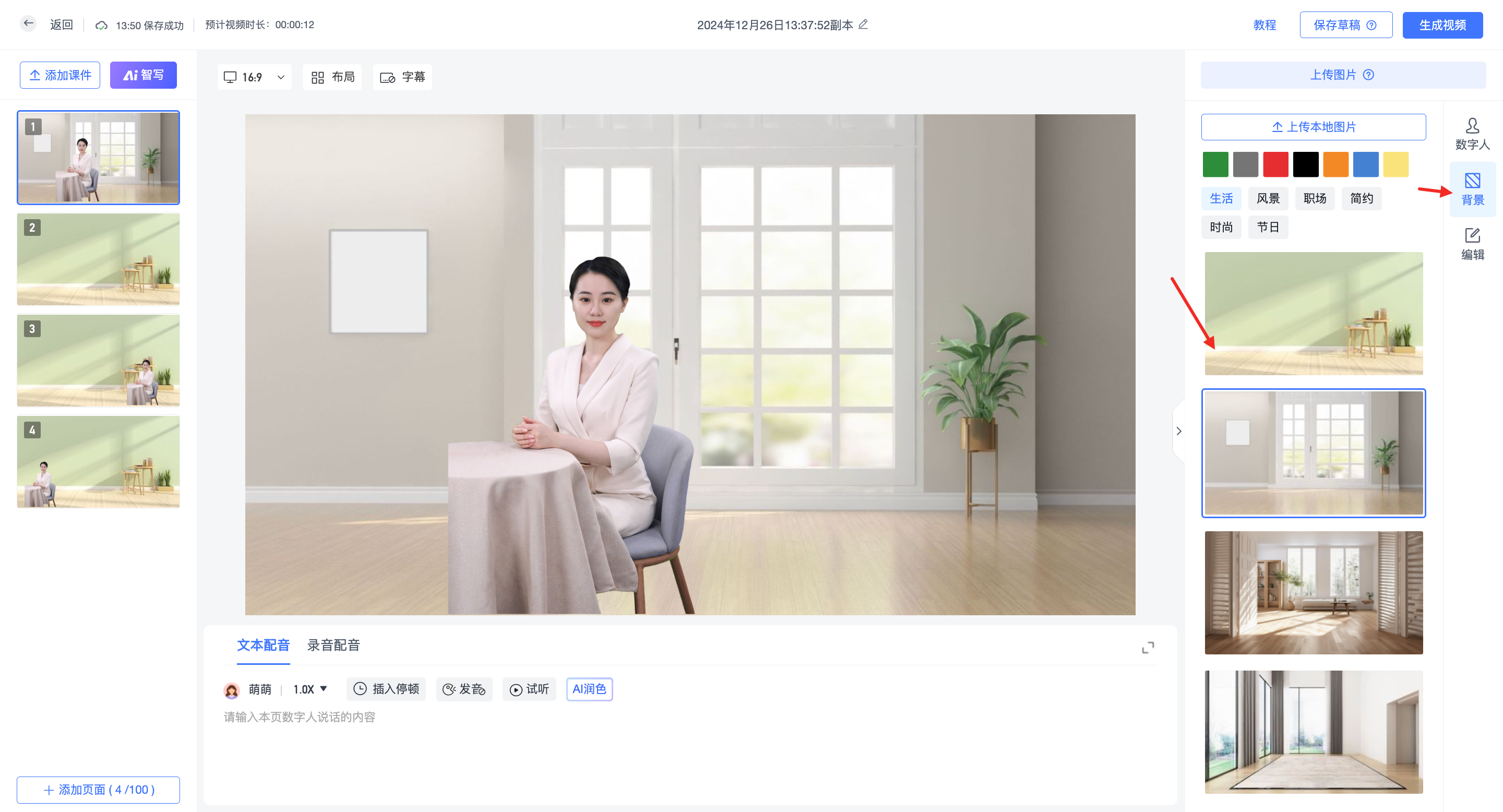
Step 5: Add a background. Supports local upload or changing from the background library.
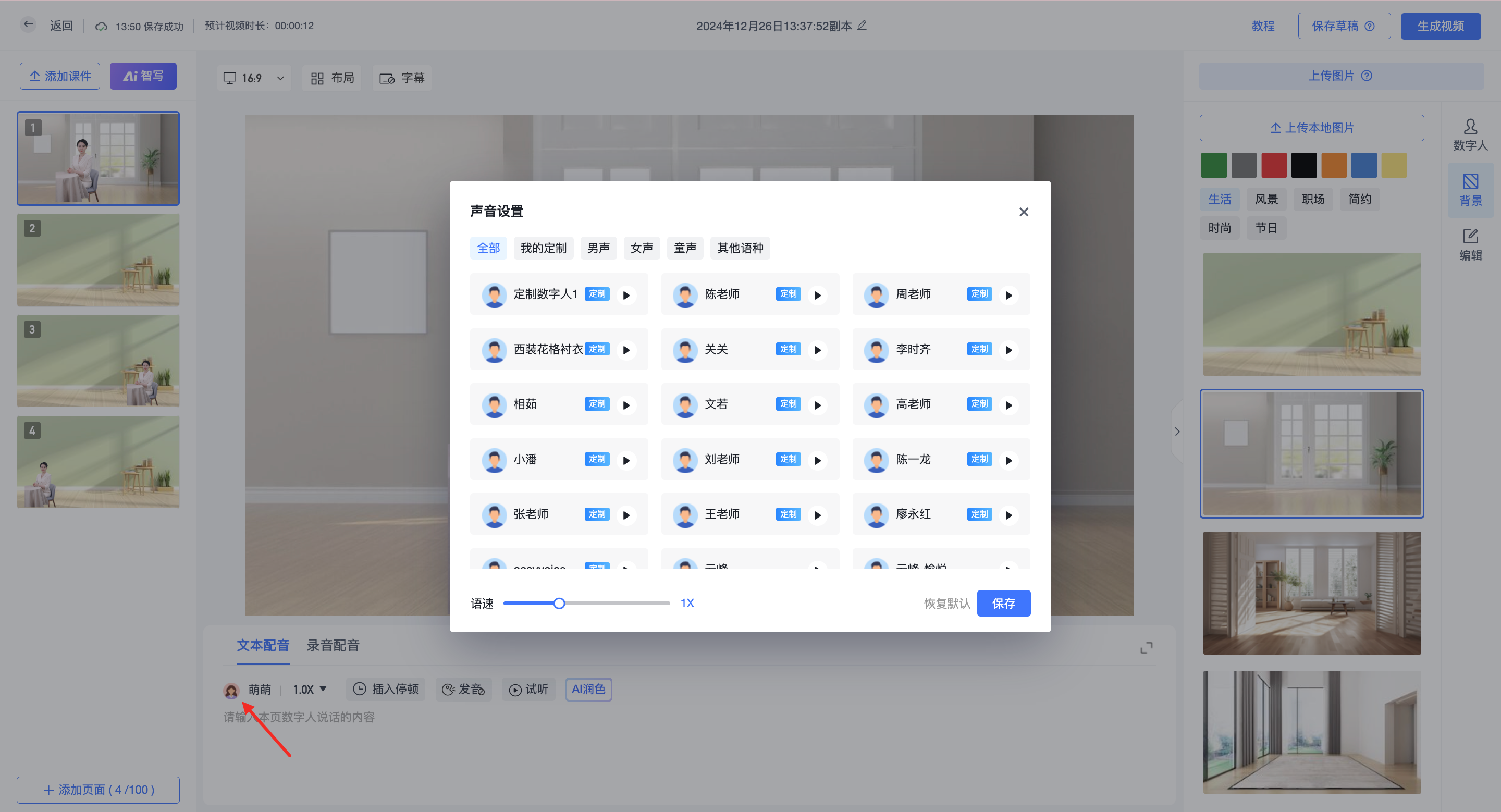
Step 6: Change the voice and speed. Supports male, female, child voices, and 11 foreign languages.
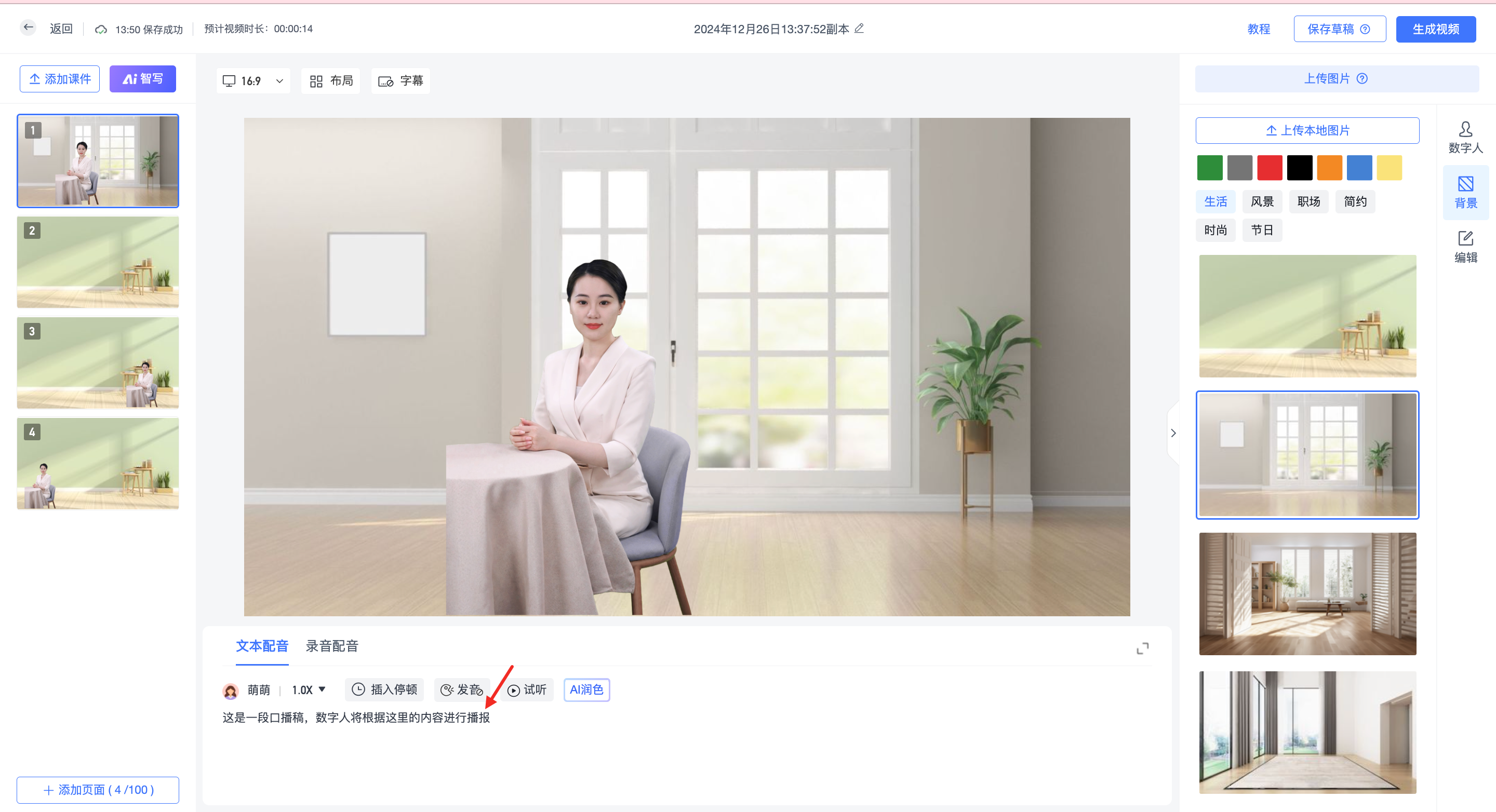
Step 7: Add text content. The digital human will broadcast based on the text. Maximum 20,000 characters per video.
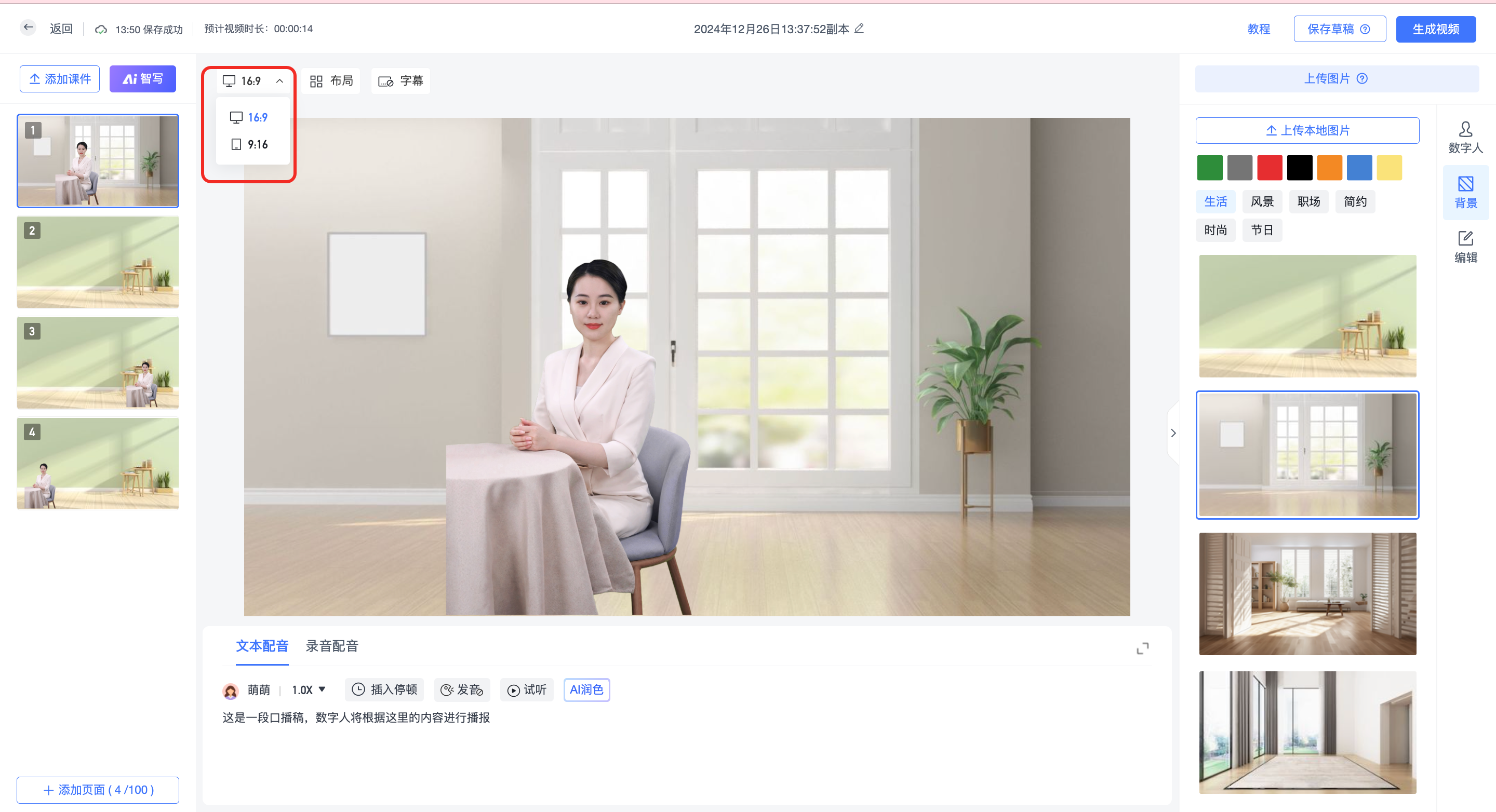
Step 8: Select the video aspect ratio (16:9 or 9:16) and layout.
Step 9: Text Refinement.
- Insert Pause: Click the button to set a pause duration at a specific point.
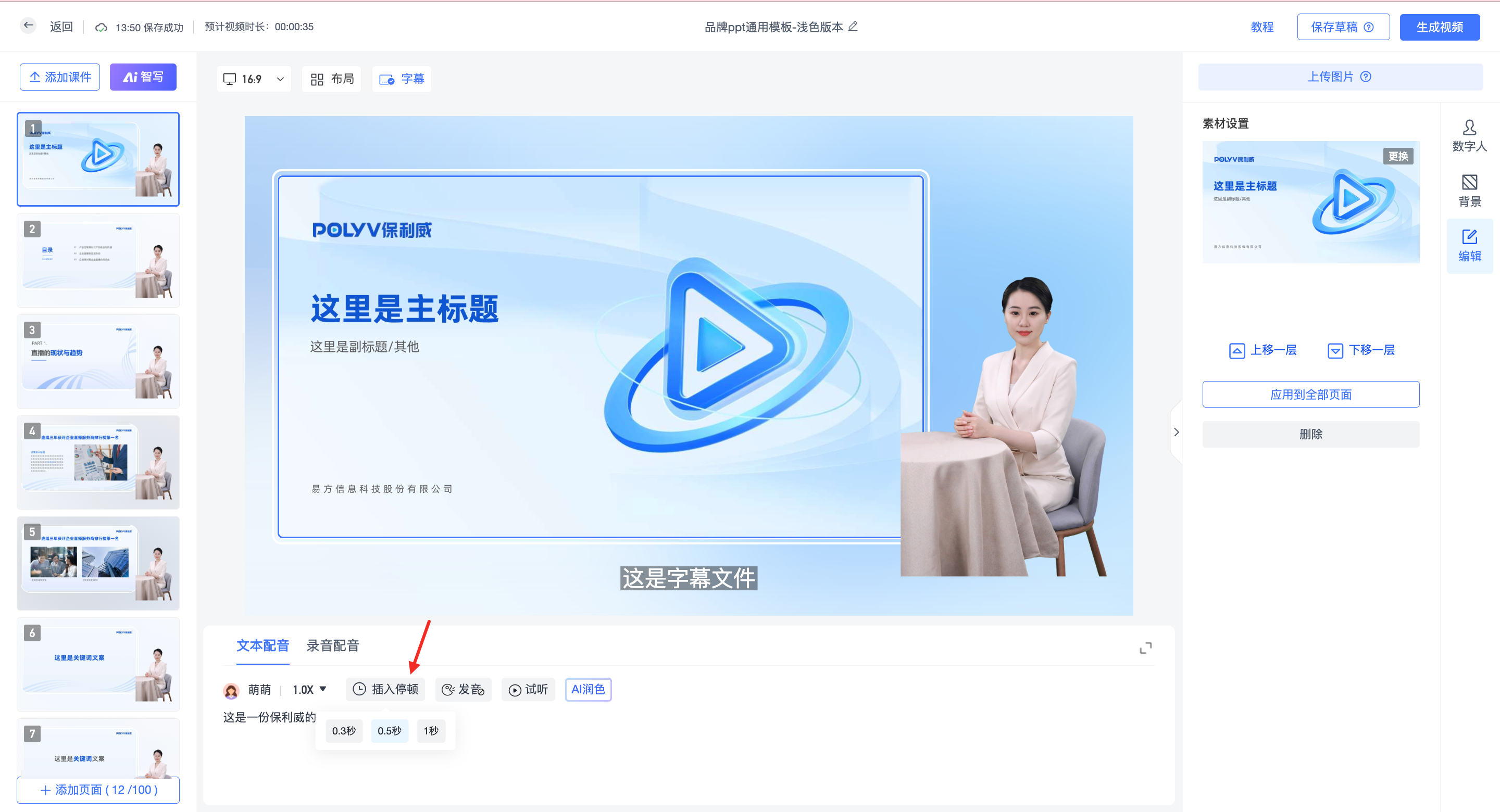
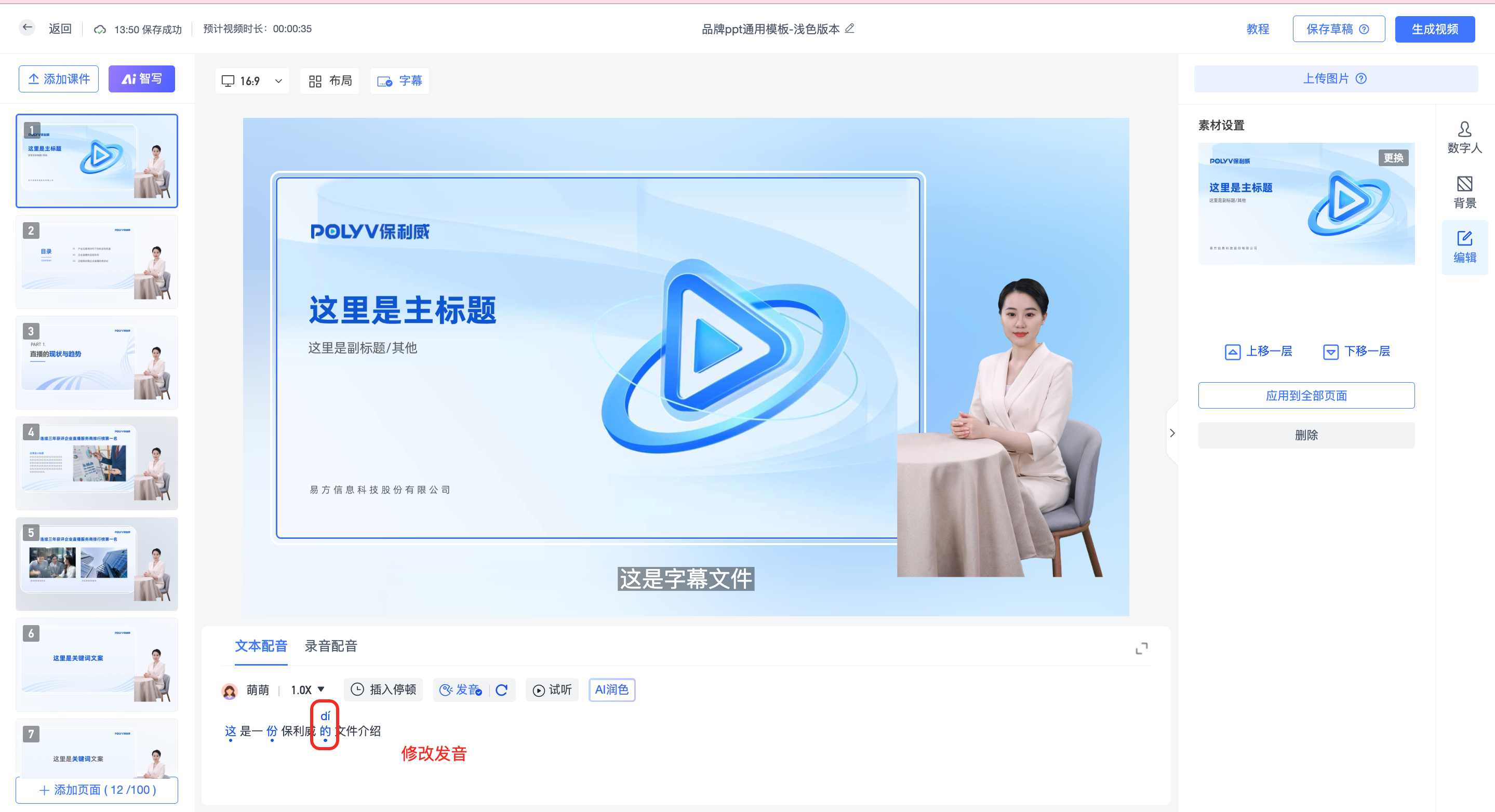
- Correct Pronunciation: Click on highlighted Chinese characters to modify polyphone pronunciation.
Step 10: Add Recording Voiceover & Subtitle Editing
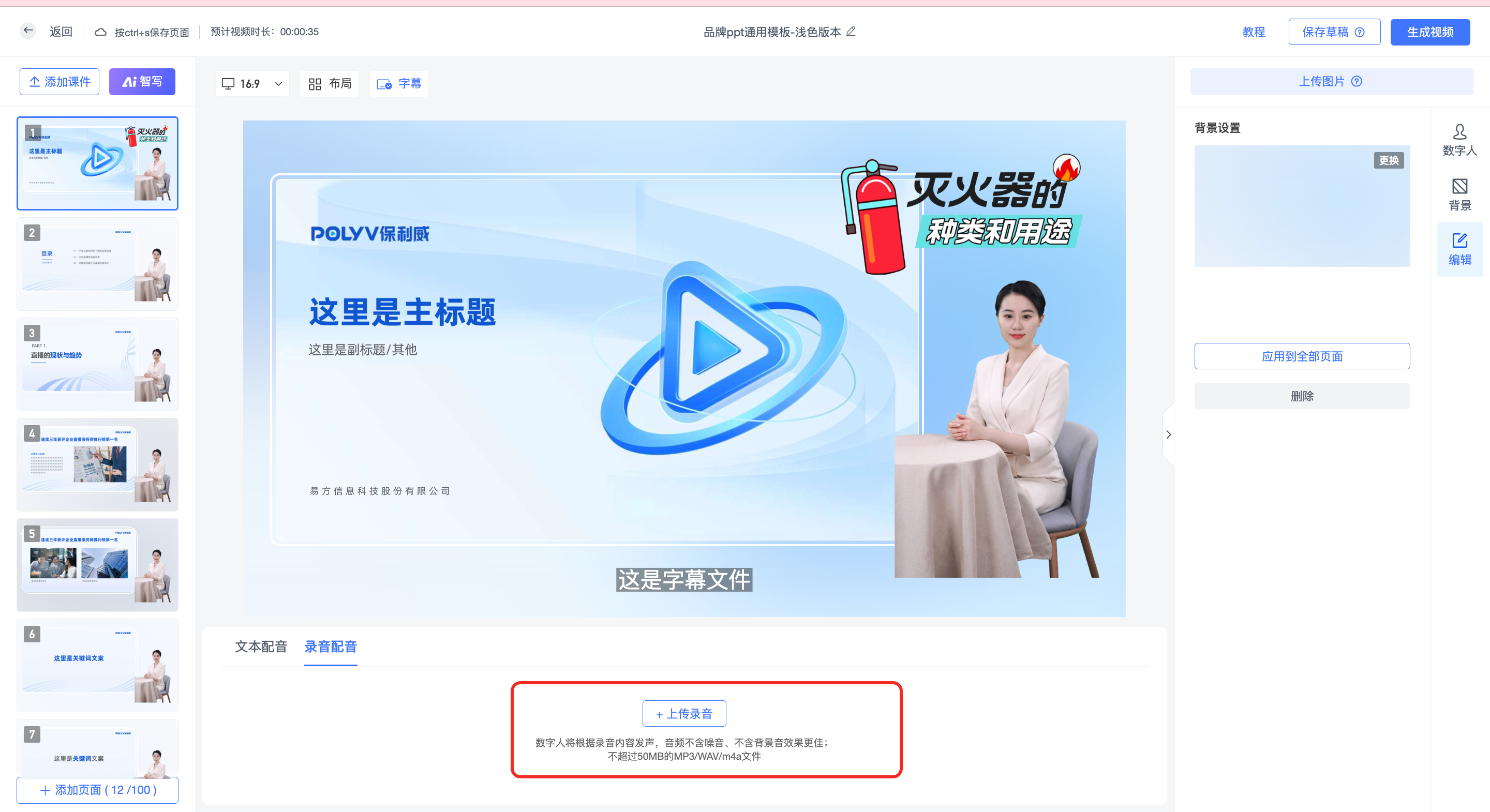
If you have pre-recorded audio, you can choose to upload audio to drive the digital human.
- Add Recording: Upload a local audio file. Only one dubbing method is allowed per page.
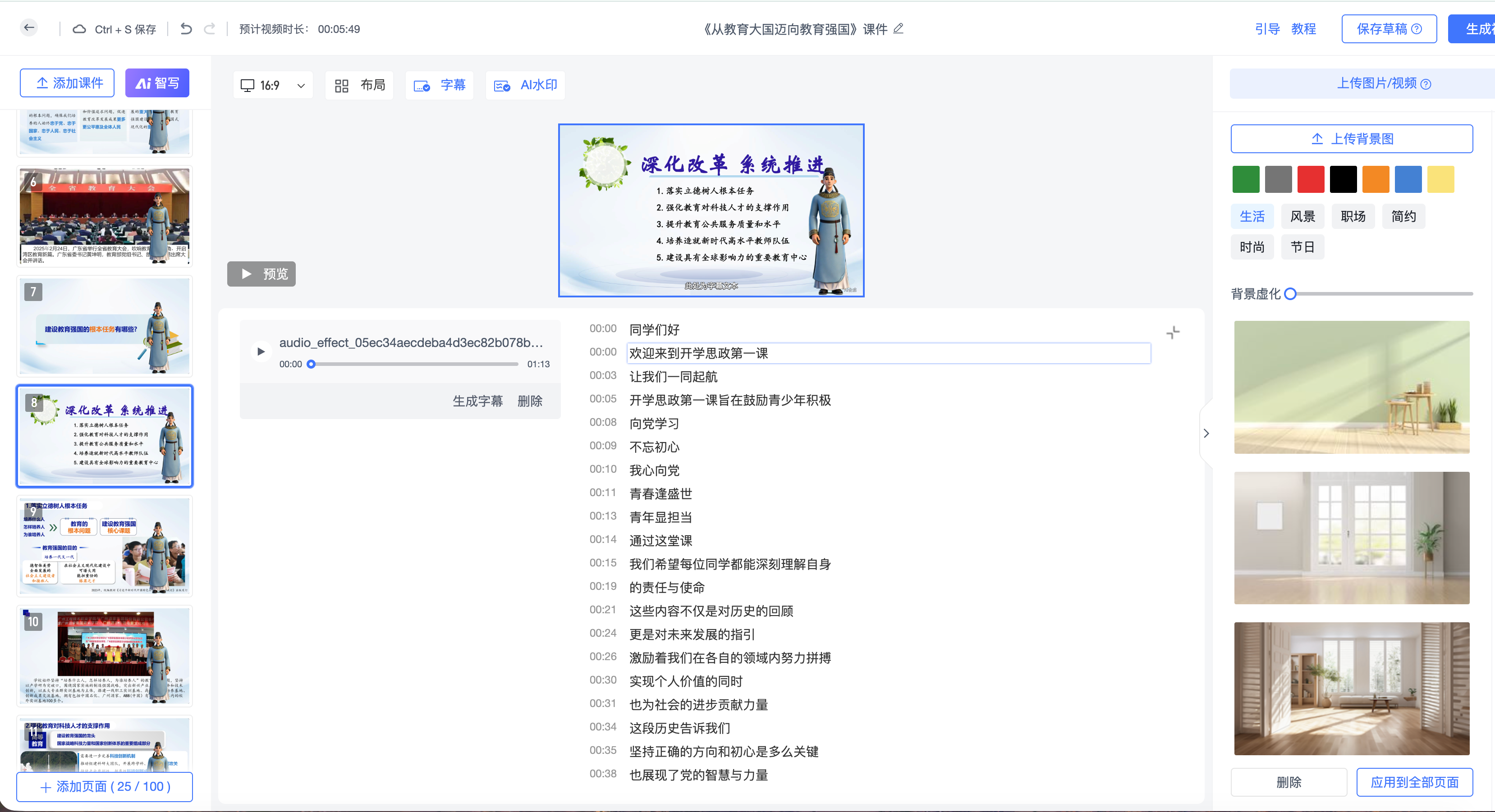
- Real-time Subtitle Editing: The system will automatically recognize the recording content via ASR. You can preview and edit subtitle text line by line in the configuration panel. The modified content will be prioritized when the video is generated.
- Manual Recognition Trigger: If the audio does not automatically generate subtitles, click the "Recognize Subtitles" button to manually initiate recognition.
Step 11: Save as a draft or re-create.
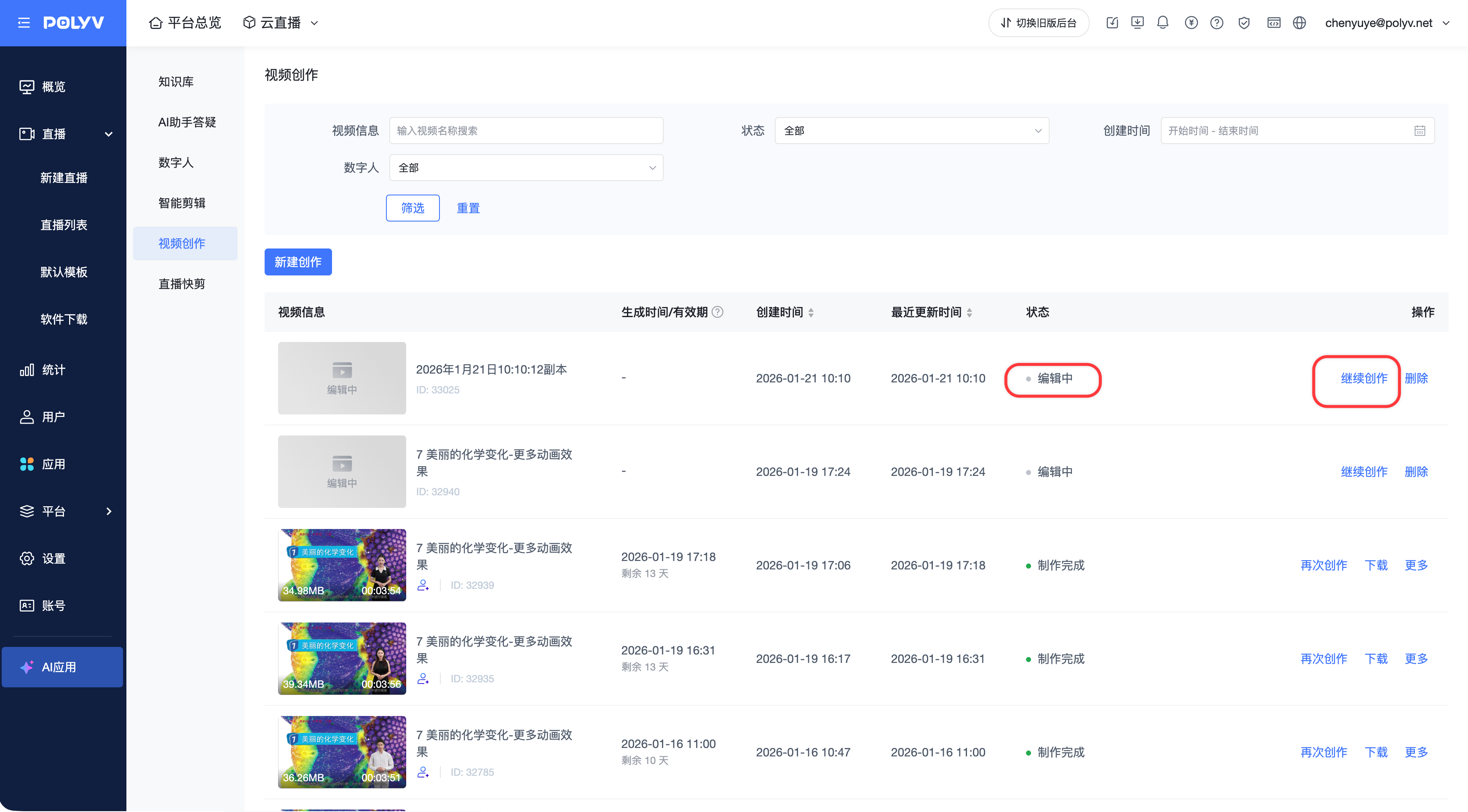
Step 12: Add images. A maximum of 10 images per page is supported.
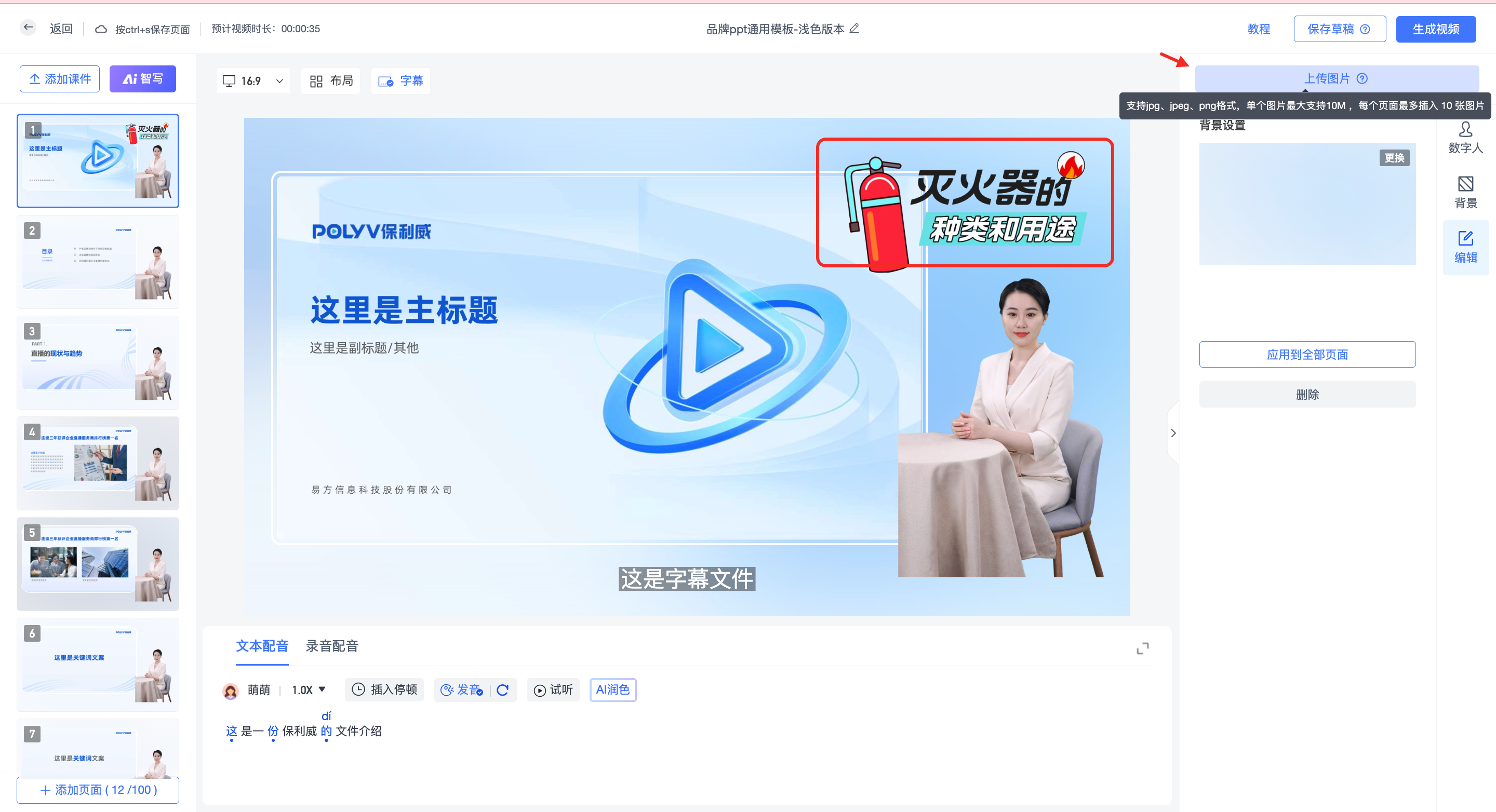
Step 13: Generate the video.
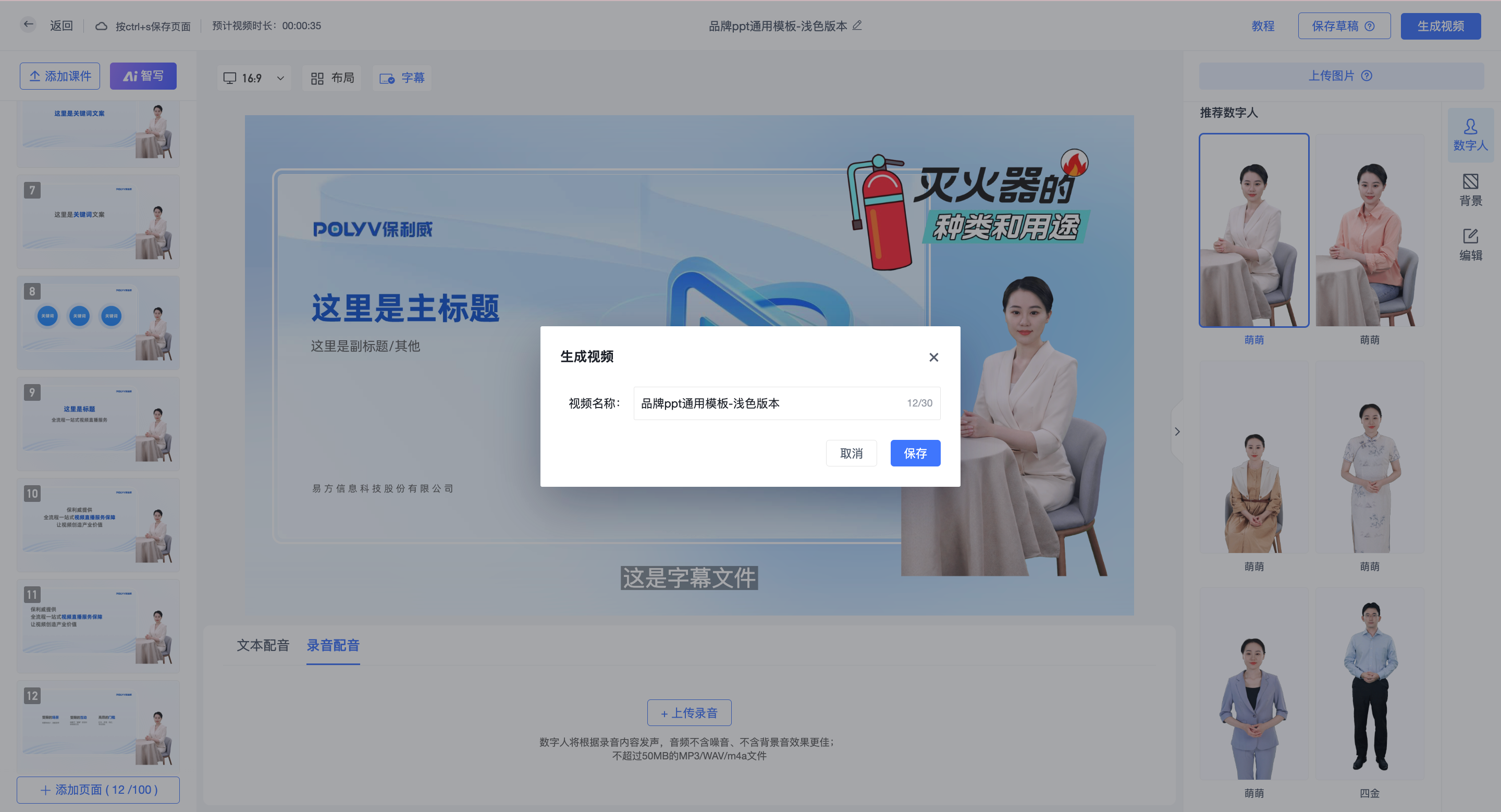
3. AI Writing & AI Polishing
1. AI Writing
AI can analyze courseware content and automatically generate a broadcast script.
- Generate Entire Script: Default mode. Analyzes all pages and generates a complete broadcast script.
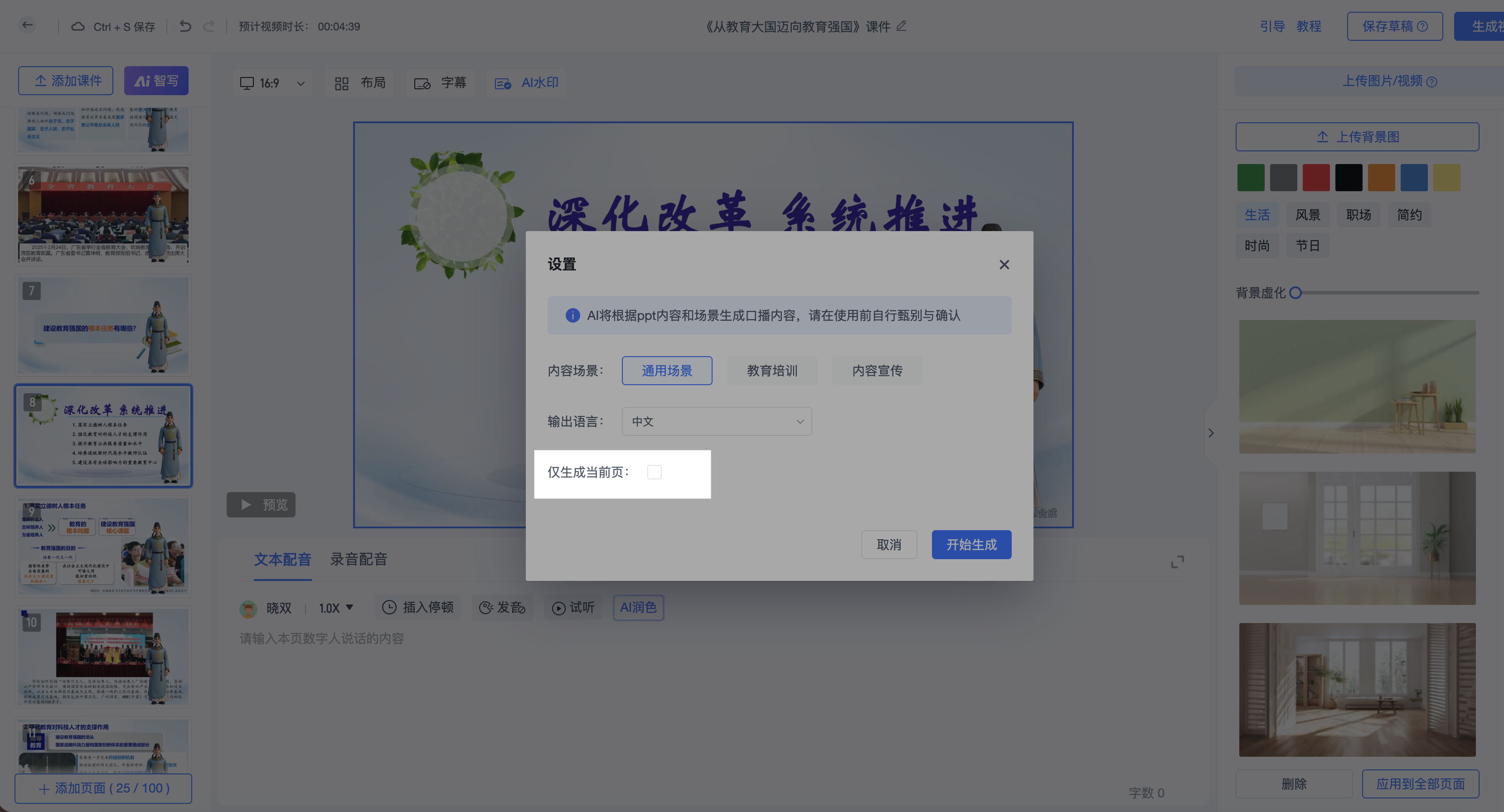
- Generate Single Page Independently: Check "Generate current page only" in the AI Writing settings to quickly adjust content for a specific PPT page without affecting other pages.
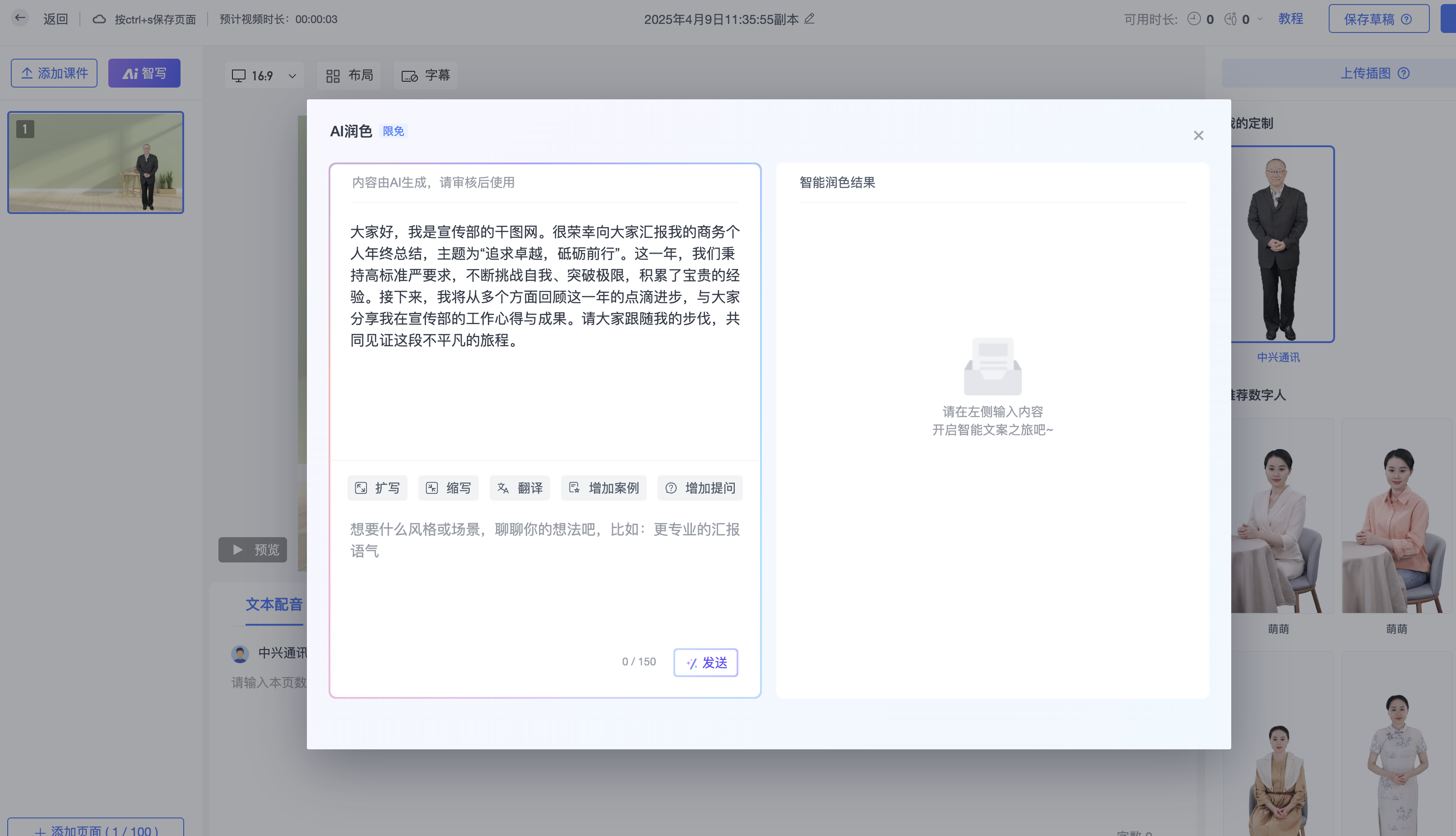
2. AI Polishing
Supports style optimization of existing text. Custom polishing prompts can be defined.
4. Re-creation
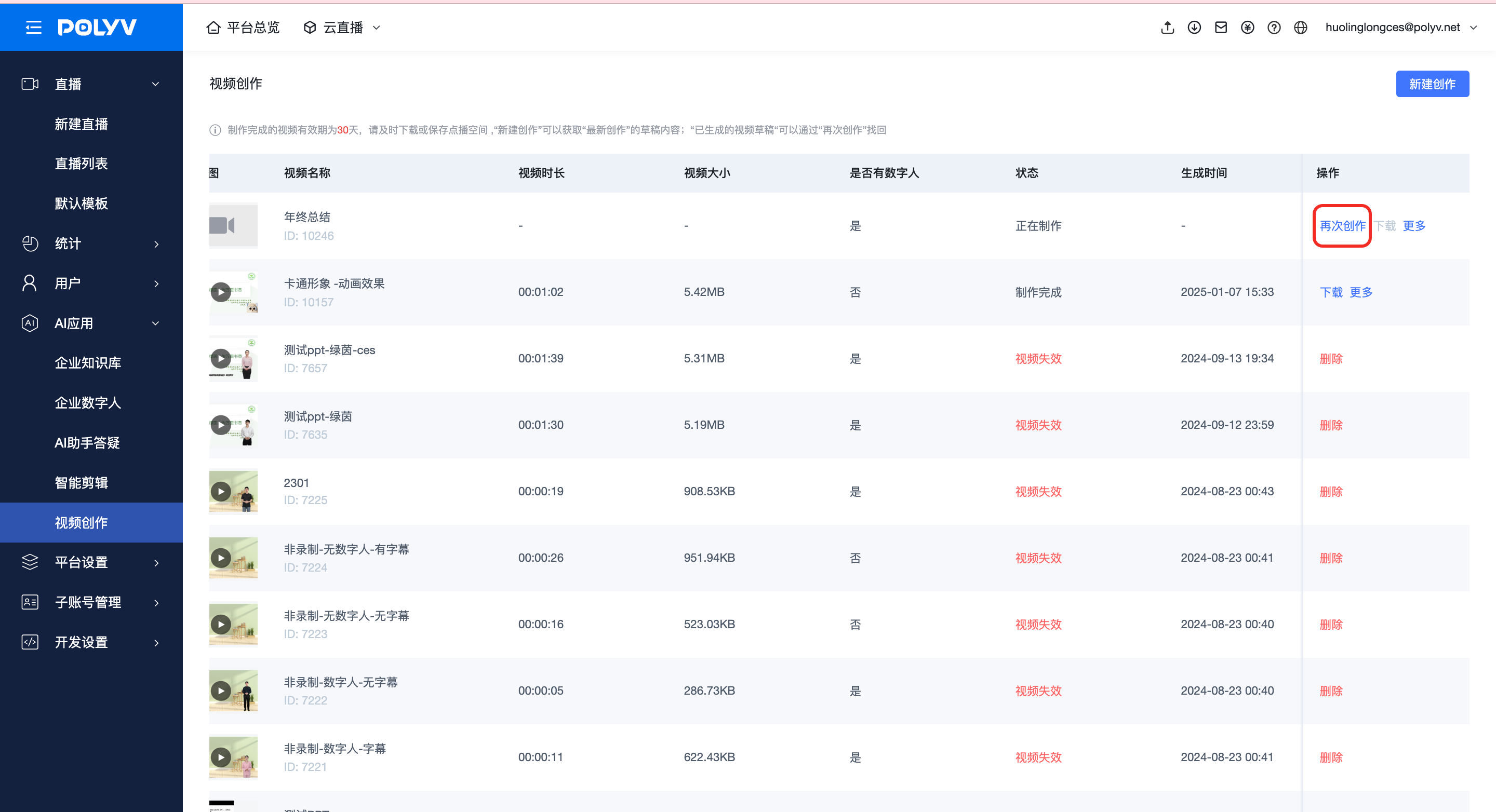
The system retains the original draft. Click "Re-create" to copy and modify the content.
⚠️ Note: Each account saves only one latest draft. The system will prompt whether to overwrite when saving again.
5. Notes
1. Voiceover & Subtitle Dubbing Notes
ꔷ English Letter Pronunciation: If you need each letter of a word to be pronounced individually, add a "space" between the letters. ꔷ Special Character Restrictions: Do not use special characters like arrows (↑↓) to avoid pronunciation errors. ꔷ Recording Subtitle Correction: When using recording voiceovers, be sure to check the ASR recognition results and perform real-time editing to ensure video subtitle accuracy.
2. Material & Generation Limits
ꔷ Digital Human Limit: Only one digital human avatar is supported per page and for the entire video. ꔷ Character Limit: The maximum character count for a single video is 20,000. It is recommended to create long-form content in batches to ensure quality. ꔷ Single Page Writing: The system does not check the single-page generation option by default to maintain script coherence. Please enable it manually as needed.
