Remaster Courseware
Updated: 2026-08-17 11:27:00
Remaster Courseware
Last updated: 2025-02-25
I. Feature Overview
Feature Info |
Description |
|---|---|
| Feature Name | Remaster Courseware |
| Feature Description | When a live stream using a three-panel template is saved as a replay, the replay does not contain document data. The downloaded video only includes the camera feed. Therefore, the Remaster Courseware feature is needed to synthesize the document presentation into the live replay in real time. |
| Purpose | Synchronize document presentation back into the live replay |
| Use Case | Educational live streaming, etc. |
| Operation Path | 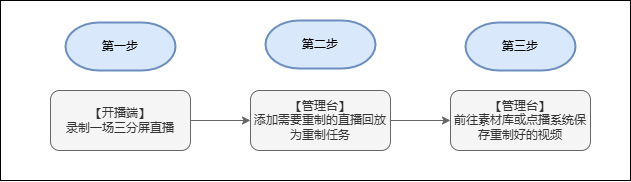 |
II. Usage Flow
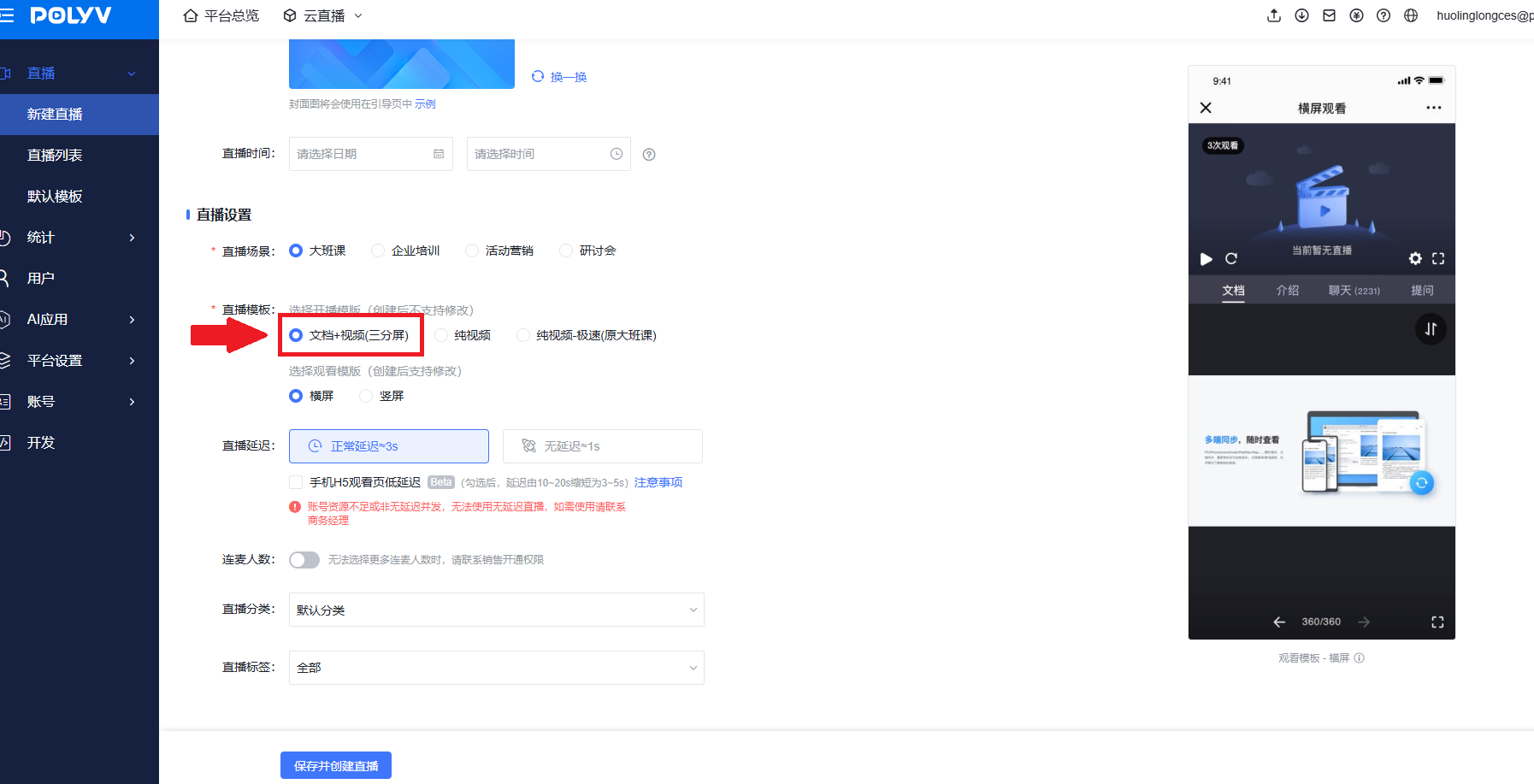
- Create a three-panel live stream (Only live replays containing document presentations can be remastered; pure video live replays cannot be remastered)
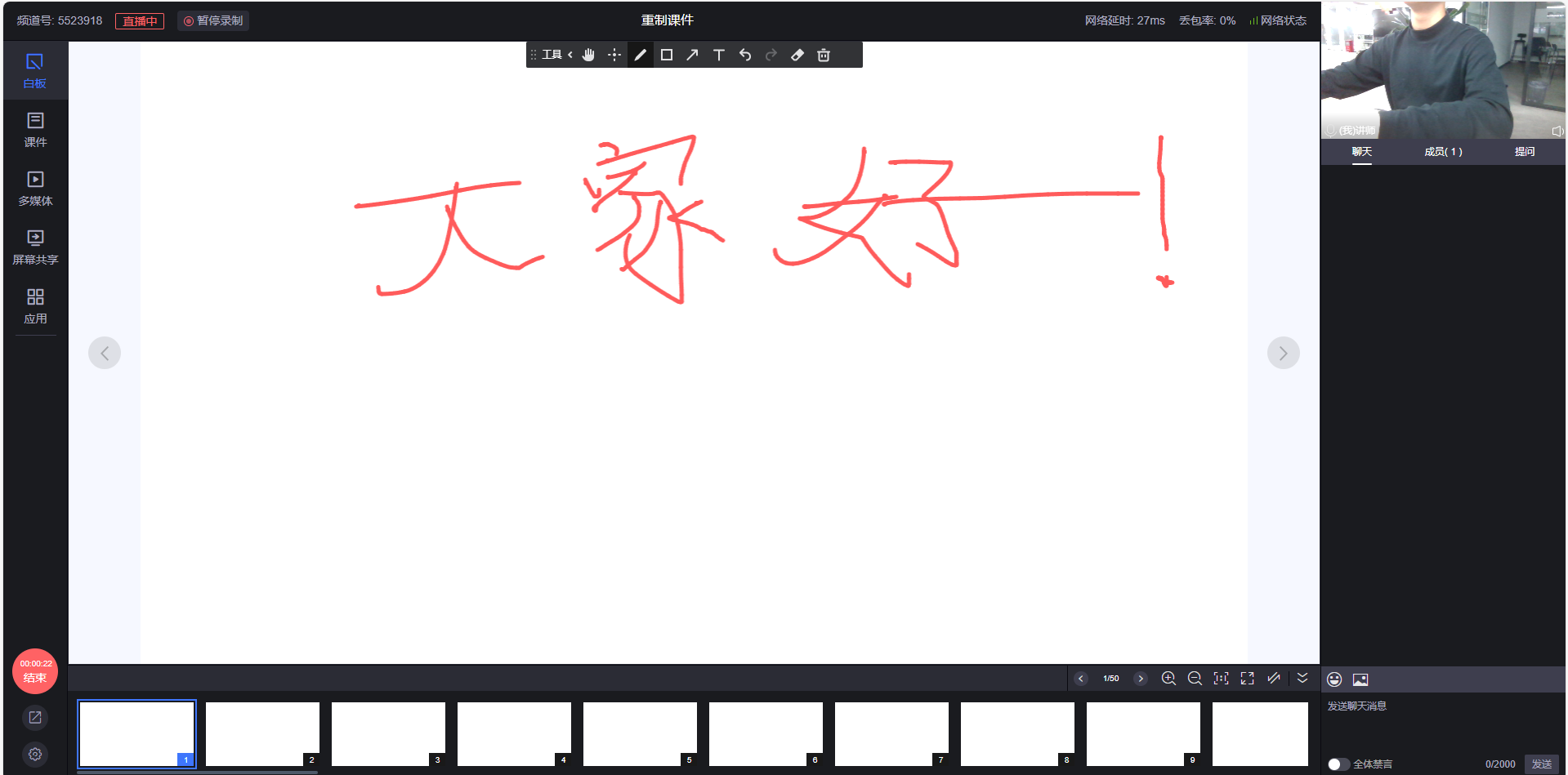
- Start the live stream. A replay will be automatically generated after the live stream ends (If no replay is generated, enable the auto-recording switch)
- Find "Remaster Courseware" under the Live Replay section in the live streaming backend
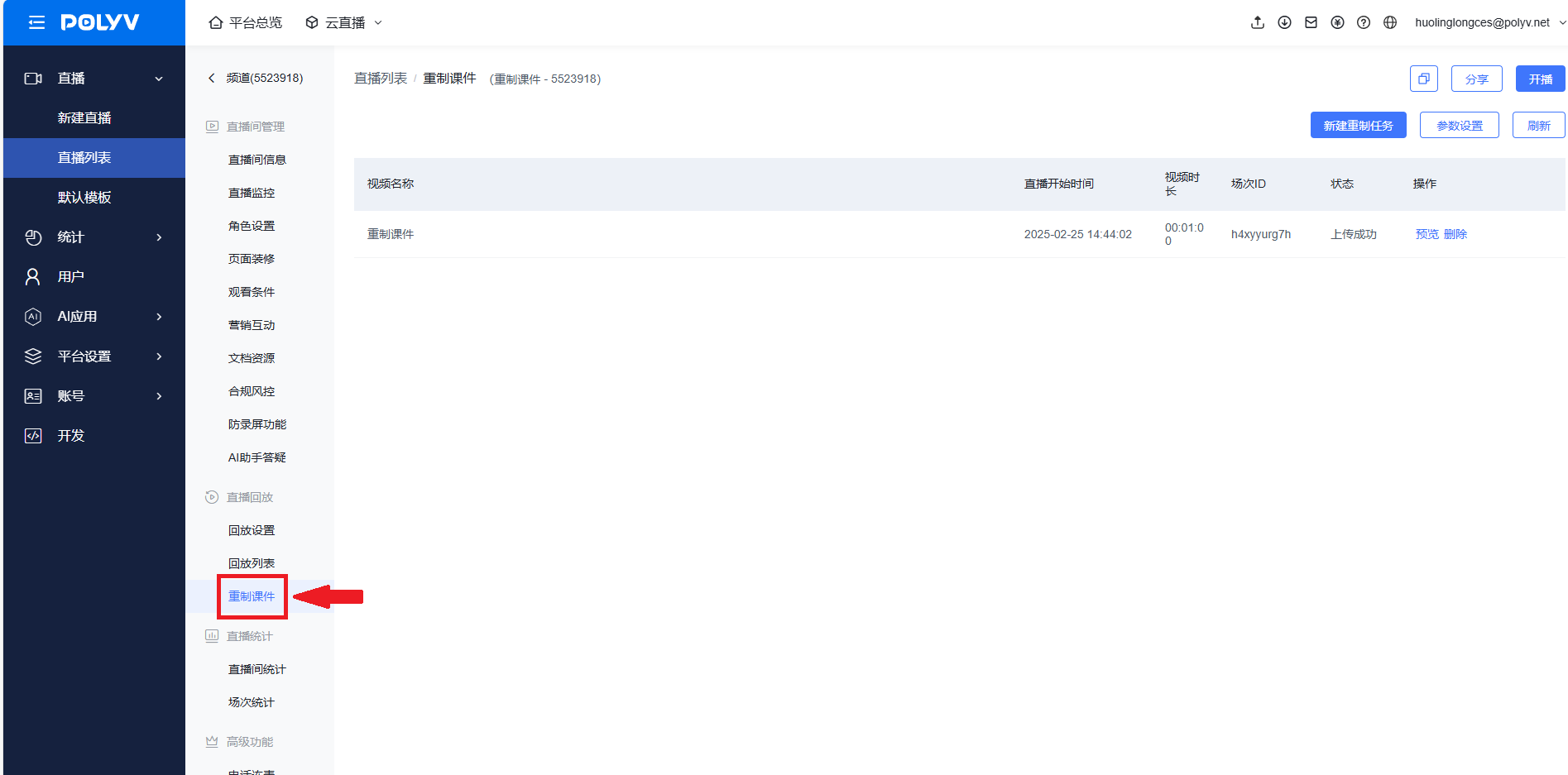
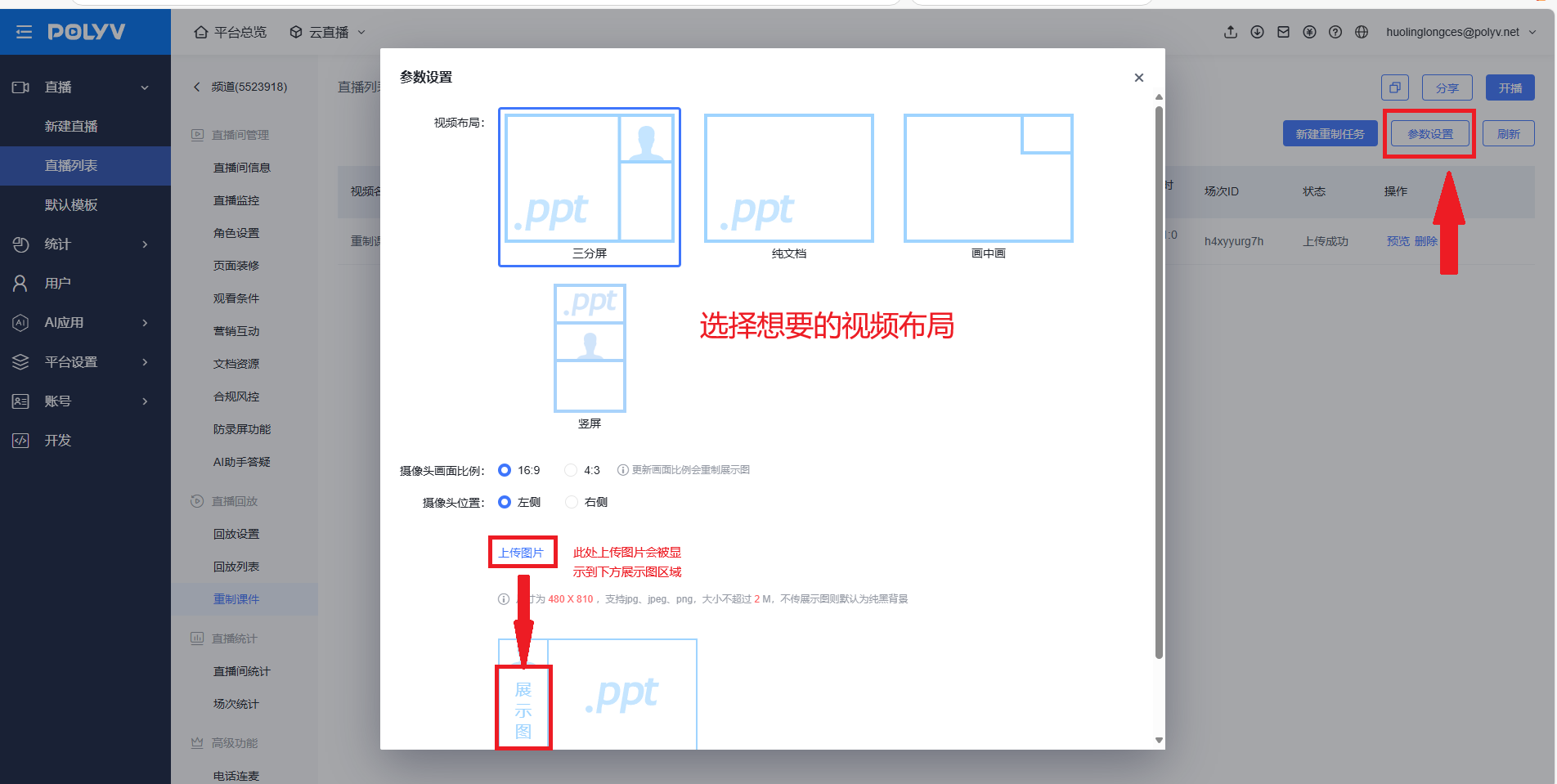
- Click "Parameter Settings" to configure the desired video output effect (The positions of the document and the camera feed can be freely combined from multiple angles)
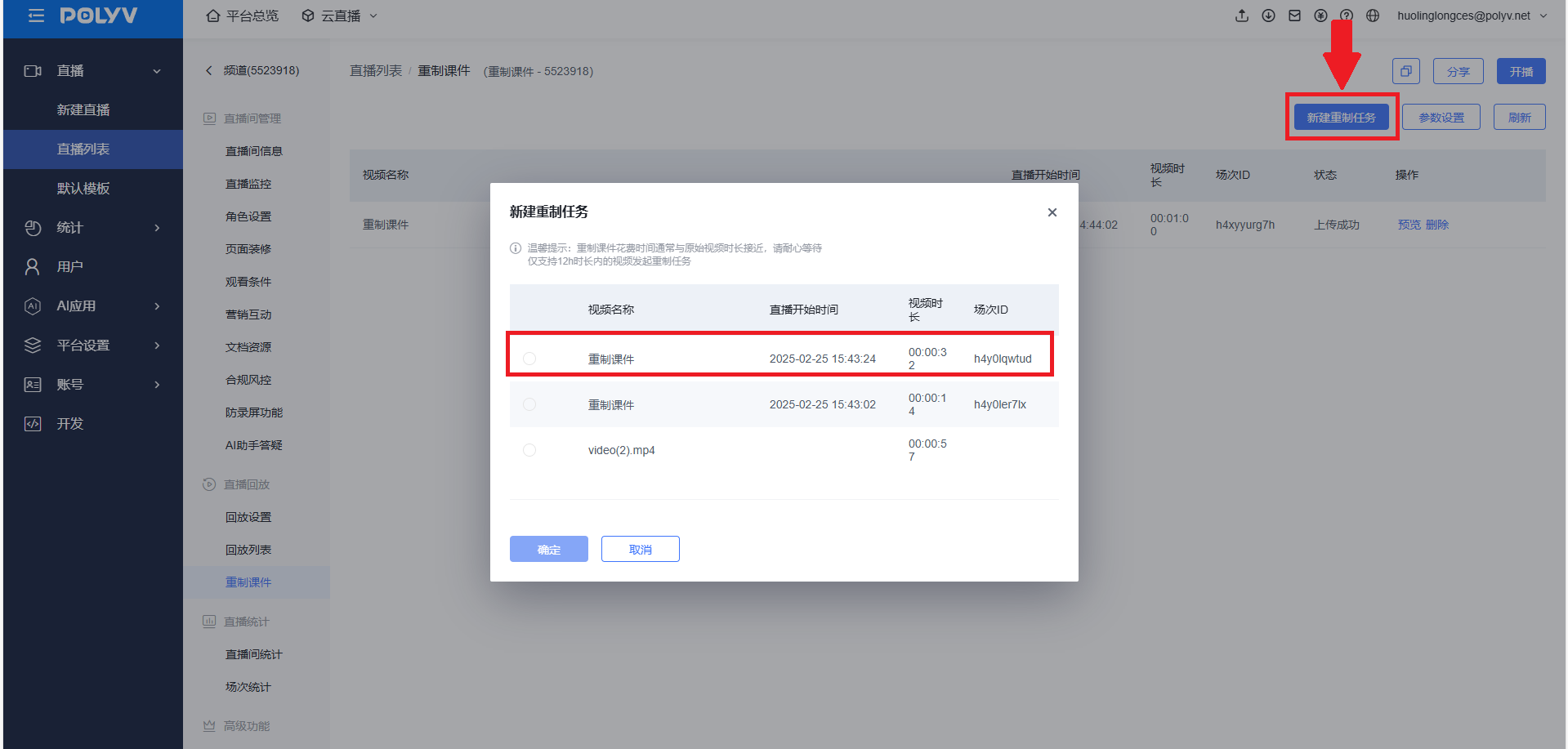
- Click "Create Remaster Task" and select the live replay to be remastered
- Once the live replay remastering is complete, it will be automatically uploaded to the media library. Users can click "More" to download it
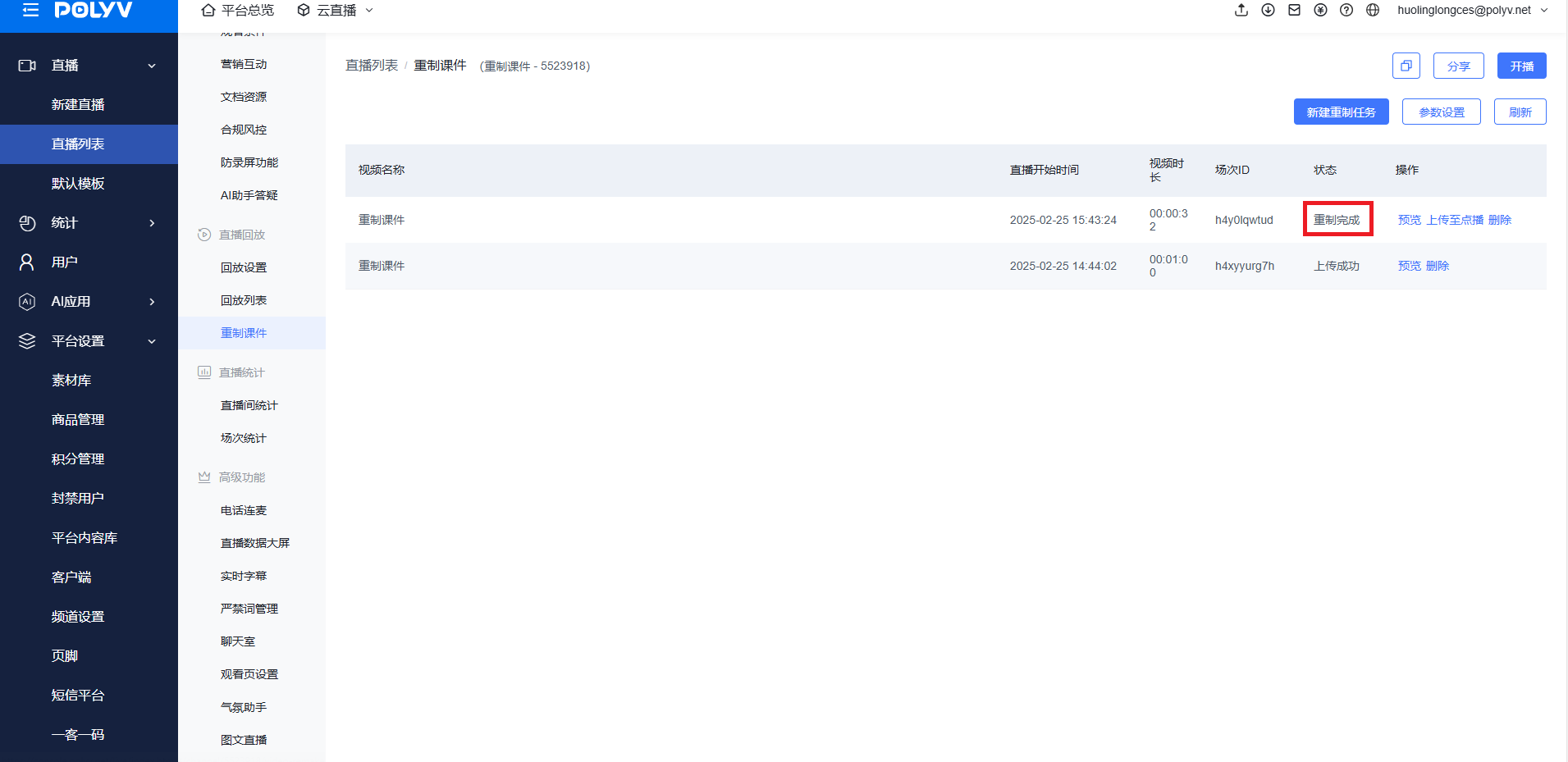
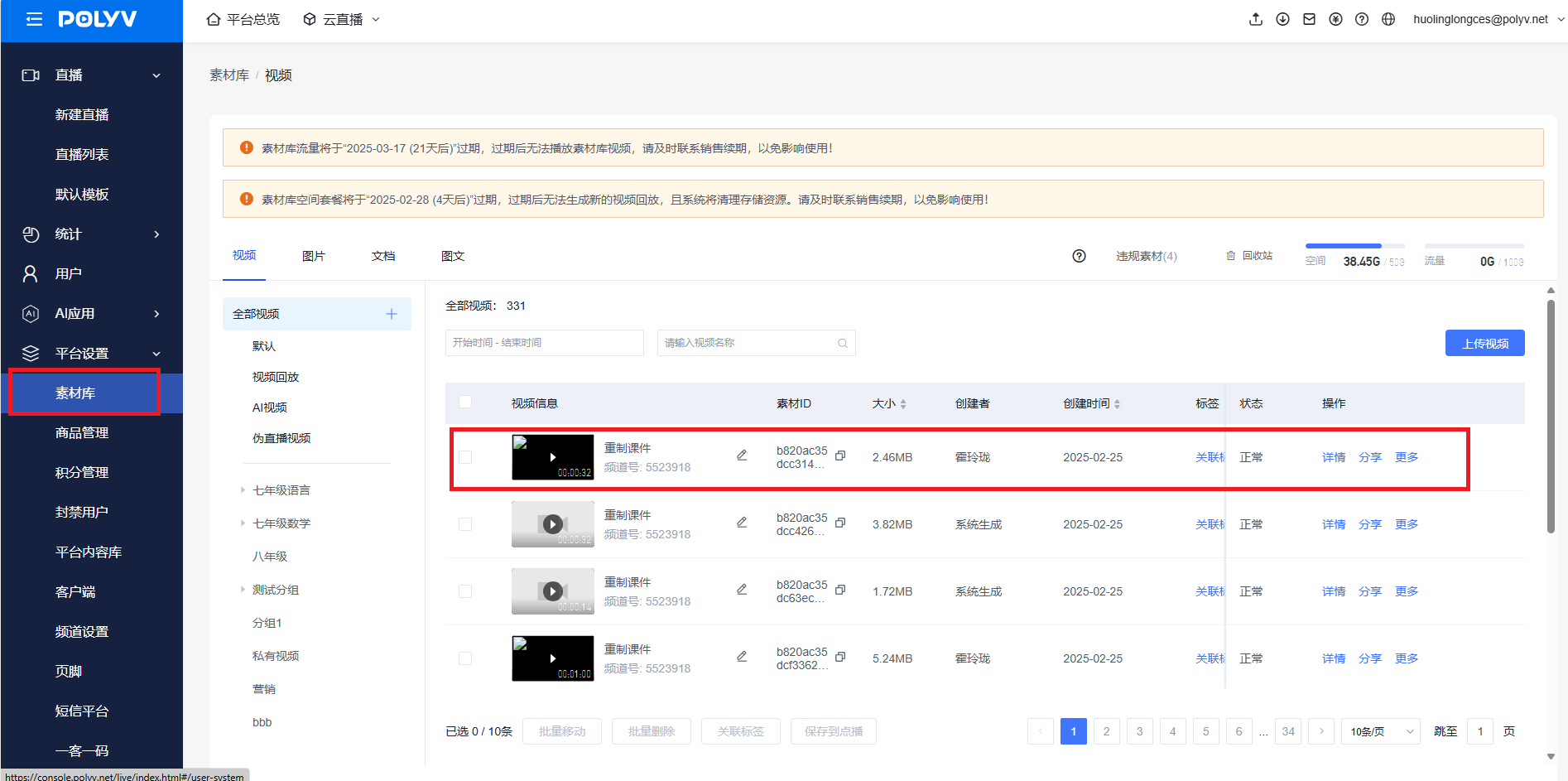
- Return to the Remaster Courseware list and click "Upload to VOD" to save the synthesized video to the VOD system
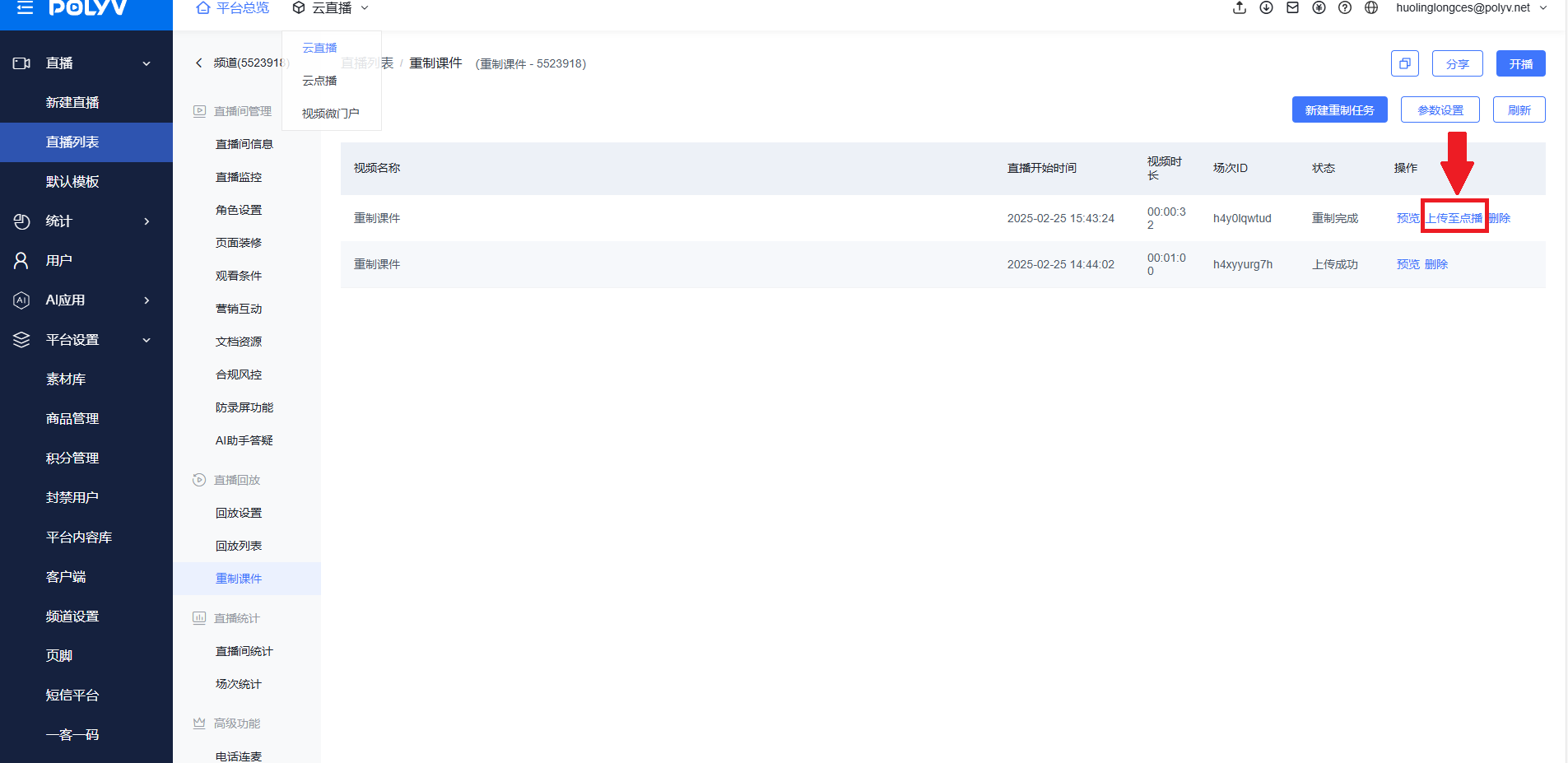
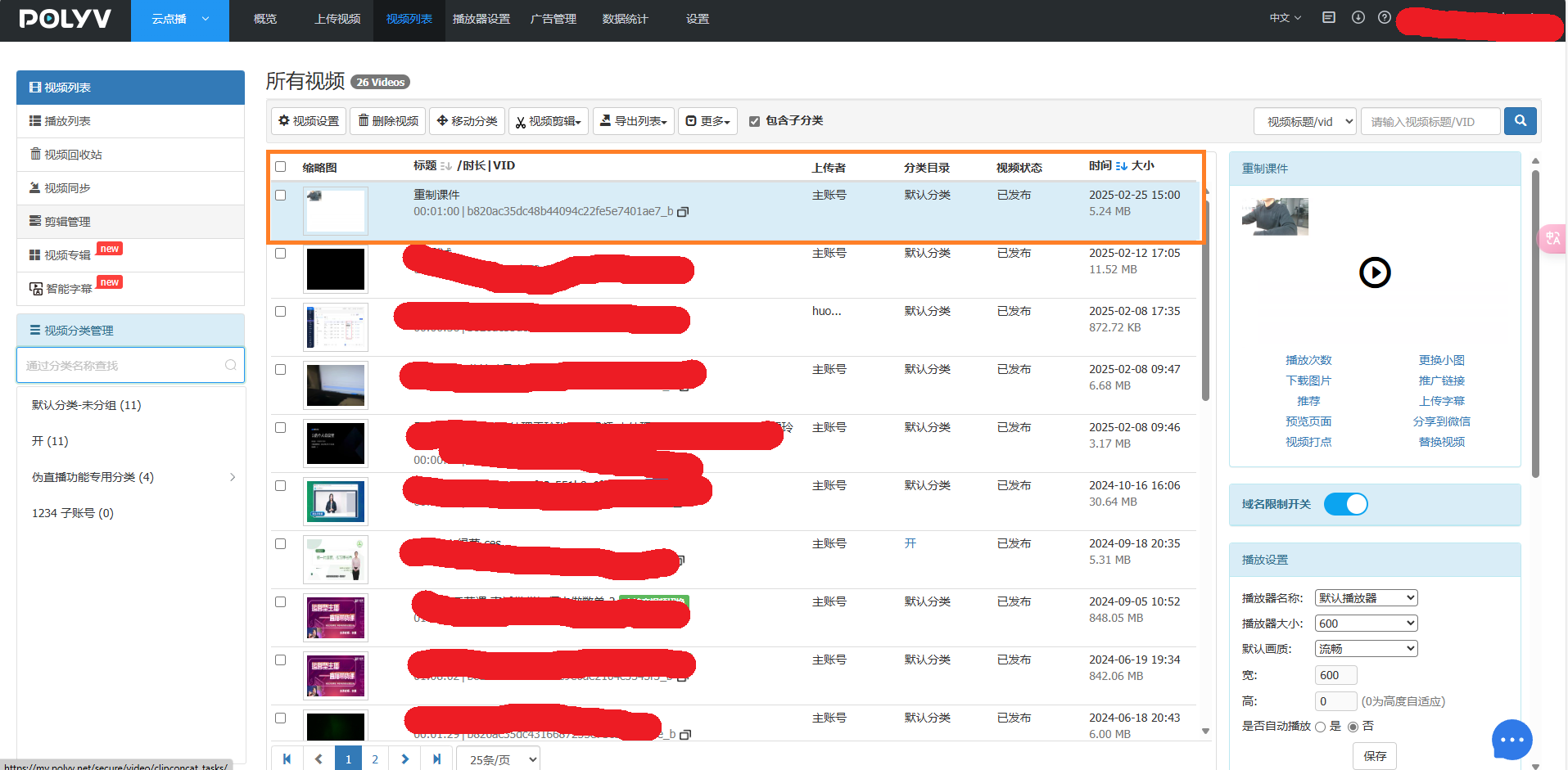
- Enter the VOD system to find and download the uploaded video (Click here to enter the VOD system)