


Large Screen Interaction - Shake
Feature Overview: Shake allows viewers to shake their phones in real-time during a live stream to compete, with prizes awarded based on rankings. This activity boosts live stream engagement and is suitable for scenarios combining offline venues with online live streaming, such as annual meetings.
1. Creating a New Shake Activity
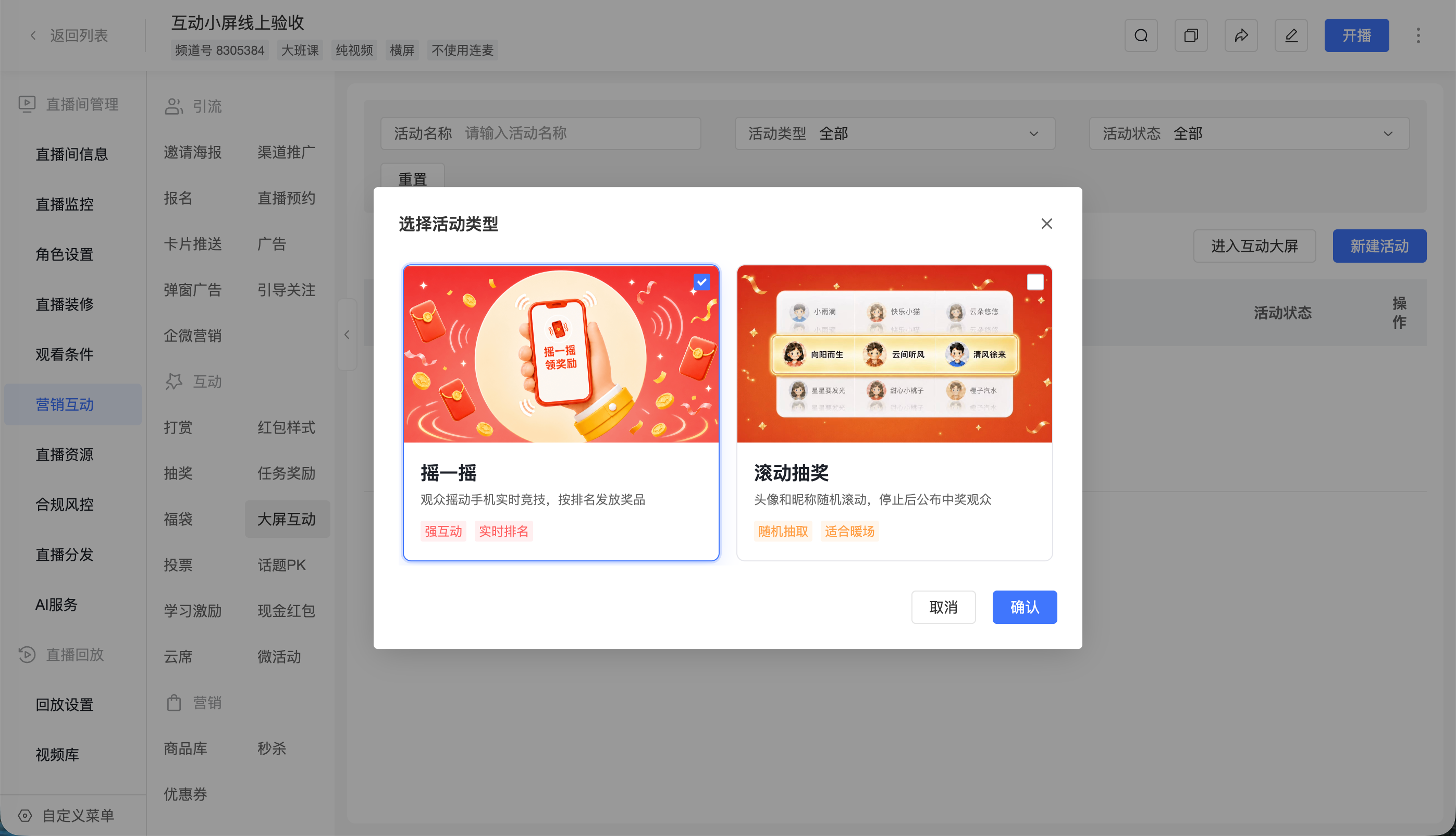
1.1 Selecting an Activity Template
- Enter the target channel, and under [Marketing Interaction], select [Large Screen Interaction].
- Click [Create Activity].
- In the [Select Activity Template] pop-up, choose [Shake].
- Click [Confirm] to enter the activity configuration page.
1.2 Configuring Basic Information
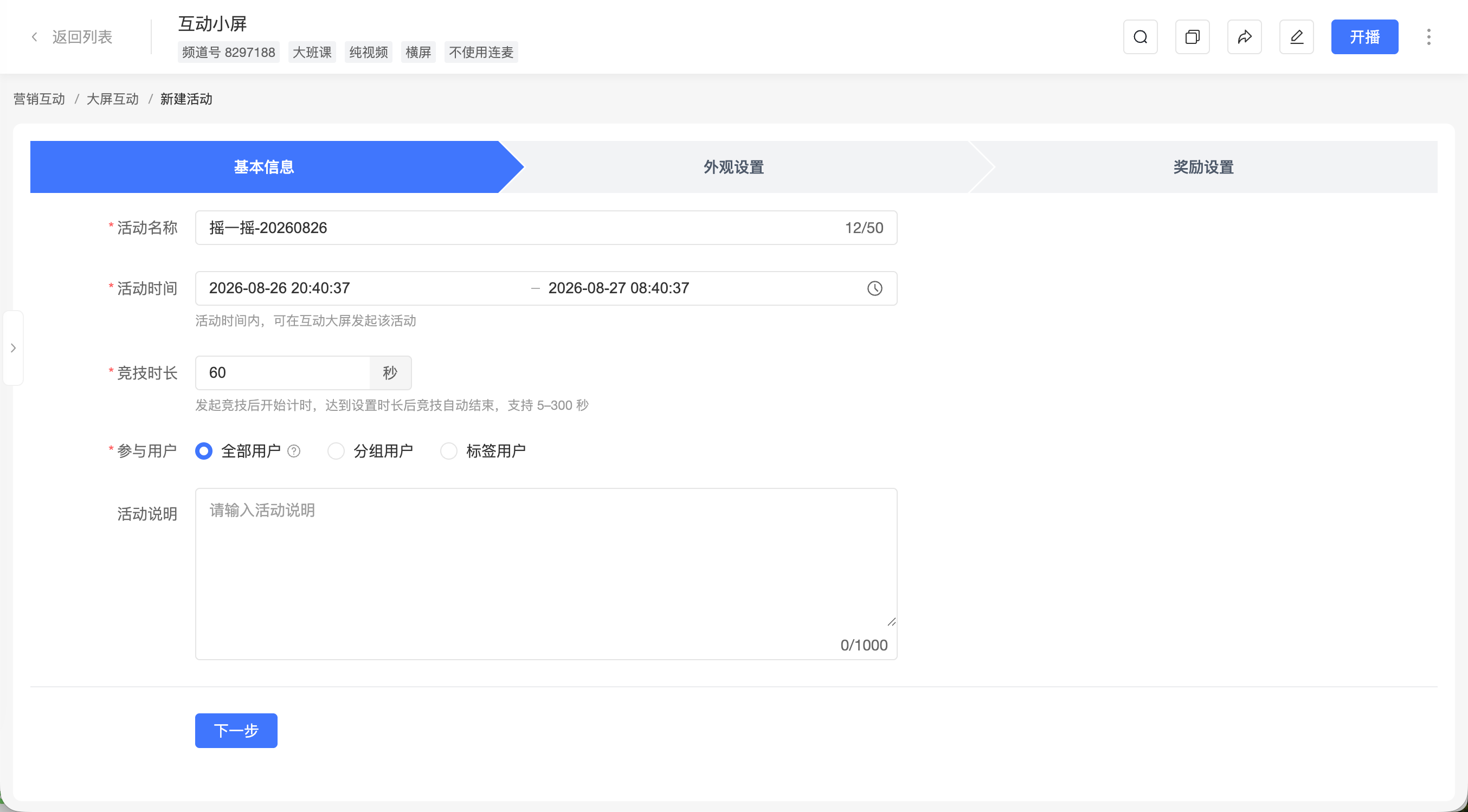
Complete the following settings in [Basic Information]:
| Configuration Item | Description |
|---|---|
| Activity Name | Required, maximum 50 characters. This name is used for backend identification and is displayed in the activity selection list on the interactive large screen. |
| Activity Time | Required. The start time defaults to 2 hours after the current time, and the end time defaults to 12 hours after the start time. Can be edited as needed. |
| Competition Duration | Required, supports setting from 5 to 300 seconds, and cannot exceed the total duration from the activity start time to the end time. |
| Participating Users | Required, defaults to [All Users]. Can also select group users or tagged users. |
| Activity Description | Optional, maximum 1000 characters. Viewers can see this description on the activity page. |
When setting the activity time, please note:
- The start time cannot be earlier than the current time.
- The end time must be later than the start time.
- The maximum activity time span is 7 days.
- After modifying the start time, if the original end time is not later than the new start time, the system will automatically adjust the end time.
1.3 Configuring Activity Appearance
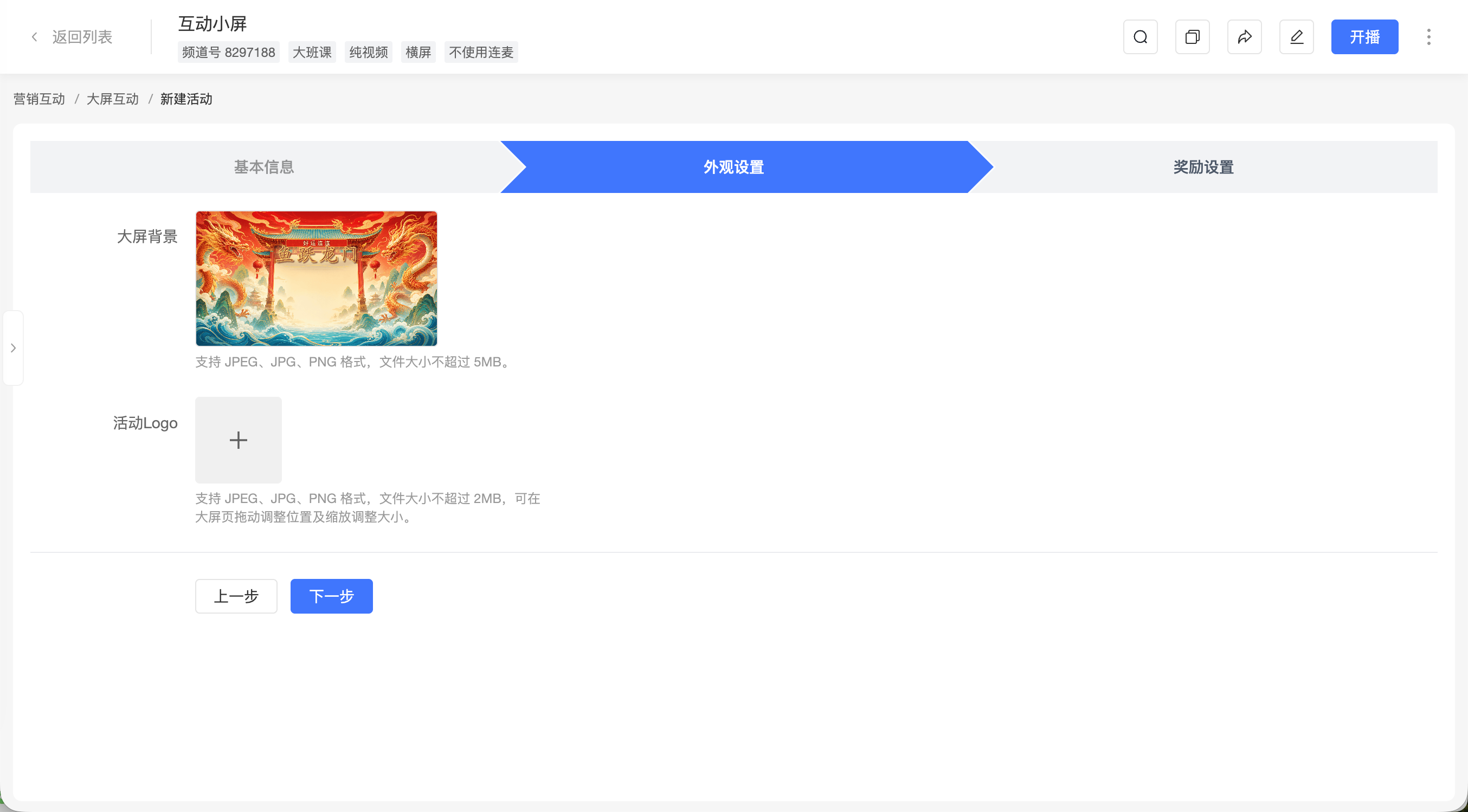
Configure the background and logo of the interactive large screen in [Appearance Settings]:
- In [Large Screen Background], use the default background or upload a 16:9 background image.
- Upload a custom logo as needed. After uploading, the logo is displayed by default in the top-left corner of the interactive large screen.
The large screen background supports JPEG, JPG, PNG formats, with a file size not exceeding 5 MB. The activity logo supports JPEG, JPG, PNG formats, with a file size not exceeding 2 MB.
The large screen supports dragging and proportional scaling of the logo, but does not support turning off the logo.
1.4 Configuring Activity Rewards
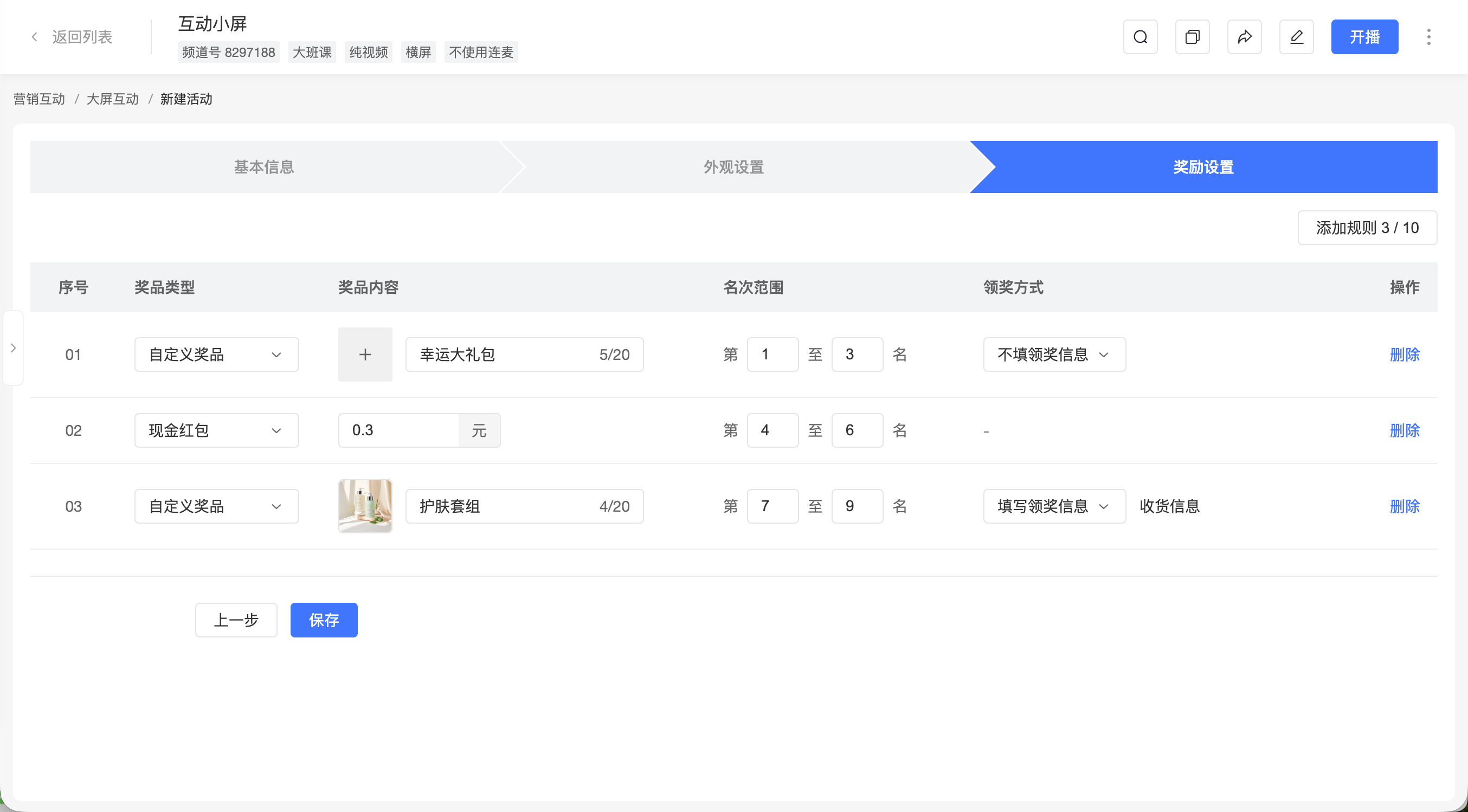
Each Shake activity requires at least 1 reward rule, with a maximum of 10 rules. One round of Shake supports up to 200 rewards.
- Select the prize type: Custom Prize or Cash Red Packet.
- Set the prize name and prize image.
- Set the reward ranking range, e.g., 1st to 3rd place.
- Set the prize claim method:
- If viewers need to submit claim information, select [Fill in Claim Information] and link an information collection form.
- If no claim information needs to be collected, select [Do Not Fill in Claim Information].
- To set multiple reward tiers, continue adding reward rules.
The ranking ranges of different reward rules cannot overlap. For example, after setting 1st to 3rd place, other rules cannot include 1st, 2nd, or 3rd place.
1.5 Saving the Activity
Save the activity after completing the configuration. After successful saving, the page will return to the activity list. The activity status is automatically generated based on the current time and the set activity time.
2. Initiating Shake via the Interactive Large Screen
2.1 Entering the Interactive Large Screen
Click [Enter Interactive Large Screen] on the activity list page, then select [Shake] from the bottom operation bar.
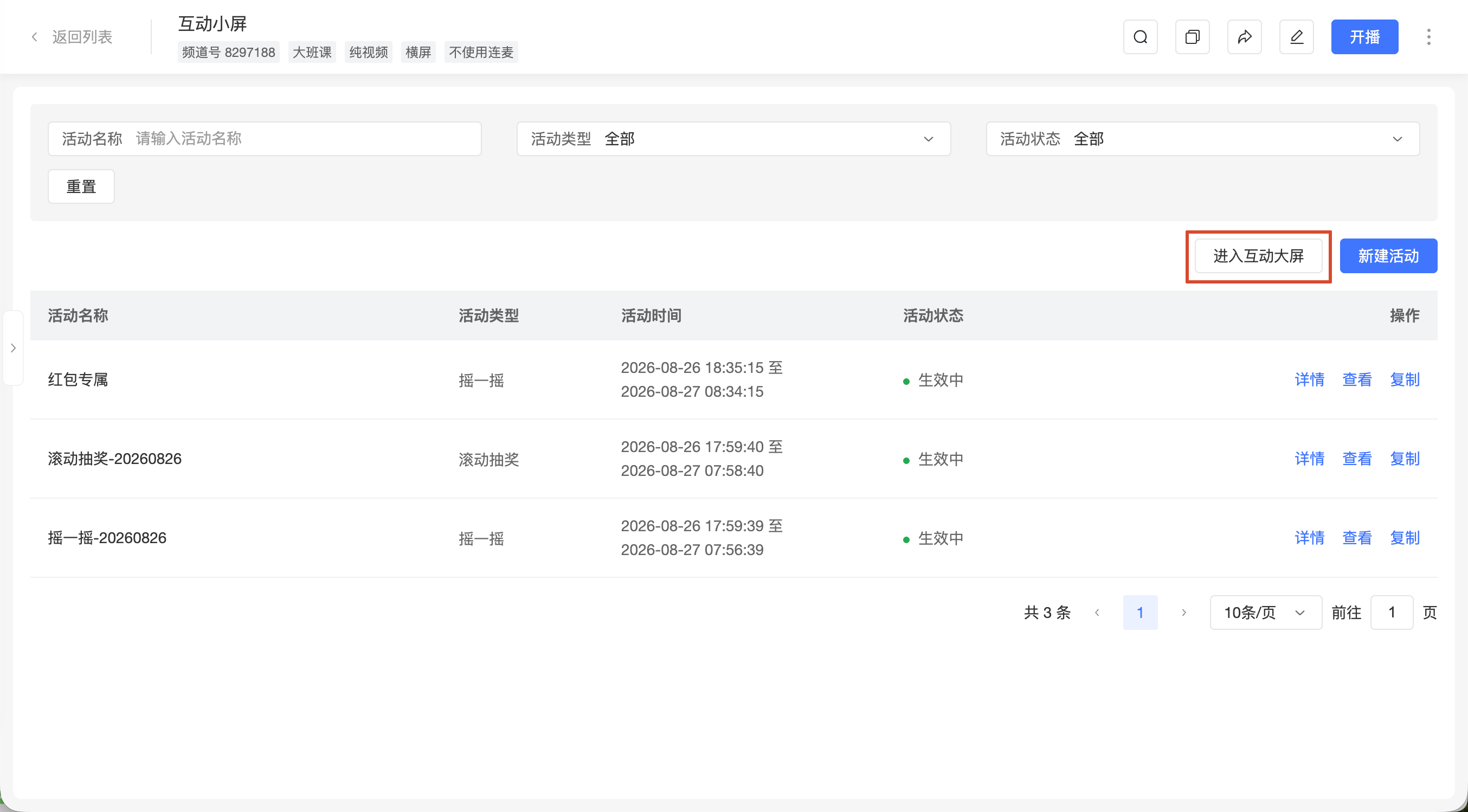
The bottom operation bar appears when the mouse hovers over the bottom of the screen and automatically hides when the mouse moves away. The operation bar remains visible when opening the activity selection list or other bottom panel panels.
2.2 Selecting and Pushing the Activity
- In the activity selector, choose the Shake activity you want to initiate.
- Click [Push].
- After successful push, the large screen enters a waiting-to-start state. Viewers who meet the participation conditions can see the Shake entry on the H5 viewing page.
- Wait for viewers to join the activity.
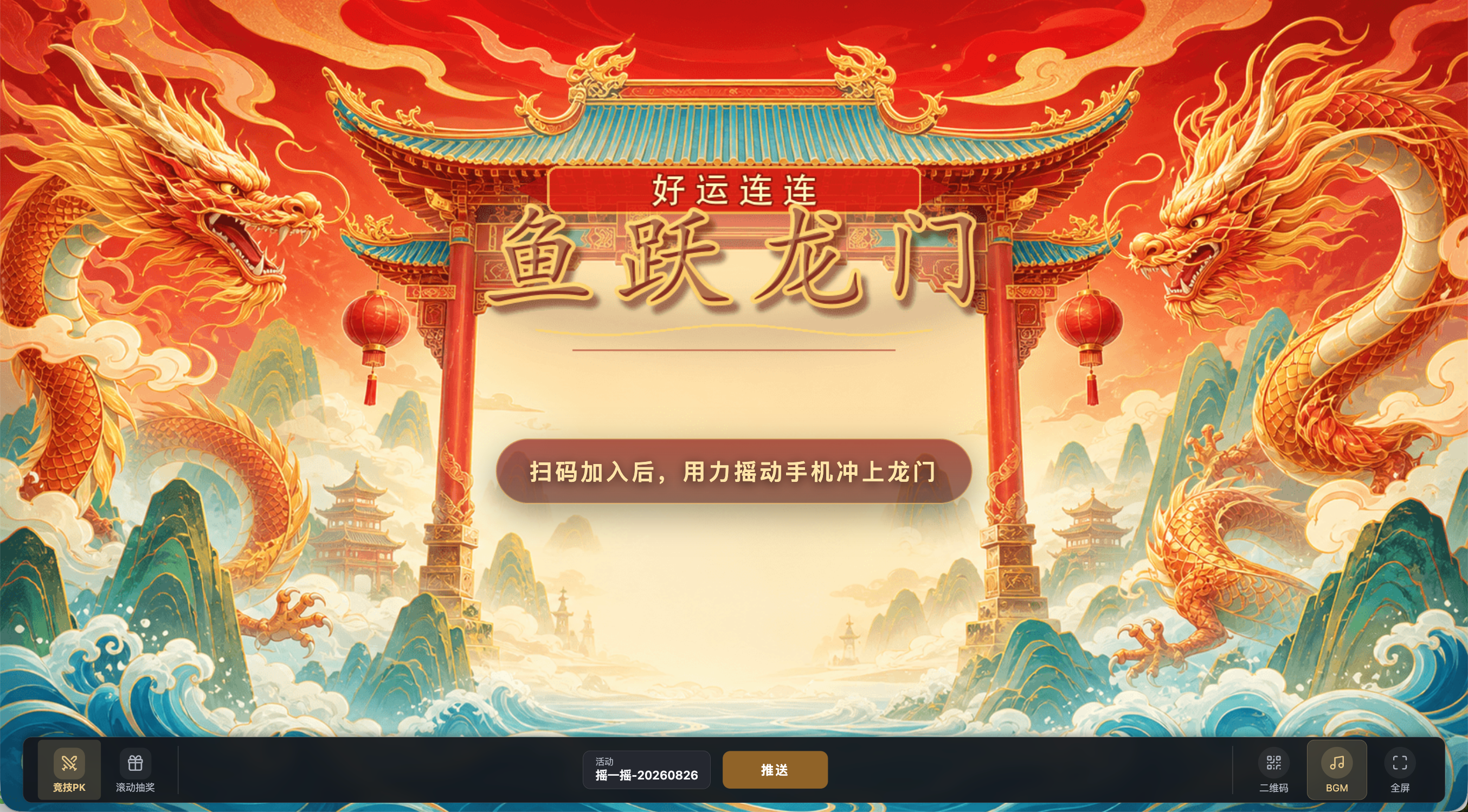
The activity selector only displays activities that meet the following conditions simultaneously:
- The backend activity status is [Active].
- The initiation status is [Not Initiated].
After an activity is pushed, it cannot be directly changed. To change it, you can click [Cancel Push] in the waiting-to-start state, then reselect an activity. After canceling the push, the entry on the viewing page will disappear, and the join status and temporary participation data of viewers who have already joined will be cleared.
The large screen's "Waiting to Start" indicates the activity has been pushed but the operator has not yet clicked [Start]; this status differs from the backend activity status [Not Started].
2.3 Starting the Activity
After confirming the activity can start, click [Start].
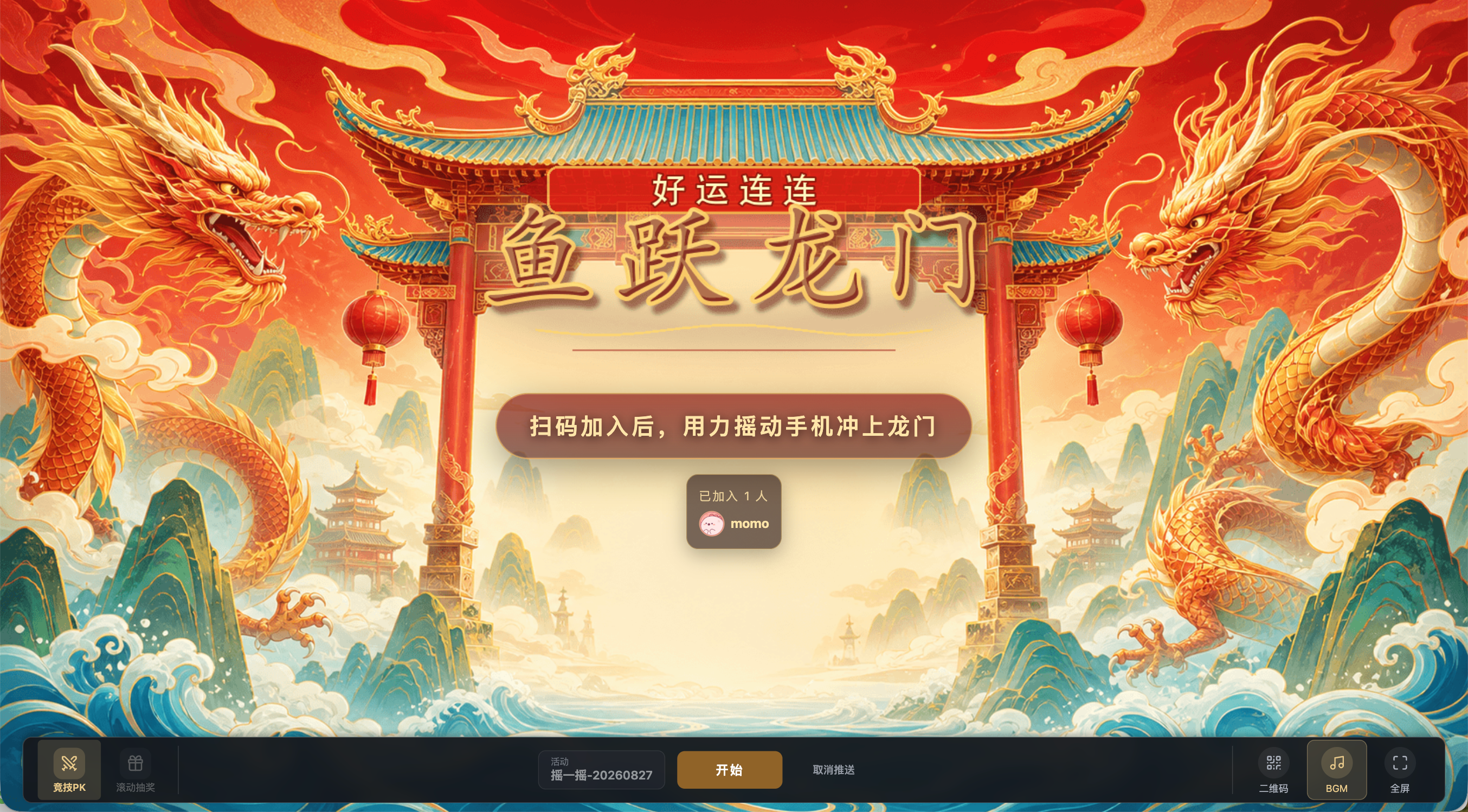
After clicking [Start], the activity will sequentially enter the following states:
- 3, 2, 1 countdown.
- In Progress.
- Activity Results.
After the activity starts:
- Viewers who have not joined can still join while the activity is in progress.
- Viewers who have joined can continue to enter the Shake page.
- The activity does not support pausing, canceling the push, or manually ending.
- The system automatically counts down based on the [Competition Duration] configured in the backend and automatically settles after the countdown ends.
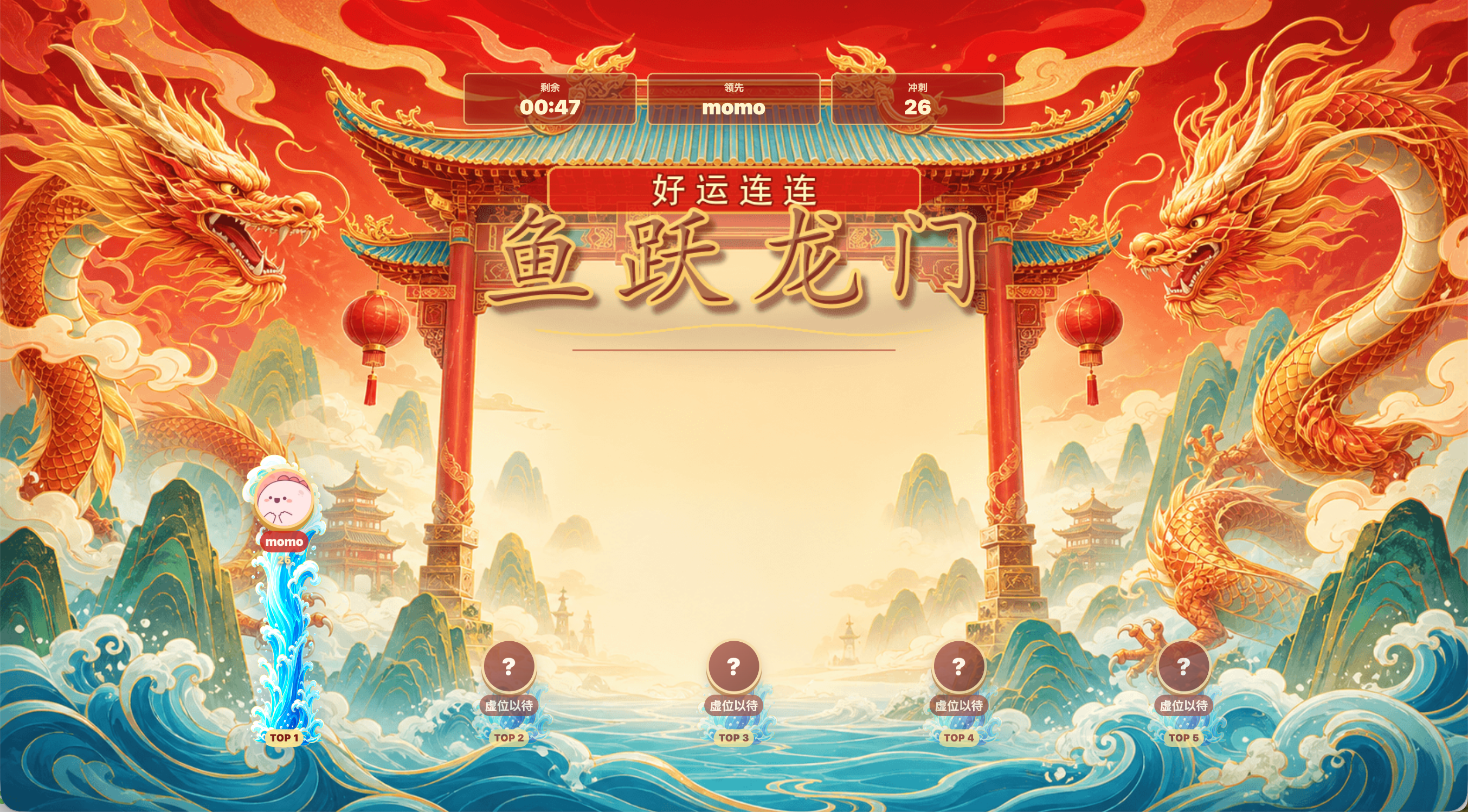
2.4 Activity In Progress
During the activity, the large screen displays the participating users' scores and the top 5 rankings in real-time.
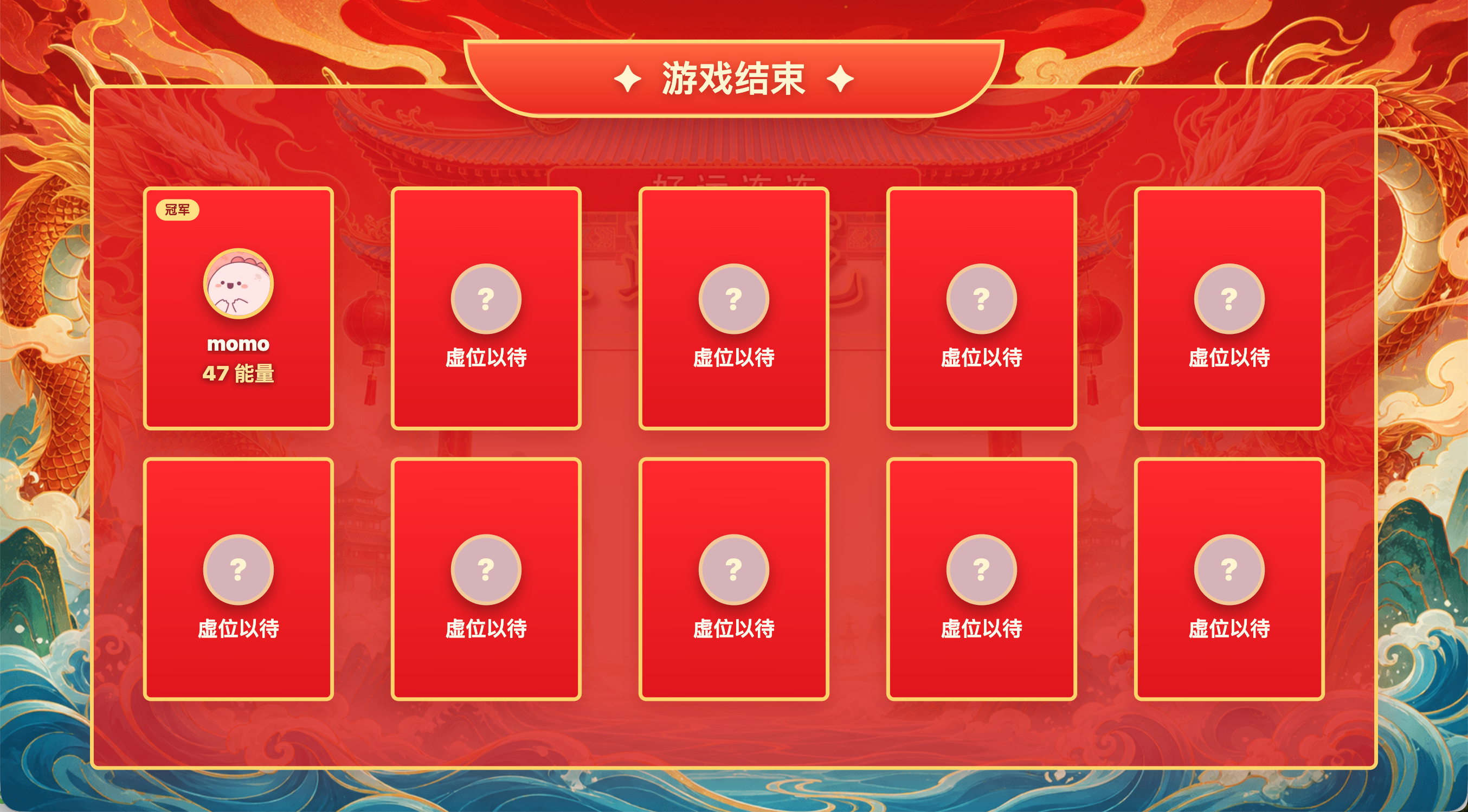
2.5 Viewing Activity Results
After the competition duration ends, the system automatically settles, and the large screen displays the current round's rankings and participating users' scores.
2.6 Using Large Screen Auxiliary Tools
The interactive large screen also supports the following operations:
- QR Code: Click [QR Code] to display a pop-up layer for scanning to participate. The QR code supports dragging and proportional scaling.
- BGM: Enabled by default, can be turned off or on again via the bottom operation bar.
- Logo: Supports dragging and proportional scaling, cannot be turned off.
- Full Screen: Click [Full Screen] to enter full screen, click again or press Esc to exit full screen.
After page refresh or reconnection, the system will restore the current interaction function, activity, push status, and activity progress. It will not restart the countdown or repeat scoring.
3. Viewer Participation in Shake
After the operator pushes the Shake activity, the H5 viewing page will automatically display the activity page. After closing the page, viewers can click the dice icon in the bottom right corner of the viewing page to reopen the activity.
3.1 Joining the Activity
After the large screen pushes the activity, viewers who meet the participation conditions can follow these steps to join:
- View the automatically popped-up Shake page; if the page is closed, click the dice icon in the bottom right corner to reopen it.
- View the current round's rewards and game rules in the activity pop-up layer.
- Click [Join Game].
- Allow the motion and orientation permission as prompted by the system.
- After successful authorization, enter the waiting-to-start state.
Before joining, viewers can swipe left or right to view the rewards corresponding to different rankings in the current round.
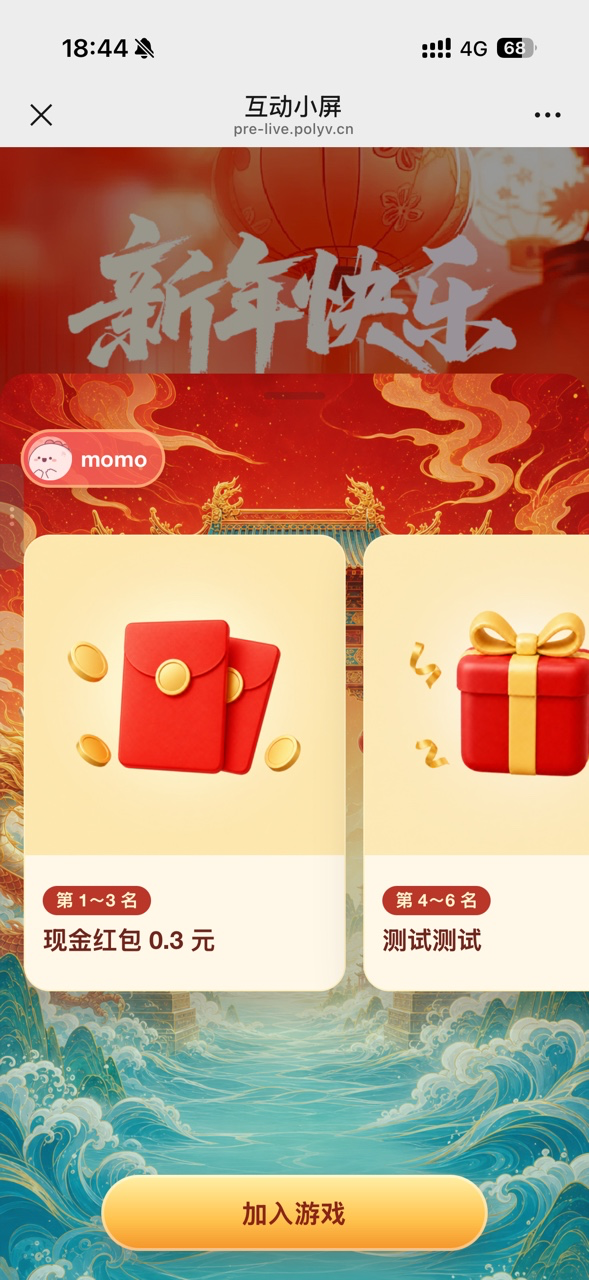
The activity pop-up layer is displayed in half-screen mode by default. Click the operation area in the middle of the top of the pop-up layer to switch to full screen, and click again to restore half-screen. Switching the pop-up layer height does not affect the join status, countdown, or current round score.
If a viewer denies authorization, they will not be able to join the current round. They can click [Join Game] again to re-authorize. Viewers who have already completed authorization do not need to authorize again when joining again.
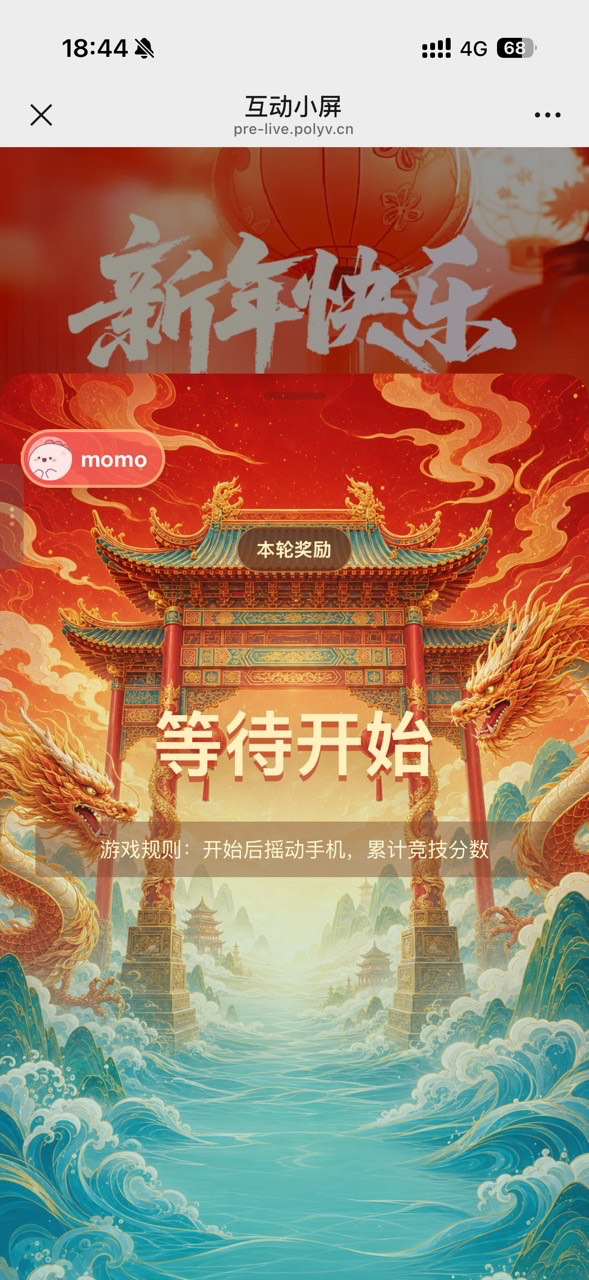
After successful joining, the page displays [Waiting to Start]. Viewers need to wait for the operator to click [Start] on the interactive large screen.
3.2 Participating in the Activity
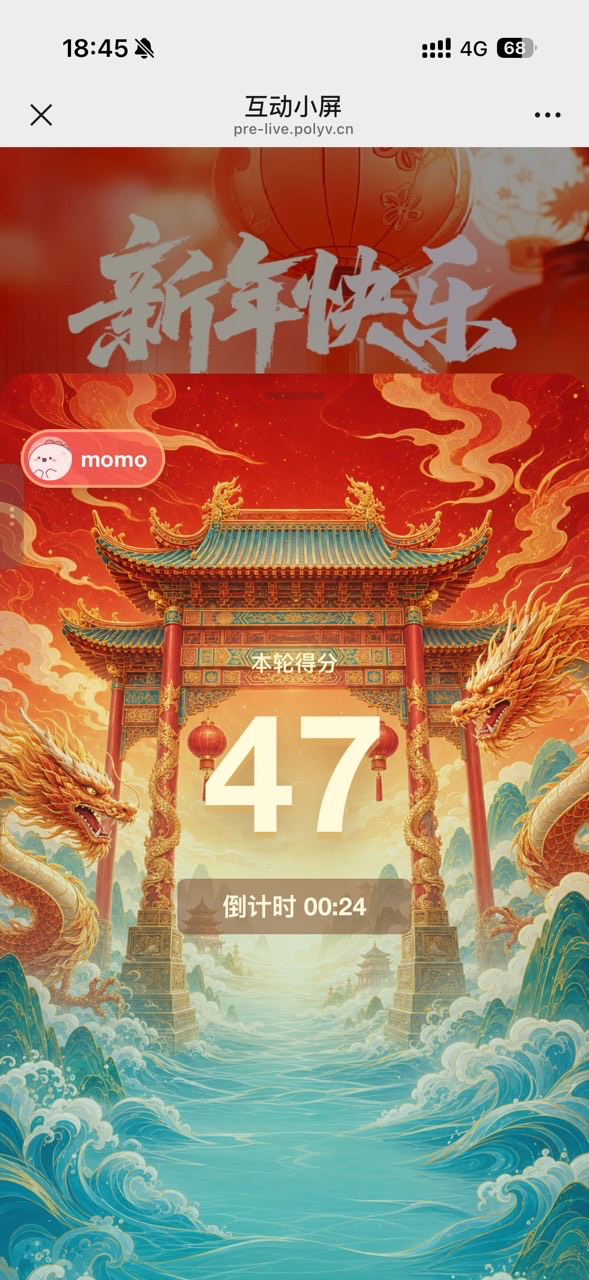
After the operator clicks [Start], viewers who have joined will synchronously enter a 3, 2, 1 countdown. After the countdown ends, the system will accumulate the current round's score in real-time based on the viewer's phone shaking.
The activity page displays the current round's score and remaining time in real-time. During the activity, viewers cannot pause or actively end the activity.
Viewers who have not yet joined the activity can also open the Shake page and join while the activity is in progress.
3.3 Viewing Results and Claiming Prizes
After the activity ends, viewers can view the current round's rankings, scores, and winner list.
- Winning viewers can view the prize image and prize name.
- For custom prizes requiring claim information, click [Fill in Claim Information] to submit details.
- For custom prizes not requiring claim information, the entry is not displayed.
- Cash red packets display a WeChat balance arrival prompt or a [Withdraw] button based on the merchant account type.
- Non-winning viewers can view the current round's rankings, scores, and winner list.
The winner list only displays the winners of the current round, including rank, user avatar, user nickname, and current round score.
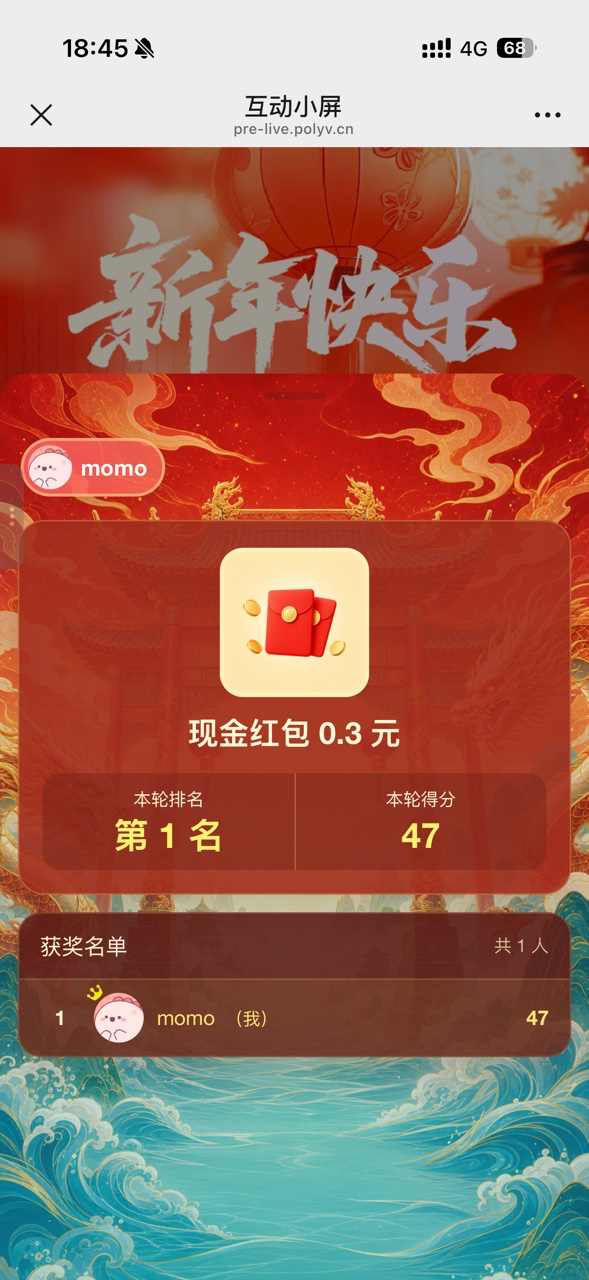
The cash red packet winning result displays the red packet amount, current round rank, current round score, and winner list.
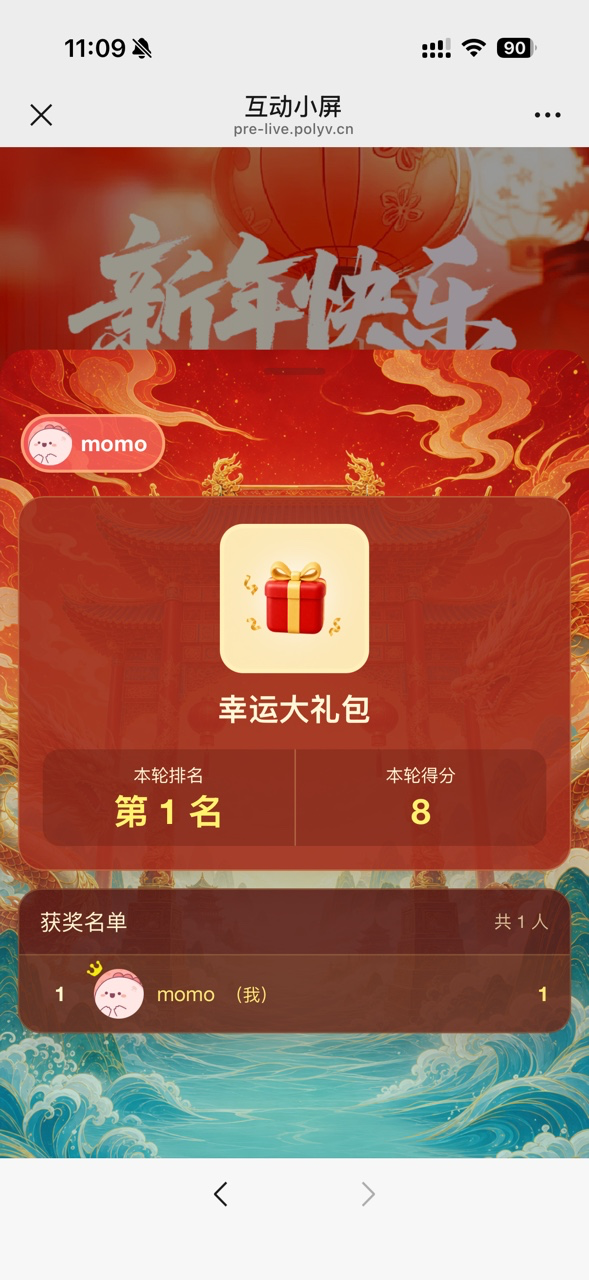
The custom prize winning result displays the prize name, current round rank, current round score, and winner list.
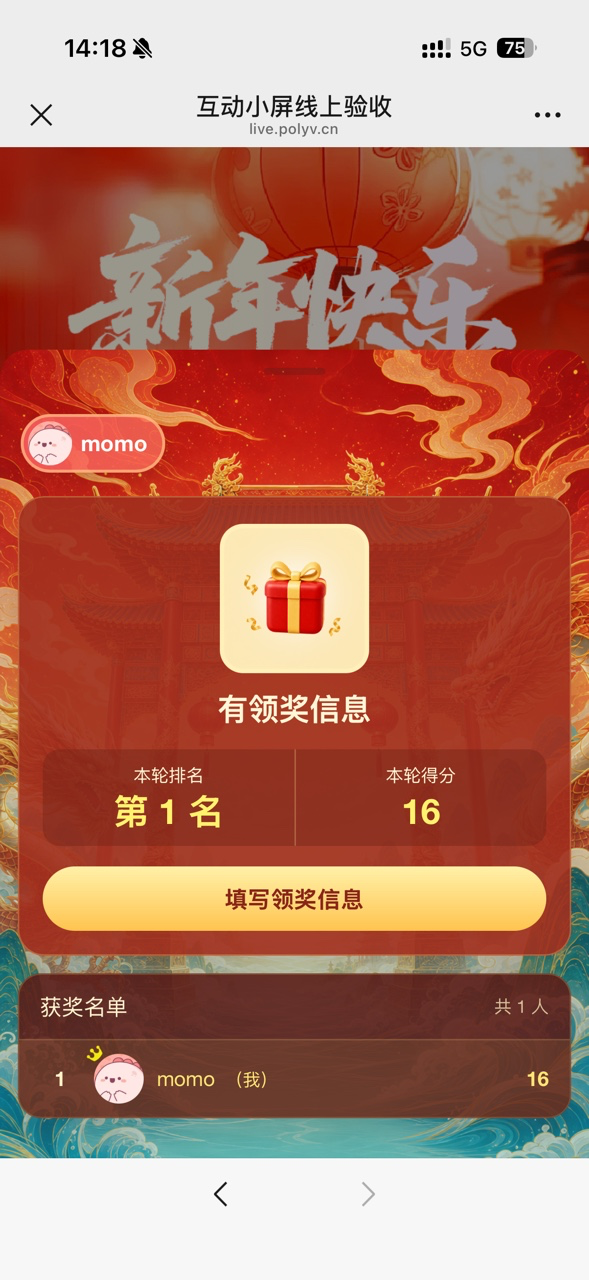
If the custom prize is configured to require filling in claim information, winning viewers can click [Fill in Claim Information] to enter the corresponding claim information form and submit their details.
3.4 PC Viewing Page Description
Shake requires calling the motion and orientation permission of a mobile device to recognize the viewer's phone shaking behavior. Therefore, the PC viewing page does not support direct participation. After a viewer clicks the Shake entry on the PC viewing page, a QR code is displayed, guiding the viewer to use their phone to scan the code and open the H5 viewing page to participate.
4. Managing Activities and Viewing Data
4.1 Viewing Activity Status
The activity status is automatically updated by the system based on the current time and does not require manual adjustment.
| Activity Status | Judgment Rule |
|---|---|
| Not Started | Current time is earlier than the activity start time. |
| Active | Current time has reached the start time but has not yet reached the end time. |
| Ended | Current time has reached the end time. |
Activities can be filtered by activity name, activity type, and activity status. The operations supported by different statuses are as follows:
| Activity Status | Supported Operations |
|---|---|
| Not Started | Details, Edit, Copy, Delete |
| Active | Details, Copy |
| Ended | Details, Copy, Delete |
When copying an activity, the system copies the basic information, appearance settings, and reward settings, but does not copy participation data, winning data, claim information, or initiation status. The start time of the new activity defaults to 2 hours after the copy operation time, and the end time defaults to 12 hours after the start time.
4.2 Viewing Activity Details
Entering the activity details page allows you to view the activity name, activity type, activity time, activity status, participation scope, and initiation status.
Initiation statuses are divided into:
- Not Initiated: The activity has not actually started via the interactive large screen.
- Initiated: The operator has clicked [Start] on the interactive large screen.
When an activity enters the [Active] state but has not yet started on the large screen, the activity status displays as [Active], and the initiation status still displays as [Not Initiated].
4.3 Viewing and Exporting Activity Data
The activity details page supports viewing the following data:
- Data Overview: View the number of participants and winners.
- Participation List: View viewer avatars, nicknames, user IDs, scores, and winning status. Supports filtering by nickname, user ID, and winning status.
- Winner List: View winning viewers, prizes, and claim information status. Supports filtering by nickname or user ID.
Both the participation list and winner list support export. When the activity has not been initiated, the data overview displays an empty data state. When initiated but no data has been generated yet, relevant data is displayed as 0 based on actual results.
Frequently Asked Questions
Can the PC viewing page directly participate in Shake?
No. Shake requires calling the motion and orientation permission of a mobile device to recognize the viewer's phone shaking behavior. The PC viewing page cannot provide the corresponding mobile phone sensor capabilities. After a viewer clicks the Shake entry, a QR code is displayed. Use a phone to scan the code and open the H5 viewing page to participate.
Why can't I find the activity in the interactive large screen's activity selector?
Please check if the activity meets the following conditions simultaneously:
- The current time is between the activity start time and end time, and the activity status is [Active].
- The activity has not yet started via the interactive large screen, and the initiation status is [Not Initiated].
Activities that have not reached the start time, have reached the end time, or have already been initiated will not be displayed in the selectable list.
Why can't I edit or delete the activity?
Active activities do not support editing or deletion. Ended activities support deletion but not editing. To reuse the original configuration, you can copy the activity and then edit it.
Why can't viewers see the Shake entry?
Please check the following in order:
- Whether the activity has been pushed on the large screen.
- Whether the viewer meets the participating user scope configured in the backend.
- Whether the large screen has canceled the push.
- Whether a scrolling lottery is currently in progress. When a scrolling lottery is in progress, the interaction entry will prioritize entering the scrolling lottery.
