


Matrix Live Room User Guide
1. Product Overview
| Product Information | Description |
|---|---|
| Product Name | Matrix Live Room |
| Product Introduction | [Matrix Live Room] is a content relay feature designed for headquarters + agents. It allows sub-channels (receiving relay) to rebroadcast the feed from the main channel (initiating relay). Agents of sub-channels can act as hosts to comment on or discuss the main channel's content, interact with viewers in the sub-channel's live room, and answer questions. |
| Purpose | Leverage the advantages of agent services—companion-style service. Precision marketing: the right content, through agents, reaches the right customers. |
| Use Cases | Scenario 1: Analysts at headquarters broadcast regularly, delivering investment signals via live streaming. The continuously produced video content gradually enriches the platform's material library. Agents then select suitable live content from the library for their clients and relay it. During the relay, agents enter the live room as hosts, interact with clients, accompany them while watching, answer questions, or recommend financial products, building deeper connections with clients through professional content. |
| Tutorial | 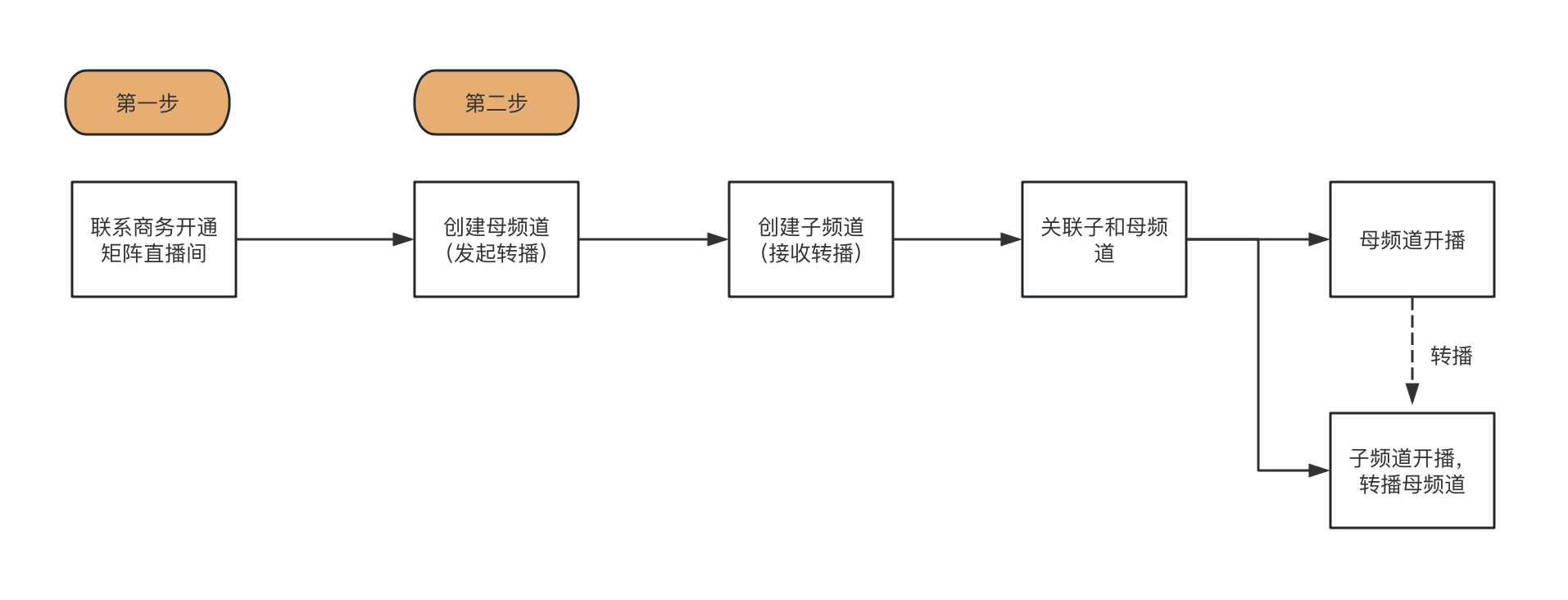 |
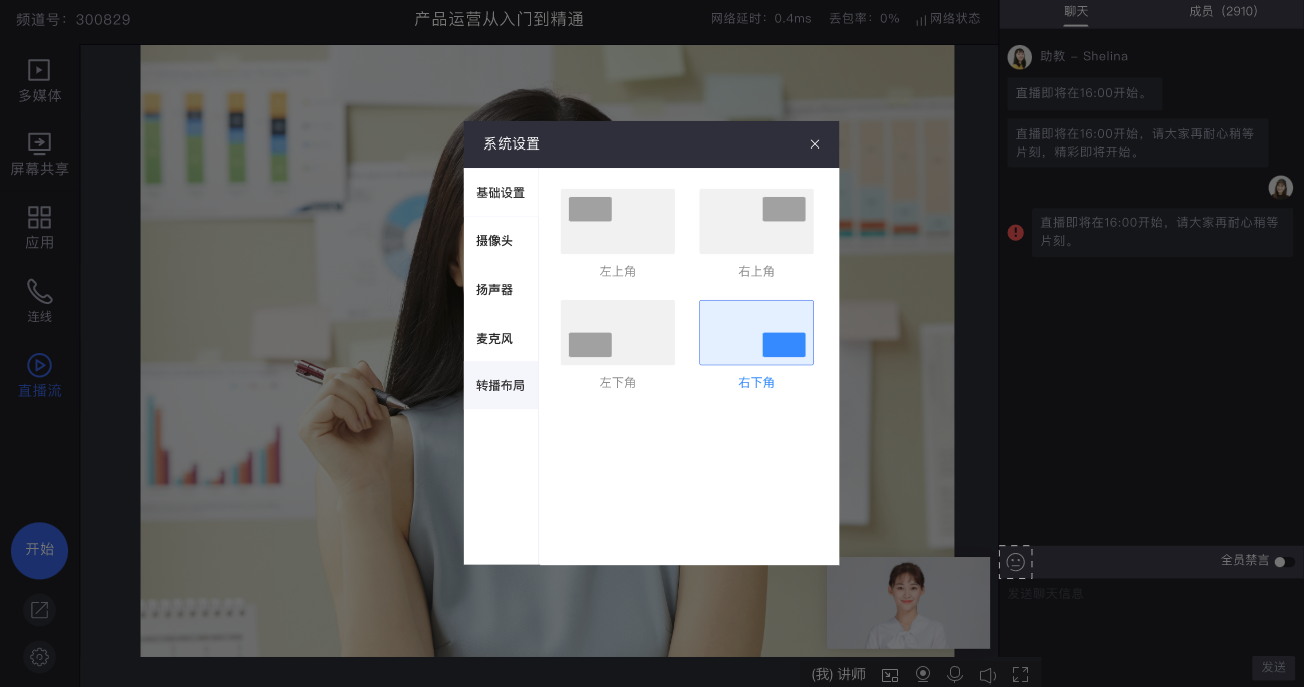
| Feature List | Content Relay: Headquarters produces live content; branch agents relay it, watching face-to-face with clients in the live room, providing companion services and resolving client queries in real time. Relay Layout: Agents can change the live room layout when relaying content. Picture-in-picture layout allows repositioning the agent's camera feed without obstructing the relayed broadcast. Agent Management: Headquarters directly manages agent accounts under branches and controls relay permissions for live materials. After the broadcast, relay data for all agents can be viewed. System Integration: Supports integration with enterprise systems to sync agent accounts and relay data. Leverage existing internal permission review and material management systems combined with the Matrix Live Room system for better relay risk control and marketing conversion analysis. |
| SDK Integration Guide | 1. Supports JS SDK, mobile, and mini-program integration. 2. Supports APP broadcasting integration. 3. Supports backend API integration (creation, management, data). |
2. Operation Instructions
2.1 Create a Main Channel (Initiating Relay) and Sub-Channels (Receiving Relay)
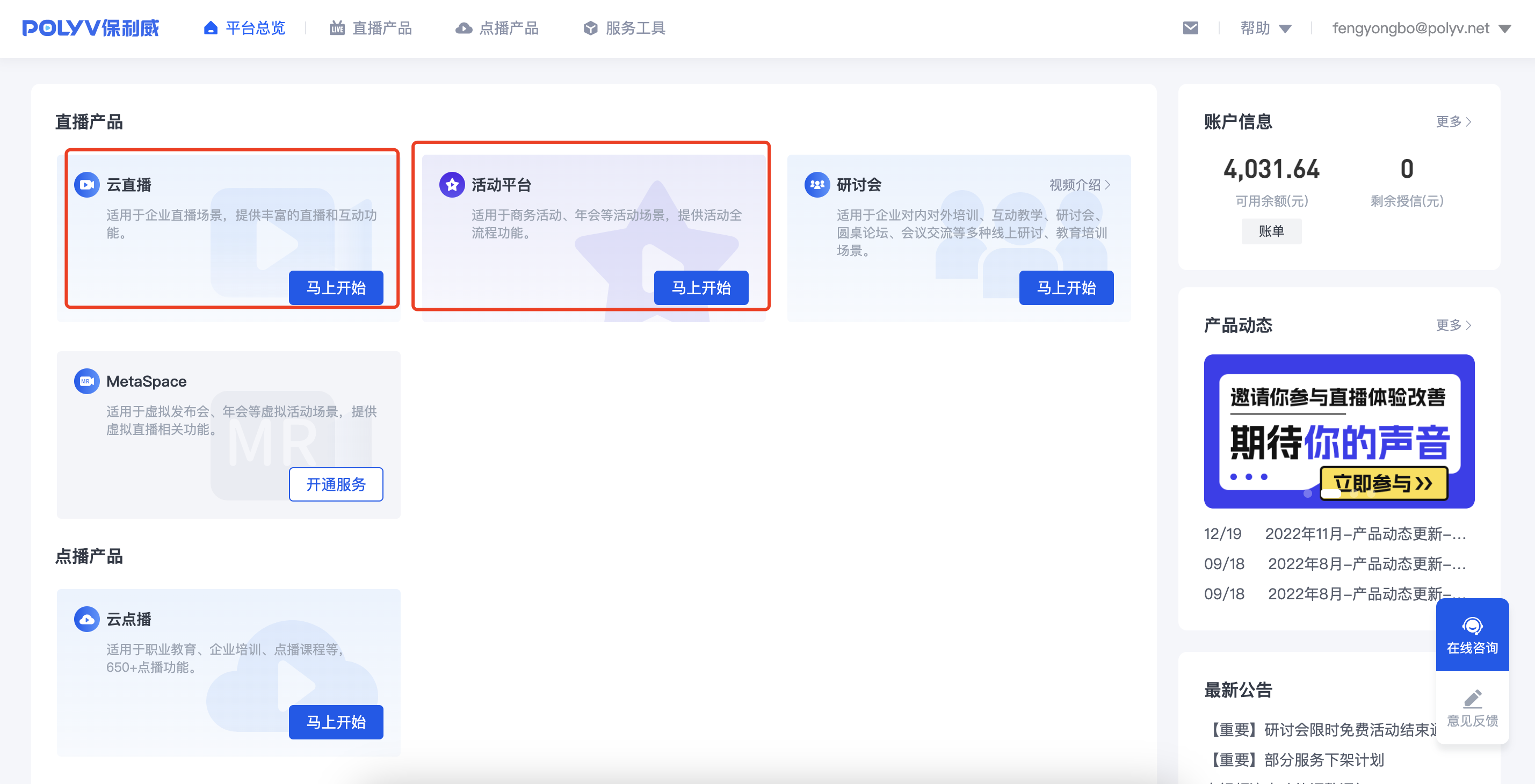
2.1.1 Enter the live streaming backend.
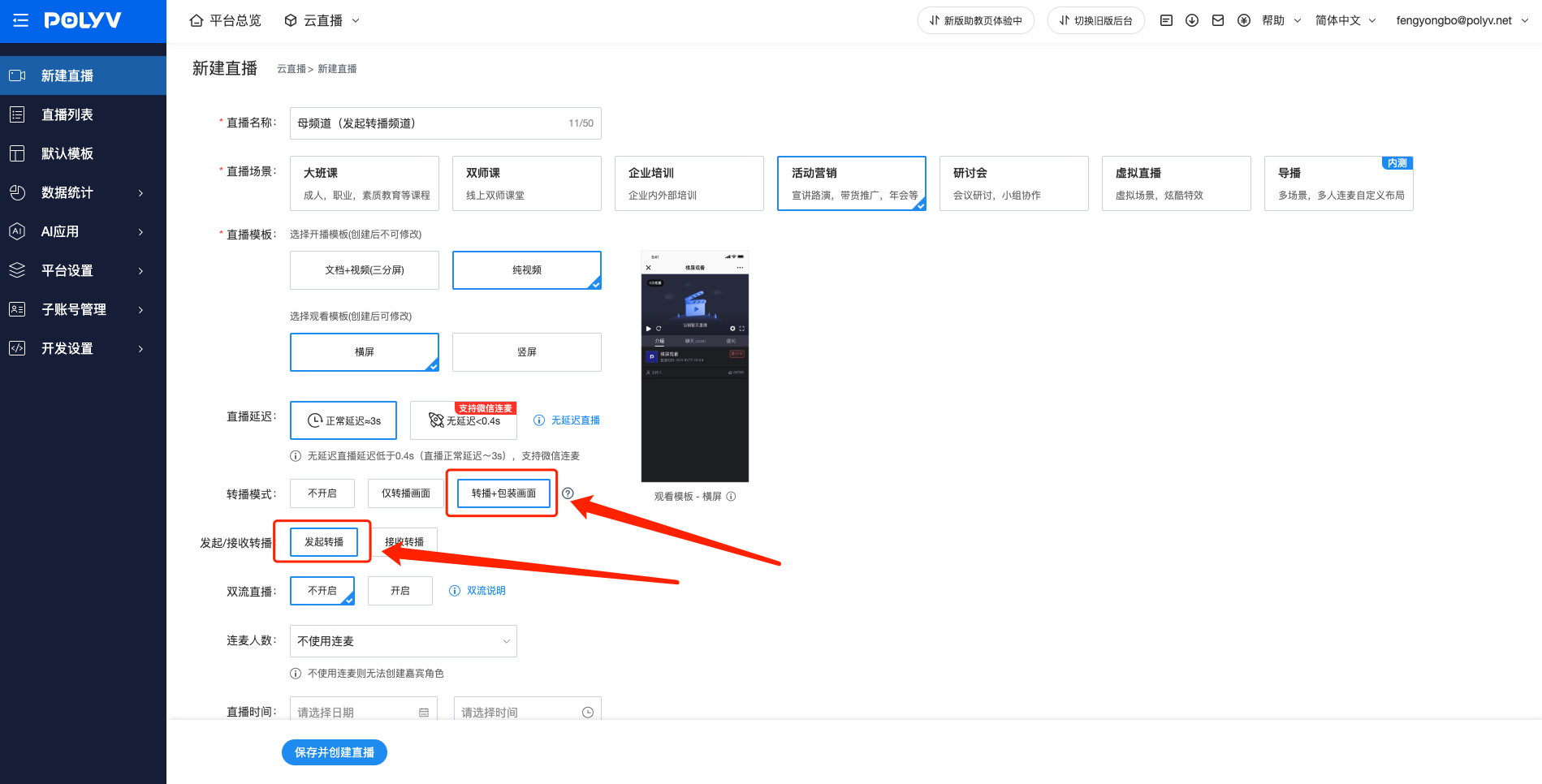
2.1.2 Create a main channel.
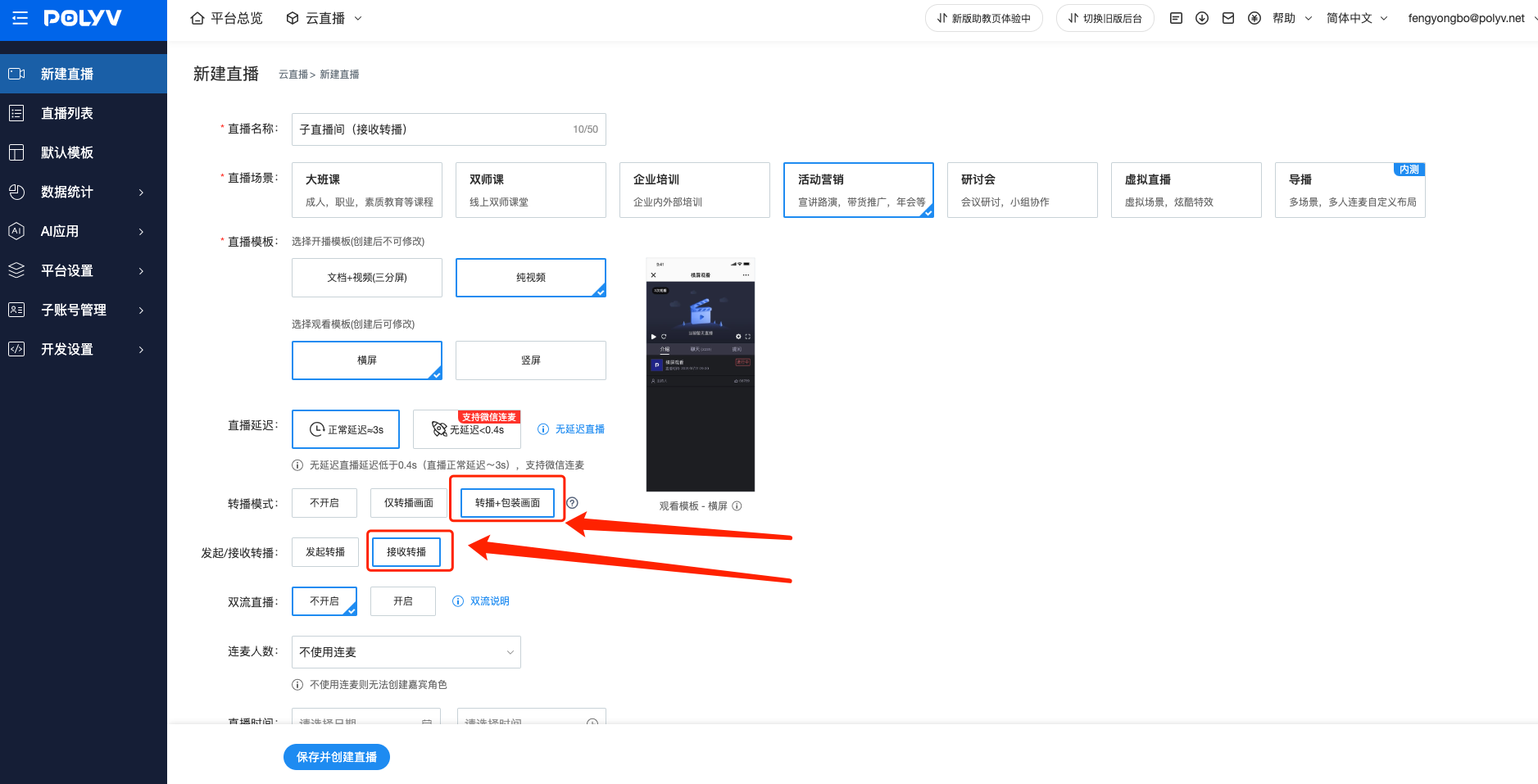
2.1.3 Create sub-channels.
2.2 Matrix Channel Association
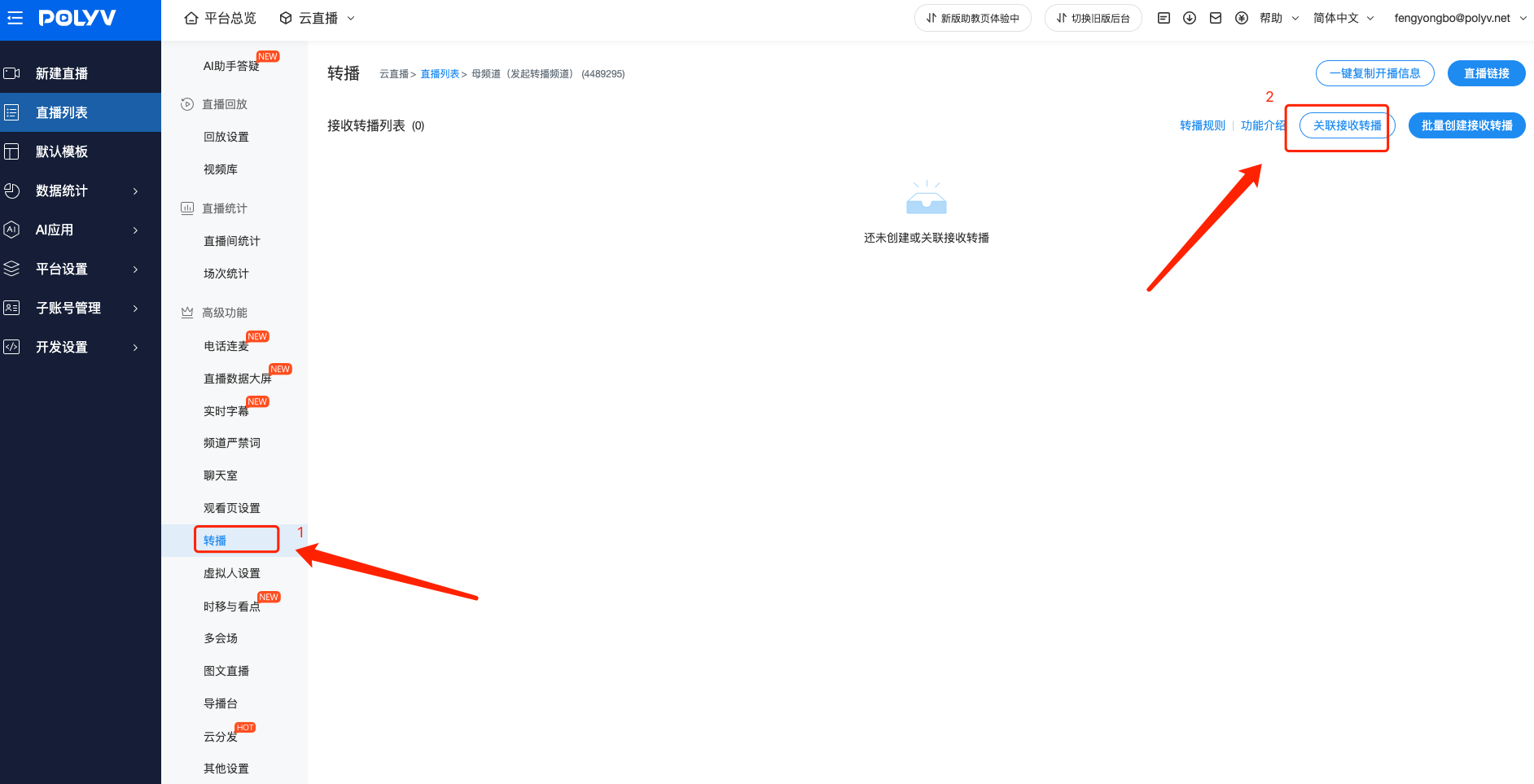
2.2.1 Enter the main channel and click the [Relay] feature.
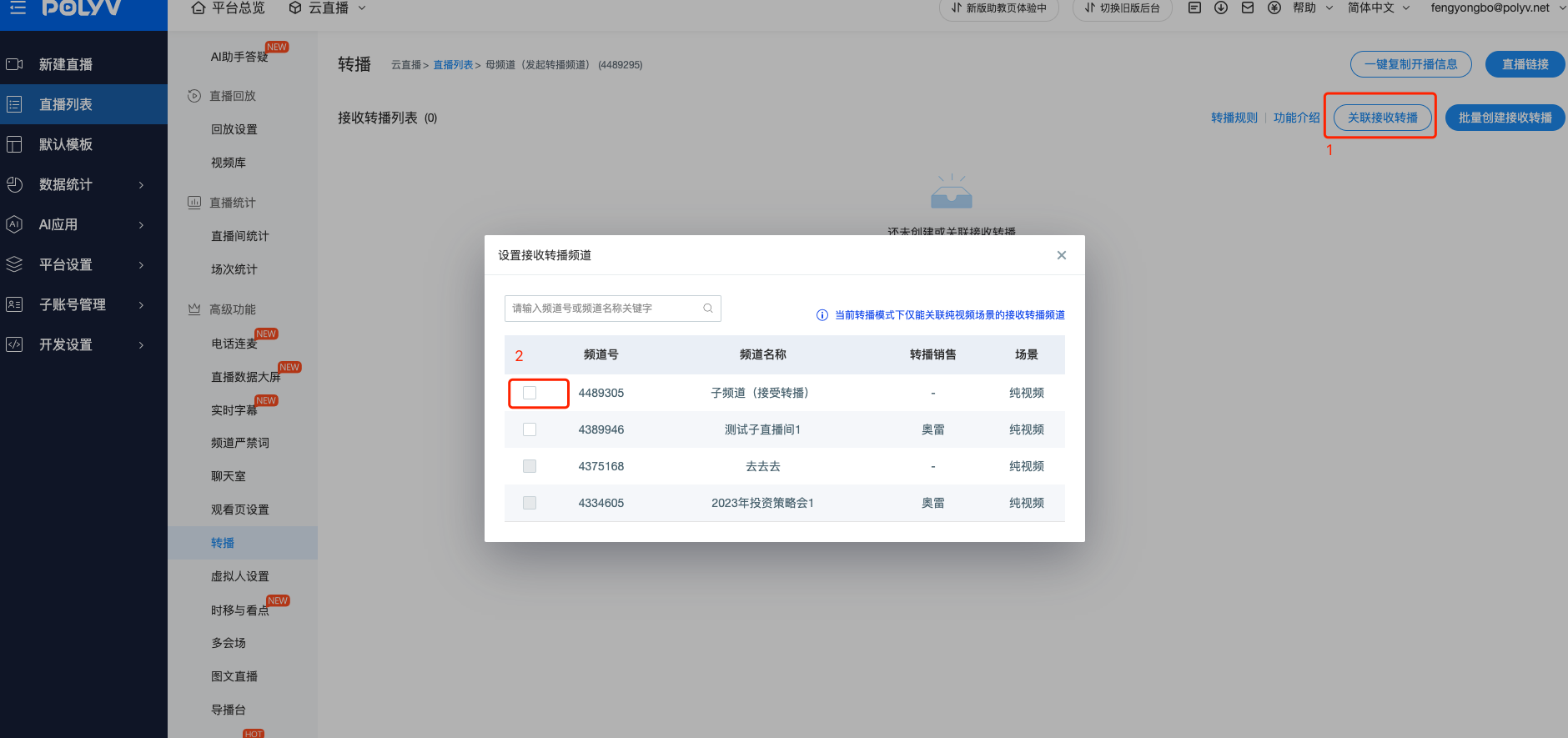
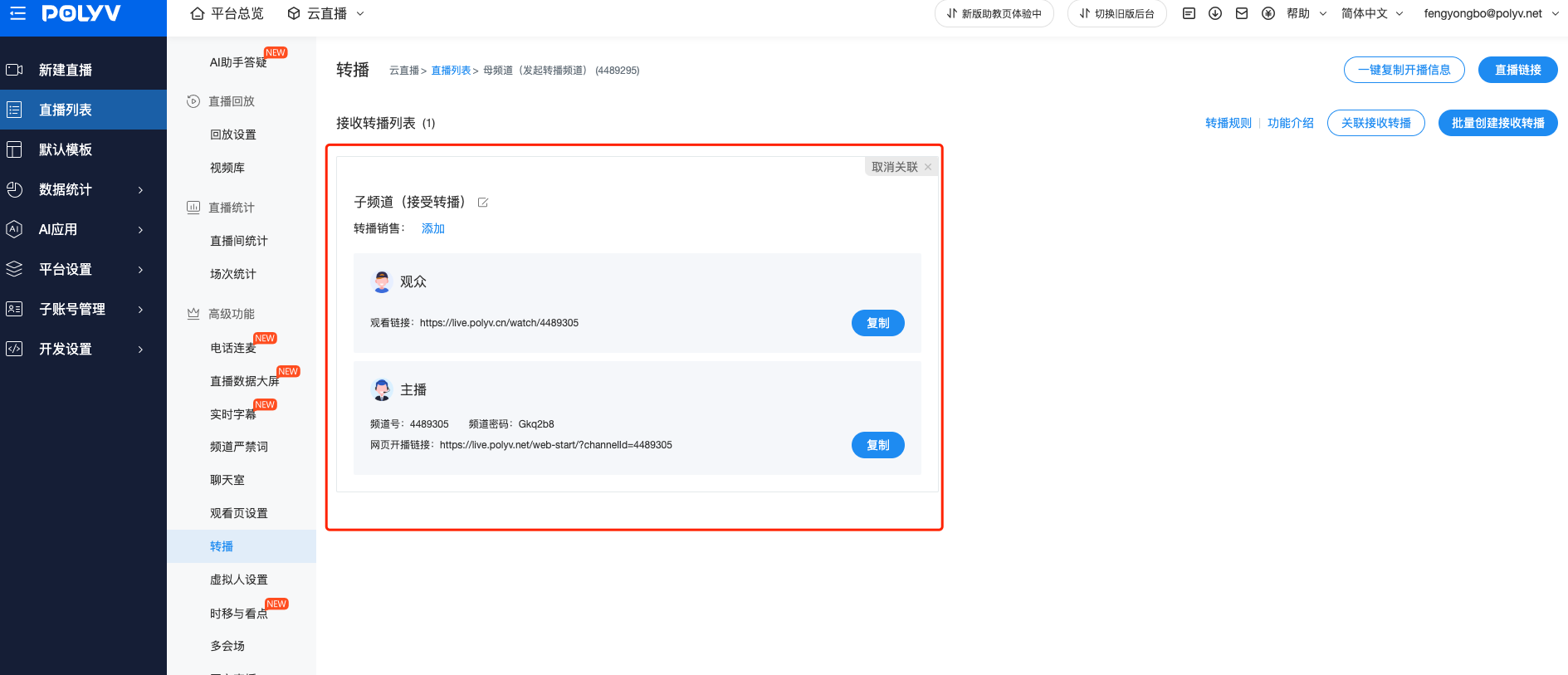
2.2.2 Click [Associate Receiving Relay Channels] and select the sub-channels created above.
2.3 Main Channel Broadcasting (Simulating Headquarters Broadcast)
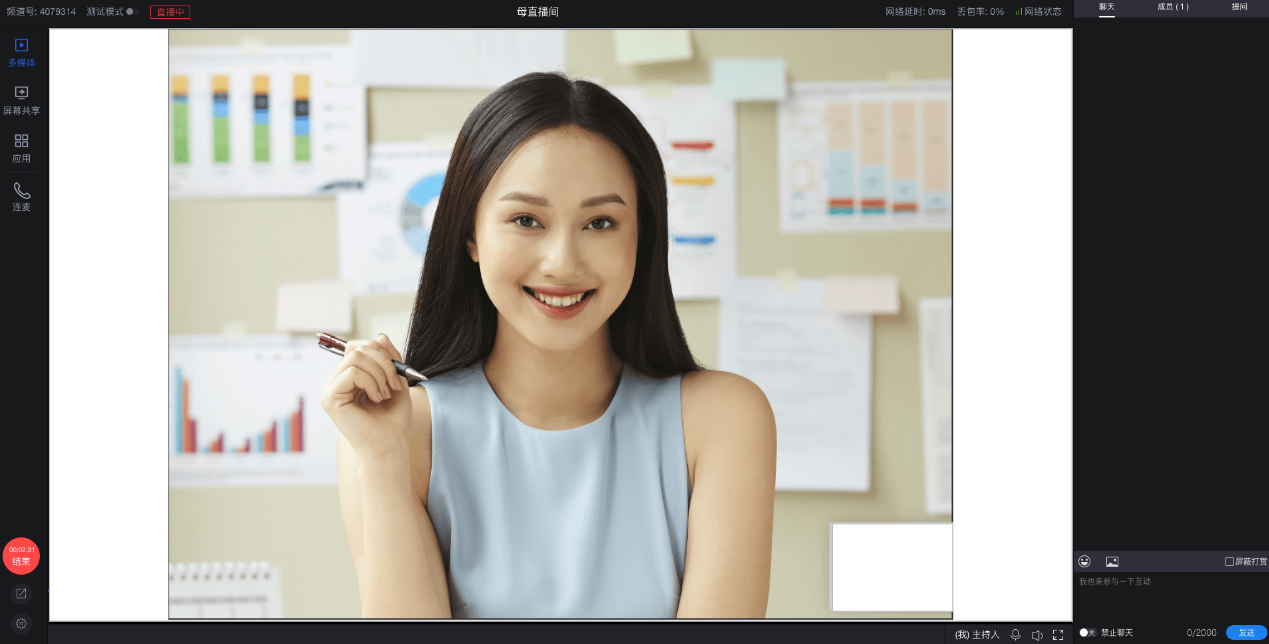
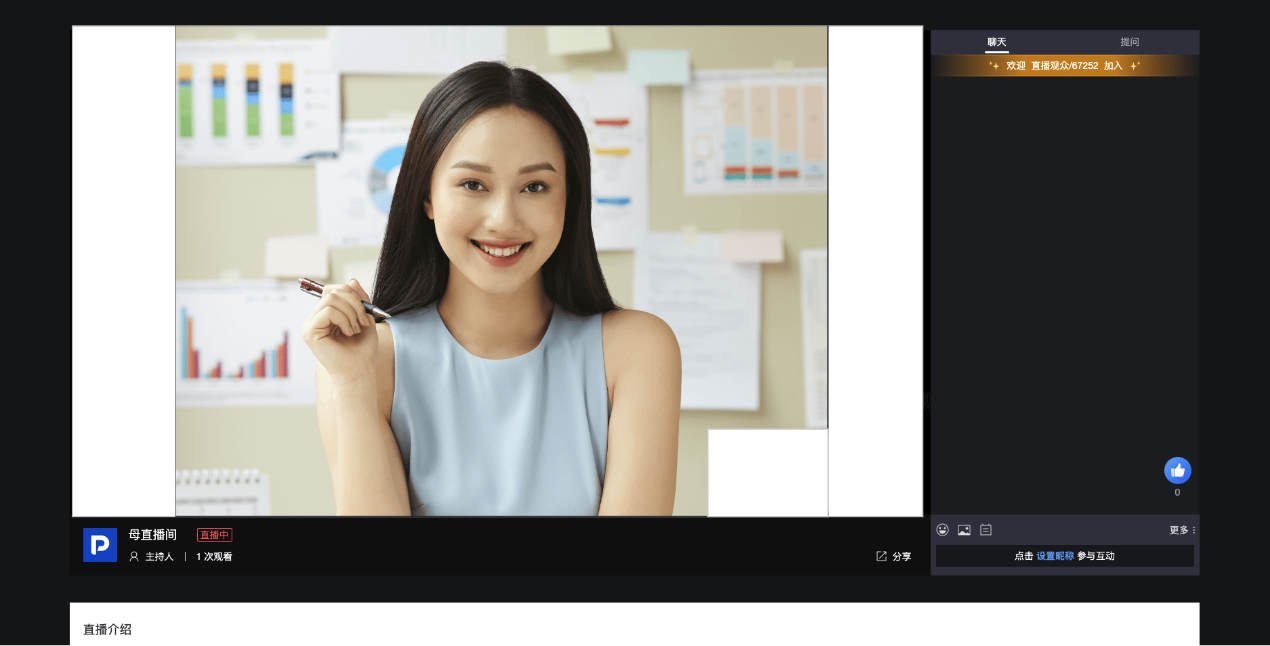
Use Polyv web broadcasting, client broadcasting, APP broadcasting, or third-party broadcasting (OBS, etc.) to start. The main channel supports distribution to viewers. Below, the left side shows the broadcasting interface, and the right side shows the viewing interface.
2.4 Sub-Channel Broadcasting (Agent Broadcasting, Relaying Content)
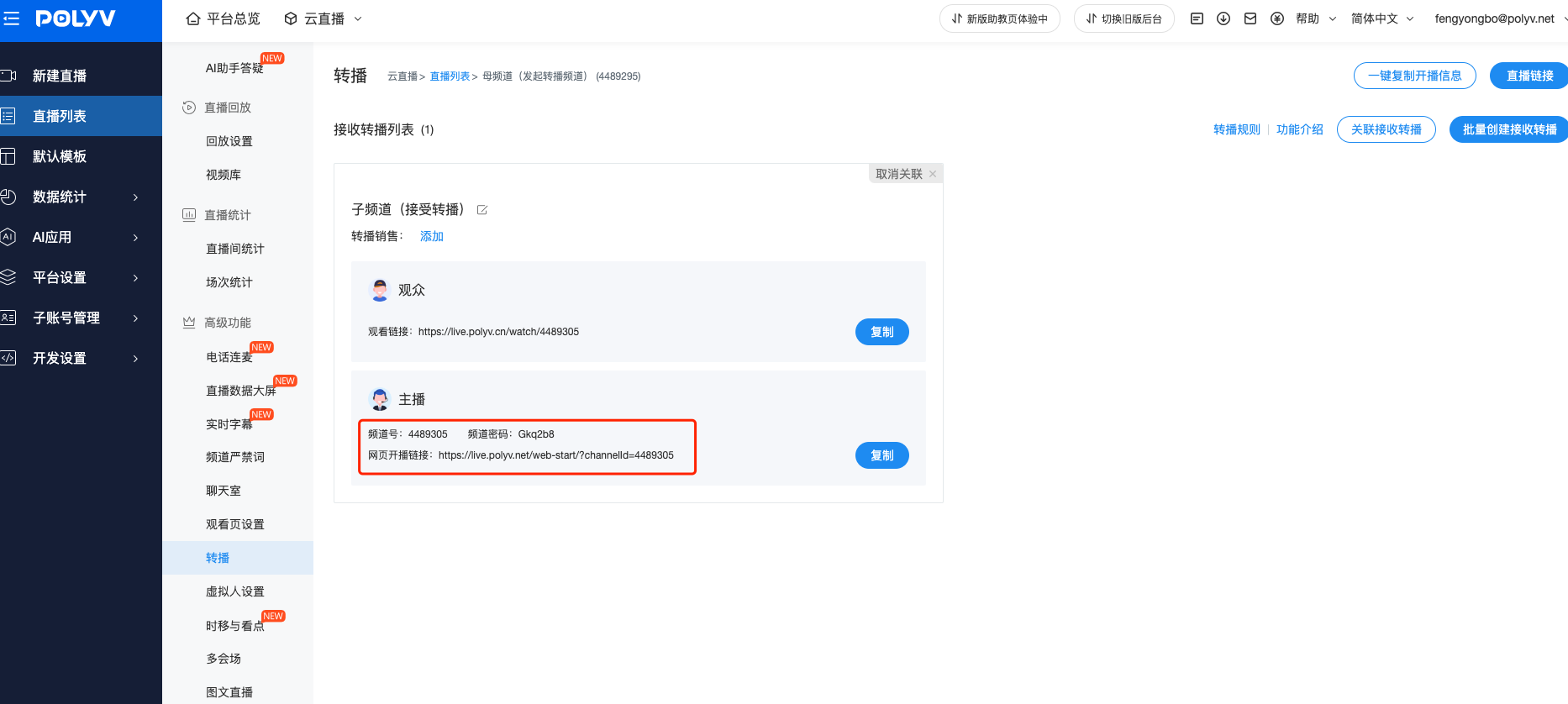
2.4.1 Obtain the broadcast link. As an agent, when the main channel is broadcasting, you need to enter the sub-channel live room to relay the main channel's feed. This can be done via Polyv web broadcasting or APP broadcasting.
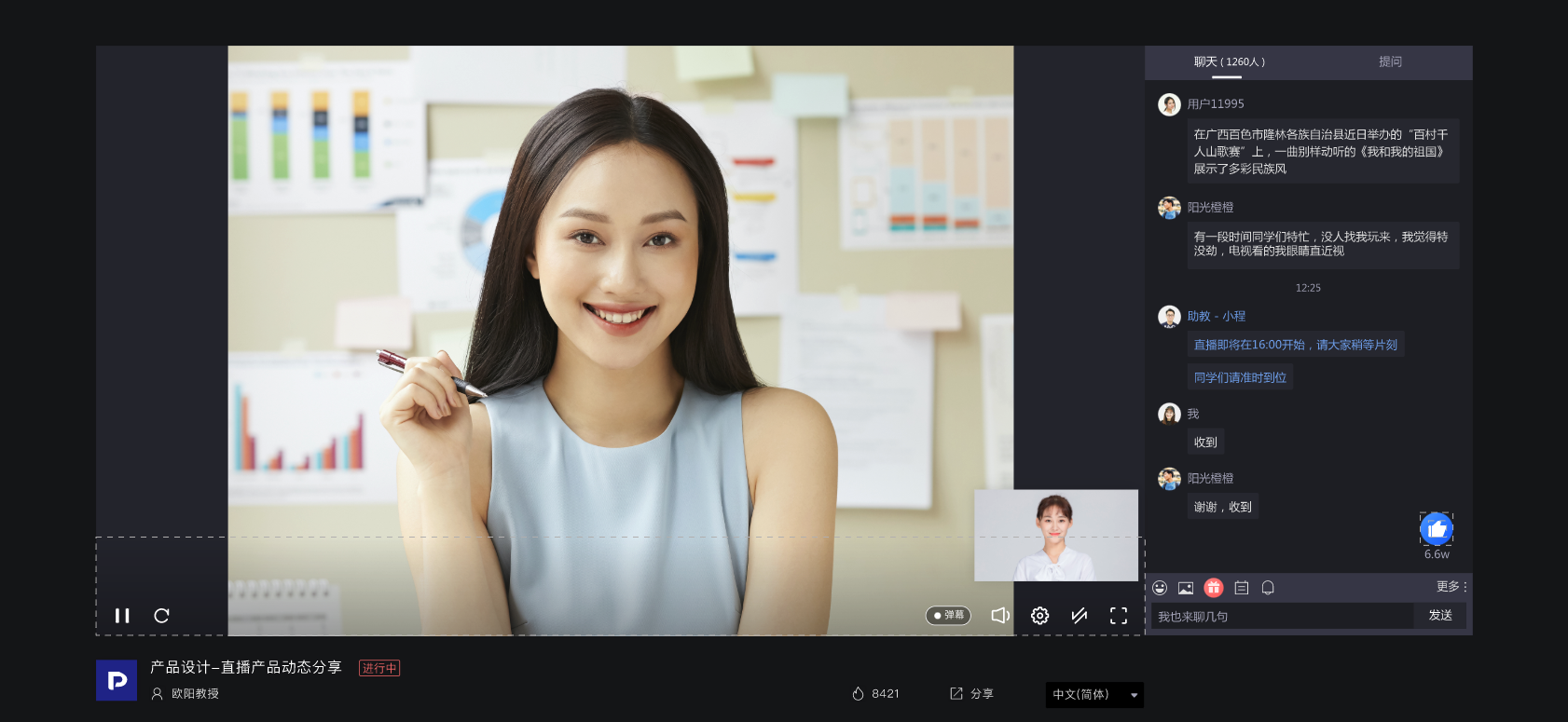
2.4.2 The following example uses web broadcasting. After entering the web broadcast interface, click [Live Stream] to view the main channel's feed. Click to start broadcasting. As an agent, you can then distribute the sub-channel link to your clients. Below, the left side shows the broadcasting interface, and the right side shows the viewing interface.

2.4.3 Stop relay or mute relay audio. Below the relay feed, there are buttons to toggle the relay video and relay audio on/off. Note that turning off the relay video will also mute the relay audio.

2.4.4 Replace the camera area with an image. In some scenarios, sales personnel do not need to show their face. Simply replace the camera area with an image in the settings. You can upload your own professional photo as an identifier.
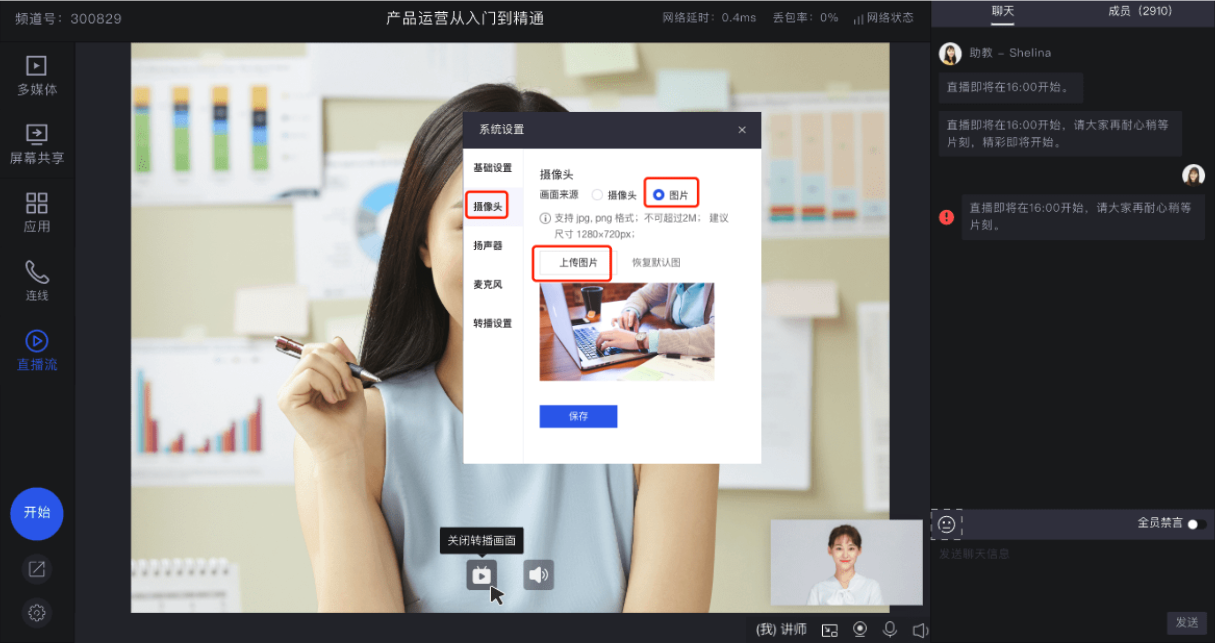
2.4.5 Change the camera position. If the camera area currently blocks key information from the main channel feed, you can adjust the layout again in Settings > Relay Settings.
3. Feature Activation
To use the above features, please contact your sales representative to activate them.
