Smart Editing (AI Editing)
I. Feature Overview
| Feature Info | Description |
|---|---|
| Feature Name | Smart Editing |
| Feature Description | Analyzes live replay and on-demand video content to quickly locate core outlines. Uses intelligent subtitle selection to easily crop desired highlights, improving video editing efficiency and accuracy. |
| Purpose | Make editing simpler and more efficient. |
| Use Cases | Live replay video editing, on-demand video editing. |
| Feature List | 1. Multi-segment simultaneous export: Extract video segments by selecting subtitles. 2. Identify invalid segments: Blank segments with no speech or locate invalid/non-key segments based on keywords. |
II. Operation Instructions
1. Navigation Path
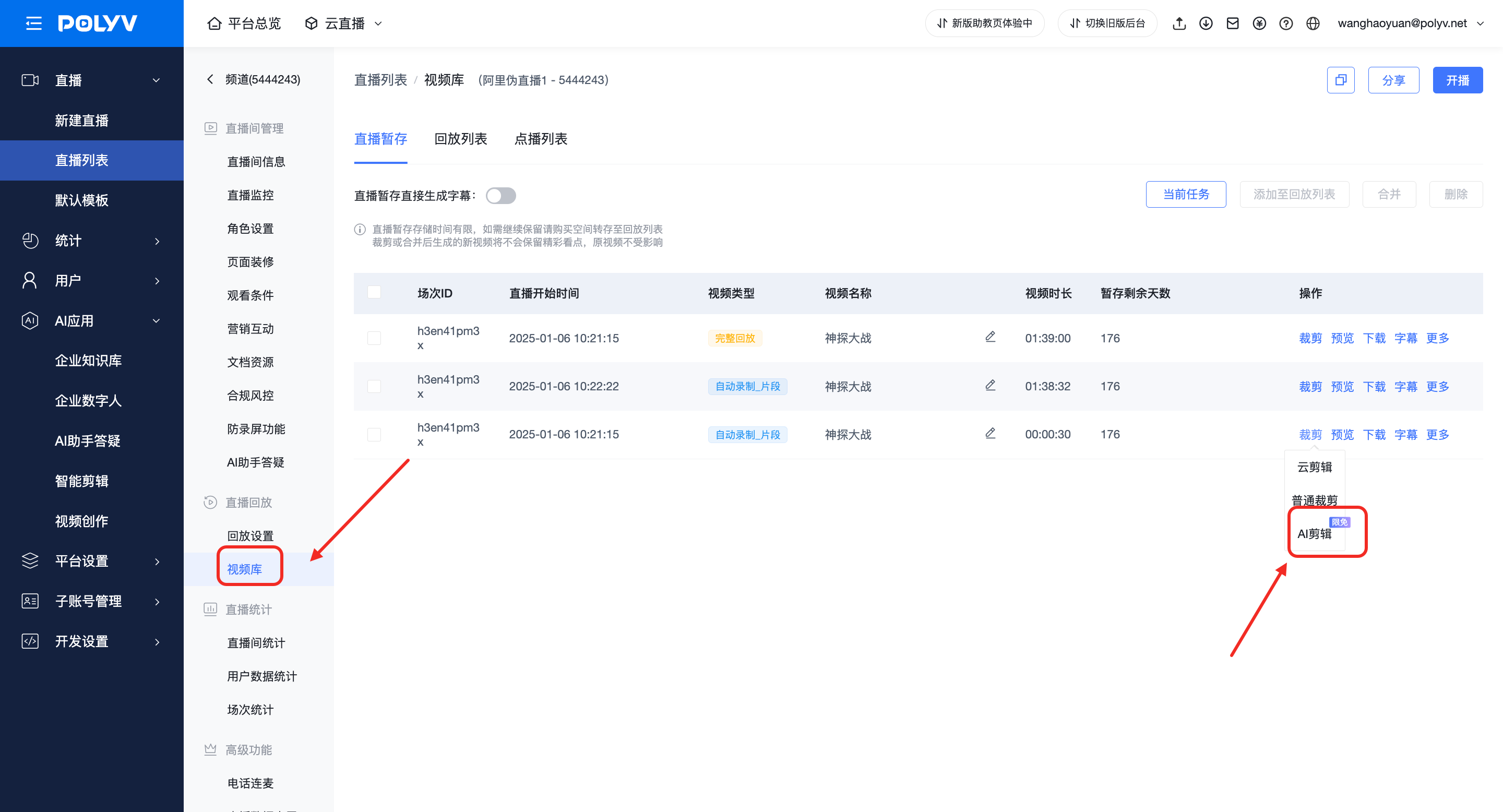
Live: Enter the "Cloud Live" platform → Create a channel → Start a live stream → Generate a replay → Click "Crop" → Enter the editing page → Start content analysis
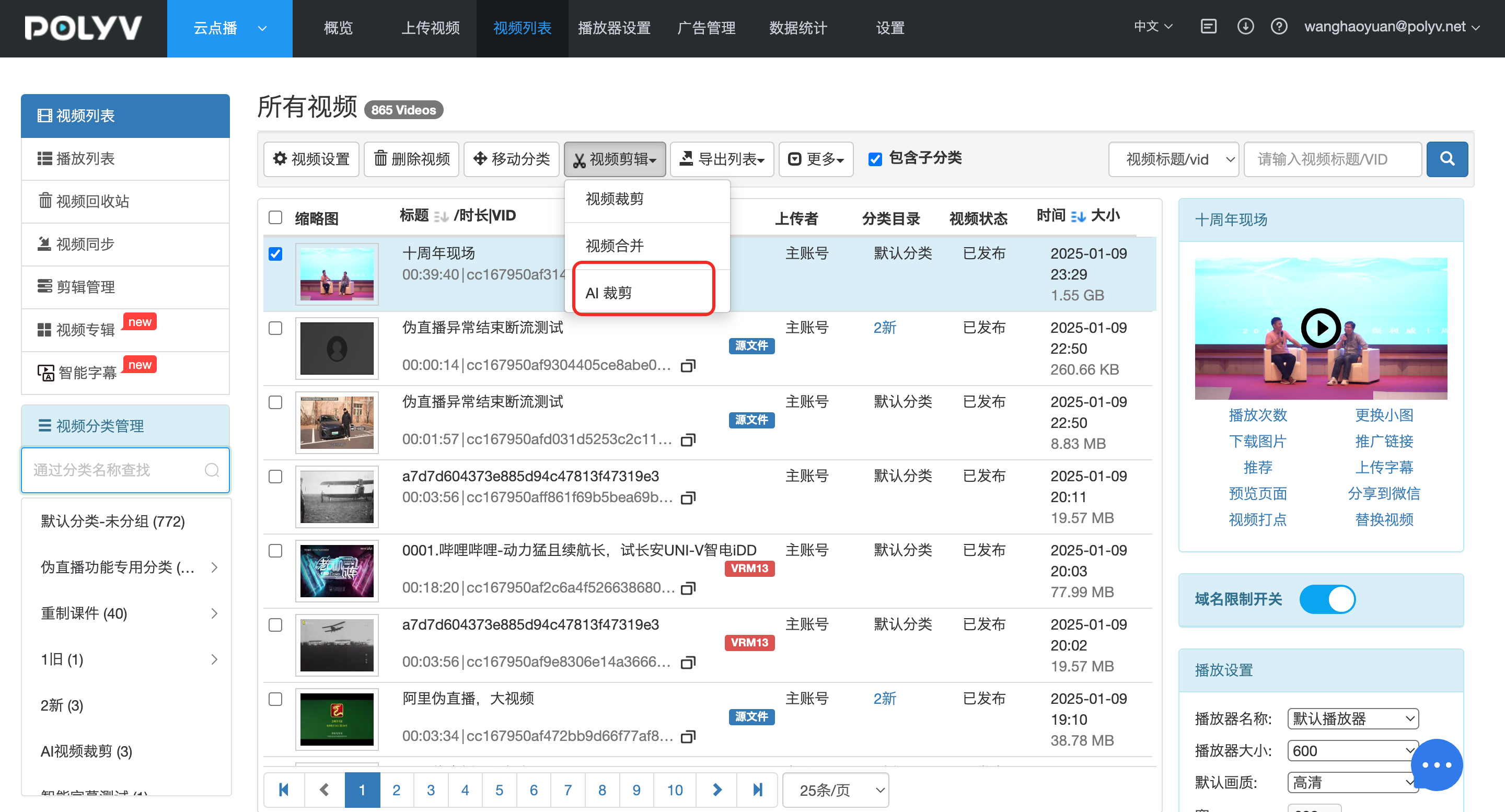
On-Demand: Enter the "Cloud VOD" platform → Select an on-demand video → Click "Video Editing" → Enter the editing page → Start content analysis
2. Video Editing Page
Using on-demand as an example:
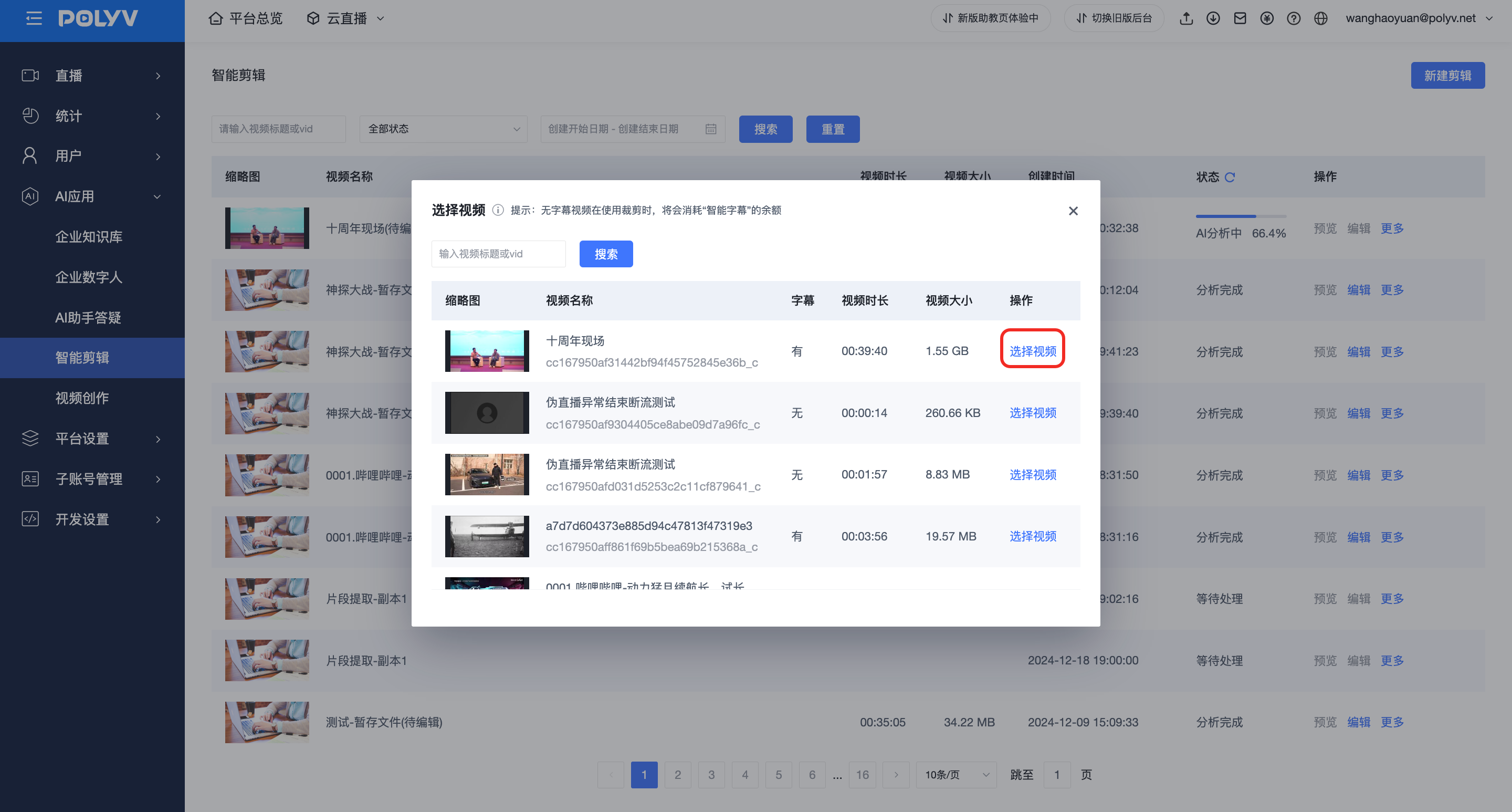
2.1 Select Video: Click "New Editing" and select an on-demand video.
Steps: On the smart editing interface, click "Select Video" to open the video selection dialog.
Description: Search by entering the video title or VID, or quickly identify the video via thumbnail.
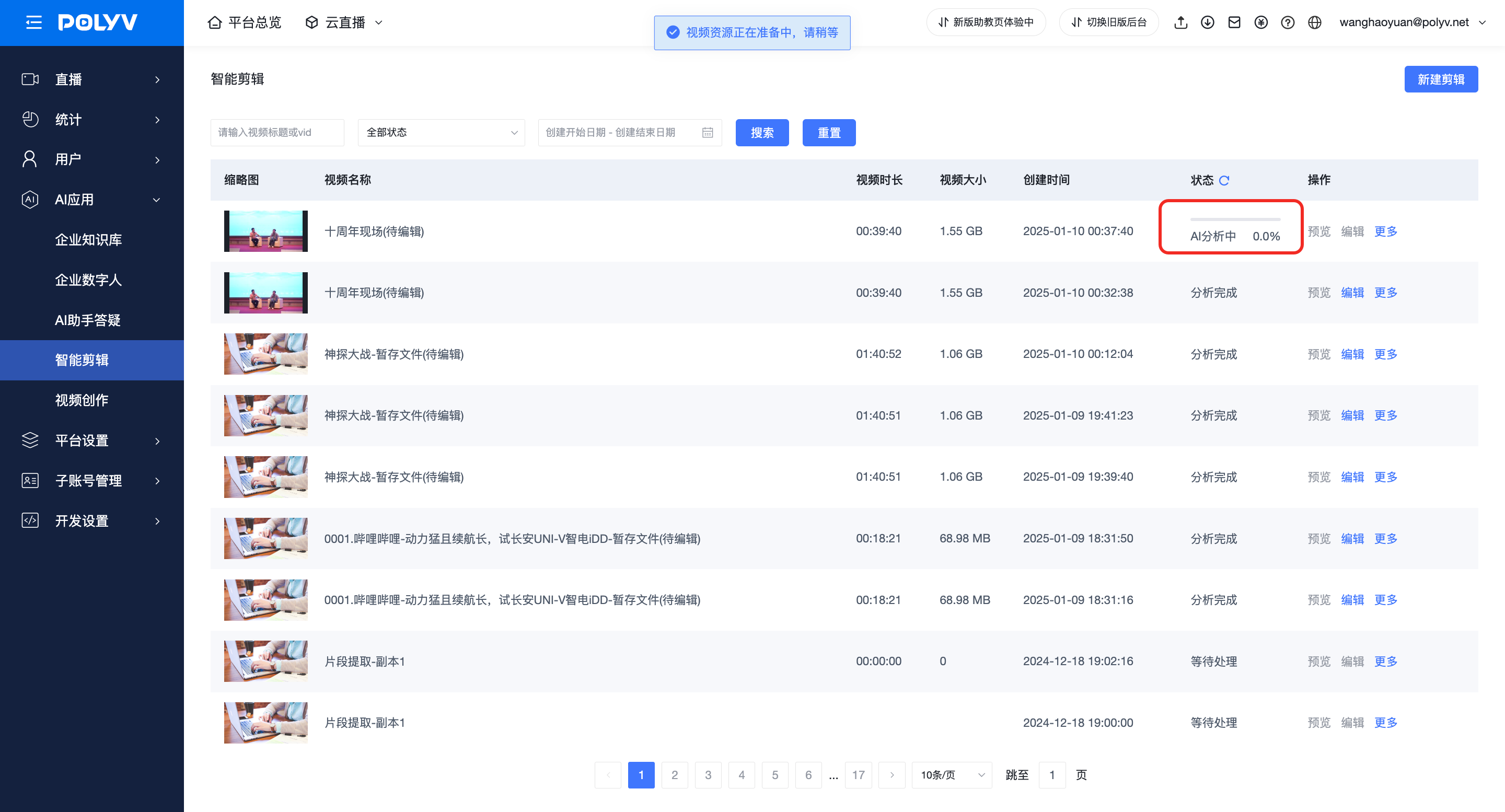
 2.2 Video enters content analysis phase: Statuses include "Analysis Complete", "AI Analyzing", and "Waiting for Processing".
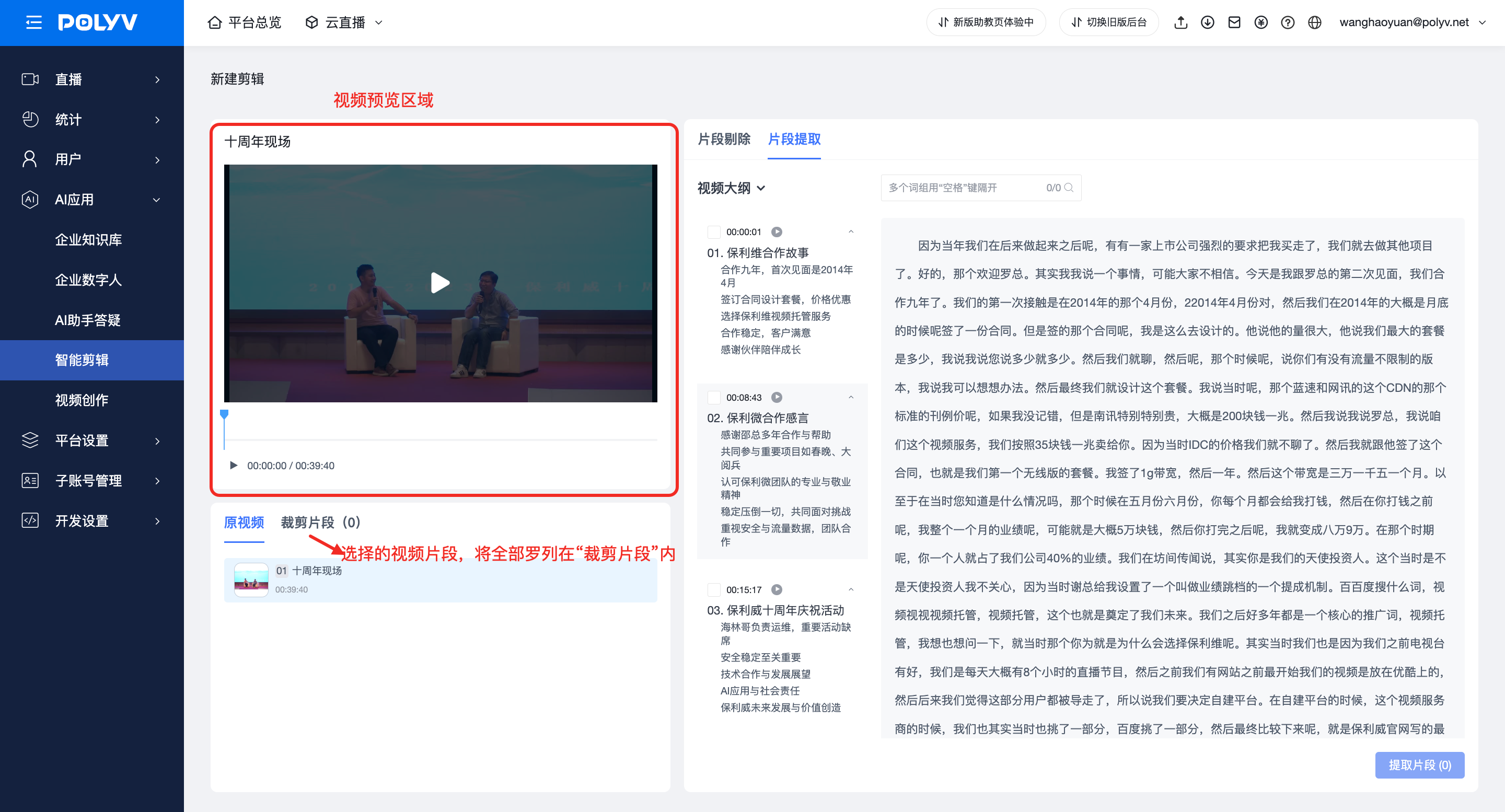
 2.3 Enter the video editing page: Divided into three areas: Top-left is the preview area, bottom-left is the "Original Video" and "Cropped Segments" area, and the right side is the segment selection area.
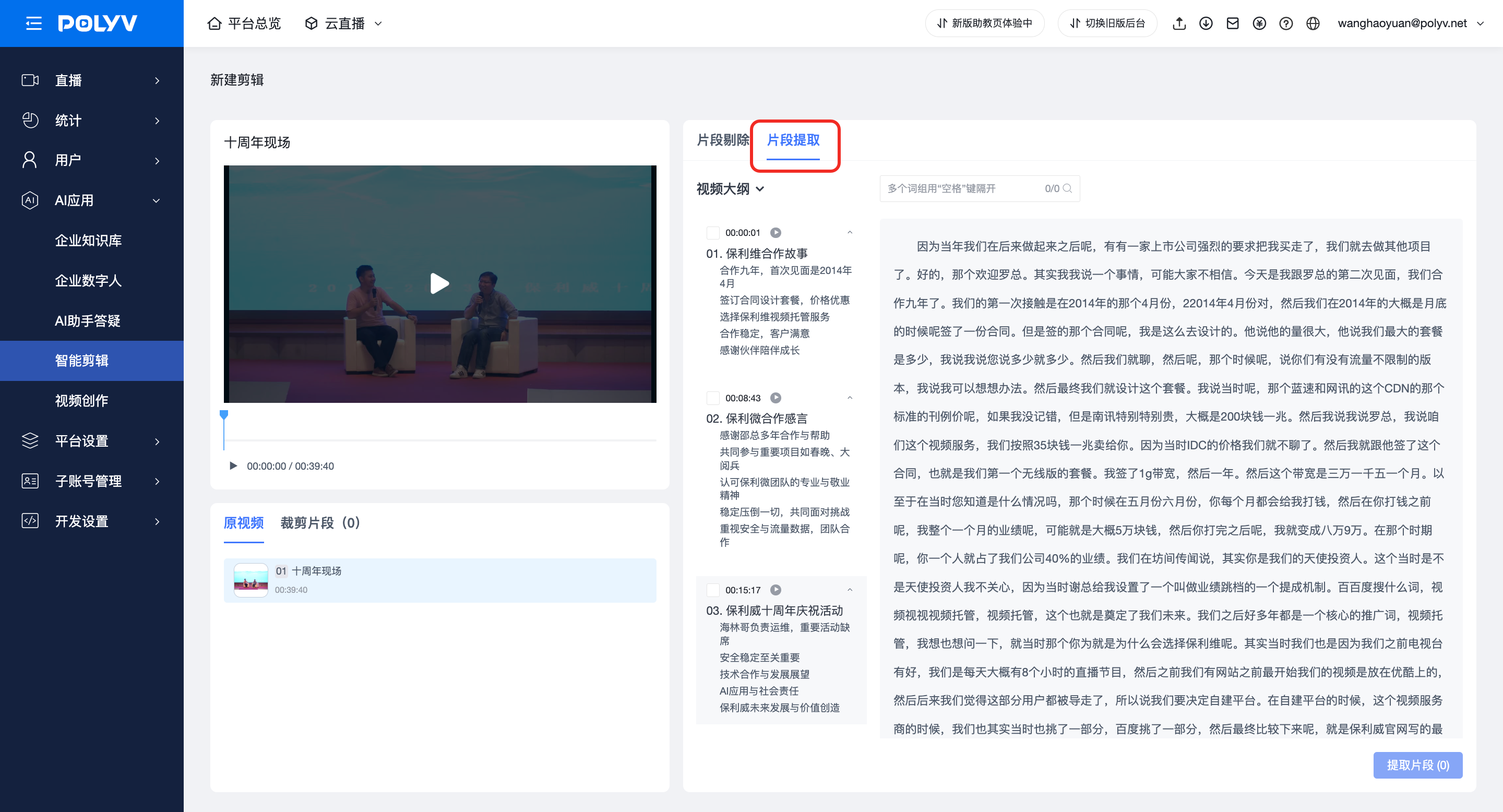
 2.4 Segment Extraction Feature Description:
a. AI analyzes the video outline for quick preview. Select subtitles to circle the segments you want to crop.
2.4 Segment Extraction Feature Description:
a. AI analyzes the video outline for quick preview. Select subtitles to circle the segments you want to crop.
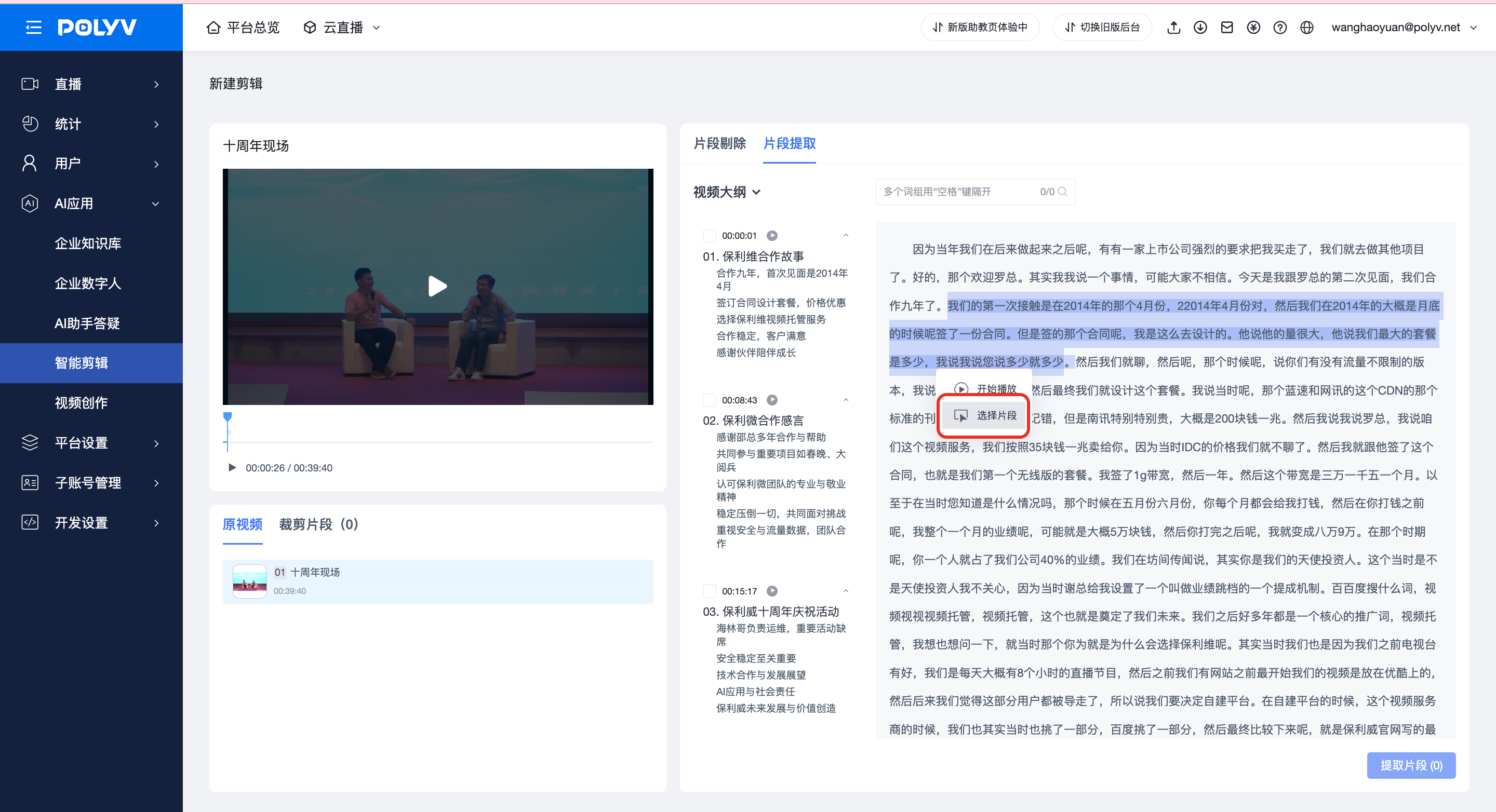
 b. Segment selection operation: Drag to select subtitles, click "Select Segment" to pick the desired segment. Multiple segments can be selected; when extracting, they will be merged into one video segment.
 c. Before extracting a segment, you can preview it to verify correctness. Due to speech speed variations, subtitle segmentation may have slight deviations. Use "Subtitle Fine-Tuning" to adjust timing and correct sentence break points.
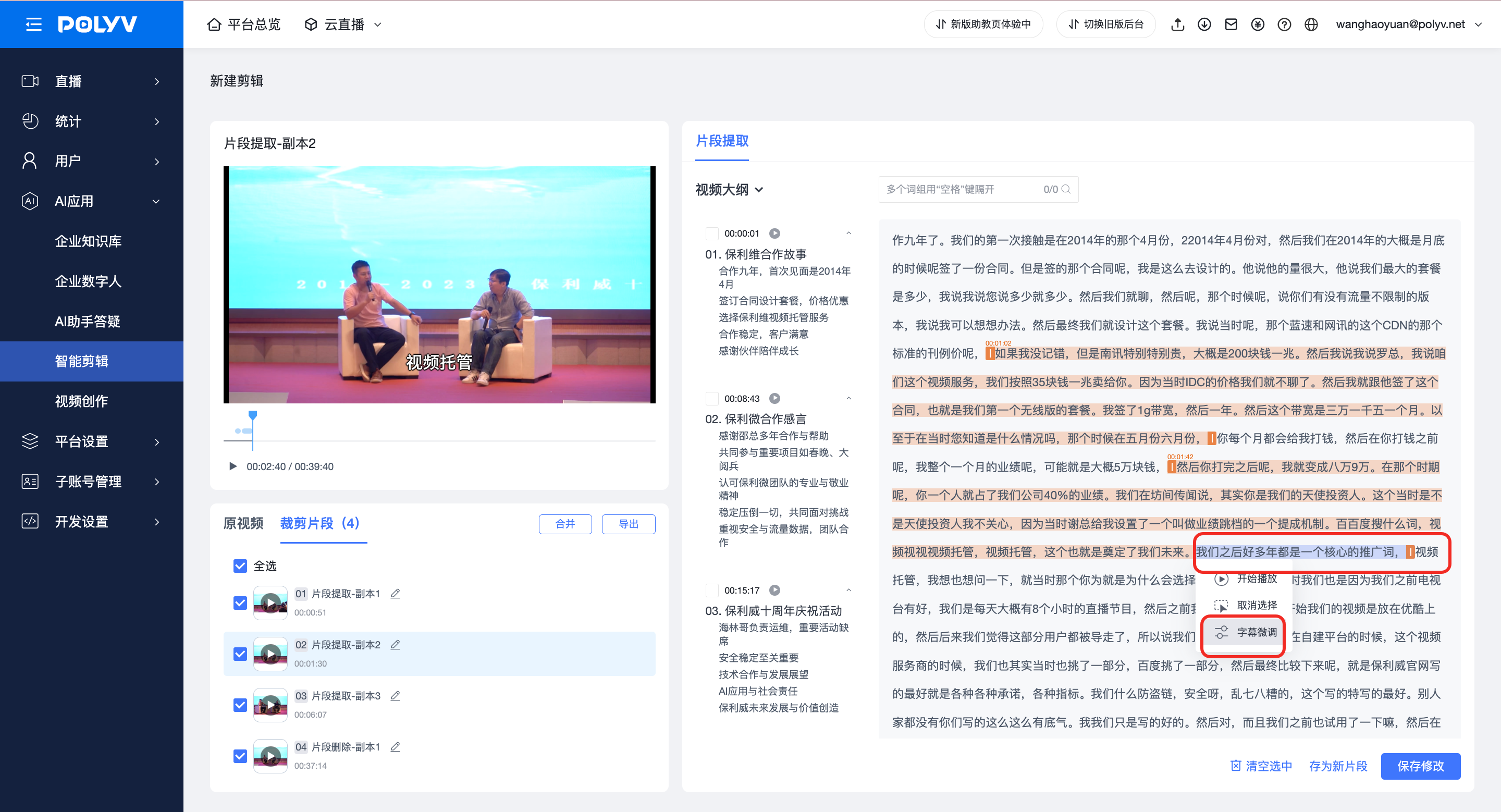 d. During fine-tuning, you can preview the adjusted content.
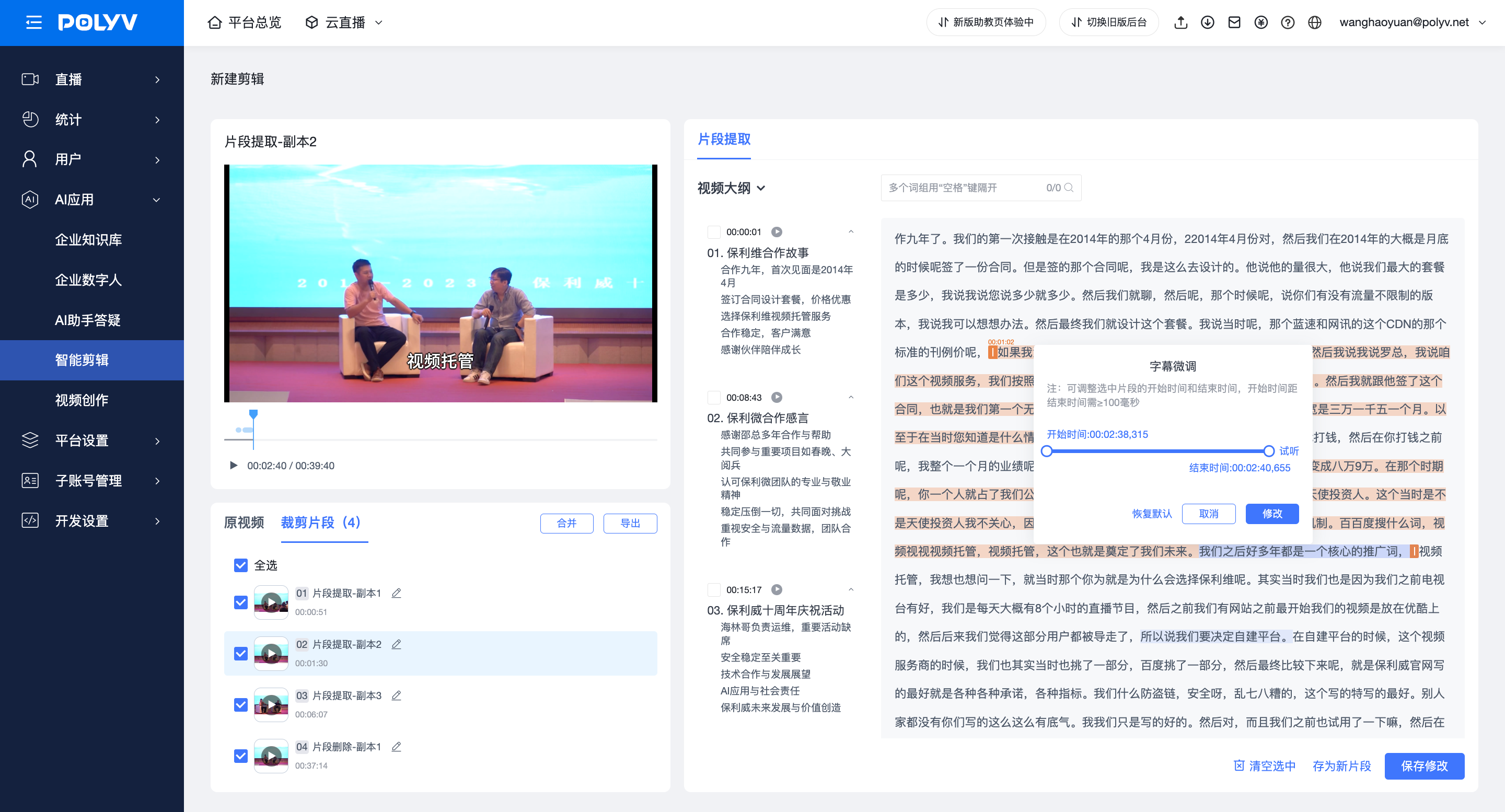 e. After confirming the selection is correct, click "Extract Segment". The content will be saved under "Cropped Segments".
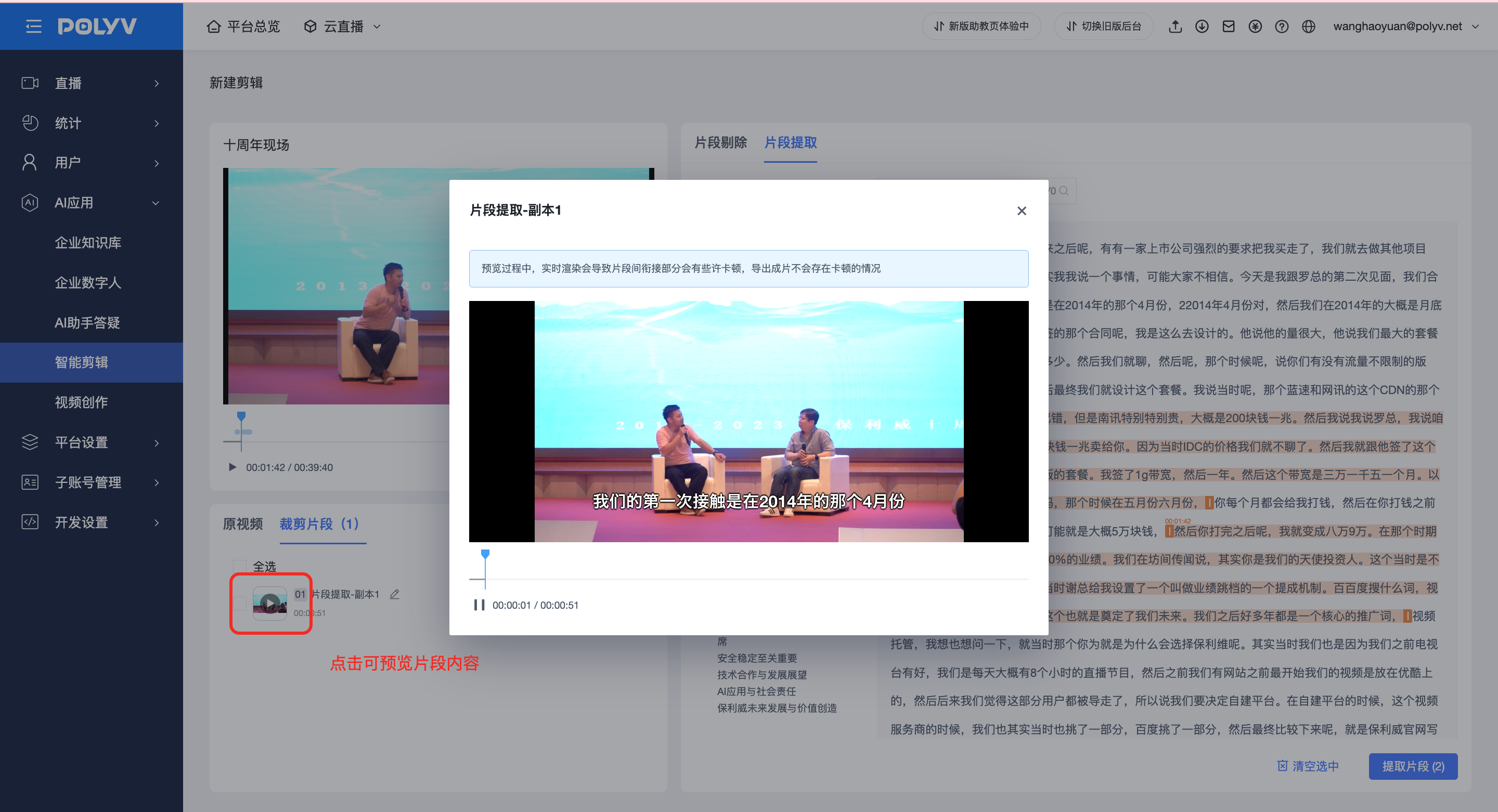
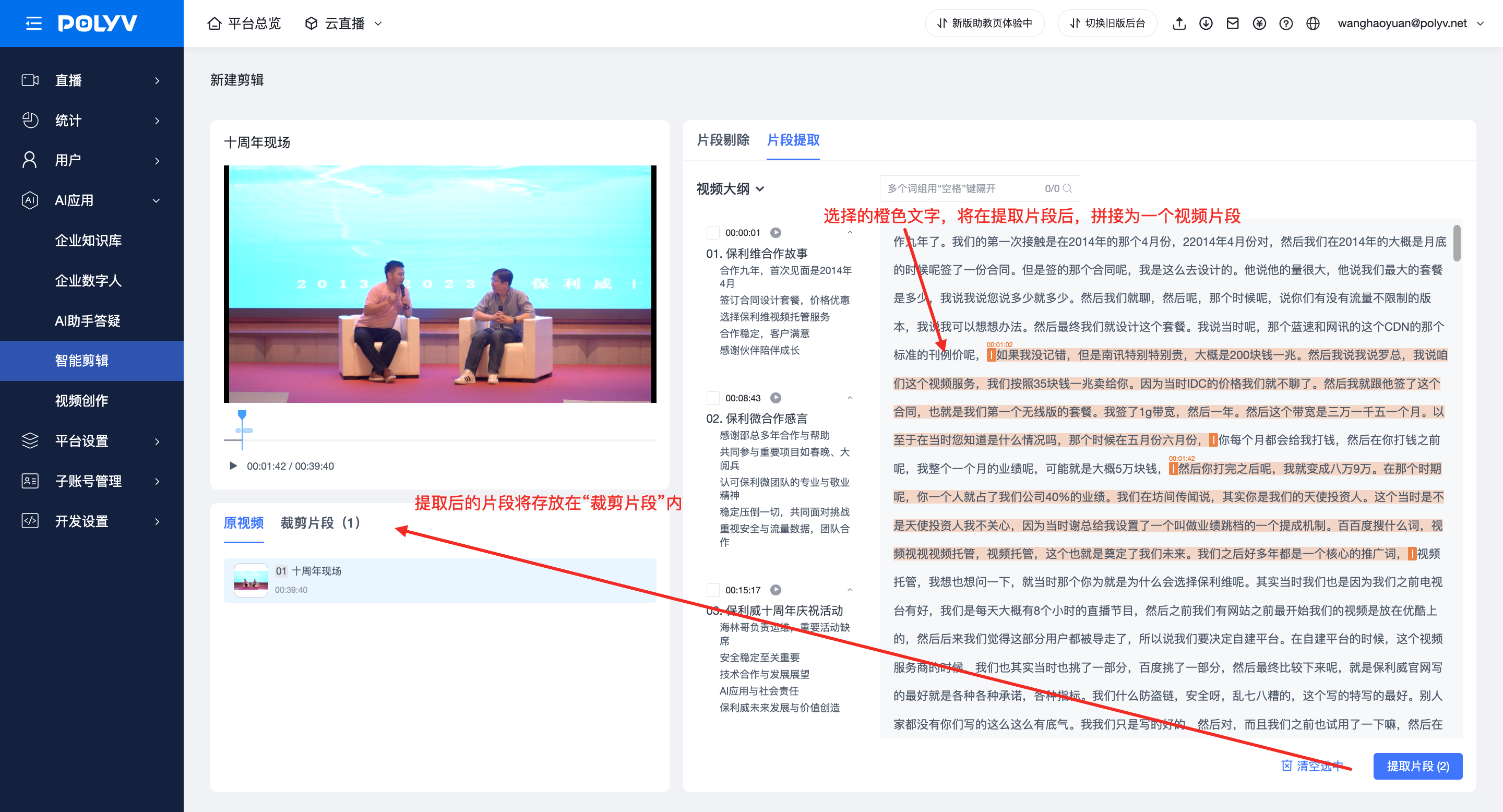 f. Click a cropped segment to preview and listen to its effect. If adjustments are needed during preview, select the video segment to modify it again.
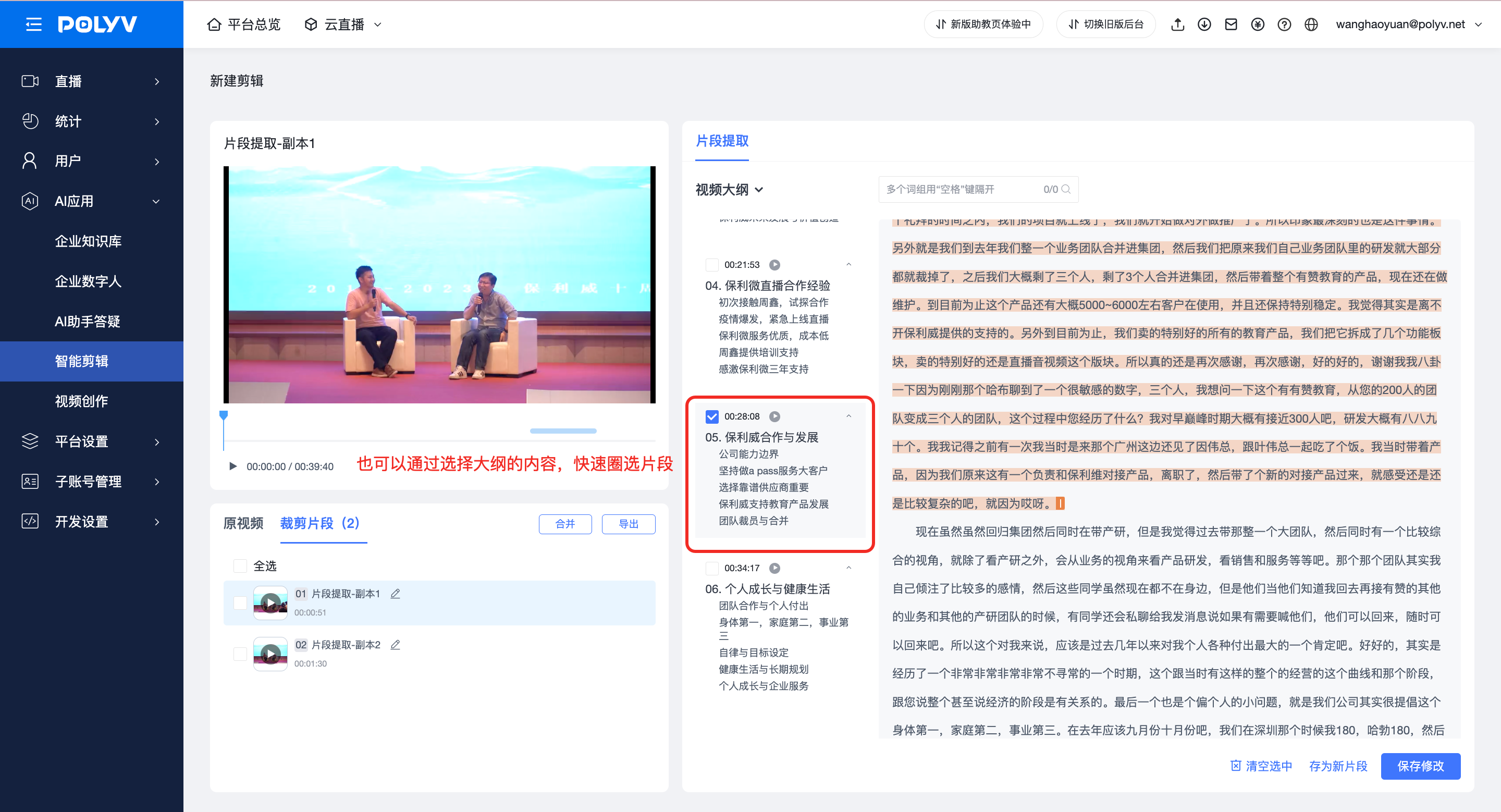
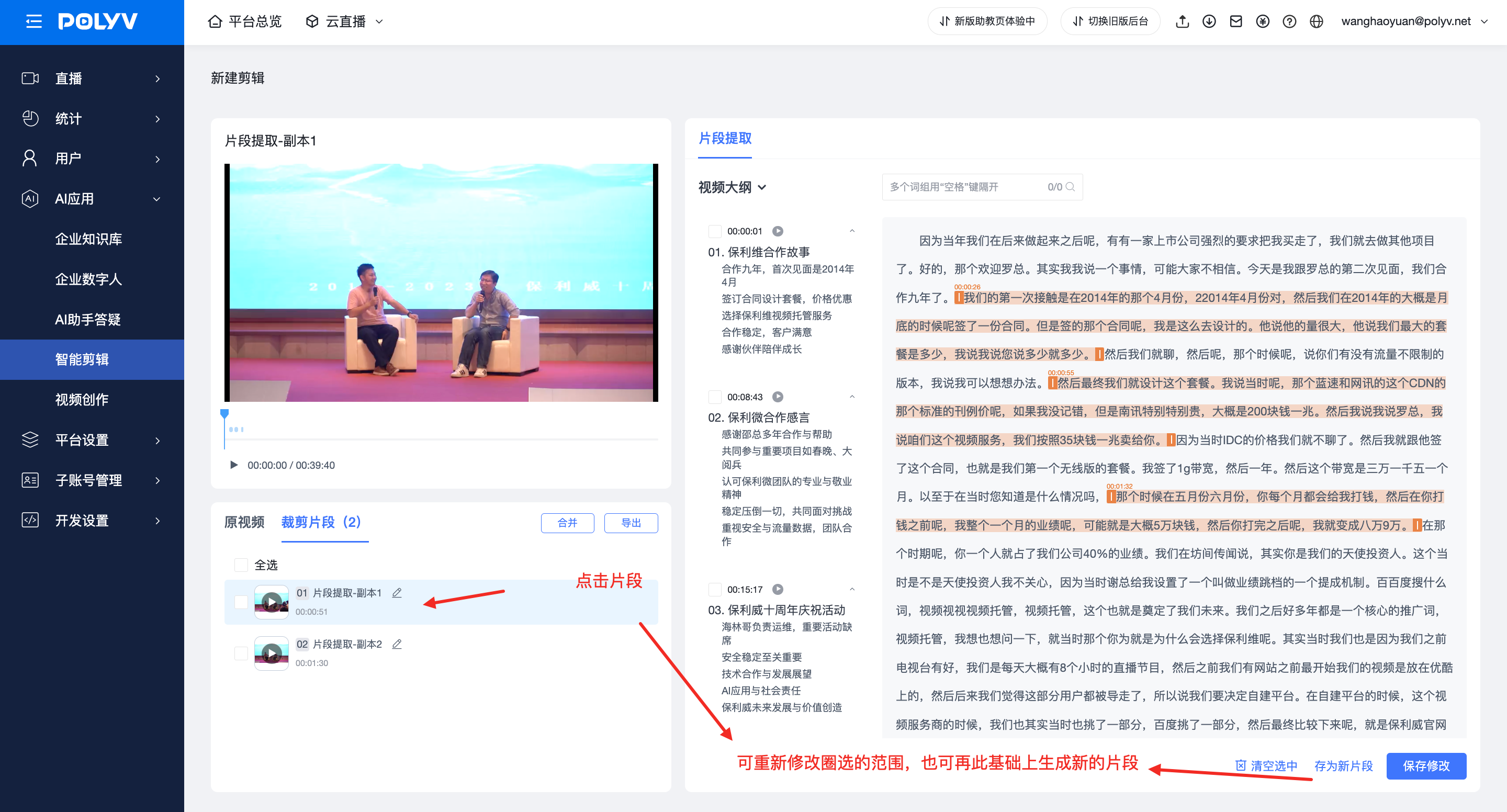 g. Also supports quickly selecting an entire section for editing by selecting the outline content and extracting the segment.
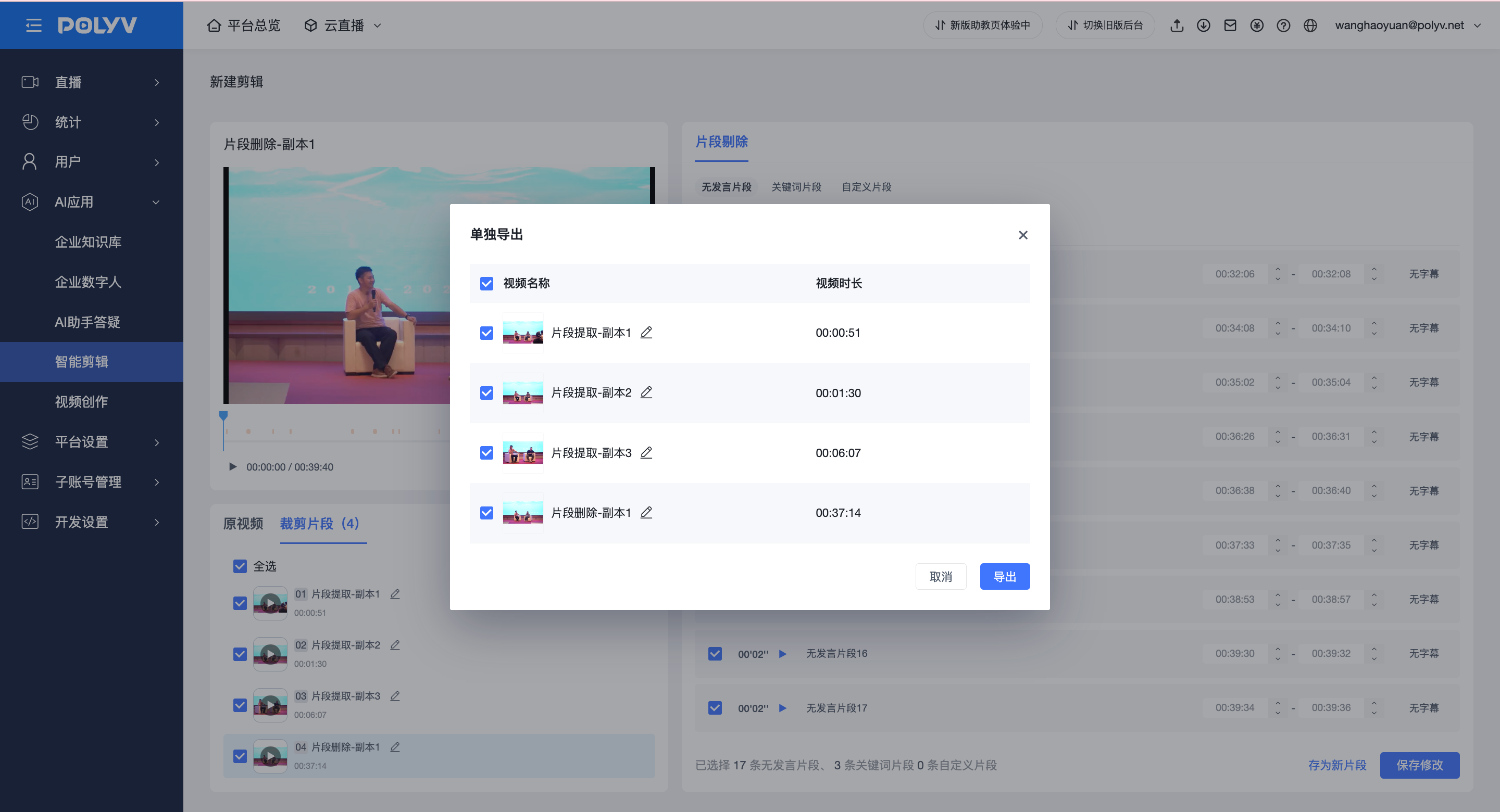
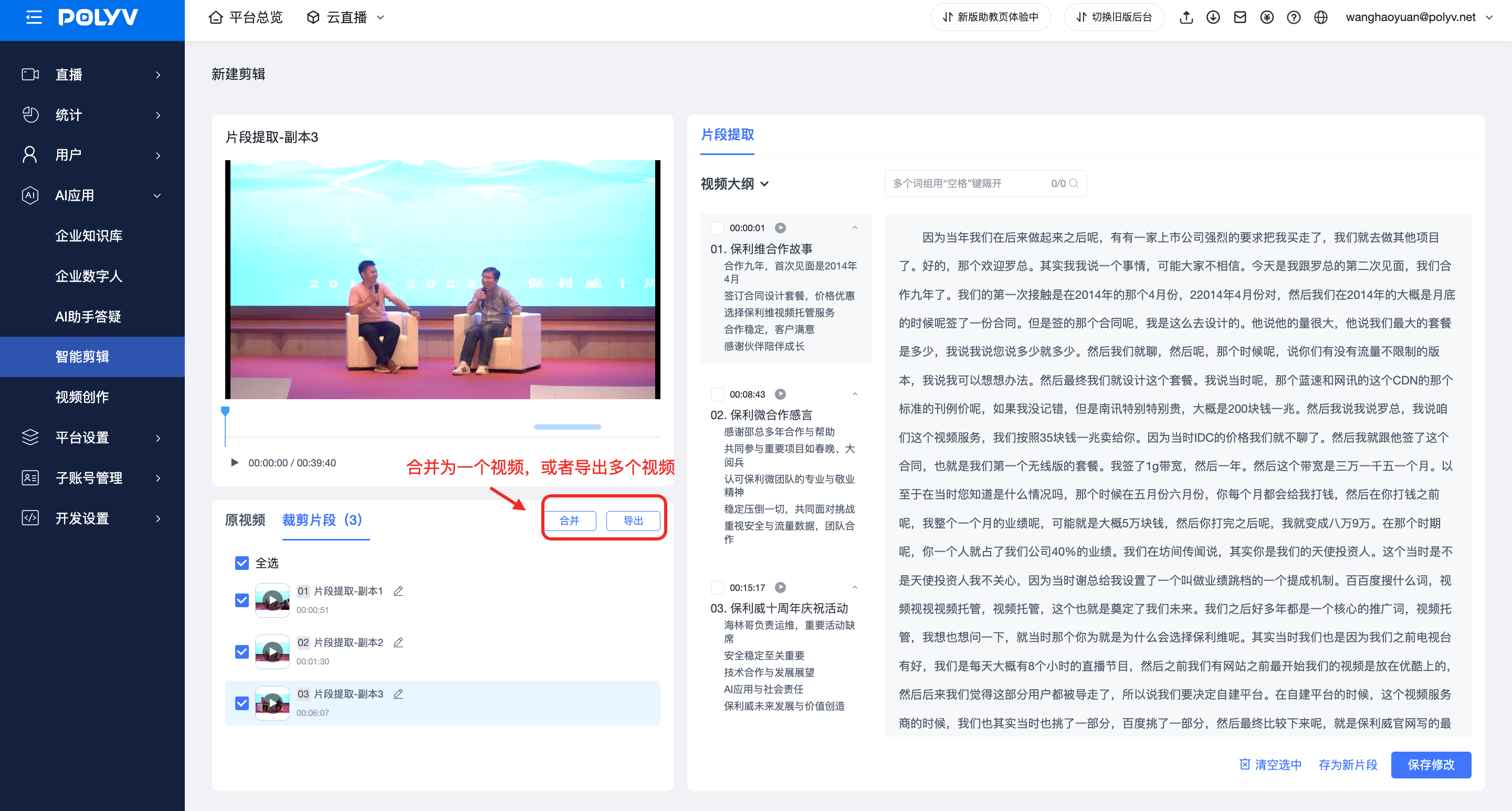
 h. Selected video segments can be merged into one video for export, or exported as multiple separate videos.
 2.5 Segment Removal: Deletes segments based on specific features to generate a new video.
a. Select "Original Video" → "No Speech Segments". This feature identifies long pauses in the video (e.g., waiting for warm-up music, intermissions). You can select pauses longer than n seconds for deletion.
2.5 Segment Removal: Deletes segments based on specific features to generate a new video.
a. Select "Original Video" → "No Speech Segments". This feature identifies long pauses in the video (e.g., waiting for warm-up music, intermissions). You can select pauses longer than n seconds for deletion.
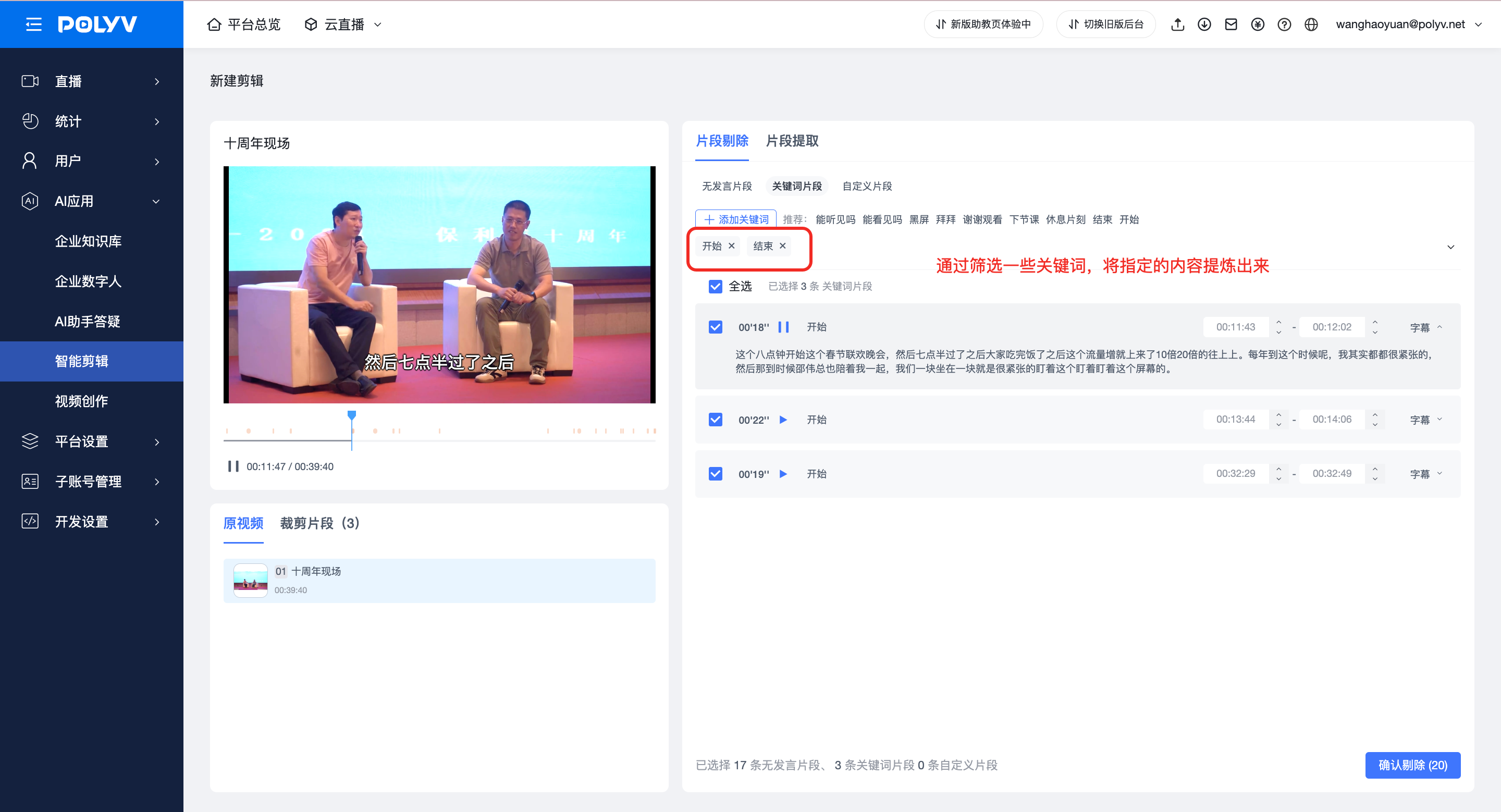
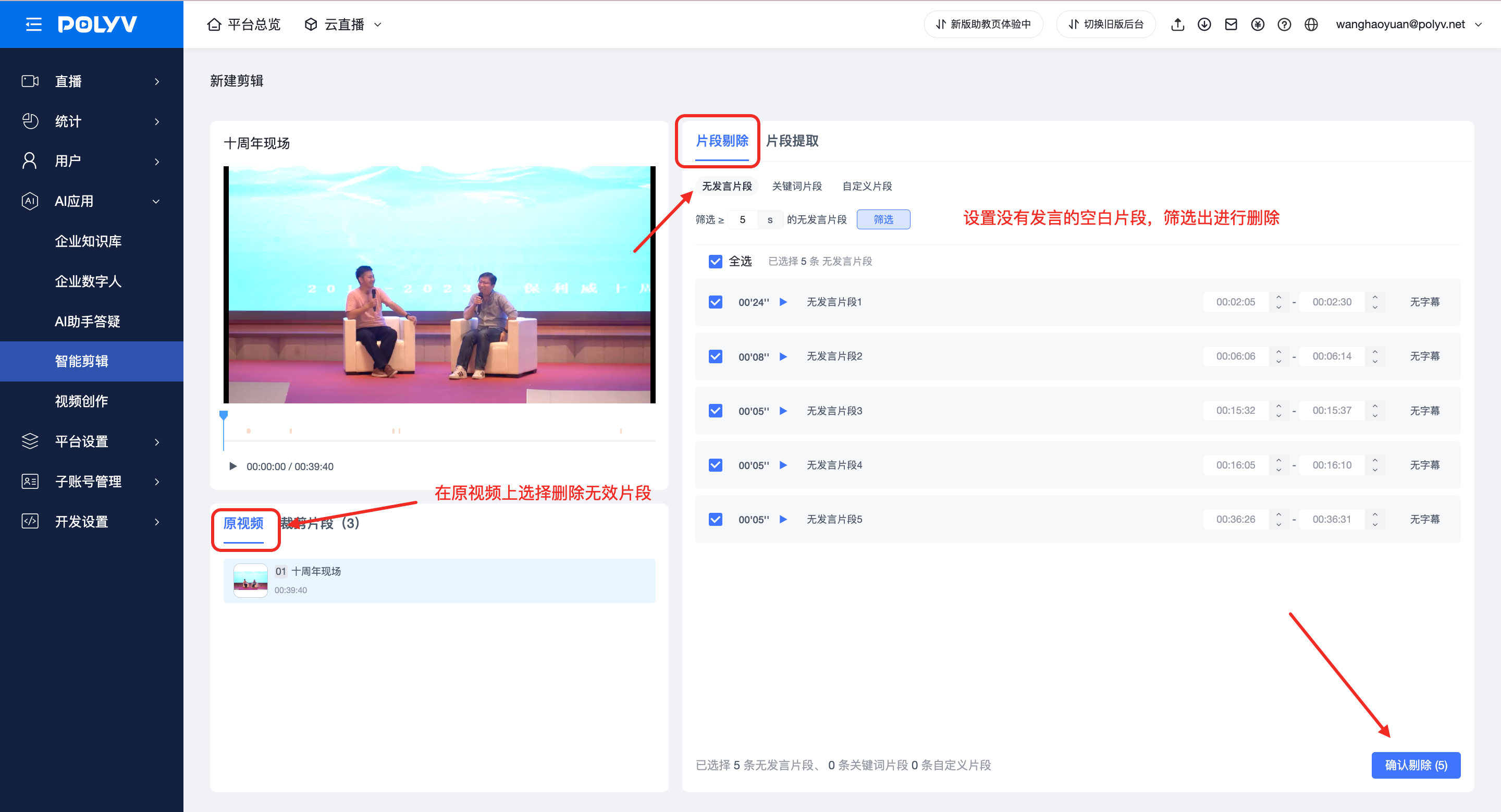 b. Also supports extracting and deleting segments based on specific keywords (e.g., device debugging sections, equipment failure incidents, or other invalid segments).
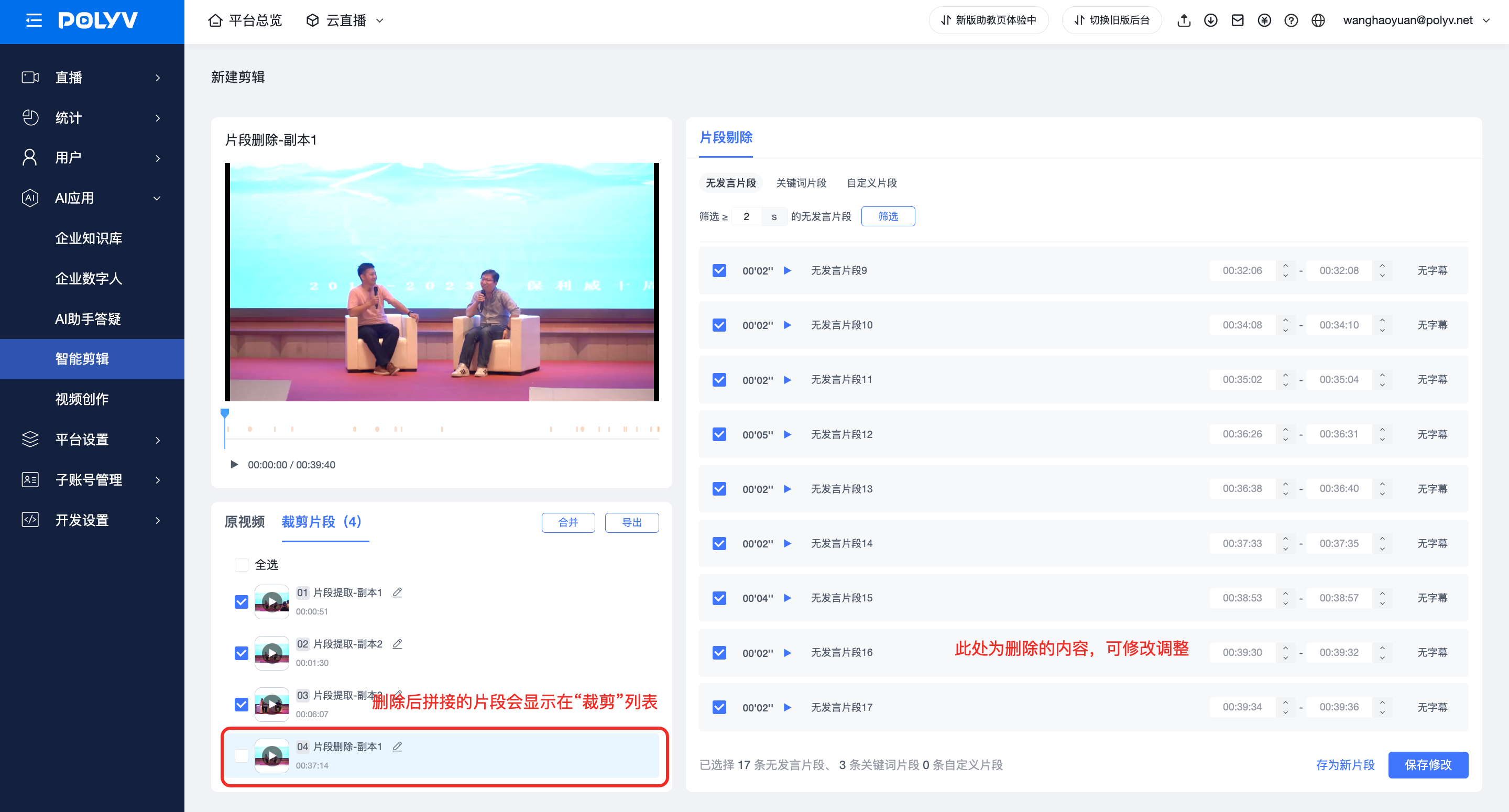
 c. Confirmed deleted segments are also saved under the "Cropped Segments" section and can be exported.
 2.6 Custom naming before export: Assign custom names to different segments for easy identification.