


Series Live (Beta)
1. What is Series Live?
1.1 Feature Overview
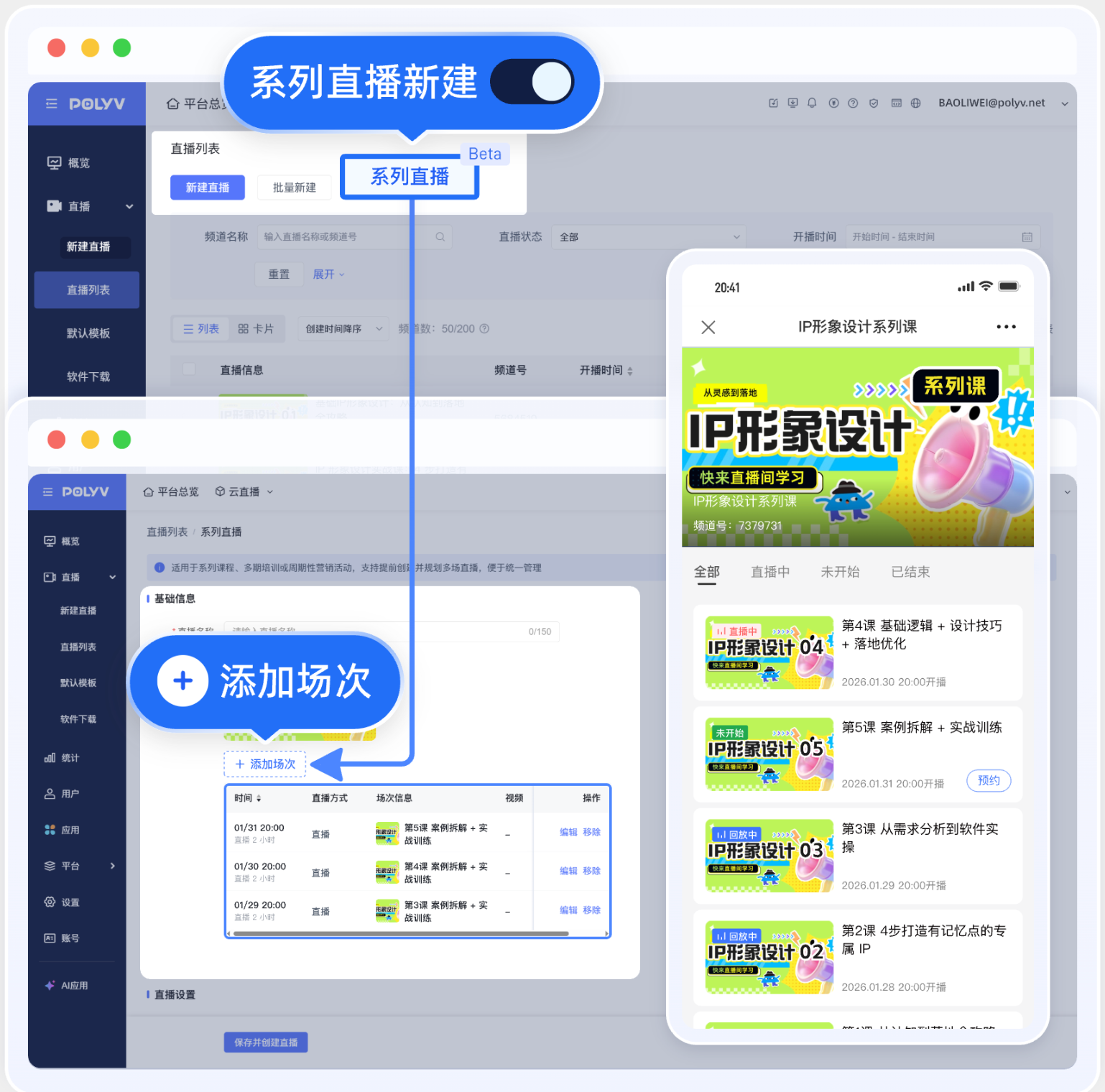
- Series Live is a feature that allows you to preset and manage multiple live sessions under the same live channel.
- Operators can plan a schedule for multiple live sessions in advance under a single live topic.
- Viewers only need a single unified link to view upcoming live sessions or replay past sessions.
- Series Live supports managing sessions by chapters, suitable for organizing live content by course structure, activity phases, or content units.
2. Applicable Scenarios
- Multi-session courses with a fixed schedule
- Small classes, training courses, periodic activities
- Scenarios requiring advance planning of course schedules
- Scenarios where each session needs independent management and clear replays
2. Operation Guide
2.1 Operator Side - Admin Console
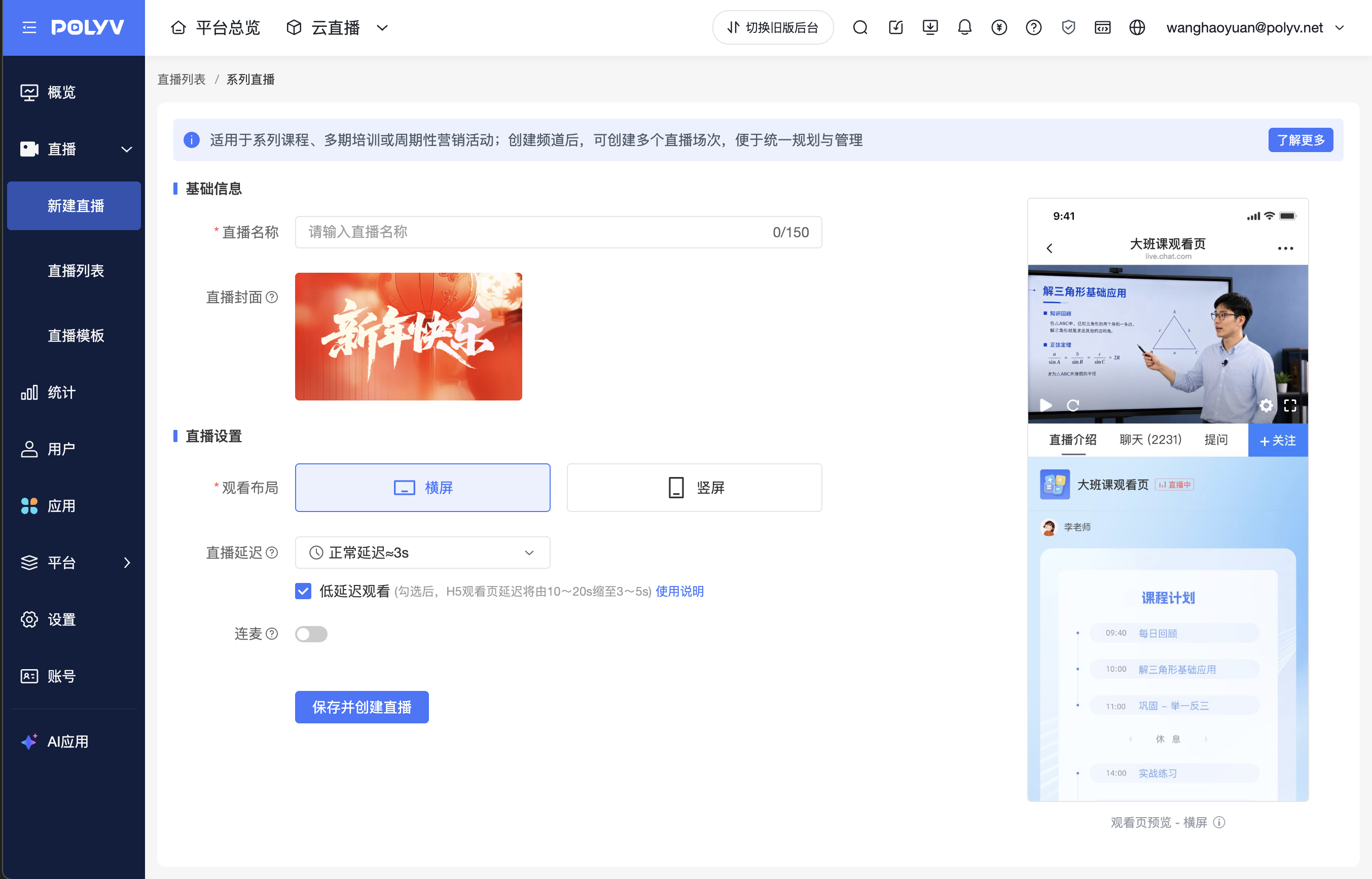
1.1 Creating a Channel
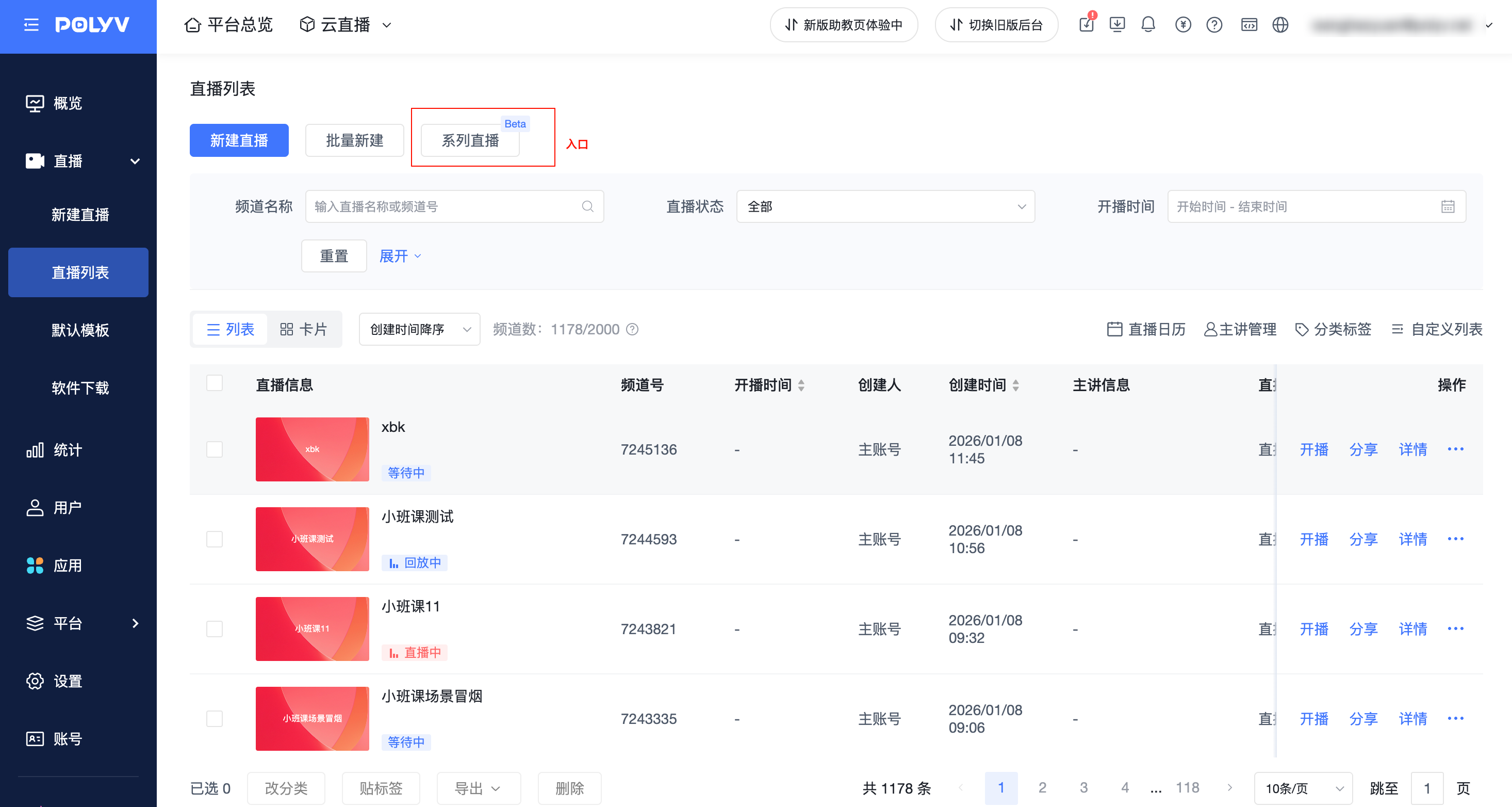
- Location: Admin Console - Live List - Series Live
- Settings configured during channel creation will apply to all sessions; whether replay is enabled and the replay source can be configured individually per session. Session replays are also controlled by the channel's master replay switch.
1.2 Managing Chapters
Series Live supports managing sessions by chapters, suitable for organizing live content by course structure, activity phases, or content units.
1.2.1 Creating, Editing, Deleting Chapters
Supports creating, editing, deleting, and reordering chapters. Chapters are displayed on the viewing page, allowing viewers to view sessions by chapter.
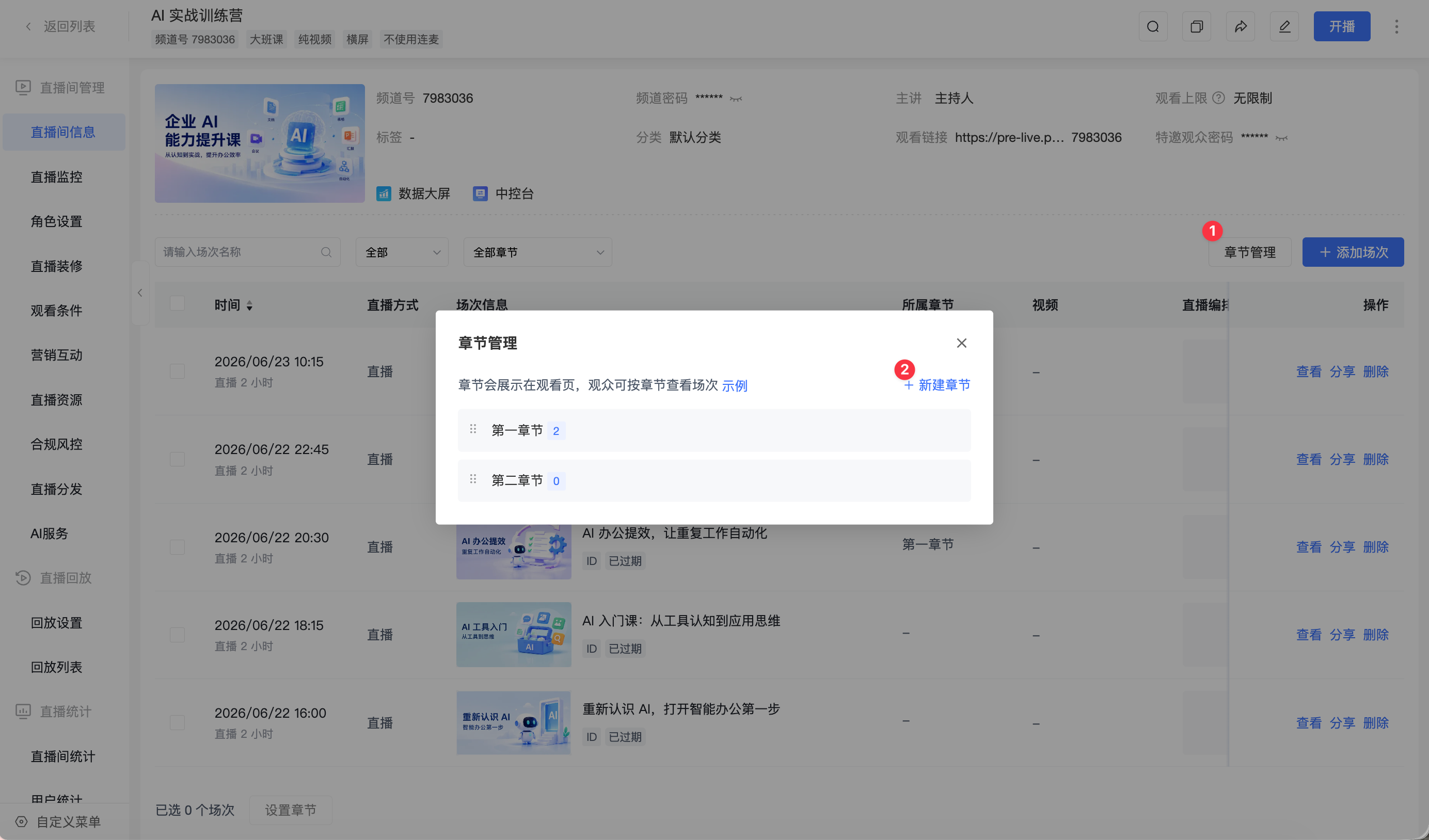
The order of chapters affects the display order of sessions on the viewing page. After adjusting the chapter order, the viewing page will display sessions according to the new chapter order.
1.2.2 Batch Modify Chapter Assignment
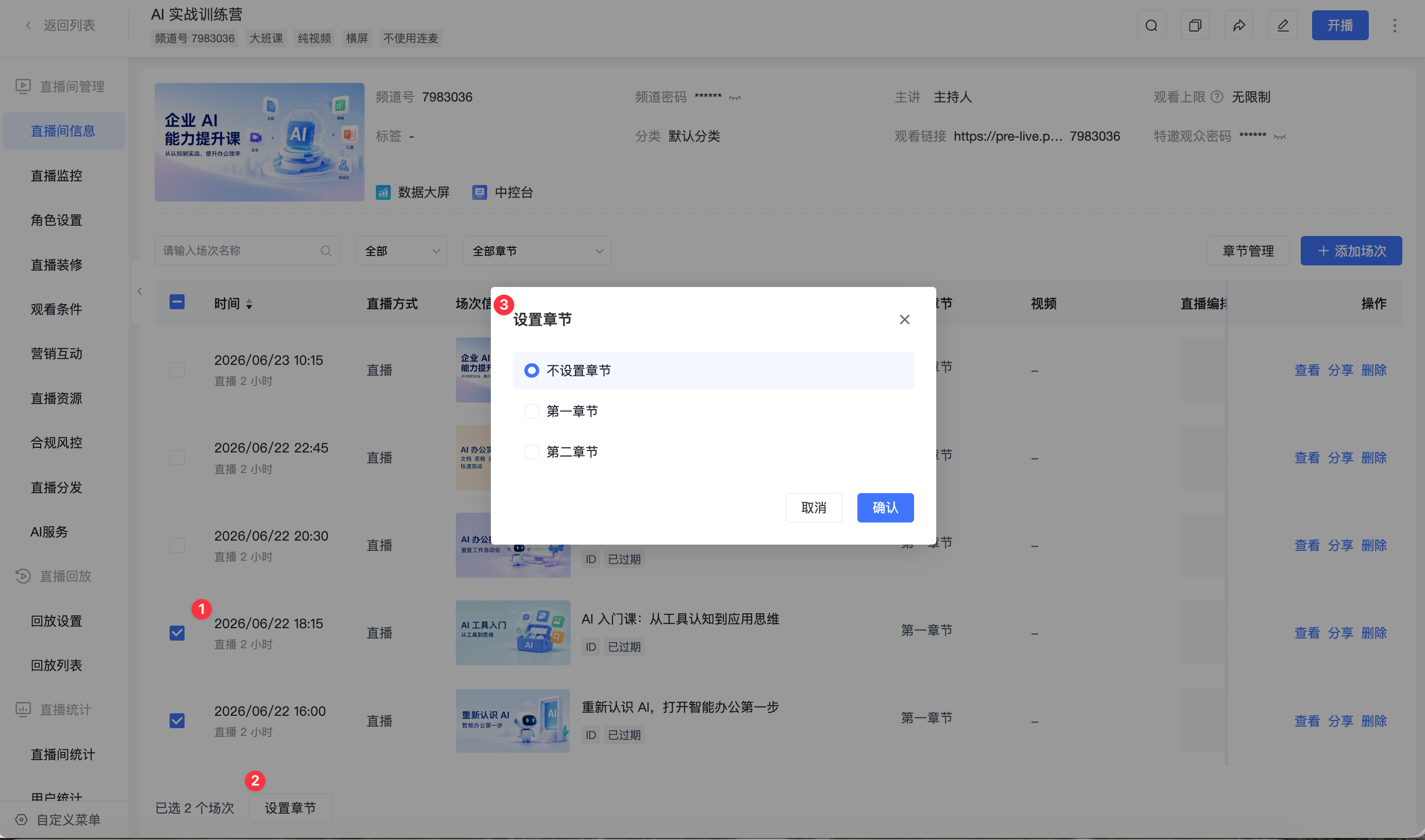
After selecting multiple sessions in the session list, click [Set Chapter] to batch move the selected sessions to a specified chapter.
1.3 Adding Sessions
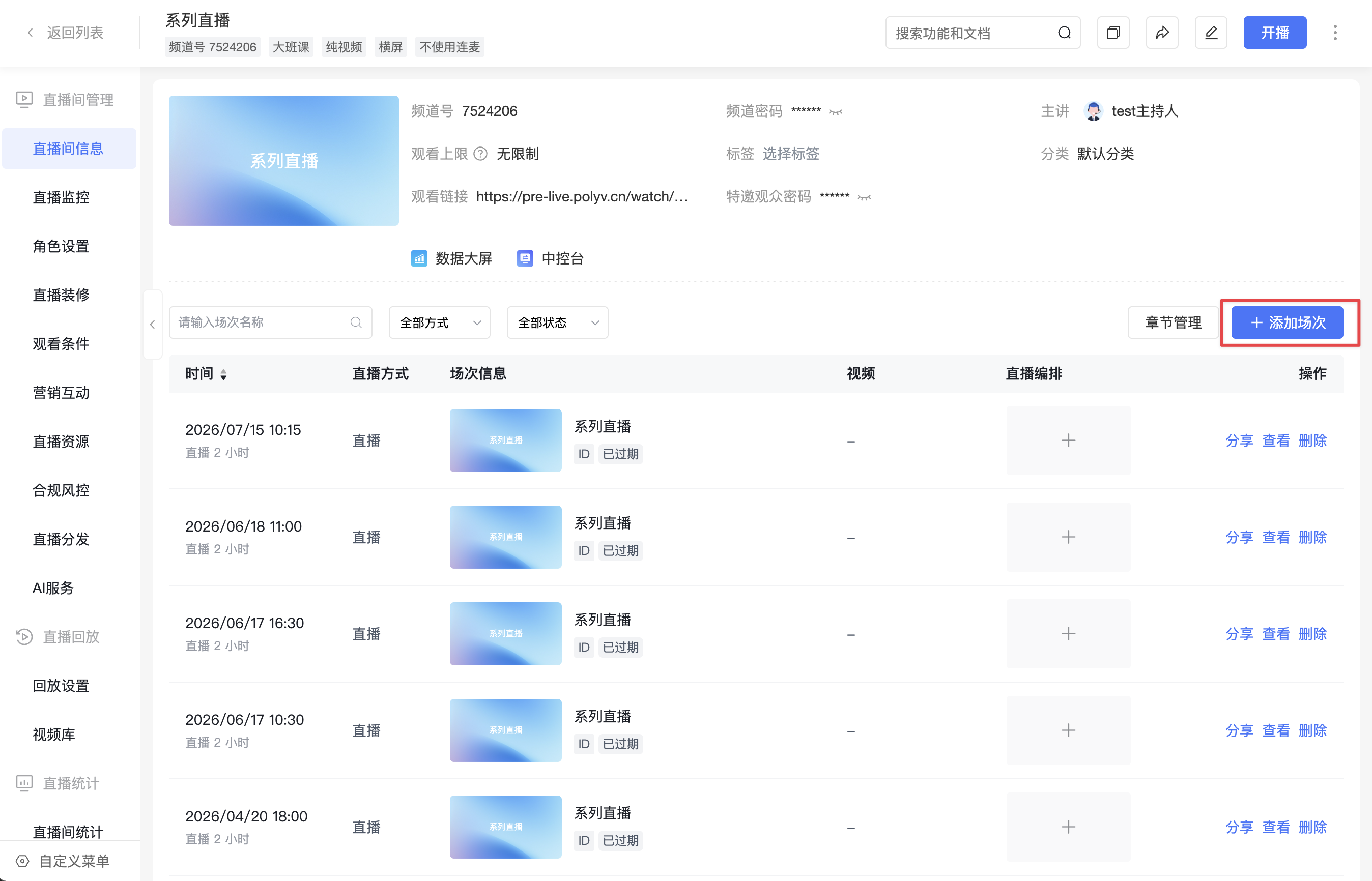
After creating a new series live channel, go to [Channel Info] and click [Add Session].
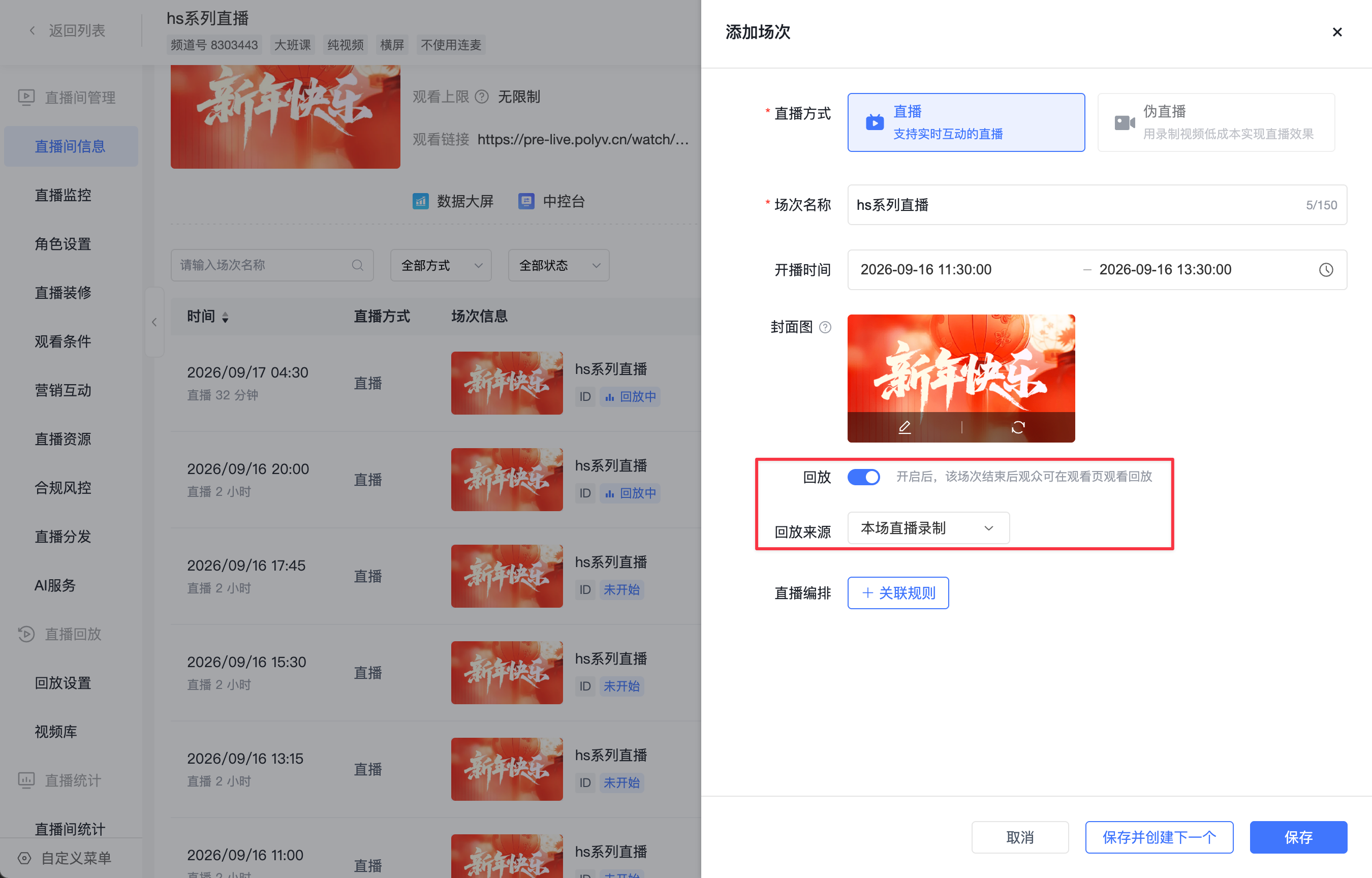
When adding a session, you can configure [Replay]. When the channel replay is enabled, new sessions have replay enabled by default, with the source defaulting to [This Session's Live Recording]; when the channel replay is disabled, the replay switch for new sessions is off and non-operable. You can click [Go to Settings] to enable the channel replay.
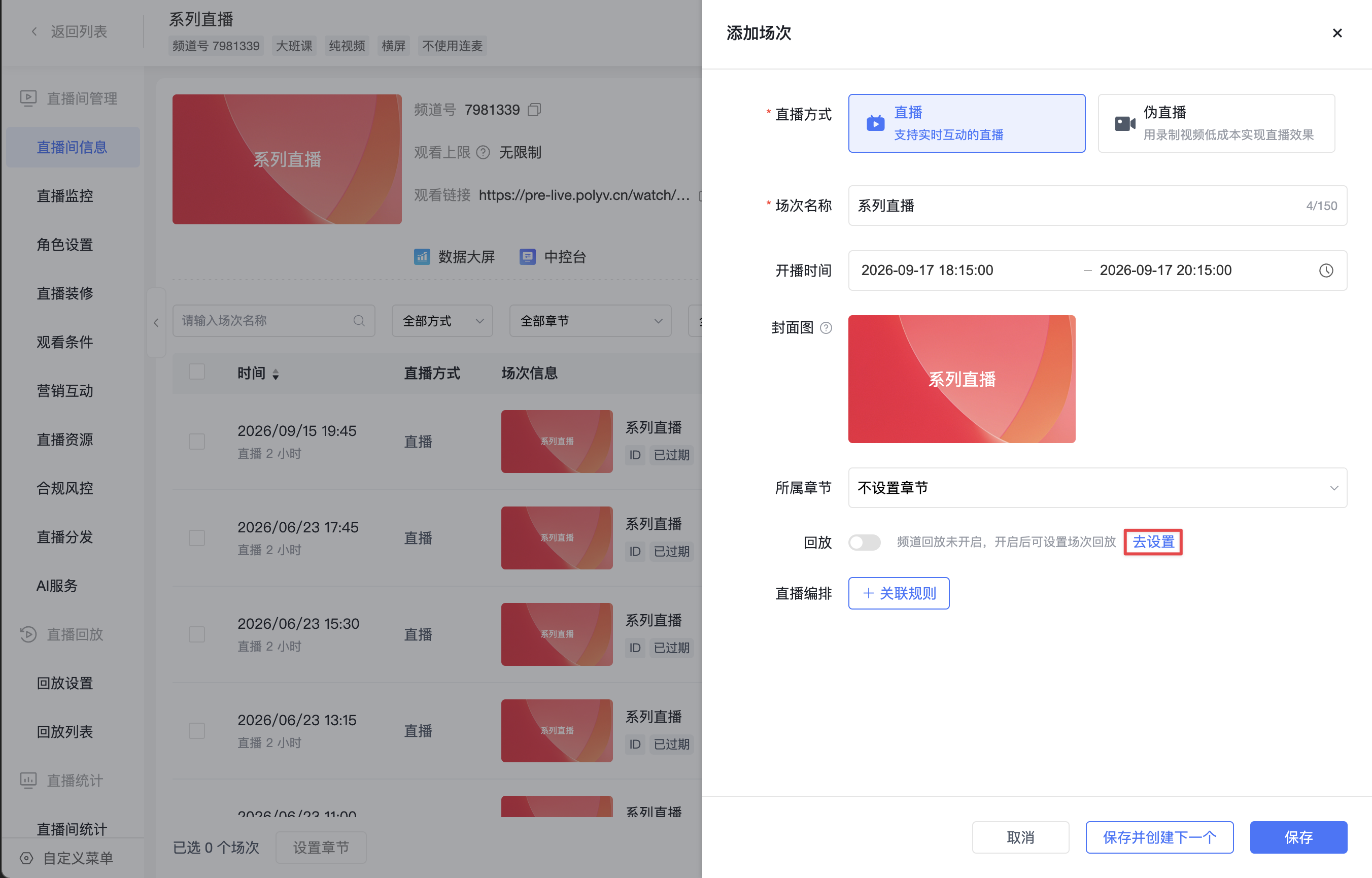
When the channel replay is disabled, the [Replay] option when adding a session is non-operable. You can go to [Go to Settings] to enable the channel replay.
1.4 Editing Sessions
Feature |
Description |
|---|---|
| Select Live Mode | 1. Supports selecting Live / Simulated Live2. Cannot be modified after session creation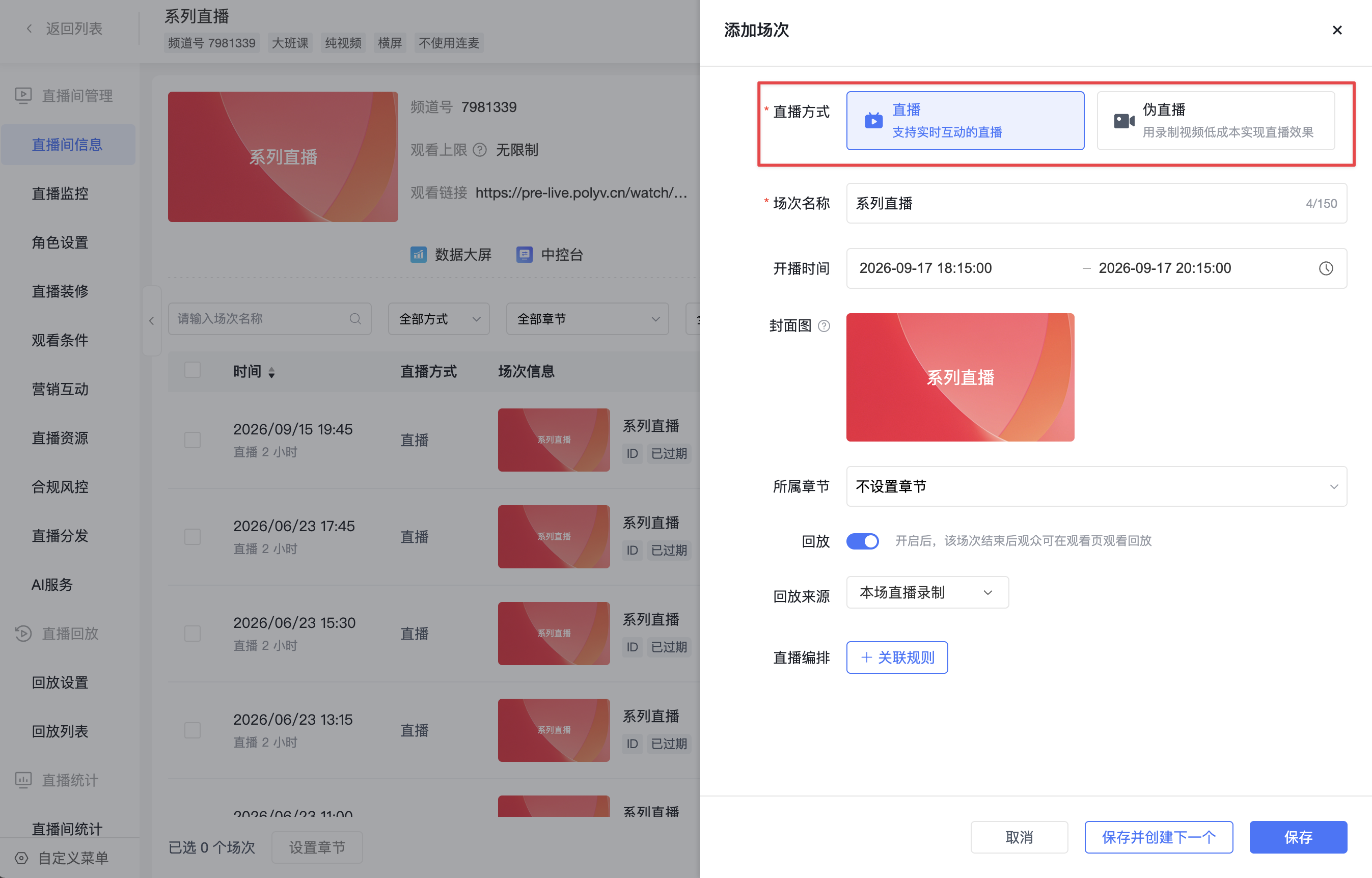 |
| Session Name | 1. Required, max 150 characters2. Defaults to the channel name, supports editing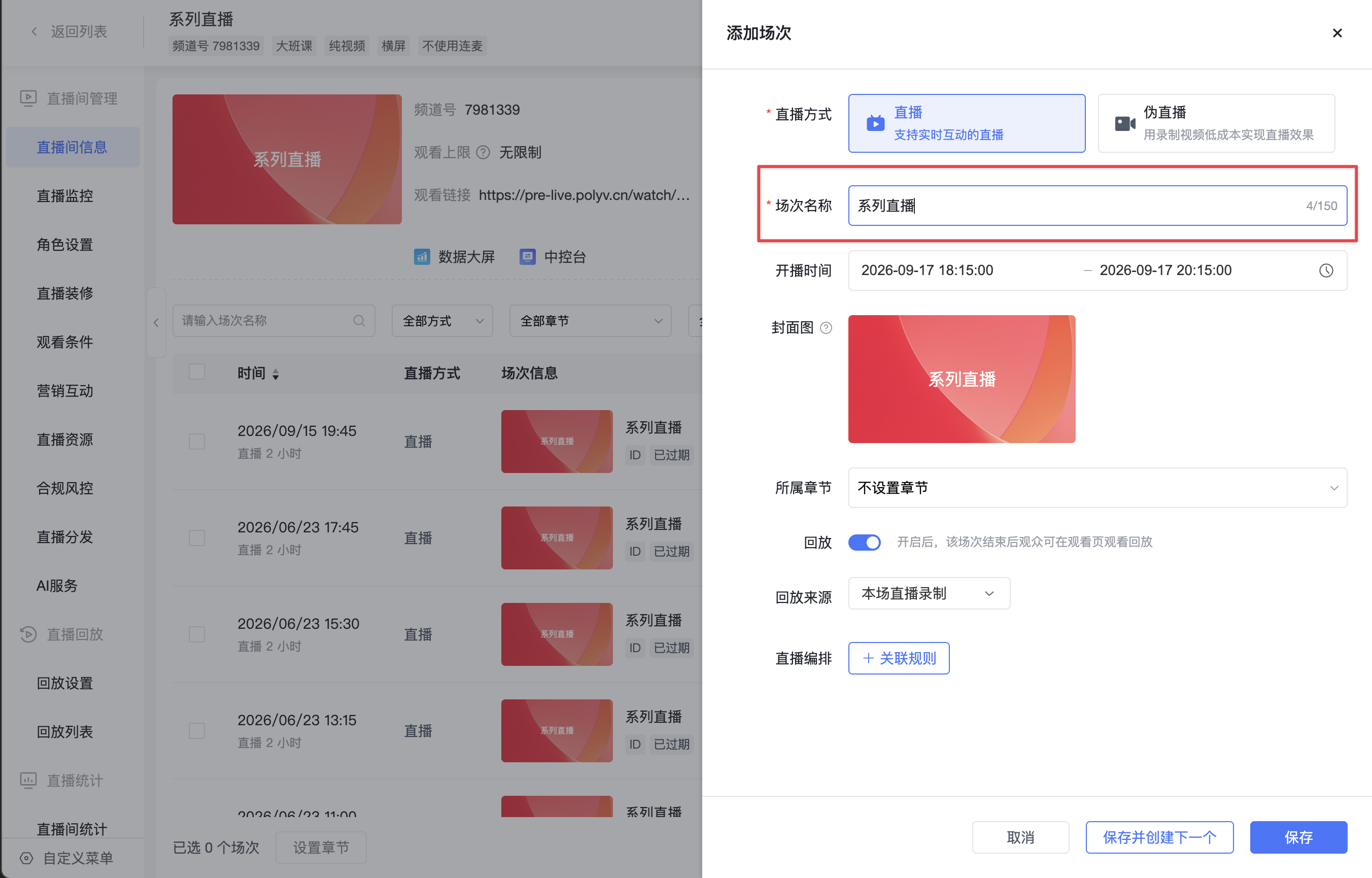 |
| Start Time | 1. Required2. Note: In the "Simulated Live" scenario, the set start and end times are the actual broadcast times. The live stream will start automatically at the preset time.3. Start time setting: Must be later than the current time4. The time interval between sessions must be greater than 15 minutes. Different sessions cannot have overlapping times.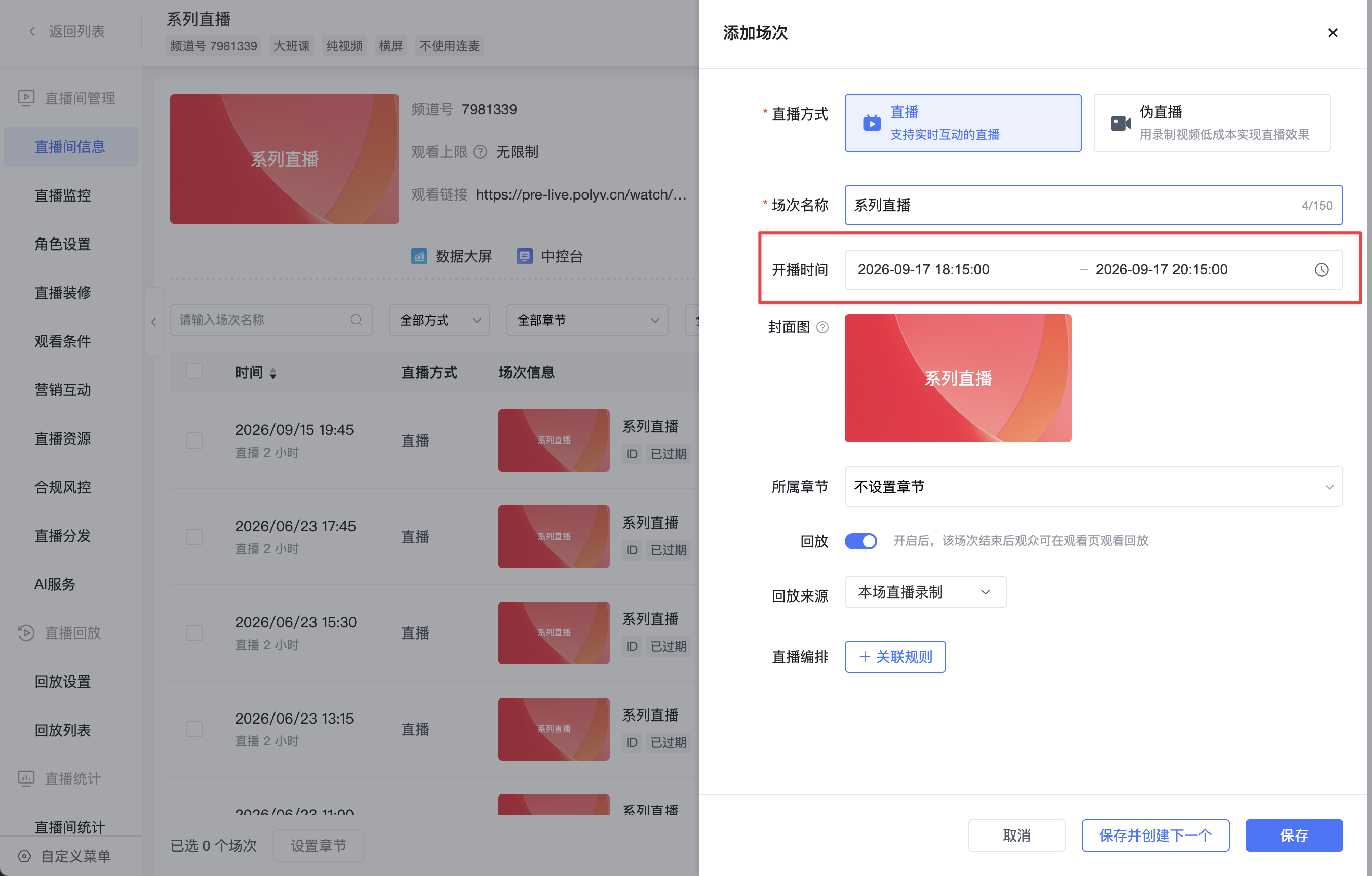 |
| Assigned Chapter | Supports selecting the chapter the session belongs to; sessions not assigned to a chapter can select [No Chapter]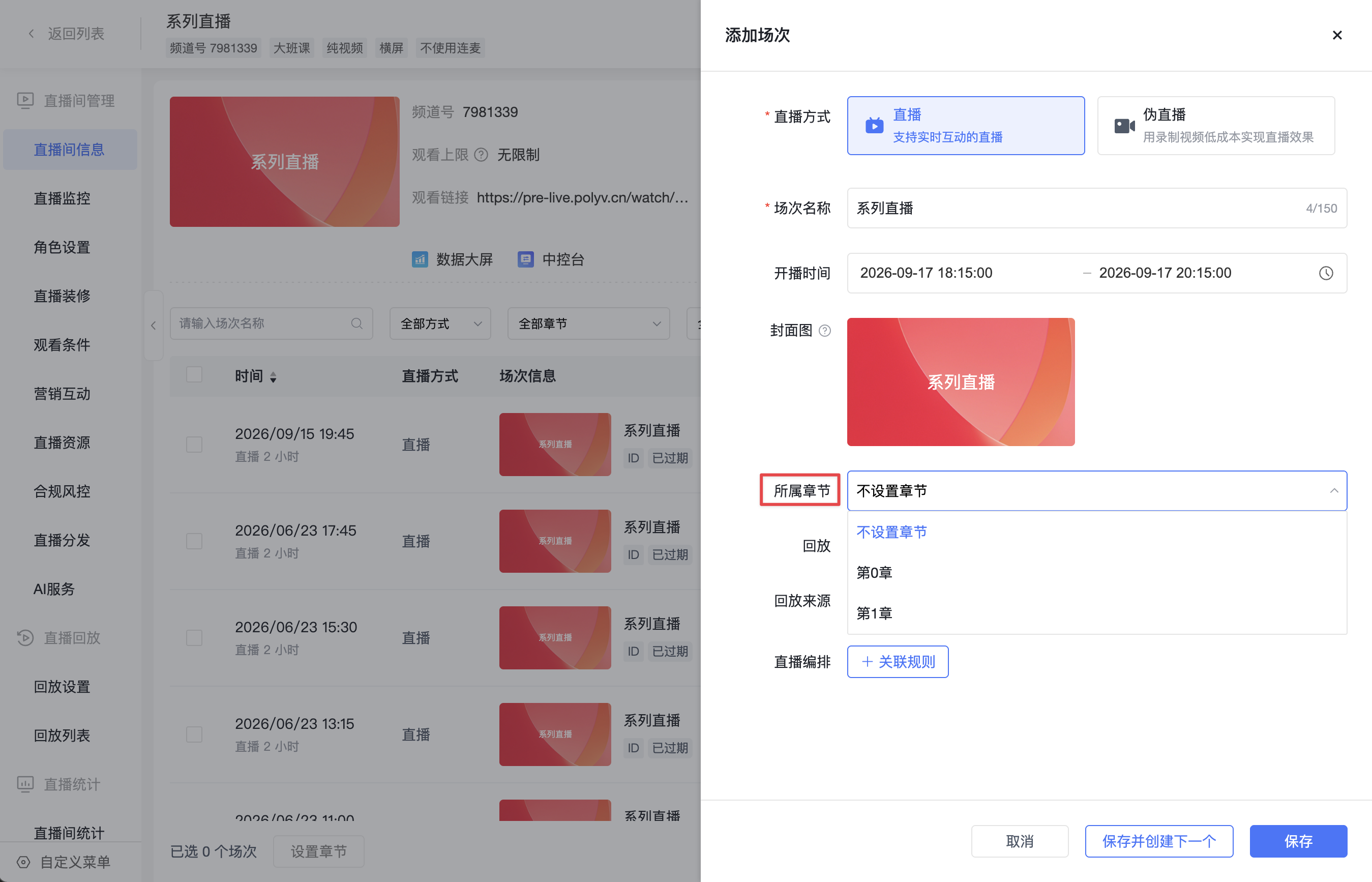 |
| Cover Image | 1. Supports using the default cover or a custom session cover2. The cover will be used on the viewing page for this session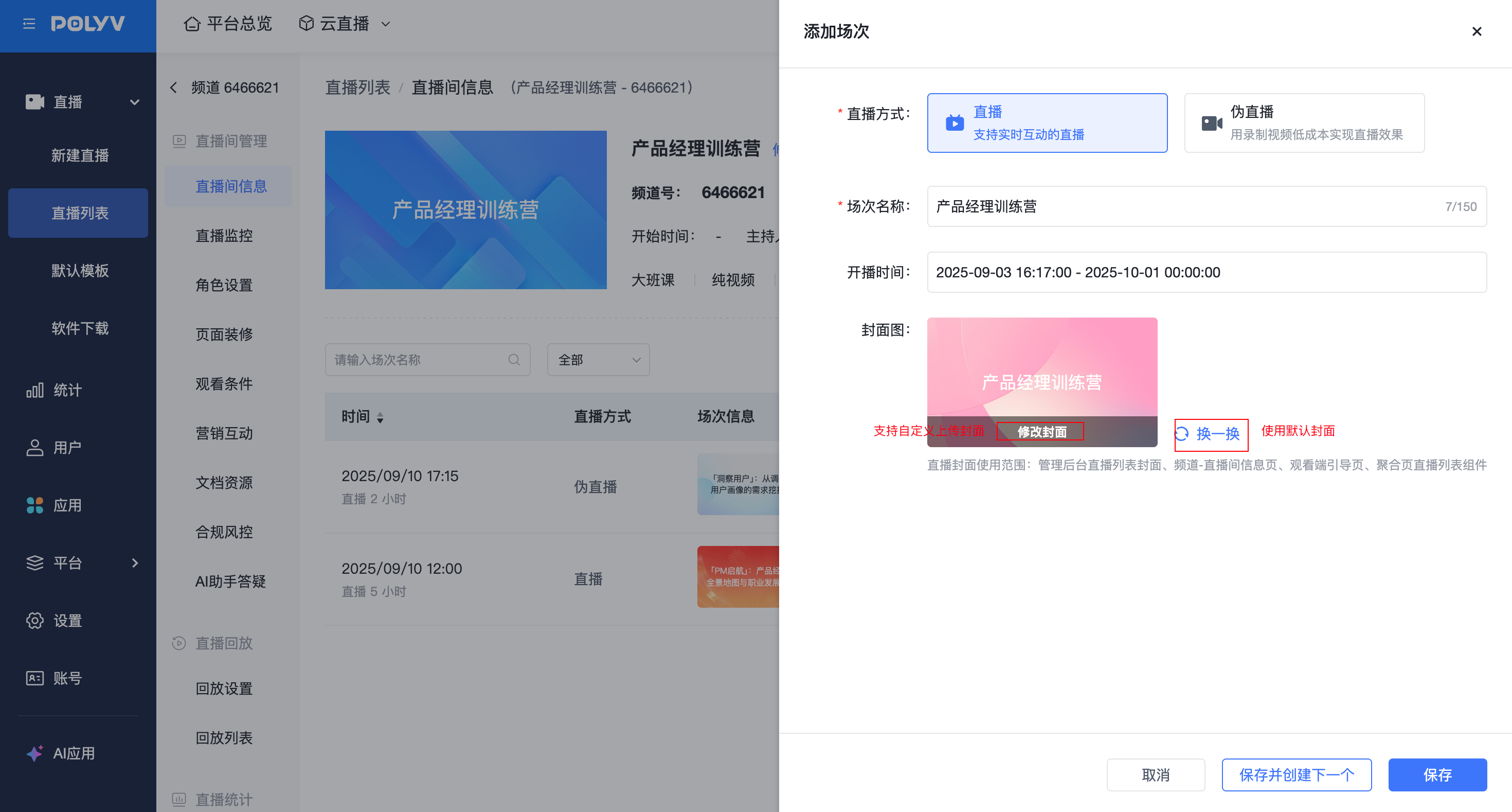 |
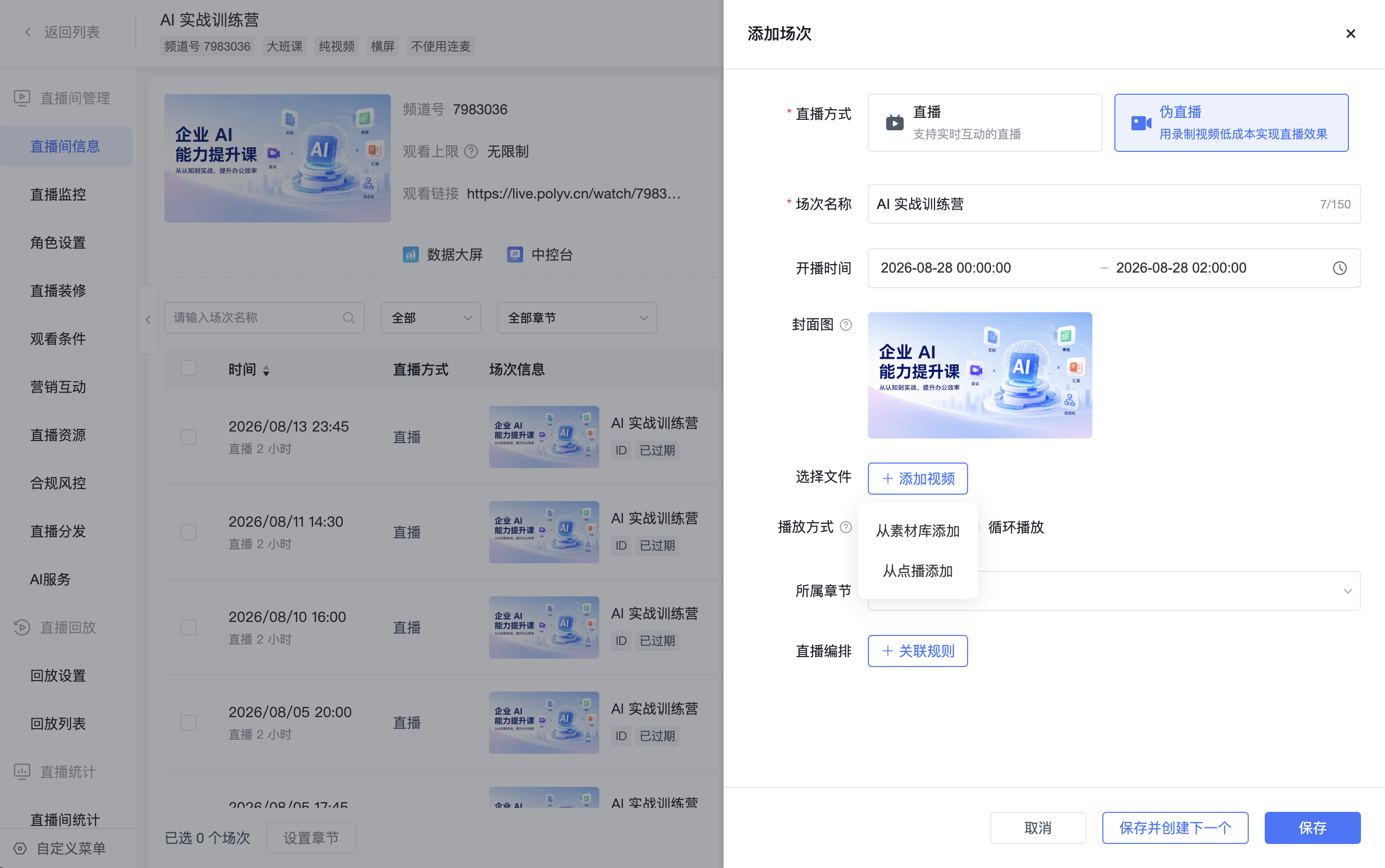
| Add Video (Simulated Live only) | 1. [Add Video] is only displayed after selecting [Live Mode - Simulated Live]2. If only the Media Library is enabled, clicking [Add Video] opens the Media Library directly; if only VOD is enabled, clicking opens VOD directly; if both Media Library and VOD are enabled, you can choose [Add from Media Library] or [Add from VOD]3. After selecting a video, you can click [Delete] to remove it and select again4. A Simulated Live session cannot be saved without selecting a video; the page will prompt "Please select a video" |
| Replay | Supports setting the replay switch and replay source for the current session. This field is not displayed for expired sessions. See "Setting Session Replay" below for details. |
| Playback Mode (Simulated Live only) | 1. Supports Single Playback and Loop Playback2. Single Playback: The video plays only once(1) If the video duration is shorter than the live duration, the session ends when playback finishes(2) If the video duration is longer than the live duration, the video will be truncated when the session ends3. Loop Playback(1) Note: Only available when the video duration is shorter than the live duration(2) The video will repeat during the live broadcast period until the session ends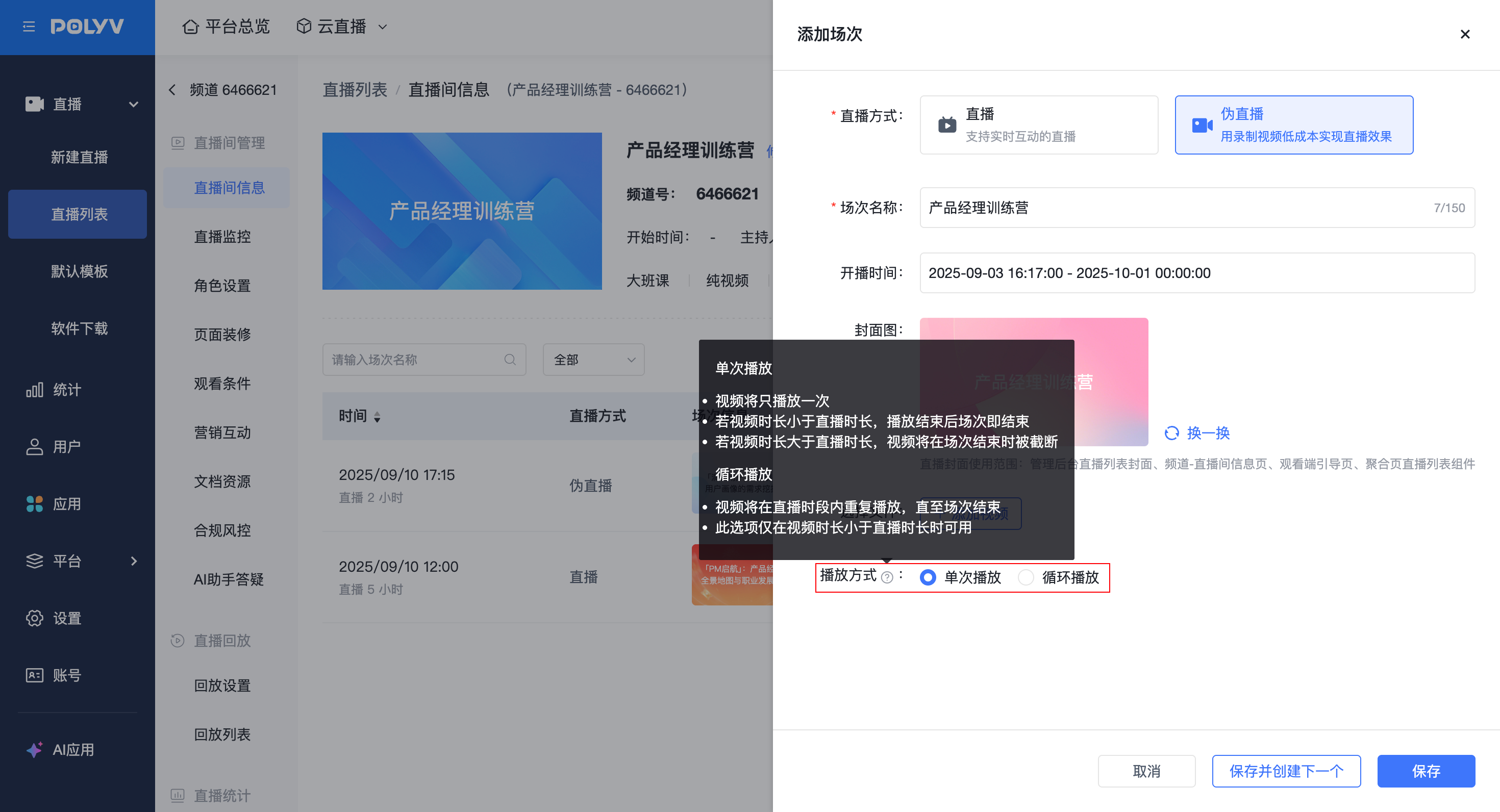 |
When both Media Library and VOD are enabled, clicking [Add Video] allows you to select the video source:
1.5 Managing Sessions
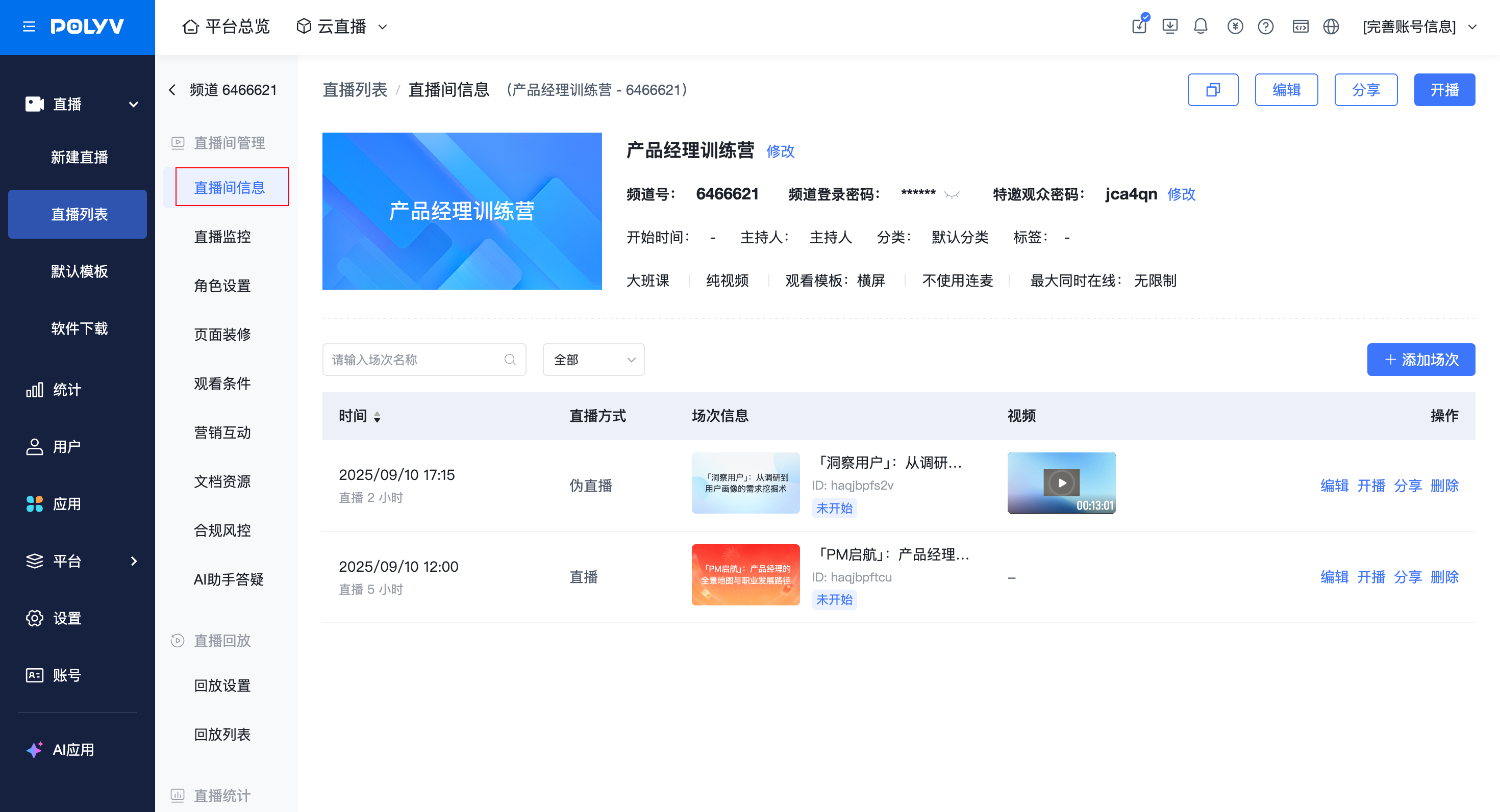
- Location: Admin Console - Channel - Live Room Info - Session List
List Field |
Description |
|---|---|
| Time | 1. Displays the preset start time and duration set when creating the session2. After the live stream starts/ends, hover over the preset time to view the "actual start/end time and live duration"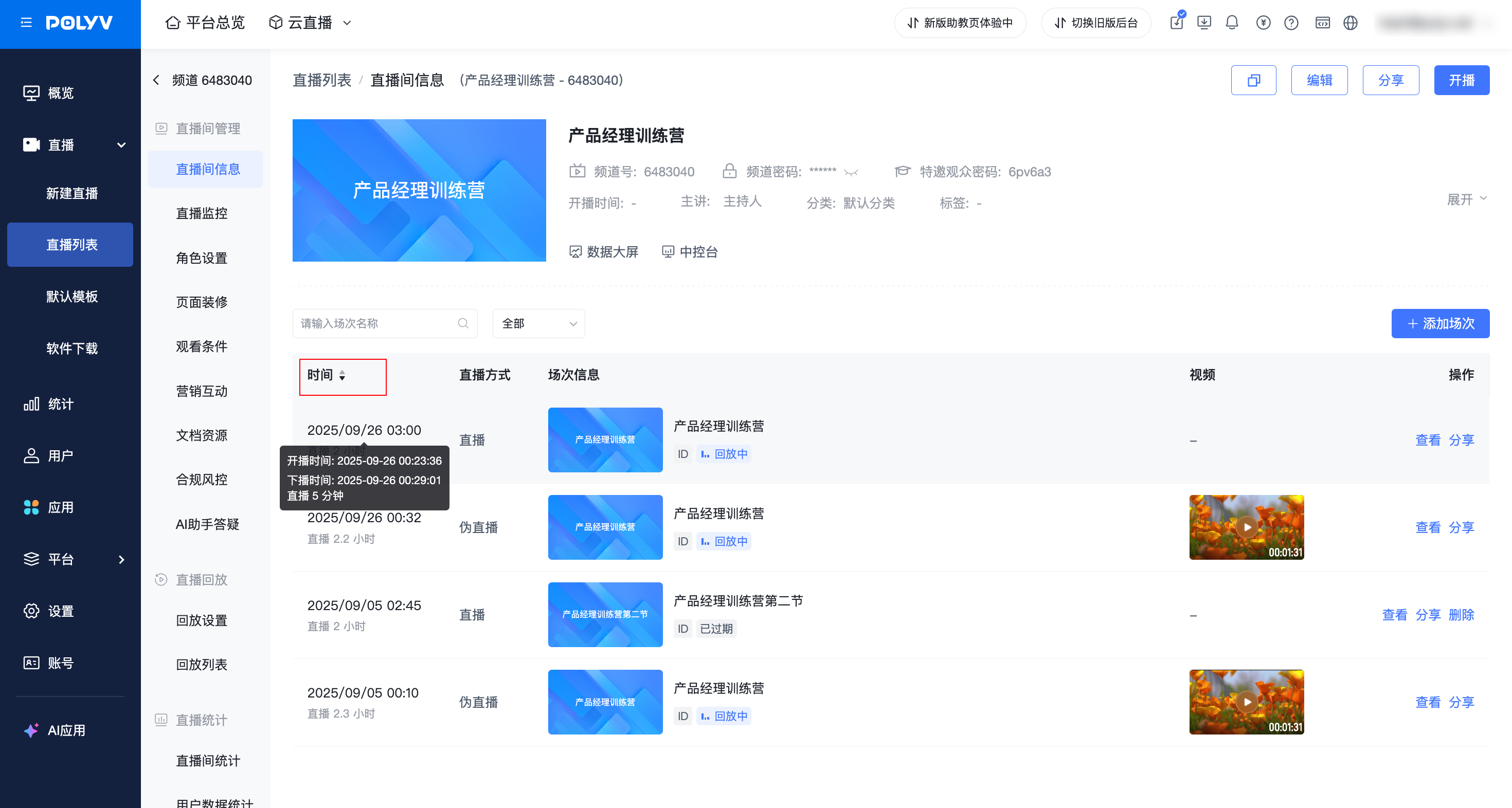 |
| Live Mode | 1. Displays the live mode of the session, including: Live and Simulated Live2. Can be filtered using the filter options above the list to view all Live or all Simulated Live sessions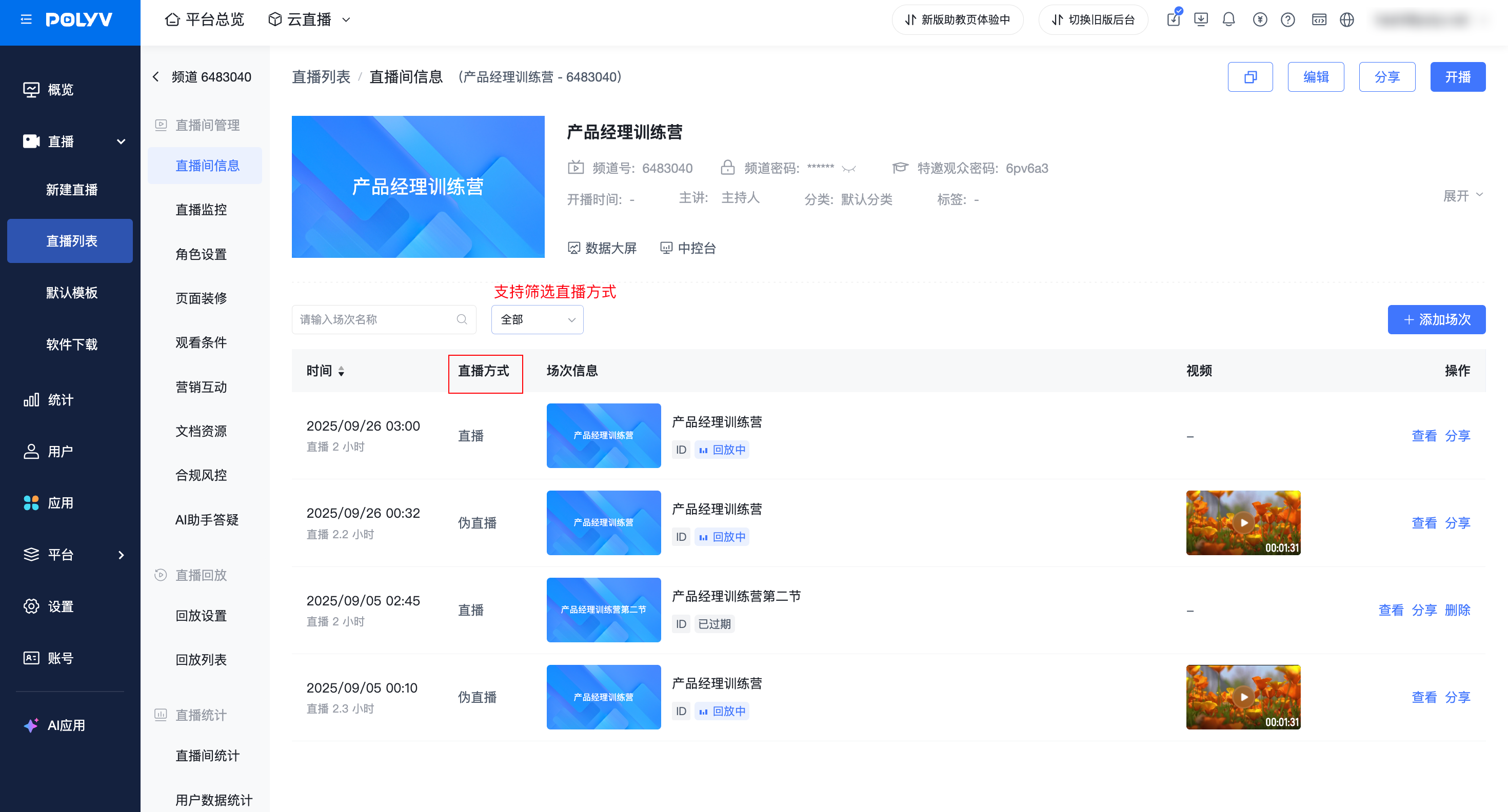 |
| Assigned Chapter | 1. Displays the chapter the session belongs to; sessions not assigned to a chapter are displayed as "No Chapter Set"2. You can modify the assigned chapter for a single session via the edit entry in the [Assigned Chapter] column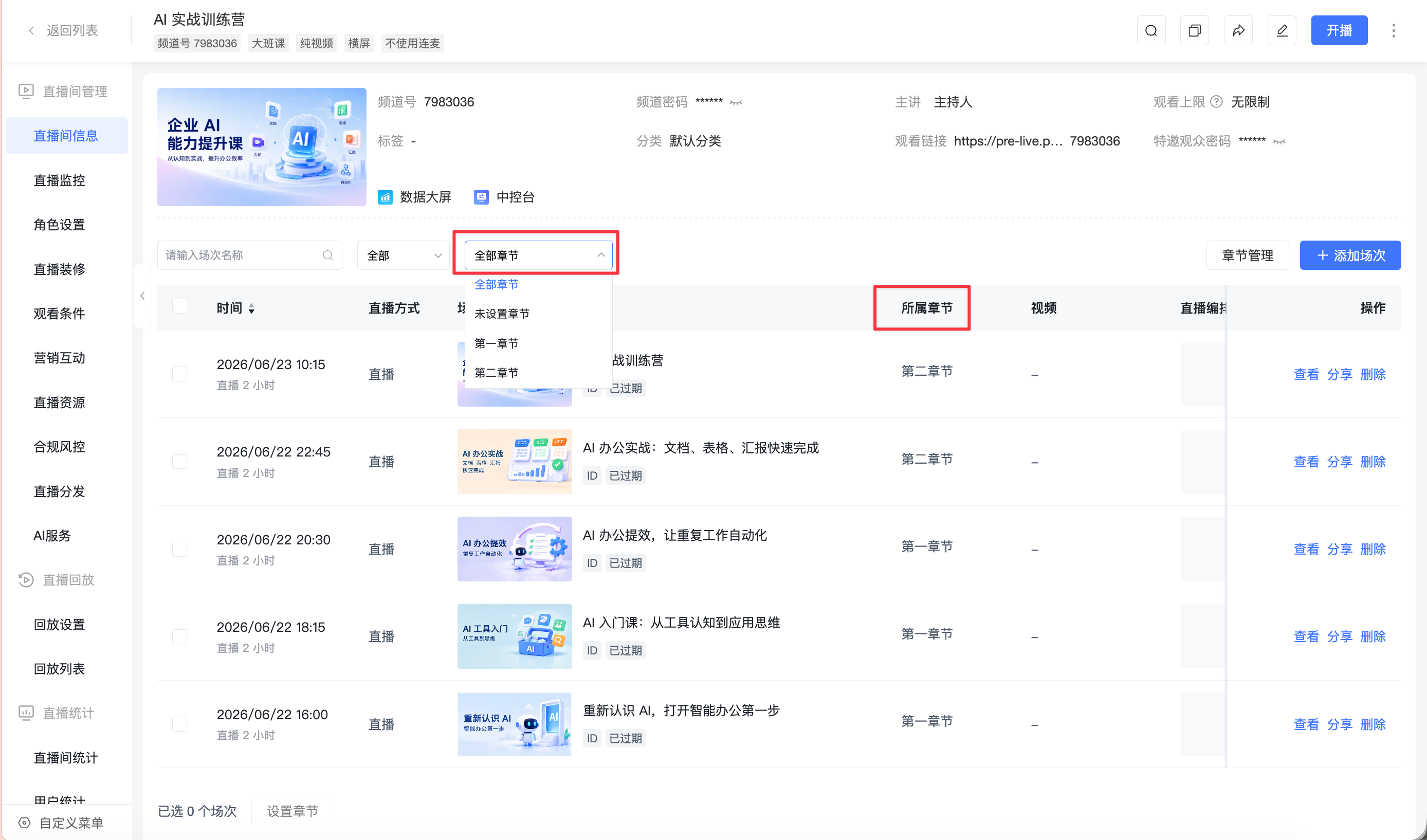 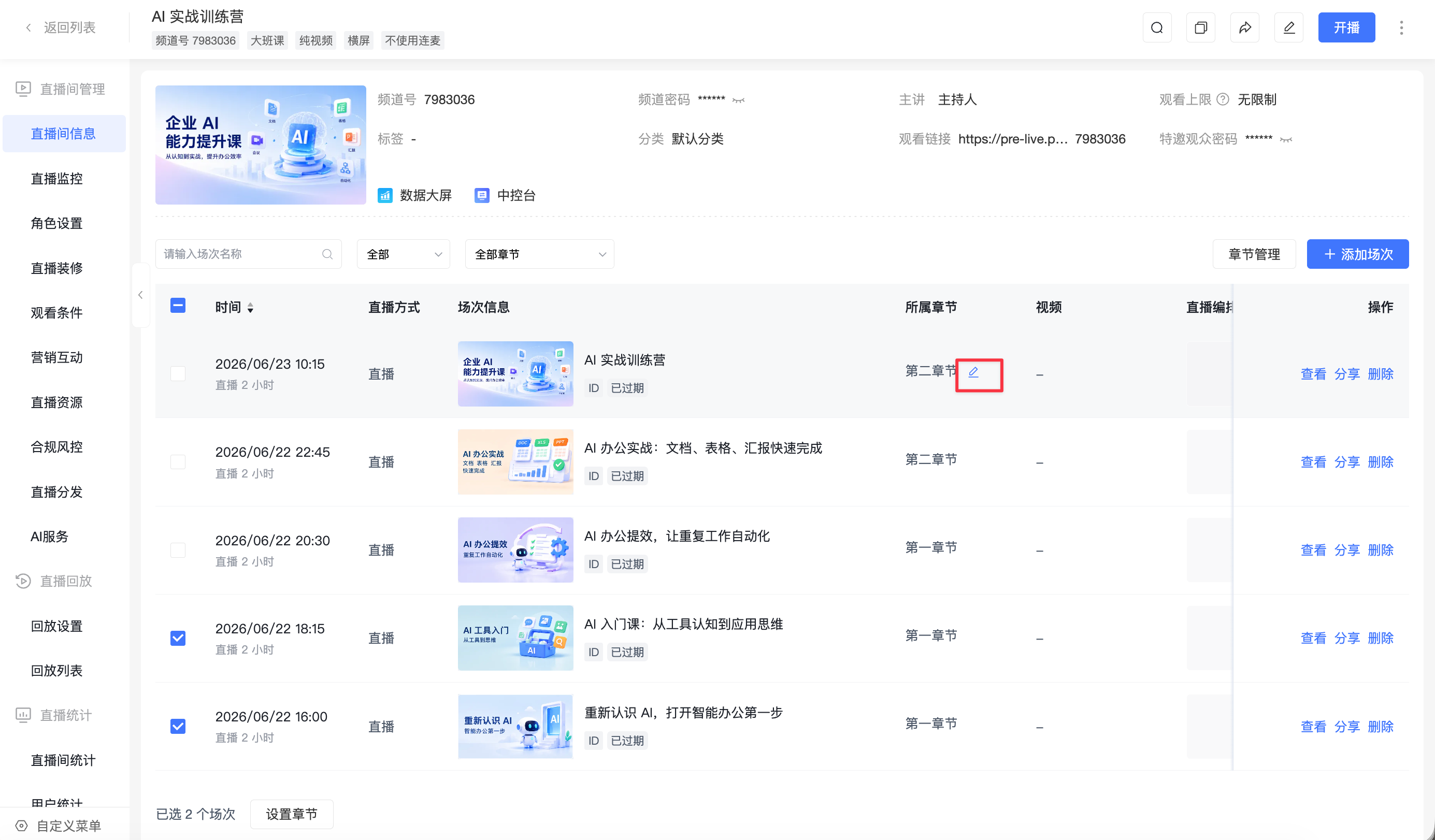 |
| Session Info | 1. Displays session cover, session name, session ID, session status2. Session Status Description(1) Not Started: Live - Presenter has not started broadcasting; Simulated Live - Has not reached the preset start time(2) Live: Live - Presenter has started broadcasting; Simulated Live - Has reached the preset start time(3) Ended: Live - Presenter has stopped broadcasting; Simulated Live - Video has finished playing or has reached the preset end time(4) Replay Available: When both the channel replay and the session replay are enabled, the session enters "Replay Available" status after a Live or Simulated Live session ends; if the session replay is disabled or the channel replay is not enabled, the status becomes "Ended"(5) Expired: A Simulated Live/Live session that has not been successfully initiated within 30 minutes after the preset end time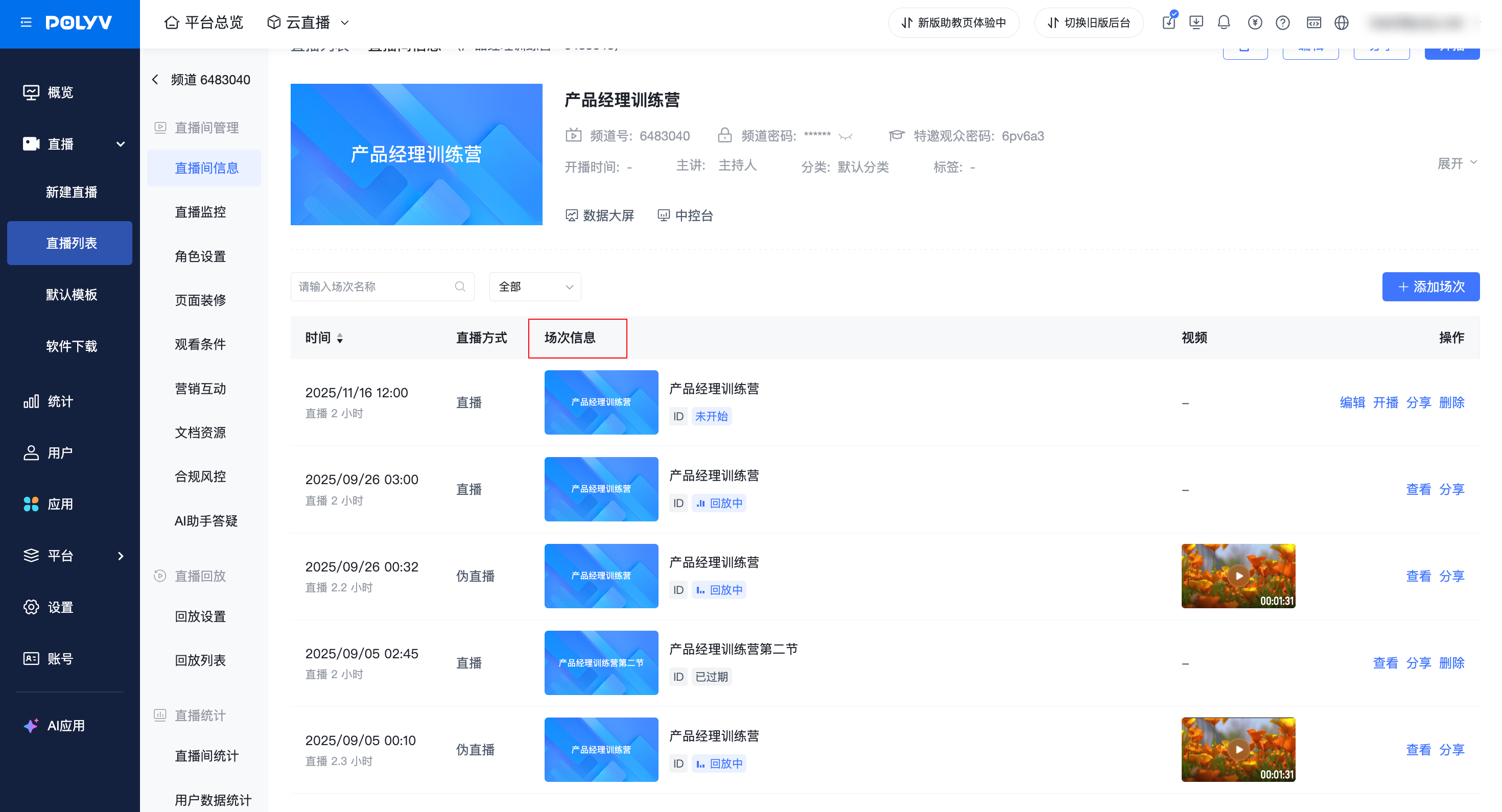 |
| Video (Simulated Live only) | 1. Displays the preview image of the video uploaded for the Simulated Live session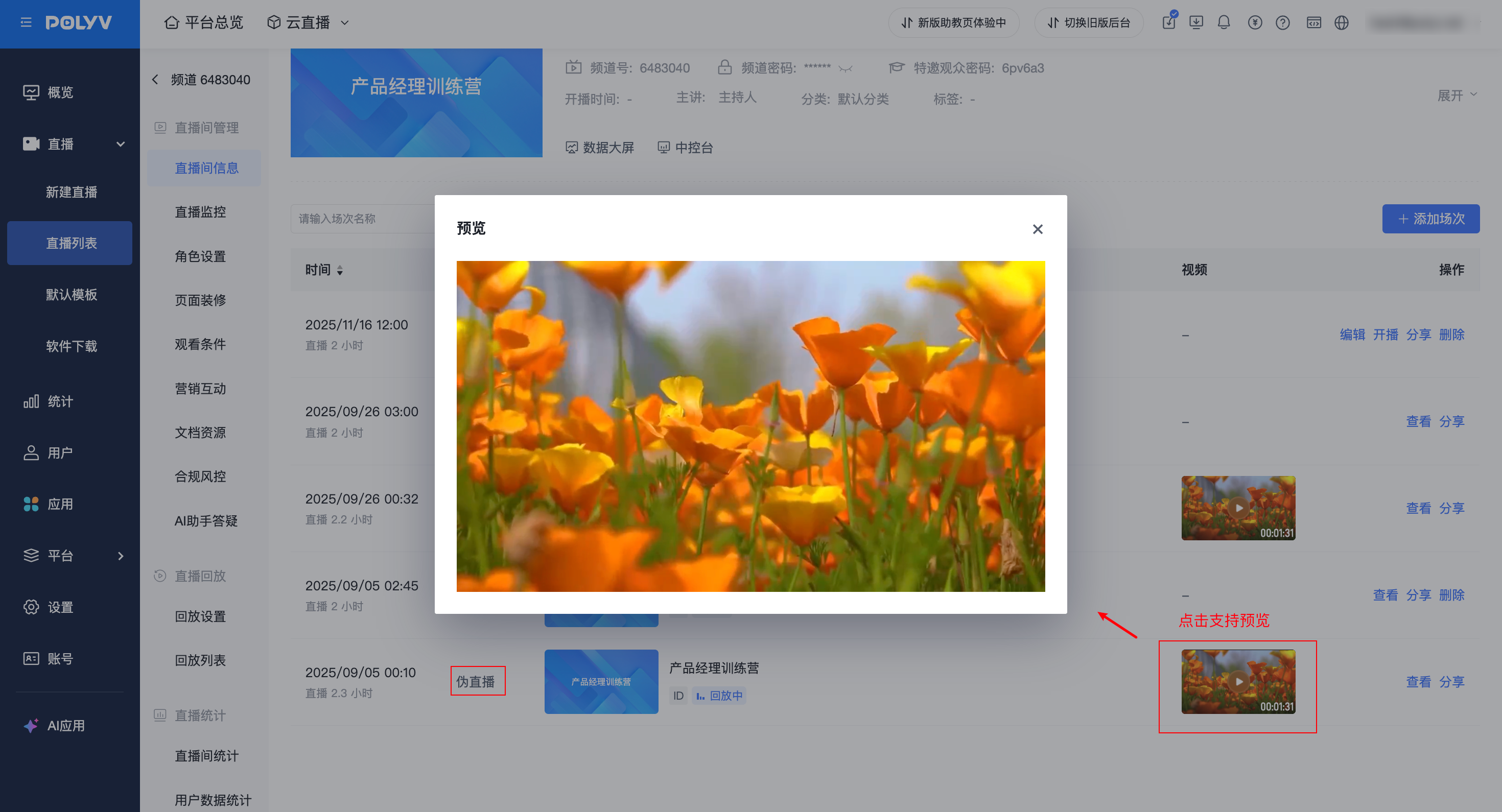 |
| Actions Column | 1. Supports Edit, Start Broadcast, Share, Delete, End(1) Edit: Only supported for "Not Started" sessions(2) View: Supports viewing session info for "Live", "Ended", "Replay Available", "Expired" sessions(3) Start Broadcast: Only supported for "Not Started" and "Live" sessions to get the broadcast link (a session can only be broadcast once)(4) Share: Get the viewing link for the session(5) Delete: Supported for "Not Started", "Ended", "Replay Available", "Expired" sessions(6) End (Simulated Live only): Only supported for "Live" Simulated Live sessions to end the broadcast from the admin console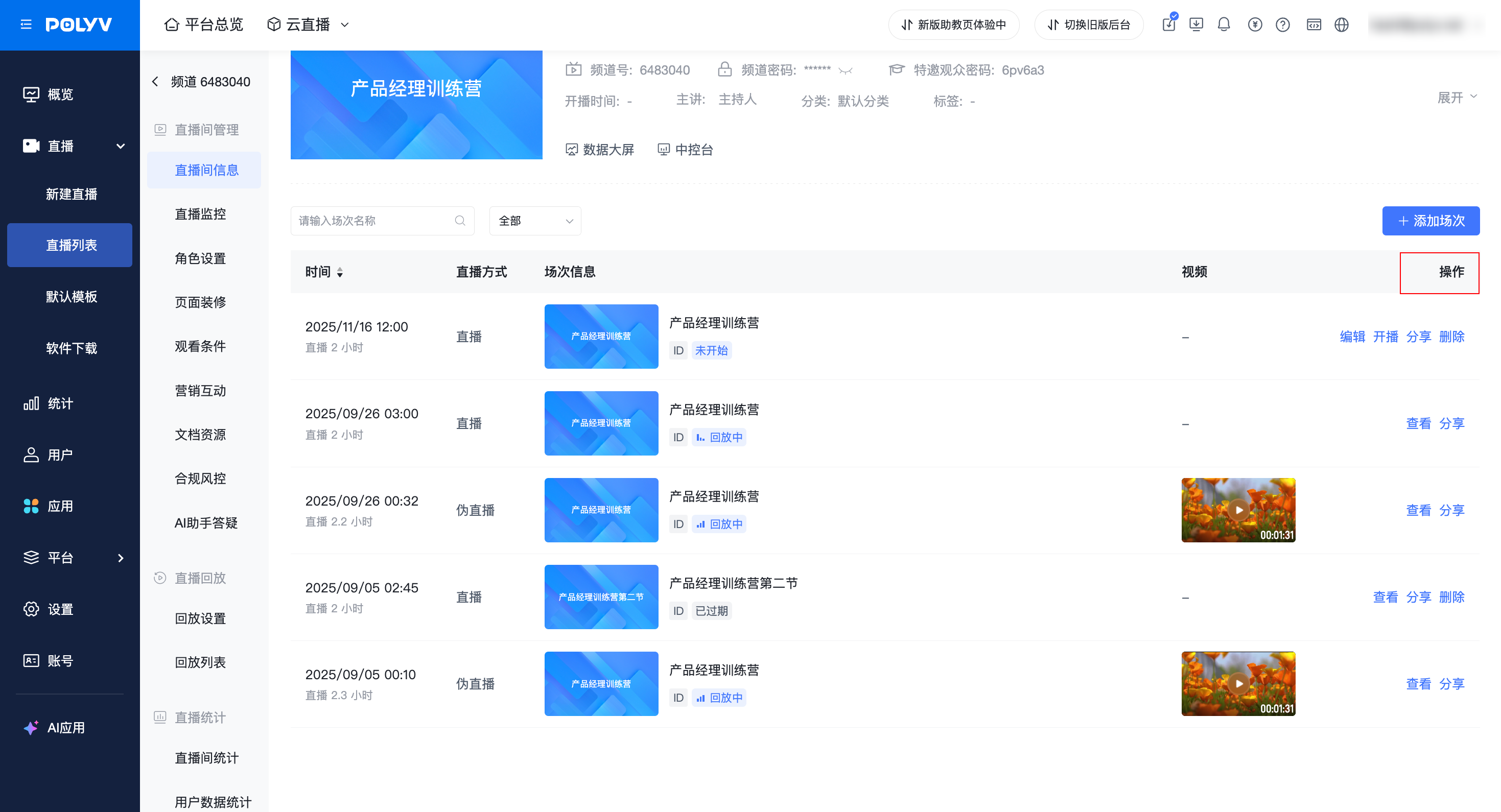 |
Filtering Sessions
Sessions can be filtered by session name, live mode, and session status. Status options include [All Statuses] [Not Started] [Live] [Ended] [Replay Available] [Expired].
Single Session Replay Settings
Click [Replay Settings] in the [More] menu of the corresponding session in the session list to adjust the replay switch and source for that session. This is supported for Not Started, Live, Ended, and Replay Available sessions; this entry is not available for Expired sessions.
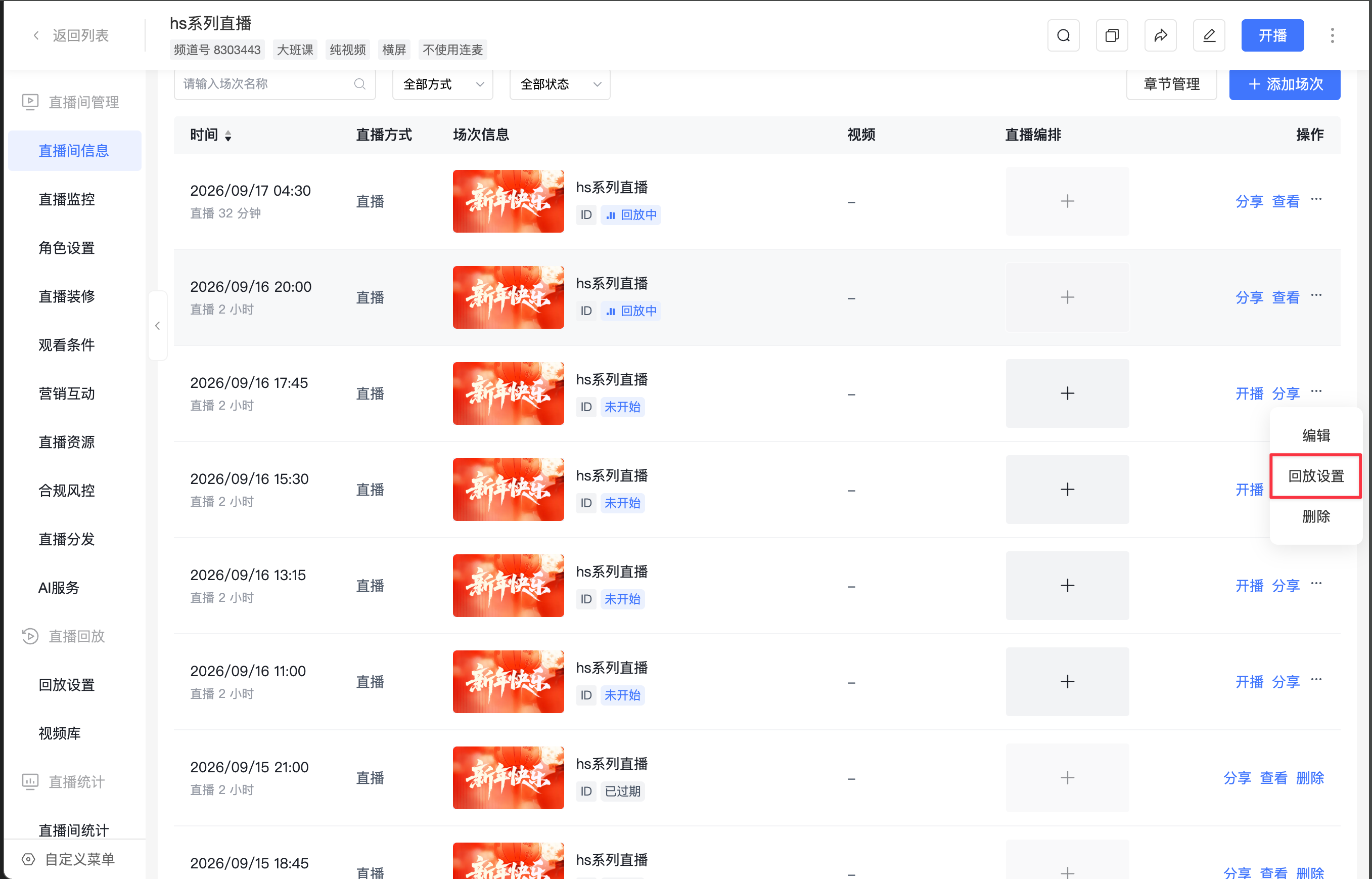
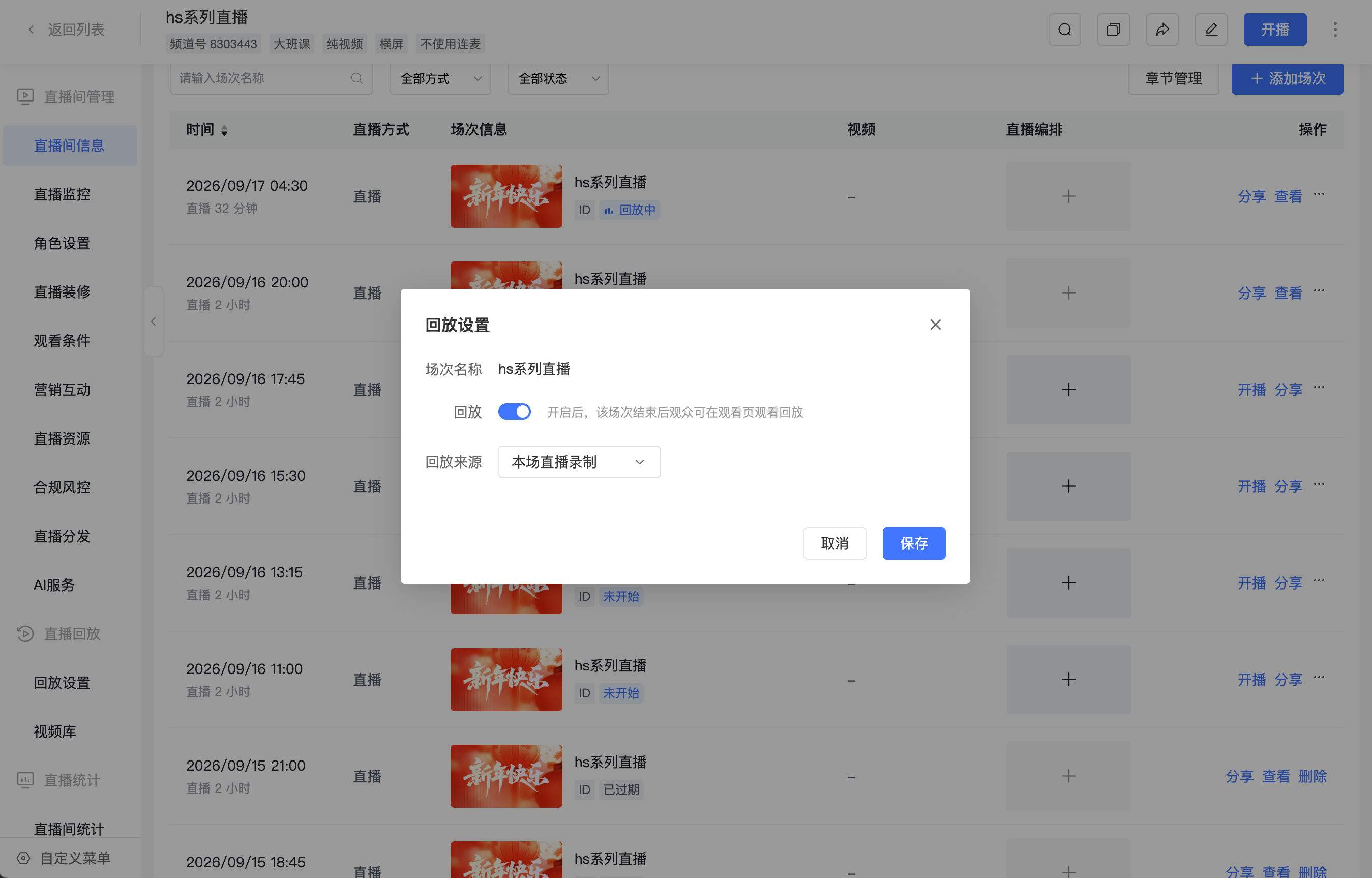
When the channel replay is disabled, the session replay settings can still be opened, but the switch is non-operable. Click [Go to Settings] to open the channel replay settings page in a new tab.
Deleting Sessions
Click [Delete] in the [Actions] column of the corresponding session. Before deletion, you must enter "Confirm Delete" in the secondary confirmation popup.
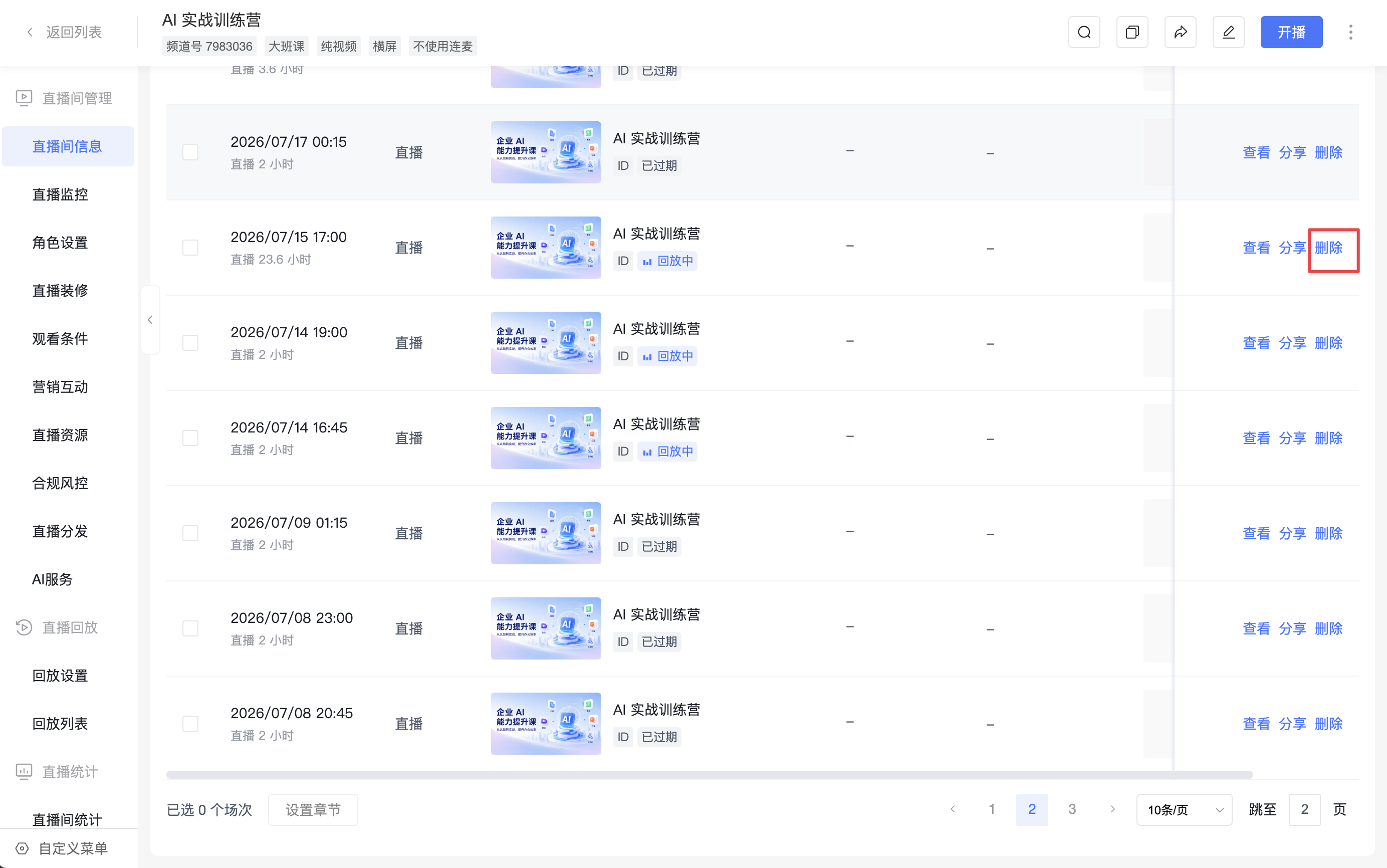
After deletion:
- The session will be removed from the backend session list and the viewing page, and cannot be recovered.
- Data generated by this session, such as views, interactions, and registrations, can still be queried and will continue to be counted in the cumulative statistics of the series live.
- Other sessions and their data are not affected.
1.6 Setting Session Replay
Series Live supports enabling or disabling replay for different sessions individually and selecting their respective replay sources.
Enabling Channel Replay
Go to [Live Replay] - [Replay Settings], enable [Replay] and confirm. This switch controls whether the entire channel allows viewing session replays. Individual sessions can still have their replay enabled or disabled separately.
- When the channel replay is disabled, replays for all sessions are temporarily inactive, and viewers cannot watch replays; sessions originally in [Replay Available] status change to [Ended].
- Disabling the master switch does not clear the saved replay switch configurations and replay sources for individual sessions. The switches for sessions that were originally enabled will retain their configuration but will be in a disabled state.
- When the channel replay is re-enabled, replays for sessions that were originally enabled will become active again, while sessions that were originally disabled will remain disabled.
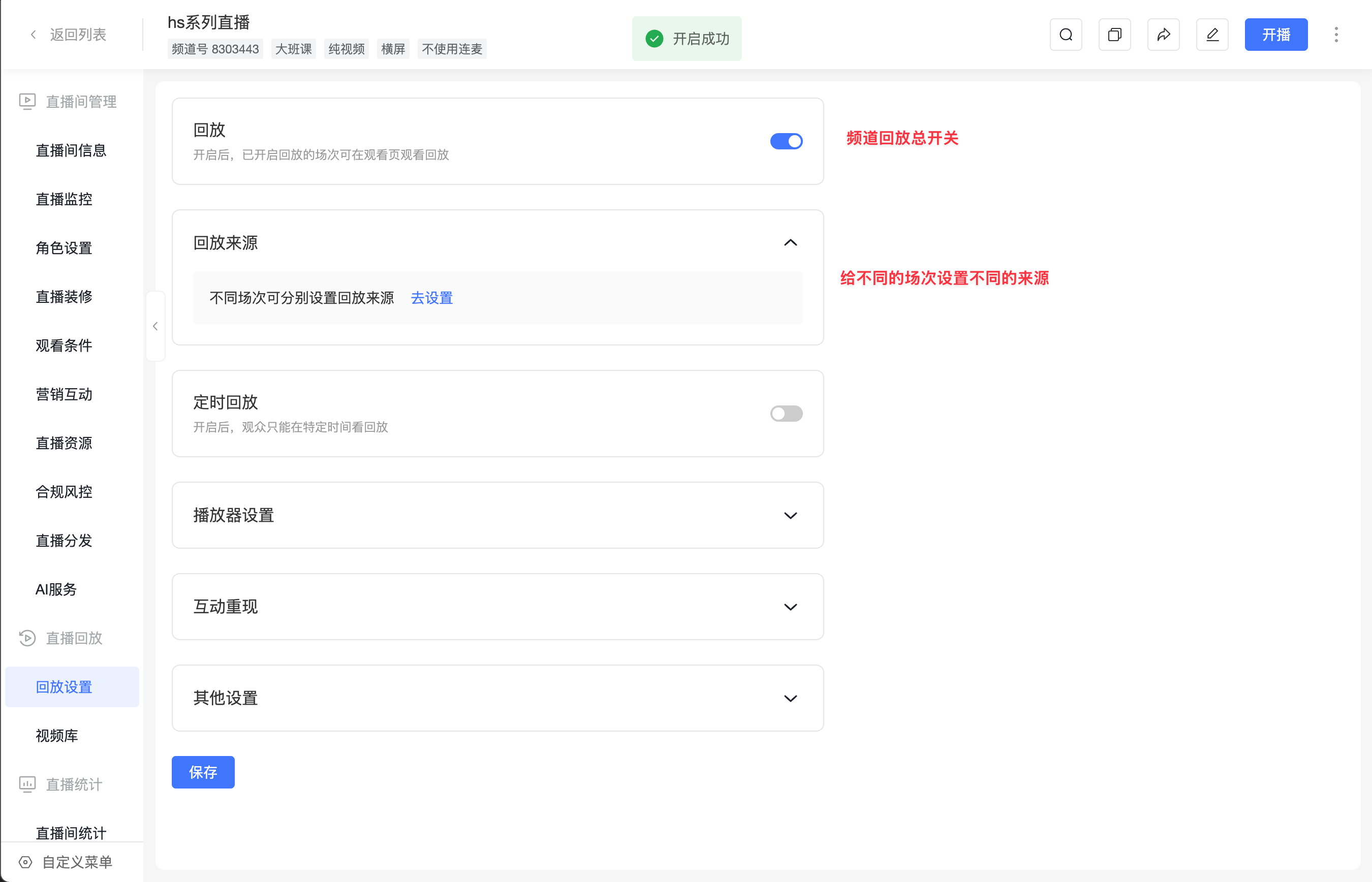
Centralized Management of Session Replays
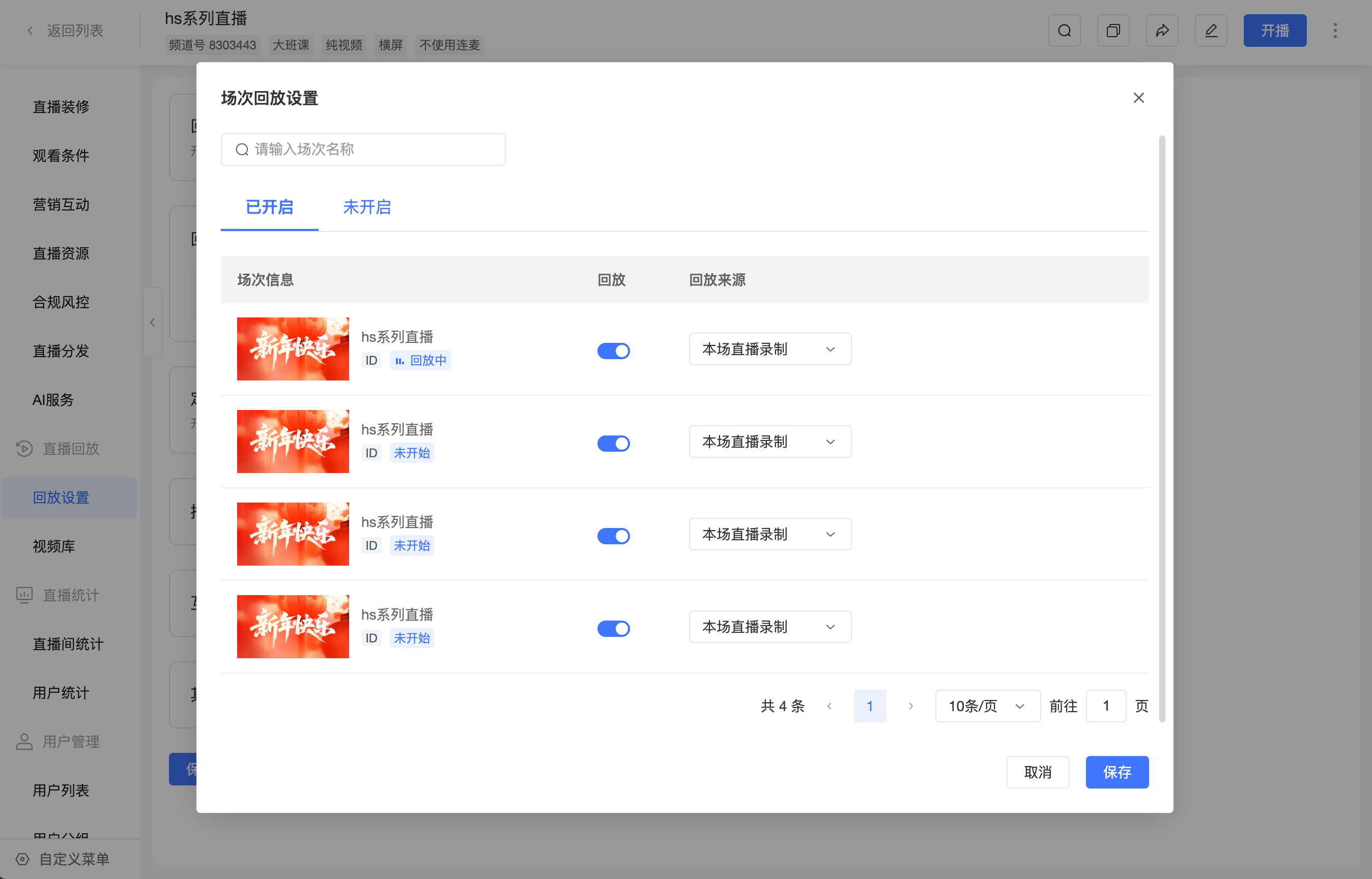
On the channel's [Replay Settings] page, find [Replay Source] and click [Go to Settings] to open the [Session Replay Settings] popup.
- The popup displays sessions that are Not Started, Live, Ended, and Replay Available. Expired sessions are not displayed.
- View corresponding sessions via the [Enabled] and [Disabled] tabs. The default view is [Enabled]. You can search by session name.
- You can adjust the replay switch and source for multiple sessions one by one. Click [Save] after finishing to apply all changes at once.
- If you close or cancel the popup with unsaved changes, the system will prompt you to confirm discarding the changes. If you confirm, the modifications will not take effect.
Selecting Replay Source
| Replay Source | Description |
|---|---|
| This Session's Live Recording | Default source. Uses the live recording of the current session as the replay. |
| Media Library | Displayed when the channel has the Media Library enabled. Allows selecting a video from the Media Library as the replay for this session. |
| VOD | Displayed when the channel has VOD permissions. Allows selecting a VOD video as the replay for this session. |
Session Status After Saving
- When replay is enabled for an Ended session, and provided the channel replay is enabled, its status changes to [Replay Available].
- When replay is disabled for a Replay Available session, its status changes to [Ended].
- Not Started and Live sessions retain their current status. After the session ends, it will enter [Replay Available] or [Ended] depending on whether the replay is active.
- After modifying the replay source for an Ended or Replay Available session, the change takes effect immediately upon saving.
2. Presenter Side - Web Broadcast
2.1 Getting the Broadcast Link
- Broadcast links are divided into: Channel Broadcast Link, Session Broadcast Link
Channel Broadcast Link |
Session Broadcast Link |
|---|---|
1. Presenters can use this link to select a session and start broadcasting in the corresponding session.2. Location 1: Admin Console - Live List(1) List View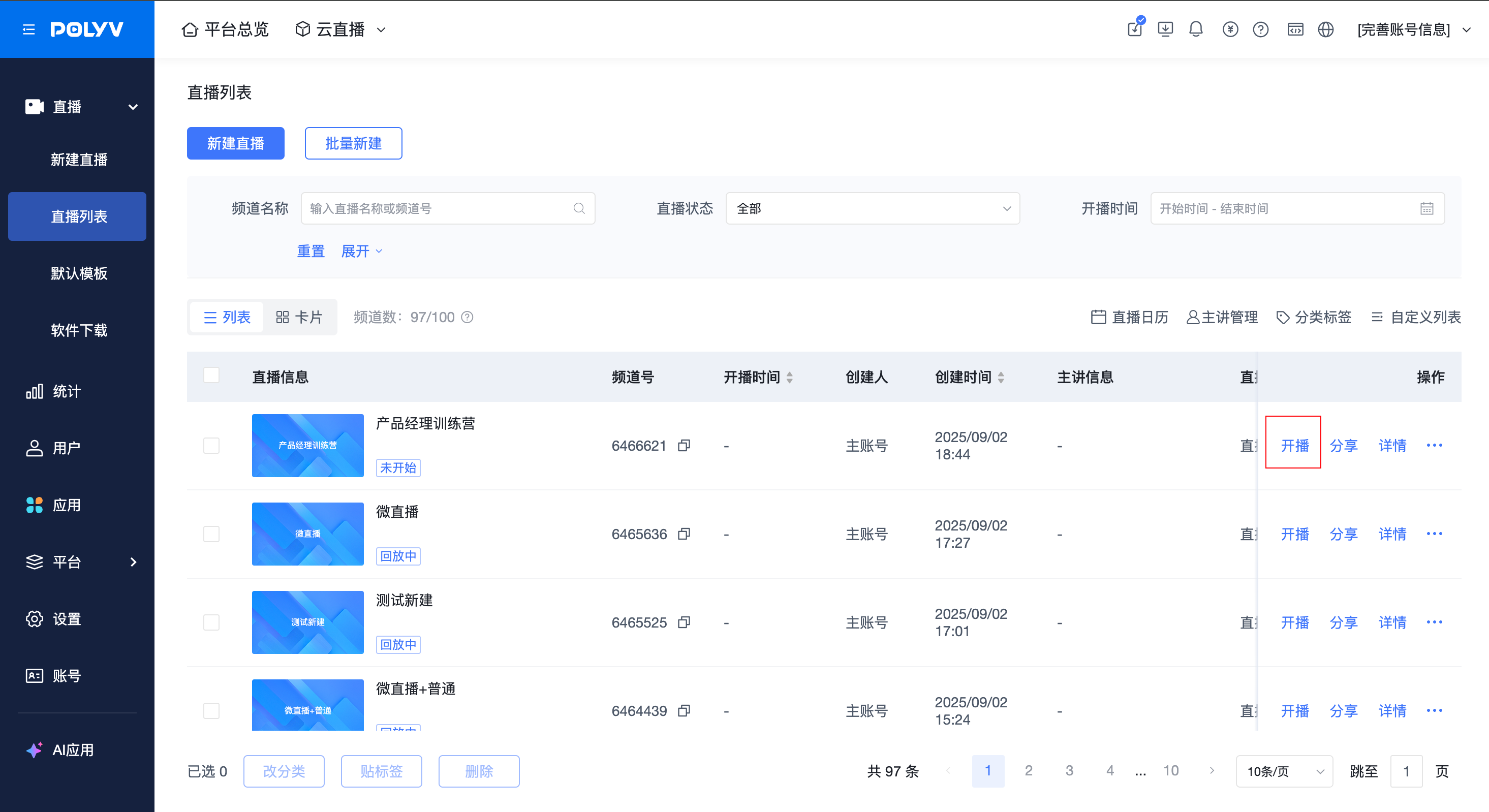 (2) Card View (2) Card View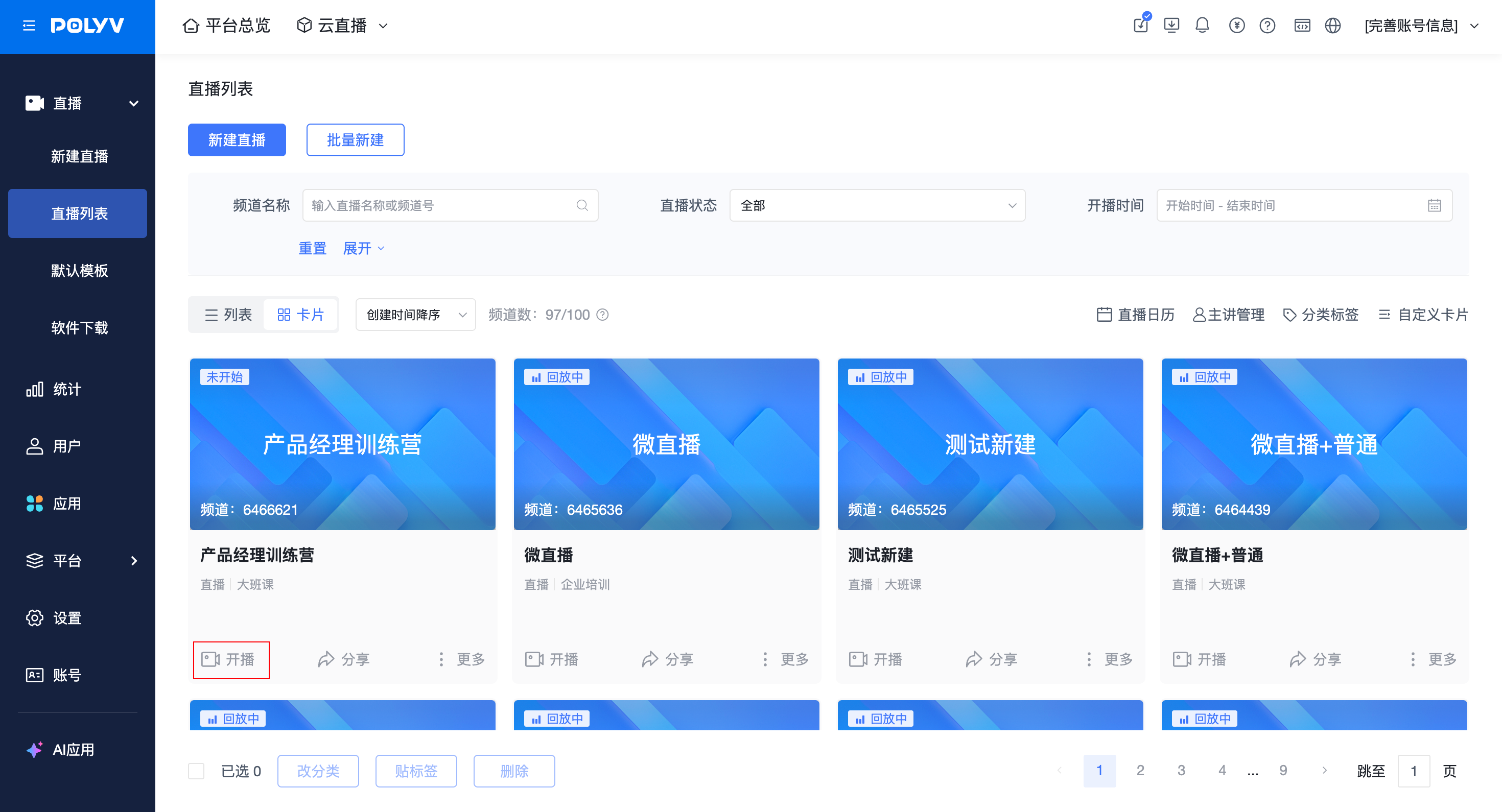 3. Location 2: Admin Console - Live Room Info 3. Location 2: Admin Console - Live Room Info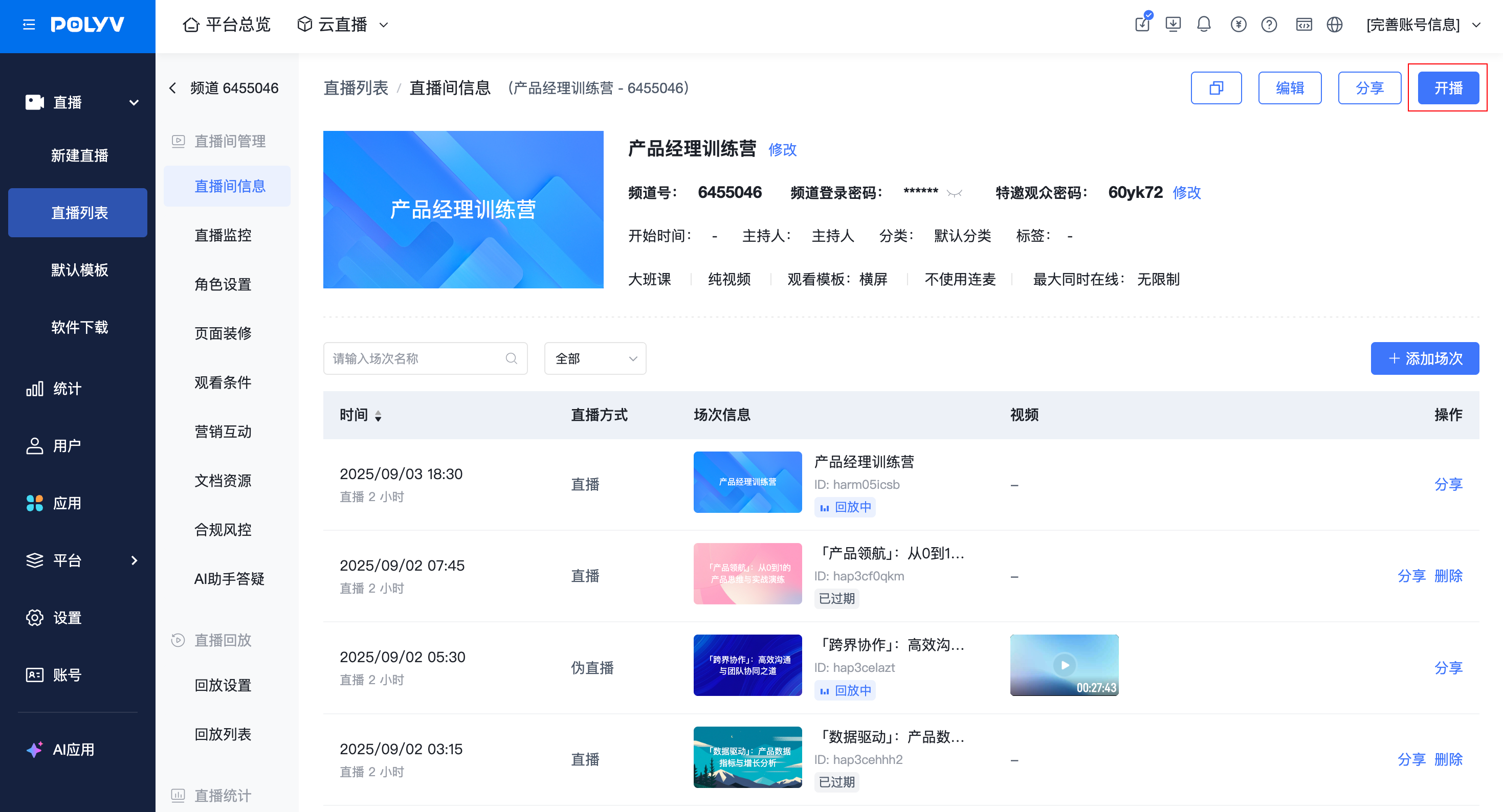 |
1. Presenters will directly enter the corresponding session via this link.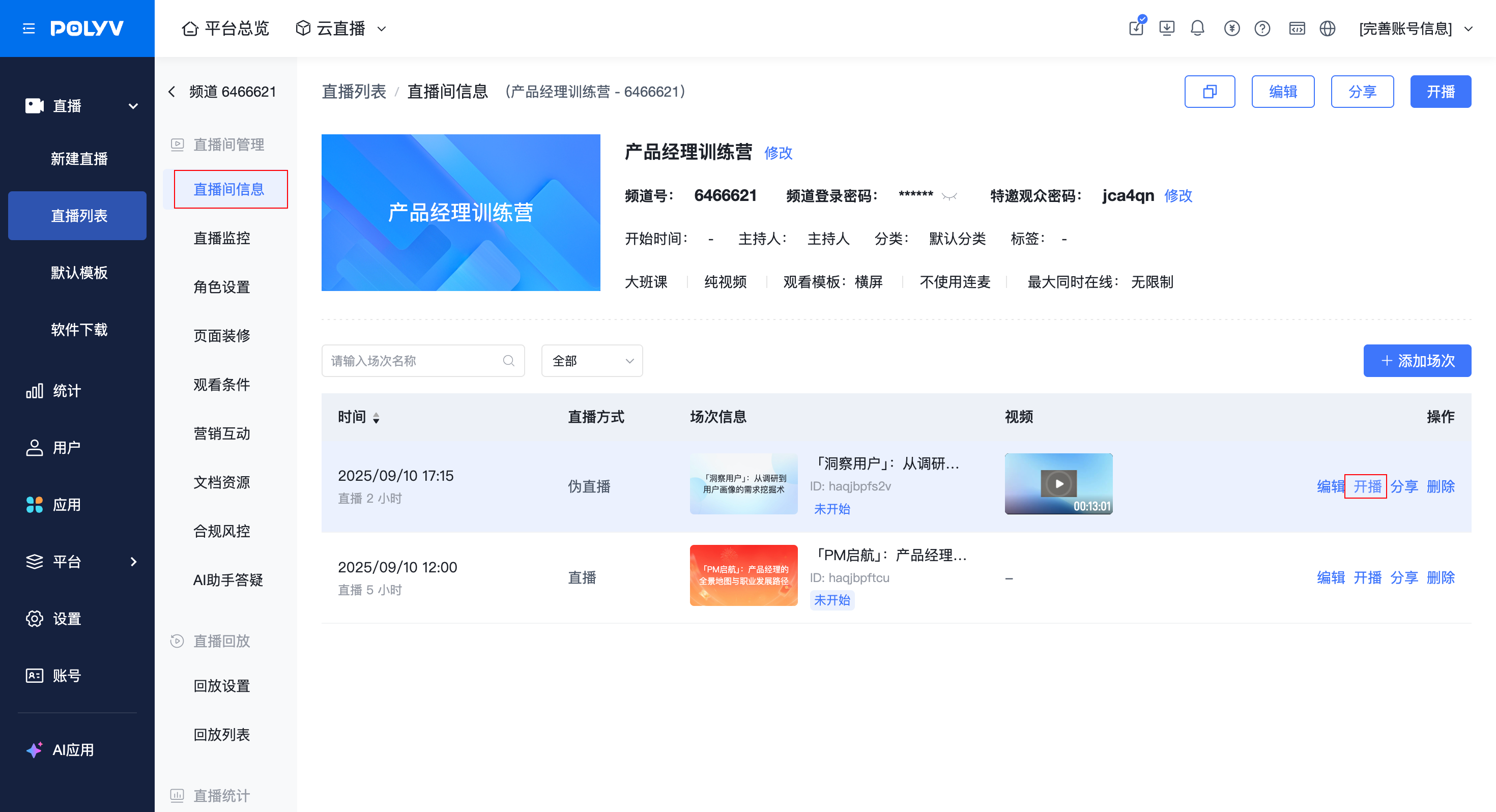 |
2.2 Presenter Starting Broadcast
- Presenters can enter the broadcast page via the Channel Broadcast Link or the Session Broadcast Link.
- When entering via the Channel Broadcast Link, they can filter sessions by chapter and switch to the corresponding session to start broadcasting.
- When no chapters are configured, the session switching on the presenter side continues to use the original display method.
Entering via Channel Broadcast Link |
Entering via Session Broadcast Link |
|---|---|
1. Select a session to start broadcasting(1) Supports searching by session name(2) Supports sorting by start time descending/ascending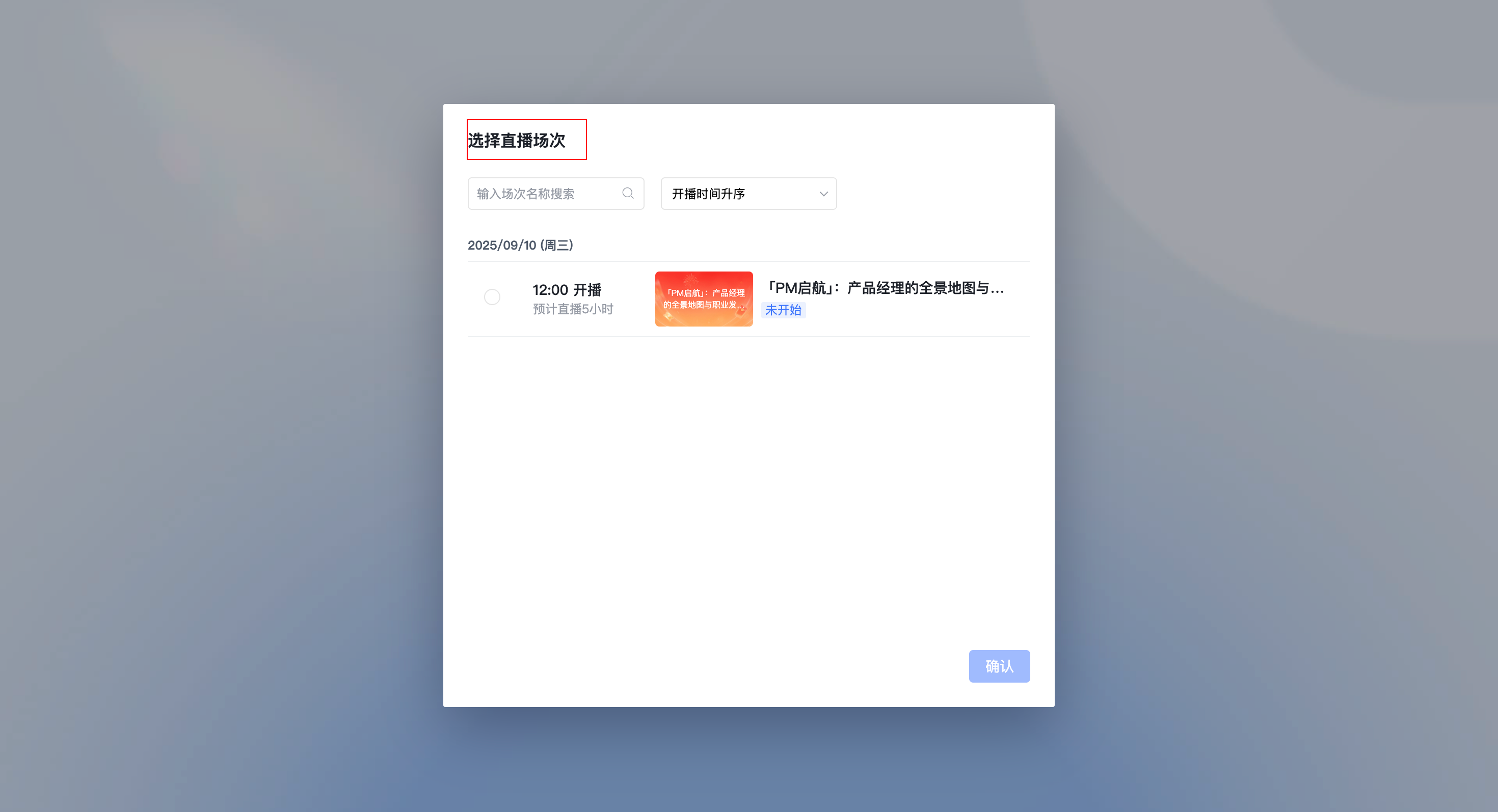 |
1. Directly enters the session broadcast page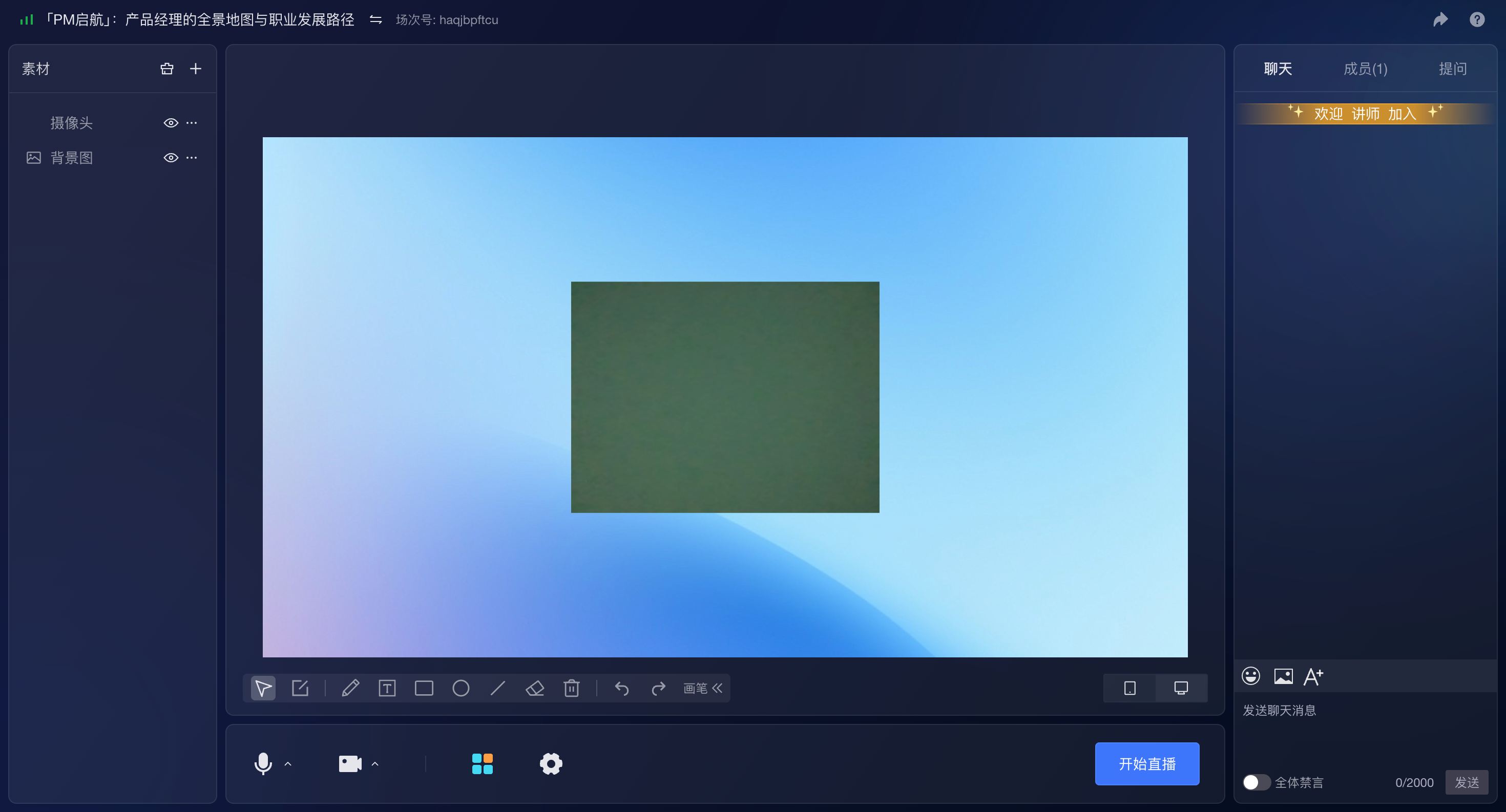 |
3. Assistant Side - New Assistant Page
3.1 Getting the Assistant Page Login Link
- Assistants can enter the assistant page via the Channel Assistant Page Link or the Session Assistant Page Link.
Channel Assistant Page Link |
Session Assistant Page Link |
|---|---|
1. Assistants can use this link to select a session and enter the corresponding session for management.2. Location 1: Live Room Info - Start Broadcast - Assistant Backend Link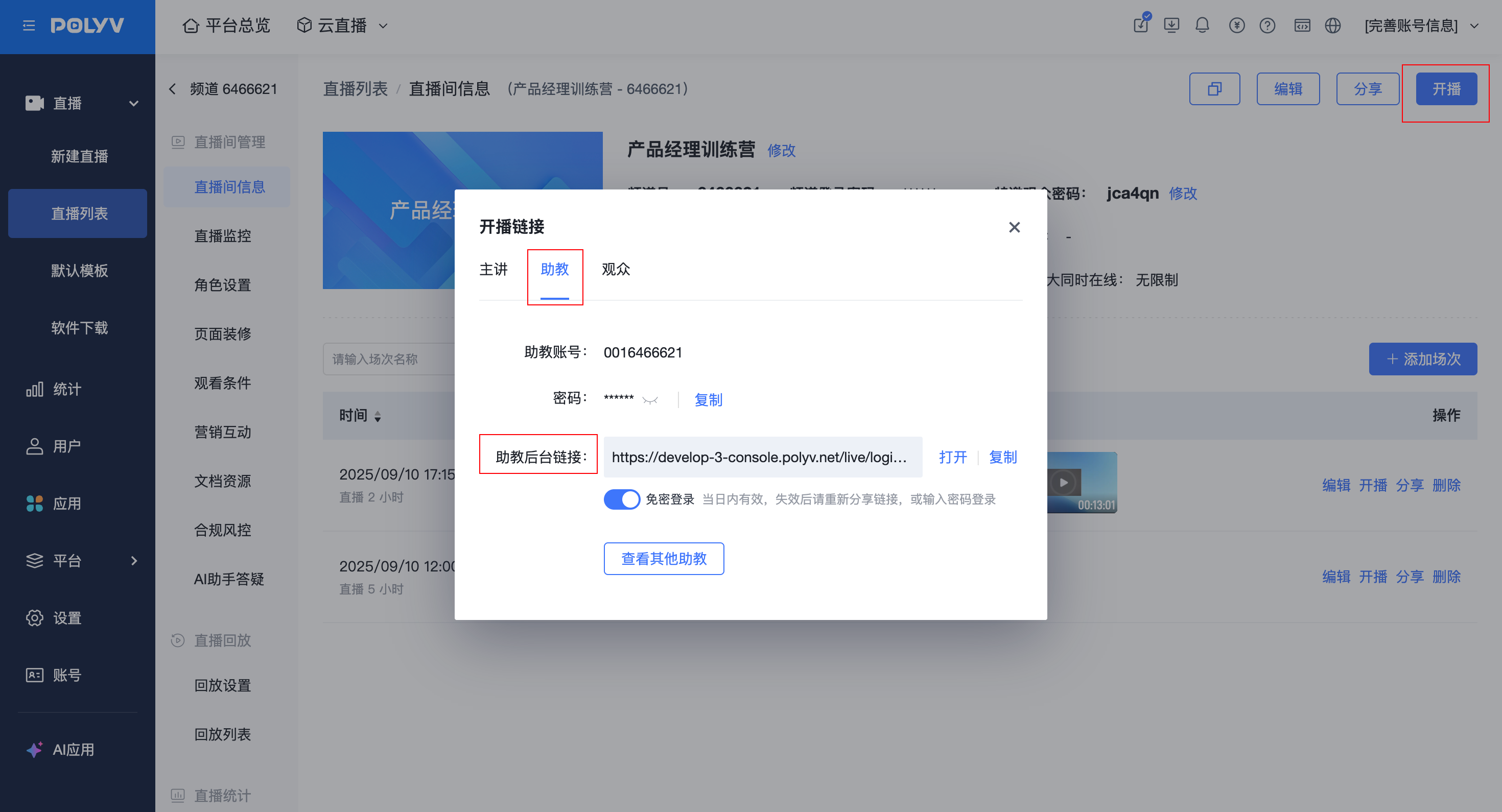 3. Location 2: Role Settings - Assistant - Assistant Login Link 3. Location 2: Role Settings - Assistant - Assistant Login Link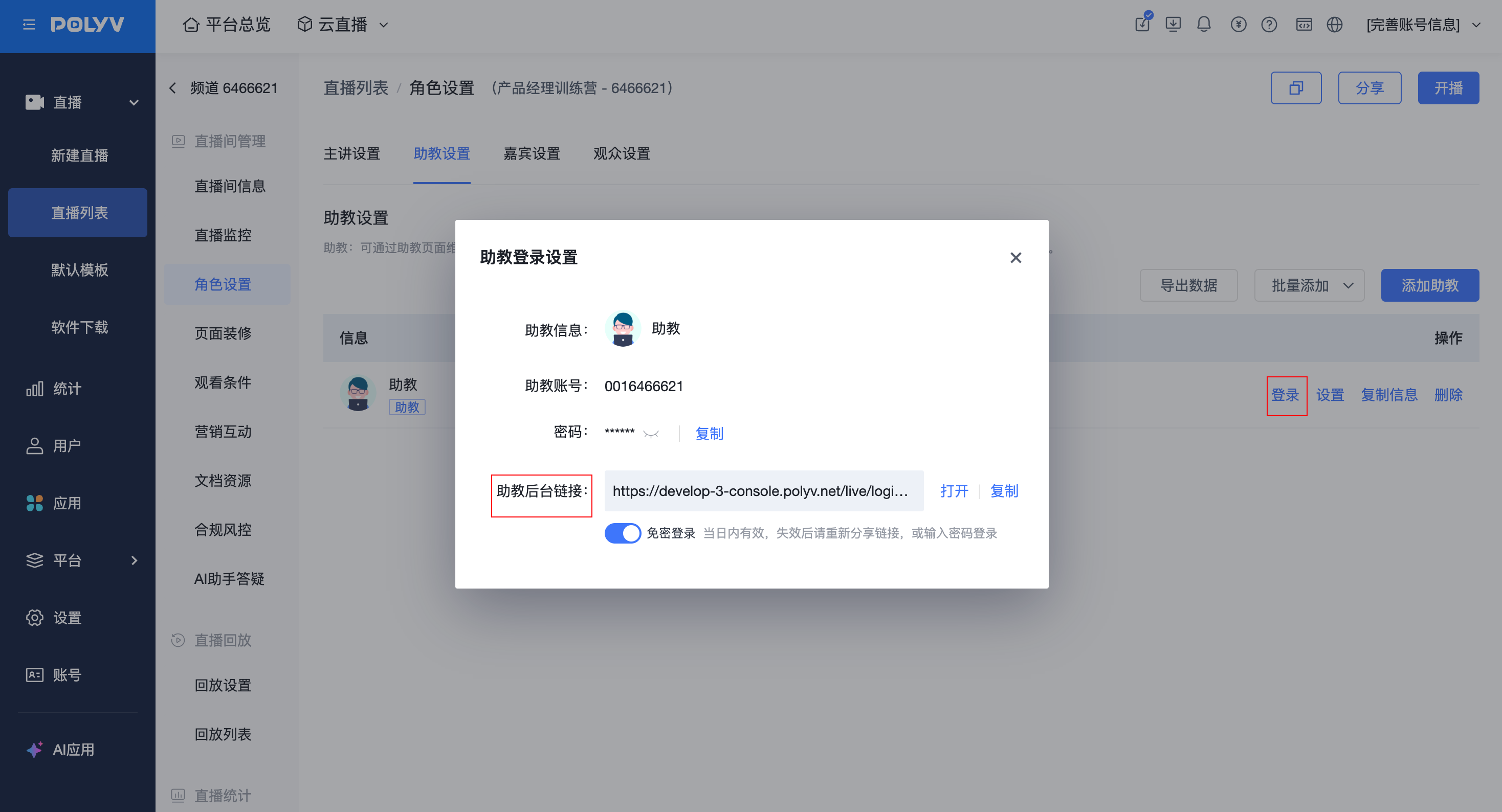 4. Location 3: Role Settings - Assistant - Copy Info 4. Location 3: Role Settings - Assistant - Copy Info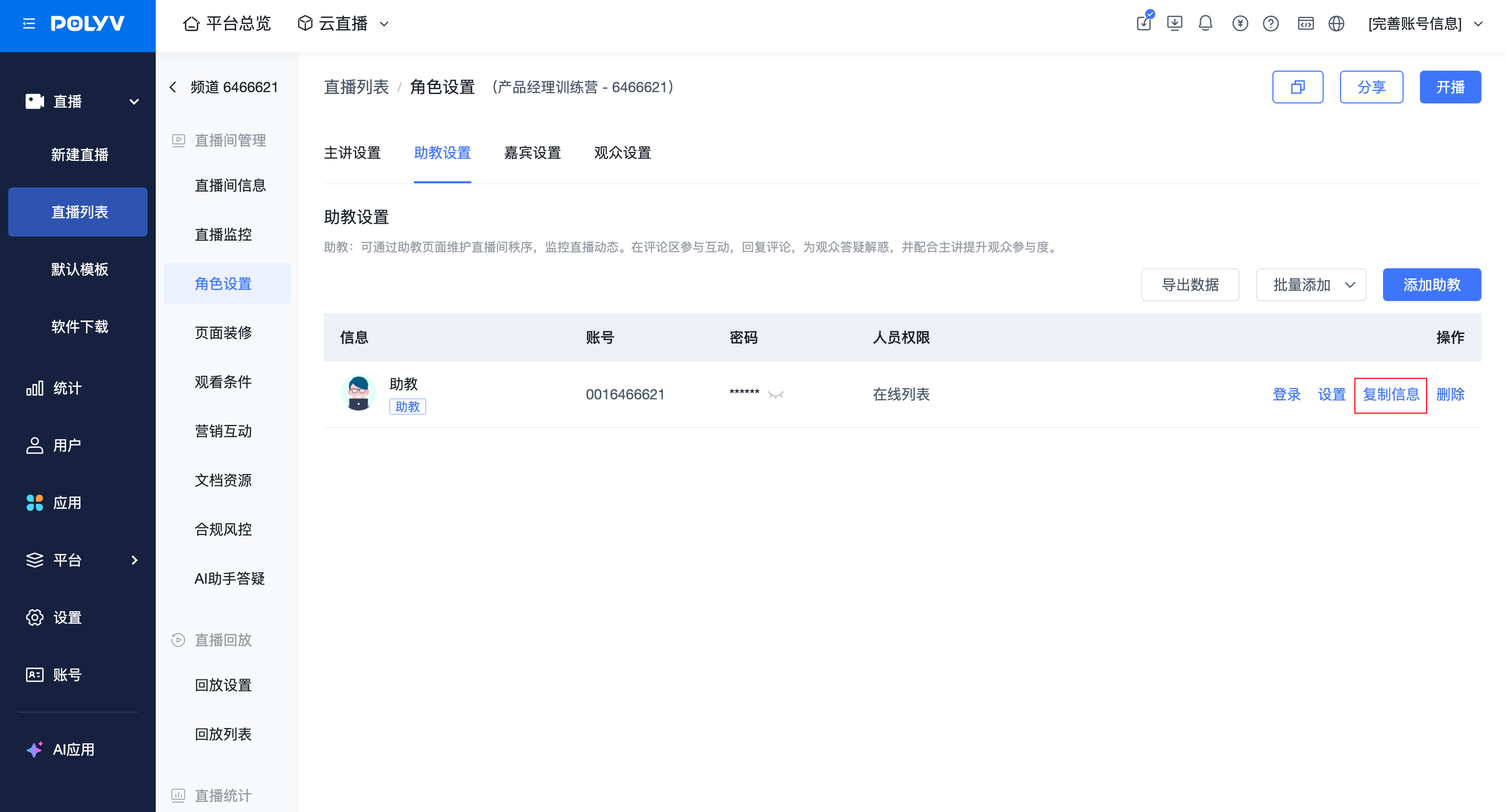 |
1. Assistants will directly enter the corresponding session via this link.2. Location: Live Room Info - Session List - Start Broadcast - Assistant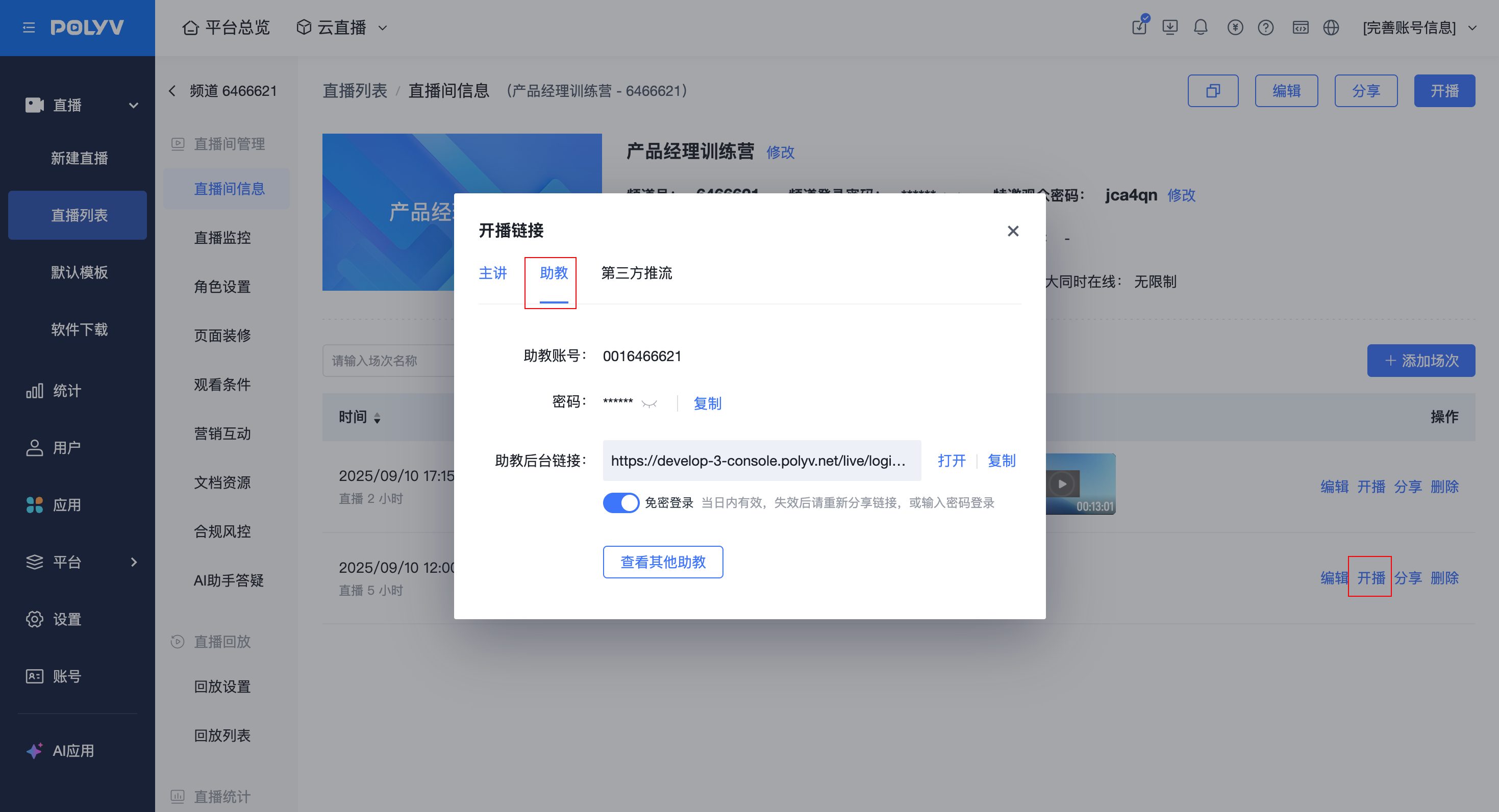 |
3.2 Logging into the New Assistant Page
- When entering via the Channel Assistant Page Link, they can filter sessions by chapter and switch to the corresponding session for management.
- When no chapters are configured, the session switching on the assistant side continues to use the original display method.
Entering via Channel Assistant Page Link |
Entering via Session Assistant Page Link |
|---|---|
1. Select a session to enter the assistant page(1) Supports searching by session name(2) Supports filtering by session status(3) Supports sorting by start time descending/ascending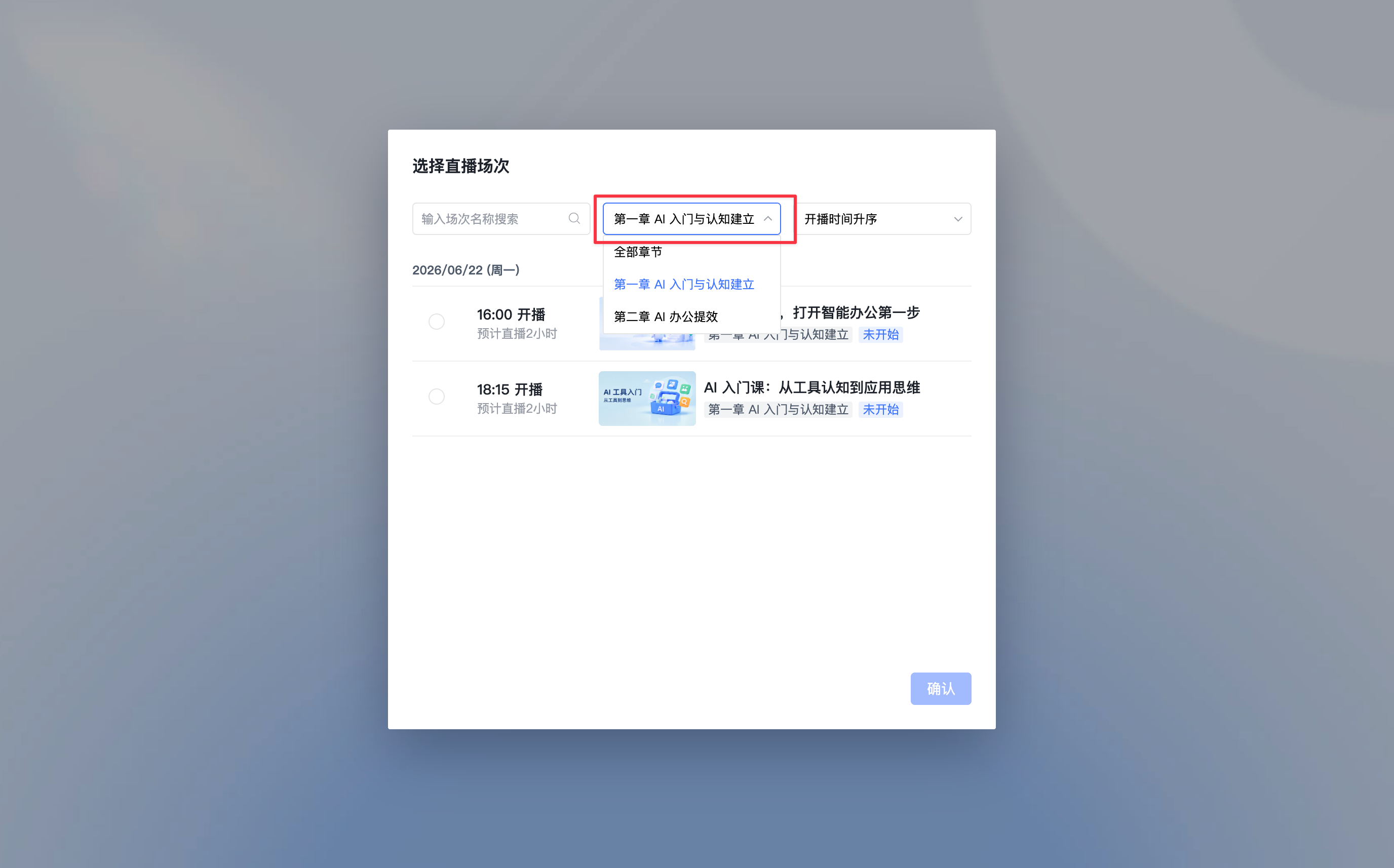 |
1. Assistants will directly enter the corresponding session via this link.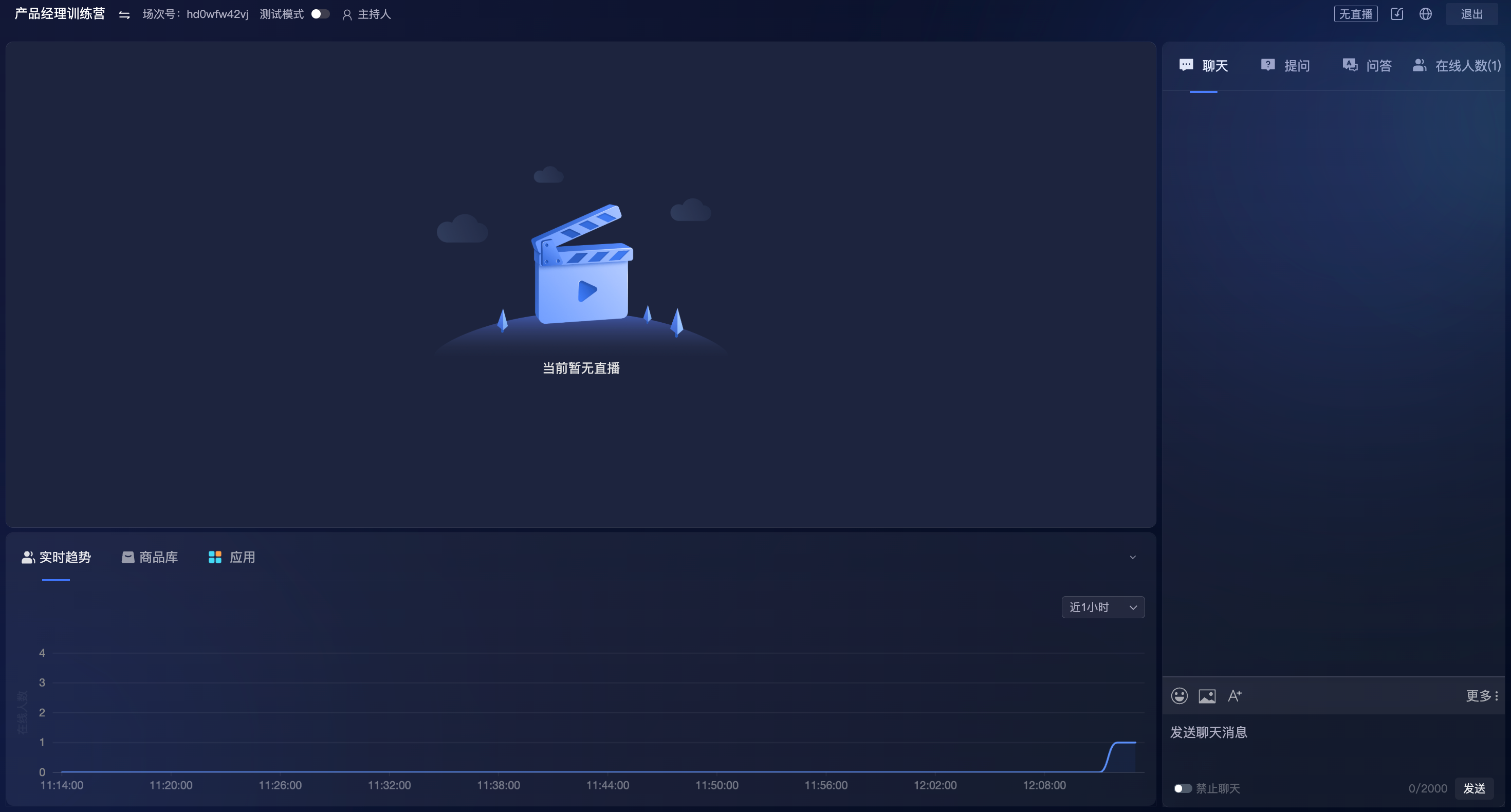 |
4. Viewer Side - Viewing Page
4.1 Getting the Viewing Page Link
- Viewers can enter the viewing page via the Channel Viewing Page Link or the Session Viewing Page Link.
Channel Viewing Page Link |
Session Viewing Page Link |
|---|---|
1. Viewers can use this link to select a session and enter the corresponding session to watch the live stream.2. Location 1: Admin Console - Live List(1) List View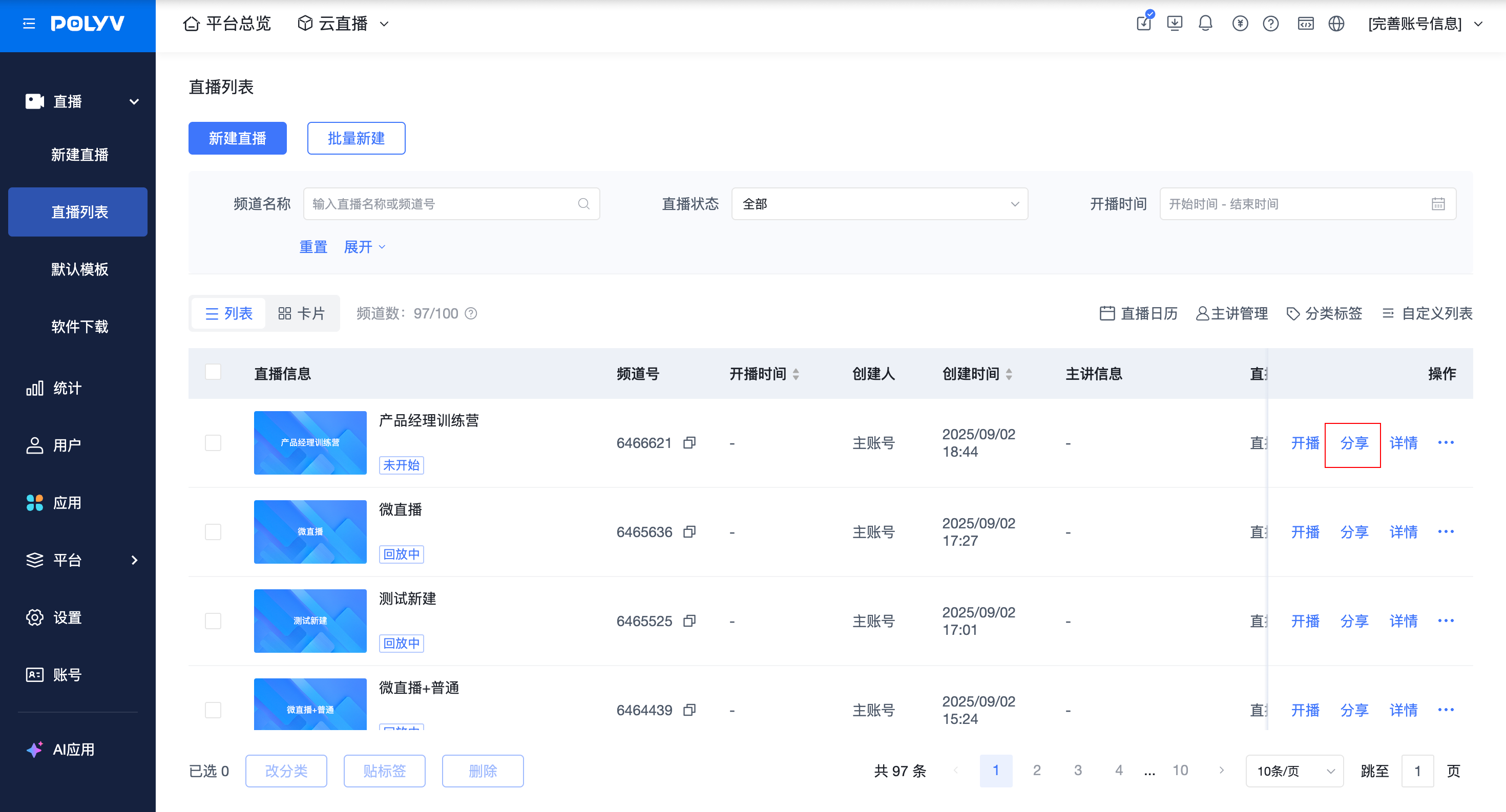 (2) Card View (2) Card View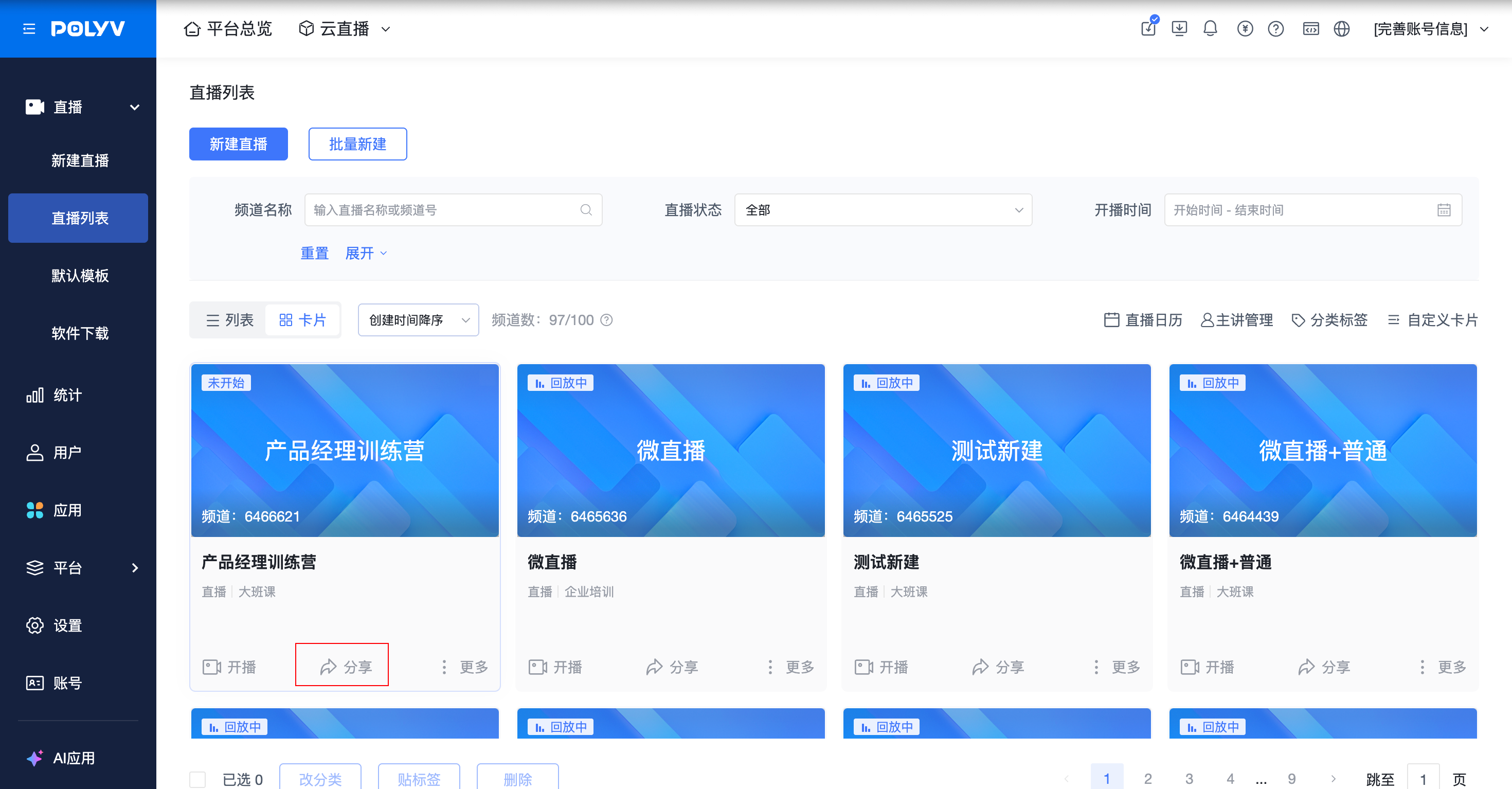 3. Location 2: Admin Console - Live Room Info 3. Location 2: Admin Console - Live Room Info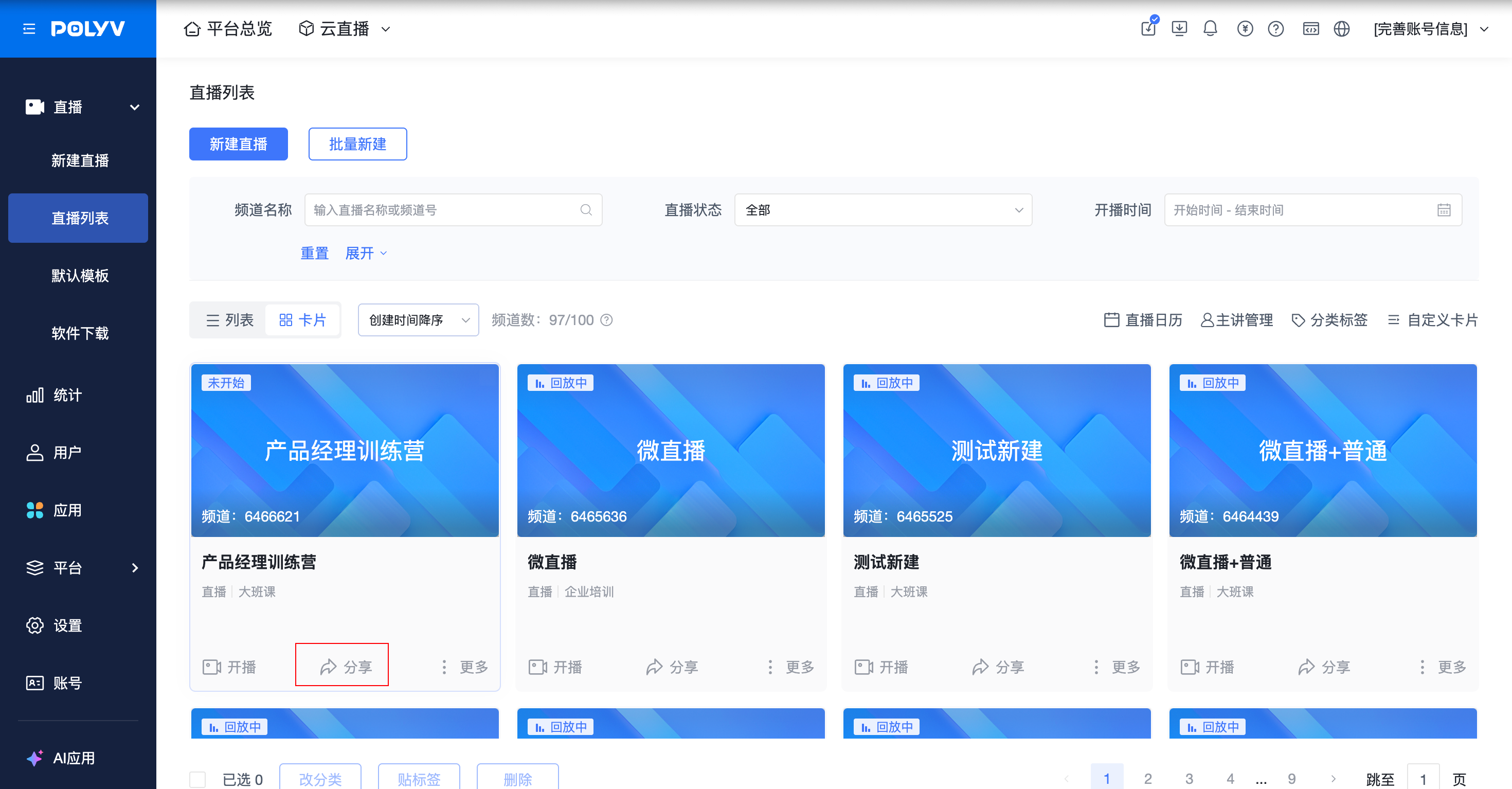 |
1. Viewers will directly enter the corresponding session via this link. |
4.2 Viewers Watching Live
Entering via Channel Viewing Page Link |
Entering via Session Viewing Page Link |
|---|---|
1. Select a session to watch the live stream |
1. Directly enters the viewing page for the corresponding session |
4.3 Viewing Sessions by Chapter
The viewing page supports filtering sessions by chapter. Viewers can select [All Chapters] or a specific chapter to view the corresponding sessions. Chapter filtering can be used in combination with live status filtering.
When no chapters are configured, the chapter filter is not
