


Channel Settings
Updated: 2026-08-17 11:27:00
1. Feature Overview
Feature Info |
Description |
|---|---|
| Feature Name | Channel Settings |
| Feature Description | Channel Settings is a core module in live room management, allowing administrators to flexibly configure various live room functions based on actual needs. Through these settings, administrators can adjust the maximum concurrent online viewers, tipping functionality, replay management, courseware remastering, player cover, live stream end rules, test mode display, red envelope distribution methods, and other features, ensuring more efficient and convenient live room operations. |
| Purpose | To adjust channel settings globally and in one go |
| Use Case | When you need to uniformly and globally adjust live room channel settings |
| Feature List | Modify maximum concurrent online viewers, Tipping, Replay – Auto Save, Remaster Courseware – Auto Remaster, Remaster Courseware – Auto Save, Remaster Courseware – PPT Fullscreen, Player Cover Settings, Seminar – End Live Stream When Host Leaves, Test Mode Display, Cash Red Envelope Display, Prepaid Cash Red Envelope |
2. Usage Instructions
First, enter the live room backend, navigate to Platform Settings – Channel Settings, where you can modify settings for all channels across the entire account.
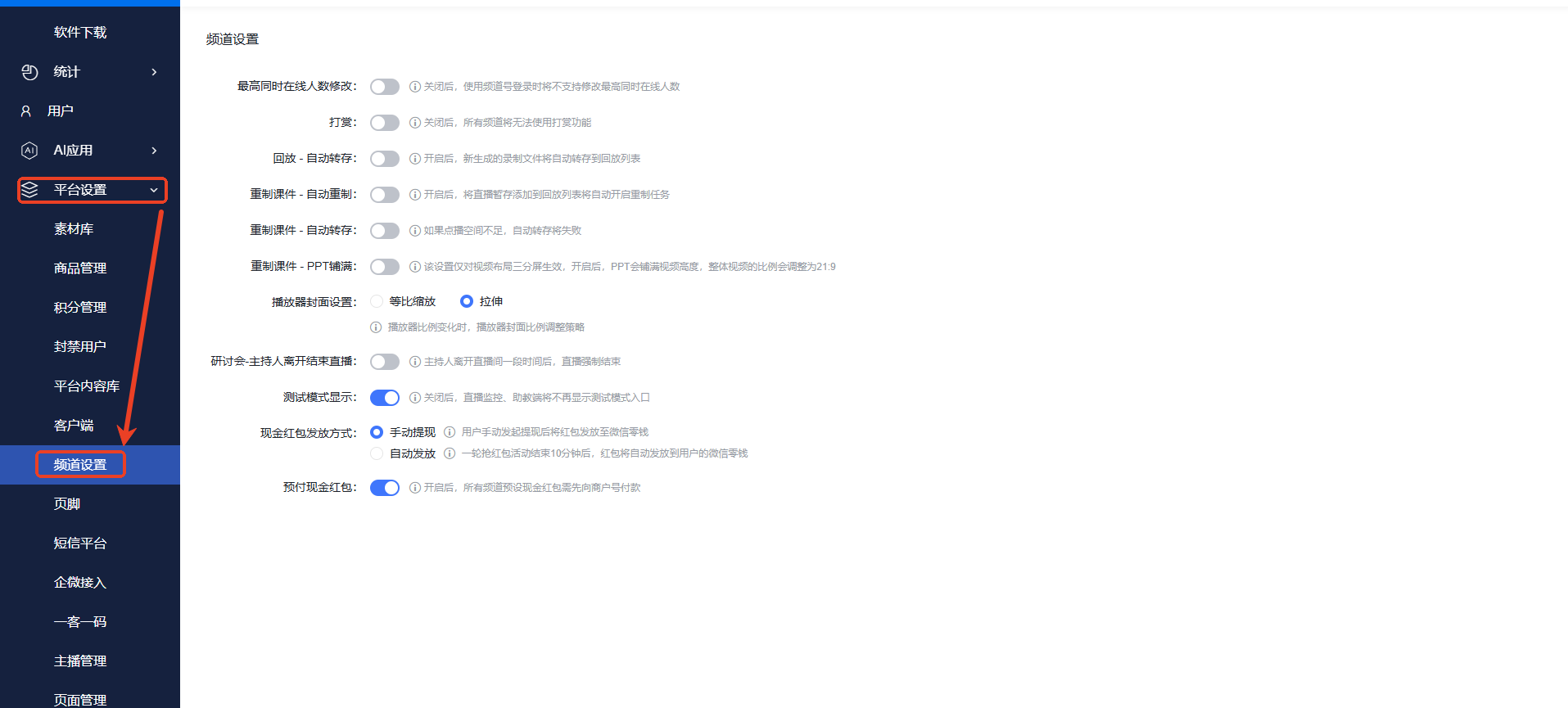
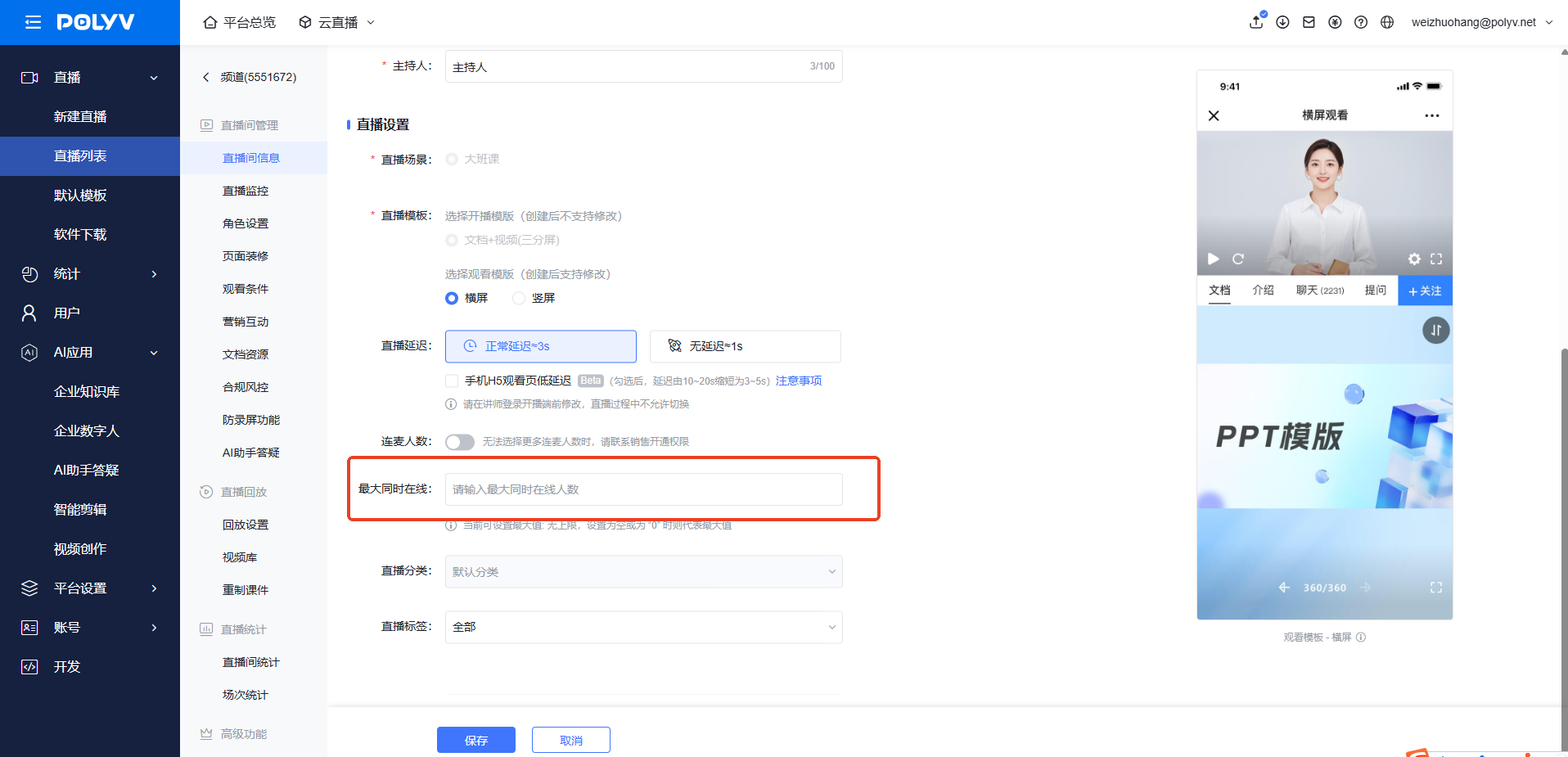
- [Modify Maximum Concurrent Online Viewers] When enabled: Supports modifying the maximum concurrent online viewers. When disabled, the concurrent online viewers cannot be modified.
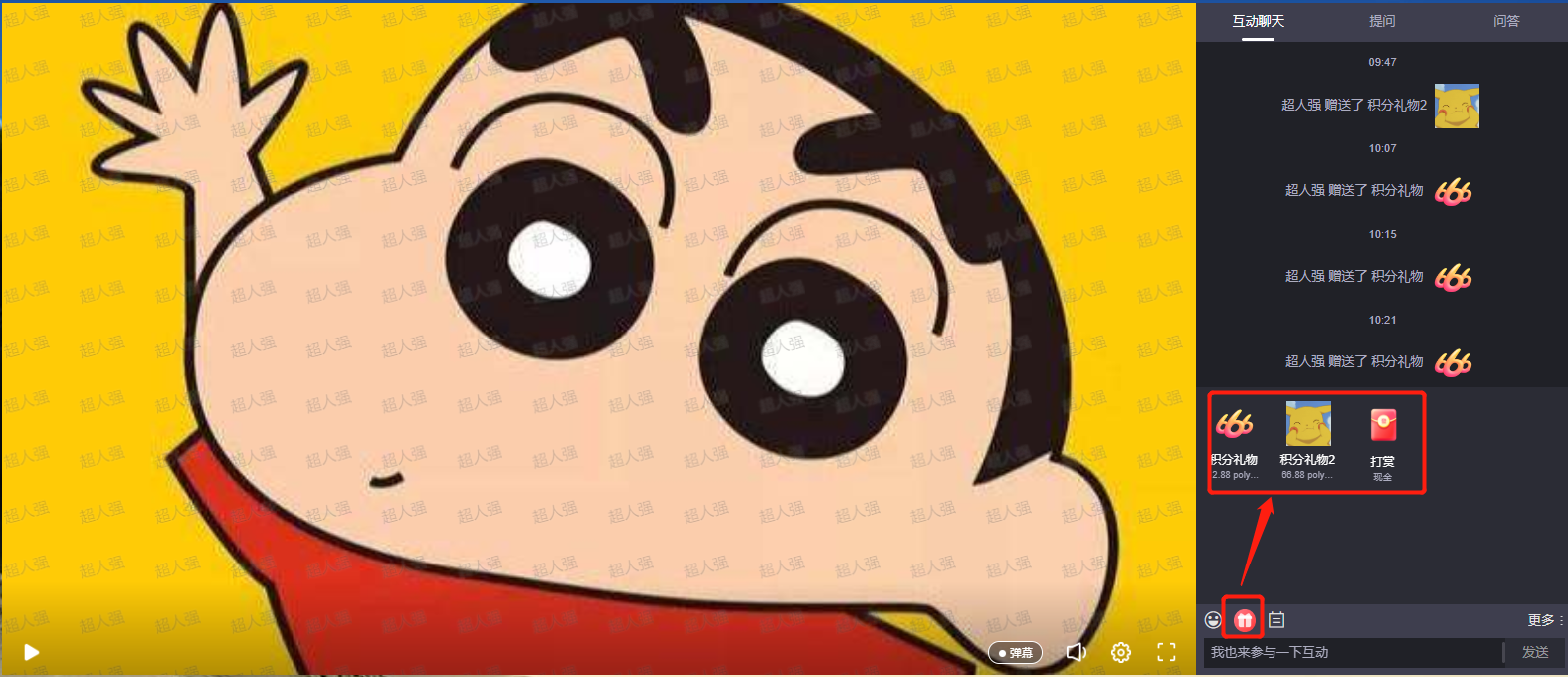
- [Tipping] When enabled: All channels can use the tipping feature. (To support cash payments, a WeChat Official Account must be bound. For details, contact POLYV technical support. To support points-based payments, configure the points callback interface according to the points development guide, and the viewing restriction cannot be set to unconditional viewing or CAPTCHA viewing.)
- [Replay – Auto Save] When enabled: All live stream temporary files are automatically transferred to the replay list.
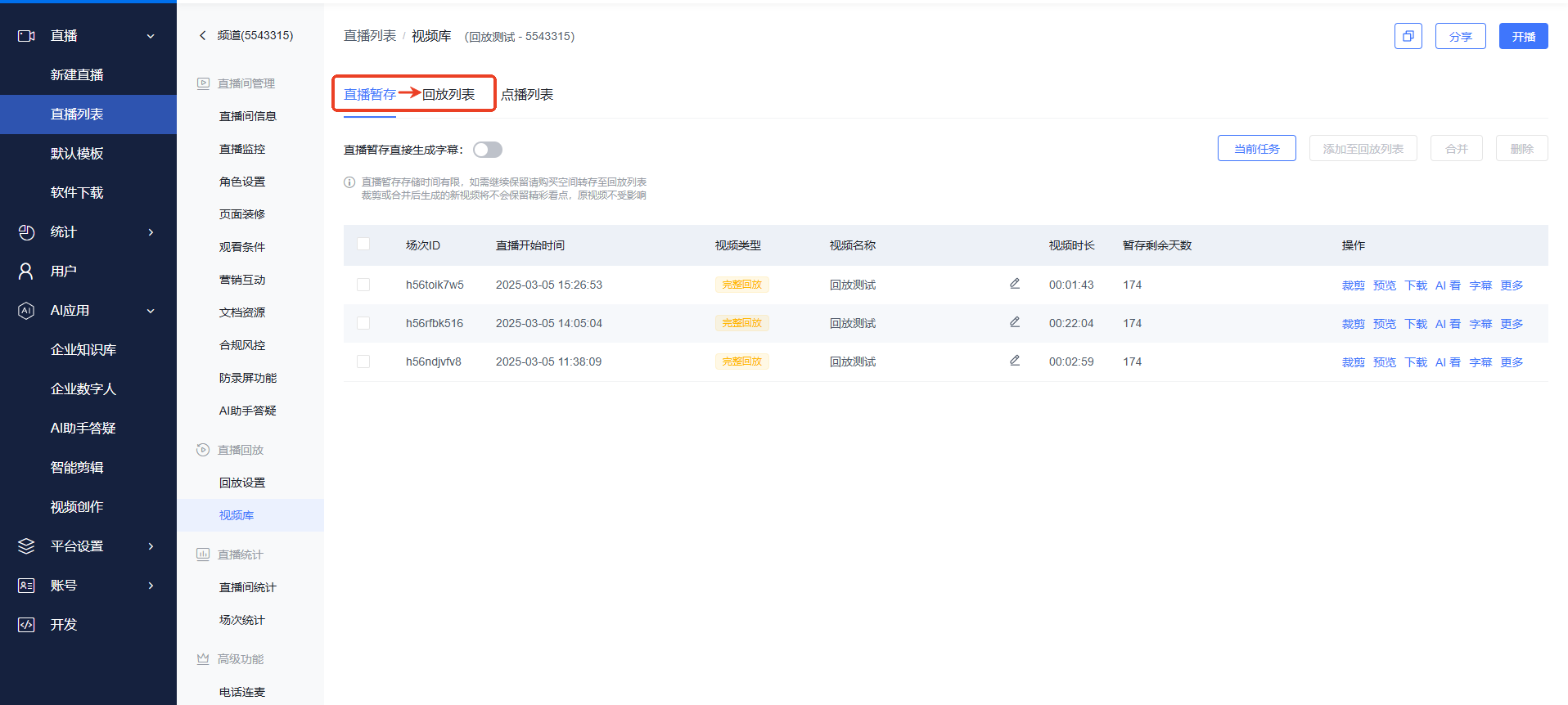
- [Remaster Courseware – Auto Remaster] When enabled: During the transfer from temporary files to replay, the courseware remastering function will proceed automatically.
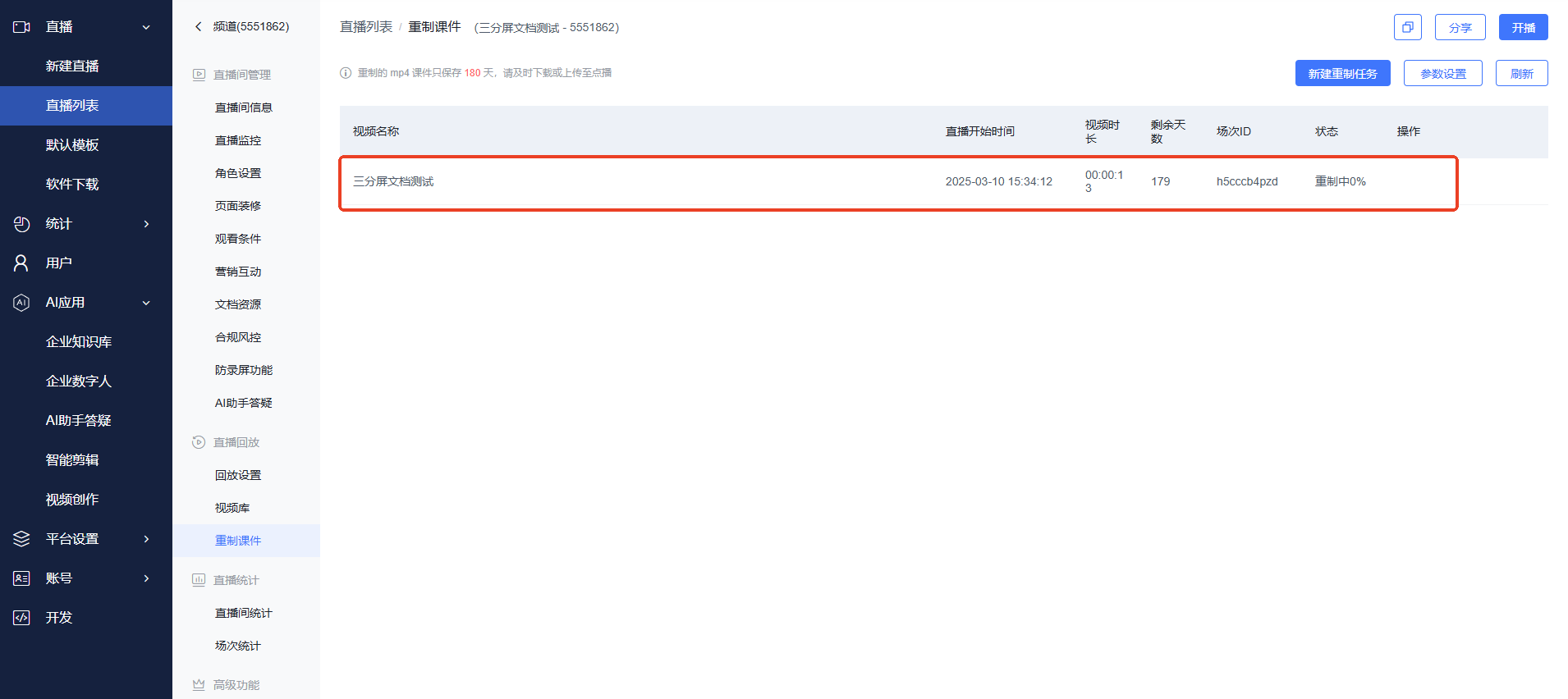
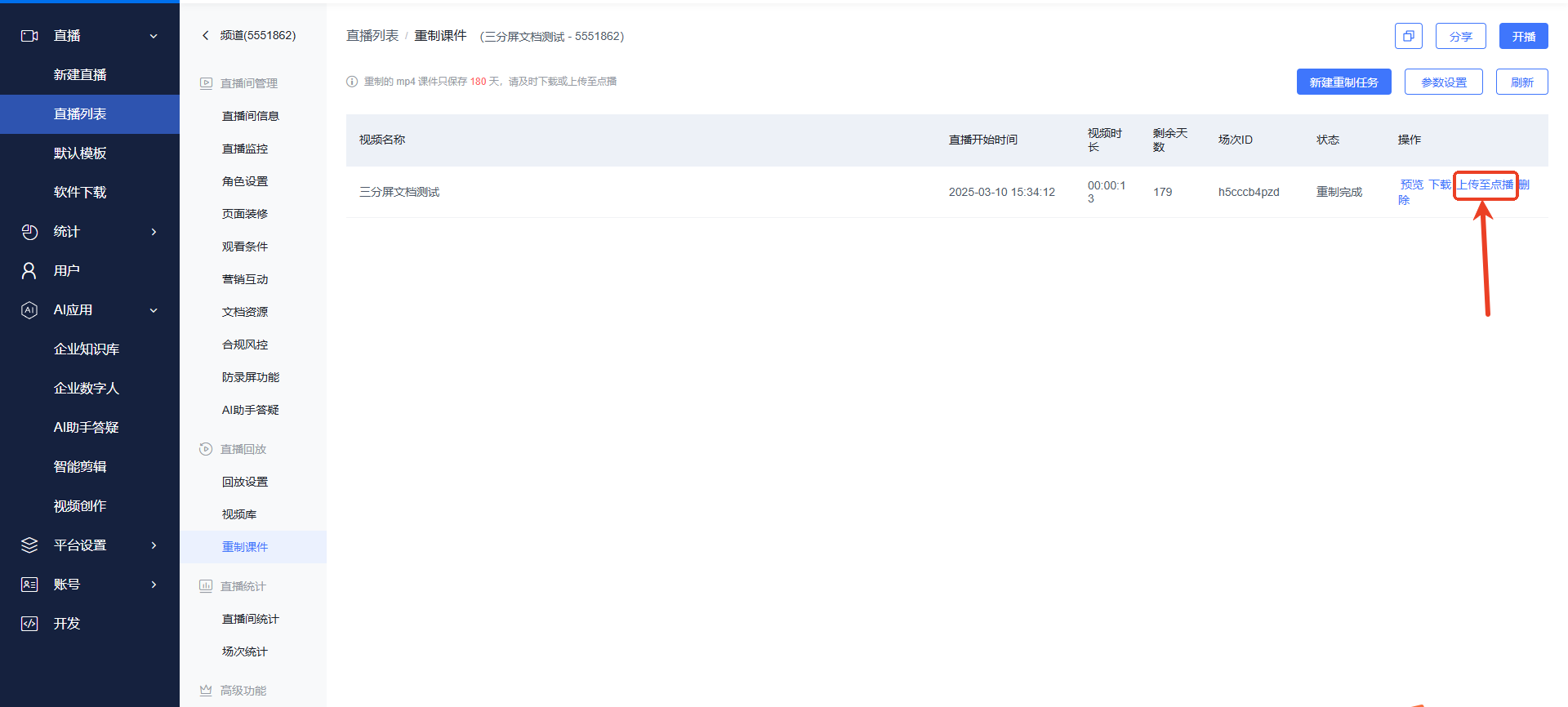
- [Remaster Courseware – Auto Save] When enabled: The remastered video will be automatically uploaded to VOD.
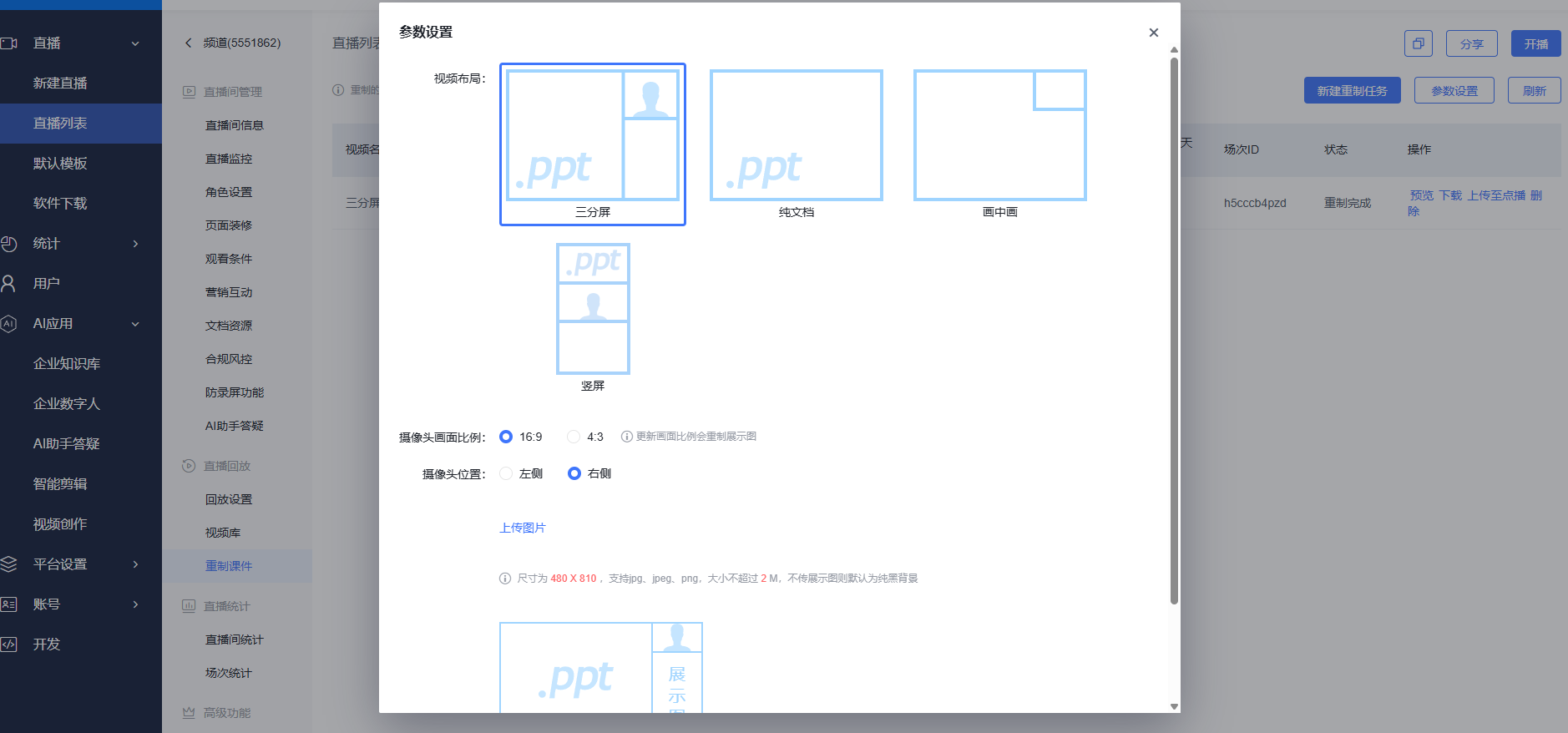
- [Remaster Courseware – PPT Fullscreen] When enabled: When remastering courseware, the PPT will fill the video height, and the overall video aspect ratio will be adjusted to 21:9. (This setting only applies to the three-part video layout.)
- [Player Cover Settings] When set to "Scale to Fit," the image may not fully cover the player cover. When set to "Stretch," the image is forced to fill the player cover.
- [Seminar – End Live Stream When Host Leaves] When enabled: If the seminar host leaves the live room for a period of time, the seminar will be forcibly closed. (Minimum time is 10 minutes.)
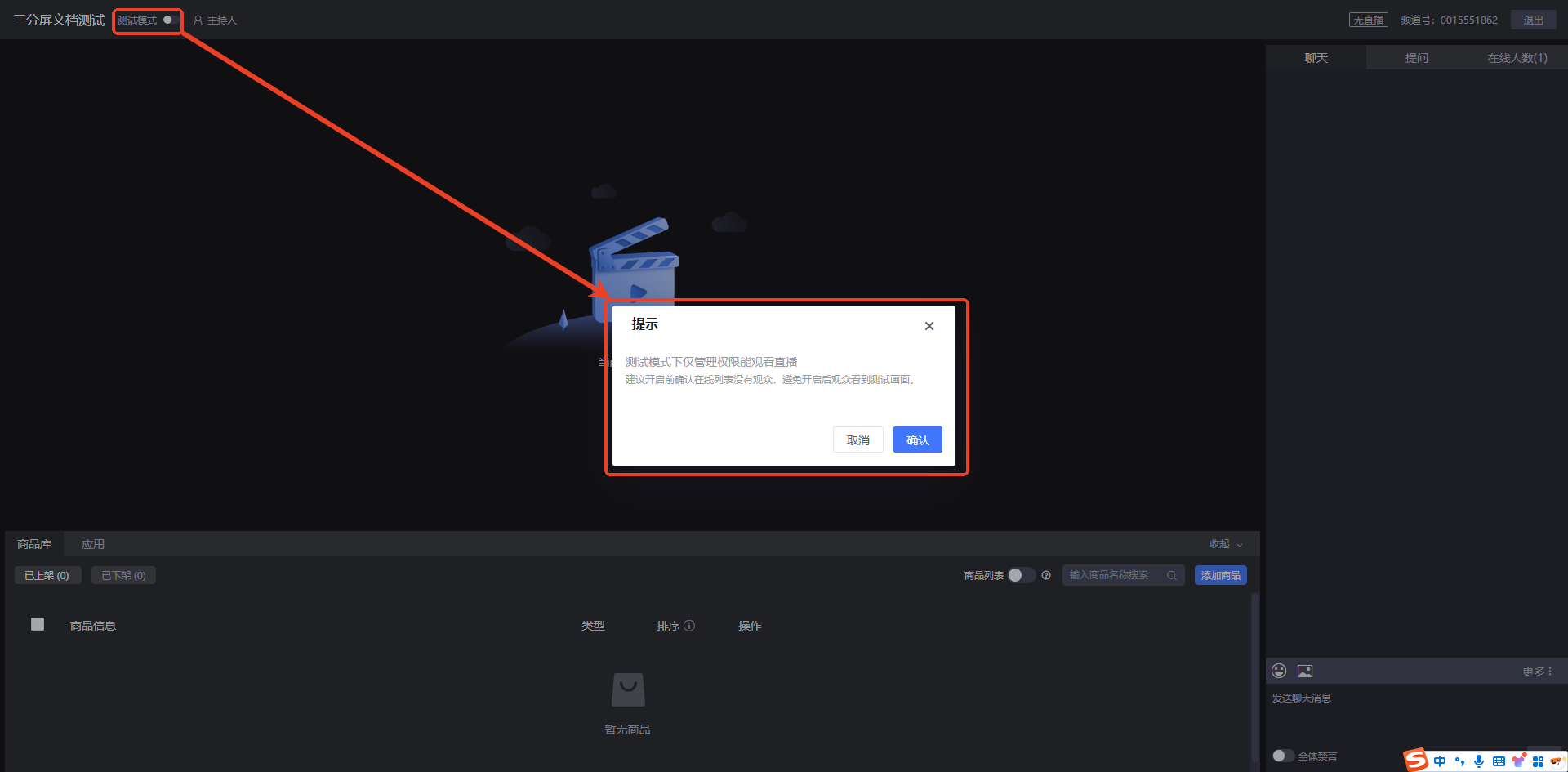
- [Test Mode Display] When enabled: The test mode entry is displayed in the live stream monitoring and assistant interface.
- [Cash Red Envelope Display] Select "Manual": Users manually withdraw cash after grabbing a red envelope. Select "Automatic": Users wait approximately 10 minutes for automatic withdrawal after grabbing a red envelope.
- [Prepaid Cash Red Envelope] When enabled, all preset cash red envelopes for channels must be paid to the merchant account first.
