Platform Product Library
I. Feature Overview
Feature Info |
Description |
|---|---|
| Feature Name | Platform Product Library |
| Feature Description | Compared to the channel product library, products added to the platform product library can be used across all live streaming room product libraries. Usage: When adding a product, first add it to the global library, then in a specific channel, add it to that channel's product library via the platform product library. |
| Purpose | For certain common products, you can choose to add them to the platform product library to avoid repeatedly creating the same product in every live streaming room. |
| Use Cases | Live streaming sales, live streaming courses, live streaming job recruitment |
| Operation Path | 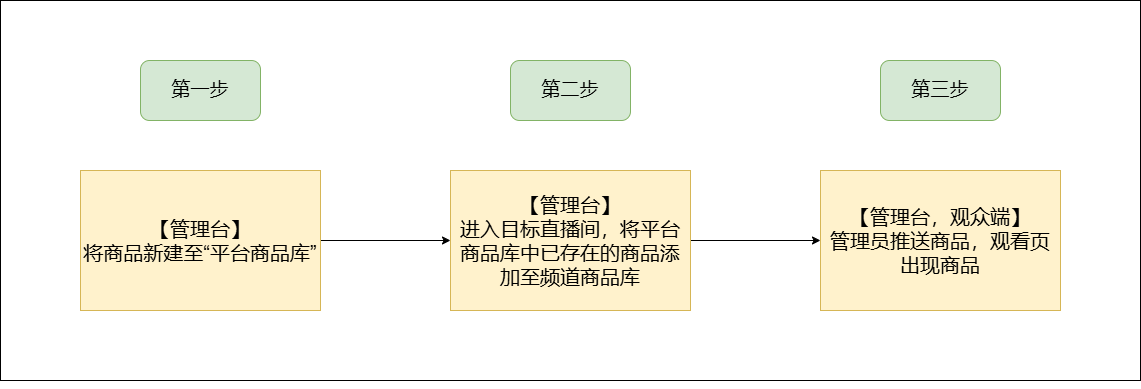 |
II. Usage Instructions
Enter the live streaming backend, go to Platform Settings — Product Management On this page, you can create new products (see 2), import products (see 3), copy products (see 4), edit products, delete products, add tags, add to channels, etc.
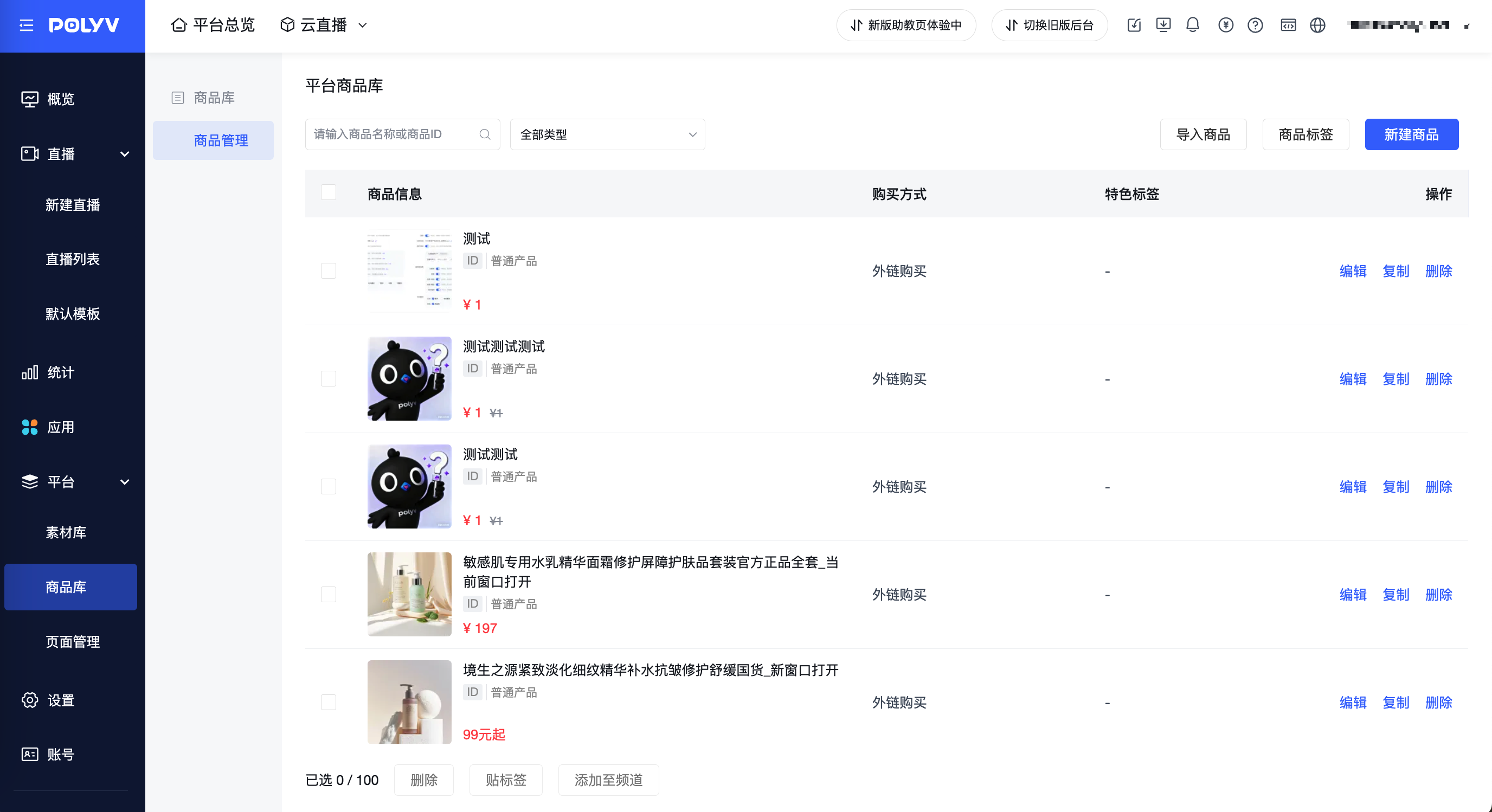
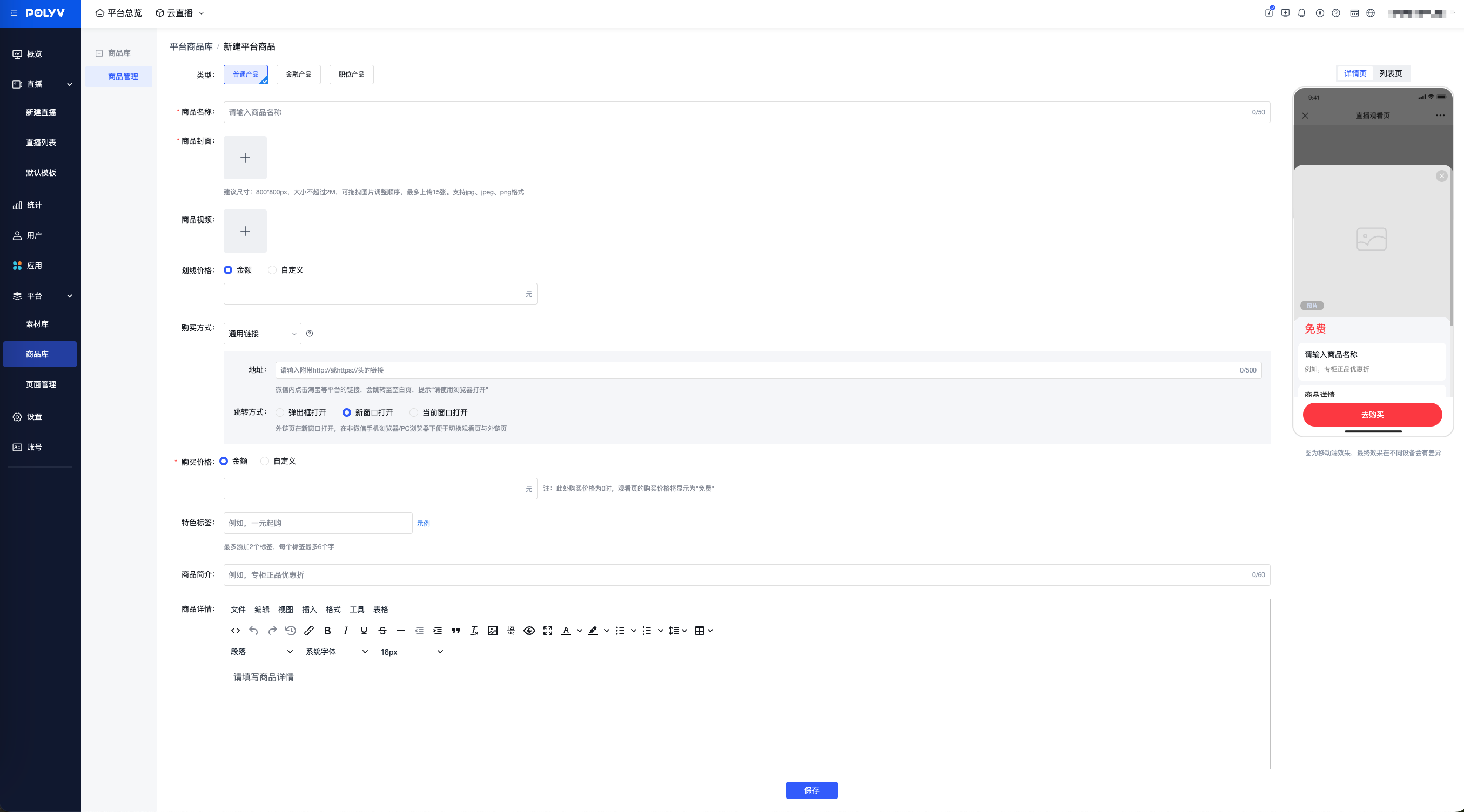
Click "Create New Product"
Click "Import Product". You can download templates for general products, financial products, and job products. Fill them out in a local spreadsheet, then upload.
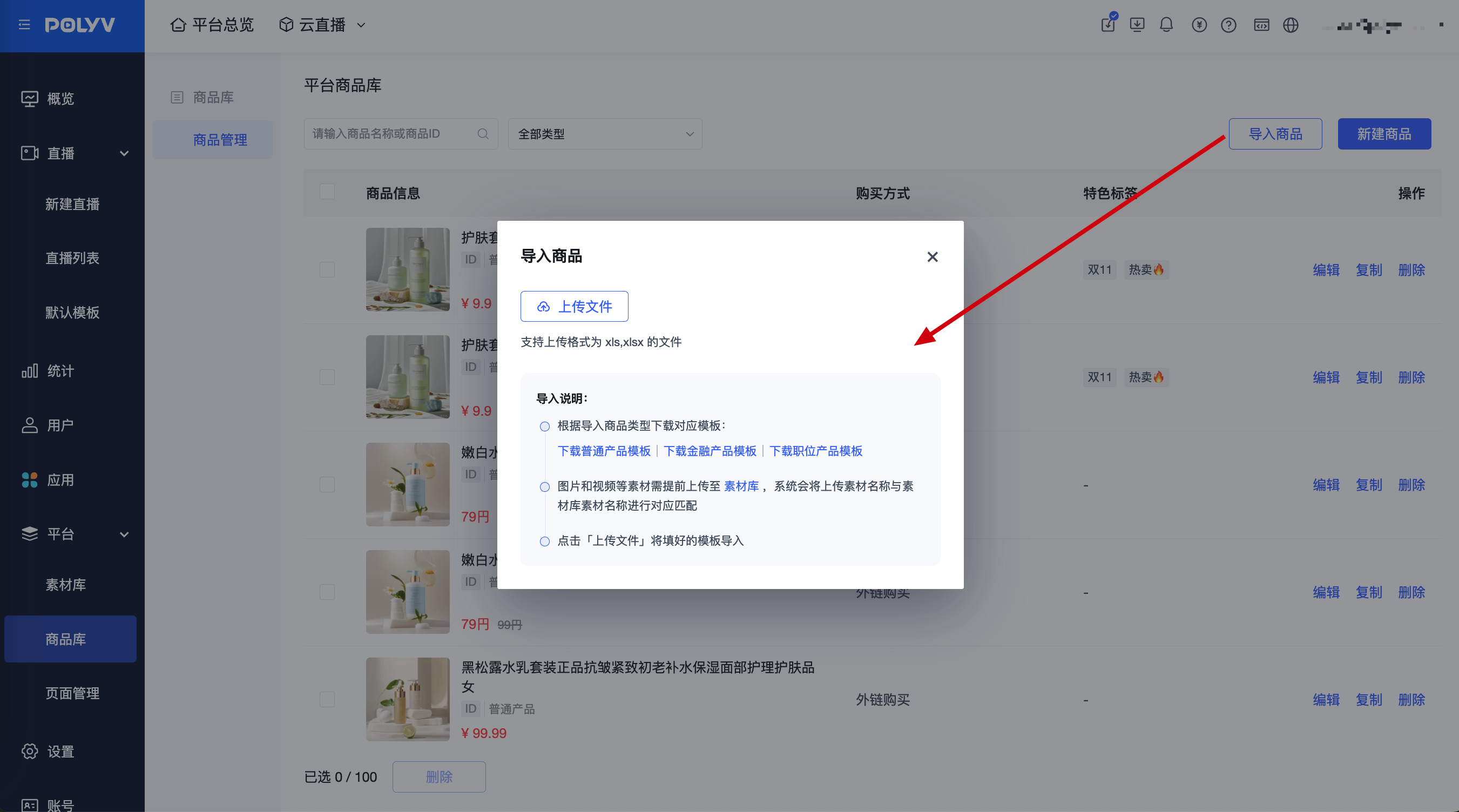 Import process: Download the corresponding product type template -> Fill in the information in the spreadsheet -> Upload the file
- Media assets such as videos and images included in the import file must be uploaded to the media library in advance. During import, the system will match the uploaded asset names with those in the media library.
- Supports downloading data that failed to import. You can modify it based on the failure reason and re-import.
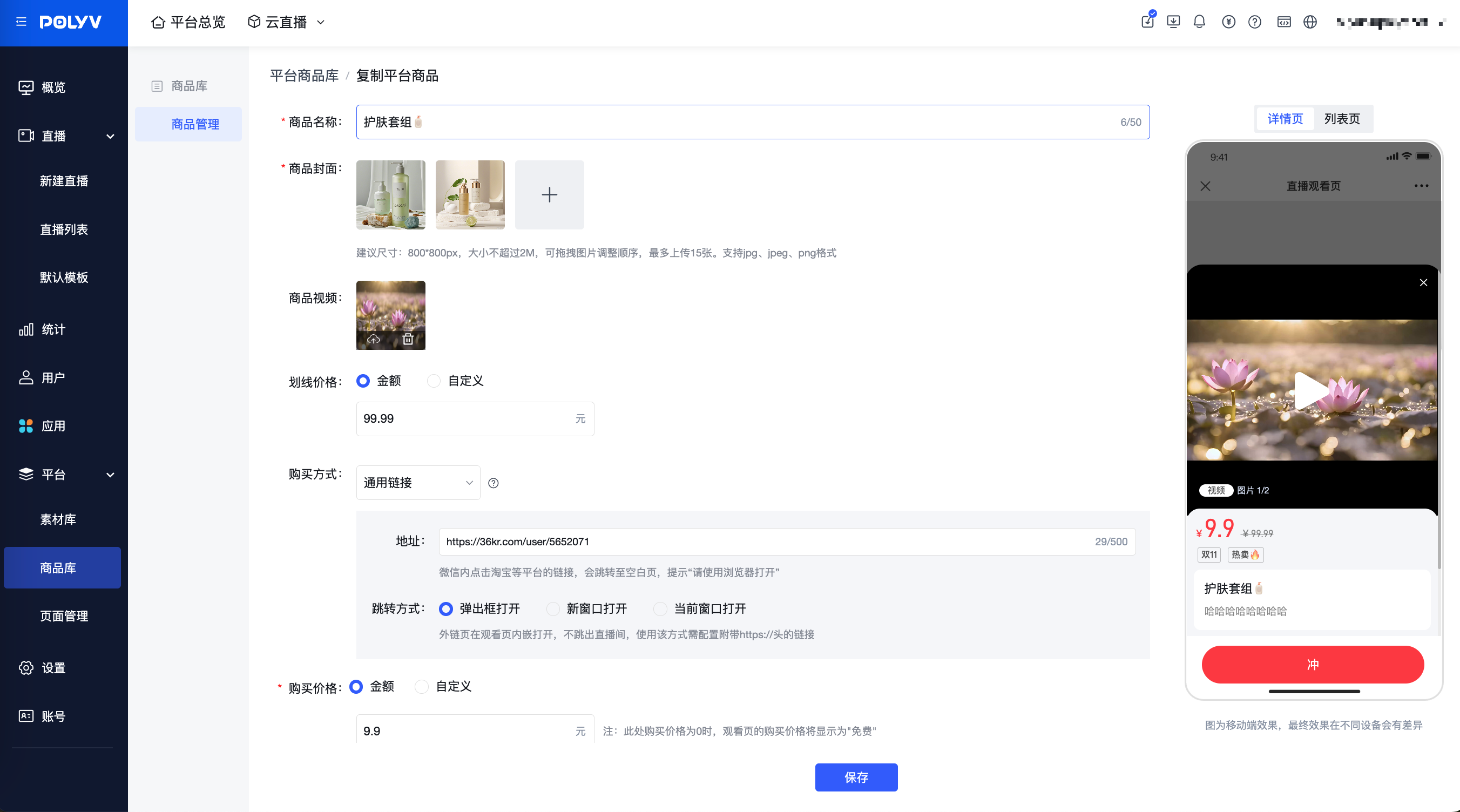
Click "Copy Product" to quickly create a new platform product via the "Copy" method, improving efficiency when creating similar/same-category products.
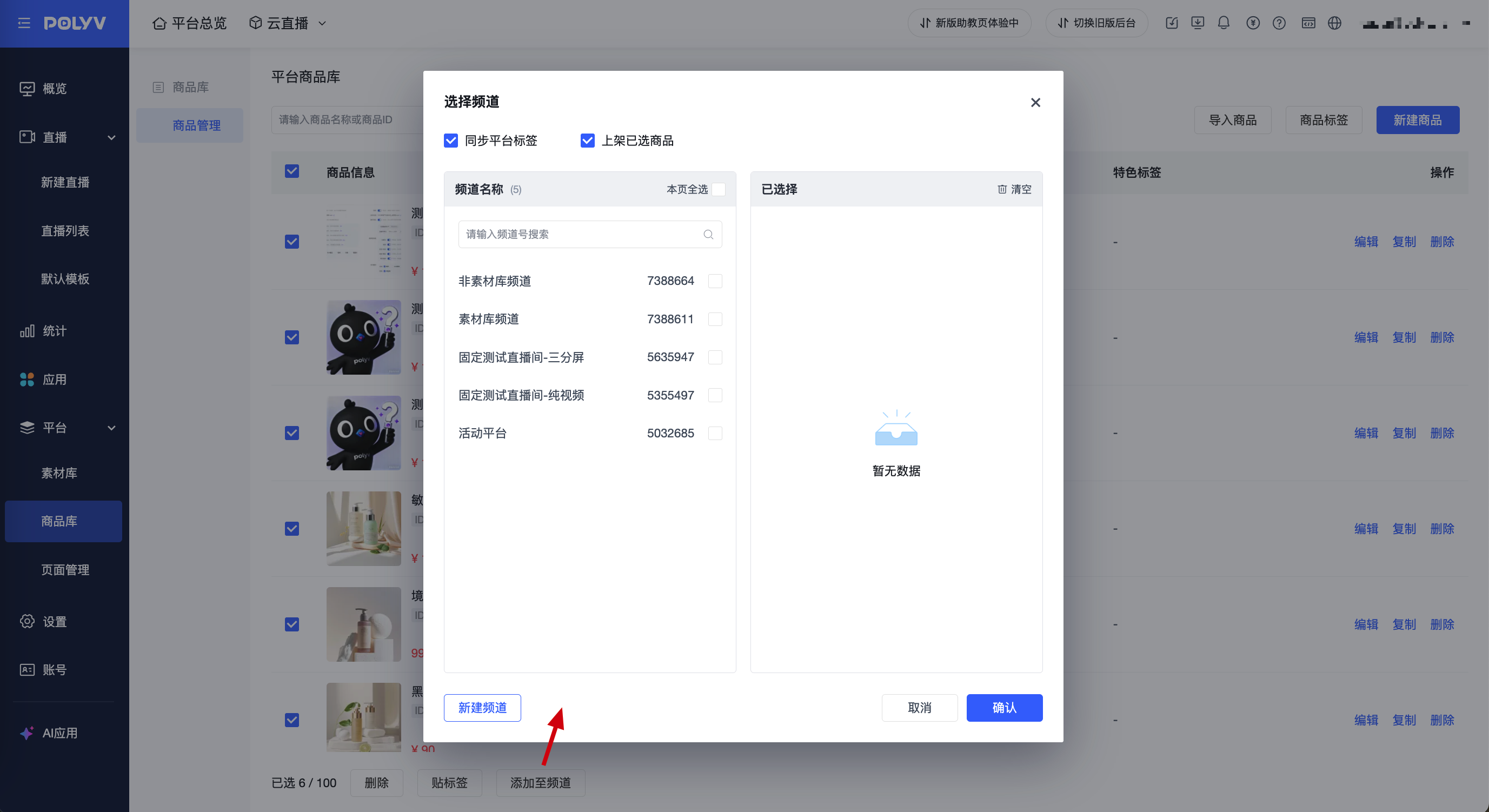
Quickly assign products to multiple channels. Select products in the product list and click "Add to Channel".
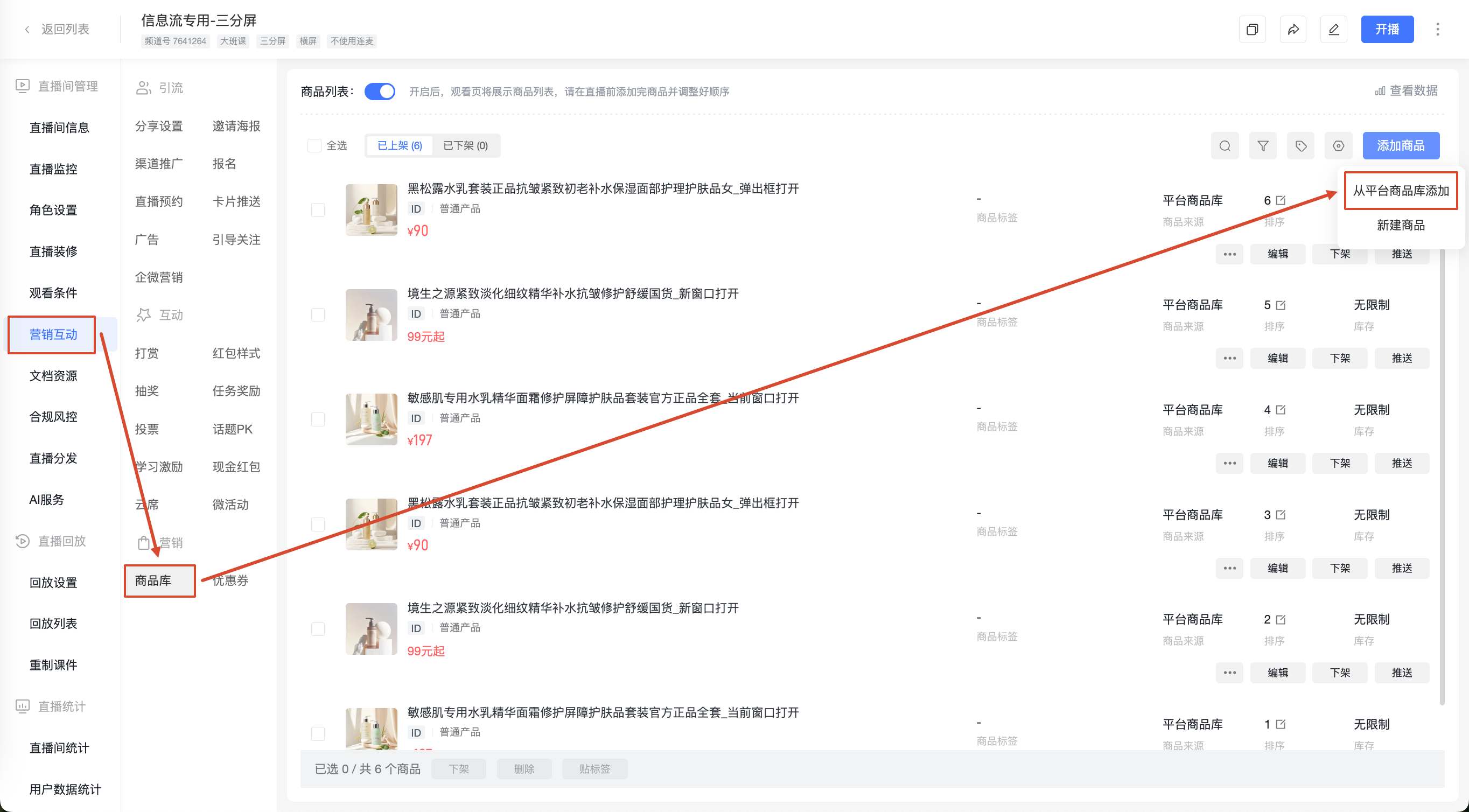
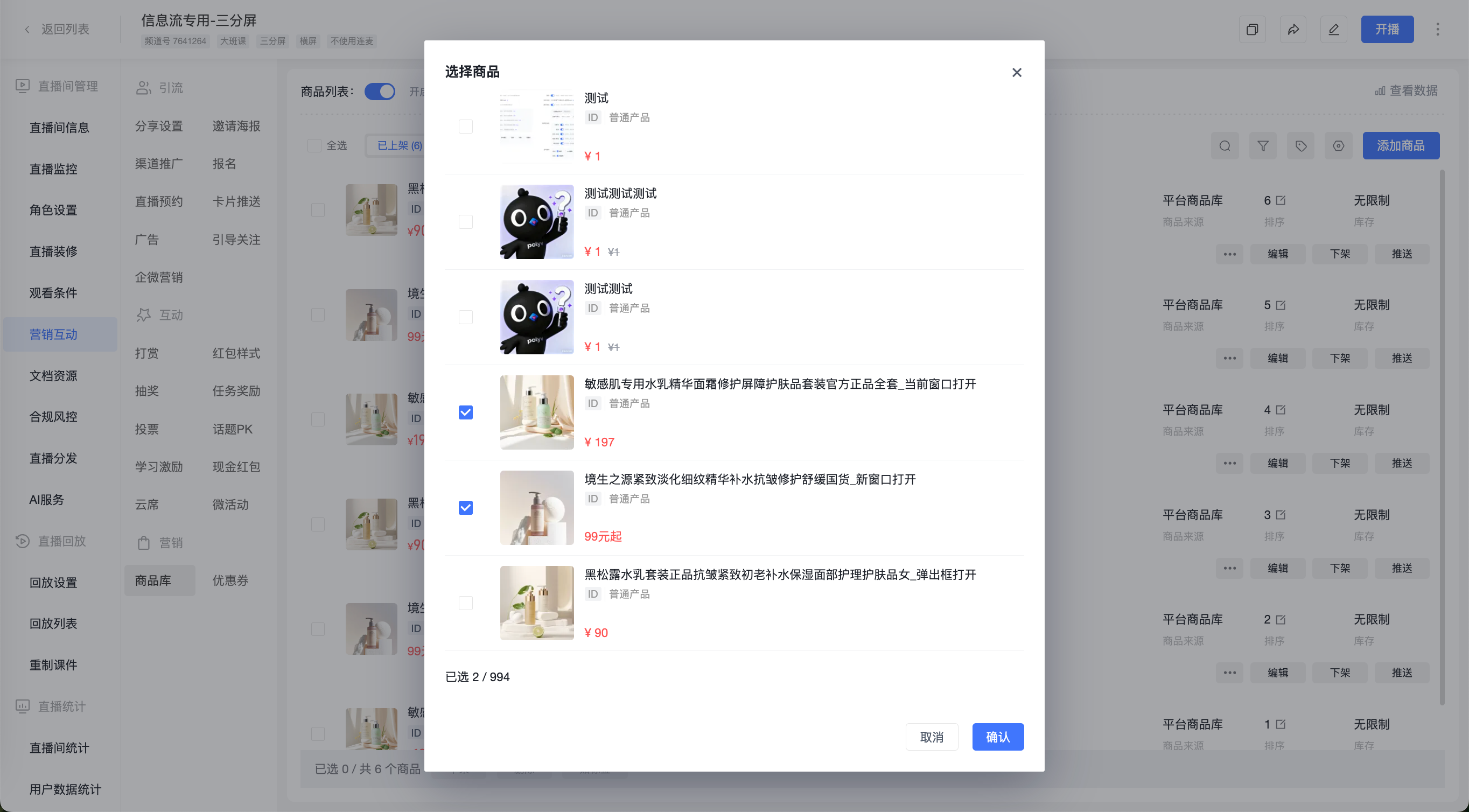
Reference the same platform product in different channel product libraries. Go to Channel — Marketing Interaction — Product Library — Add Product — Add from Platform Product Library.
Select the product added in the platform product library, click Confirm, and the addition is successful.
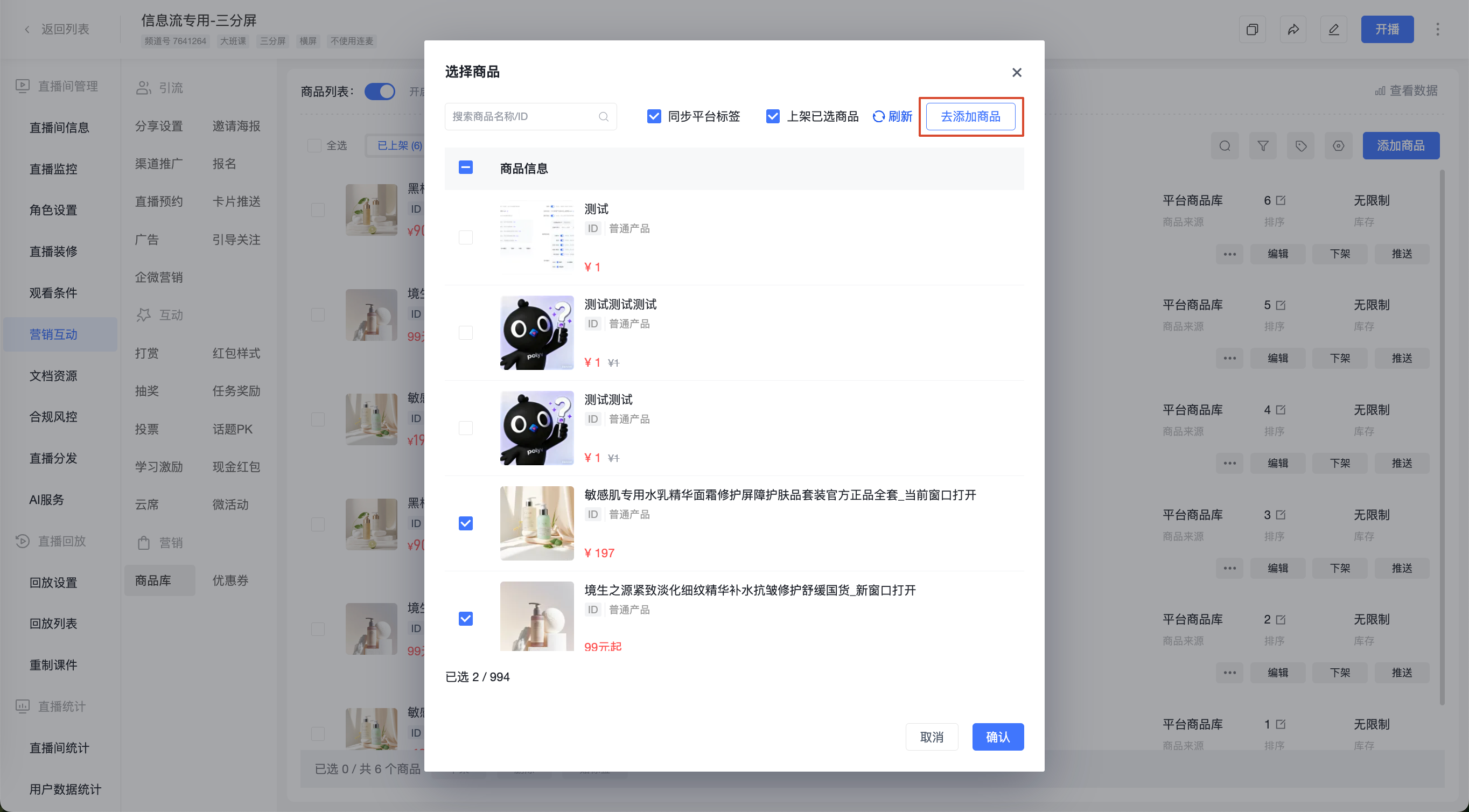
Click "Go to Add Product" to jump to the platform product library addition page.
III. Usage Notes
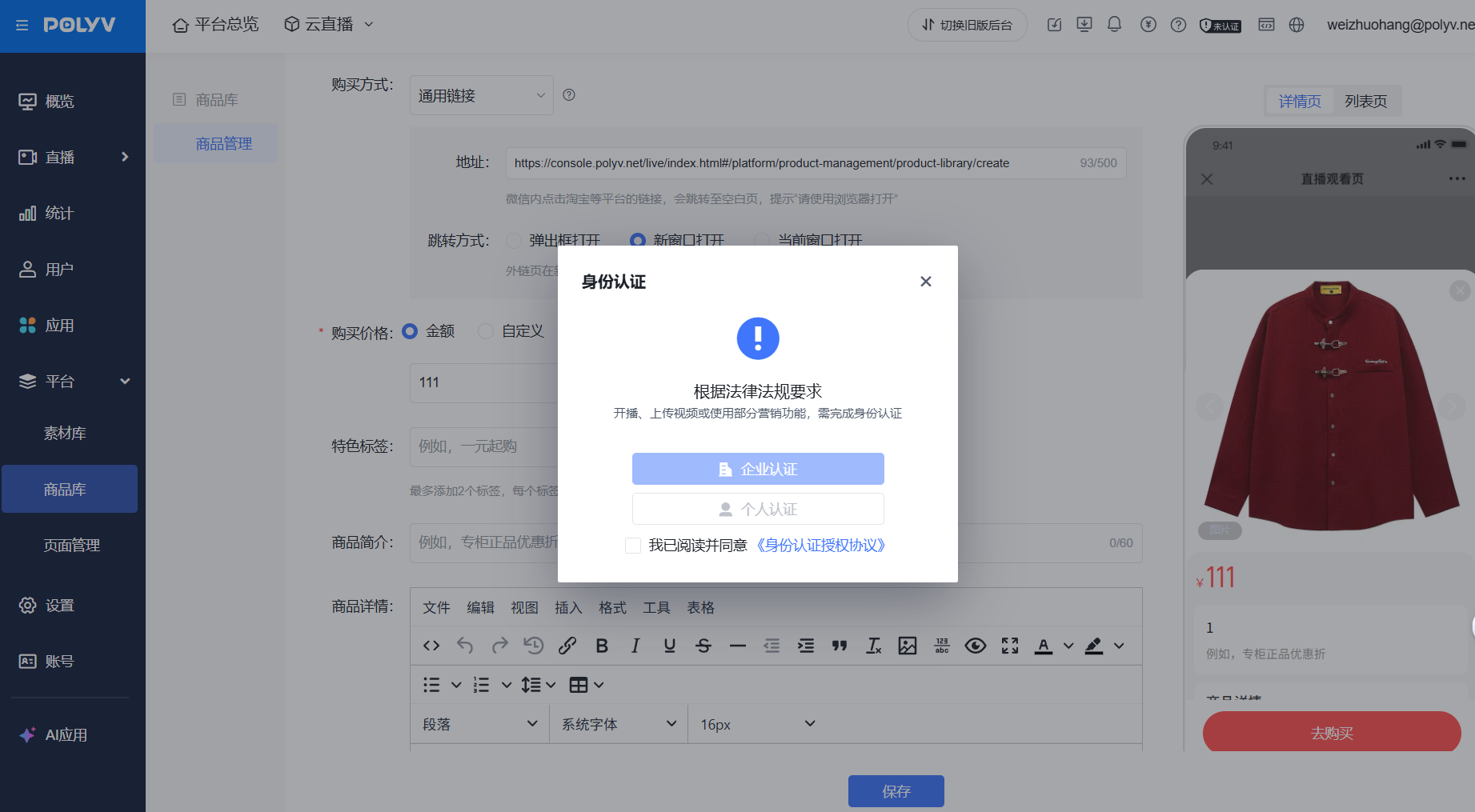
Users who have not completed verification or have completed personal verification will be unable to use the channel or platform product library.