


Cloud Seating
Updated: 2026-08-17 11:27:00
I. Feature Overview
Feature Info |
Description |
|---|---|
| Feature Name | Cloud Seating |
| Feature Description | Supports setting virtual seats in the live room, distinguishing display positions for guests, VIPs, and regular viewers |
| Purpose | To clearly define different participant roles during a live stream, making it easy to quickly identify important participants |
| Use Case | Suitable for business meetings, internal meetings, and other live streaming scenarios that need to highlight key individuals |
| Operation Path | 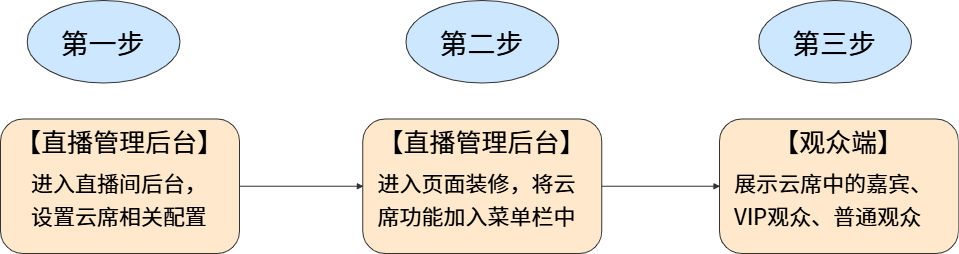 |
II. Usage Instructions
1. Feature Entry
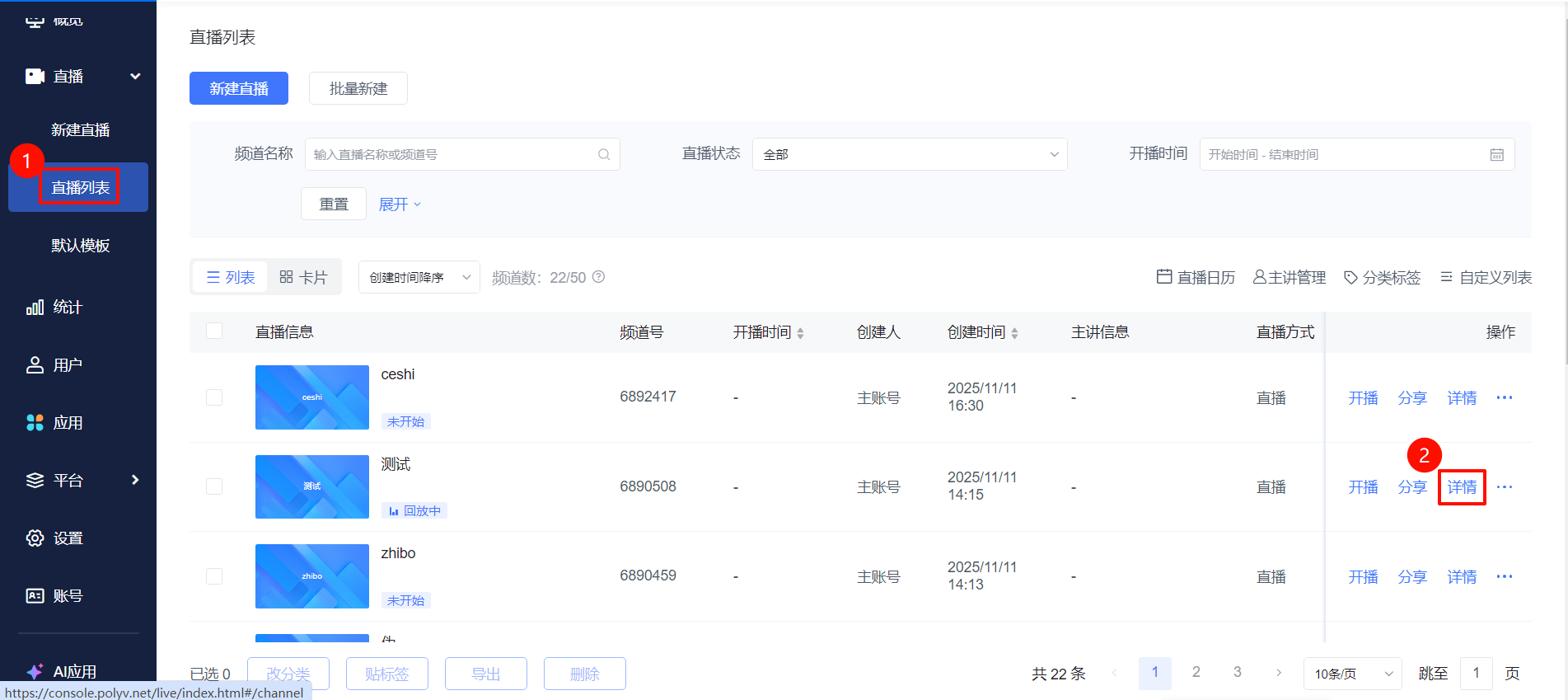
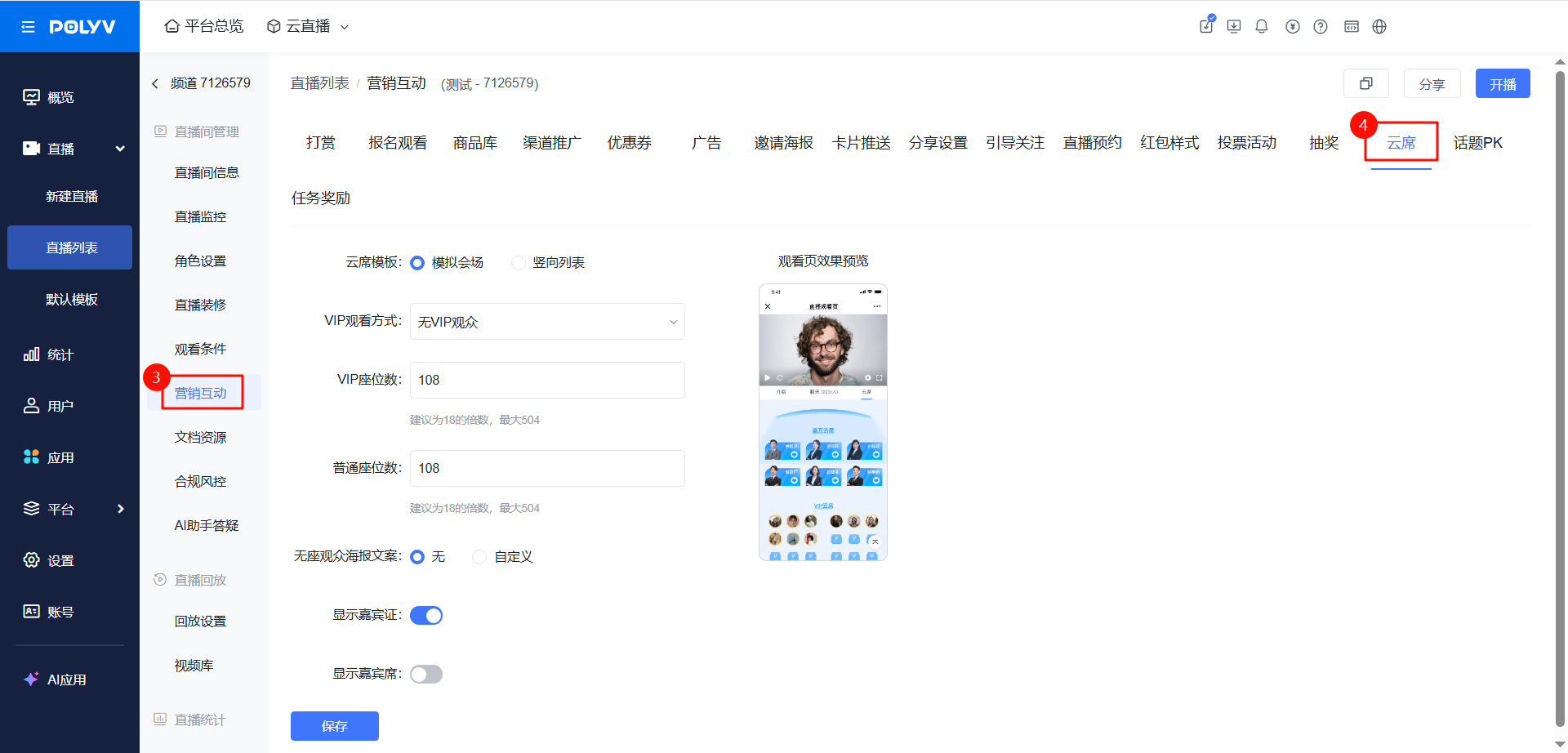
Navigate to the "Live List" page, select a live stream and click "Details". In the live room management module, click "Marketing Interaction" - "Cloud Seating" to enable the Cloud Seating feature.
2. Feature Description
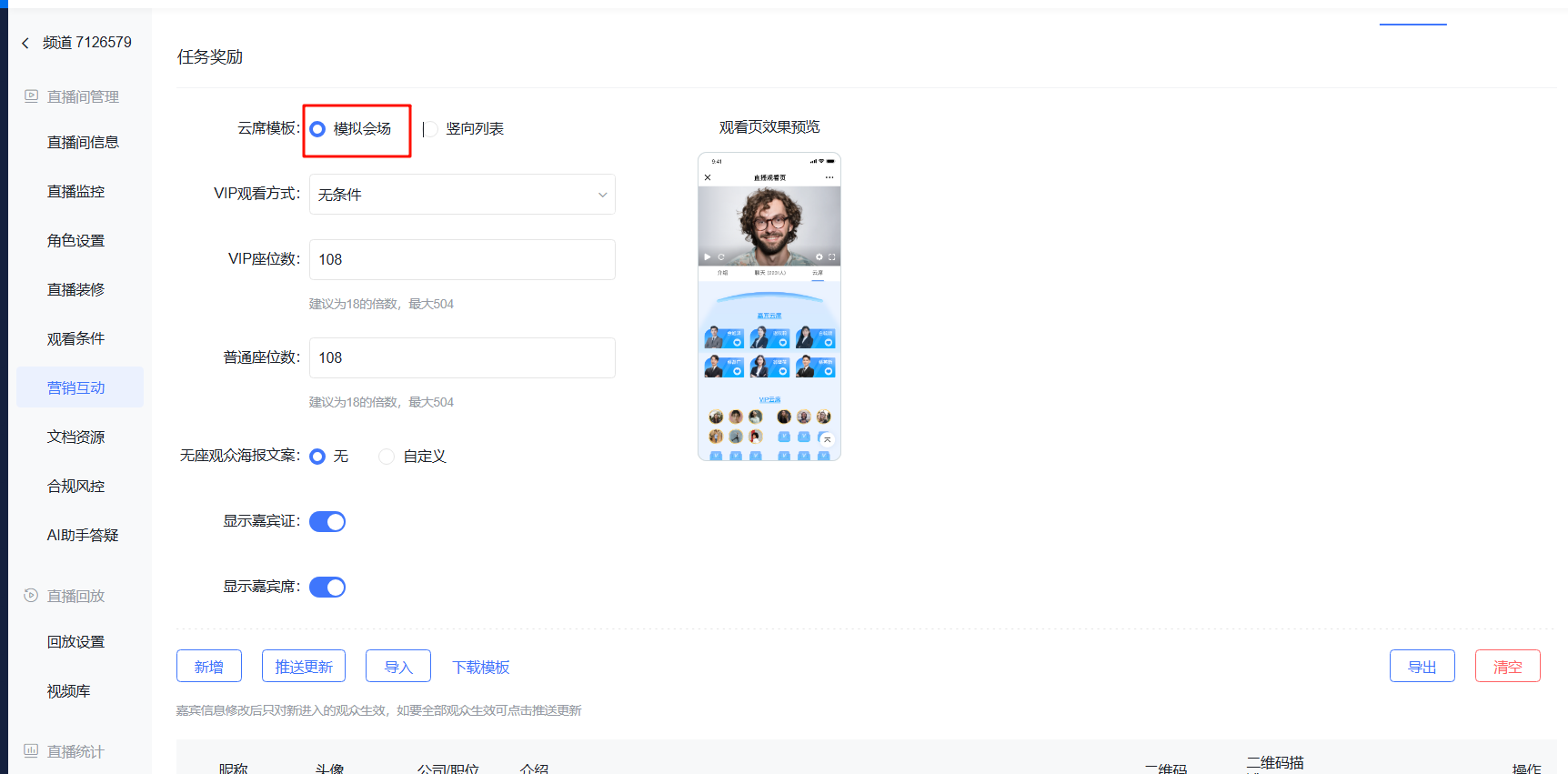
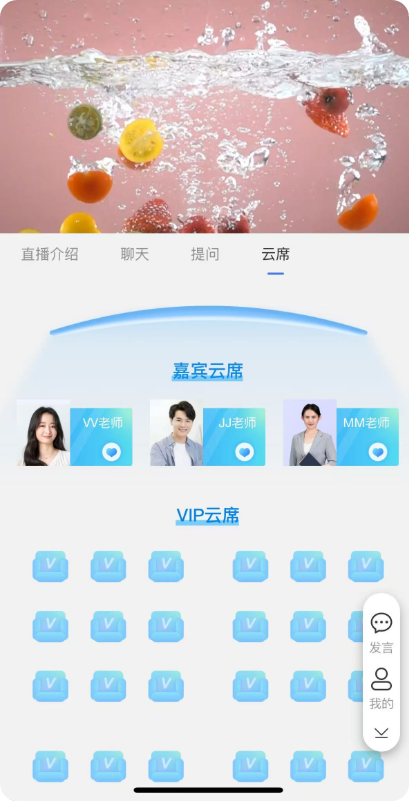
(1) Simulated Venue
- Cloud Seating has three types of people: Guests, VIPs, and Viewers
- VIP Viewing Method: Supports setting viewing conditions for VIP viewers as an entry threshold for screening VIP viewers. For specific configuration steps, click Viewing Conditions
- VIP Seat Count: Supports setting the number of seats for VIP viewers and regular viewers (recommended to be a multiple of 18, maximum 504)
- Poster Text for Seatless Viewers: When seats are full, you can set whether to display poster text for viewers entering without a seat.
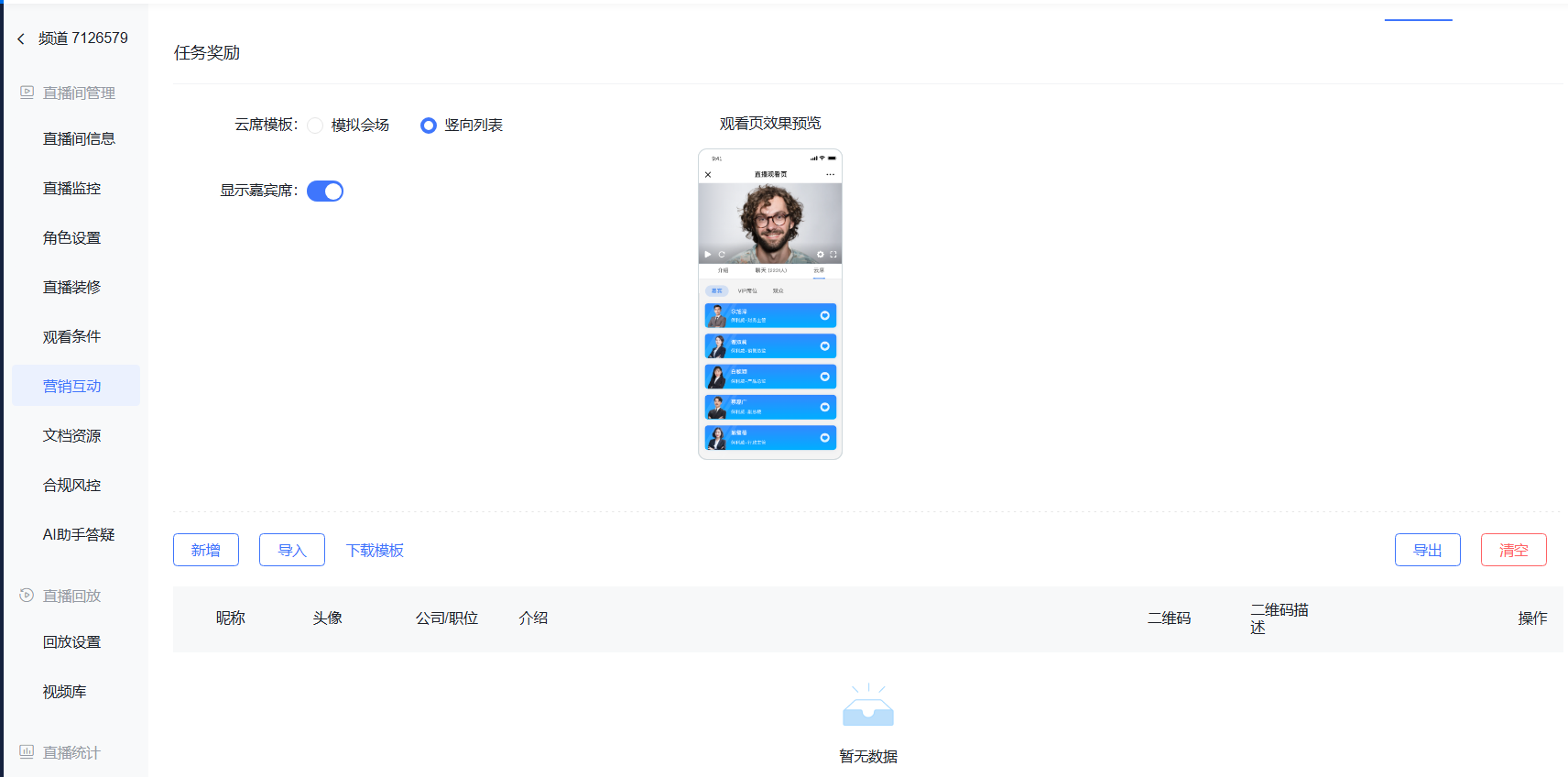
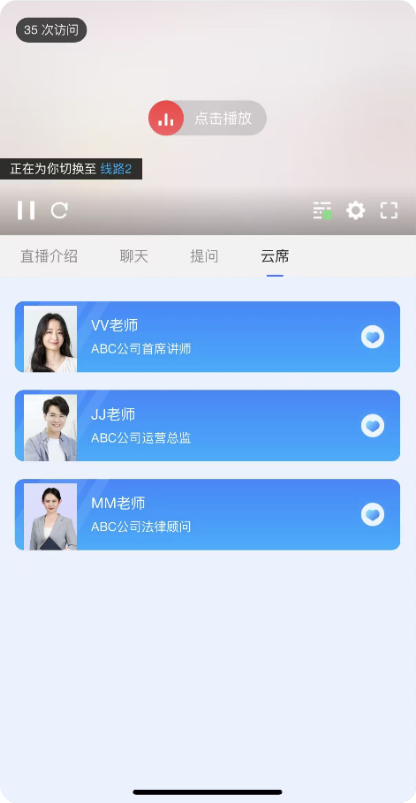
(2) Vertical List
- Cloud Seating has three types of people: Guests, VIPs, and Viewers
- Attendees are categorized by attribute under functional categories and displayed vertically.
3. Guest Seat Settings
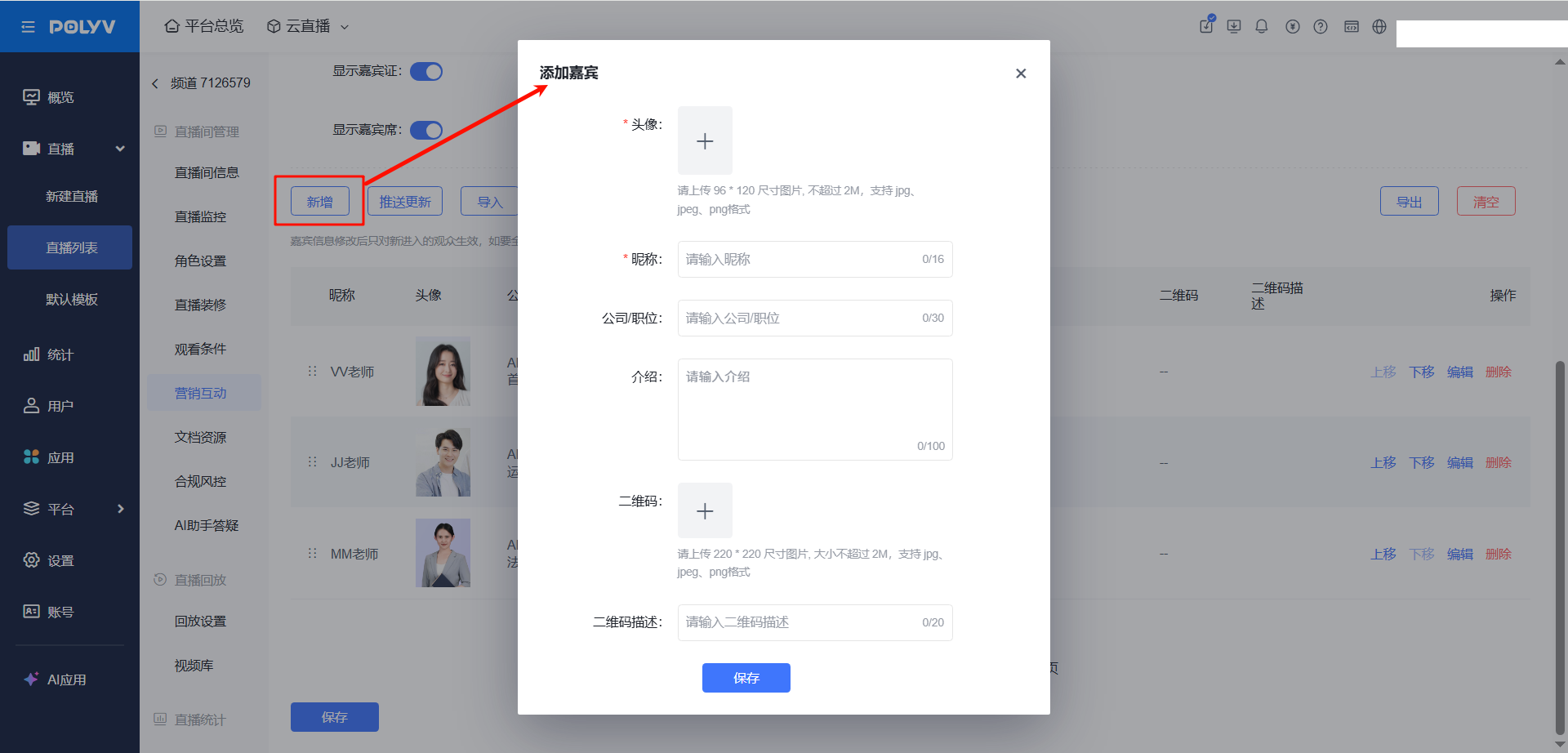
(1) Adding Guests
Add an avatar and nickname, fill in the details, and save to add successfully.
(2) Guest Seat Feature Description
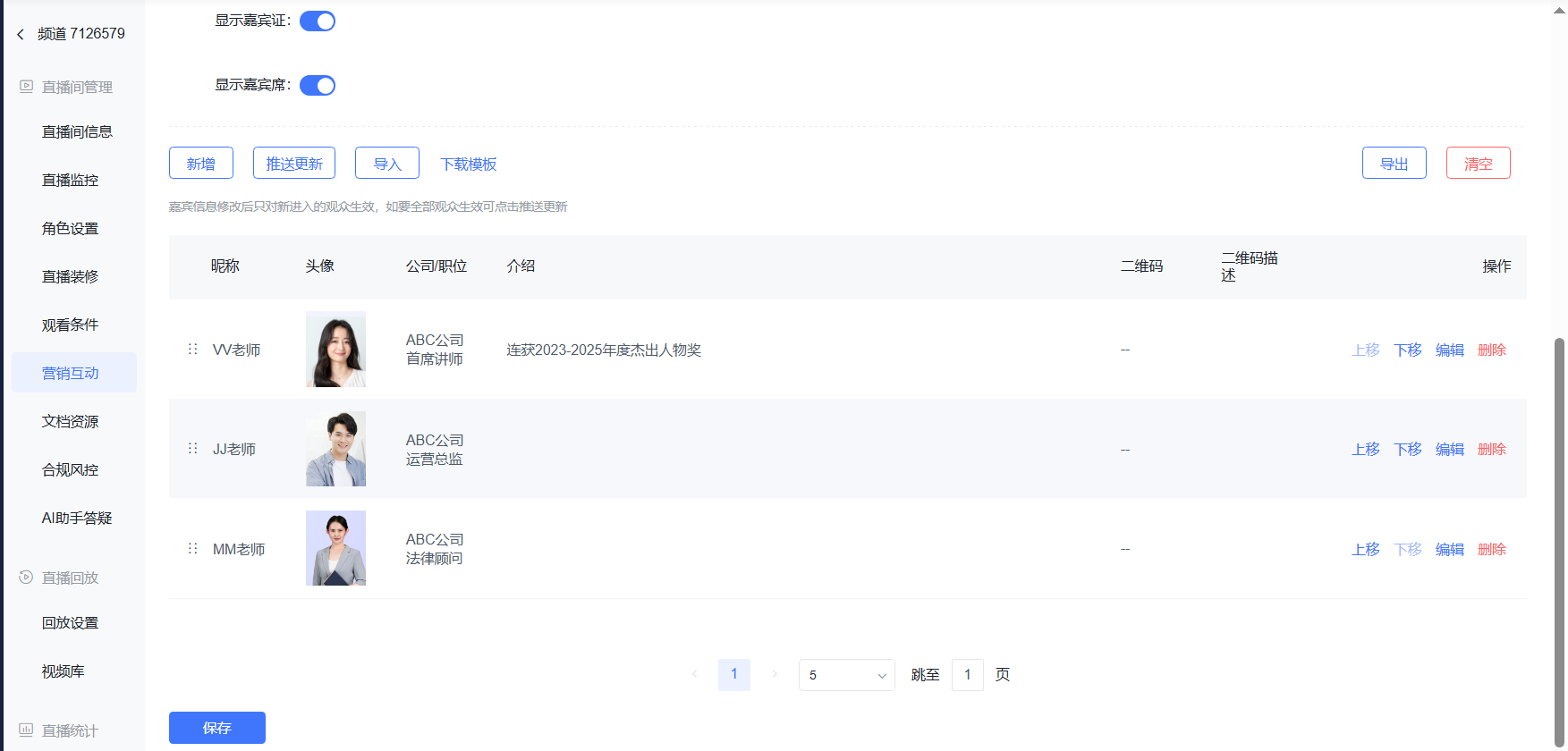
- Push Update: After pushing, all viewers can see the latest guest information without refreshing the page.
- Supports sorting, editing, and deleting guests.
- Supports batch importing guests and exporting the guest list.
- Edit and save to complete.
4. Enabling the Feature via Decoration Page
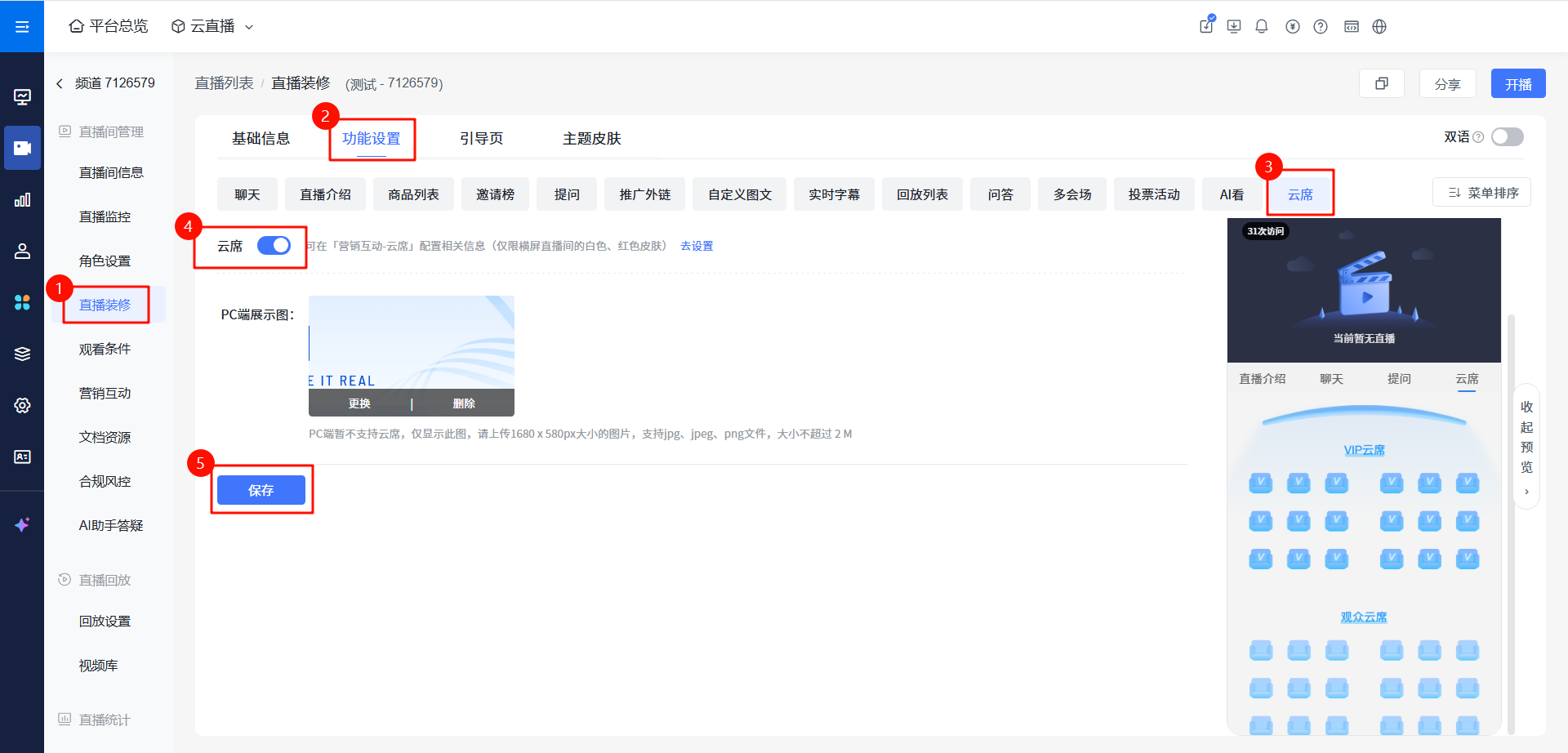
- Click "Live Decoration" - "Function Settings" - "Cloud Seating", enable the Cloud Seating feature, and save.
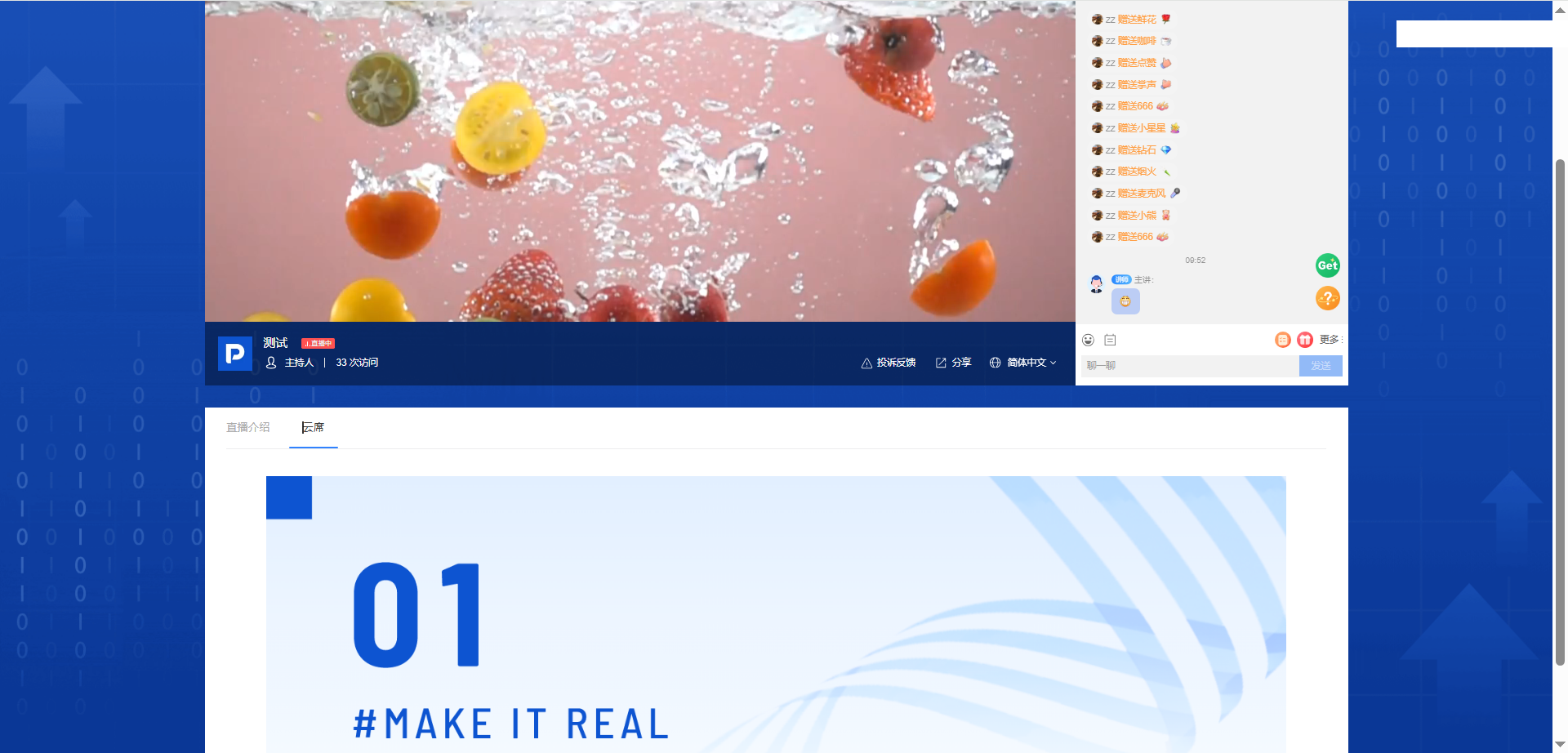
- The PC end does not currently support Cloud Seating; it supports uploading an image as an alternative display for Cloud Seating.
III. Viewer Page Effect Display
1. H5 Mobile Viewer Page
- Simulated Venue
- Vertical List
2. Web Viewer Page
IV. Frequently Asked Questions
| Feature Point | Common Issue | Cause | Solution |
|---|---|---|---|
| Cloud Seating - Regular Seats | Cannot occupy a regular seat | The client channel has not set conditions for either VIP or regular seats, making it impossible for the system to determine whether an entering viewer is a VIP or regular seat occupant. | Set the VIP viewing method. |
| Cloud Seating - Tab Bar | After setting up the Cloud Seating feature, the corresponding tab is not displayed on the viewer page. | Currently, the Cloud Seating feature only supports red or white theme skins. | Switch to a red or white theme skin in the page decoration settings. |
| Cloud Seating - Avatar | Some seat viewers' avatars are not displayed. | 1. WeChat authorization was skipped, so the WeChat avatar was not passed to the chat room. 2. A whitelist viewing setting is enabled, preventing WeChat information from being obtained. |
1. It is recommended to enable mandatory WeChat authorization in the future. 2. Disable the whitelist viewing setting. |
| Cloud Seating - Layout | Can the seats in the Cloud Seating feature be arranged manually? | No, Cloud Seating seats are arranged sequentially based on the order of entry. | |
| Cloud Seating - Invitation Poster | Clicking "Invite" in Cloud Seating does not redirect to the invitation poster. | The account or channel has disabled WeChat authorization. | Contact technical support to enable WeChat authorization for the account or channel. |
| Cloud Seating - Tab Bar | The Cloud Seating feature is not visible when accessing the viewer page from a PC. | Cloud Seating only supports mobile devices; the PC end only supports displaying images configured in the backend. | |
| Cloud Seating - Invitation Poster | After disabling the Cloud Seating feature for the account, the invitation poster generation function in old channels still contains Cloud Seating seat information. | The old channel database still retains the Cloud Seating feature; disabling the feature does not currently synchronize to old channel data. | Contact technical support to disable the feature for the specific channel. |
| Cloud Seating - Invitation Poster | The invitation poster on the viewer page does not match the uploaded poster, and the text "Welcome to the live room" appears unexpectedly. | This is caused by enabling the [Cloud Seating Seatless Viewer Poster Text] feature. When both [Cloud Seating] and [Invitation Ranking] features are used simultaneously, the custom text appears on the generated poster. When the text hovers over the Cloud Seating area, it is mistakenly thought to be text inherent to Cloud Seating. | Disable the [Cloud Seating Seatless Viewer Poster Text] feature. |
| Cloud Seating - Invitation Poster | The guest certificate in the Cloud Seating feature keeps loading. | The invitation poster set by the client is not a custom poster. | The invitation poster must be set as a custom poster. |
| Cloud Seating - Vertical List | Only the Guest Seat button is displayed in the Cloud Seating vertical list. | Currently, the vertical list can only display the Guest Seat section. | |
| Cloud Seating | The Cloud Seating feature is enabled, but it is not displayed in the backend. | After enabling, only newly created channels will have Cloud Seating. | 1. Create a new channel to use the Cloud Seating feature. 2. If an old channel needs to use the Cloud Seating feature, please send the channel ID to your dedicated after-sales technical support. |
| Cloud Seating - Custom Text | In offline venues, each type of seat has corresponding identification text for differentiation. Is it possible to customize the text online? | VIP seats and regular viewer seats currently do not support custom text. Seatless viewers can have custom poster text, limited to 8 characters. | |
| Cloud Seating - Guest Seats | What is the maximum number of guests that can be added to the Guest Seat section? | Currently supports adding up to 51 guests. | |
| Cloud Seating - Viewing Conditions | How are VIP seats and regular seats differentiated? | 1. If a channel needs to set viewing conditions and has also enabled the Cloud Seating feature, one primary viewing condition and one secondary condition must be selected. 2. In the backend - Cloud Seating, there is a "VIP Entry Method". Users entering via the selected method become VIP seat occupants, while those entering via the other method become regular seat occupants. |
|
| Cloud Seating | There are two live rooms, one main venue and one sub-venue. In which live room will the Cloud Seating viewers be displayed? | For multiple venues, Cloud Seating can only be used in the main venue; sub-venues do not support it. |
