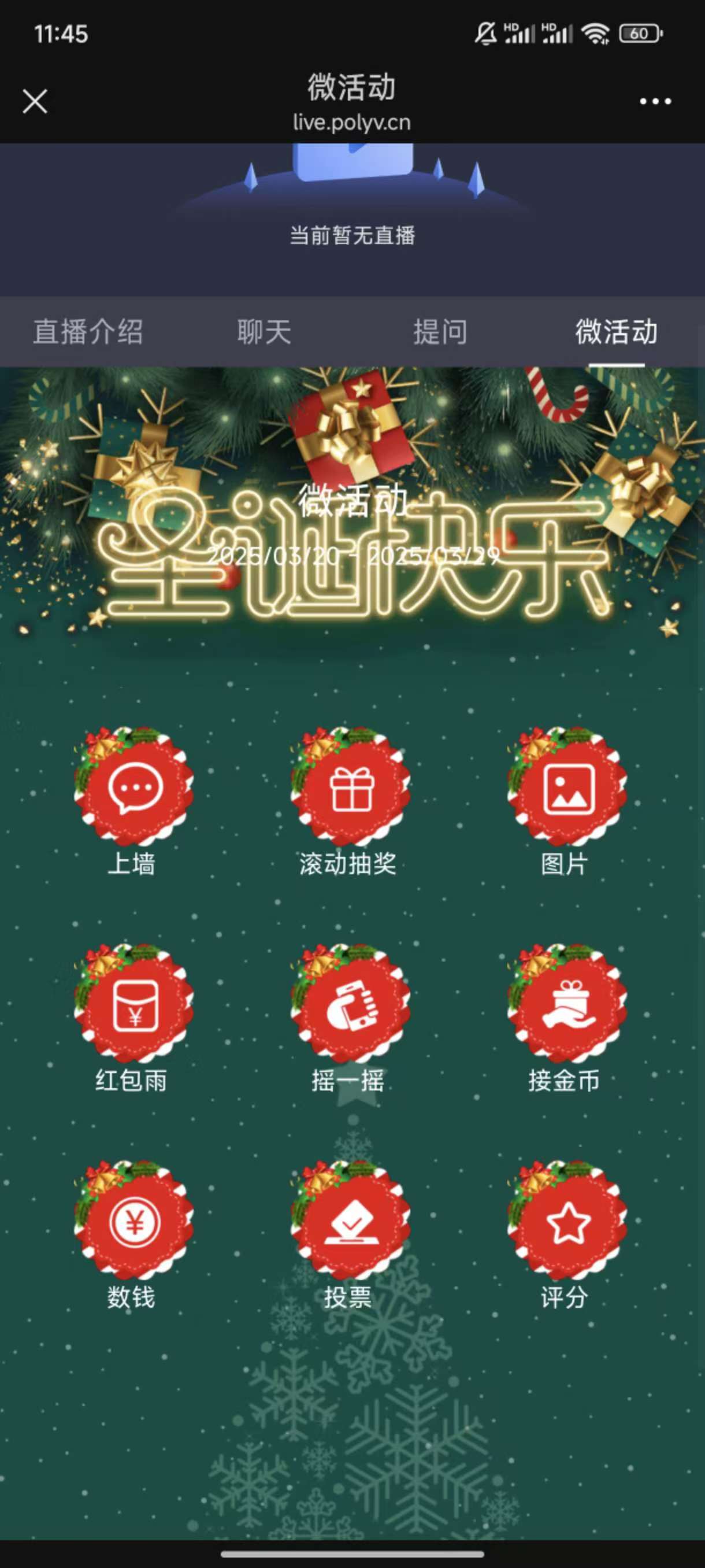
Mini Event
I. Feature Overview
| Feature Info | Description |
|---|---|
| Feature Name | Mini Event |
| Feature Introduction | [Mini Event] is an interactive tool designed specifically for live event streaming. It consolidates event descriptions, schedules, speakers, materials, and interactive activities like shake contests used during the broadcast into one module, allowing users to quickly understand event-related information. Additionally, interactions such as shake contests, red packet rain, lottery draws, voting, and quizzes, combined with rankings and prizes, leverage physical movement to rapidly engage the audience and boost live stream activity. |
| Purpose | To rapidly engage the audience and boost live stream activity through rankings, prizes, and physical movement; to aggregate and present the schedule, speakers, materials, and interactions needed for a live event, enabling users to quickly understand the stream. |
| Use Cases | Scenario 1: During a company annual meeting, prizes are distributed, but a simple lottery cannot quickly energize the live stream atmosphere. The company uses interactive games like the shake contest from Mini Event. Users must shake their devices vigorously to compete for rankings, and the top-ranked users win prizes. This distributes prizes while quickly livening up the live stream, filling the offline venue with laughter and excitement. Scenario 2: During a summit live stream, the event schedule, speakers, and materials need to be displayed so the audience can quickly see basic event information. The organizer uses Mini Event to quickly input basic information and display it on the live stream, allowing the audience to quickly access relevant details. |
| Tutorial | 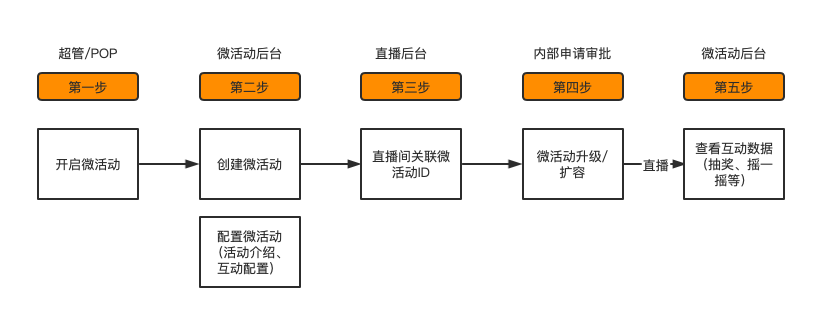 |
| Feature List | 1. Mini Event style configuration 2. Brand copyright configuration 3. Interactive games 5. Message interaction types: message wall, question wall, signature wall, image wall, theme wall; Lottery types: scrolling lottery, number draw lottery, bullet screen lottery, image lottery; 6. Red packet types: red packet rain, red packet catching; Competitive types: shake contest, money counting, knock-knock game, team tug-of-war, best shooter; 7. Voting/Scoring types: voting, scoring; Event ceremony types: check-in wall, 3D check-in wall, signing ceremony, countdown, ordering conference, launch ceremony; 8. Quiz/Educational types: quiz, charades; Personnel management: 9. Supports grouping the live stream audience, defining interaction permissions, and adding a blacklist to prevent certain viewers from winning prizes; 10. Event data: Supports viewing interaction data during or after the live stream. |
| SDK Integration Guide | SDK integration is not supported. |
| Pitfall Avoidance Guide | 1. Upper limit for participant count: Once the event's participant limit is reached, subsequent viewers cannot participate in interactions. Therefore, when applying for a Mini Event upgrade/expansion, the estimated number of participants must be provided, allowing for some redundancy. 2. Large events are only supported for up to 10,000 people. This feature is not recommended for events exceeding 10,000 people. 3. Note that this number refers to participants, not concurrent users. For example, if 3,000 people access the Mini Event and participate in interactions, but the peak concurrent viewers in the live stream is 500, the application should specify 3,000 people, and billing will be based on 3,000 people. |
II. Usage Instructions
1. Feature Activation
This feature requires contacting sales for activation.
2. Open [Mini Event Configuration Entry]
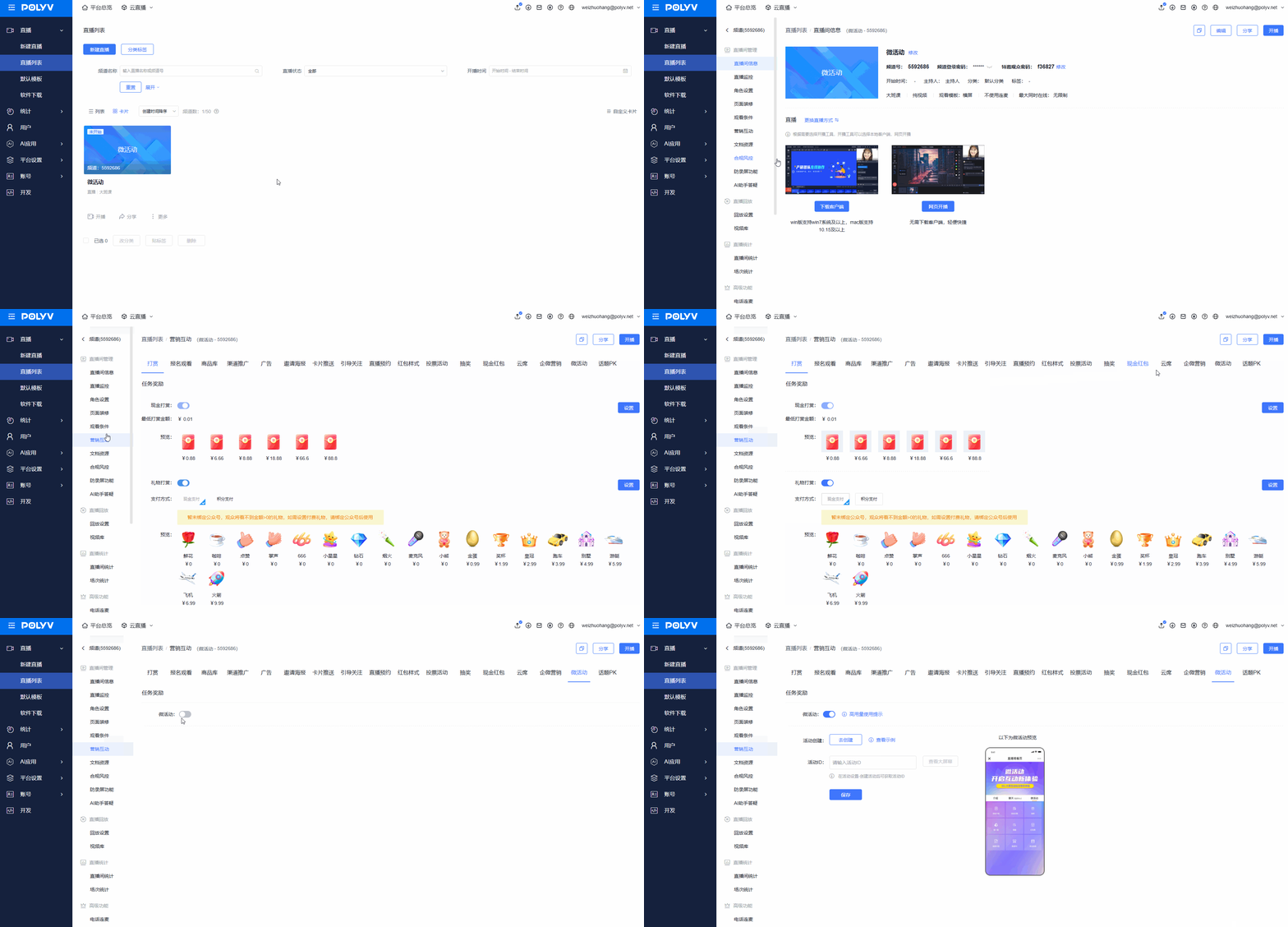
3. Create and Apply a Mini Event
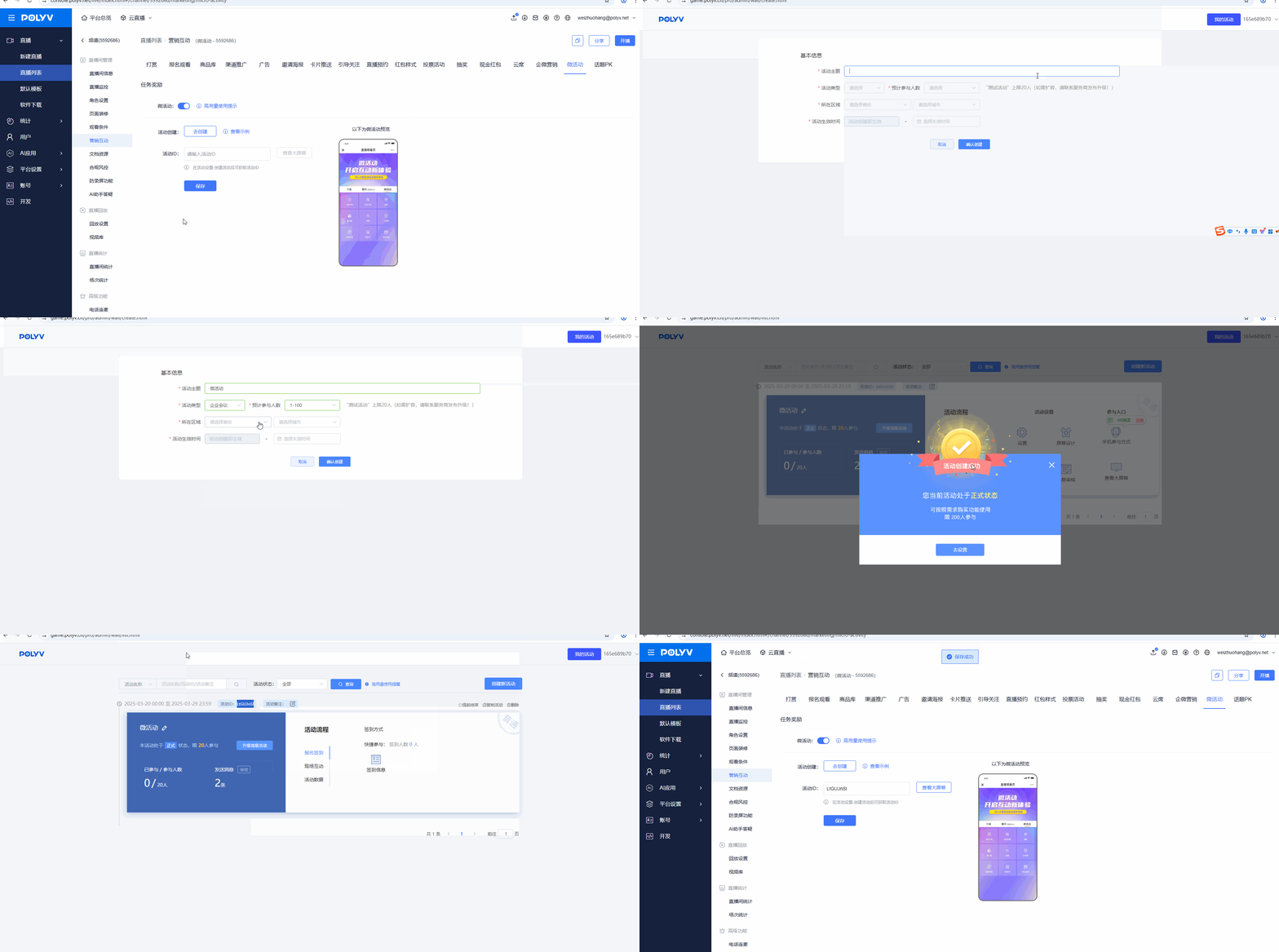
Click the "Activity Creation: Create Now" button in the [Mini Event] menu to navigate to the Mini Event configuration backend. Click "Create New Activity", configure the activity information, and click Save. After the activity is generated, copy the Activity ID, paste it into the "Activity ID" input field for Mini Events in the Polyv live streaming backend, and finally click Save.
4. Configure the Mini Event
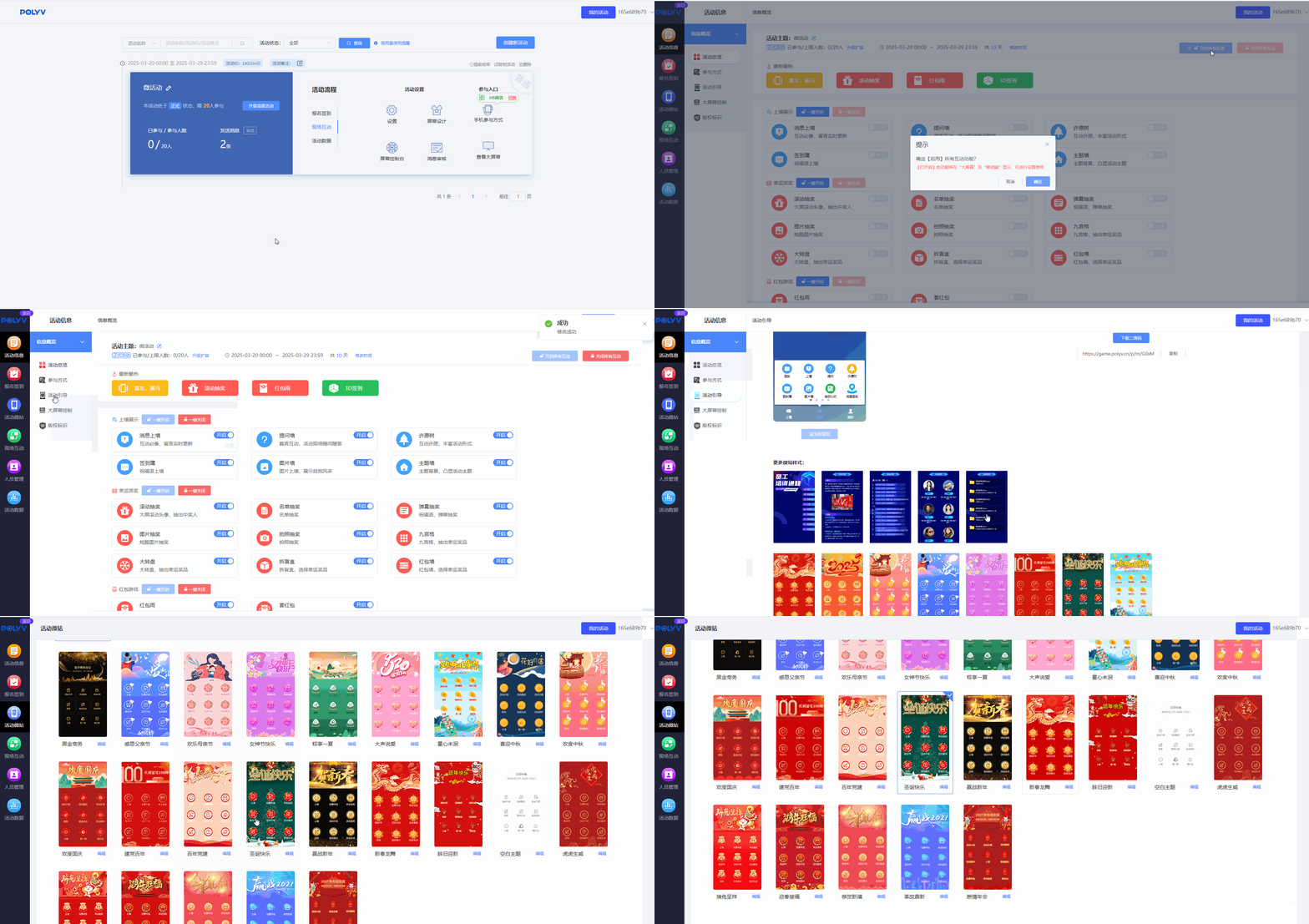
1. Specific Mini Event Settings
On the Mini Event overview page, click Settings to enter the Mini Event settings page, where you can design your desired activity layout, content, style, and functions.
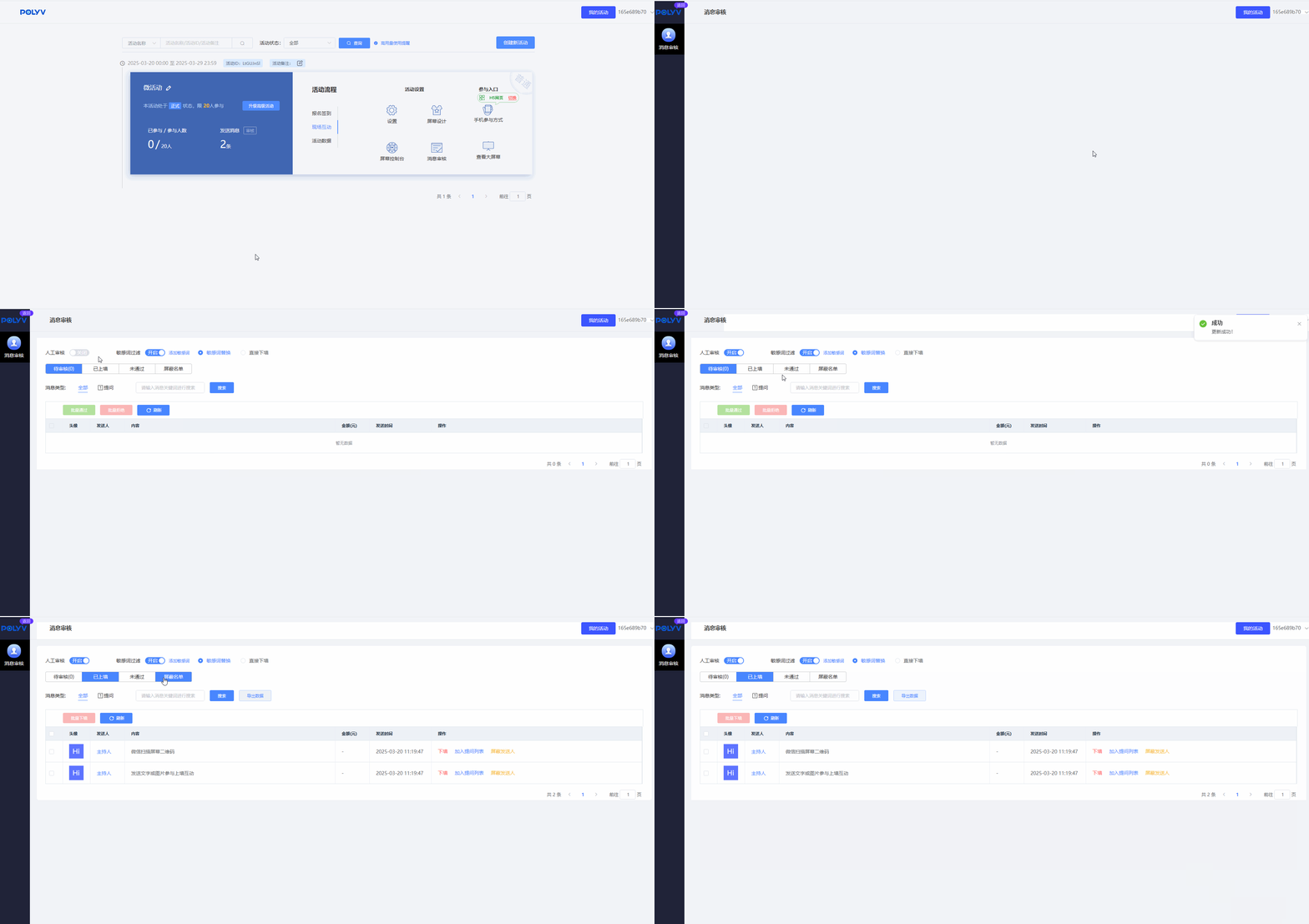
2. Mini Event Message Moderation
On the Mini Event overview page, click Message Moderation to review content submitted by viewers, such as wall posts. Moderation can be set to manual or automatic mode.
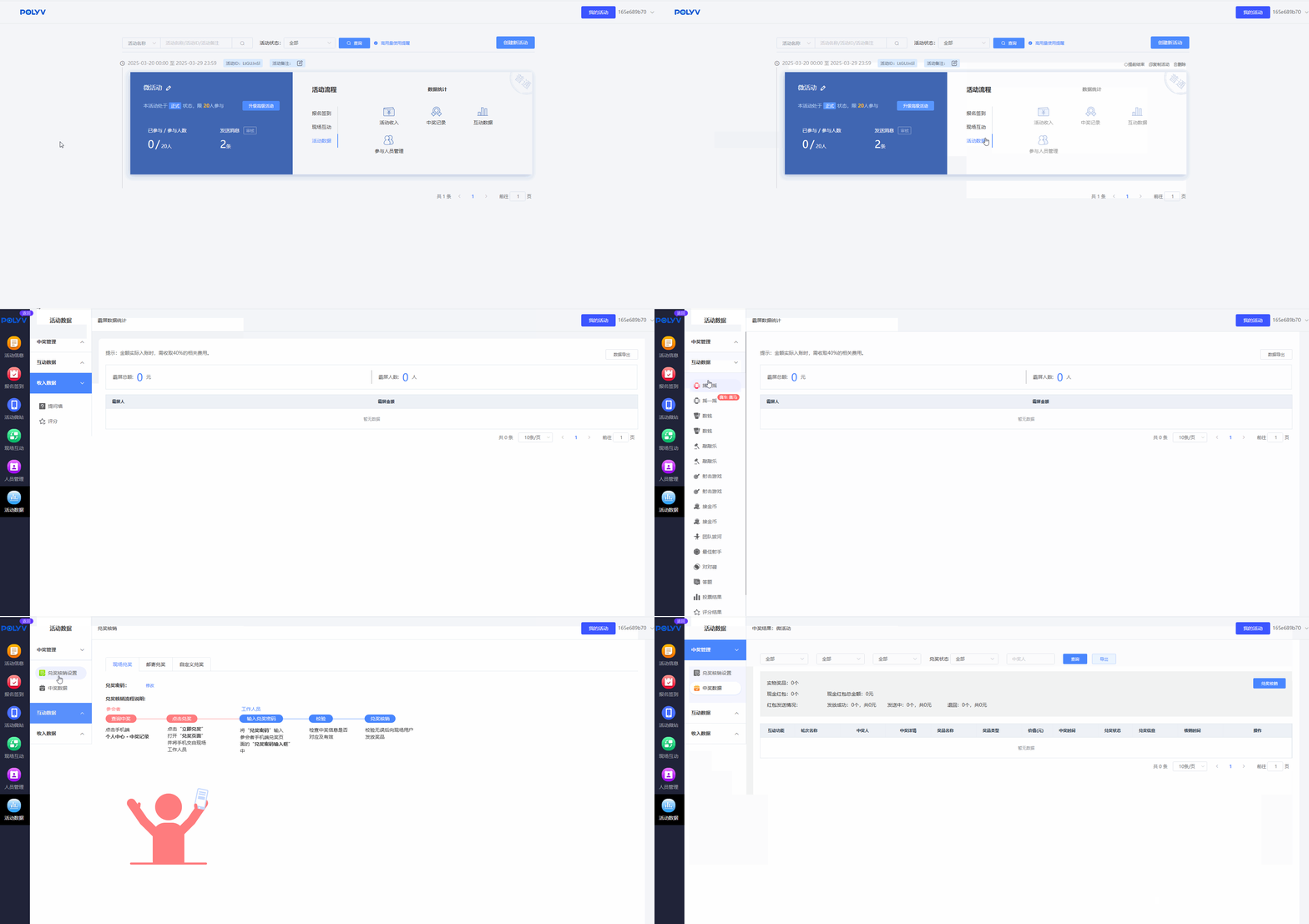
3. Mini Event Data Statistics
On the Mini Event overview page, click Interaction Data, then click any item to enter the data statistics page, where you can view various statistical data for the activity.
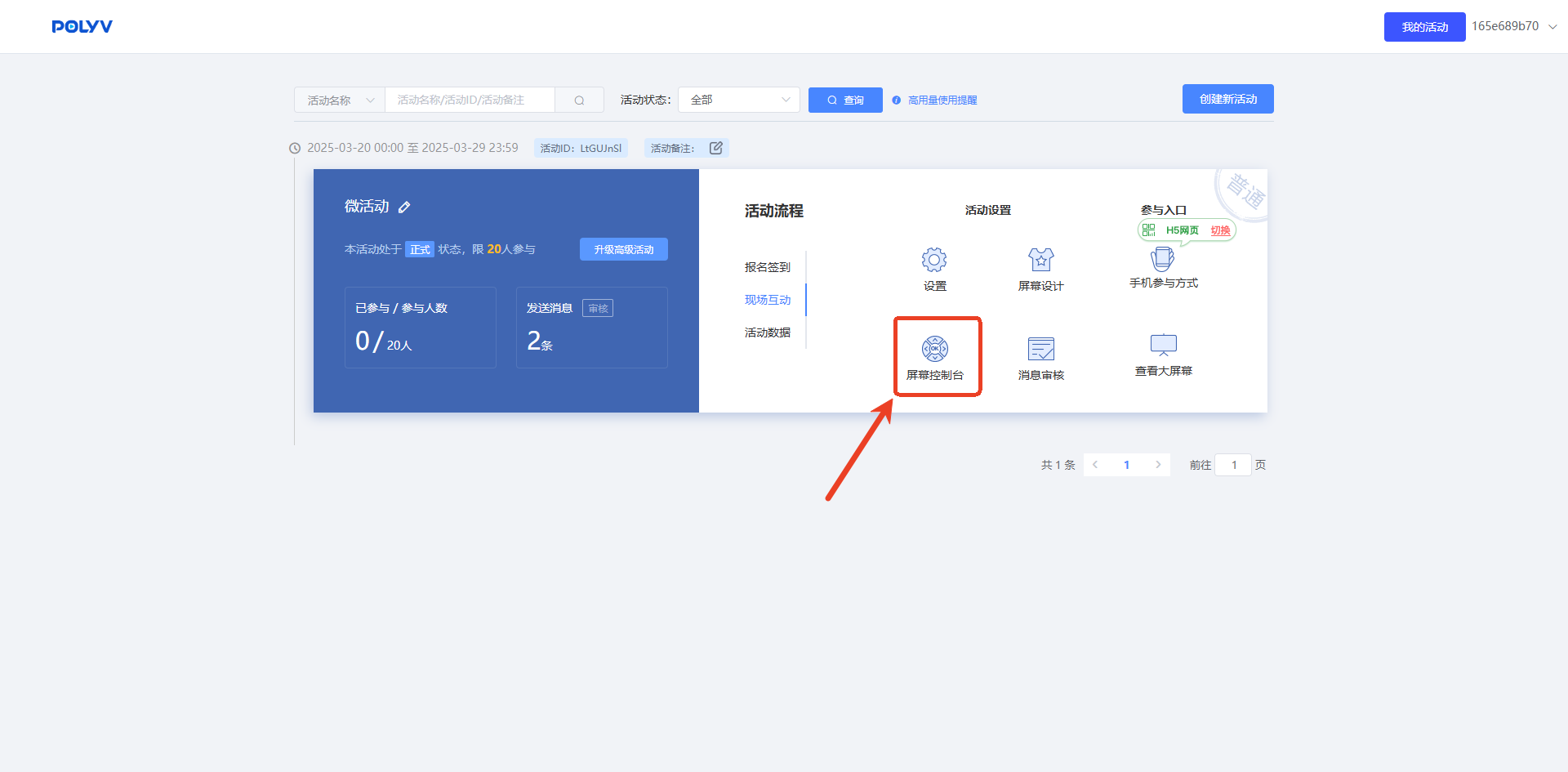
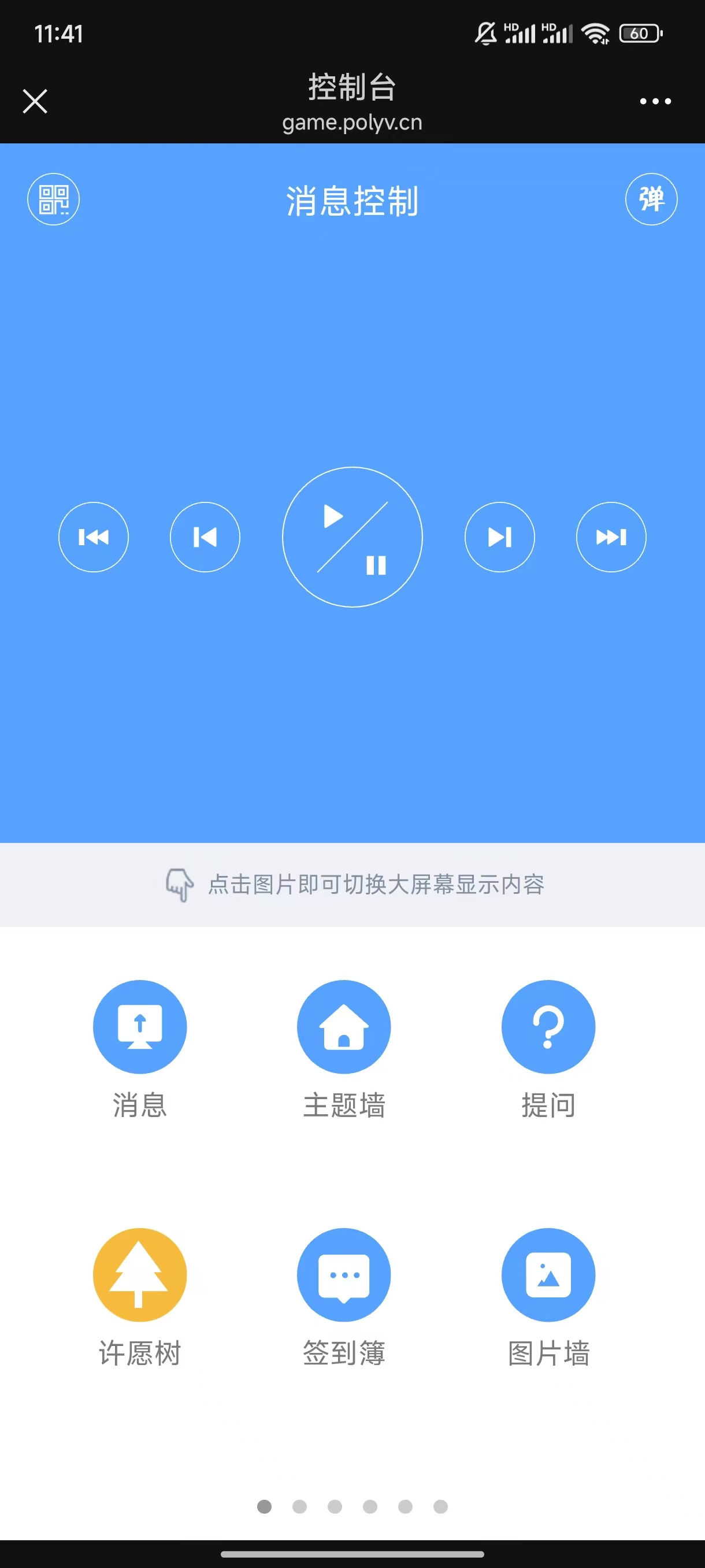
4. Mobile Console
On the Mini Event overview page, click Screen Console. Scan the pop-up QR code with your phone to open the mobile console.
III. Effect Display
PC Viewer Side
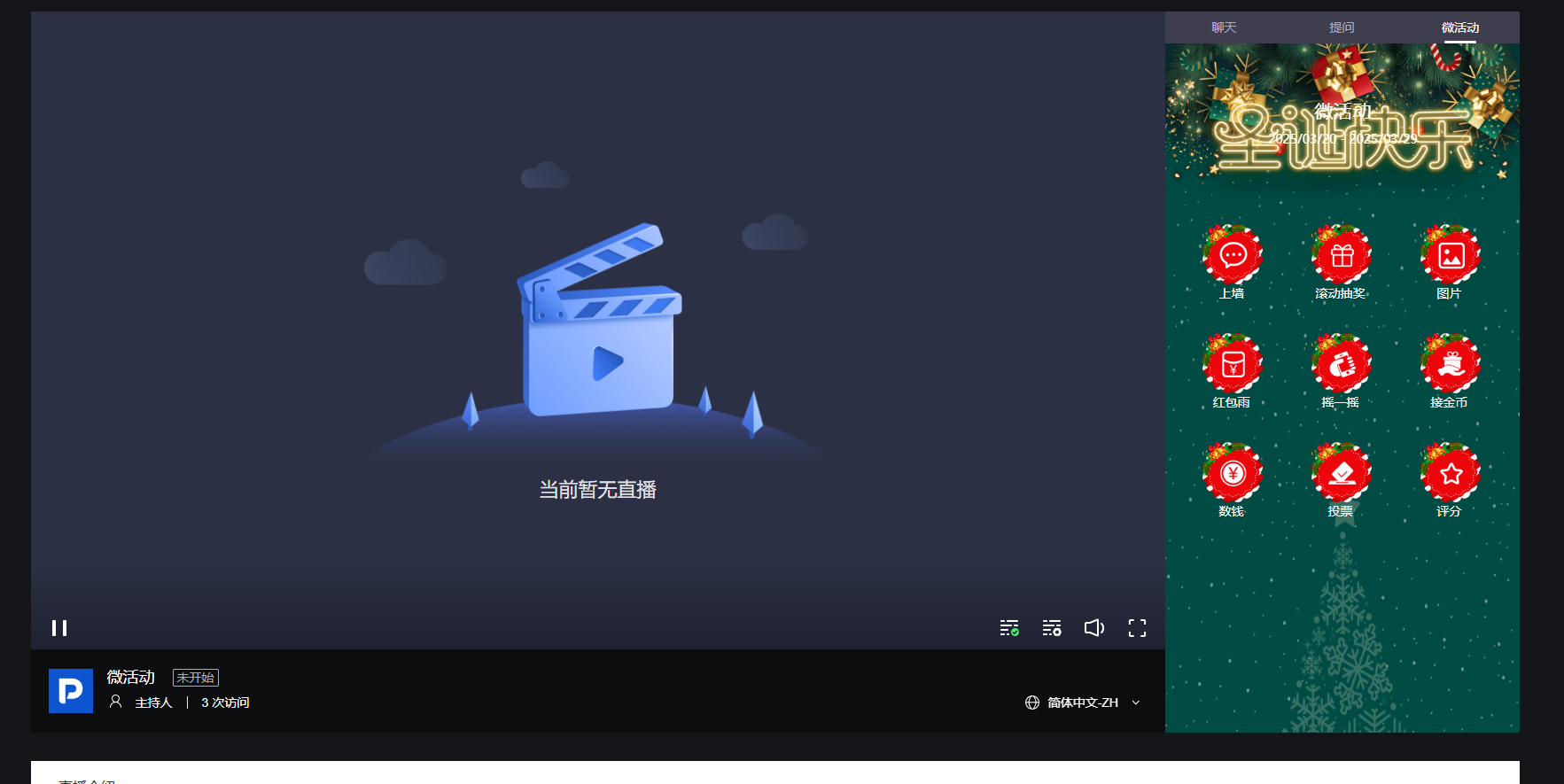
Mobile Side