Live Quick Clip
Updated: 2026-08-17 11:27:00
I. Feature Overview
Feature Info |
Description |
|---|---|
| Feature Name | Live Quick Clip |
| Feature Description | Customers can add live channels to quick clip tasks. The quick clip feature will intelligently edit highlight clips. During the quick clip process, only special effects subtitles can be added. |
| Purpose | To help customers obtain live highlight clips, download them, and share them across various platforms to increase visibility. |
| Use Case | Example: Customers can add a channel to quick clip during a live stream. For instance, educational institutions can automatically record key explanations, interactive Q&A sessions, and other segments from live courses, making it convenient for students to review and consolidate knowledge after class. |
| Feature List | Quick Clip List, Quick Clip Detail Page |
II. Operation Instructions
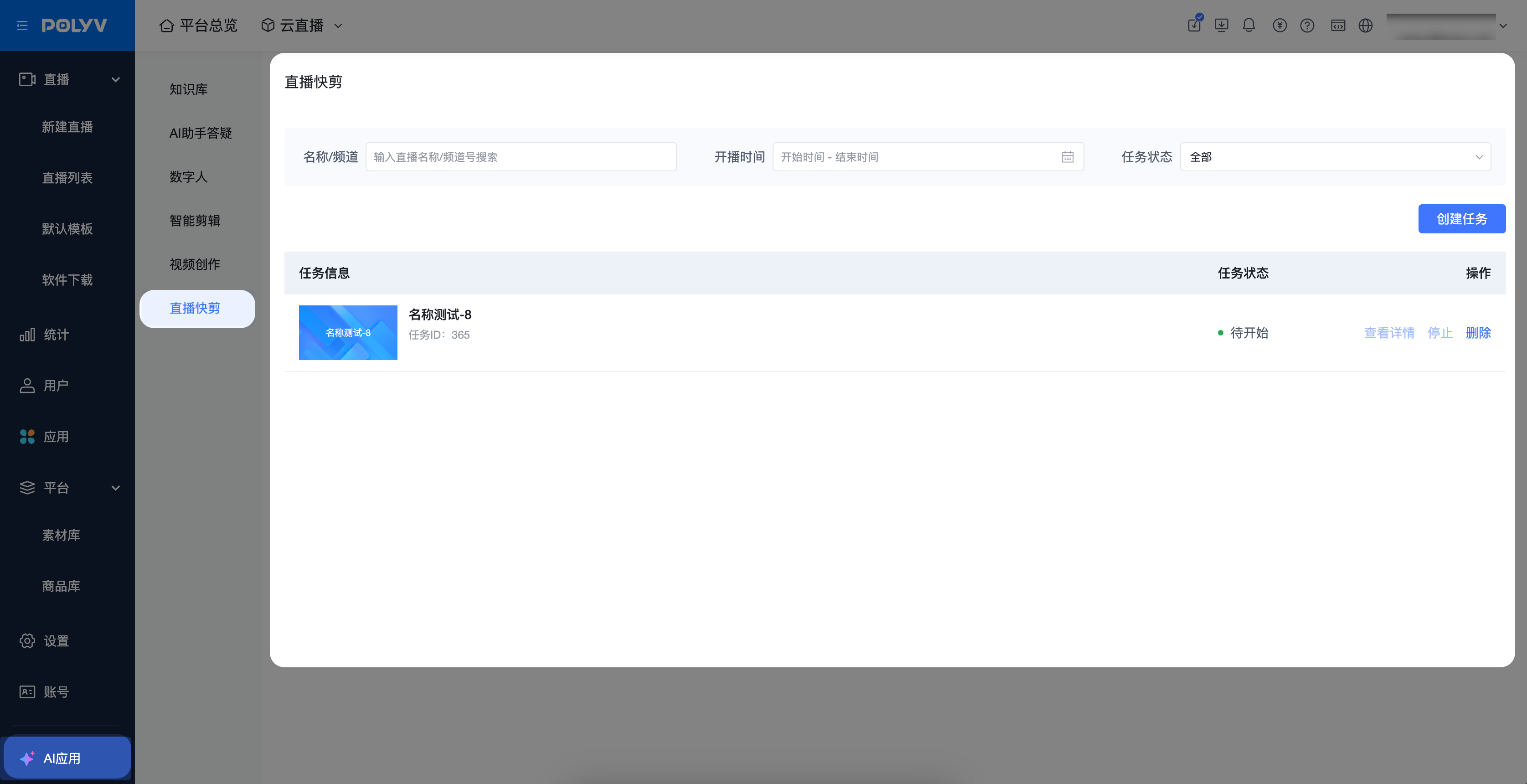
- Step 1: In the operation backend, locate the "Cloud Live" module. Cloud Live -> AI Applications -> Live Quick Clip
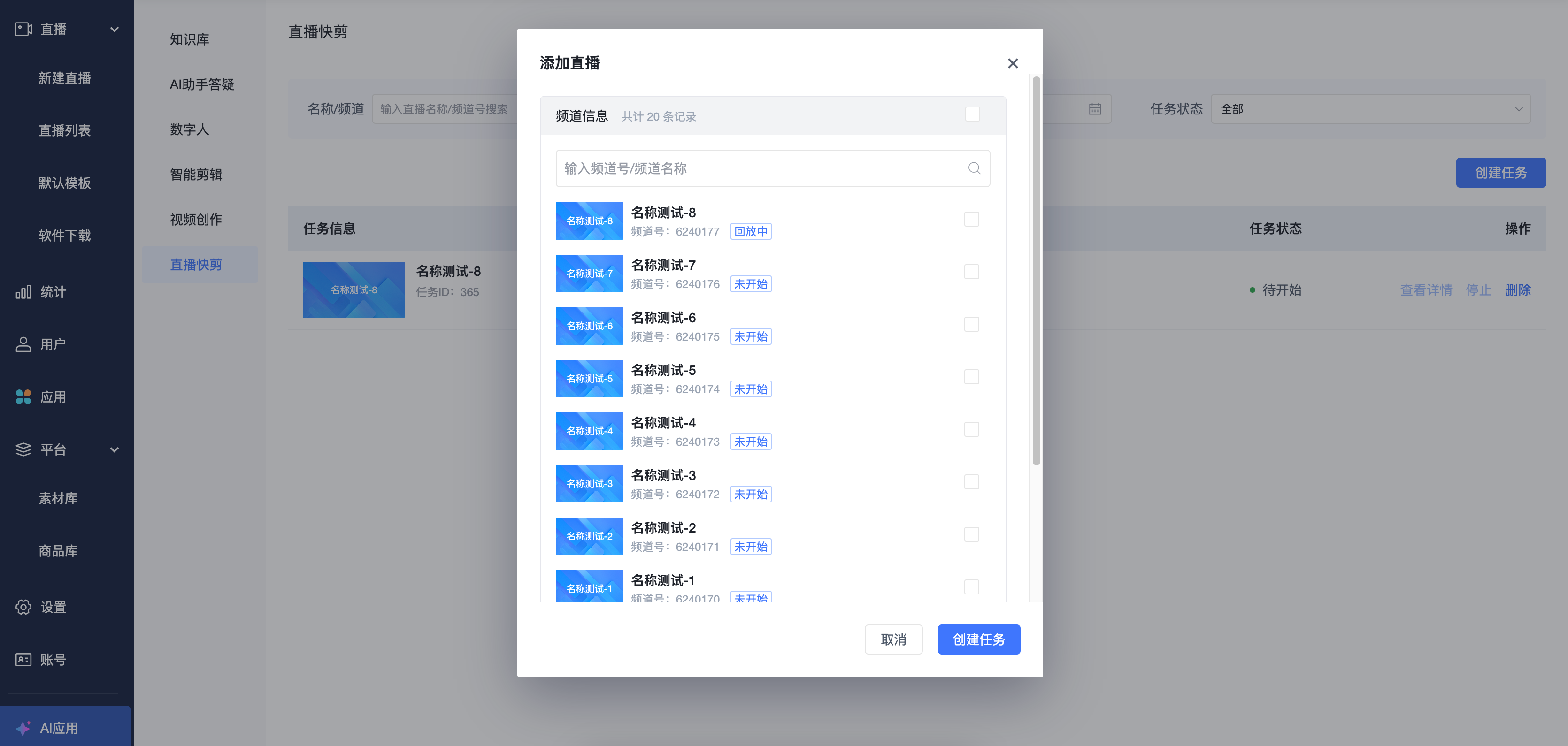
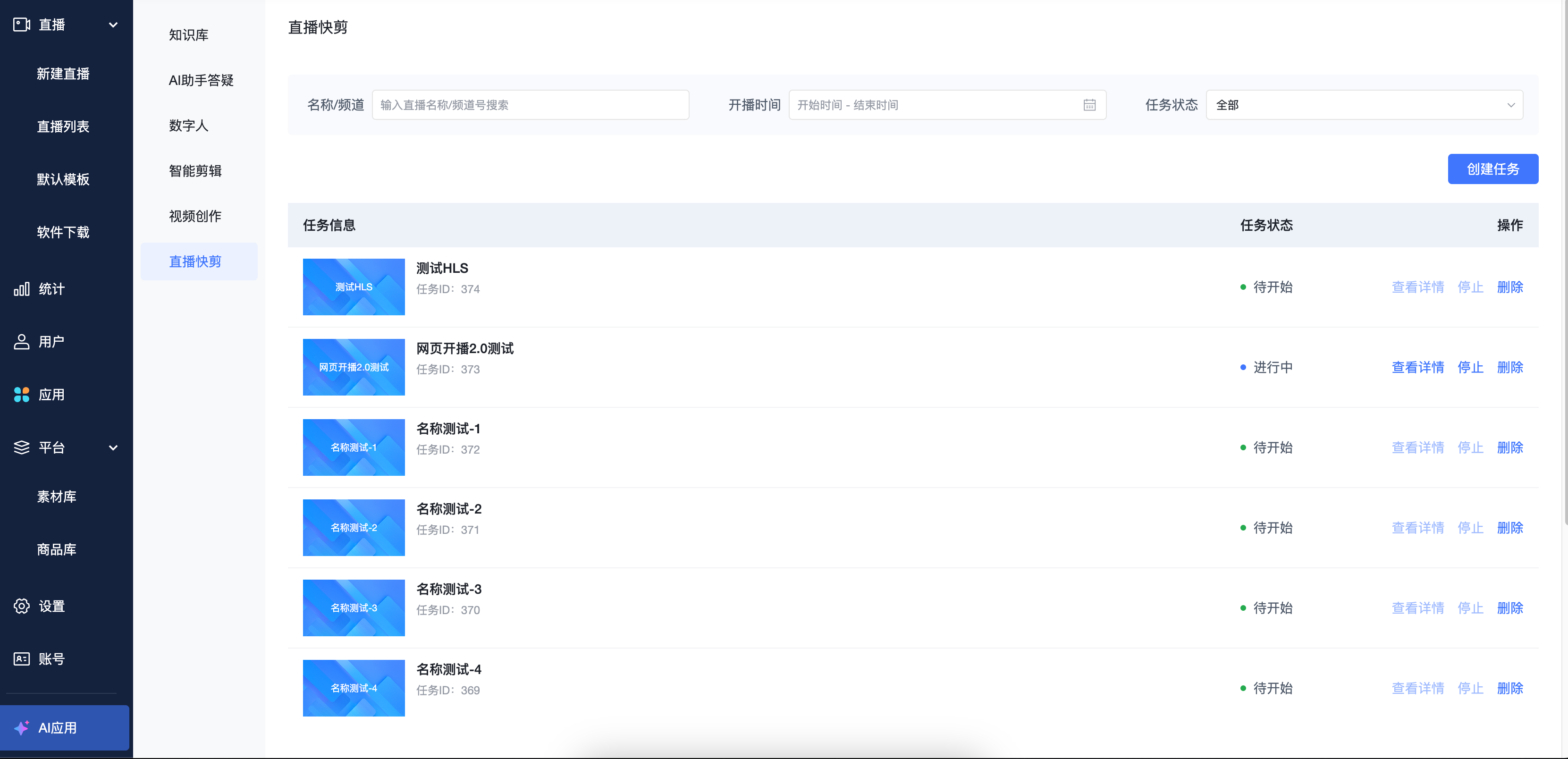
- Step 2: Create a task to open the Add Channel popup. Add channels by checking the live room channels. After successful addition, the channels will be displayed in the quick clip list.
- Channels that are in "Broadcasting Paused" or "Testing" status cannot be added to the quick clip list.
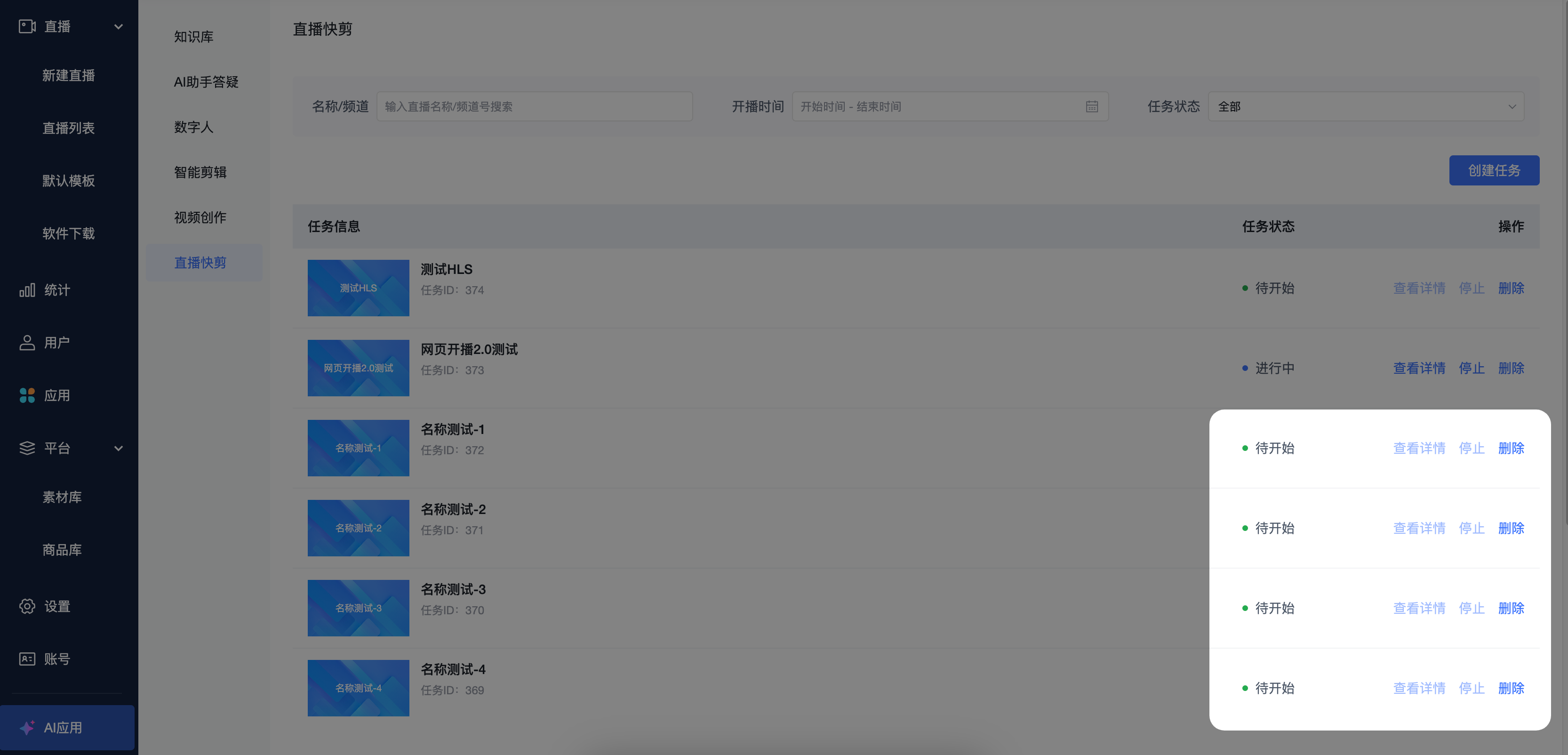
- Step 3: After entering the detail page from the quick clip list, you can view the clips being processed, and download or save them to the material library.
- To save materials, the material library feature must be enabled and sufficient storage space must be available.
- If the quick clip has not started, you cannot enter the detail page.
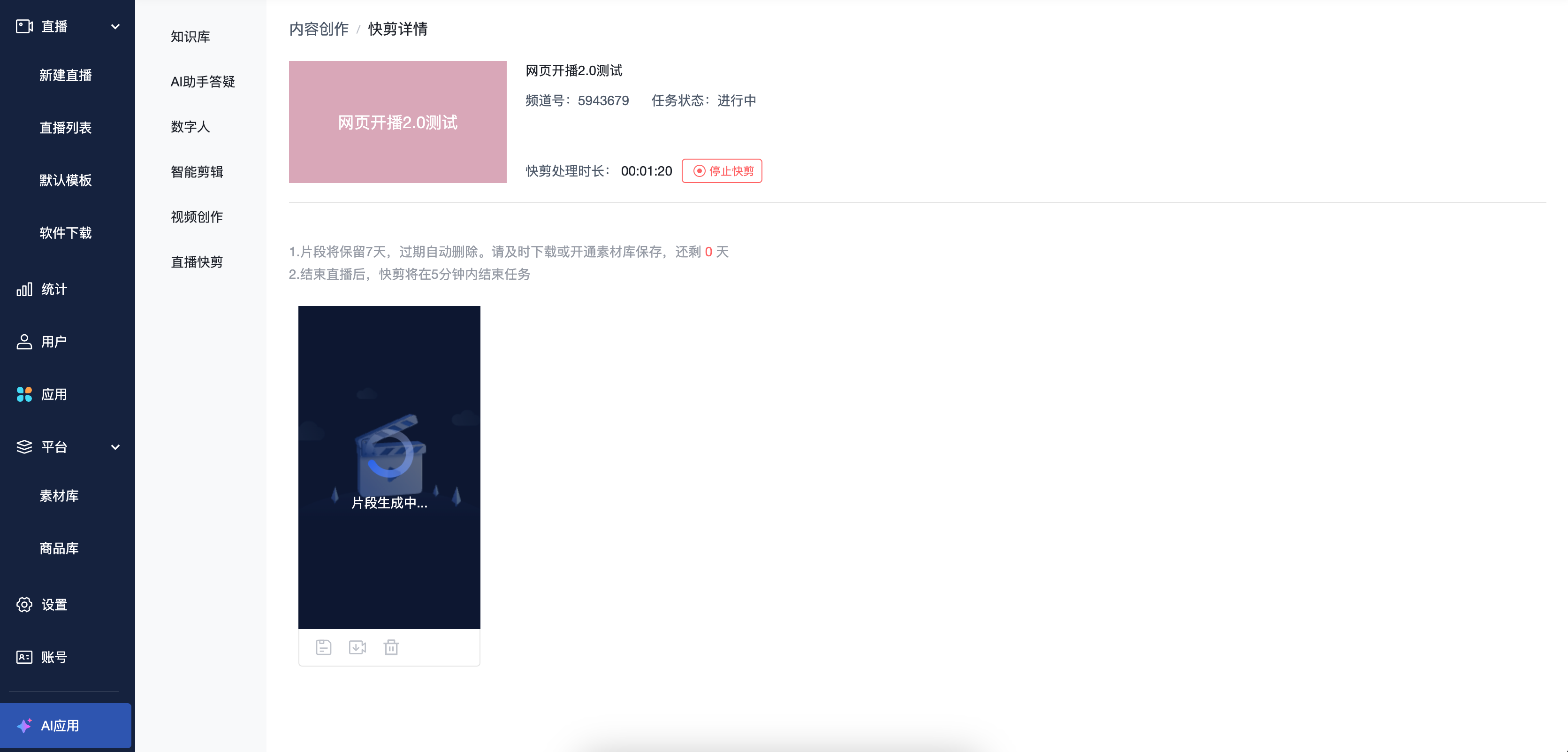
III. Effect Demonstration