Interactive Lottery
I. Feature Overview
Feature Info |
Description |
|---|---|
| Feature Name | Interactive Lottery |
| Feature Description | The host or teaching assistant initiates a lottery during a live stream, and viewers participate in the lottery during the broadcast. |
| Purpose | Used to enhance the interactive atmosphere of the live stream and attract viewers to participate in live interactions. |
| Use Cases | Marketing live streams, event live streams, private domain traffic引流, etc. |
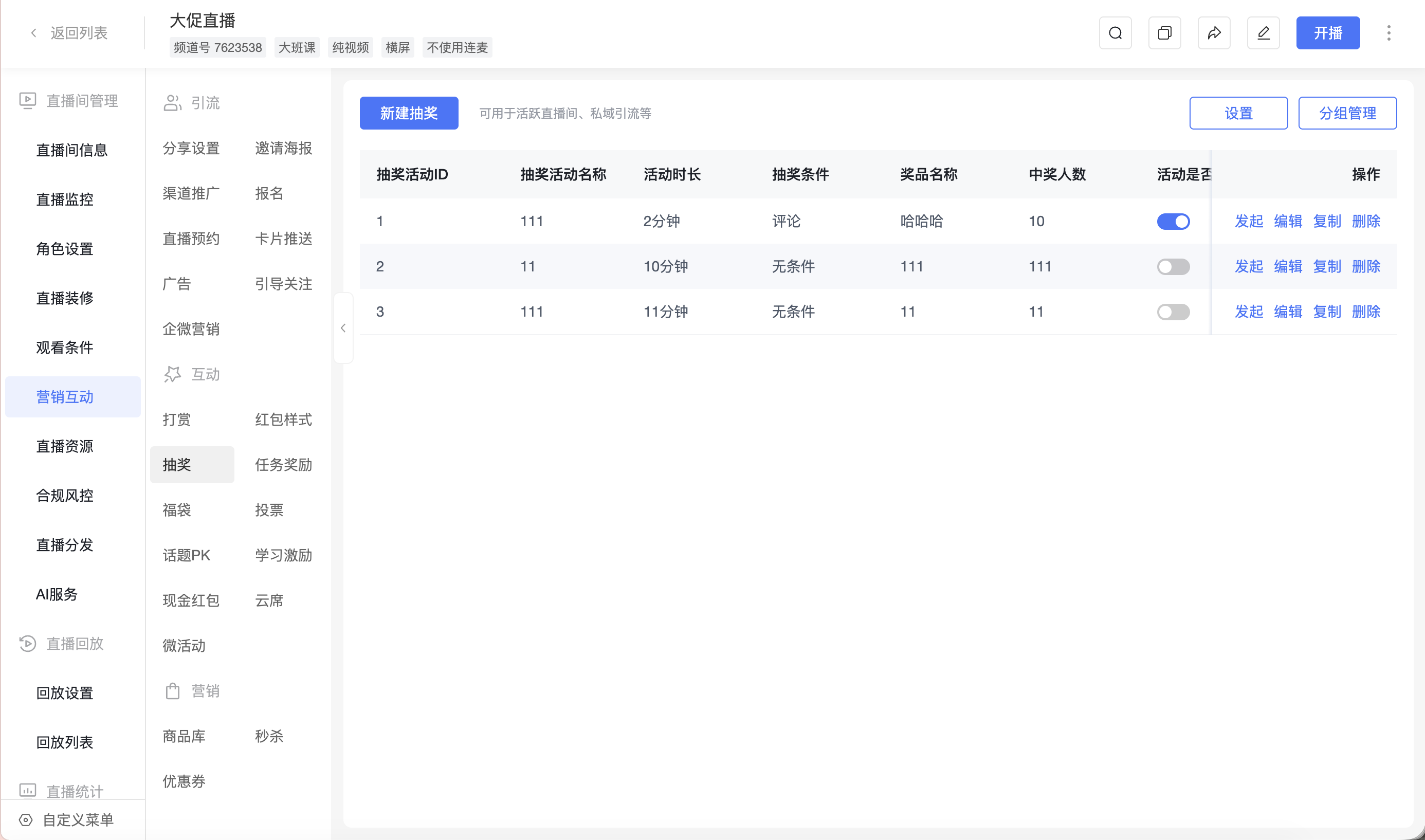
| Operation Path | Enter the live room management page, select [Marketing Interaction] in the left navigation bar, and click [Lottery] under the [Interaction] group. |
II. Usage Instructions
1. Operator Creates a New Lottery in the Management Console Before the Live Stream
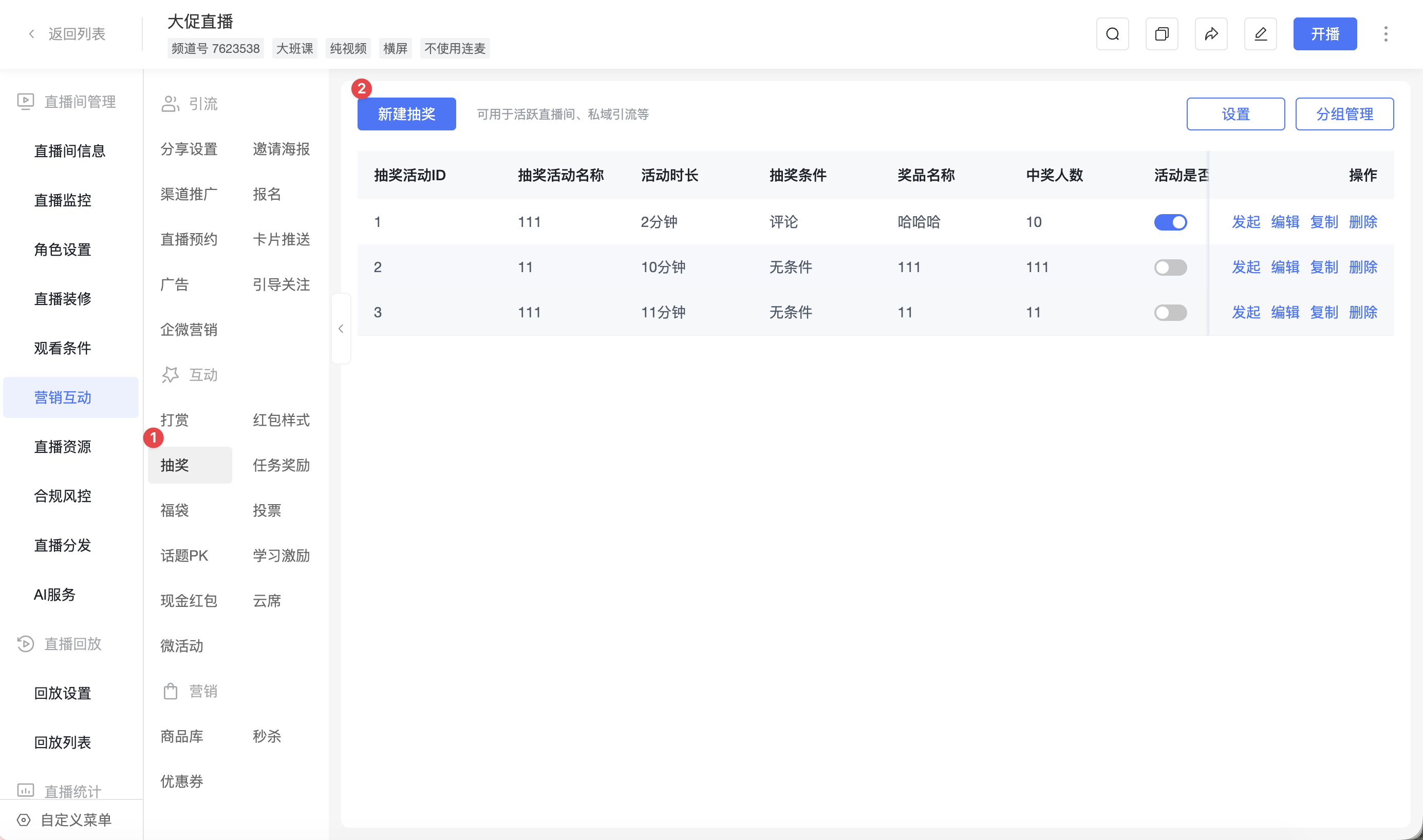
After entering [Marketing Interaction] - [Lottery], you can view the list of created lottery activities under the current live room, and perform operations such as creating, initiating, editing, copying, and deleting.
Click [New Lottery] to create a lottery activity.
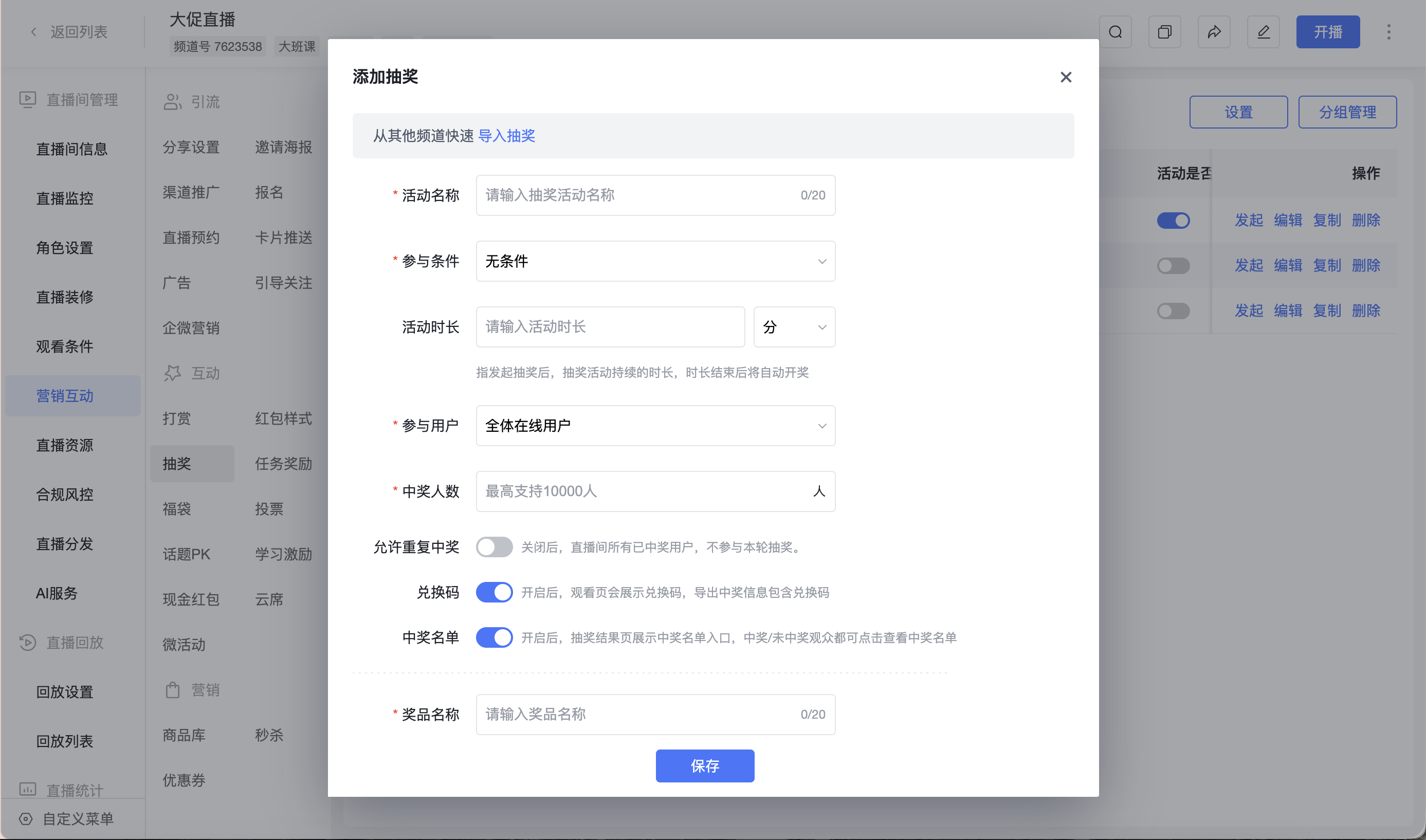
Main Configuration Field Descriptions
Participation Conditions
| Participation Condition | Description |
|---|---|
| No Condition | Viewers can directly participate in the lottery. When the participating users are set to a custom group, you can further configure whether users in the group need to be online when the lottery is drawn. |
| Invite Friends | Viewers gain lottery eligibility after reaching the required number of invited friends within a specified time frame. |
| Watch Duration | Viewers gain lottery eligibility after reaching the required watch duration within a specified time frame. |
| Comment | Viewers gain lottery eligibility after sending a specified comment within a specified time frame. |
| Quiz | Viewers gain lottery eligibility after answering a specified number of questions correctly within a specified time frame. |
| Survey | Viewers gain lottery eligibility after submitting a survey. |
Activity Duration
After initiating a lottery, the lottery activity will continue for the set duration, and the winners will be automatically drawn when the duration ends. After setting the activity duration, you can manually set the initiation time in the lottery list, or initiate a created lottery activity from the host or teaching assistant interface.
Participating Users and Number of Winners
| Configuration Item | Description |
|---|---|
| Participating Users | Supports selecting all online users, custom group users, or tagged users. |
| Number of Winners | Used to set the number of winners for the current lottery activity. |
| Group Lottery | When the participation condition is No Condition, Invite Friends, Watch Duration, or Comment, and the participating users are set to a custom group, the number of winners can be set to random winners or equal winners. |
Prize Settings
| Configuration Item | Description |
|---|---|
| No Condition, Invite Friends, Watch Duration, Comment Lottery | Only one prize can be set per lottery round. |
| Quiz, Survey Lottery | Multiple prizes can be set per lottery round. |
Prize Claim Method Settings
The prize claim method for No Condition lottery only supports filling in a shipping address. The prize claim methods for Invite Friends, Watch Duration, Comment, Quiz, and Survey lotteries support three options: filling in a shipping address, redirecting to an external link, and scanning a QR code.
| Prize Claim Method | Description |
|---|---|
| Fill in Shipping Address | Suitable for scenarios where prizes are mailed. |
| Redirect to External Link | Suitable for scenarios with third-party or self-developed prize distribution systems. |
| Scan QR Code | Suitable for private domain operation scenarios, can configure WeCom live codes or prize claim QR codes. |
2. Configure Lottery Settings
Click [Settings] on the lottery list page to configure lottery display and claim rules.
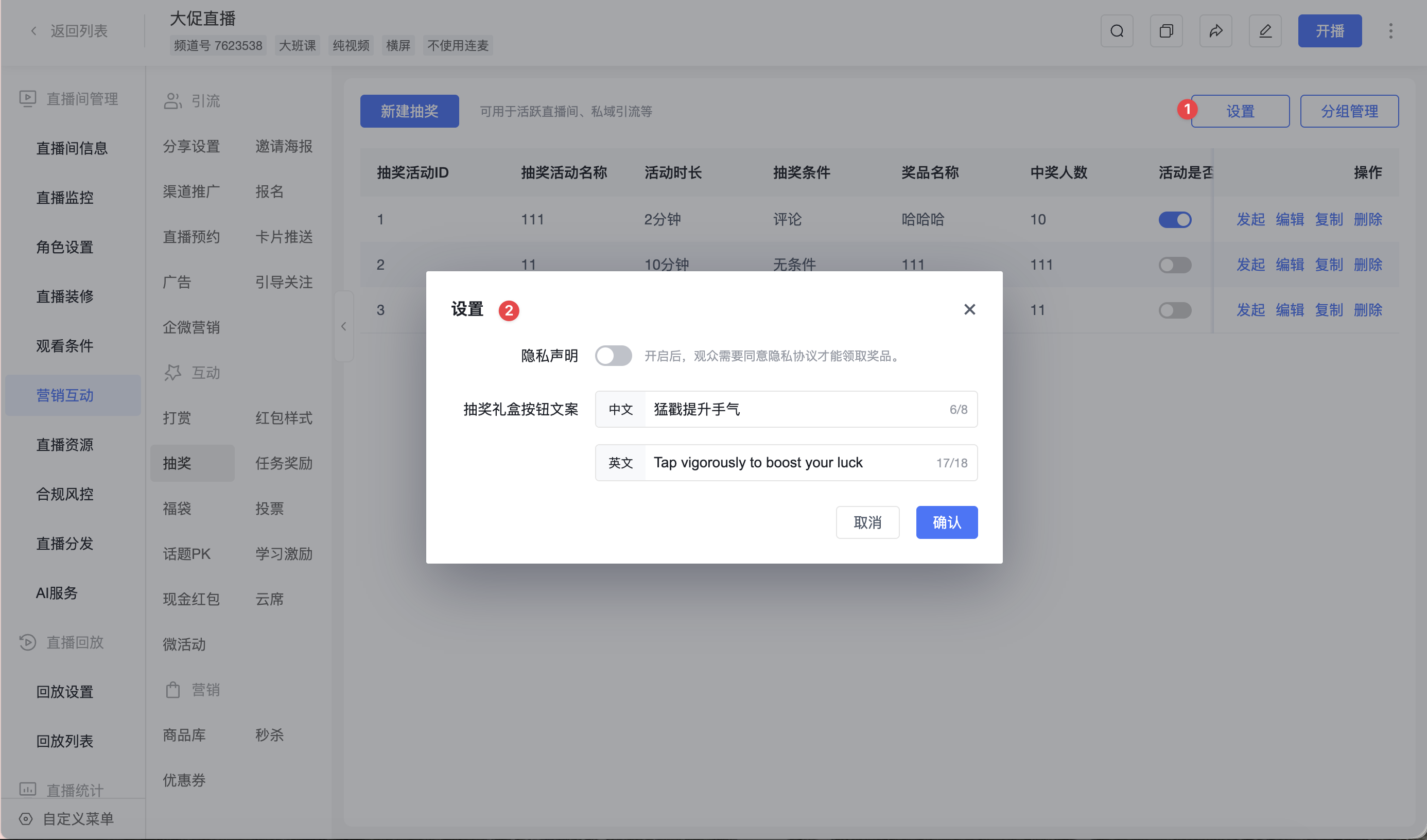
| Setting Item | Description |
|---|---|
| Privacy Statement | When enabled, viewers must agree to the privacy agreement before claiming the prize. |
| Lottery Gift Box Button Text | Used to set the display text of the lottery gift box button on the viewing page, supports configuring Chinese and English text separately. |
3. Manage Lottery Groups
Click [Group Management] on the lottery list page to pre-maintain viewer groups for lottery participation. When initiating a lottery, you can specify certain group users to participate.
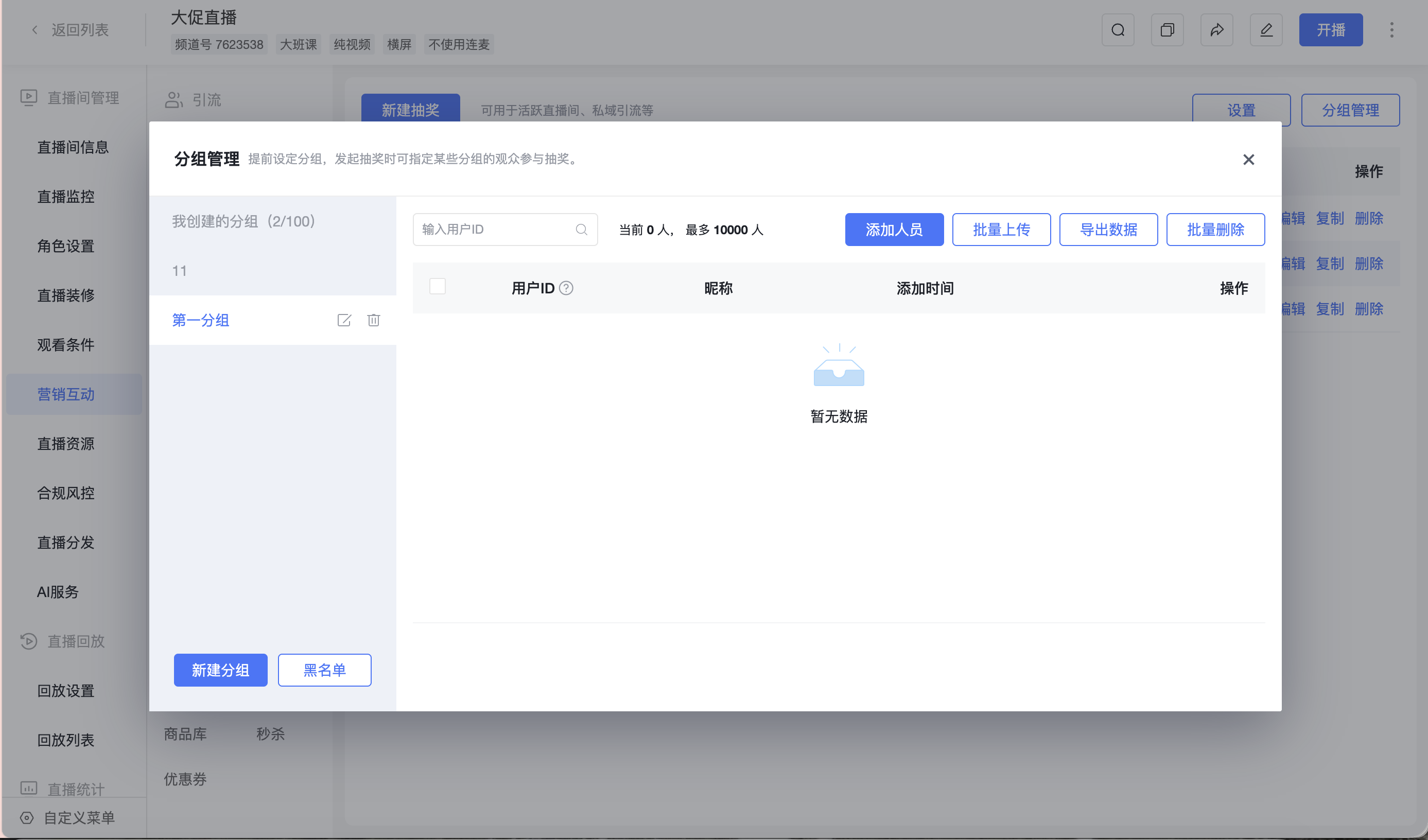
Group management supports the following operations:
- Create a new group
- Add members
- Batch upload members
- Export group data
- Batch delete members
- Edit or delete a group
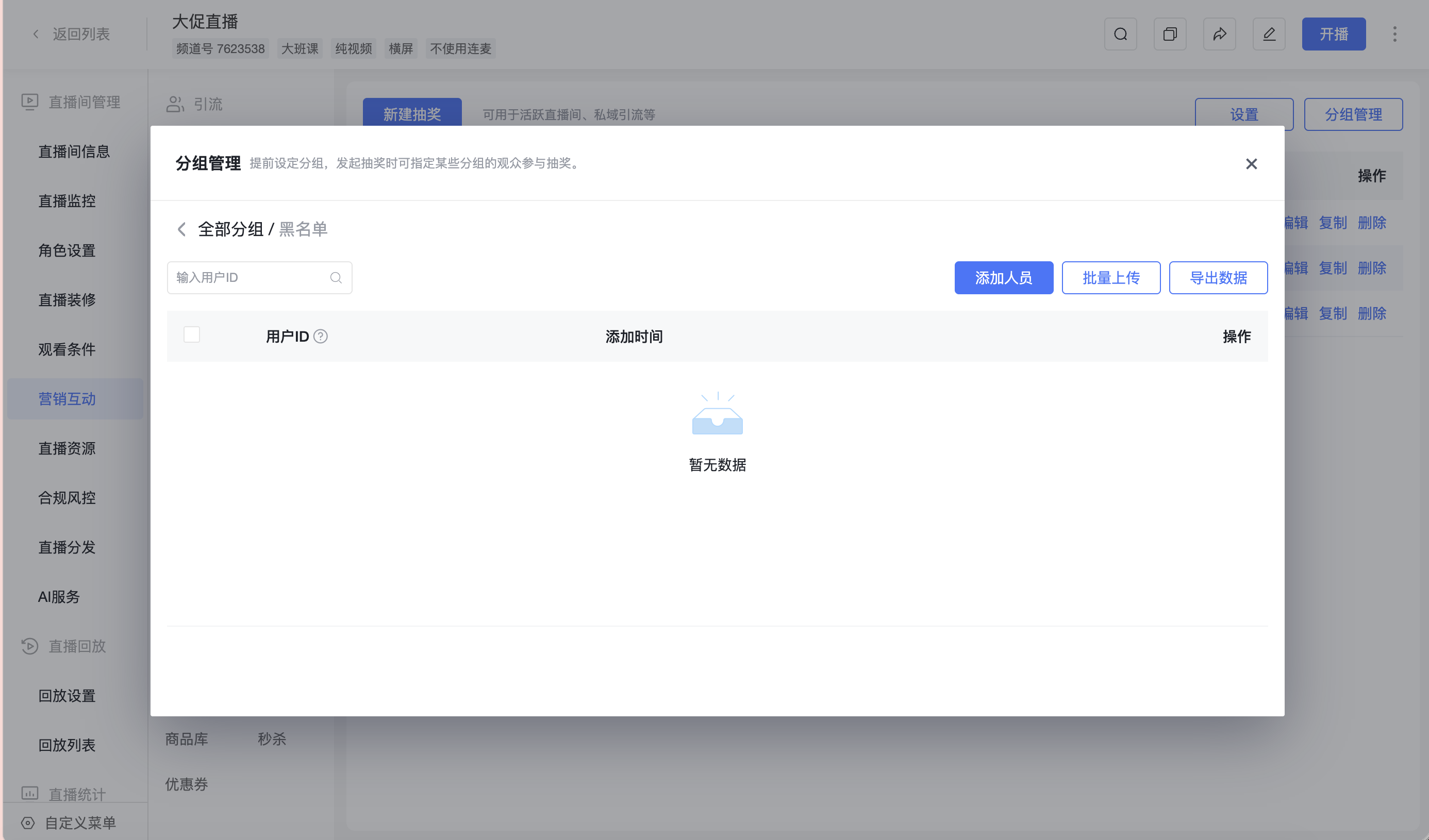
In [Group Management], you can enter the [Blacklist] page to maintain users who should not participate in the lottery. Users added to the blacklist will not participate in lottery activities.
4. Operator Initiates a Scheduled Lottery in the Management Console
Click [Initiate] in the lottery activity list to set the lottery start time. The system will automatically initiate the lottery when the set time arrives.
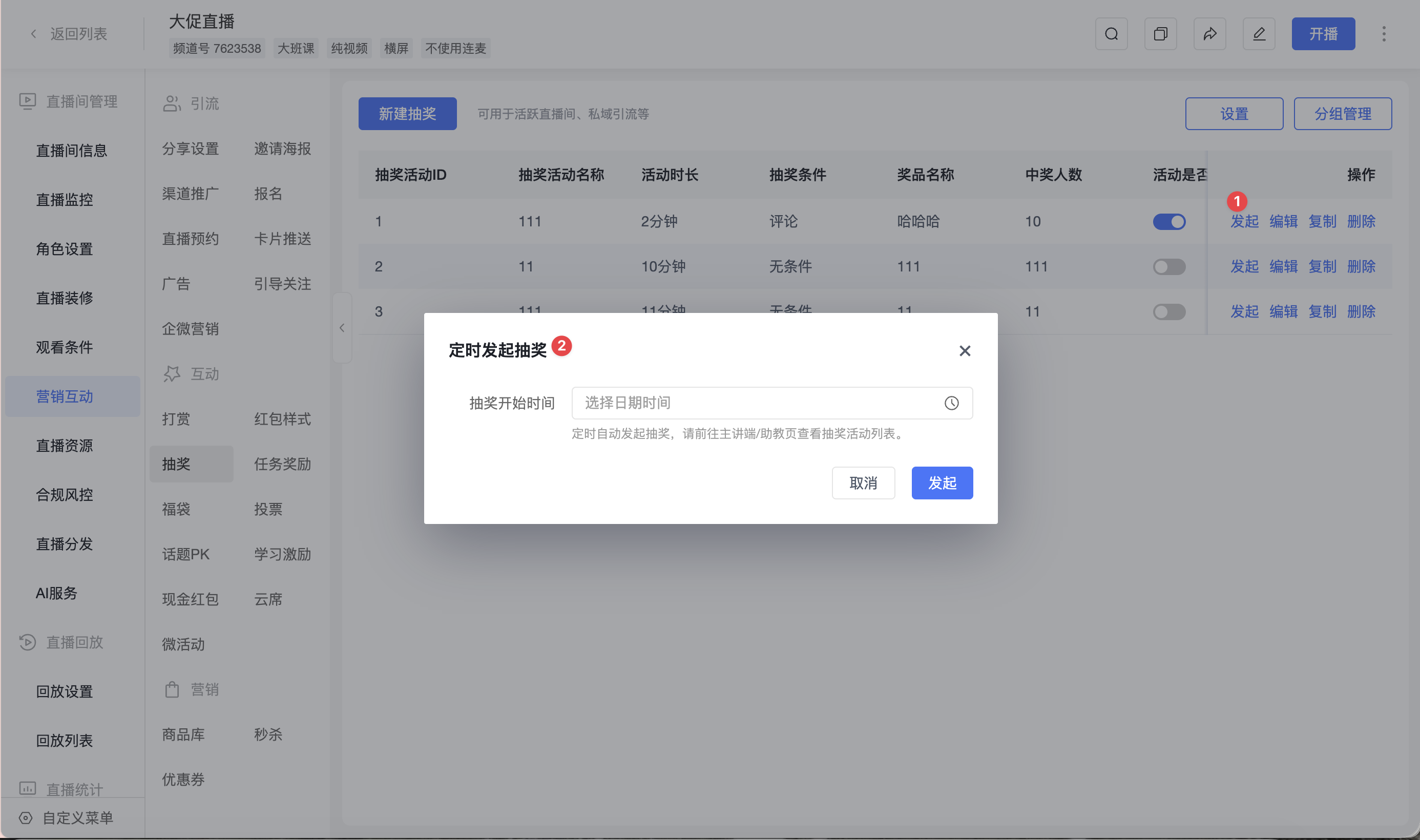
After scheduling a lottery initiation, you can view the lottery activity list in the host or teaching assistant interface.
5. Operator Initiates a Lottery in the Host or Teaching Assistant Interface
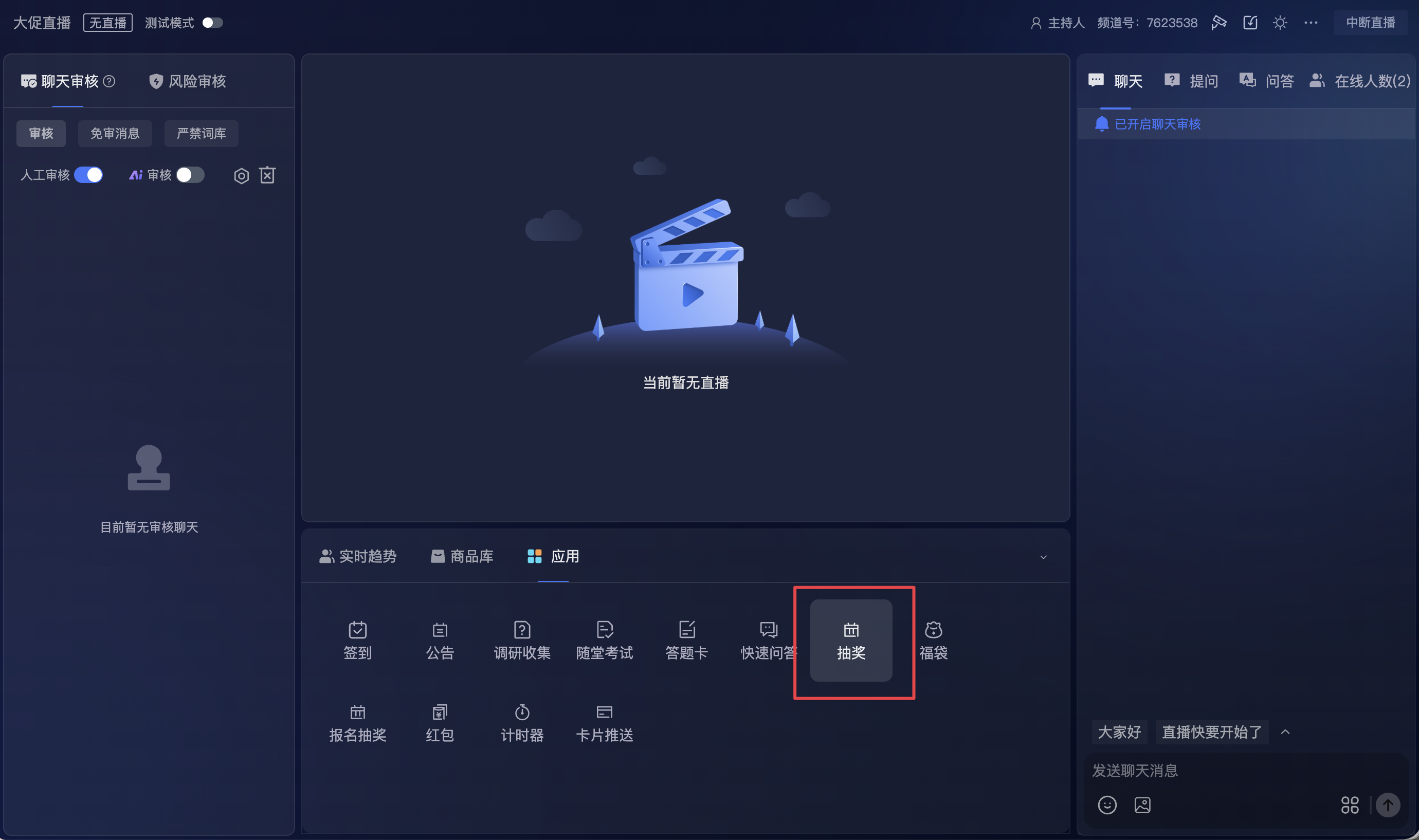
After entering the live room in the host or teaching assistant interface, click [Apps] - [Lottery] to access the lottery function.
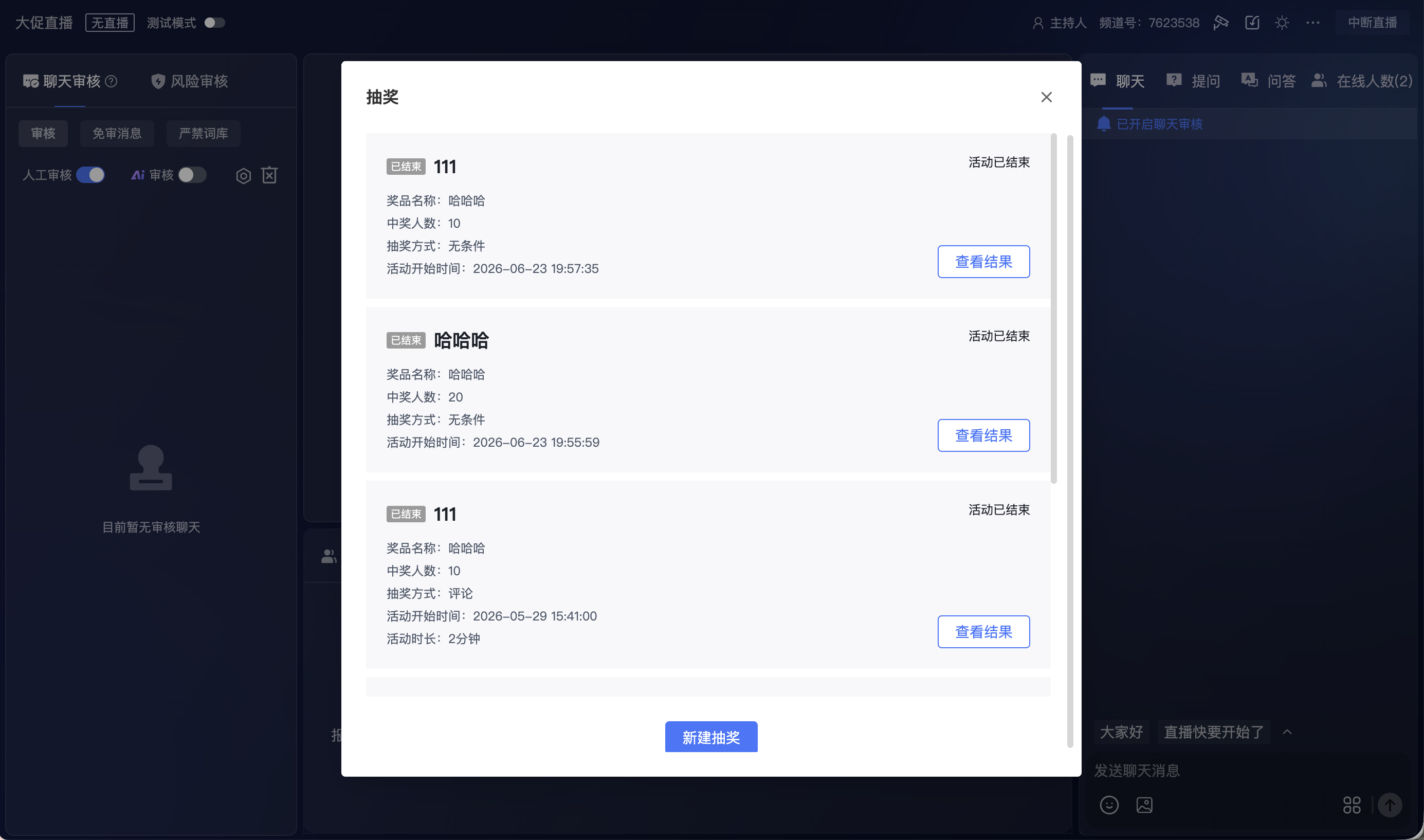
After entering the lottery popup, you can view created lottery activities or click [New Lottery] to create a new one.
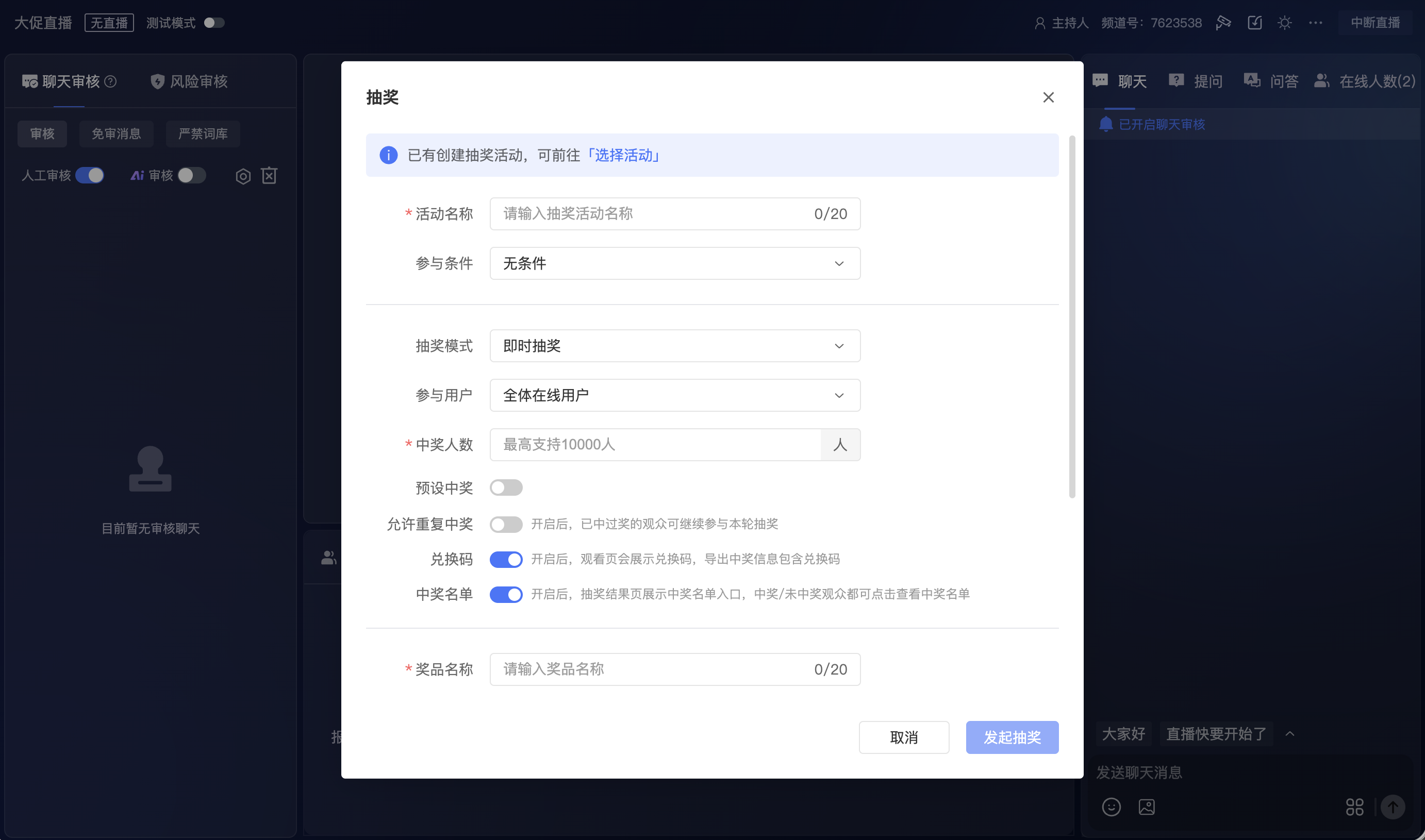
After clicking [New Lottery], you can fill in the activity name, participation conditions, lottery mode, participating users, number of winners, prize name, and other information, and initiate the lottery.
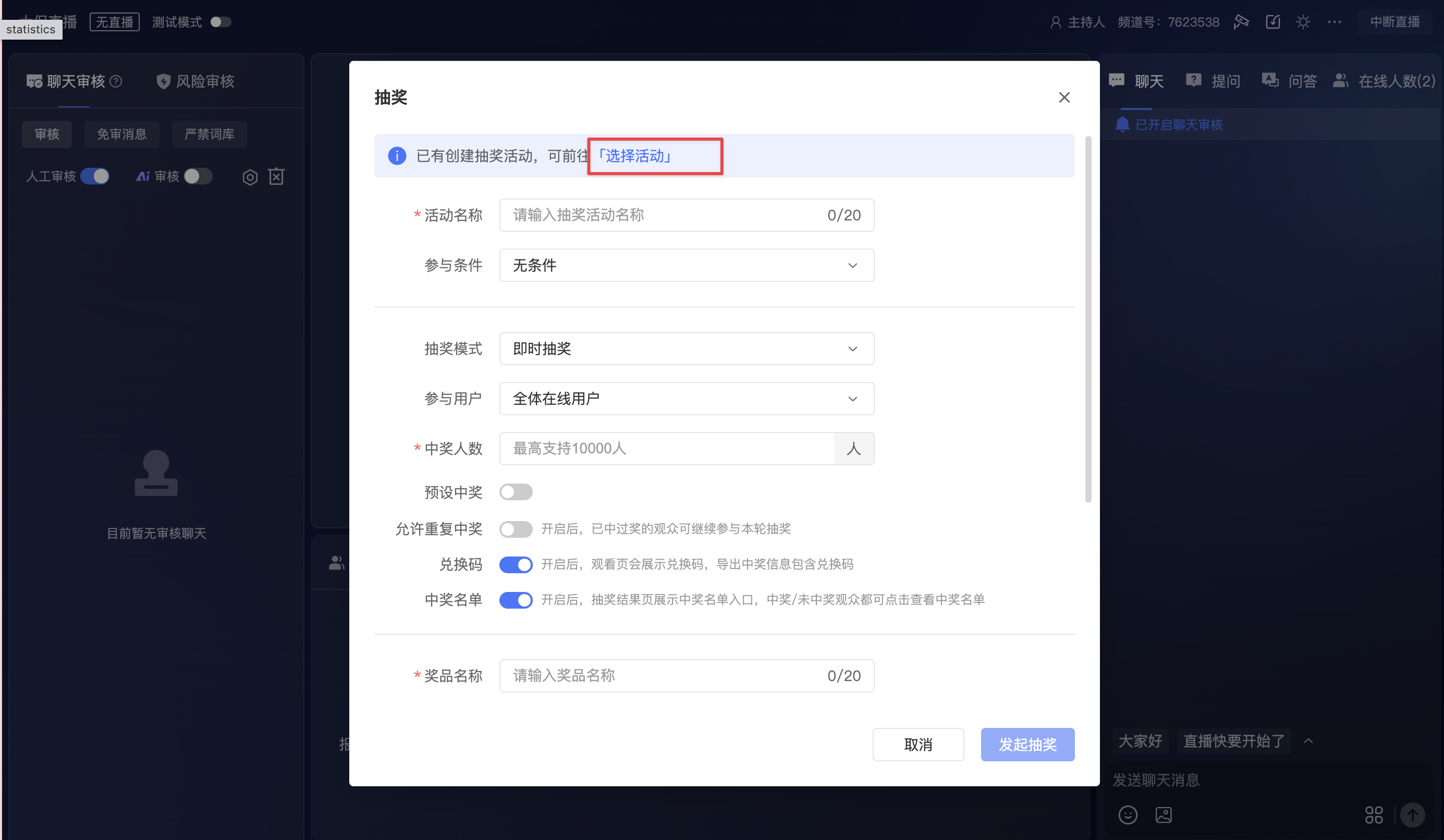
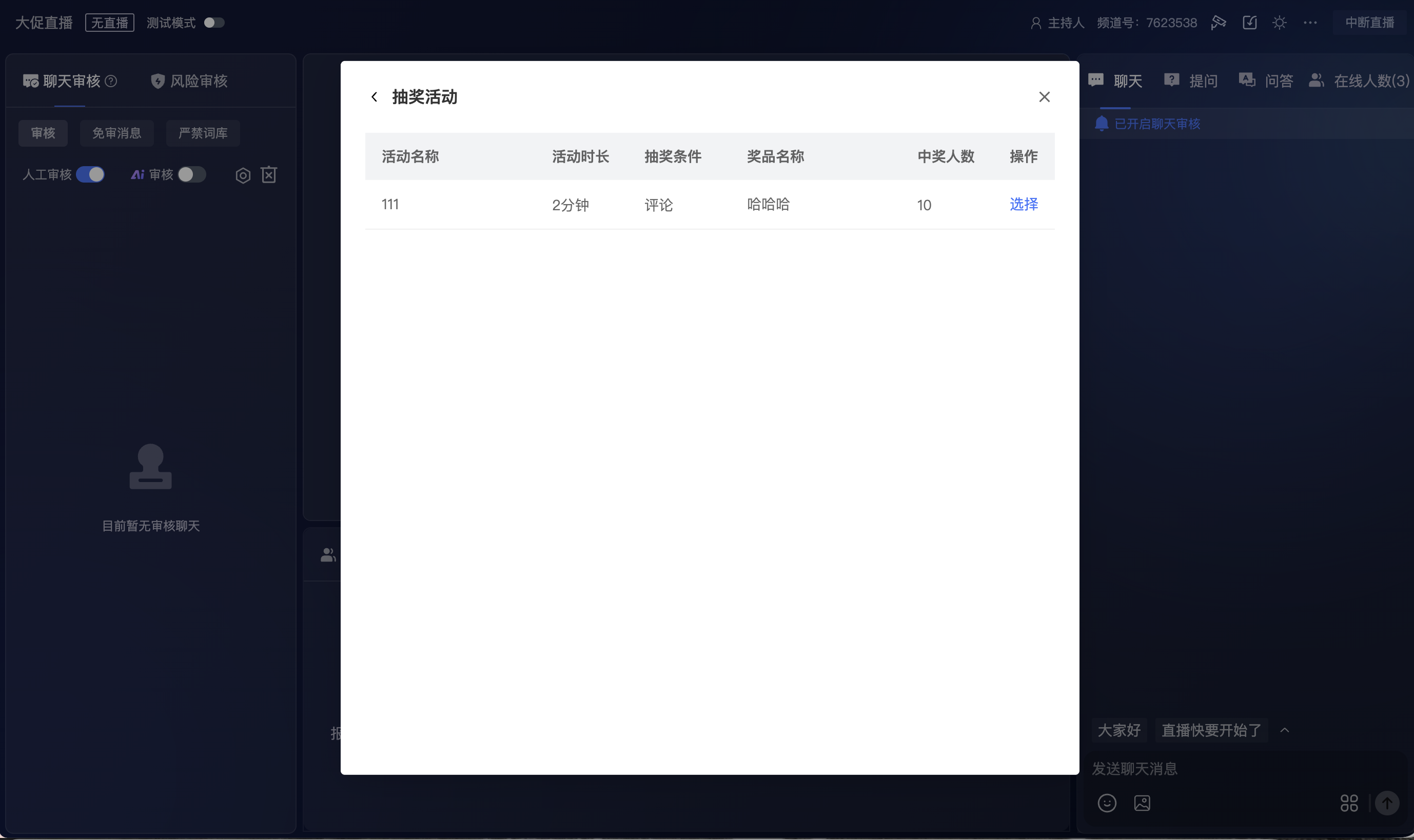
If a lottery activity has been pre-configured in the management console, you can click [Select Activity] to choose a created lottery activity.
Click [Select] in the lottery activity list to load the configuration of that lottery activity and proceed to initiate the lottery.
6. View the Winner List
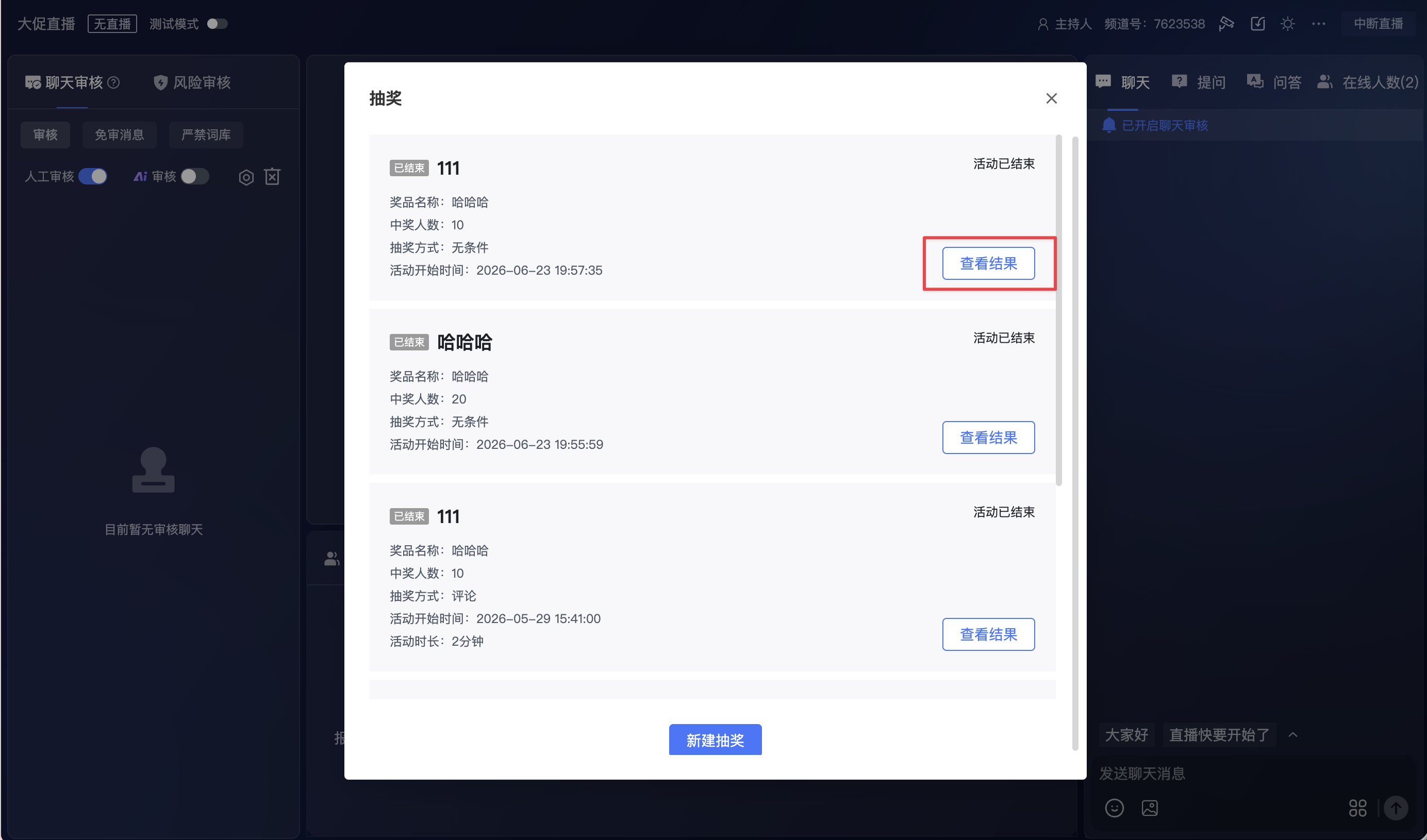
After the lottery ends, you can click [View Results] in the lottery activity list.
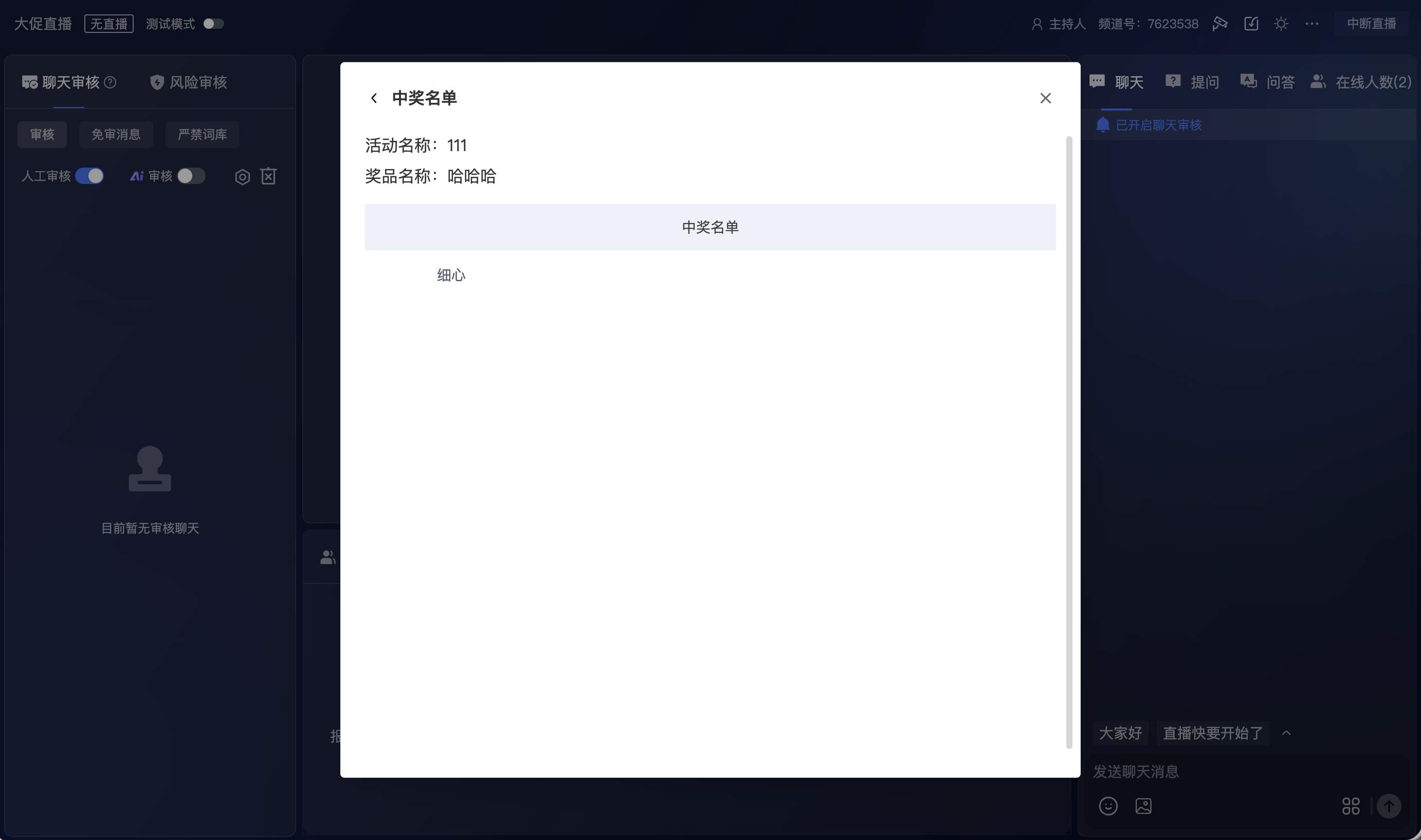
After entering the winner list page, you can view the winners of the current lottery activity.
7. Viewers Participate in the Lottery
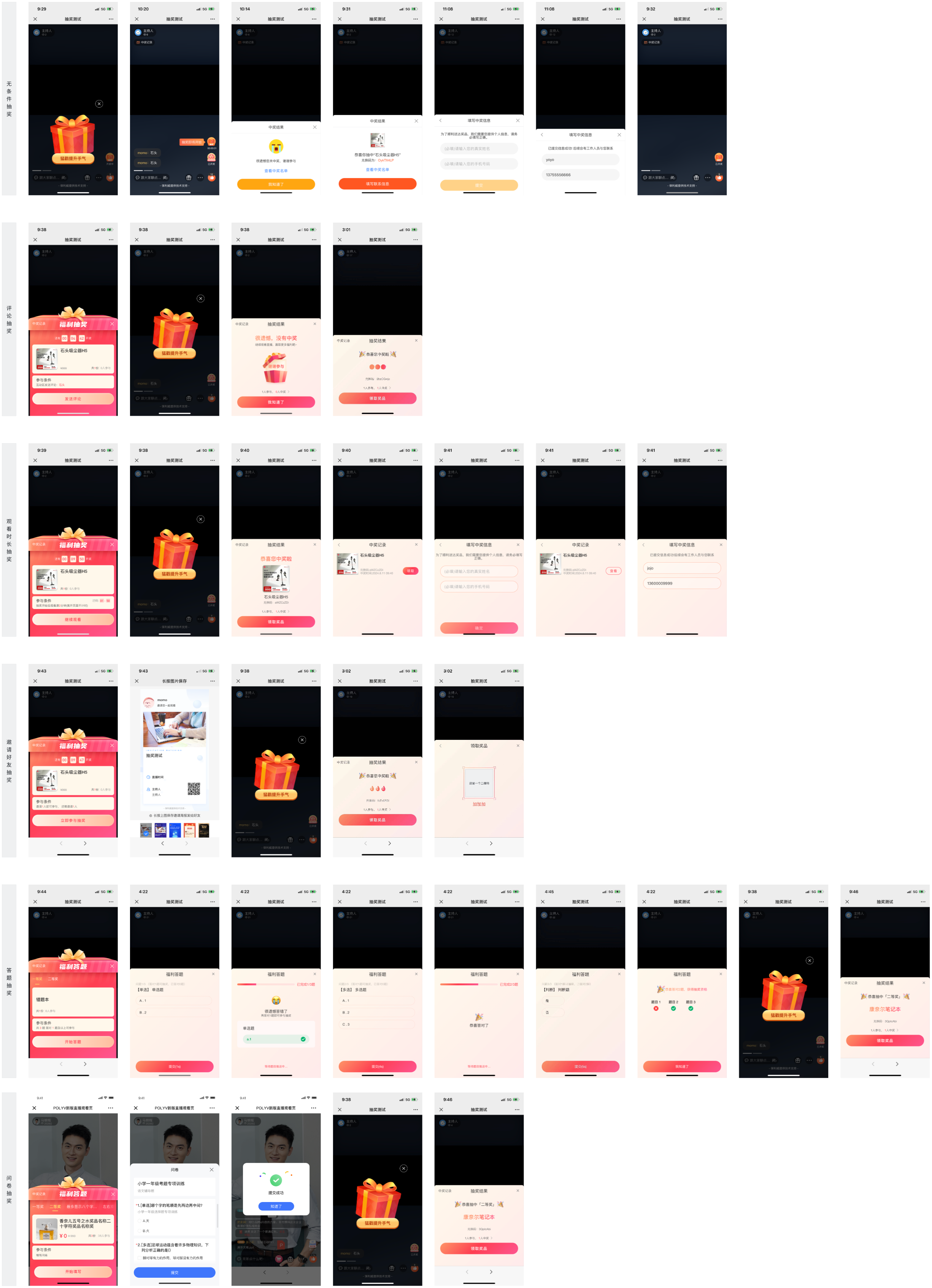
After the lottery is initiated, viewers can participate in the lottery on the viewing page. After winning, viewers can claim the prize according to the method configured by the operator.
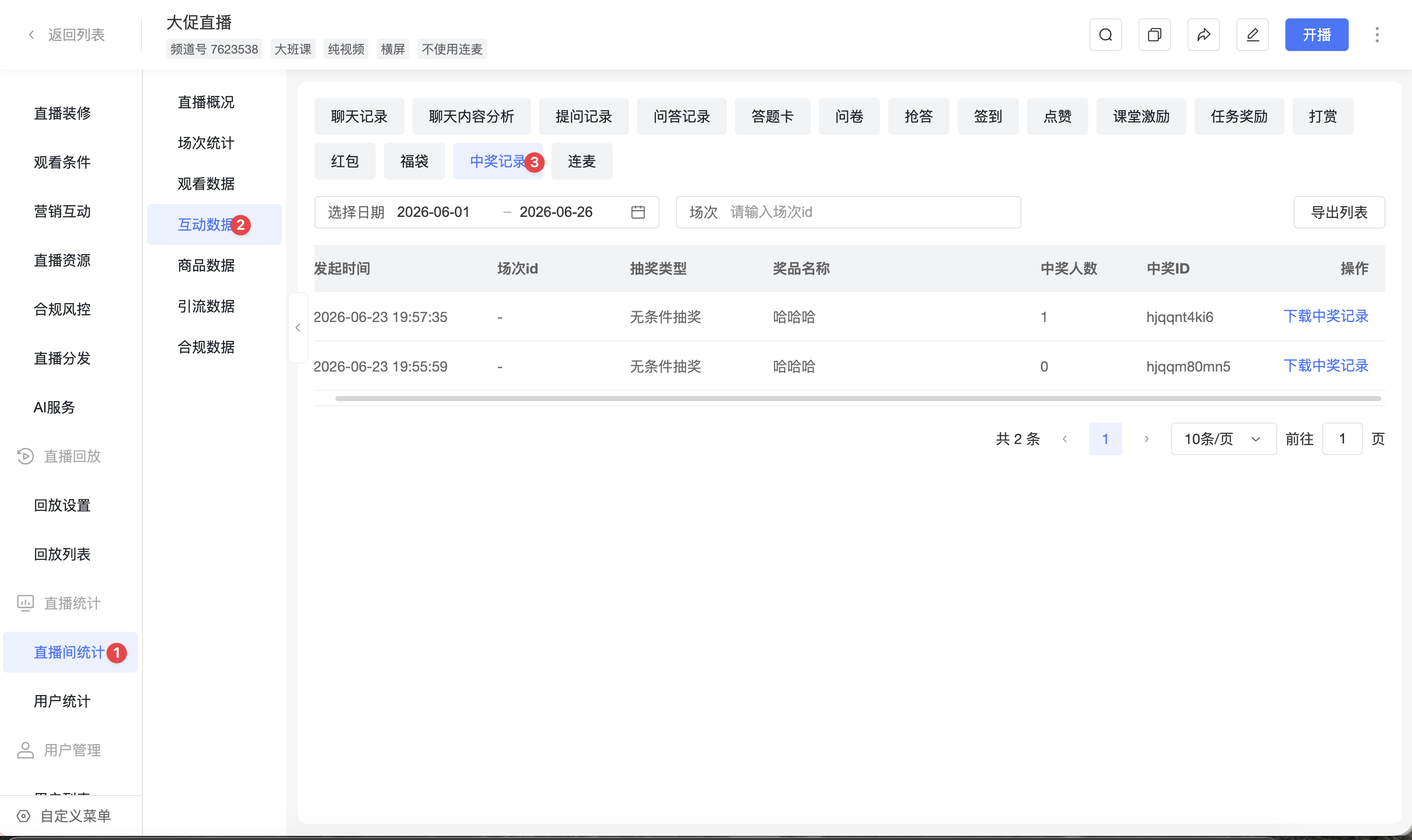
8. Operator Downloads Winner Records in the Management Console
Enter [Live Room Statistics] - [Interaction Data] - [Winner Records] to view lottery winner records. Operators can filter records by date, session, etc., and download the winner records.