Topic PK
Updated: 2026-08-17 11:27:00
I. Feature Overview
| Feature Info | Description |
|---|---|
| Feature Name | Topic PK |
| Feature Intro | Set a topic, define supporting and opposing viewpoints, and publish it during a live stream. Viewers vote by selecting a viewpoint. |
| Purpose | Increase live room interaction and engagement, collect audience feedback, and enhance the fun of the live stream. |
| Use Case | Suitable for live streaming scenarios where a topic is needed to spark discussion among viewers. |
| Operation Path | 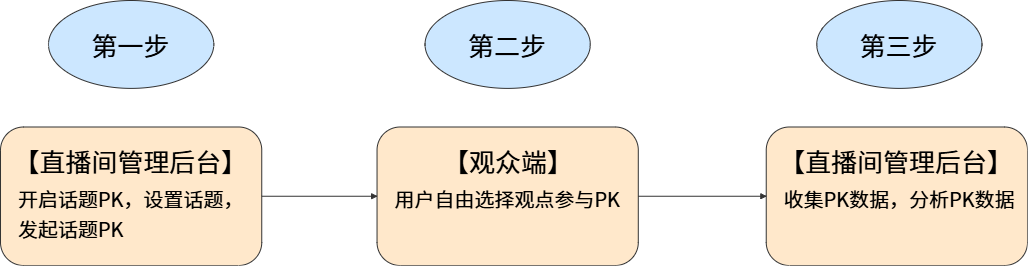 |
II. Steps
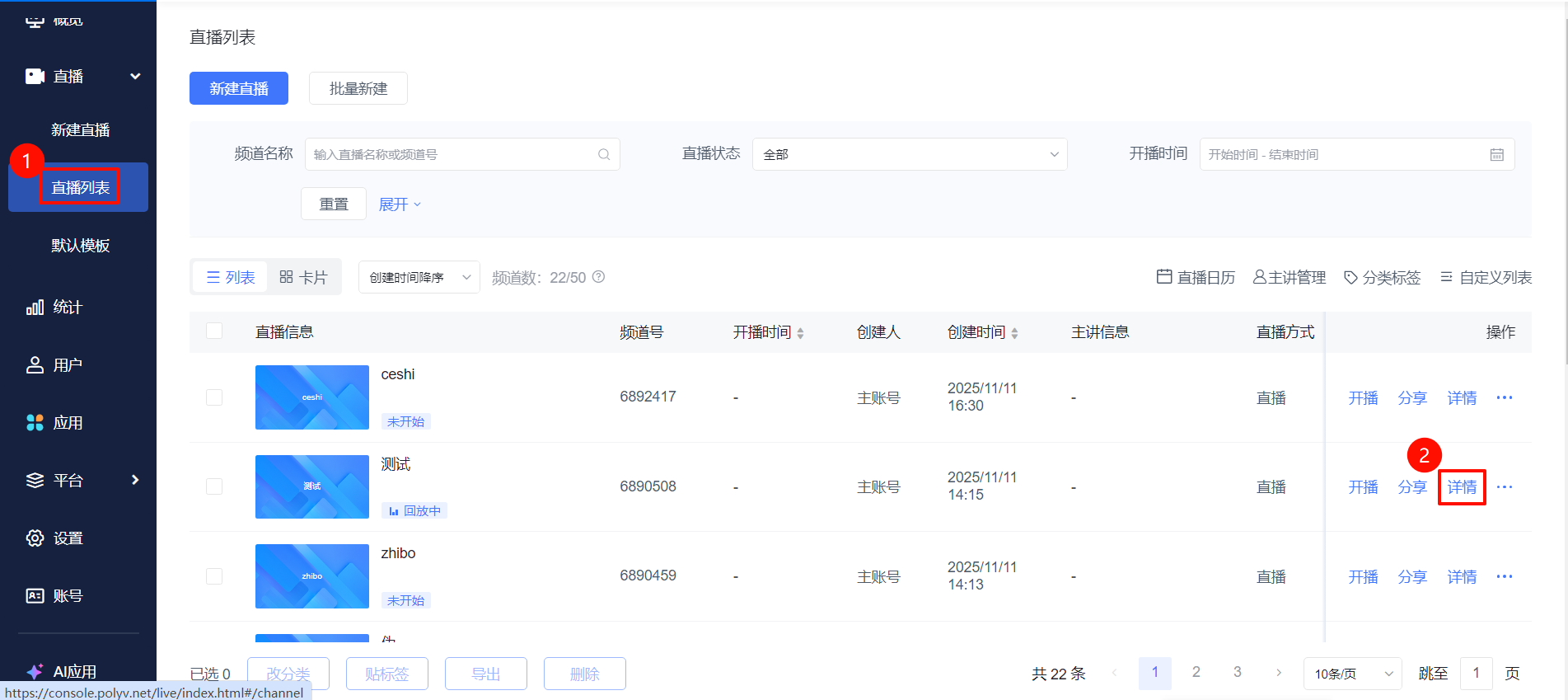
- Go to the [Live List] page, select a live stream and click [Details]. In the live room management section, click [Marketing Interaction] - [Topic PK] to enable the topic feature.
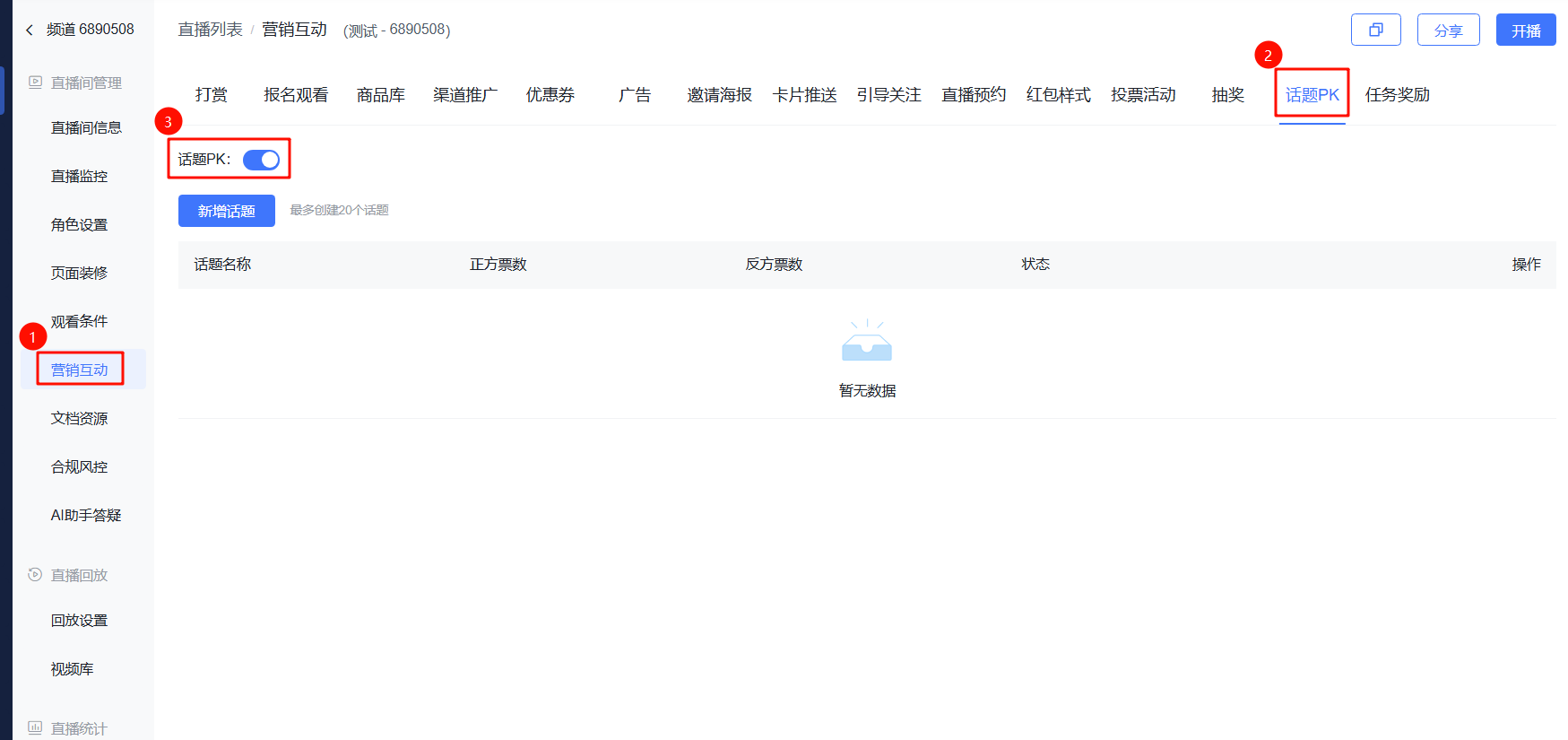
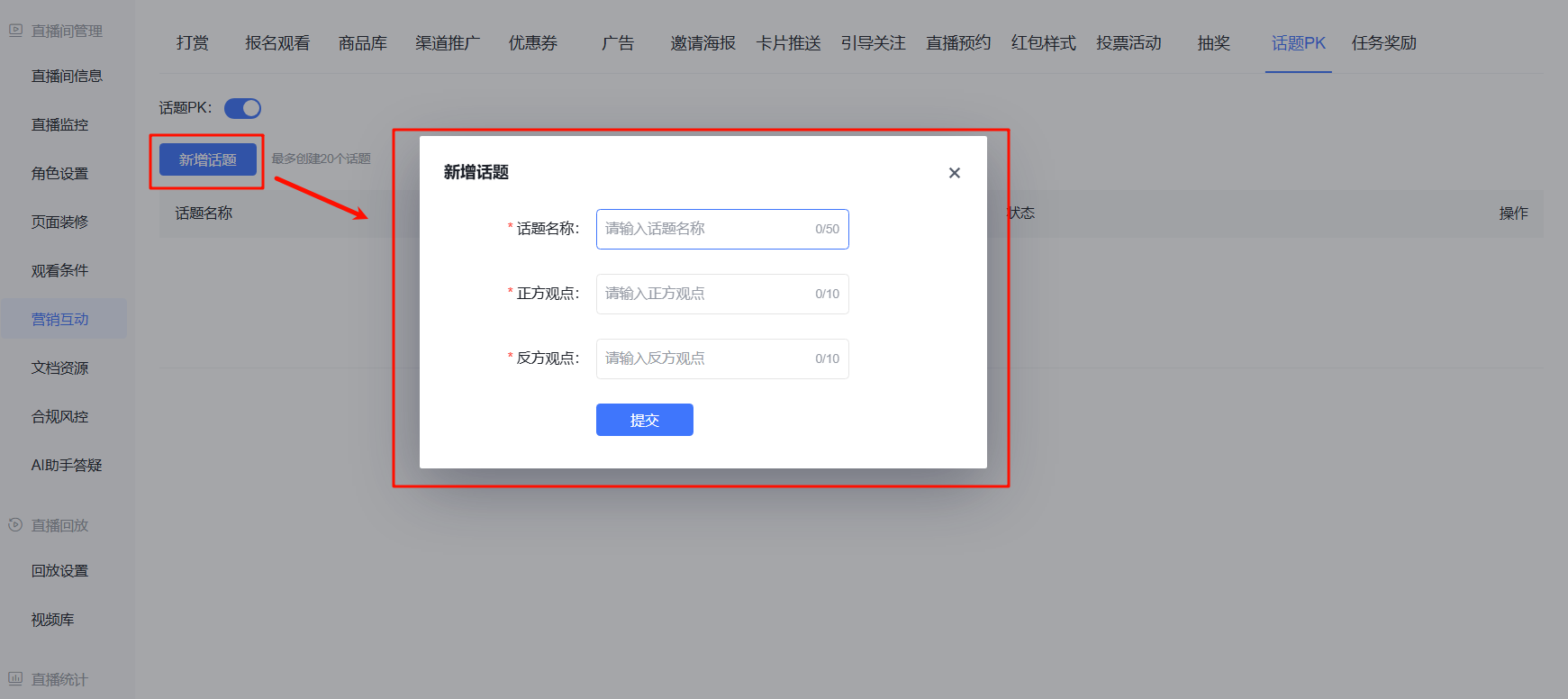
- Click [Create Topic], set the topic name and supporting/opposing viewpoints. After editing, click [Submit].
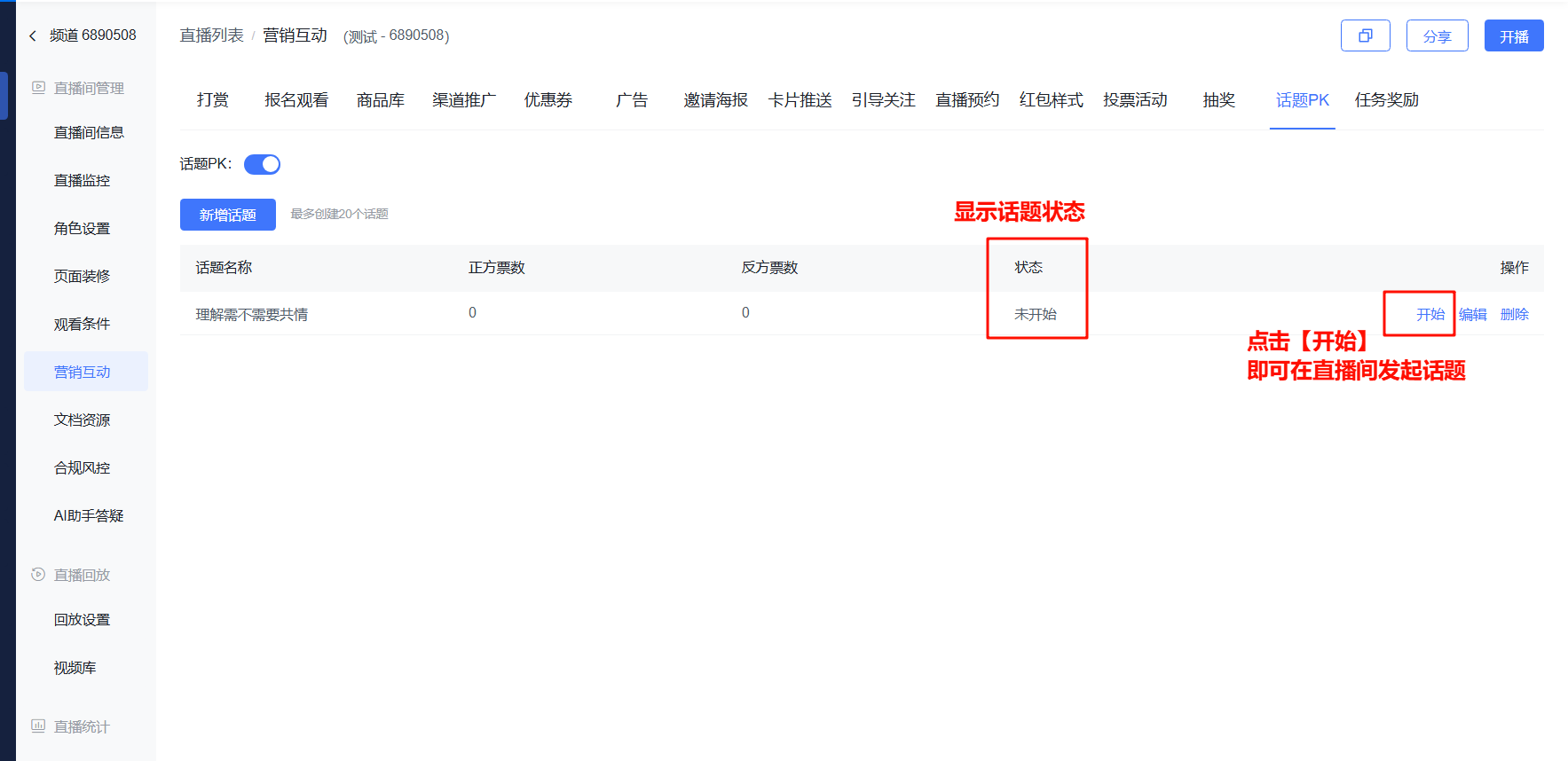
- Click [Start]. The topic PK popup will immediately appear in the live room.
III. Display Effect
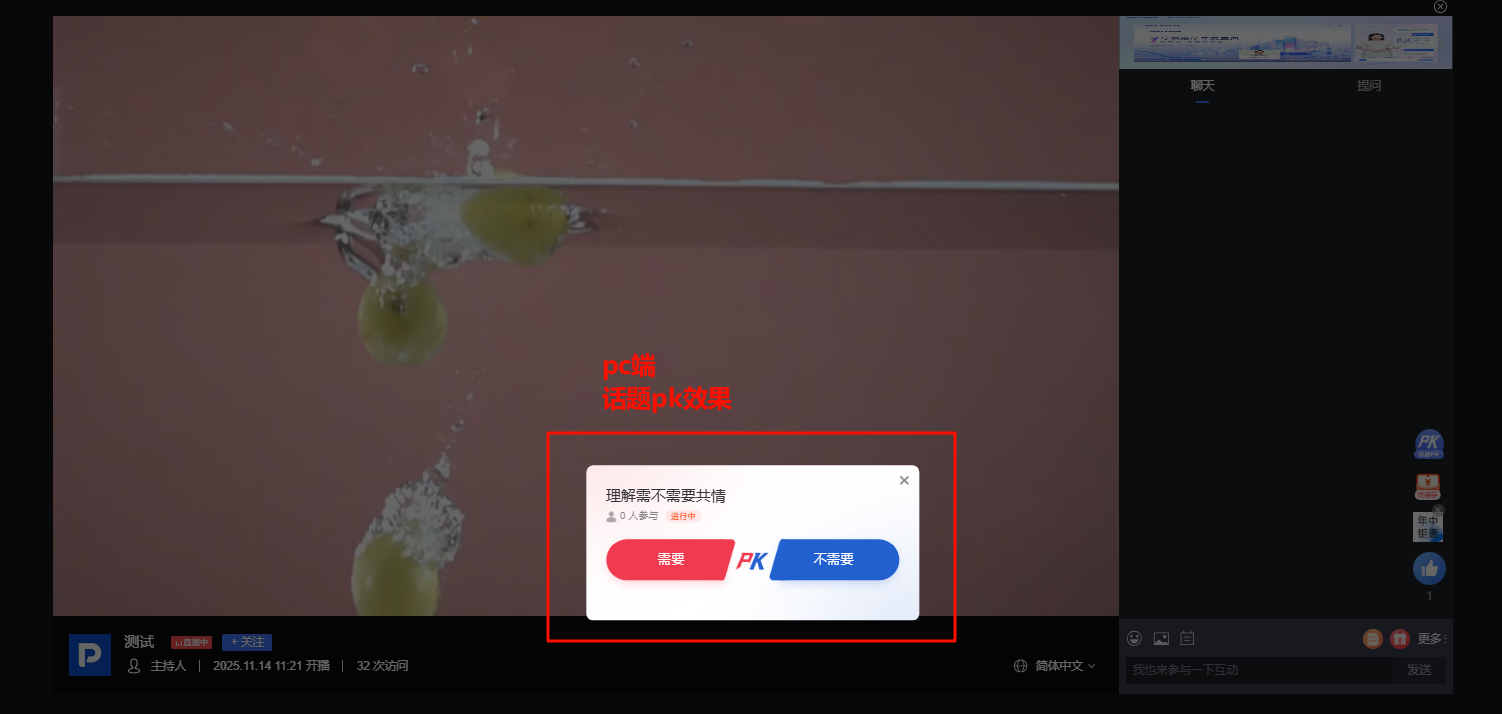
- PC viewing page effect
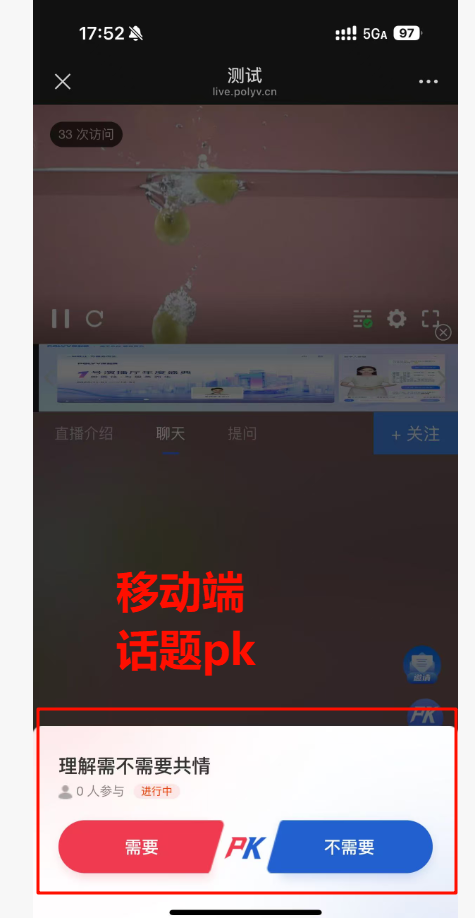
- Mobile viewing page effect
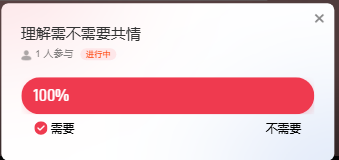
- Viewer voting
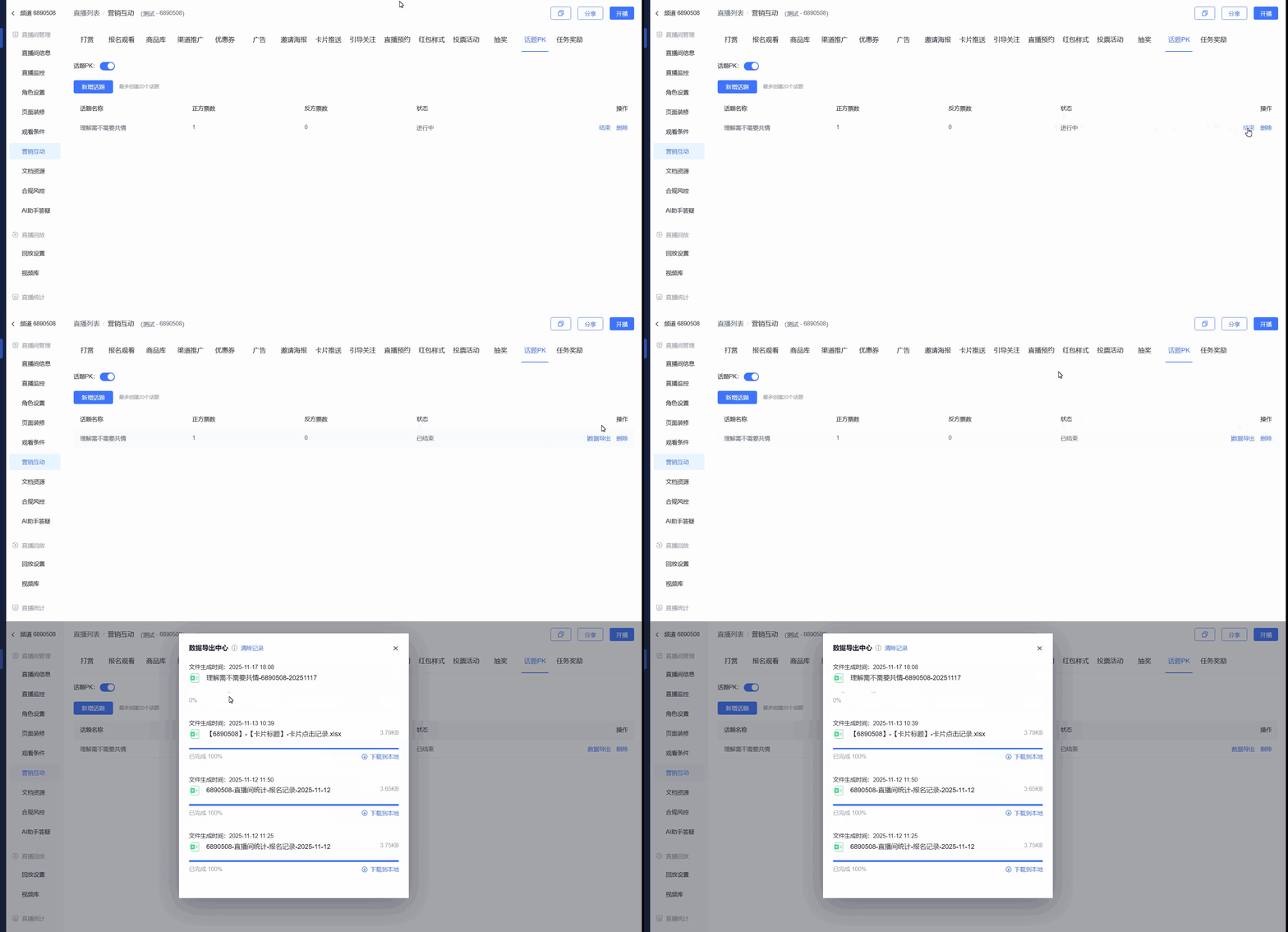
IV. Ending a Topic & Exporting Data
Click the [End] button to end the topic PK in the live room. Use [Export Data] to download data for ended "Topic PK" sessions (data is downloaded to the Data Export Center).