


Message Pinning
I. Feature Overview
| Feature Info | Description |
|---|---|
| Feature Name | Message Pinning |
| Feature Description | Pin important messages to the top of the viewing page by pinning messages in the chat room |
| Purpose | Highlight key messages in the chat room to reduce repetitive replies from the host/assistant; enhance students' sense of participation in sharing and learning |
| Use Cases | Suitable for live commerce, training, and other scenarios, such as messages requiring special attention from the host/assistant in the chat room, student summary messages, and replies to frequently asked questions |
| Operation Path | 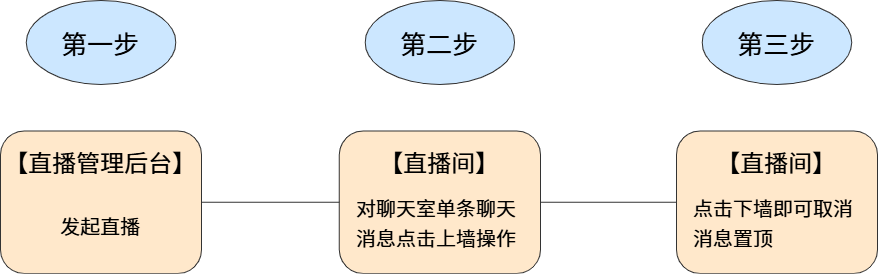 |
II. Operation Instructions
- Prerequisites
Message Pinning Settings
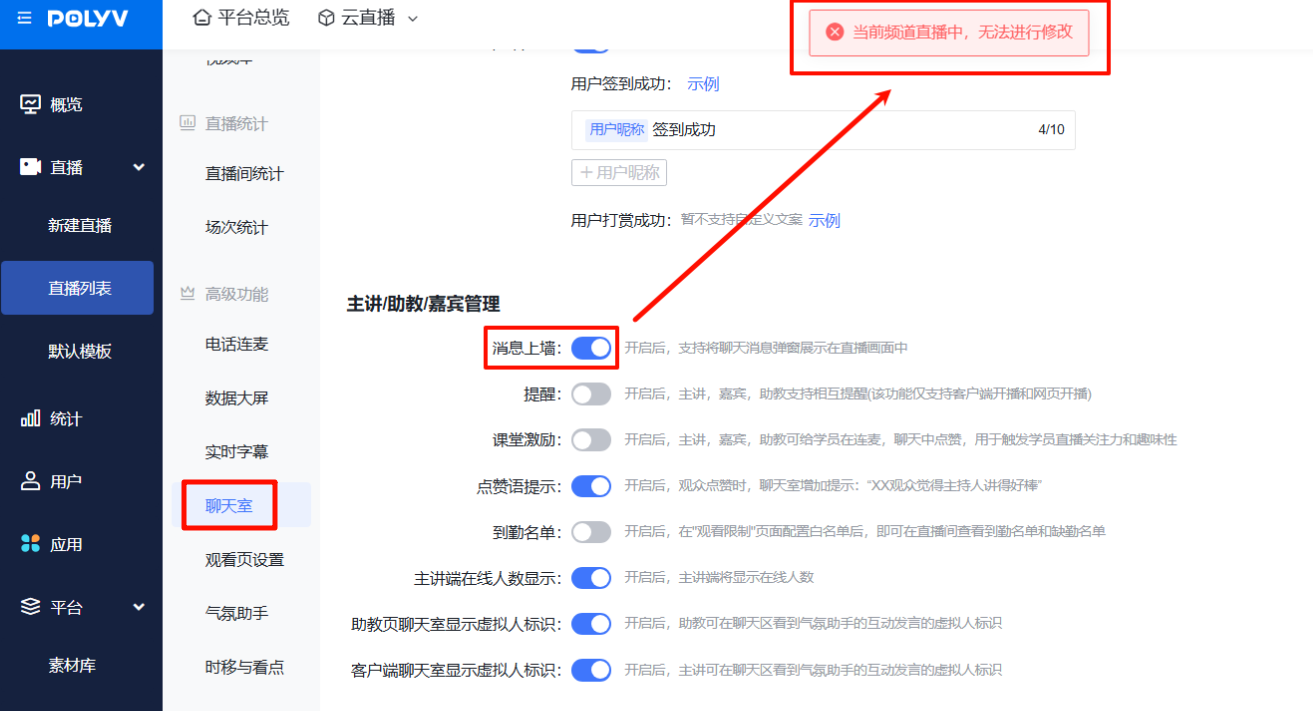
- Click [Chat Room] - [Message Pinning] under Advanced Features to enable/disable. If needed, turn on this feature before starting the live stream.
- When a channel is live, the [Message Pinning] toggle in the channel backend cannot be adjusted.
- Pinning a Message
In the chat room on the host/assistant's live page, select the chat message to be pinned. Click the [Pin] button in [More]. The pinned message will be displayed at the top of the chat room area, showing the operator's title and the specific message.
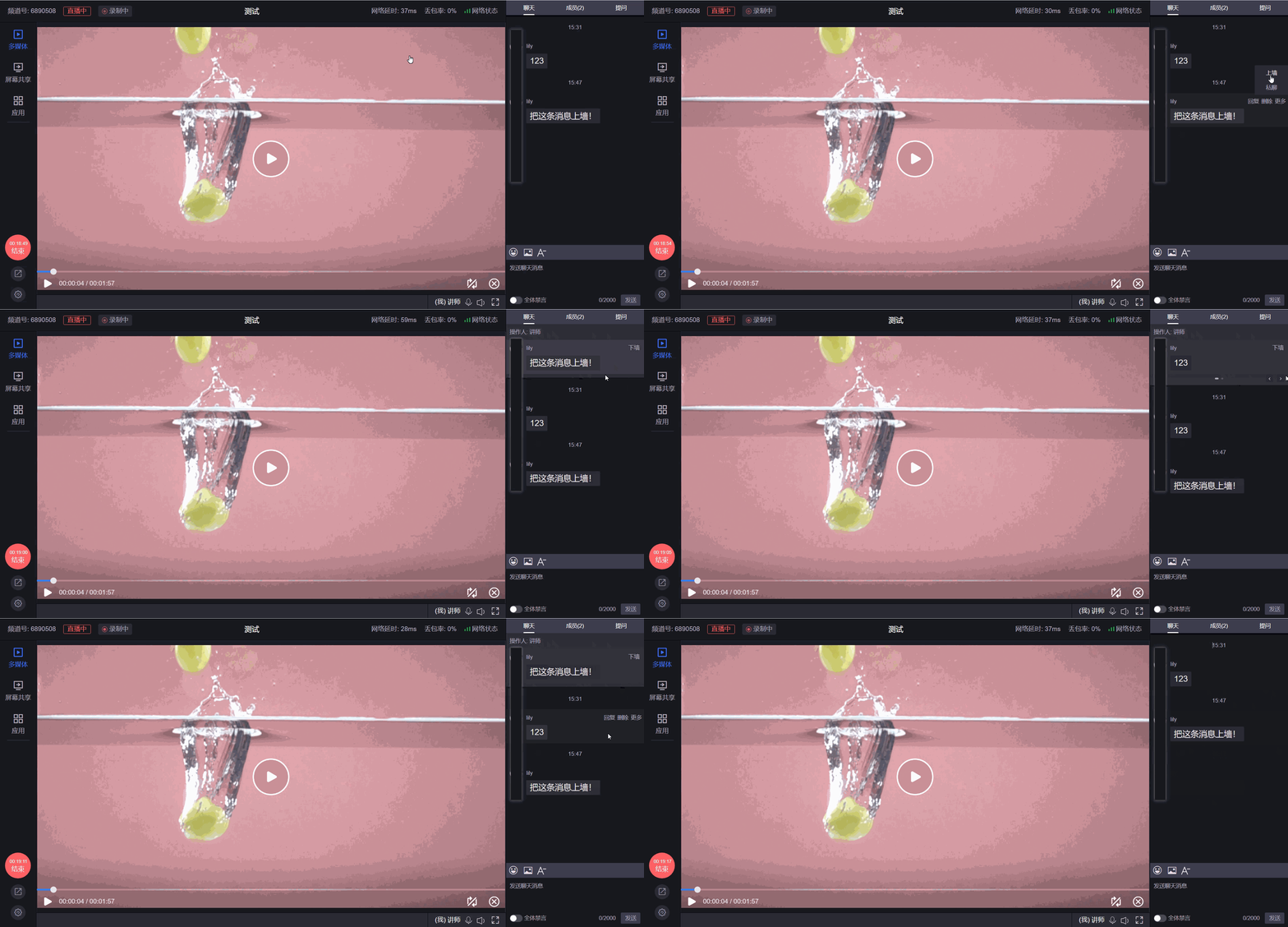
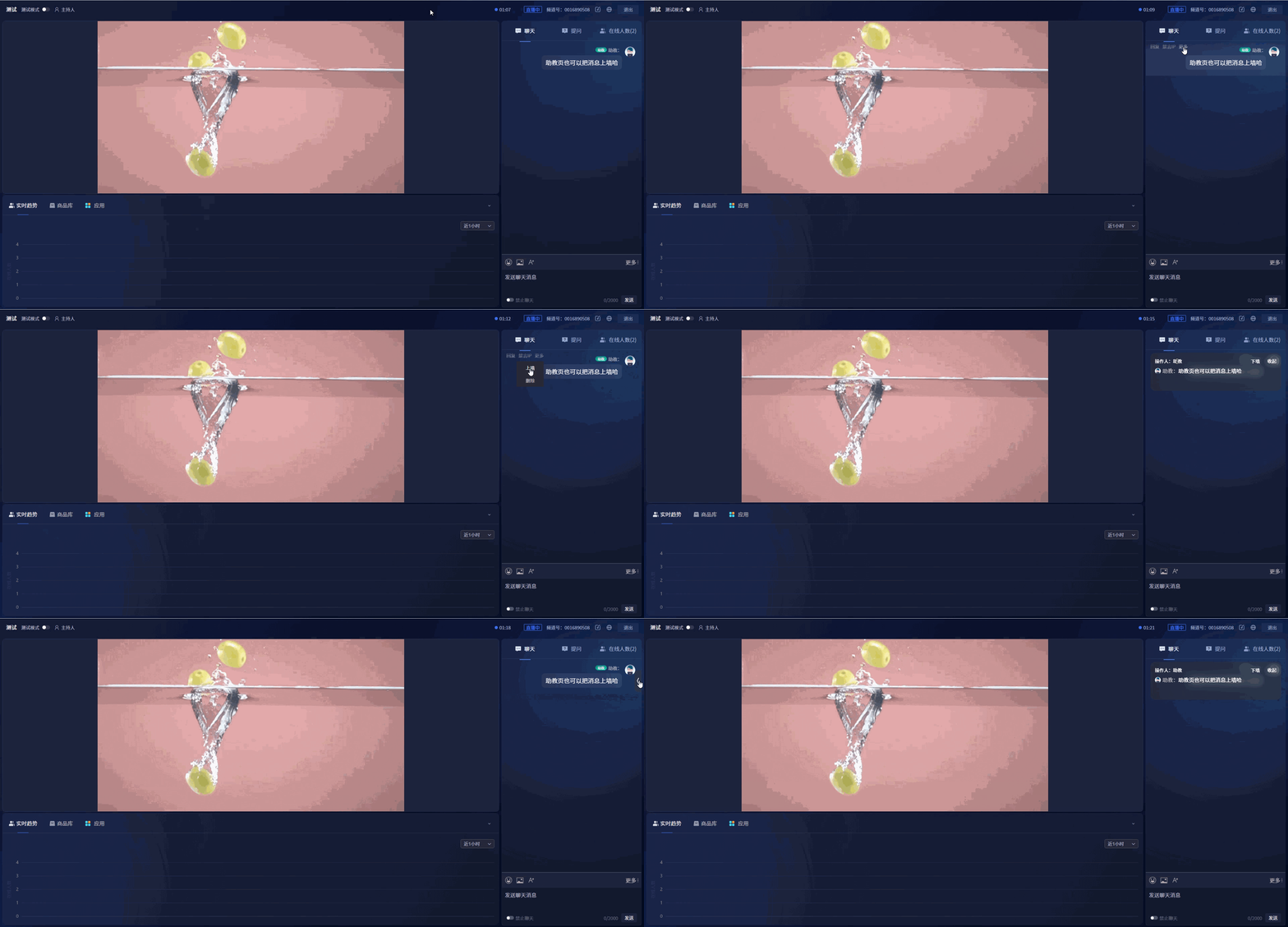
Only two lines of the pinned message content are displayed. If the message is too long, it will be truncated with an ellipsis.
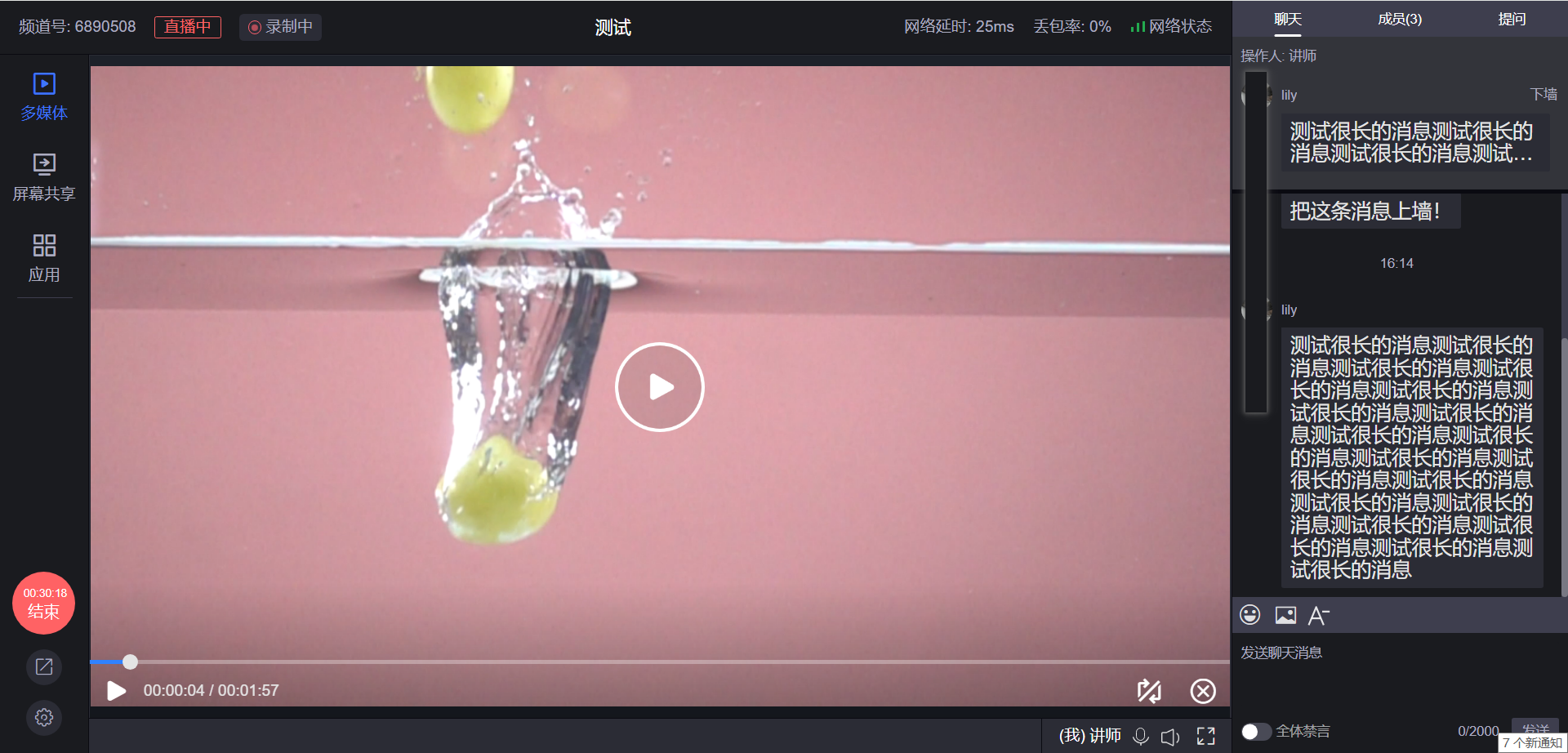
After a link message in the chat room is pinned, it supports external page redirection.
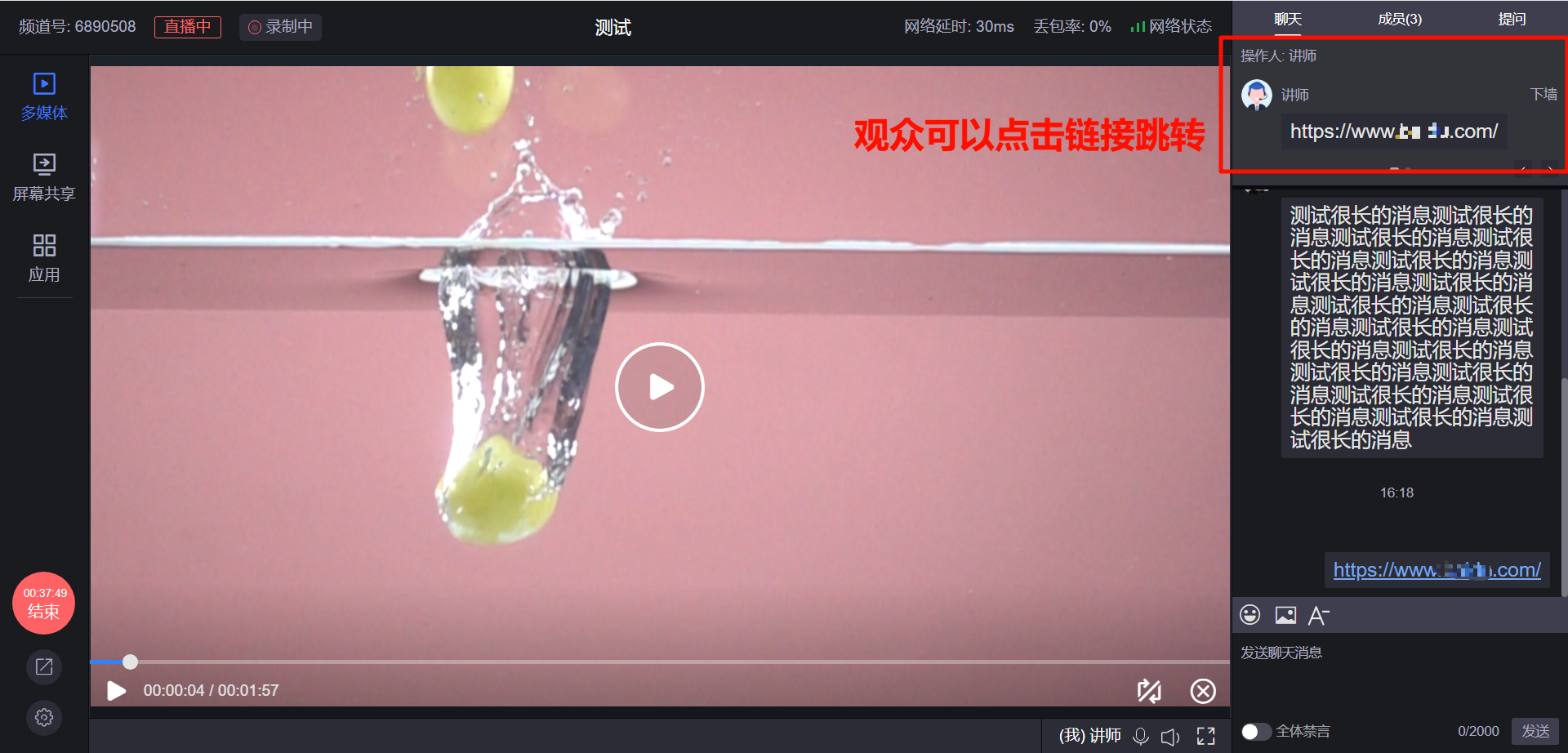
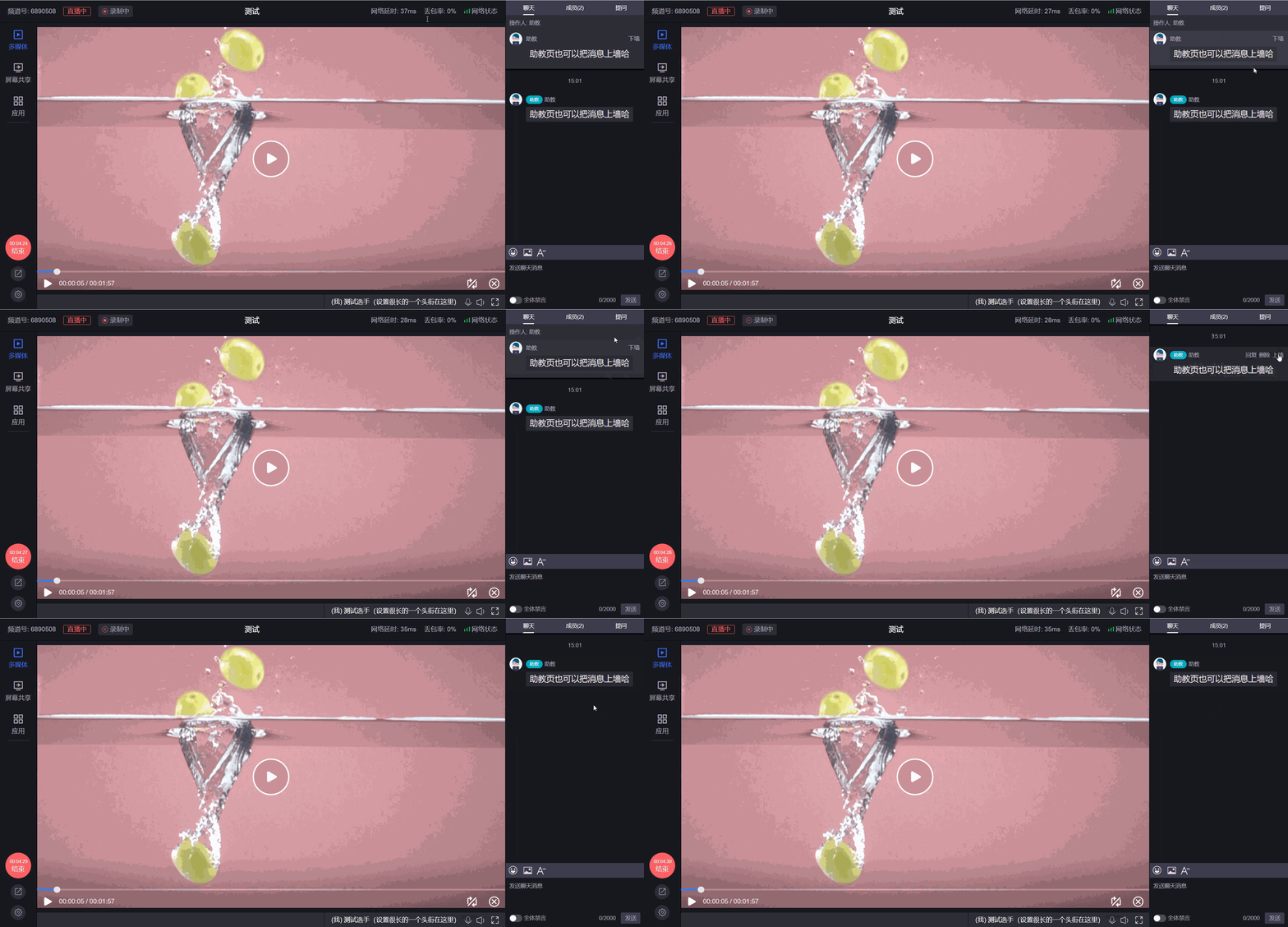
Click the [Unpin] button to remove the pinned message.
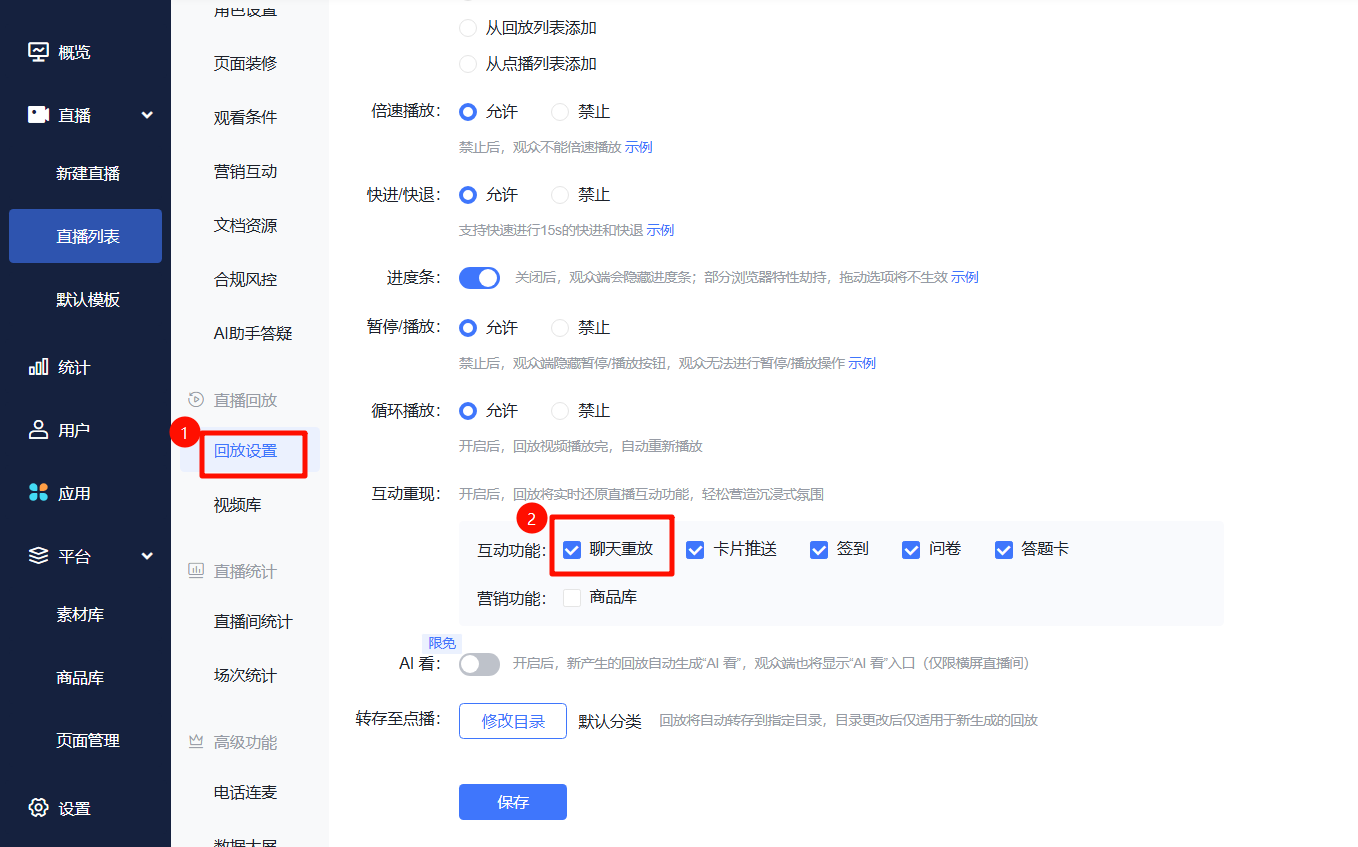
After enabling [Chat Replay] in the backend, pinned messages from the live stream can be displayed during playback.
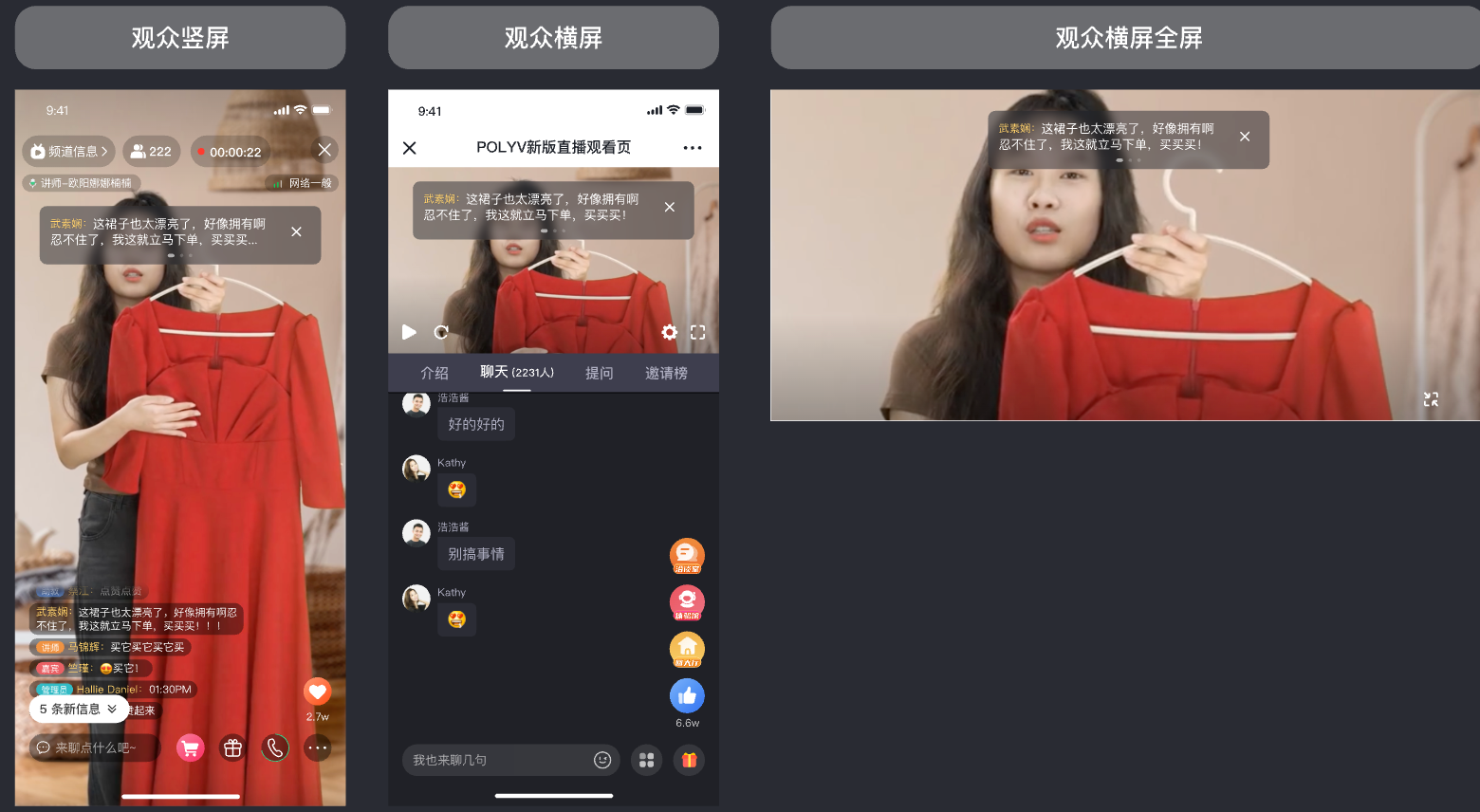
III. Audience-Side Display Effect
The pinning popup provides a close button, allowing viewers to close the pinned content on the page.
When multiple comments are pinned, viewers can swipe left or right to view them.
IV. PaaS Integration
- SDK Integration
- Supports JS SDK integration (using V3-SDK)
- Supports mobile SDK
