


Information Feed
I. Feature Overview
| Feature Information | Description |
|---|---|
| Feature Name | Information Feed |
| Feature Description | The Information Feed aggregates live streams, videos, and image-text content into an immersive page, supporting two-layer interaction between the preview layer and the live layer. Content can be automatically aggregated through associated tags, or manually selected and arranged. |
| Purpose | Lower the barrier for content entry, help viewers continuously browse live streams, videos, and image-text content by swiping, and improve viewing and conversion results through live-layer interaction, product push, and content sharing. |
| Core Features | 1. Two-layer architecture: The preview layer displays a mix of live streams, videos, and image-text content, while the live layer supports in-depth live viewing; 2. Flexible distribution: Supports invoking the Information Feed in the [Live Preview] component and [Bottom Navigation] on the aggregation page; 3. Interaction and sharing: Supports liking videos in the preview layer, sharing videos on mobile, sharing direct-to-content, and liking, chatting, product lists, and product card push in the live layer. |
II. Detailed Operation Guide
1. Content Tagging (Data Source Preparation)
When using the associated tags method, you need to first add tags to live streams, videos, or image-text content. When using the associated content method, you can select content directly.
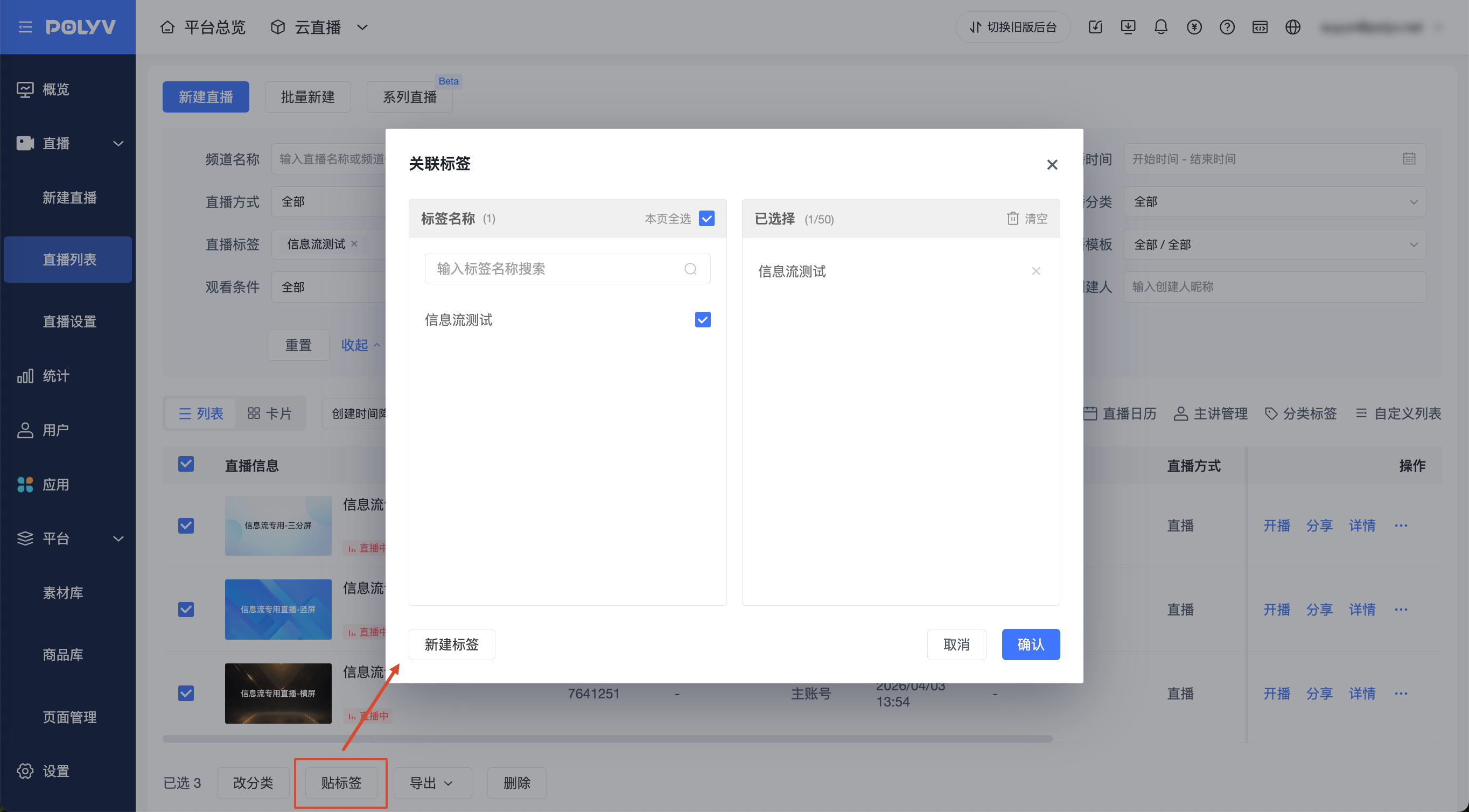
- Tagging live content: Go to [Live - Live List], check the target live stream, and click [Add Tag].
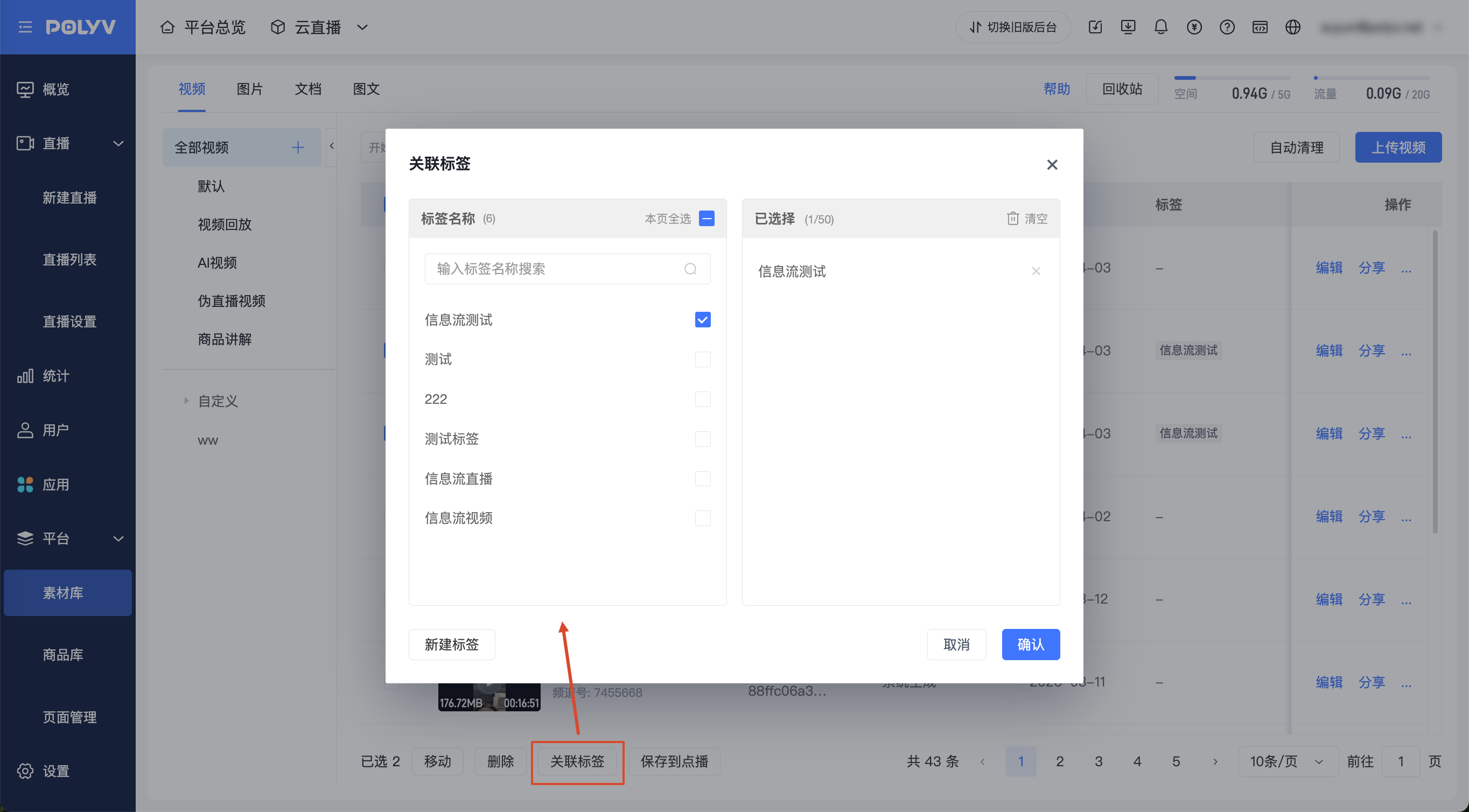
- Tagging material content: Go to [Platform - Material Library], check the material tags (including videos and image-text content), and click [Associate Tag].
2. Manage Page Categories
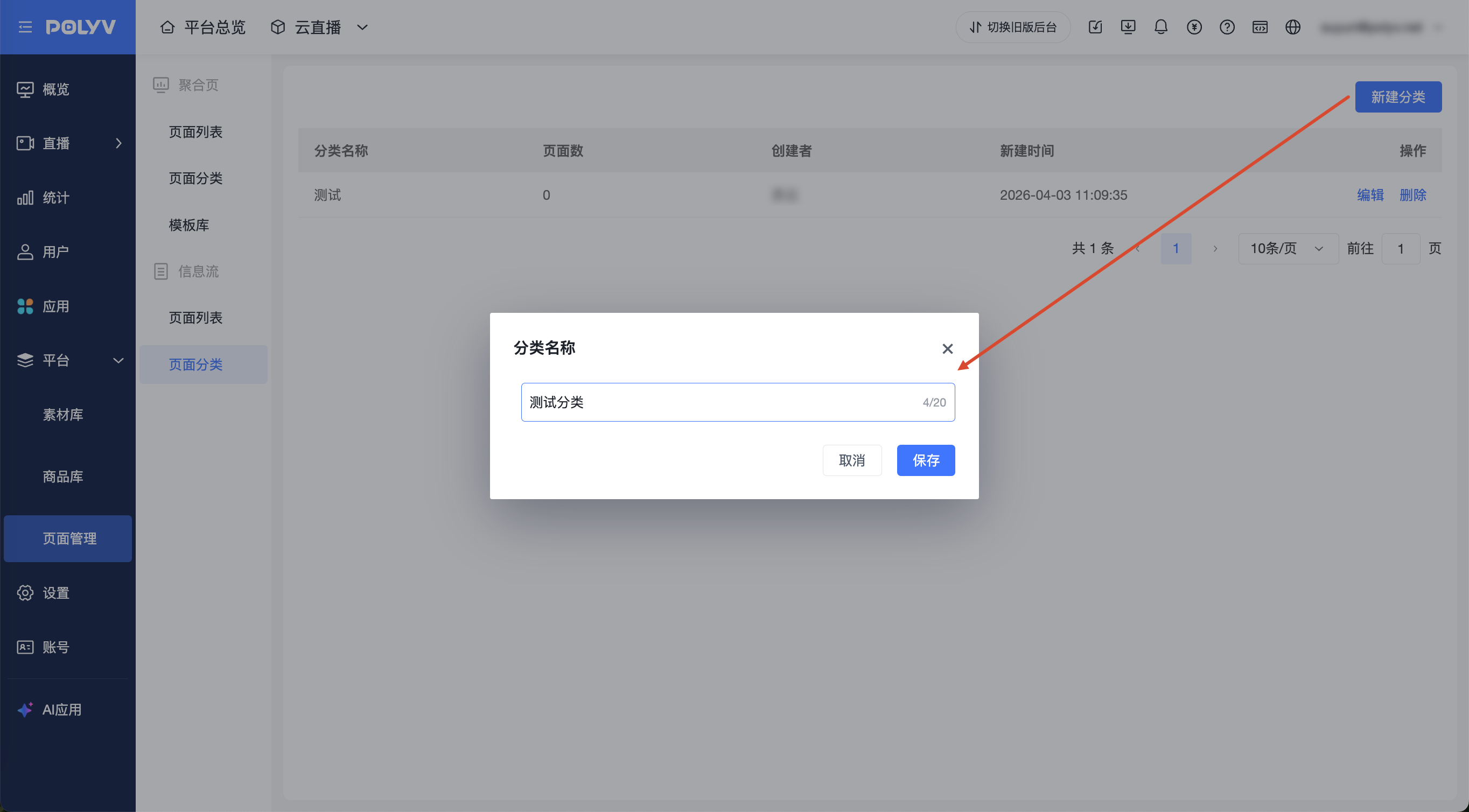
To facilitate managing Information Feeds on different topics in large-scale events, it is recommended to create categories first.
Go to [Platform - Page Management - Page Categories], click [New Category], and name it.
3. Create an Information Feed Page and Configure It
Go to [Platform - Page Management - Page List] and click [New Page].
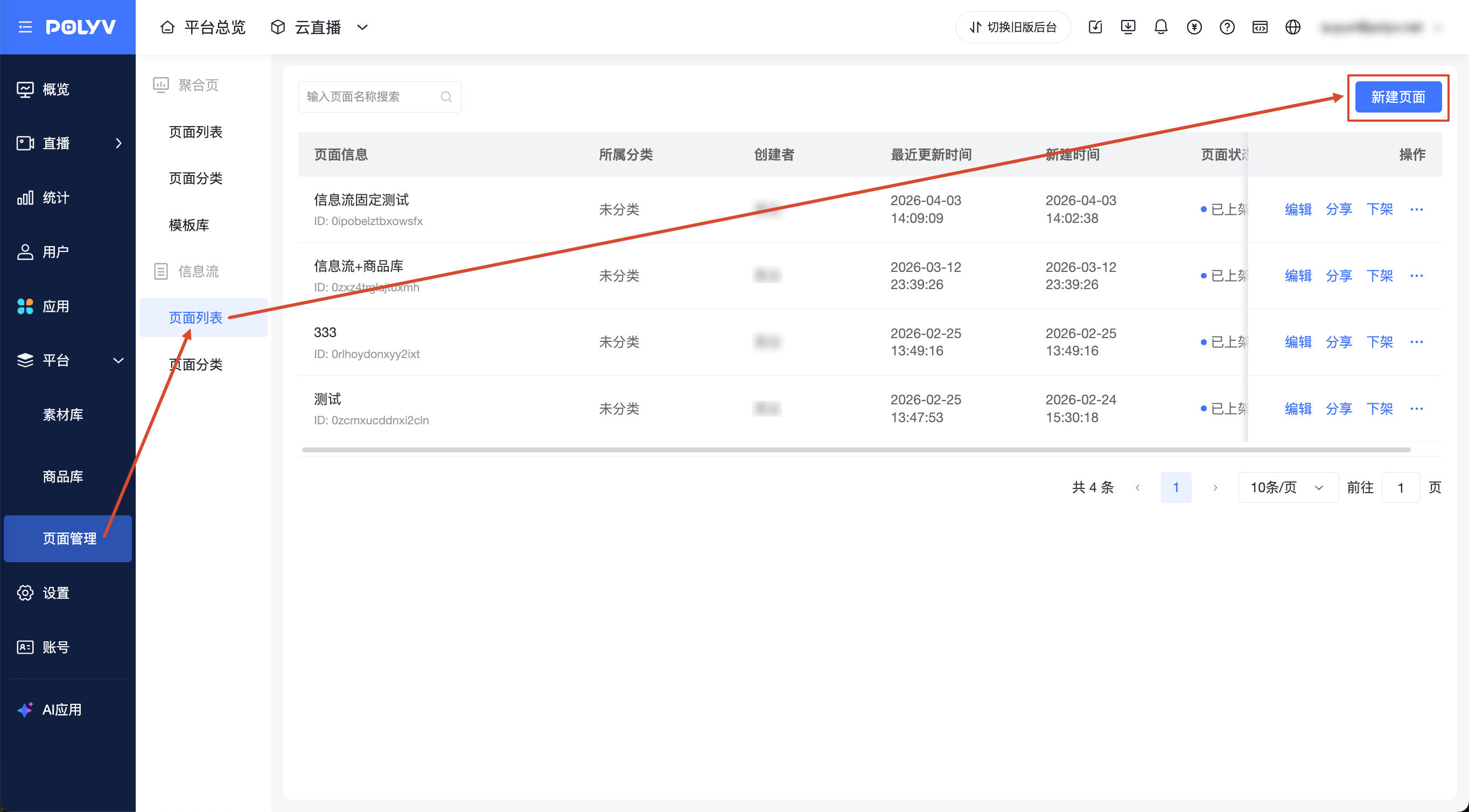
Basic Information: Enter the page name and select the category it belongs to.
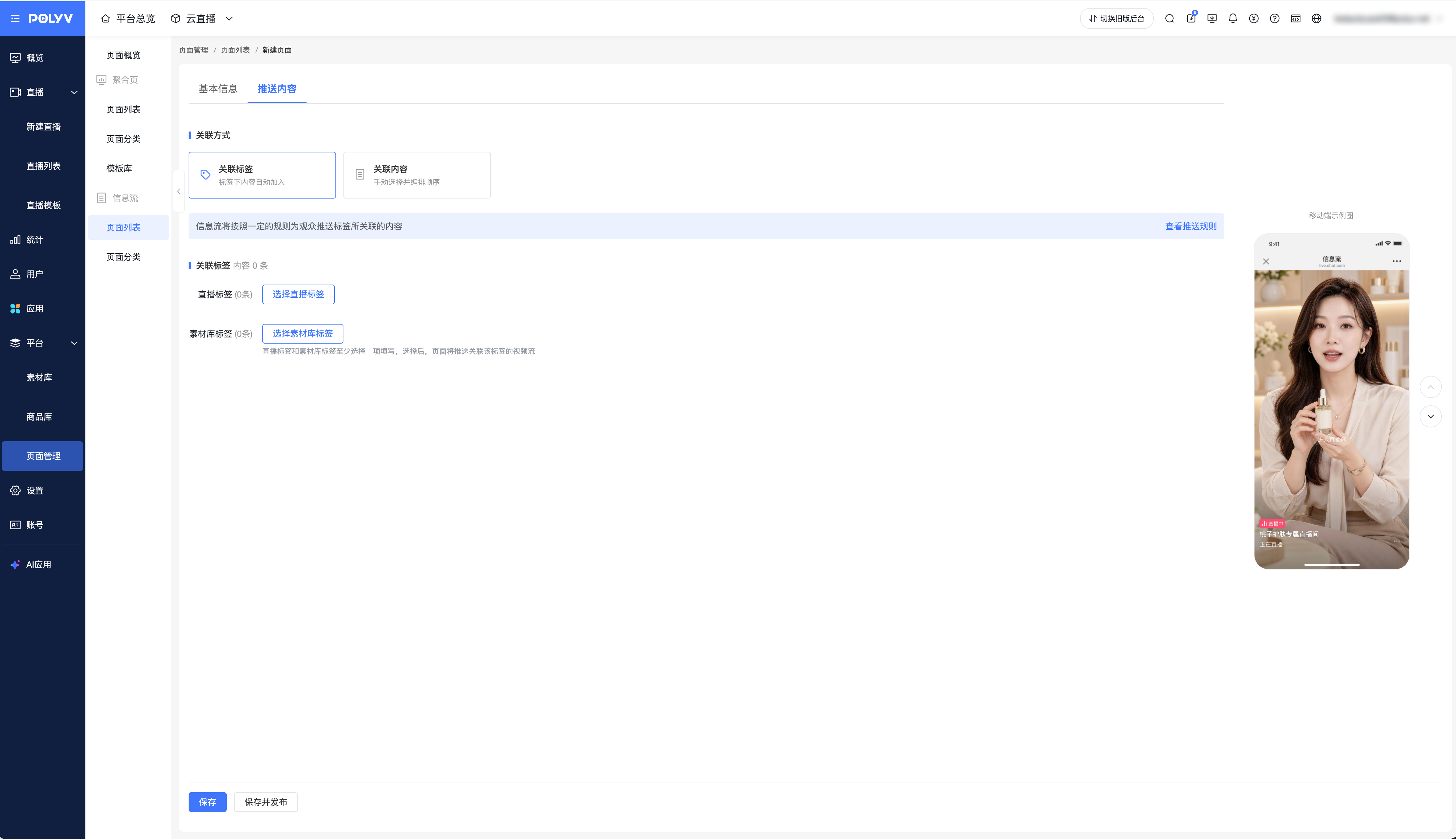
Push Content: Select [Associate Tag] or [Associate Content].
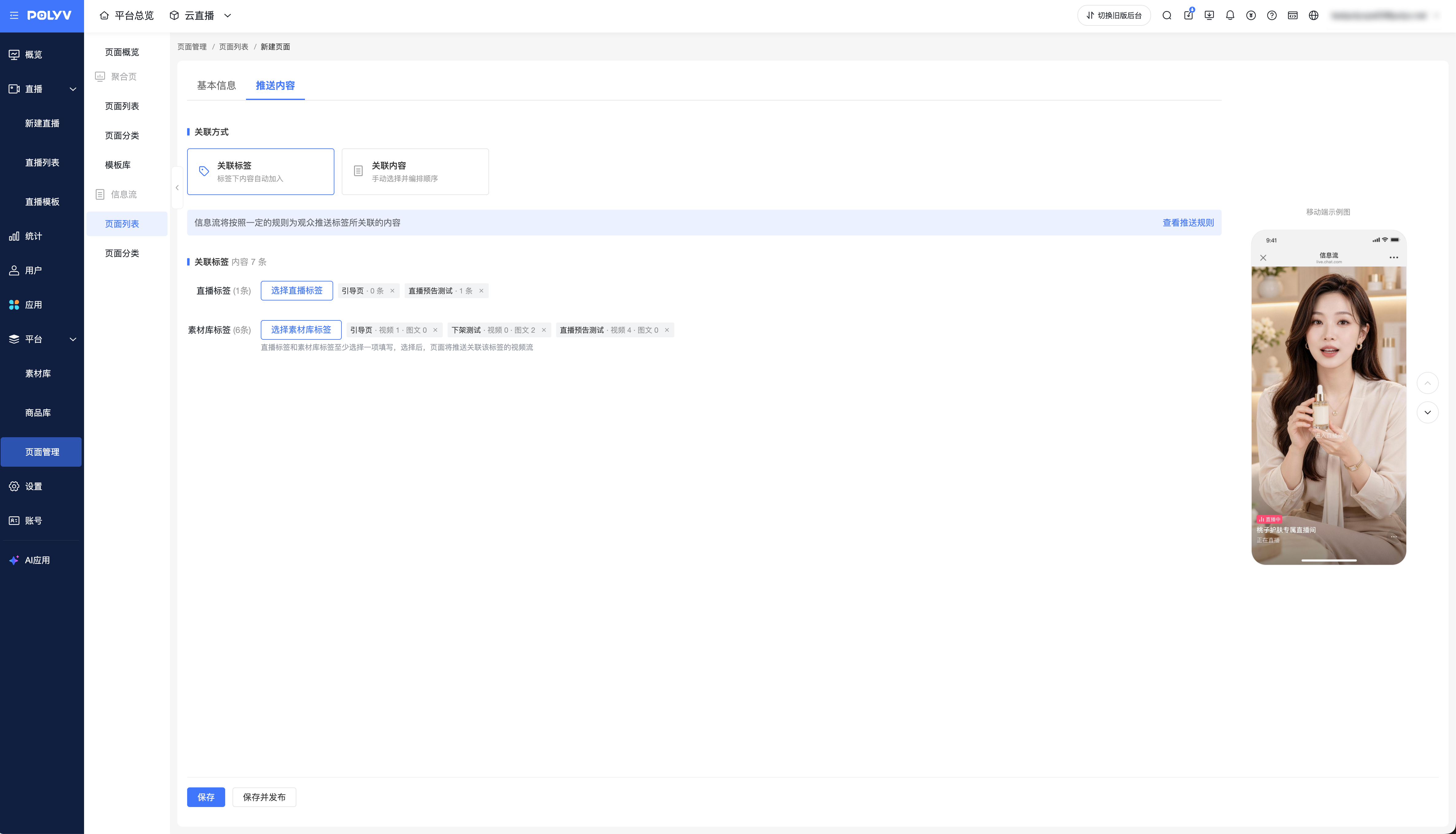
- Associate Tag: Select live tags or material library tags, and the system automatically aggregates eligible live streams, videos, and image-text content. When the same material is associated with multiple selected tags, it is not displayed repeatedly.
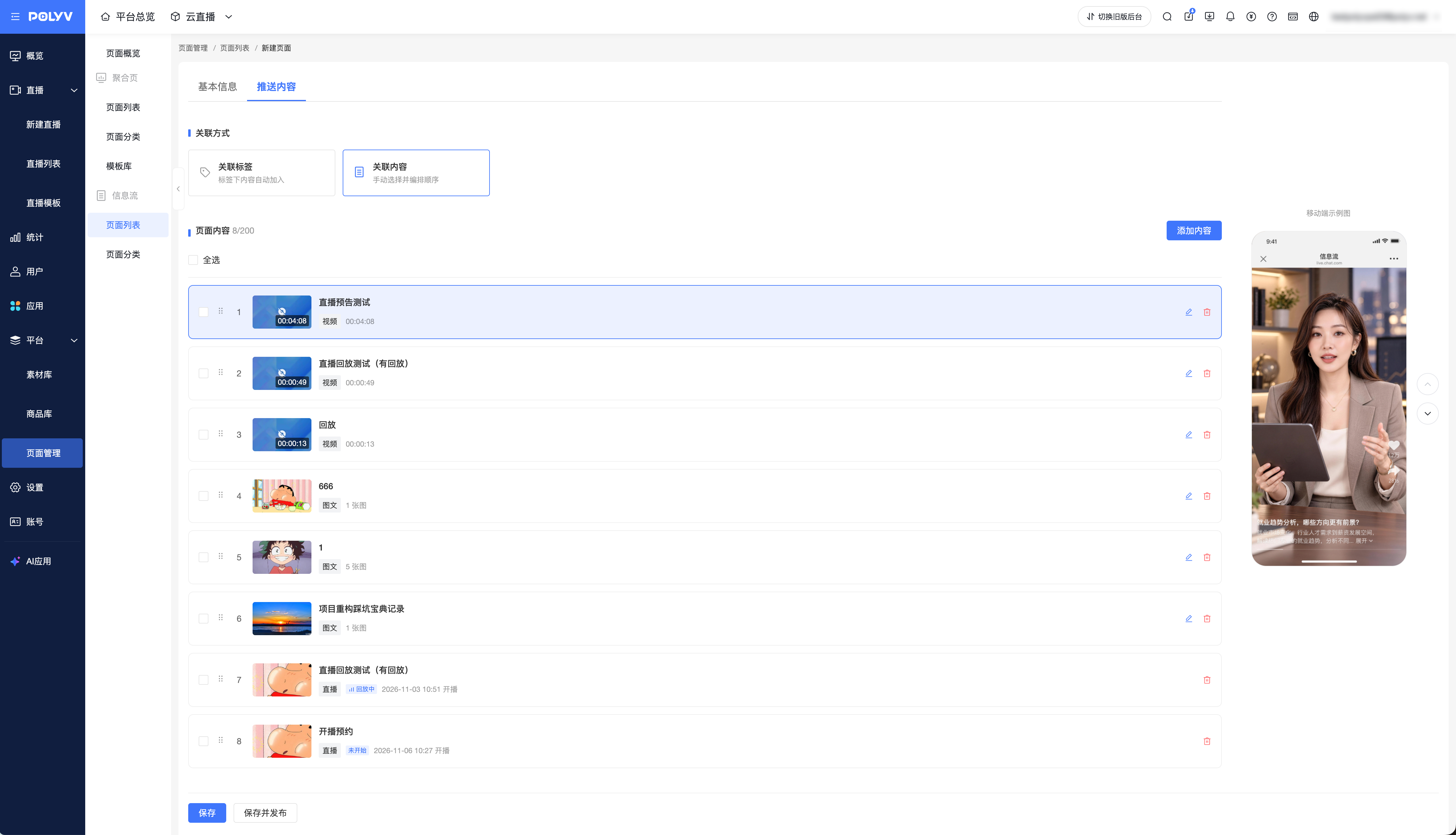
- Associate Content: Manually select videos, image-text content, and live streams, and arrange the display order.
After an existing page that uses associated tags is republished, eligible image-text content under the selected material library tags will also enter the Information Feed. If you do not want a certain image-text item to be displayed, you can adjust its tags in the Material Library first.
4. Associated Content and Manual Arrangement
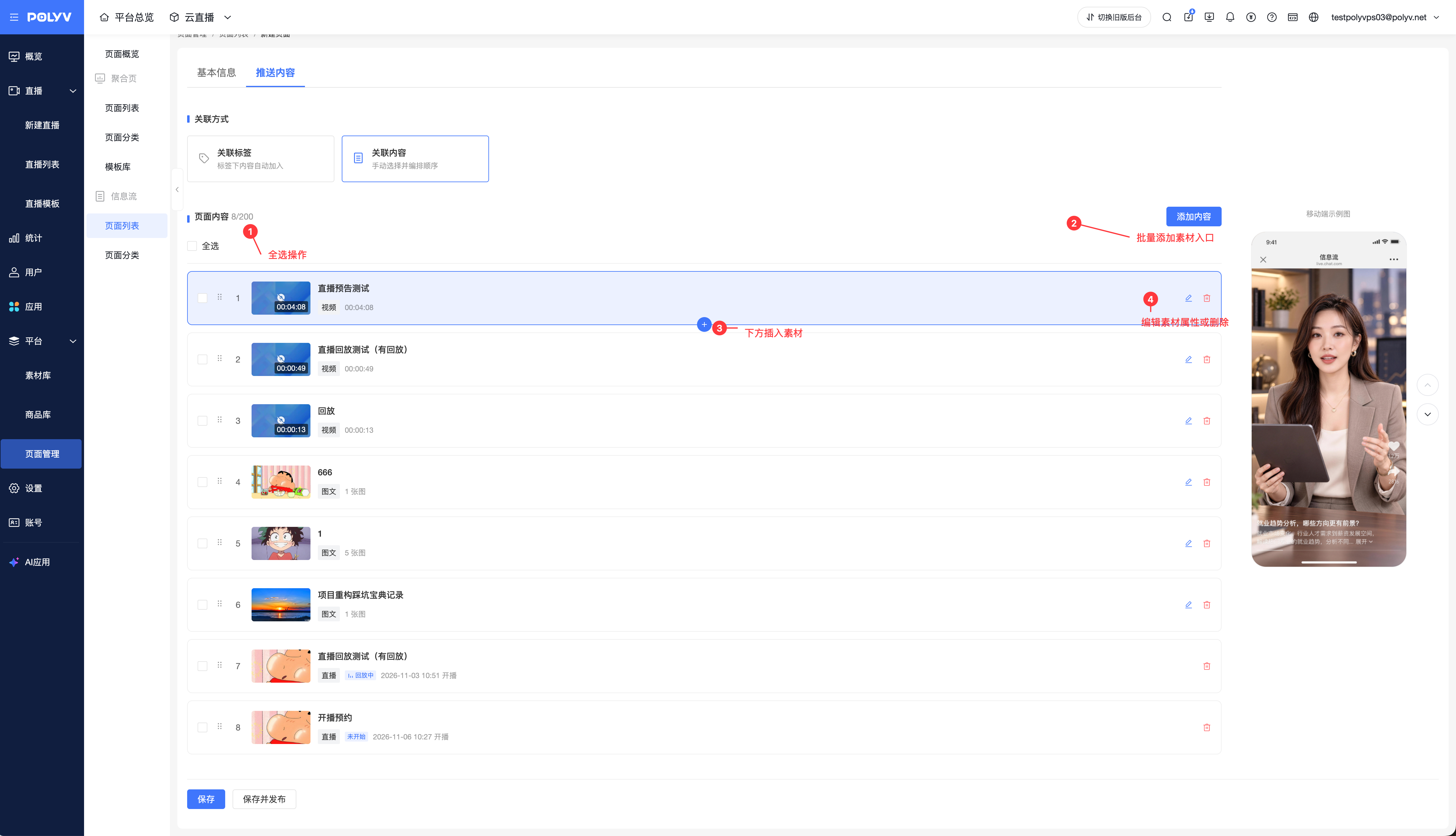
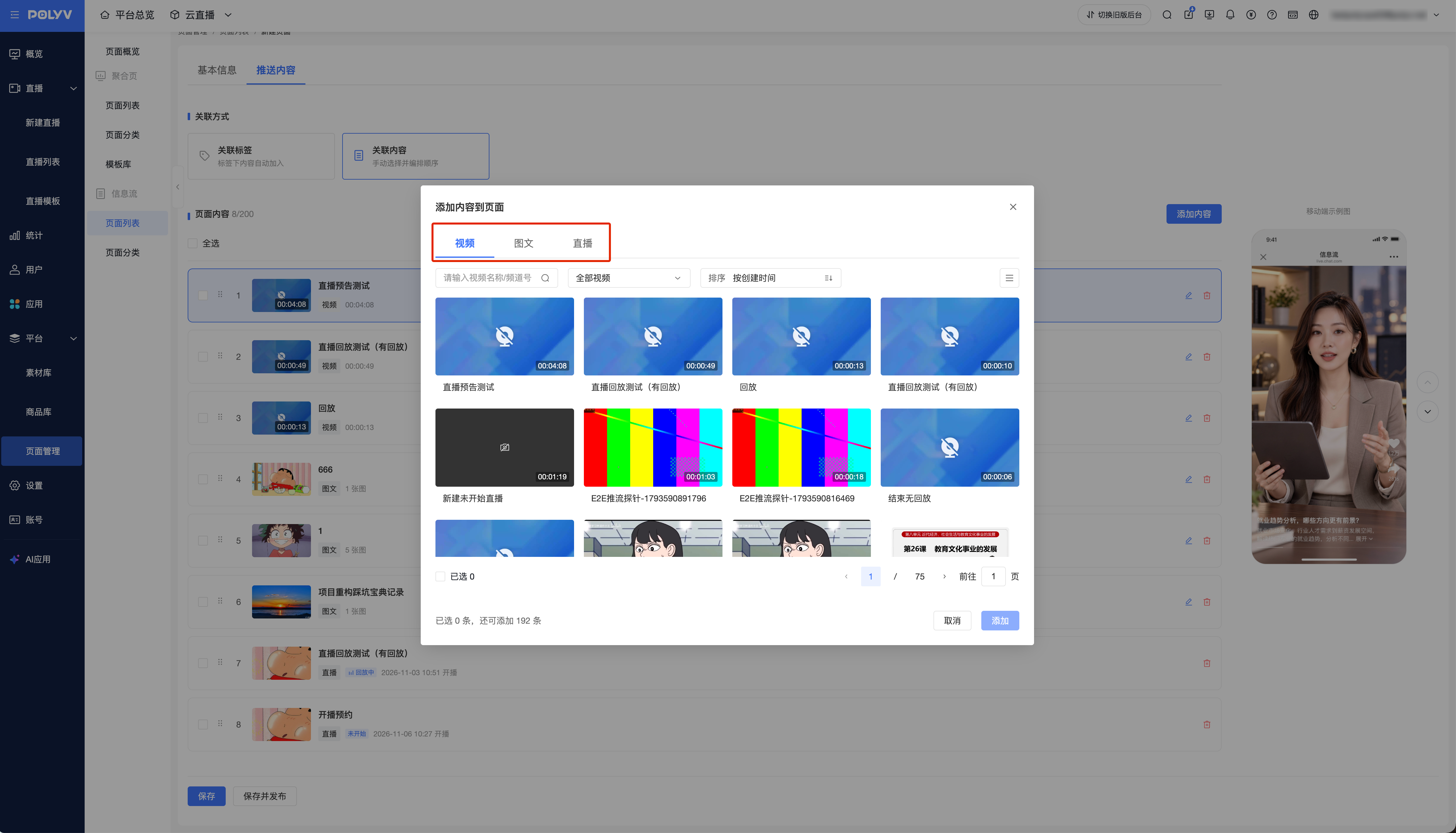
- In [Push Content], select [Associate Content].
- Click [Add Content] and select content from the Material Library or Live.
- Adjust the order in the content list, or use [Add After This] to insert content at a specified position.
- As needed, modify the title and introduction of videos or image-text content displayed in the Information Feed, or remove content.
- Preview the effect, save, and publish the page.
- An Information Feed can be associated with a maximum of 200 pieces of content.
- Removing content does not delete the original content or live stream in the Material Library.
- Live titles and introductions follow the original content and cannot be modified separately in the Information Feed.
- When content is deleted or a live stream becomes unavailable for viewing, the corresponding content becomes invalid and is no longer displayed to viewers.
5. Distribute on the Aggregation Page
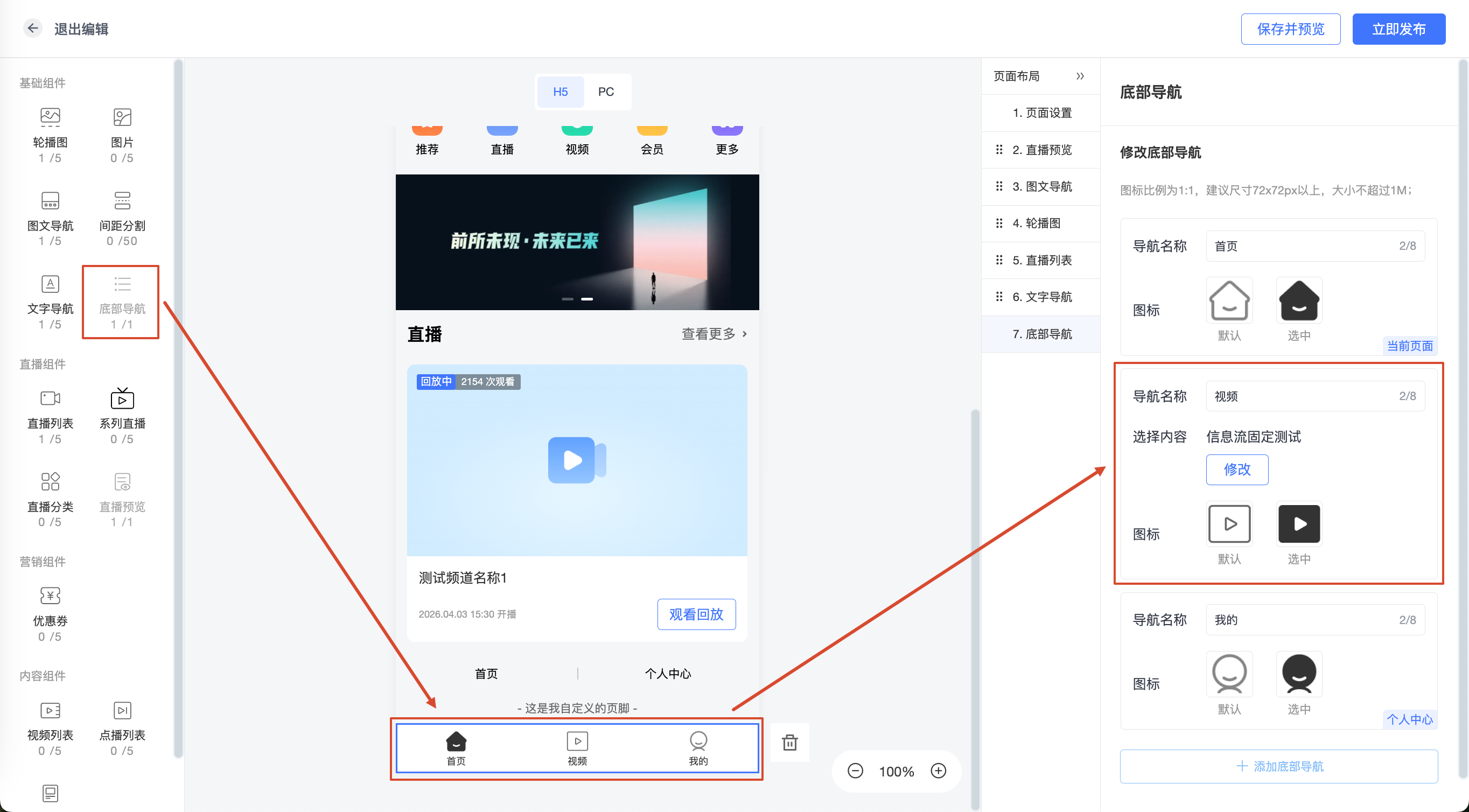
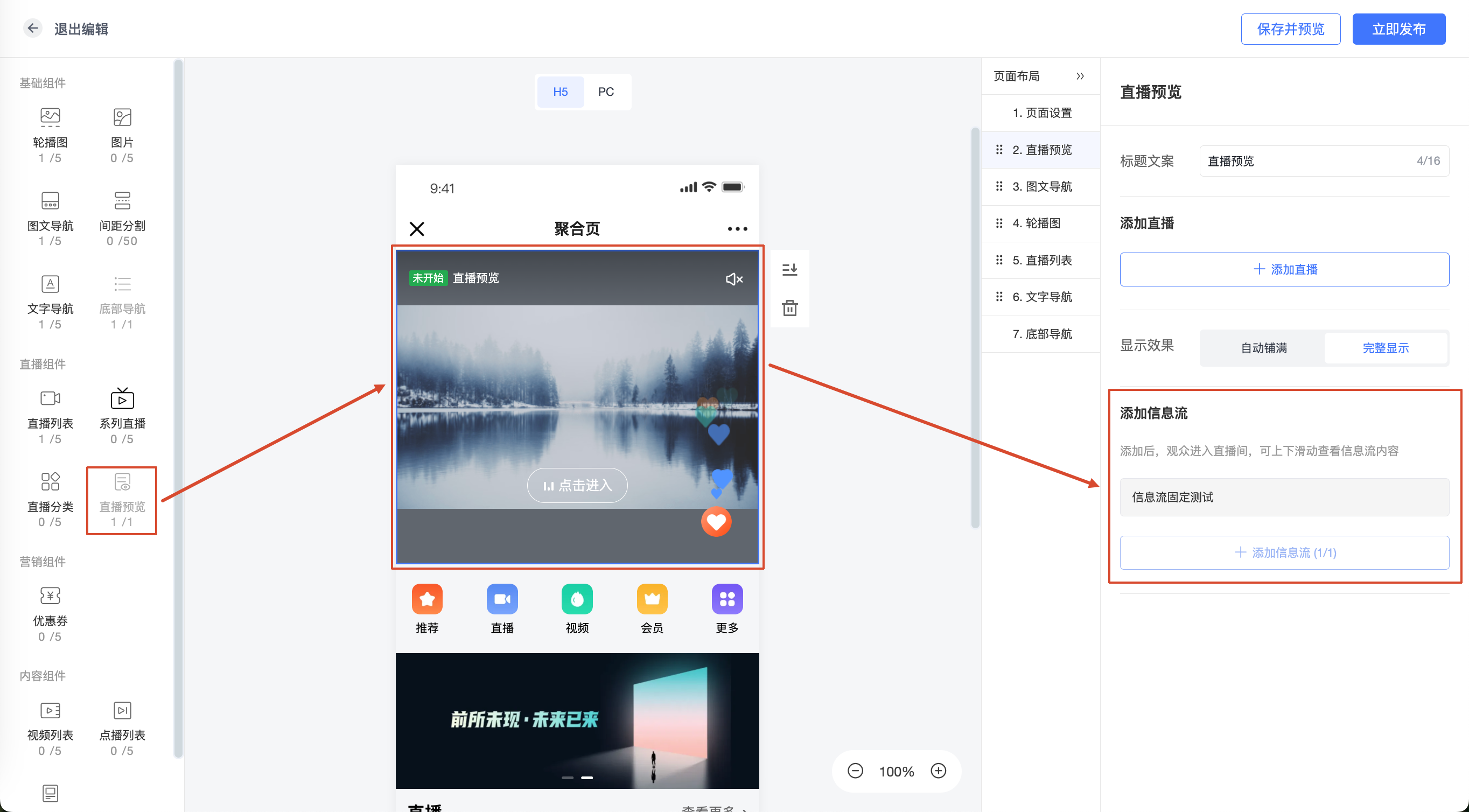
Go to the aggregation page editor. The Information Feed can be invoked in the following locations:
- Bottom Navigation association: Click the [Bottom Navigation] component, select [Select Information Feed] for the navigation item, and associate the page.
- Live Preview component connection: In the properties area of the [Live Preview] component, click [Add Information Feed]. After viewers click the preview image, they can enter the Information Feed for playback.
III. Core User-Side Interactions
1. Two-Layer Architecture Interaction Logic
Preview layer: Displays a mix of live streams and videos, and viewers can swipe up and down to browse content.
Live layer: Entered by clicking a live stream in the preview layer. The live layer displays only live content and provides interaction capabilities such as liking, chatting, viewing the product list, and receiving product pushes.
2. Video Interaction and Sharing in the Preview Layer
Videos in the preview layer support liking and sharing on mobile.
Video liking: Videos in the preview layer display a like button and like count. After viewers click the like button, the current video's like count increases and the button switches to the liked state; clicking again cancels the like.
Like data: Like counts accumulate by content, and the like count displayed for the same content in different Information Feeds is consistent. Within the validity period of the same access cache, the same viewer can like the same video only once.
Video sharing entry: Videos in the preview layer on mobile web pages display a share button; videos in the preview layer on PC web pages do not display a share button.
Share overlay: After viewers click the share button, the share overlay opens. The overlay supports copying the current video link; when clicking the WeChat friend or Moments entry within WeChat, the page guides viewers to complete sharing through the "···" in the upper right corner.
Share configuration: Video sharing in the preview layer reuses the sharing settings of videos in the Material Library. The share title, share description, and share icon take effect according to the Material Library video configuration. When a Material Library video has no custom sharing information configured, the default sharing information is used.
3. Image-Text Browsing and Interaction
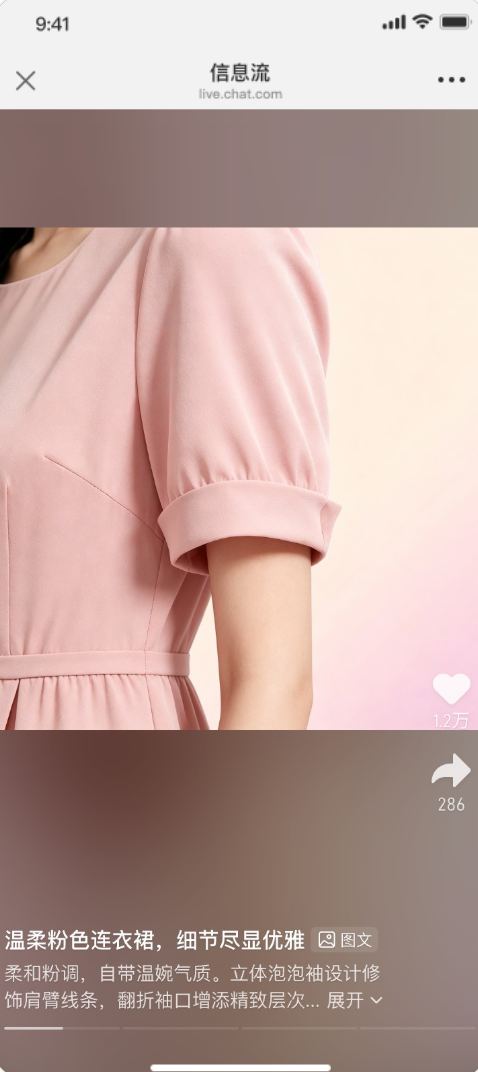
The preview layer supports displaying image-text content. Viewers can switch images, view the full text or a large image, and like and share the image-text content. Clicking the like button again cancels the like.
4. Content Order and Resume Viewing
- The associated tags method automatically aggregates eligible content; the associated content method displays content in the order arranged on the management side.
- After browsing to the end, viewers can continue swiping and browse the content again.
- The associated content method supports resume viewing, and resume records are retained for 7 days; when entering again, viewers can continue from the last browsed position.
5. Live Preview Notice
The Information Feed supports displaying live preview notices. Live streams with reservation enabled can be reserved in the preview notice state, and login is required for reservation.
6. Share Direct-to-Content
Information Feed share links support locating the content corresponding to the time of sharing, making it easier for the shared recipient to continue viewing the original content after opening the link.
After sharing a video from the preview layer, the shared recipient can open the link and locate the corresponding video.
After sharing a live stream from the preview layer, the shared recipient can open the link and locate the corresponding live preview content.
After sharing a live stream from the live layer, the shared recipient can open the link and enter the corresponding live layer content.
After locating the corresponding content, viewers can still continue swiping up and down to browse the Information Feed.
If the shared content has no permission, has been taken down, has had its tag removed, or cannot be played, the page falls back to the first accessible content in the current Information Feed.
7. Marketing Loop
When watching in the live layer, the system provides product conversion tools:
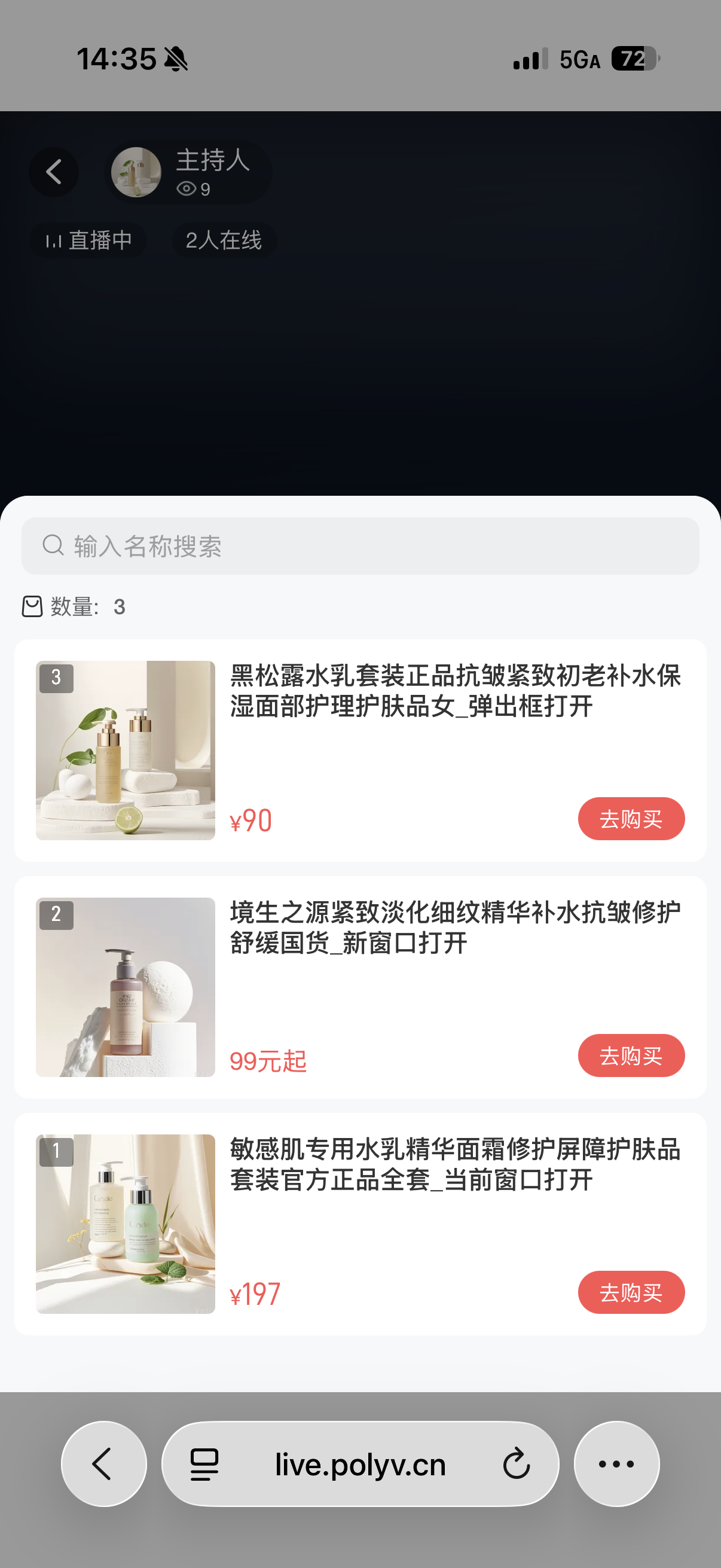
- View product list: Click the product entry to lock swiping.
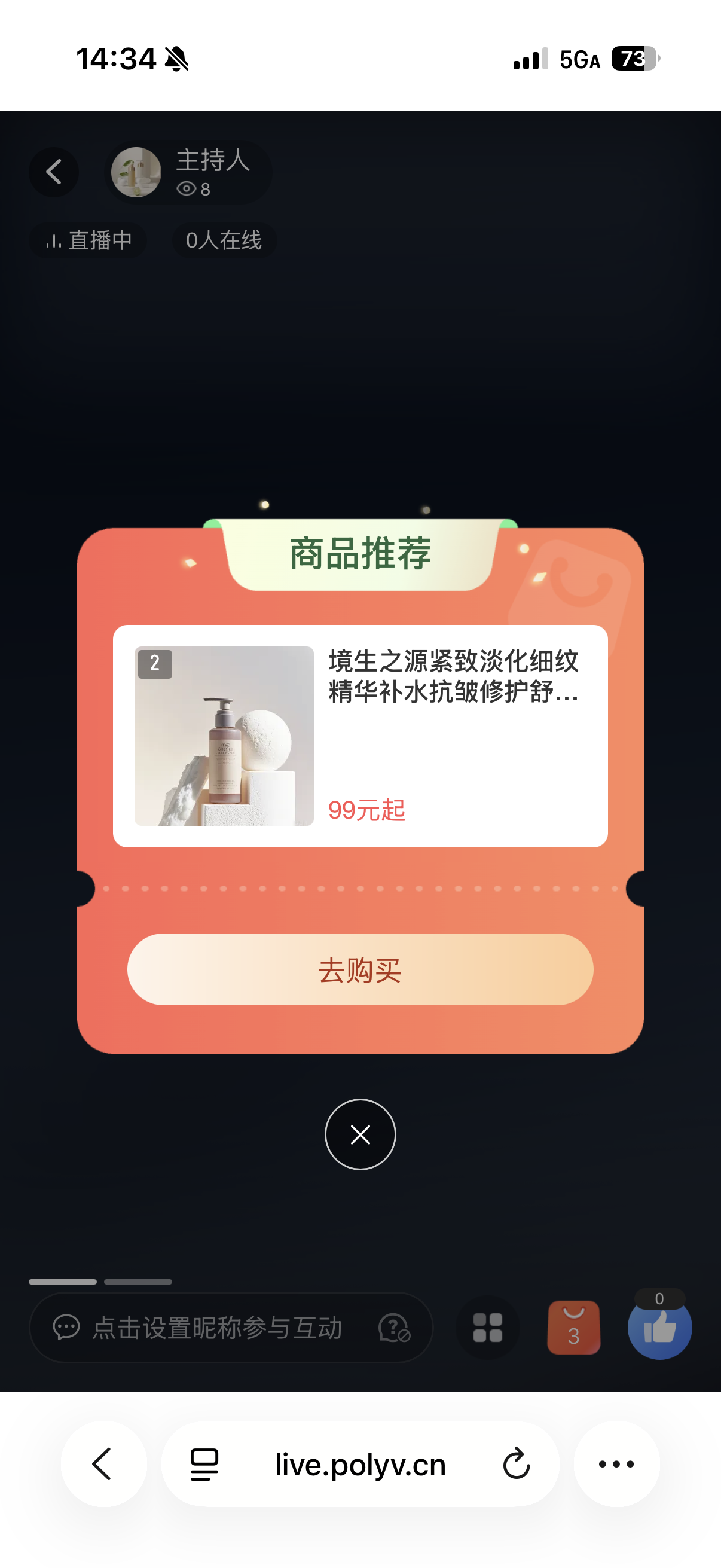
- Large card push: Pops up in the center of the screen and locks swiping.
- Small card push: Displayed in the corner and allows swiping.
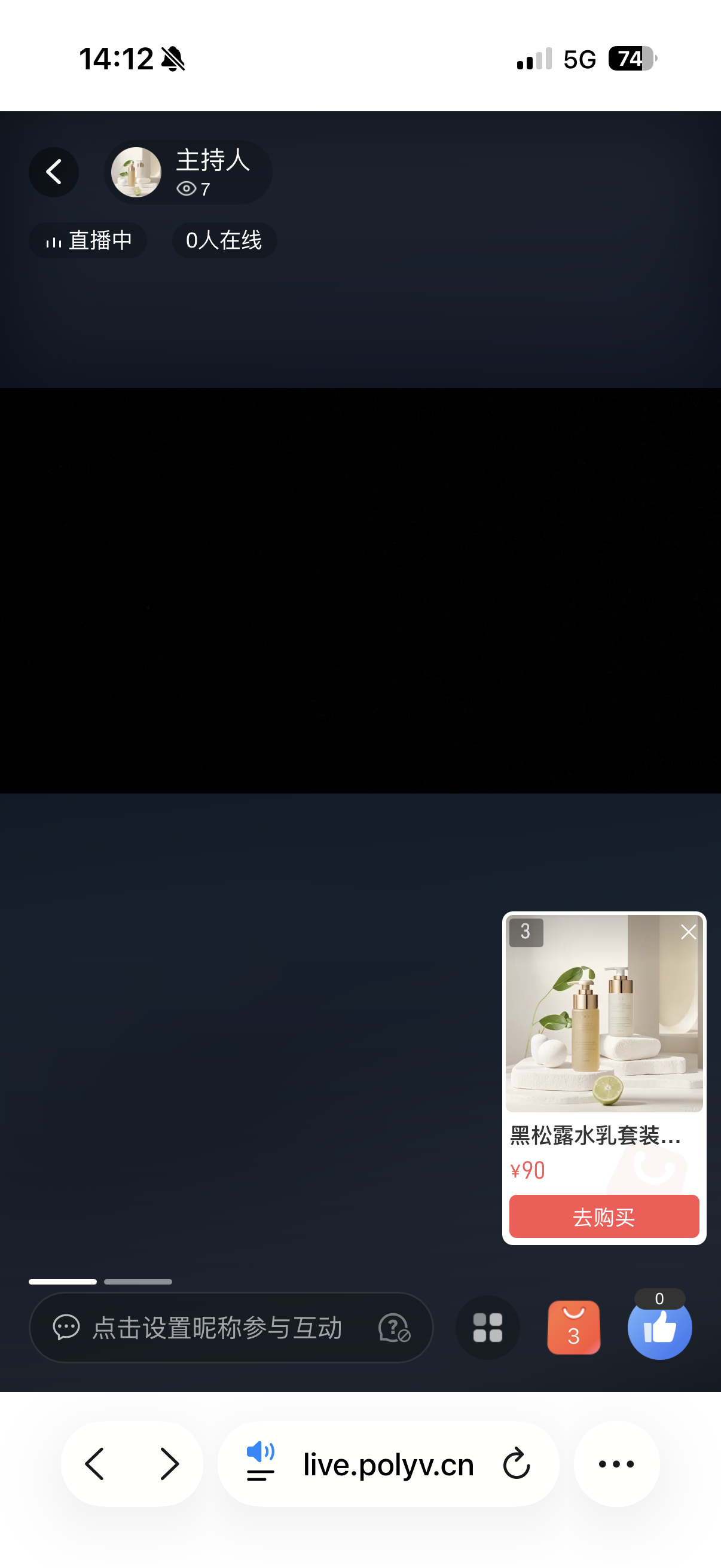
Mutual exclusion logic: A new push covers the old push. Large cards have the highest priority and cover the product list when they pop up.
Jump to watch explanation: Supports entering the explanation segment from the Information Feed and maintaining the current position after returning.
8. User System and Automatic Filtering
Guest mode: Viewers who are not logged in can swipe to browse content that is publicly viewable.
Content filtering: Live streams with viewing conditions set, WeChat authorization required, or a guide page enabled will not enter the Information Feed.
IV. Notes
1. Configuration Best Practices
ꔷ Enable the user system: The Information Feed feature requires the user system to be enabled to ensure normal access logic.
ꔷ Low-barrier viewing: It is recommended that channels added to the Information Feed be set to "Public Viewing", with registration disabled and the guide page turned off, to provide a more continuous swipe-viewing experience.
ꔷ Content conditions: Videos and image-text content must meet the review and publishing conditions of the Material Library; after being taken down or deleted, they are no longer displayed. Live streams support preview notice, live, and replay content.
ꔷ Live selection: Live streams with viewing conditions set, WeChat authorization required, or a guide page enabled will not enter the Information Feed; when manually associating, series live channels cannot be selected. When a selected live stream later becomes unavailable for viewing, the corresponding content becomes invalid.
ꔷ Publishing configuration: After adjusting push content or the association method, the page must be republished for the changes to take effect for viewers.
2. Interaction and Sharing Rules
ꔷ Like limit: Within the validity period of the same access cache, the same viewer can like the same video only once; after the cache expires or is cleared, viewers can like the same video again when they visit it again.
ꔷ Cancel like: After viewers cancel a like, the like count decreases accordingly, and the like button returns to the unliked state.
ꔷ Video sharing scope: Video sharing in the preview layer reuses the sharing settings of videos in the Material Library and does not add Information Feed-level video sharing copy configuration.
ꔷ In-WeChat sharing fallback: Sharing within WeChat preferentially configures the share title, description, image, and link through JS-SDK; when no service account is bound or JS-SDK execution fails, the OG protocol is used as a fallback. When using the OG fallback, custom titles are not guaranteed to take effect, and custom descriptions and images are subject to actual display.
3. Permissions and Access Logic
ꔷ Viewing conditions: Channels with viewing conditions set, WeChat authorization required, or a guide page enabled will not enter the Information Feed.
ꔷ Guest mode: Guests can only browse and enter publicly viewable content.
ꔷ Sharing exception fallback: When the shared content has no permission, has been taken down, has had its tag removed, or cannot be played, the page falls back to the first accessible content in the current Information Feed.
4. Effective Buffer Time
ꔷ New content: After adding tags and publishing, new live or video content requires approximately 5-10 minutes of buffer time before it can be browsed.
ꔷ Tag changes: Adding tag associations takes effect approximately 5-10 minutes after publishing; deleting tag associations takes effect approximately 2 hours after publishing and will not be removed from the Information Feed immediately, so please plan ahead.
