Playback List
Updated: 2026-08-17 11:27:00
I. Feature Overview
Feature Info |
Description |
|---|---|
| Feature Name | Playback List |
| Feature Description | The playback list allows administrators to add selected live stream replay videos to the "Playback List" and play them back on the live room viewing page. Administrators can freely choose and manage playback content based on needs, ensuring viewers can conveniently and precisely watch important or highlight live replays. |
| Purpose | Improve live content utilization and extend its lifecycle Enhance user experience: Users can enter the live room anytime to watch live replays, increasing user satisfaction. |
| Use Case | General live streaming scenarios |
| Operation Path | 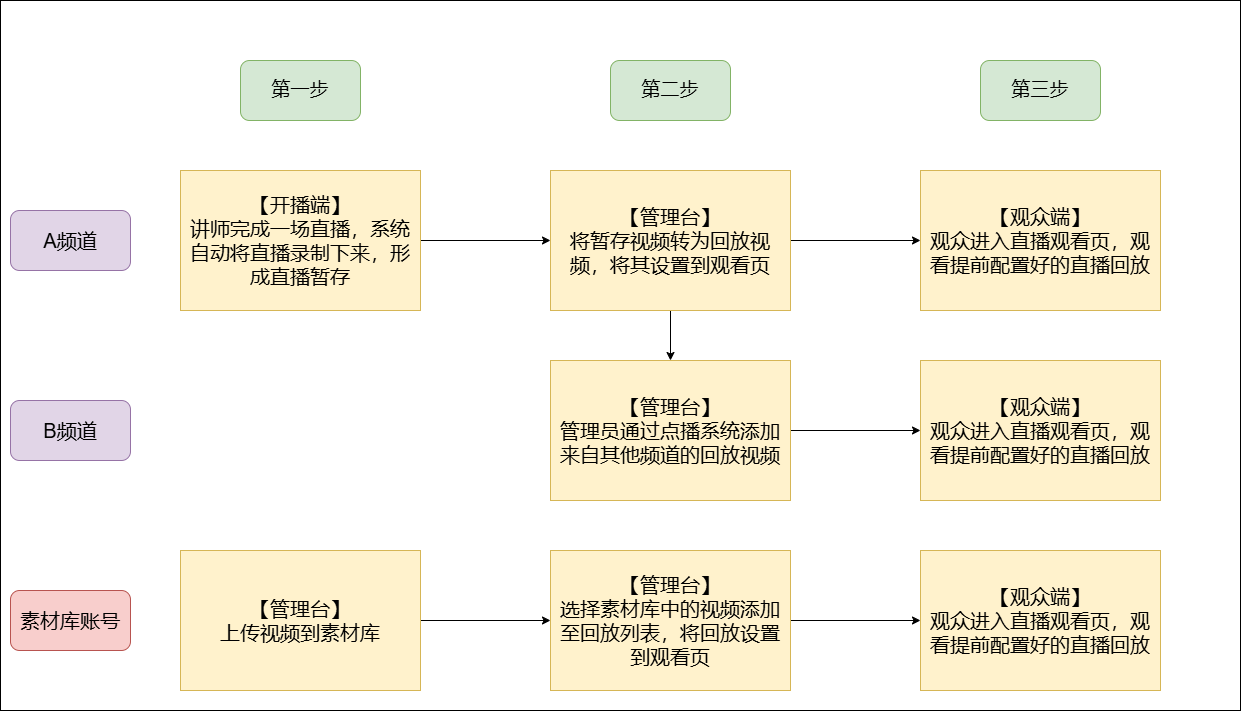 |
II. Usage Instructions
Videos in the playback list come from three sources: "Converted from the channel's temporary video list", "Added from other channels' live replays via the on-demand system", and "Added from the material library" (account must have the material library feature enabled).
Convert from the Channel's Temporary Video List
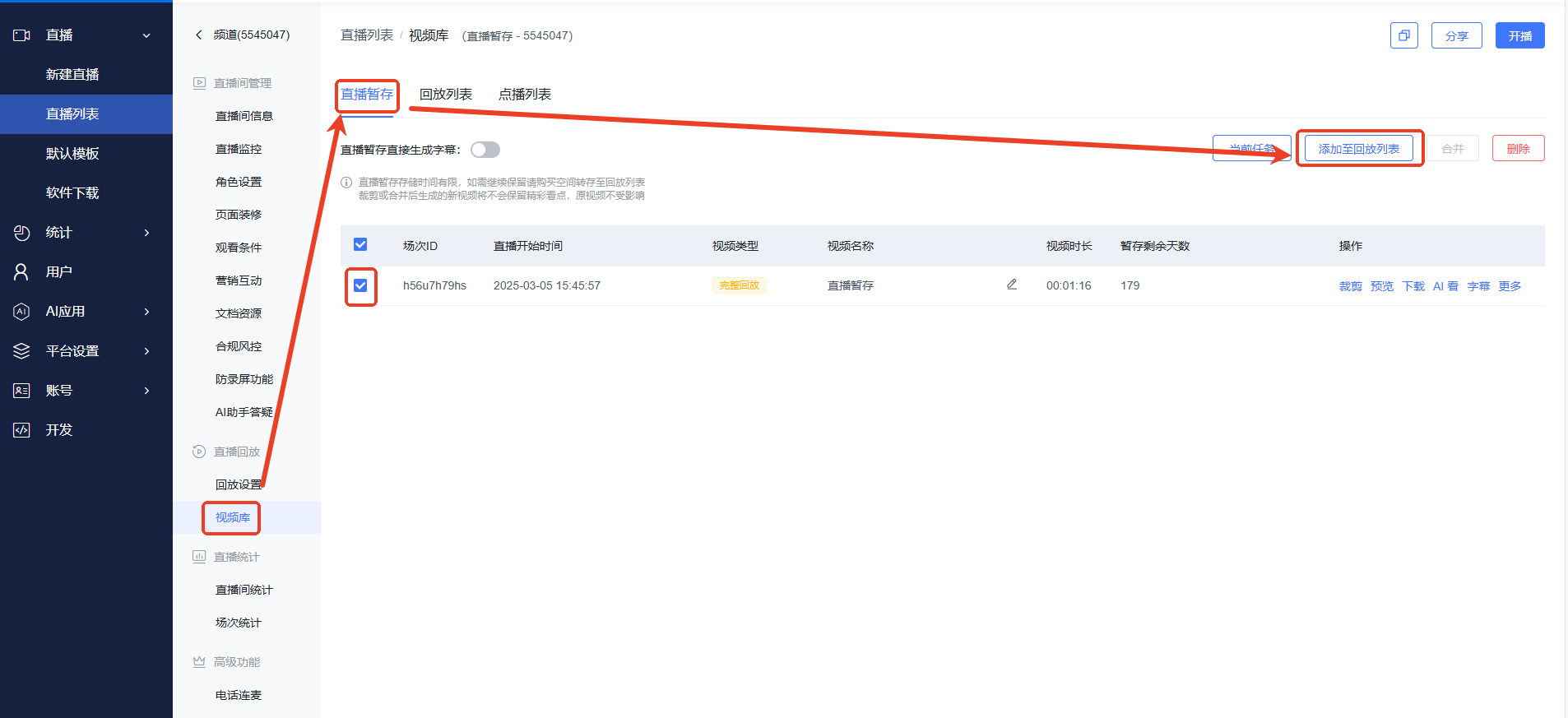
- Enter the live room backend, go to Video Library > Live Temporary. On this page, select the temporary videos you want to convert to replay videos, then click "Add to Playback List". Wait a moment, and the converted videos will appear in the playback list.
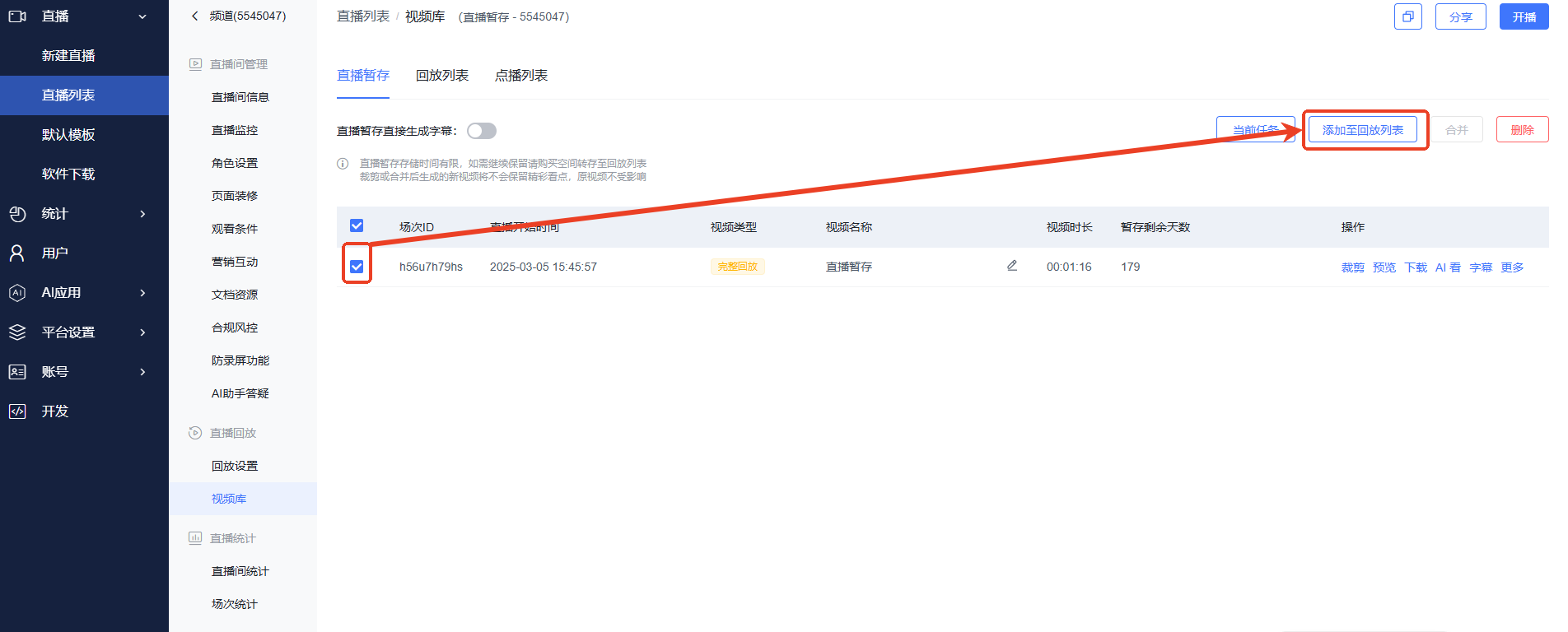
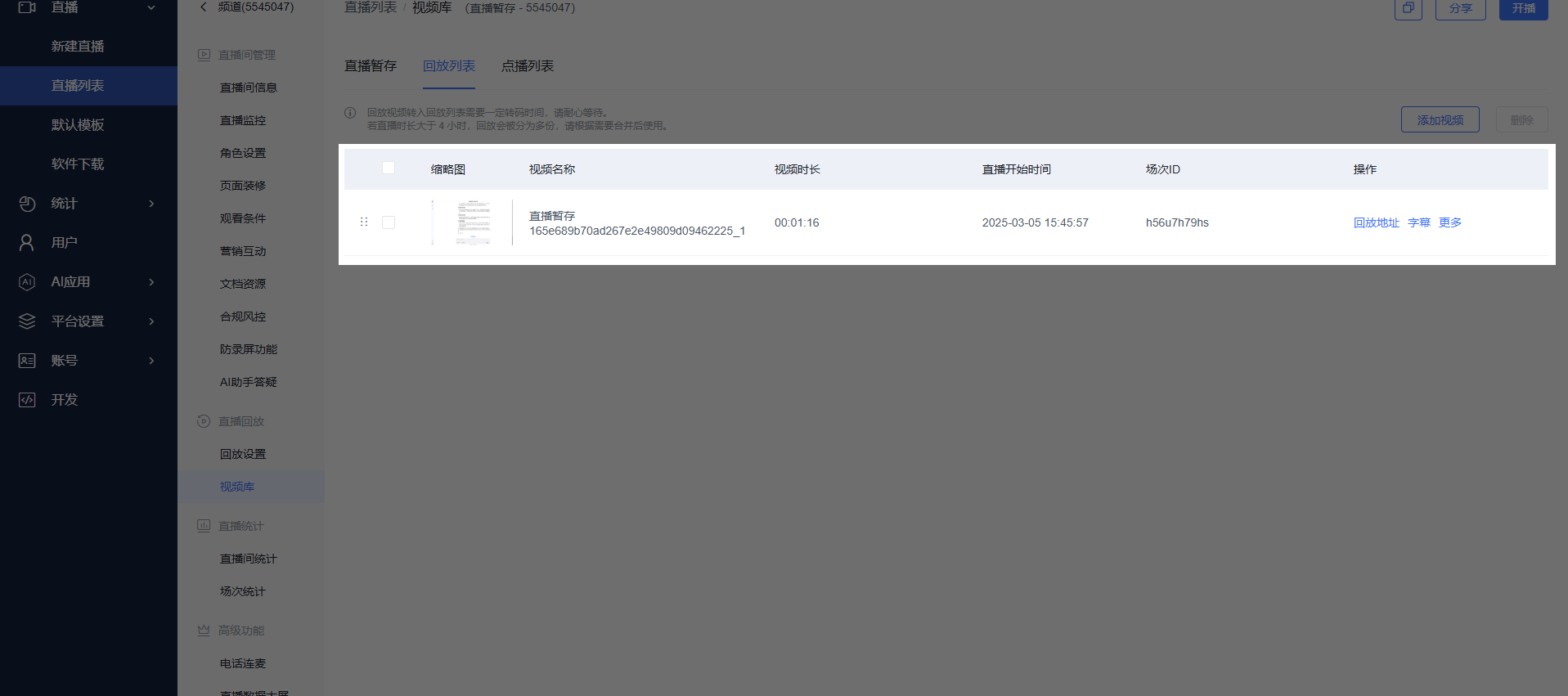
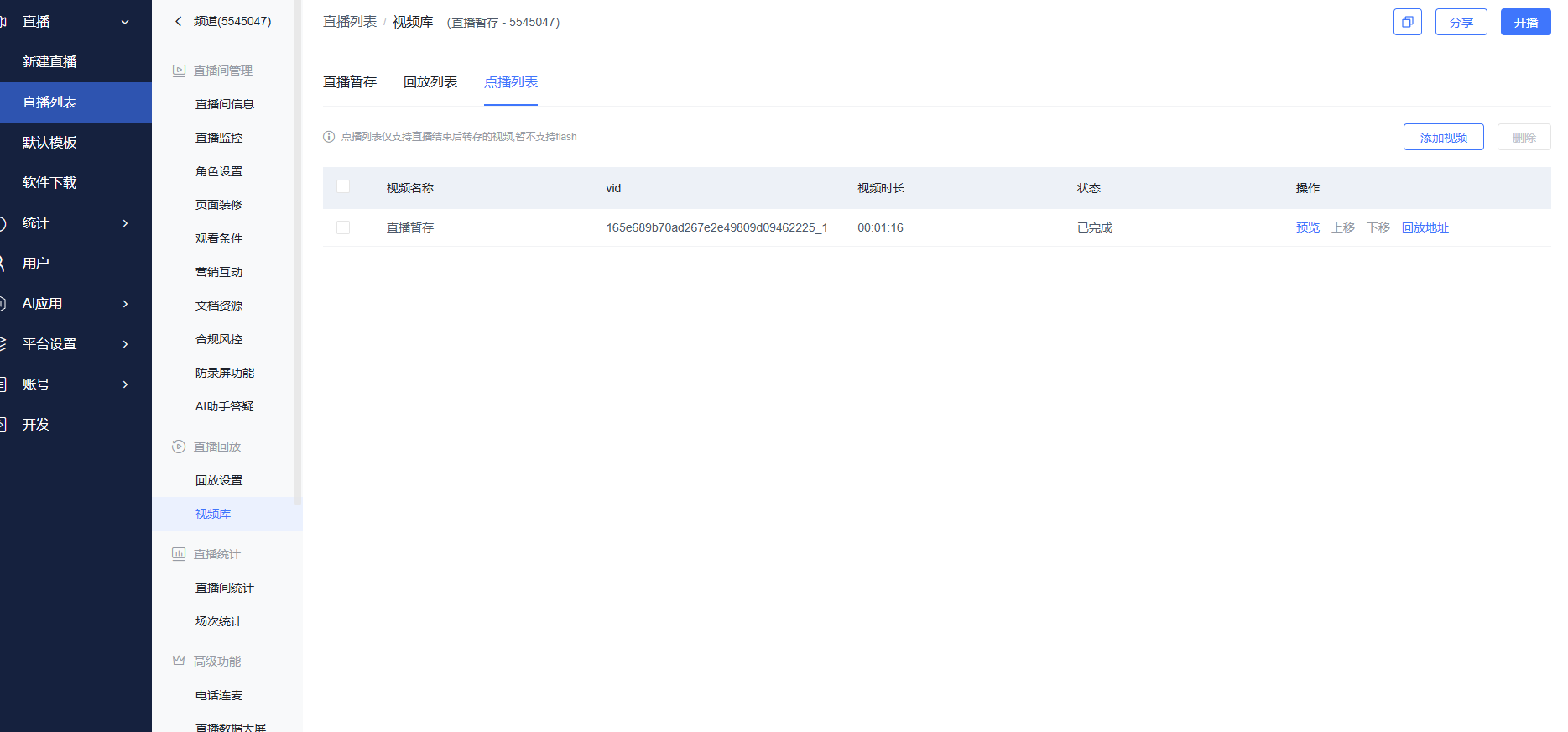
- During this process, the system will also simultaneously add the temporary video to the on-demand list (the video will then exist in the account's on-demand system).
Add Live Replays from Other Channels via the On-Demand System
- First, enter Channel A and convert the temporary videos in its video library to replay videos.
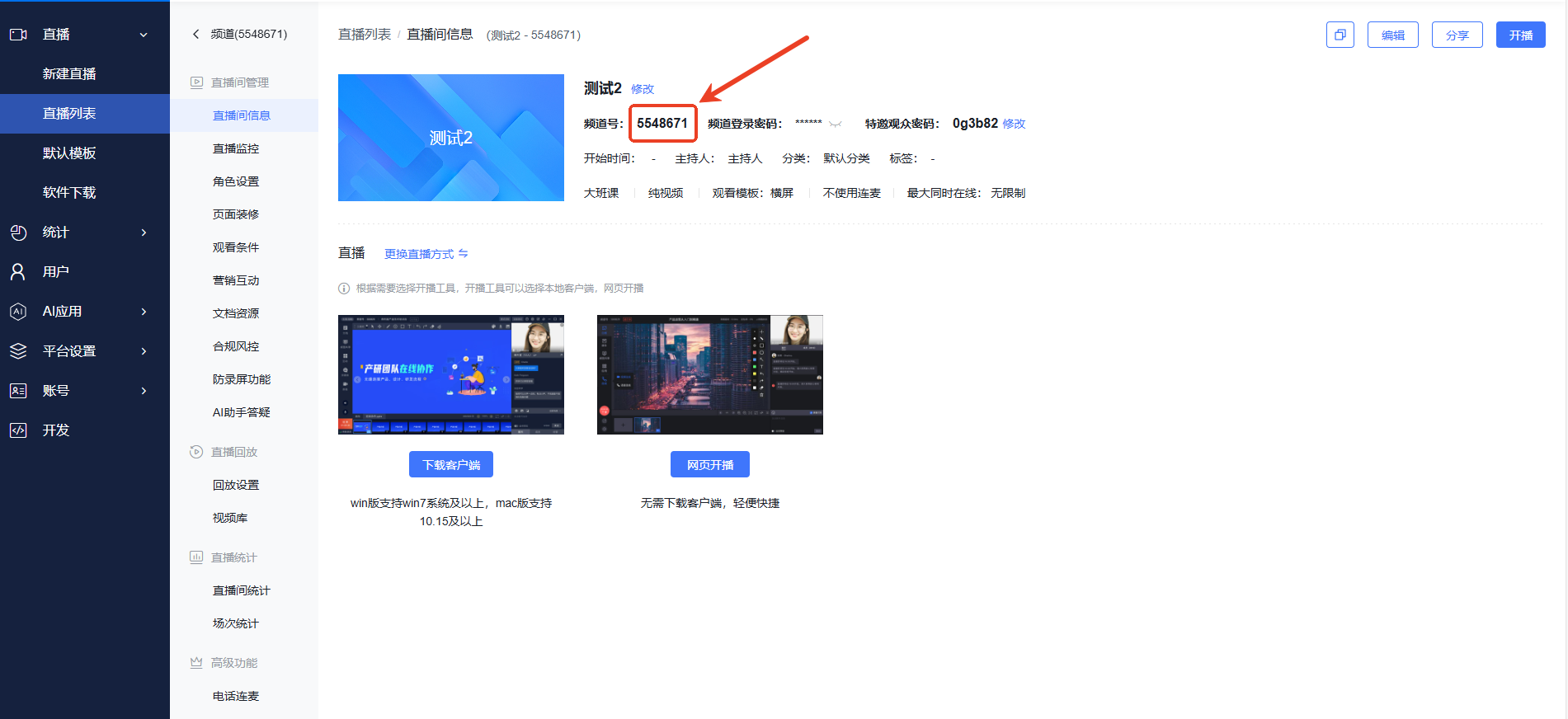
- Enter the live backend of Channel B and note down Channel B's channel ID.
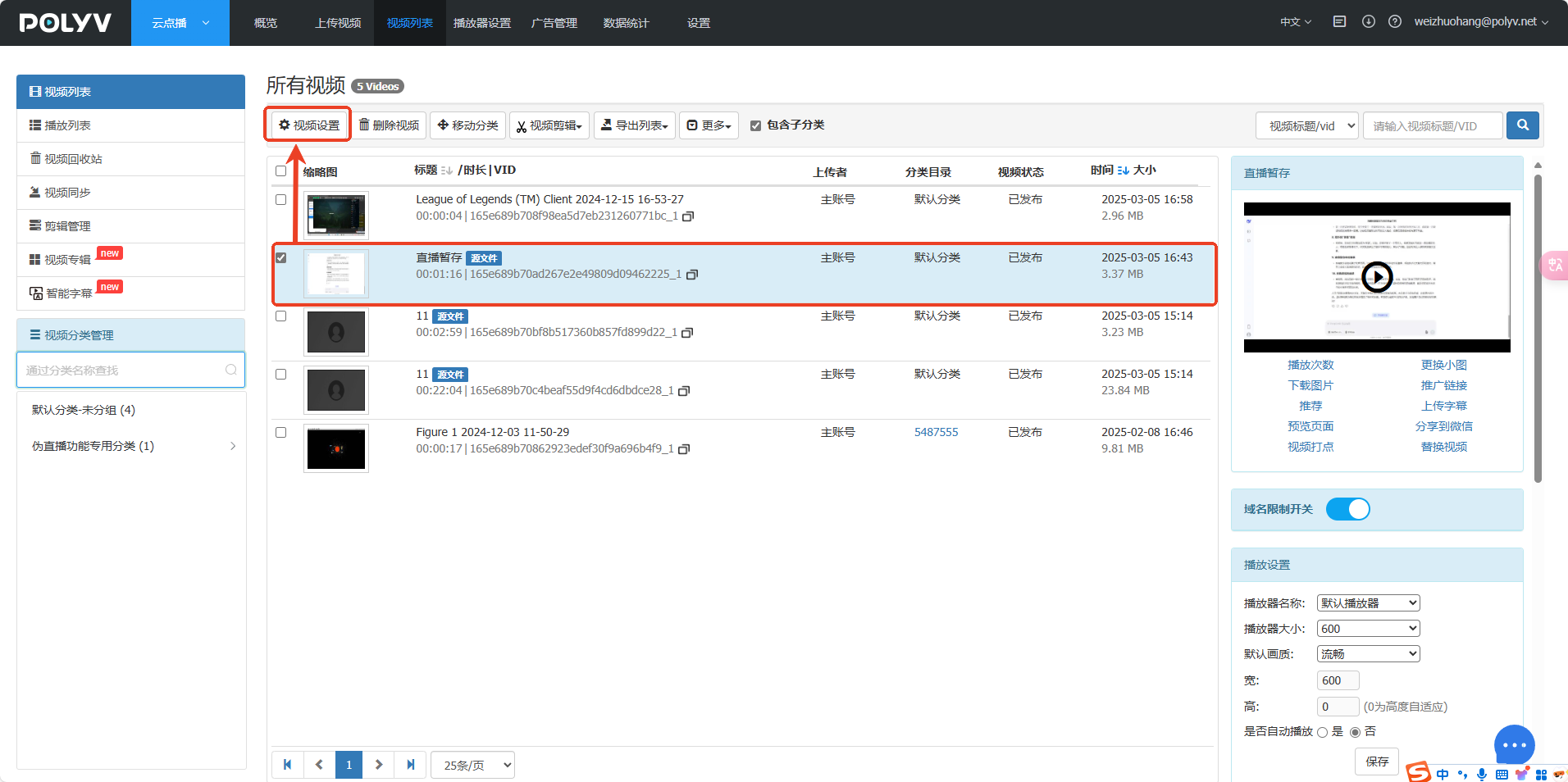
- Enter the on-demand system, select the Channel A replay videos you want to add to Channel B, and click Video Settings (replay videos usually have a "Source File" tag; videos without tags are mostly manually uploaded to the on-demand center and do not support being added to the playback list).
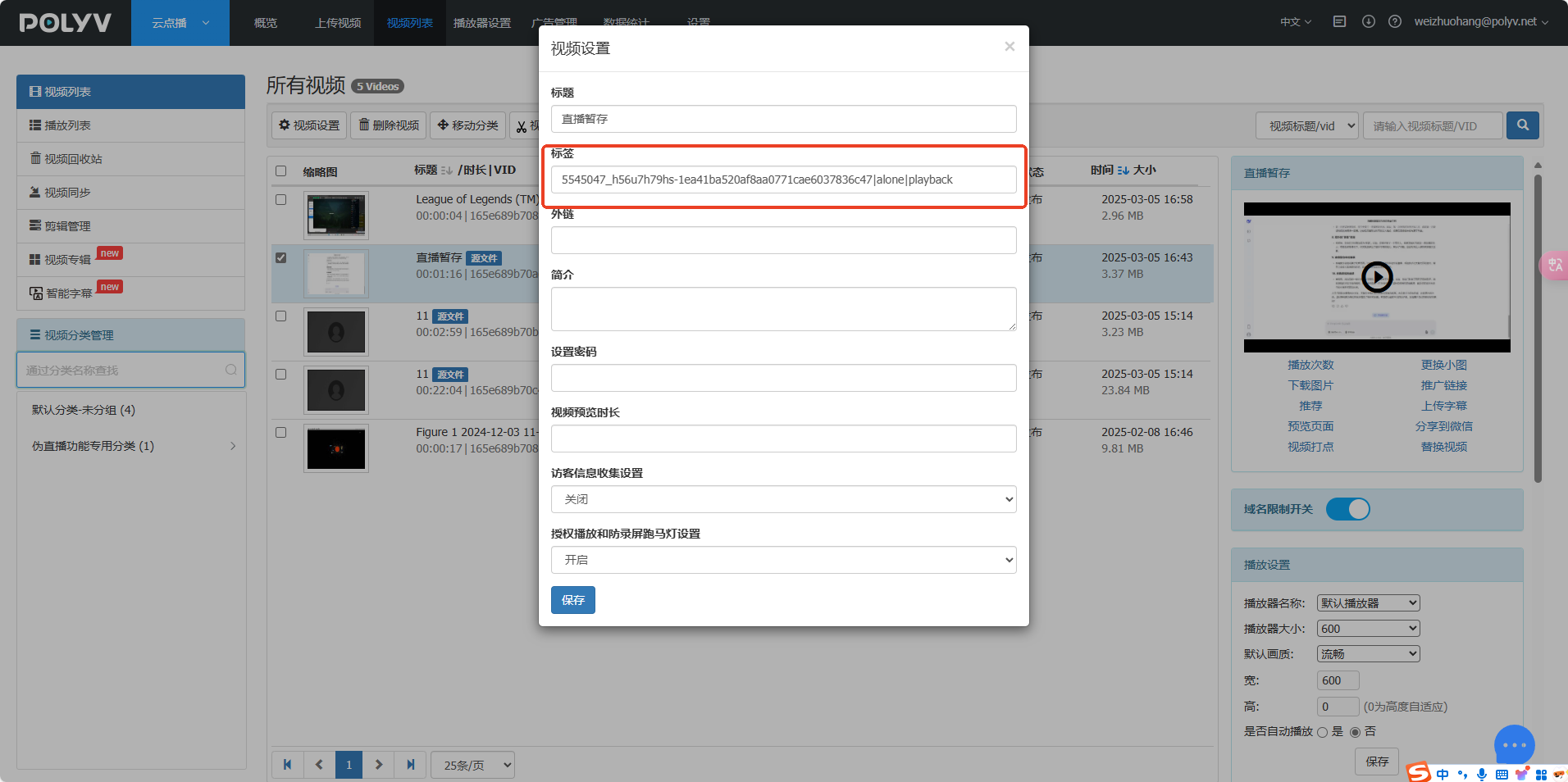
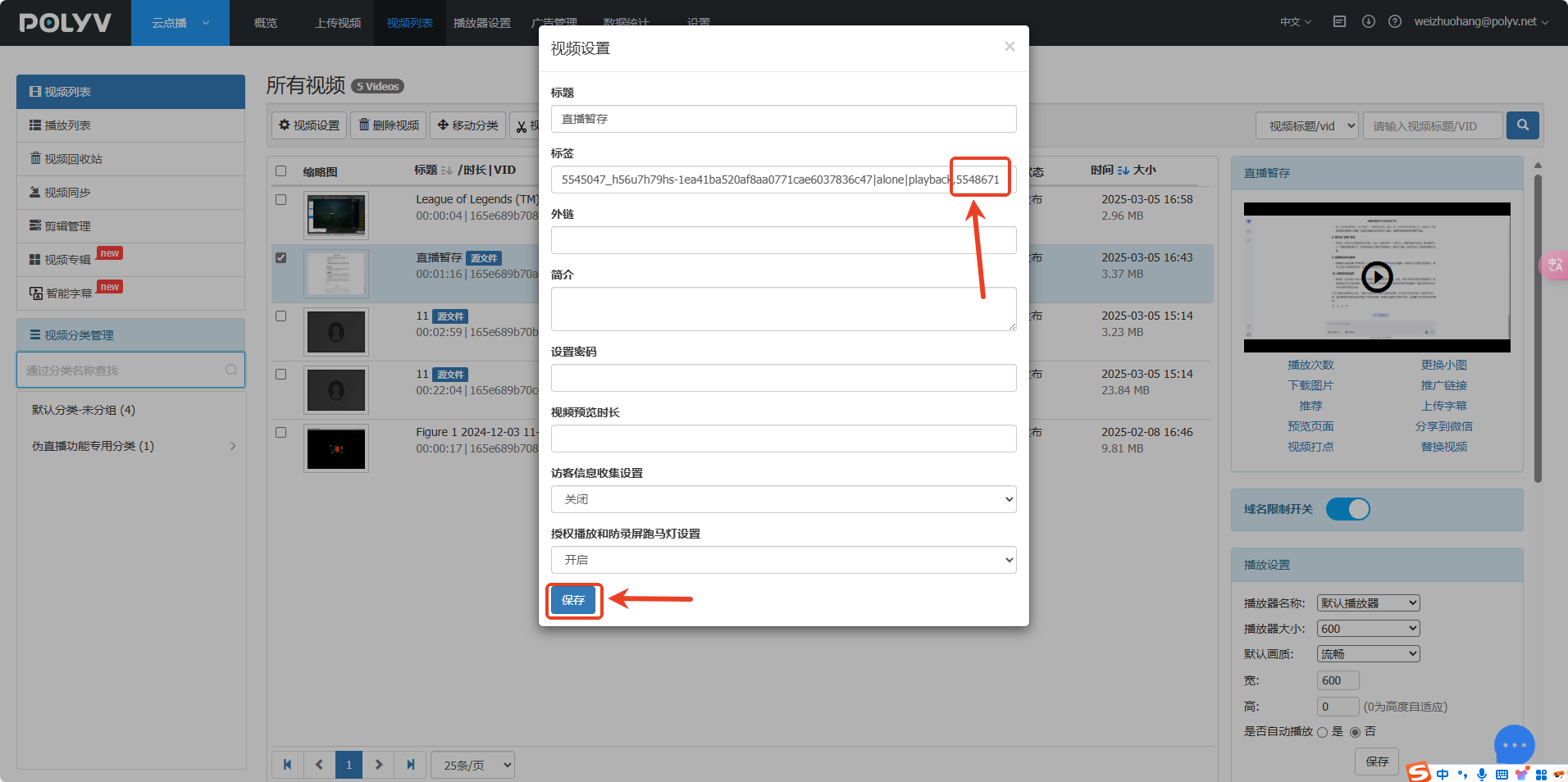
- After the video settings popup appears, add Channel B's channel ID to the video tags, separated by commas. Click Save when done.
- Enter Channel B's live backend, go to Video Library > Playback List > Add Video. You will now see Channel A's live replays. Select them and add.
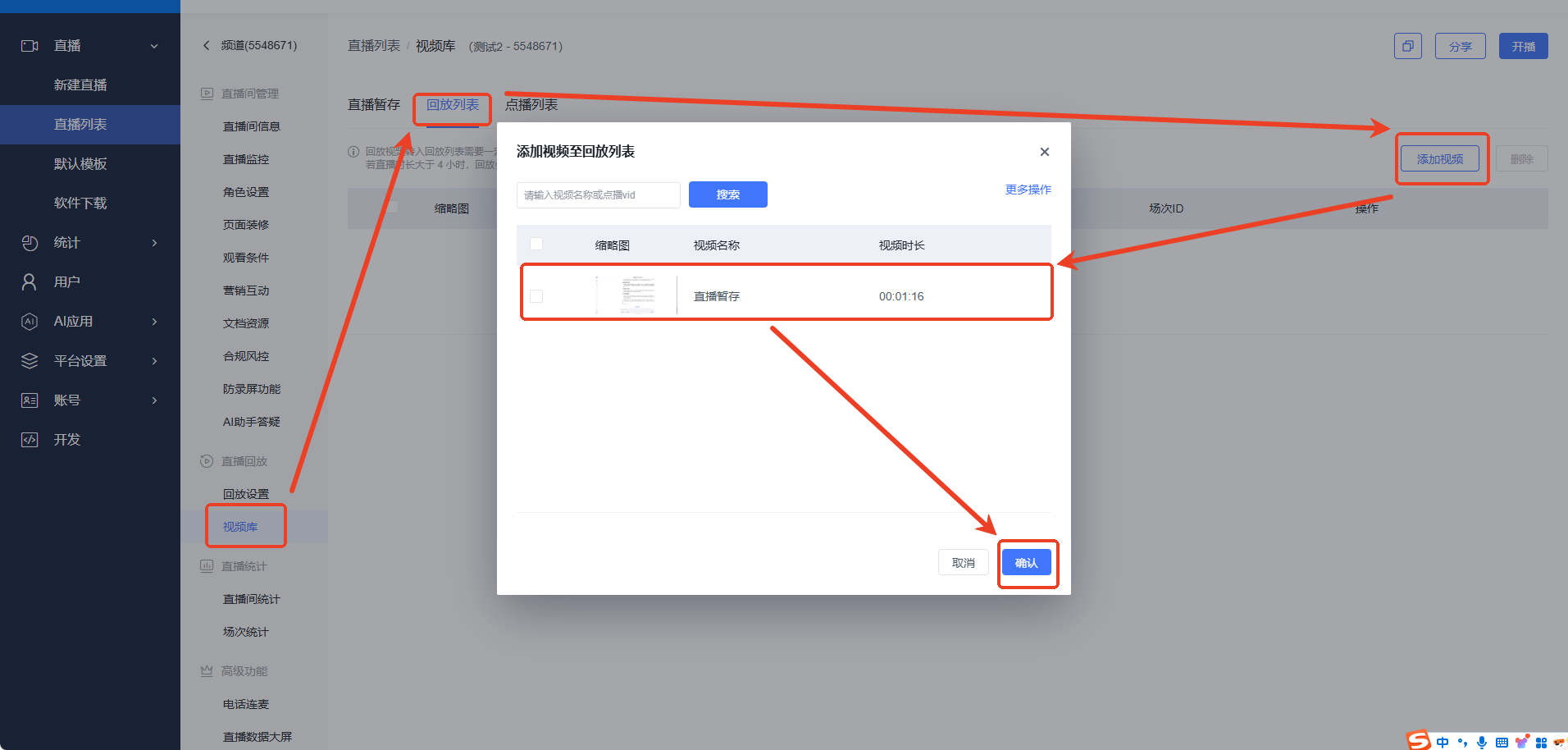
- Successfully added Channel A's live replays to Channel B via the on-demand system.
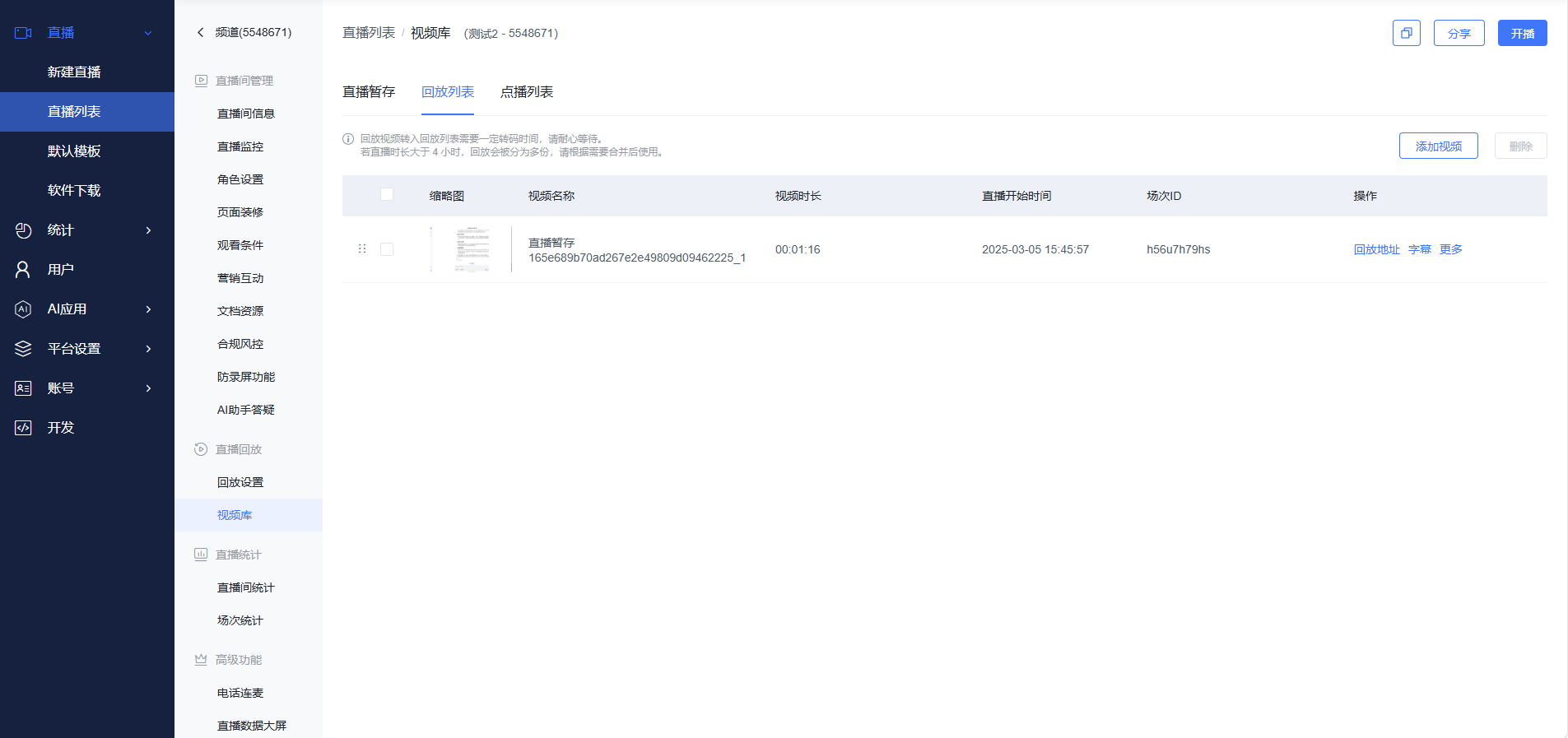
Add from the Material Library (Account must have the material library feature enabled)
- Log in to the material library account, enter the live backend, go to the Live Replay module, and enter the Playback List (accounts with the material library feature enabled have a different directory structure here, showing only the playback list).
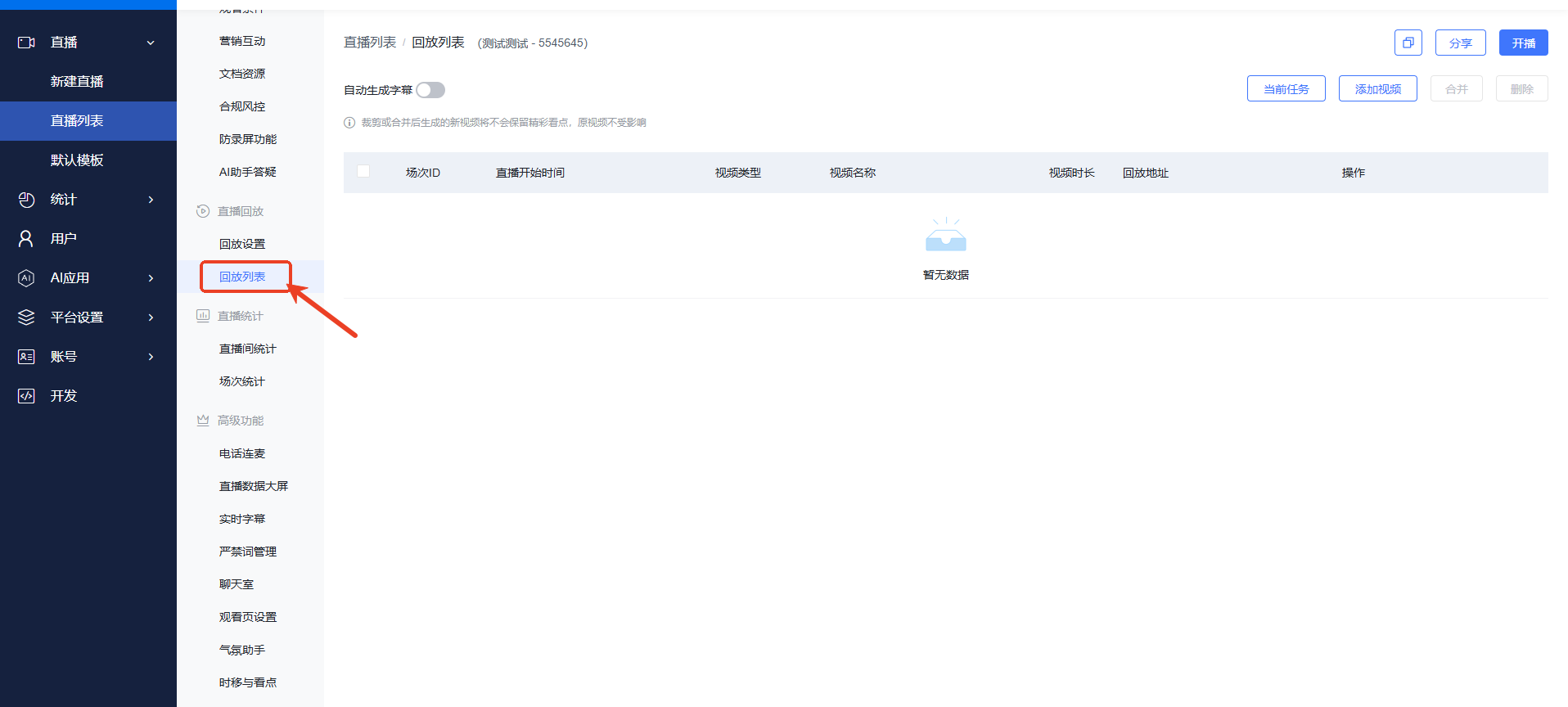
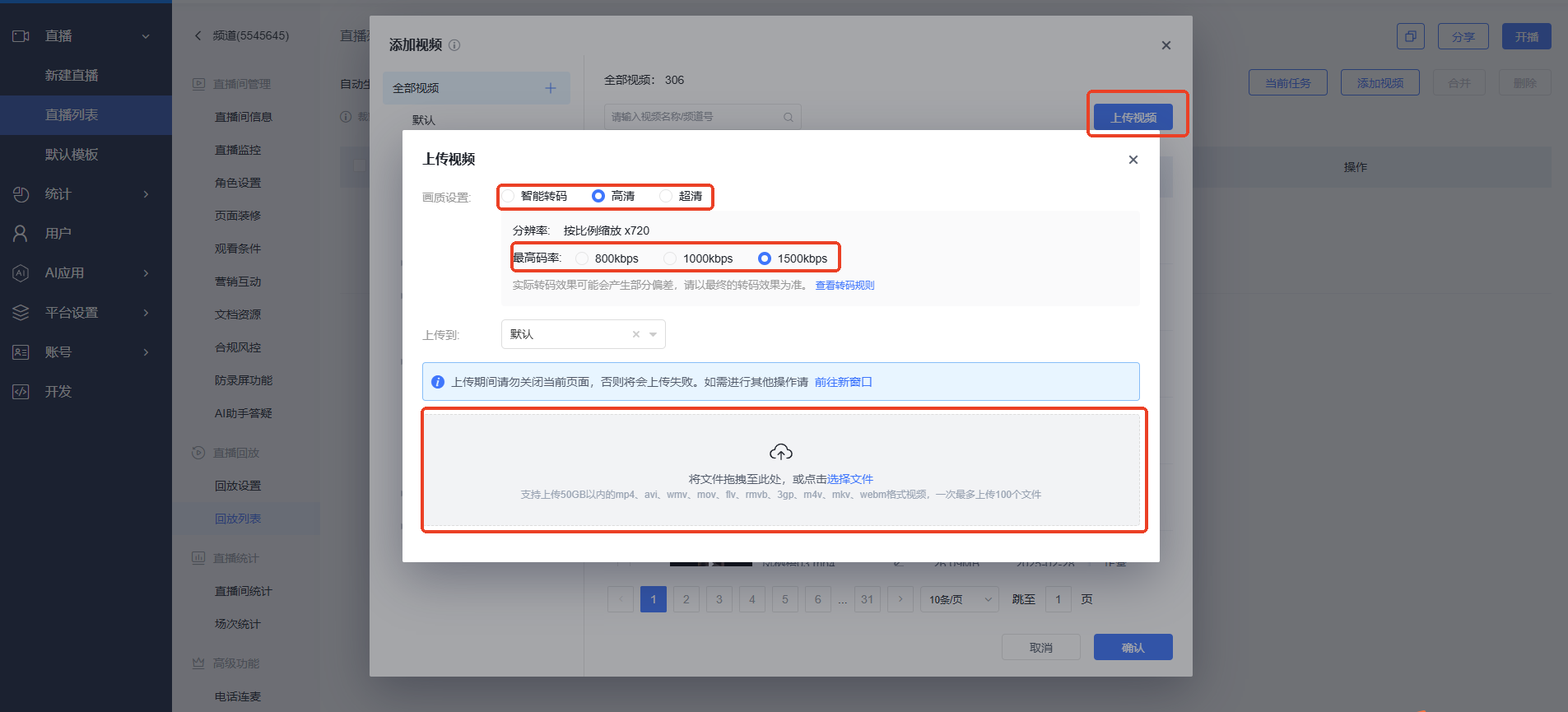
- Click the "Add Video" button.
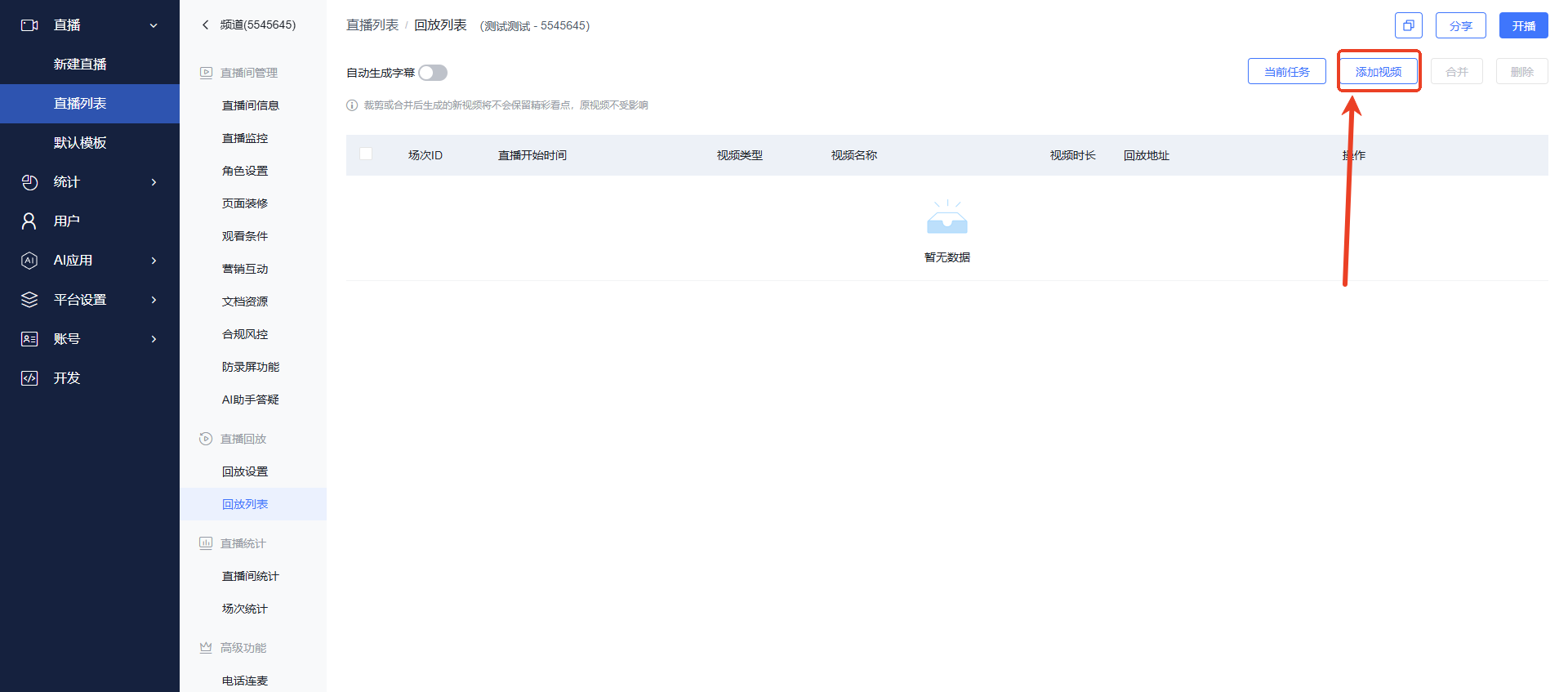
- This will display videos pre-uploaded to the material library. You can directly select videos to add to the playback list.
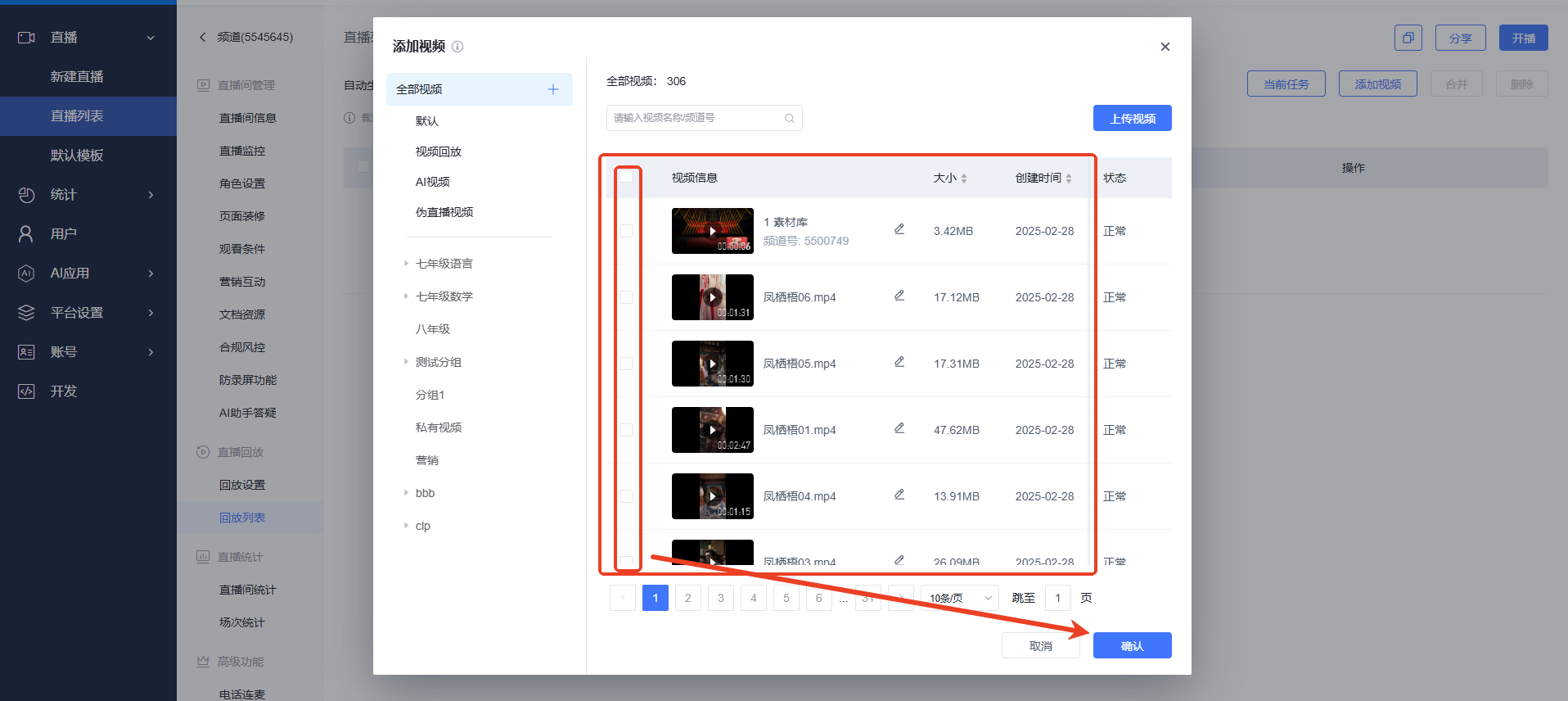
- Click "Upload Video" to instantly upload local video files to the material library.
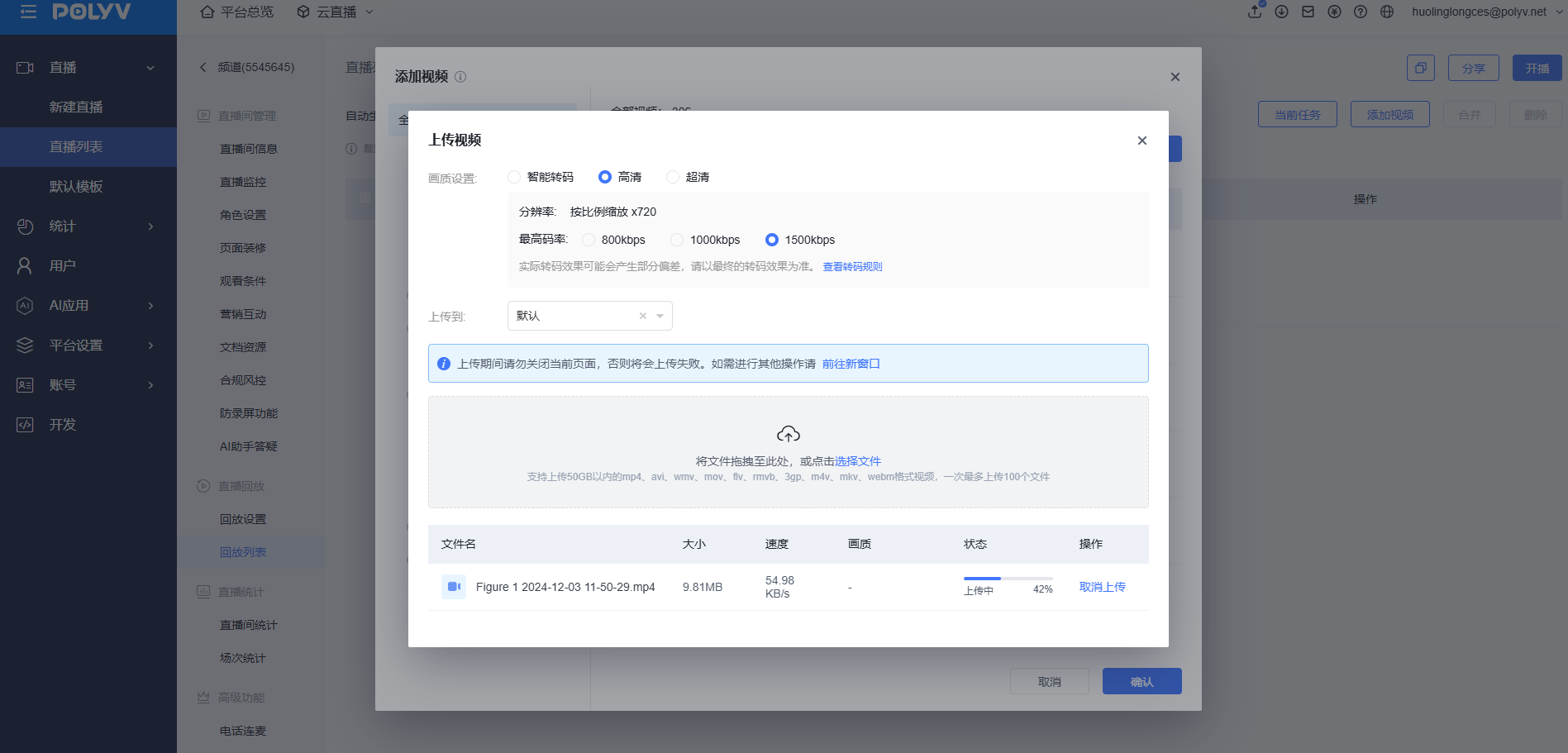
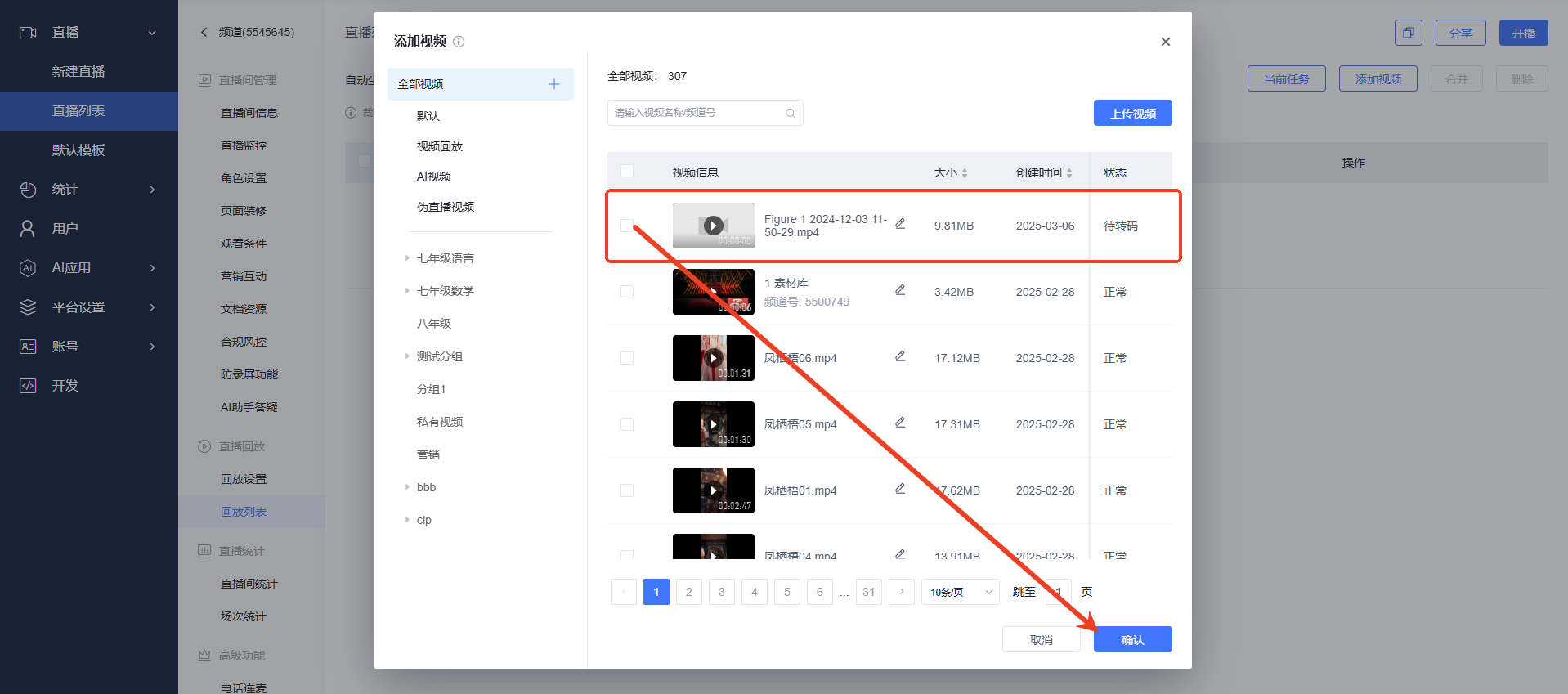
- Add the newly uploaded video to the playback list.
Playback Settings
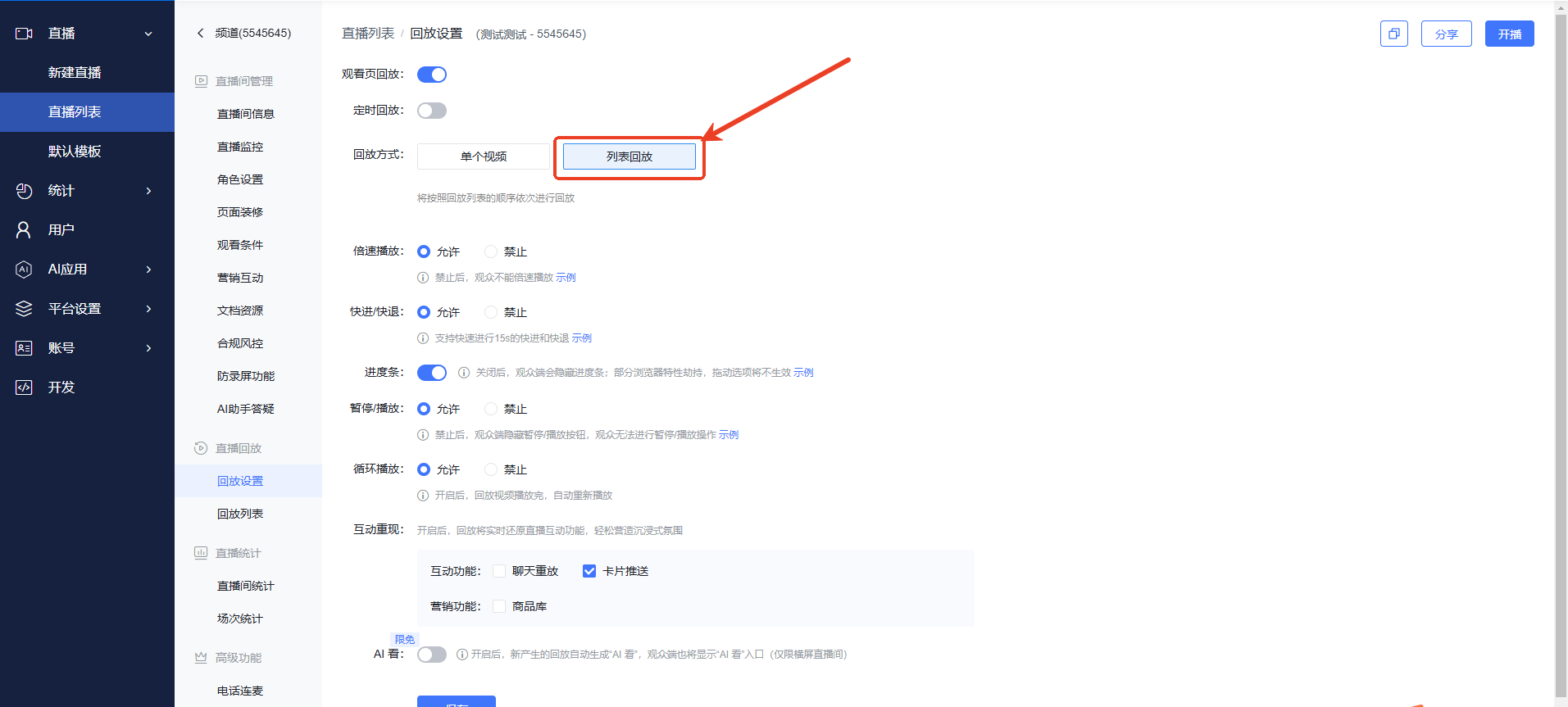
- Enter Playback Settings, enable "Viewing Page Replay", and select "Single Video" as the playback mode. You can then choose to play the latest video in the playback list or a specific video from the list.
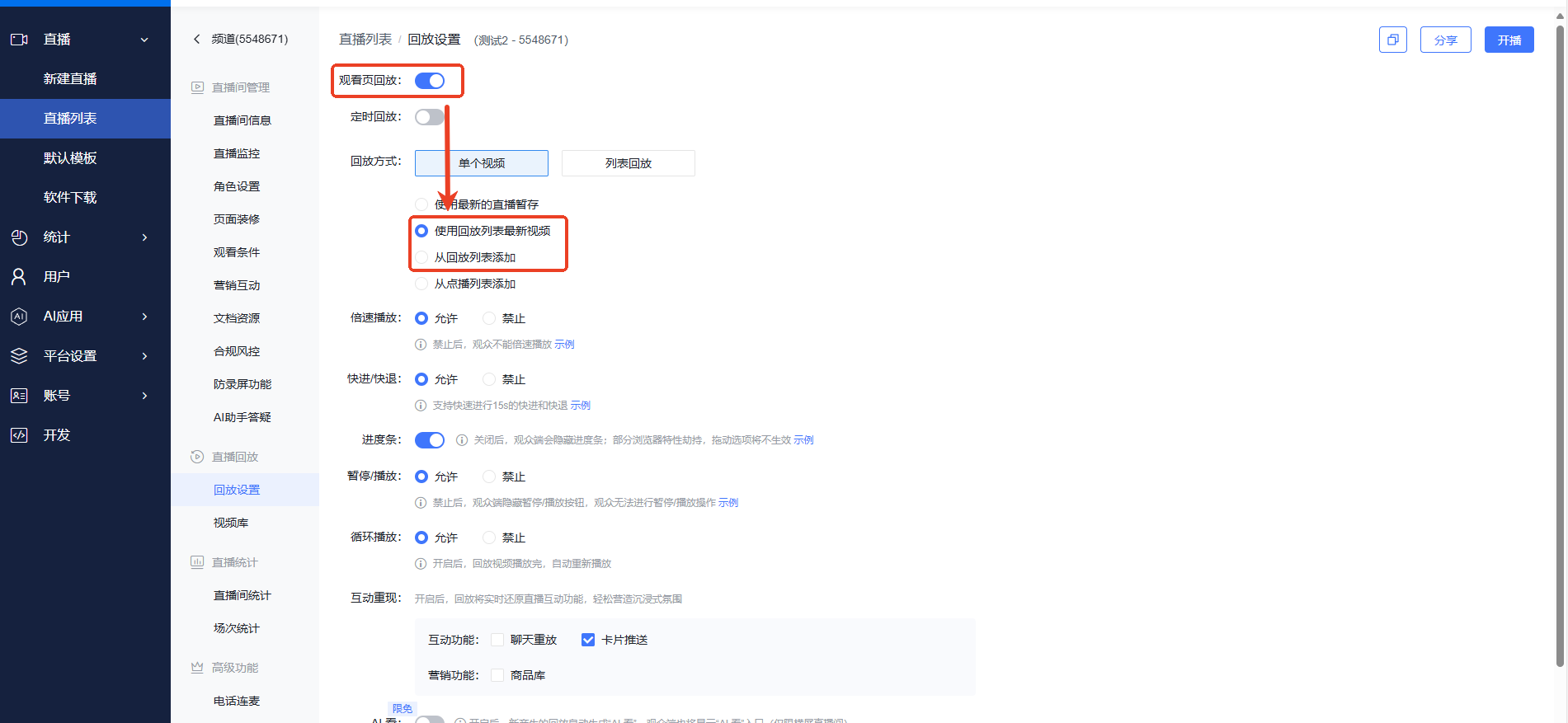
- Selecting "List Playback" will play videos in the order of the playback list. Click Save after configuration.
III. Effect Display
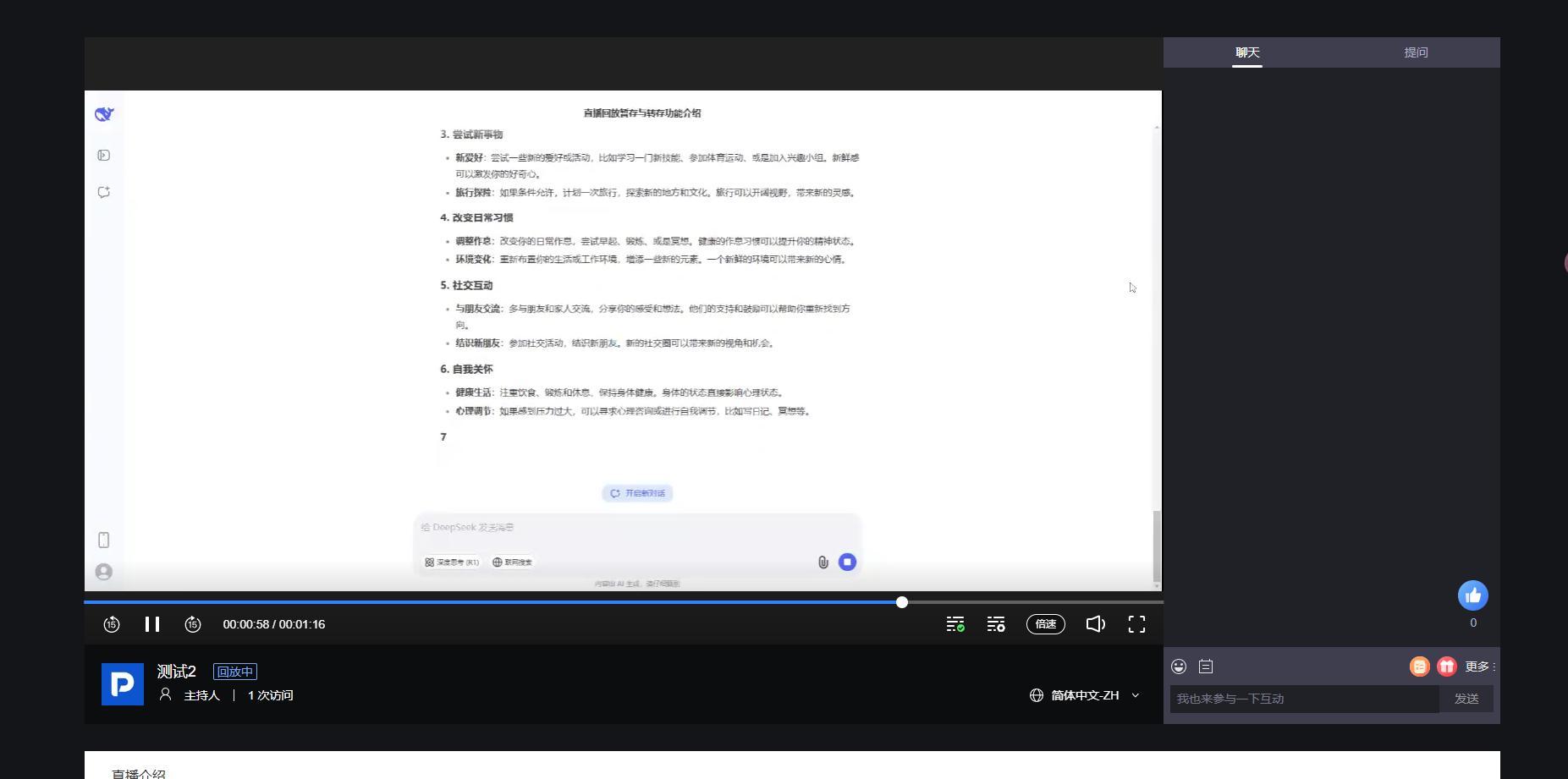
PC Web Viewer Side
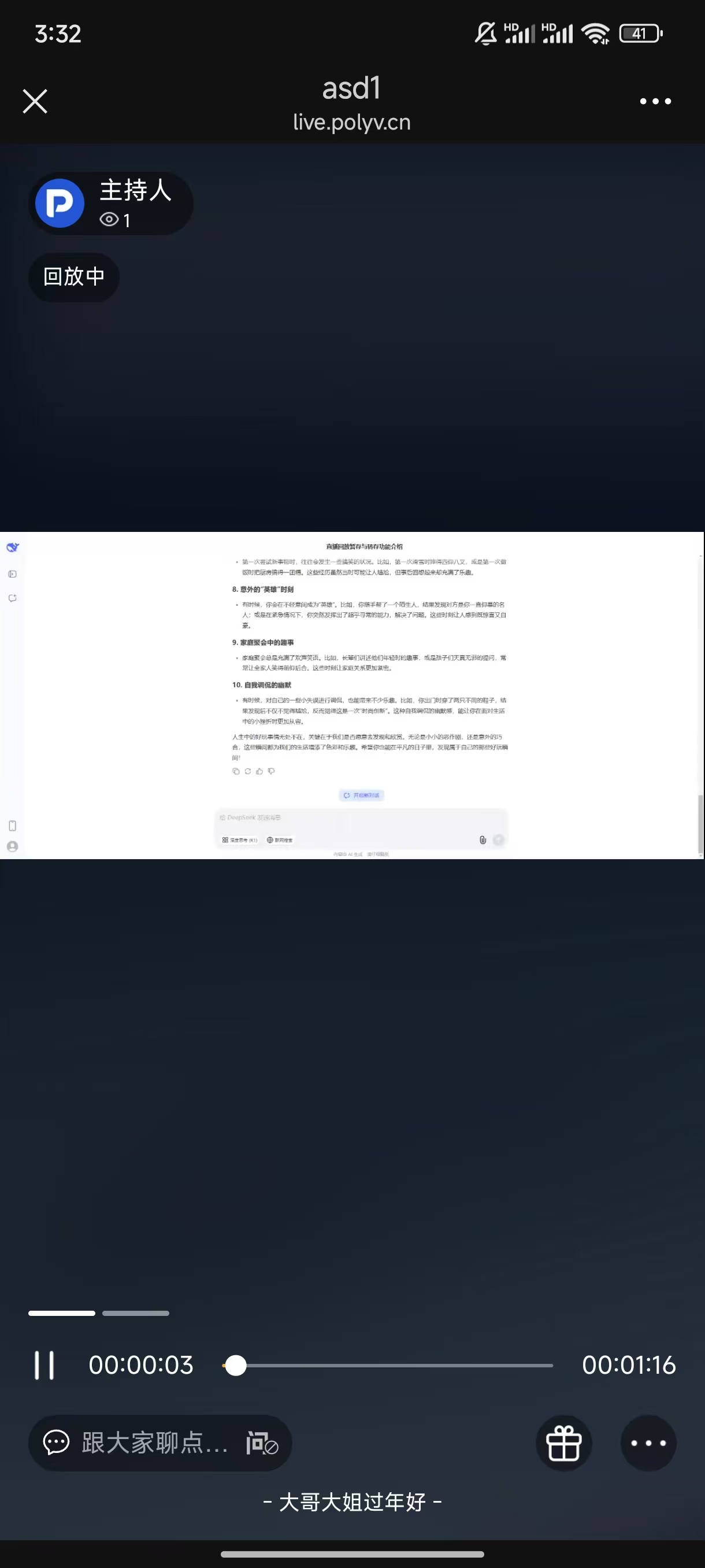
H5 Mobile Landscape
<img src="https://liveimages.videocc.net/help_doc/d9979271-3053-4650-968e-4452aed3511e.jpg"" alt="" width="50%">
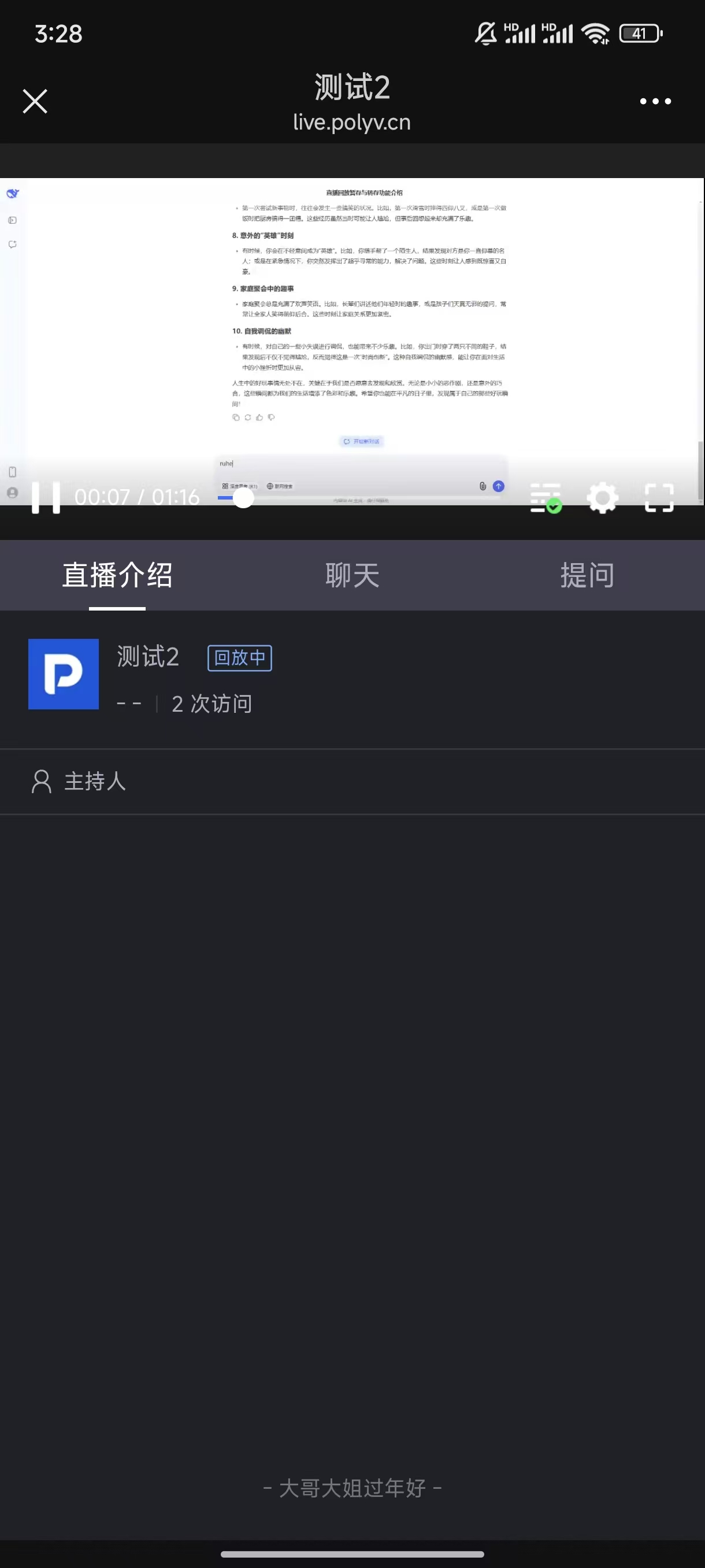
H5 Mobile Portrait
<img src="https://liveimages.videocc.net/help_doc/ae1b281b-624e-43f7-b98c-3de859b01289.jpg"" alt="" width="50%">
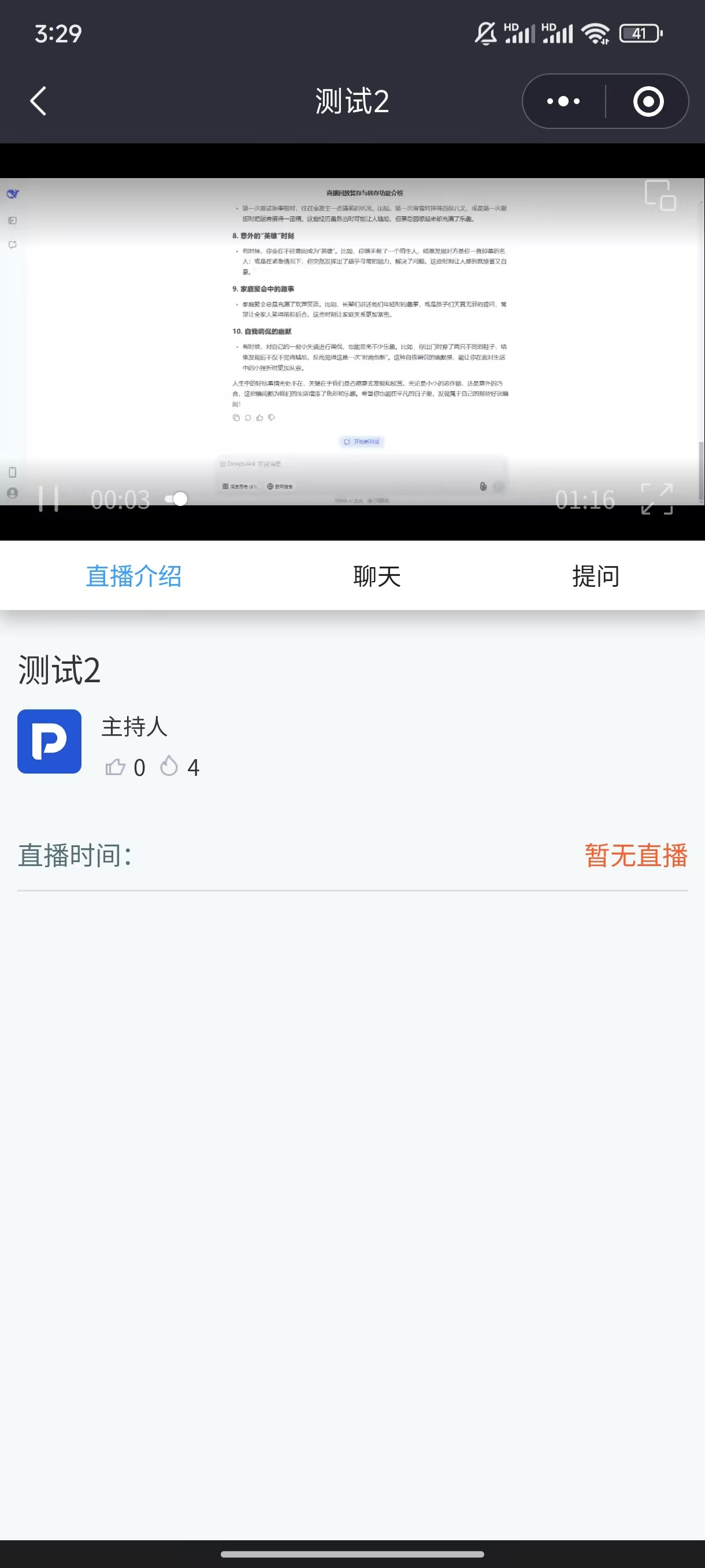
Live Learn Mini Program
VCLASS Cloud Classroom
This client currently does not support viewing replays.