


Cloud Distribution
1. Feature Overview
- After a Polyv channel goes live, the stream can be simultaneously distributed to other platforms, increasing exposure and traffic, and helping to enhance the influence and revenue of your live streaming business.
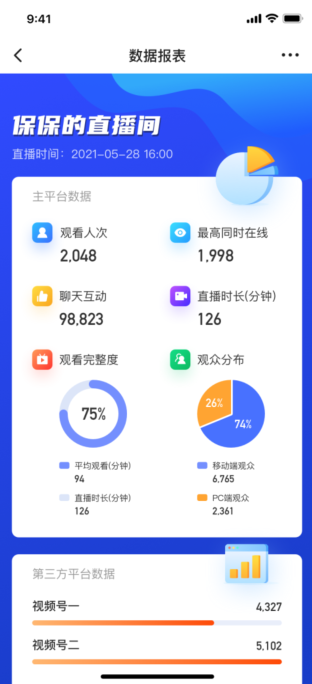
- After the live stream ends, you can share the live data report on mobile devices for secondary promotion and sharing.
- If you need to distribute to overseas platforms, please contact your account manager.
2. Operation Guide
2.1 Workflow
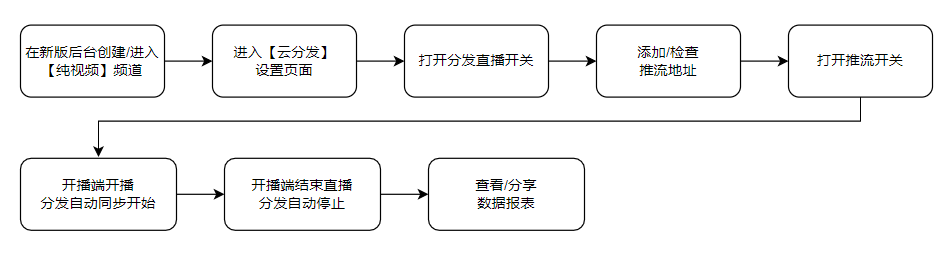
2.2 Detailed Steps
1 Create/Enter a Pure Video Channel
- Currently, cloud distribution only supports the [Pure Video] channel type in the new backend. It supports both normal latency and low latency channels. Distributing live streams to other platforms will introduce additional latency, the extent of which depends on the third-party platform.
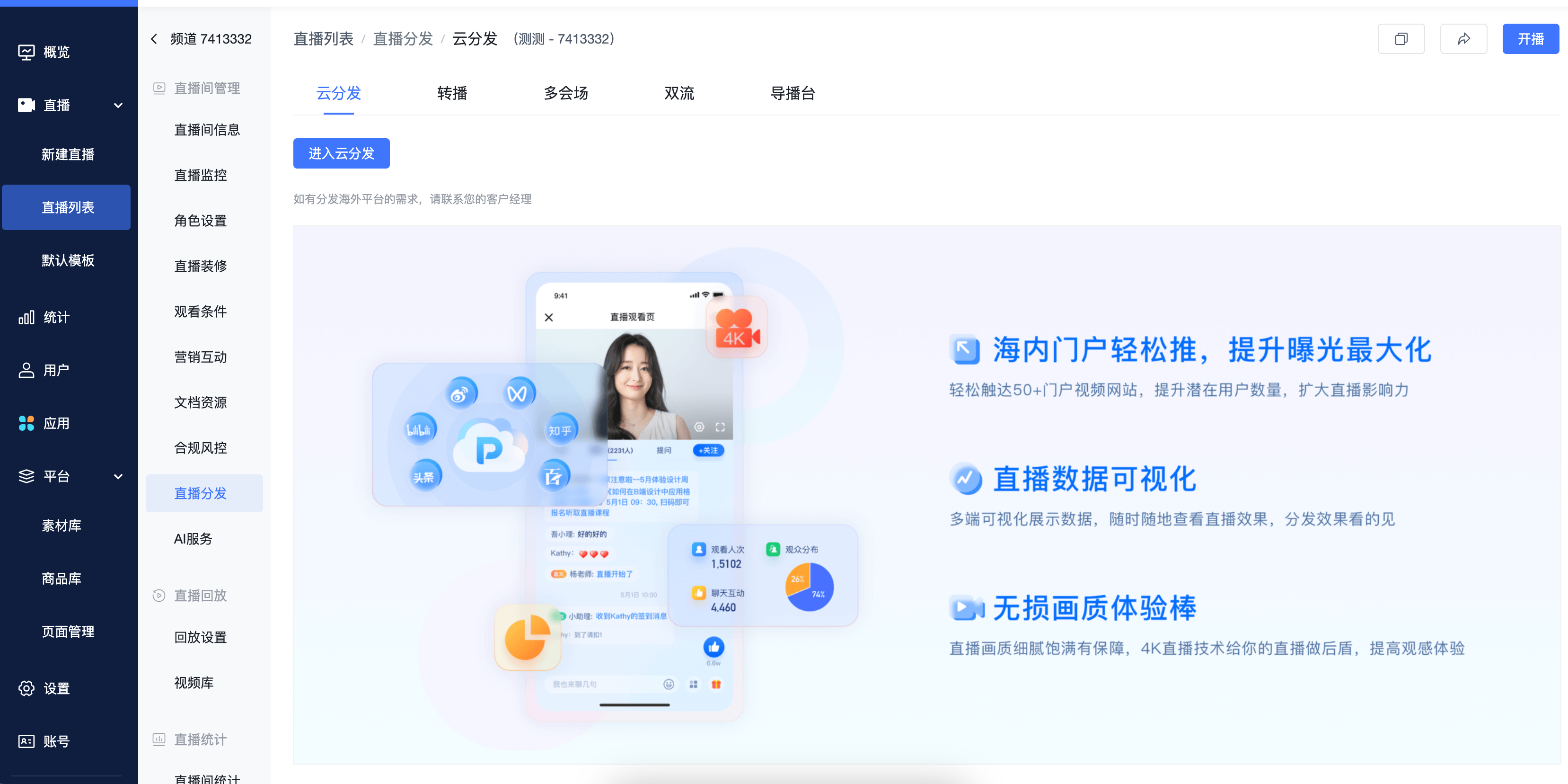
2 Access the Cloud Distribution Settings Page
- In the left secondary navigation of the channel settings page, find [Advanced Features - Cloud Distribution] and click to enter the [Cloud Distribution - Distribution Settings] page.
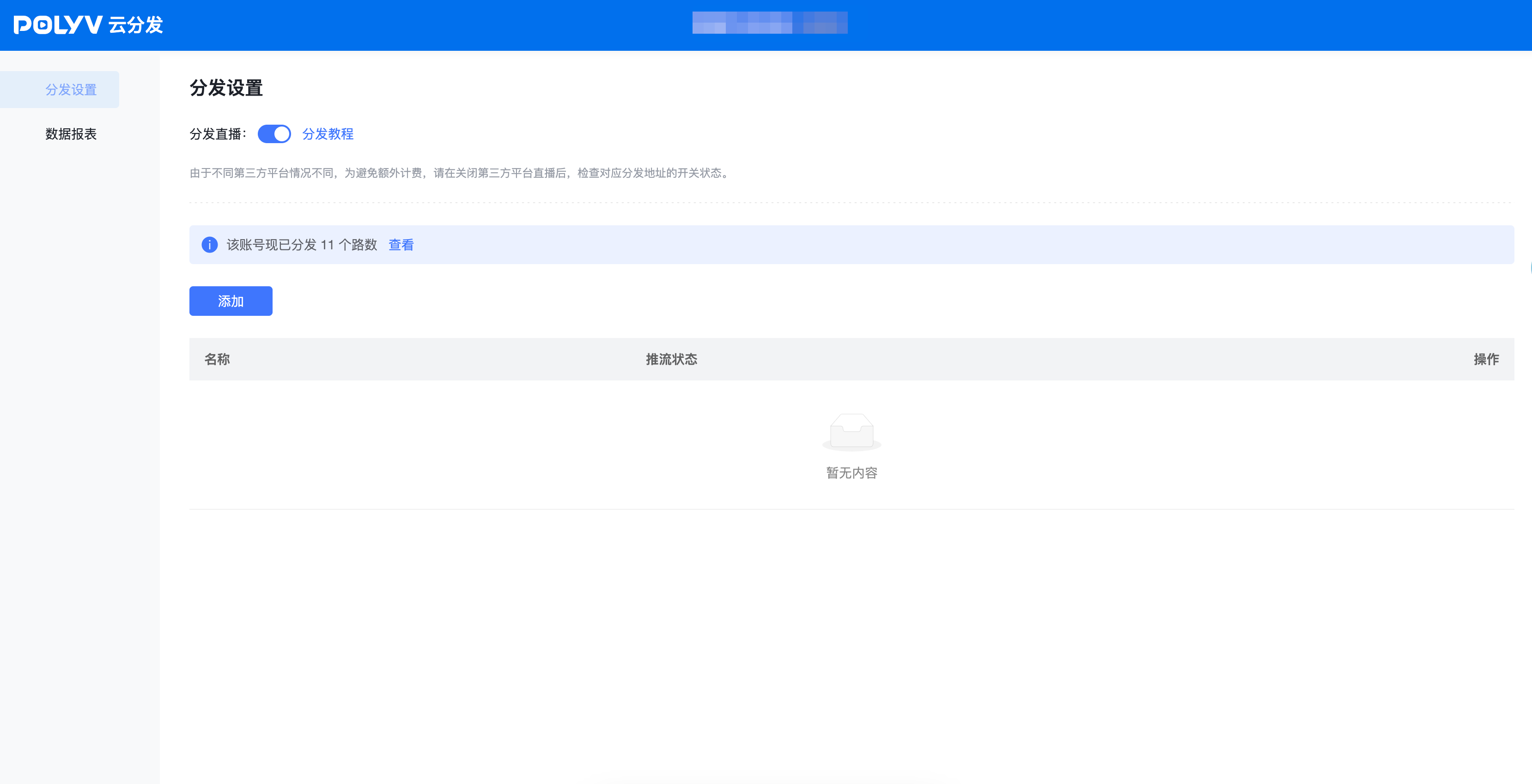
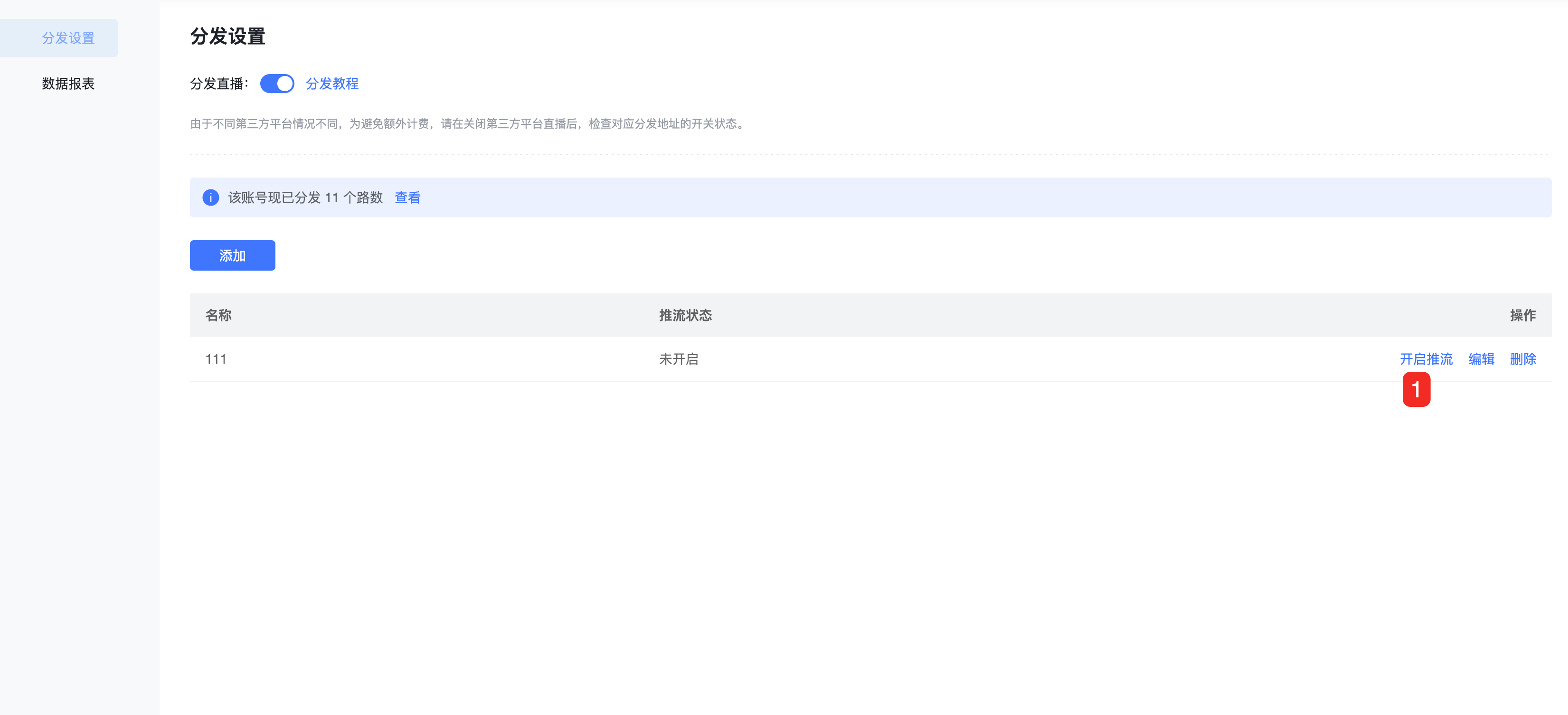
3 Enable the Distribution Live Switch
4 Add/Check the Push URL
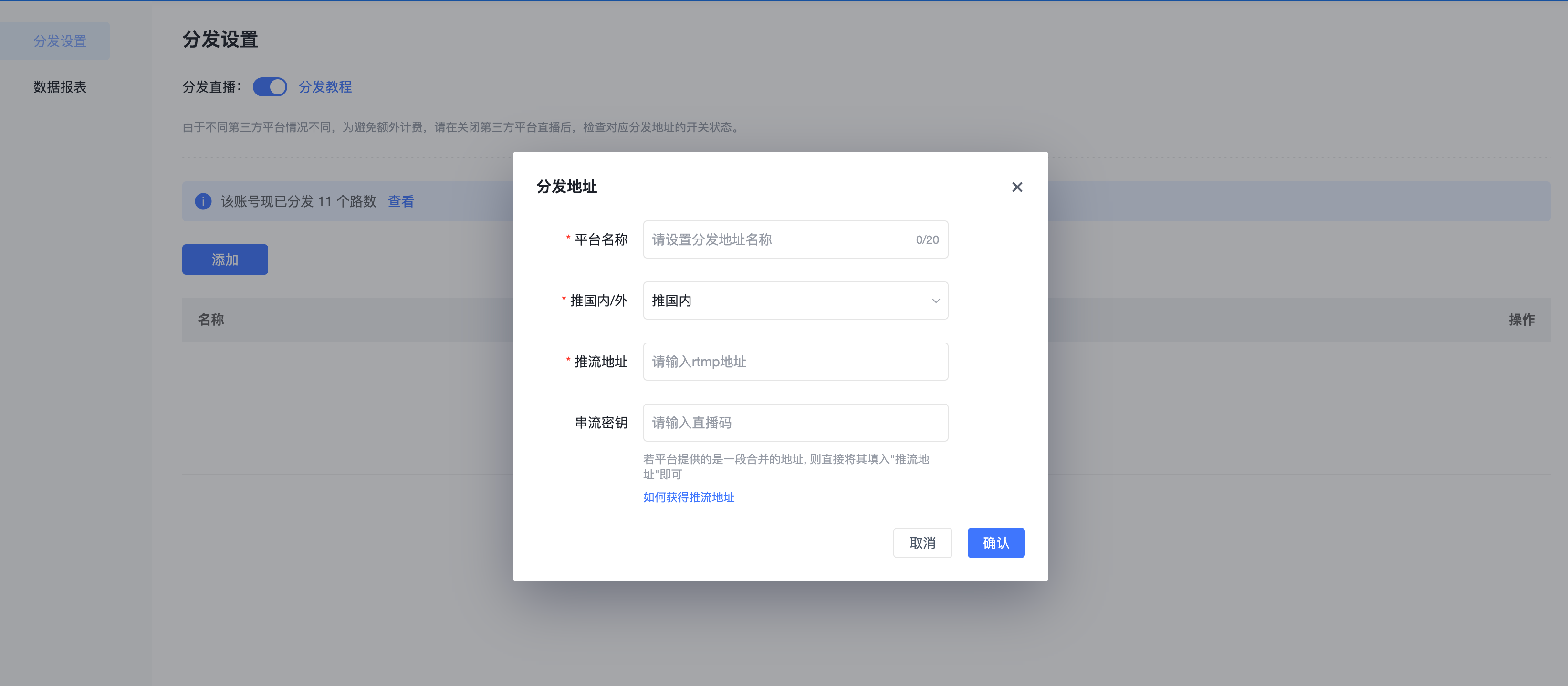
- Click the [Add] button. In the pop-up window, enter the target platform name, push URL, and stream key.
- For instructions on obtaining the push URL and stream key, click this link: How to Obtain Push URL and Stream Key
In the distribution list, click [Edit] or [Delete] on the right side of the corresponding platform to modify or remove it.
The maximum number of distributable platforms is 15.
Note: According to the rules of different third-party platforms, their push URLs and stream keys need to be updated as required. Therefore, check whether the push URL has expired before each distribution.
5 Enable the Push Switch
- After adding or editing the corresponding platform, set whether to push the stream on the far right.
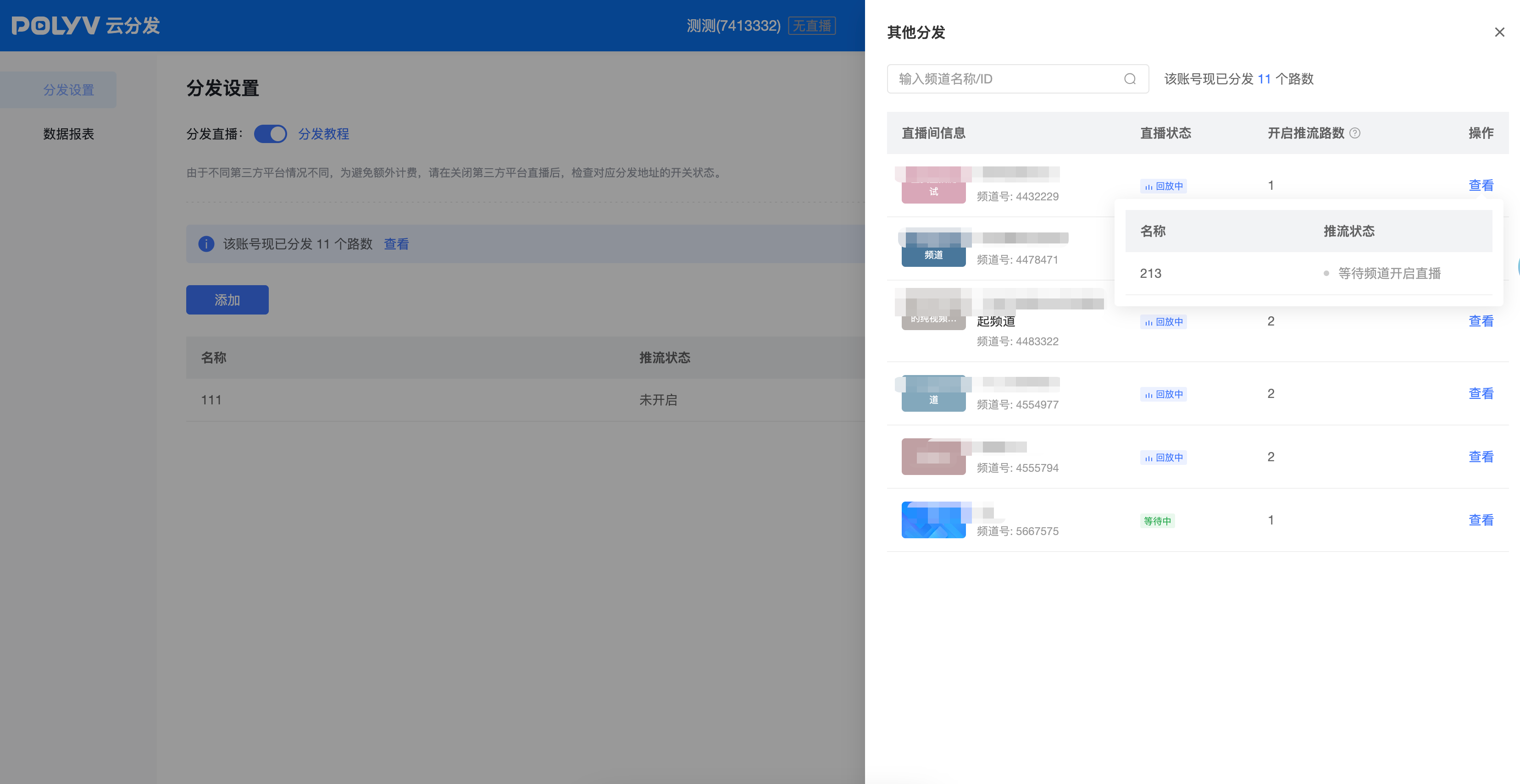
6 View Other Distributions
- Click [View] to see the distribution status of other channels under your account.
7 Start Broadcasting from the Streaming End
- After setting up the distribution platforms, go to the streaming end to start the live broadcast, and ensure the [Push Switch] is turned on.
- Once the streaming end starts broadcasting, distribution will begin automatically. You can check the effect on the corresponding platform's viewing page.
- During distribution, you can stop pushing, (re)start pushing, edit, or delete distribution addresses at any time.
- When the [Distribution Live] switch is off, distribution will not start even if the streaming end is broadcasting. Note: According to the rules of different third-party platforms, you may need to start the live stream on their platform first before it can display the stream distributed from elsewhere.
8 End the Live Stream from the Streaming End
- When the streaming ends, distribution will stop automatically. Note: Due to differences between third-party platforms, to avoid additional charges, please check the status of the corresponding distribution address switch after closing the live stream on the third-party platform.
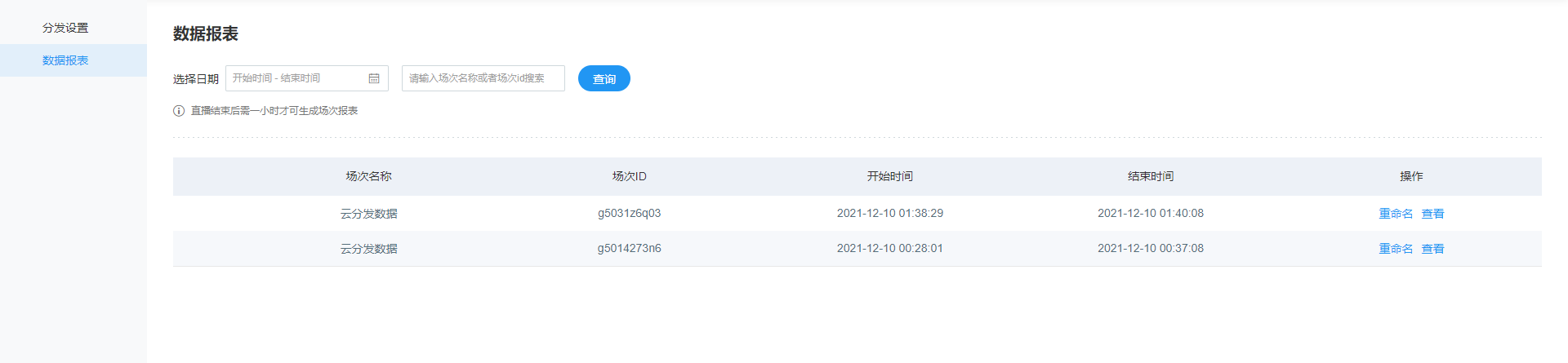
9 View/Share Data Reports
About one hour after the live stream ends, you can view the data for the corresponding session on the [Cloud Distribution - Data Report] page. You can view detailed data reports or modify the session name.
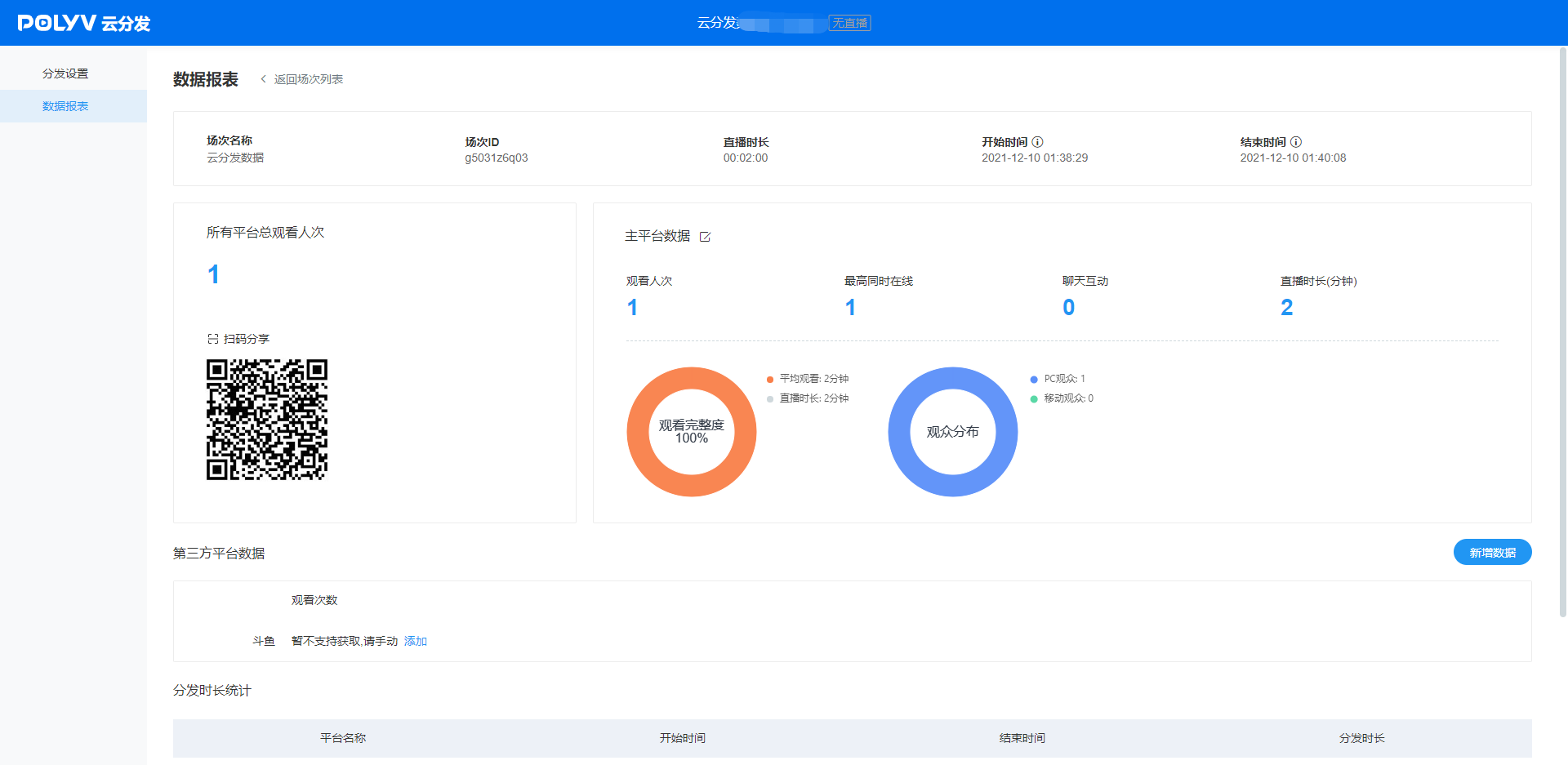
The data report shows the live data from the Polyv channel's viewing page (the streaming end). You can modify the title name of the main platform data.
In the lower half of the page, you can manually enter and modify the view count data for third-party platforms.
After filling in and confirming the data report, you can scan the QR code at the top left of the page with your phone to view the mobile data report sharing image. After each modification, refresh to get the latest QR code.
- After opening with WeChat scan, you can long-press the image to send it to friends or save it to your album for secondary promotion and sharing after the live stream.
- For each session, you can view: the platform name for each push, the start and end time of distribution, and the distribution duration (in minutes, rounded up to the nearest minute). If multiple streams are pushed simultaneously, the duration will be recorded separately.
