


User Level
User levels are automatically matched based on the cumulative points earned by viewers within the current account. The level is displayed to viewers through a level name, icon, and background color. Operators can uniformly maintain level rules for scenarios such as private domain operations and educational training live streaming.
I. Feature Overview
| Feature Info | Description |
|---|---|
| Feature Name | User Level |
| Feature Description | Configure level names, icons, background colors, and point thresholds. Levels are automatically matched based on cumulative points earned by viewers. |
| Purpose | Display viewer point growth through level identification. |
| Configuration Entry | Admin Console [Users] → [User Levels] |
| Scope | One account shares one set of level rules. A viewer uses the same level across all channels within the account. |
II. Prerequisites
- Automatic user level calculation requires enabling the POLYV User System. Refer to User Management and Operations for enabling and user identity settings.
- Level calculation uses the cumulative points earned within the current account, not the available point balance or points from external systems.
- The main account can access [User Levels] by default; sub-accounts require the [User Levels] permission.
If the user system is not enabled, you can still maintain display configurations like level names, icons, and background colors, but you cannot set point thresholds or calculate user levels. Please contact your account administrator or after-sales support to enable it.
III. Configuring User Levels
1. Viewing the Level List
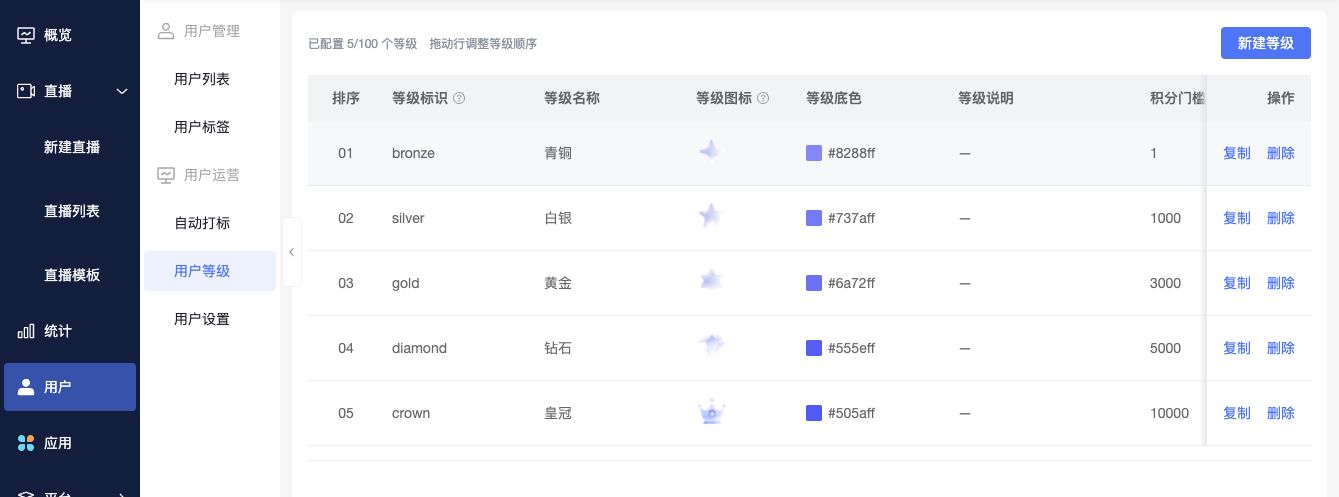
Go to the admin console, click [Users] → [User Levels]. The page displays the number of configured levels, configurations for each level, and operation entries. A maximum of 100 levels is supported.
On first use, the system provides the following 5 levels, which can be adjusted based on operational needs.
| Level Name | Default Point Threshold |
|---|---|
| Bronze | 1 |
| Silver | 1,000 |
| Gold | 3,000 |
| Diamond | 5,000 |
| Crown | 10,000 |
2. Creating or Editing a Level
- Click [Create Level] and fill in the level information in the new row. To modify an existing level, click the corresponding level name to enter edit mode.
- Set the level identifier, name, icon, background color, description, and point threshold.
- Click [Save] on the right side of the row. Click [Cancel] to discard the current edit.
Click the level icon area to select an icon. If the Media Library is enabled, select from it; if not, upload from your local device.
| Configuration Item | Description |
|---|---|
| Level Identifier | Used to distinguish different levels within the current account. Must be unique. Supports letters, numbers, underscores, and hyphens. |
| Level Name | The level name displayed to viewers. Required. |
| Level Icon | Optional. Supports PNG, JPG, SVG formats. Single file size must not exceed 2 MB. If not set, the level name and background color are still displayed. |
| Level Background Color | The background color of the level label. Can be adjusted to match brand style. |
| Level Description | Optional. Used only for backend identification and management. |
| Point Threshold | The minimum cumulative points a viewer needs to achieve this level. Must be an integer greater than 0 and strictly increasing in level order. |
| Style Preview | Preview the combined display style of the level name, icon, and background color. |
The default threshold for Bronze is 1 point. The point threshold cannot be set to 0. When setting the next level, its threshold must be higher than the previous one.
The edit state is shown below. After modification, save in the corresponding row:

3. Maintaining the Level List
| Operation | Description |
|---|---|
| Copy | Create a new level based on an existing level's configuration, generating a new level identifier. Adjust the name and point threshold as needed. |
| Delete | Remove a level that is no longer needed. The level list must retain at least 1 level. |
| Reorder | Drag level rows to adjust the order. After reordering, the point thresholds for each level must remain strictly increasing. |
All channels under the same account share the level library. When modifying level rules, consider the account's overall point operation strategy.
IV. Level Matching and Display
1. How to Obtain a Level
When a viewer reaches a level's point threshold, they automatically obtain that level. If they reach multiple thresholds simultaneously, the level with the highest threshold is matched.
For example, using the default thresholds:
| Cumulative Points Earned | Matched Level |
|---|---|
| 0 | Does not meet the minimum threshold, no level displayed |
| 1 ~ 999 | Bronze |
| 1,000 ~ 2,999 | Silver |
| 3,000 ~ 4,999 | Gold |
| 5,000 ~ 9,999 | Diamond |
| 10,000 and above | Crown |
Levels are calculated based on "cumulative points earned." The available balance after point consumption is not used for level matching.
2. Setting Level Display
To set the default display method for newly created channels: Go to [Live Streaming Templates], select [Template Settings] → [Role Settings] → [Audience Settings], set [Level Display] to [On] or [Off], and click [Save].
To set the display method for a single channel: Go to the details of that live stream, click [Role Settings] → [Audience Settings], adjust [Level Display], and click [Save].
Click [Go to Set User Levels] in the same location to return to the account-level level configuration page.
3. Level Display Rules
- When a level icon is set, the level is displayed as a combination of the icon, name, and background color. If no icon is set, the name and background color are displayed.
- The live streaming template can set the default level display switch. Newly created channels inherit this configuration. Channels can individually control whether to display levels.
- Turning off level display for a specific channel does not change the account's level rules or affect other channels.
- Viewers who have not reached the minimum level threshold, or when level display is turned off for a channel, can still watch and chat normally.
- Modifying a level's name, icon, or background color will not change the level style displayed in historical chat messages.
V. Frequently Asked Questions
Q: Why don't I see the [User Levels] menu?
A: If using a sub-account, ask the main account to check if the [User Levels] permission has been granted. The menu will not appear if the sub-account is not authorized.
Q: Why can't I edit the point threshold?
A: First, confirm whether the POLYV User System has been enabled for the account. Point thresholds cannot be set, and user levels will not be automatically calculated if it is not enabled.
Q: Will a viewer's level decrease when they use points, following the available point balance?
A: Levels are matched based on cumulative points earned, not the available point balance. Using points reduces the balance but will not cause a level downgrade.
Q: Can I set different level thresholds for different channels?
A: One account shares one set of level rules. Channels cannot configure their own thresholds. Channels can individually control whether to display levels.
Q: Can I manually assign a level to a viewer or use points from an external system?
A: The user levels described here are automatically matched based on cumulative points earned within the POLYV platform. Manually assigning a level to an individual viewer or mapping external points is not supported.
