Card Push
1. Feature Description
Feature Info |
Description |
|---|---|
| Feature Name | Card Push |
| Feature Overview | Push pop-up cards to viewers in the live stream, supporting link redirection or QR code scanning |
| Purpose | Quickly drive traffic and conversions, capture leads, and provide strong reminders at key moments to guide users toward completing target conversions |
| Use Cases | Suitable for live streaming scenarios requiring immediate traffic generation and conversion, such as event promotion and lead collection |
| Operation Path | 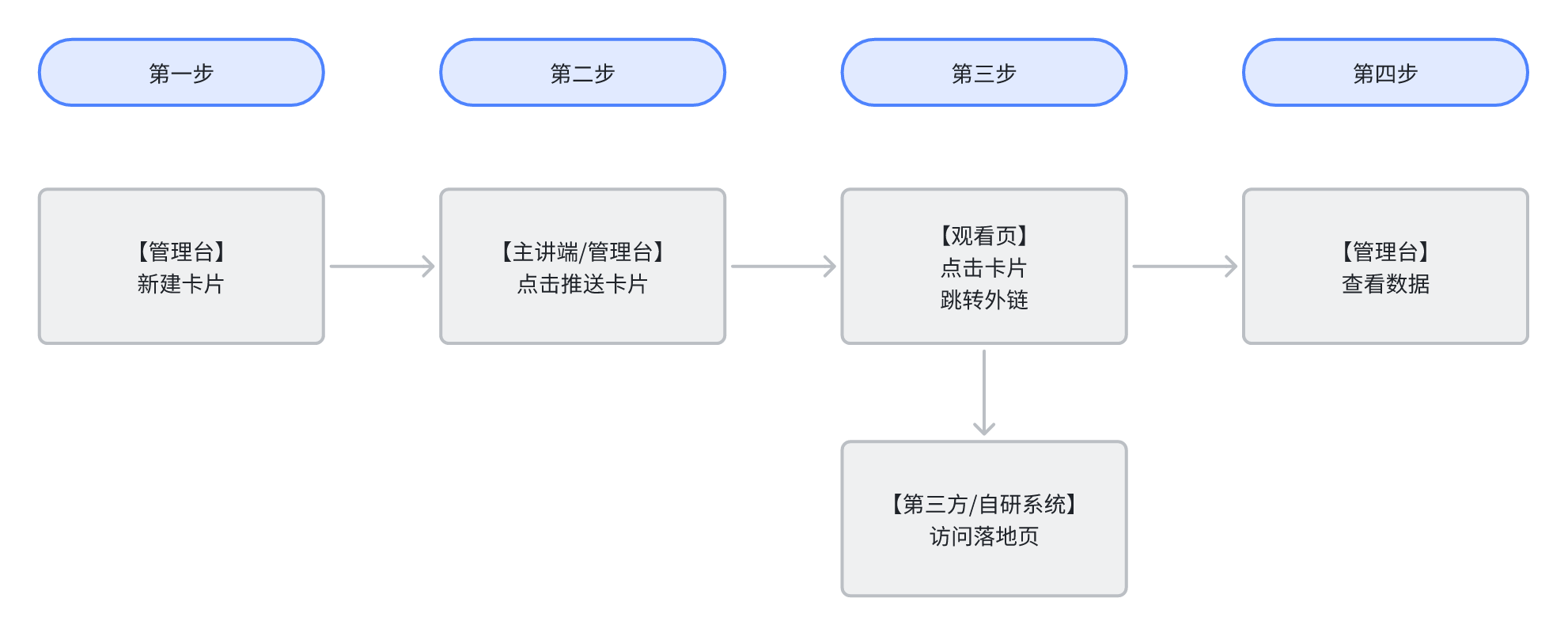 |
2. Usage Instructions
1. Enable the Card Push Feature
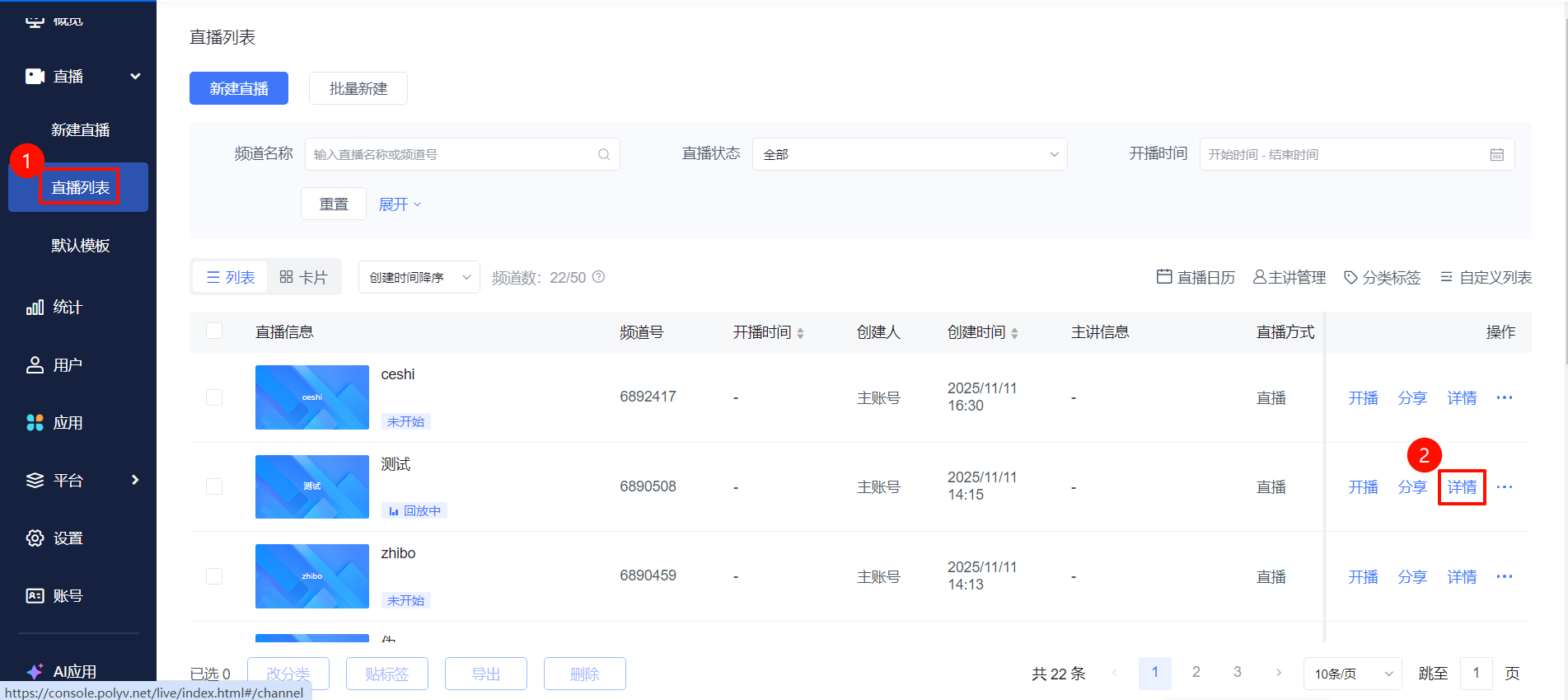
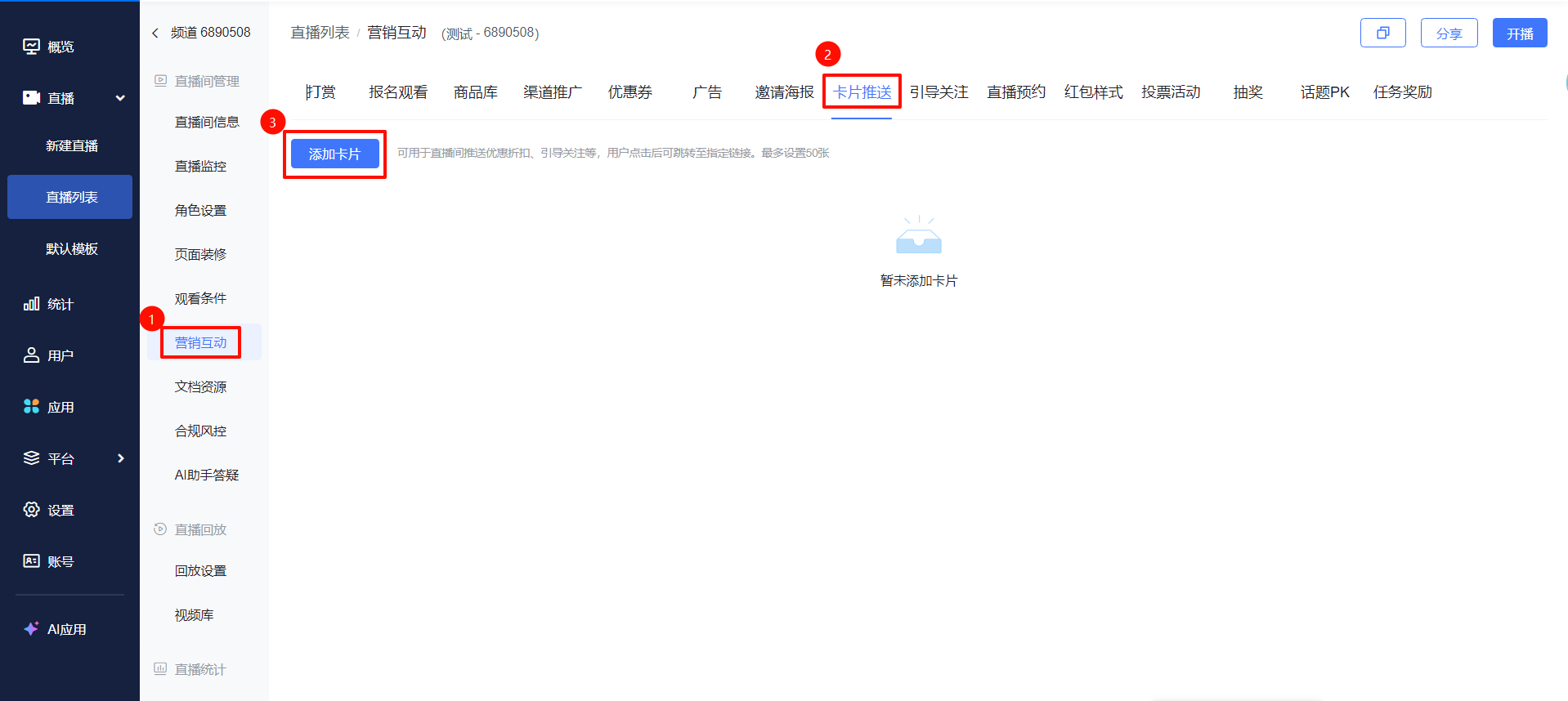
Go to the [Live List] page, select a live stream and click [Details]. In the live stream management area, click [Marketing Interaction] - [Card Push] - [Add Card].
2. Configure Card Push
Two card types are available: [Standard Card] and [QR Code Card]. When creating a new card, choose a different card style based on the use case. The standard card is for redirection scenarios, suitable for pushing coupon/reward links. The QR code card is for scanning scenarios, suitable for pushing QR codes to add WeChat contacts or join groups.
Standard Card
- Card Style: Choose from system-provided styles or customize the card image
- Card Title: Edit the card title text
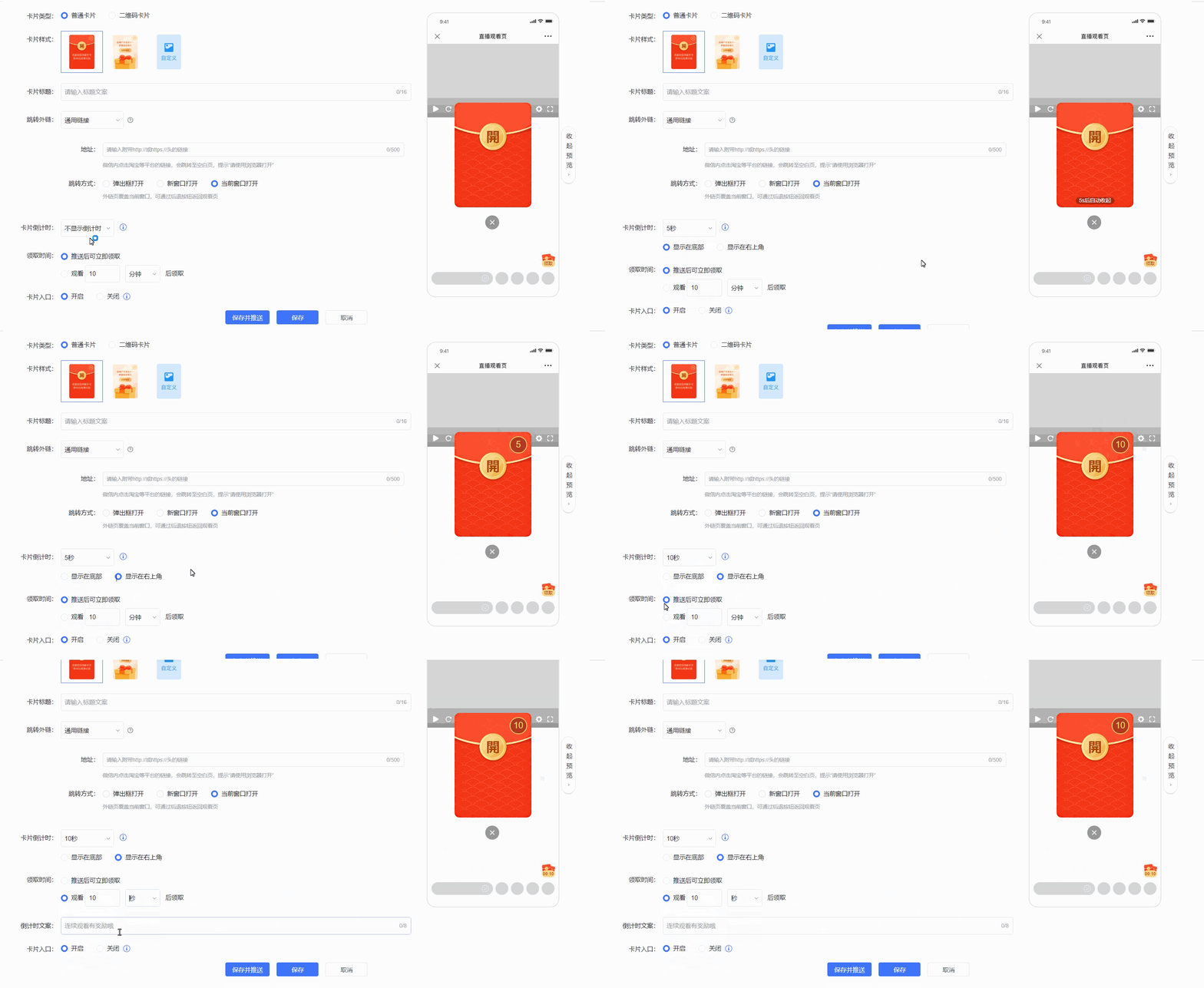
- Card Entry: Viewers can click the entry to access the card page
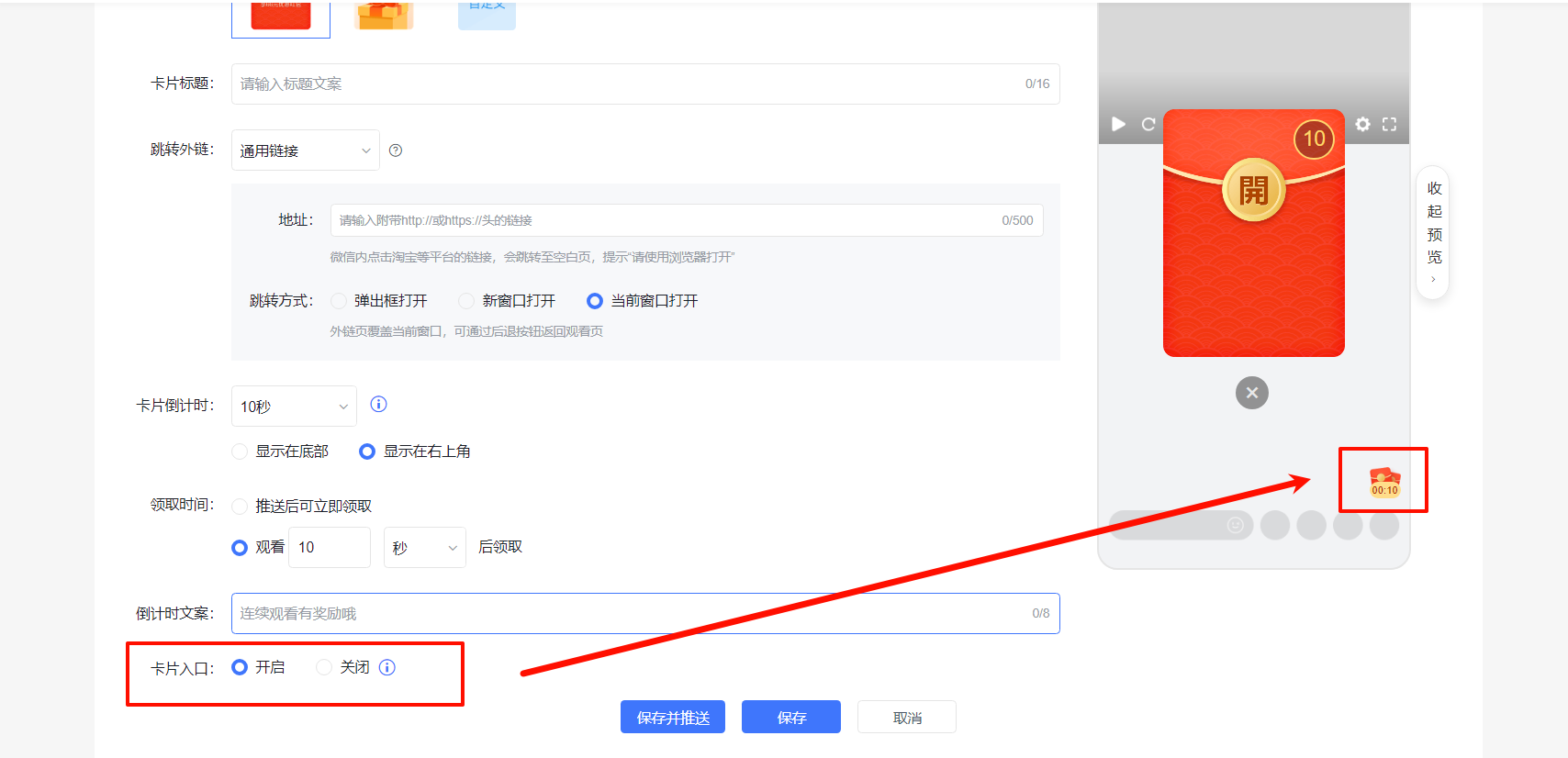
Standard Card Preview
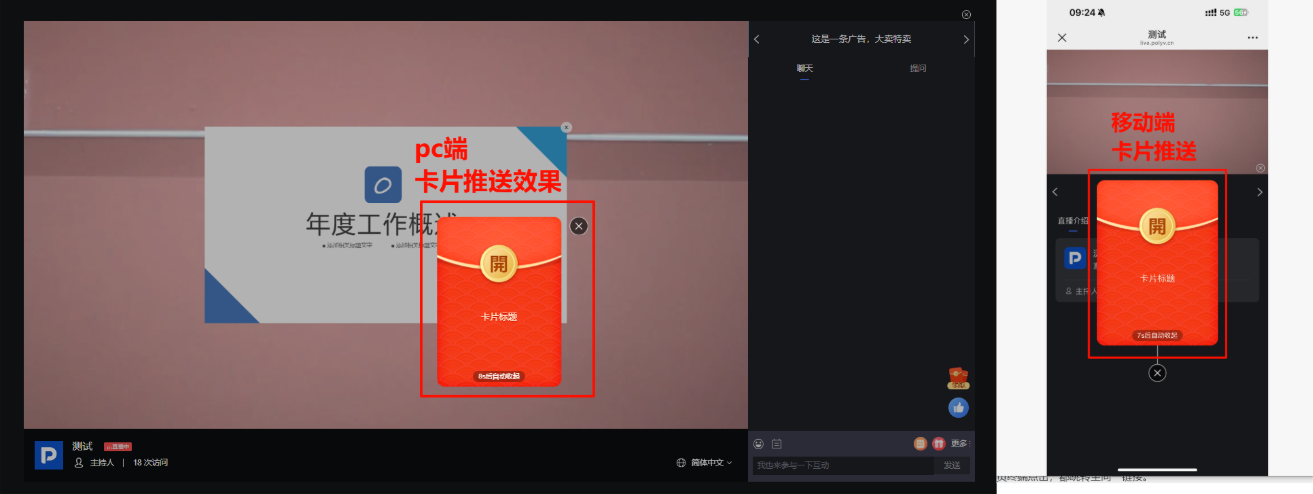
QR Code Card
- Card Style: Choose from system-provided styles or customize the card image
- Scan Type
- Custom QR Code: Add various QR codes from your local device
- WeCom Active Code: For customers linked to WeCom, you can directly select channel active codes
- Card Title: Edit the card title text
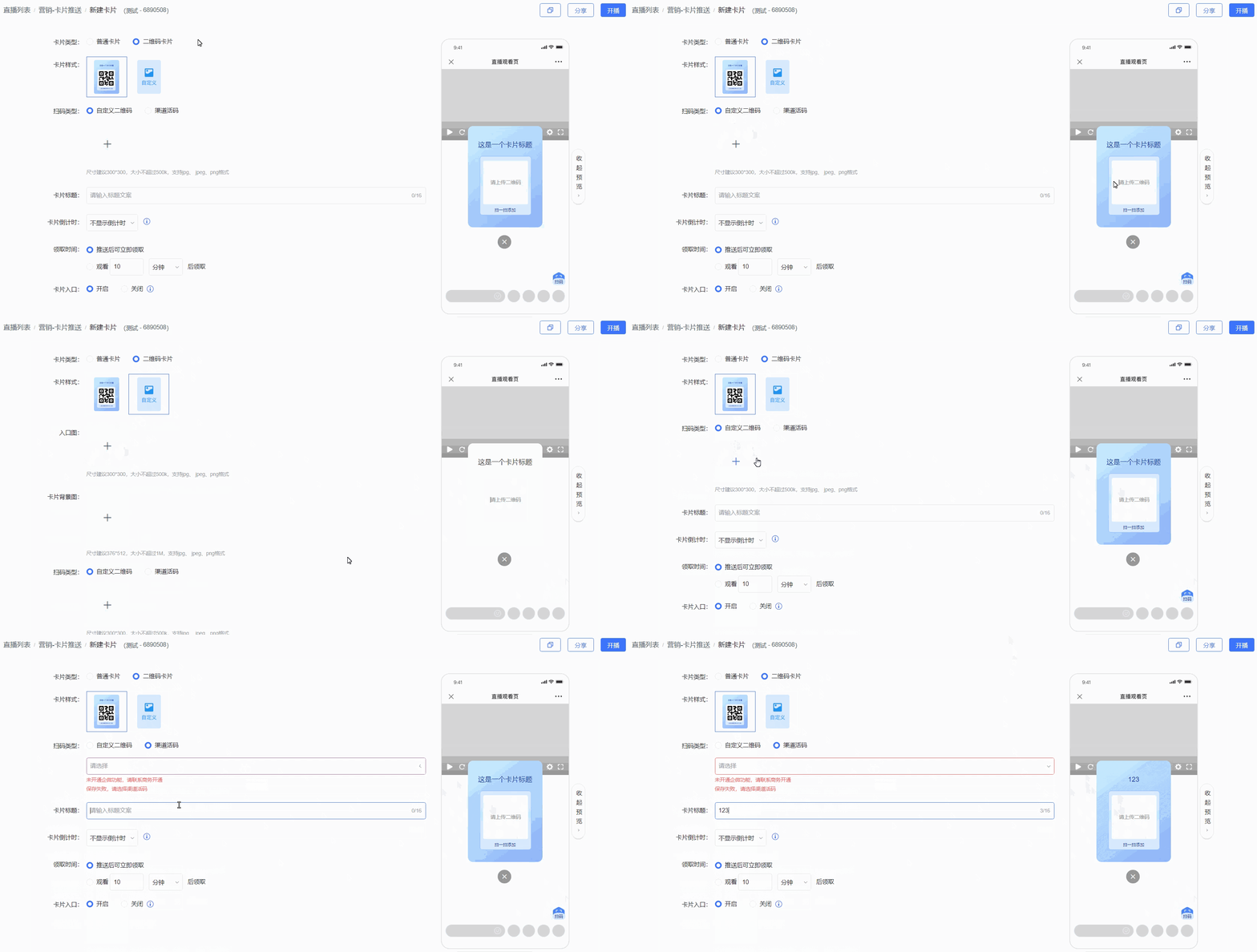
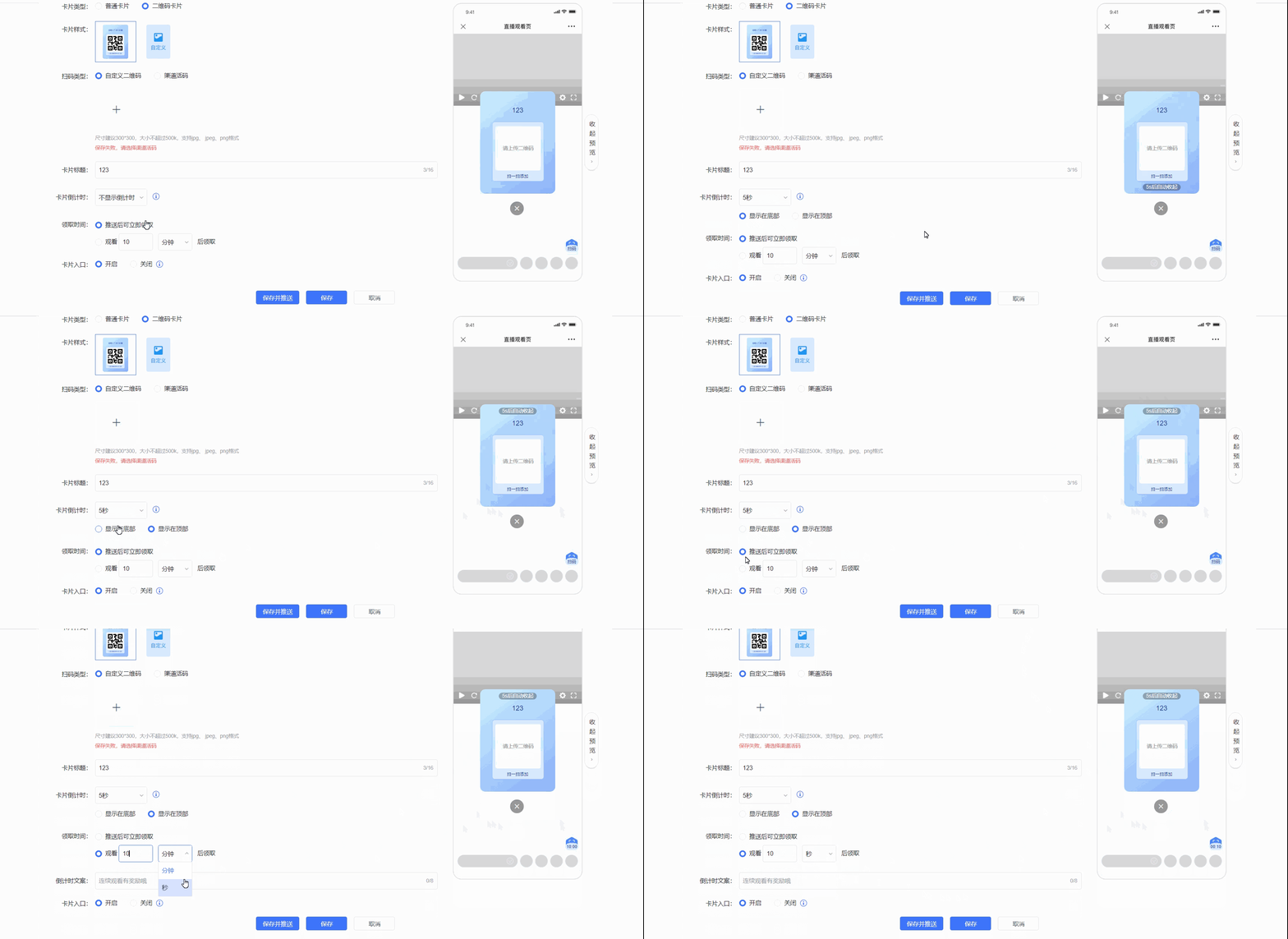
- Card Countdown: Display how many seconds until the card auto-closes
- Claim Time:
- [Claimable Immediately After Push]: The card will be displayed on the viewing page immediately after being pushed
- [Claim After Watching]: Set a viewing duration for the audience; they can only claim after reaching that duration
- Countdown Text: Set the text for the card countdown
- Card Entry: Viewers can click the entry to access the card page
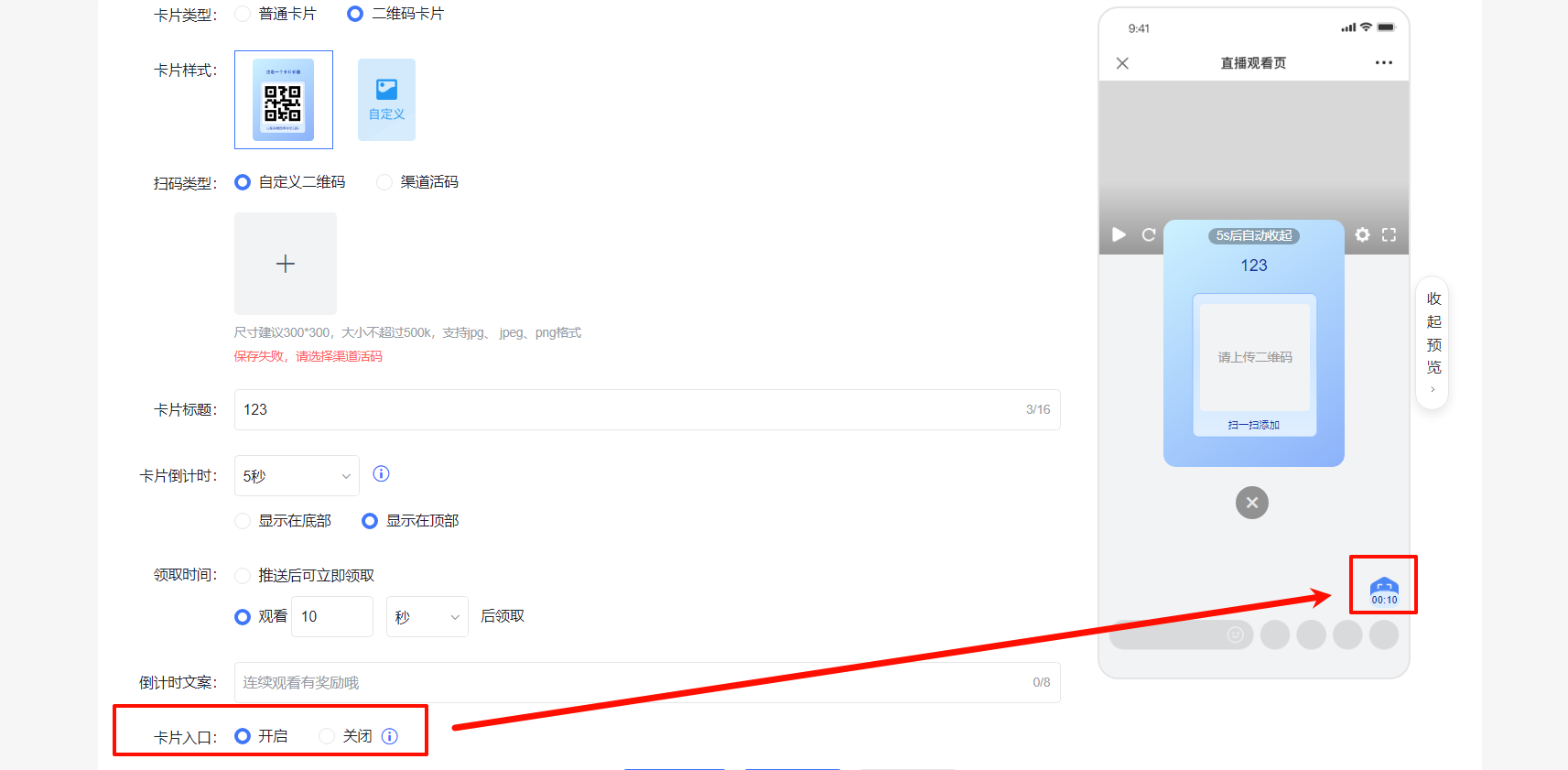
QR Code Card Preview
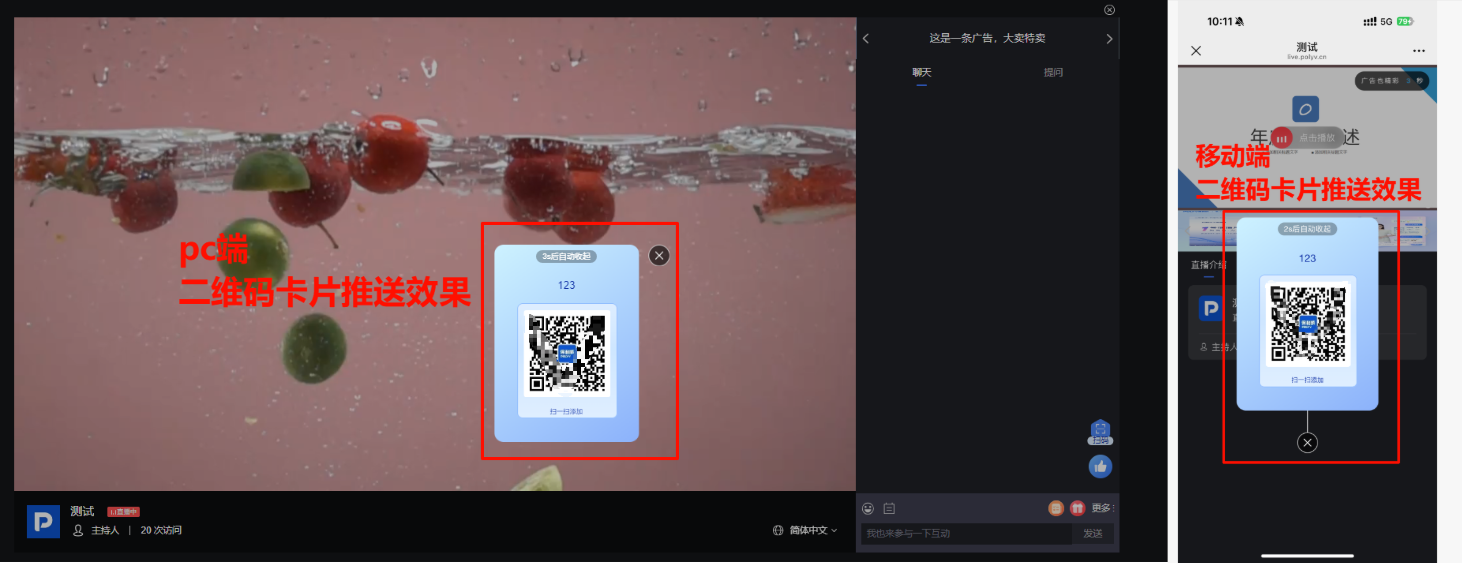
3. Manage Card Push
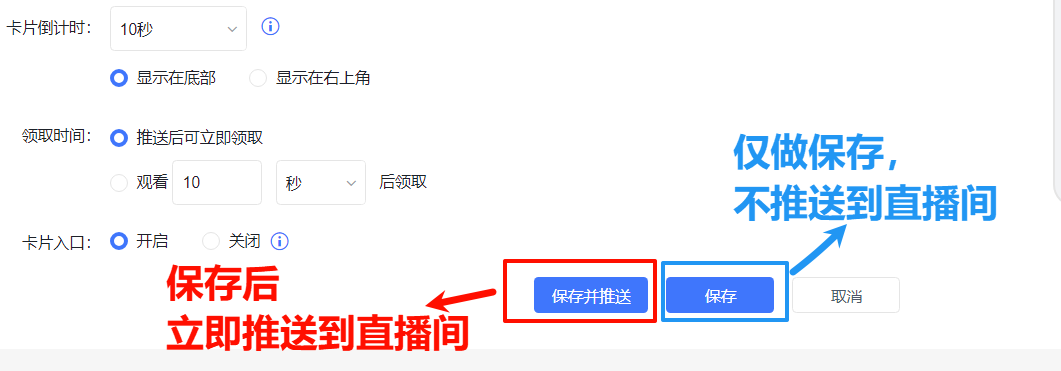
- Edit the push card on the page
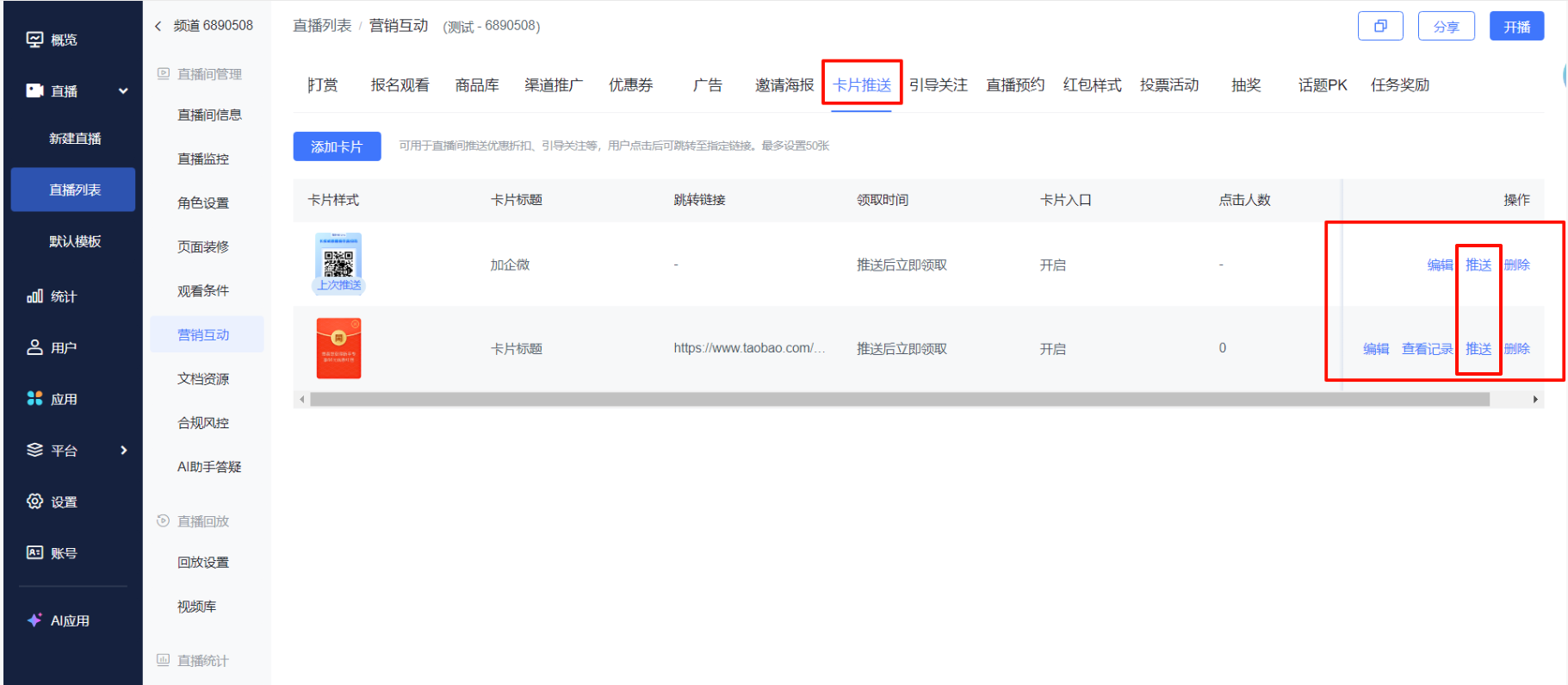
- Click to push the card on the backend page
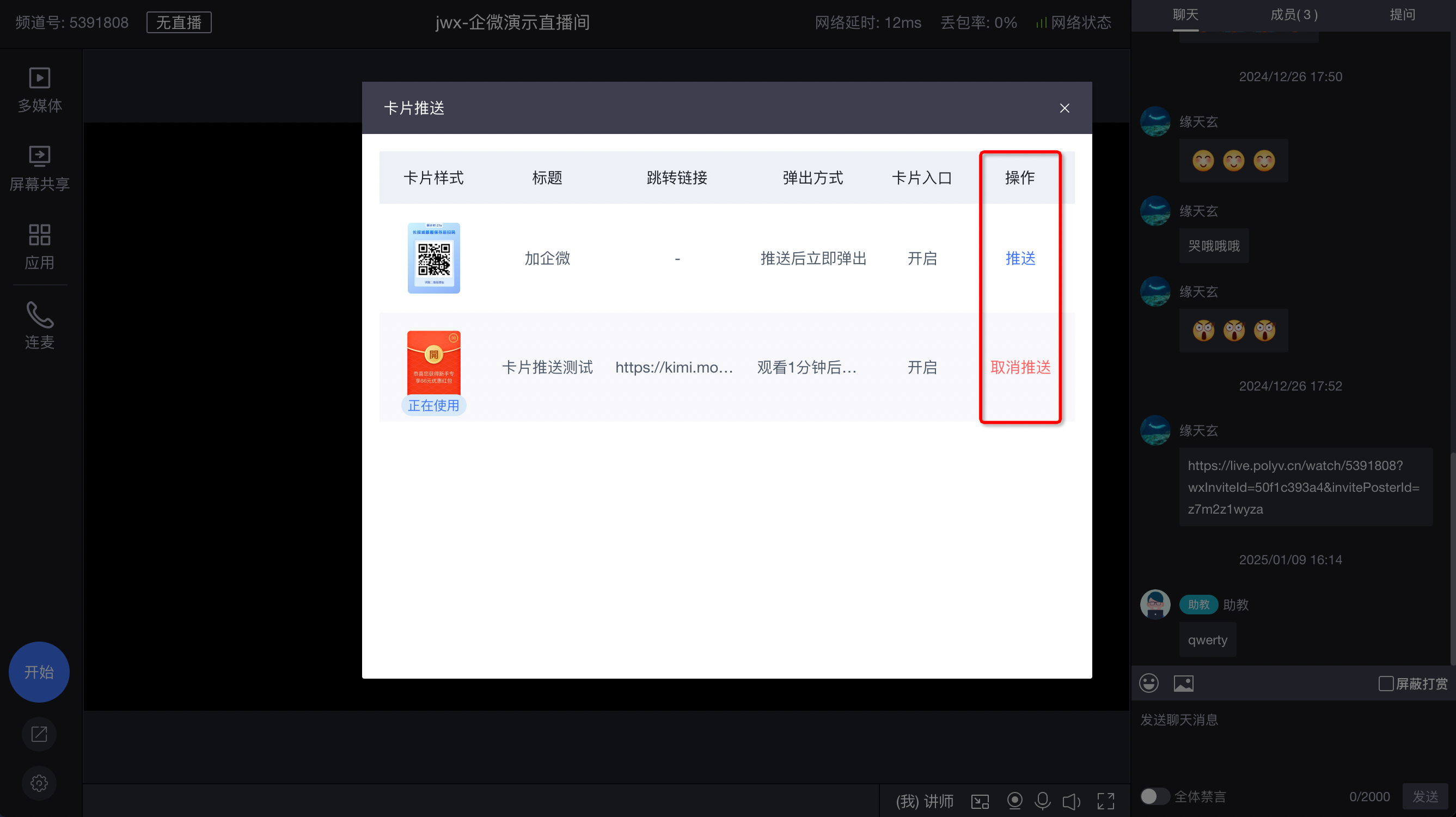
- Push the card in the live stream
4. View Records
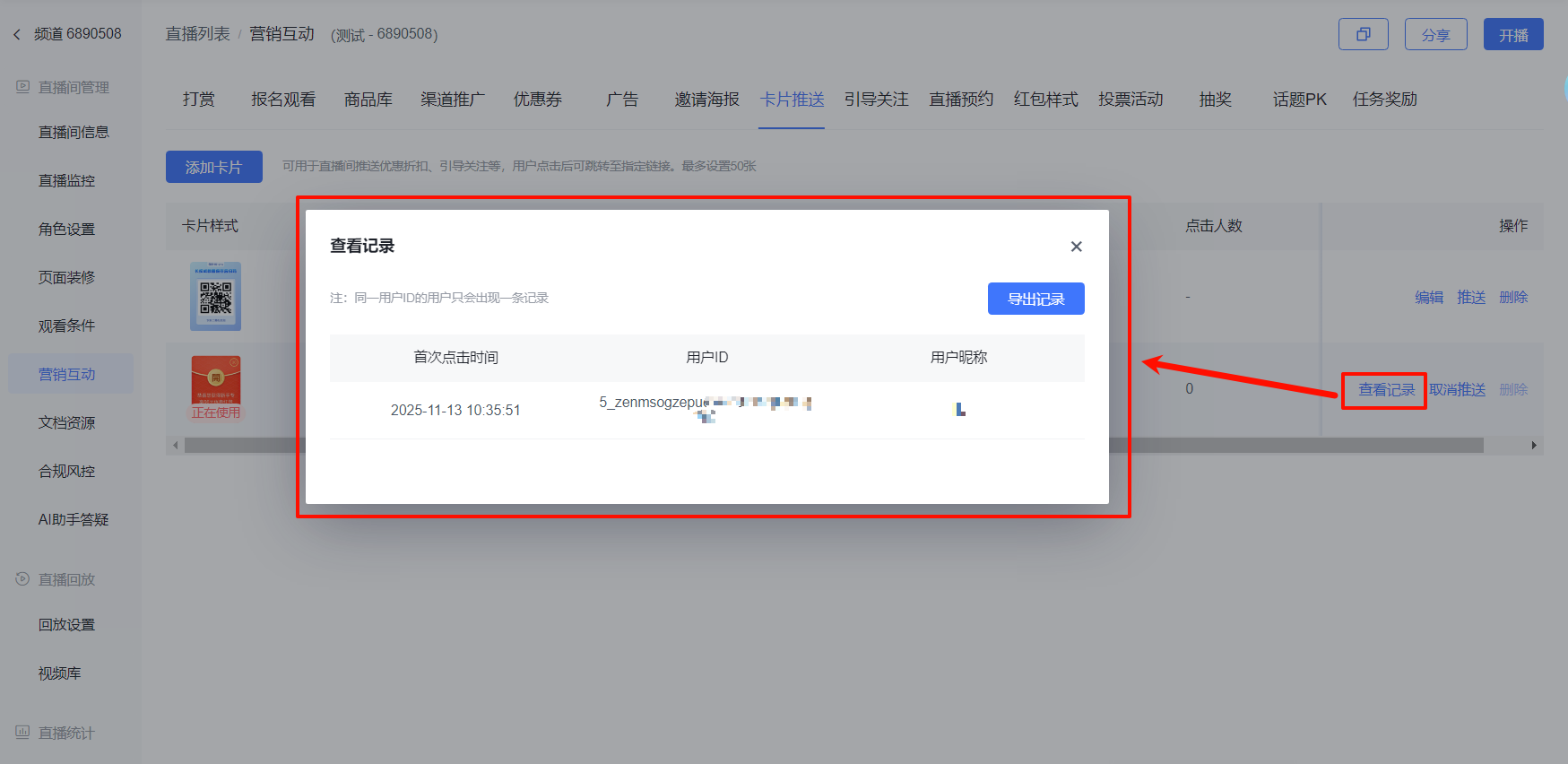
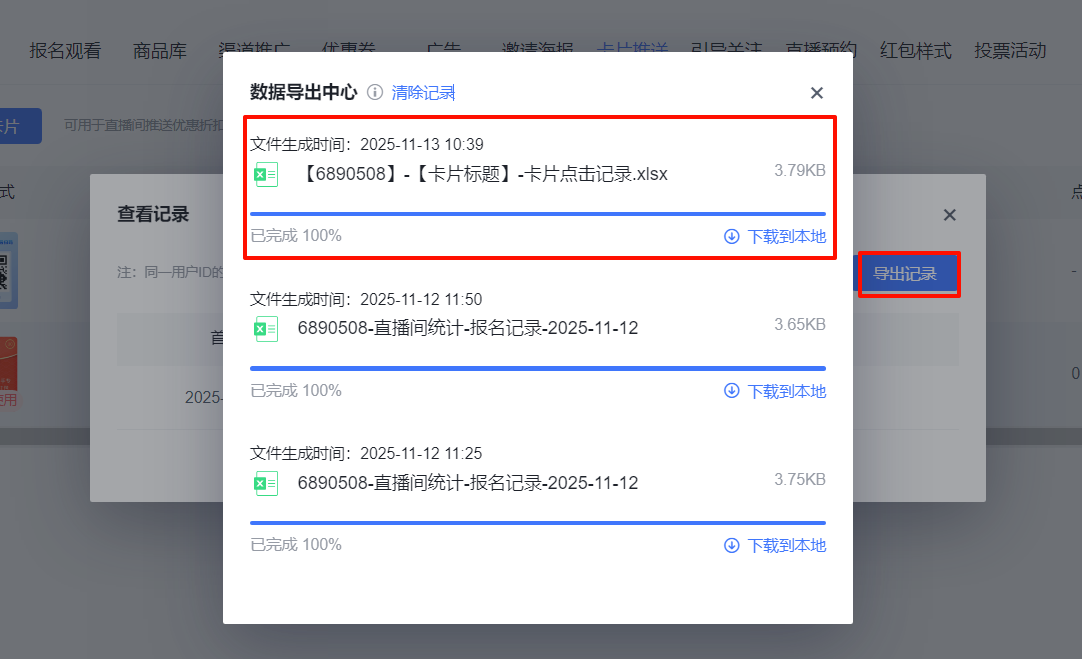
[Standard Card] supports [View Records] to query users who clicked the card. Only one record will appear for users with the same user ID. [Export Records] allows you to export the click records of the card.