Video Library
The video library is primarily used to store and manage live stream replay videos. In Polyv's live stream replay, this includes live stream staging, replay lists, and video-on-demand (VOD) lists.
1. Live Stream Staging
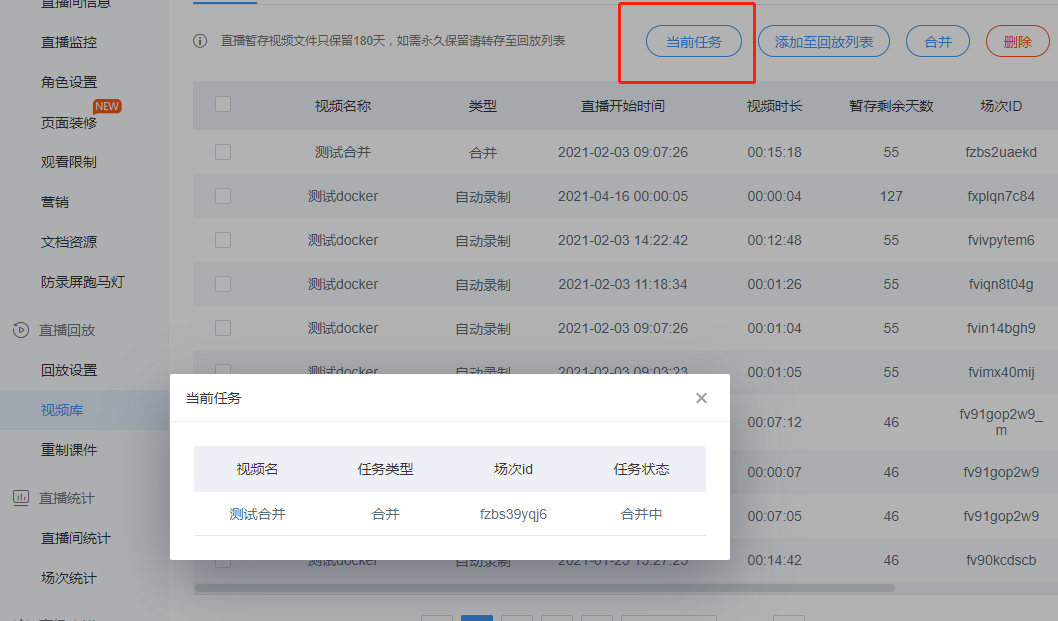
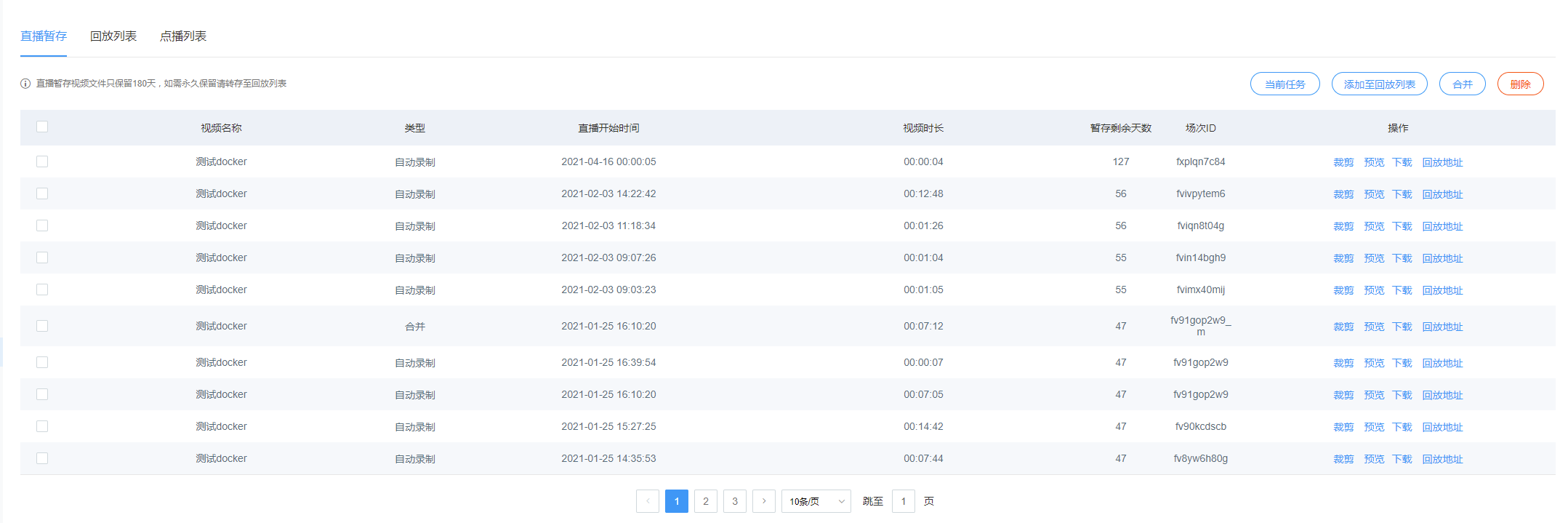
During a live stream, the replay video is automatically recorded and saved in the live stream staging area. The retention period for videos in the staging area is only 180 days. For permanent storage, videos need to be transferred to the replay list. The replay list requires a VOD service purchase. To enable this, please contact customer service or sales for direct activation.
- Transfer: Select videos (supports multi-select and select all), click "Add to Replay List", fill in the video name after transfer and the corresponding VOD category in the pop-up window, then click Save to submit. For automatic transfer, go to "Platform Settings" -> "Channel Settings" and enable "Replay - Auto Transfer".
- Delete: Supports deletion of staging data. Deleted data cannot be recovered, please proceed with caution. Supports single video and batch video deletion.
- Preview: Allows previewing the live stream replay video.
- Download: Supports downloading the replay video URL. For document + video templates, only the video is downloaded. For uncut or unmerged videos, both mp4 and m3u8 formats are available for download. If the video has been cut or merged, the download will correspond to the staging video based on the cutting or merging mode used. See the sections on Cutting and Merging below.
2. Replay List
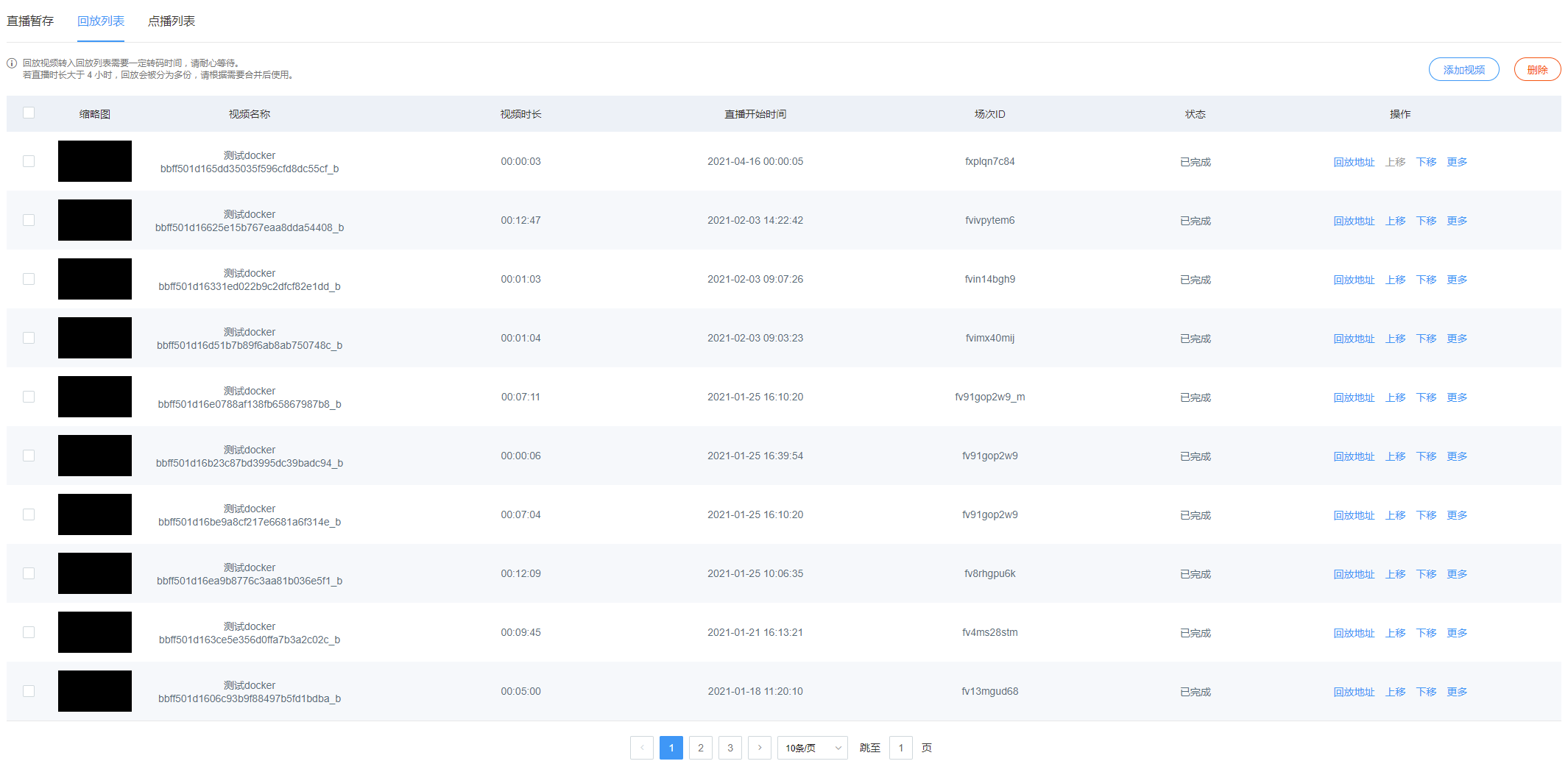
Videos in the replay list are stored permanently, utilizing Polyv's VOD service.
- Delete: Supports removing videos from the replay list. Supports single and batch removal.
- Add Video: Supports adding back previously removed videos.
- Move Up/Down: When playing by list order and the replay list is selected, the playback order follows the arrangement in the replay list. Adjusting the position in the replay list changes the playback order on the viewer page.
- Modify Name: Supports modifying the name in the replay list.
- Modify Thumbnail: The viewer page supports replaying based on the replay list format, with an independent list page for users to watch. The replay list supports displaying a thumbnail, video name, and video duration.
The system supports automatically capturing and correcting a document/video as the default thumbnail. If the automatically captured image does not meet the desired display effect, you can upload and modify the image yourself. Click "More" -> "Modify Thumbnail" to upload and modify.
3. VOD List
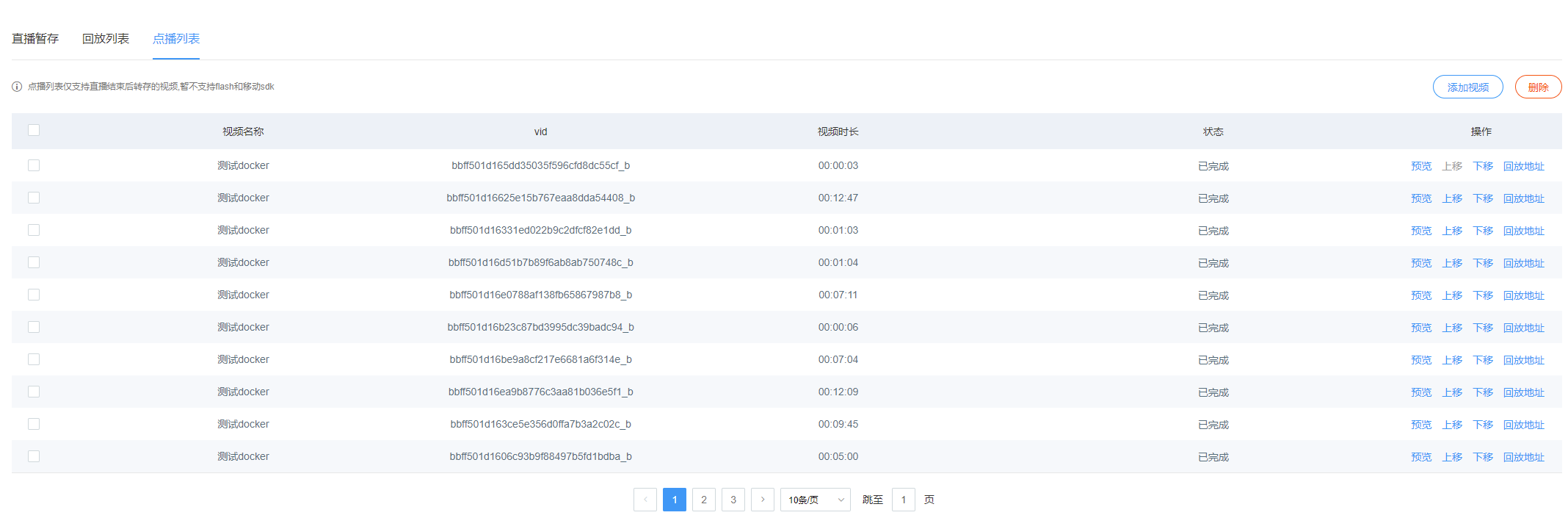
The VOD list allows selecting video files from the Polyv VOD system for use as live stream replays. If the live stream channel uses a pure document template, you can add videos after setting the corresponding channel number tag in the VOD settings. If it is a document + video template, due to the progress correlation between the document and video, the VOD video must be a replay video from this specific live stream room.
- Delete: Supports removing videos from the VOD list. Supports single and batch removal.
- Add Video: Supports adding back previously removed videos.
- Move Up/Down: When playing by list order and the replay list is selected, the playback order follows the arrangement in the replay list. Adjusting the position in the replay list changes the playback order on the viewer page.
- Preview: Supports direct preview of the replay video.
4. Cutting
Supports cutting staging videos. Cutting differentiates between m3u8 and mp4 formats. The default cutting format is m3u8. To upgrade to mp4 cutting, please contact customer service for a free upgrade.
4.1 m3u8 Cutting:
The m3u8 video format plays small segments (chunks) each time, with each chunk being approximately 612 seconds long. Cutting directly removes a specific chunk, so the precision of m3u8 format cutting is approximately 612 seconds. The steps are as follows:
- In the staging area, select the video to cut and enter the cutting page.
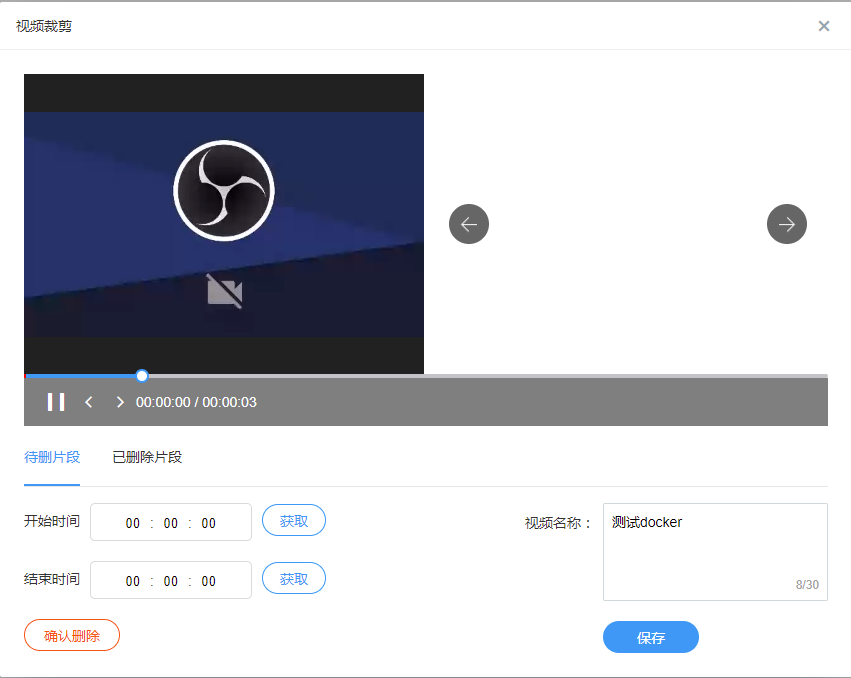
Select the location of the chunk. You can use the "Get" function to locate the corresponding chunk to be cut.
Click "Confirm Delete" to delete the corresponding chunk data. To restore the deleted chunk, you can recover it from the "Deleted Segments" section.
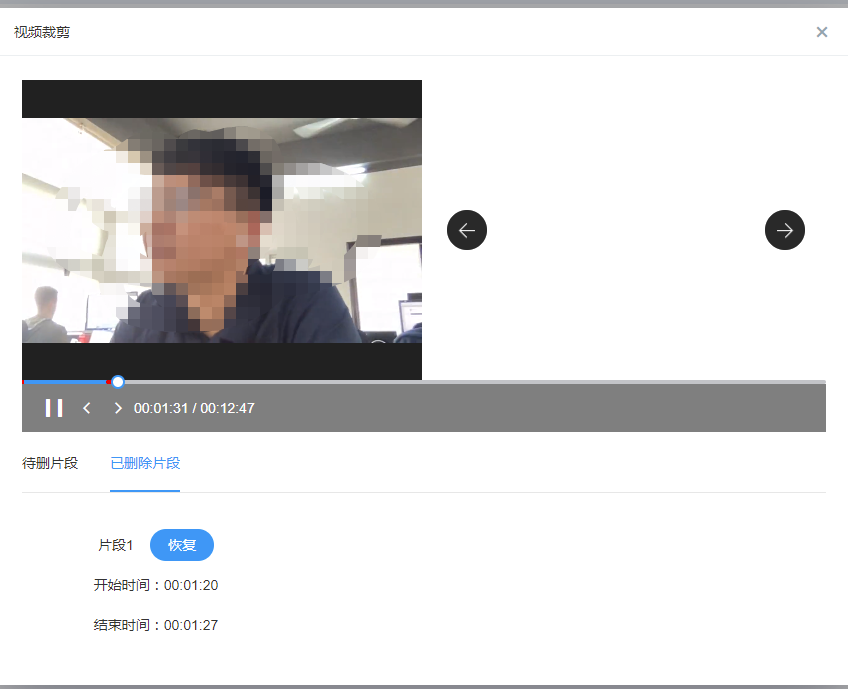
- Fill in the name for the cut video and click "Save". A new cut video will be generated.
4.2 MP4 Cutting
MP4 format cutting supports video cutting with second-level precision. The steps are as follows:
- In the staging area, select the video to cut and enter the cutting page.
Enter the start time and end time for the cut.
Click "Confirm Delete" to delete the corresponding video data. To restore the deleted data, you can recover it from the "Deleted Segments" section.
- Fill in the name for the cut video and click "Save". A new cut video will be generated.
4.3 Merging
Merging and cutting follow the same rules. If m3u8 cutting is enabled, the merged video will also be in m3u8 format. If mp4 cutting is enabled, the merged video will be in mp4 format. The merge order is determined by the live stream start time of the videos. Customizing the merge order is not yet supported. The operation process is as follows:
- Select the videos to merge, click "Merge", enter the name for the merged video, and click "Confirm" to generate the merge. For mp4 merging, the process may take a considerable amount of time. You can click "Current Tasks" to view the merge progress.