Introduction to CNAME Usage
About CNAME
CNAME refers to a canonical name record. When you have multiple domain names that need to point to the same server IP, you can set an A record for one domain to point to the server IP, and then set the other domains as aliases (i.e., CNAME) pointing to the domain with the A record. In this way, when your server IP address changes, you don't need to update each domain individually. You only need to change the A record domain to the new server IP, and the other domains set as aliases (CNAME) will automatically point to the new IP address (all operations above must be performed at the DNS level).
Source: Baidu Baike -- CNAME
Using CNAME
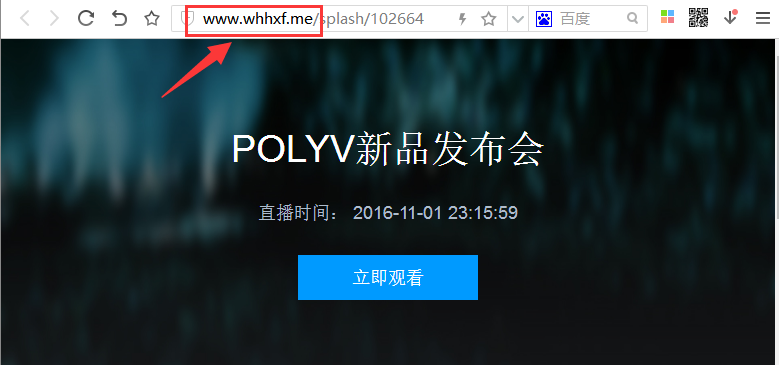
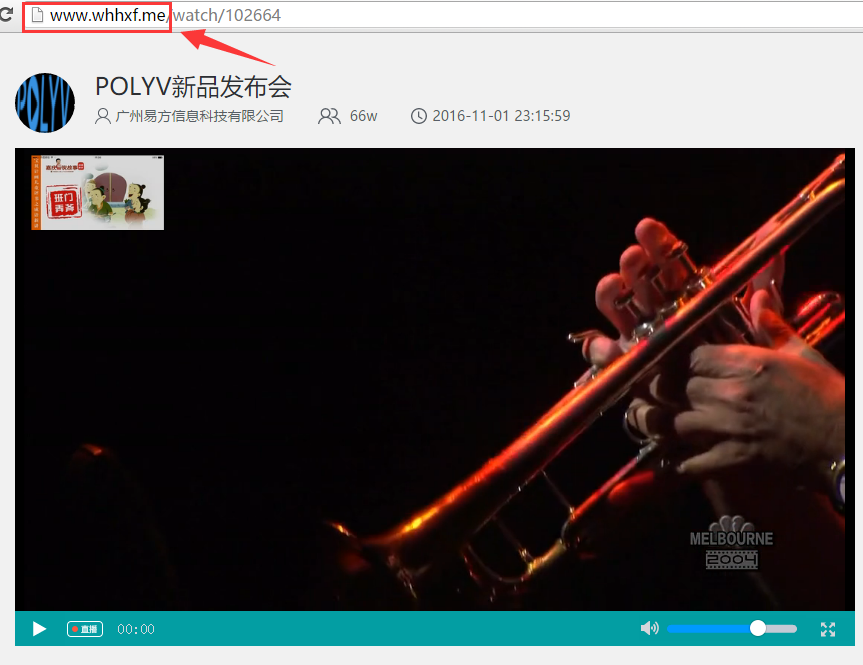
Purpose: You can point your domain to the Polyv playback domain live-watch.videocc.net, allowing you to use your domain to access the Polyv viewing page.
Note: If you are using a custom WeChat Official Account or have enabled the custom authorization feature, and need to set up a CNAME, please provide your domain to the Polyv customer service team for registration! Otherwise, no registration is required.
Usage effect:
Important Notes
1. Domains that CNAME to Polyv must be registered with the Public Security Network Management Platform, have ICP filing, and be registered with Alibaba Cloud. All registrations must be completed before setting up the CNAME.
2. Domains without dual registration will be blocked, and the following error message will be displayed.
Filing Related Information:
1. The process is relatively simple. One of the requirements is a domain certificate, which can be obtained from your domain registrar.
2. Network access service provider and domain name registration service provider: Fill in based on the information of the service provider where the website's homepage is hosted.
3. Whether to provide internet interactive services: No
4. Whether to provide information publishing services involving controlled items: No
5. Related prior permissions: No
6. IP address: Please contact the Polyv customer service and technical support team to obtain.
7. Network access service provider: Please contact the Polyv customer service and technical support team to obtain.
Usage Steps
The following uses GoDaddy as an example.
1. Log in to GoDaddy and enter the domain management console.

2. Click on the domain you need to configure.
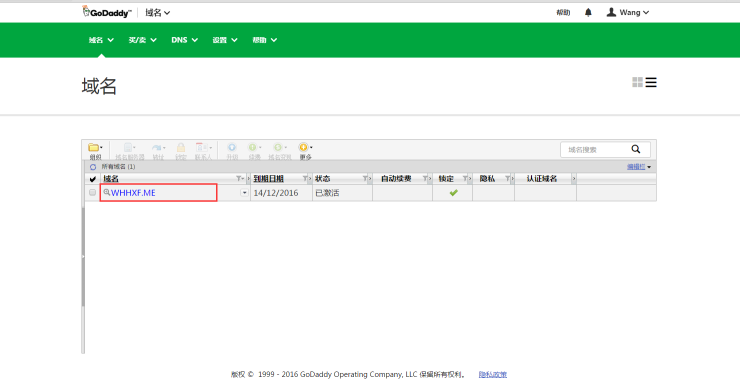
3. Click on DNS Zone File.
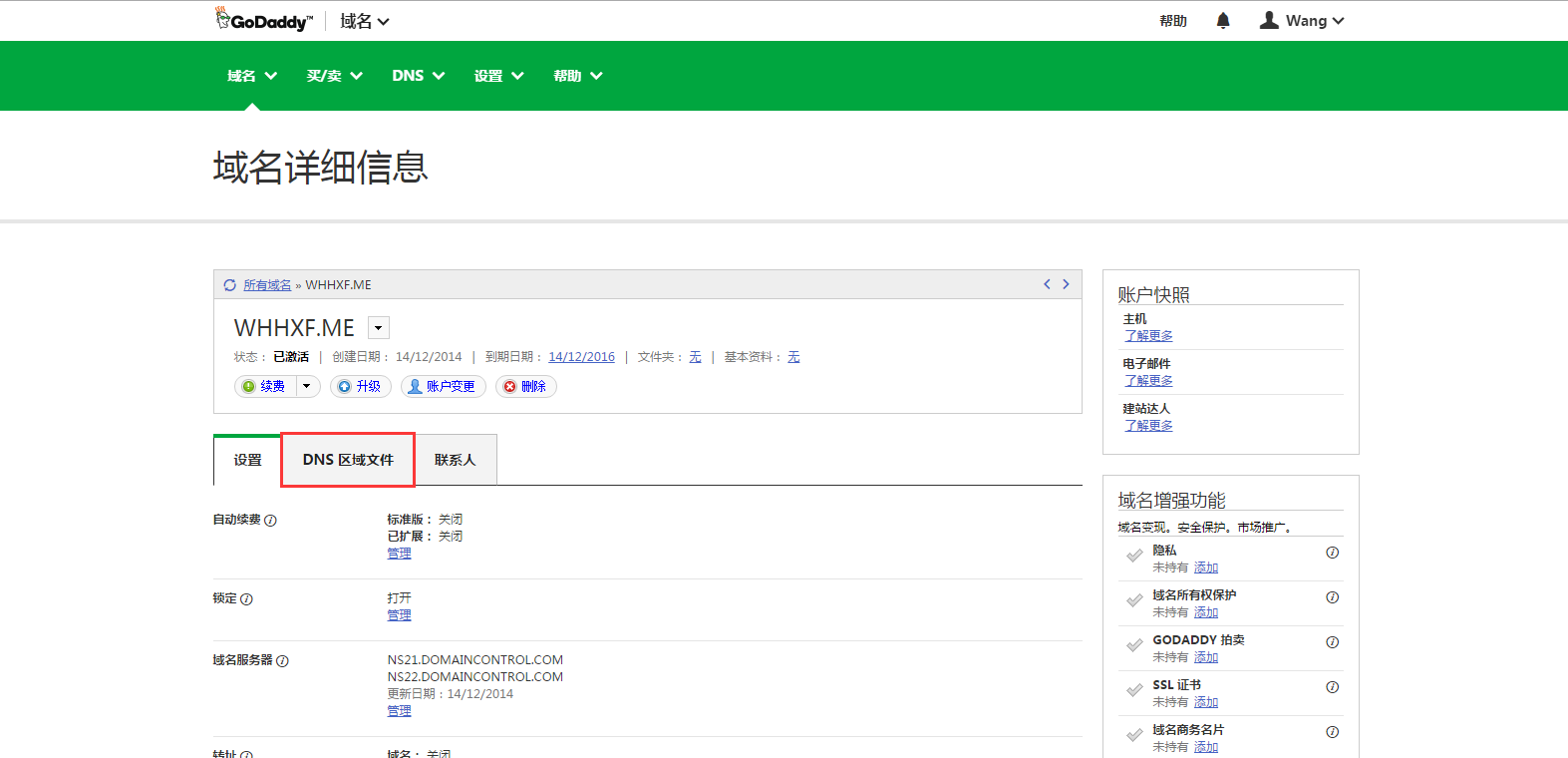
4. Find the CName (Alias) field and click Edit Record.
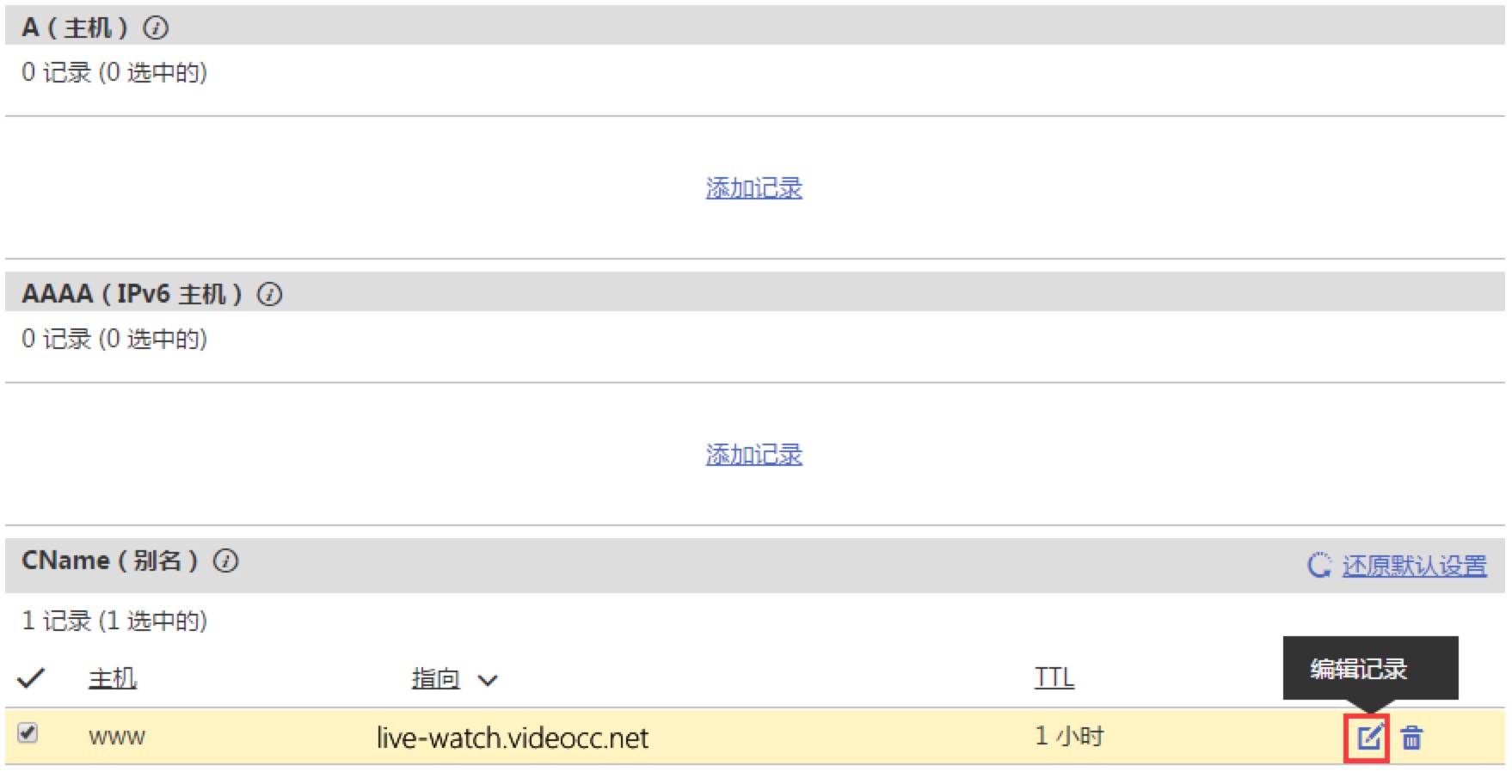
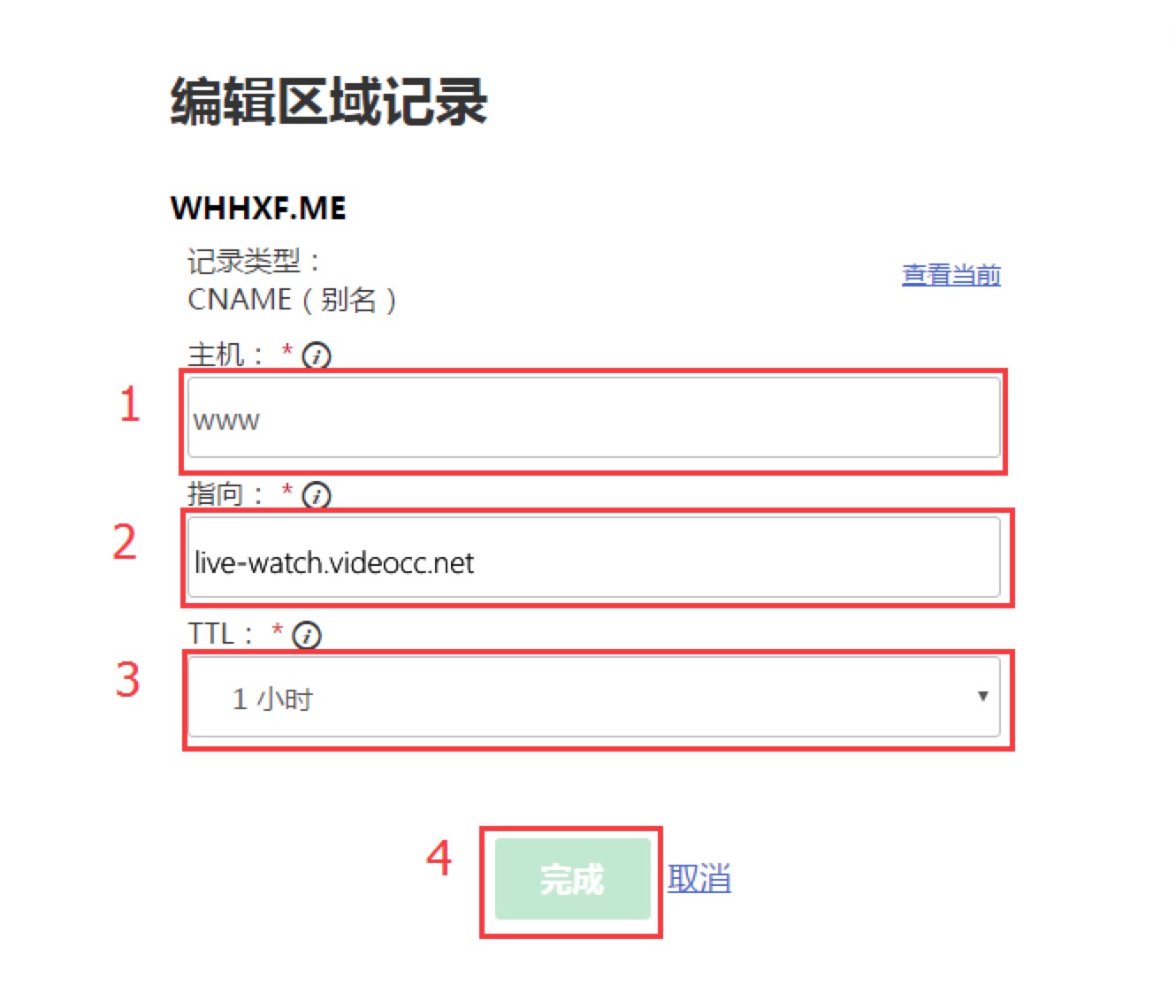
5. Edit Record
5.1 Host: Enter www
5.2 Points to: Enter live-watch.videocc.net
5.3 TTL: Keep the default value
5.4 Click Done to complete the setup