


Live Streaming Settings
Objective: Help operators pre-configure default settings for new channels via "Template Settings" and gain detailed control over global management of all channels (including historical channels) through the modules under "General Settings".
1. Feature Overview
| Feature Information | Description |
|---|---|
| Feature Name | Live Streaming Settings (Includes Template Settings & General Settings) |
| Feature Description | Live Streaming Settings is the global configuration center for the POLYV Cloud Live Streaming backend. "Template Settings" define the initial state of new channels; "General Settings" modules allow batch enabling or disabling of certain features across all channels under the account (including historical channels). |
| Purpose | Standardize new channel creation, improve multi-channel management efficiency, and ensure high consistency of feature logic across all channels. |
| Feature List | 1. Template Configuration: Preset viewing conditions, live streaming decoration, and interactive features for new channels. Effective only for newly created channels by default. 2. Global General Management: Unified control of features across all channels via sub-modules such as Client Broadcasting, Mobile Broadcasting, Viewer Page Settings, and Playback Settings. |
2. Detailed Operation Guide
1. Template Settings (For New Channels)
Scope: After saving, settings only apply to subsequently "newly created" channels.
Steps:
Log in to the backend, navigate to [Live Streaming Settings] -> [Template Settings]. Configure the desired features just as you would when creating a new channel.
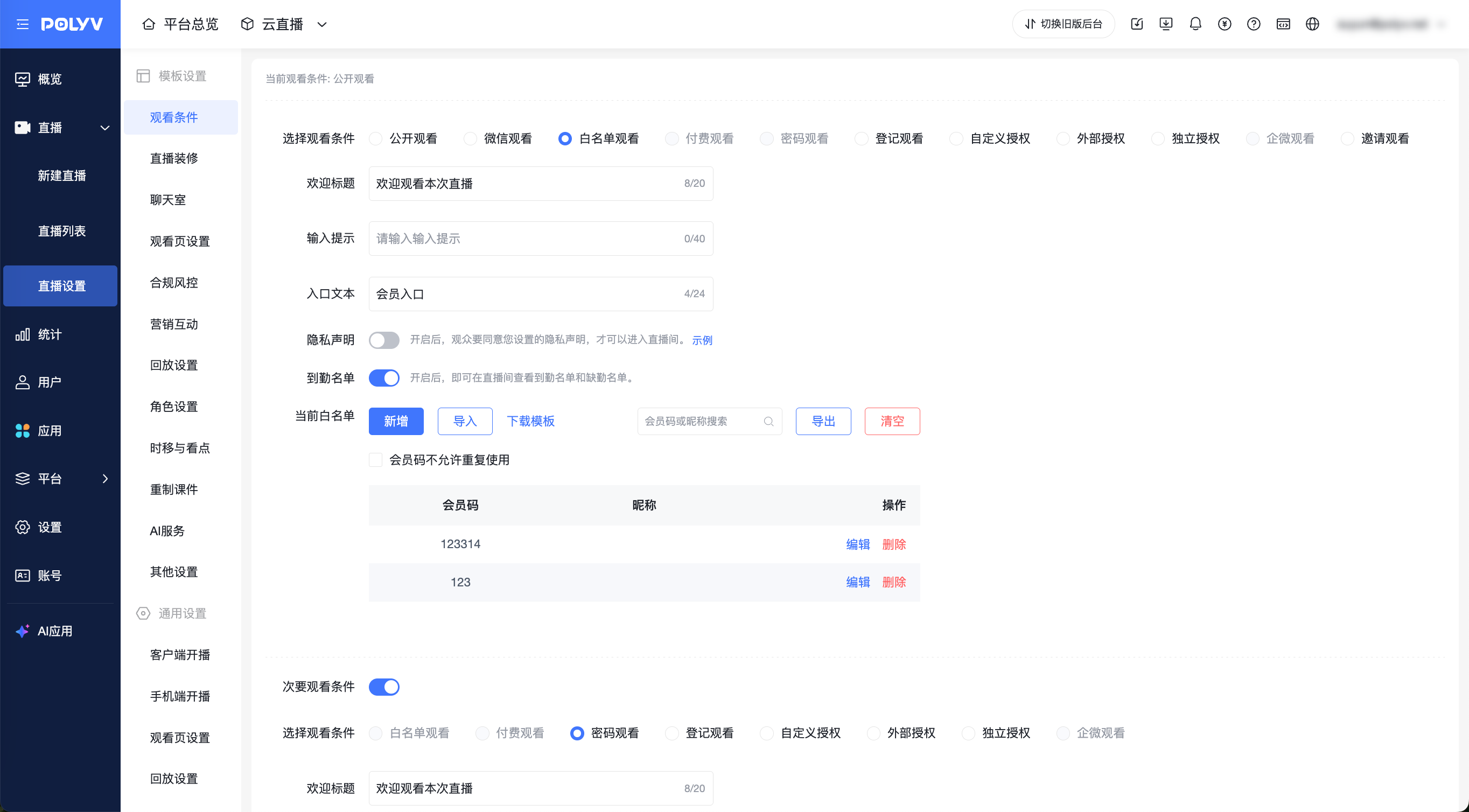
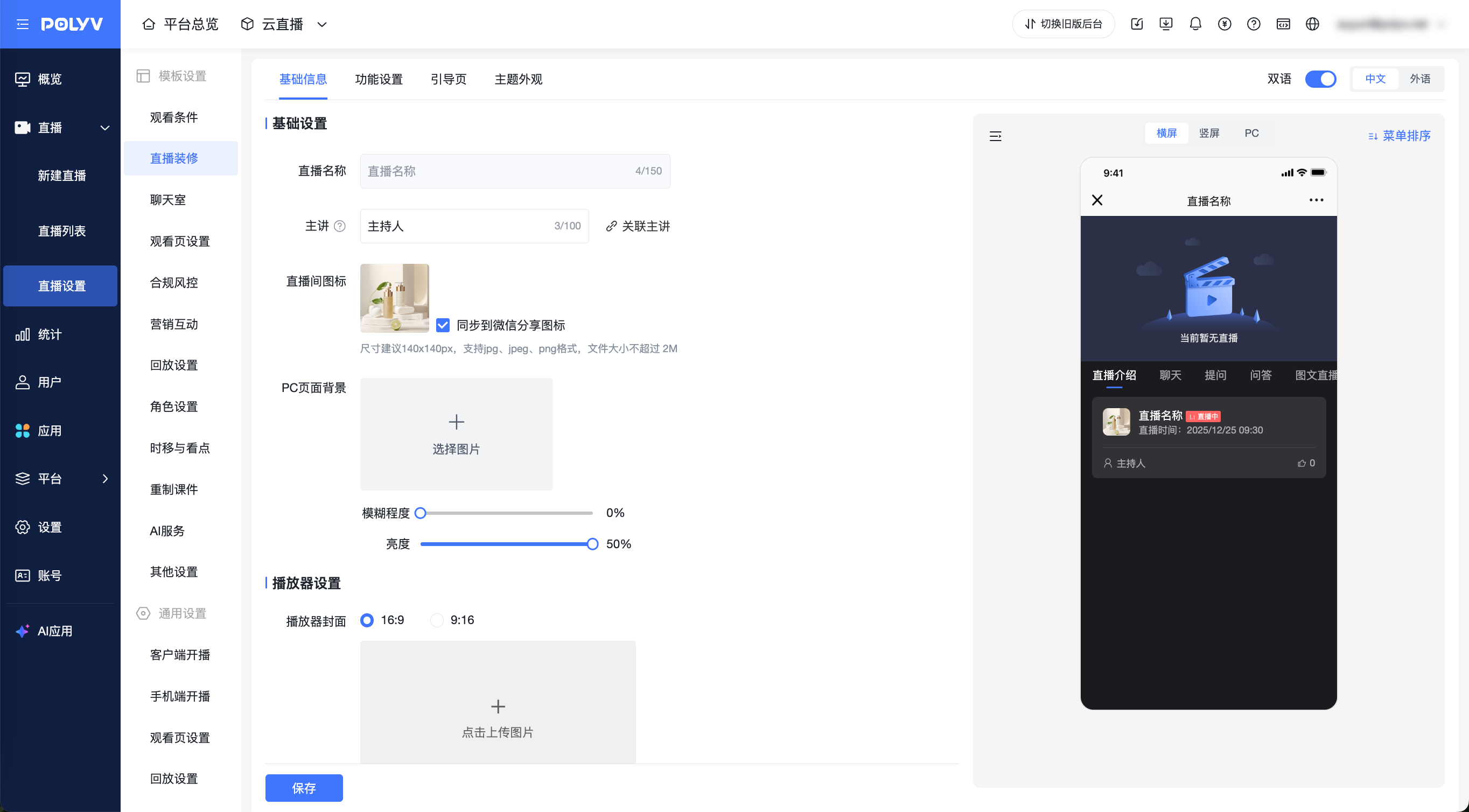
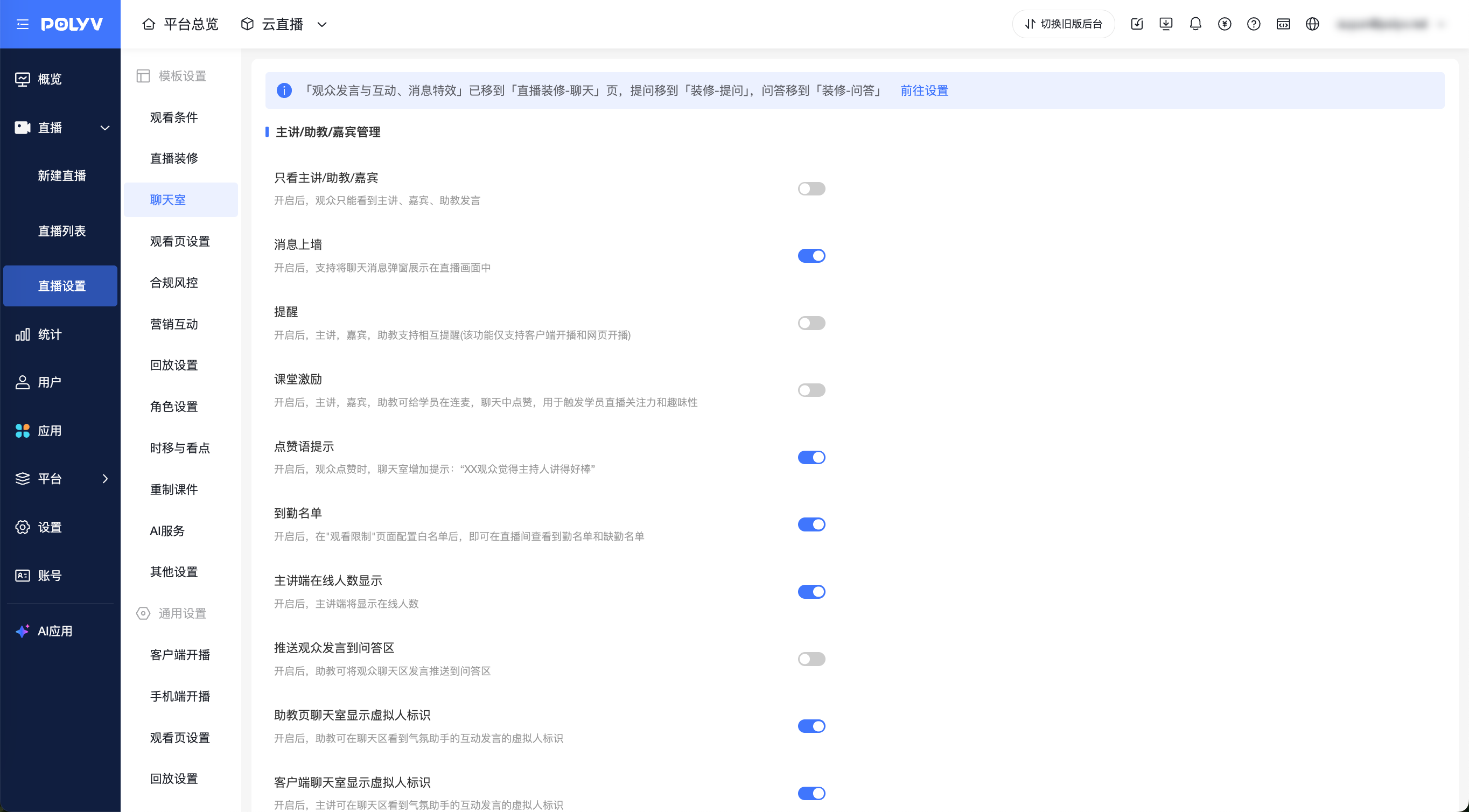
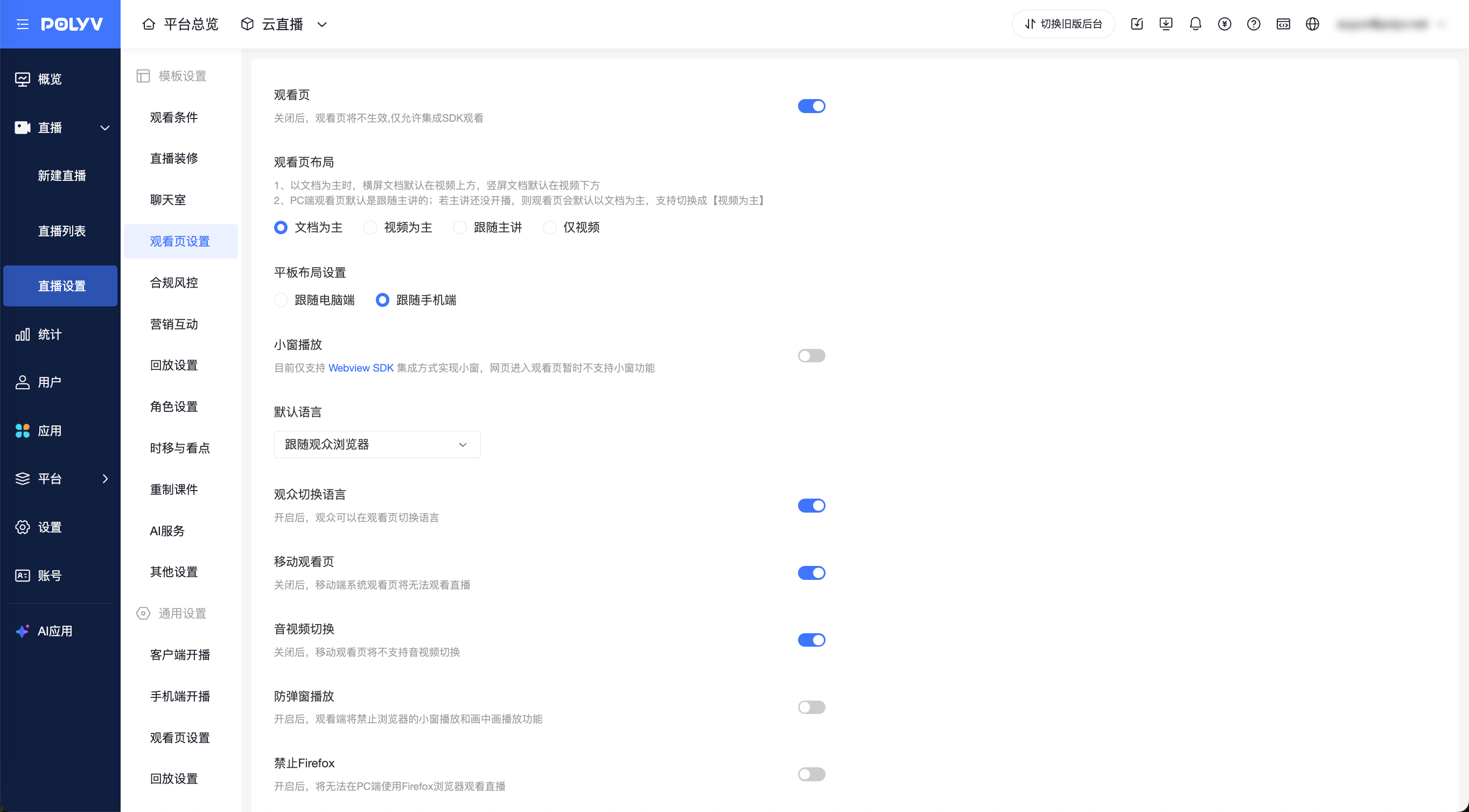
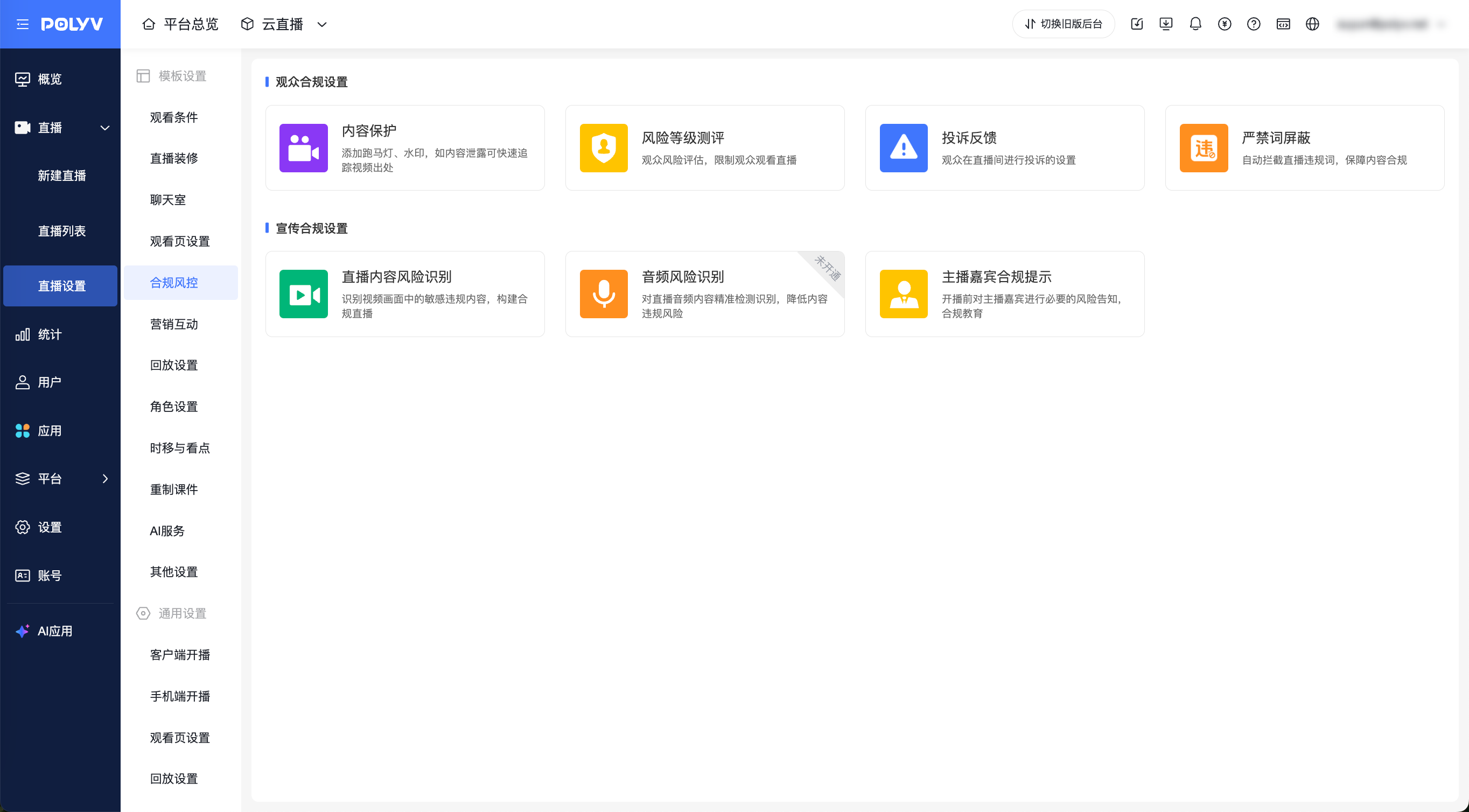
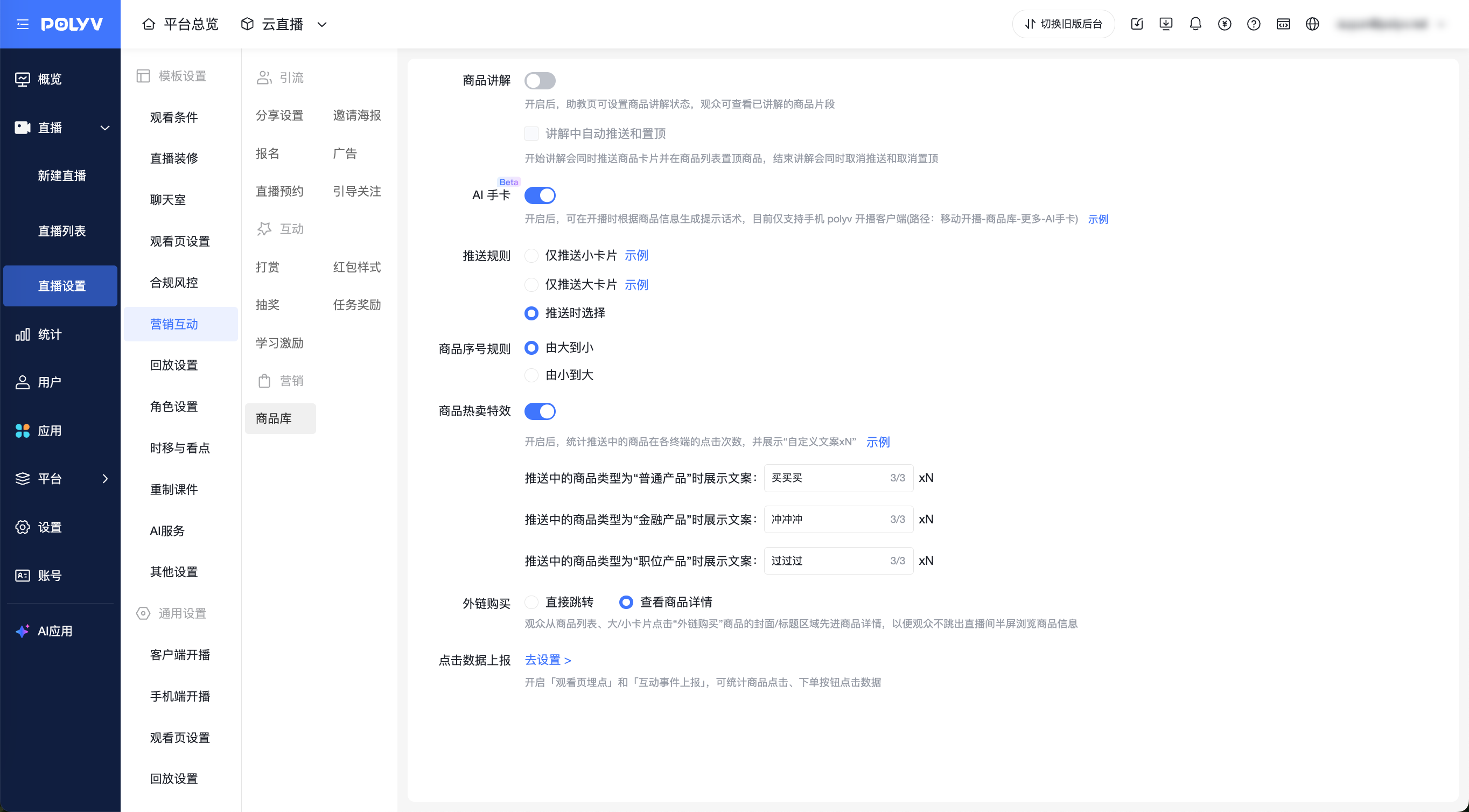
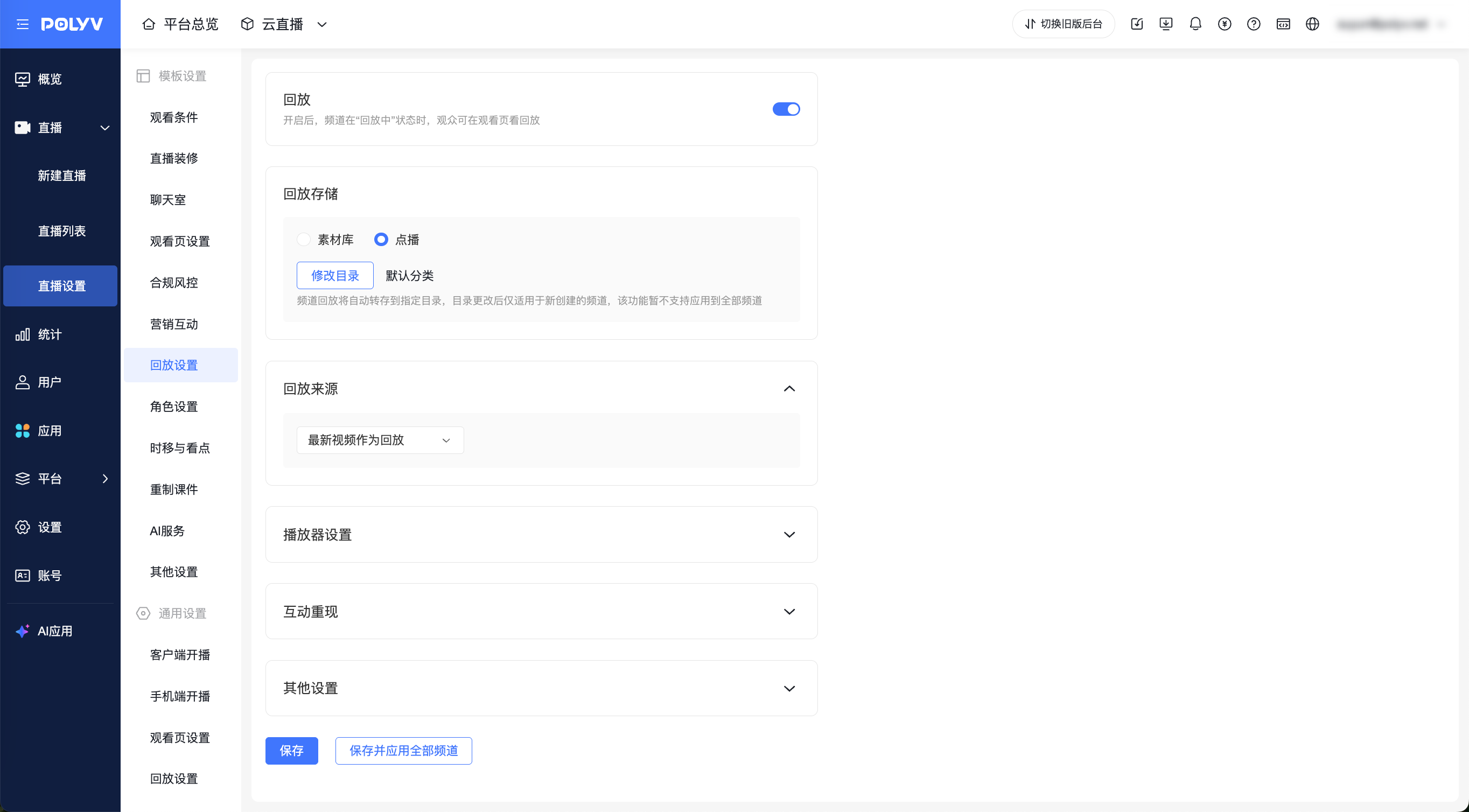
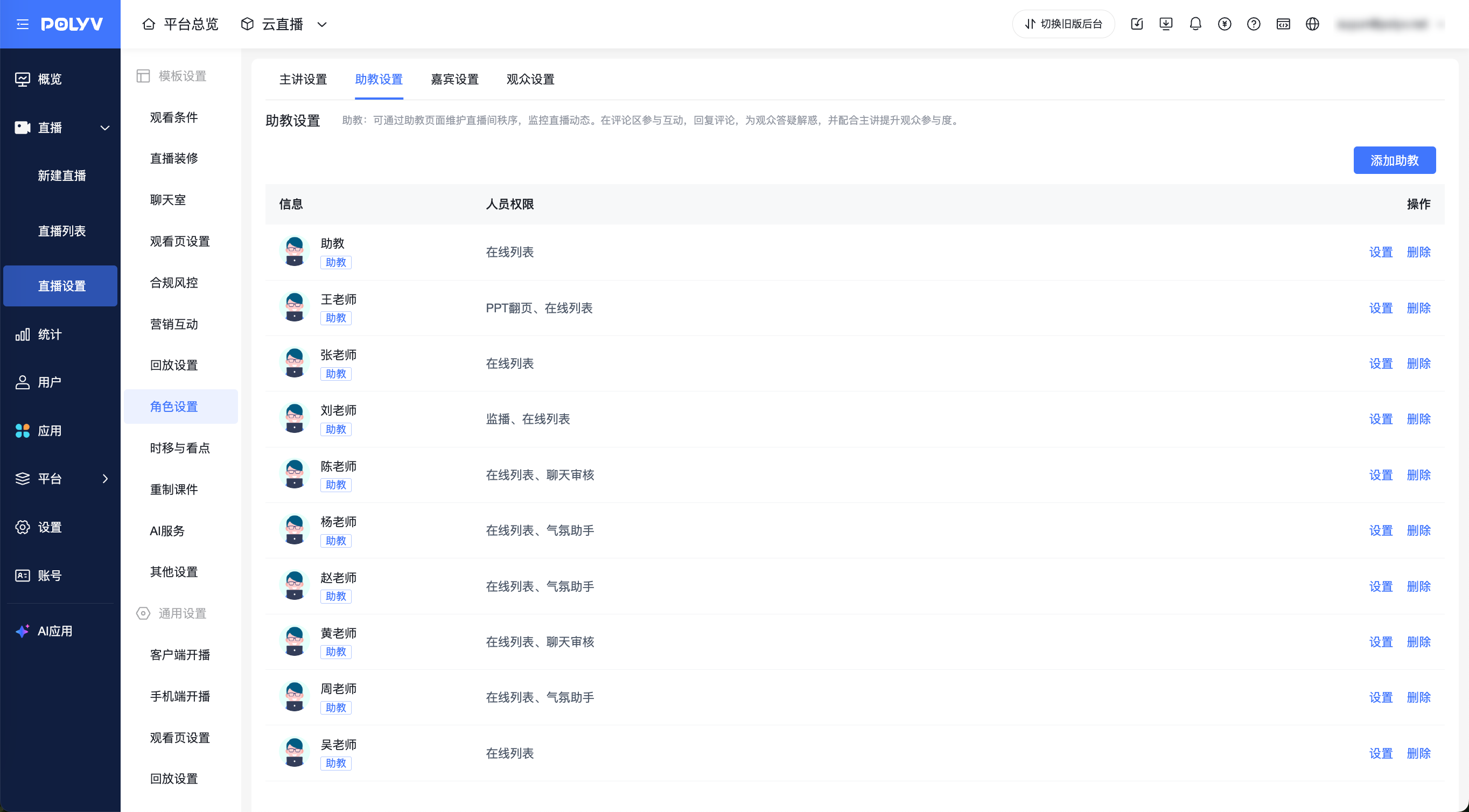
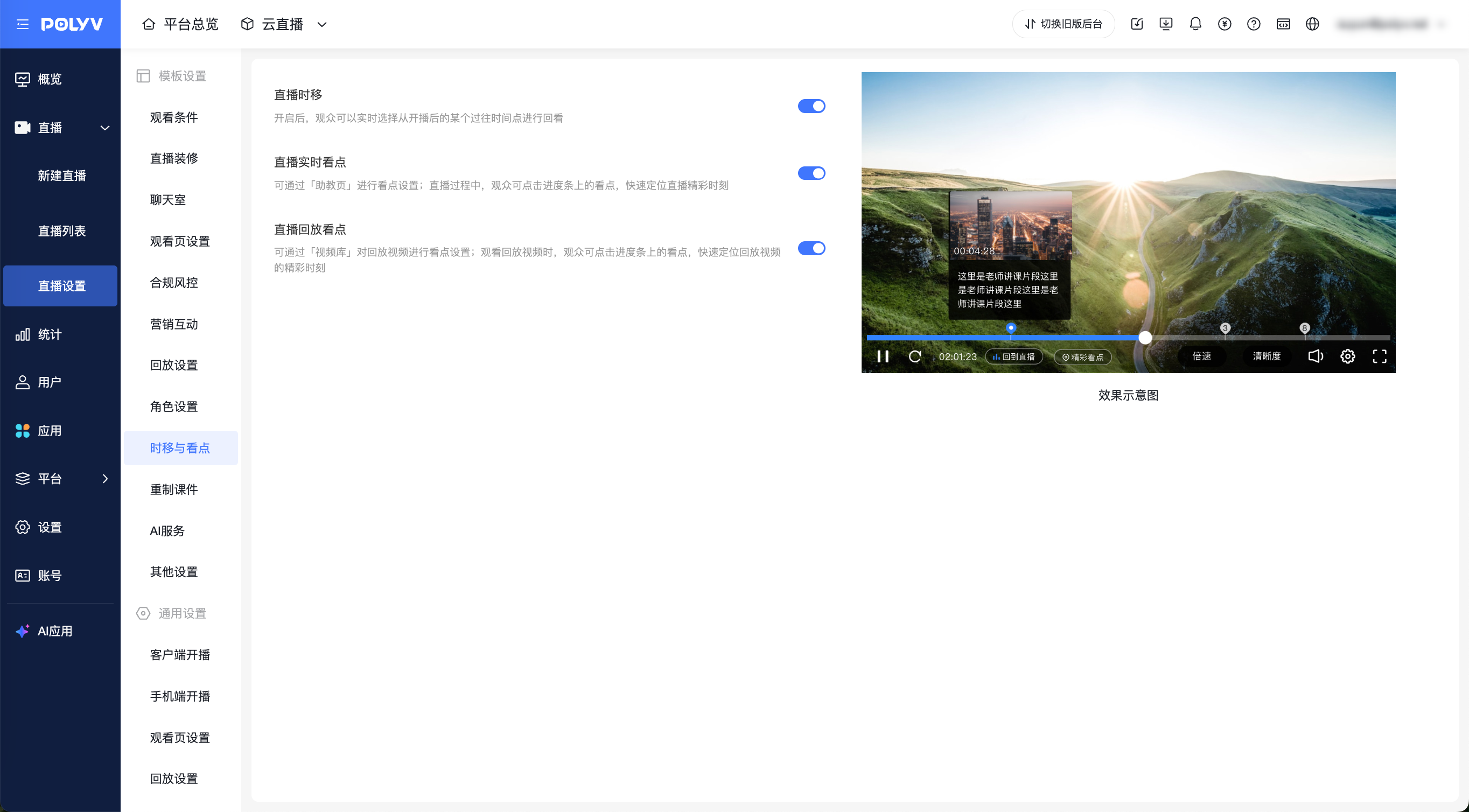
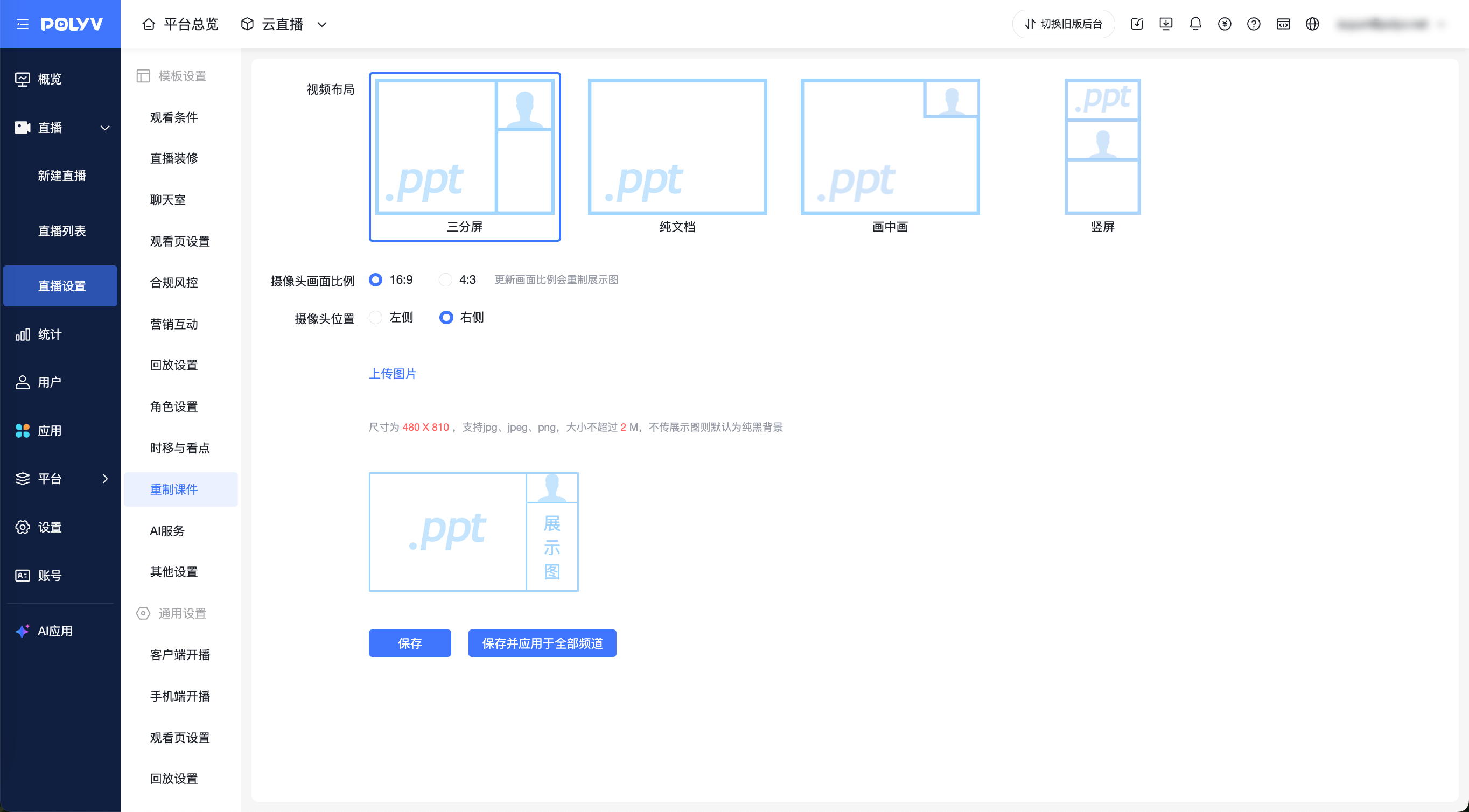
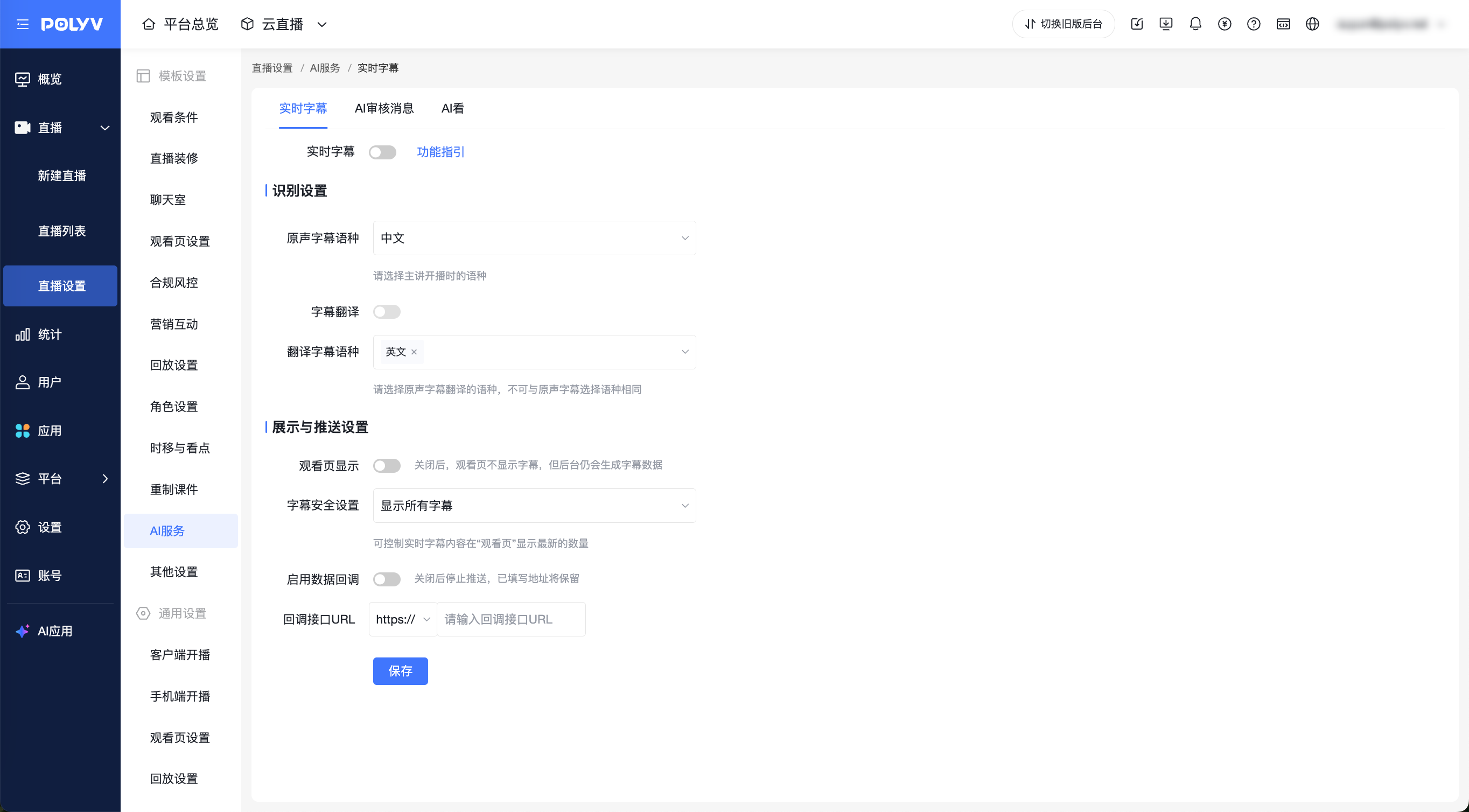
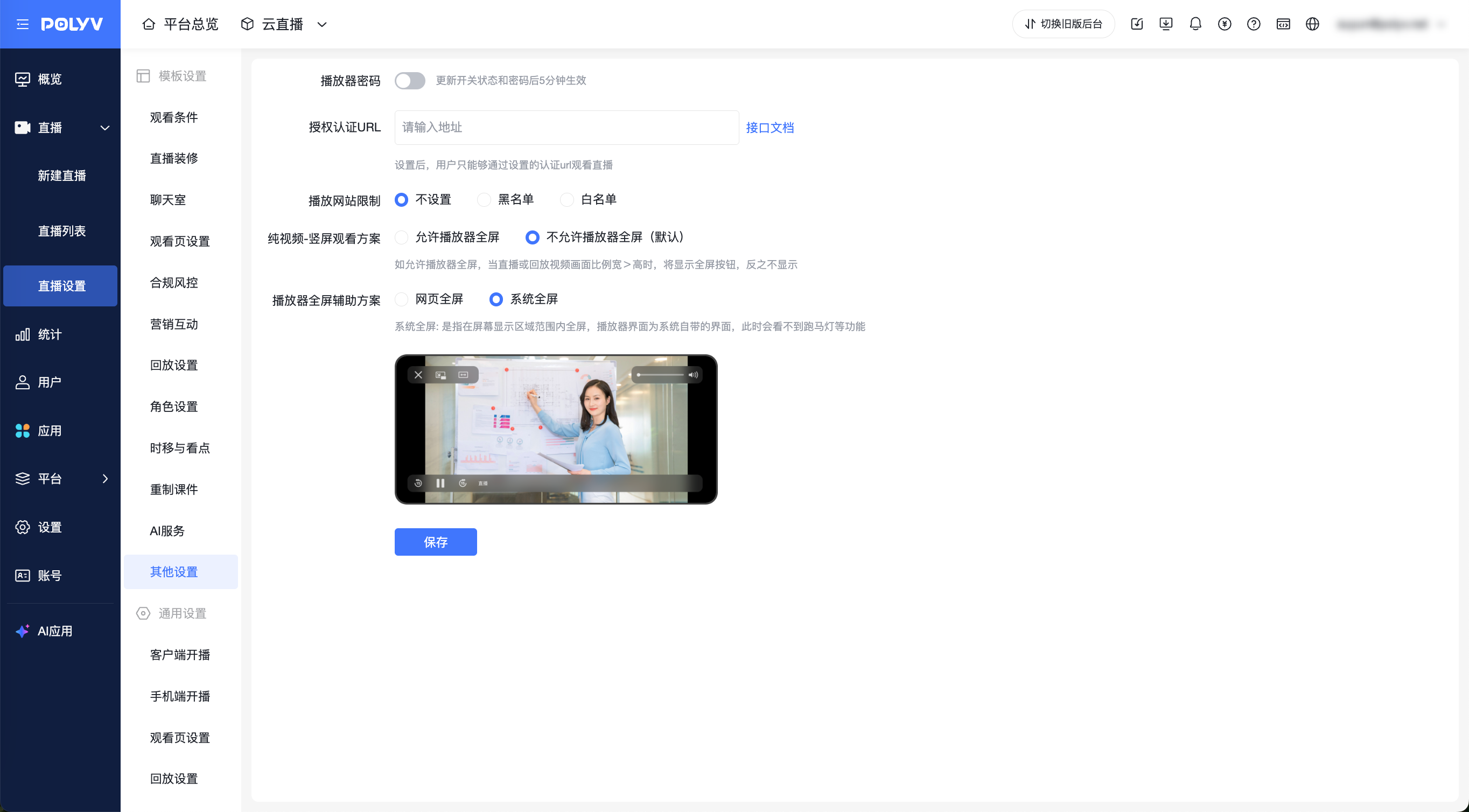
Some high-frequency features support the "Save and Apply to All Channels" operation: Viewing Conditions (Public Viewing, WeChat Viewing, Password Viewing, Registration Viewing, Custom Authorization, Independent Authorization, External Authorization); Playback Settings; Remaster Courseware.
2. General Settings - Client Broadcasting
Scope: Globally controls feature behavior when broadcasting using the desktop client.
Steps:
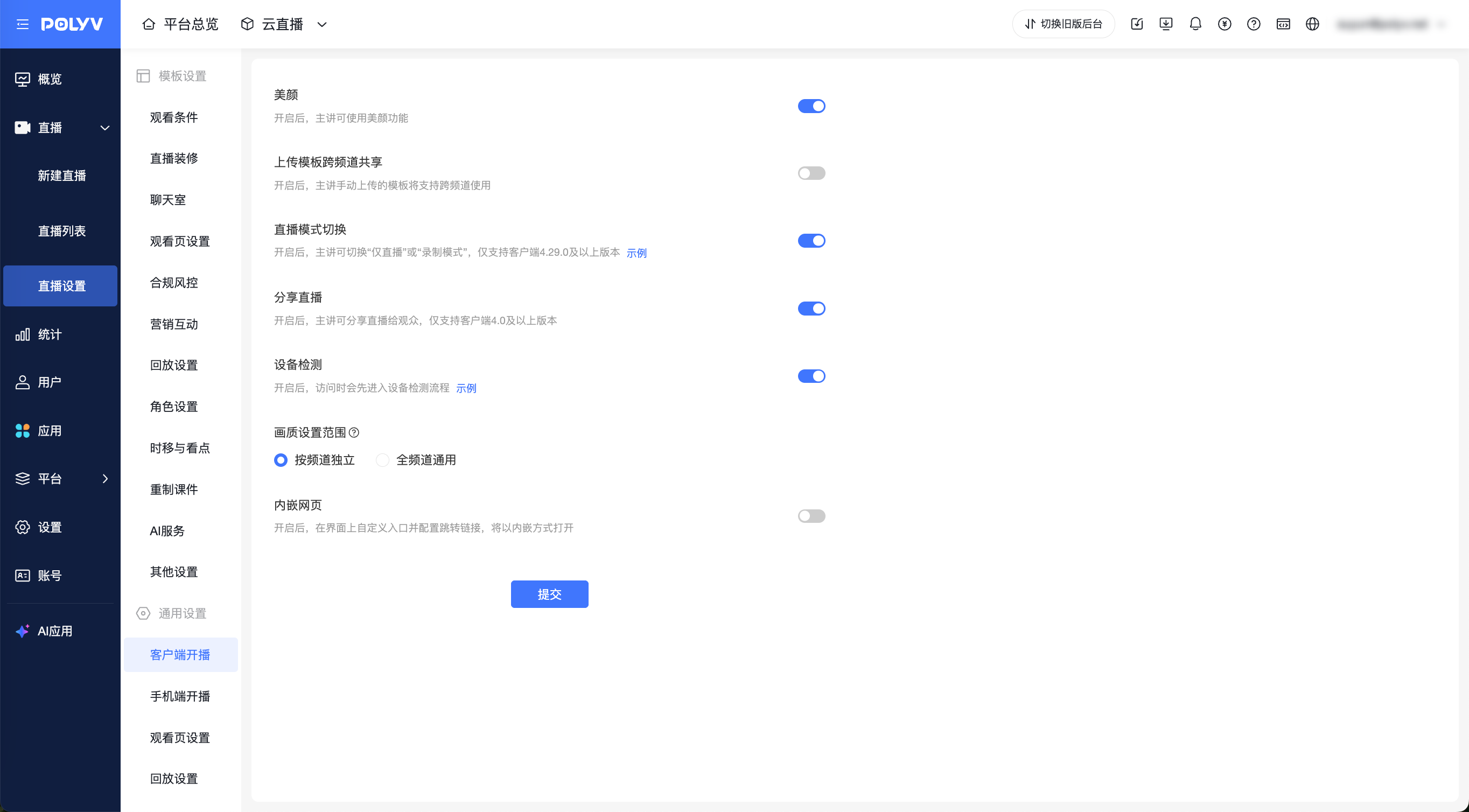
Navigate to [General Settings] -> [Client Broadcasting]. Globally enable or disable: Beauty Filter, Cross-Channel Sharing of Upload Templates, Live Mode Switching (Live Only/Recording Mode), Share Live Stream, Device Detection, and Video Quality Settings Range (Per Channel Independent/Global for All Channels).
3. General Settings - Mobile Broadcasting
Scope: Globally controls video and interaction configurations when broadcasting using the mobile app.
Steps:
Navigate to [General Settings] -> [Mobile Broadcasting].
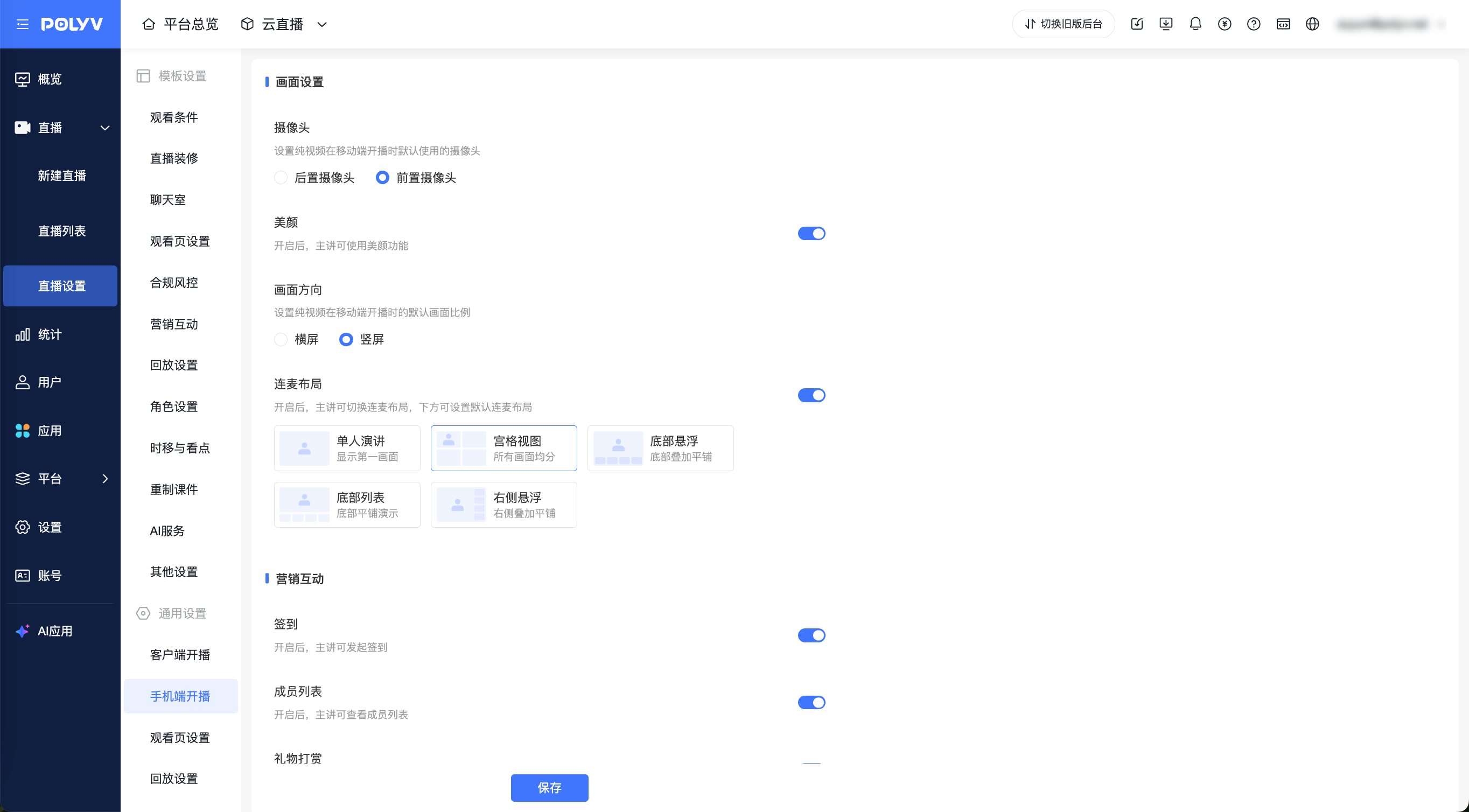
- Video Settings: Preset default camera direction (Front/Rear), Beauty Filter toggle, Aspect Ratio (Landscape/Portrait), and Co-hosting Layout.
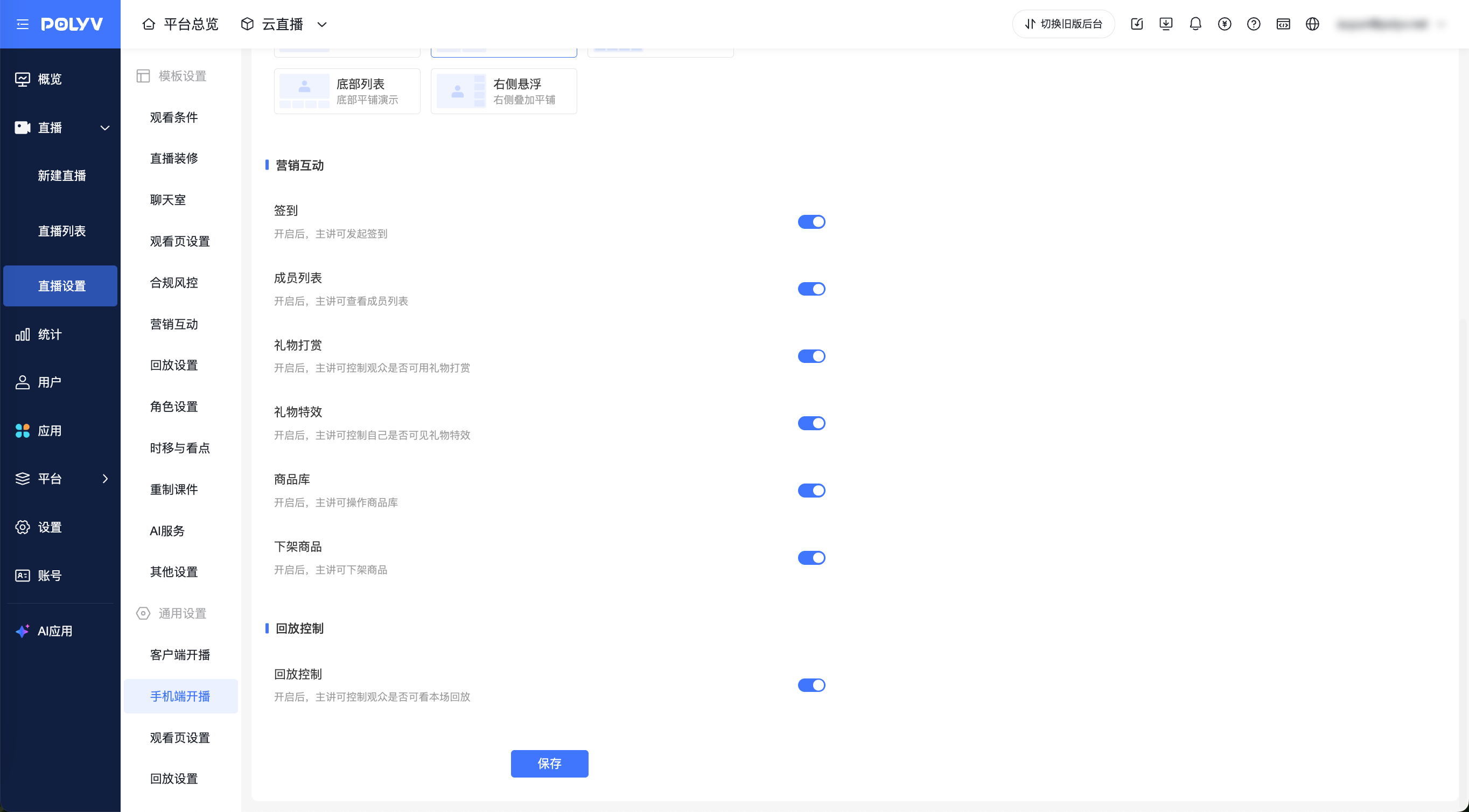
- Marketing & Interaction: Uniformly enable Check-in, Member List, Gifts & Tips, Gift Effects, Product Library, and Remove Products.
- Playback Control: When enabled, the host can control whether viewers can watch the current session's playback.
4. General Settings - Viewer Page Settings
Scope: Globally controls the player behavior and marketing logic on the viewer's page.
Steps:
Navigate to [General Settings] -> [Viewer Page Settings].
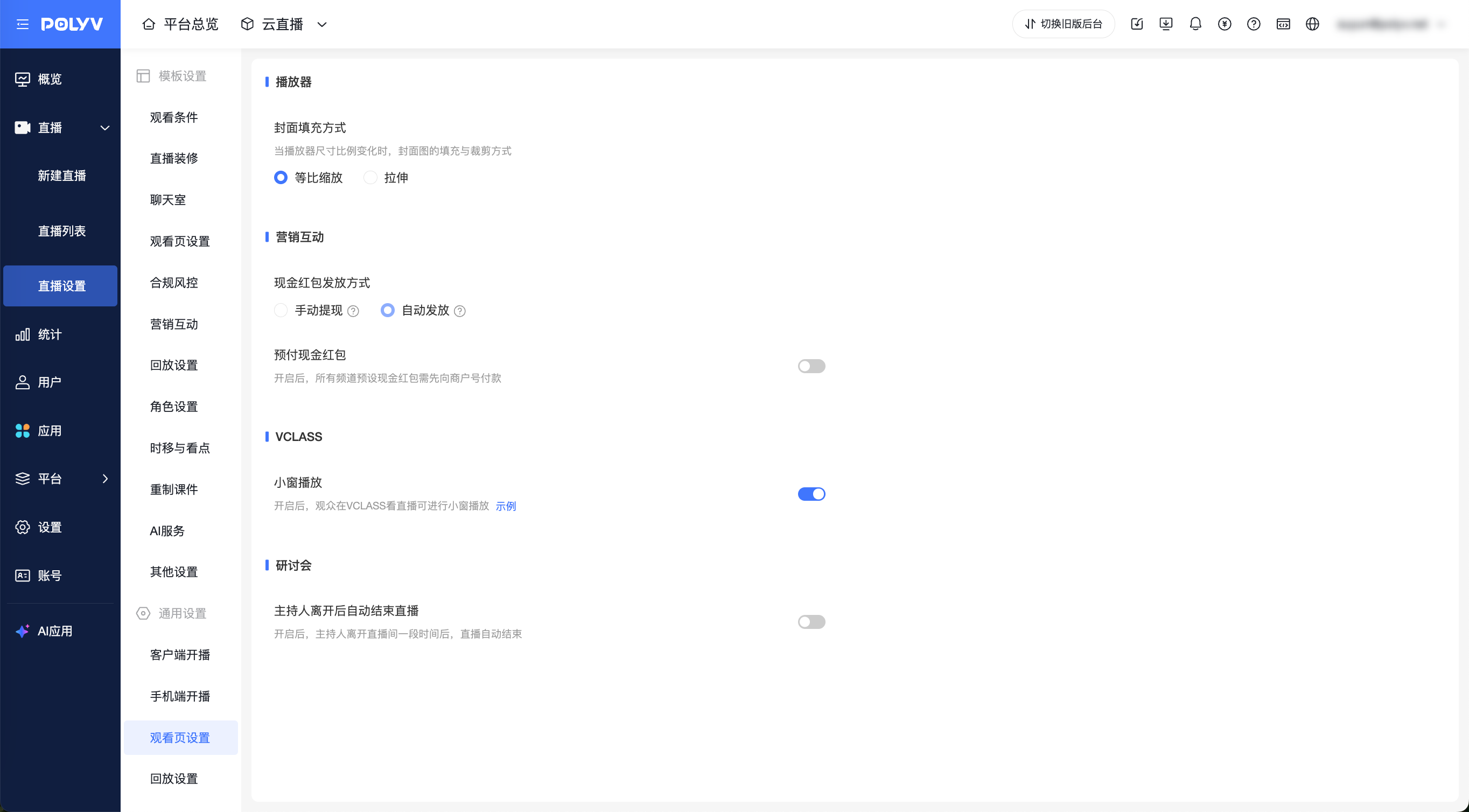
- Player: Set the cover image fill method (Scale to Fit/Stretch).
- Marketing & Interaction: Preset the cash reward distribution method (Manual Withdrawal/Auto Distribution) and the Prepaid Cash Reward toggle.
- VCLASS: Globally enable the "Picture-in-Picture Playback" feature.
- Seminar: Globally configure "Auto-end live stream when host leaves".
5. General Settings - Playback Settings
Scope: Globally controls the logic for generating playback after a live stream ends.
Steps:
Navigate to [General Settings] -> [Playback Settings]. Enable "Auto Transfer to VOD" to automatically transfer recordings to a specified VOD directory after the stream ends. Enable "Auto Remaster" and "Auto Transfer" to automatically add recordings from temporary storage to the playback list. Enable "Fill with Courseware" to stretch courseware to fill the display area, avoiding blank or black borders.
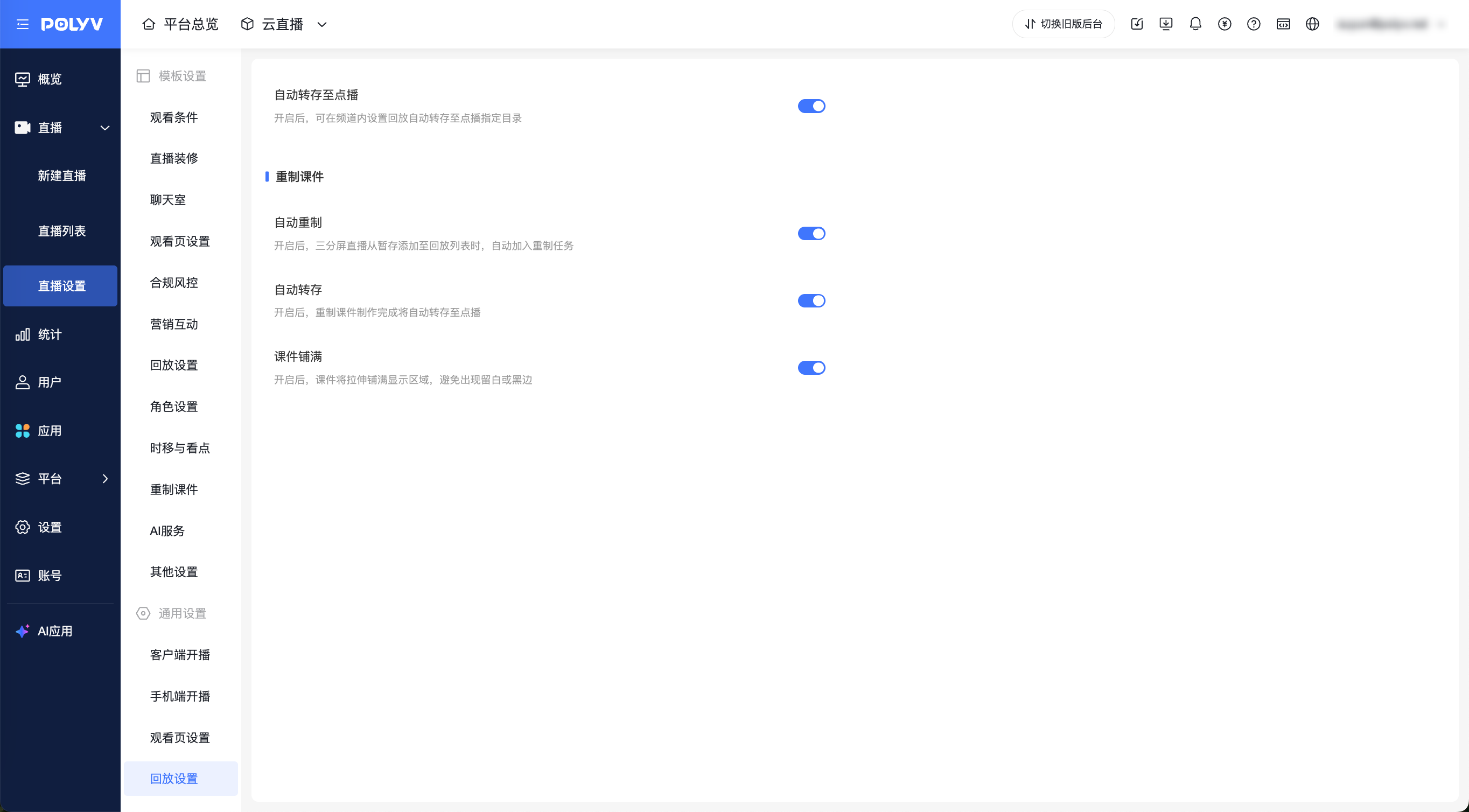
General Settings were previously under the platform-level menu. They have now been moved under the Live Streaming menu, consolidating all live-streaming-related settings here.
