


Backend Redesign Operation Guide
1. Feature Launch Time
All features involved in this update will go live on April 3, 2026, at 00:00.
2. Redesign Goals
This redesign is an overall optimization of the live streaming backend management experience. The core goal is to reduce unnecessary navigation jumps and scrolling during operations, making live stream management, activity configuration, and parameter settings more convenient. This guide will help you quickly understand the new operation methods for the three changes.
3. Redesign Overview
3.1 Live Stream Detail Page
Entry Instructions
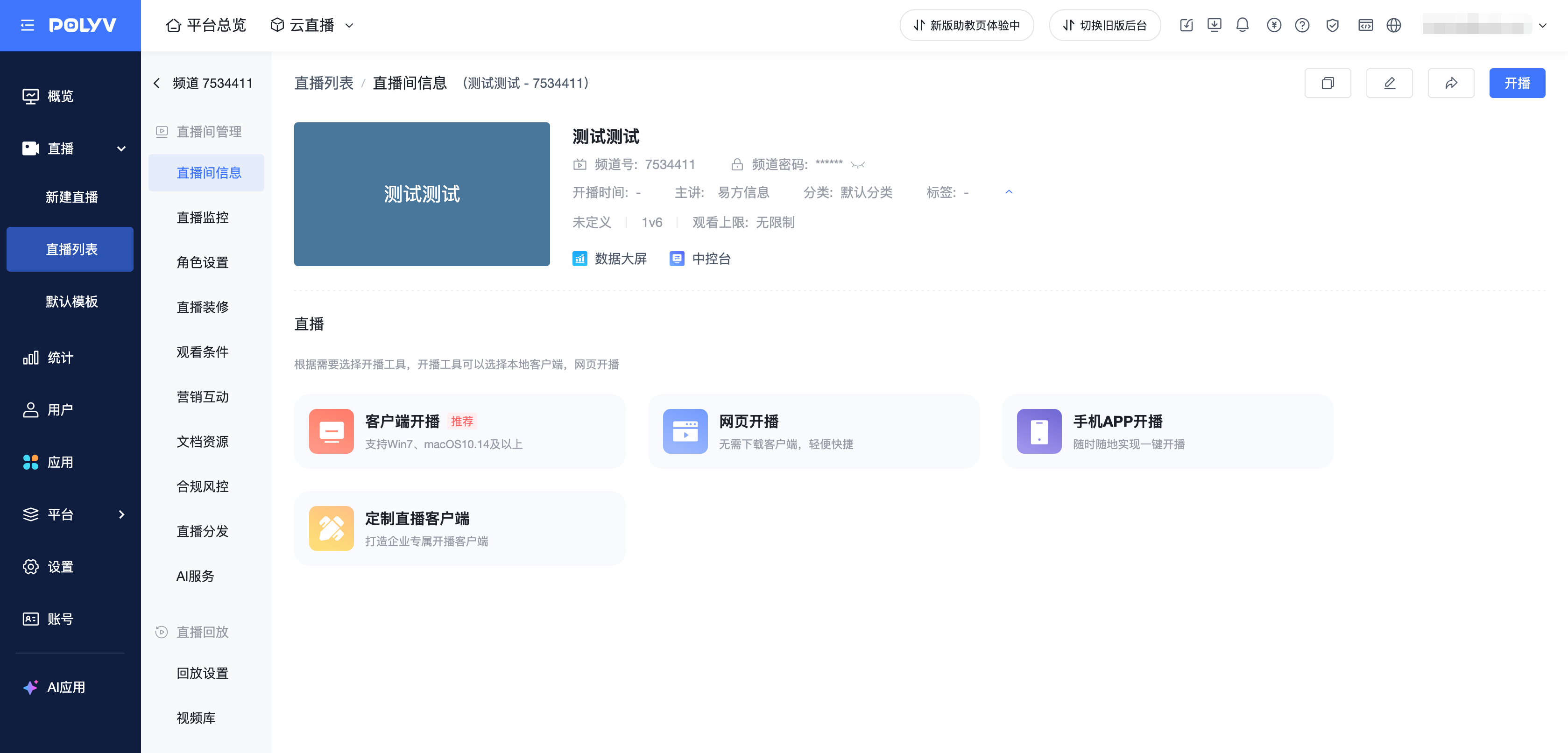
On the live stream list page, click any channel card or list row to open the channel's live stream detail page in a new browser tab. Path: Cloud Live Streaming Backend › Live Stream List › Click Channel Card/List Row › Open Channel Details in New Tab
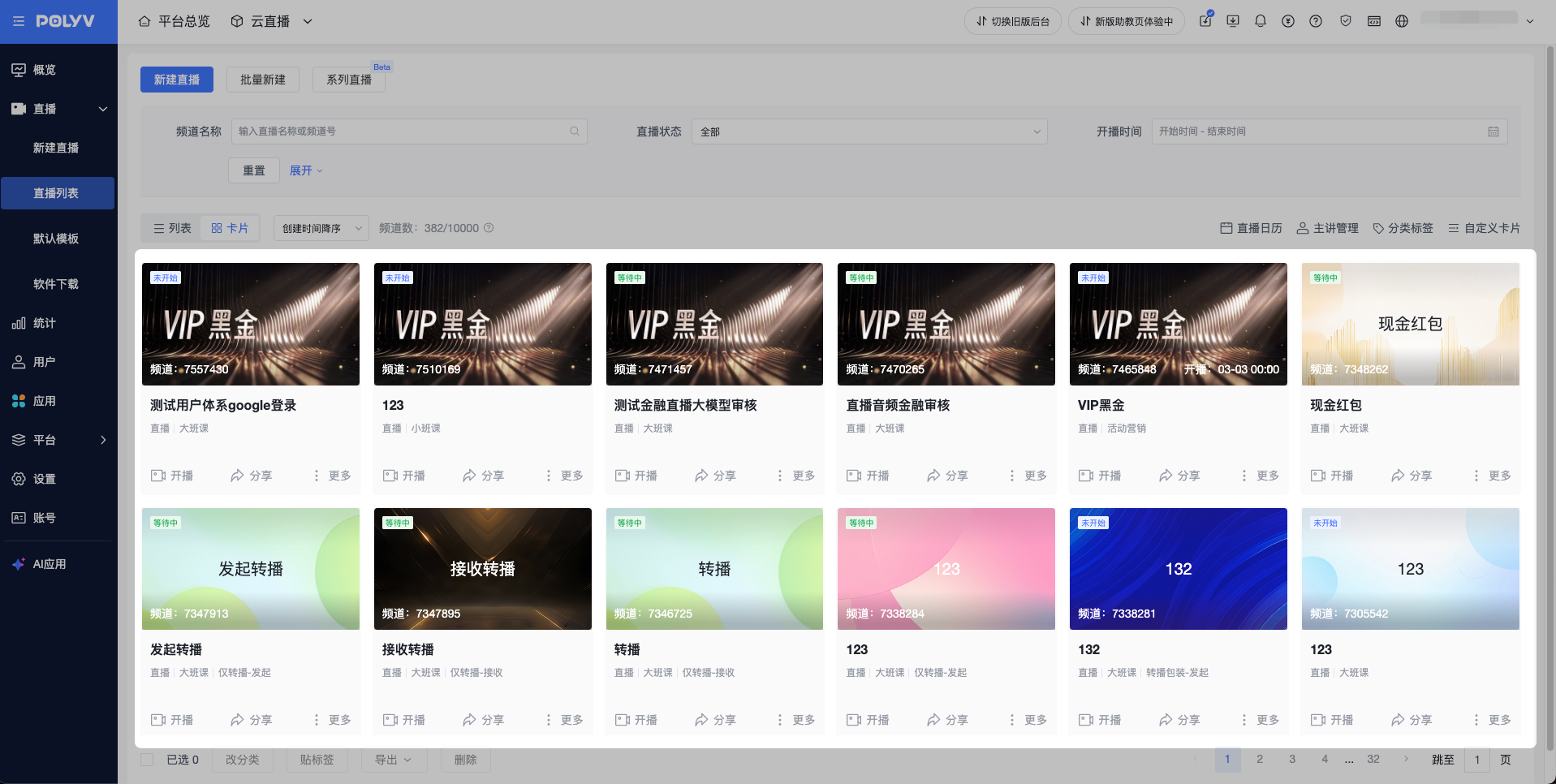
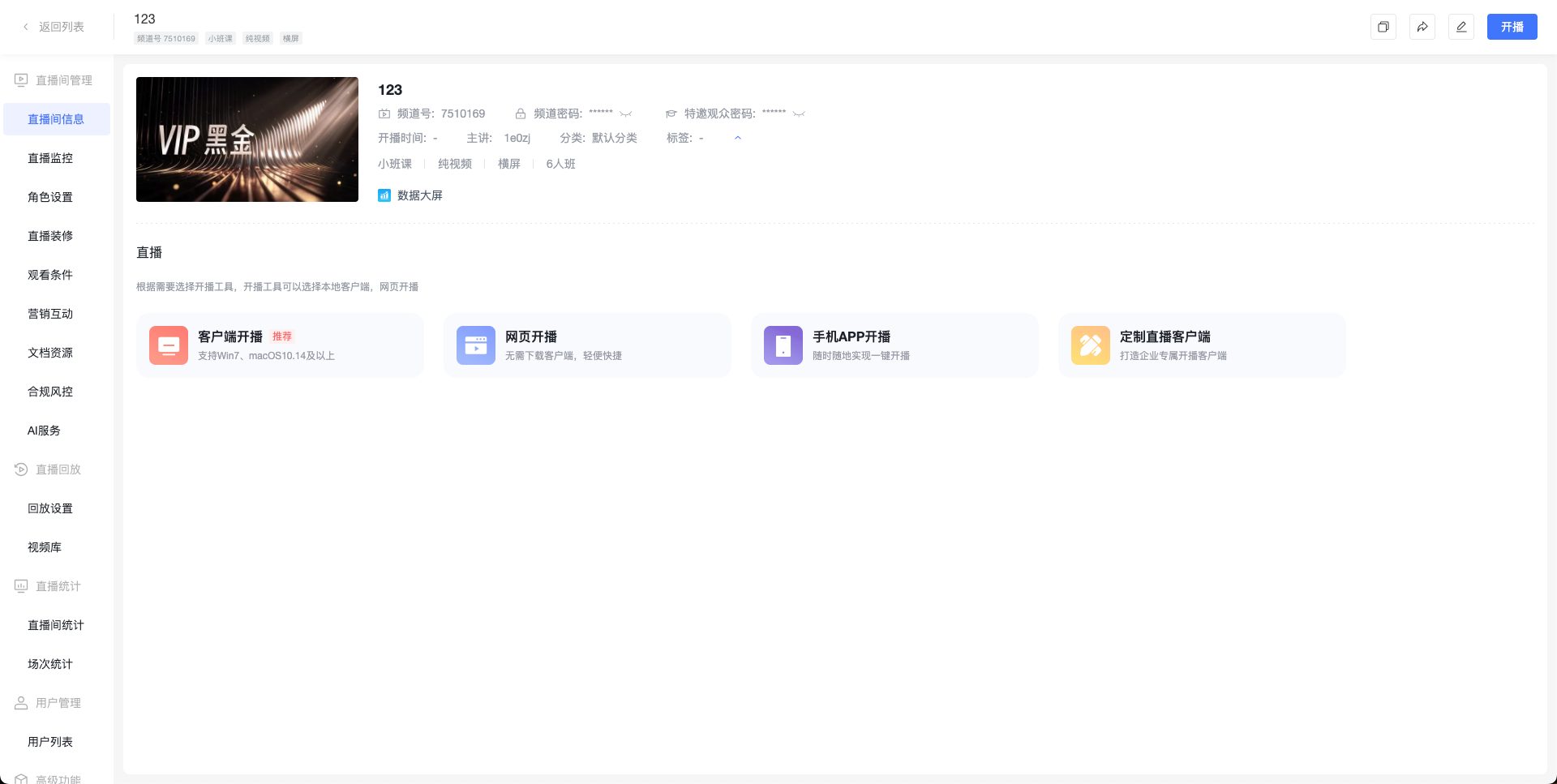
New Page Feature Description
The channel detail page is displayed full-screen in a new browser tab, with the sidebar navigation hidden. All functional modules within the page (Live Room Management, Live Monitoring, Role Settings, Live Stream Decoration, Viewing Conditions, Marketing & Interaction, Documents & Resources, Compliance & Risk Control, Live Distribution, AI Services, Recording Settings, Recording List, Live Statistics, etc.) remain unchanged, and the operation methods are exactly the same as before the redesign.
New Capability: Supports opening multiple channel tabs simultaneously for parallel management without interference. Close the current tab to return to the live stream list.
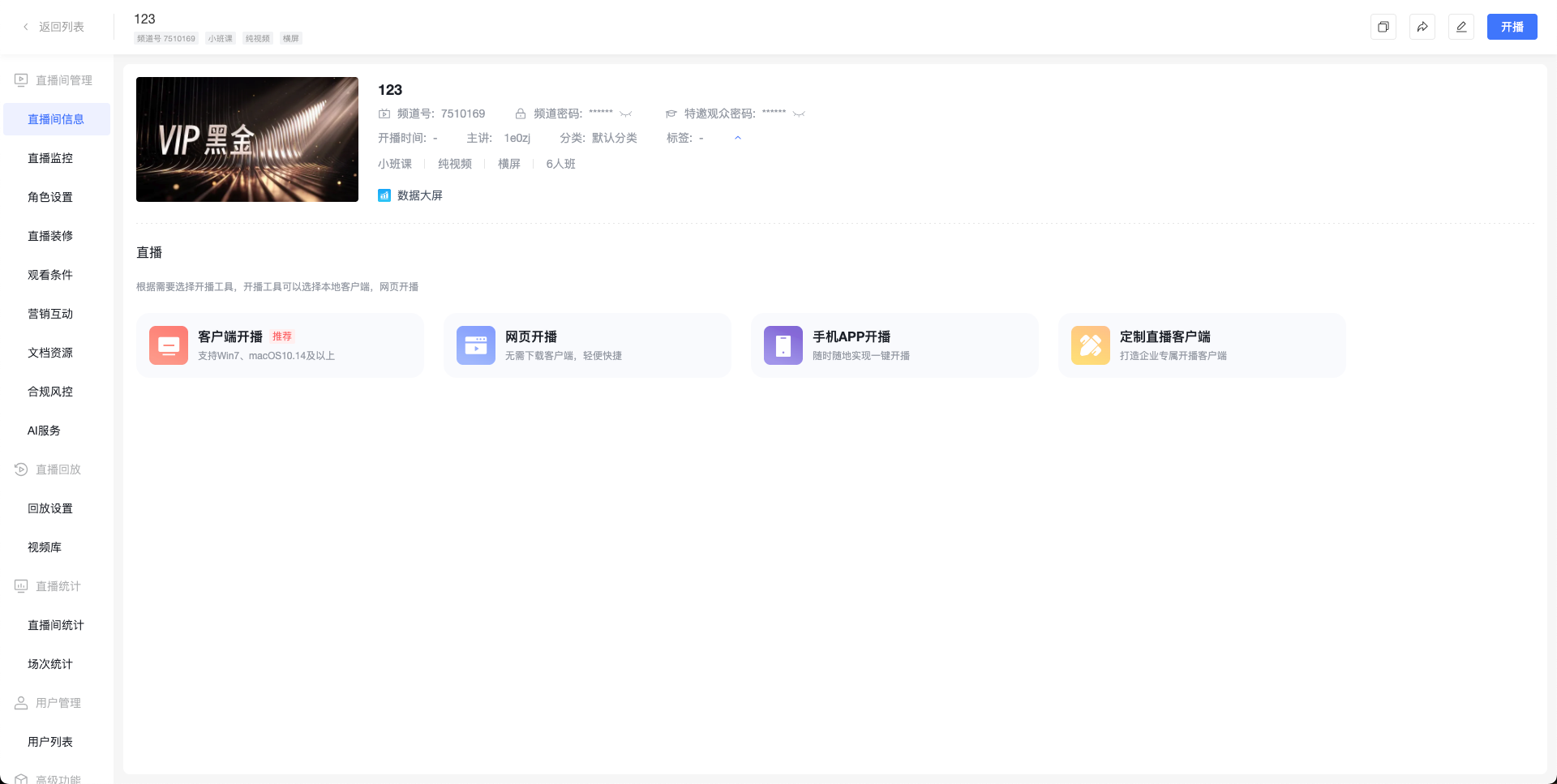
Comparison of Old and New Versions
| Old Version | New Version |
|---|---|
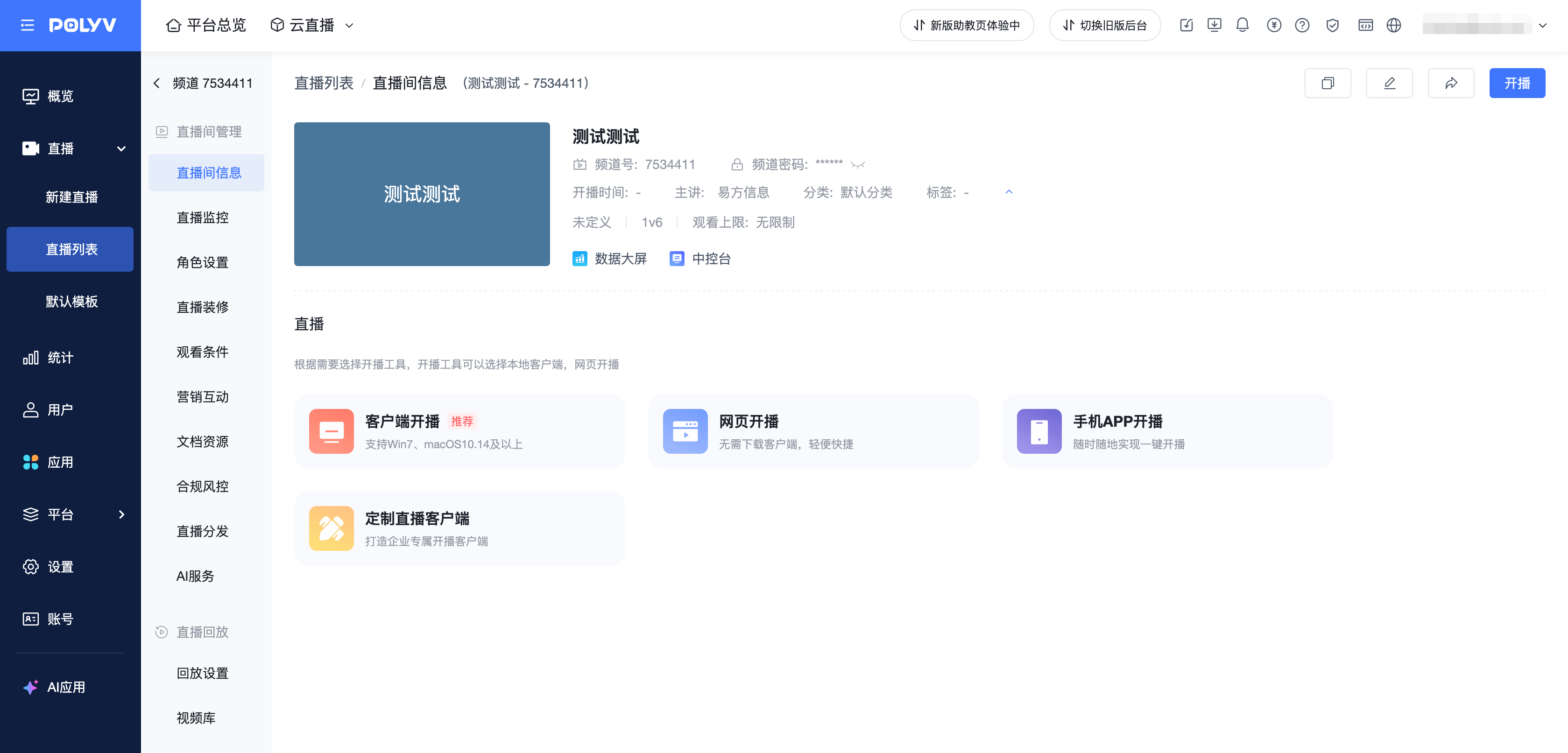
| 1. Navigation within the current page 2. Side primary navigation always visible 3. Click breadcrumb "Return to List" 4. Can only view one channel at a time |
1. Opens full-screen in a new tab 2. Hides the primary navigation bar, providing more operational space 3. Supports opening multiple channels simultaneously for parallel management |
 |
 |
3.2 Marketing & Interaction & Live Stream Decoration
Entry Instructions
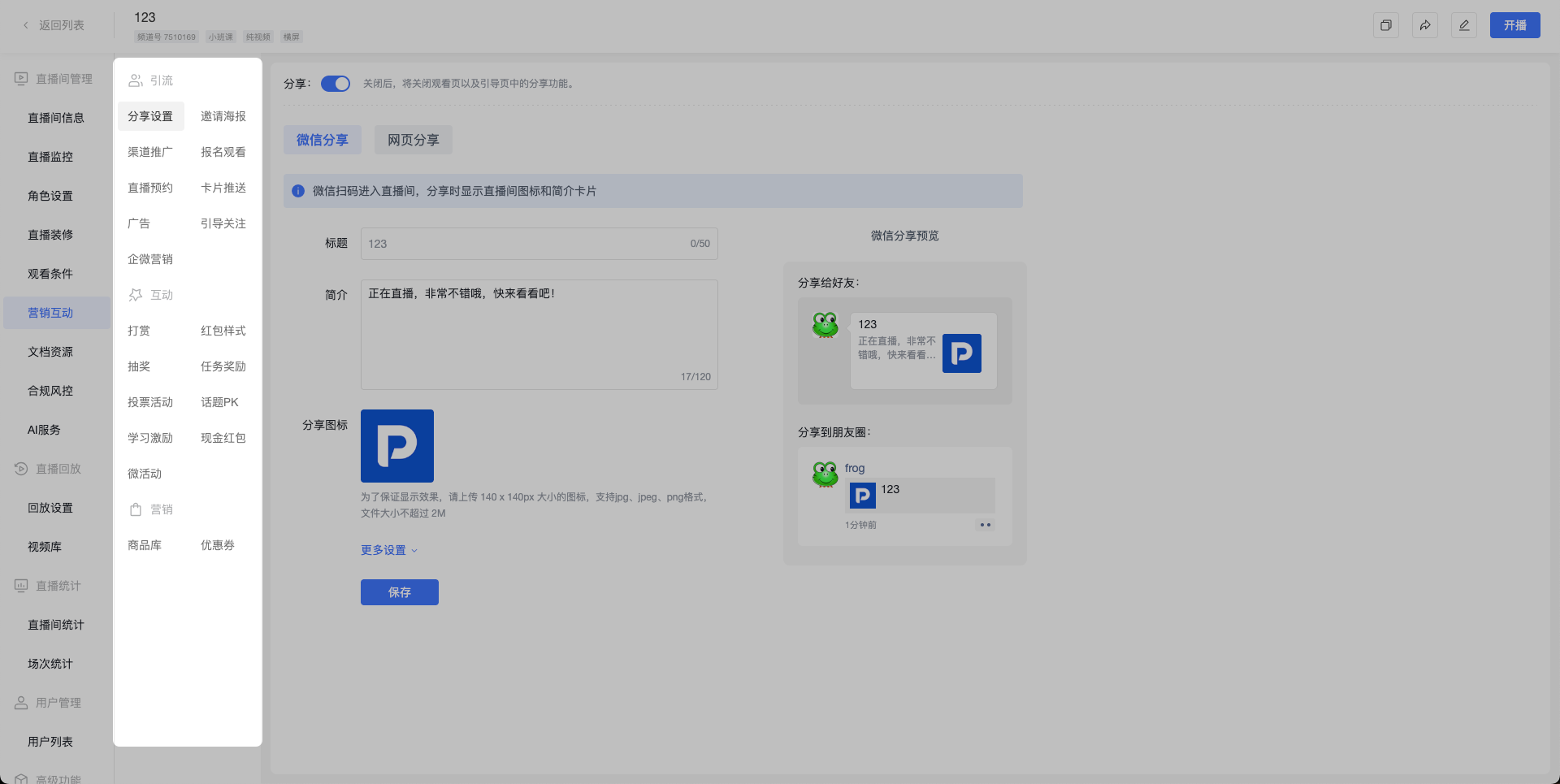
After entering the channel detail page, find the "Marketing & Interaction" entry in the left-side function menu.
Path:
Channel Detail Page › Marketing & Interaction
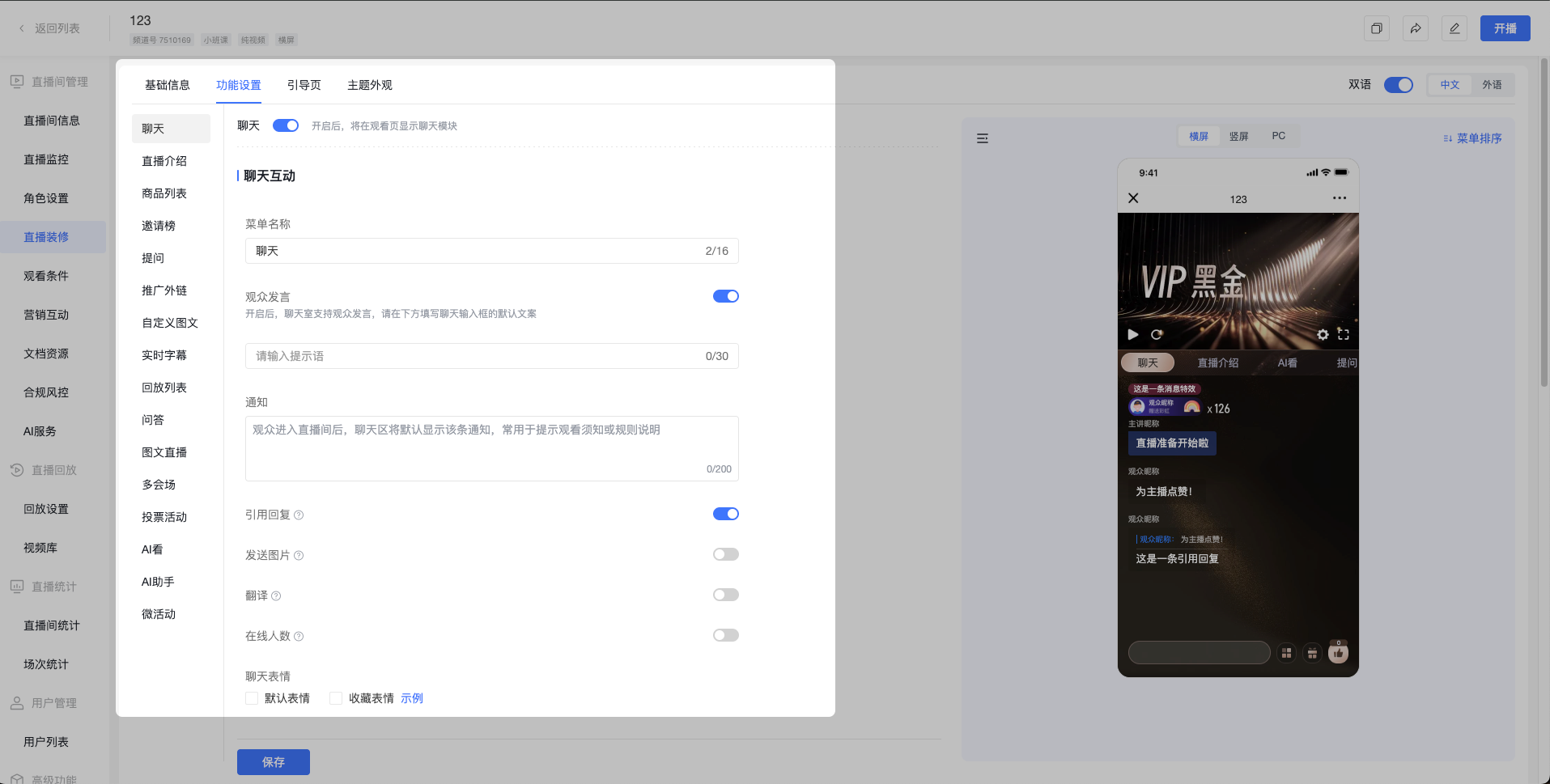
Channel Detail Page › Live Stream Decoration › Feature Settings
New Page Feature Description
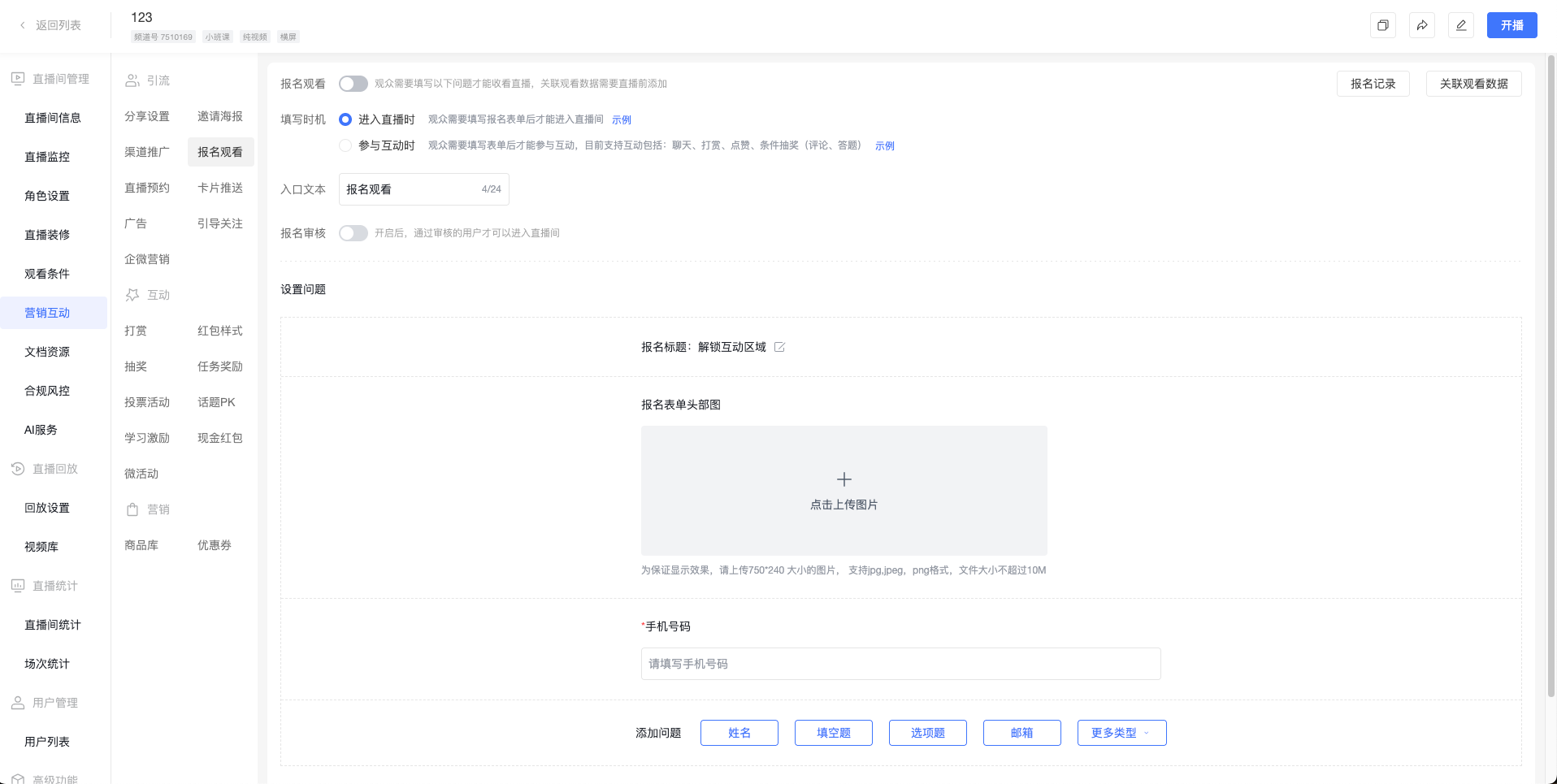
[Marketing & Interaction] The function menu has been adjusted from horizontal tabs at the top to a vertical menu on the left, with categorized display. All function items within the menu are fully retained. The vertical menu frees up vertical page height, significantly reducing the need for up-and-down scrolling when configuring multiple activities.
[Live Stream Decoration] The feature settings module has been adjusted from horizontal tabs at the top to a vertical menu on the left. All function items within the menu are fully retained.
Comparison of Old and New Versions
| Function Module | Old Version | New Version |
|---|---|---|
| General Description | Horizontal tabs at the top Frequent up-and-down scrolling needed when configuring many items |
Vertical menu on the left Frees up screen height, reduces up-and-down scrolling |
| Marketing & Interaction | 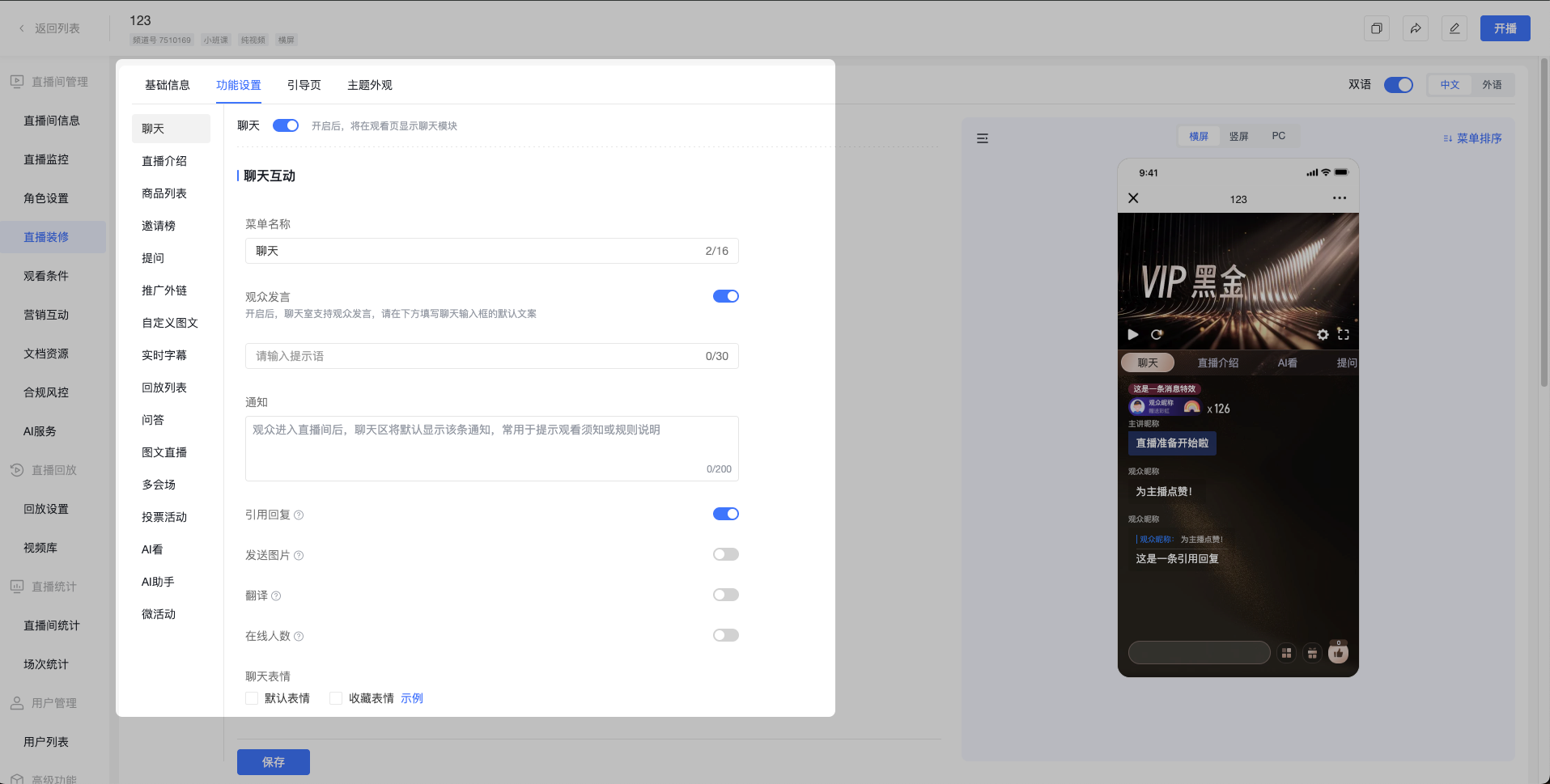 |
 |
| Live Stream Decoration | 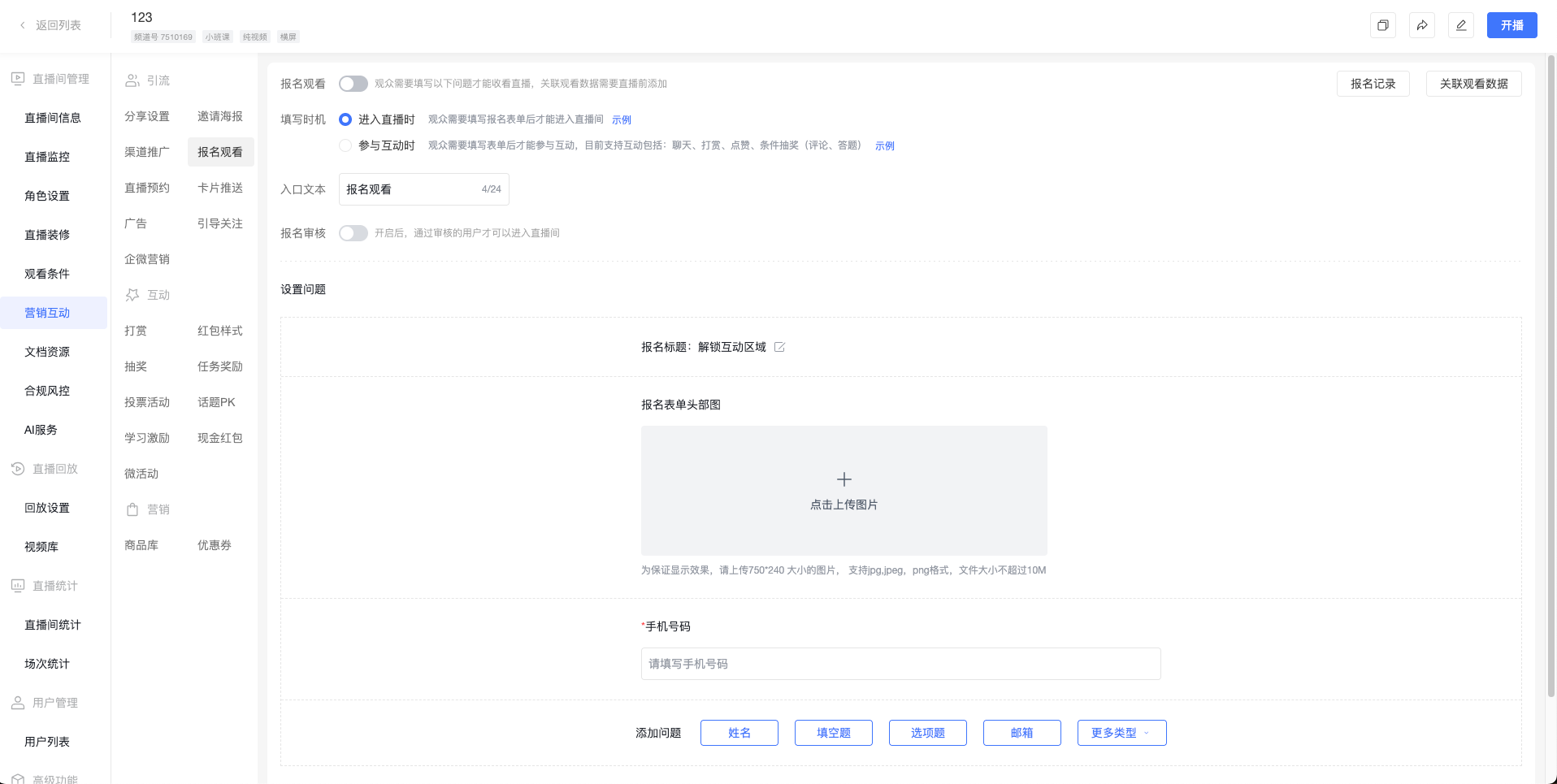 |
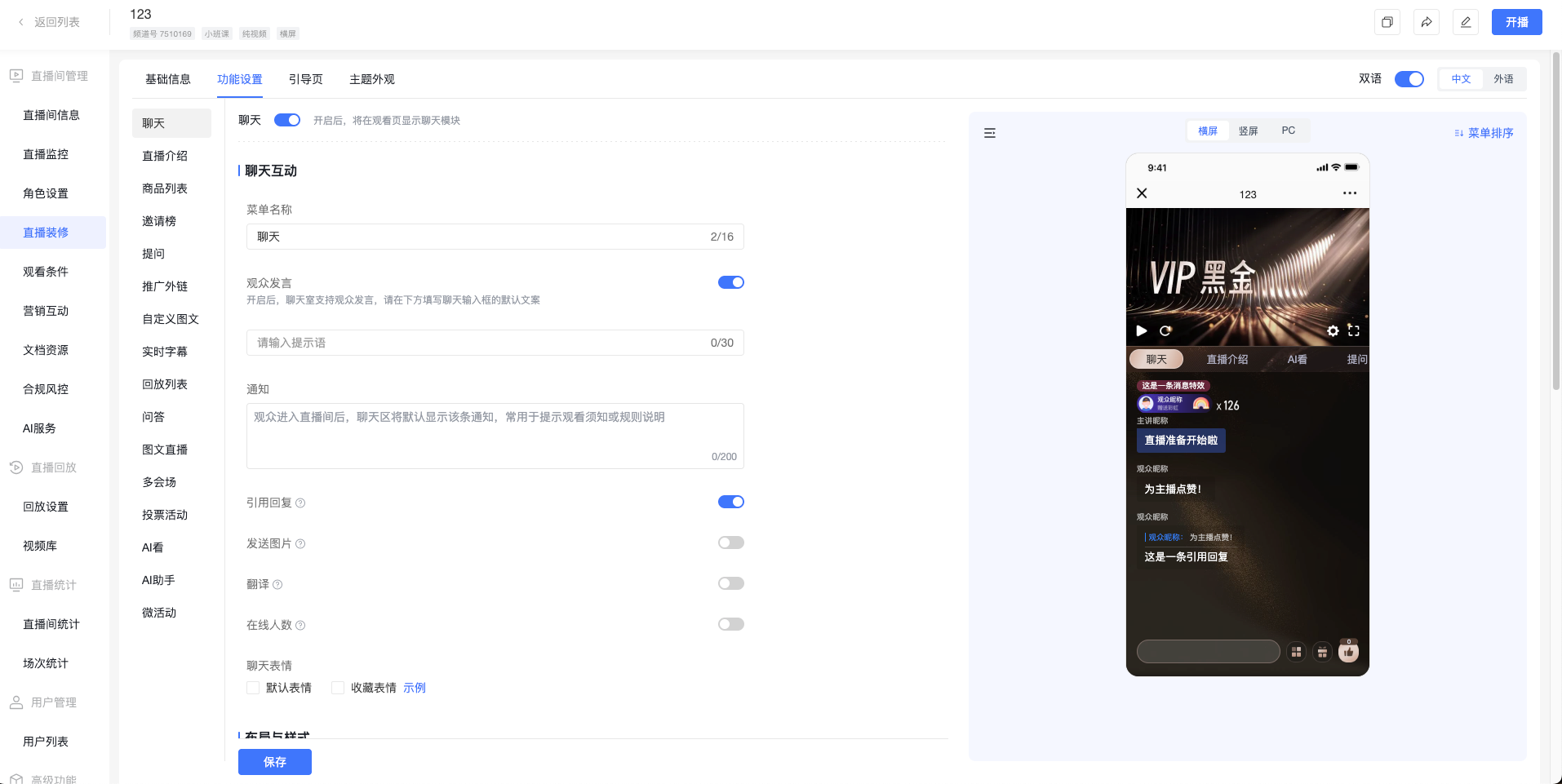 |
3.3 Live Stream General Settings
Entry Instructions
Old path (discontinued): Settings › Channel Settings / Client New path: Cloud Live Streaming Backend › Live Streaming › Live Stream General Settings
Feature Description
"Live Stream General Settings" integrates all configuration items from the original "Channel Settings" and "Client" sections, with no feature deletions. All live-streaming-related configurations can be completed within this module, eliminating the need to jump between modules.
Comparison of Old and New Versions
| Original Entry | New Entry | Content Changes |
|---|---|---|
Settings > Channel Settings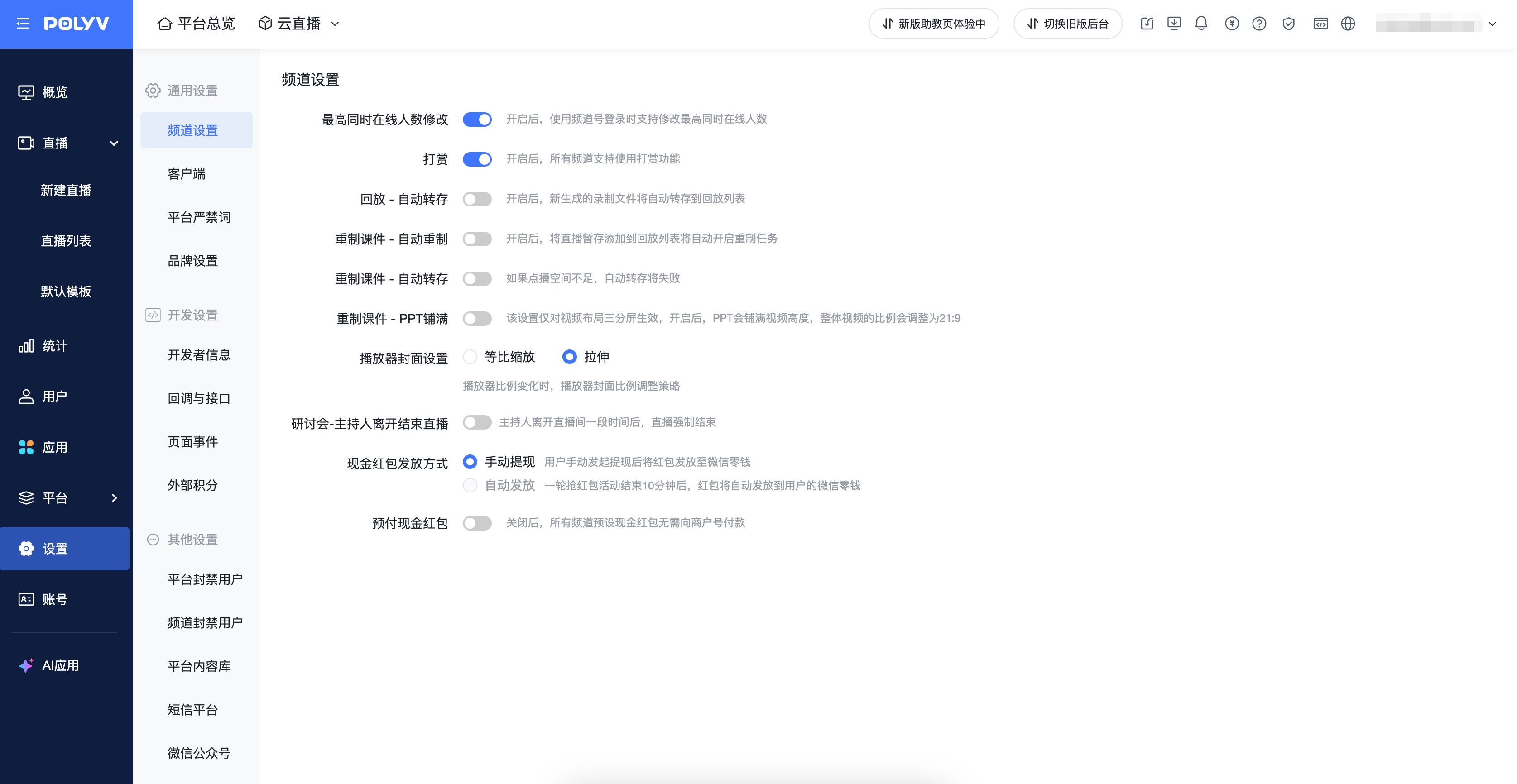 |
Live Streaming > Live Stream General Settings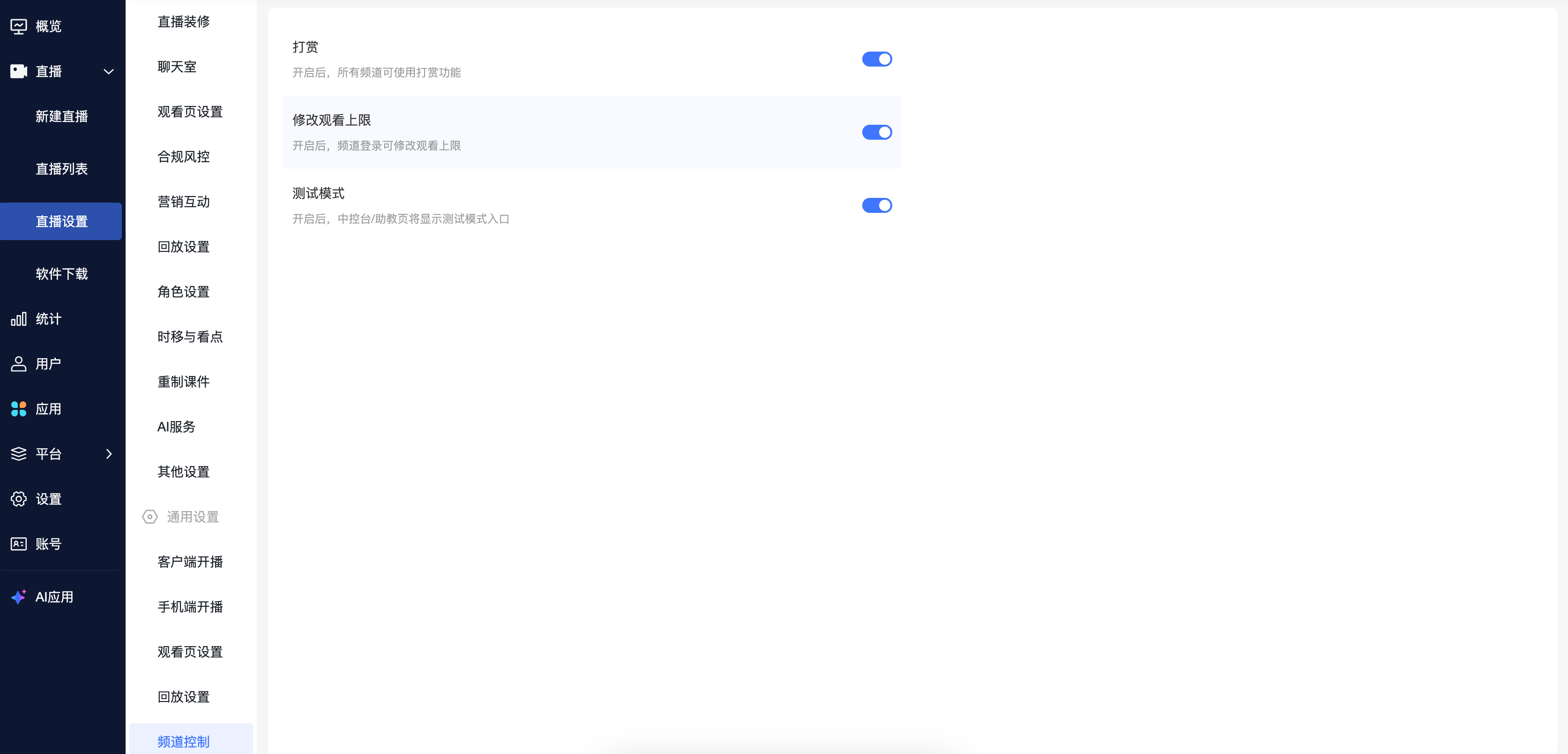 |
Features fully retained, only entry point migrated |
Settings > Client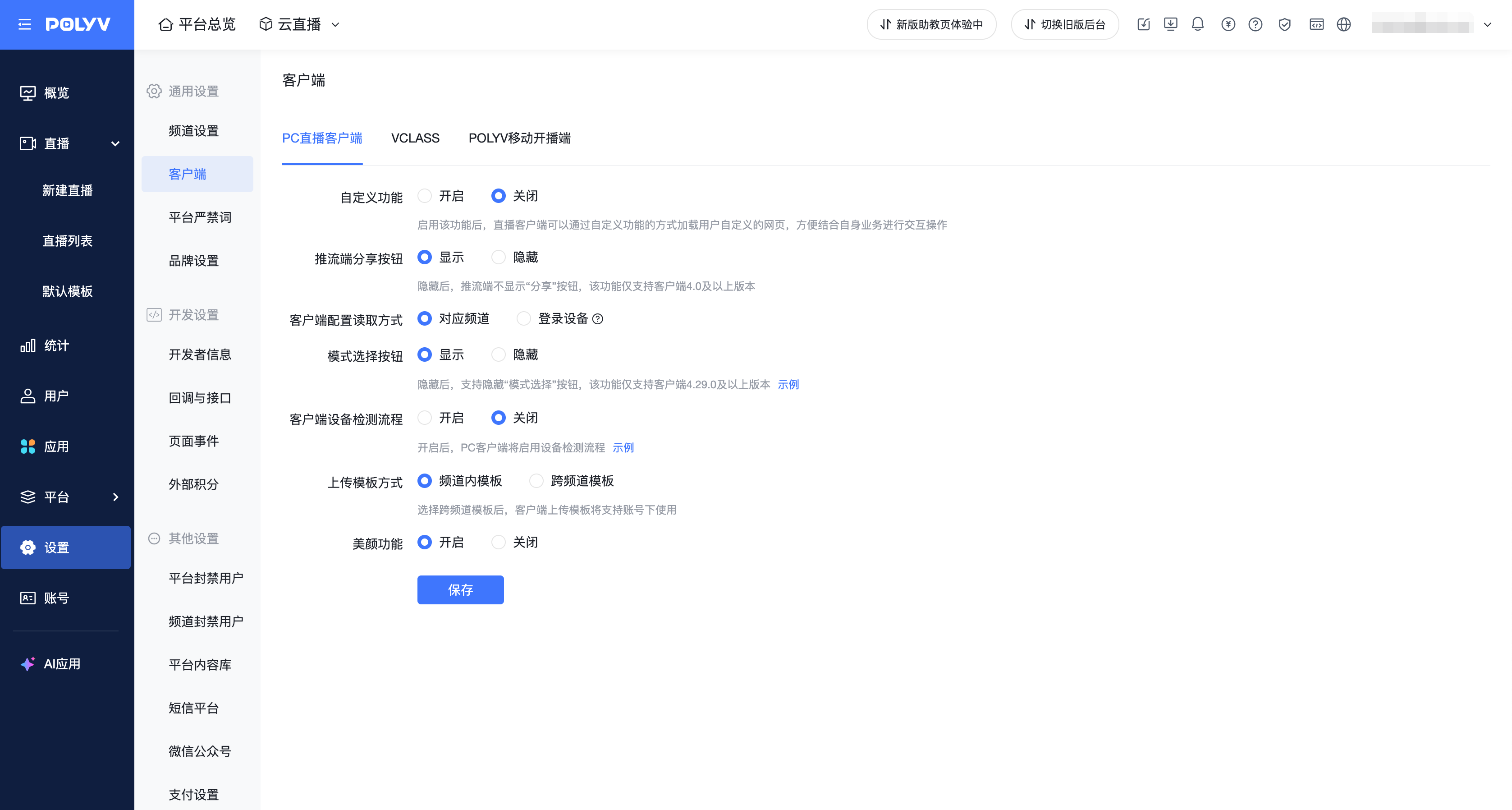 |
Live Streaming > Live Stream General Settings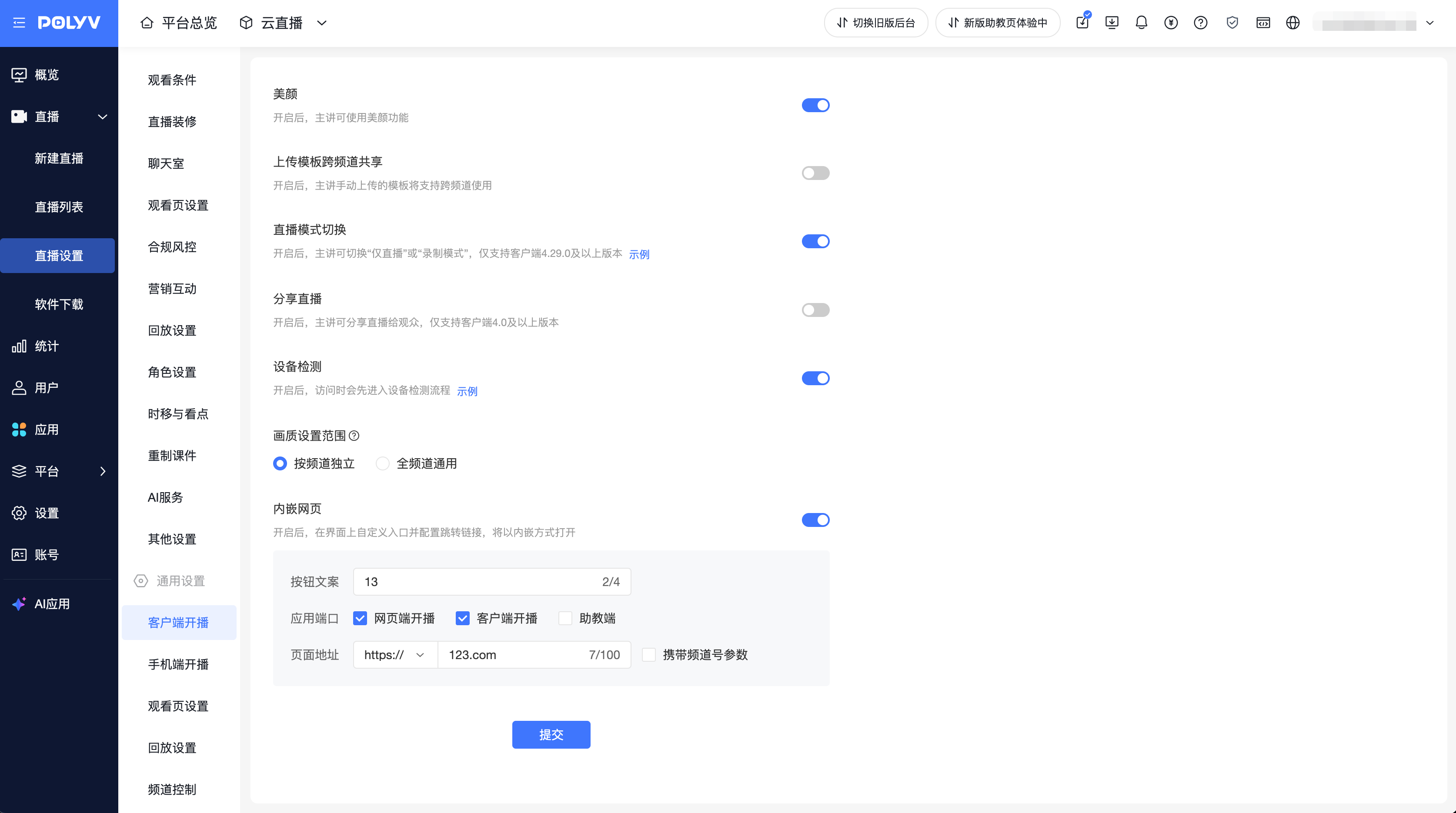 |
Features fully retained, merged with Channel Settings |
4. Frequently Asked Questions
Q1: After clicking into a channel, the side menu disappears. Is there a problem?
A: This is normal behavior after the redesign. The channel detail page now opens full-screen in a new tab, with the sidebar navigation hidden. All functions work perfectly. To return to the live stream list, simply close the current tab.
Q2: How do I return to the live stream list from the channel detail page?
A: Close the current browser tab or click "Return to List" to go back to the live stream list.
Q3: The menu position for Marketing & Interaction has changed. Have any features been removed?
A: No features have been removed. The menu has been adjusted from horizontal tabs at the top to a vertical menu on the left. All function items are fully retained; only the layout position has changed.
Q4: I can't find the "Channel Settings" and "Client" entries anymore. Where did they go?
A: Both entries have been merged into "Live Stream General Settings," which has been moved under the "Live Streaming" primary menu (at the same level as the live stream list). All original configuration items are fully retained, and the functionality remains unchanged.
Q5: Will my previous configurations be lost after the redesign? Do I need to reconfigure them?
A: No configurations will be lost, and no reconfiguration is needed. This redesign only adjusts the interface interaction method. All live stream configurations, historical data, and recording content are fully retained.
