


Time Shift & Highlights
1. Feature Overview
Feature Info |
Description |
|---|---|
| Feature Name | Time Shift & Highlights |
| Feature Description |
|
| Purpose | Reduces the chance of viewers missing key information due to joining mid-stream or long content duration, helping to better support lengthy live streams and key content explanations. |
| Use Cases | Suitable for live streams organized by content segments, such as course lectures, corporate presentations, and product introductions. |
| Operation Path | 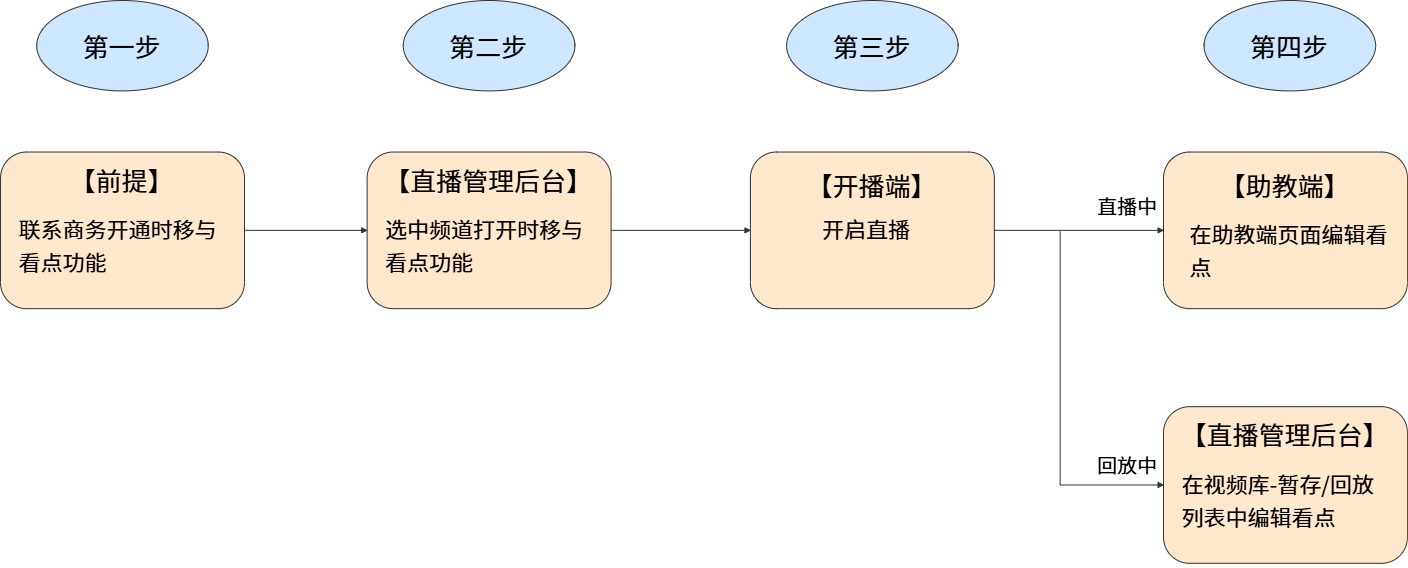 |
2. Operation Instructions
2.1 Feature Entry
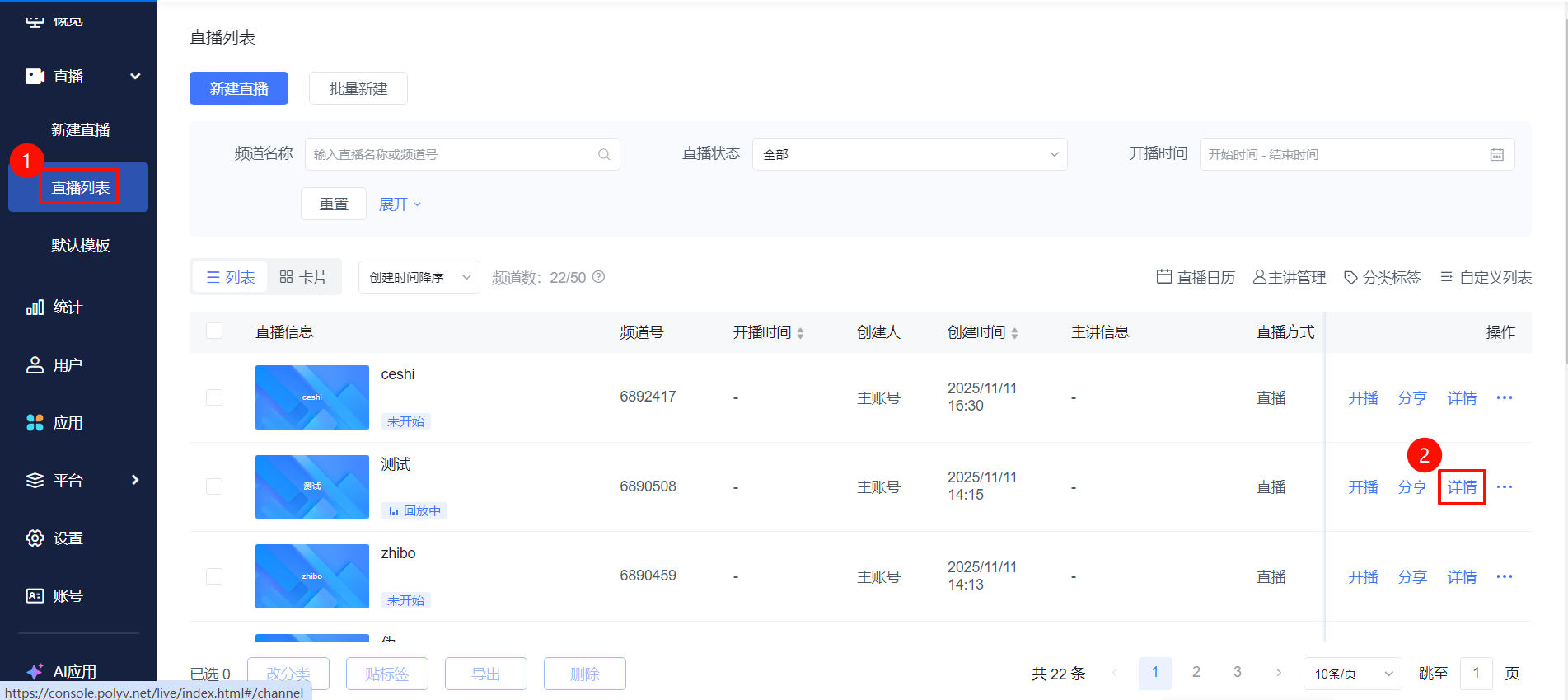
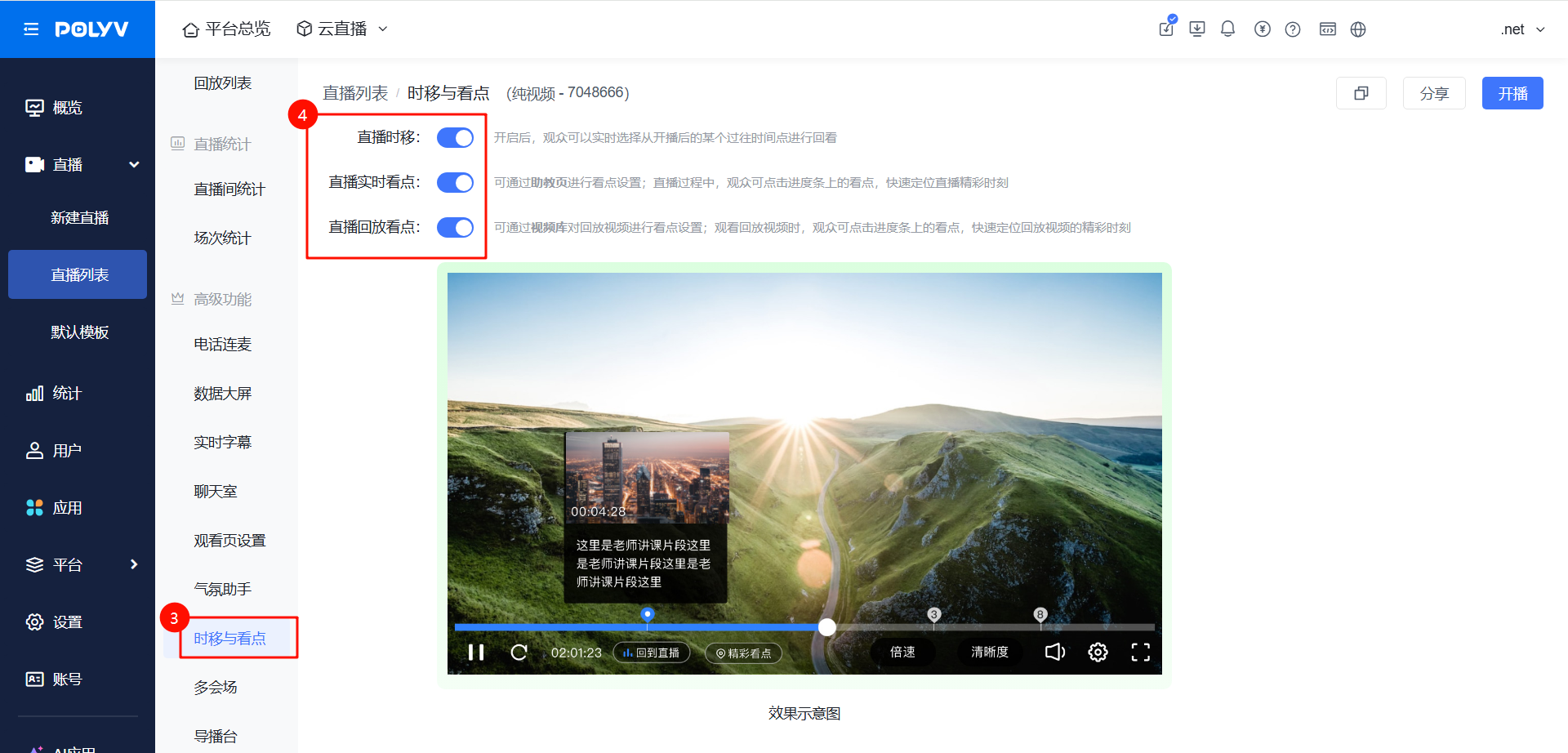
Go to the [Live List] page, select a live stream and click [Details], then click [Time Shift & Highlights] in the advanced features section.
2.2 Live Time Shift
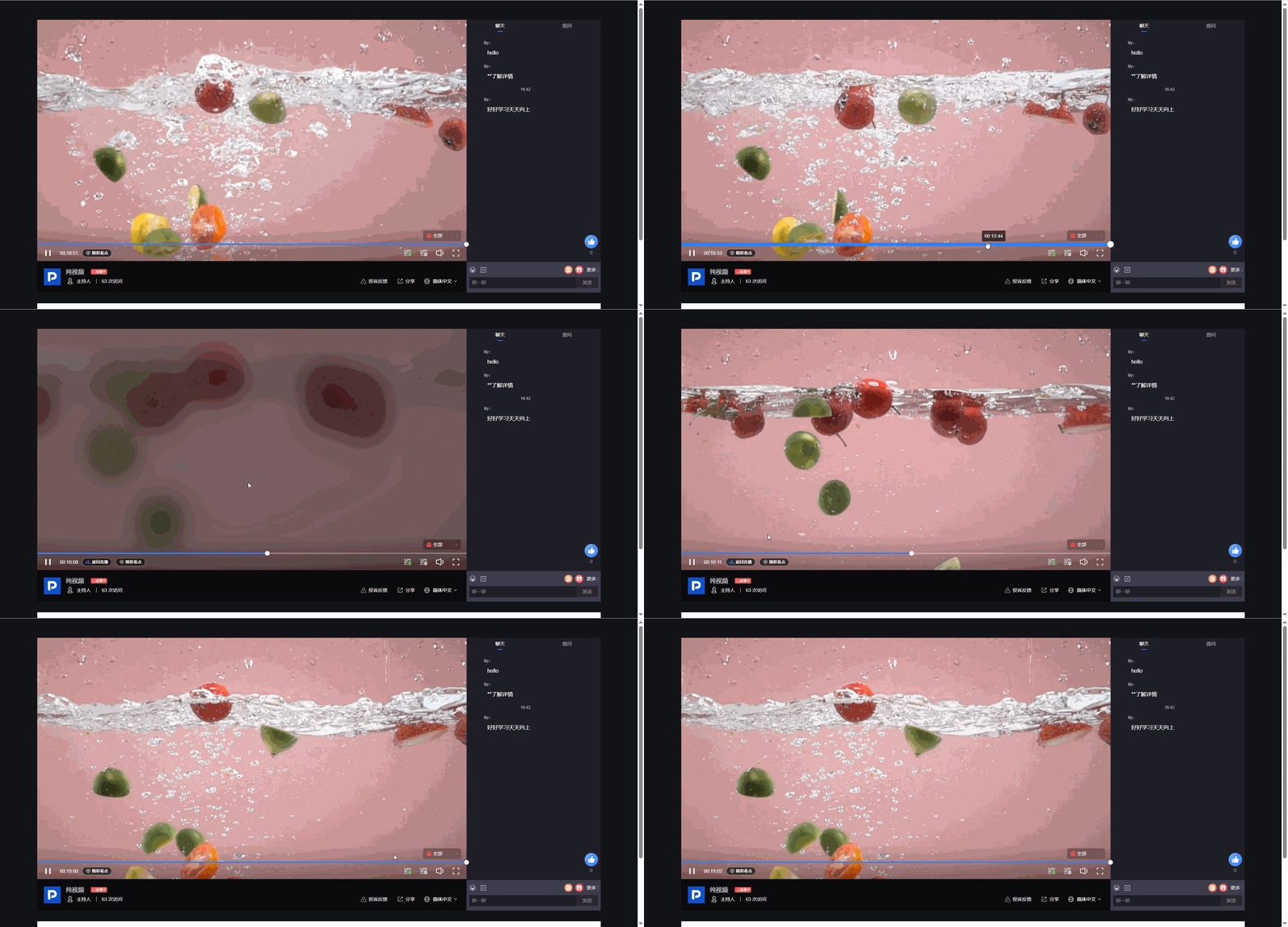
● After enabling live time shift, a progress bar appears below the live video. You can drag it to review any past moment since the stream started.
● When viewing a past moment, click "Return to Live" to jump back to the real-time stream (the latest moment).
2.3 Live Real-Time Highlights
(1) Assistant Side
- Enter the assistant interface and find the [Highlight Marker] button at the bottom left of the player.
- Select a time point on the live progress bar, click [Highlight Marker], enter a highlight title in the pop-up marker prompt box, and a new highlight is created.
- You can modify the title or delete an existing highlight card.
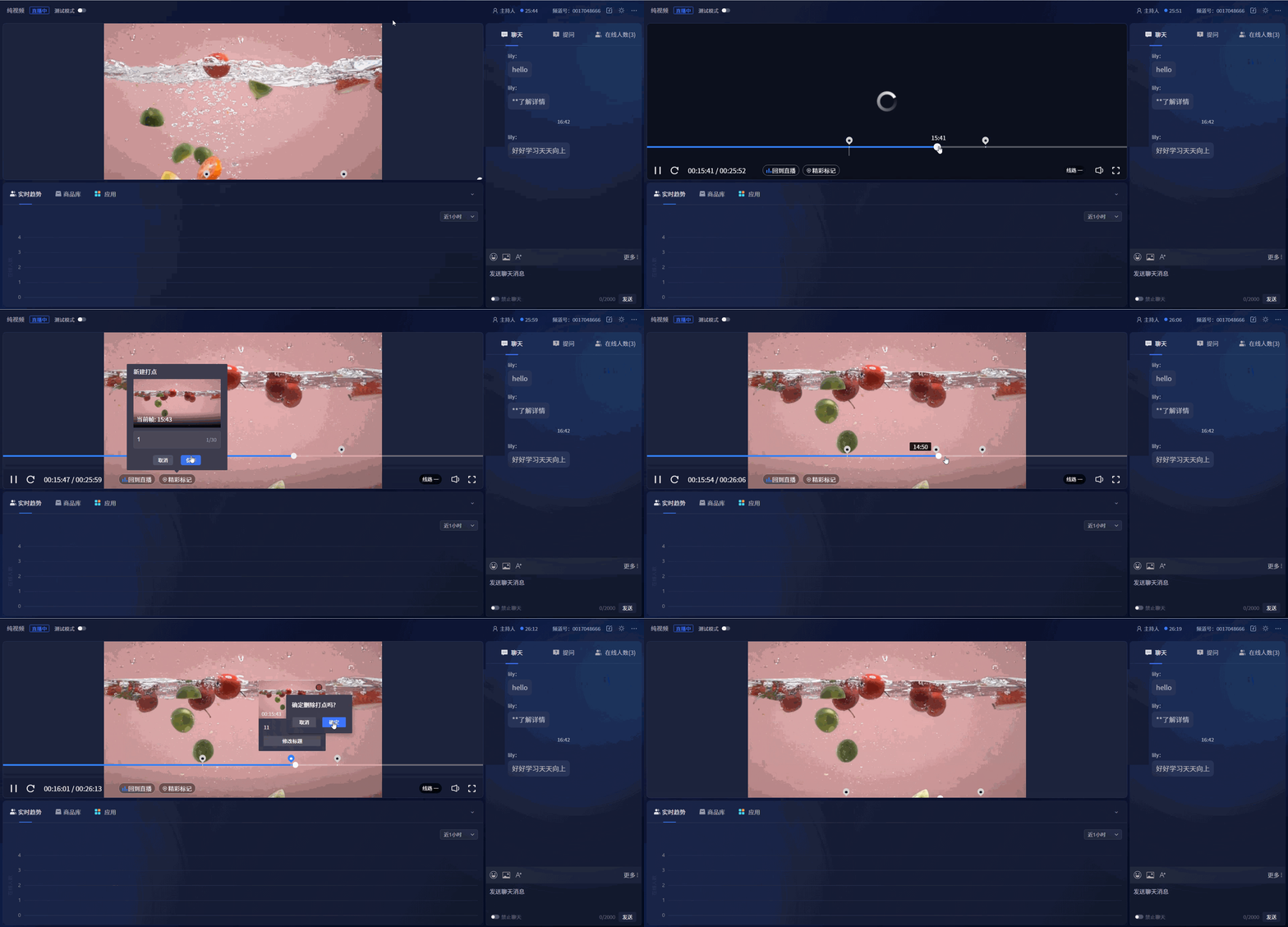
(2) Viewer Side
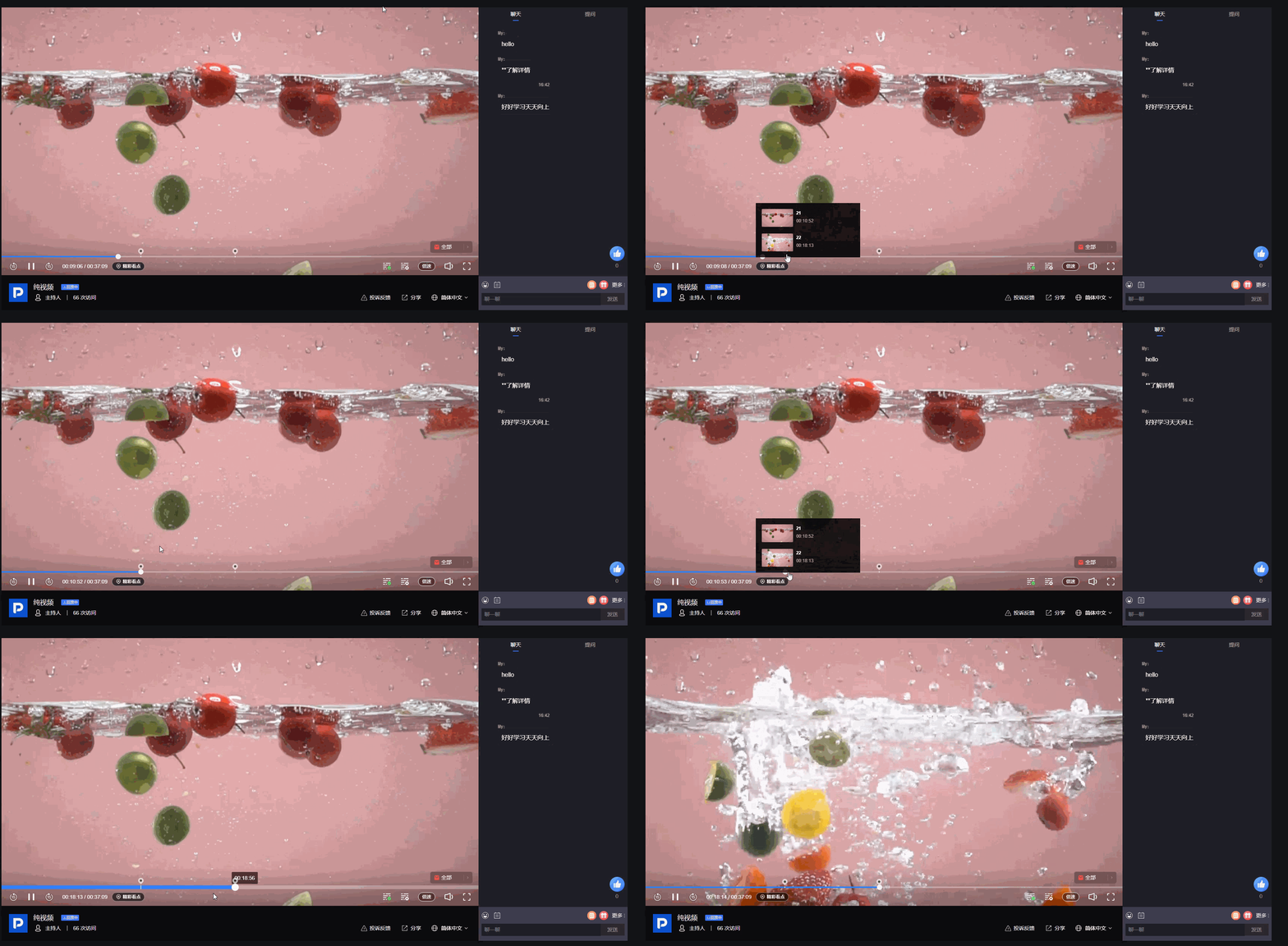
[Highlights] appear on the viewer's live progress bar. Clicking one jumps directly to the corresponding time point. [Highlights] allows previewing all markers.
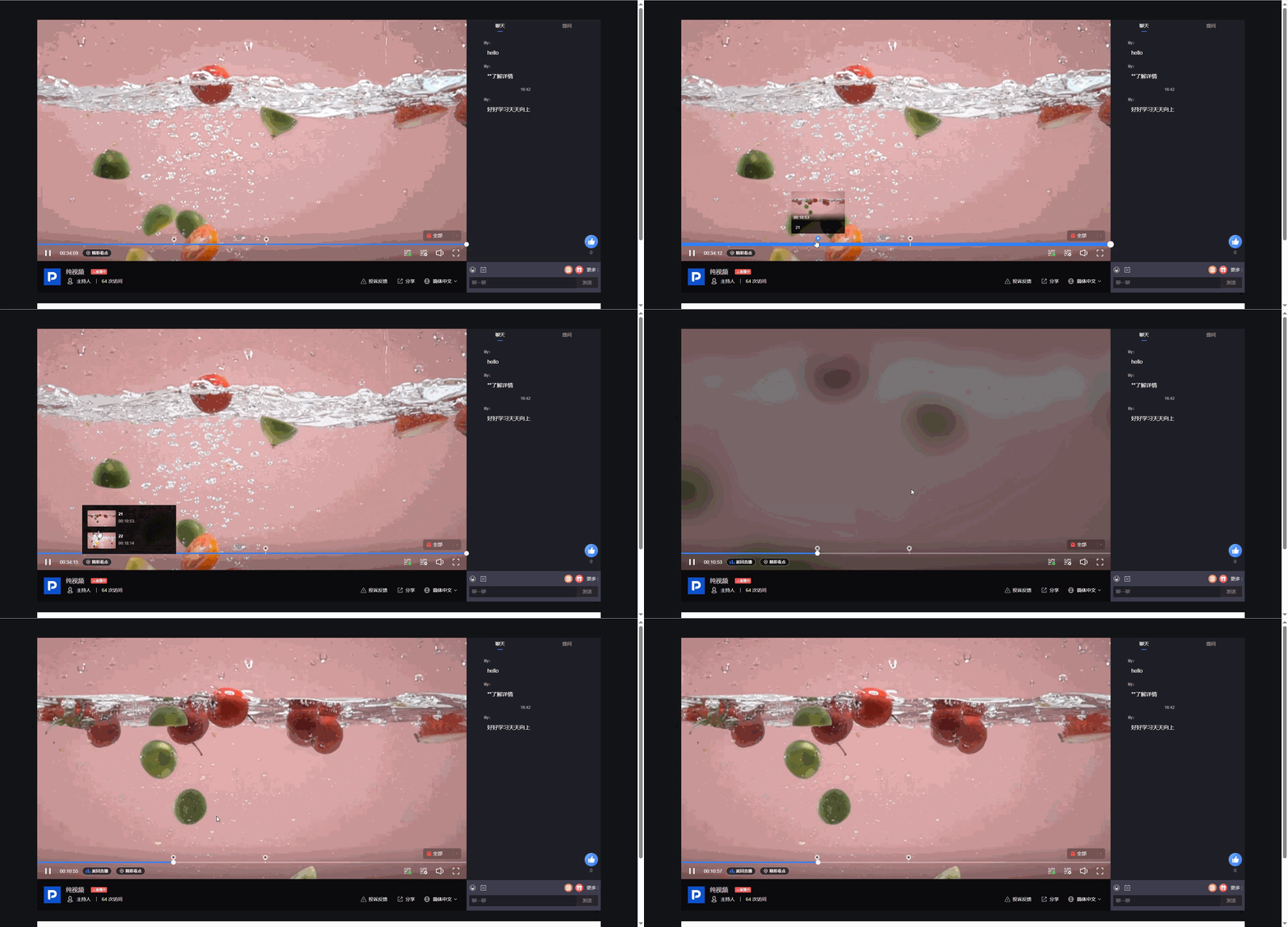
2.4 Live Replay Highlights
- Go to the live stream backend, in the replay section click [Replay List] → [More] → [Highlights].
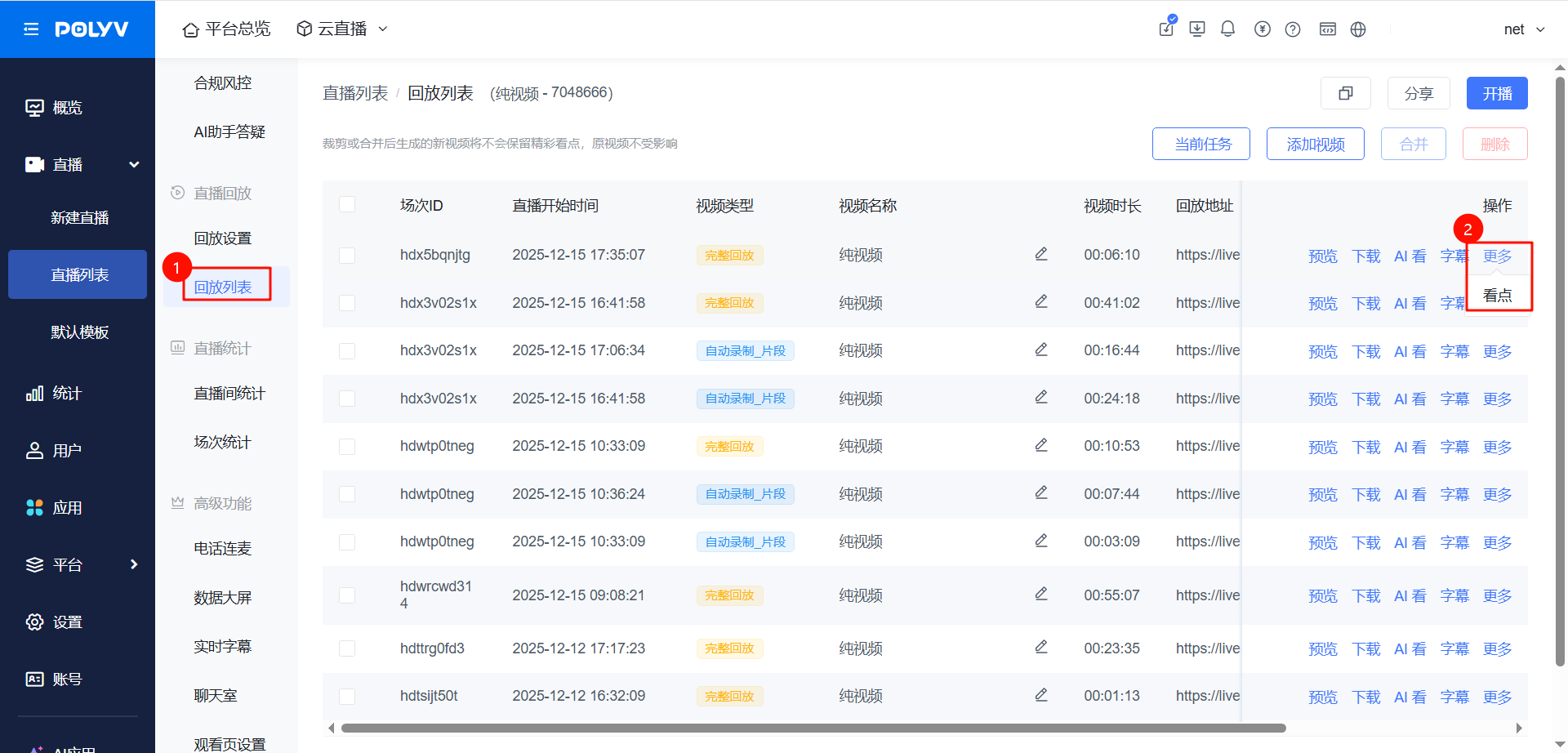
- After clicking "Highlights", a replay video player window pops up. You can configure highlights there, then save the settings.
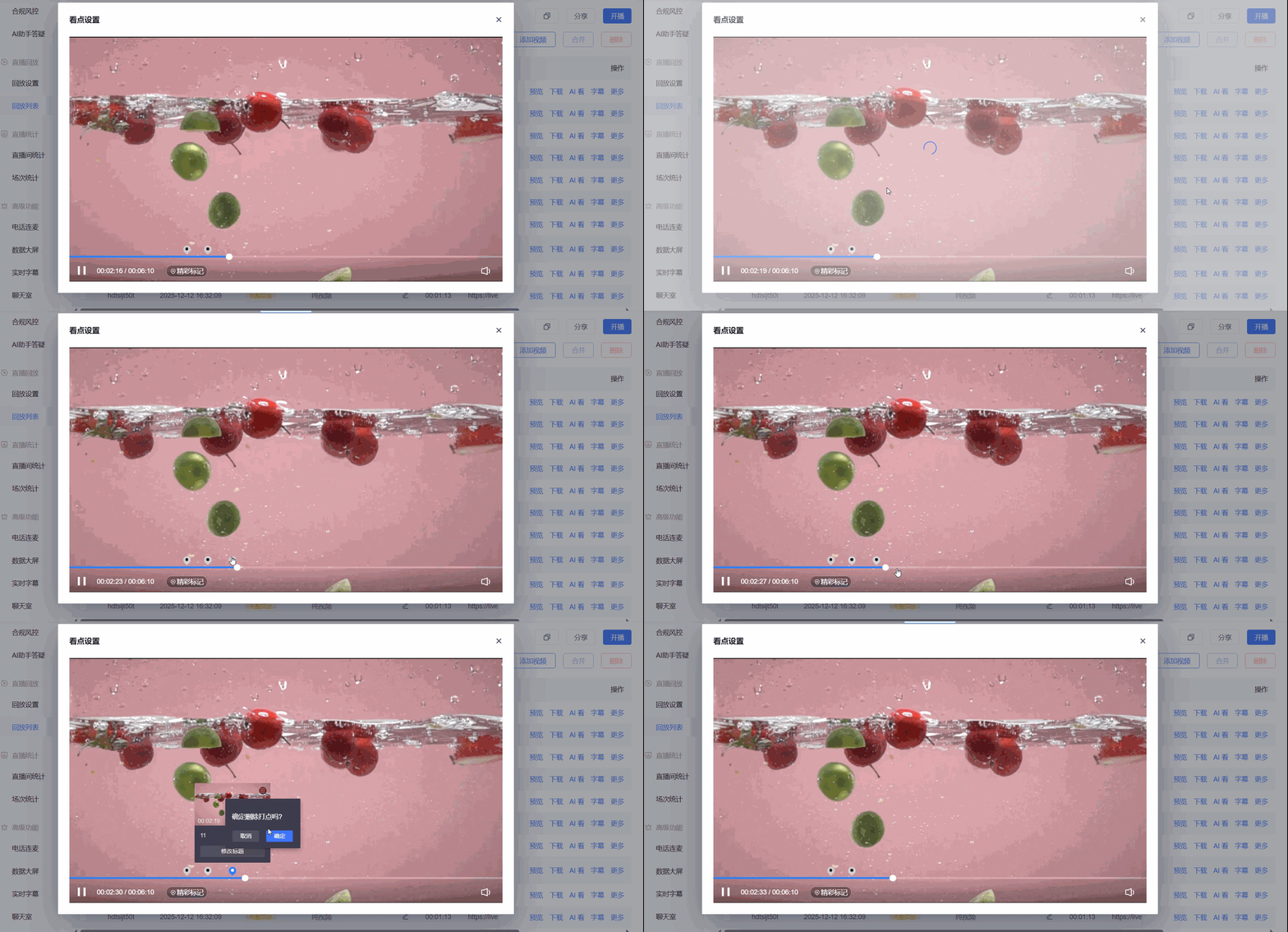
- The corresponding highlights are generated on the replay video. Viewers can click a highlight to jump directly to that point on the timeline.
3. Usage Notes
3.1 Enabling the Feature
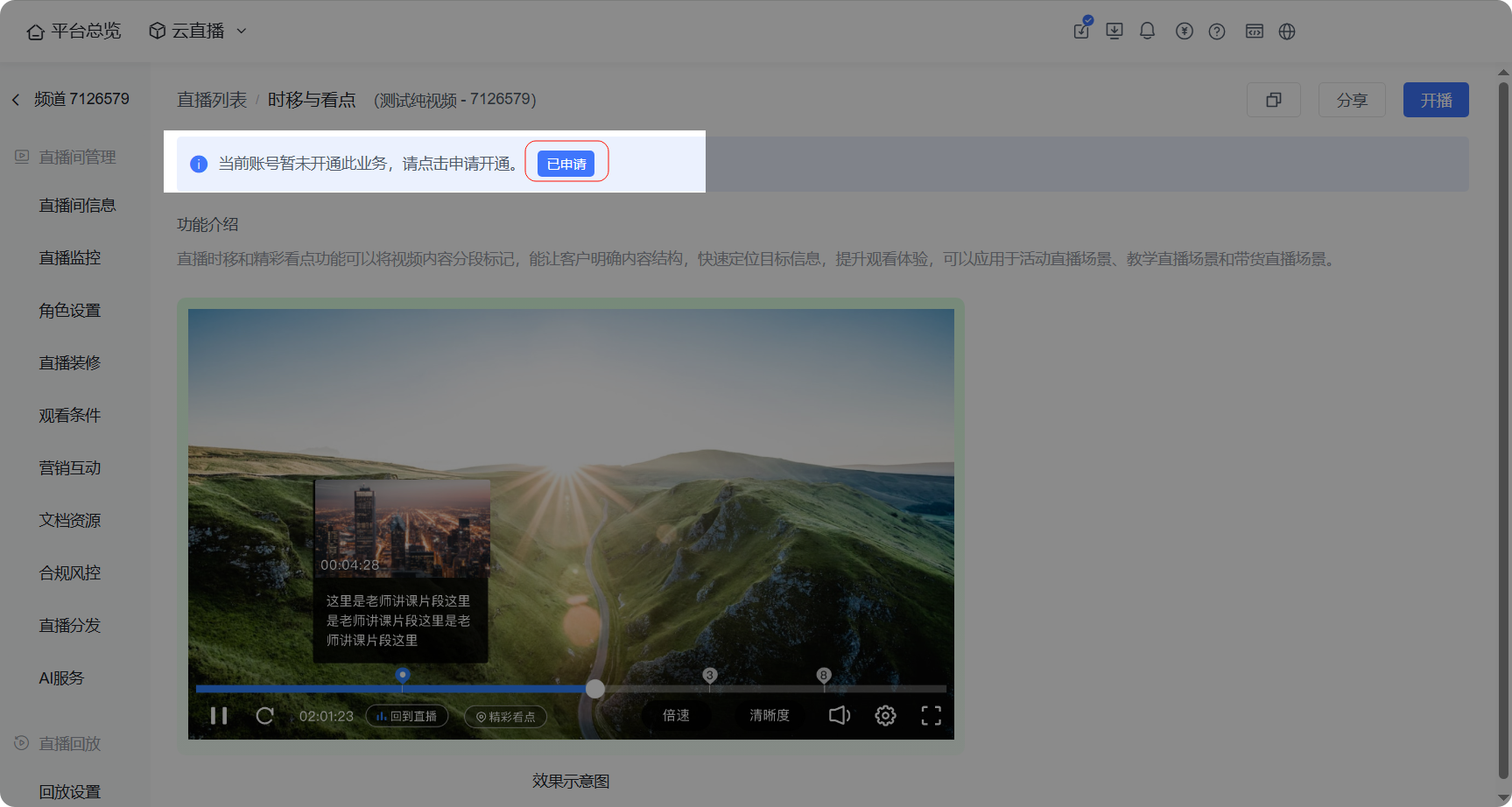
In the channel's advanced features under Time Shift & Highlights, click to apply for activation, or contact your business manager to enable it.
3.2 Interface Scenarios
Supports JSSDK integration. Multi-scenario SDK and Mini Program SDK are not supported at this time.
