Presenter Management
1. Feature Overview
| Feature Info | Description |
|---|---|
| Feature Name | Presenter Management |
| Feature Description | Allows associating channels with presenters. After association, the presenter's avatar and info are displayed on the viewing page. The presenter detail page shows basic info, associated channels, and other data. |
| Use Cases | 1. In marketing live streams, to expose the presenter's IP information. 2. To query live streaming data based on the presenter dimension. |
| Feature List | 1. Create a presenter & associate a presenter. 2. Display presenter info on the landing page and viewing page. 3. Display presenter info in data statistics. 4. Support binding a presenter to WeChat for easy login on the streaming end. |
2. Operation Instructions
1. Create a Presenter & Associate a Presenter
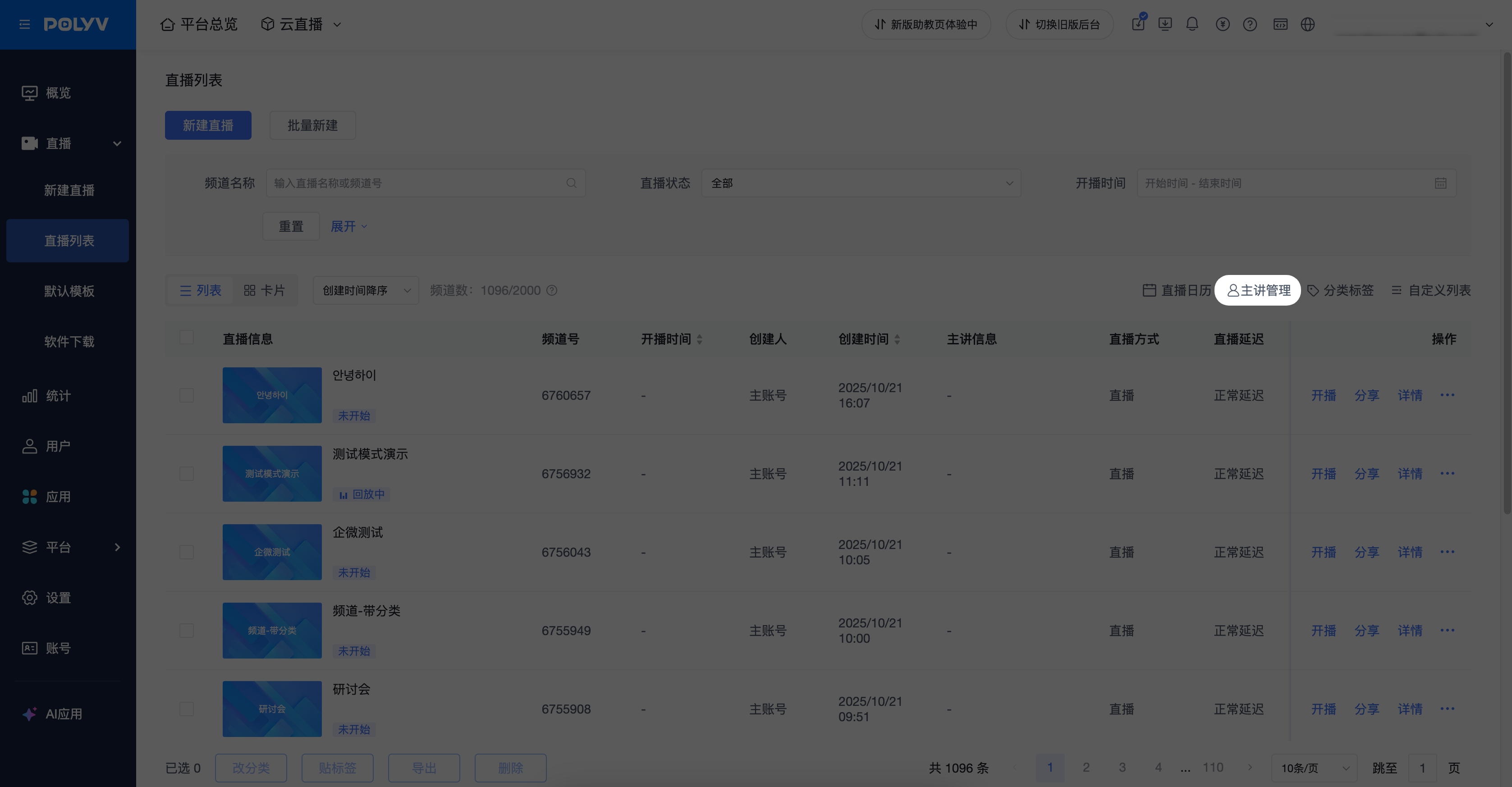
Find the "Presenter Management" button in the "Live List" to enter the Presenter Management page.
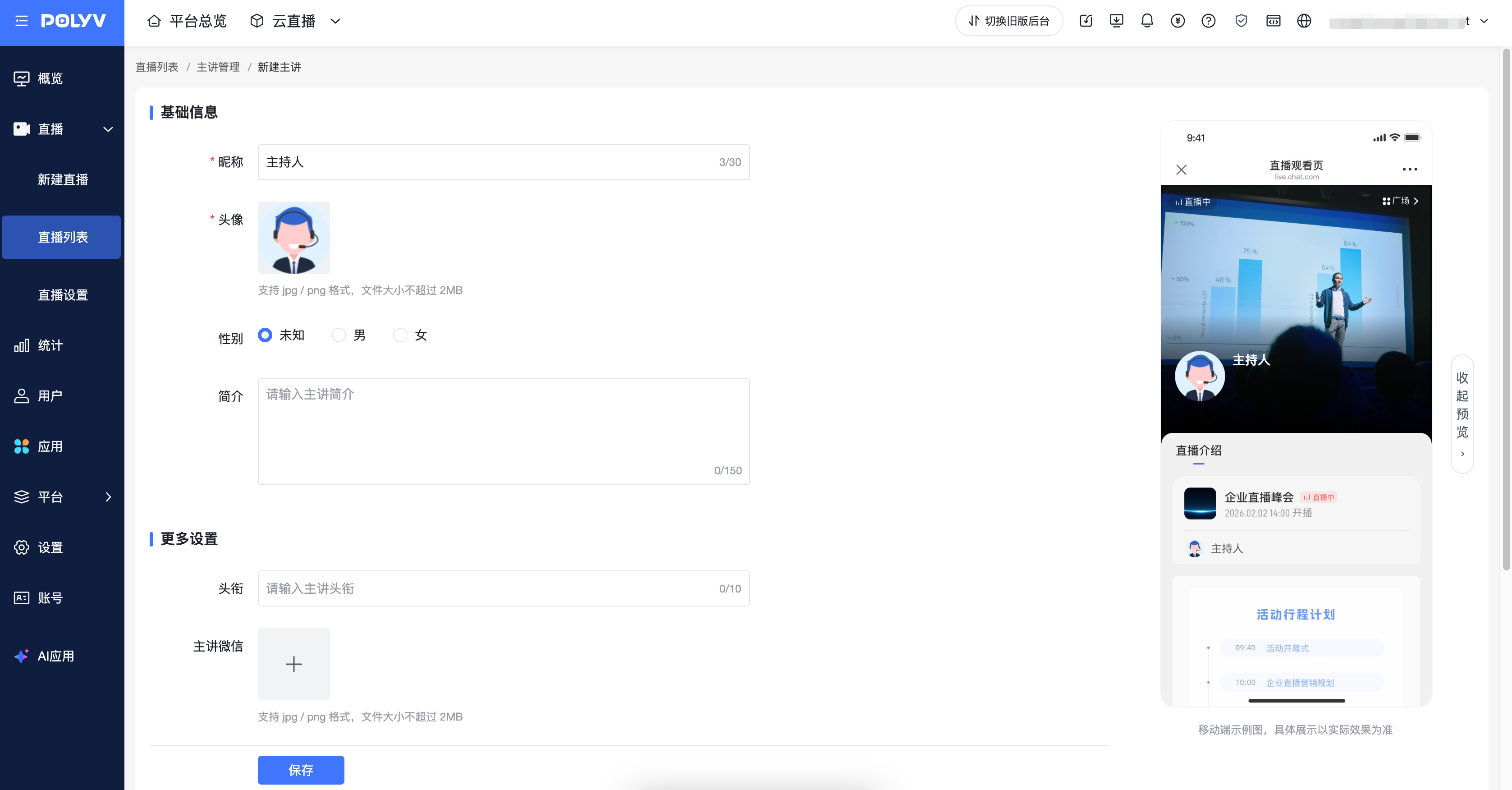
Click "Add Presenter". On the creation page, fill in basic info such as the presenter's nickname and gender.
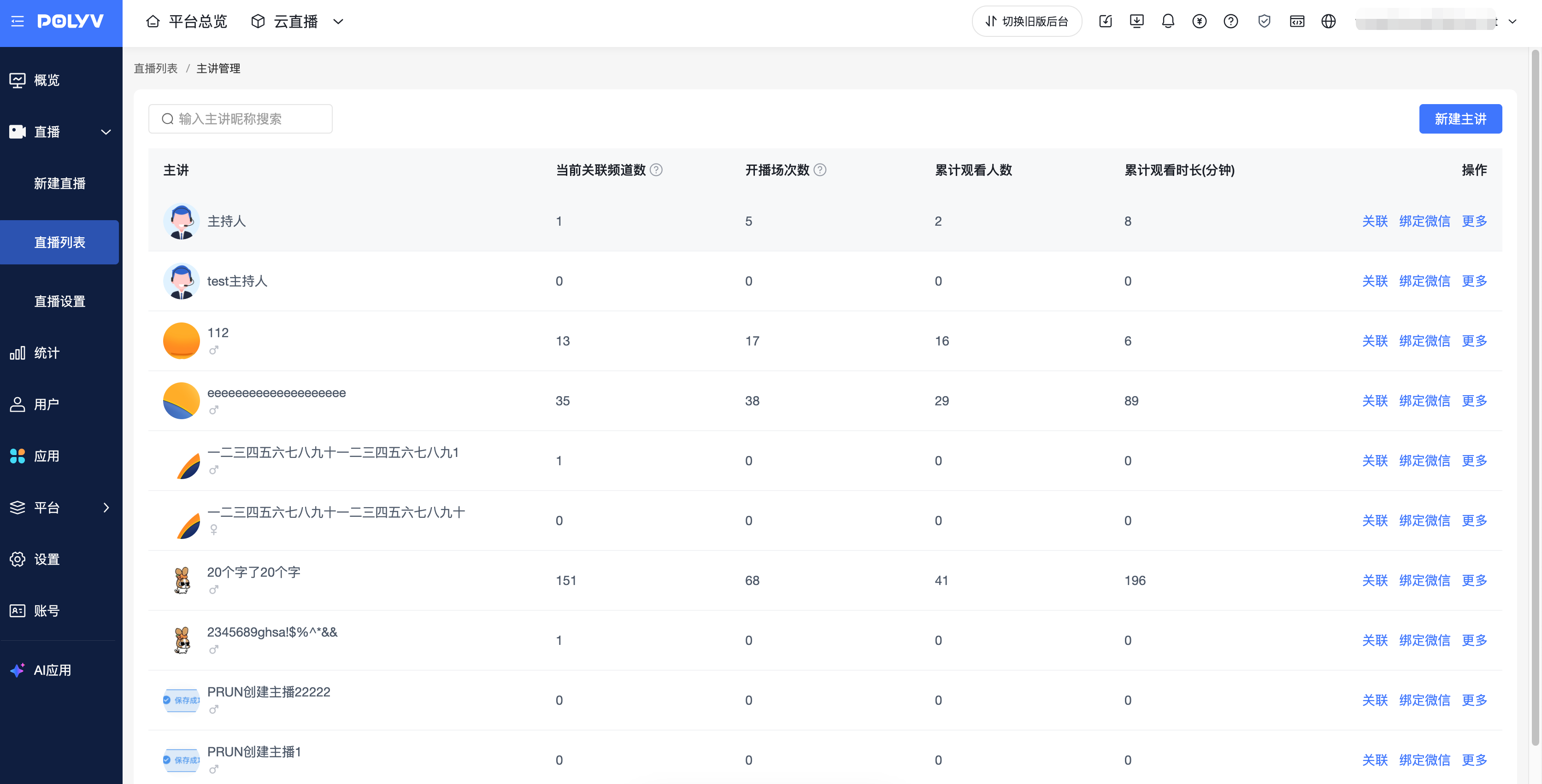
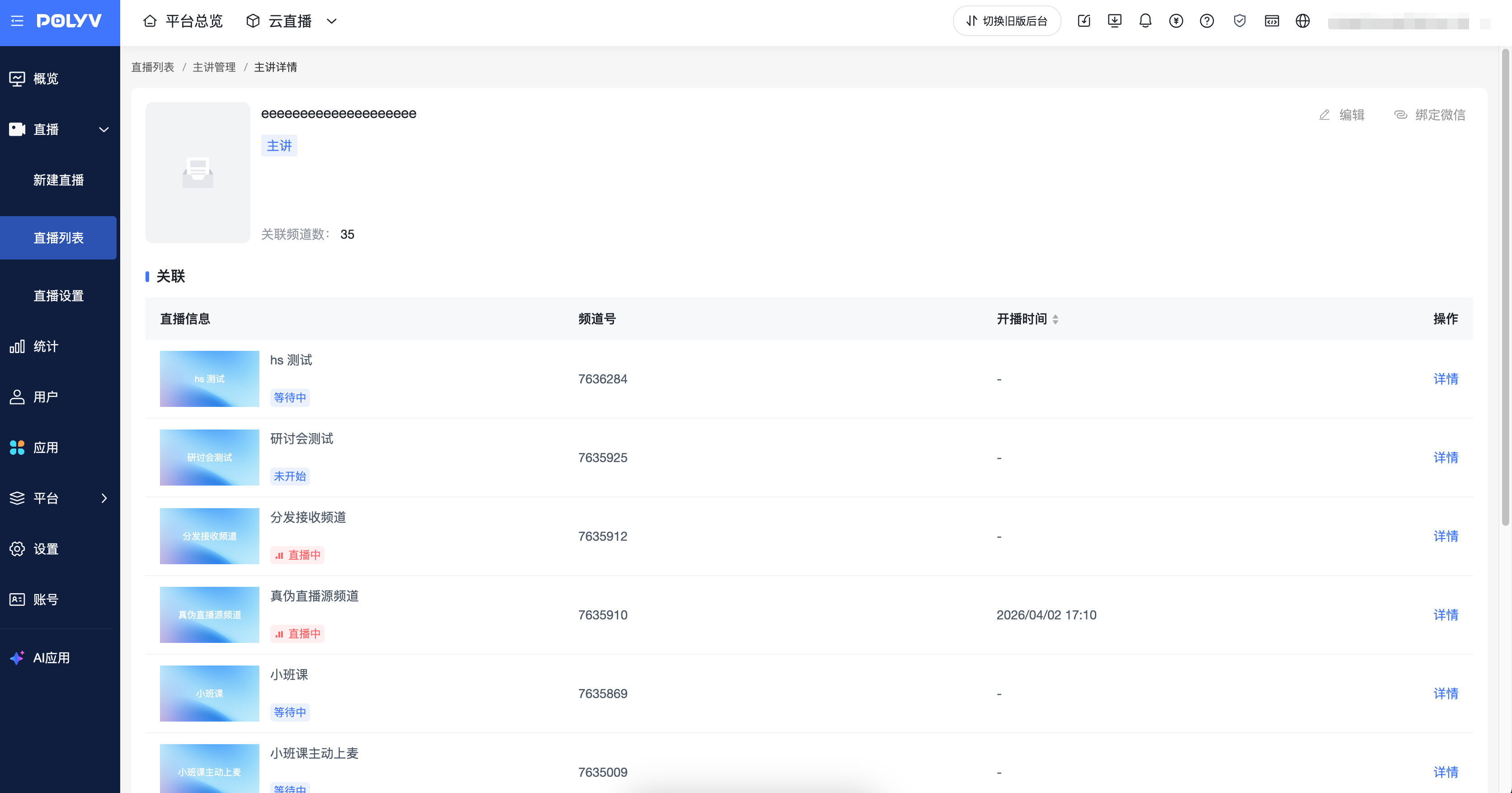
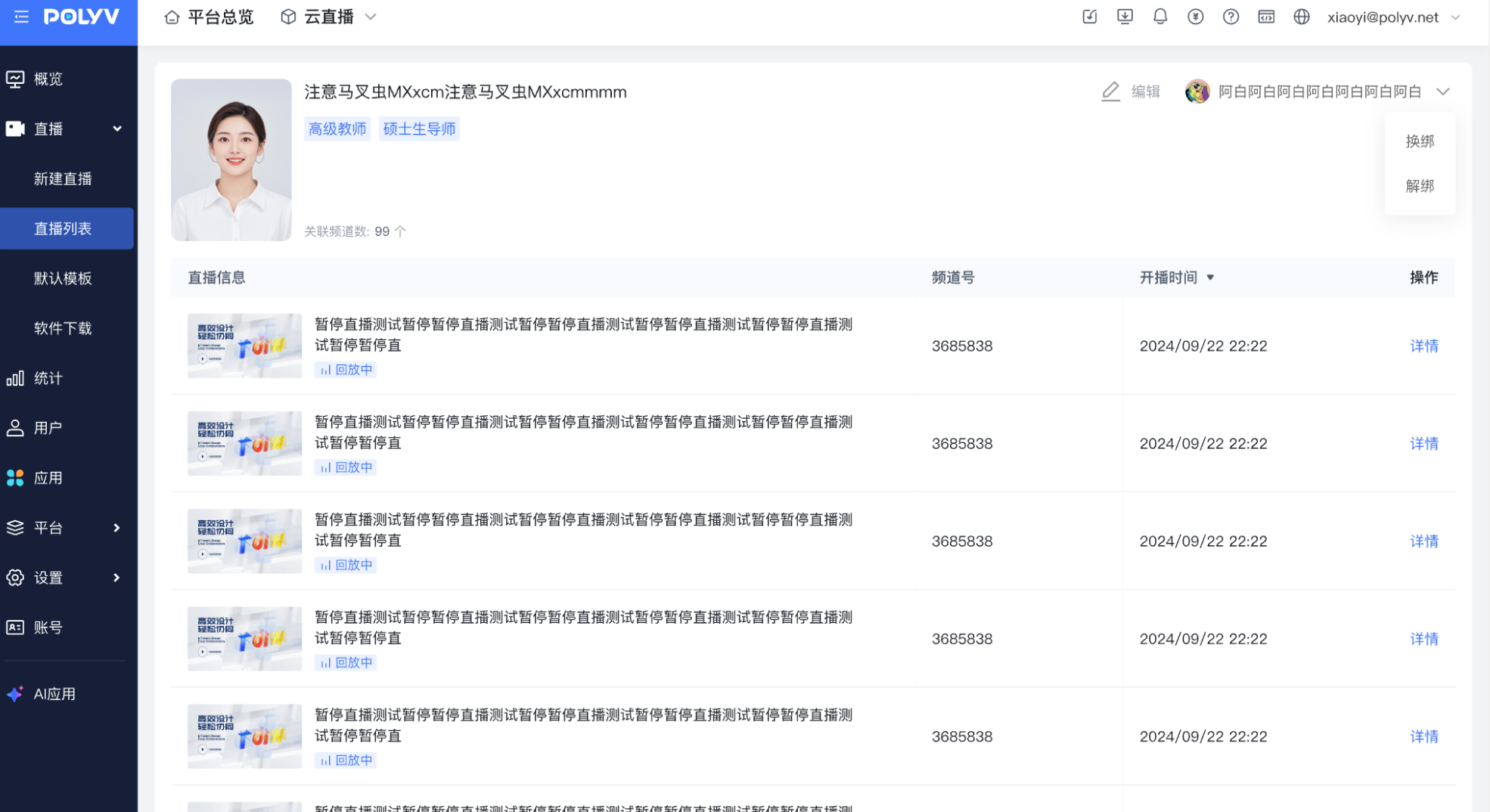
Click the presenter's avatar, nickname, or the "Details" button in the action list to enter the presenter detail page. Here you can view the presenter's basic info and associated channels.
After successful creation, you can associate channels or modify associations in the presenter list.
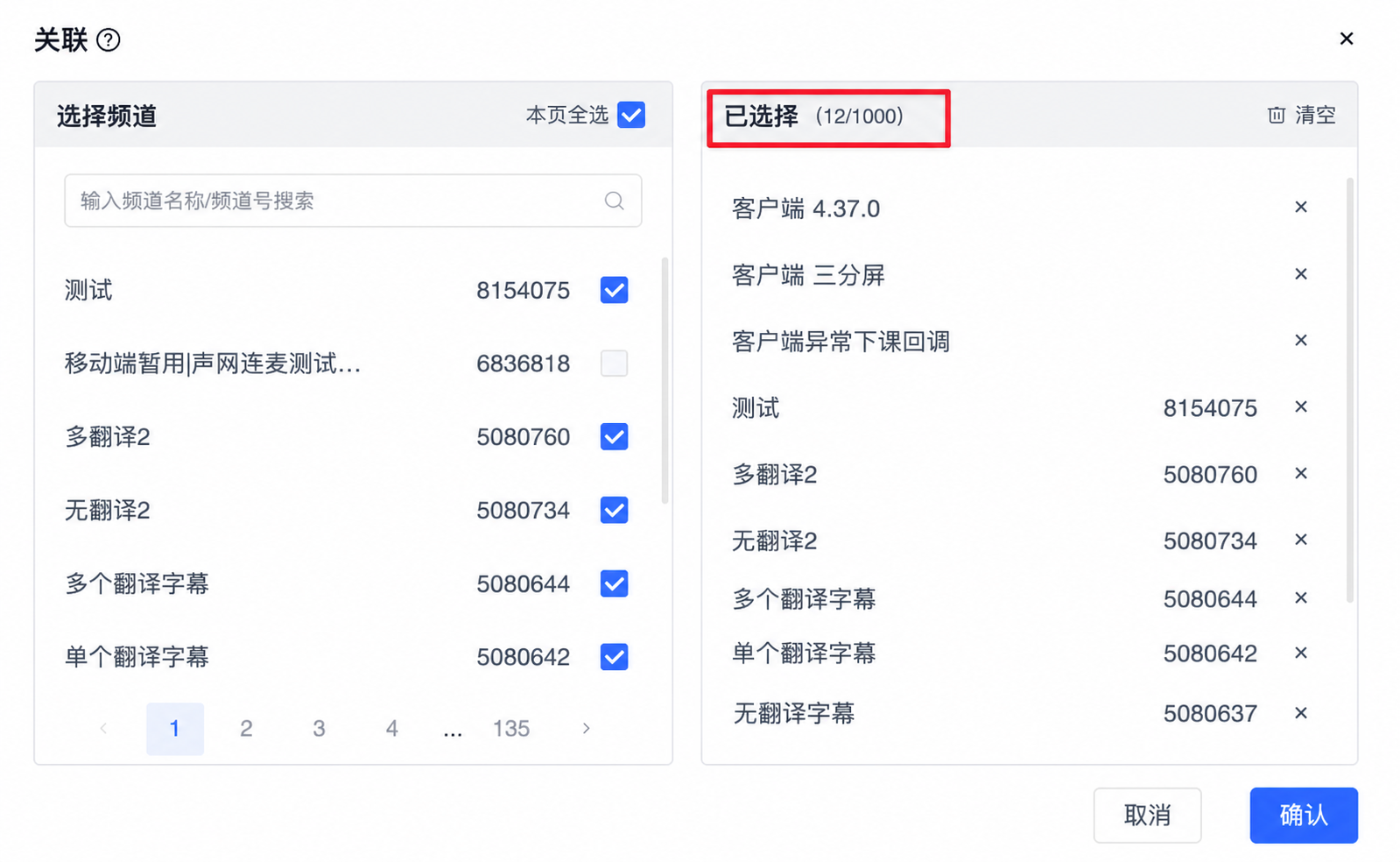
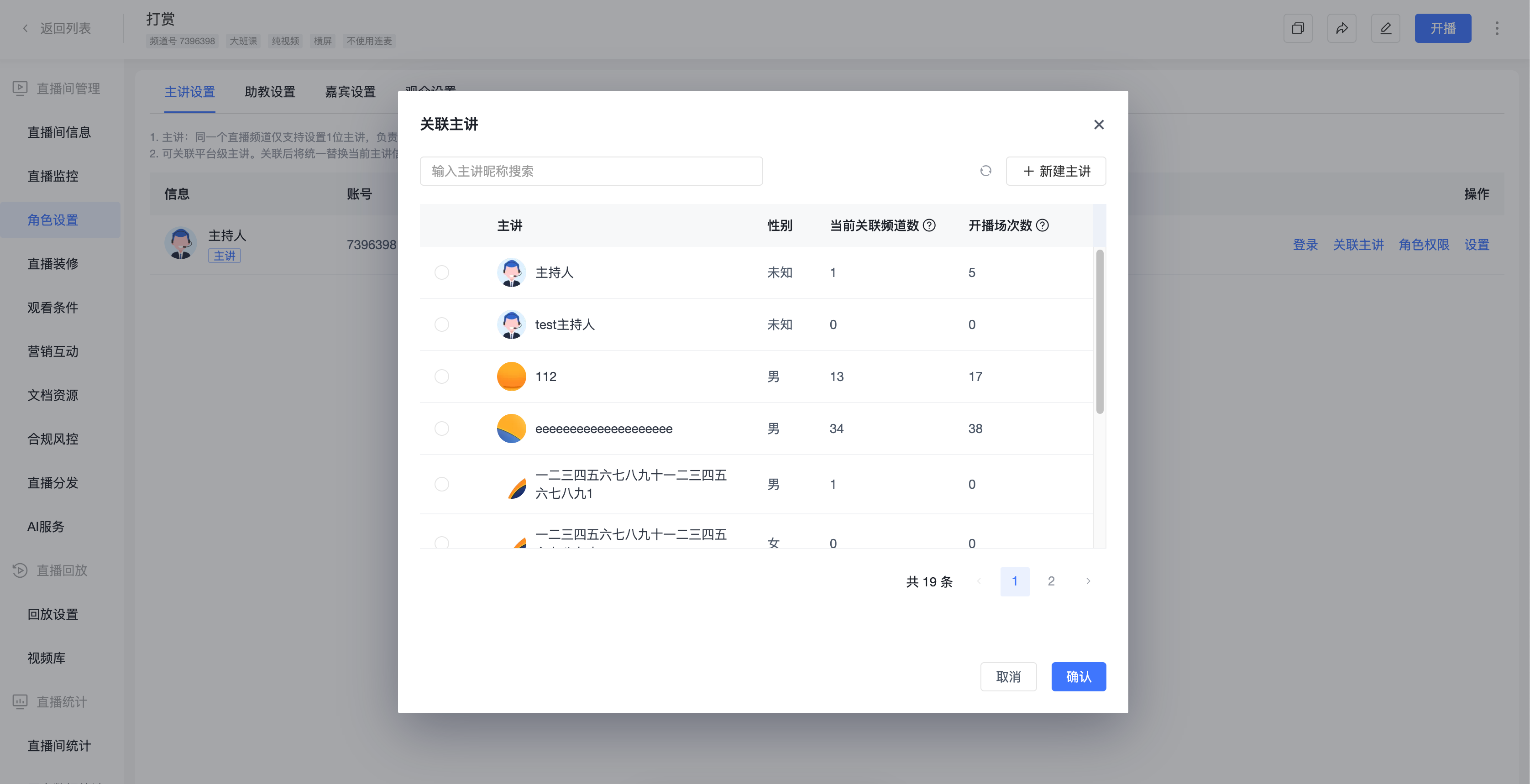
Click "Associate", select the channels to associate, confirm, and save to apply.
A single presenter can be associated with up to 1000 channels. You can filter by channel, select, and save the association results.
After a presenter is successfully associated, the presenter info for the associated channels will be replaced by the associated presenter's info.
- A channel can only be associated with one presenter. If a channel already has an associated presenter, it will not be displayed here.
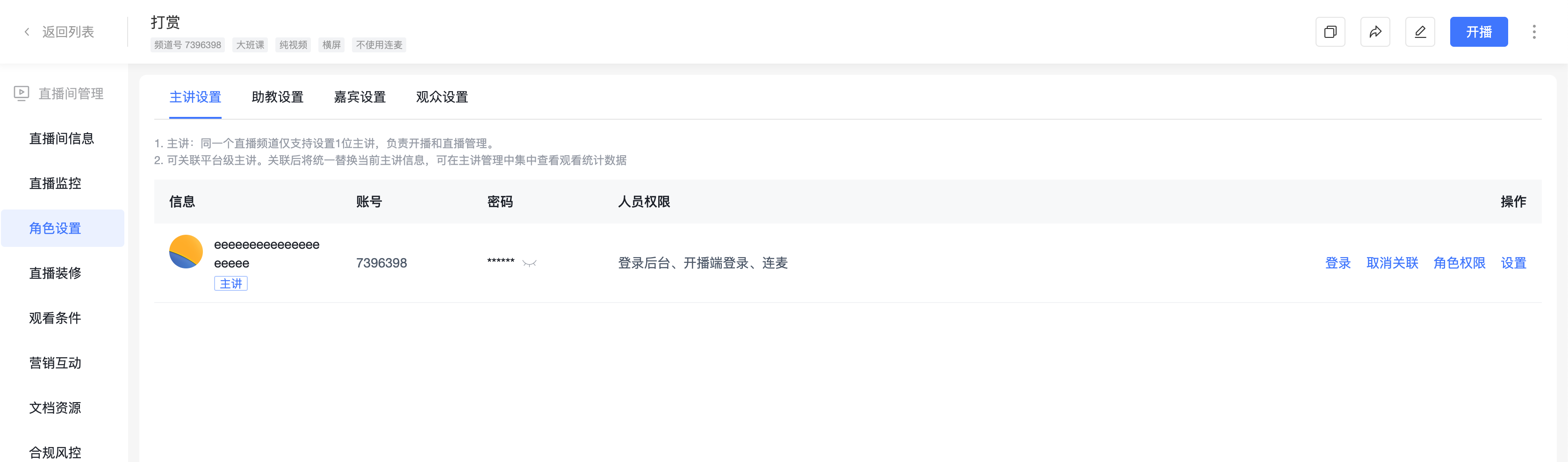
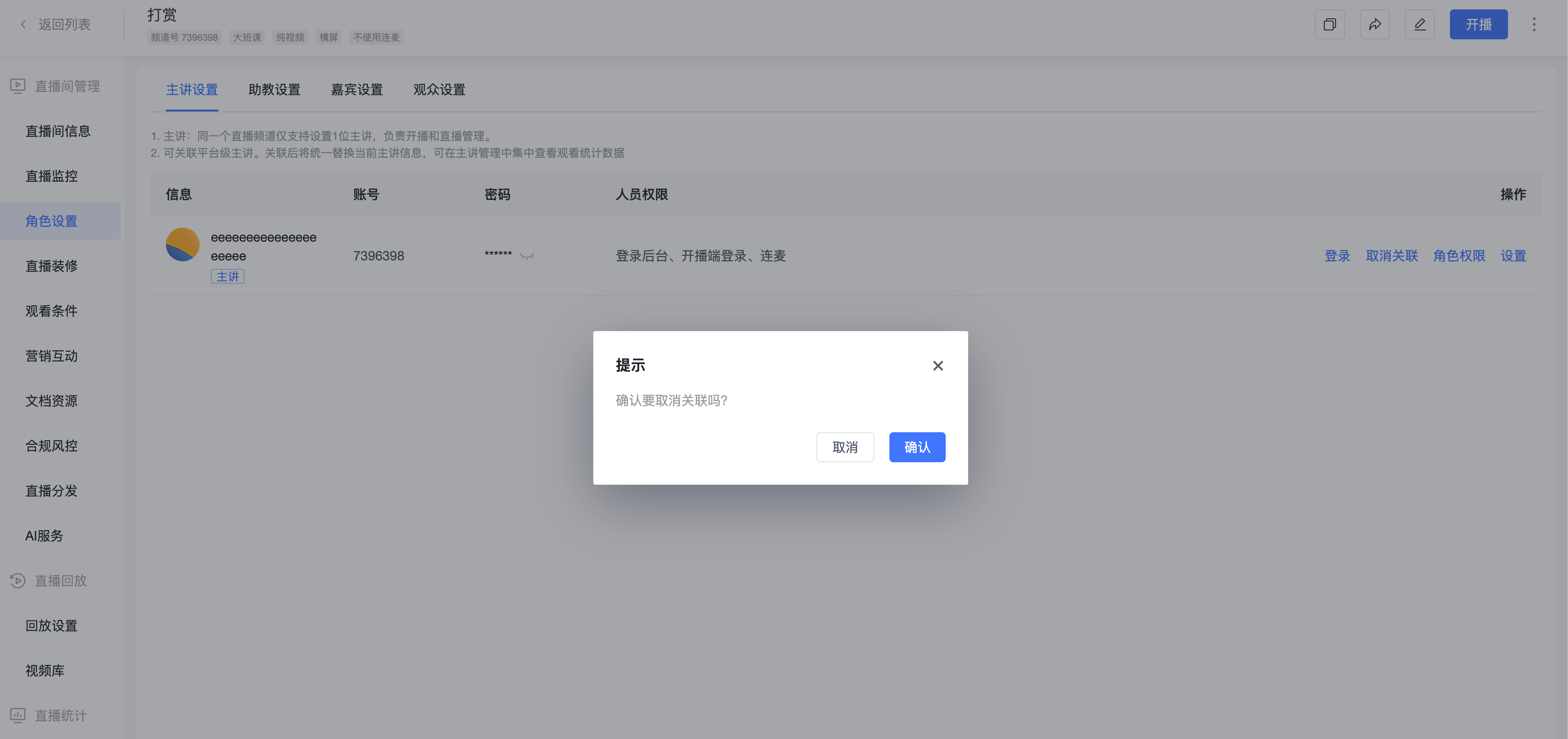
If you need to disassociate a presenter, click "Disassociate" in the role settings, or use "Modify Association" for the presenter. After disassociation, the presenter info will revert to the data before the association.
- After disassociation, you can directly associate a different presenter in the role settings.
2. Bind Presenter to WeChat
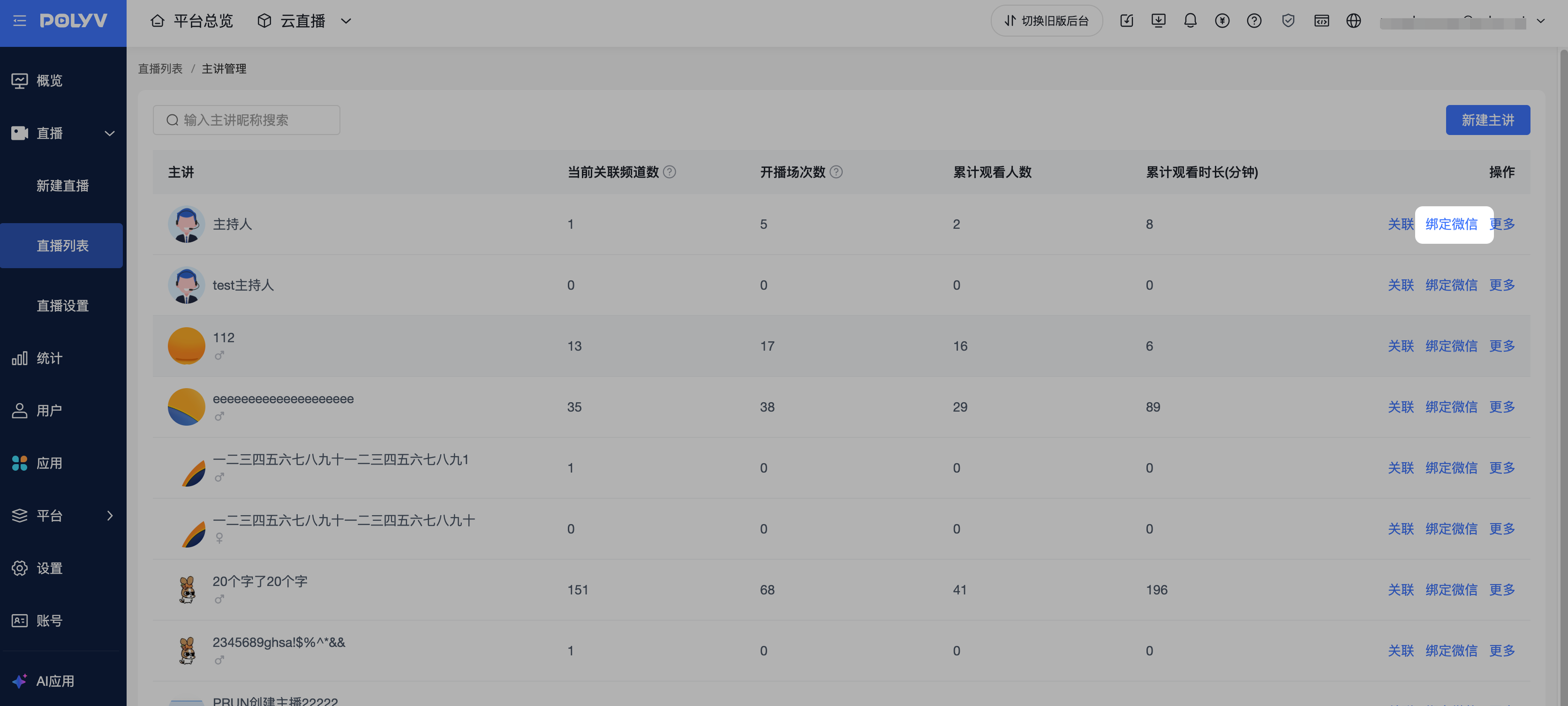
In the "Presenter Management" list and "Presenter Details", you can click "Bind Presenter" to bind.
After binding, the presenter can log in via WeChat one-click login or WeChat QR code scan.
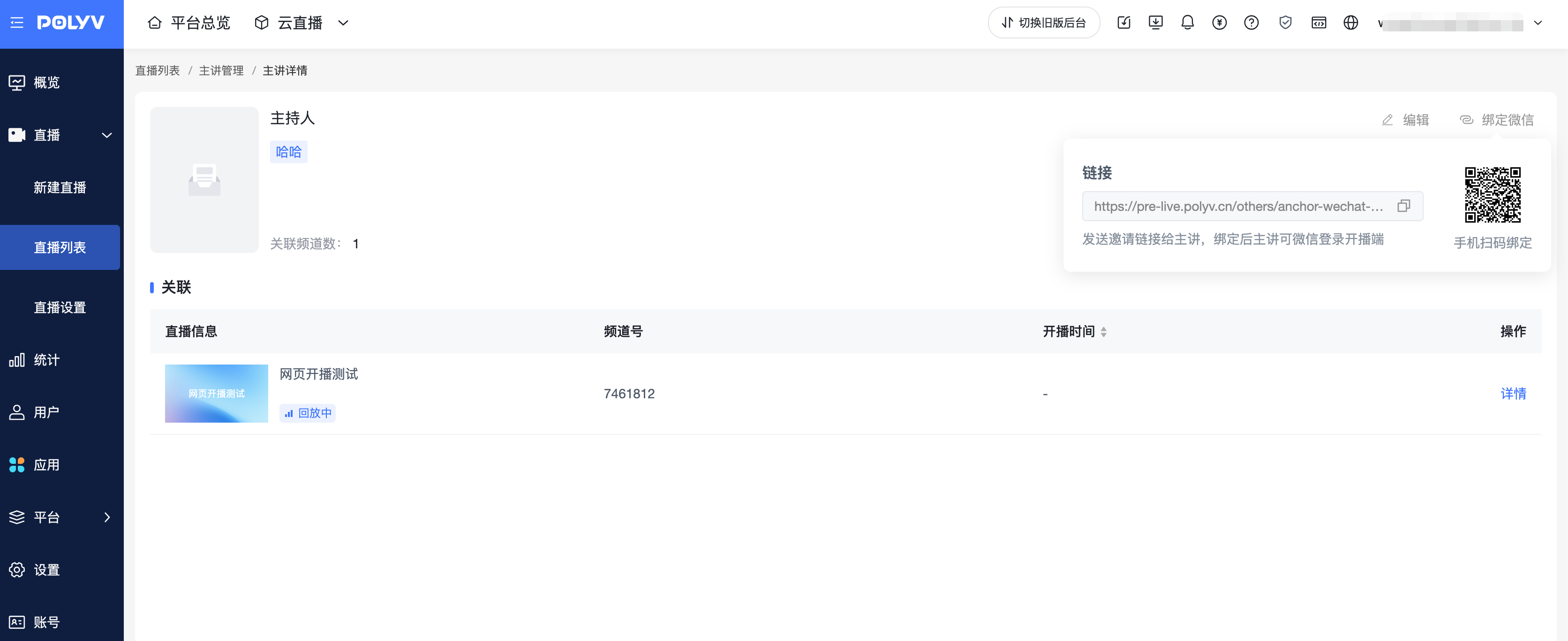
After binding, unbinding or rebinding is supported.
3. Display on Landing Page and Viewing Page
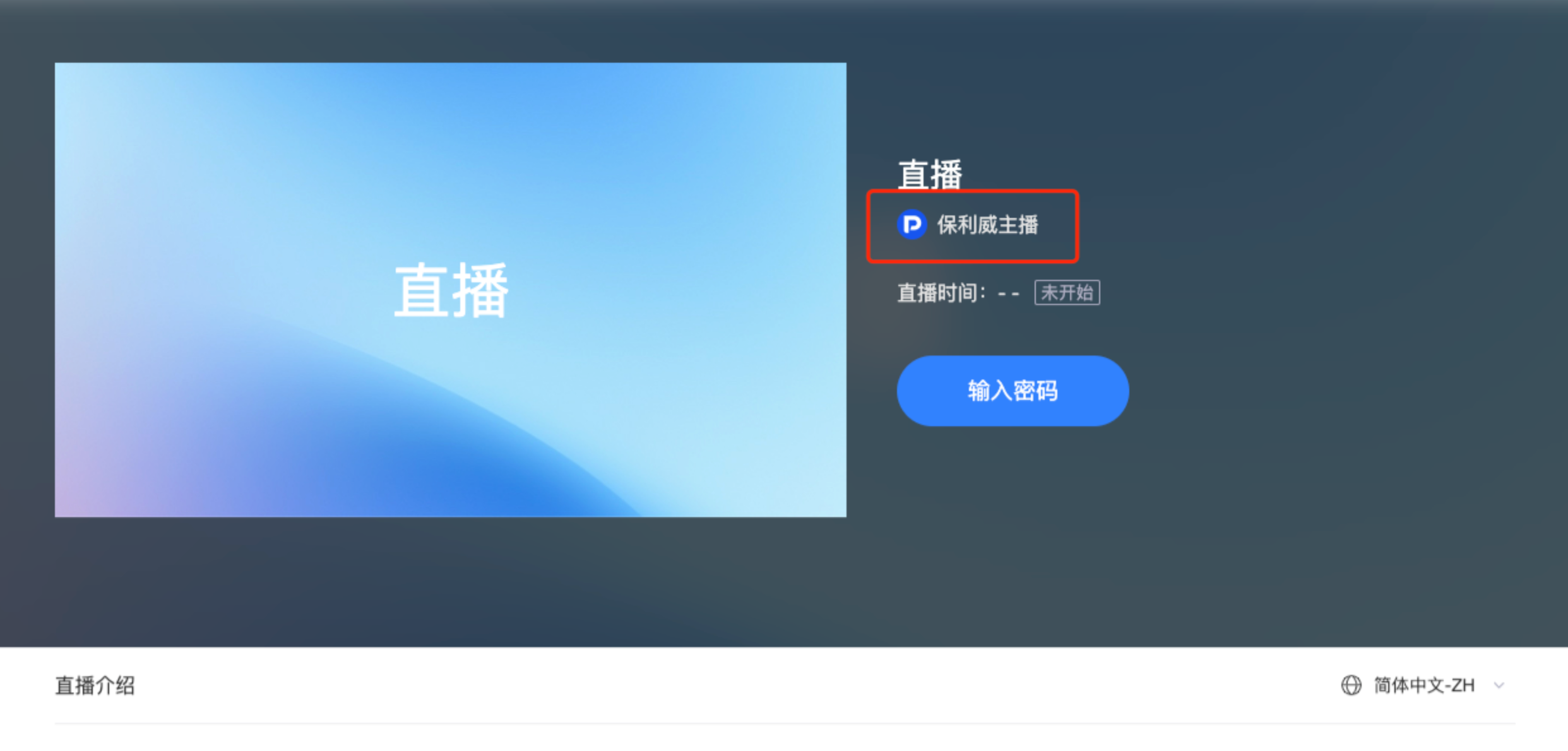
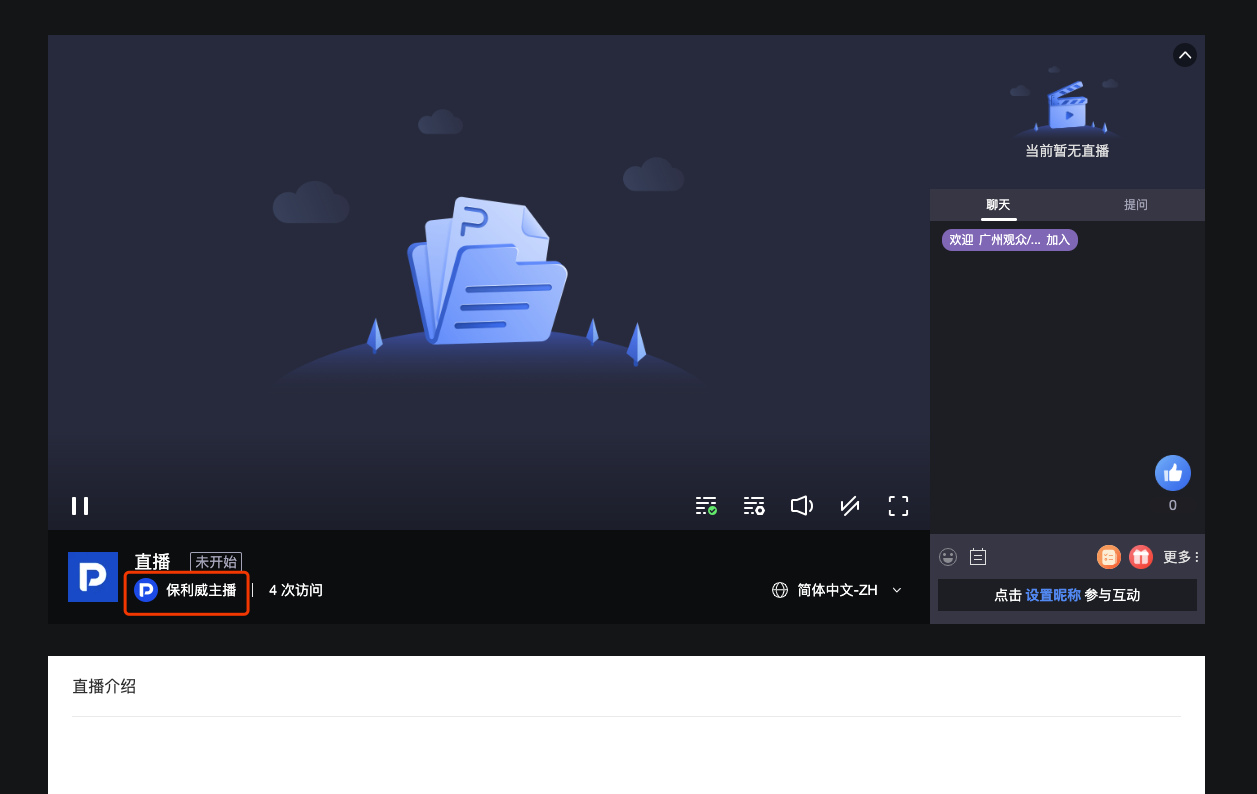
After a presenter is added to a channel, the presenter's avatar and nickname will be displayed on the channel's landing page and viewing page.
4. Add Presenter Dimension to Data Statistics
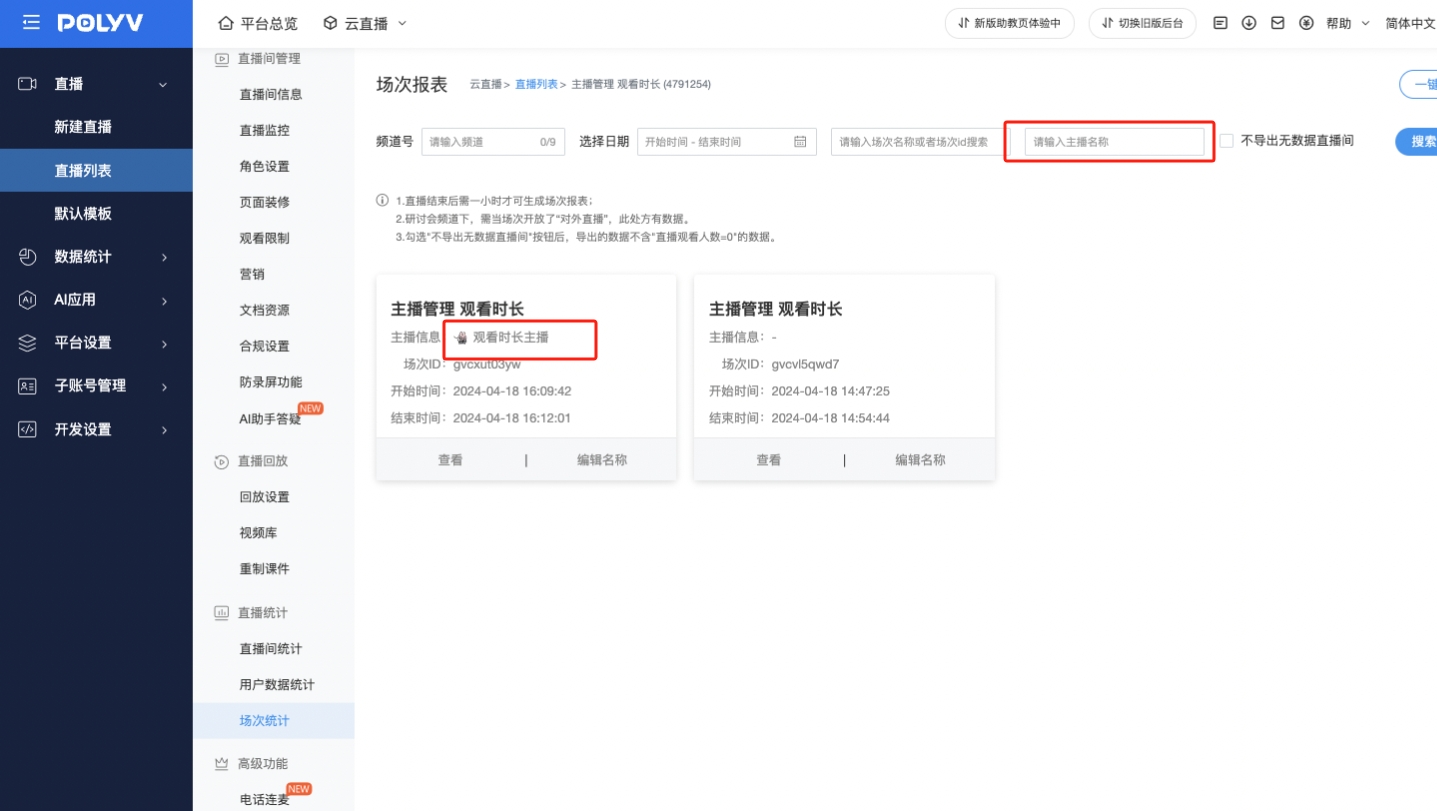
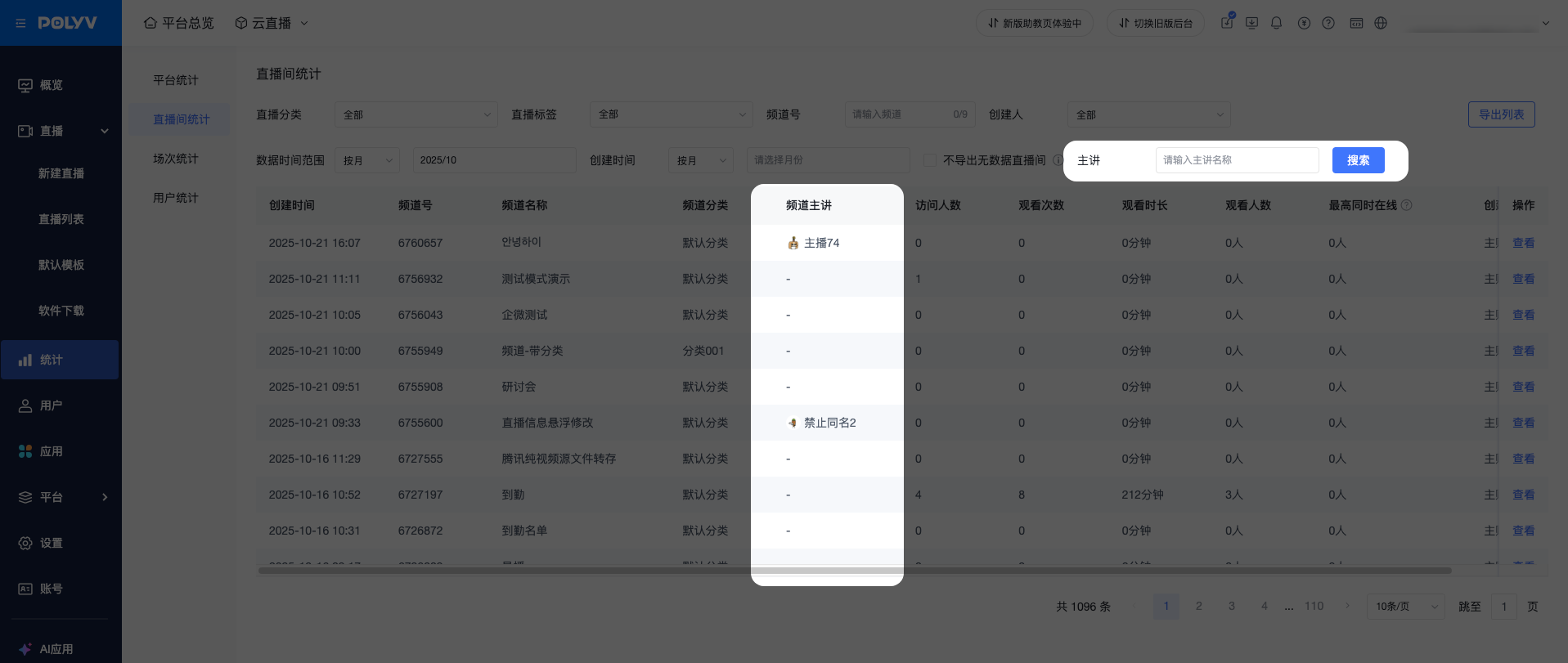
After a channel is associated with a session and goes live, the presenter's info will be displayed in session statistics and live room statistics. Data filtering by presenter nickname is also supported.