


Role Settings
1. Feature Overview
Role settings is a core feature in the live streaming platform's backend management. It allows administrators to configure different roles based on live streaming needs and assign corresponding permissions to each role.
Feature Info |
Description |
|---|---|
| Feature Name | Role Settings |
| Feature Description | Allows administrators to configure different roles based on live streaming needs and assign corresponding permissions to each role |
| Purpose | Facilitates fine-grained management of live streaming permissions, ensures each role performs their duties in the live room, and improves live streaming efficiency and security |
| Feature List | Presenter Settings, Teaching Assistant Settings, Guest Settings, Audience Settings |
2. Operation Instructions
2.1. Feature Entry
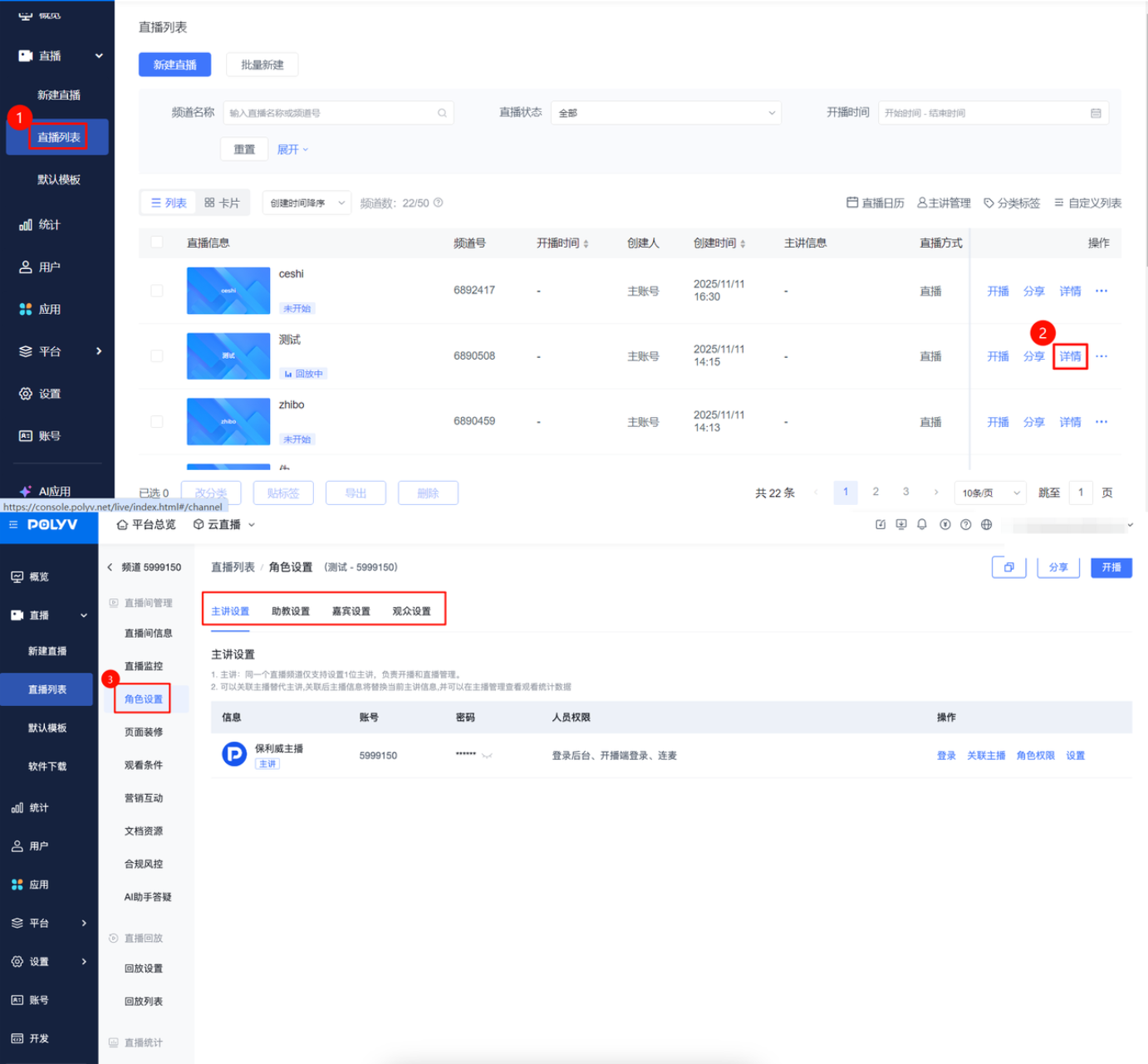
Access Path: Select a live stream from the [Live List], click [Details] - [Role Settings]
2.2. Presenter Settings
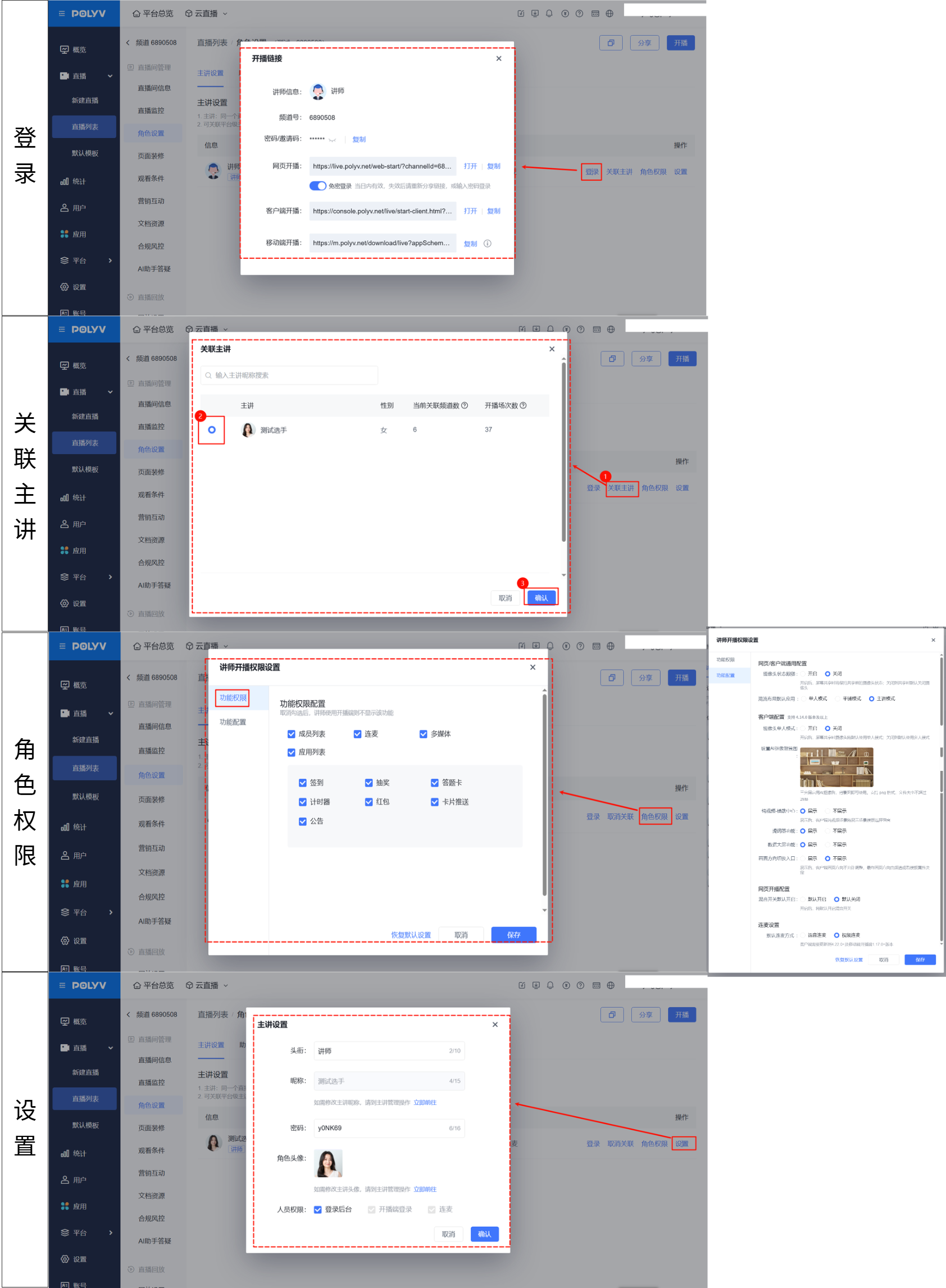
- Unique role responsible for conducting classes and managing live room information. Can log in to the backend, log in to the broadcasting client, and initiate co-streaming, etc.
- Login: Obtain the broadcasting link information and log in to the broadcasting client
- Associate Presenter: Can associate an alternate presenter to replace the instructor, and view viewing statistics in the Presenter Management; see Presenter Management Documentation for details
- Role Permissions: All [Functional Permissions] are checked by default. If unchecked, the corresponding function will not be displayed on the broadcasting client for that identity. Advanced configuration can be performed in [Function Configuration] based on live streaming needs
- Settings: Modify presenter information and permission settings
2.3. Teaching Assistant Settings
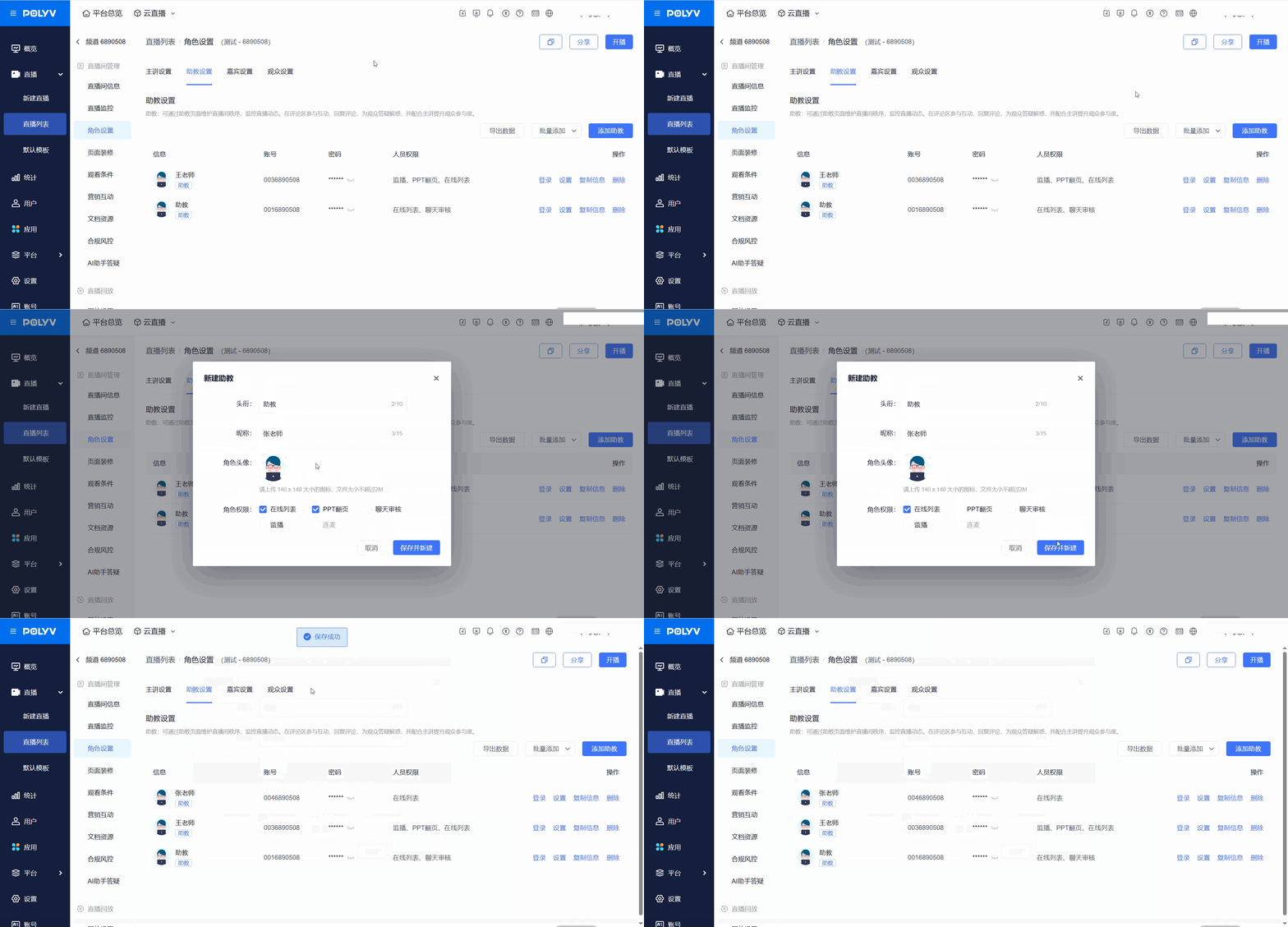
Use a sub-channel to log in to the Teaching Assistant management backend. Can watch the live stream, participate in interactions, and manage the chat room.
- Add Teaching Assistant: Configure information for a new teaching assistant when adding
- Download Template: Provides a template for download. Fill it out and batch add teaching assistants to improve management efficiency
- Export Data: Allows exporting teaching assistant data for backup and management
Operations
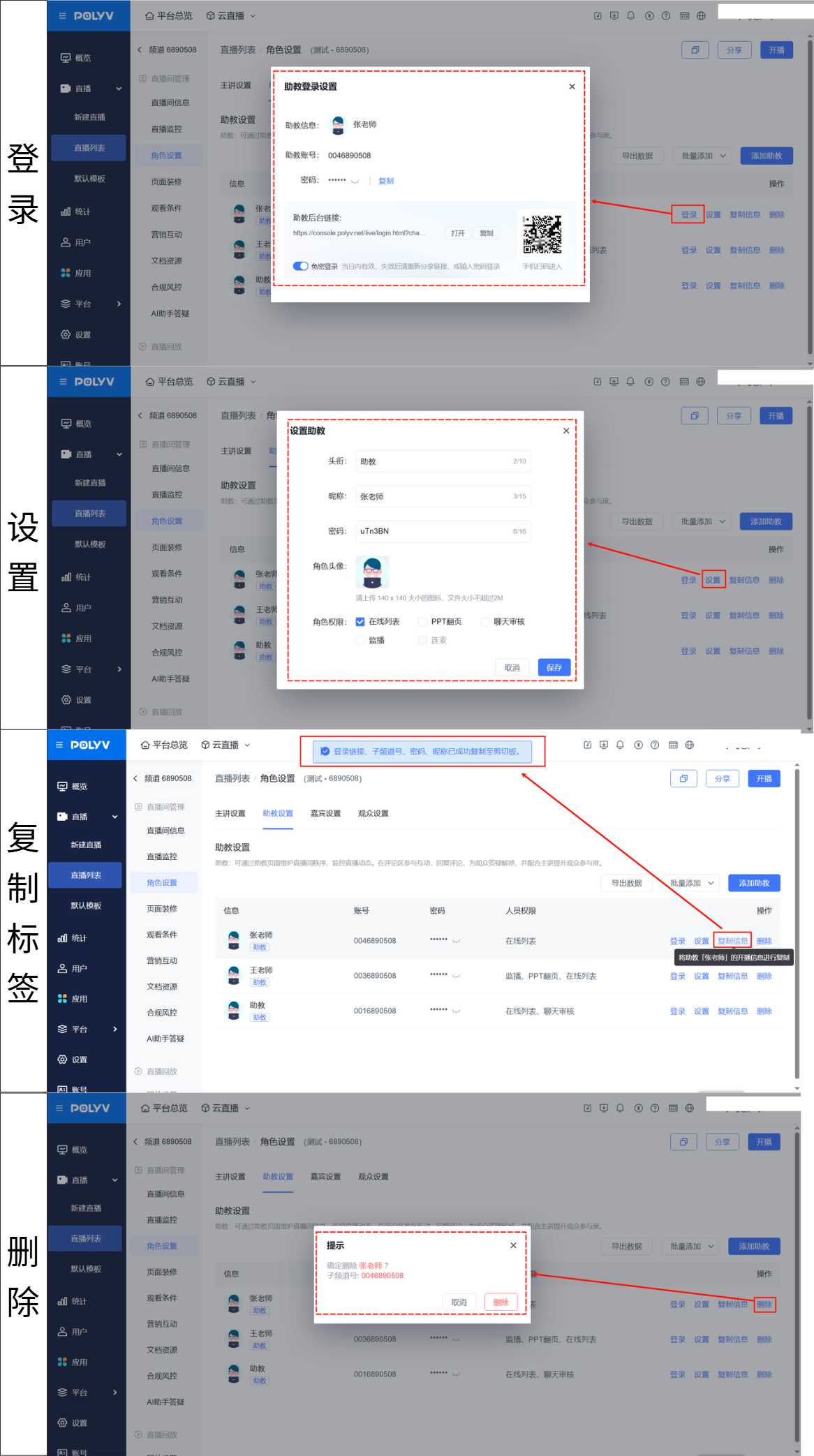
- Login: Obtain the login information for the teaching assistant, allowing password-free login for the teaching assistant account
- Settings: Supports editing teaching assistant related information and permissions
- Copy Info: Copy the broadcasting information for this teaching assistant
- Delete: Delete this teaching assistant
Teaching Assistant Permissions
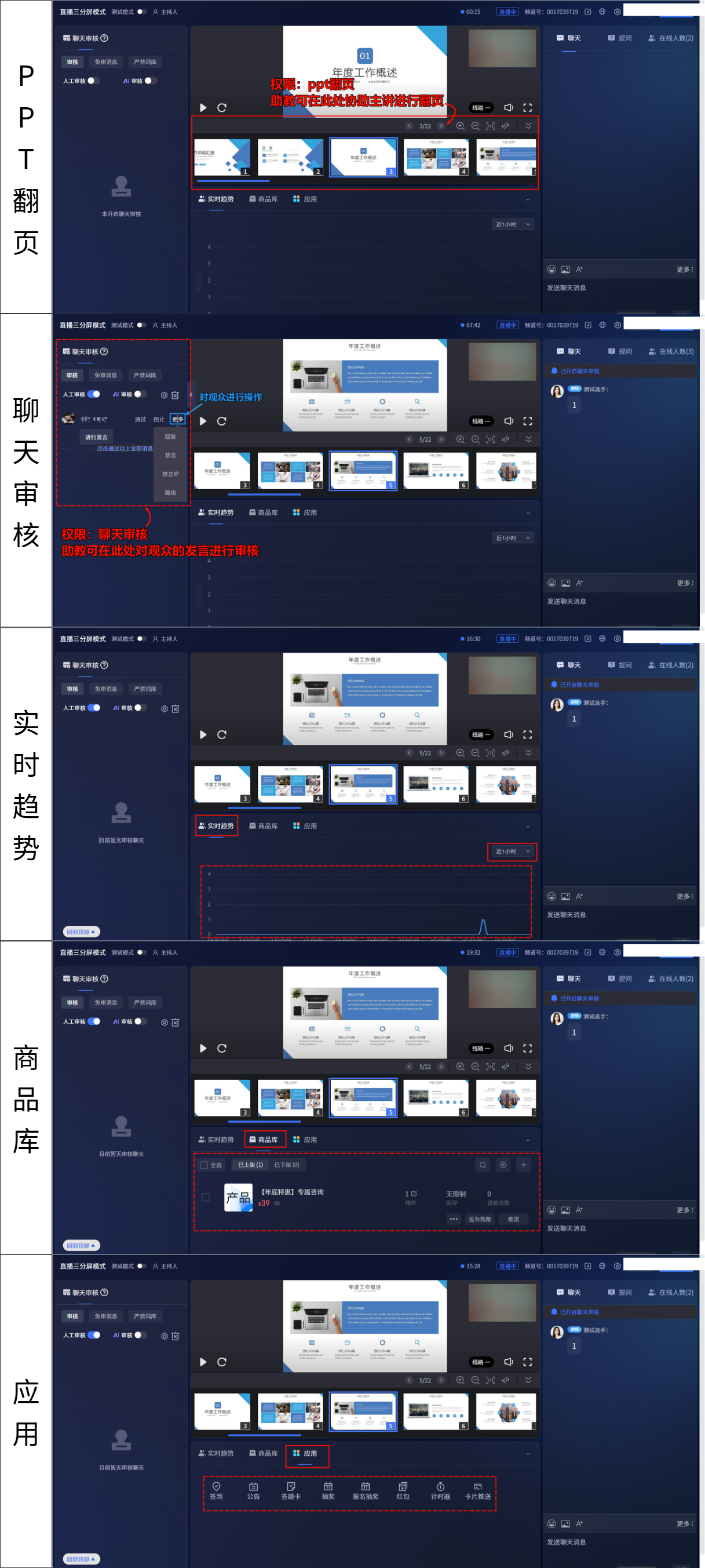
- PPT Page Turning Permission: Can assist the instructor in turning slides
- Chat Review Permission: Can upload pre-approved messages / prohibited words to quickly control chat content. Supports manual/AI review of chat content. For details, see Prohibited Words
- Mute Function: Muting makes the audience's comments visible only to themselves. Can mute by IP. If muted by mistake, the restriction can be lifted in the "Online List - Muted List"
- Kick Function: Can kick out violating audience members. The audience will be prompted that they are not authorized to watch. If kicked by mistake, the kick restriction can be lifted
- Permission Hierarchy (Admin > Instructor = Teaching Assistant): Deletion operations are irreversible and chat history is not retained
- Real-time Trends: View the trend of the number of people in the live room over time
- Product Library: Perform operations and settings on products. For details, see Product Library
- Applications: Initiate classroom interactions such as check-ins, lucky draws, Q&A, and surveys
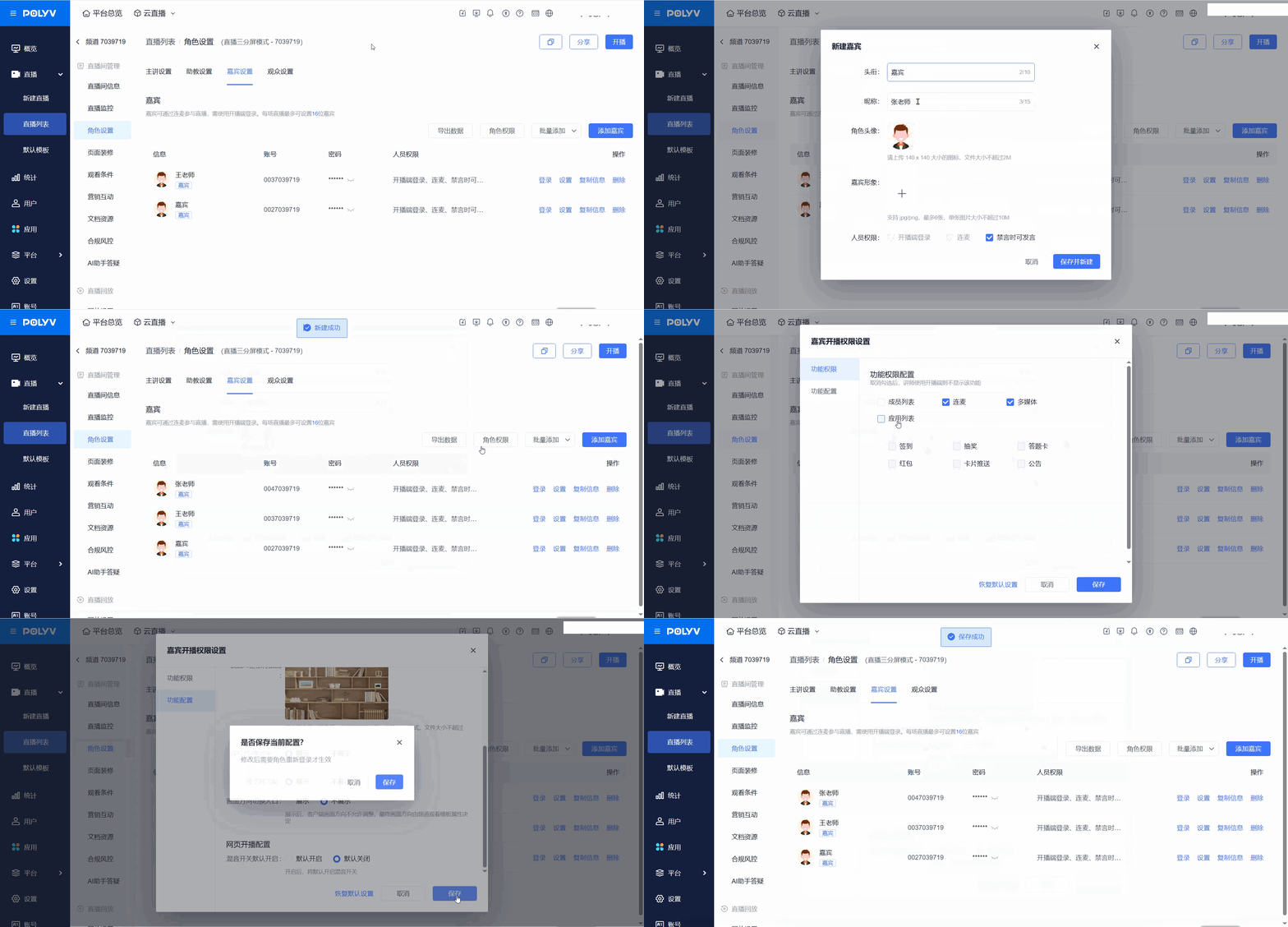
2.4. Guest Settings
Guests have higher permissions than the audience by default
- Add / Batch Add Guests: Configure information for a new guest when adding
- Download Template: Provides a template for download, convenient for batch importing role information
- Export Data: Allows exporting role data for backup and management
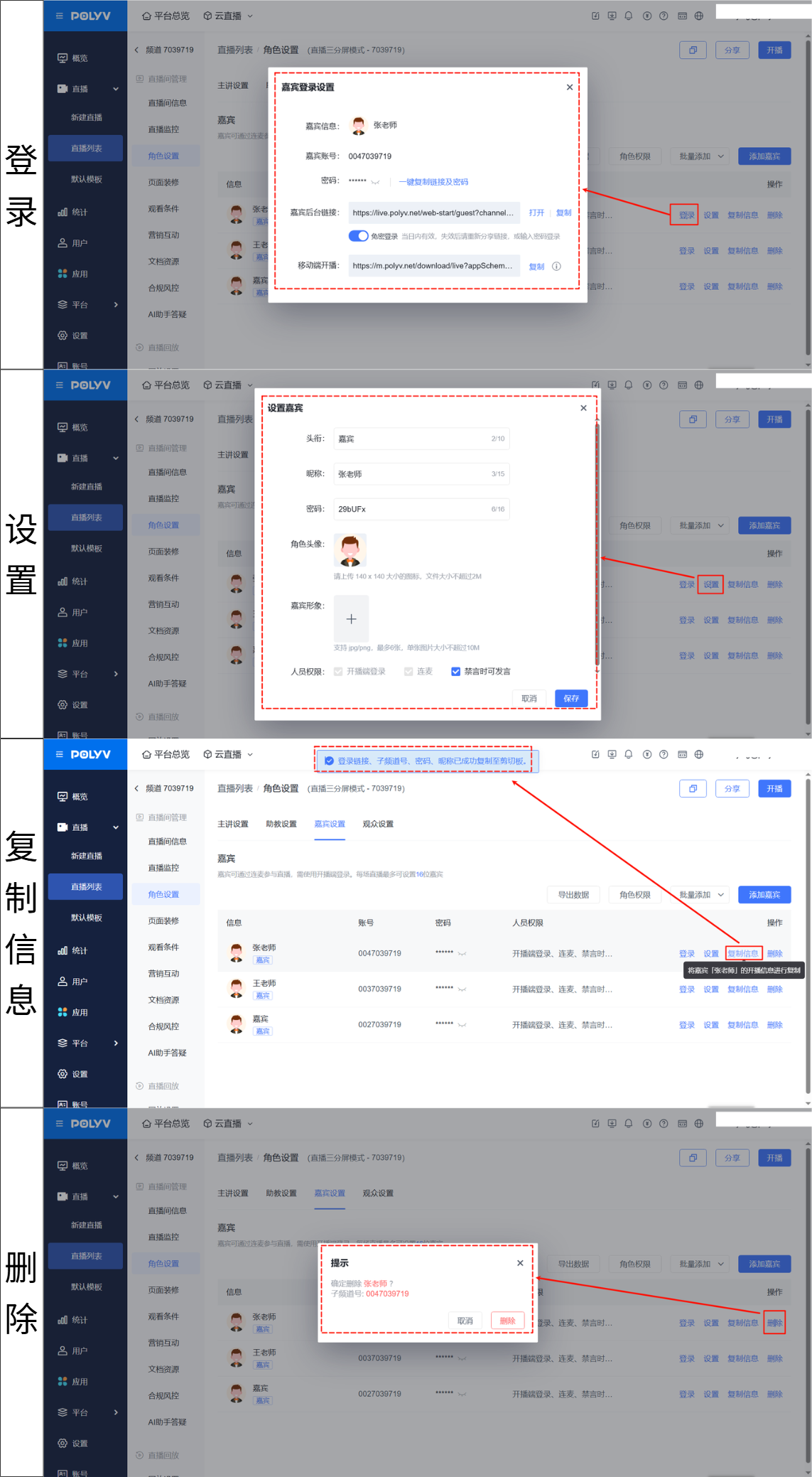
Operations
- Login: Obtain the login information for the guest, allowing password-free login for the guest account
- Settings: Set guest information, modify login password. Check [Can speak when muted] to allow speaking even when the room is muted
- Copy Info: Copy the broadcasting information for this guest
- Delete: Delete this guest
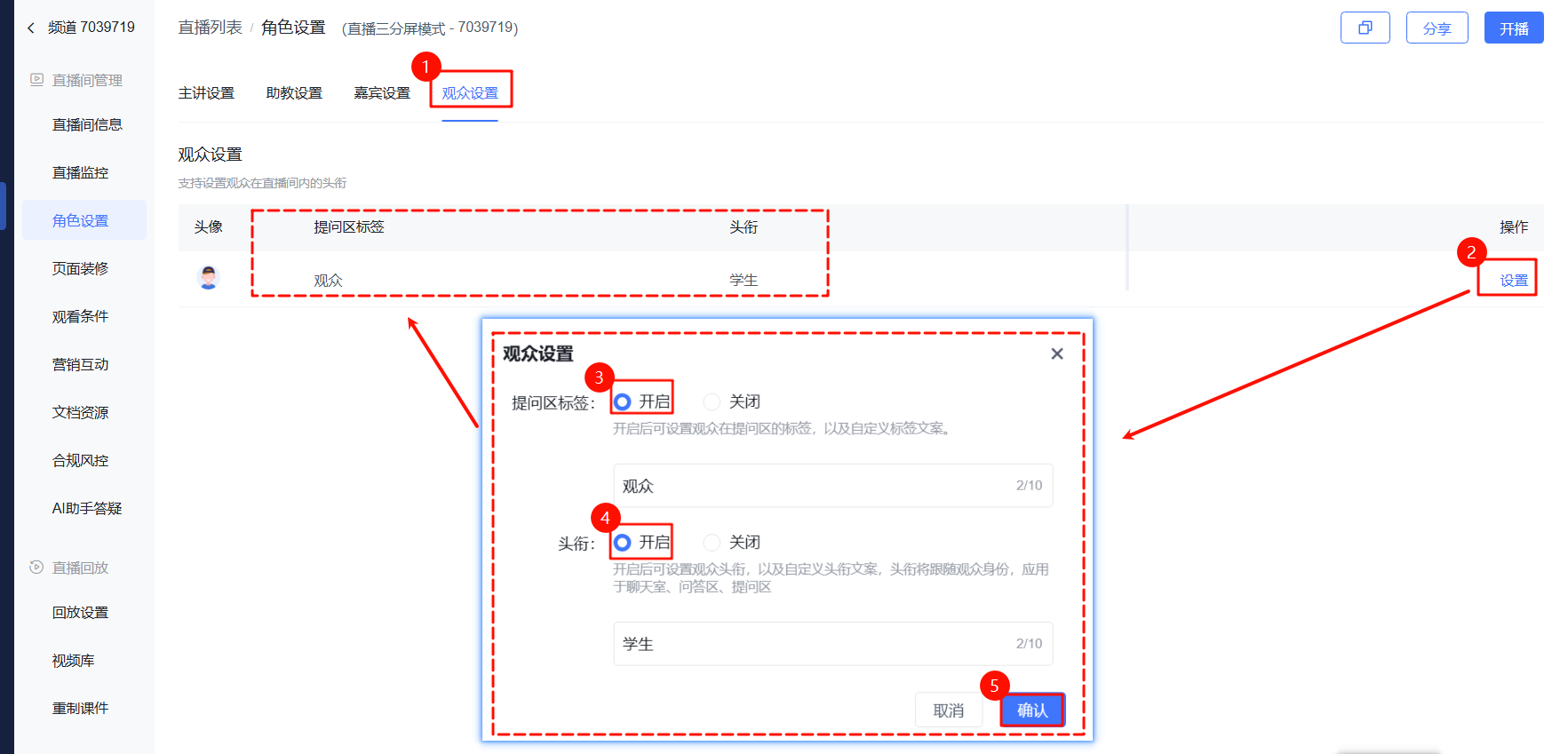
2.5. Audience Settings
- Supports setting the Q&A area tag and title for individual audience members
2.6. Supplementary Notes
To accommodate users still using the old backend, the Help Documentation for Old Version Teaching Assistant Management Operations is temporarily retained for your reference. For a better experience, please switch to the new backend as soon as possible. If you encounter any issues, please refer to the Help Center documentation or contact customer service.
