Group Account
Product Introduction
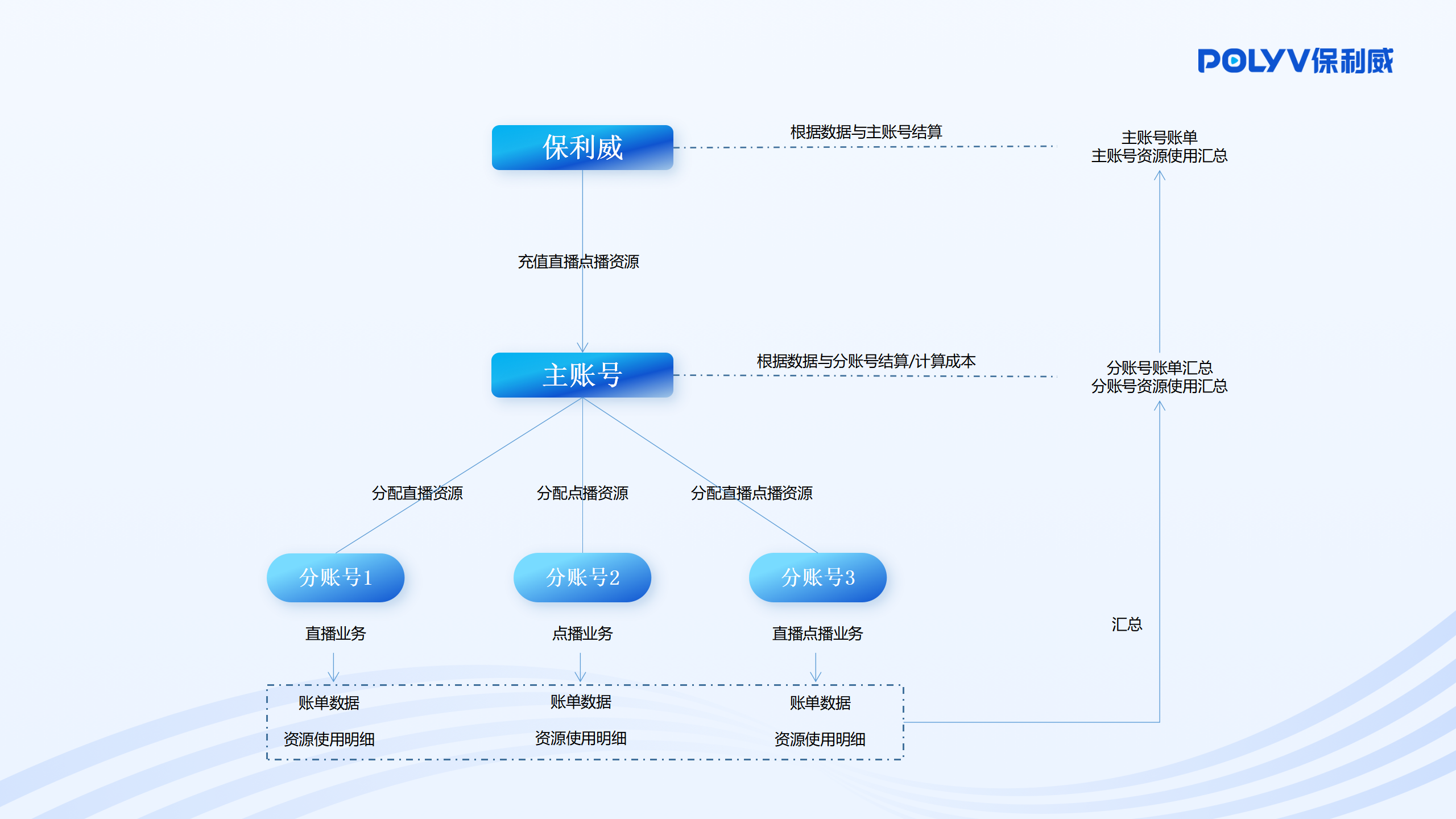
Group Account 2.0 establishes association management between accounts, allowing a primary account to manage resources across multiple sub-accounts. It supports data isolation, independent billing, and independent feature control for sub-accounts. This addresses scenarios such as internal live streaming management and POLYV service distribution, enabling independent cost accounting, resource usage control, and live content isolation, thereby improving internal management efficiency and data security for distribution customers.
The core features of Group Account 2.0 consist of two parts: sub-account resource allocation and sub-account usage query.
Sub-account Resource Allocation Based on the customer's business needs, resources are allocated on-demand to corresponding sub-accounts, ensuring normal business operations while distinguishing the live streaming and video-on-demand costs of each business.
Sub-account Usage Query Aggregates data such as bills, usage, and allocation amounts for sub-accounts, providing customers with detailed usage details to assist with business analysis and cost accounting.
Feature Introduction
1. Login
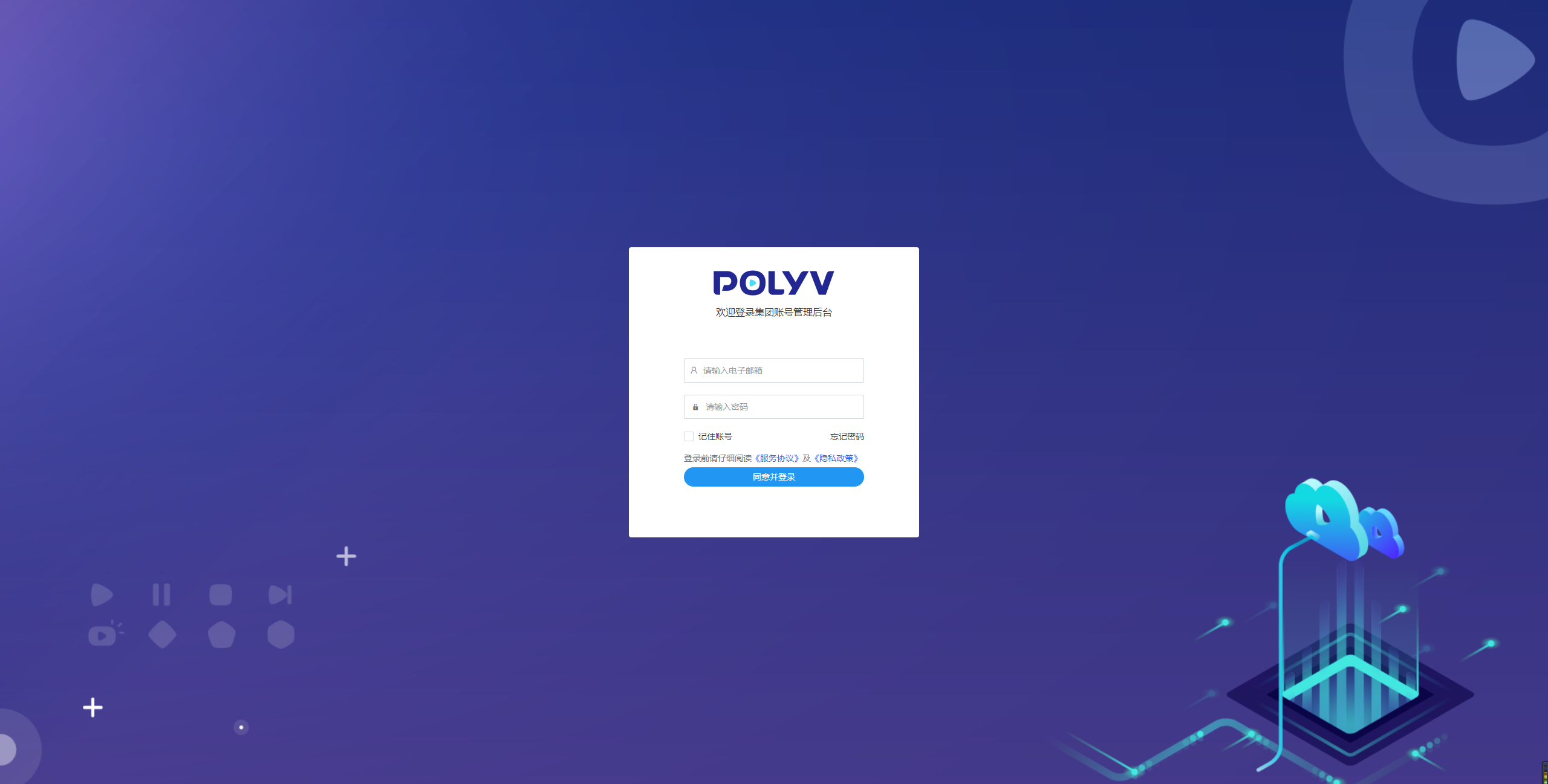
1.1 Access https://group.polyv.net/,输入集团账号密码,登录集团账号。
1.2 After successful login, you will enter the Group Account homepage, which displays resource-related information for the primary account.
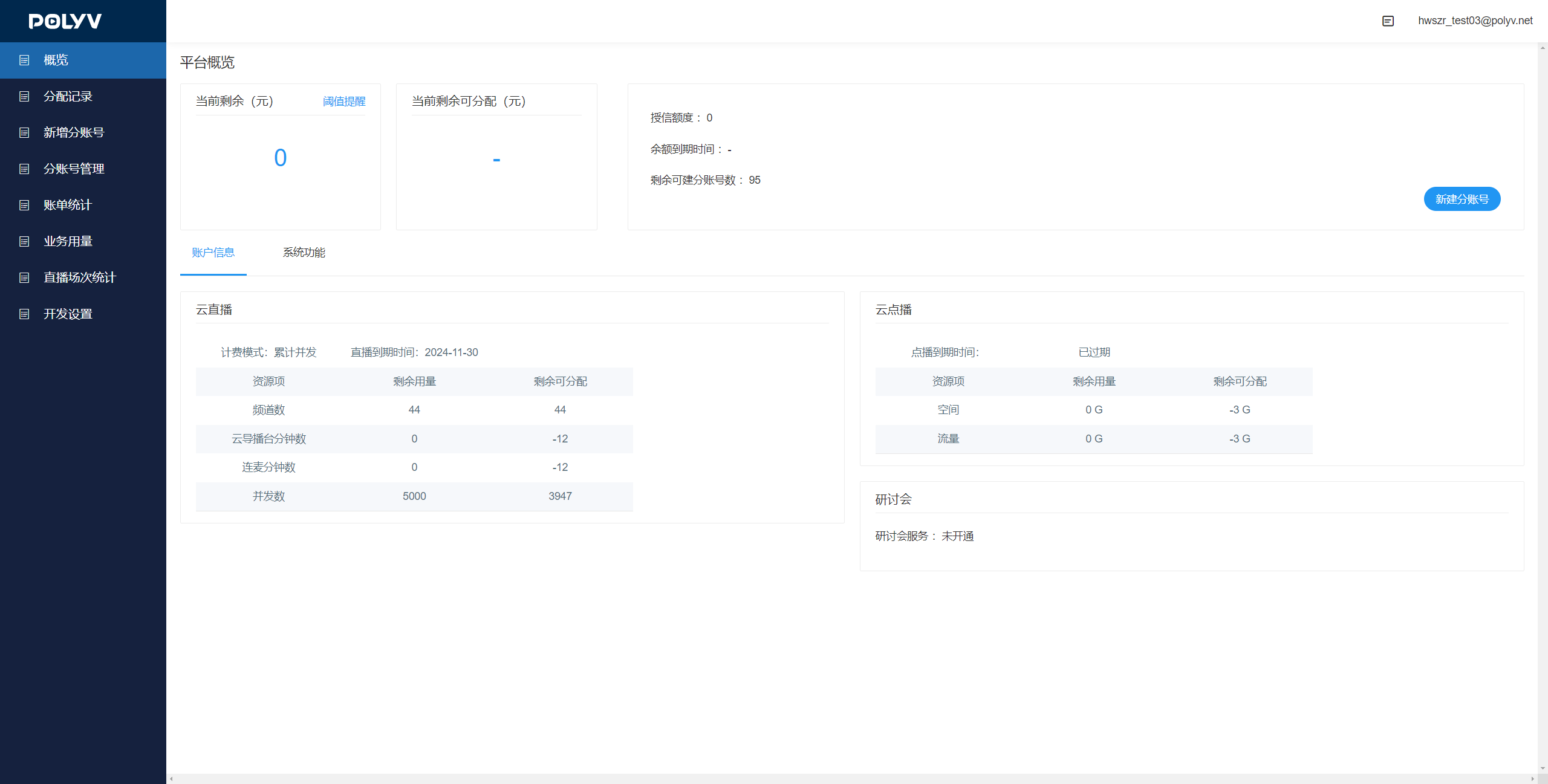
- Field Descriptions:
- Remaining Allocatable: Remaining Allocatable = Primary Account Remaining Resources - Allocated Resources (sum of sub-account resources). Each resource calculates its own remaining allocatable value to remind the primary account of how many resources are left to allocate.
- Remaining Usage / Current Remaining: The remaining usage of the primary account. When allocating resources to sub-accounts, the primary account's resources do not decrease immediately. Only after sub-accounts consume resources, the primary account aggregates the sub-accounts' resource usage for settlement and deduction, which then changes the primary account's remaining usage.
- Number of Creatable Sub-accounts: The remaining number of sub-accounts that can be created. Creating a sub-account consumes this resource.
- Live/VOD Expiry Date: The expiry date of the primary account's plan. After expiry, the remaining usage will be reset to zero, and further allocation will not be possible.
2. Sub-account Management
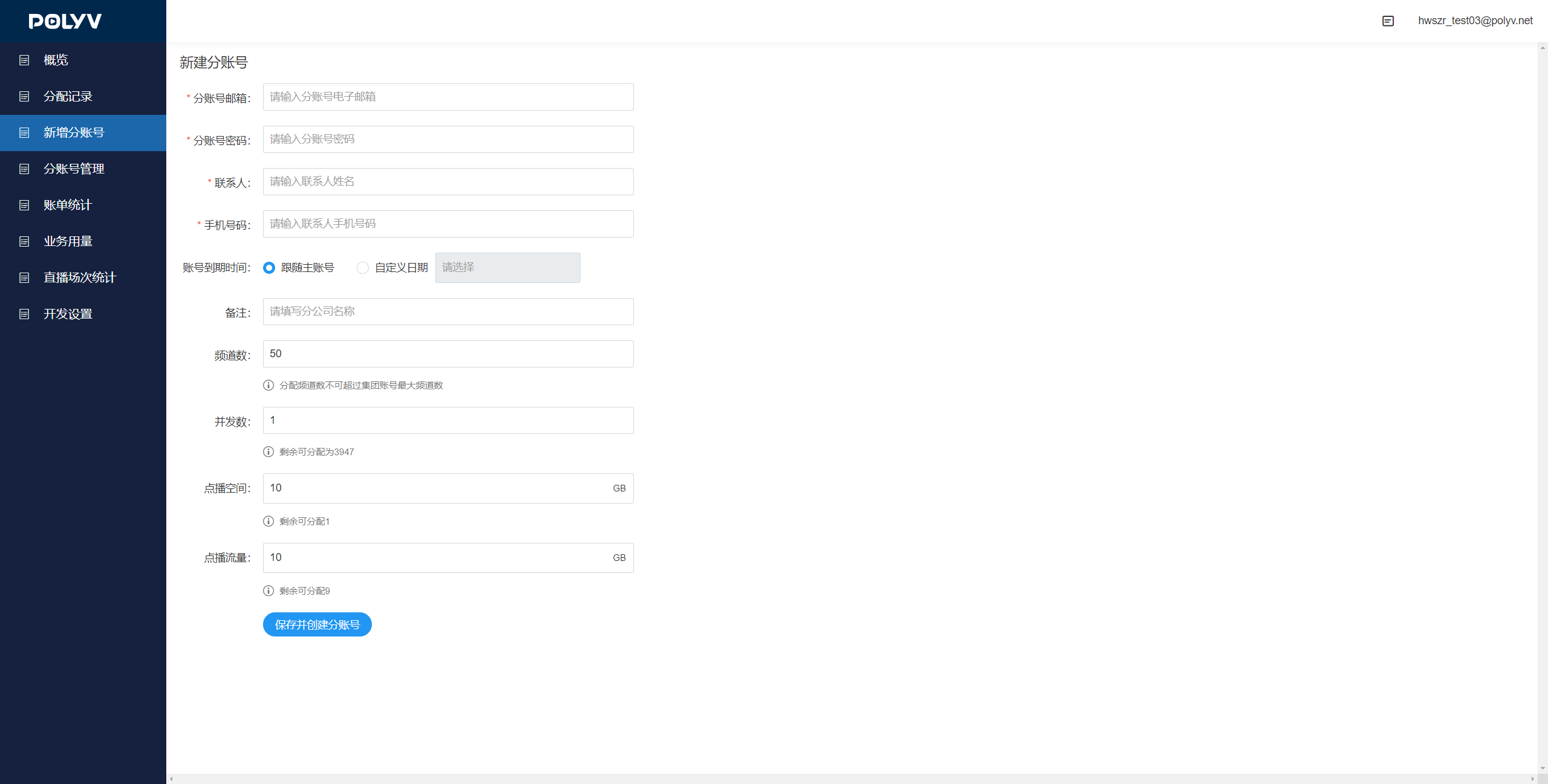
2.1 Create a New Sub-account
- Create a New Sub-account: Click "Create New Sub-account" in the menu bar to enter the creation page. Enter the relevant information to create a sub-account:
- Sub-account Name: Must be in email format. The sub-account name must be unique and cannot duplicate any previously created sub-accounts. This email is used to log in to the sub-account.
- Password: Must be at least 5 characters long.
- Contact Name: Enter the contact person's name.
- Phone Number: A valid phone number. The same phone number can only be used to create up to 3 sub-accounts.
- Account Expiry Date: Choose to follow the primary account or set a custom date. If following the primary account, the sub-account's resource expiry date matches the primary account's. If custom, select a date no later than the primary account's expiry date.
- Sub-account Notes: Optional.
- Channel Count: Enter the number of channels to allocate. The allocated channel count cannot exceed the maximum channel count of the group account.
- Concurrency / Amount / Minutes: Displayed based on the primary account's billing type and resource volume. Allocate corresponding resources to the sub-account.
- VOD Storage / VOD Traffic: Displayed when the primary account has a VOD plan. Allocate corresponding resources to the sub-account.
- Click "Save and Create Sub-account" to complete the creation.
2.2 Sub-account Management
- Click "Sub-account Management" to view all created sub-accounts.
- Click "Freeze" to disable login for a specific sub-account.
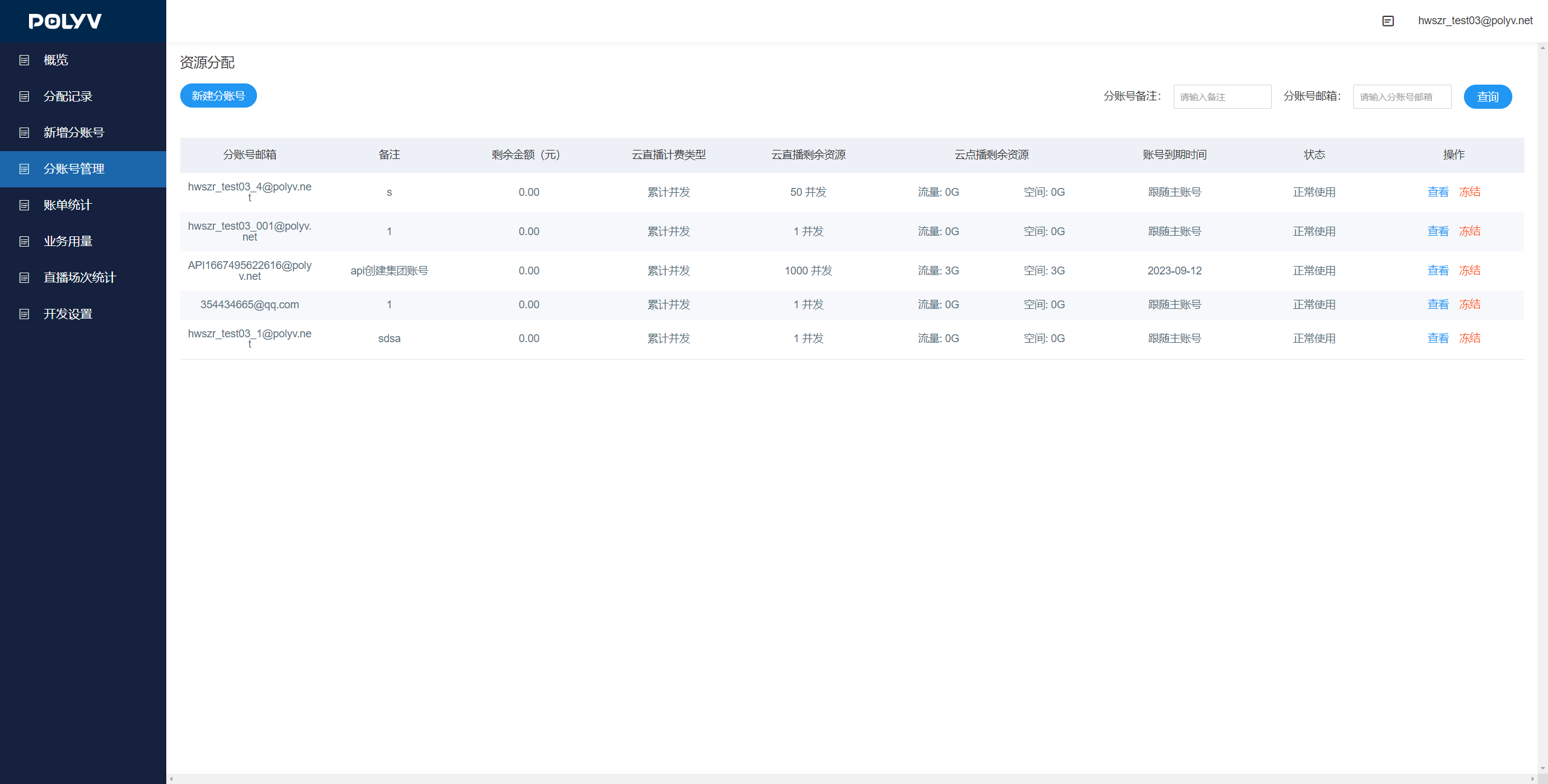
- Click "View" to access functions such as sub-account information, unit price management, and resource allocation.
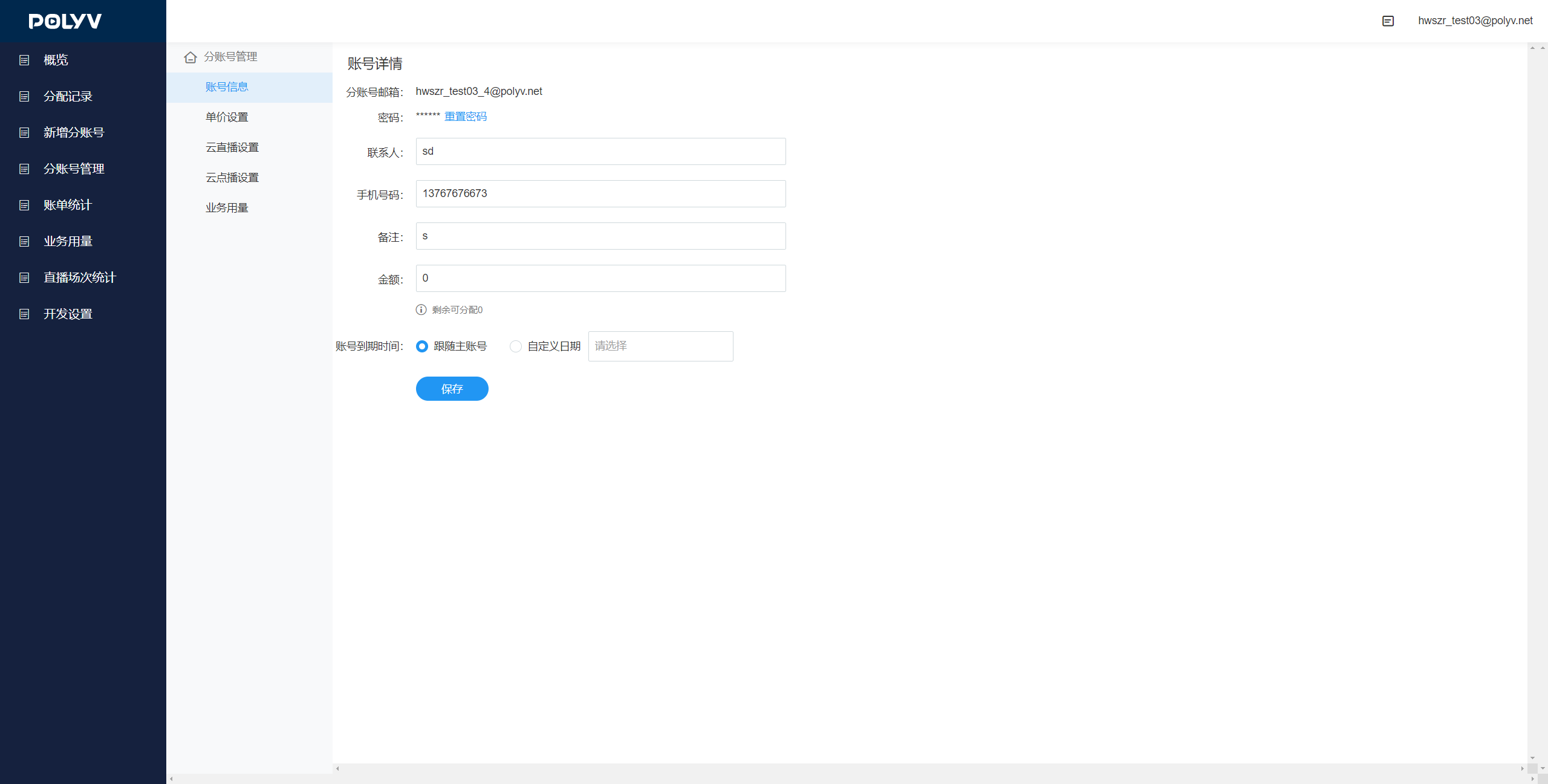
2.2.1 Modify Sub-account Information
- Click "Account Information" to view the configured information for the sub-account and modify the amount allocation and account expiry date.
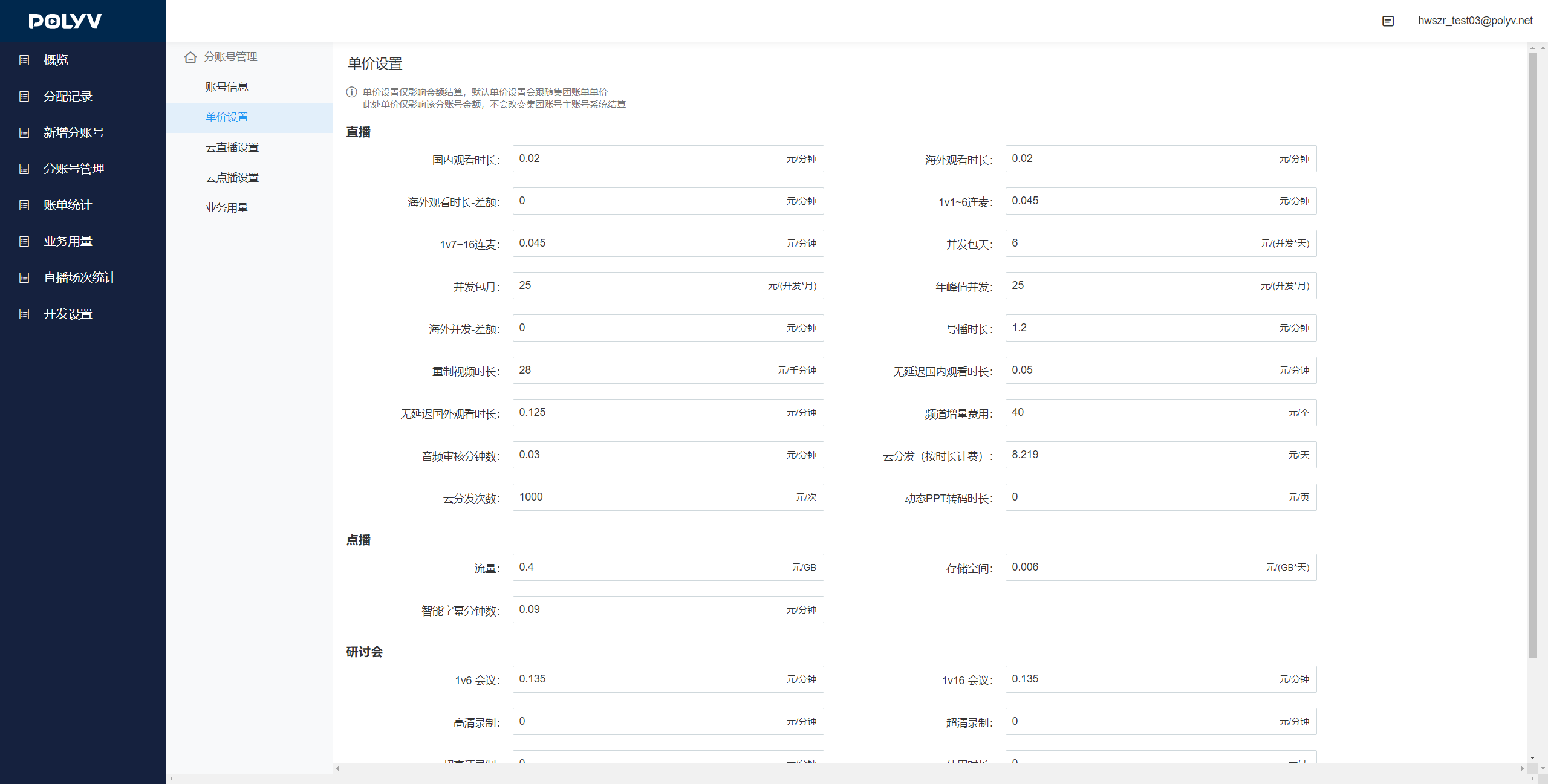
2.2.2 Modify Sub-account Unit Price
- Click "Unit Price Settings" to modify the sub-account's unit price. This function does not affect the primary account's unit price.
- When a sub-account uses a corresponding feature and settlement is based on amount, the deduction will be
usage × sub-account unit pricefrom the sub-account's amount. The primary account aggregates the sub-accounts' usage and deducts from the primary account's amount usingtotal usage × primary account unit price. Therefore, if the unit prices of the primary account and sub-account differ, the primary account's remaining allocatable amount may change without any top-up or allocation after settlement. This is normal behavior.
2.2.3 Allocate Resources to Sub-account
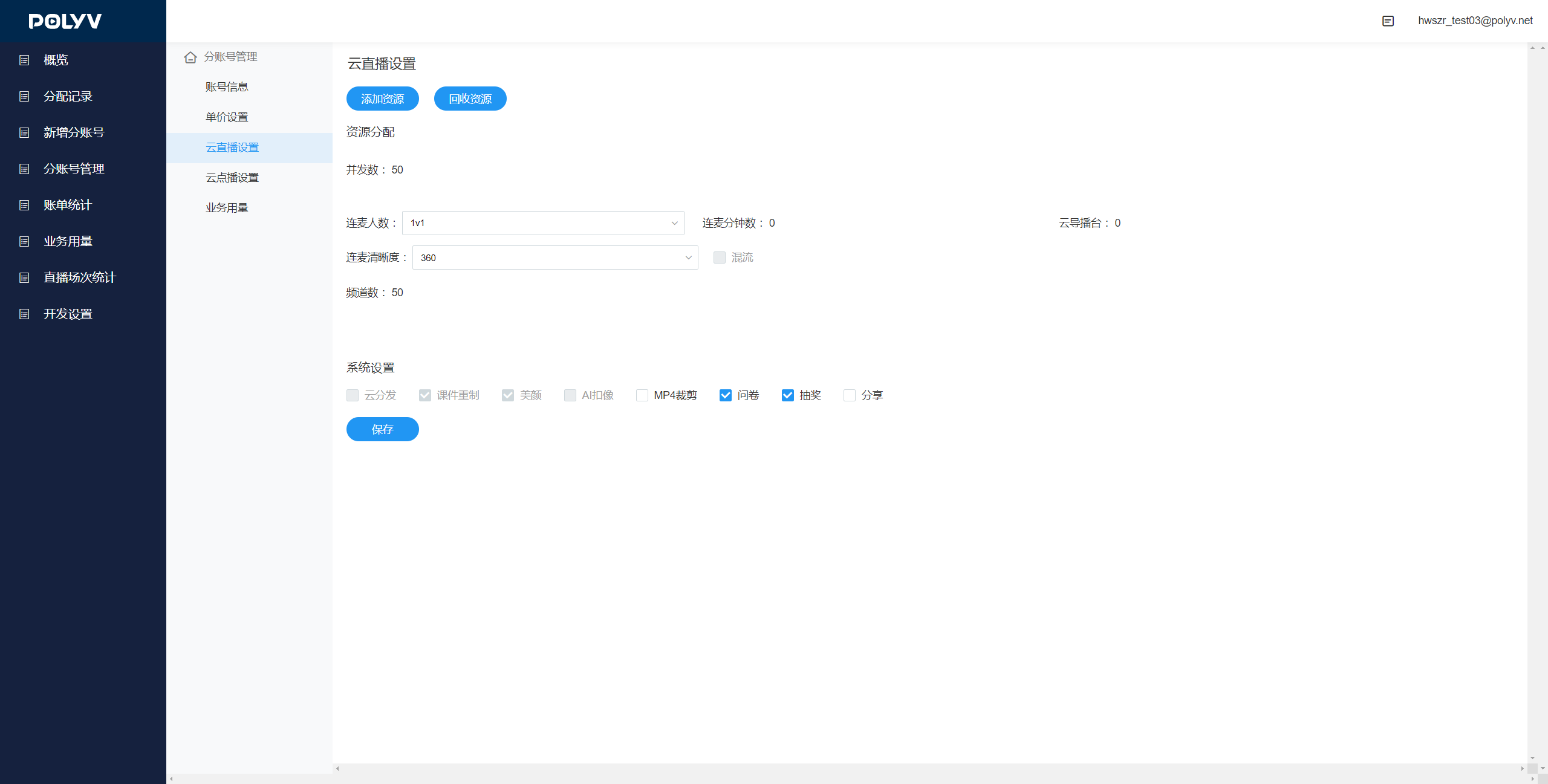
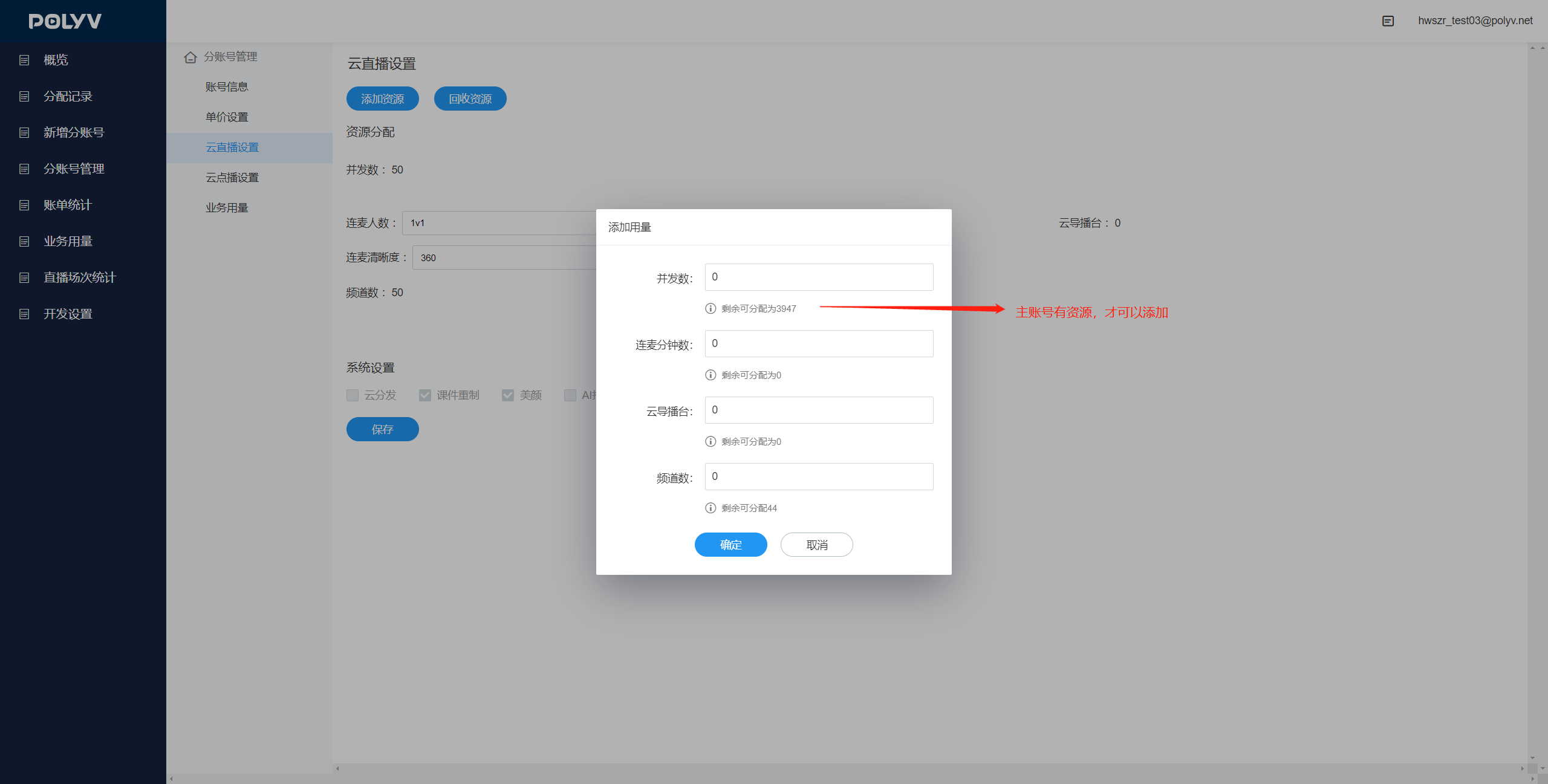
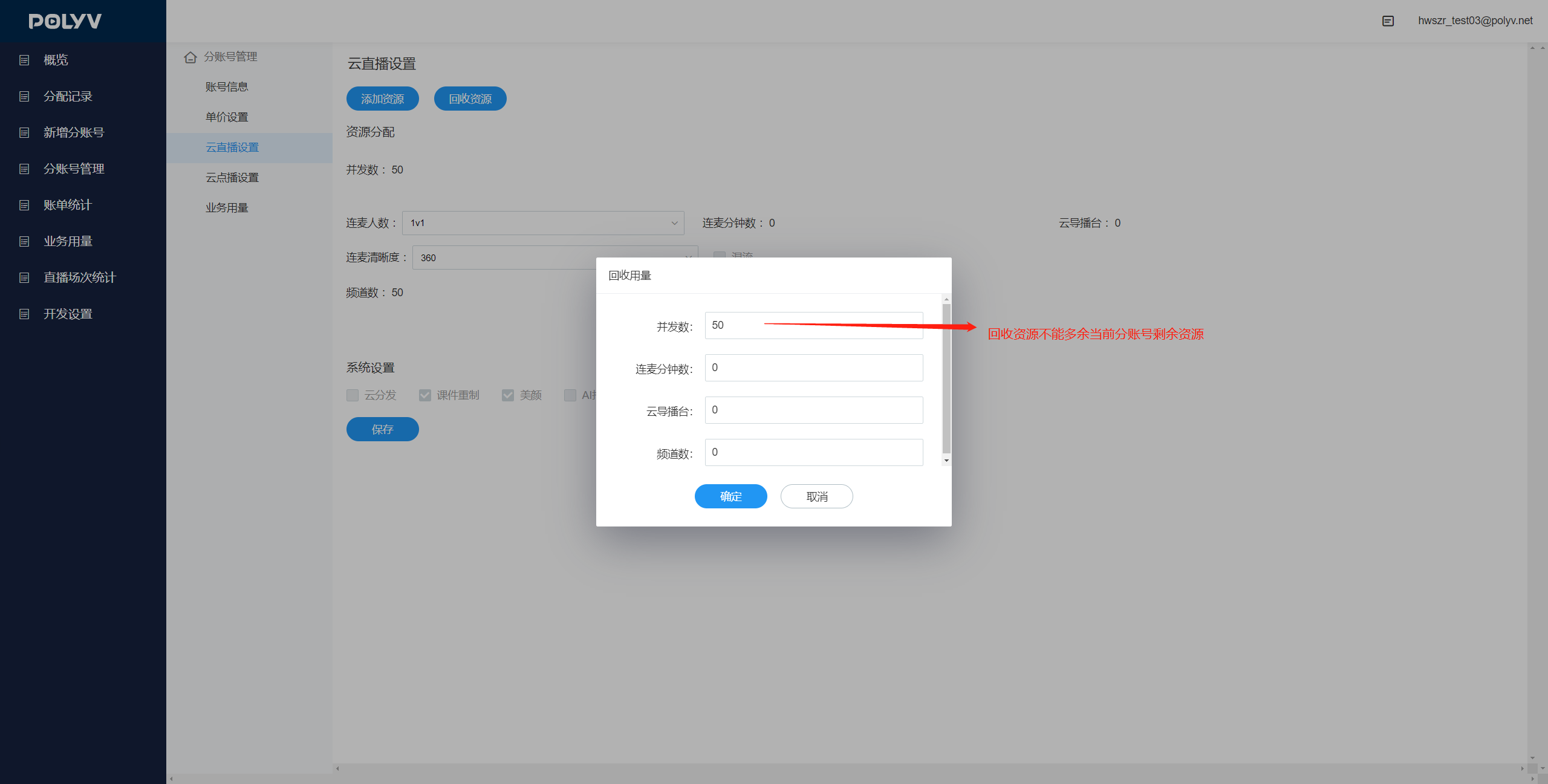
- Click "Cloud Live Settings" / "Cloud VOD Settings" to allocate usage to the sub-account and configure some feature settings. The allocated usage and configurations are subject to the primary account's usage and expiry date.
2.2.4 View Sub-account Usage
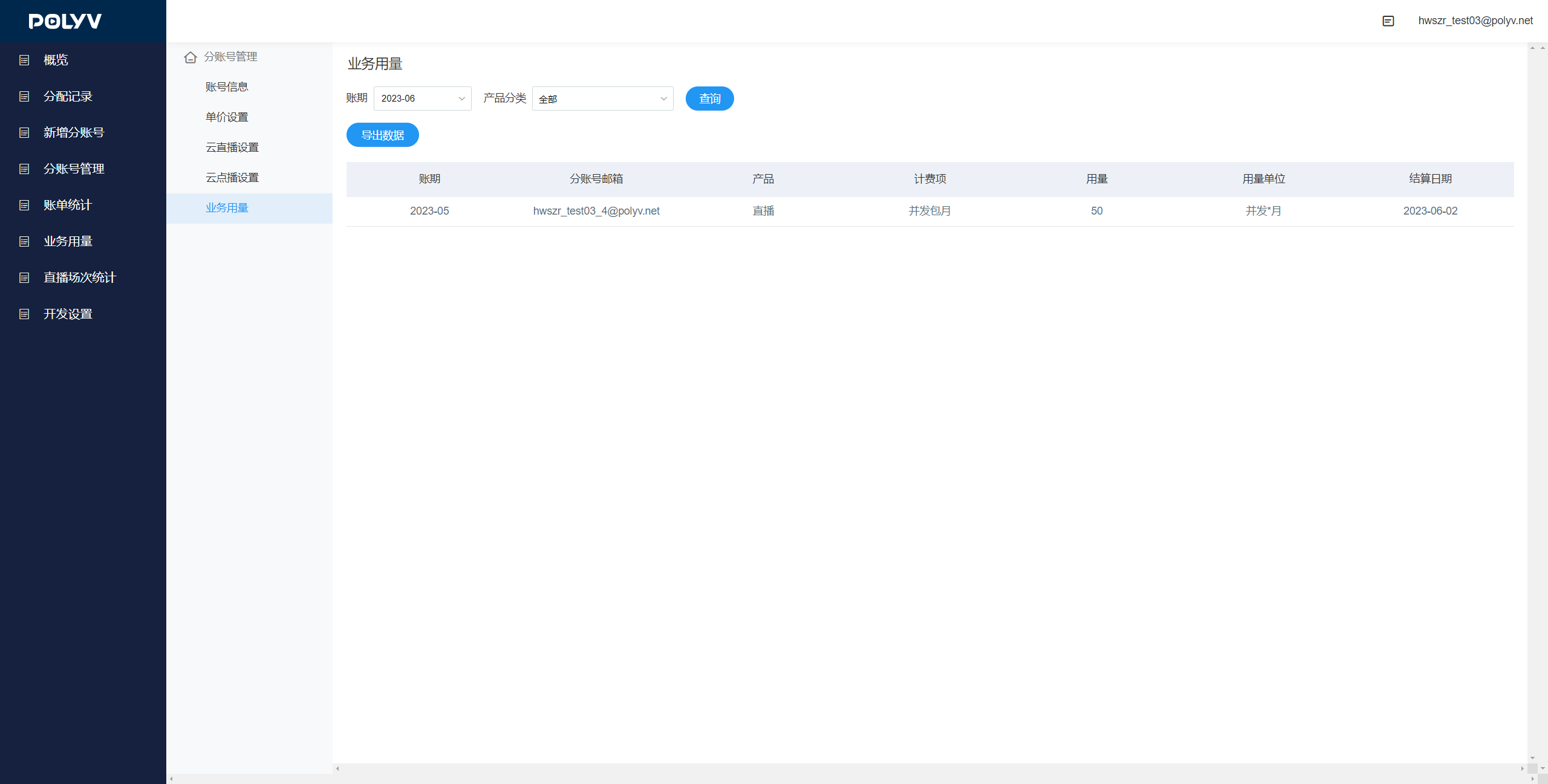
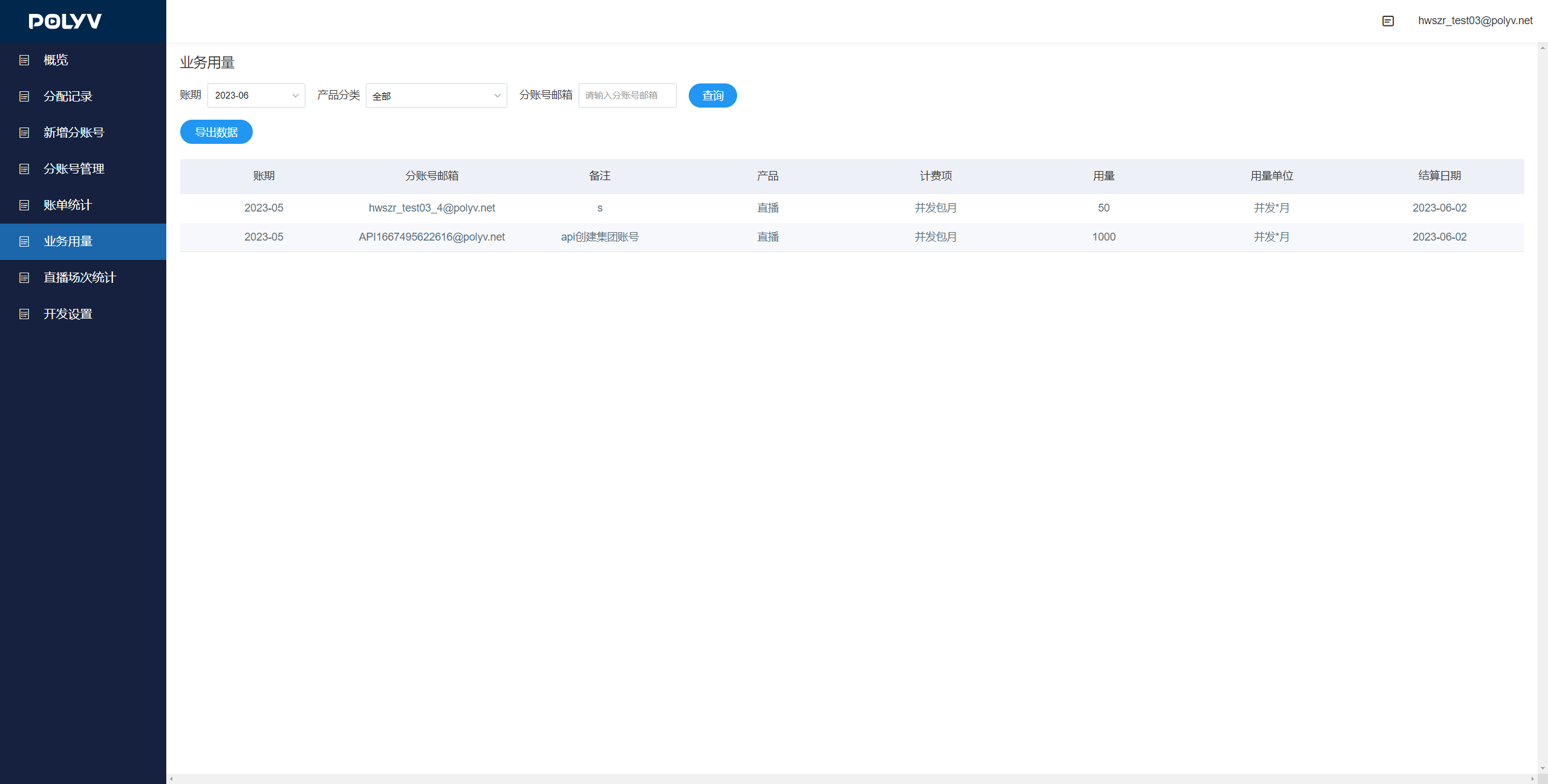
- Click "Business Usage" to view the bill and usage details for the sub-account, filtered by sub-account dimension and billing period.
2.3 Query Sub-account Usage and Bills
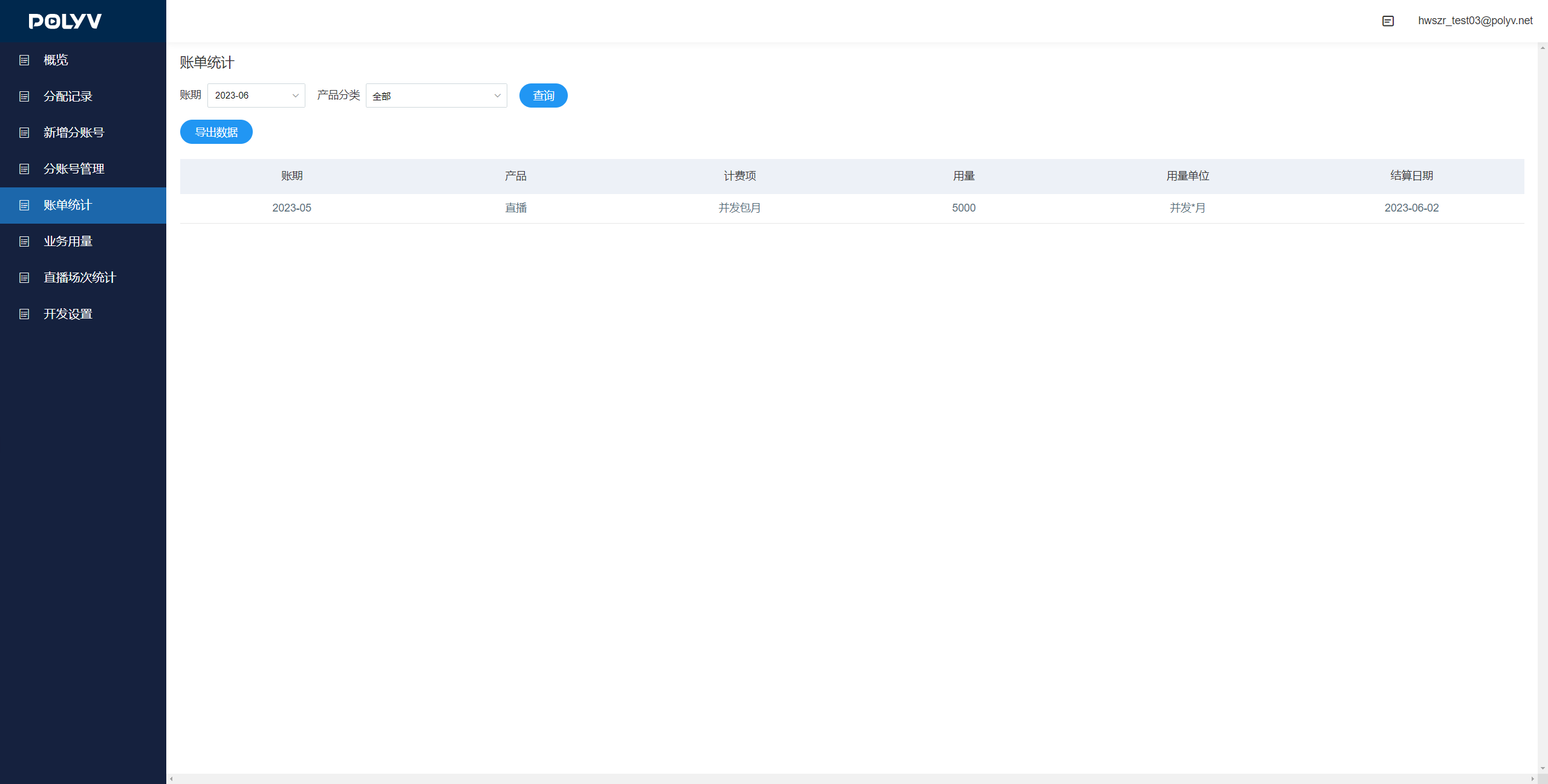
2.3.1 Query Primary Account Bill
- Click "Bill Statistics" to view the primary account's bill.
2.3.2 Query Sub-account Bill
- Click "Business Usage" to view the usage and bill data for sub-accounts. Enter a sub-account name to search for a specific sub-account's data. (Functionality is the same as 2.2.4)
2.4 Query Sub-account Allocation Records
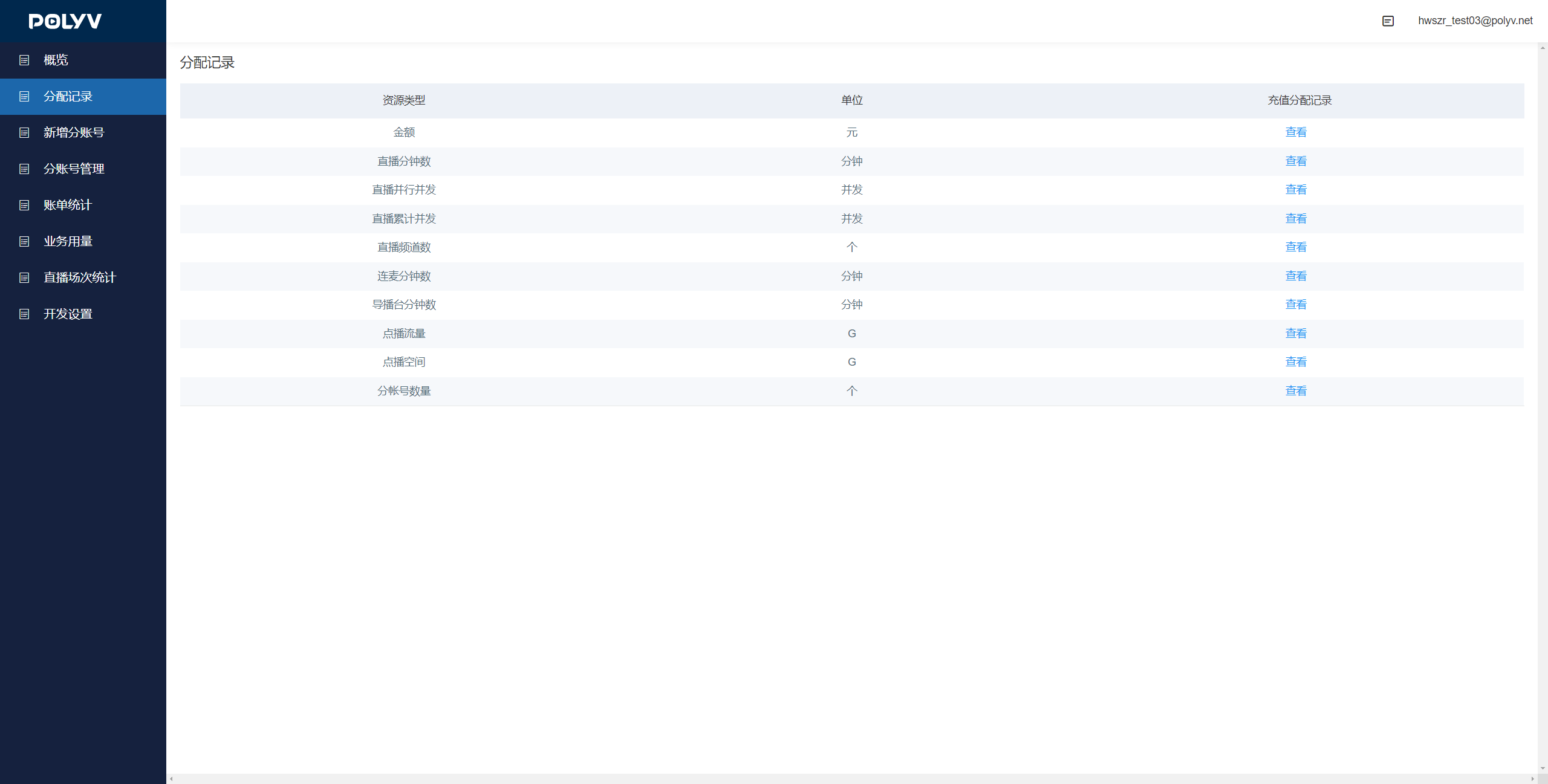
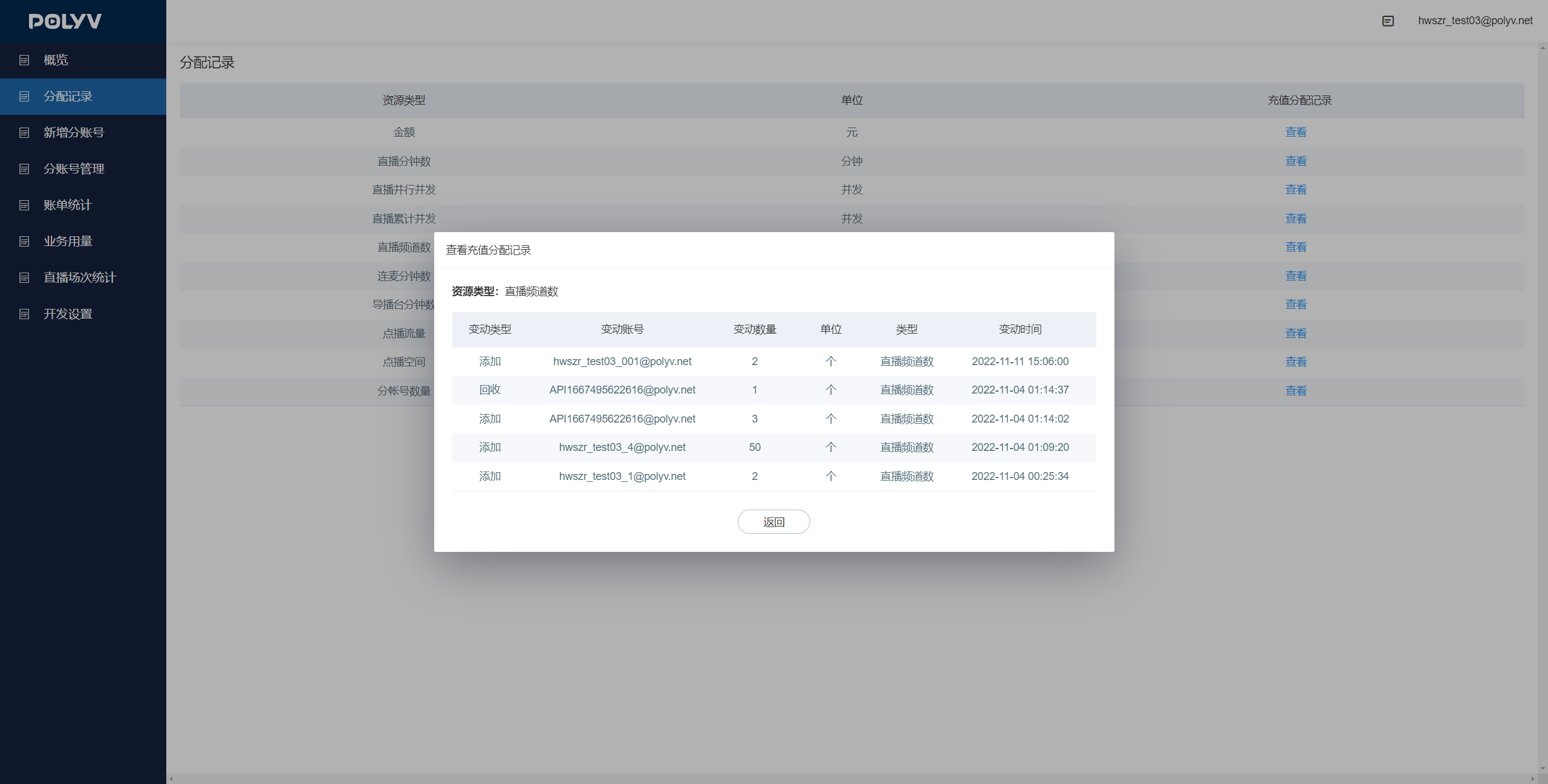
- Click "Allocation Records" to view the usage details allocated to sub-accounts, filtered by resource type.
2.5 Query Sub-account Live Streaming Records
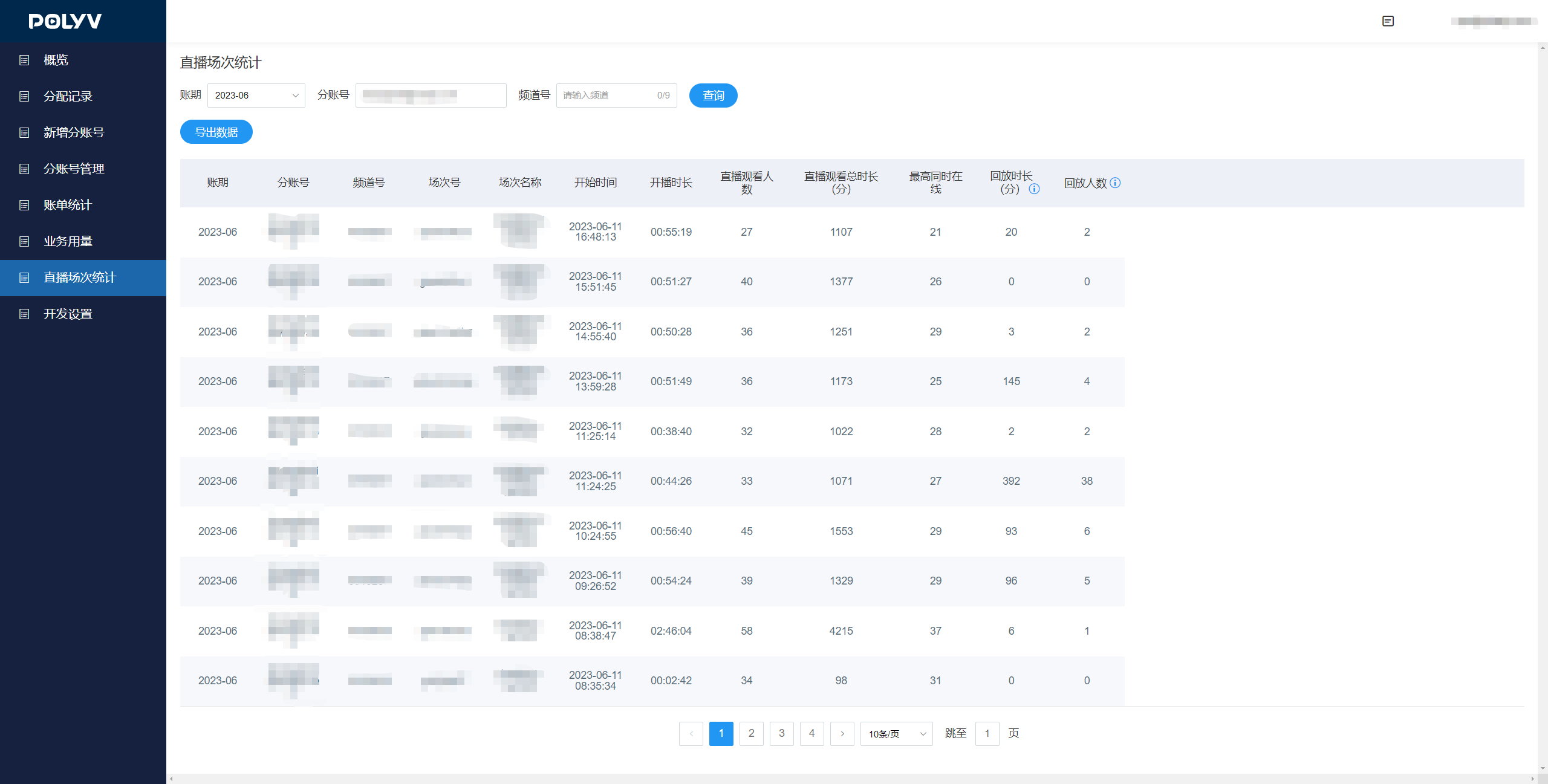
- Click "Live Session Statistics", select the sub-account and billing period, to query data such as the number of live sessions and consumption for sub-accounts.
2.6 Sub-account Alert Callback
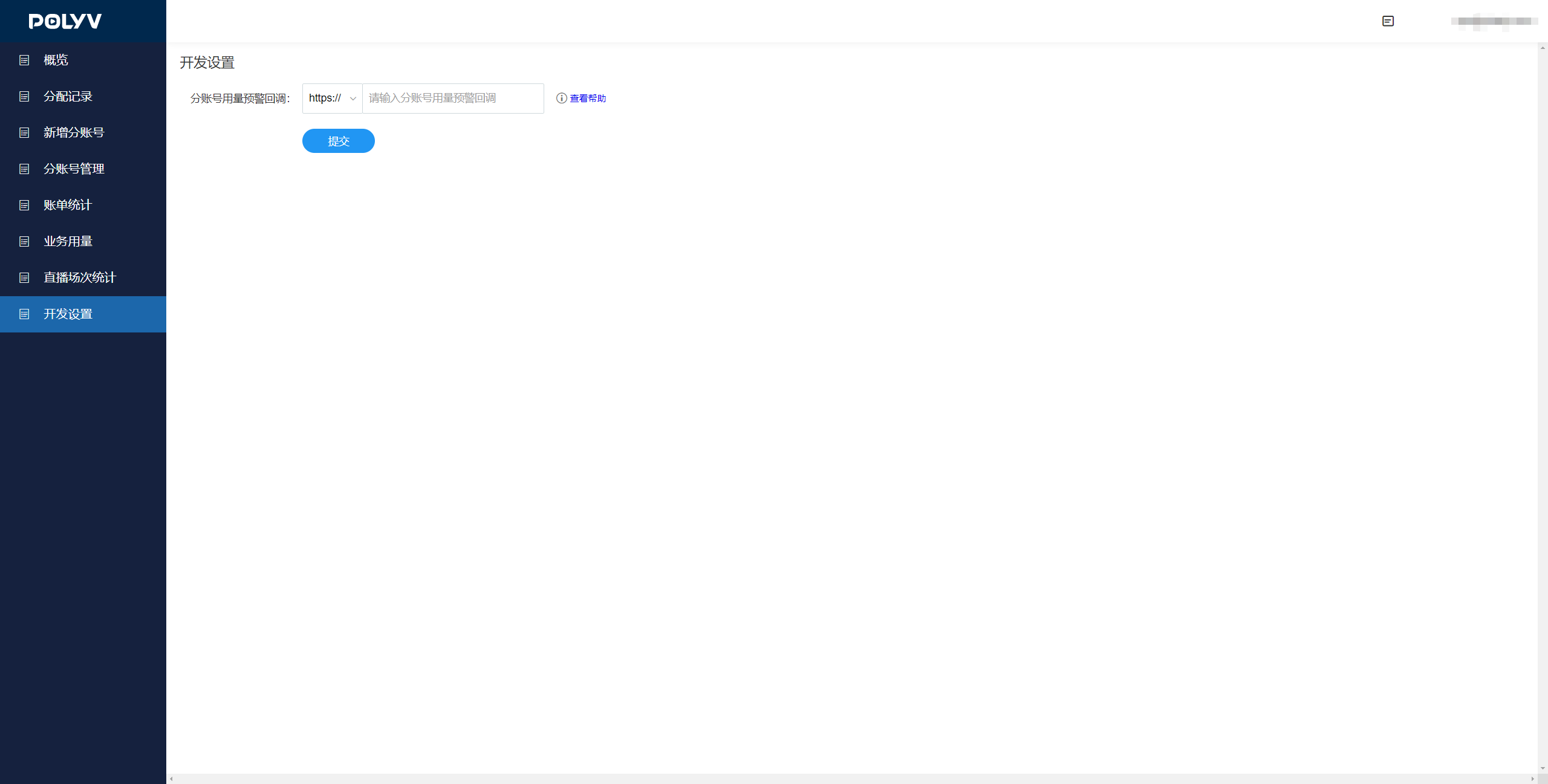
- Click "Development Settings" to configure the usage alert callback URL. When a sub-account experiences insufficient usage or expiry, the result will be sent to this URL via callback for custom development.