Small Class
1. What is a Small Class
▶ Watch the Small Class Introduction Video (approx. 1 minute)
- A small class is a live teaching format that limits the number of concurrent viewers. Operators can set a fixed class size limit before the broadcast starts. Once the live stream begins, only the specified number of students can enter and watch, ensuring teaching order.
- Suitable for online teaching scenarios that require controlling the number of students, such as one-on-one tutoring and small-scale training courses.
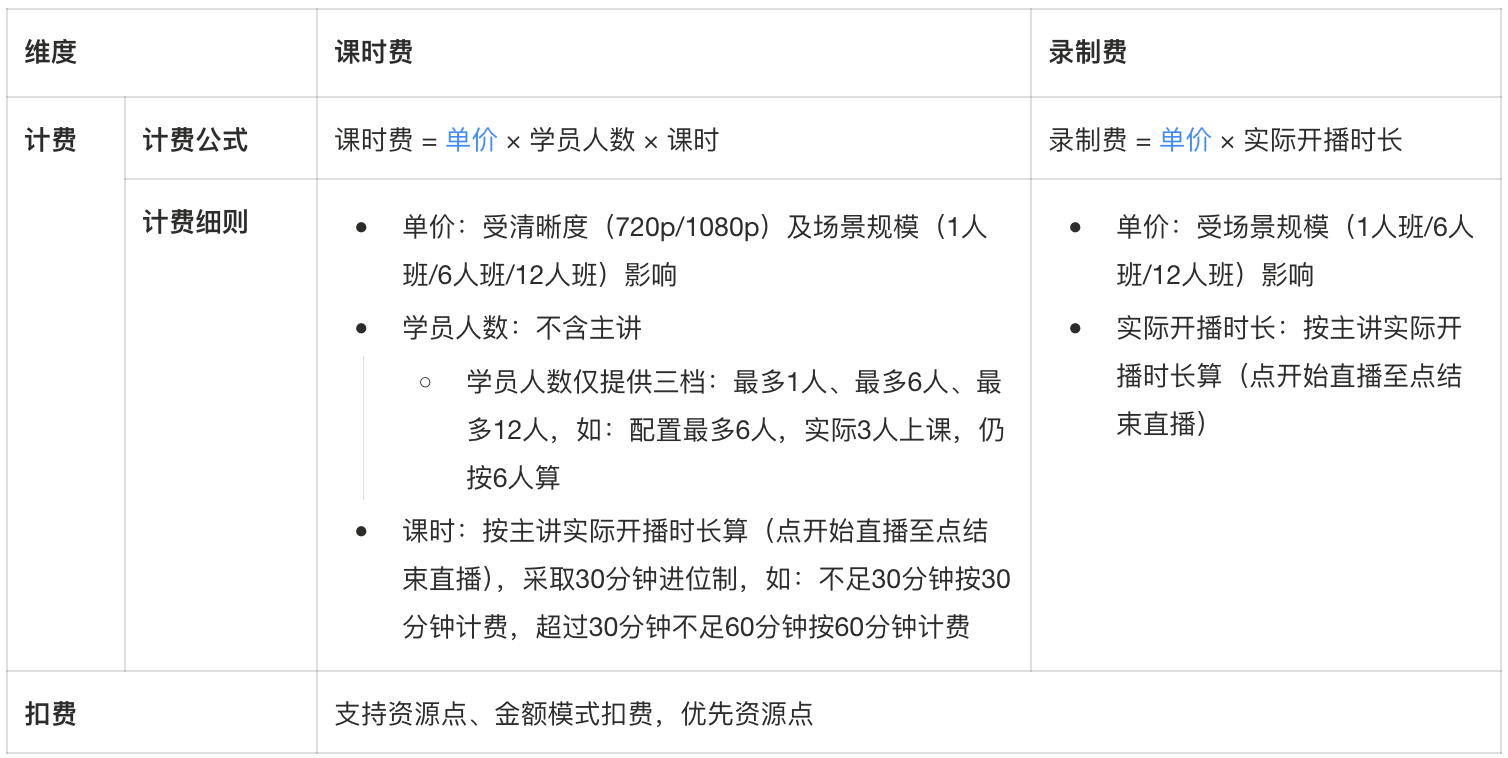
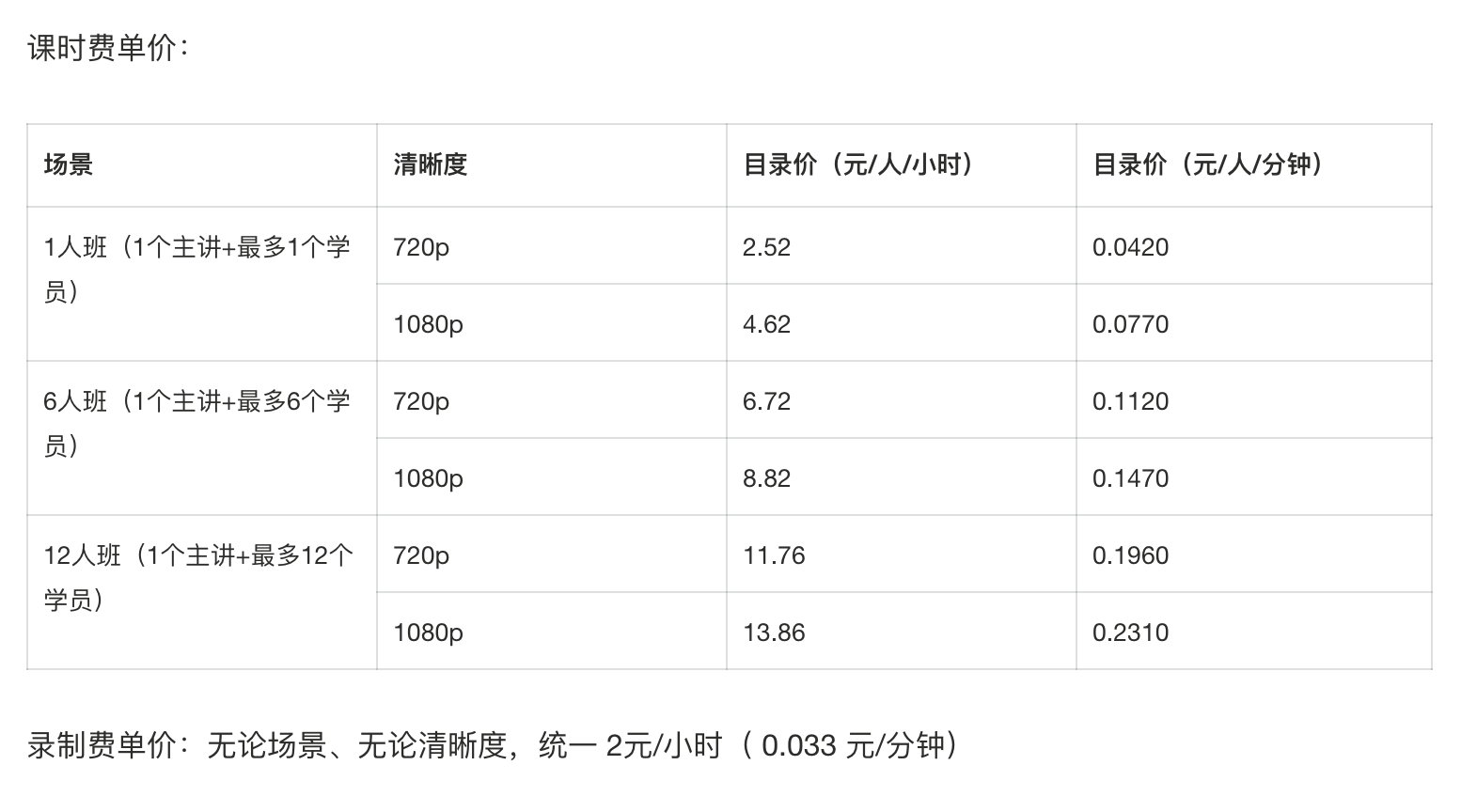
- Small classes are billed separately based on class hours and recordings. The specific billing rules are subject to the actual configuration.
2. Operation Instructions
2.1 Operator Side - Creating a Small Class Channel
2.1.1 Select Live Streaming Scenario
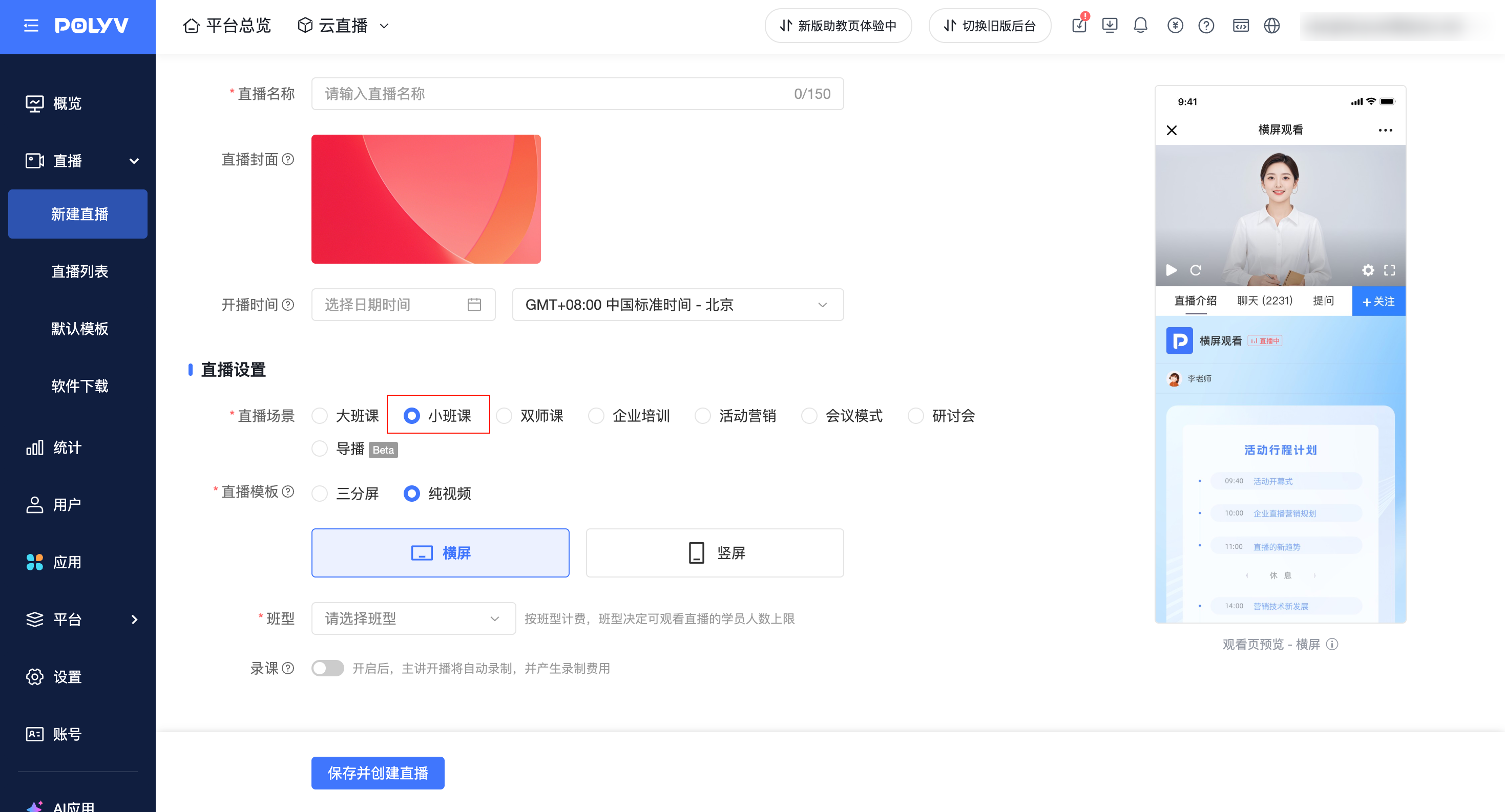
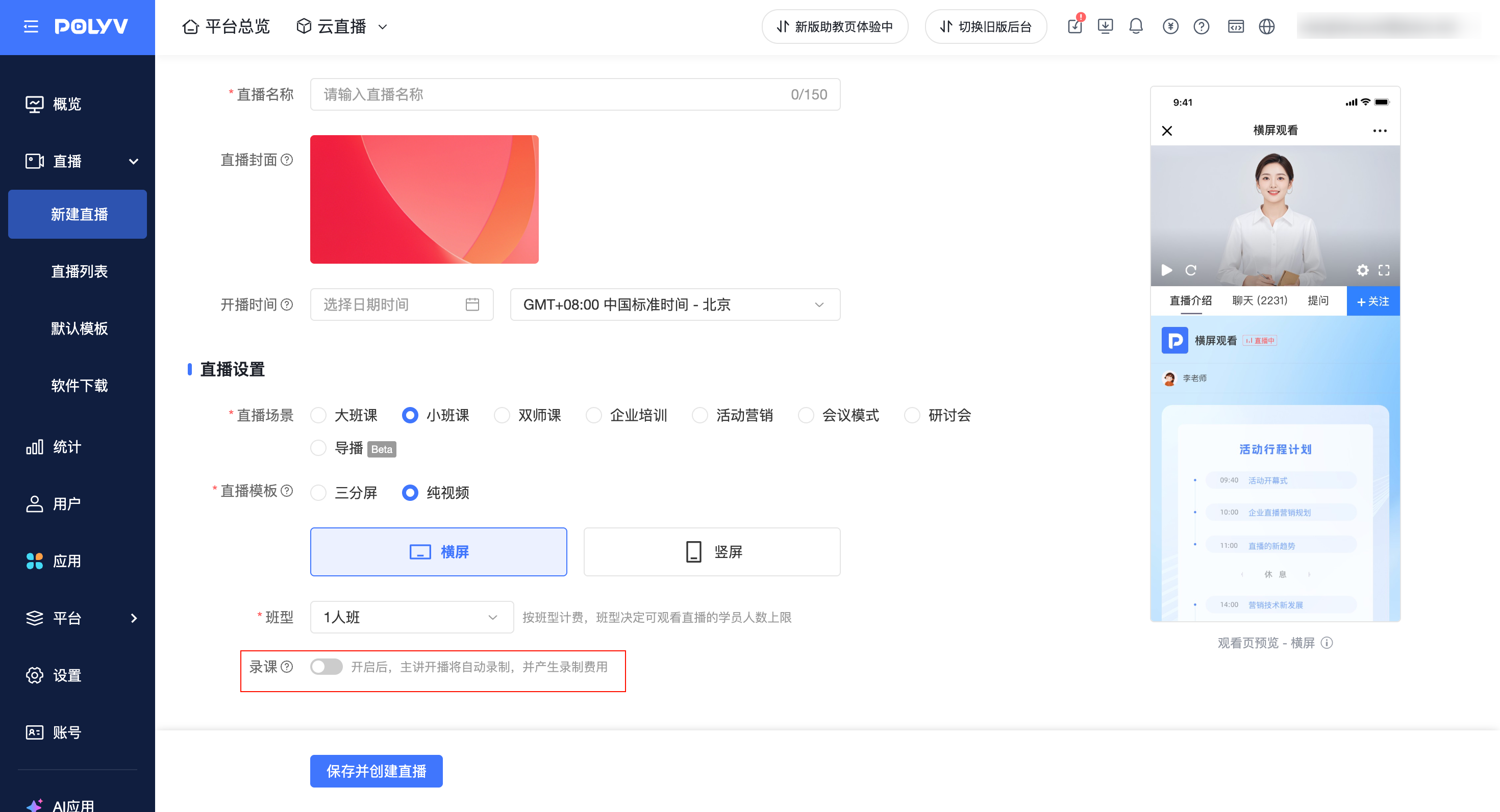
- Go to the management backend [New Live Stream] page, and select - Small Class in the live streaming scenario.
2.1.2 Set Class Size (Maximum Number of Students)
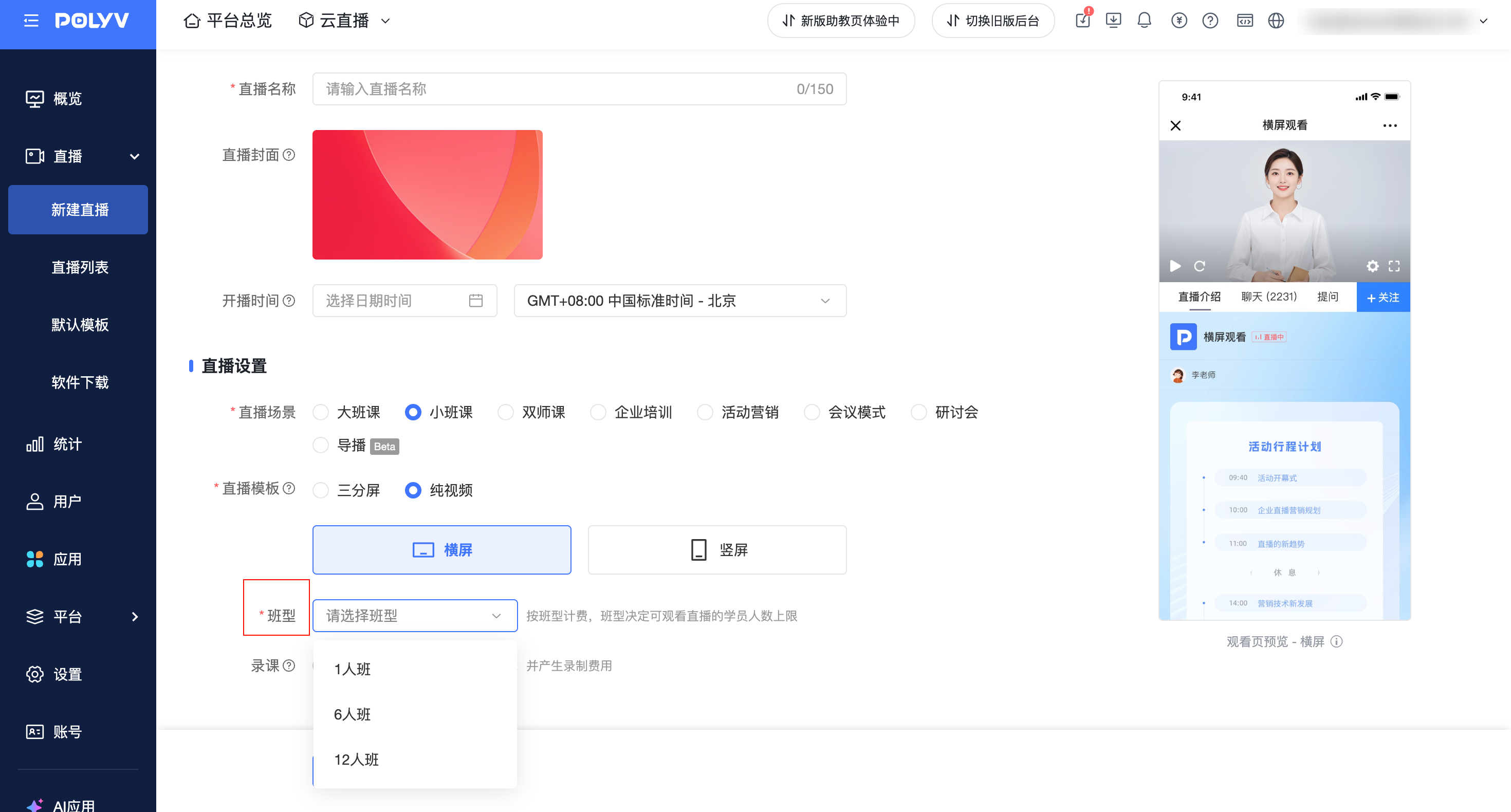
- After selecting Small Class, the [Class Size] setting item will be displayed automatically:
- Available class sizes: 1-person class / 6-person class / 12-person class
- The class size determines:
- The maximum number of students that can enter the live room during the broadcast (when the number of people reaches the class size limit during the live stream, new viewers will be blocked and cannot enter the live room).
- The corresponding billing tier.
- Note: The class size cannot be modified during the live stream.
2.1.3 Recording Settings
- Enable Recording
- Recording starts automatically after the broadcast begins.
- The live stream screen can be viewed on the assistant page and the live stream console.
- Corresponding recording fees will be incurred.
- Disable Recording
- The live stream process is not recorded.
- The assistant page and live stream console can be accessed normally, but the live stream screen cannot be viewed.
- No replay video will be generated.
- Note: This setting cannot be modified during the live stream; please confirm whether recording is needed before starting the broadcast.
2.1.4 Roles and Monitoring Entry Points
- Setting up guests is not supported in the Small Class scenario.
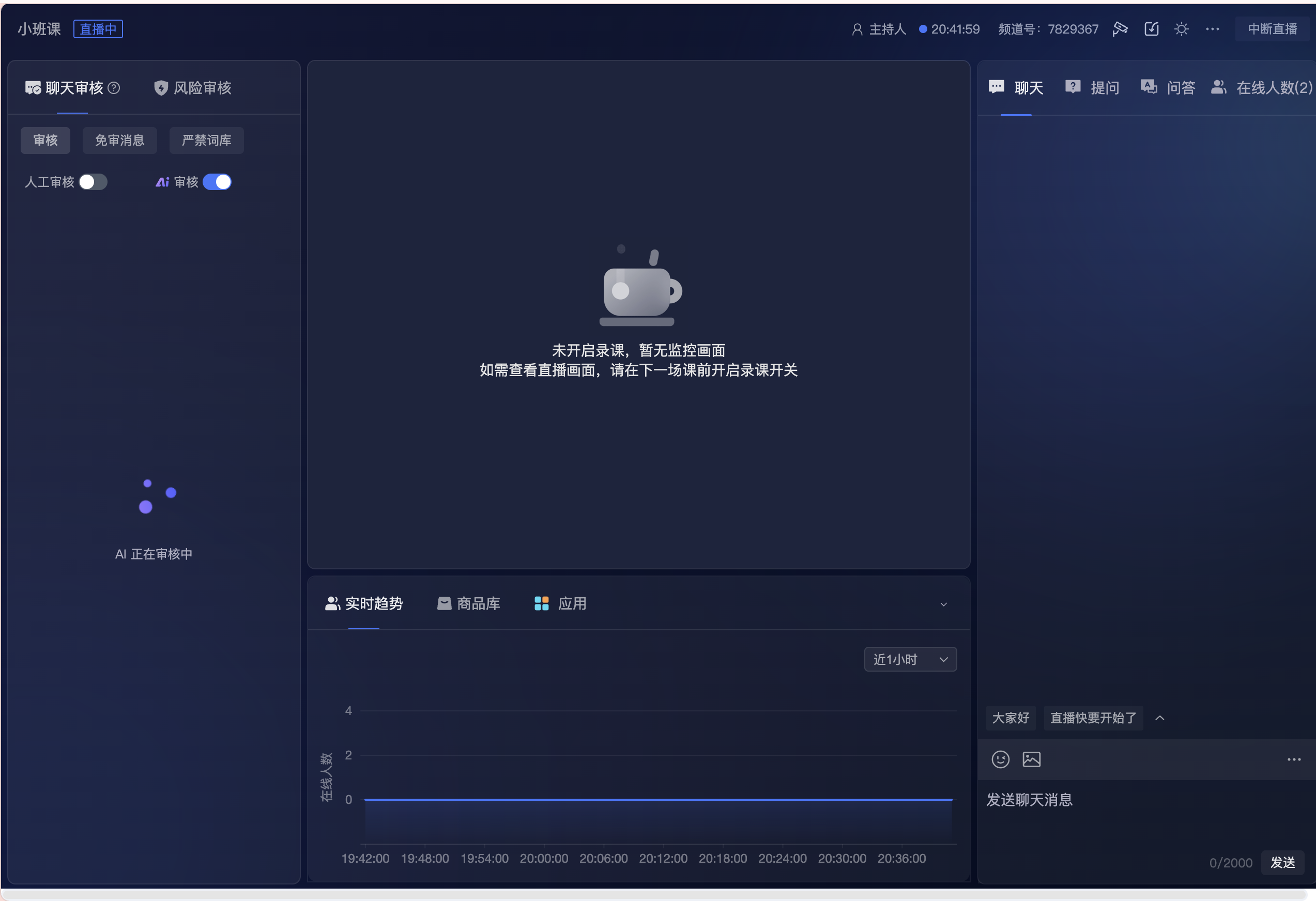
- Small Class supports access to the assistant page and live stream console; the entry points are always visible in the backend.
- Whether the live stream screen can be viewed on the assistant page and live stream console depends on whether the recording switch for this session is enabled:
- Recording enabled: The live stream screen can be viewed.
- Recording disabled: The assistant page and live stream console can be accessed, but the screen area does not display the live stream.
2.1.5 Learning Statistics
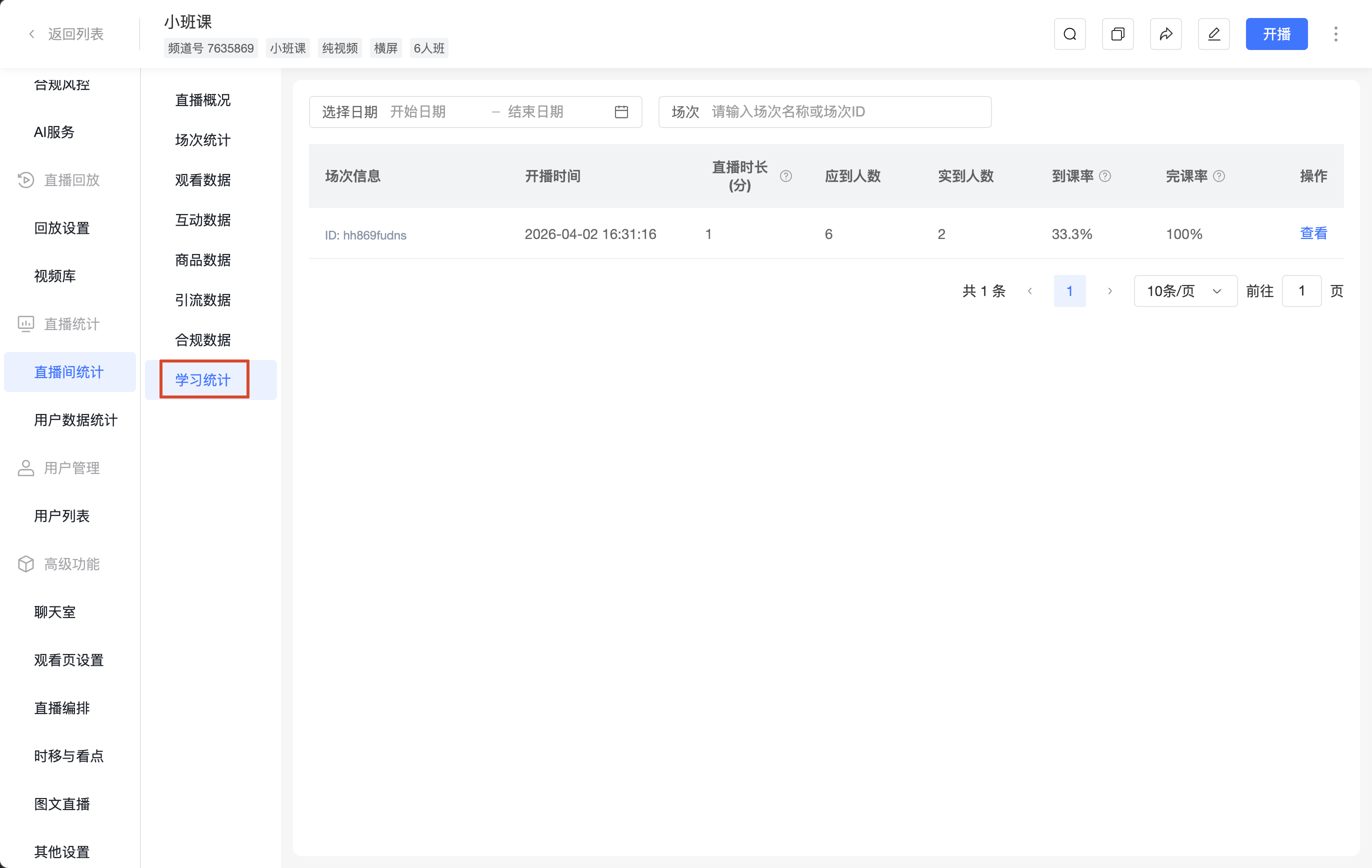
- Entry location: Management Backend - Live Stream Statistics - [Learning Statistics]
- For details, see: Learning Statistics
2.2 Presenter Side - Broadcast Instructions
- Currently, web broadcast 1.0, PC broadcast client (version 4.34.0 and above), and POLYV broadcast app (version 1.31.0 and above) support Small Class broadcasting.
- Third-party streaming is not supported for Small Class.
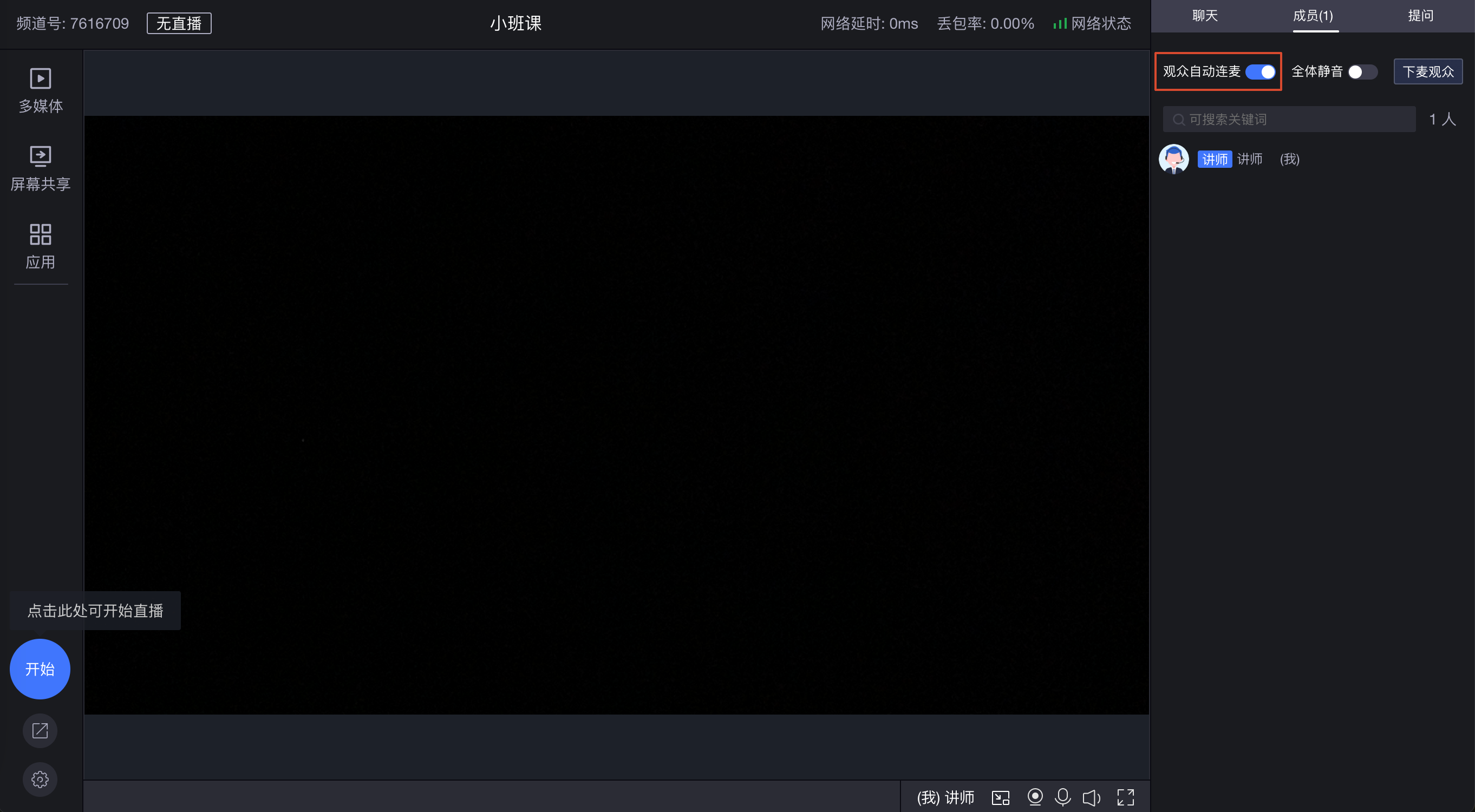
- The [Small Class] scenario enables the "audience can request to go on stage" feature by default. The presenter can also disable it. Students can push their stream to the interactive area with one click after passing the pre-check, significantly lowering the barrier to co-streaming and improving classroom interaction efficiency.
2.3 Viewer Side - Viewing Instructions
2.3.1 Student Number Limit Rules
- During the live stream, the system checks the number of people in the live room:
- Not full: Viewers can enter normally.
- Full: New viewers will be blocked and prompted with "The live room is full."
- When not in a live streaming state:
- No limit on the number of people entering.
- When the live streaming status switches to "Live," the number of people will be checked immediately. Viewers exceeding the maximum number will not be able to watch the live stream.
2.3.2 Viewing Method Instructions
- After entering the viewing page, viewers need to manually click the [Click to Play] button. After clicking, they can see the presenter's screen and hear the audio.
2.3.3 Co-streaming Method Instructions
Currently, Small Class supports two co-streaming scenarios:
Scenario 1: Meeting/Interview Scenario The presenter enables "Audience can request to go on stage." When a student enters, if the live stream is currently active, or if the stream starts suddenly while they are in the room, a device check will pop up immediately. After the check, they can go on stage immediately without applying or being invited, providing an experience seamlessly aligned with common meeting tools.
Scenario 2: Teaching Scenario The presenter disables "Audience can request to go on stage." During the Q&A session, the presenter can invite students who have raised their hands to go on stage. After the student accepts the invitation, they can go on stage.
3. Billing Instructions
- Billing is divided into two items: class hour fee and recording fee, each billed separately: