


Cloud Editing (Requires Activation)
1. Operation Guide
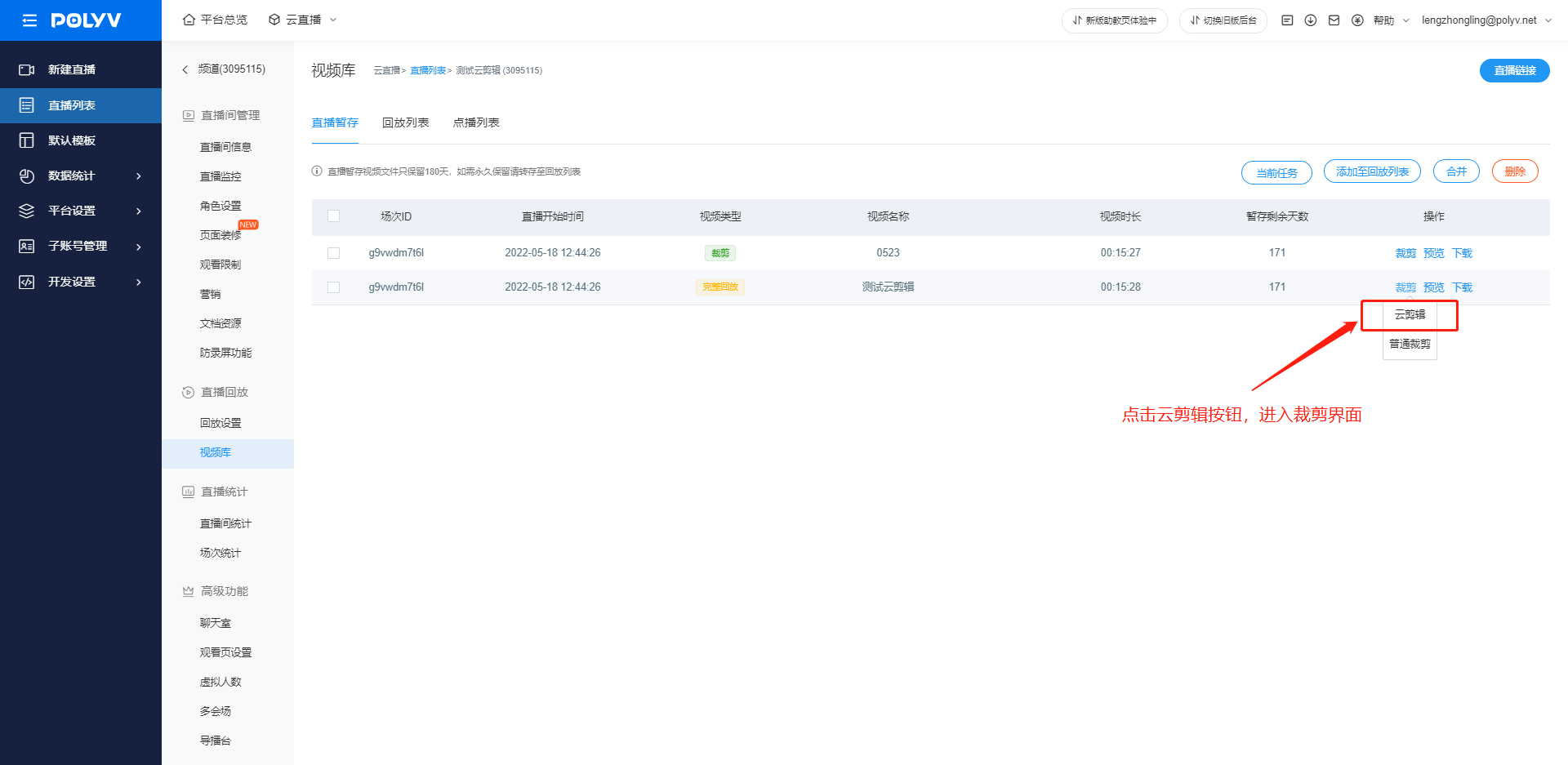
1.1 After the live stream ends, go to Video Library > Live Staging. In the action bar of the file you want to edit, click the Cloud Edit button to enter the editing interface.
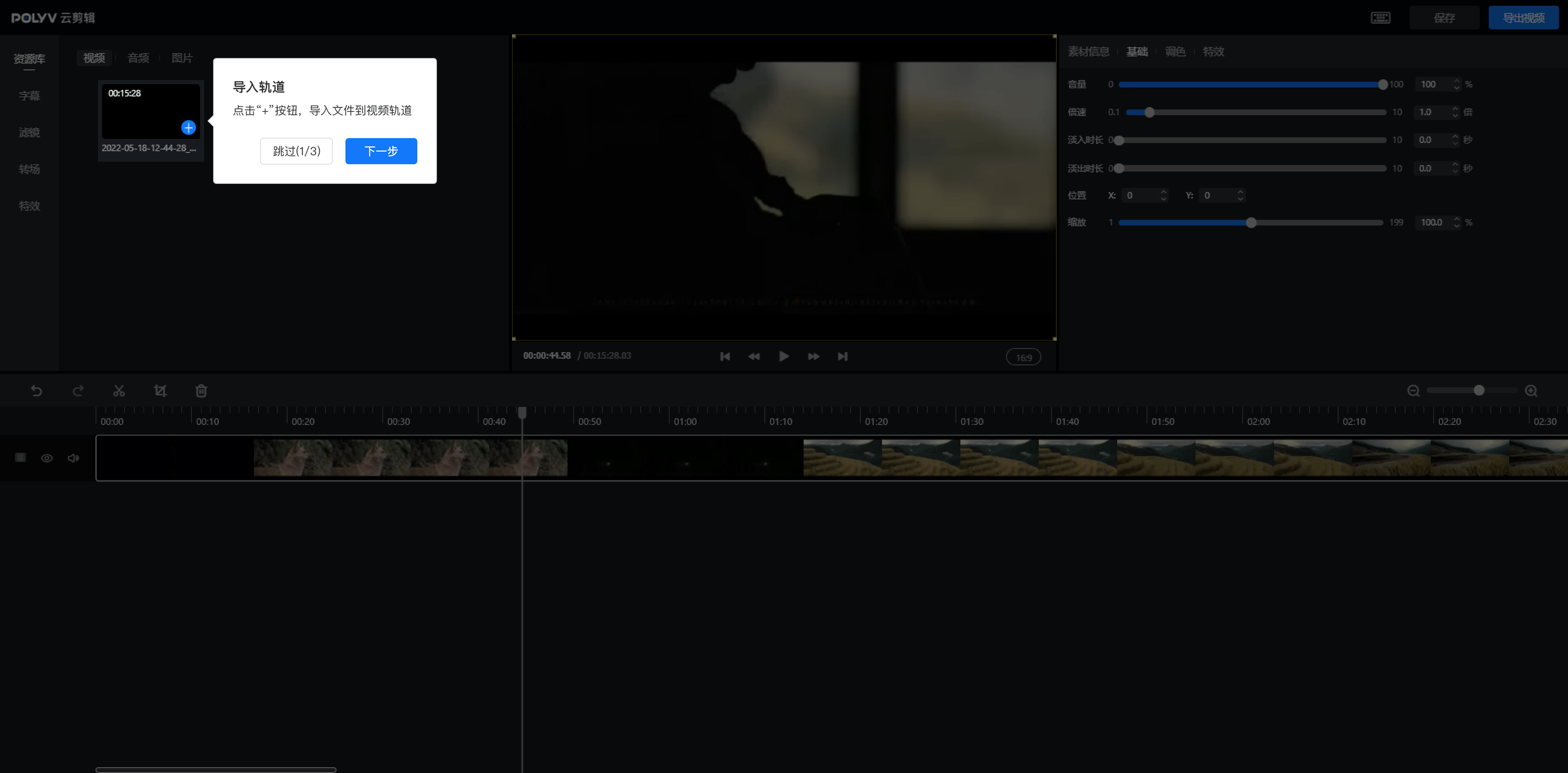
1.2 Once in the editing interface, hover over the file and click the "+" button to import the file onto the video track.
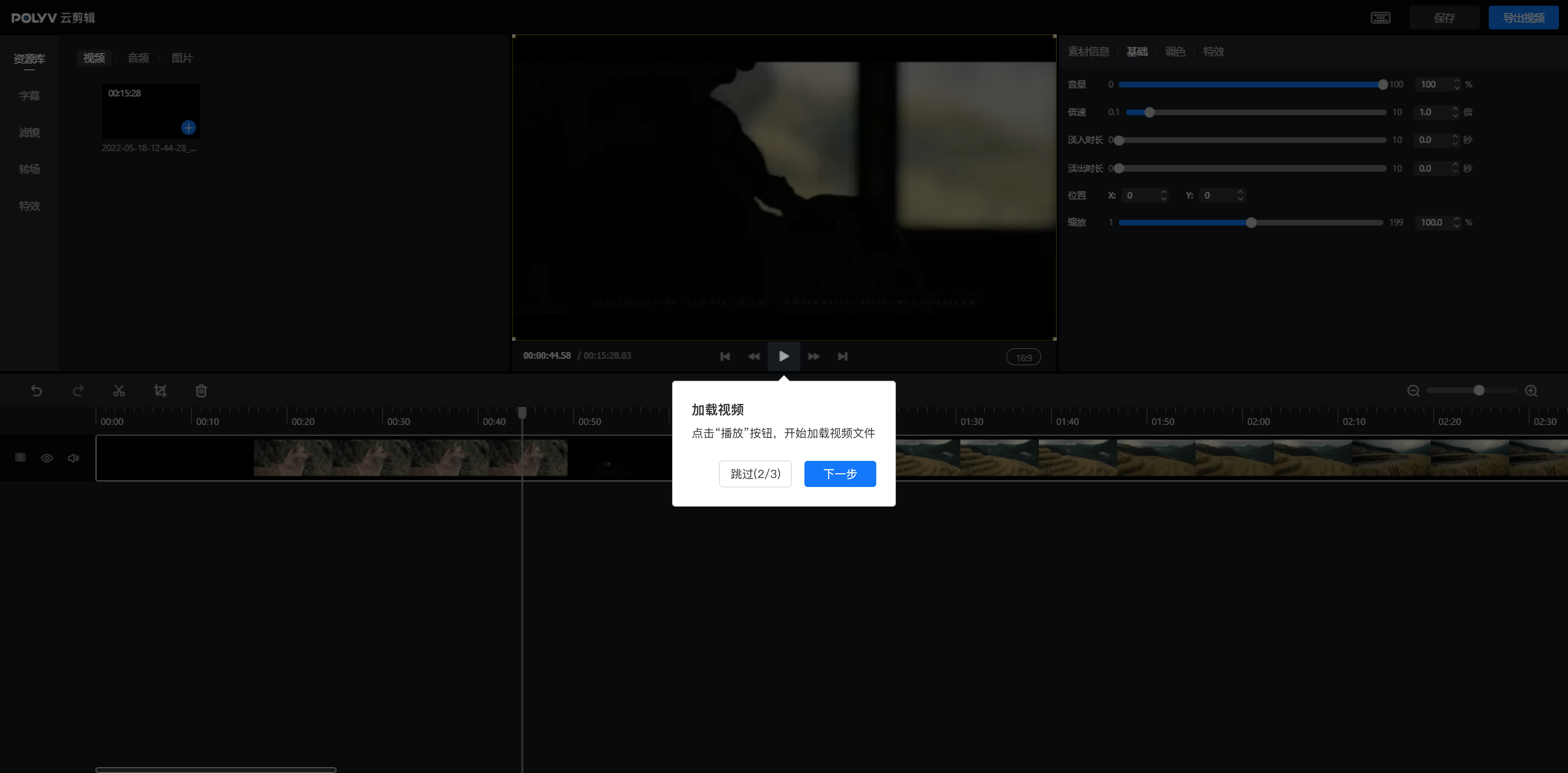
1.3 Click the "Play button" on the player to start loading the video file.
1.4 Use the action buttons on the left to edit your content.
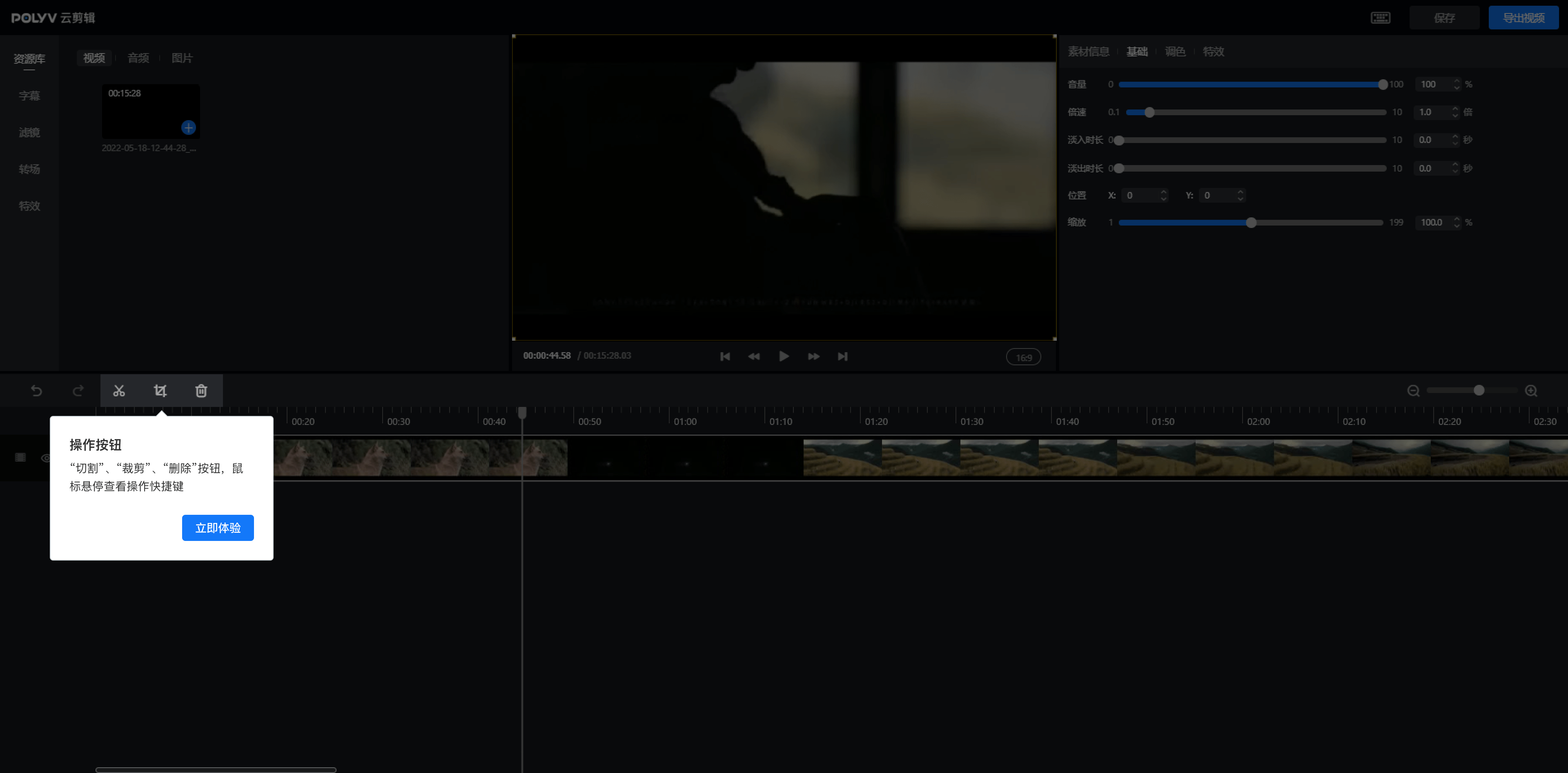
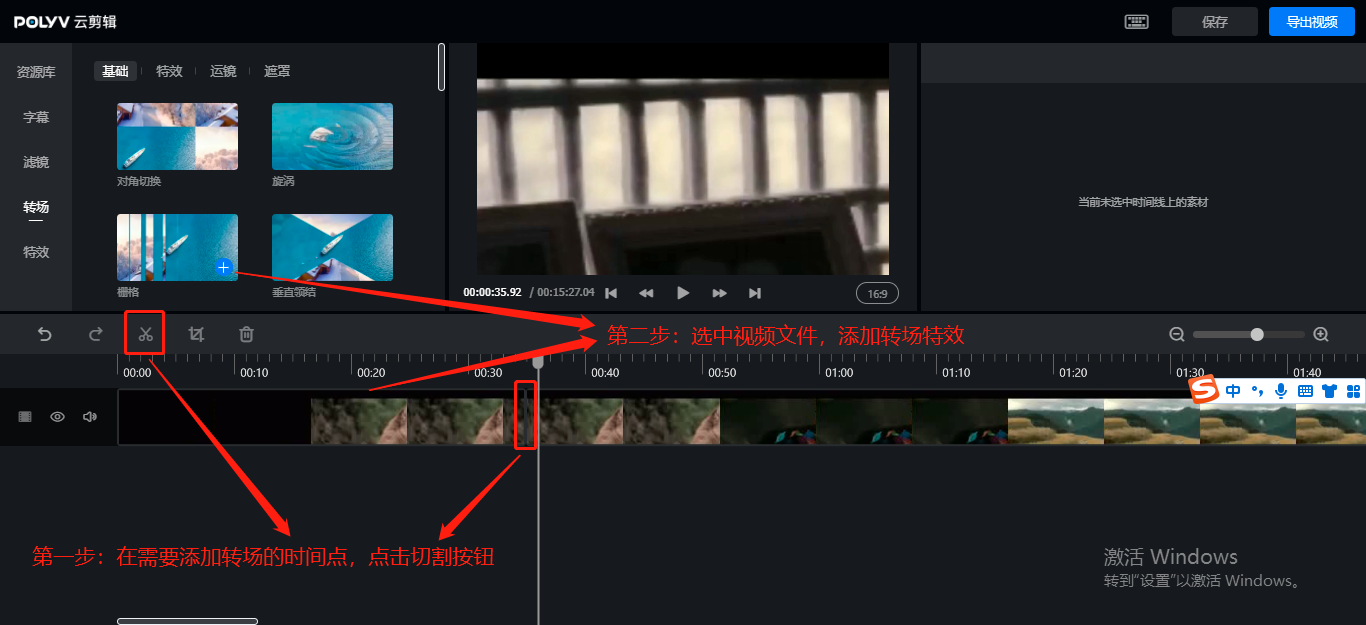
1.5 Transition effect instructions: Drag the time selector to the point where you want to add a transition, click the split button to divide the video into two segments. Select the video file to which you want to add a transition, then click to add the transition effect.
2. Cloud Editing - Q&A
Q: Why do some channels have the Cloud Edit button after activation while others do not?
A: Currently, Cloud Editing only supports pure video files. Channels with three-screen or low-latency features are not yet supported. This issue will be gradually improved in the future.
Q: Why do preview frame thumbnails not appear when entering Cloud Editing?
A: To ensure instant loading and editing, preview frames are loaded asynchronously. If you enter immediately after the replay is generated, the preview frames for the current video may not have been fully cut yet. Generally, wait about 5 seconds and re-enter to view them normally.
Q: Why are some preview frames black after entering Cloud Editing?
A: Because a thumbnail occupies a certain width on the timeline. If the granularity is large, the time range represented by this width is also large. If the scene changes rapidly or the timeline granularity is large, the thumbnail may not adequately represent the video content during that period.
Q: Why does it prompt "A cropping task is in progress" when entering Cloud Editing?
A: To prevent file generation conflicts caused by multi-user collaboration, only one operator is allowed to enter the Cloud Editing interface for the same video file at the same time.
Q: If my page crashes, can I recover my previous editing records?
A: Before exporting a video, Cloud Editing automatically saves all operation records. You can also click the Save button in the top right corner to save your progress.
3. Feature List
| Module | Feature | Description |
|---|---|---|
| Basic Editing | Material Track | |
| Split, Delete, Merge | ||
| Editing Precision | Frame-level | |
| Preview Frames | ||
| Video Content | Speed | |
| Color Adjustment | ||
| Size Scaling & Position Adjustment | ||
| Crop | ||
| Fade In/Out | ||
| Volume Adjustment | ||
| Subtitles | Style Settings | Font (customizable), Font Size, Color, Artistic Text |
| Alignment | Left Align, Center Align, Right Align | |
| Animation Effects | Entry, Exit, Loop Effects | |
| Effects & Transitions | Effects | 107 effects |
| Filters | 58 filter effects | |
| Transitions | 63 transition effects |
