


Ban Users
Updated: 2026-08-17 11:27:00
I. Feature Overview
Feature Info |
Description |
|---|---|
| Feature Name | Ban Users |
| Feature Location | Admin Console - Platform Settings - Ban Users |
| Feature Description | Supports muting or kicking users at the channel or platform level |
| Purpose | Maintain order in live rooms, prevent inappropriate comments and malicious behavior, and foster a positive interactive environment |
| Feature List | Platform-wide user ban, Channel user ban |
| Operation Path | 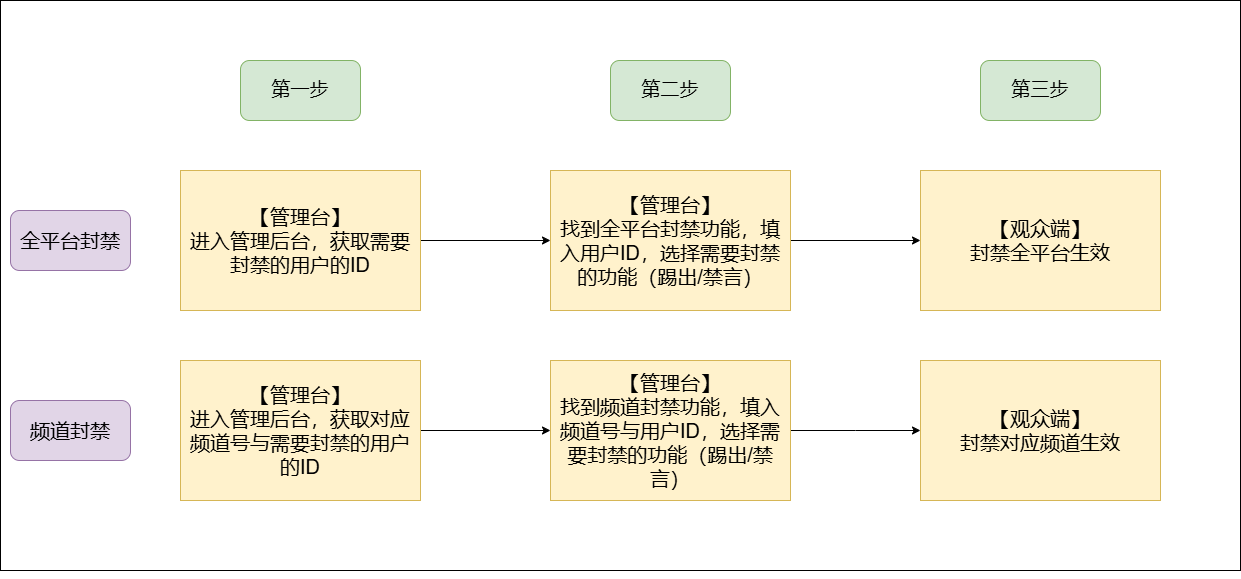 |
II. Usage Instructions
1. Platform-wide User Ban
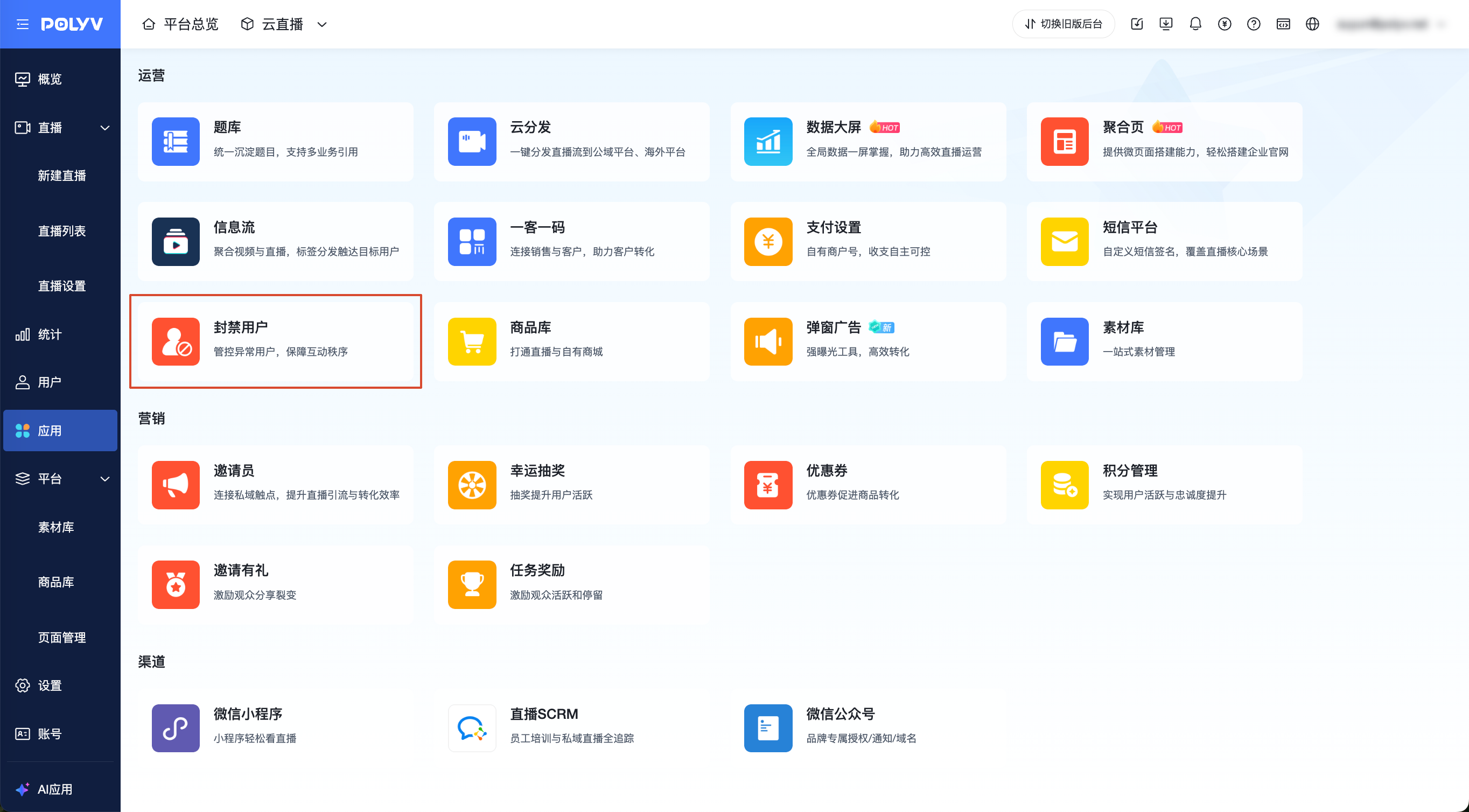
- Go to the Admin Console, find "Ban Users" under Applications, and enter Ban Users - Platform-wide Ban Users
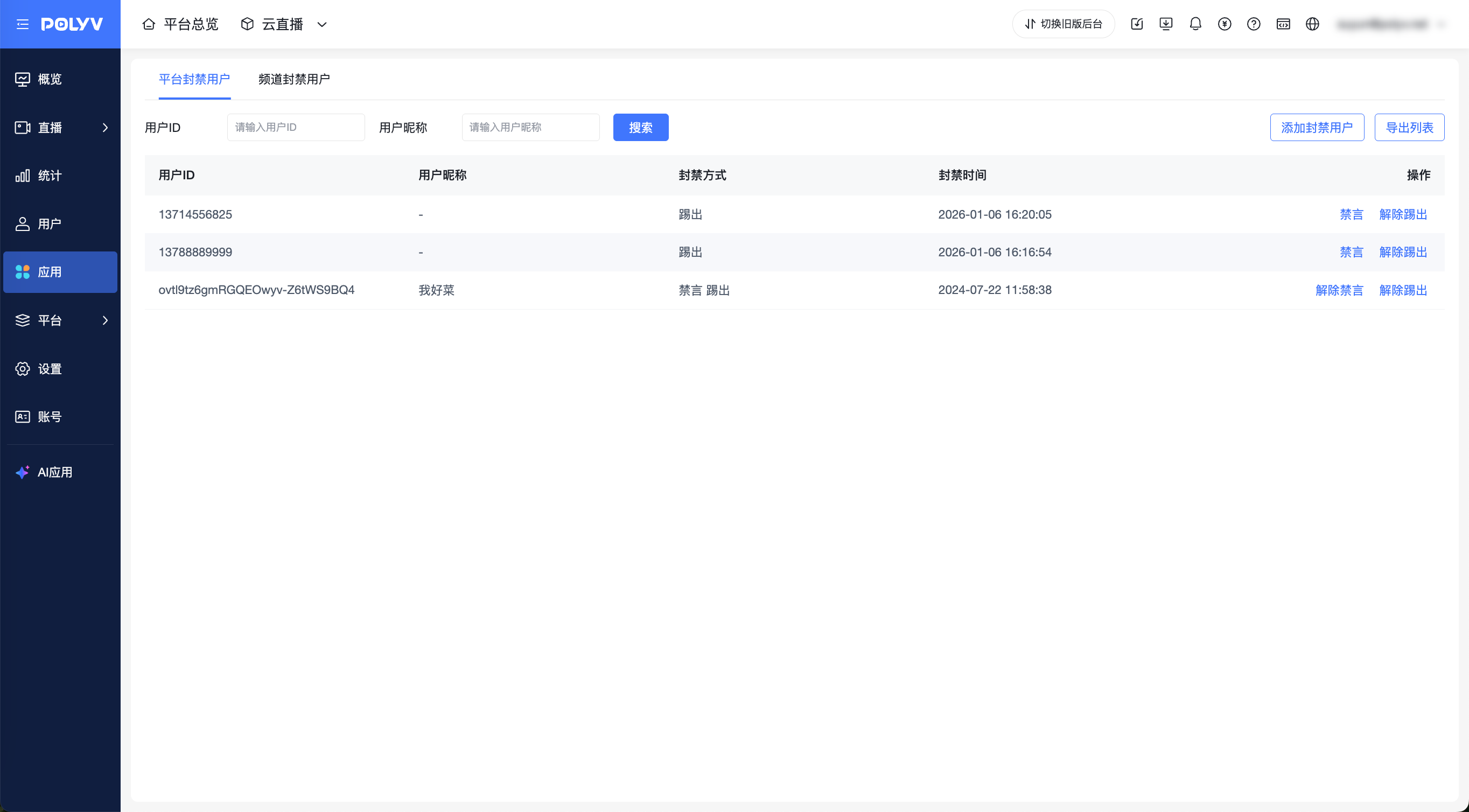
- Add a banned user: You can precisely ban a specific user across the entire platform using their user ID.
- If a user is muted platform-wide, they will be unable to speak in any live room.
- If a user is kicked platform-wide, they will be unable to enter any live room.
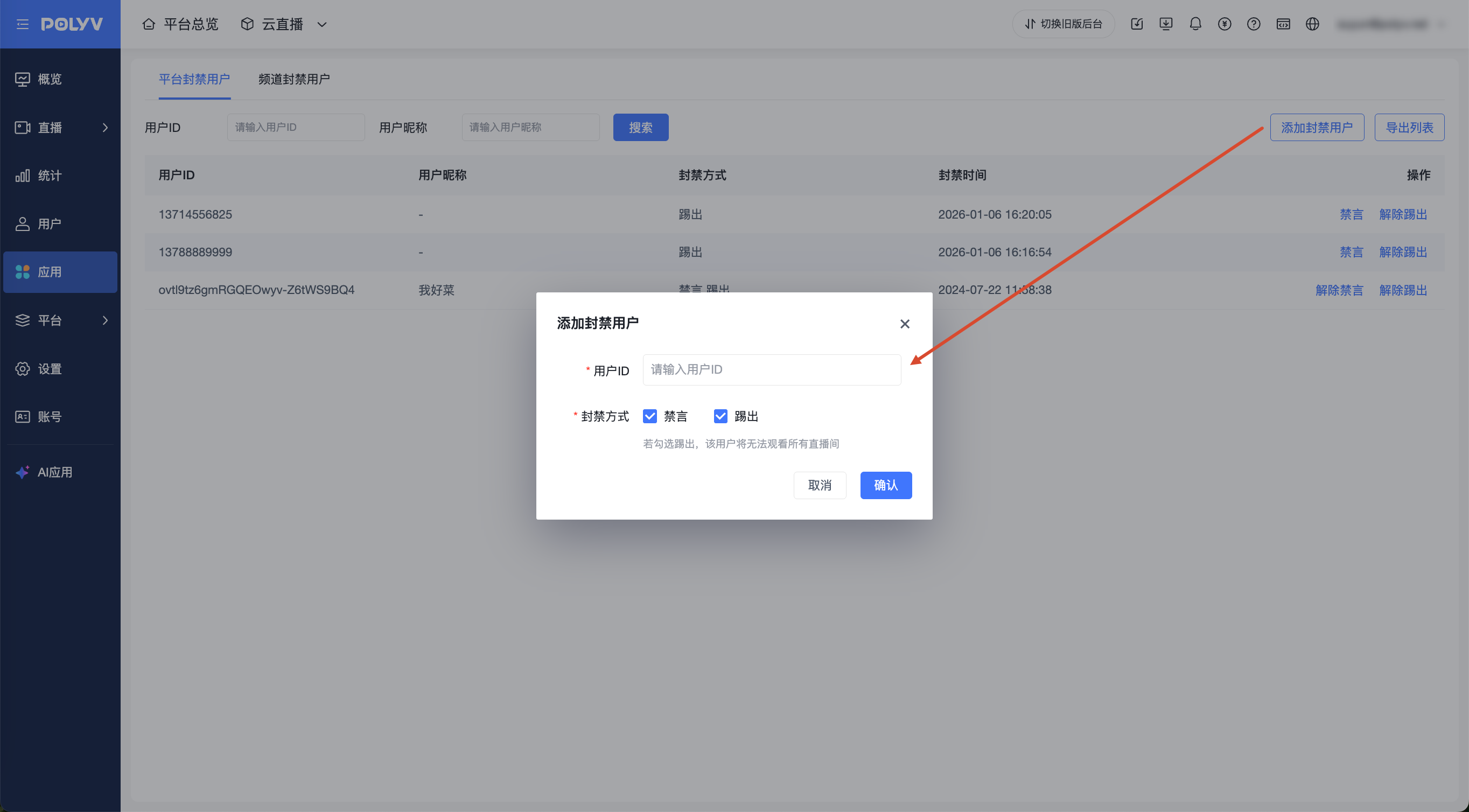
- The list displays users who have been muted/kicked platform-wide.
2. Channel User Ban
- Go to the Admin Console, find "Ban Users" under Applications, and enter Ban Users - Channel Ban Users
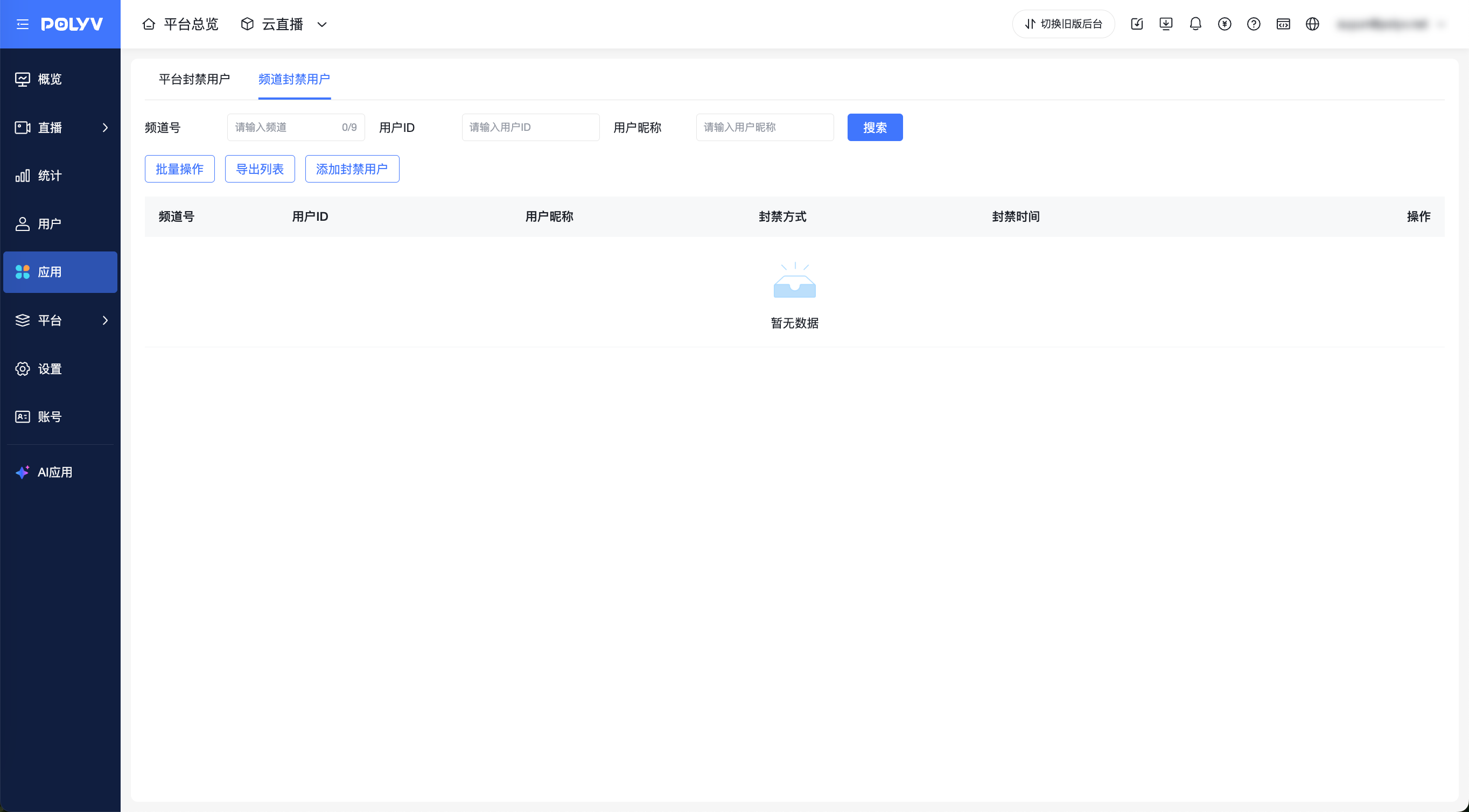
- Add a banned user: You can precisely ban a user within a specific channel using the channel ID and user ID.
- If a user is muted for a channel, they will be unable to speak in that specific live room.
- If a user is kicked from a channel, they will be unable to enter that specific live room.
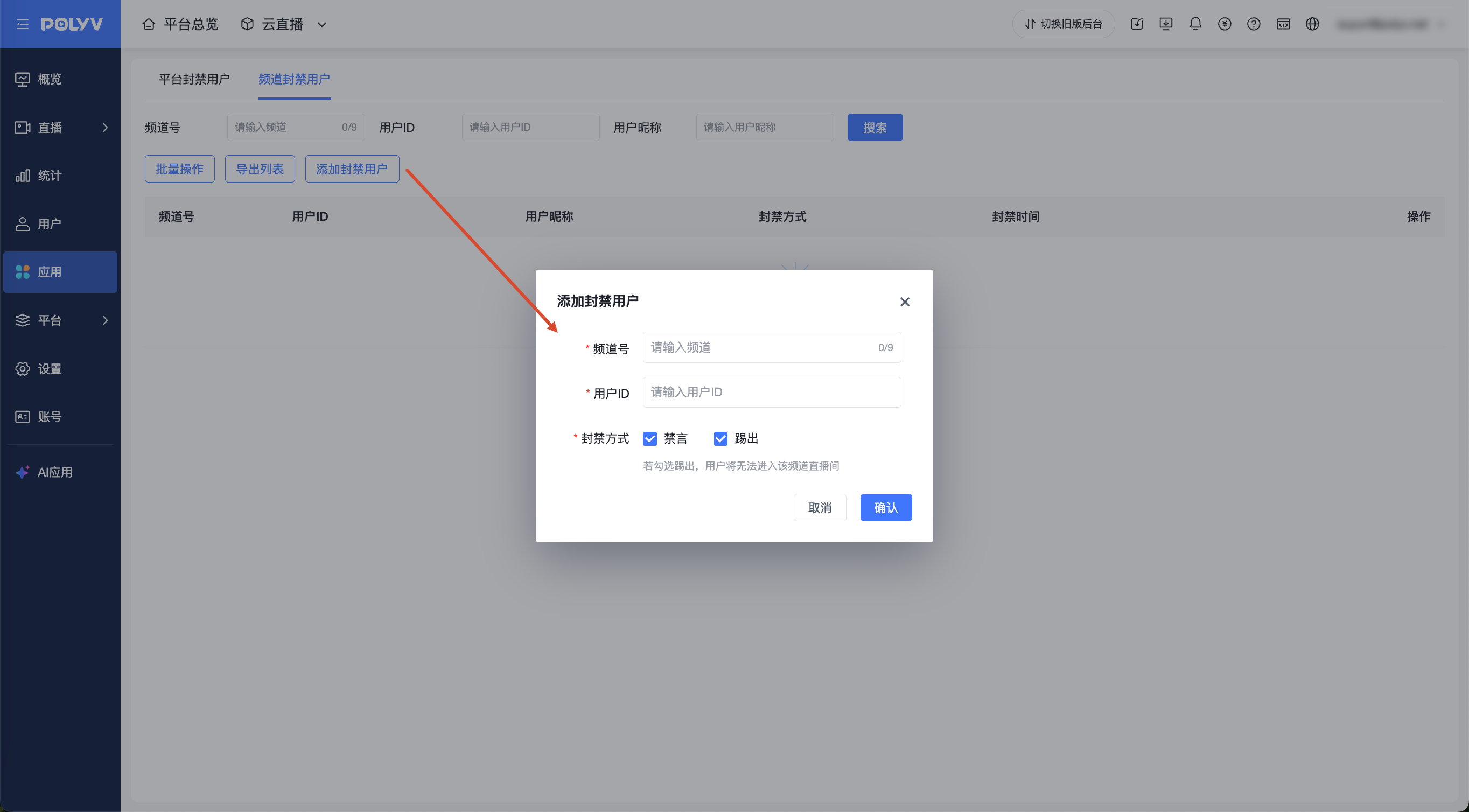
- The list displays users who have been muted/kicked for each channel.
3. Supplementary Notes
Sub-account Permissions
Location: Admin Console - Sub-account Management - Role Permissions - "Platform-wide User Ban" & "Channel User Ban" Note: The "Administrator" role has "Platform-wide User Ban" & "Channel User Ban" permissions by default.
