


Audio Risk Identification Feature
I. Use Cases
Commonly used in live streaming scenarios with strict compliance requirements or regulatory oversight, where it is necessary to strictly control the speech of instructors, guests, etc., to prevent negative impacts.
II. Version Description
The Audio Risk Identification feature offers two versions to meet different scenario needs:
| Version | Applicable Scenarios | Core Features |
|---|---|---|
| Finance Edition | Financial live streaming, scenarios with strict compliance requirements | Built-in professional financial compliance review strategy, ready to use out of the box |
| LLM Edition | Scenarios requiring flexible custom review rules | Supports custom compliance prompts, configurable review scope on demand |
Key Differences Between the Two Versions
- Finance Edition: Uses preset financial risk review strategies covering common financial compliance risk points (e.g., illegal stock recommendations, guaranteed returns), usable without additional configuration.
- LLM Edition: Based on a large language model, users can customize compliance prompts to flexibly define review focus areas and violation criteria, adapting to personalized business scenarios.
III. Operation Steps
1. Backend Settings
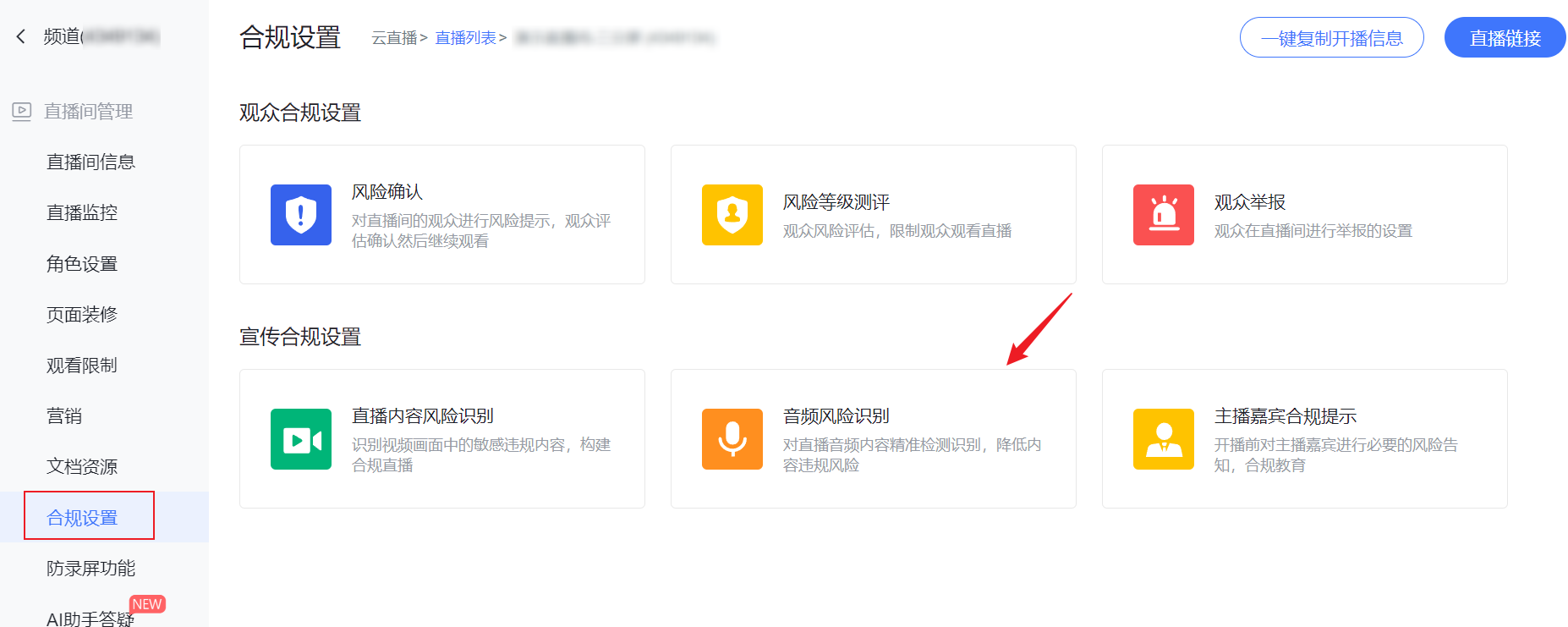
(1) Log in to the Polyv backend, navigate to the compliance settings of a single channel, and find the "Audio Risk Identification" feature.
(2) Finance Edition: Configure the corresponding review strategy.
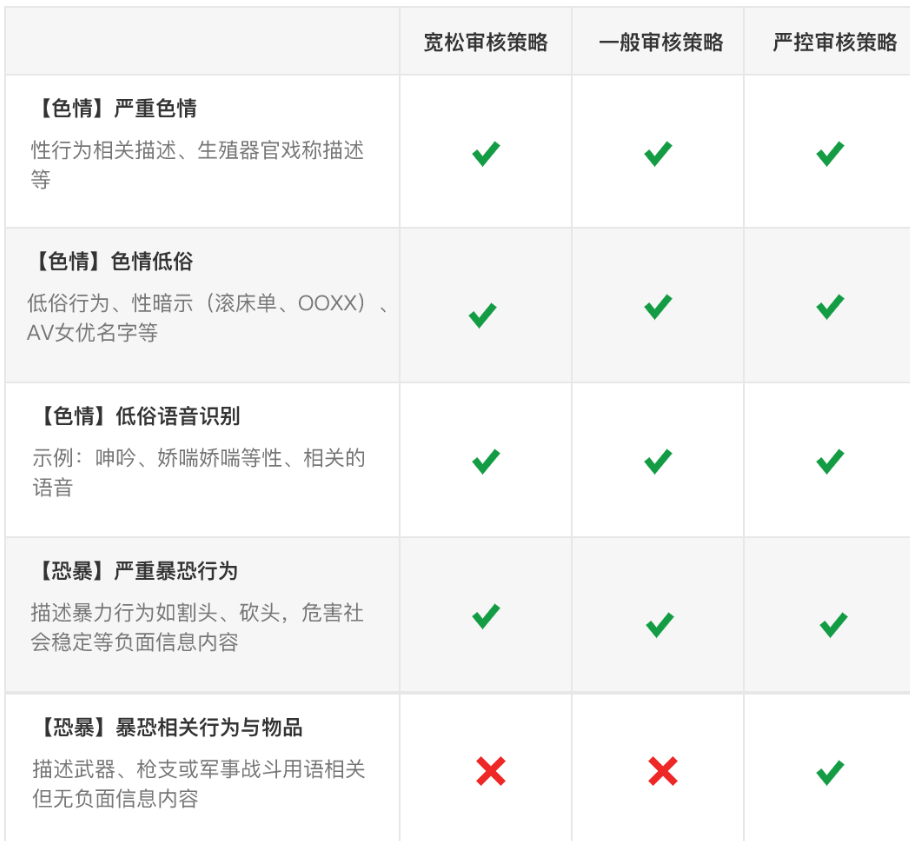
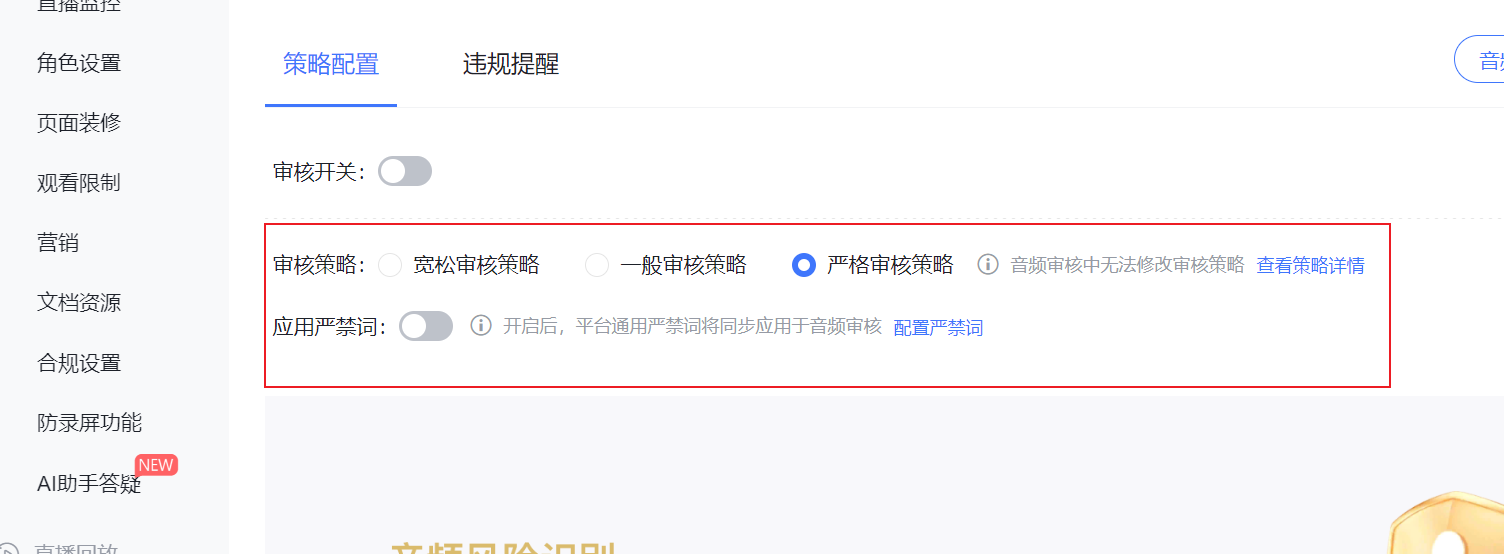 a. Different levels of review strategies have varying degrees of scrutiny during live streaming. Click "View Strategy Details" next to the toggle to review.
Example (partial screenshot):
a. Different levels of review strategies have varying degrees of scrutiny during live streaming. Click "View Strategy Details" next to the toggle to review.
Example (partial screenshot):
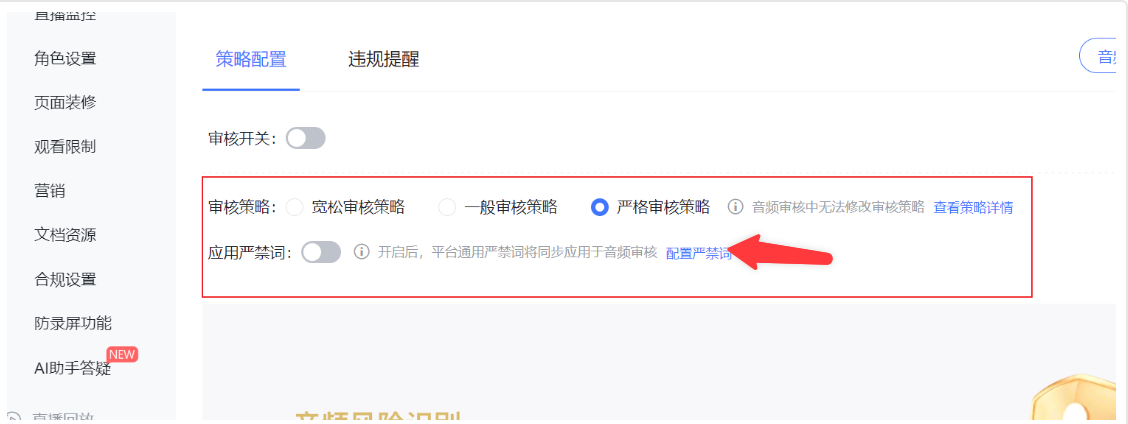
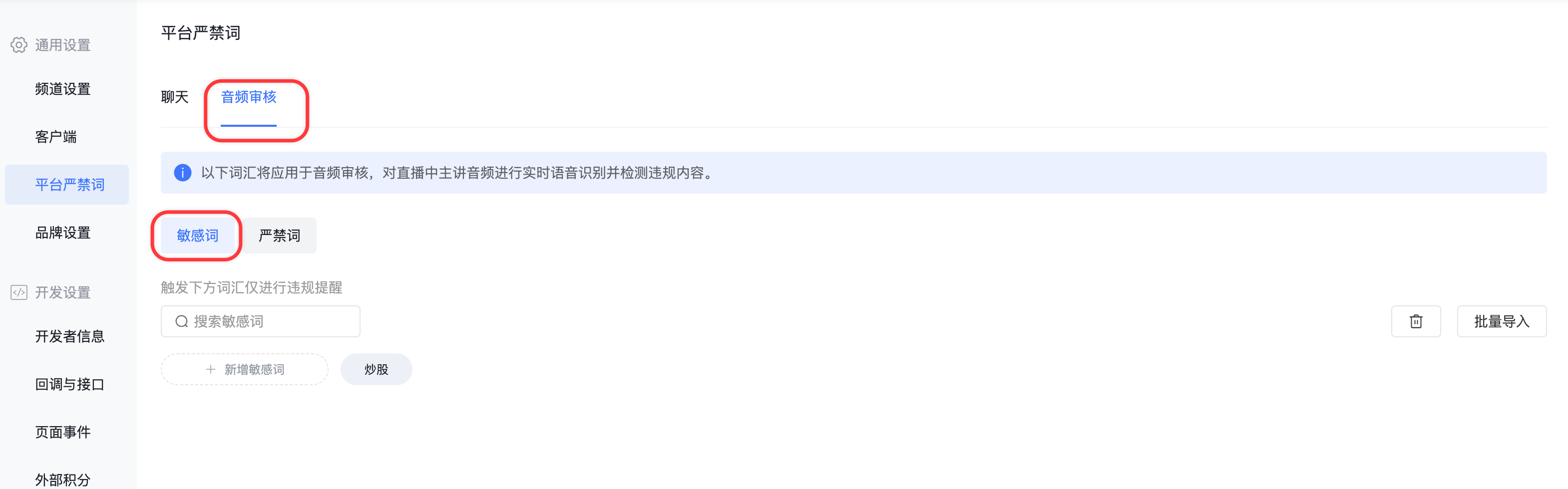
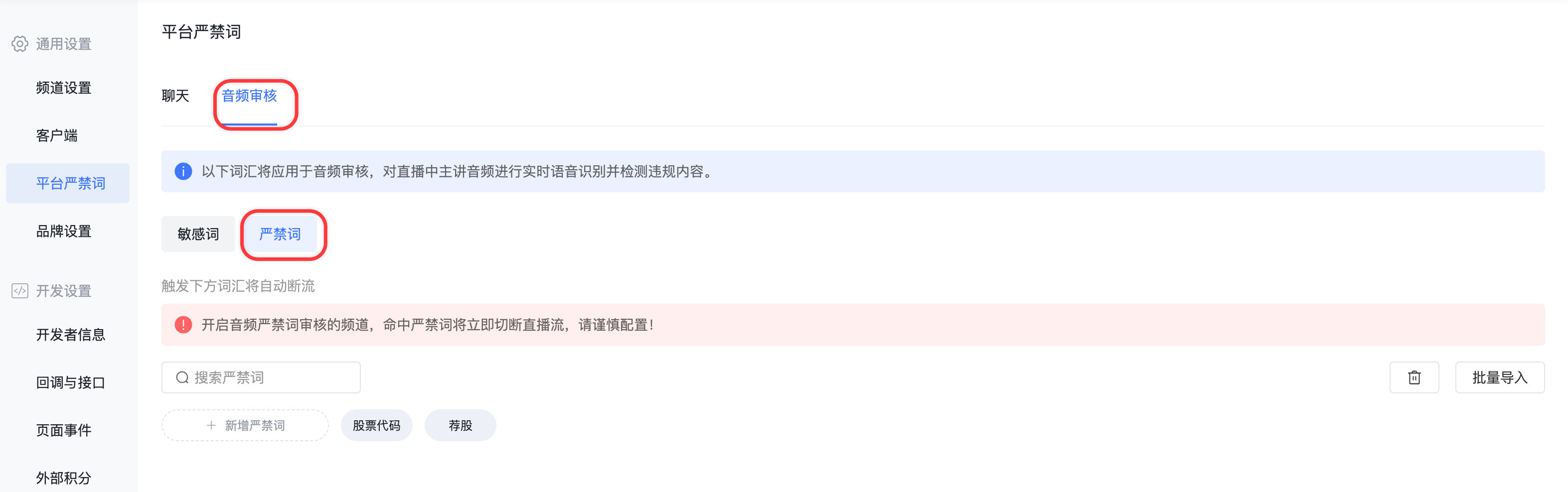
 b. Configure prohibited words/sensitive words.
Click "Configure Prohibited Words" to navigate to the Platform Settings -> Platform Prohibited Words -> Audio Review page for configuration.
Prohibited words are divided into two types with different trigger effects:
| Type | Trigger Effect | Configuration Suggestion |
|---|---|---|
| Sensitive Words | Triggers alerts and notifications | Suitable for content that requires attention but not live stream interruption |
| Prohibited Words | Triggers live stream interruption | Configure with caution, suitable for severe violations requiring immediate termination |
After configuration, the system will detect the instructor's live audio in real-time:
- Hitting a Sensitive Word: The corresponding role (monitor/host/assistant) receives a pop-up alert.
- Hitting a Prohibited Word: The live stream is interrupted directly, and a notification is sent.
(4) LLM Edition: Configure the review switches.
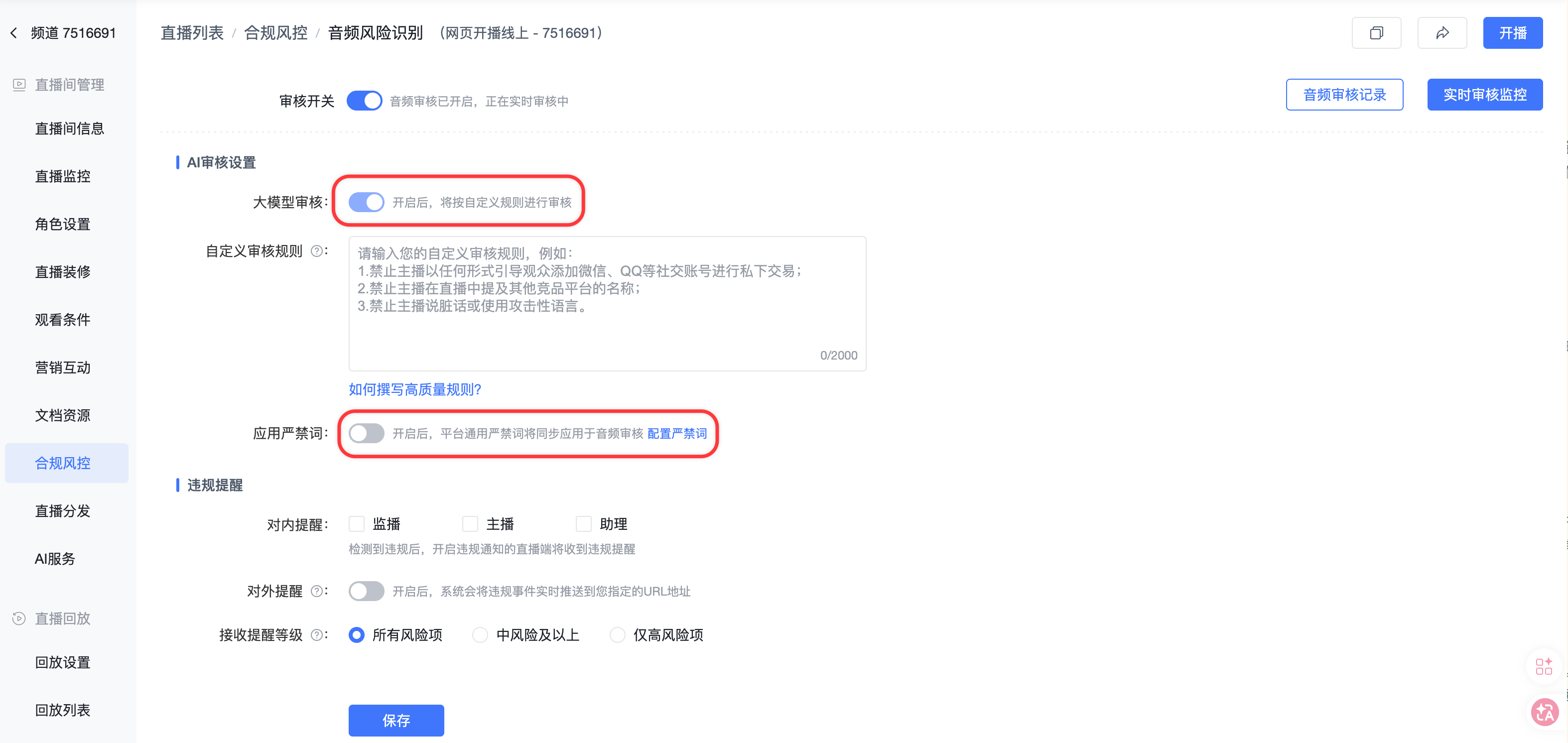
The LLM Edition includes two independent switches that can be flexibly enabled as needed:
| Switch | Function Description | Configuration Method |
|---|---|---|
| LLM Review | Performs intelligent content review based on custom prompts | Enable and configure compliance prompts |
| Prohibited Word Review | Performs matching review based on sensitive/prohibited word lists | Enable and navigate to the prohibited word configuration page |
a. LLM Review Configuration
After enabling the "LLM Review" switch, enter custom review rules in the "Compliance Prompt" configuration area:
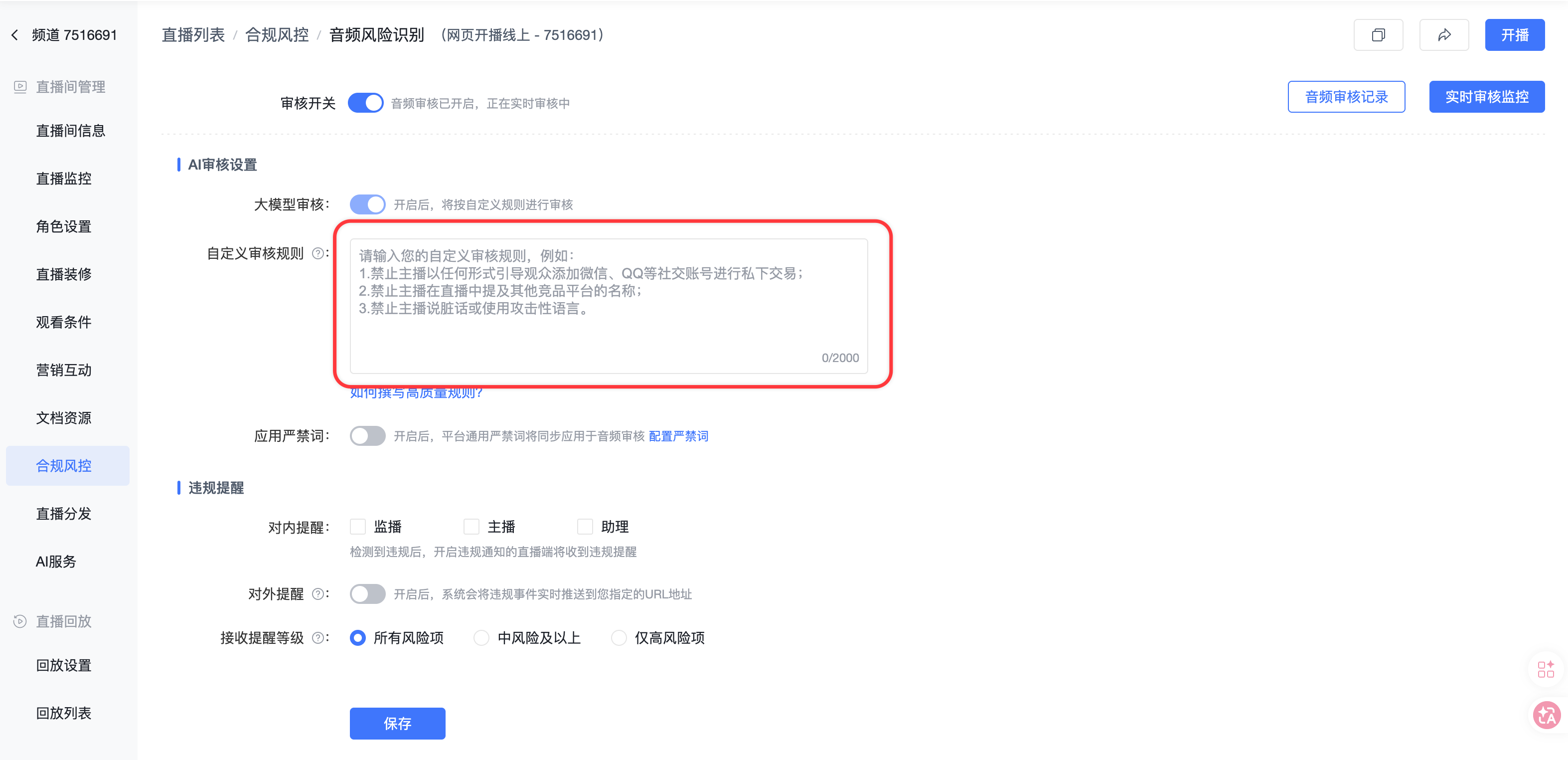
Rule Prompt Configuration Example:
How to Write High-Quality Rules
Prompt Configuration Suggestions:
- Clearly describe the content types and focus areas to be reviewed.
- Clearly define violation criteria (Violation/Suspicious/Pass).
- Add industry-specific review rules based on business needs.
- Prompts support real-time modification; changes take effect for newly generated audio streams.
b. Prohibited Word Review Configuration
After enabling the "Prohibited Word Review" switch, click "Configure Prohibited Words" to navigate to Platform Settings -> Platform Prohibited Words -> Audio Review for configuration:
Prohibited word trigger rules:
- Sensitive Words: Trigger alerts and notifications upon hit.
- Prohibited Words: Interrupt the live stream directly upon hit.
Configuration suggestions are the same as the Finance Edition. Configure prohibited words with caution.
c. Combined Usage Instructions
The two switches in the LLM Edition are independent of each other, supporting the following combinations:
- Enable only "LLM Review": Uses custom prompts for intelligent review.
- Enable only "Prohibited Word Review": Uses only the sensitive/prohibited word list for matching.
- Enable both: Audio content undergoes dual review; any trigger will result in corresponding alerts/actions.
(5) Set violation alerts.
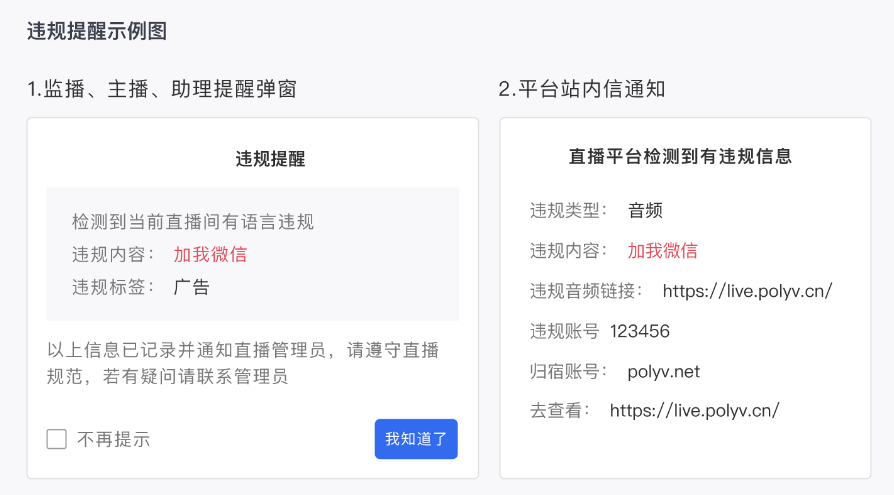
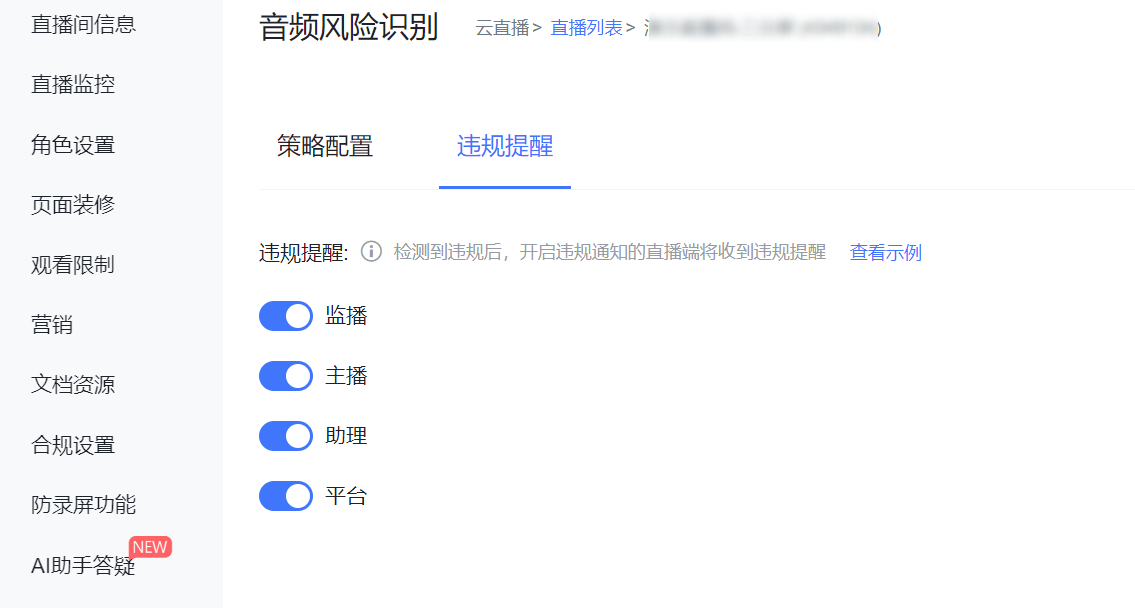 a. Violation alerts can be set for roles such as monitor, host, assistant, and platform. If an audio violation occurs, a pop-up alert will appear for that role.
b. Click "View Example" to see the pop-up alert style.
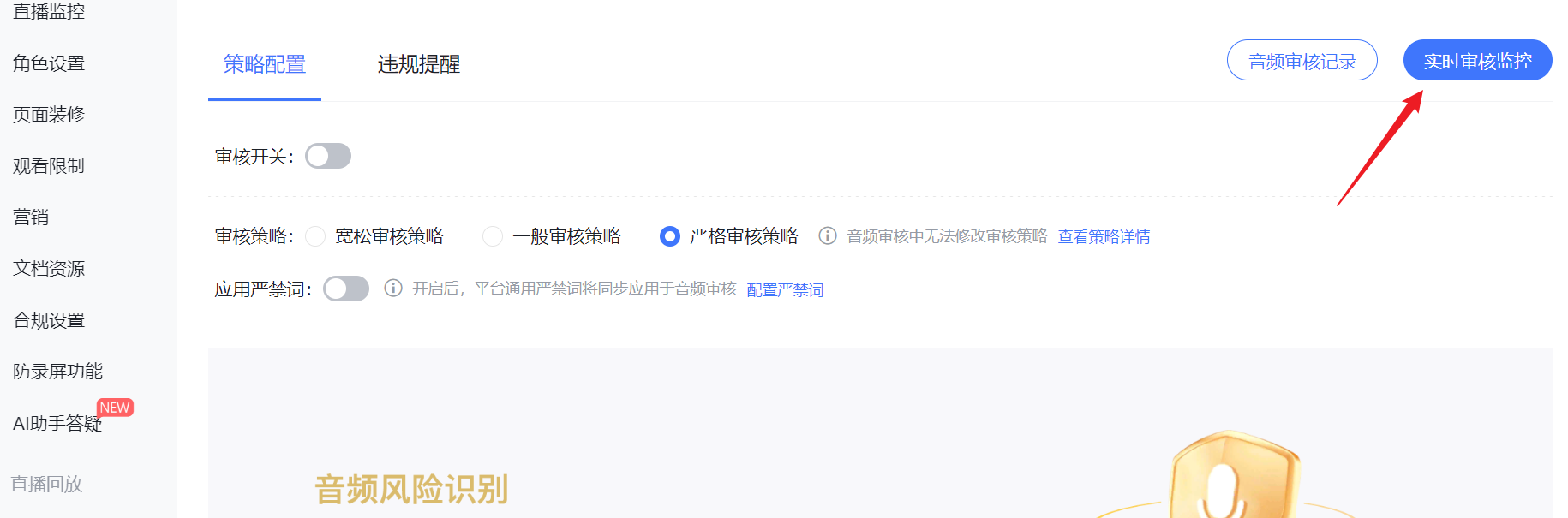
2. Review Page
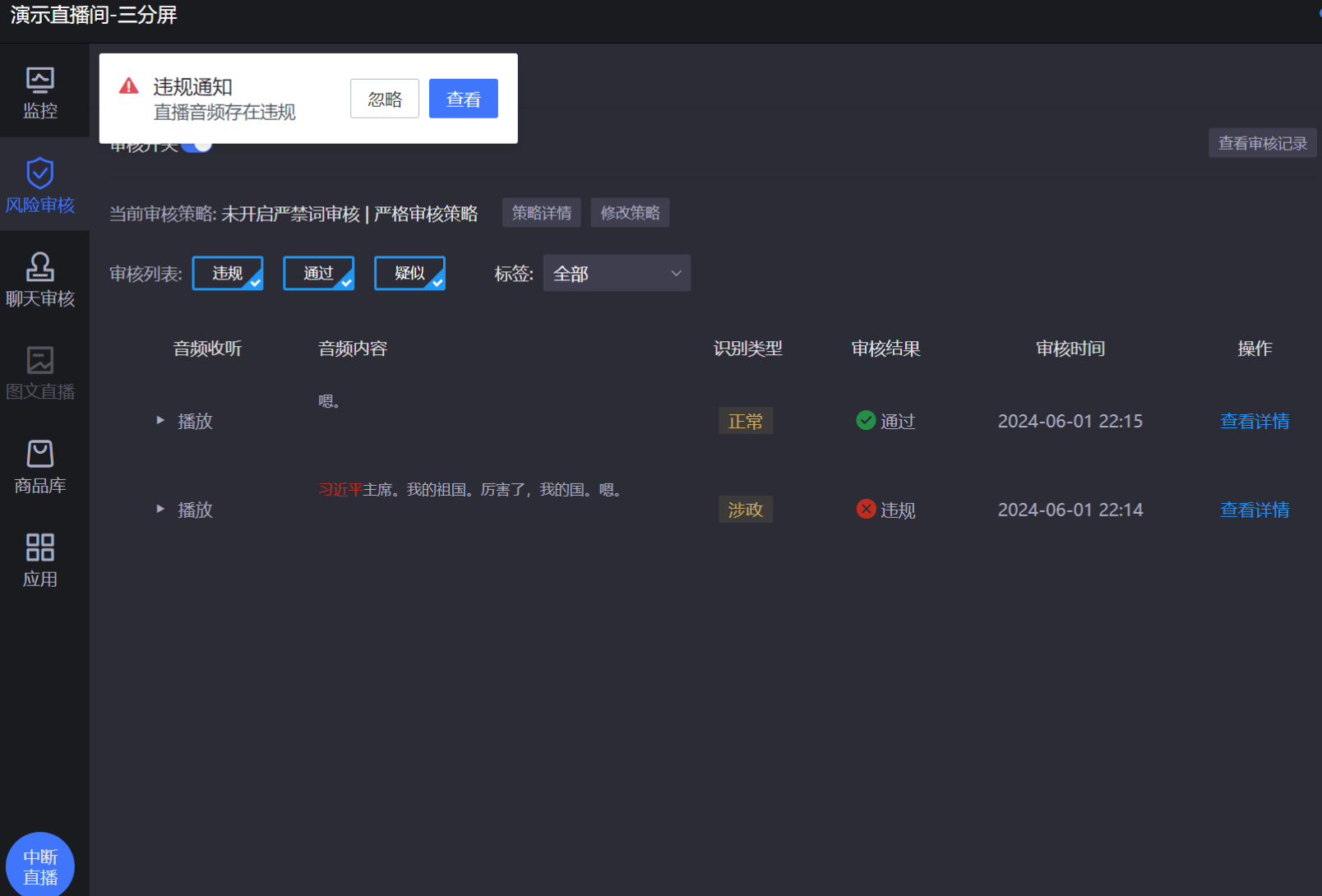
(1) Click "Real-time Review Monitoring" to enter the review monitoring page.
 (2) You can configure risk review settings for the current live room or perform actions like interrupting the live stream.
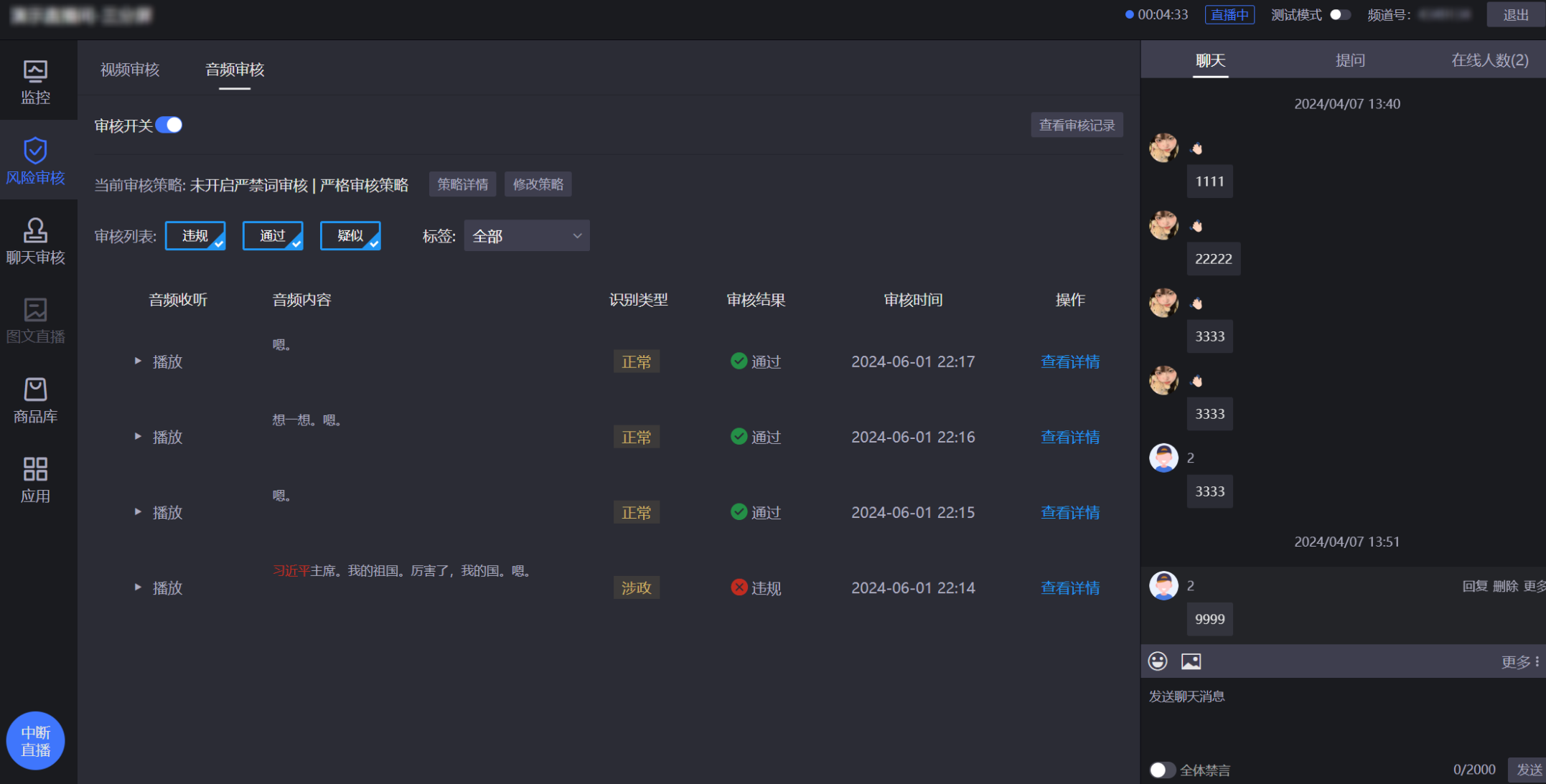 a. If an audio review hit occurs in the live room, a corresponding pop-up will appear. You can view the detailed content.
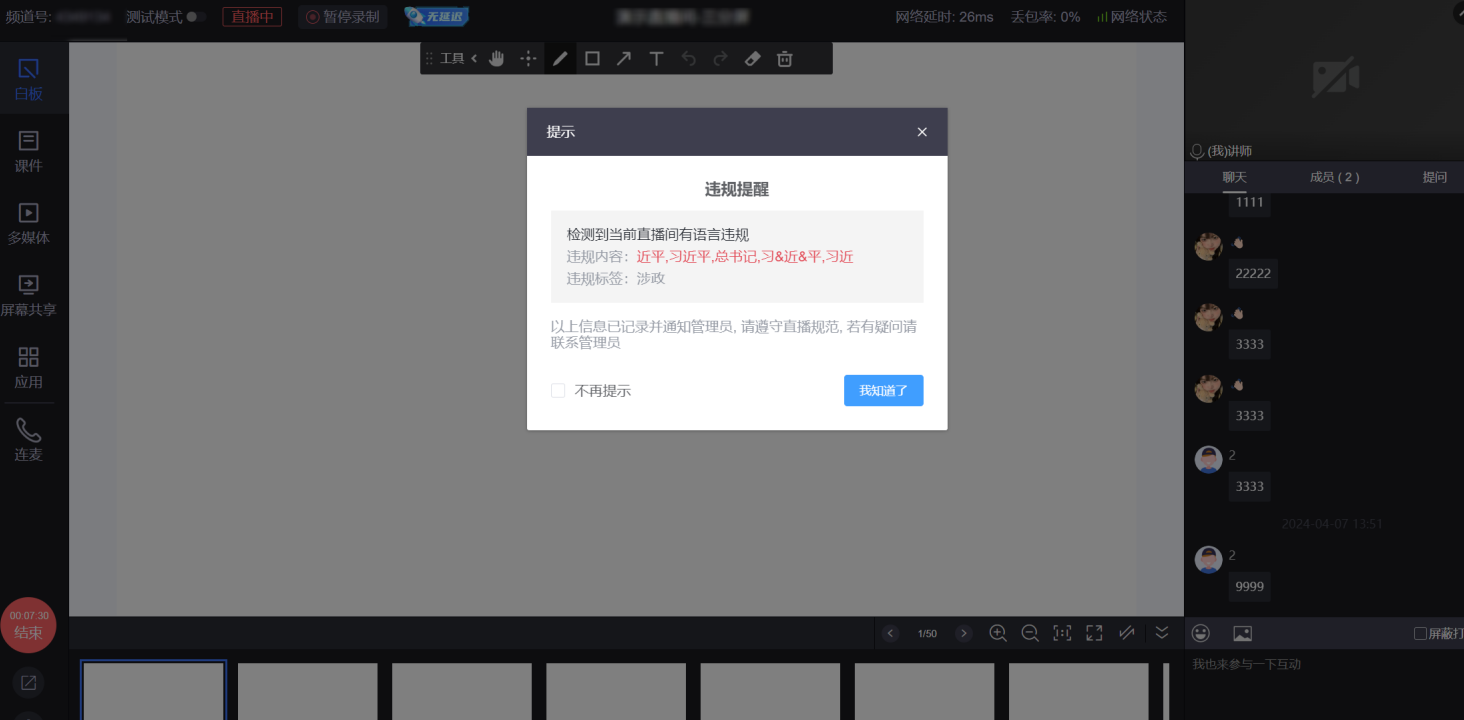
 b. Similarly, a corresponding pop-up will appear on the instructor's end.
3. View Review Records
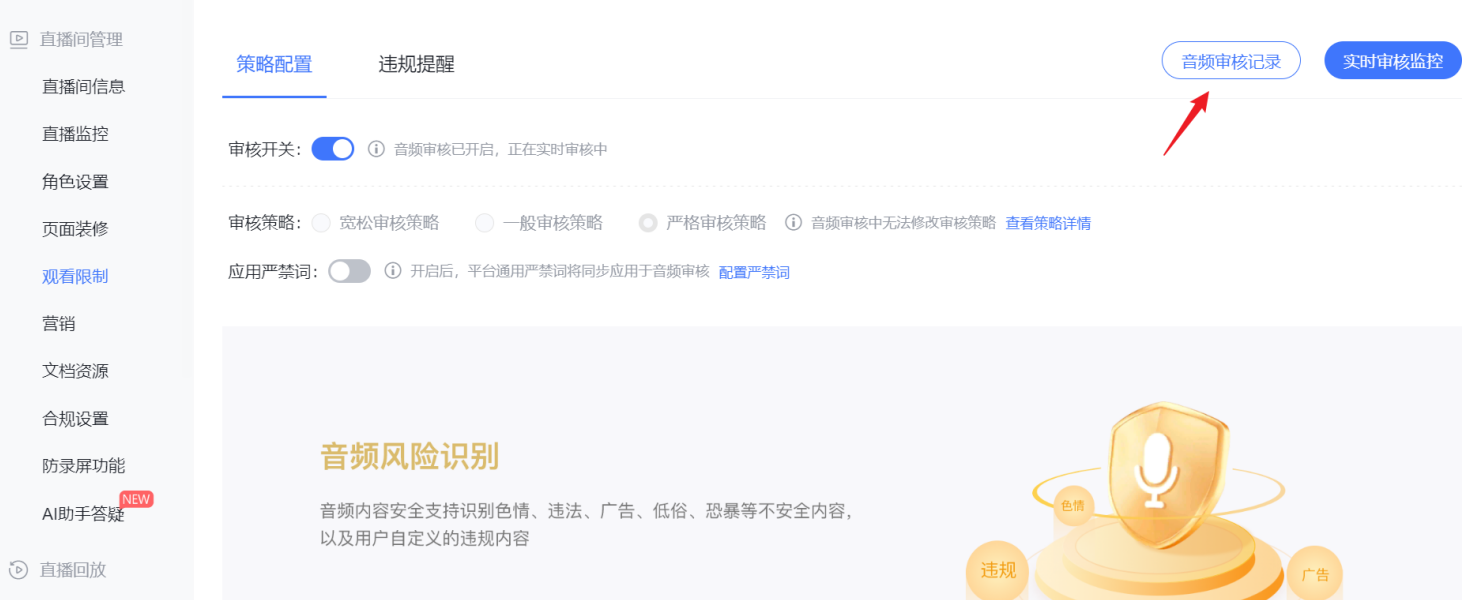 (1) Click the "Audio Review Records" button to navigate to the audio review records in the channel statistics.
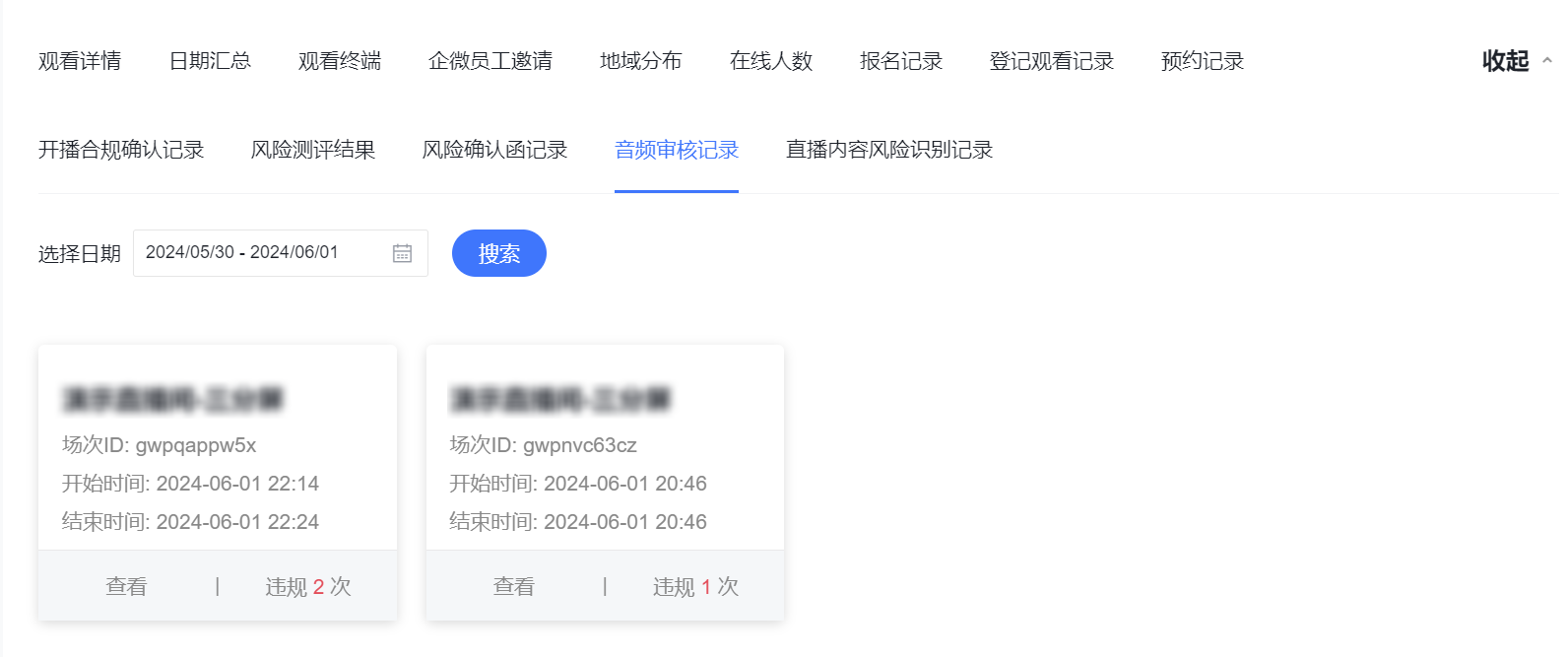 (2) Click to view the audio review record content for a single session.
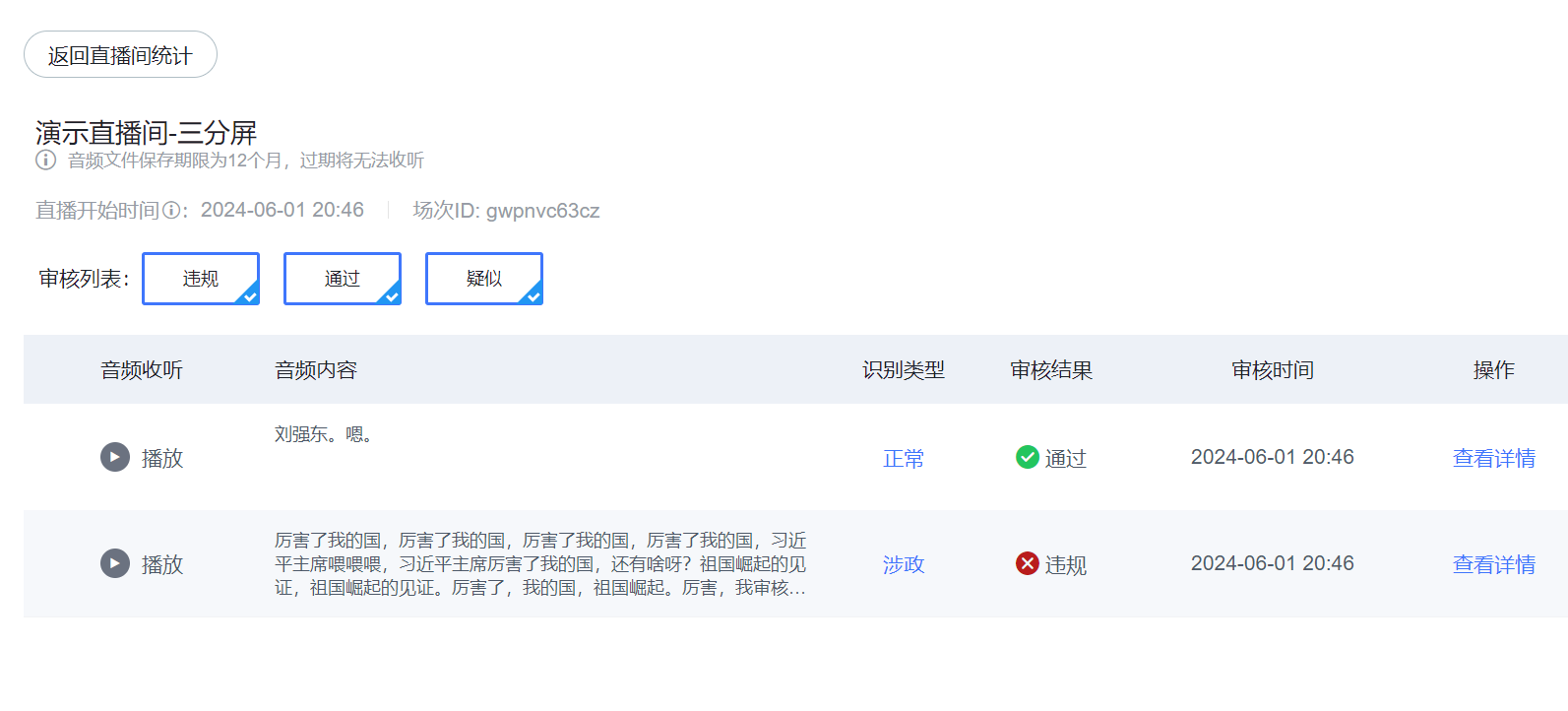 (3) You can filter review results by "Violation", "Pass", or "Suspicious".
(4) View the details of a single review result.
(3) You can filter review results by "Violation", "Pass", or "Suspicious".
(4) View the details of a single review result.

IV. Version Feature Comparison
| Feature | Finance Edition | LLM Edition |
|---|---|---|
| Review Strategy | Built-in financial compliance strategy (Strict/Moderate/Lenient) | Custom compliance prompts |
| Prohibited Words | Supported | Supported |
| Violation Alerts | Supported | Supported |
| Real-time Review Monitoring | Supported | Supported |
| Review Record Query | Supported | Supported |
| Applicable Scenarios | Financial live streaming, strict compliance scenarios | Personalized review needs, non-financial scenarios |
V. Notes
The Audio Risk Identification feature requires sufficient account balance to function normally. If the account balance is insufficient, the feature cannot be used. Usage of this feature also incurs costs. Please consult your business manager for details.
Version Activation Instructions: The Finance Edition and LLM Edition are activated on a one-or-the-other basis. Users can choose to activate one version based on business needs. Contact your business manager to activate or switch versions.
LLM Edition Prompt Suggestions:
- Prompt length is recommended to be between 200-1000 characters. Too short may lead to unclear review standards, too long may affect review efficiency.
- It is recommended to include clear criteria descriptions (Violation/Suspicious/Pass) in the prompt.
- For first-time use, it is advisable to test the prompt effect with test audio before officially enabling it.
If the audio has accents or non-standard pronunciation, there is a possibility of system misjudgment.
For API calls, please refer to the official Polyv documentation (contact your business manager to enable usage). The corresponding API documentation addresses are:
- Query Channel Audio Review Settings (Requires Activation)
- Modify Channel Audio Review Settings (Requires Activation)
- Query Channel Audio Review Records
VI. Polyv Labs Audio Review Dashboard
Polyv provides a Polyv Labs Audio Review Summary Dashboard, allowing platform administrators to monitor the audio review status across the entire platform in real-time.
About Polyv Labs: Polyv Labs Feature Introduction
Access Address: https://labs.polyv.net/
Dashboard Entry
Log in to the Polyv backend and navigate to the Polyv Labs -> Audio Review feature module.
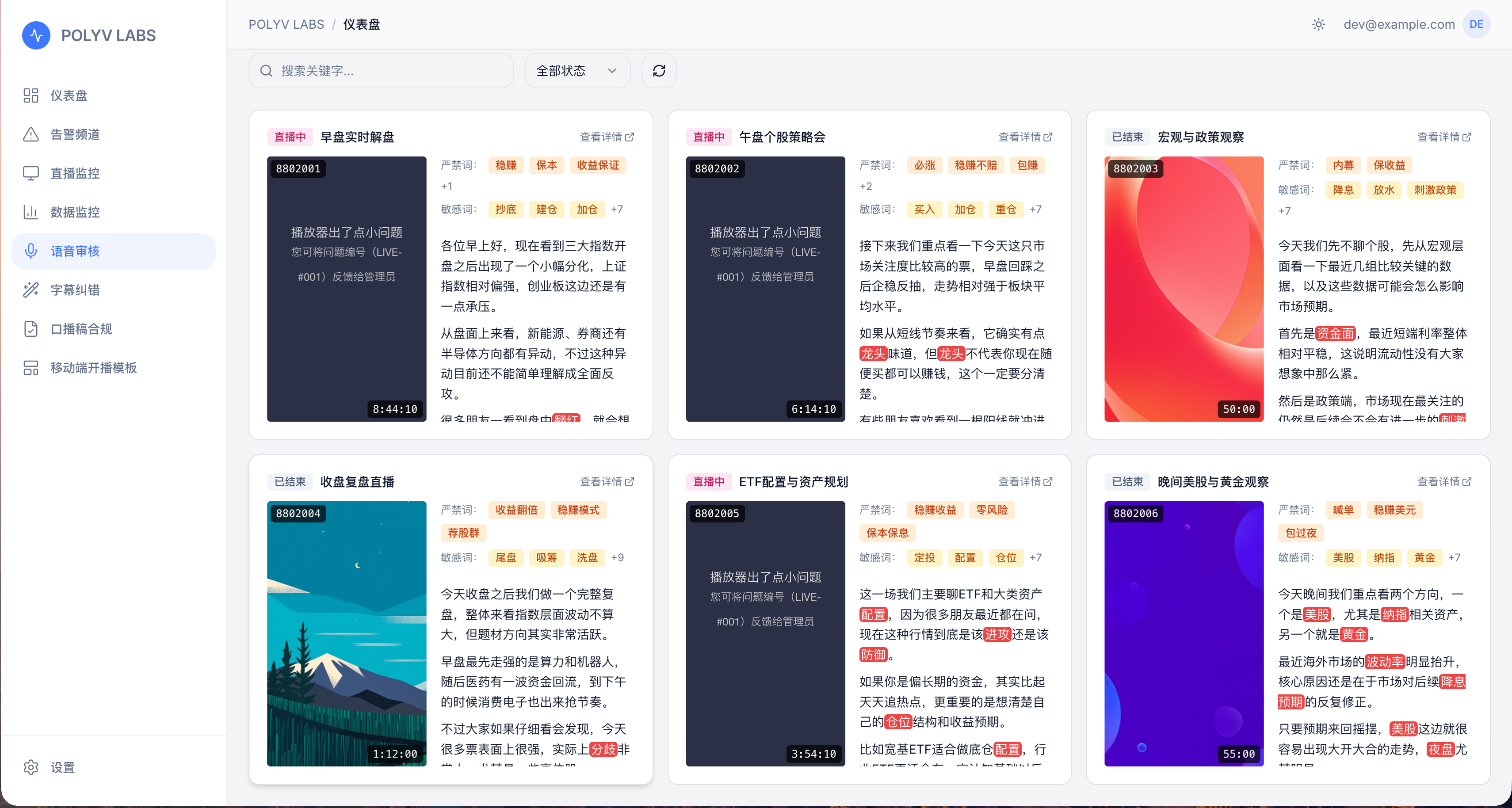
Dashboard Display Rules
The dashboard only displays data for channels that meet the following conditions:
- Channels that have streamed live today
- Channels that have the Audio Review feature enabled (Finance Edition or LLM Edition)
Dashboard Content
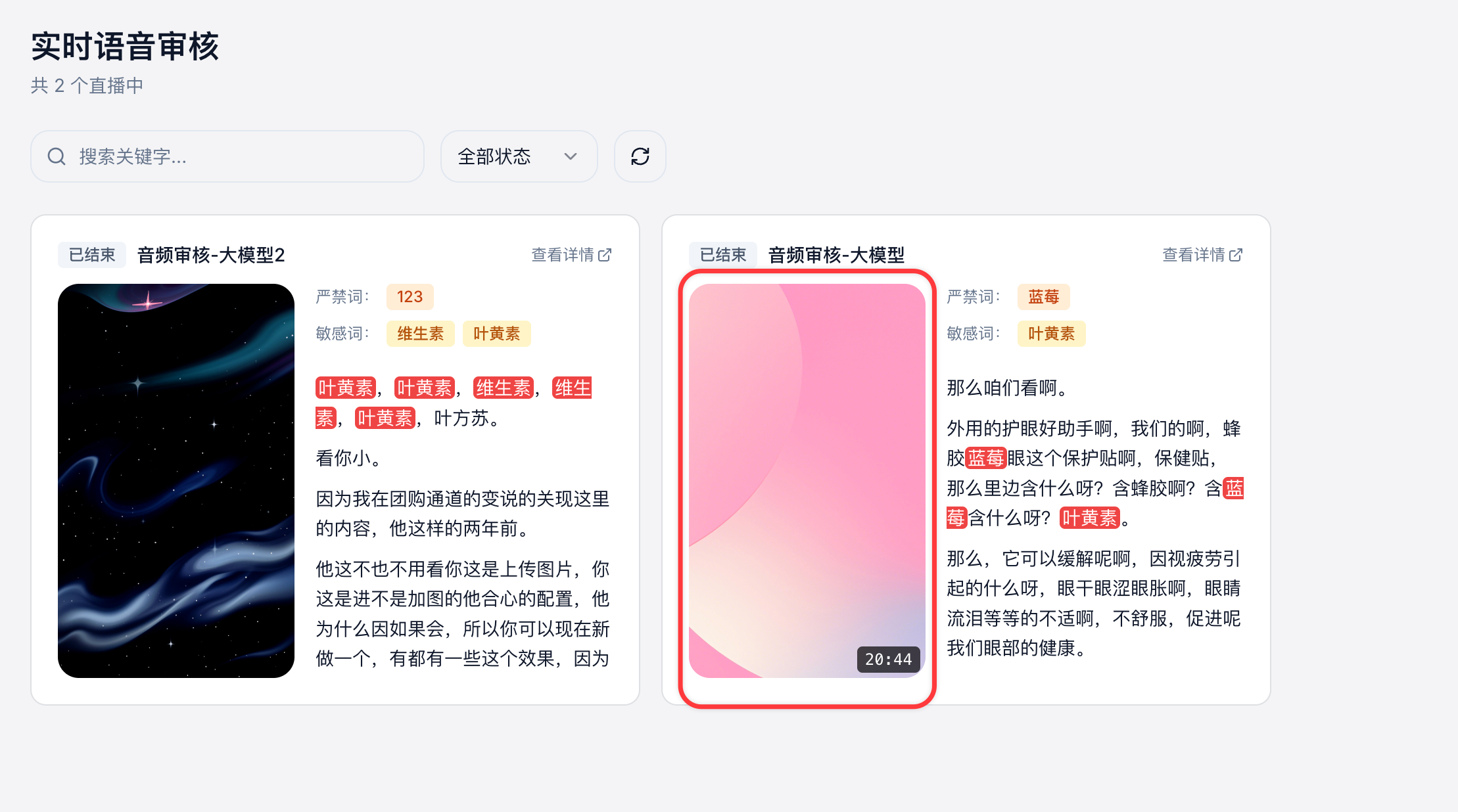
The dashboard displays all live streams on the platform that meet the rules in a list format, including the following information:
| Field | Description |
|---|---|
| Live Stream Info | Channel name, live status, live time, and other basic information |
| Triggered Sensitive Words | Content and trigger count of sensitive words hit during the live stream |
| Triggered Prohibited Words | Content and trigger count of prohibited words hit during the live stream |
| Instructor Speech Content | Real-time or playback audio-to-text content, facilitating quick location of review points |
Use Cases
- Platform Administrator Real-time Monitoring: Quickly identify live streams with audio risks on the platform.
- Post-event Review and Analysis: View a summary of audio review status for all live streams on the day.
- Risk Trend Analysis: Identify instructor risk points through the frequency of sensitive/prohibited word triggers.
