


Prohibited Words
Prohibited words are used to block specified words in the live chat room and handle messages according to the configured method. You can configure rules for all channels uniformly, add entries for a single channel, or preset the word library and rules for new channels through the default template.
1. Select the Configuration Scope
Before setting up, first choose the configuration location based on your management goal.
| Management Goal | Configuration Location | Effective Scope |
|---|---|---|
| Uniformly manage prohibited words for all channels | Platform Prohibited Words | The platform word library applies to all channels and takes effect together with each channel's word library. |
| Preset prohibited words for subsequently created channels | Default Template | When creating a channel using this template, the entries in the template are automatically added; platform prohibited words still take effect. |
| Add prohibited words for a specific channel | Channel Prohibited Words | The channel word library applies only to the current channel and takes effect together with the platform word library. |
The word library determines which words need to be blocked, and the blocking settings determine how messages are handled and which roles they apply to. The platform's prohibited word rules apply to all channels and cannot be modified by channels; number filtering options already enabled on the platform cannot be disabled by channels.
2. Access the Prohibited Words Page
1. Platform Prohibited Words
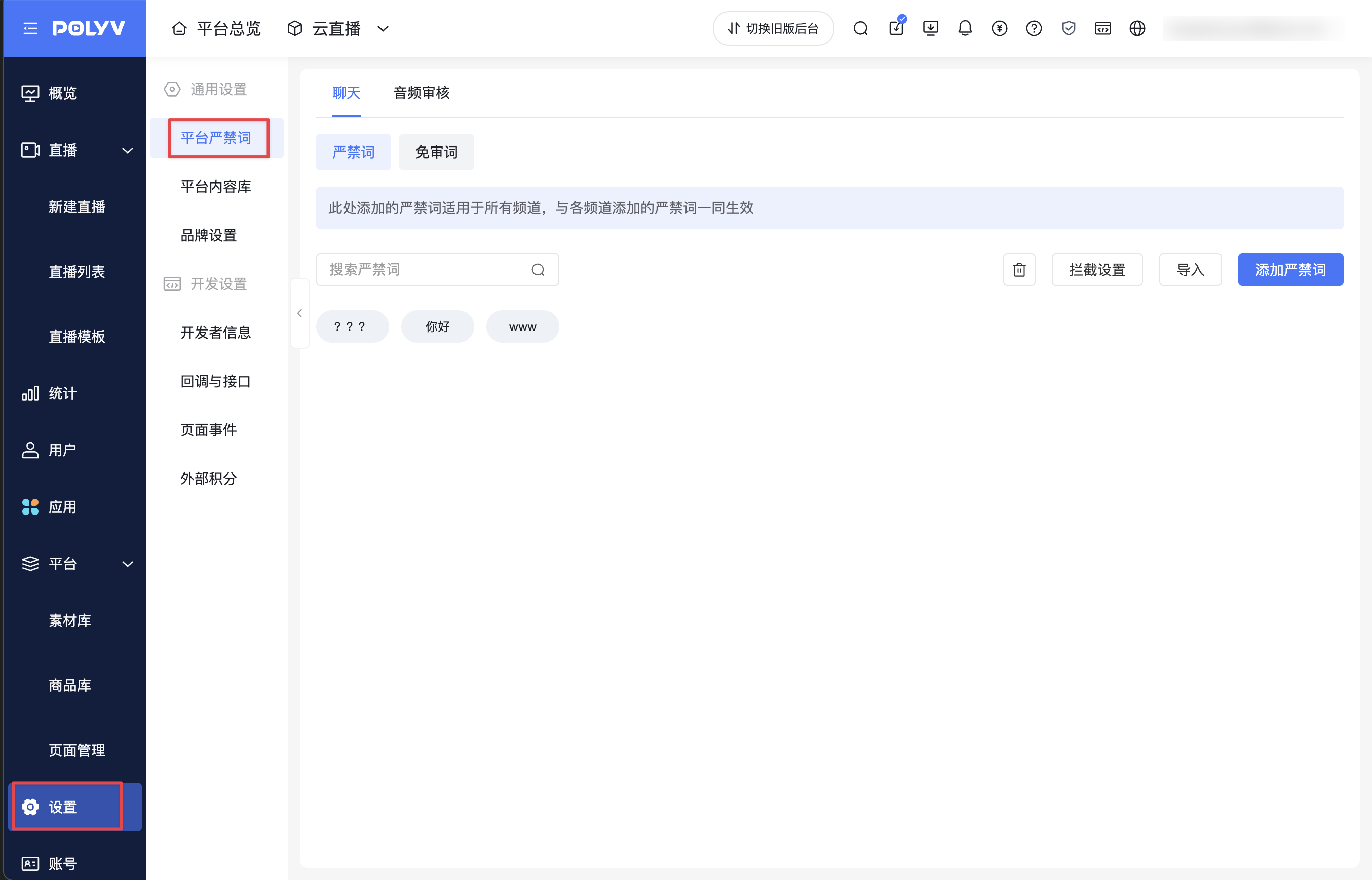
Go to [Settings] → [Platform Prohibited Words], and select [Prohibited Words] under [Chat].
2. Default Template
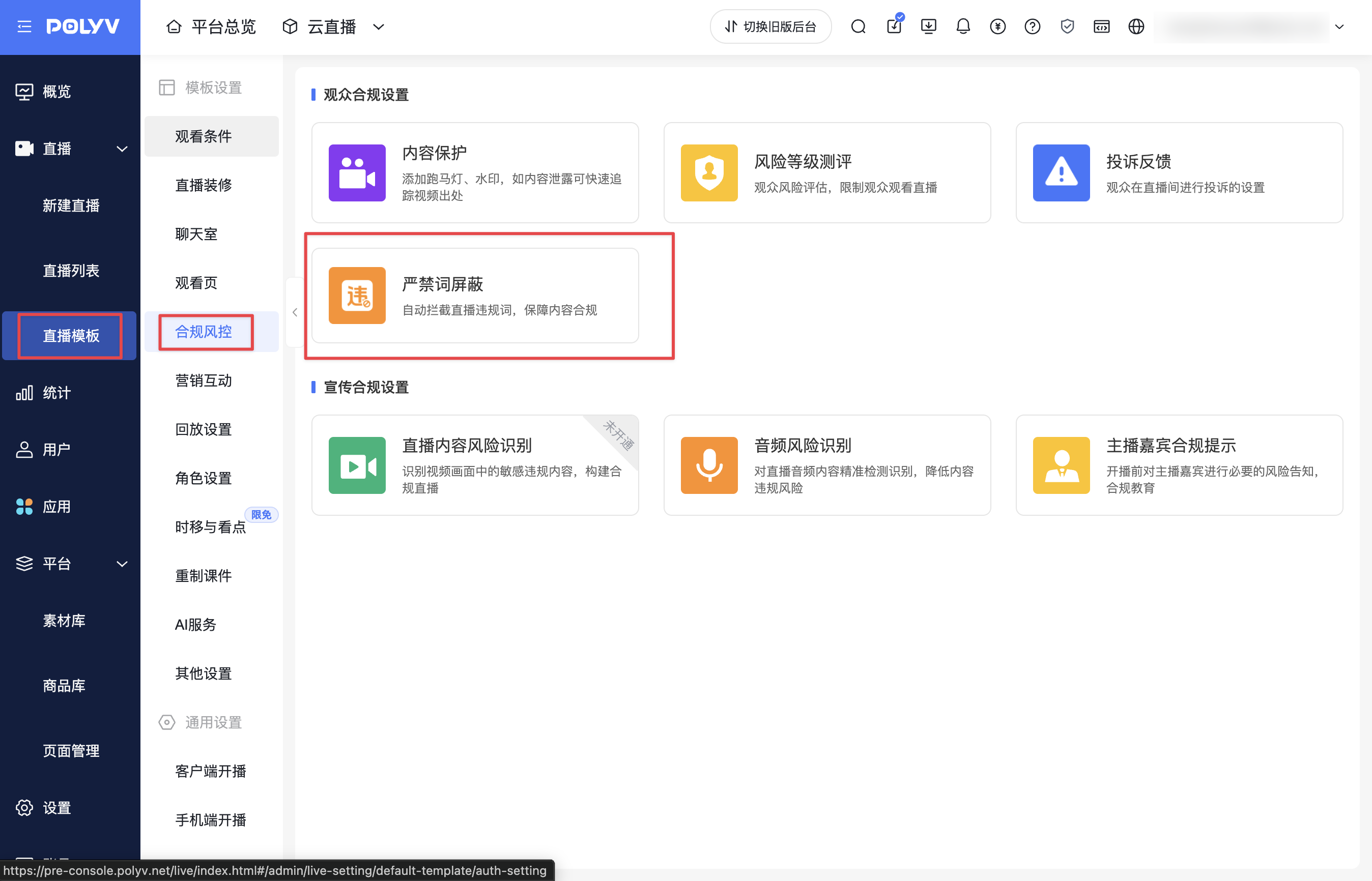
Go to [Live] → [Live Templates] → [Compliance Risk Control], click [Prohibited Words Blocking], and enter the [Prohibited Words] tab.
The entries and blocking settings here are used to initialize new channels. Modifying the template will not directly update the prohibited word configuration of existing channels.
3. Channel Prohibited Words
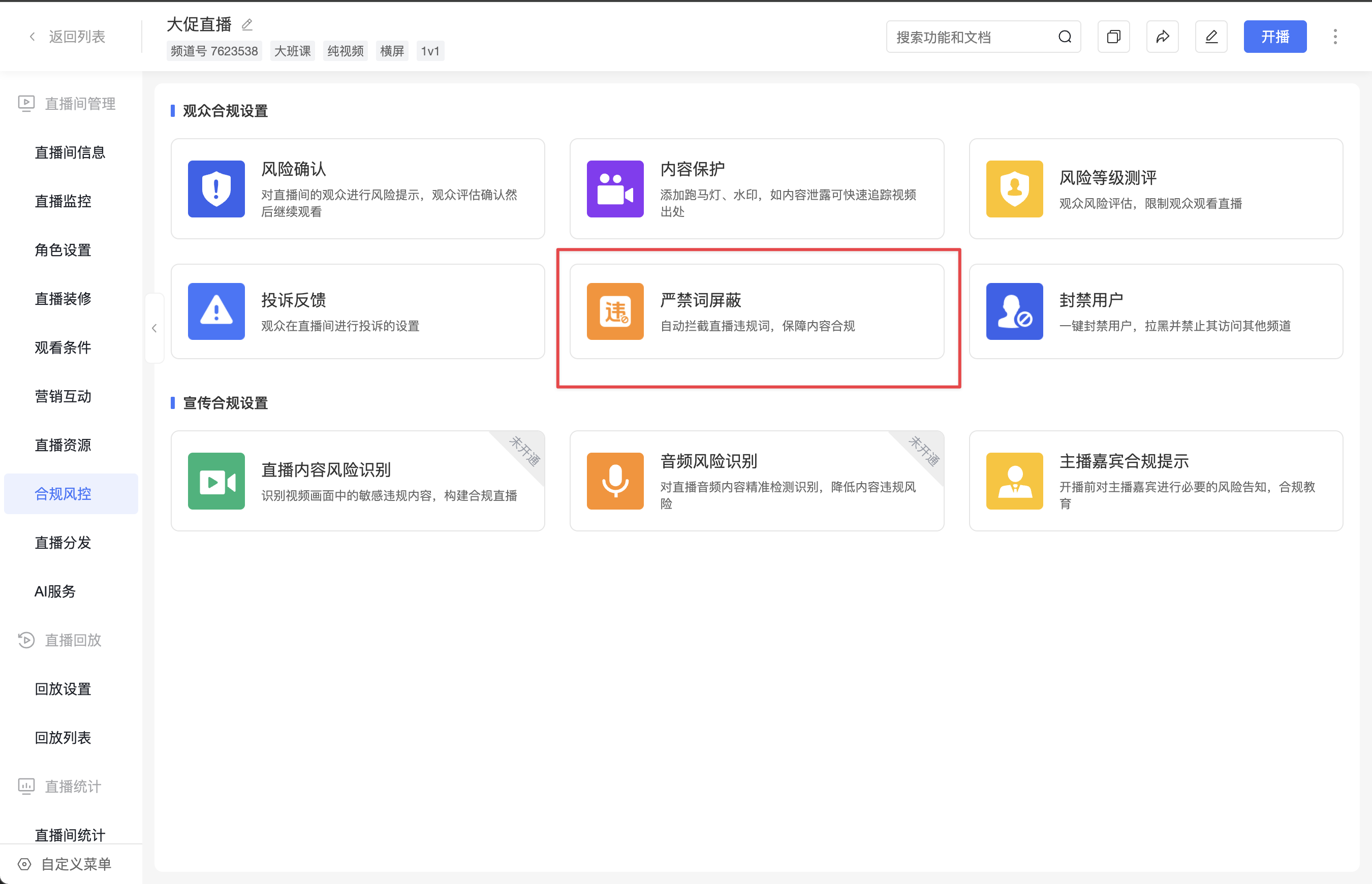
Enter the live room you need to configure from the live list, open [Compliance Risk Control], click [Prohibited Words Blocking], and enter the [Prohibited Words] tab.
3. Configure Blocking Rules
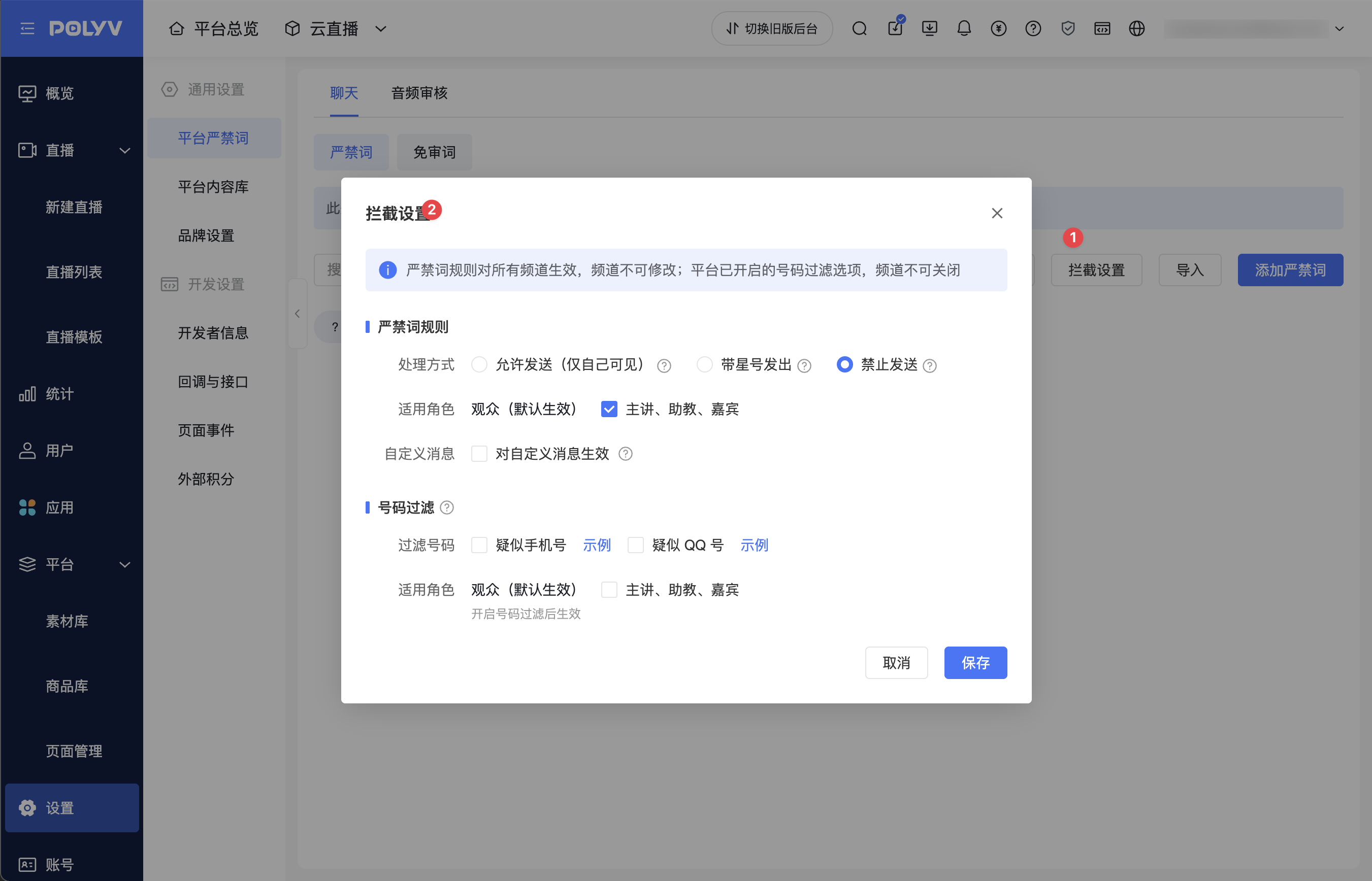
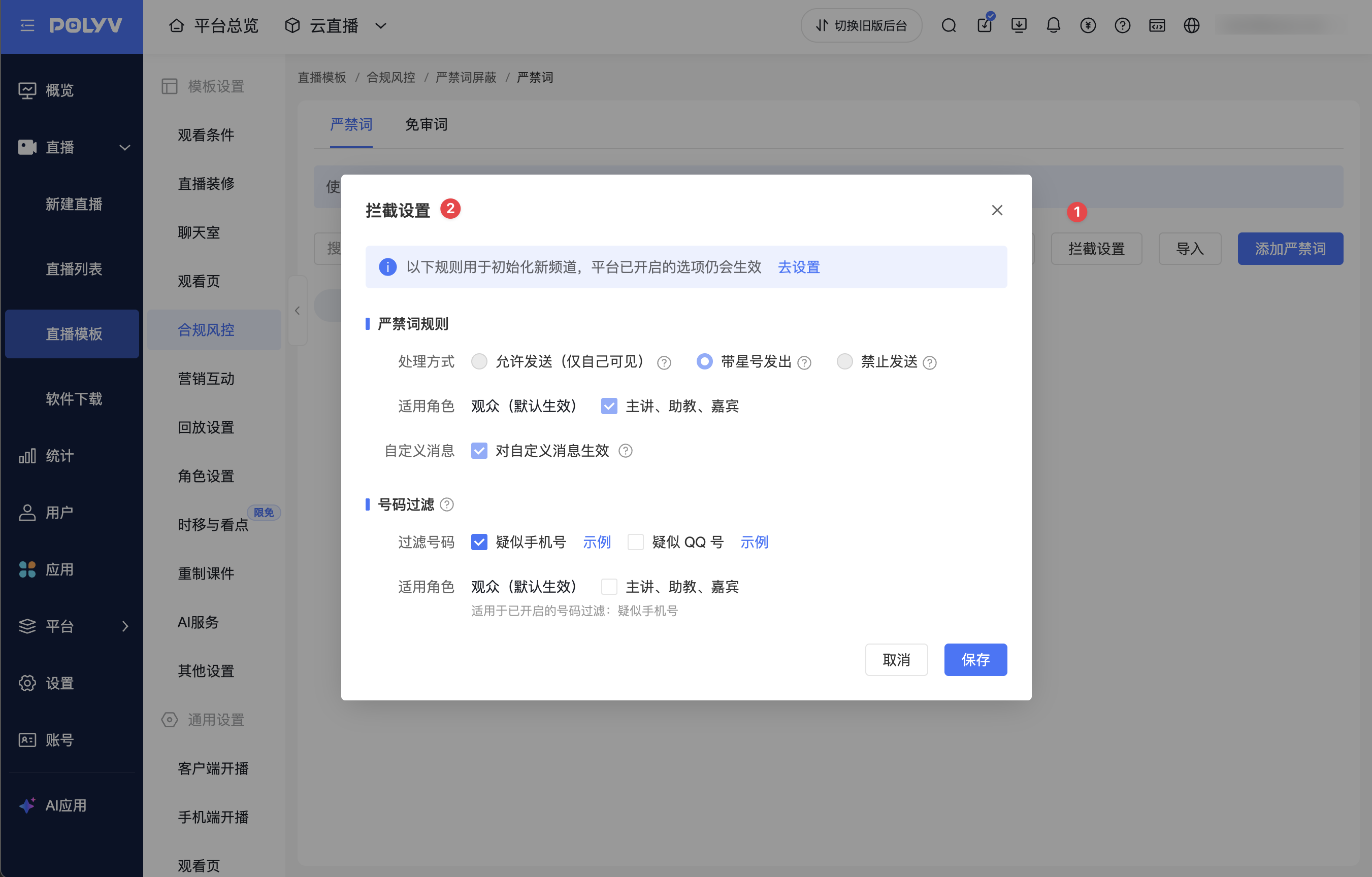
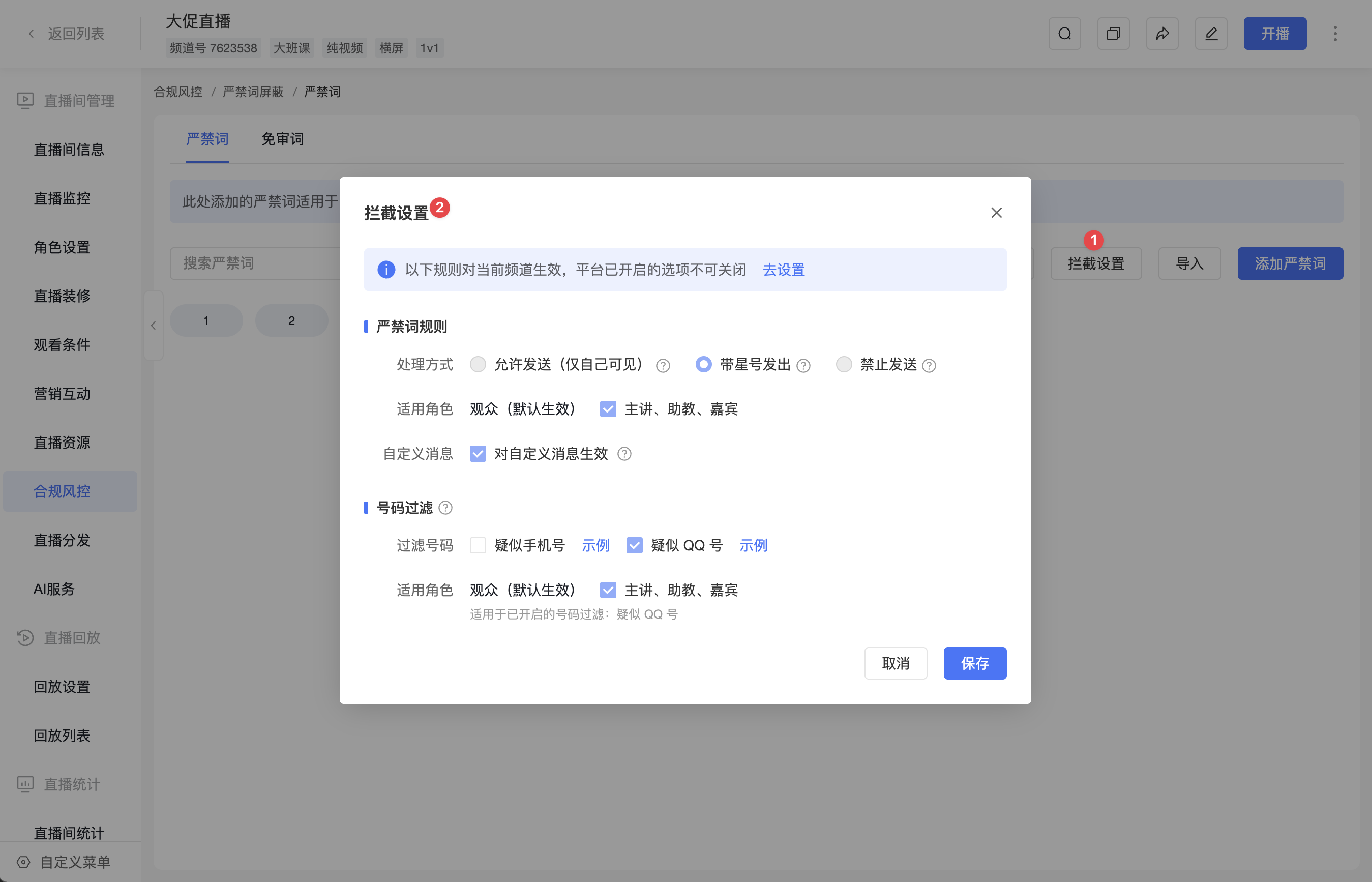
On the Prohibited Words page, click [Blocking Settings] to configure [Prohibited Word Rules] and [Number Filtering].
1. Set the Handling Method for Prohibited Words
In [Prohibited Word Rules], select the handling method and set the applicable roles.
| Setting Item | Description |
|---|---|
| Allow sending (visible only to self) | Messages that hit prohibited words are visible only to the sender. |
| Send with asterisks | The prohibited words that are hit are replaced with asterisks before sending. |
| Prohibit sending | Prevent messages that hit prohibited words from being sent. |
| Applicable roles | Effective for viewers by default and cannot be deselected. After checking [Host, Assistant, Guest], the rule also applies to these roles. |
| Apply to custom messages | When checked, the prohibited word rules are applied to custom messages. |
The following is an example of platform blocking settings. The checked states in the screenshot are for illustration only and do not represent the default configuration.
2. Set Number Filtering
In [Number Filtering], check the [Suspected phone numbers] and [Suspected QQ numbers] you need to filter. You can select both types at the same time.
After number filtering is enabled, it is effective for viewers by default. If you also need to filter numbers sent by the host, assistant, and guest, check [Host, Assistant, Guest] under this section. The currently enabled number types will be displayed below the applicable roles.
Prohibited word rules and number filtering each have their own applicable role settings. When both types of rules need to apply to the host, assistant, and guest, you should check the role options in both sections separately.
3. View Platform Configuration Restrictions
The rules in the default template are used to initialize new channels, and options already enabled on the platform still take effect. You can go to the platform prohibited word settings via [Go to Settings] at the top of the pop-up.
The rules in a channel apply to the current channel, and options already enabled on the platform cannot be disabled within the channel. If you encounter a configuration item that cannot be modified, move the mouse over the control to view the reason, or adjust the platform configuration via [Go to Settings].
4. Save Settings
After completing the configuration, click [Save]. After saving successfully, the pop-up closes.
- Clicking [Cancel] does not save the current changes.
- If there are unsaved changes, closing the pop-up will prompt you to confirm whether to discard them.
- If saving fails, the pop-up retains the current changes and prompts the reason for the failure. You can handle it according to the prompt and try again.
4. Manage the Prohibited Word Library
The platform, default template, and channel all provide entries for adding, importing, and clearing the word library. The following operations use platform prohibited words as an example. Before operating, please first confirm the effective scope of the page you are on.
1. Add Prohibited Words
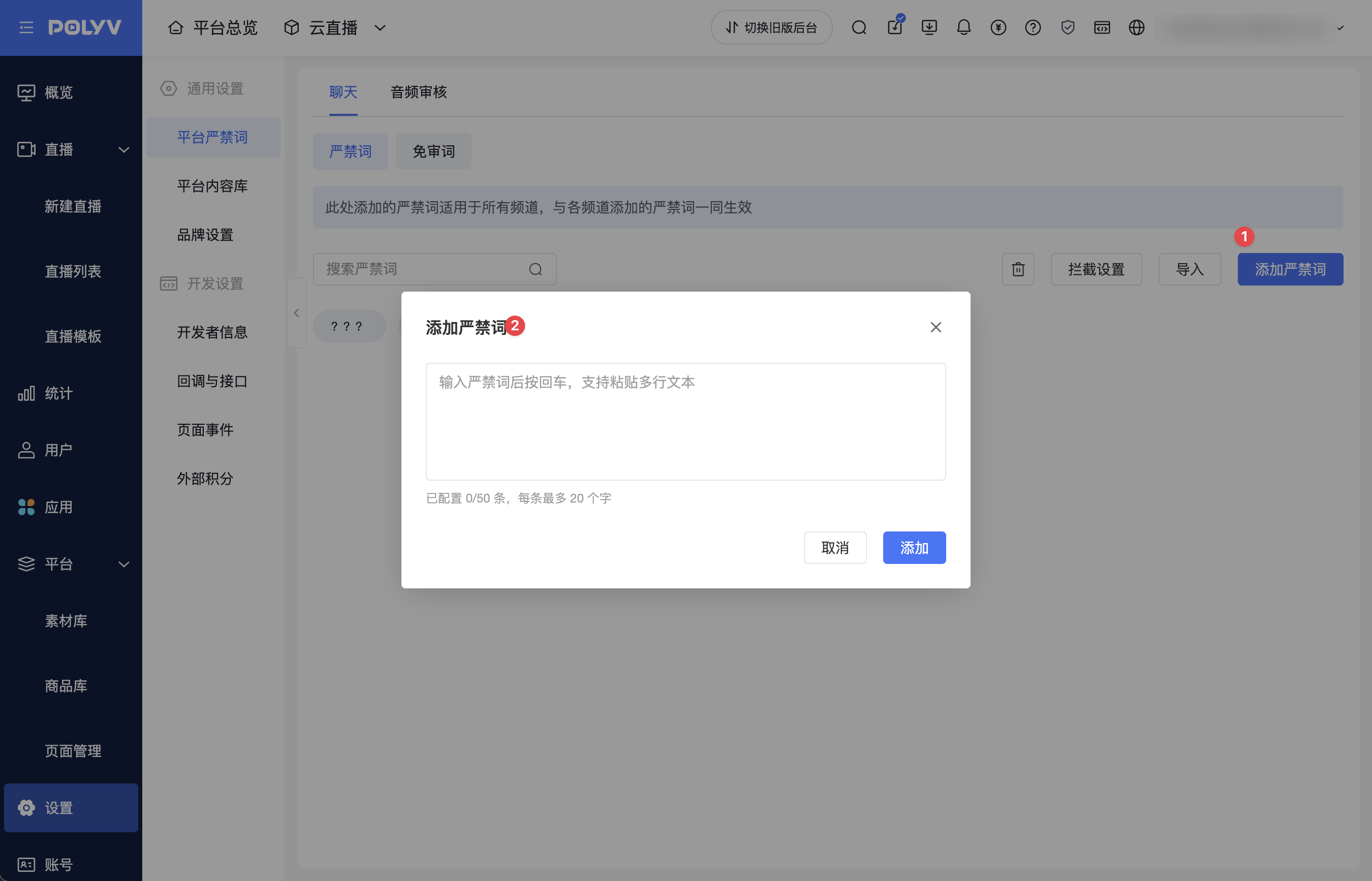
- Click [Add Prohibited Words].
- Enter an entry and press Enter to continue entering the next one; you can also paste multiple lines of text.
- Check the entries to be added. You can delete a single entry, or clear the current input and fill it in again.
- Click [Add] to submit.
Each prohibited word can contain at most 20 characters, and at most 50 entries can be added at a time.
2. Batch Import Prohibited Words
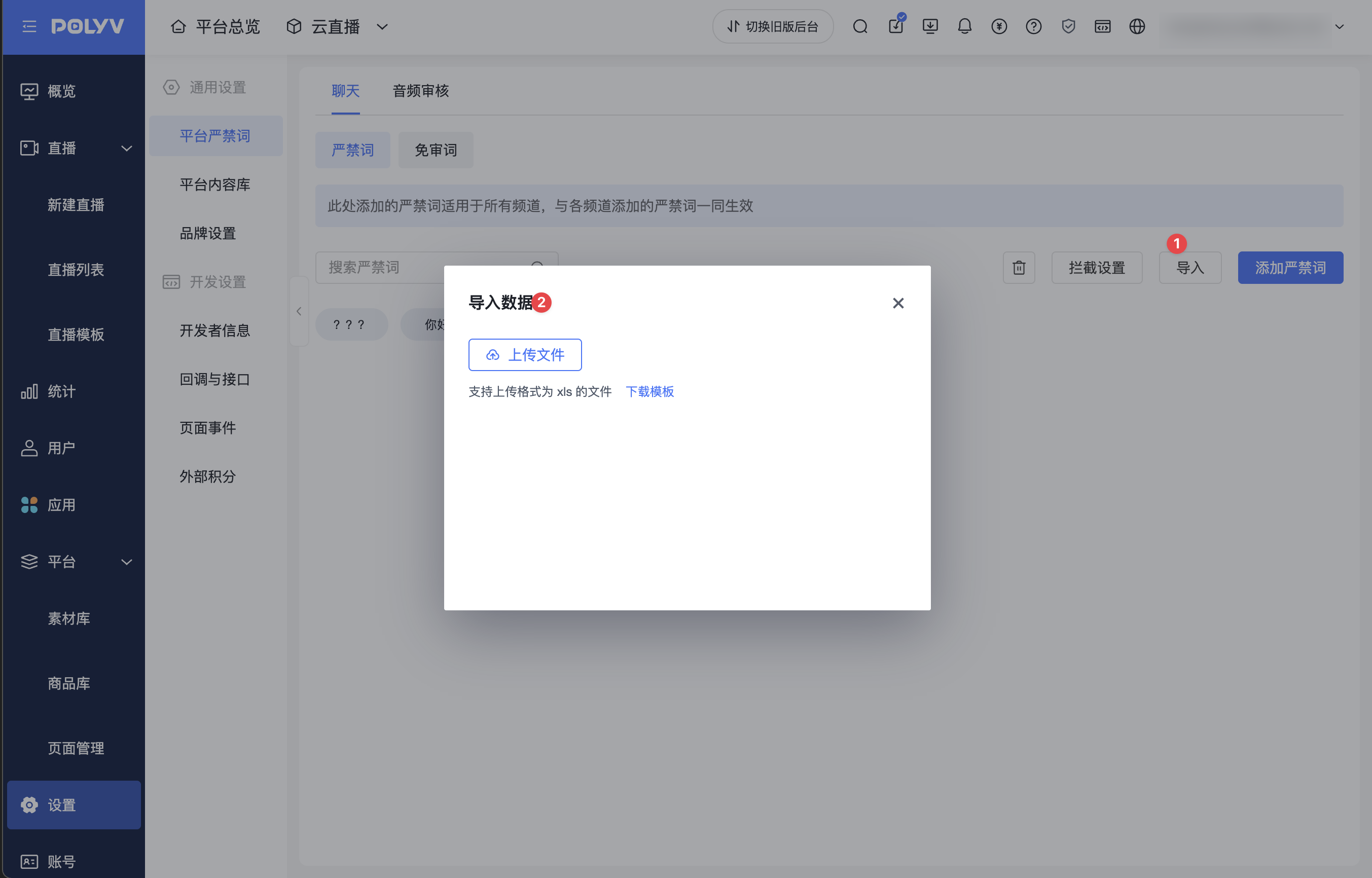
- Click [Import] to open the [Import Data] pop-up.
- Click [Download Template], and fill in the prohibited words to be imported in the first column of the template spreadsheet.
- Click [Upload File] and upload the completed
.xlsformat file.
3. Search and Clear the Word Library
You can search for entries using the [Search Prohibited Words] input box on the page.
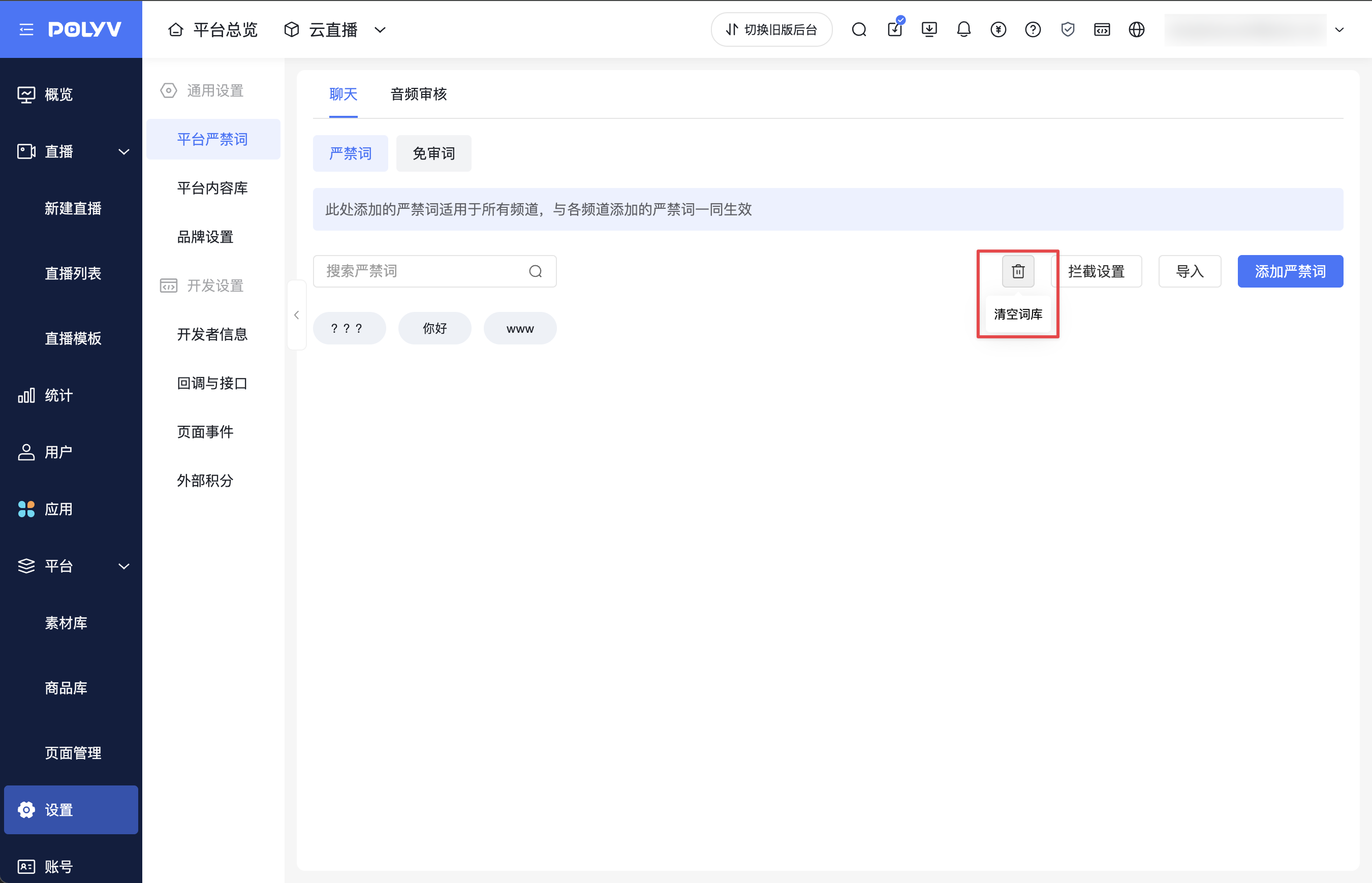
If you need to clear the current word library, use the trash can icon in the operation area. Move the mouse over the icon to view the [Clear Word Library] tooltip.
[Clear Word Library] targets the word library on the current page; the clear operation in the add pop-up is only used to clear the entries to be added this time. Before operating, please confirm the target to be cleared.
5. FAQ
Q: Will prohibited words in a channel override platform prohibited words?
A: No. The platform word library and the channel word library take effect together; adding entries in a channel supplements the words that need to be blocked for the current channel.
Q: After modifying the default template, will existing channels change synchronously?
A: They will not synchronize directly. The default template is used to initialize channels subsequently created using that template. If you need to adjust an existing channel, you should enter the corresponding channel settings; if you need to manage all channels uniformly, you can use platform prohibited words.
Q: Why can some options in a channel not be modified?
A: These options are constrained by the platform configuration. The platform's prohibited word rules apply to all channels, and number filtering options already enabled on the platform cannot be disabled within a channel. You can view the reason for being disabled and go to the platform configuration via [Go to Settings].
Q: Does a maximum of 50 entries at a time mean the entire word library can only have 50 entries?
A: No. 50 entries is the single-add limit of the [Add Prohibited Words] pop-up, and each entry can contain at most 20 characters. It is not a description of the capacity of the entire word library.
Q: If prohibited words have already been set to apply to the host, will number filtering also automatically apply to the host?
A: They need to be set separately. [Prohibited Word Rules] and [Number Filtering] each provide applicable role options. If you need number filtering to apply to the host, you also need to enable the number type and check [Host, Assistant, Guest] in [Number Filtering].
