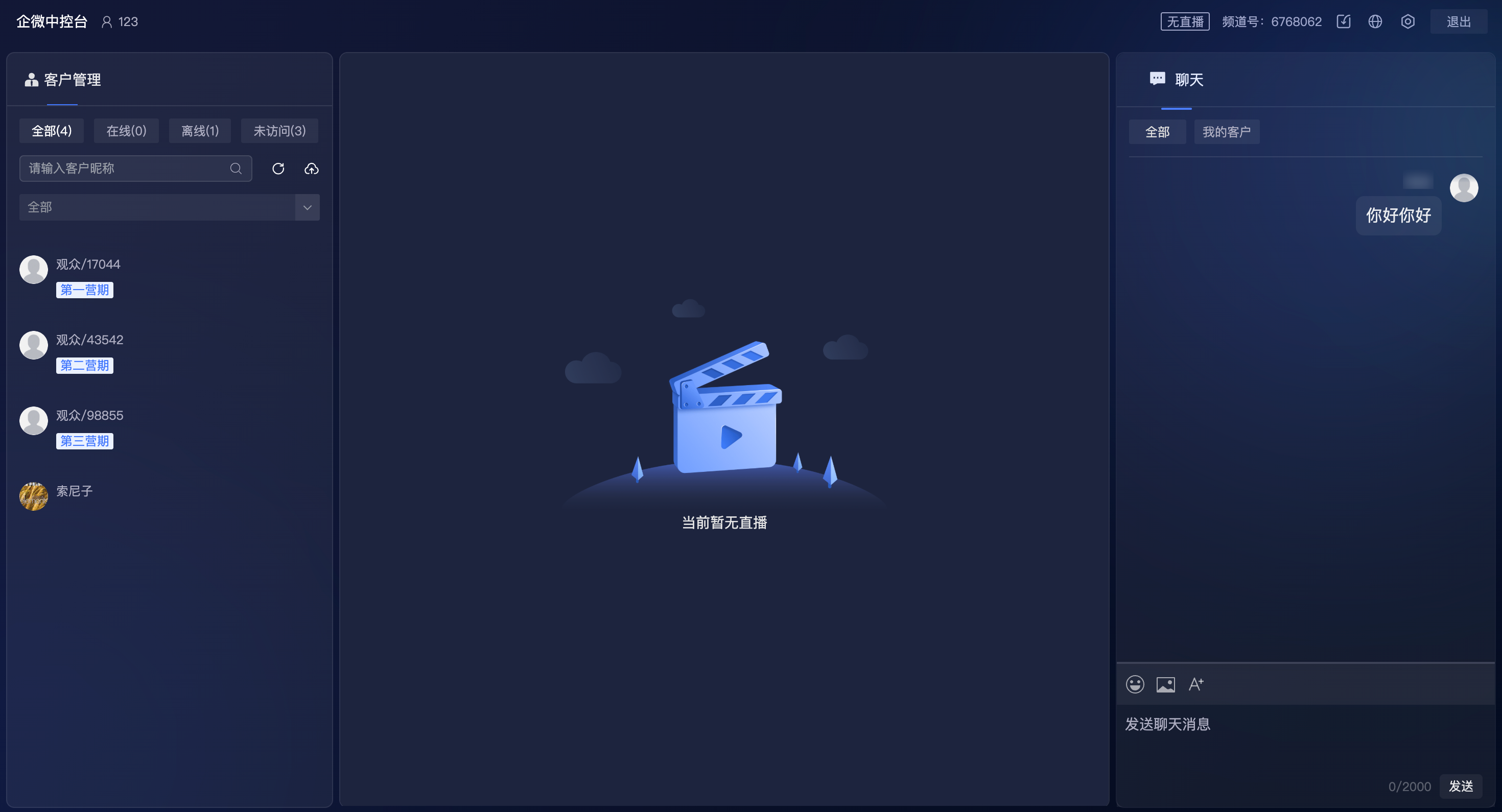
WeCom Employee Login to Live Streaming Console
Updated: 2026-08-17 11:27:00
1. Feature Description
Integrate WeCom employees as "teaching assistant roles" into the live streaming console. During the live stream:
- Precisely follow up and manage their assigned customers
- View customer viewing and interaction behaviors in real time
- Quickly respond to customer messages to improve conversion efficiency
2. Admin Side - Configure Permissions
- Administrators need to enable login permissions for the console for designated WeCom employees in the management backend.
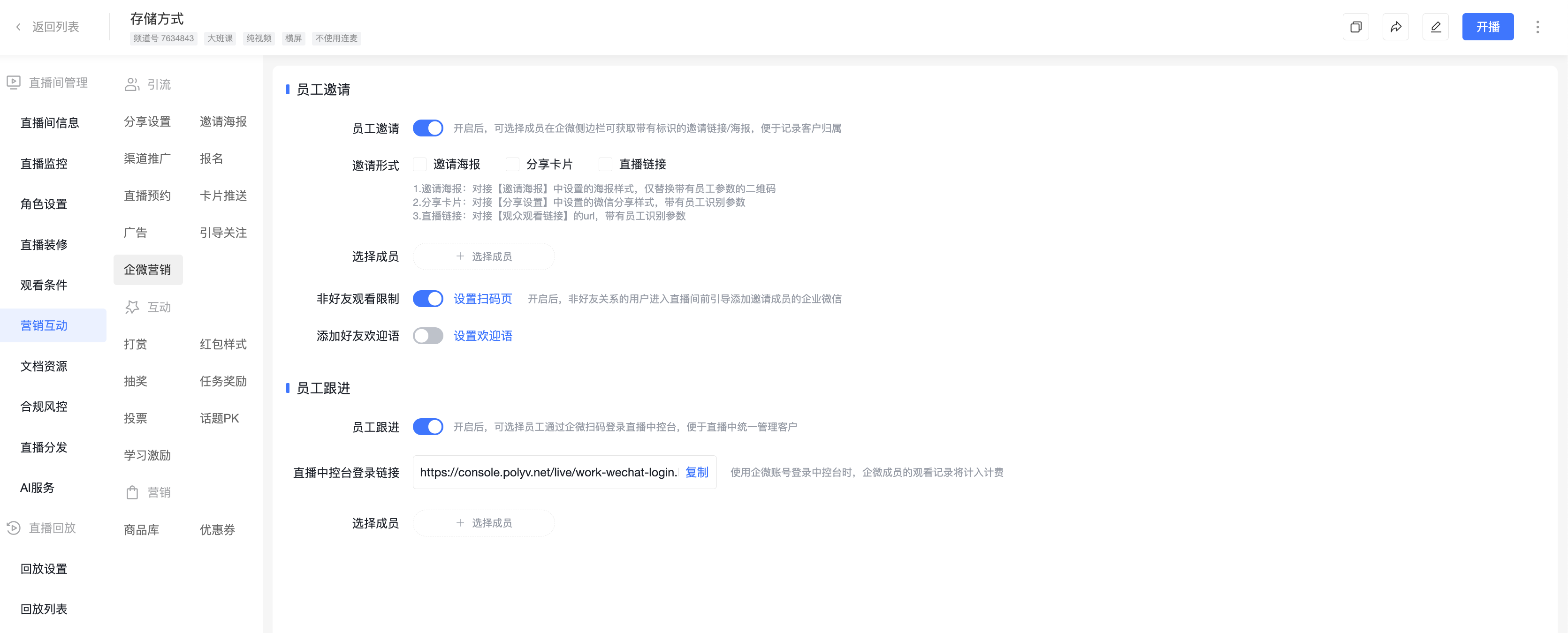
- Step 1: Enter the configuration page
- Navigation path:
Management Backend - Channel - Marketing Interaction - WeCom Marketing - Employee Follow-up
- Navigation path:
- Step 2: Select and authorize employees
- Click
Select Membersunder "Employee Follow-up" - Select the employees to be authorized from the WeCom organization. The selected employees will gain login permissions to the live streaming console for this channel.
- Click
- Step 3: Distribute the login link
- After configuration, copy the
Login Link for the Live Streaming Console - Distribute this link to authorized employees. This link is universal for the channel, and the system will verify the employee's identity upon login.
- Note: When logging into the console with a WeCom account, the viewing records of WeCom members will be counted for billing purposes.
- After configuration, copy the
3. WeCom Employee - Login to Live Streaming Console
WeCom employees can log into the live streaming console by scanning a QR code via WeCom using the link distributed by the administrator, and begin following up with customers.
- Core features are as follows:
Customer Import and Relationship Binding:
- In the
Customer Managementmodule, new features have been added:Import Tags(phone number + tag) andImport Users(phone number only) - Customers imported through these two methods will be automatically bound to the WeCom employee as the sole follower, and will be displayed synchronously in the
Management Backend - Live Stream Statistics - WeCom Marketing - Follow-up Recordsunder the "Follower" column.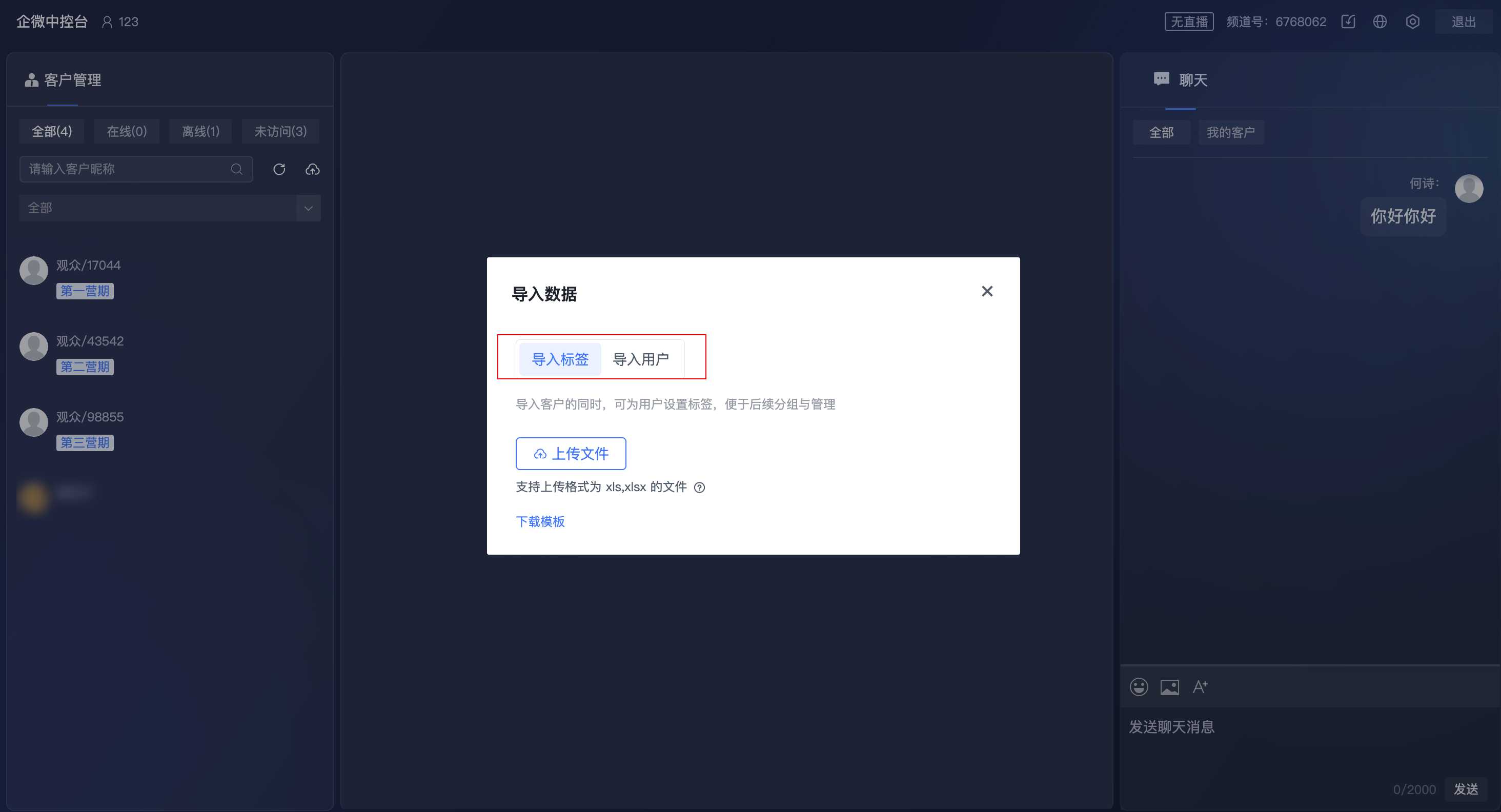
- In the
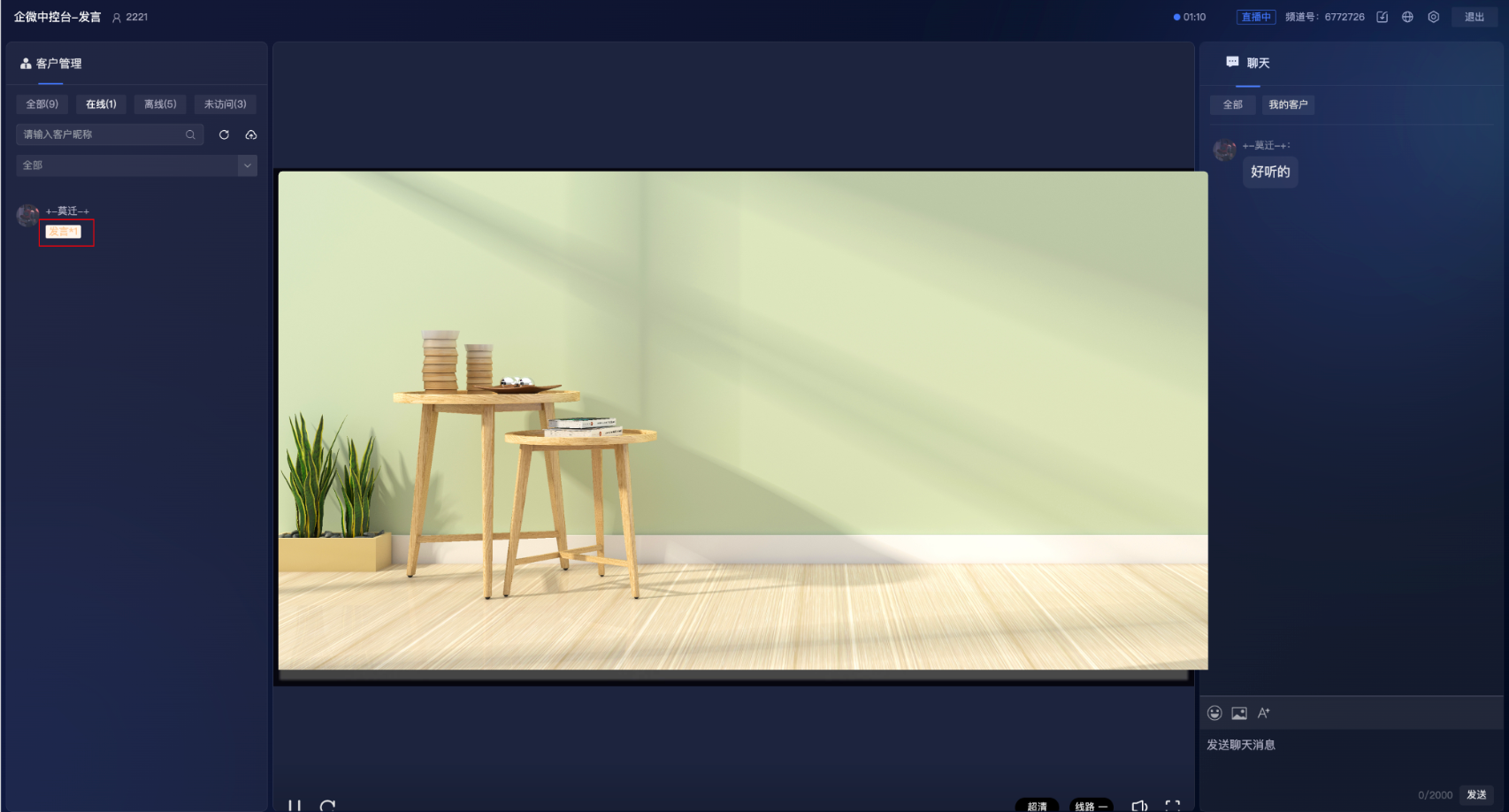
Customer List View:
- All: Includes customers imported by the current employee, as well as customers added via WeCom who have visited the viewing page at least once.
- Online: Among "All" customers, those currently watching this channel.
- Offline: Among "All" customers, those who have visited this channel but have now left.
- Not Visited: Among "All" customers, those who have never visited this channel.
Customer Data View:
- Supports viewing the number of product clicks and messages sent by customers during the live stream.
Customer Tag Filtering:
- Filtering Function: In all four lists above, dropdown search and filtering by tags are supported.
- Tags added via the console or API can be used for filtering in real time; tags added for users in the management backend can only be filtered in the console after the user enters or refreshes the viewing page. For customers who have never visited, filtering via backend tags is not yet possible.
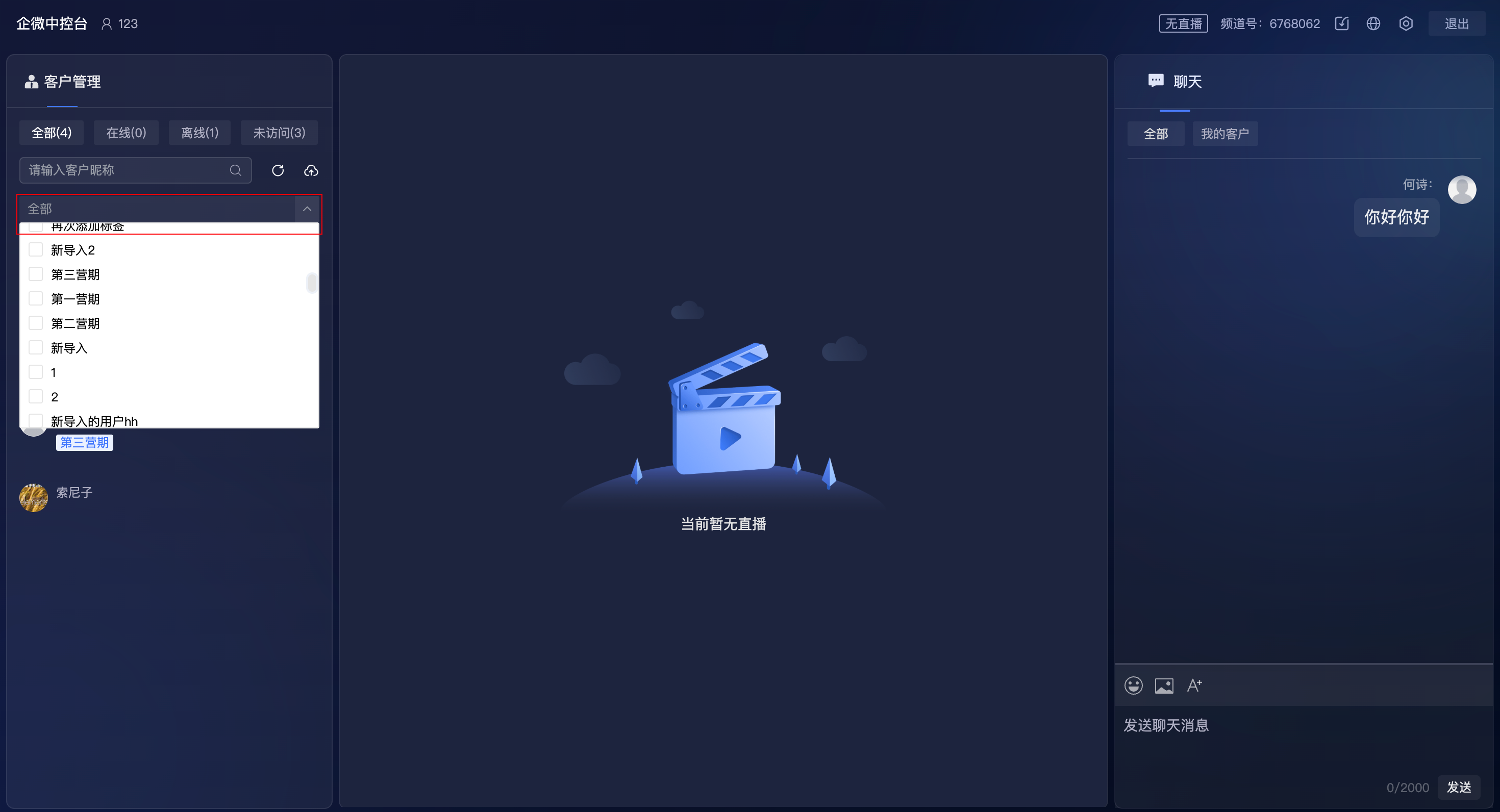
Chat Message Management: Supports viewing all messages in the chat room.
- Can filter to
View Only My Customersto precisely track customer messages and interact efficiently. - Requires toggling a button to refresh the chat page.
- Can filter to
Interaction Management: When a customer violates rules or makes inappropriate remarks, actions such as muting the customer, muting their IP, or kicking them out of the live room can be taken (also supports unmuting/unblocking IP/undoing kick).