Courseware Upload / Document Resources / Document List
I. Feature Overview
Feature Info |
Description |
|---|---|
| Feature Name | Document Resources |
| Feature Description | The "Document Resources" feature allows users to upload local documents during a live stream, set them as courseware in the live room, and supports real-time editing, doodling, annotation, etc., making courseware explanation easier and more interactive. |
| Purpose | Optimize teaching and presentation effects: Provide a more intuitive and flexible display method for scenarios such as education and training, improving information delivery efficiency. Improve efficiency: Operate directly on documents without switching tools, simplifying the process and saving time. |
| Use Cases | Online teaching, corporate training, meeting presentations, knowledge sharing sessions, etc. |
| Operation Path | 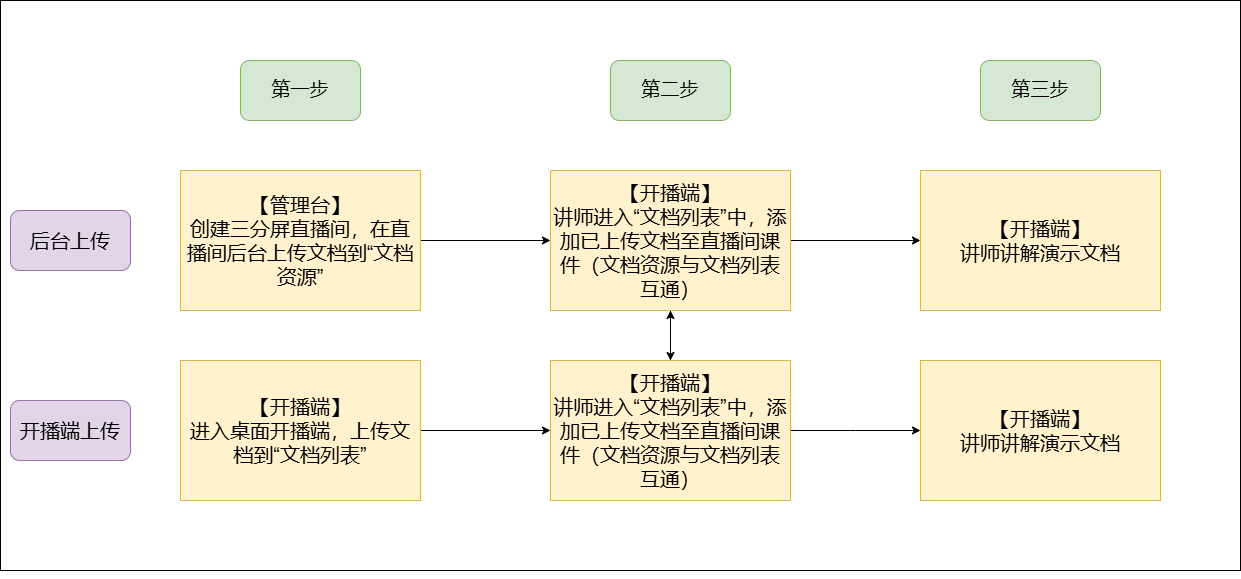 |
II. Usage Instructions
There are two ways to upload courseware in a three-screen live stream: one is to upload to Document Resources in the backend, and the other is to upload directly to the Document List in the broadcasting client (the Document List and Document Resources are essentially the same thing).
Upload to Document Resources in the Backend
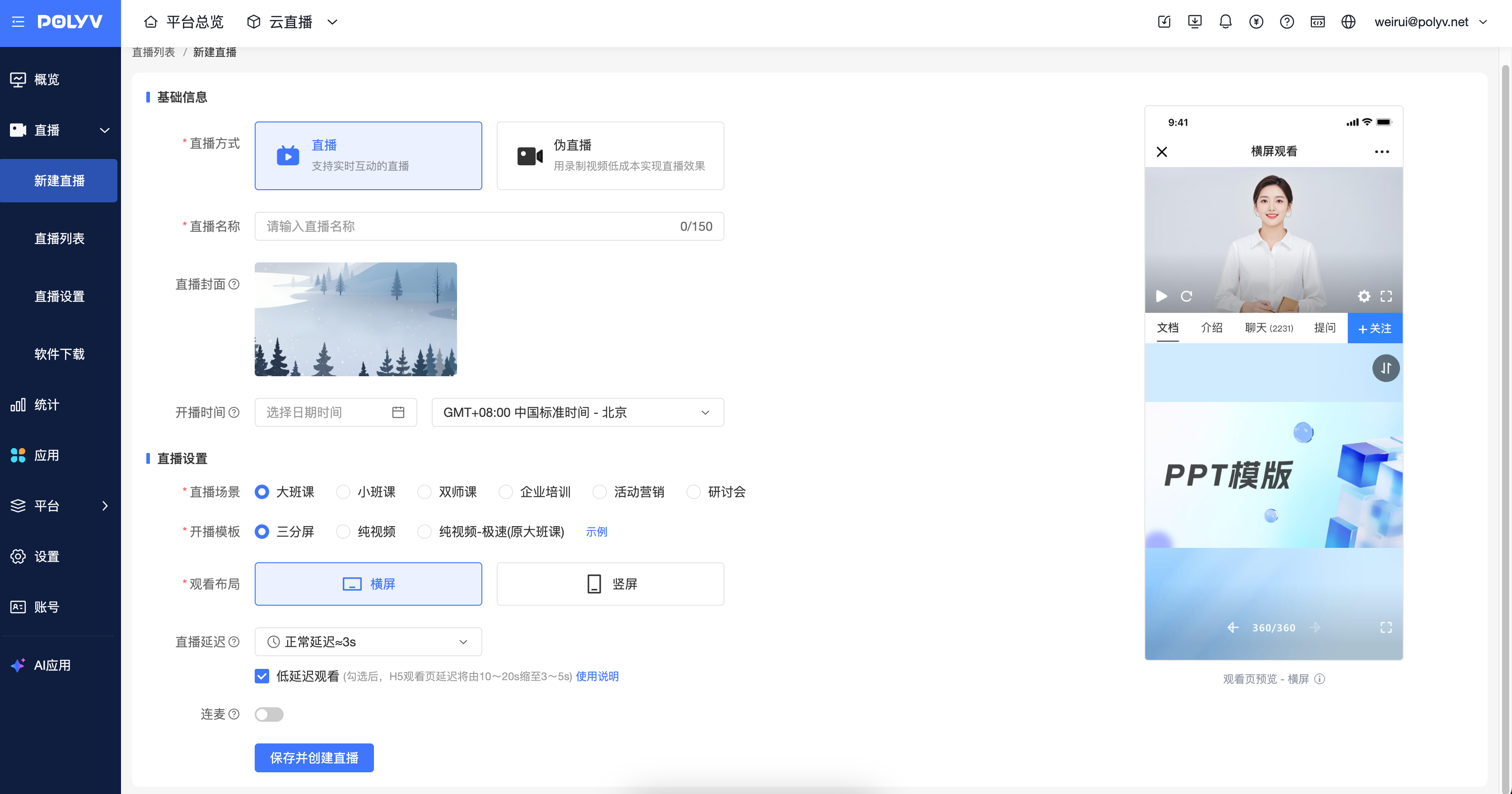
First, create a three-screen live room.
!
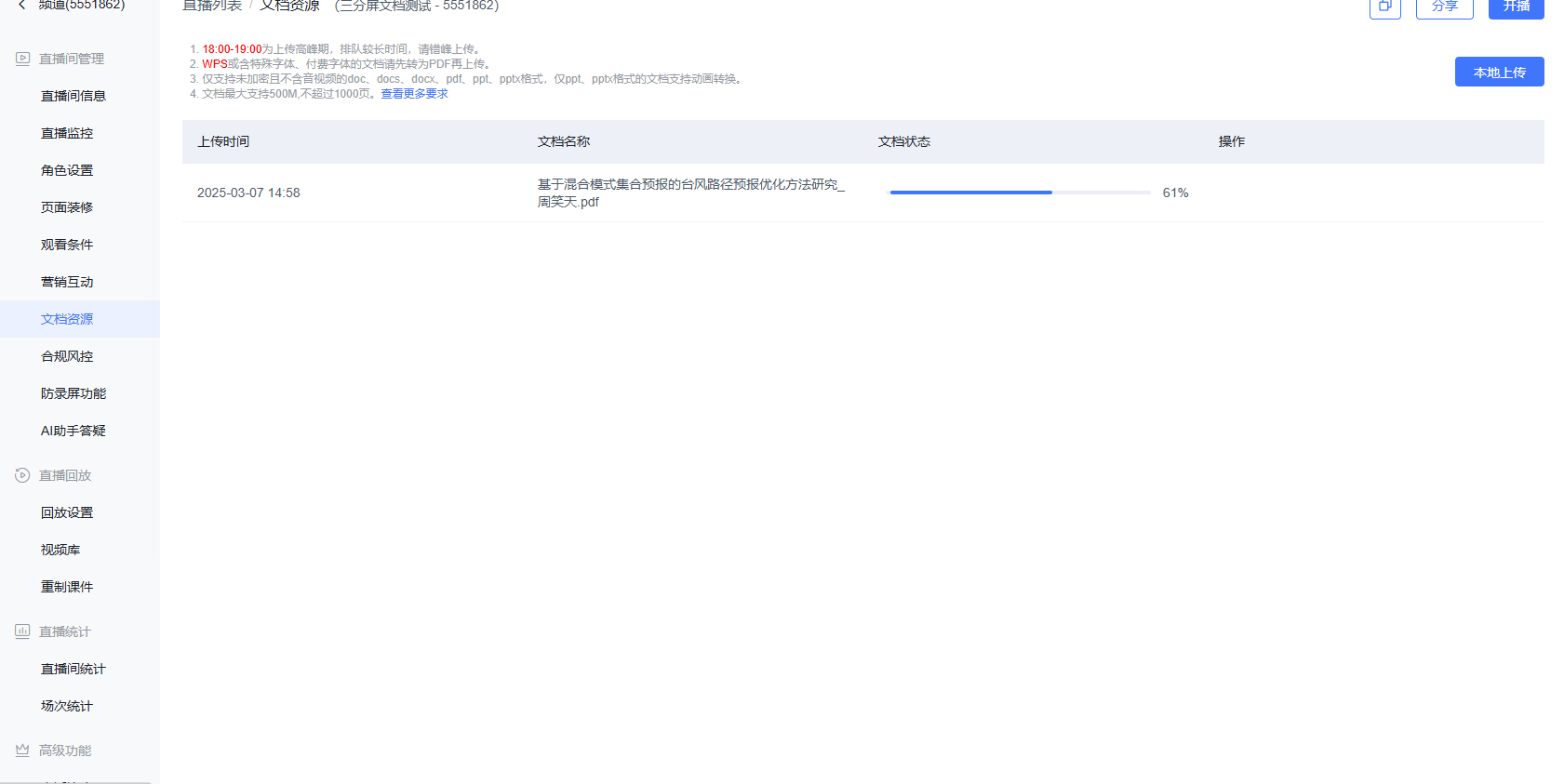
Enter the live room backend, find "Document Resources" under the "Live Room Management" section, and click "Local Upload".
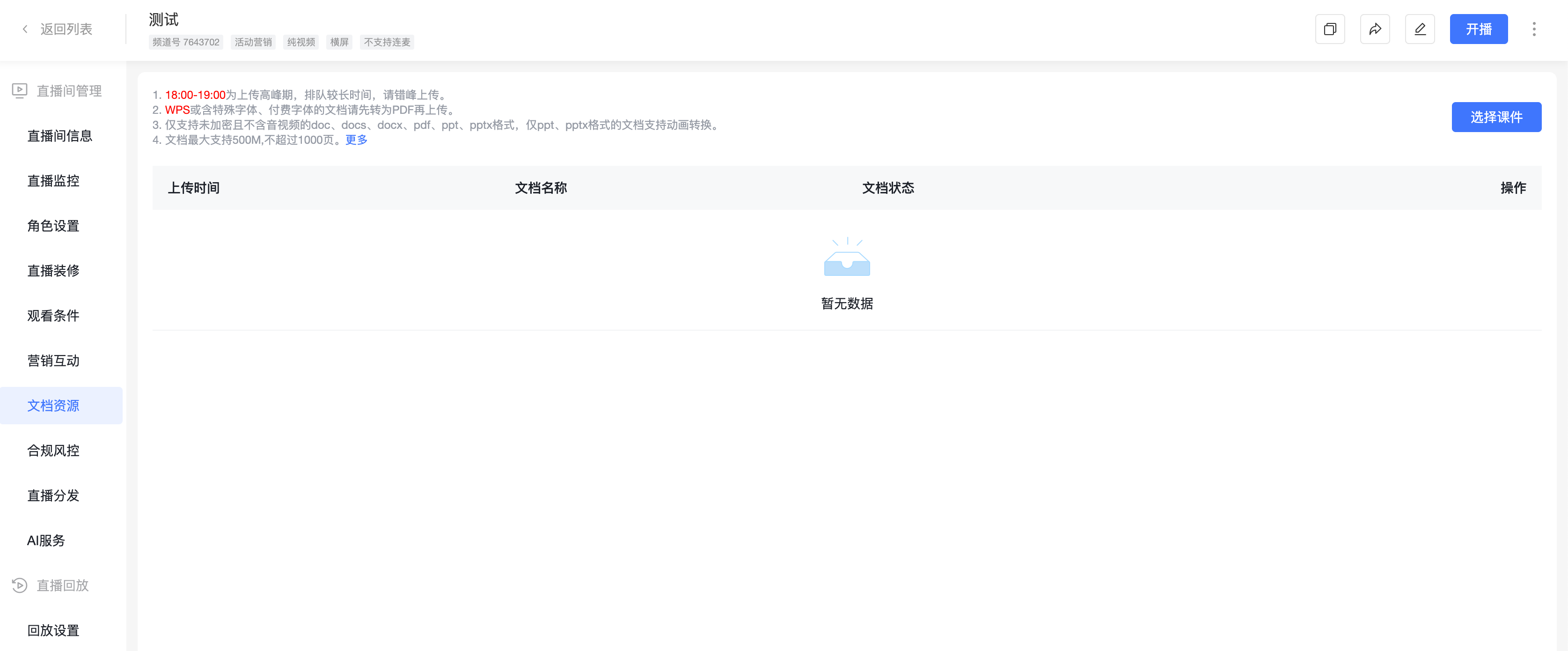
Upload and wait for transcoding.
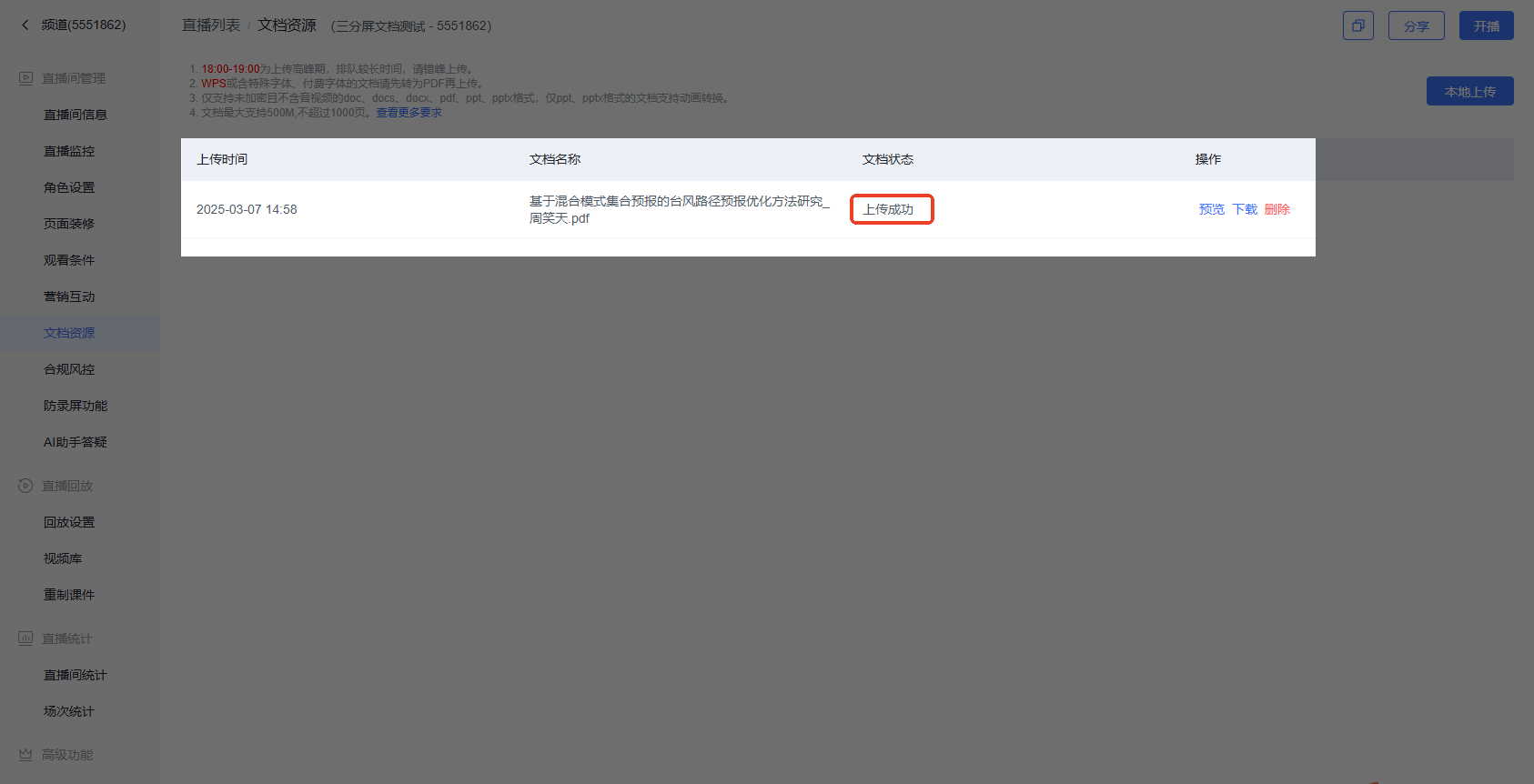
Transcoding completed.
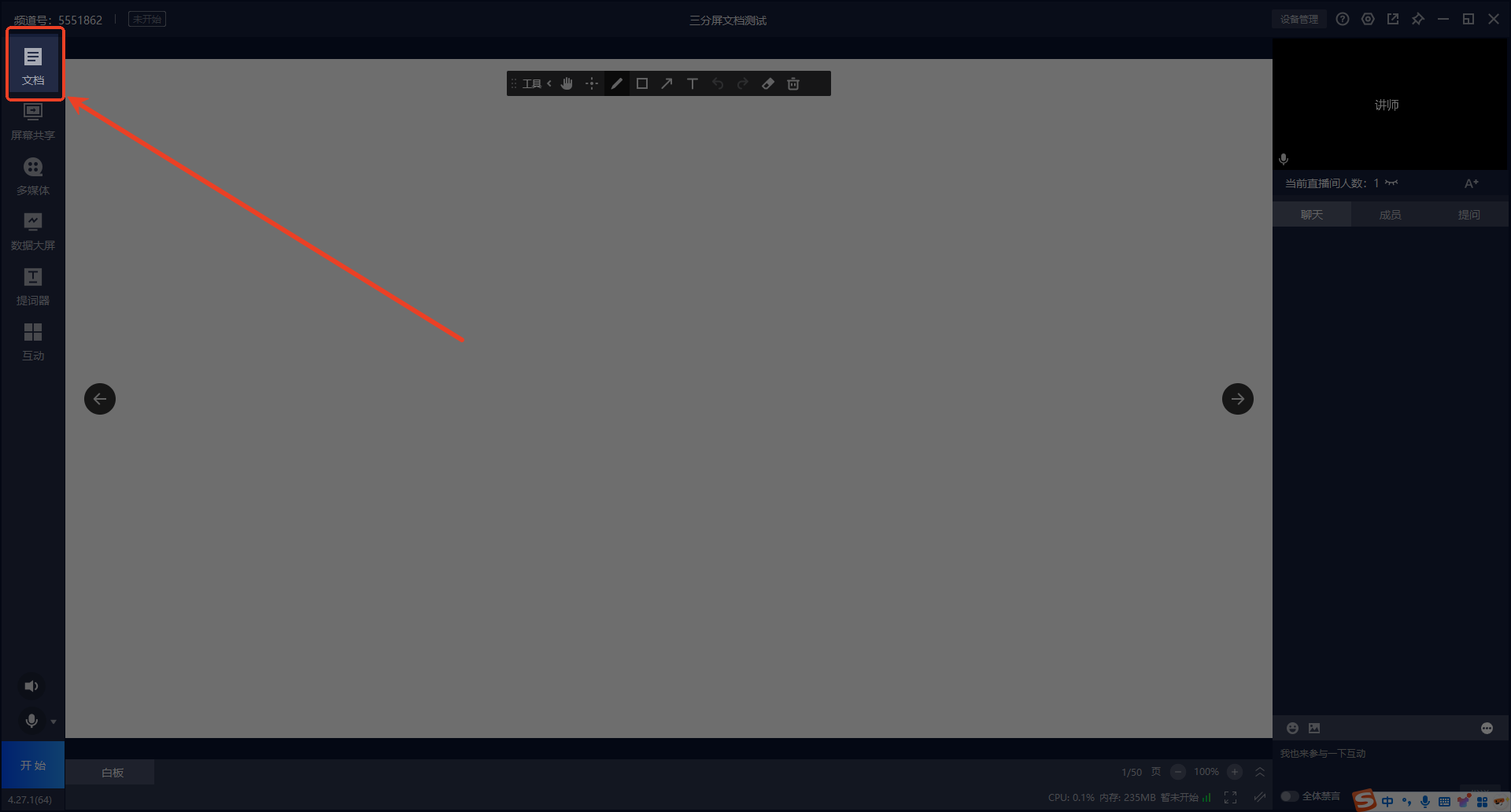
Enter the PC desktop broadcasting client, find the "Documents" button on the left.
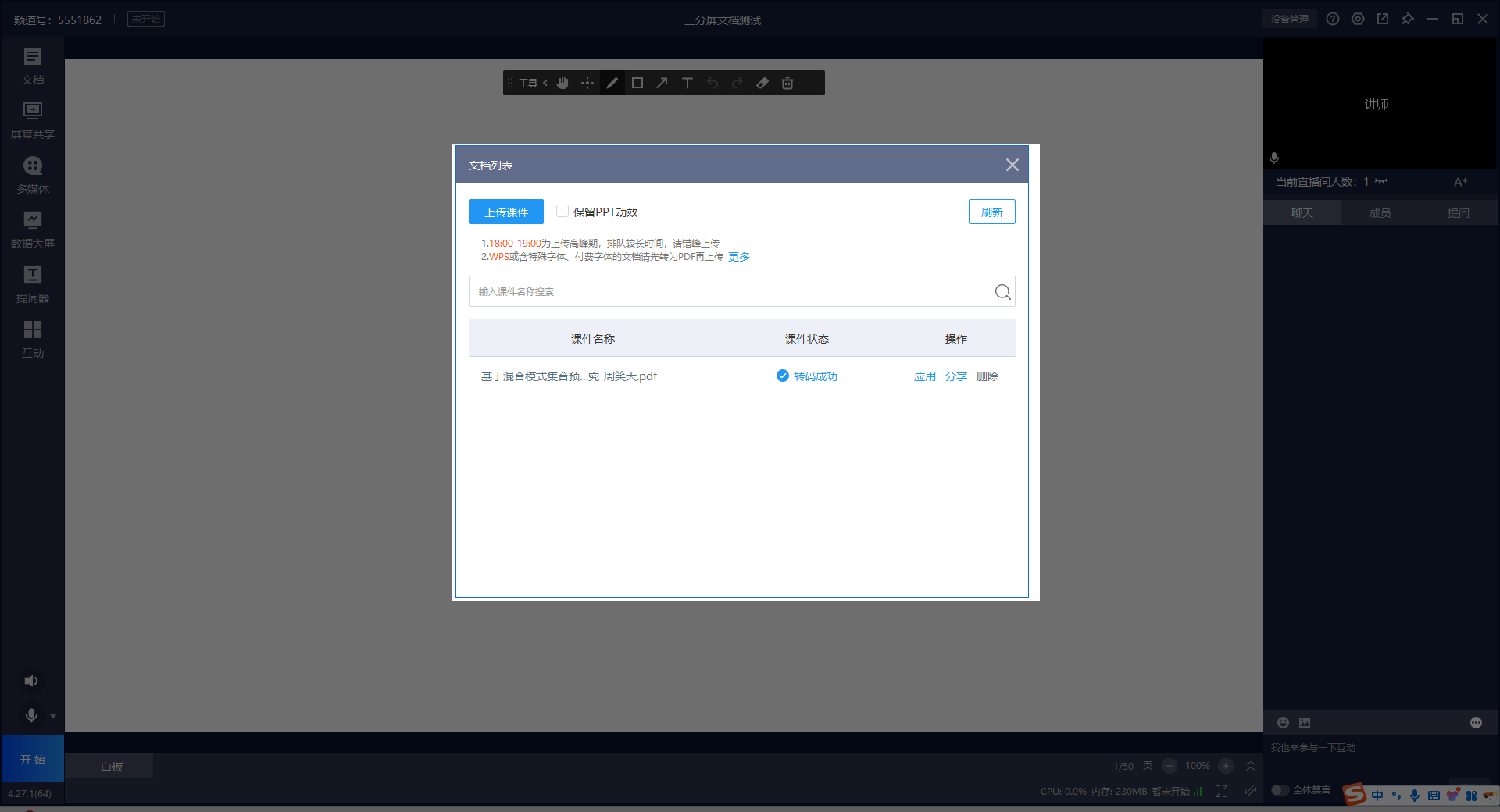
You can see the courseware uploaded to Document Resources in the backend just now appears here. Click "Apply".
After going live, the instructor explains the courseware to the audience.
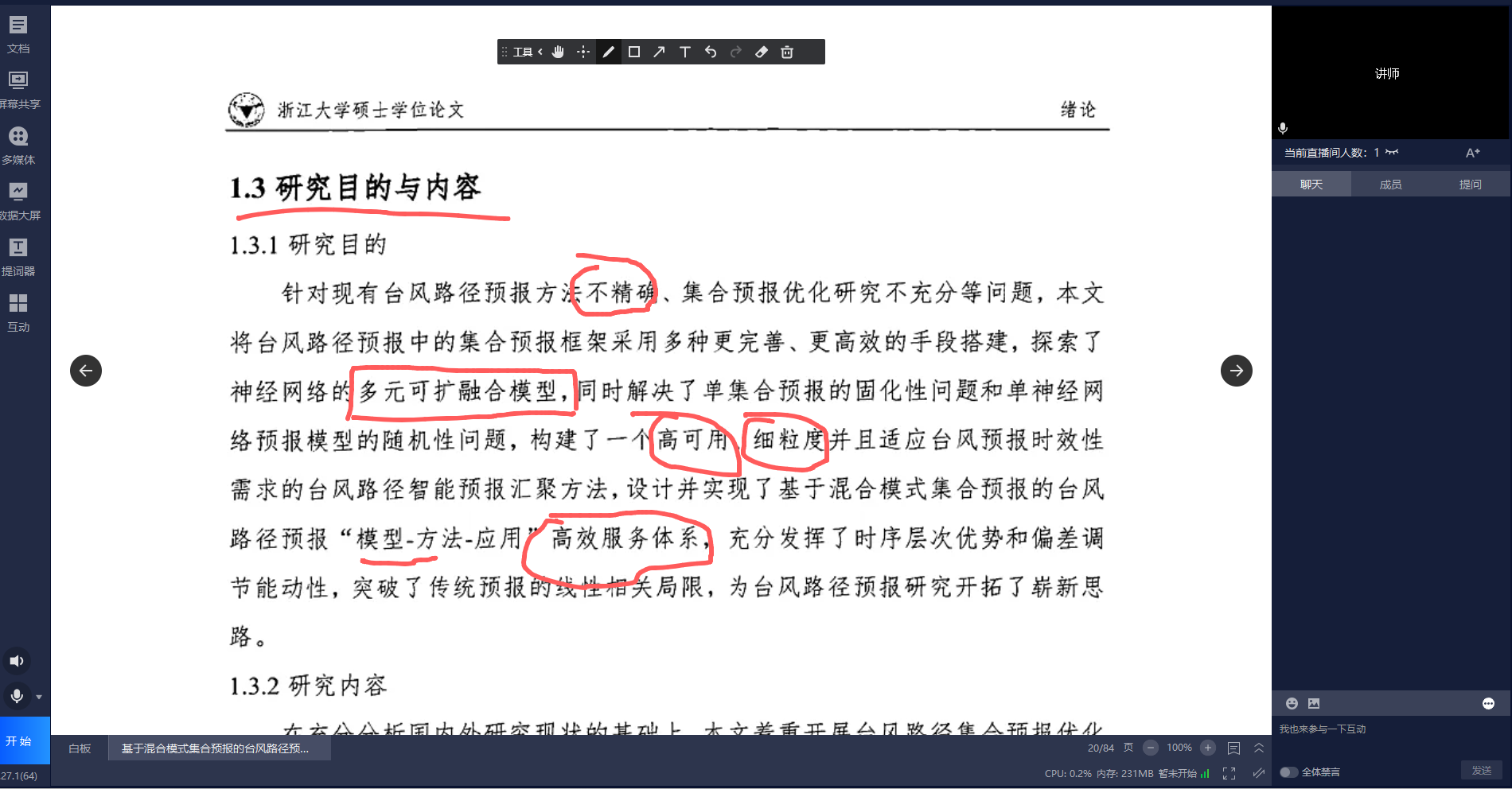
Upload to Document List in the Desktop Broadcasting Client
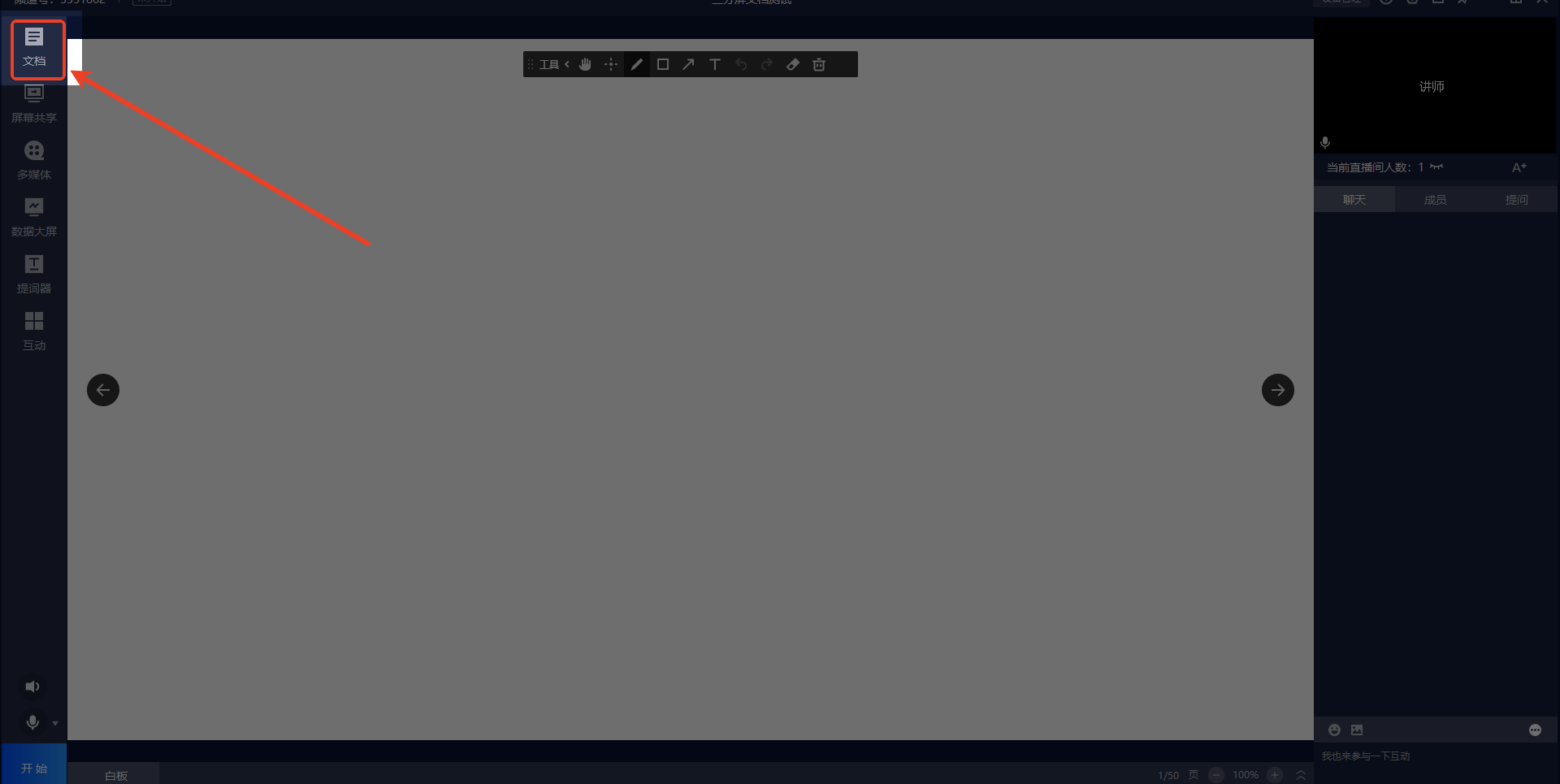
Create a three-screen live room, enter the desktop broadcasting client, and click the "Documents" feature on the left.
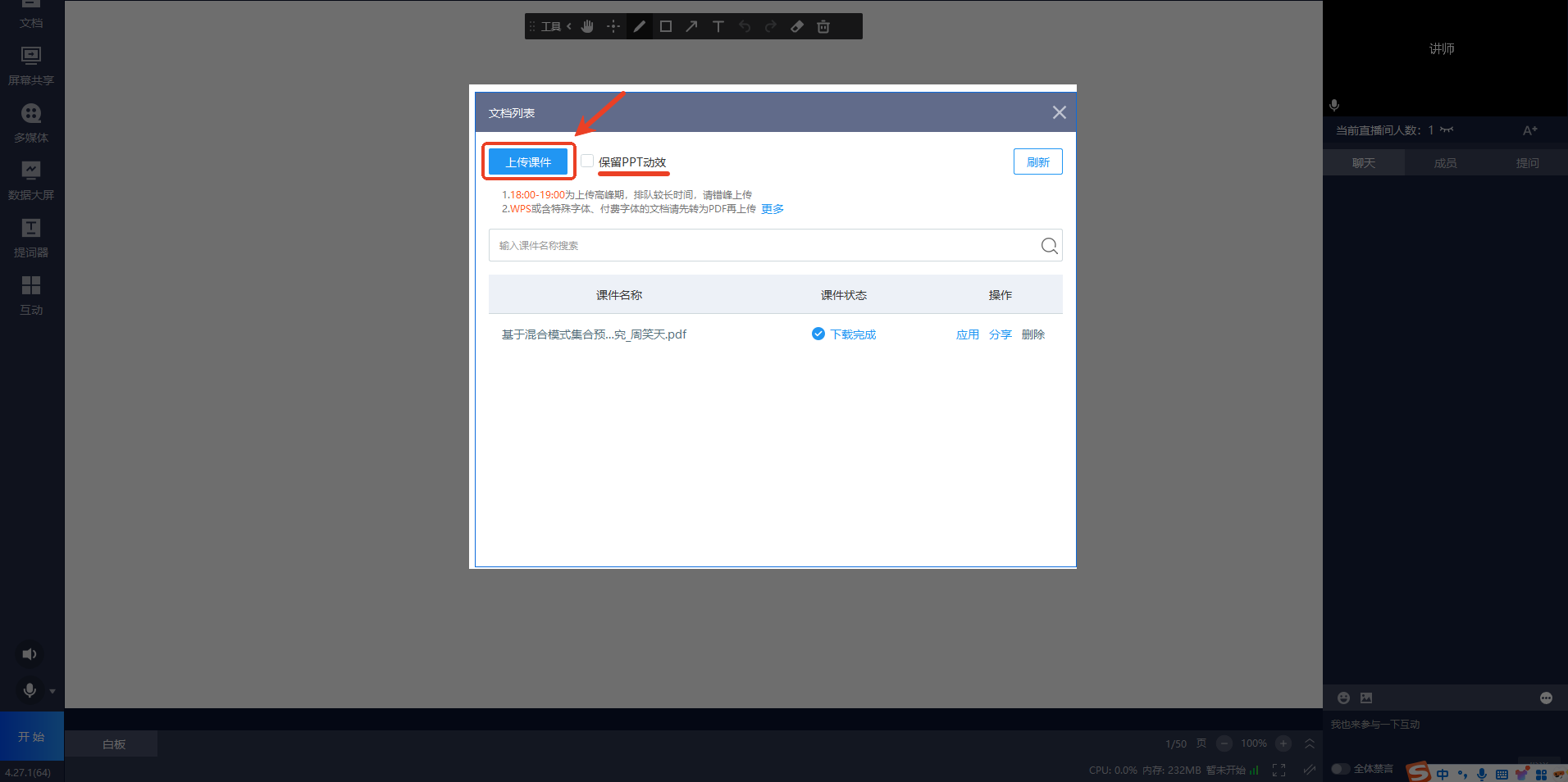
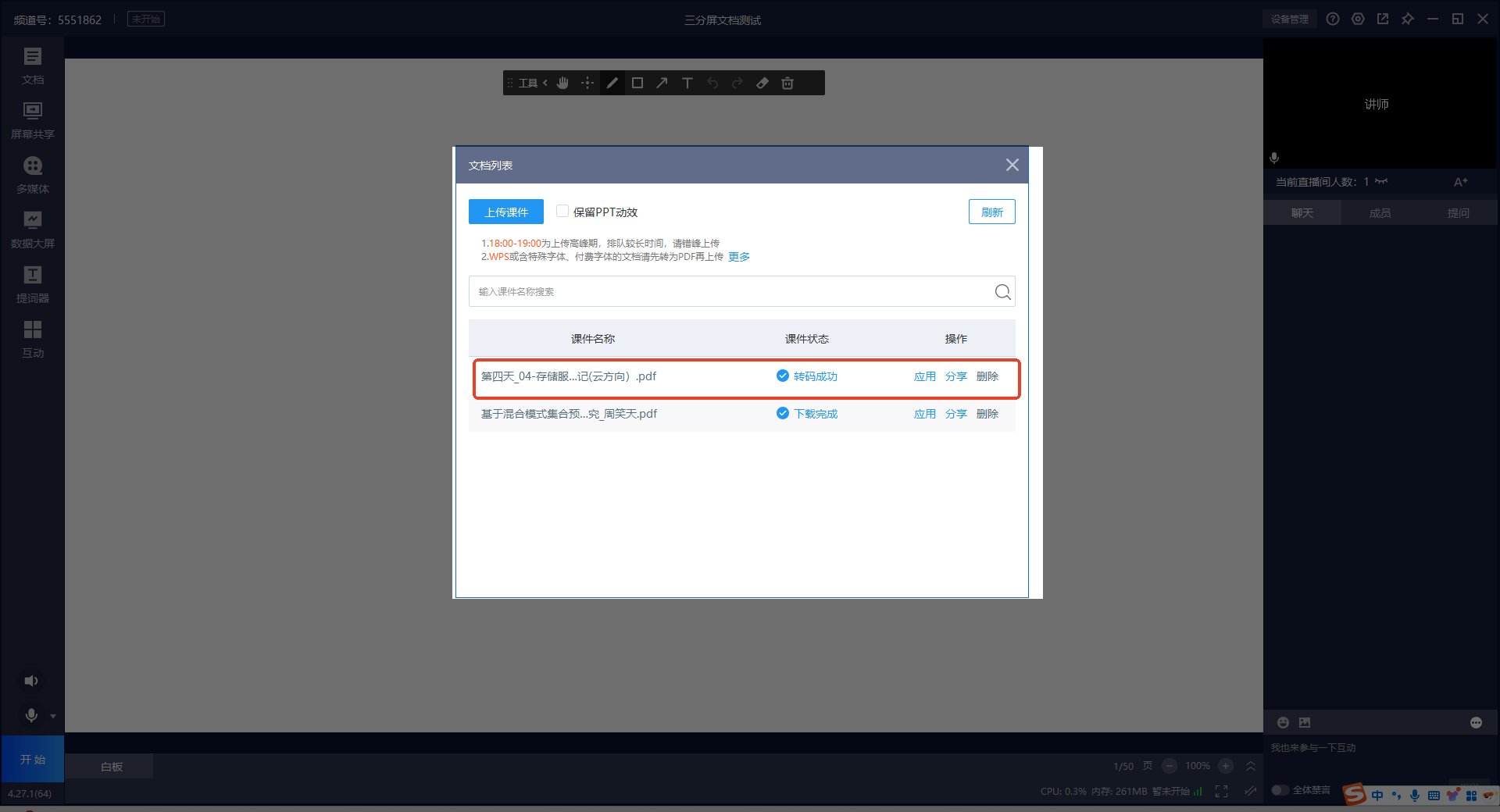
Click "Upload Courseware". If you want to retain PPT animations, check the "Retain PPT Animations" checkbox.
Upload successful, wait for transcoding.
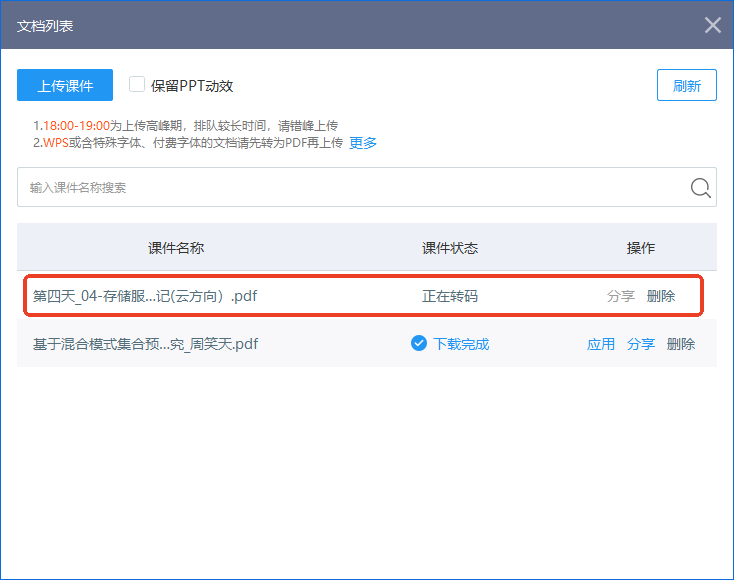
Transcoding successful, click "Apply".
After going live, the instructor explains the courseware to the audience.