


Live Atmosphere & Effects
Live atmosphere and effects are used to display like feedback, trending comments, and audience visit, purchase, and interaction behaviors on the viewing page. This article describes how to configure like effects, comment atmosphere, and other message effects.
1. Feature Overview
| Feature Info | Description |
|---|---|
| Feature Name | Live Atmosphere & Effects |
| Feature Description | Supports configuring like icons and animations, and displaying comment atmosphere, visit, purchase conversion, and interaction activity effects in the chat area |
| Purpose | Display corresponding feedback when audiences like, comment collectively, enter the live room, or participate in interactions |
| Use Cases | Live streaming scenarios such as event operations, marketing promotions, and education/training |
| Operation Path | [Live List] → Select a live stream to enter details → [Live Decoration] → [Feature Settings] → [Chat] |
2. Usage Instructions
2.1 Enter the Configuration Page
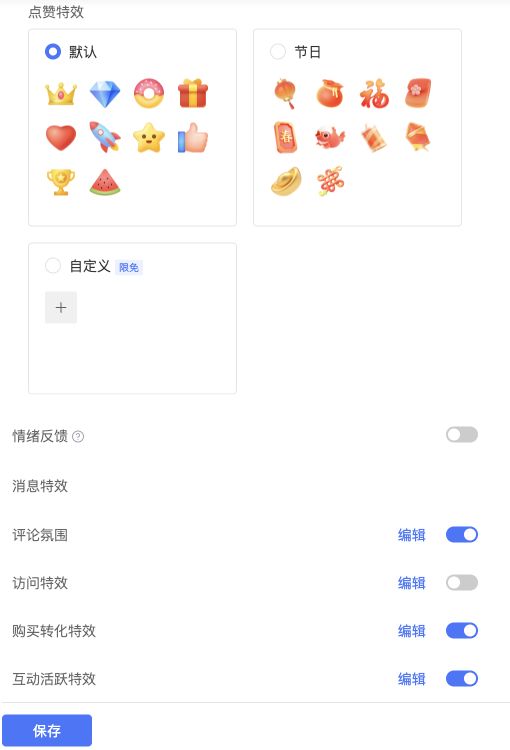
Enter the live stream details, click [Live Decoration] → [Feature Settings] → [Chat] in sequence, scroll down to find [Like] and [Message Effects].
During configuration, you can switch between [Landscape], [Portrait], and [PC] on the right side to preview the page. After completing the settings, click [Save] at the bottom of the page.
Below is the configuration area for like effects and message effects:
2.2 Set Like Effects
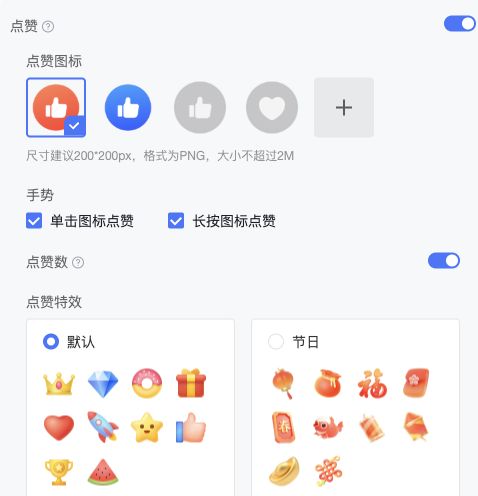
After enabling [Like], you can set the icon, operation gesture, and animation effect used when audiences like.
- In [Like Icon], select a system icon, or click the add entry to upload a custom icon. The recommended size for custom icons is 200 × 200 px, format PNG, and size no larger than 2 MB.
- In [Gesture], check [Click icon to like] or [Long press icon to like]; both can be checked simultaneously.
- Enable [Like Count] as needed to control whether the like count is displayed on the viewing page.
- In [Like Effect], select a set of effects, then click [Save].
| Like Effect | Description |
|---|---|
| Default | Uses the default effect materials provided by the system |
| Holiday | Uses holiday-themed materials such as lanterns and blessing characters |
| Custom | Click the add entry to upload custom effect materials |
[Like Icon] is used to set the button style that audiences click; [Like Effect] is used to set the animation material that appears when liking. They are configured separately.
2.3 Set Message Effects
[Message Effects] includes [Comment Atmosphere], [Visit Effect], [Purchase Conversion Effect], and [Interaction Activity Effect], which can be enabled separately as needed for the live stream.
2.3.1 Comment Atmosphere
Comment atmosphere is used to highlight identical comments sent collectively by audiences within a short period.
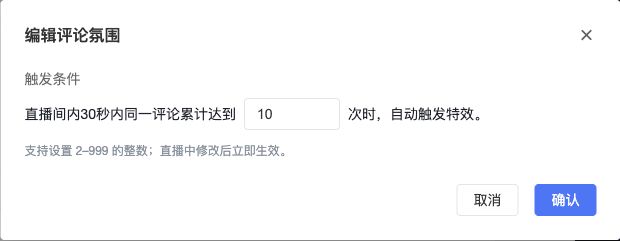
- Enable [Comment Atmosphere], then click [Edit] on the right.
- In [Trigger Condition], set the count: when the same comment accumulates to this count within 30 seconds in the live room, the effect is automatically triggered. Supports setting an integer from 2 to 999.
- Click [Confirm], then click [Save] after completing the page configuration.
For example, if the count is set to 10, the comment atmosphere effect is triggered when the same comment accumulates to 10 times within 30 seconds.
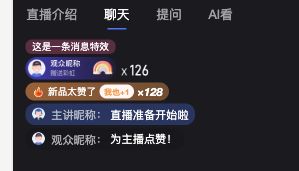
After triggering, the chat area displays the atmosphere effect for the corresponding comment, showing the comment content and an [I also +1] entry. Overly long comments are omitted in the effect, but the full content remains in the chat message list. Below is a preview example from the backend:
2.3.2 Visit, Purchase Conversion, and Interaction Activity Effects
The following effects are triggered based on actual audience behavior:
| Effect Type | Triggering Behavior | Display Form |
|---|---|---|
| Visit Effect | Audience visits the live room | Runway message |
| Purchase Conversion Effect | Audience clicks on a regular product, financial product, or job product | Runway message and chat message |
| Purchase Conversion Effect | Audience successfully places an order for a regular product | Runway message and chat message |
| Interaction Activity Effect | Audience successfully checks in | Runway message |
| Interaction Activity Effect | Audience successfully tips | Runway message and chat message |
Configure by following these steps:
- Enable the desired effect and click the corresponding [Edit].
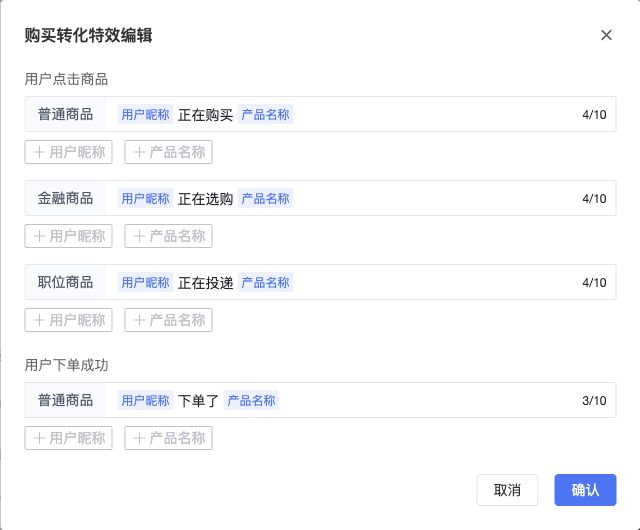
- Fill in the display text for the corresponding behavior. For purchase conversion effects, you can set different click texts for different product types, as well as the text for successfully placing an order for a regular product.
- Insert variable tags such as [User Nickname] and [Product Name] as needed. When the effect is triggered, the system replaces the tags with the corresponding actual content.
- Click [Confirm], then click [Save] at the bottom of the page.
For trigger items that support custom text, if the text is empty, the effect will not be displayed even if the effect switch is enabled and the audience performs the corresponding behavior. Custom text is not supported for successful user tips.
Below is an example of text configuration for purchase conversion effects:
2.3.3 Audience-Side Display Effect
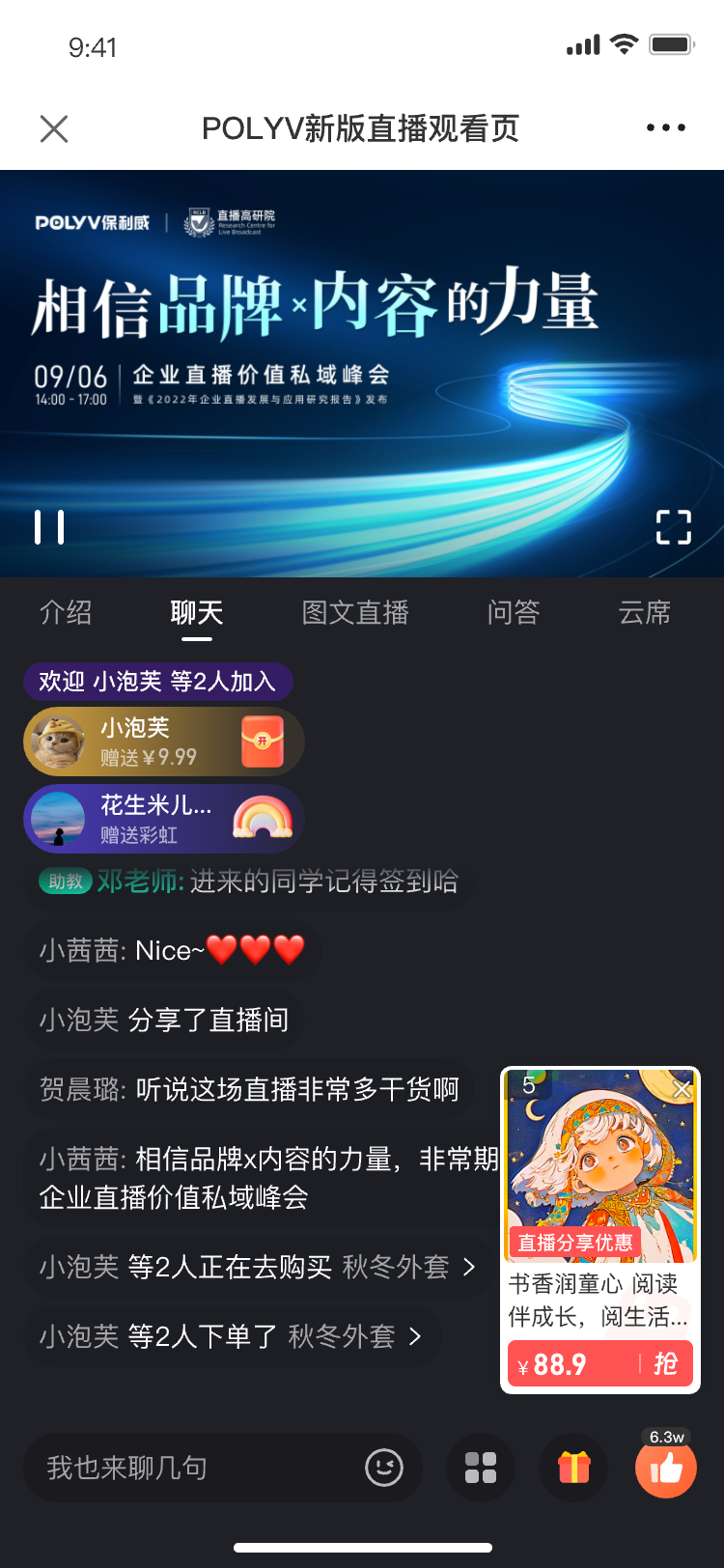
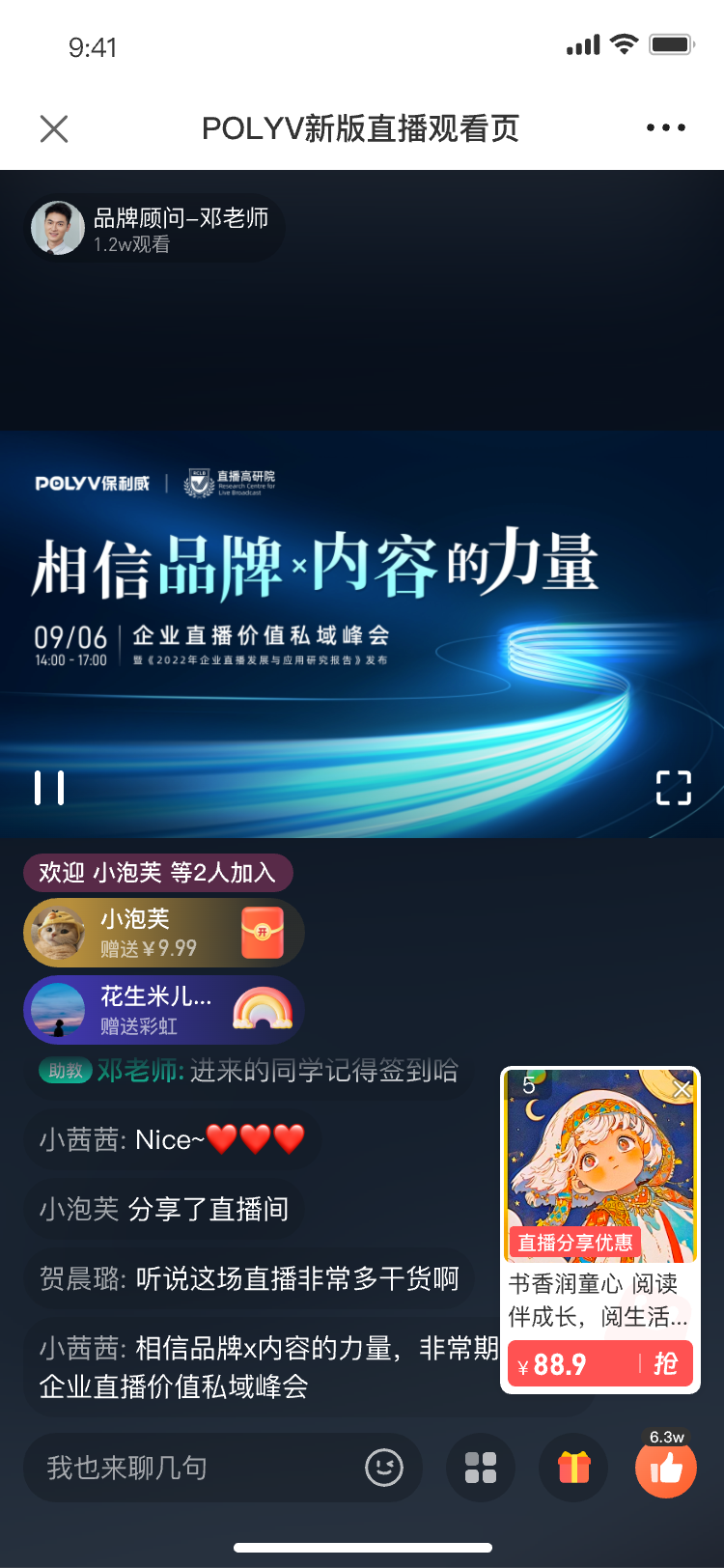
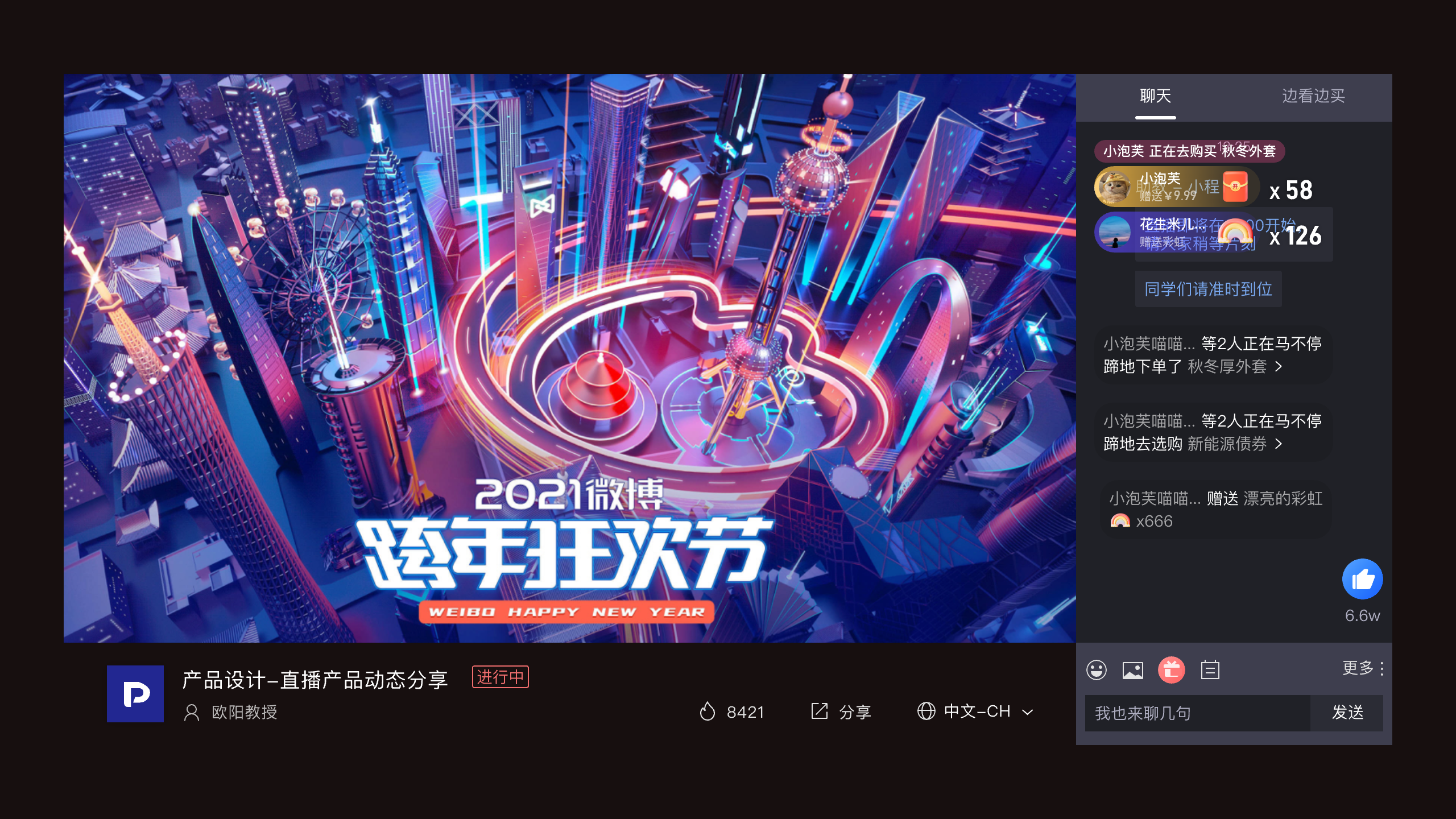
After visit, purchase conversion, and interaction activity effects are triggered, corresponding messages are displayed to the live room audience.
- Runway message: Slides in from the left side of the chat area and disappears after a few seconds.
- Chat message: Displayed in the chat message list; audiences can still see it when scrolling up to view chat history. Clicking on a product, successfully placing an order, and successfully tipping generate this type of message.
Mobile landscape live streaming effect:
Mobile portrait live streaming effect:
Web effect:
2.4 Reuse Message Effect Configurations
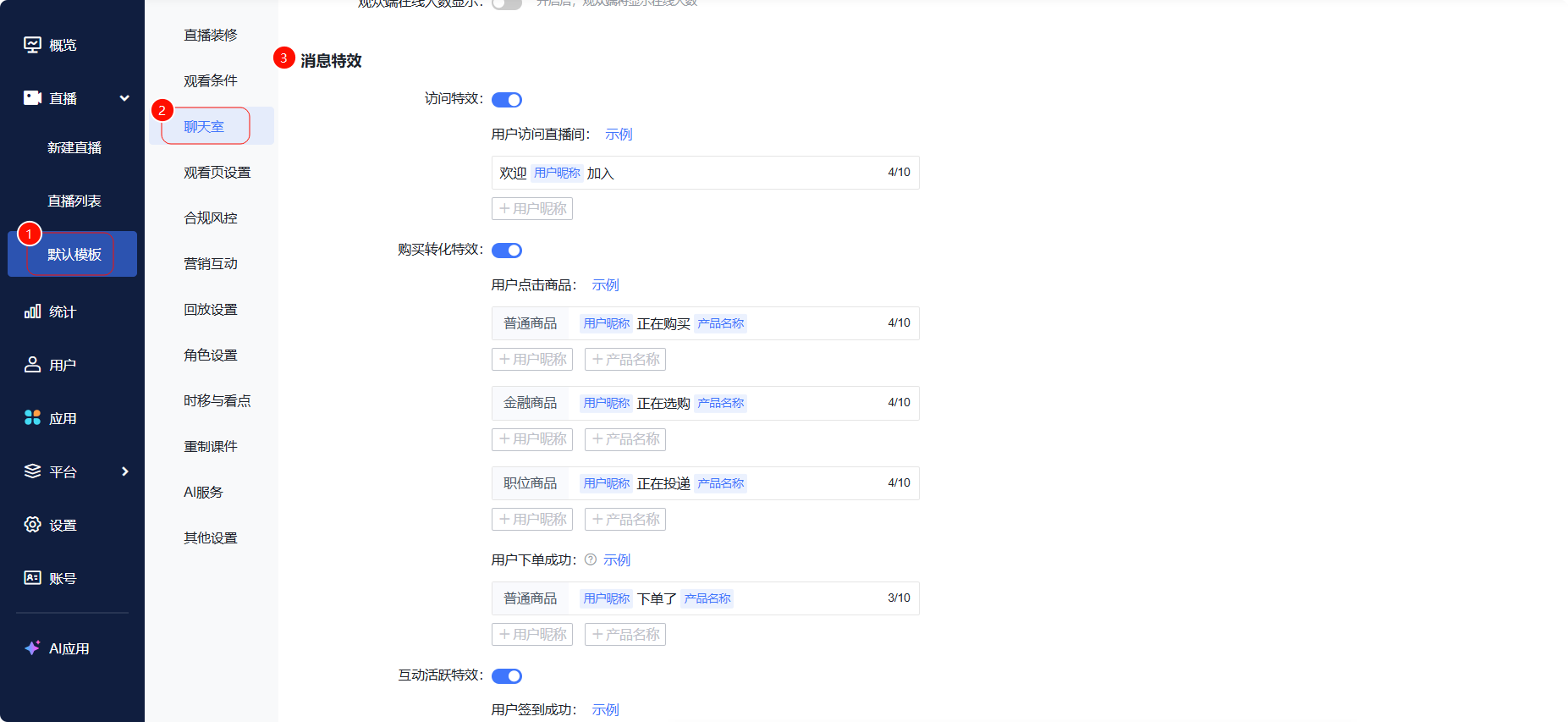
To have newly created channels inherit the [Visit Effect], [Purchase Conversion Effect], and [Interaction Activity Effect] configurations, enable the corresponding effects and set custom text in [Default Template] → [Chat Room]. After setting, newly created channels will read the switch status and custom text for these three types of effects.
2.5 Related Features
For information on the usage and limitations of [Emotional Feedback], please refer to the Emotional Feedback documentation.
3. Frequently Asked Questions
Q: What is the difference between the like icon and the like effect?
A: The like icon is the button style that audiences operate; the like effect is the animation material that appears when liking. You can choose system materials or custom materials separately.
Q: I have enabled message effects, but why are they not displaying?
A: First, check if you clicked [Save] at the bottom of the page. Then, check if the audience has triggered the corresponding behavior. For trigger items that support custom text, also ensure the text is not empty. For comment atmosphere, the set number of identical comments must be reached within 30 seconds.
Q: Can the trigger count for comment atmosphere be modified?
A: Yes. Go to [Message Effects] → [Comment Atmosphere] → [Edit], set the trigger count to an integer between 2 and 999, confirm, and save.
Q: Can message effects still be seen in the chat history after they disappear?
A: Runway messages disappear after a few seconds of display; chat messages generated by clicking on a product, successfully placing an order, or successfully tipping can be viewed in the chat history. The full comments in the comment atmosphere remain in the chat message list.
Q: Can the visit, purchase conversion, and interaction activity effects be used for newly created channels later?
A: Yes. Set the switch status and custom text for these three types of effects in [Default Template] → [Chat Room]; newly created channels will read this configuration.
